How to Create a Photo Slideshow for a Funeral or Memorial Service

Someone in the family has passed away, and now you're the one putting together the slideshow. Maybe you volunteered. Maybe you were asked because you're "the tech person." Either way, you have two days, a funeral home that needs a USB stick, and photos scattered across a dozen phones, shoeboxes, and Facebook accounts you can't access.
That's the reality most people face. Not "how do I add transitions in PowerPoint," but "how do I get Aunt Linda's photos off her phone before Thursday."
This guide covers both parts: collecting the photos (the hard part) and assembling the slideshow (the surprisingly easy part). Even if you've never made one before, you can have something beautiful ready in a few hours.
The Hardest Part Isn't the Software
Here's what catches people off guard. The slideshow itself takes maybe 30 minutes once you have the photos. It's the gathering that eats up hours. According to FuneralSlides.com, the photo collection phase is consistently the most time-consuming step, with the actual assembly taking as little as 10 minutes using an online tool.
The photos you need are everywhere. On your mom's phone. In your brother's iCloud. Printed in a box in someone's closet. On an old laptop nobody has booted up in three years. And you need them all funneled to one place, fast, while everyone is grieving and distracted.
A group text saying "send me your best photos of Dad" sounds simple enough. What actually happens: three people text you photos individually (compressed to potato quality by iMessage). Two people say they'll send them "later." One person emails a zip file you can't open on your phone. Your cousin posts five photos to the family WhatsApp group, but they're 200KB thumbnails.
Start With a Shared Folder (Any Shared Folder)
Before you think about transitions, music, or fonts, solve the collection problem. You need one central place where everyone can drop photos in original quality.
Your options:
- Google Photos shared album: Works if everyone has a Google account. Many older family members don't.
- iCloud Shared Album: Apple-only. Compresses photos. Not ideal.
- Dropbox or Google Drive folder: Good for quality, but requires sign-in and folder navigation. Not intuitive for everyone.
- A QR code gallery: Everyone scans a code with their phone camera, uploads directly from their camera roll. No app, no account, no login. This is where something like Photogala fits well, especially when you need contributions from people who aren't tech-savvy.
The best method is whichever one your family will actually use. If everyone's on iPhone and uses iCloud daily, a shared album works fine. If your family spans three countries and four generations, a QR code approach removes every friction point.
Set a deadline for photo submissions. Something like "Please send or upload your photos by Wednesday 6 PM so I can finish the slideshow Thursday morning." Without a deadline, you'll be chasing people the night before the service.
How a QR Code Gallery Helps
Picture this: you create a gallery in two minutes, print the QR code, and text it to the family group chat. Your 74-year-old uncle opens his phone camera, scans it, and uploads six photos of fishing trips with his brother. No app download. No "what's my Google password." No compressed thumbnails.
Photogala works exactly like this. You get a browser-based gallery where anyone can upload photos and videos at original quality. For a memorial, it solves three problems at once: collecting photos from scattered family members, keeping everything in one place at full resolution, and letting people contribute even if they can't attend the service in person.
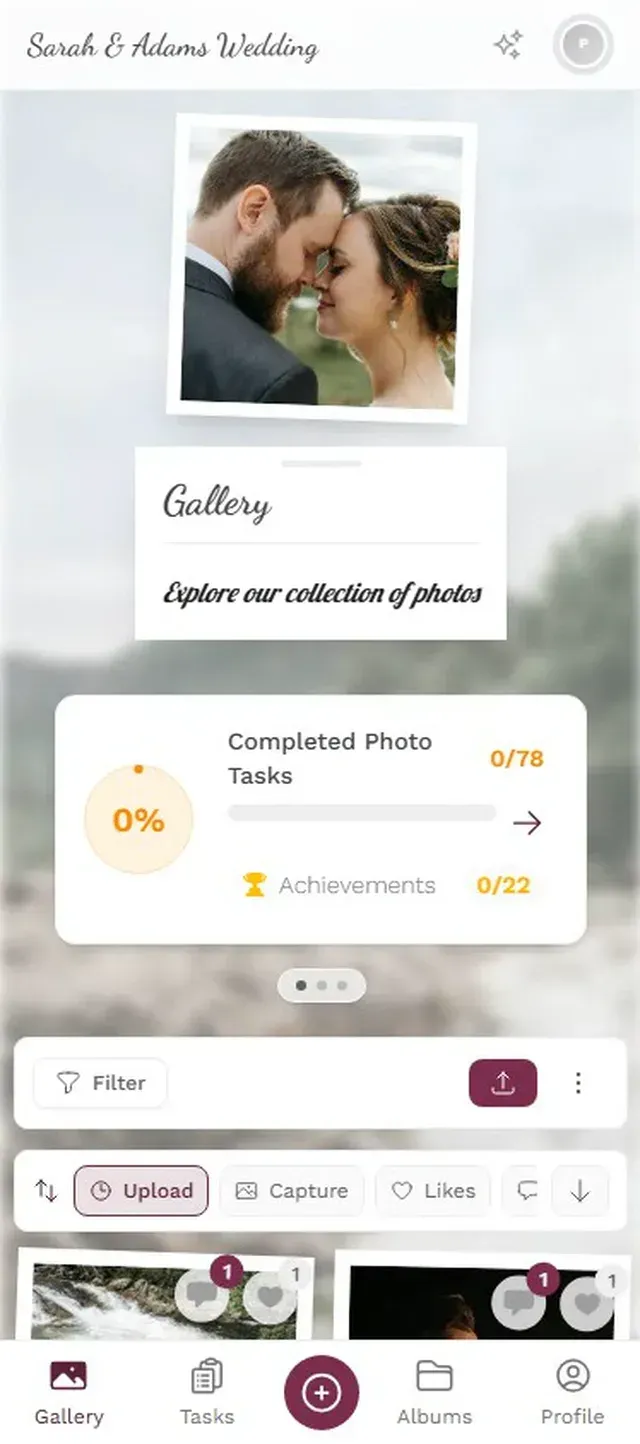
1.Family members scan the QR code and upload directly from their camera roll
One thing to know: Photogala is a paid tool (starting at €39, one-time). It's not free like a Google Drive folder. But if your family is large, spread out, or not particularly tech-savvy, the QR code approach saves you hours of "can you resend that in higher quality" conversations during an already difficult week.
See it in action
Every guest photo in one album – no app.
Choosing and Organizing Your Photos
You don't need 200 photos. FuneralSlides.com recommends 20 to 30 photos as the sweet spot. Each photo displays for a few seconds, so 25 photos with gentle transitions fills about 5 to 7 minutes, which is plenty for a service.
Start with recent happy photos. Then work backward through major life moments. A rough framework:
- Recent and recognizable: 3-5 photos from the last few years. These help the room feel grounded in who this person was now.
- Family milestones: Wedding, births, anniversaries, graduations. 5-8 photos.
- Personality shots: The hobby, the smile, the silly moment. Fishing, gardening, cooking, laughing at Thanksgiving. 5-8 photos.
- Childhood and young adult: 3-5 photos from earlier decades. These often get the strongest reactions.
- Group and legacy photos: With grandchildren, friends, siblings. 3-5 photos that show the connections they built.
Quality matters here. SlideshowGo.com emphasizes that every photo should be in focus and well-lit. Exclude blurry or poorly-lit images, even if they're sentimental. A slightly smaller slideshow with clear photos leaves a better impression than a longer one padded with dark, grainy shots.
If you're scanning printed photos, use a scanner app like Google PhotoScan rather than just taking a photo of a photo. It removes glare and straightens the image automatically. The difference in quality is significant.
Building the Slideshow
Once you have your 20-30 photos in one folder, the assembly is straightforward. You have three main options depending on your comfort level:
Option 1: Online Slideshow Makers (Easiest)
Tools like Canva, Animoto, or dedicated memorial slideshow sites let you drag in photos, pick a template, add background music, and export a video file. Most have memorial-specific templates with gentle transitions and muted color palettes. Total time: 15 to 30 minutes.
Option 2: PowerPoint or Google Slides (Most Control)
If you want more control over timing, text overlays, and transitions, presentation software works well. Set each slide to auto-advance every 5-7 seconds. Add a title slide with the person's name and dates. Export as a video file (PowerPoint has this built in under File > Export). Total time: 1 to 2 hours.
Option 3: Photo Wall on a Screen (No Editing Needed)
Here's an approach most people don't consider. Instead of building a traditional slideshow, display the shared photo gallery directly on a TV or projector at the venue. If you've used a tool like Photogala to collect photos, you can use its photo wall feature to cycle through every contributed photo automatically on a big screen. No editing, no export, no USB stick. Family members can even continue uploading photos during the service.
Modern funeral homes increasingly offer digital displays as standard features. Video tributes and digital memorial platforms are no longer extras. Ask your funeral home what equipment they have available before you spend time exporting files.
Quick Setup Checklist
Collect photos
Send a group message with a QR code link or shared folder. Set a clear deadline.
Select 20-30 photos
Pick clear, well-lit photos that span different life stages. Quality over quantity.
Build or display
Use an online tool, PowerPoint, or a live photo wall. Export to USB if the venue requires it.
Test at the venue
Arrive early. Check the screen, resolution, and timing. Bring a backup on your phone.
Making It Last Beyond the Service
The slideshow shouldn't disappear after the funeral. Family members who couldn't attend will want to see it. People who were there will want to revisit it weeks or months later.
If you built a video slideshow, upload it to YouTube (unlisted) or Vimeo and share the private link with family. If you used a shared photo gallery, keep it accessible. Photogala galleries stay active for 6 to 12 months depending on the plan, which gives distant relatives plenty of time to view and download photos.
There's another angle worth thinking about. A shared gallery doesn't just help you build the slideshow. It becomes a memorial in itself. Family members can browse, download their favorites, and see photos they've never seen before. That uncle's fishing trip photos. A cousin's snapshot from a holiday 15 years ago. These connections between photos, between memories, are often more meaningful than any perfectly timed slideshow.
If you're also thinking about organizing the photos you've collected long-term, our guide on how to organize and sort event photos covers practical strategies for keeping a collection manageable after the initial gathering phase.
A Few Things I'd Do Differently
Funeral slideshows have a specific emotional weight that other events don't. A few practical notes:
- Keep music instrumental. Lyrics can clash with the mood or feel too on-the-nose. A simple piano or acoustic guitar track works better than "My Way" by Sinatra, even if they loved Sinatra.
- Don't include photos of the illness. Hospital beds, oxygen tubes, visible decline. Family members don't need that image reinforced during a service meant to celebrate a life.
- End on a happy photo. The last image should be a smile, a laugh, a good day. It's what people will carry out of the room with them.
- Have a backup. USB sticks fail. Laptops freeze. Keep the slideshow on your phone, on a second USB, and in the cloud. The one time you don't bring a backup is the time you need it.
Putting together a memorial slideshow is one of those tasks that feels overwhelming at first but turns into something quietly meaningful. You'll find photos you forgot existed. You'll hear stories attached to images you've never seen. The slideshow is the product, but the process of collecting and curating those photos is, in its own way, a form of grieving and remembering together.
All of this comes with your own event.
Setting it up takes five minutes. You can build and view everything before you decide.
Starting from €39 one-timeOne-time payment — No subscription
- No App Required
- Setup in 5 Minutes
- 30-Day Money Back
“Excellent service and great pictures! Photogala fully met our expectations at the event. The value for money is unbeatable. Absolutely recommended! The seating plan saved us a lot of hassle!”
Written by

I believe event photos should be more than static galleries. They should be live, playful, and unforgettable.
Categories
Related Posts

Bridal Shower Photo Sharing: Collect Every Sweet Moment in One Gallery
Bridal shower photos end up scattered across 15 phones. Here's how to get them all into one gallery before the mimosas wear off.

Maternity Photo Sharing: How to Keep Every Announcement, Bump Shot, and Memory in One Place
Pregnancy announcements land on 4 different apps. Maternity photos get lost in group chats. Here's how to keep every photo in one shared gallery your whole family can access.

Sales Kickoff Photo Sharing: How to Turn a Mandatory Meeting Into a Team Memory
Sales kickoffs are expensive. The photos from them usually disappear into 14 different camera rolls. Here's how to fix that.