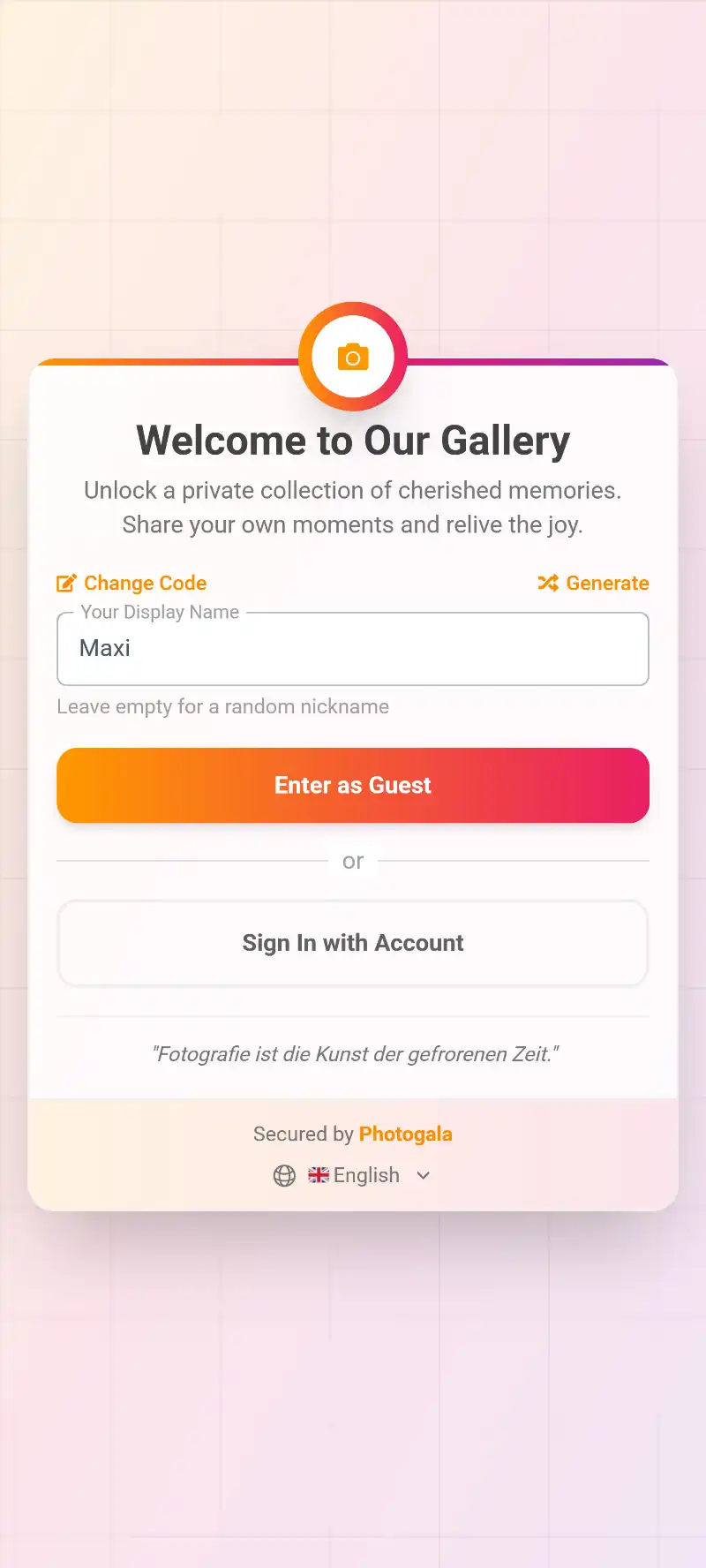
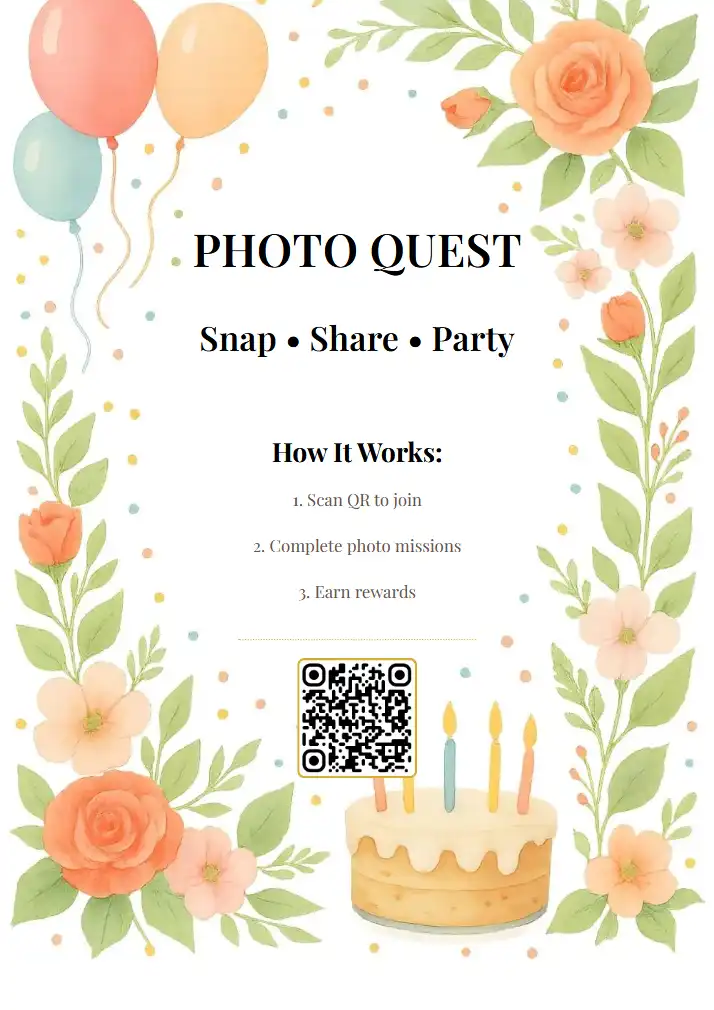
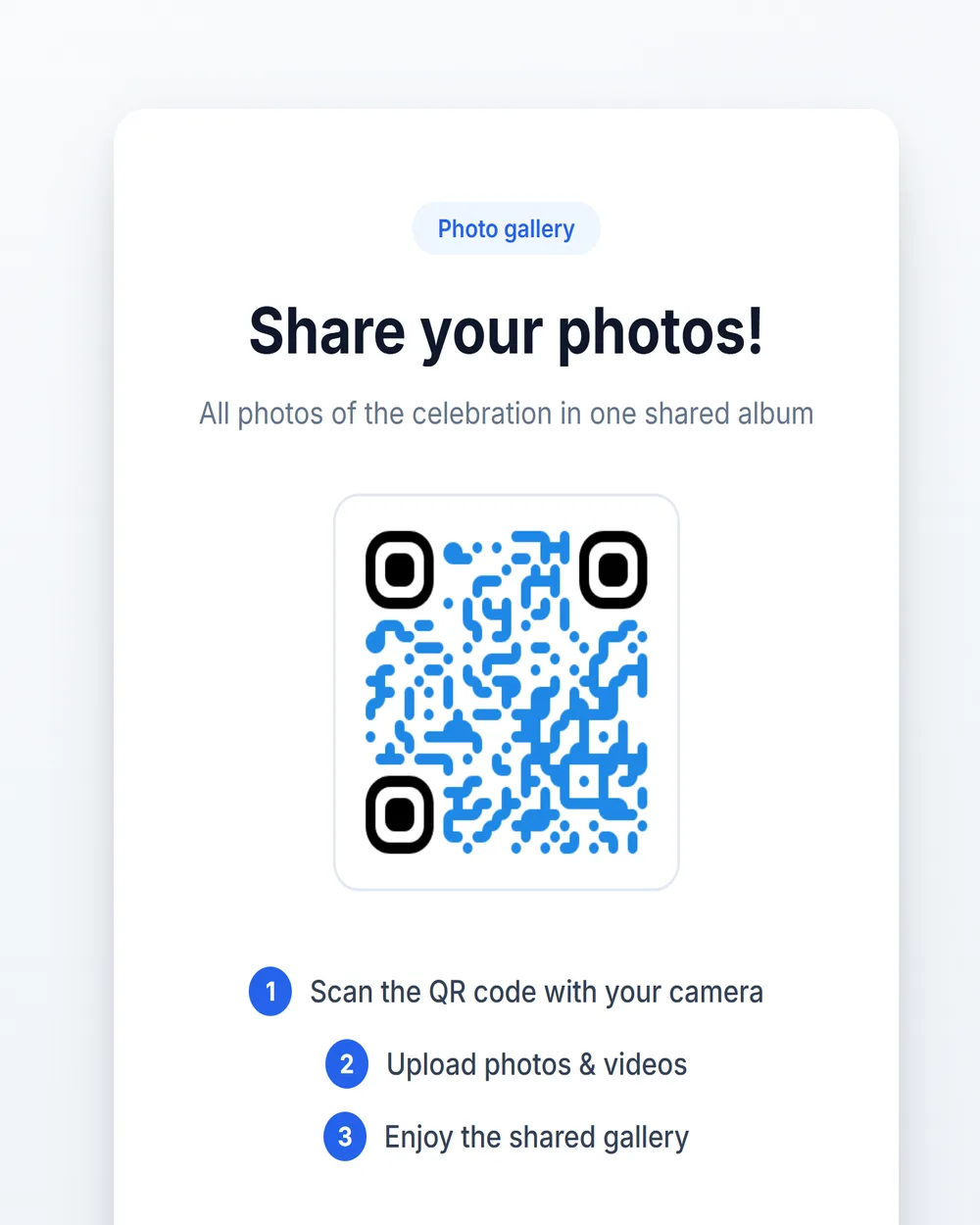
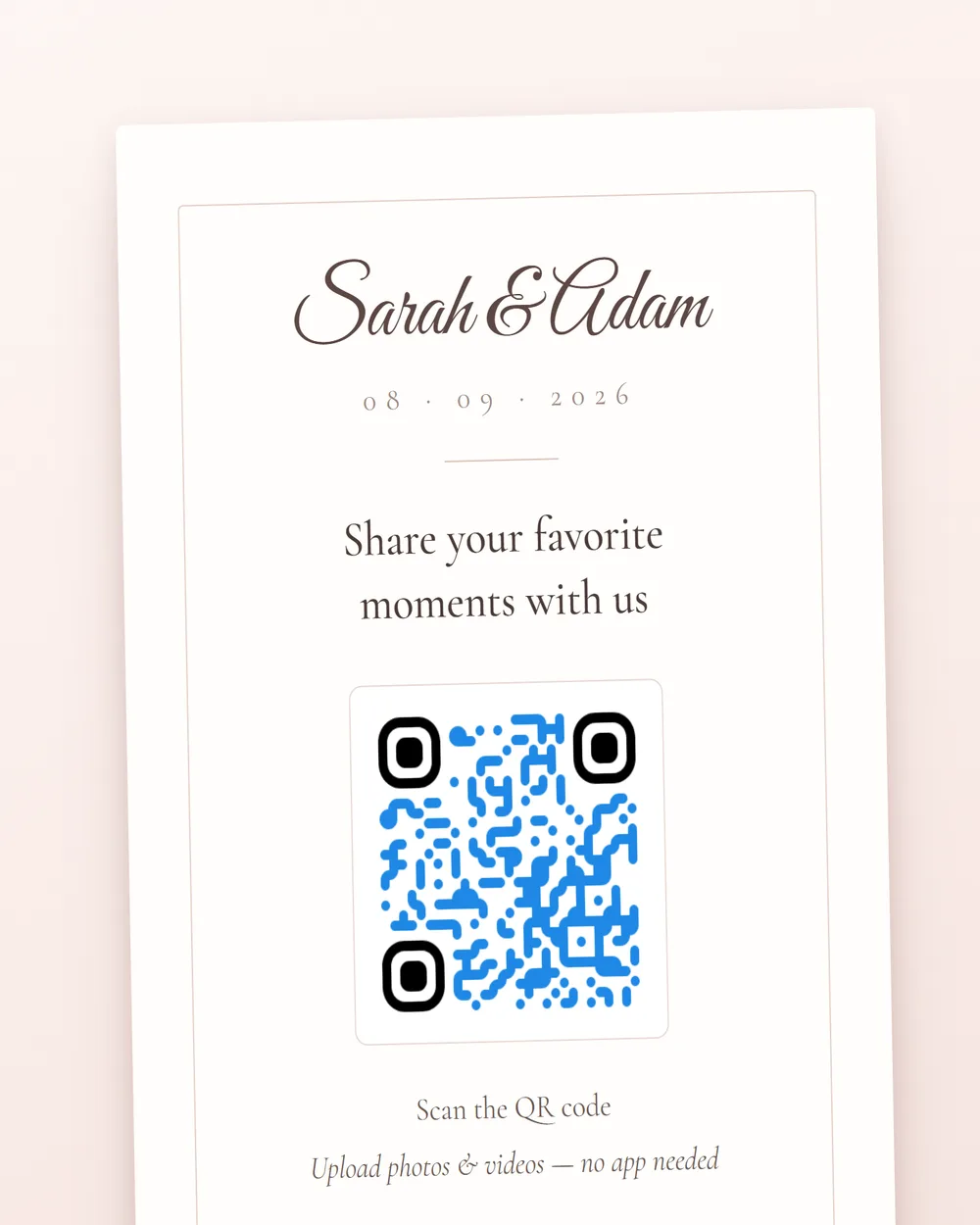
QR code photo upload is the simplest way to collect photos from event guests. You display a QR code — on table cards, posters, invitations, or screens — and guests scan it with their smartphone camera. Their phone's browser opens directly to your event gallery's upload page. From there, they can take a new photo with their camera or select existing photos from their gallery and upload them instantly. No app download, no account creation, no registration form, no login screen.
This zero-friction approach is what makes QR code upload the most effective method for collecting event photos. Every additional step in the upload process — downloading an app, creating an account, verifying an email — loses a significant percentage of guests. With QR code upload, the path from "I want to share this photo" to "the photo is in the gallery" takes under 30 seconds. That difference in friction is the reason events using QR upload collect 3-5x more photos than events requiring an app download.
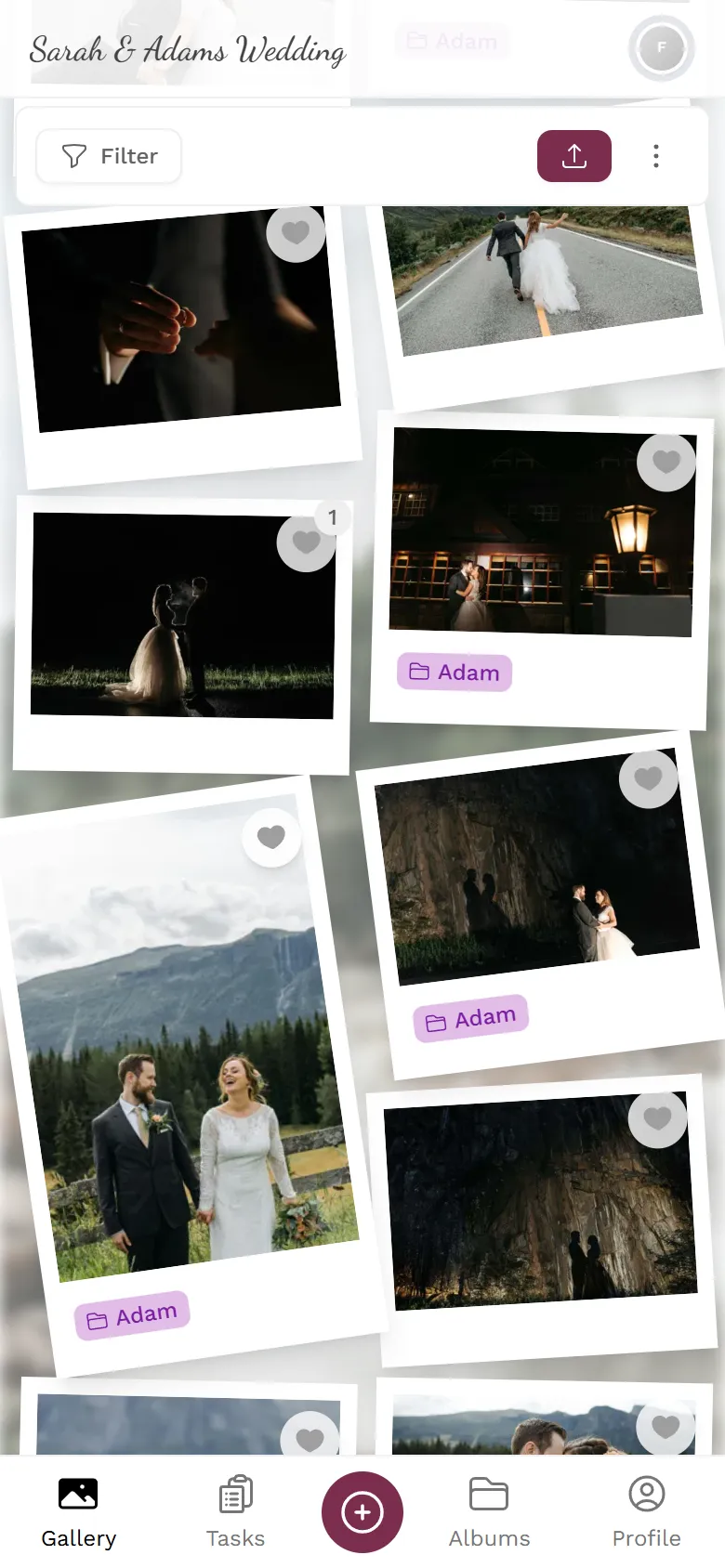
Photogala generates a unique QR code for every event automatically. You can download it as a high-resolution image for printing, embed it in digital invitations, or display it on screens at the venue. The QR code links to your event's upload page, which supports photos (JPEG, PNG, HEIC, WebP), videos (MP4, MOV), motion pictures (Live Photos), and multi-file batch uploads. Everything works in the browser — guests never leave the web page they opened by scanning the code.


Guests point their smartphone camera at the QR code. On iOS, the Camera app recognizes QR codes natively. On Android, the camera app or Google Lens handles it. A notification appears with the event link — one tap, and the browser opens directly to the upload page. No app download, no store search, no installation wait.
The upload page gives guests two options: take a new photo using their phone's camera, or select existing photos from their gallery. Guests can select multiple photos at once for batch upload. They can also record or select videos. If photo challenges are set up, guests can assign their photos to specific challenges during upload.
Guests tap the upload button and their photos are sent to the event gallery. A progress indicator shows the upload status. Photos are automatically processed — compressed for web display while the original quality version is preserved for download. If the event has a photo wall, uploaded photos appear on the big screen within seconds.
Guests can take a photo or video directly from the upload page using their phone's rear or front camera. The capture interface uses the native device camera API, which means it takes advantage of the phone's full camera capabilities — HDR, portrait mode, zoom, and flash. Captured photos are uploaded immediately without being saved to the guest's camera roll first (unless the guest wants to).
Guests can browse their phone's photo gallery and select photos that have already been taken. This is the most common upload method — guests take photos throughout the event with their normal camera app, then open the QR upload page later and select the best shots to share. The gallery picker supports both photos and videos.
Guests can select multiple photos and videos at once for batch upload. On iOS, guests tap "Select" in the photo picker and choose as many files as they want. On Android, long-press to enter multi-select mode. Photogala processes batch uploads with parallel connections for maximum speed — uploading 20 photos takes roughly the same time as uploading 5 on a typical connection.
Guests can upload video files (MP4, MOV, WebM, and other common formats) alongside photos. Videos are automatically transcoded to a web-compatible format on the server, with the original file preserved. Short clips from the dance floor, toasts, speeches, and candid moments add a dynamic layer to the event gallery that still photos alone cannot capture.
Apple Live Photos and similar motion picture formats are fully supported. When a guest uploads a Live Photo, Photogala extracts and stores both the still image and the motion video component. In the gallery, these photos come alive when hovered or tapped, revealing the 1.5-3 seconds of video captured alongside the still. This preserves the full richness of the original capture.
For guests uploading from a computer — or for photographers transferring large batches — the upload page supports drag-and-drop. Drag files or entire folders from the desktop file manager directly onto the upload area. This is especially useful for professional photographers who want to share a selection of their shots with the event gallery after the event.
Photogala accepts all common photo formats: JPEG, PNG, HEIC (iPhone default), WebP, BMP, and TIFF. For video, the supported formats are MP4, MOV, WebM, AVI, and MKV. Motion pictures (Apple Live Photos) are handled as a combined HEIC/JPEG still plus MOV video pair. If a guest uploads a format the browser does not natively display (like HEIC on an Android phone), the server automatically converts it to a compatible format for gallery display while keeping the original file intact for download.
Maximum file sizes depend on your plan: the Free Demo plan supports photos up to 20 MB and videos up to 100 MB. Starter, Pro, and Premium plans support photos up to 50 MB and videos up to 500 MB. In practice, smartphone photos are typically 3-12 MB and short videos 20-100 MB, so these limits are generous for normal event use. Files exceeding the limit are rejected with a clear error message.
Every uploaded photo is automatically processed: a web-optimized display version is generated (typically 1600px on the longest edge), a thumbnail is created for gallery browsing, and EXIF metadata (camera model, GPS coordinates, capture time) is preserved for features like the GPS photo map and timeline sorting. The original full-resolution file is stored separately and available for download at any time.
Photos taken in portrait or landscape orientation are automatically rotated correctly based on EXIF orientation data. HEIC photos from iPhones are converted to JPEG for universal display. Video files are transcoded to H.264/MP4 for browser playback. All processing happens server-side — guests don't need to wait for processing to complete before uploading more files.
Requiring guests to download an app is the single biggest barrier to event photo collection. Here's why Photogala's browser-based approach works across every device:
The iPhone's Camera app natively recognizes QR codes. When a guest points their camera at the QR code, a banner appears with the event link — one tap opens Safari directly to the upload page. Safari supports camera capture, photo gallery access, multi-file selection, and all upload features without any installation. Works on iOS 11 and later (released 2017), covering virtually every iPhone in active use.
On Android devices, Google's Camera app or Google Lens recognizes QR codes and opens the link in Chrome. Chrome on Android provides full access to the camera, photo gallery, and file system for uploads. Multi-file selection works via the built-in photo picker or file browser. Photogala's upload page is optimized for Chrome on Android, including Samsung Galaxy, Google Pixel, Xiaomi, OnePlus, and all other major Android manufacturers.
Many Samsung Galaxy users have Samsung Internet as their default browser rather than Chrome. Photogala's upload page is fully compatible with Samsung Internet, including camera access, gallery selection, and multi-file upload. Samsung Internet's QR code scanner (built into the browser) can also read the event QR code directly. This is important because Samsung represents roughly 25% of all Android devices globally.
Photogala's upload page works with every modern mobile browser: Firefox for Android, Opera, Brave, DuckDuckGo Browser, Huawei Browser, and others. On desktop, Chrome, Firefox, Safari, Edge, and Brave are all fully supported. The upload interface is built on standard web APIs (File API, MediaDevices API, Drag and Drop API) ensuring maximum compatibility across all platforms without proprietary dependencies.
How does scanning a QR code compare to other methods of collecting event photos?
| Feature | Photogala | Alternatives |
|---|---|---|
| Guest effort to share a photo | Scan QR → select → upload (30 sec) | Download app → create account → find event → upload (5-10 min) |
| Time to first upload | Under 30 seconds | 5-10 minutes (app) / varies (WhatsApp, Drive) |
| Photos organized by event? | Yes — all in one gallery with albums, challenges, timeline | No — scattered across chat threads or folders |
| Moderation possible? | Yes — AI filter + manual approval | No (WhatsApp) / manual folder cleanup (Drive) |
| Works offline after initial scan? | Upload queued, sent when connection restores | Depends on app / No (Drive requires stable connection) |
Scan QR → select → upload (30 sec)
Download app → create account → find event → upload (5-10 min)
Under 30 seconds
5-10 minutes (app) / varies (WhatsApp, Drive)
Yes — all in one gallery with albums, challenges, timeline
No — scattered across chat threads or folders
Yes — AI filter + manual approval
No (WhatsApp) / manual folder cleanup (Drive)
Upload queued, sent when connection restores
Depends on app / No (Drive requires stable connection)

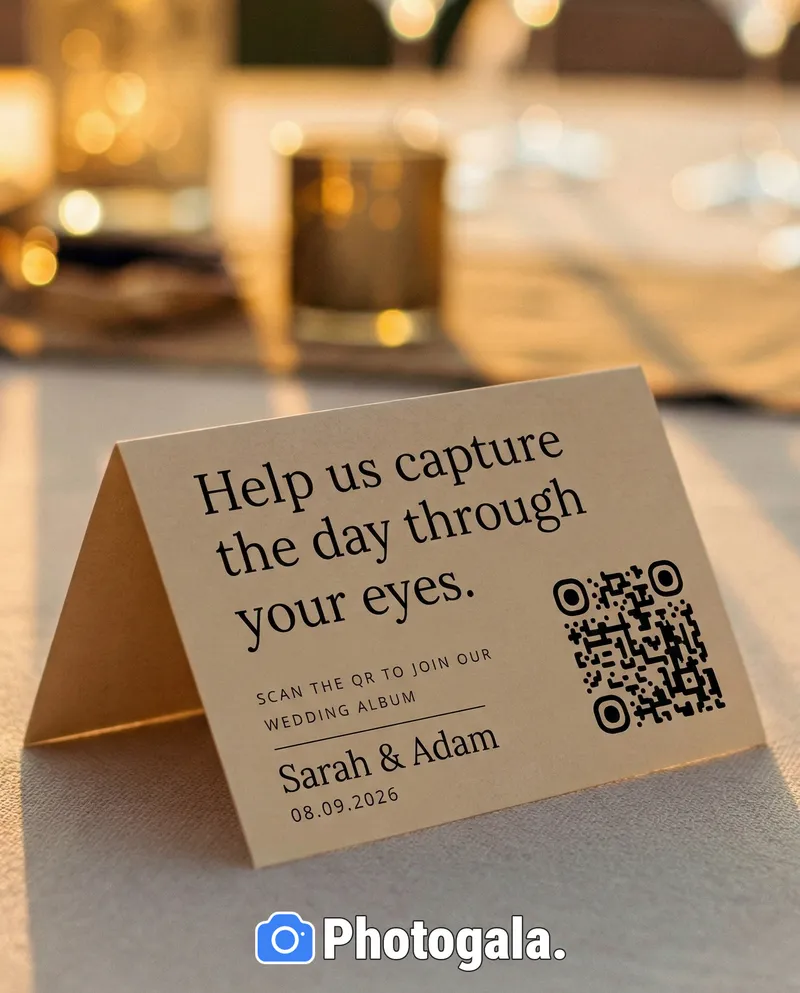
Print the QR code on table cards or table number holders. Every guest seated at a table has immediate access. Combine it with a short instruction ("Scan to share your photos!") and optionally list the top 2-3 photo challenges. Table cards are the most effective placement for sit-down events like wedding receptions, gala dinners, and corporate award ceremonies.
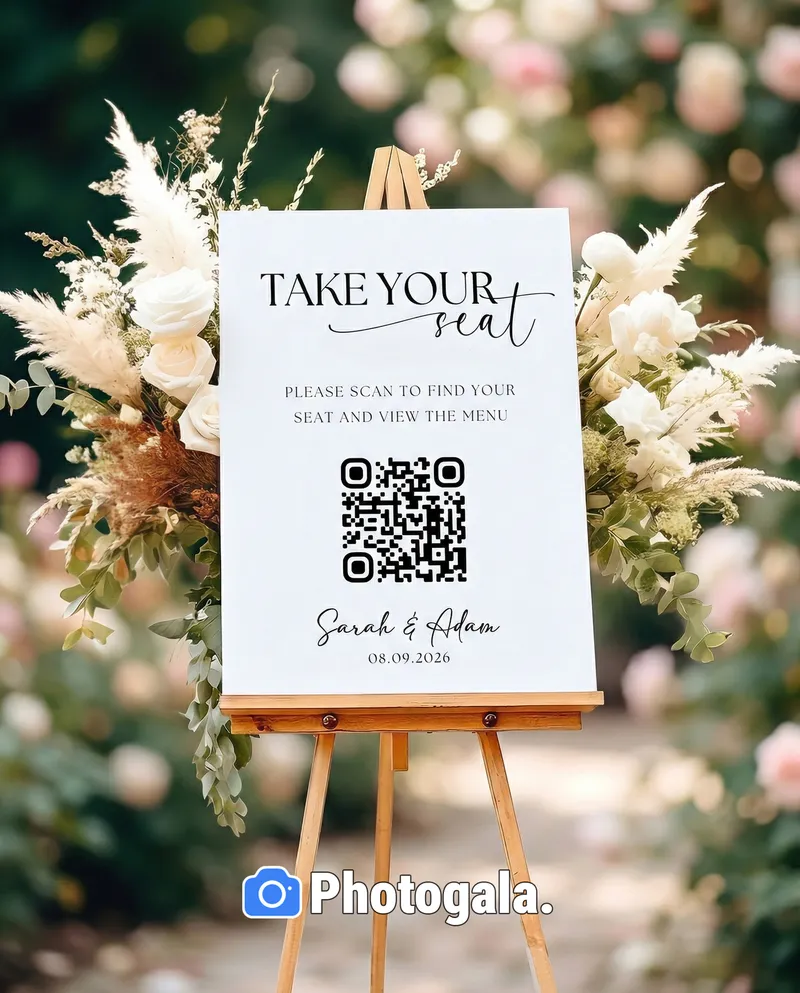
Display a large poster (A2 or A1 size) with the QR code at the event entrance. Guests scan it as they arrive, before they even sit down. Include a brief explanation and your event's branding. This works especially well for events where guests move around — parties, festivals, trade fairs — because there are no assigned seats with table cards.
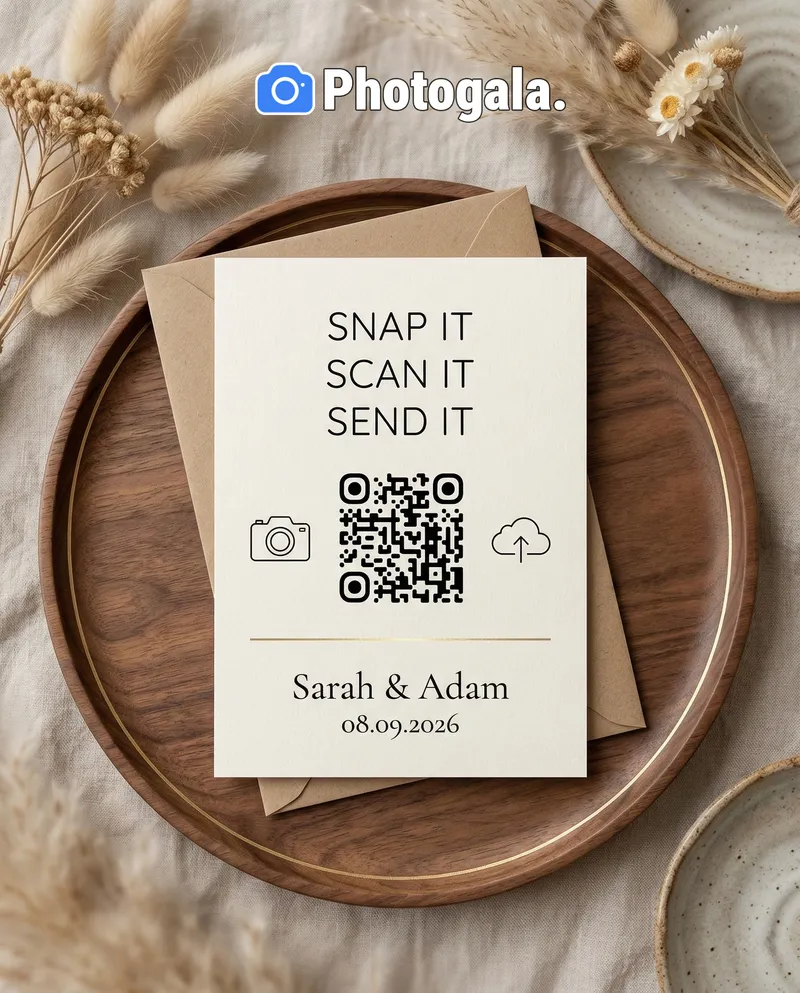
Print the QR code on the invitation itself, so guests can save the link before the event even starts. For digital invitations, include the QR code as an image or a clickable link. This primes guests to share photos and means some may start uploading during the arrival and setup phase. It also gives guests time to test the upload on their phone in advance.
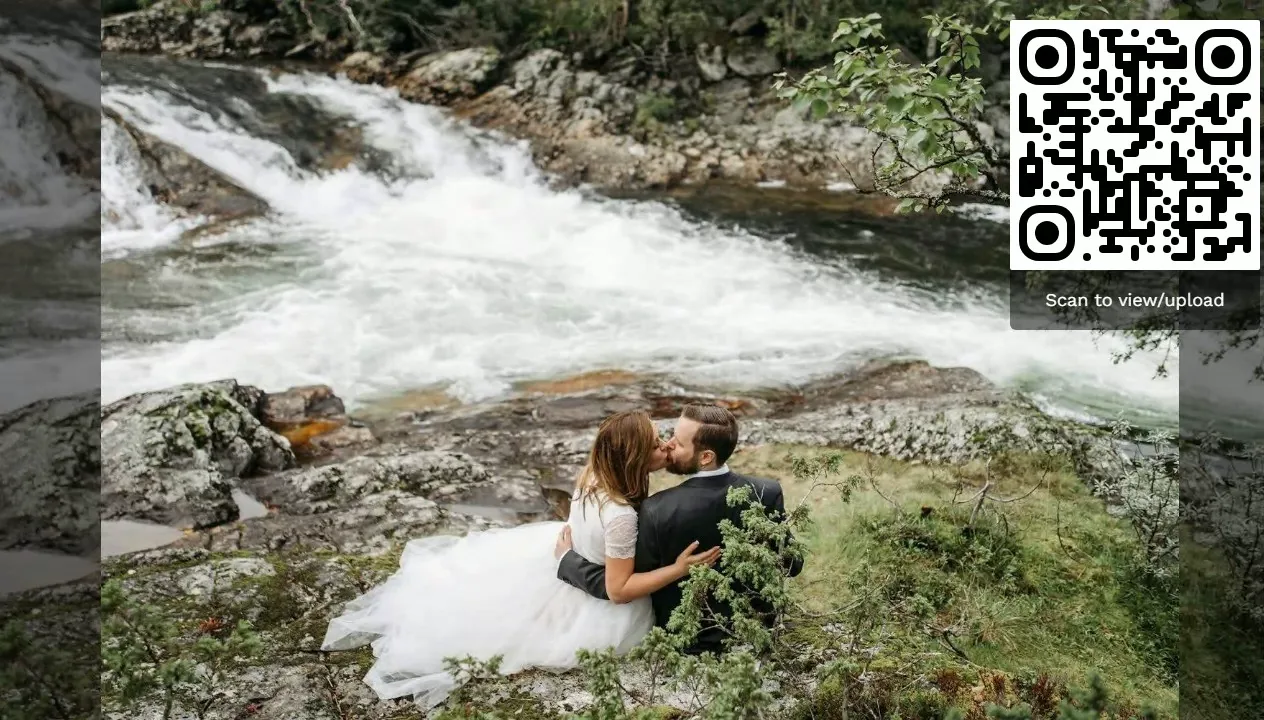
Display the QR code directly on the photo wall screen during idle moments or in a corner overlay. Guests who see the photo wall and want to contribute can immediately scan the QR code from the same screen they're looking at. This creates a self-reinforcing loop: see photos on the wall → want to participate → scan QR → upload → see your photo appear.
Send the QR code or event link via email before or after the event. Before the event, it lets guests bookmark the upload page. After the event, it's a reminder to share photos they took but haven't uploaded yet. Include a preview of photos already in the gallery to motivate uploads.
Share the QR code as an Instagram Story, WhatsApp Status, or Facebook Story. This reaches guests on the platforms they're already using. Particularly effective for informal events (birthday parties, reunions) where a printed invitation or table card might not exist. Guests screenshot or scan the code directly from their social media app.
Higher tiers unlock more powerful features and greater flexibility
Buy now, use anytime. The event duration starts after the first 10 photos are uploaded, not from the purchase date.
AI organization, stronger controls, and premium event branding.
Videos, comments, points and a leaderboard for guest fun.
The simple event gallery for collecting photos fast.
Uploader Definition: All guests who upload at least one photo or video count as uploaders. Unlimited guests can still view the gallery.
Fair Use Storage: Storage is sized for normal event usage. Reach out if you need unusually large galleries.
Discover more powerful tools for your event.
Create your event in minutes. No credit card required.