Day Timeline

At 3:45 every guest knows what's happening.

The printed run sheet hangs by the entrance, the voice message is three days old — and on the day itself everyone still asks the best man. Here your guests open the same event page as for the gallery and see the day as a time axis, with a marker on whatever is running right now.

Start for free — no credit card required · Paid plans from 39 €

No App Required
Setup in 5 Minutes
30-Day Money Back

A printed run sheet, or a time axis on the phone

The same day, the same items on the schedule — two ways to get them to your guests.

Where the schedule lives
Photogala: On every guest's phone, behind the same event page as the gallery — no app, no account
Run sheet & group chat: A sheet by the entrance and a message in the group — both usually get read exactly once
When something shifts
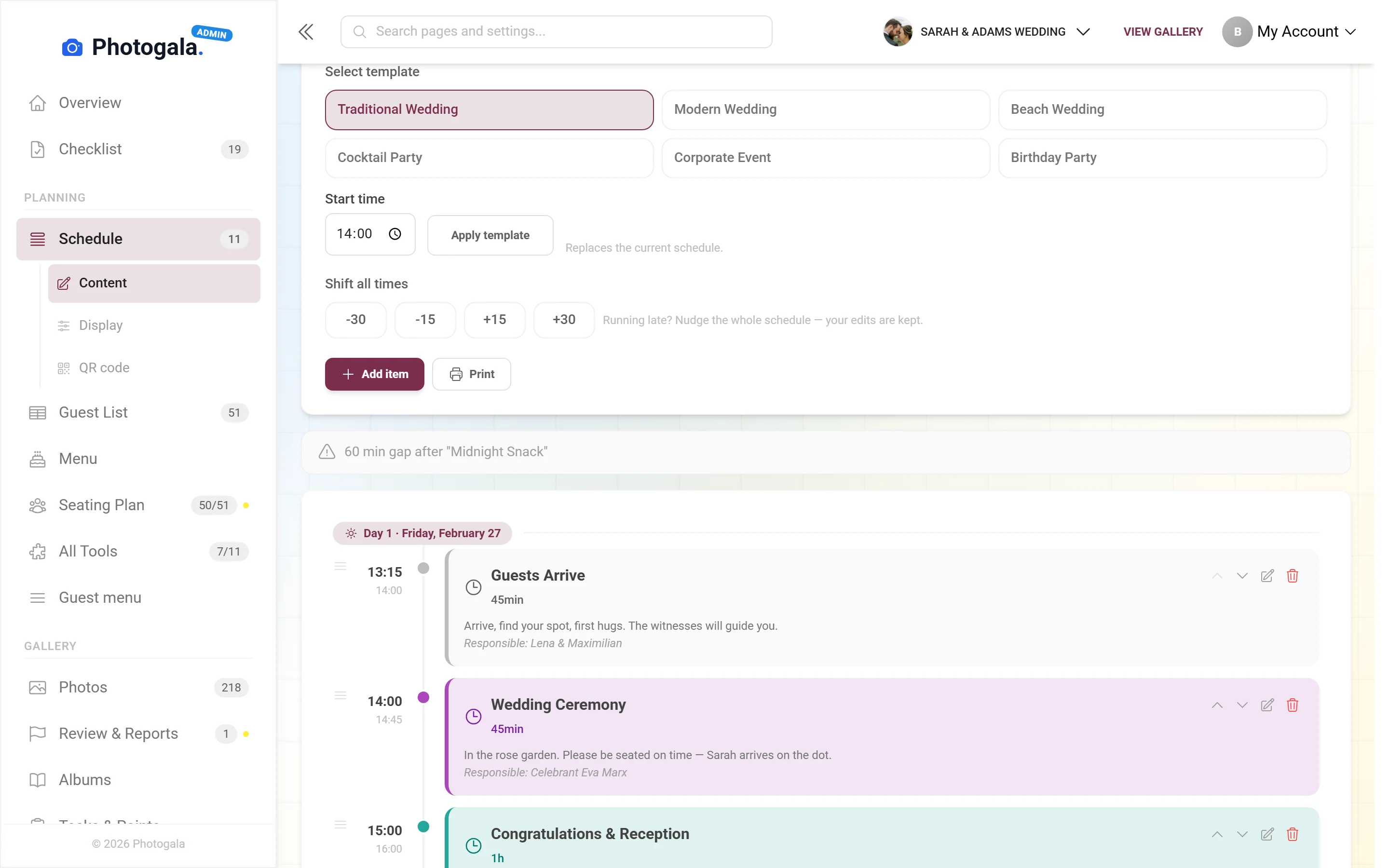
Photogala: Change the start time in the editor — or move the whole rest of the day with "shift everything"; whoever opens the page next sees the new time
Run sheet & group chat: The printed sheet still shows the old time; the correction has to be passed around on top of it
On the day itself
Photogala: A "now" marker sits on the item that is running and moves along on its own — nobody has to reload
Run sheet & group chat: The sheet looks the same all day; where you currently are, everyone works out for themselves
Several days, several schedules
Photogala: Up to 20 schedules, each with its own date, side by side as tabs; items may run past midnight
Run sheet & group chat: One sheet per day — and guests have to know which one is currently in force
Duration and who's in charge
Photogala: Every item carries start time, duration, icon and the person responsible — guests and vendors read the same page
Run sheet & group chat: Usually two documents: the detailed version for the vendors, the short one for the guests
No signal, no battery
Photogala: This is where we lose: the page has to load. In the dead spot behind the barn, or on an empty phone, the guest sees nothing — the only fallback is the browser printout
Run sheet & group chat: This is where paper wins: the sheet on the wall works with no signal, no battery and no explanation

What our schedule cannot do

Two things we have to admit. First, to this day the schedule can do exactly one thing: be printed, through the browser's print dialog. There is no PDF export, no calendar file to subscribe to, no reminder popping up at 3:45 — and, unlike place cards or the menu card, no designed print template either. The notice that comes out of it looks like a browser printout. If you want the schedule in your best man's calendar, he types it in by hand. Second, the best time axis only helps the guests who actually open it. Anyone who leaves their phone in their pocket keeps asking — the best man, as always.

What your guests see on their phones

Five recordings from a guest's phone, taken in a live demo wedding.

One tap, one scroll, and everyone knows

In this video a guest taps the "Schedule" tile on the event's home screen and scrolls through the day: arrival, ceremony, photos, dinner — each item with its time, its duration and, if you fill it in, the person in charge, lined up along a vertical time axis. No account, no download, no app. On the actual event day the top of the page also carries a "now" line naming the item that is running — and, in the gap between two items, when the next one starts.

The same schedule, inside the invitation

This clip scrolls through the digital invitation: countdown, gallery teaser, then the day's schedule on a rail, then the illustrated seating scene and, at the end, the RSVP card. The programme section pulls its items from that same schedule — you maintain it in one place, not two. Publishing the full invitation comes with Plus; the save-the-date is in the free plan.

After the schedule comes the seat question

Same row of tiles, one tap further: "Find seat" sits right next to "Schedule". The guest types in their first name and gets back a table and a seat number — they never see a list of all the guests. To be honest about it: this search is exactly where the free plan stops, at 20 guests; beyond that it needs a paid plan. The schedule itself is unaffected.

And what's for dinner?

In this video the guest goes from the same row of tiles into the menu. For the running order what matters here is that "so what are we actually eating?" stops being a question asked at the table: courses, photos and notes such as "vegan" or "gluten-free" sit next to the time the food goes out. Those notes are freely typed keywords, not certified allergen labelling. Guests never see prices; those stay in the admin area.

At the end of the day, the gallery remains

The last clip shows where the same event page leads once the party is over: into the shared gallery, scrolled calmly. And along the way, the reason you can start months ahead without anything running out — your event's storage window hangs off the gallery, not off your sign-up date: it begins with the first uploaded picture (with the tenth on the paid plans). A schedule on its own starts no clock.

All of this comes with your own event.

Setting it up takes five minutes. You can build and view everything before you decide.

View Live Demo

One-time payment — No subscription

Starting from 39 € / one-time

All memories from your event — one price, no hidden fees.

See Pricing

Common questions about the day's schedule

Do our guests have to install anything?
No. The link or the QR code opens the page in the phone's browser, on iPhone and Android alike. Distributing it, though, is on you — on the card, as a printed notice, or in your own group chat. Photogala sends neither emails nor messages to your guests.
What does the day's schedule cost?
The schedule is included in every plan, the free one as well, and its guest view is one of the few things with no guest limit. What costs money is the rest of the same day: guest seat search, seating printouts and personal RSVP links stop at 20 guests on the free plan; the full digital invitation and the guest list export come with Plus (39 €). None of that slows down planning and building.
Can we export the schedule as a PDF or put it in a calendar?
No. The schedule can be printed through the browser, and that is all: no PDF export, no .ics file, no calendar subscription, no reminder on the phone and no designed print template. If you need the schedule in a calendar, you type it in there yourself. The sheet for the wall comes out of the browser's print dialog — and looks like it.
What if something shifts on the day itself?
You change the start time in the editor; if the whole afternoon slides back by half an hour, there is a "shift everything" option. Whoever opens the page after that sees the new time. What does not happen: no notification goes out to your guests. Someone who leaves their phone in their pocket hears about the change from the person at the microphone, not from us.
We're celebrating over two days — is that possible?
Yes. You can create up to 20 schedules, each with its own name and its own date; guests switch between the visible ones via tabs at the top. Within one schedule, items may run past midnight. The limits: 200 items in total, and the times are plain wall-clock times — the tool has no notion of time zones.
How is this different from the planner at /tools/wedding-timeline?
The planner there is the calculator you use without signing in: six ready-made templates, drag and drop to reorder, hints for gaps and overlaps, print. This page shows the other half — what your guests actually see of it on their phones on the day. If you just want to rough out the schedule first, start with the planner.

Ready to Get Started?

Create your event in minutes. No credit card required.

See Pricing
No App Required
Setup in 5 Minutes
30-Day Money Back