How to Use a QR Code to Let Guests Upload Photos at a Restaurant or Bar Event

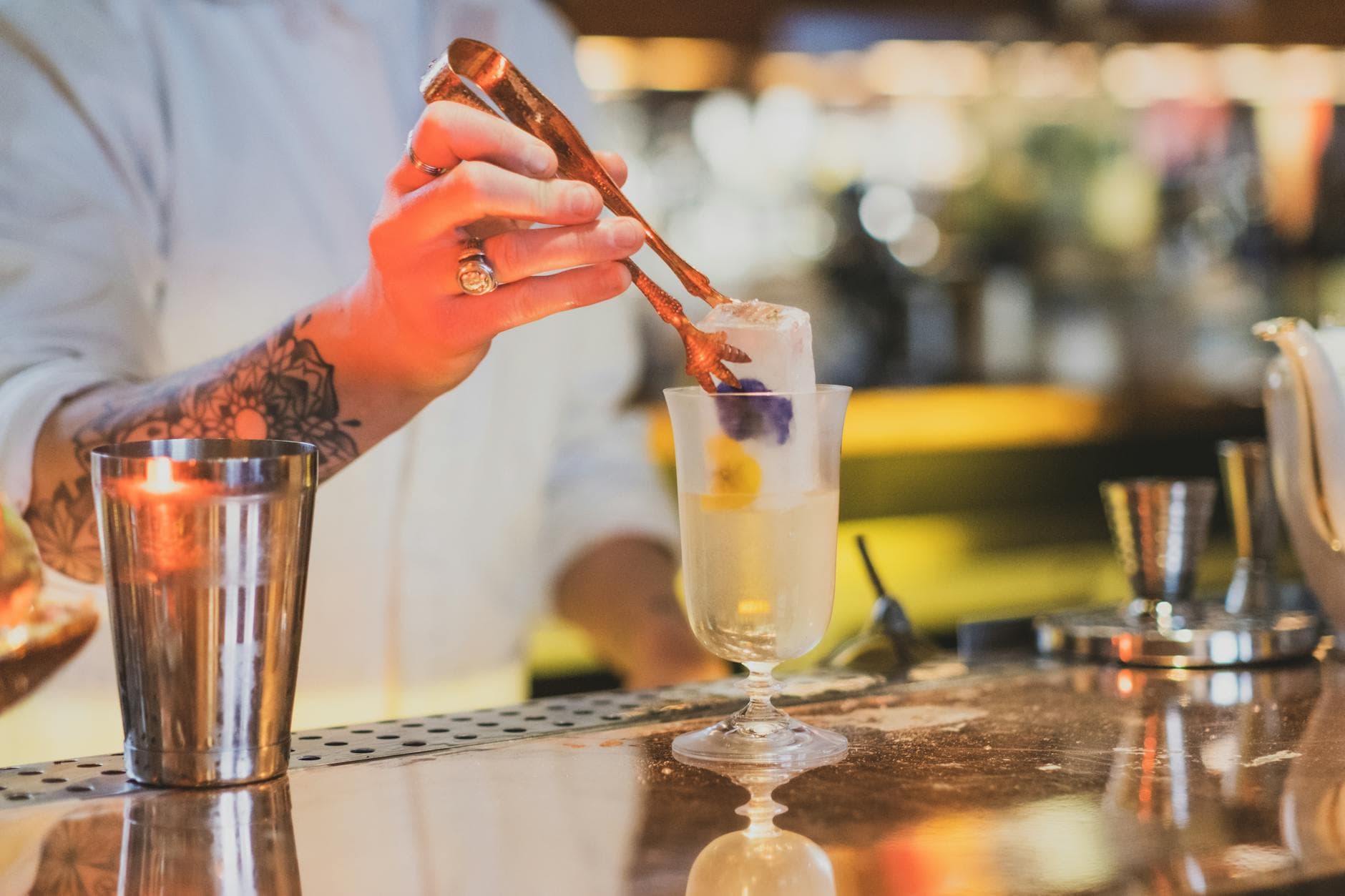
Picture a birthday dinner at your favorite Italian place. Twelve people, long table, candles, way too much wine. Everyone's snapping photos. The birthday girl gets maybe four of them via WhatsApp the next day. The rest? Trapped on phones that will never share them.
This happens at every restaurant and bar event. Cocktail nights, farewell dinners, team outings at the local brewery, milestone birthdays in private dining rooms. People take photos. People don't send them. A Deseret News survey found that 80% of people have photos on their phone they haven't looked at since taking them. Your event photos are sitting in that pile.
There's a fix that takes about ten minutes to set up. A QR code on the table. Guests scan it, their phone browser opens, they upload. No app download, no account creation, no group chat drama. Every photo lands in one shared gallery that everyone can access.
Here's exactly how to do it.
Why Restaurant and Bar Events Are the Hardest to Collect Photos From
Weddings have photographers. Corporate events have marketing teams with cameras. But a dinner at a tapas bar? A surprise party in the back room of a pub? Nobody's in charge of photos. There's no plan. The assumption is that people will just... share them afterward.
They won't.
Restaurant events have three things working against photo collection. First, the group is usually small enough that nobody thinks to organize it. Fifteen people feels manageable, so nobody sets up a shared album in advance. Second, the lighting is usually terrible. Dim restaurants and moody bars produce phone photos that people feel are "not good enough" to share. Third, the evening moves fast: drinks, food, speeches, cake, more drinks. By the time someone thinks "I should share those photos," it's three days later and the moment has passed.
A QR code on the table changes the dynamic completely. It removes every barrier. No decision about which app to use, no "I'll send them tomorrow," no hunting for someone's phone number. Scan, upload, done.
Setting It Up: 10 Minutes, Start to Finish
Three steps to a shared photo gallery
Create your gallery
Give it a name (the event, the date, whatever makes sense), pick a cover image, and customize the colors if you want. The whole thing takes two minutes.
Get your QR code
The gallery generates a unique QR code automatically. Download it, print it, or display it on a phone or tablet at the venue.
Place it where guests can see it
Print it on table cards, stick it on the menu, or prop up a small sign at the bar. That's it. Guests scan and upload from their browsers.
One thing that surprised me when testing this workflow: the QR code doesn't just open a generic upload page. It opens the actual gallery, so guests can see what others have already uploaded. That creates a snowball effect. One person uploads three photos, the next person sees them and thinks "oh, I have a better angle of that," and suddenly you've got 40 photos from a 15-person dinner.
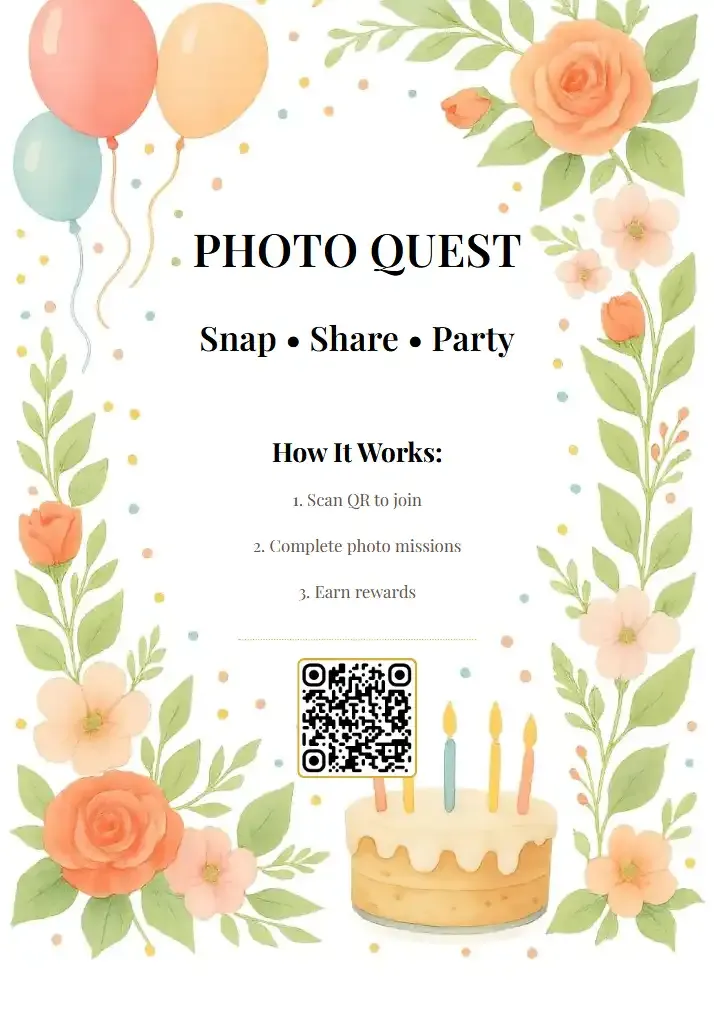
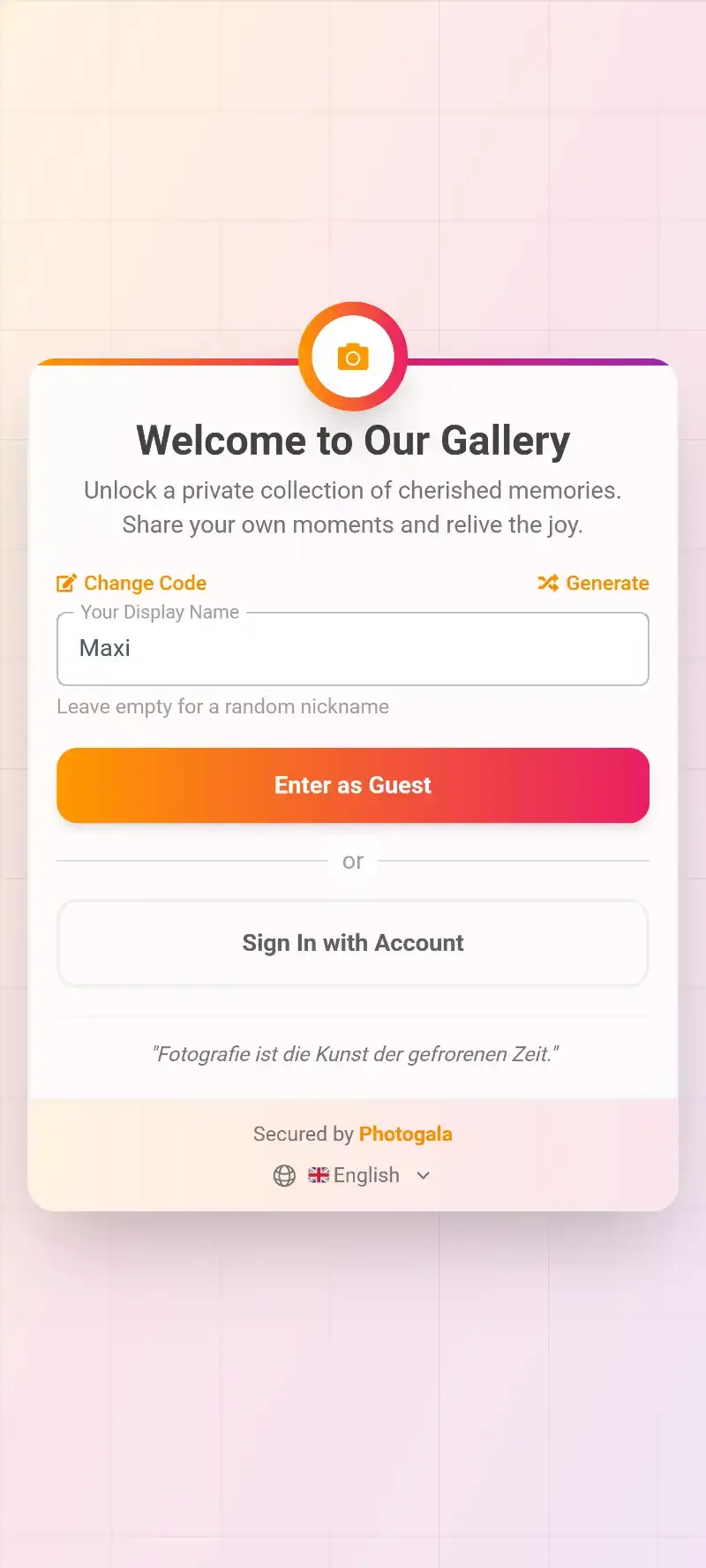
1.Scan the code, browser opens. No app download.
Where to Put the QR Code (This Matters More Than You Think)
The placement makes or breaks participation. A QR code buried on a flyer nobody reads is useless. You want it in spots where people are already looking, already have their phones out, and already in the mood to engage.
On the table itself. Print a small card and place it next to the salt shaker or between the menus. People fiddle with things on the table, especially during those awkward waits between courses. A QR code card gets picked up, scanned, and used.
At the bar. If guests are ordering drinks, they're standing around with phones in hand. A QR code on the bar counter or on a tent card near the taps catches people exactly when they're idle.
On the menu or place card. If the venue is doing a set menu or printed place cards, adding the QR code there feels integrated, not tacked on. For a surprise party, you could even hide it inside a folded card with instructions: "Help us collect photos tonight. Scan this."
The bathroom trick: Put a small QR code sign in the restroom. Sounds weird, but people check their phones in there constantly. They'll scan it out of curiosity and upload a few photos before they come back to the table.
Avoid putting the QR code only on a screen or projector slide. In a restaurant or bar, there usually isn't one. And even if there is, people can't scan a screen from across a dim room. Physical placement wins.
What Happens When Guests Actually Use It
Say you're hosting a 30th birthday dinner for a friend. Twenty-two guests, a long table in a semi-private area of a wine bar. You've placed small QR code cards between every third seat.
The first person scans it about fifteen minutes in, right after the appetizers arrive. They upload two photos of the group. The person next to them notices, asks what they just did, and scans the code too. By the time dessert comes out, you've got 47 photos from nine different phones. Some are blurry. Some are brilliant. One is a close-up of the tiramisu that somehow got 6 likes in the gallery.
This isn't hypothetical optimism. The average smartphone user takes about 20 photos per day. At a dinner or party, they're taking more. The problem was never that people don't take photos. It's that the photos stay locked in individual camera rolls.
See it in action
Every guest photo in one album – no app.
Making It More Interesting: Photo Challenges at the Table
Here's where a simple QR upload turns into something genuinely fun. Photo challenges are prompts that give guests a reason to take specific shots. "Best candid laugh," "the most photogenic dish," "selfie with the birthday person."
At a bar event, challenges work surprisingly well because the energy is already loose. People are social, slightly competitive, probably a drink or two in. Add a leaderboard that tracks who's uploaded the most or completed the most challenges, and you've got a low-key game running alongside the evening.
The best part: Photogala lets you attach example preview photos to each challenge. So you can set a reference image, like a silly pose or a specific framing, and ask guests to recreate it. At a cocktail bar, a challenge like "recreate this movie poster using bar items" generates exactly the kind of absurd, hilarious photos that everyone wants to see afterward.
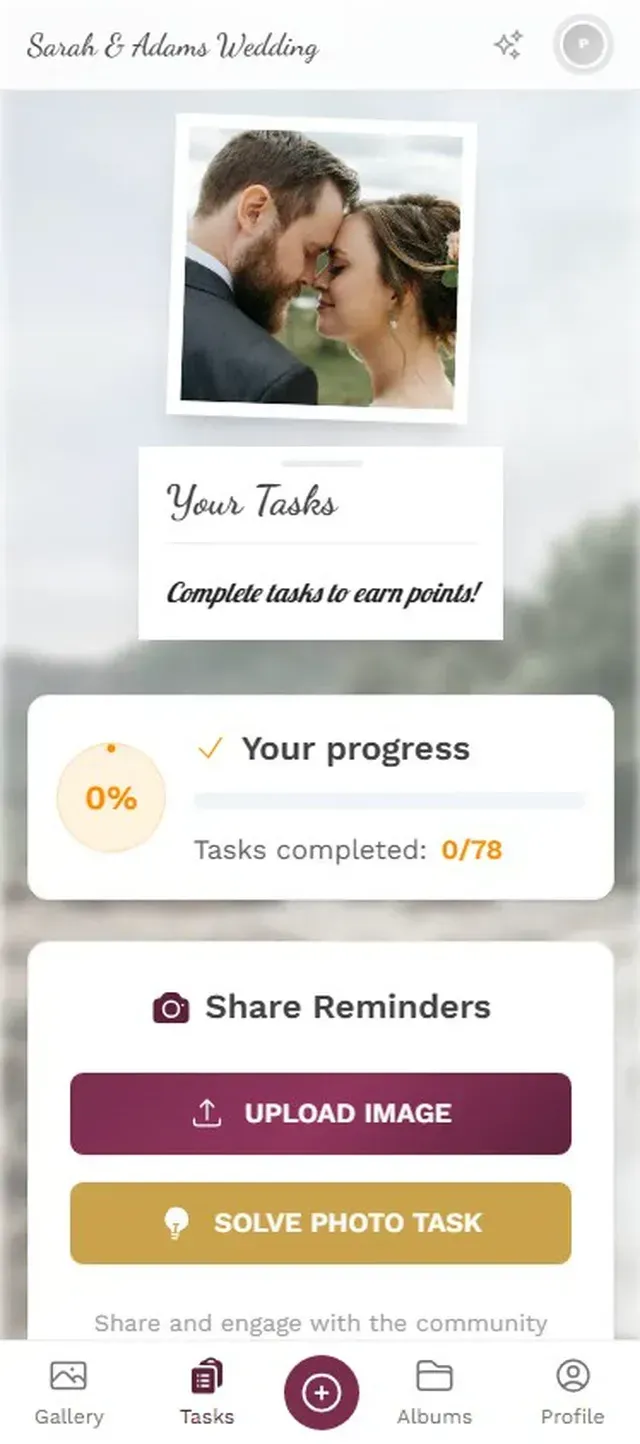
1.Guests browse available challenges from their phone.
For a restaurant event, 3-5 challenges is the sweet spot. More than that and it starts to feel like homework. Fewer and there's not enough variety. Keep them fun, not forced.
The Photo Wall Option (If Your Venue Has a Screen)
Some restaurants and bars have TV screens. If yours does, you can display the gallery as a live photo wall. Every time someone uploads a photo, it appears on screen within seconds. This works ridiculously well as a conversation starter and as a visual reminder for other guests to participate.
Not every venue will let you plug into their TV, though. Ask in advance. Some places are happy to do it, especially for private events or buyouts. Others would rather keep the sports channel on. If you can't get the screen, don't worry. The shared gallery on everyone's phones is more than enough.
Photos appear on the venue screen in real time.
A Realistic Limitation Worth Knowing
Photogala is browser-based, which is its biggest strength (no app to install) and its one real trade-off. In venues with poor WiFi or weak cell signal, uploads can be slow. Most urban restaurants and bars have decent coverage, but if your event is at a rustic farmhouse restaurant with stone walls and no WiFi, you might run into delays.
The practical workaround: ask the venue about their WiFi password in advance and share it with guests. Or simply tell people "photos might take a minute to upload" and let them queue. The photos still get there.
What About Privacy?
If you're running a corporate dinner or a more formal gathering, moderation matters. Photogala's Premium plan includes a moderation dashboard where you (or someone you designate) can review photos before they appear in the gallery. One tap to approve, one tap to reject. You can even set up pre-approval so nothing goes live without a green light.
For a casual birthday dinner, you probably don't need this. For a company holiday party at a bar where drinks are flowing freely? It's worth turning on. UGC campaigns achieve 29% higher conversion rates than brand-created content, but only when the content is appropriate.
Moderation tip: Assign moderation duty to someone who isn't the host. You'll be busy mingling. A trusted friend or colleague can handle approvals from their phone between bites.
After the Event: What You Actually Get
The gallery stays live after the evening ends. Guests can still upload photos the next morning (the ones taken later in the evening, or the ones they forgot about). You can download everything as a ZIP file in original quality and share the gallery link with anyone who wants to browse.
For a 20-person dinner, expect somewhere between 30 and 80 photos. That's not a mountain, but it's significantly more than the four photos you'd get from a WhatsApp group. And they're all in one place, browsable, downloadable, and not buried in a chat thread between memes and "who's bringing the cake?" messages.
If you've set up challenges, you also get a natural highlight reel. The challenge responses are tagged and grouped, so you can pull out the "best candid laugh" submissions or the "recreate this pose" photos without scrolling through everything.
The next time you're organizing a dinner, a cocktail night, or any event at a restaurant or bar, skip the "everyone send me your photos" message. Put a QR code on the table and let the gallery build itself. Ten minutes of setup, and you'll walk away with every angle, every candid moment, every blurry-but-beloved photo from the evening.
All of this comes with your own event.
Setting it up takes five minutes. You can build and view everything before you decide.
Starting from €39 one-timeOne-time payment — No subscription
- No App Required
- Setup in 5 Minutes
- 30-Day Money Back
“Excellent service and great pictures! Photogala fully met our expectations at the event. The value for money is unbeatable. Absolutely recommended! The seating plan saved us a lot of hassle!”
Written by

I believe event photos should be more than static galleries. They should be live, playful, and unforgettable.
Categories
Related Posts

Company Retreat Photo Sharing: How to Actually Keep the Memories
Most offsite photos die on individual phones. Here's how to collect, share, and actually use every photo from your next company retreat.
Neighborhood Block Party Photo Sharing: How to Turn 40 Strangers Into One Shared Album
Block parties create great photos — and zero way to share them. Here's how a QR code gallery turns your street into a connected community.
Why Upload Limits Ruin Event Galleries (and What Unlimited Actually Changes)
Upload caps at events create anxiety, reduce participation, and leave gaps in your photo collection. Here's what happens when you remove the ceiling.