How to Create a Wedding Photo Slideshow (Premiere Pro, Canva, or Free)

Picture two slideshows played back to back at a post-wedding brunch. The first: 45 photos from the professional photographer. Beautiful, polished, every shot composed. The second: 380 photos from guests. Blurry dance floor shots, someone's grandmother photobombing the bouquet toss, the flower girl asleep under a table at 11 PM. Guess which one got the whole room laughing, crying, and reaching for their phones to rewatch.
The slideshow tool you pick matters far less than you think. Premiere Pro, Canva, iMovie, a free web app: they all produce a video file at the end. The difference between a forgettable slideshow and one people talk about for years comes down to two things: the photos you have and how you sequence them. Most guides skip straight to the software tutorial. That's backwards.
This guide covers both sides. We'll walk through the actual tools (from professional to free), then tackle the harder question: how to get enough raw material that your slideshow tells a real story, not just a highlight reel.
The 30-Second Tool Decision
Before we get into details, here's the honest breakdown. If you already know which camp you're in, skip ahead.
- Premiere Pro is for people who already use it. If you've never touched a timeline editor, the learning curve will eat the entire weekend before your wedding. But if you know your way around keyframes, it's the most flexible option by far.
- Canva is the sweet spot for most couples. Drag-and-drop templates, built-in music, and you can finish a solid slideshow in under an hour. Free tier works fine; Pro gives you more templates.
- Free tools (iMovie, Clipchamp, Google Photos, Animaker) are perfectly adequate for a simple photo-to-music slideshow. No frills, but no cost either.
Premiere Pro: Maximum Control, Maximum Effort
If you shoot or edit video professionally, Premiere Pro is the obvious choice. You already have it installed. The real advantage isn't the software itself. It's templates from marketplaces like Envato that give you pre-built motion graphics, transitions, and text overlays. Drop your photos in, swap the placeholder text, render.
A few things I'd flag. Song selection and image timing matter more than any effect or transition. SLR Lounge's slideshow guide makes the point well: the combination of the right song, careful image curation, and precise beat-matching is what separates a slideshow that feels cinematic from one that feels like a PowerPoint on autoplay. Fancy transitions can't save bad pacing.
Premiere Pro tip: Set your sequence to 24fps even for a photo slideshow. It handles crossfades more smoothly than 30fps, and the slight motion blur on Ken Burns effects looks more filmic.
The downside is time. Even with templates, expect 3-5 hours for a polished 5-minute slideshow. Longer if you're color-correcting guest photos to look consistent (and you should). For most couples, that's time better spent elsewhere the week before the wedding.
Canva: The 80/20 Choice
Canva has quietly become the default tool for non-designers who need to make something that looks professional. Their slideshow templates are genuinely good. You pick a style, upload your photos, drag them into place, choose music from their library, and export as an MP4.
The free tier includes enough templates and stock music to make a solid wedding slideshow. Canva Pro ($13/month) unlocks more templates, brand kit features, and background removal. Honestly, for a one-time slideshow project, the free version is plenty.
Where Canva falls short: you can't do precise beat-matching or custom keyframe animations. Every photo gets the same transition timing. For a 3-4 minute slideshow, that's fine. For something longer, the repetition starts to feel monotonous. The fix is simple: keep it under 5 minutes. Nobody has ever complained that a wedding slideshow was too short.
Free Tools That Actually Work
If you don't want to pay for anything or learn new software:
- iMovie (Mac/iPhone): Drag photos in, pick a theme, add music. Done in 20 minutes. The "Ken Burns" auto-zoom on photos is surprisingly effective.
- Clipchamp (Windows, free with Microsoft 365): Microsoft's answer to iMovie. Template-based, simple timeline, exports up to 1080p for free.
- Google Photos: The auto-generated "memories" and movie features can create basic slideshows from an album. Zero effort, zero customization.
- Animaker: A web-based tool with over 1,000 templates and a drag-and-drop workflow. Good middle ground between Canva and a full editor.
Any of these will produce a perfectly watchable slideshow. The quality ceiling is lower than Premiere Pro, but the quality floor is higher than most people expect. A free tool with great photos beats an expensive tool with mediocre ones.
Discover what Photogala can do
The Part Nobody Talks About: Where Do the Photos Come From?
Here's the uncomfortable truth about wedding slideshows. The tool is 20% of the work. Getting enough good photos is the other 80%.
Say your photographer delivers 300 edited shots two weeks after the wedding. Beautiful work. But a slideshow built only from professional photos feels like a brochure. It's missing the candid chaos that makes weddings memorable: the best man's terrible dance moves, the kids stealing cake, the look on your mom's face during the first dance.
Those moments live on your guests' phones. And according to a 2023 survey by the Deseret News, 80% of people have photos on their phone they haven't looked at since taking them. Your wedding photos are sitting in 50 different camera rolls right now, slowly getting buried under screenshots and grocery lists.
The classic approach: create a WhatsApp group and ask everyone to share. You'll get maybe 30 photos from the 8 most enthusiastic guests. The rest mean to send theirs and never do.
A Better Approach: QR Code Photo Collection
This is where the slideshow problem and the photo sharing problem collide. If guests can upload photos during (or right after) the event by scanning a QR code on their phone, no app download, no account creation, you end up with a fundamentally different pool of material to build your slideshow from.
Imagine a 150-guest wedding where QR codes sit on every table. Guests scan, upload, done. Instead of chasing people for weeks afterward, you wake up the morning after with 400+ photos already in one place. Some blurry, some brilliant, all real. That's slideshow gold.
All photos land in one shared gallery in real time.
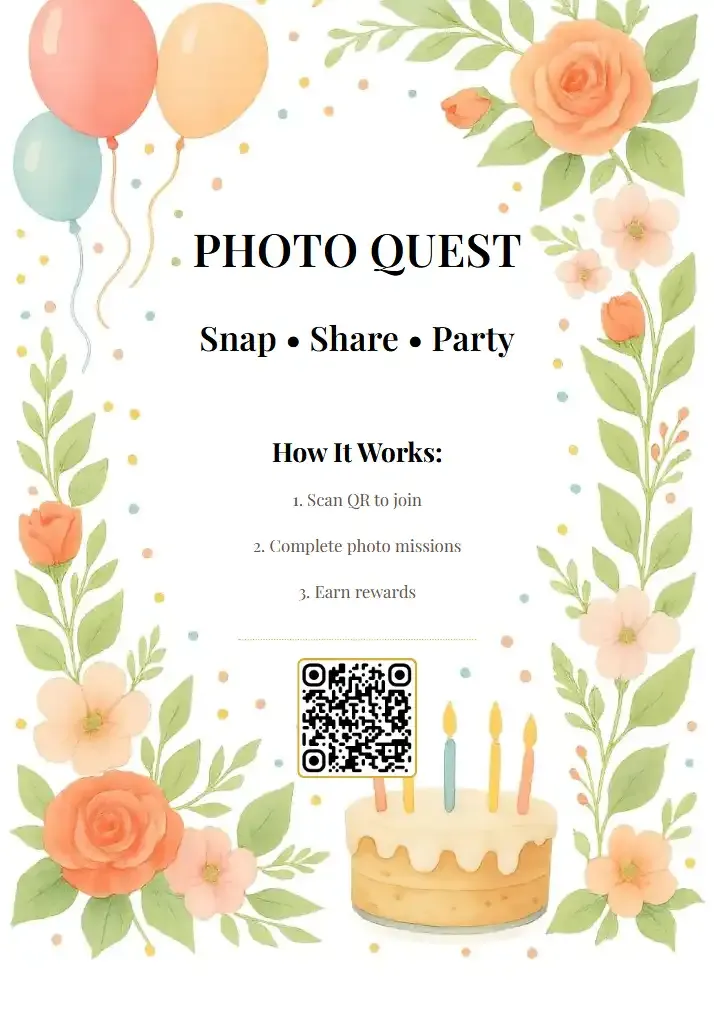
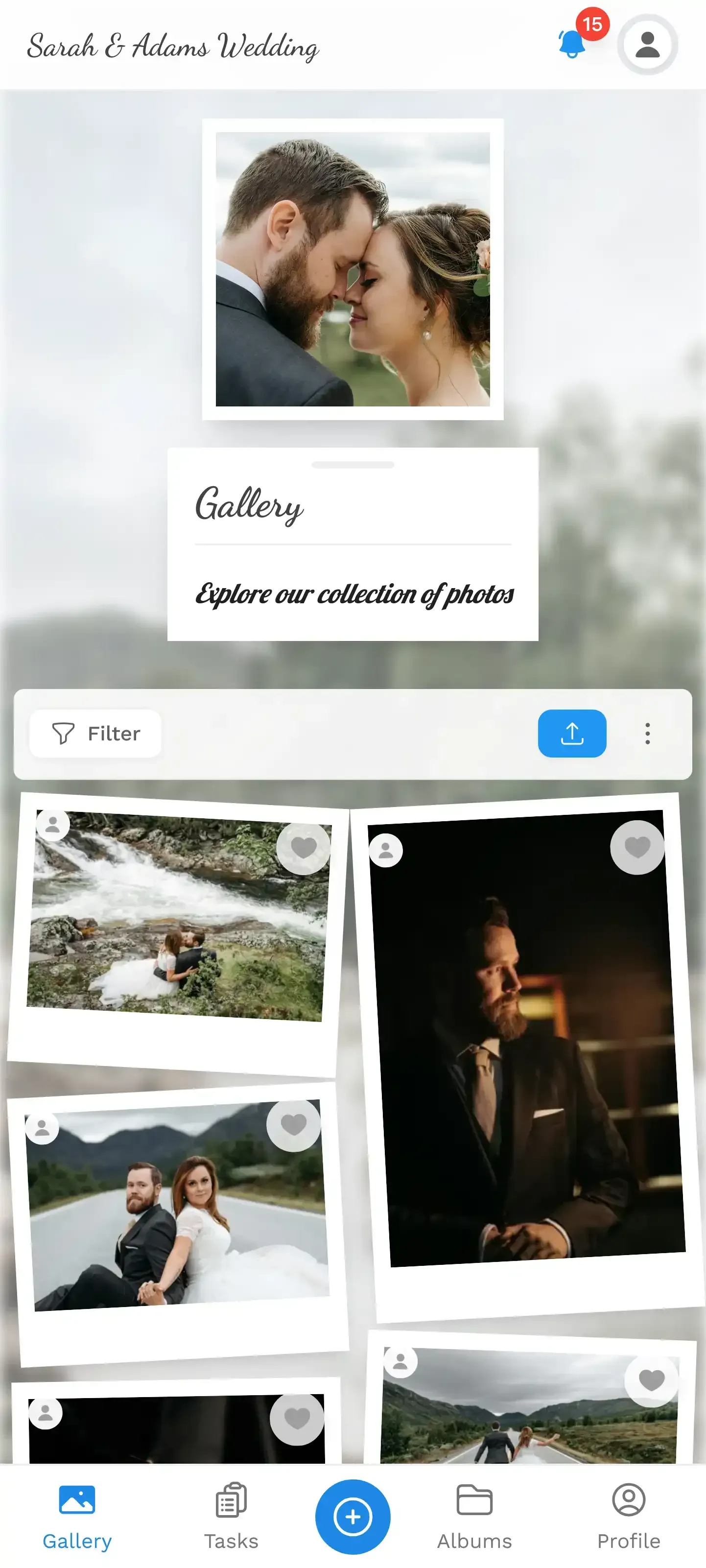
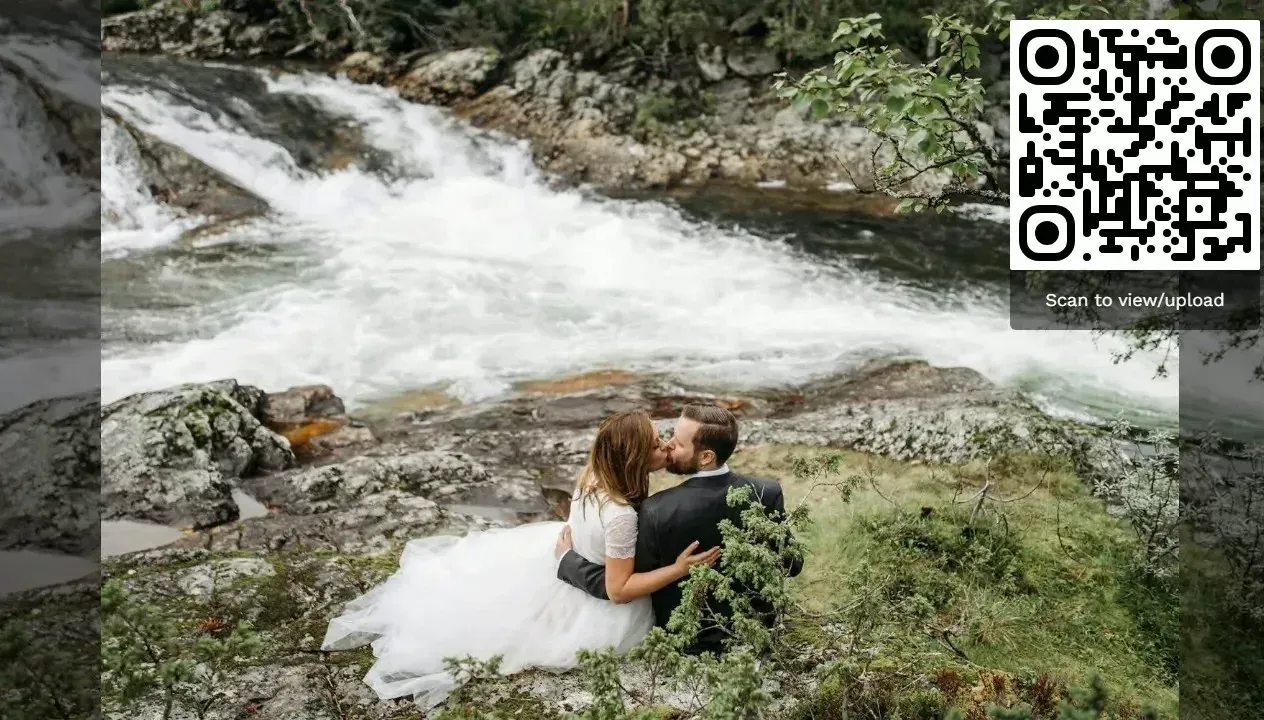
Photogala works exactly this way. Guests scan a QR code, open the gallery in their browser, and start uploading. Every photo appears in a shared gallery instantly. You can even run a live slideshow on a screen at the venue during the reception itself, then use those same photos to build a post-wedding slideshow later.
One honest caveat: Photogala isn't free. The Plus plan is a one-time €39 payment. If you're on a razor-thin budget, a shared Google Photos album costs nothing. But the difference in participation rate is significant. QR code scanning is frictionless in a way that "download this app" or "join this album" simply isn't.
Curating Photos for a Slideshow That Tells a Story
Whether you end up with 100 photos or 800, the curation step is what separates a good slideshow from a great one. Everlasting Studios recommends organizing photos into folders by moment or location before you start editing. Chronological sorting works, but thematic grouping (getting ready, ceremony, reception, dancing) often creates a better narrative arc.
Some practical rules that work regardless of your tool:
- Cut ruthlessly. 60-80 photos for a 4-minute slideshow. That's one photo every 3-4 seconds. More than that and the pacing feels rushed.
- Mix professional and guest shots. Alternate between polished photographer images and raw guest uploads. The contrast is what makes it feel alive.
- Front-load the best stuff. People's attention peaks in the first 30 seconds. Put your strongest, most emotional photos there.
- End on warmth, not spectacle. The last 3-4 photos should be quiet, intimate moments. Not the dance floor at midnight.
- One song is enough. Two max. Every song change resets the emotional tone. Pick one track that builds and stick with it.
The color consistency trick: Guest photos from different phones will have wildly different color temperatures. In Premiere Pro, use Lumetri Color to batch-apply a subtle warm grade. In Canva, apply the same filter to every photo. It ties the whole slideshow together visually.
The Real Secret: More Photos, Better Slideshow
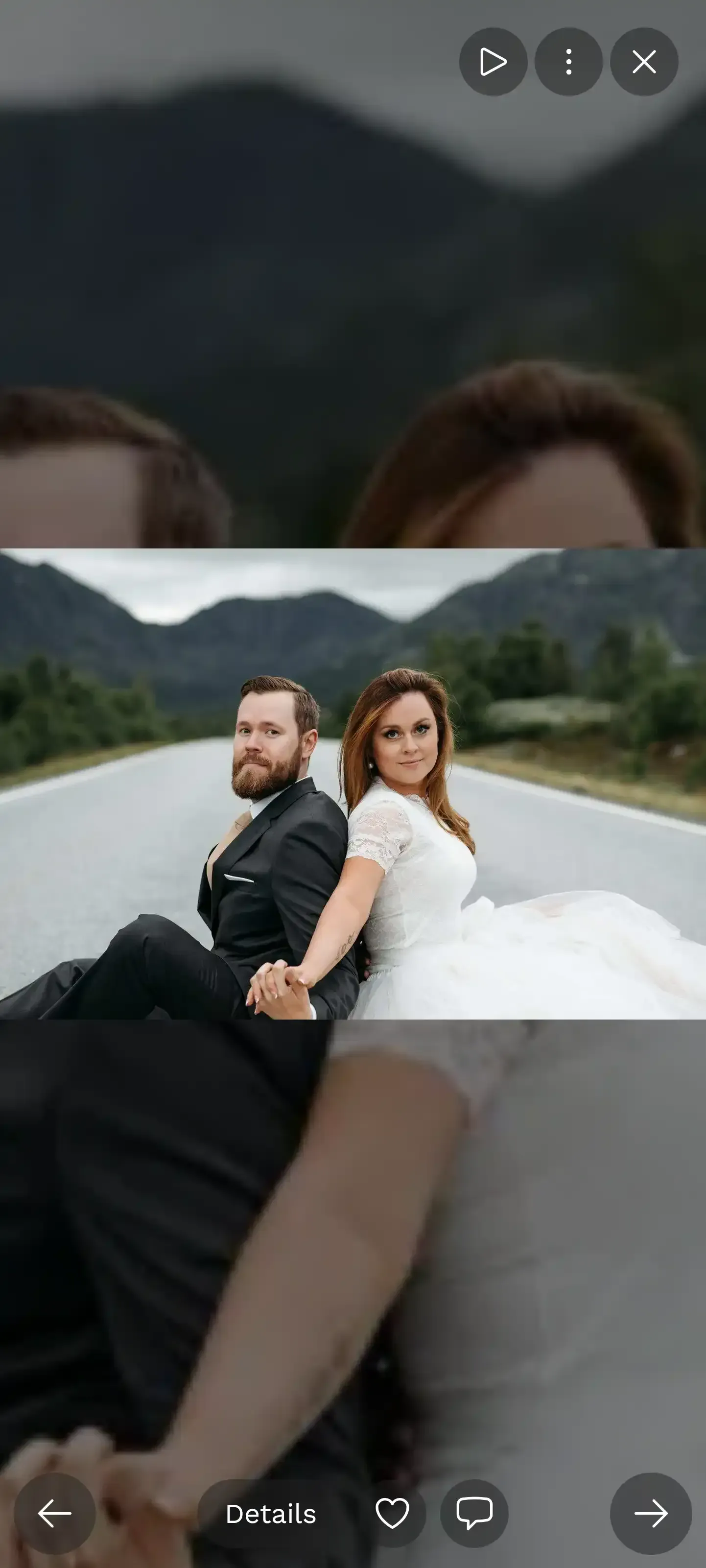
Tommy Video's editing guide puts it well: every editing decision impacts the final result, but you can only edit what you have. A wedding slideshow built from 400 guest photos and 300 professional shots gives you 700 frames to choose from. You can be picky. You can find that one shot of your dad quietly wiping his eyes during the toast that nobody noticed being taken.
That's the argument for collecting photos aggressively, whether through QR codes, shared albums, or old-fashioned USB drives. The more raw material you have, the better your slideshow will be, regardless of which tool you use to assemble it.
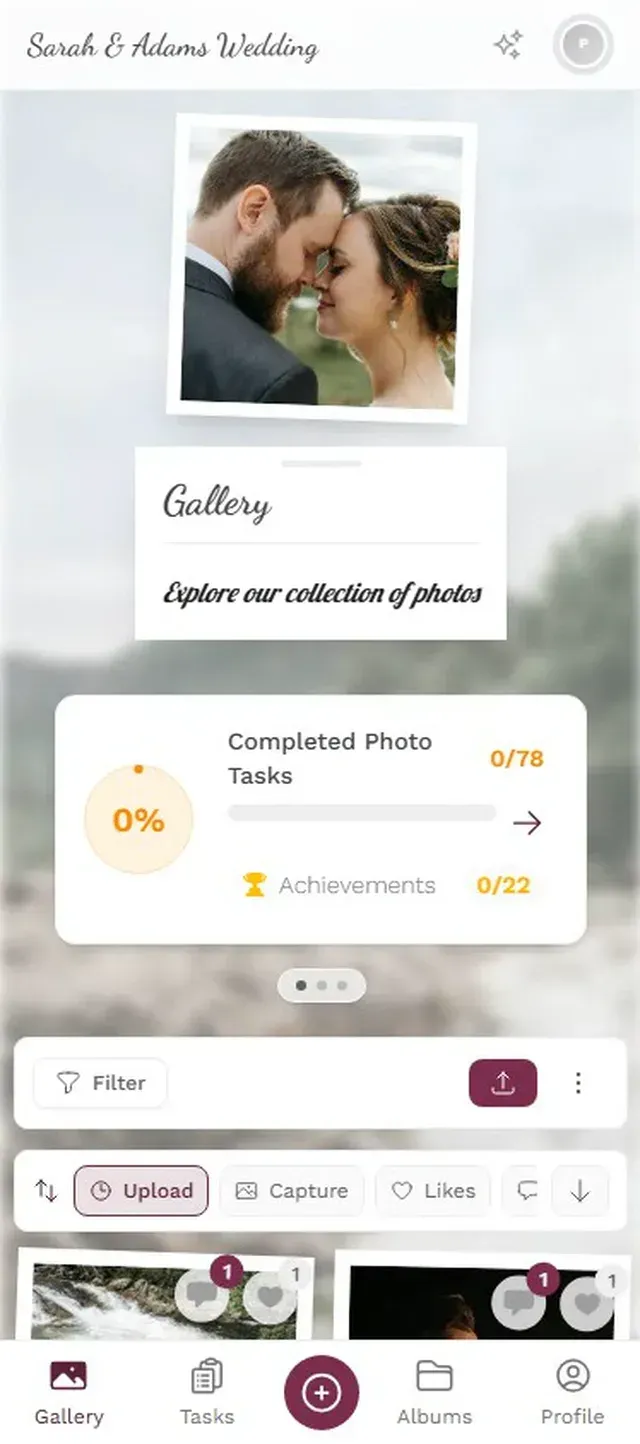
Hundreds of guest photos, all in one gallery, ready to download for your slideshow.
If you want to see how QR-based photo collection works in practice, Photogala lets you create a gallery in about two minutes. Set it up before the wedding, print QR codes on table cards, and you'll have your slideshow source material before the honeymoon.
The Wedding Slideshow Workflow
Collect photos from every source
Set up QR code sharing for guests. Gather professional photos. Check your own camera roll. The more sources, the better your options.
Curate and organize
Sort by moment (ceremony, reception, dancing). Pick 60-80 of the best. Mix candid guest shots with professional ones.
Build and edit
Drop photos into your tool of choice. Add one great song. Keep it under 5 minutes. Watch it twice before sharing.
Ready to create your gallery?
Start sharing your event photos with guests in minutes.
Create GalleryWritten by

I believe event photos should be more than static galleries. They should be live, playful, and unforgettable.
Categories
Related Posts
Cloud Albums vs QR Code Galleries: Which One Actually Works at Events
Shared iCloud and Google Photos albums sound great until half your guests can't join. Here's how QR code galleries compare for real events.
How to Moderate Guest Photos at a Public Event (Without Losing Your Mind)
Public events with open photo uploads need a plan. Here's how to keep your gallery clean, your guests happy, and your legal team calm.
How to Print Photos From a Shared Event Gallery
You collected hundreds of guest photos. Now what? Here's how to turn your shared event gallery into prints, books, and keepsakes worth keeping.