How to Give Every Guest Their Own Auto-Filling Photo Album

The 800-Photo Scroll Problem
Picture a 150-guest wedding wrapping up. The gallery has 743 photos. Beautiful chaos. Candid dance floor moments, table shots, that blurry one of the cake someone took at an angle. The couple loves it. But the bride's college roommate, who flew in from Denver? She wants to find the six photos she's actually in. And she's not going to scroll through all 743.
This is the part nobody thinks about when setting up event photo sharing. Collecting the photos is the easy problem. Most platforms solve it with a QR code and a shared folder. The hard problem is what happens after: giving each person a fast, personalized way to find their own pictures without digging through everyone else's.
That's what auto-filling albums do. Instead of one massive photo dump, the gallery quietly organizes itself in the background, creating smaller albums based on who uploaded what, when photos were taken, or (with AI) who appears in them.
Two Flavors of Smart Albums
There are two distinct approaches here, and they solve different problems. Understanding the difference matters because one requires no AI at all, and the other uses face recognition to do something most photo platforms can't.
Rule-Based Smart Albums: The Simple, Powerful Default
Rule-based smart albums fill themselves based on conditions you define. Three rule types are available:
- By uploader: every photo a specific guest uploads goes into their album automatically
- By time window: photos captured between, say, 6 PM and 8 PM land in a "Ceremony" album
- By likes: the most-liked photos across the event get collected into a "Best Of" highlights album
The uploader-based rule is the one that creates personal albums. When a guest named Maria scans the QR code and uploads her 12 photos, they all appear in the main gallery and in Maria's personal album. She doesn't need to do anything. The album already exists, already has her name on it, and already contains every photo she contributed.
The time-window rule is underrated. At a wedding with clearly defined phases (ceremony at 3 PM, cocktail hour at 5, reception at 7, party at 10), you can set up albums that map to each phase. Guests who arrived late for the ceremony can still see what they missed, organized chronologically without any manual sorting. One thing to watch: if a guest's phone clock is slightly off, a photo might land in the wrong time bucket, but that's easy to fix by adjusting the window edges by a few minutes. If you're planning a multi-day event, our guide on group trip photo sharing covers how time-based albums work across longer periods.
Combine rules for smarter results. A "Golden Hour Favorites" album using both a time window (5:30-7 PM) and a likes threshold catches the best sunset photos without you touching anything.
Person Albums via Face Recognition: Find Every Photo You're In
This is where things get interesting. Rule-based albums tell you what someone uploaded. Person albums tell you what someone appears in. Big difference.
Say Maria uploaded 12 photos, but she appears in 47. Other guests caught her laughing during the toast, dancing with her kids, standing in the background of the group shot. A rule-based album gives her 12 photos. A person album gives her all 47.
Here's how it works: the AI face recognition system scans every uploaded photo, detects faces, and clusters them by person. You (or the event host) provide one or two reference photos of a person, and the system finds every other photo of that person across the entire gallery. The result is a personalized album that keeps growing as new photos arrive. We covered the technical side in depth in our article on how face recognition works at big events.
The even faster version: selfie search. A guest opens the gallery, takes a quick selfie, and immediately sees every photo they appear in. No scrolling, no browsing, no waiting. Under 30 seconds from scan to "here are your photos."
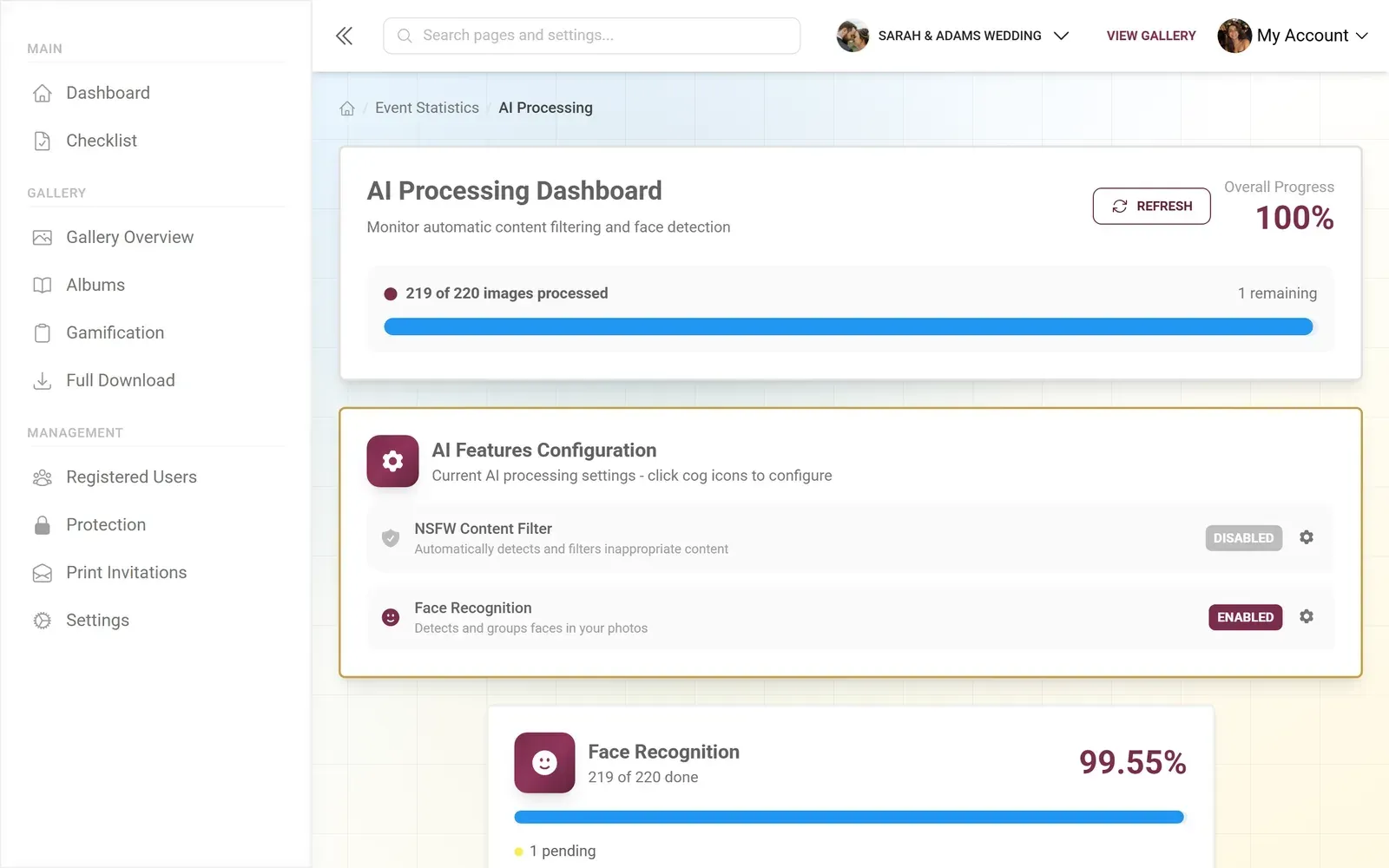
1.The face filter lets guests find every photo they appear in
Why This Changes Guest Behavior
There's a behavioral pattern worth noting: guests who can find their own photos quickly tend to upload more. The psychology makes sense. When someone scans a QR code and sees a wall of 400 random photos, the thought is "my photos will just get lost in here." When they see a personal album with their name on it, uploading feels purposeful. Their photos go somewhere specific.
A Kitec article on event photography strategies suggests that thoughtful photo organization turns passive viewing into active participation. That tracks with what smart albums do: they turn "browse a gallery" into "check your album."
This effect is even stronger with photo challenges. When a guest completes a challenge (say, "photo with the oldest person at the event"), that photo lands in the main gallery, in the challenge collection, and in their personal album. Three places, zero extra effort. The challenge itself can include example preview photos showing what to aim for, which turns a simple task into a creative game.
If you want to go further with engagement, combining smart albums with a leaderboard and points system creates a feedback loop: upload more, see your album grow, earn points, climb the leaderboard. We covered gamification strategies in our article on AI photo sorting and smart galleries.
See it in action
Every guest photo in one album – no app.
Setting It Up: Faster Than You'd Expect
One honest trade-off first: person albums require the Deluxe plan (€119) because they depend on AI face processing. Rule-based smart albums are available from Starter (€39). For most events under 80 guests, rule-based albums by uploader handle the "find my photos" problem well enough. Person albums shine at larger events where guests appear in photos they didn't take.
Create Auto-Filling Albums in 3 Steps
Create your event gallery
Sign up, name your event, pick a style. Takes about 2 minutes. No app to install for you or your guests.
Set up smart album rules
Choose by uploader, by time window, or by likes. For person albums, upload 1-2 reference photos per person you want to track.
Share the QR code
Print it on table cards (try Photogala's free [QR Code Generator](https://photogala.net/en/tools/qr-code-generator)) or share the link. As guests upload, albums fill themselves. Done.
A few practical details worth knowing. The uploader-based albums are created automatically when a new person uploads their first photo. You don't need to pre-create an album for each guest. The system handles it. Time-window albums you do set up in advance, which takes about 30 seconds per album.
For person albums, you'll want to upload reference photos before the event. One clear face shot per person is usually enough. The AI can work with two or three for better accuracy, especially if someone changes hairstyles or wears sunglasses. After the event starts, the system processes new uploads within minutes and assigns them to the right person album.
If your event has international guests, the gallery interface supports multiple languages, so everyone can navigate their album in their own language.
The Part Most Platforms Get Wrong
Most guest photo sharing platforms treat the gallery as a single shared folder. Everyone sees everything, nobody can filter efficiently, and finding your own photos requires patience most people don't have. As PerfectCorp notes in their overview of wedding photo apps, the gap between uploading photos and actually finding them later is where most platforms lose their users. People upload a few shots and never come back because browsing a pile of 500 photos feels like work.
Auto-filling albums solve the return visit problem. When a guest gets a notification that says "3 new photos of you were added," they come back. When they check their album the next morning and find 12 new photos from different angles of the same moment, they come back again. The gallery becomes something worth revisiting, not a one-time dump. Our guide on getting guests to upload after the event covers more strategies for keeping the gallery alive.
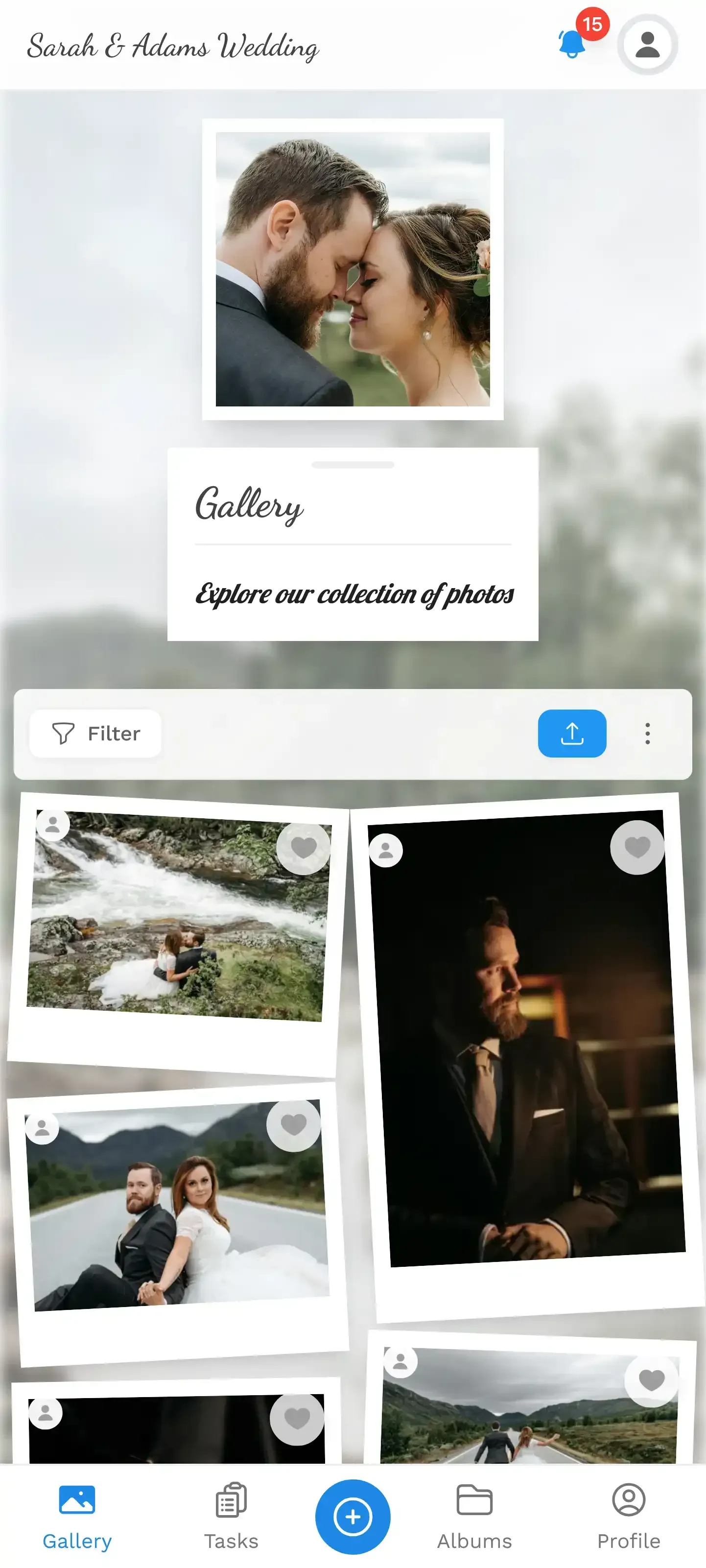
1.Guests see a clean, organized gallery, not a chaotic photo dump
Which Events Benefit Most
Not every event needs person albums. A casual birthday party with 25 guests can work perfectly with uploader-based smart albums. Everyone finds their own uploads, the host gets a "Most Liked" album for the highlight reel, and nobody scrolls through 200 photos looking for themselves.
Person albums become essential at events with 100+ guests where people don't know everyone. Weddings are the obvious case: the groom's college friends and the bride's work colleagues are in each other's photos without knowing it. A bar mitzvah with extended family flying in from different cities has the same dynamic. So do corporate conferences where teams from different offices mix for the first time.
The sweet spot for face recognition is 80-300 guests. Below that, manual browsing is still manageable. Above that, the AI saves hours of scrolling per person. At a school event with 400 students, imagine each student finding their own photos without a single admin touch.
Privacy note: Face recognition data stays within the event gallery. Guests can opt out, and all face data is deleted when the gallery expires. The moderation dashboard gives hosts full control over what's visible and what's not.
The Morning After
Imagine a 200-guest wedding ending at 1 AM. By 9 AM the next morning, the gallery has 680 photos from 94 different uploaders. The couple wakes up, opens their gallery, and sees: 94 personal albums (one per uploader), a "Ceremony" album with 87 photos from 3-5 PM, a "Party" album with 230 photos from 10 PM onwards, a "Best Of" album with the 40 most-liked shots, and (with face recognition) a person album for each of the 15 people they tagged with reference photos.
Nobody sorted anything. Nobody dragged photos into folders. Nobody stayed up until 3 AM organizing. The gallery did it itself.
That's the actual pitch for auto-filling albums. Not "look how smart the AI is" but "you wake up to an organized gallery while your guests wake up to their own personal photo collections." The couple can download everything as a bulk ZIP archive, organized by album. The guests can share their favorites through built-in social features. And the whole thing runs in a browser. No app to install, no accounts to create.
All of this comes with your own event.
Setting it up takes five minutes. You can build and view everything before you decide.
Starting from €39 one-timeOne-time payment — No subscription
- No App Required
- Setup in 5 Minutes
- 30-Day Money Back
“Excellent service and great pictures! Photogala fully met our expectations at the event. The value for money is unbeatable. Absolutely recommended! The seating plan saved us a lot of hassle!”
Written by

I believe event photos should be more than static galleries. They should be live, playful, and unforgettable.
Categories
Related Posts

How to Reuse One Photo Gallery for a Recurring or Annual Event
Stop rebuilding from scratch every year. Here's how to carry one gallery across annual reunions, corporate retreats, and recurring celebrations.

How to Watermark and Protect Photos in a Shared Event Gallery
Event photos get screenshotted, reshared, and misused more often than you think. Here's how to protect your gallery without ruining the experience.
How to Set Upload Reminders and Deadlines for Event Guests
Most event photos die on guests' camera rolls. Here's how upload windows, gentle nudges, and smart deadlines rescue them.