iPhone Event Photos: 9 Settings Most People Never Touch

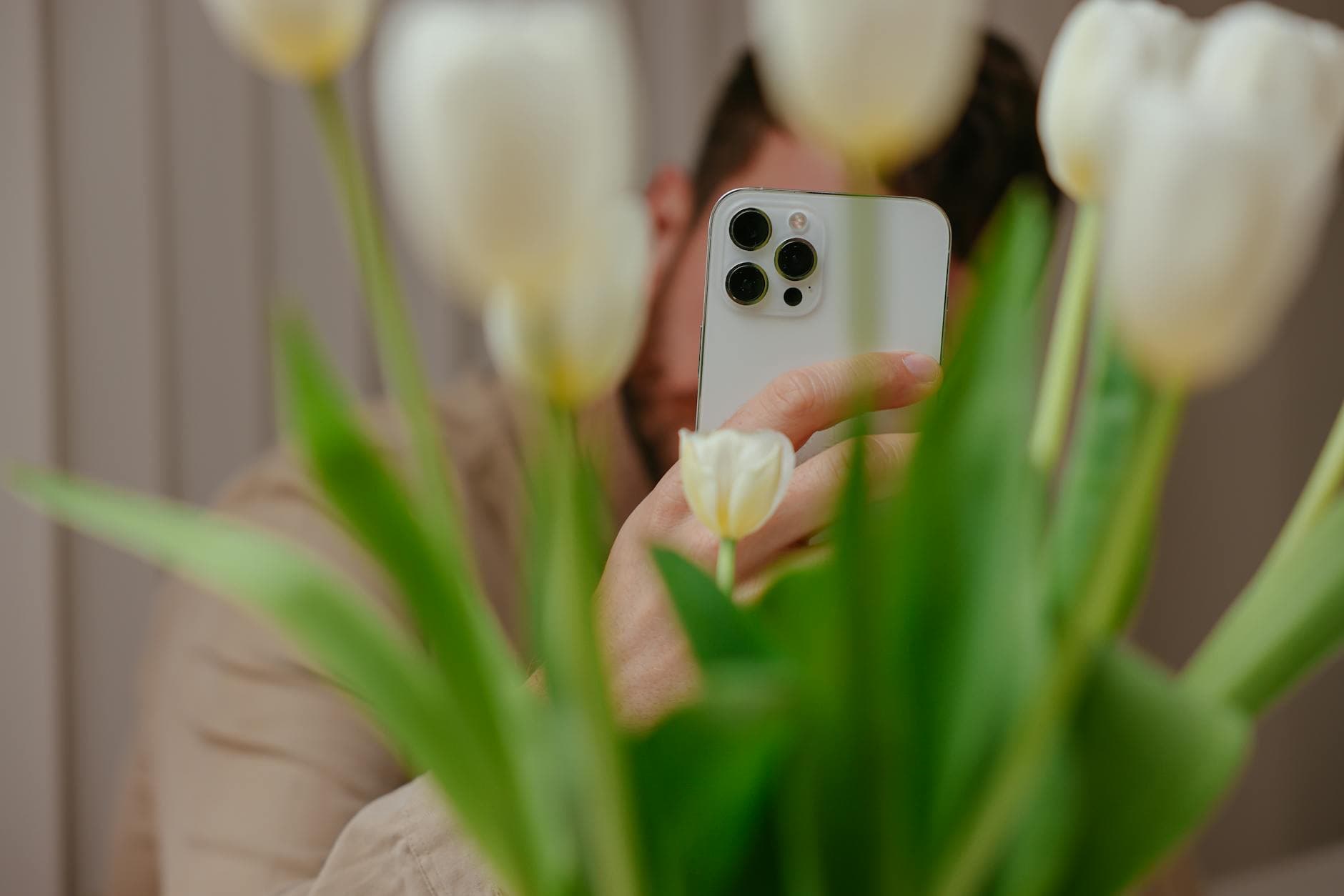
Picture this: a friend's wedding last weekend. Beautiful venue, golden hour light, 140 guests with iPhones in their pockets. The photographer delivers 280 polished shots two weeks later. But the group chat the next morning? Flooded with blurry, overexposed, yellow-tinted photos that somehow make a gorgeous ballroom look like a hospital cafeteria.
The iPhone camera is genuinely good. The iPhone alone generates an estimated 3 trillion photos annually. But "good hardware" and "good photos" aren't the same thing. Especially at events, where lighting changes every ten minutes, people won't hold still, and you're shooting one-handed while holding a drink.
Most of the difference between a forgettable snapshot and a photo people actually save comes down to settings and small habits. Not talent. Not expensive lenses. Settings you can change in 30 seconds before the event starts.
1. Lock Your Exposure (The Single Biggest Fix)
This is the one tip that changes everything. At events, your iPhone constantly readjusts exposure as you move between bright windows and dim corners. The result: half your shots are blown out, the other half are muddy.
The fix takes two seconds. Tap and hold on your subject until you see AE/AF Lock appear at the top. Now your exposure stays put. When you move to a different lighting situation, just tap-hold again to reset it. An Apple Community thread explains a related trick: after tapping the subject, slide the sun icon up or down to fine-tune the brightness. This is especially useful when a bright window or stage light behind your subject would normally turn them into a silhouette.
At a dimly lit party, you'll want exposure slightly higher than the iPhone auto-selects. At an outdoor summer event, dial it down a notch. Trust your eyes over the algorithm here.
2. Turn Off the Flash. Seriously.
The iPhone flash fires a blast of cold white light from two feet away. In a room with warm ambient lighting, candles, fairy lights, dance floor spots, the flash kills the atmosphere and replaces it with a harsh, flat look. Skin tones go weird. Backgrounds vanish into blackness.
Set your flash to Off, not Auto. Auto mode triggers the flash in exactly the situations where it looks worst: dim, atmospheric spaces. Night Mode (iPhone 11 and later) handles low light far better than flash ever did. It takes a slightly longer exposure, so hold steady for a second, but the results are night and day. Literally.
Quick toggle: Open Camera, tap the flash icon (top left), and select the crossed-out flash. On newer iPhones, swipe up on the camera controls bar to find it.
3. Shoot in 0.5x for Group Shots
Here's something I see go wrong at every event: someone tries to fit eight people into a photo, backs up into a waiter, and still cuts off the people on the edges. If your iPhone has an ultra-wide lens (iPhone 11 and later), tap 0.5x at the bottom of the camera screen. You'll capture the entire group without needing to stand across the room.
Ultra-wide does introduce some distortion at the edges. That's fine for casual group shots. For tighter portraits, stay on 1x. The point is knowing which tool fits the moment instead of fighting the default.
4. Use Portrait Mode (But Not for Everything)
Portrait mode creates that blurred background effect that makes photos feel more "professional." At events, it works beautifully for: individual portraits, couples shots, detail photos of table settings or decorations, and the cake. Where it falls apart: group shots (it can't handle five faces at different distances), fast movement (the dance floor), and dimly lit rooms where the depth sensor struggles.
The sweet spot is 1-2 people, decent lighting, and a little distance between subject and background. Use it for the posed moments. Switch back to regular photo mode for everything else.
5. Burst Mode for the Unpredictable Moments
The bouquet toss. The champagne pop. The CEO tripping on stage. These moments happen once and they happen fast. Burst mode captures 10 frames per second.
On iPhone X and later: swipe the shutter button left (it's no longer press-and-hold, which now triggers video). Hold for as long as the action lasts, then scroll through the burst to find the one frame where everyone's eyes are open and nobody is mid-blink. For toasts and speeches, even a quick 1-second burst gives you 10 options instead of one gamble.
6. Clean Your Lens (The Embarrassingly Simple One)
Your phone lives in your pocket. It touches your face, your fingers, possibly the bottom of a bag with crumbs in it. That thin film of grease on your lens is the reason your photos have that soft, hazy glow that you thought was a "bad lighting" problem.
Wipe the lens with a soft cloth before the event. Check it again after dinner. This alone can fix that washed-out look people blame on cheap phones.
Discover what Photogala can do
7. Use Live Photos for Candid Moments
Live Photos capture 1.5 seconds of video before and after you press the shutter. At events, this is surprisingly useful. The "photo" you took of someone laughing might be boring as a still image, but the Live Photo catches the whole laugh. You can scrub through the frames and pick a better moment after the fact.
The trade-off: Live Photos take up roughly twice the storage of a regular photo. If you're running low on space, turn them off for the formal posed shots (where the still frame is fine) and turn them on for candid moments.
8. Grid Lines and the Rule of Thirds
Go to Settings → Camera → Grid and turn it on. Two horizontal lines and two vertical lines appear on your screen. Place your subject where the lines intersect instead of dead center. That's the rule of thirds, and it's the reason some casual photos look composed while others look like surveillance footage.
For event photos specifically: place the person's eyes on the upper third line. Leave a little space in the direction they're looking. For wide venue shots, put the horizon on the lower third to show more ceiling and architecture, or the upper third to show more table setups.
9. Tap to Focus on What Matters
The iPhone auto-focuses on what it thinks you're photographing. It's often wrong. At a crowded event, it'll lock onto the person closest to the camera, the centerpiece, or a bright light source instead of the face you actually want sharp.
Tap the screen on your actual subject. Every time. It takes a fraction of a second and it's the difference between a sharp portrait and a photo where the flower arrangement is crisp but the birthday girl is a blur behind it.
Now You Have 200 Great Photos. What Do You Do With Them?
Here's the part nobody talks about in iPhone photography guides. You followed the tips. You took 200 solid photos at the event. Now what?
You could create a shared iCloud album, but half the guests at any event are on Android. You could start a WhatsApp group, but good luck finding photo #47 in a thread of 300 messages three days later. You could AirDrop, but that only works if everyone is standing next to you.
This is where a QR code gallery changes the equation. Guests scan a code at the venue, open a browser (no app download, works on any phone), and upload their photos to a shared gallery. Every photo from every guest, in one place, viewable in real time. If someone took an amazing wide-angle group shot with their 0.5x lens, everyone else can see it and save it immediately.
Guests scan, tap upload, done. No app install needed.
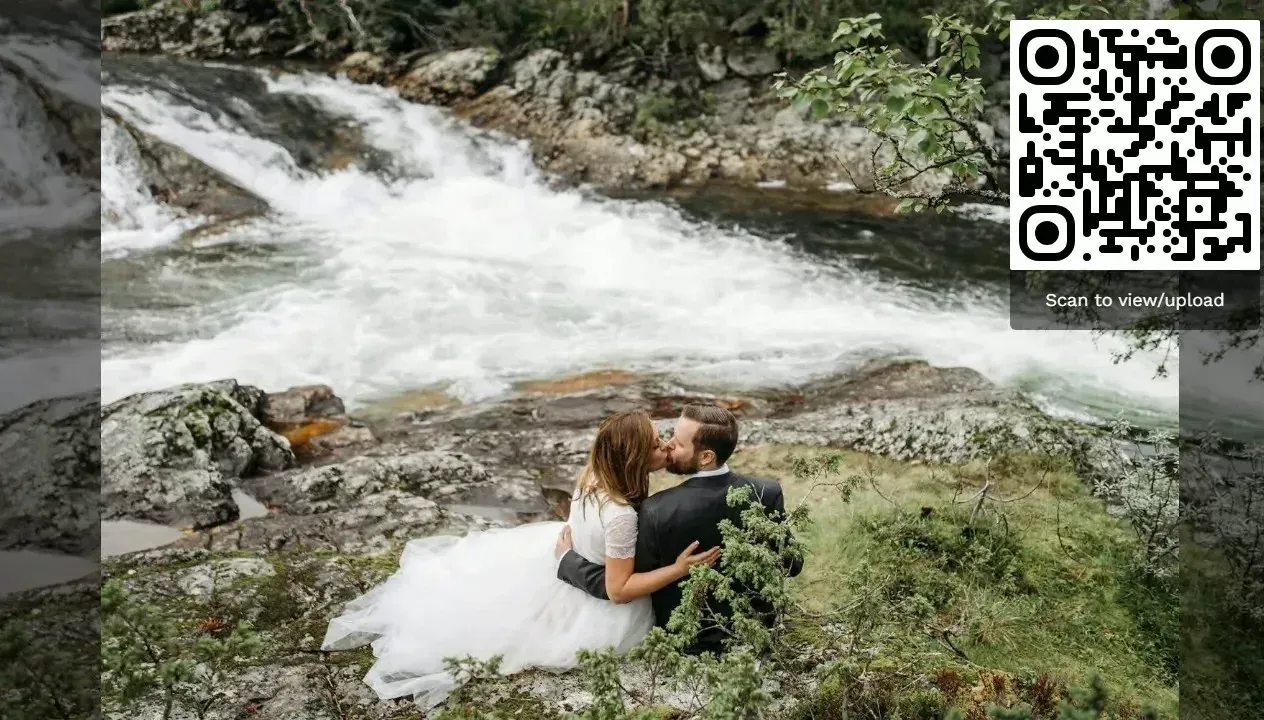
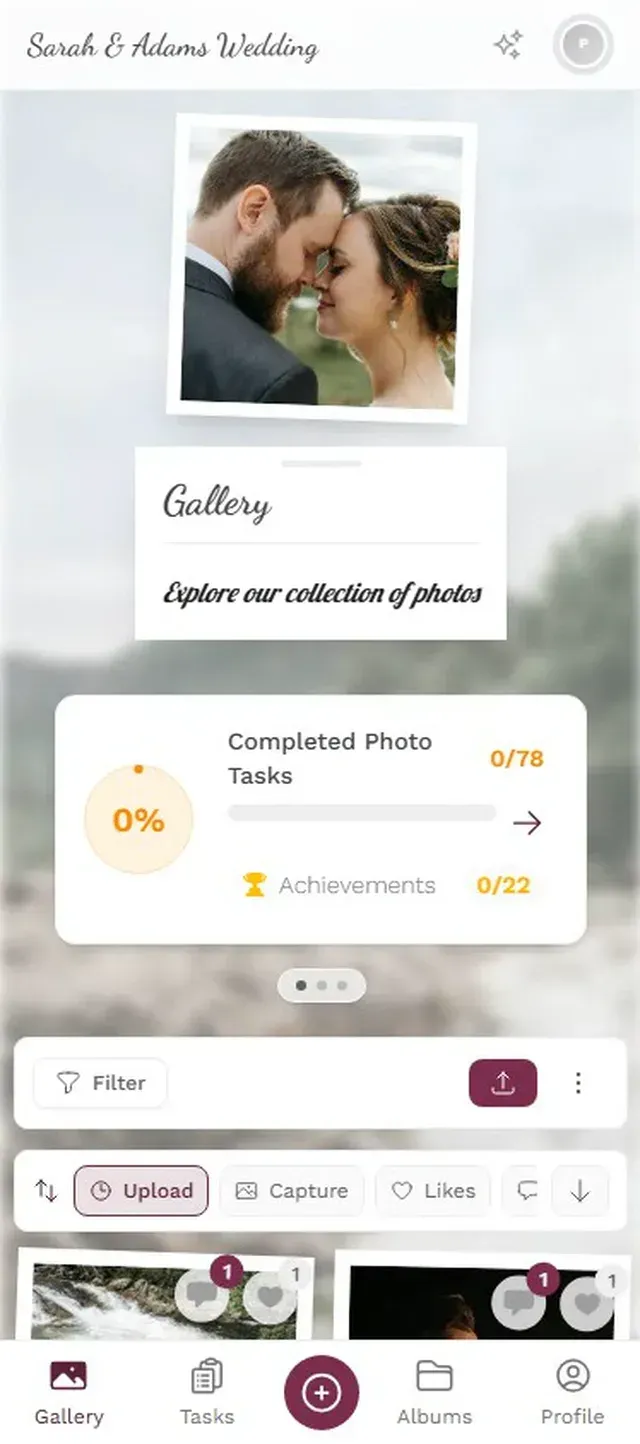
You can even set up a live photo wall on a TV at the venue. As guests upload their best shots, photos cycle on screen for everyone to see. It turns passive phone photography into something the whole room participates in.
One thing worth mentioning: Photogala is browser-based, not a native app. That's actually the advantage for events (no friction for guests), but it means you don't get push notifications the way a native app would. For most single-day events, that's a non-issue. For multi-day conferences, some organizers pin the gallery link to a Slack channel as a reminder.
The Photo Challenge Trick
Say you're organizing a corporate team event or a big birthday party. You hand out QR codes and hope for the best. Some guests upload five photos. Others forget entirely.
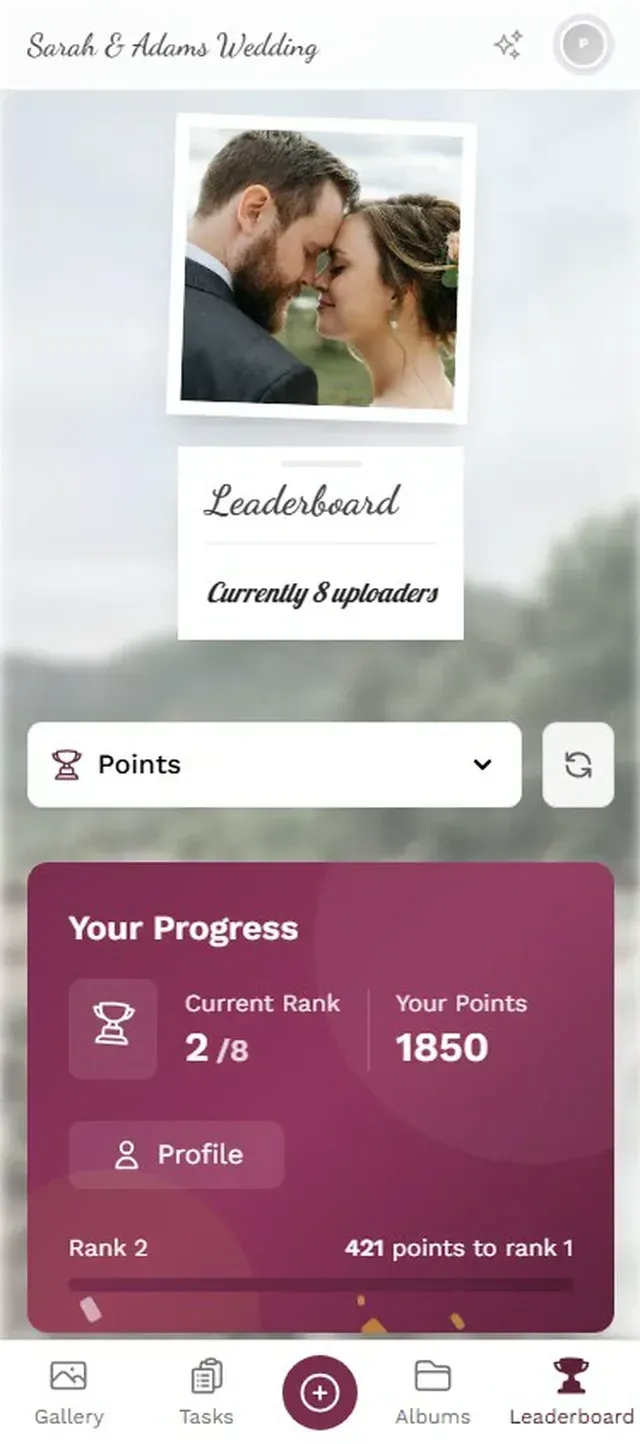
Photo challenges fix that. Instead of just "upload your photos," you give guests specific, fun prompts: "Recreate this movie poster pose" (with an example photo attached), "Best candid of someone laughing," "Most creative selfie with the birthday sign." Challenges can include example preview photos that show guests exactly what to aim for. One popular format is Photo Roulette: guests get a random example photo and have to recreate it. The results are usually hilarious.
Add a leaderboard and suddenly the quiet colleague in accounting is uploading their 15th photo because they want to overtake the intern. Research from AmplifAI found that gamification increases engagement by 48% in workplace settings. The same psychology works at events, arguably better, because people are already in a good mood.
Guests see fun challenges with example photos to recreate.
A Quick Settings Cheat Sheet
Before your next event, run through this in 60 seconds:
- Flash → Off (not Auto)
- Live Photos → On for candids, Off for posed shots
- Grid → On (Settings → Camera → Grid)
- Lens → 0.5x for groups, 1x for portraits
- Clean the lens with a soft cloth
- Tap your subject to focus, slide sun icon to adjust exposure
That's it. Six toggles and a cloth wipe. The rest is just paying attention to light and timing.
The best event photos aren't the ones taken by the hired photographer (though those matter too). They're the 200 unpolished, candid, slightly chaotic photos taken by guests who were actually in the moment. Give your iPhone the right settings, give your guests a place to share everything, and the gallery builds itself.
Ready to create your gallery?
Start sharing your event photos with guests in minutes.
Create GalleryWritten by

I believe event photos should be more than static galleries. They should be live, playful, and unforgettable.
Categories
Related Posts
Multicultural Wedding Photo Sharing: Honoring Every Tradition in One Gallery
When your wedding blends two (or more) cultures, collecting guest photos gets complicated fast. Here's how to make it work without losing a single moment.
Free Event Planning Tools Every Organizer Should Bookmark
The best free tools for budgets, guest lists, timelines, photo sharing, and more. No subscriptions, no bloated software suites.

Milestone Birthday Photo Sharing: 30th, 40th, 50th and Beyond
At milestone birthdays, decades of relationships converge in one room. Here's how to collect every guest's photos before they vanish into 40 separate camera rolls.