How to Create a Shared Photo Album That Actually Works Across iPhone and Android


Picture this: your best friend's birthday party just happened. Thirty people, four hours, hundreds of photos scattered across thirty different phones. Half the group has iPhones. The other half has Androids. Someone creates an iCloud Shared Album and texts the link. Fifteen people can't access it because they don't have Apple IDs. Someone else suggests Google Photos. Eight people don't have Google accounts or refuse to create one for a single album.
Two weeks later, the photos are still trapped on individual phones. Sound familiar?
The cross-platform photo sharing problem is one of those things that feels like it should have been solved years ago. And technically, there are solutions. They just all come with asterisks, workarounds, and friction that kills the whole point of sharing in the first place.
I spent a while testing every common approach to cross-platform shared albums. Here's what actually works, what barely works, and what you should probably skip entirely.
Why iCloud Shared Albums Fall Apart
Apple's iCloud Shared Library and Shared Albums are genuinely good products. For Apple-only households. The moment a single Android user enters the picture, things get complicated.
As UBackup's cross-platform guide puts it, sharing iCloud photos with Android users "can be tricky" but is "definitely possible." That's a generous way of saying: it works, sort of, with workarounds that most people won't bother with.
Android users can view iCloud shared albums through a web browser at icloud.com. They can't contribute photos back without manual uploading through the web interface. No push notifications. No real-time sync. No native experience. It's the digital equivalent of being invited to a party but having to stand outside and look through the window.
For a family of four where everyone has iPhones, iCloud is perfect. For a wedding with 150 guests? It's a dead end.
Google Photos: Better, But Still Not Universal
Google Photos shared albums work on both platforms, which is a major advantage. iPhone users can download the Google Photos app and participate fully. The sharing experience is solid.
The catch is the account requirement. Every single person who wants to view or contribute needs a Google account. For a close friend group of six people, that's fine. For a 40-person birthday party or a 200-guest wedding, you're asking dozens of people to create accounts they'll never use again.
There's also a storage reality: Google's free tier gives you 15 GB shared across Gmail, Drive, and Photos. Upload a few hundred full-resolution photos and you'll start getting those "your storage is almost full" emails. Internxt's comparison of photo sharing apps notes that security and privacy tradeoffs vary significantly across platforms, and Google's business model (showing ads based on your data) makes some people uncomfortable handing over their personal photos.
Google Photos is probably the best of the "traditional" options. But it still requires buy-in from every participant, and that friction matters more than most people realize.
The Account Problem Nobody Talks About
Here's the thing that tech-savvy people consistently underestimate: most people won't create an account for a one-time activity. They just won't. You can send the link, explain the steps, follow up twice. Half of them will upload nothing.
A PixelShouters roundup of photo sharing apps identifies this as a recurring pain point across the category: blurry files from compression, security vulnerabilities, and the universal friction of requiring accounts or app downloads for something that should be simple.
Think about the last group event you attended. How many photos did you personally send to a shared album afterward? If you're honest, the answer is probably zero. Not because you didn't care, but because by the time you got home, the moment had passed. The activation energy required (find the link, log in, select photos, wait for upload) exceeded your motivation.
This is the core problem. The technical challenge of cross-platform sharing has been solved. The human behavior challenge hasn't.
The best shared album isn't the one with the most features. It's the one with the lowest barrier to entry. If grandma can use it without calling you for help, you've found the right tool.
What Actually Works: The QR Code Approach
The approach that consistently gets the most photos uploaded is also the simplest: a QR code that opens a browser-based gallery. No app. No account. No platform requirement. Scan, upload, done.
This is where purpose-built event photo sharing tools come in. Instead of fighting with iCloud permissions or Google account requirements, you create a gallery, get a QR code, and anyone with a smartphone camera can participate. iPhone, Android, a seven-year-old Samsung that can barely run WhatsApp. Doesn't matter.
Photogala works exactly this way. You set up a gallery in about two minutes, share the QR code (print it on a card, text it, project it on a screen), and guests upload directly from their phone's browser. Photos appear in the shared gallery in real time. Original quality, no compression, no account needed.
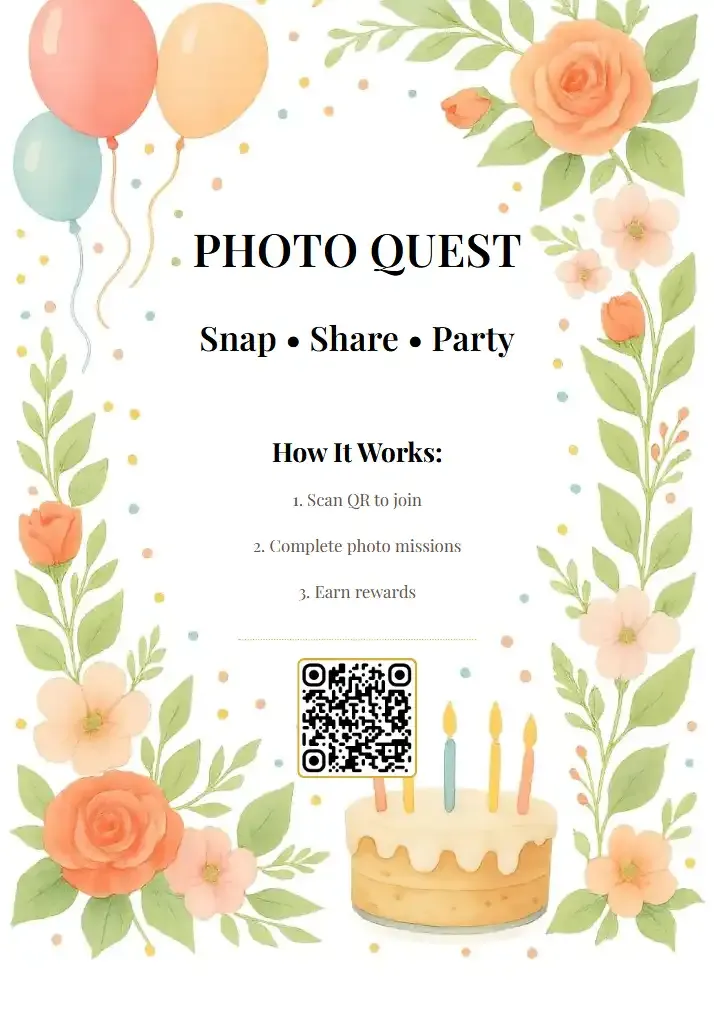
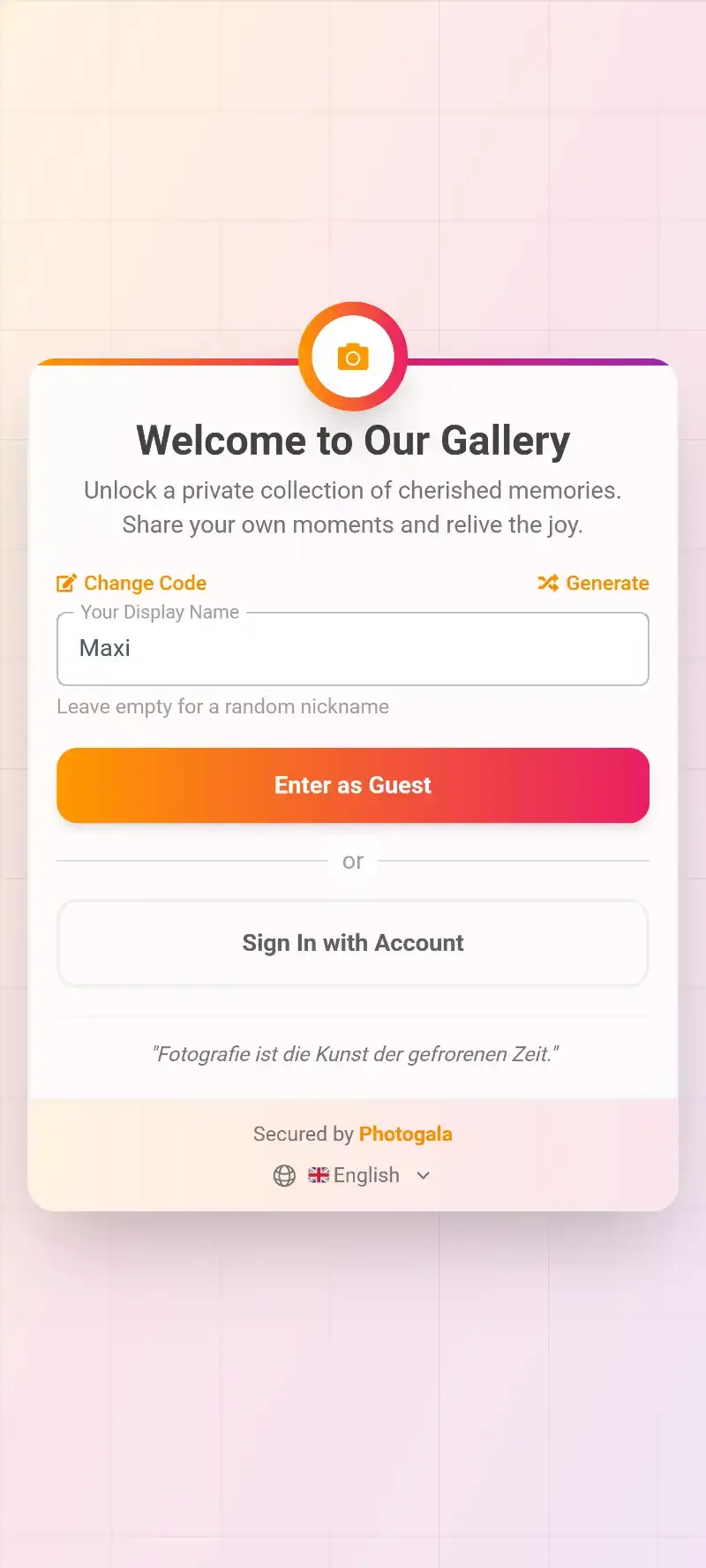
1.Scan and you're in. No app, no account.
The difference in participation is dramatic. When you remove the account requirement and the app download, people who would never bother with a Google Photos invite suddenly upload 10-15 photos each. Imagine a 30-person birthday: instead of getting photos from 5-6 people, you end up with contributions from 20+.
See it in action
Every guest photo in one album – no app.
A Side-by-Side Look at Your Options
Here's how the main approaches compare when your group has a mix of iPhones and Androids:
Cross-Platform Shared Album Options
| Feature | QR Code Gallery (e.g. Photogala) | Google Photos | iCloud Shared Albums |
|---|---|---|---|
| Works on iPhone | |||
| Works on Android | view only via web | ||
| Account required | Google account | Apple ID for full access | |
| App download required | Google Photos app | built into iOS only | |
| Real-time sync | Apple devices only | ||
| Original quality photos | compressed on free tier | downscaled to 2048px | |
| Upload limit | unlimited on all plans | 15 GB free storage | 5,000 photo limit per album |
| Works for large groups (50+) | needs all accounts | ||
| Photo wall / live display |
Making It Work for Specific Events
The right solution depends on the size and type of your event. Here's what I'd recommend based on the scenario:
Small friend group (5-10 people)
If everyone already has Google accounts, a Google Photos shared album is perfectly fine. You all know each other, you're tech-comfortable, and the account barrier is zero because everyone already has one. Simple, free, good enough.
Family gathering (15-40 people, mixed ages)
This is where things get interesting. You'll have teenagers with the latest iPhones, parents with mid-range Androids, and grandparents who think "the cloud" is a weather phenomenon. A QR code approach wins here because it removes every barrier. Print the code on a table tent, and the tech-savvy cousin can help grandma scan it once. After that, she's uploading selfies on her own.
Wedding or large celebration (80-200+ guests)
At this scale, anything requiring accounts or app downloads is dead on arrival. You simply cannot get 150 people to all create Google accounts or download an app before the reception. A QR code on every table, maybe on the invitation itself, is the only realistic approach. If you're planning a wedding, our guide on collecting photos from 200+ guests goes deep on the logistics.
Corporate event
Company events add another layer: content moderation. You probably don't want unfiltered photos appearing on the company's shared album. Photogala includes a moderation dashboard where an admin can approve or reject photos before they appear in the gallery. Combined with an AI-powered NSFW filter, it catches problems before they become HR incidents.
1.Approve or reject photos before they go live.
Beyond Collecting: What Happens After
Getting photos into one place is step one. But most shared album solutions stop there, and that's where the experience falls flat.
Imagine a birthday party where you've set up a shared album with QR code access. Photos are flowing in. Now what? With a basic shared folder, everyone just stares at an unorganized grid of images. With Photogala, you can run photo challenges ("best group selfie", "funniest face", "find the birthday cake") that give guests a reason to keep uploading. There's a leaderboard tracking who's uploaded the most. Achievements they can unlock.
It sounds like a small thing, but gamification changes behavior. Instead of 3-5 photos per person, you start seeing 10-15. The guy who normally never takes photos suddenly uploads twelve because he wants to beat his buddy on the leaderboard.
You can also throw the gallery onto a TV or projector as a live photo wall. Photos appear on the big screen as guests upload them. It becomes a conversation starter, a background entertainment piece, and a reason to keep participating.
Guest photos appear on the big screen in real time.
The Honest Trade-offs
No solution is perfect, and pretending otherwise would be dishonest.
Google Photos is free. That's a genuine advantage. Photogala starts at €39 as a one-time payment, which is reasonable for a wedding but might feel like overkill for a casual dinner party. For small, tech-savvy groups, Google Photos remains hard to beat on value.
Photogala is browser-based, not a native app. This is a feature (no download required) and a limitation (you don't get push notifications like a native app would provide). The trade-off is intentional, but it's worth knowing about.
iCloud is unbeatable if your entire group uses Apple devices. The integration is deep, automatic, and requires zero effort. The problem only appears when Android users are in the mix, but when they are, it's a significant problem.
Set Up a Cross-Platform Shared Album in 3 Steps
Create your gallery
Sign up on photogala.net, name your event, and customize the look. Takes about 2 minutes.
Share the QR code
Print it on table cards, add it to the invitation, or just text the link. Works on any phone.
Watch photos roll in
Guests scan, upload, and photos appear in real time. No app, no account, no friction.
The cross-platform photo sharing problem comes down to one question: how much friction are you willing to accept? For a small group of friends who all use the same ecosystem, the built-in tools work great. For anything bigger, anything with mixed devices, anything where you want photos from people who won't create an account, you need something that meets people where they are.
A QR code is where everyone already is. No download, no login, no platform wars. Just scan and share.
All of this comes with your own event.
Setting it up takes five minutes. You can build and view everything before you decide.
Starting from €39 one-timeOne-time payment — No subscription
- No App Required
- Setup in 5 Minutes
- 30-Day Money Back
“We were really thrilled, and everything went so much more smoothly, from the seating plan all the way to the photo games! Simply great! Highly recommended!”
Written by

I believe event photos should be more than static galleries. They should be live, playful, and unforgettable.
Categories
Related Posts

Bridal Shower Photo Sharing: Collect Every Sweet Moment in One Gallery
Bridal shower photos end up scattered across 15 phones. Here's how to get them all into one gallery before the mimosas wear off.

Maternity Photo Sharing: How to Keep Every Announcement, Bump Shot, and Memory in One Place
Pregnancy announcements land on 4 different apps. Maternity photos get lost in group chats. Here's how to keep every photo in one shared gallery your whole family can access.

Sales Kickoff Photo Sharing: How to Turn a Mandatory Meeting Into a Team Memory
Sales kickoffs are expensive. The photos from them usually disappear into 14 different camera rolls. Here's how to fix that.