Where Was That Photo Taken? A GPS Photo Map for Trips and Multi-Day Events

Picture eight friends back from ten days on the coast. Between them they have a few hundred photos in one shared gallery, sorted by time, which sounds sensible until you scroll. Day four starts with a harbor, jumps to a mountain road, back to a different harbor, then a market nobody can place. "Was that the town with the blue doors or the one after?" Three people answer, three different towns.
Time order works well for a single evening. It falls apart as soon as the event moves: a trip with stops, a wedding weekend with a welcome dinner, a ceremony and a brunch in three places, a company offsite that spreads over a hotel, a hiking trail and a boat. What people want to know then is not when a photo was taken, but where.
Why Time Order Fails on the Move
A shared gallery already solves the first problem of a trip: getting everyone's photos into one place instead of eight camera rolls. Our guide to one gallery for a whole group trip covers that part. The second problem shows up later, when you try to find something.
Several people photograph the same moment from different spots, and others photograph different places at the same moment, because the group split up for an afternoon. Sorted by time, those photos interleave. Albums help, but somebody has to create them and sort into them, and on day six nobody does. Smart albums can take some of the work, though they sort by rules you set, not by where people actually stood.
Most phones already know the answer. When location is switched on for the camera, each photo carries the coordinates where it was taken. A map simply puts that information to use.
How the Photo Map Works
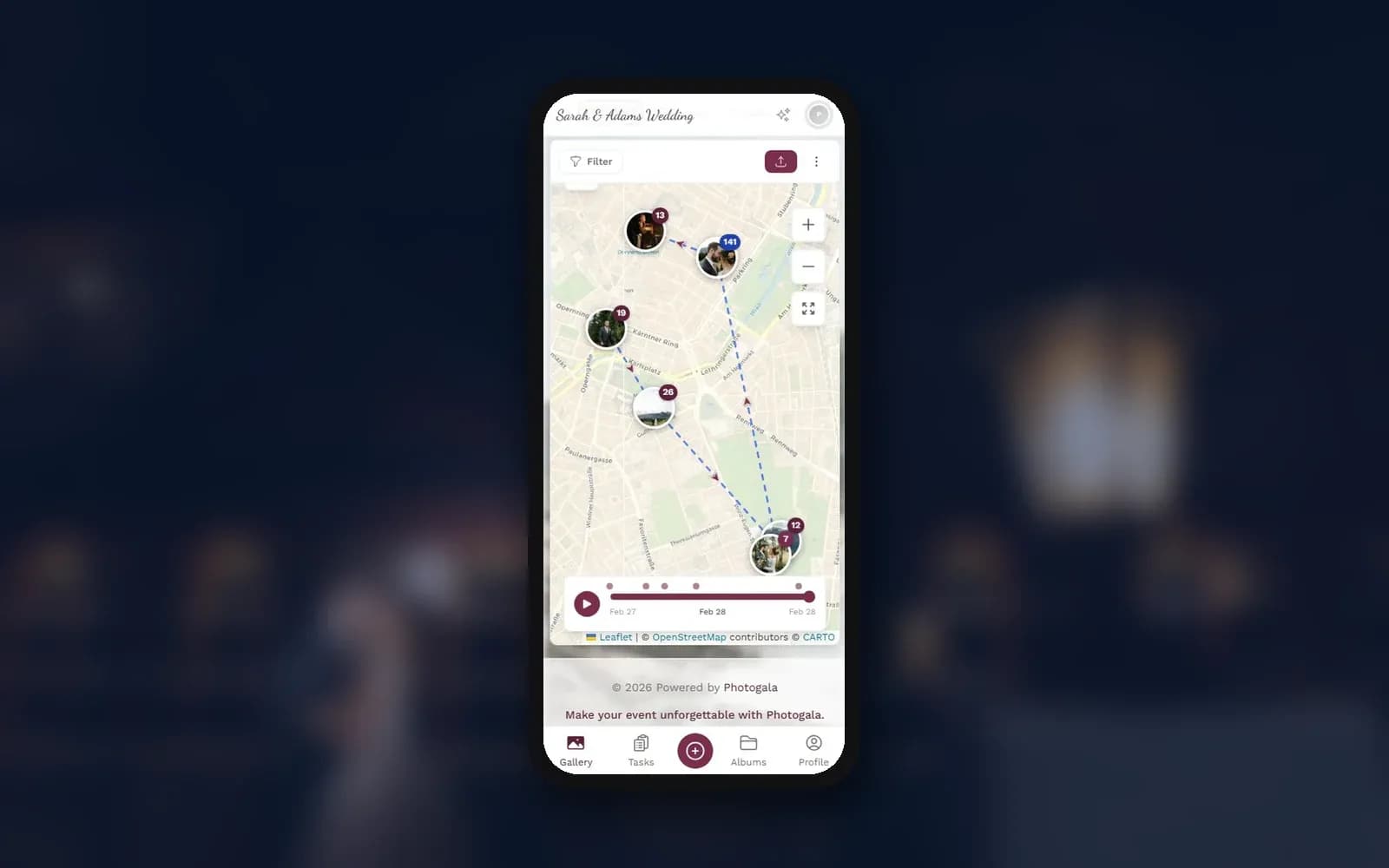
With the GPS photo map, Photogala reads the location stored in each photo and pins it on a map inside the gallery. Guests find it in the gallery's search bar, as soon as there are photos with a location. Then:
- Places instead of pins. Photos taken close together form one cluster with a small preview. Zoom in and the cluster splits up; tap a place and you see its photos.
- The route. Stops of the journey are connected in the order they happened, so the map draws the trip rather than a scatter of dots.
- Replay. A timeline slider lets you play the journey forward: drag it and the stops appear one after another, the way the trip unfolded.
- From the photo to the place. In a photo's details, "View on map" jumps straight to where it was taken.
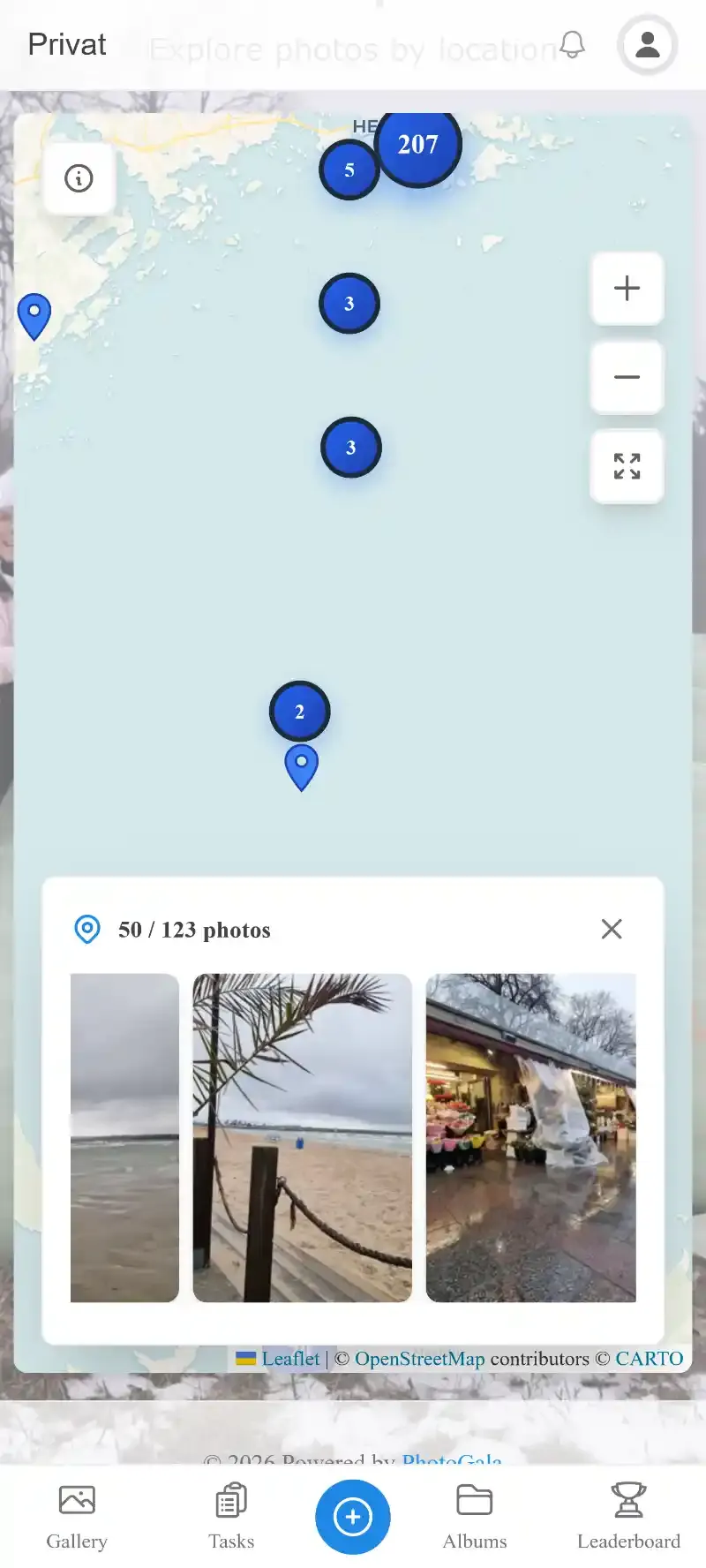
1.The map in the gallery: photos grouped by place
The map is part of Deluxe and switched on by default once your event has it. As the host you can turn it off in the gallery settings at any time.
See it in action
Every guest photo in one album – no app.
The Catch: Not Every Photo Knows Where It Was
Here's the honest part. A map can only show what the photos tell it, and quite a few photos tell it nothing:
- Location switched off. Many people have turned off location for their camera, or never allowed it. Those photos have no coordinates.
- Lost on upload. Android phones and some browsers strip the location from photos uploaded through a web page. So a guest may have location on, and the photo still arrives without it.
- Screenshots and edits. Screenshots and pictures saved from messengers usually carry no location either.
For the gaps, Photogala has a fallback that's on by default: a photo without GPS gets an estimated position, taken from the photo closest in time that does have one. These photos are clearly marked with a dashed frame and a "≈" so nobody mistakes an estimate for a fact, and anyone looking at the map can hide them with one switch. The estimate is calculated when the map is shown and is not written into the photo.
The fallback works best when at least some people in the group do have location on. If nobody does, the map stays empty, and that's fine: the gallery works exactly as before, the map entry just doesn't appear.
So the map is a strong addition, not a guarantee. For a group where most people shoot with location on, it fills up quickly. For a group that has deliberately switched it off, it stays thin, and that's their choice to make.
Three Situations Where a Map Pays Off
The trip with stops
The coastal trip from the start. With the map, "the town with the blue doors" is a cluster on the coastline, and tapping it shows every photo from that afternoon, from all eight phones. The replay slider turns the whole route into something to show at the next get-together. Vacations are the most natural fit for the map, because the journey is the point.
The wedding weekend
Say a couple celebrates over three days: a welcome evening at a vineyard, the ceremony in a village church, the party in a barn twenty minutes away, and a brunch by the lake on Sunday. Each place gets its own cluster. Guests who only came to the party can still see what happened at the welcome evening, and where. If you're planning something similar, read how to share photos at a weekend wedding or, with travel involved, at a destination wedding.
The offsite or festival
A company retreat with a workshop day, a hike and a boat trip, or a multi-day music festival with several stages: the map separates what time order mixes up. For a 5K fun run, the clusters along the route show which stretch had the best cheering crowd.
Privacy: What the Map Shows and Who Sees It
A map of where people were is personal information, so it's worth being clear about how it works rather than hoping nobody asks.
- Guests see the map when it's switched on, just like the rest of the gallery. If the location of photos shouldn't be visible to everyone, switch the map off as host. That's a deliberate decision, especially for public or large events.
- The location stays in the photo files. Photogala does not remove the GPS data. It remains in the photos, including downloads, which is also true when the map is switched off. Anyone who doesn't want their location shared can turn off location for the camera before the event.
- Locations can be corrected. The person who uploaded a photo, and moderators, can edit its location in the photo details.
- Moderation applies. If photos need approval before they appear, guests only see approved photos on the map too.
For the bigger picture on consent, sharing and deletion, our guide to event photo privacy and GDPR and the privacy and security tips for event photo sharing go into detail. A short line on the invitation or the welcome card, saying that the gallery has a map, saves awkward questions later.
Setting Up the Map
From Camera Roll to Map
Create the gallery
Set up your event gallery and share the QR code or link with everyone on the trip or at the event.
Check the map setting
With Deluxe, the map is on by default. Decide whether it fits your event, and switch it off if it doesn't.
Remind people about location
Mention that photos with location switched on appear on the map, and that anyone can leave it off.
Explore and replay
Open the map from the gallery's search bar, tap through the places and play the route forward with the timeline.
The map pairs well with face recognition, which answers the other question people ask after a trip: "Where are the photos of me?" And for the final sorting before the gallery closes, our tips for organizing photos after the event help.
Back to the eight friends. A few weeks later, someone opens the gallery, taps the map and drags the slider from day one to day ten. The route runs along the coast, stops at the harbor, climbs the mountain road, and there it is: the town with the blue doors, day four, 3 pm. Nobody has to argue anymore. They argue about the restaurant instead.
All of this comes with your own event.
Setting it up takes five minutes. You can build and view everything before you decide.
Starting from €39 one-timeOne-time payment — No subscription
- No App Required
- Setup in 5 Minutes
- 30-Day Money Back
“We used the software at my mum's birthday party. It went down really well 😊”
Written by

I believe event photos should be more than static galleries. They should be live, playful, and unforgettable.
Categories
Related Posts
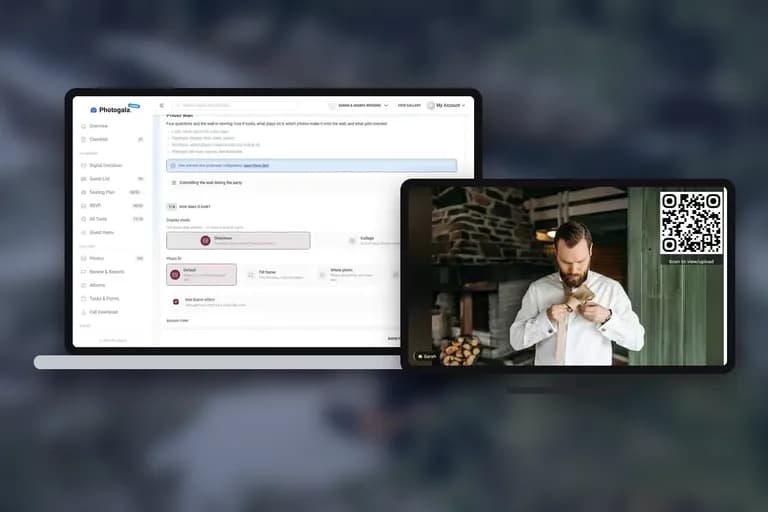
Photo Wall Slides: Put Your Welcome, Schedule and Sponsor Thanks Between the Guest Photos
The photo wall is the one screen everyone looks at. Here's how to slot a welcome, the schedule, a thank-you to your sponsors and a seating QR code between the guest photos, without turning the wall into a billboard.
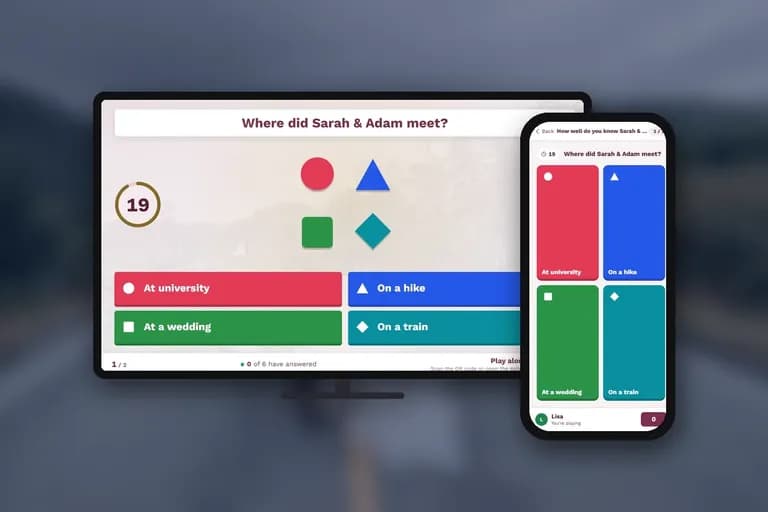
A Live Quiz at Your Wedding or Party: Question on the Big Screen, Answers on Every Phone
Why the paper quiz stalls at midnight, how a live quiz runs on a projector while guests answer on their phones, and how to write questions the whole room plays along with.
Share Your Event Timeline With Guests: No Printing, Always Current
Printed schedules go wrong the moment something changes. A digital run of show stays accurate, reaches every guest's phone, and updates in real time.