Digital Menu Cards: Let Guests See Every Course Before It's Served

The Question Every Table Asks
Every seated dinner has the same moment. The starter plates are cleared, and somewhere at table 4 someone leans over and asks: "Do you know what's next?" Nobody knows. The printed card in the middle of the table lists four courses in elegant script, but it doesn't say which of the two mains your neighbor picked, whether the sauce has dairy in it, or what "beurre noisette" is supposed to look like.
Menu cards are one of the most loved pieces of wedding stationery, and one of the least informative. That's not a reason to get rid of them. It's a reason to give guests a second version that can do the things paper can't: show photos, carry dietary labels, update when the caterer changes something, and show each guest the dishes they chose.
This article is about that guest side. What a digital menu card shows, how it looks on a phone, and how it works next to the printed card rather than instead of it.
What Guests See When They Open the Menu
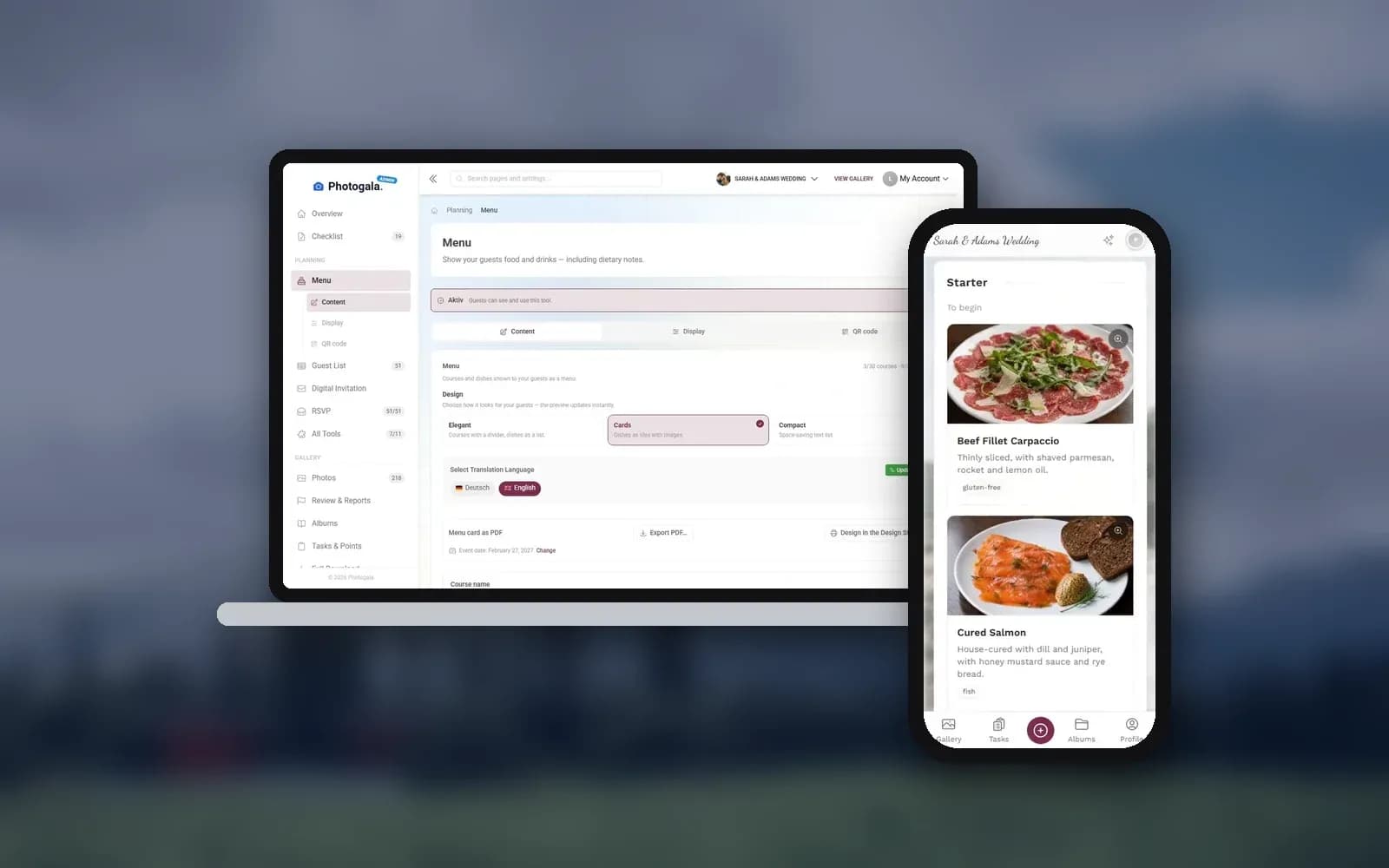
In Photogala, the digital menu is one of the planning tools inside your event. Guests reach it from the event start page, the same place where they find the gallery, the schedule and everything else you've switched on. The menu also has its own QR code, so you can print it on a card or a sign at the bar.
What they see is a menu in course order. Each course has a name and, if you want, a short description. Under each course come the dishes: name, description, dietary labels and, if you've added one, a photo. Tapping a dish with a photo opens a larger view with the full description. That's the moment "pan-seared trout with brown butter" turns from a mystery into something guests look forward to.
You pick how it's laid out. The default style is an elegant, classic menu. There's a card grid where every dish gets its own image tile, and a compact layout without inline images that looks closest to a printed menu card. The editor shows a live preview, so you can switch styles and see the result before guests do.
1.Courses in order, dishes with photo, description and dietary labels
Dietary Labels: Small Words, Big Difference
Guests with allergies or dietary needs don't want to interrogate the waiter at the table. They want to know beforehand which dishes are safe for them.
In the menu editor, every dish can carry dietary labels. They're free text: you type exactly what fits your menu, such as "vegan," "gluten-free," "contains nuts" or "lactose-free." There's no fixed allergen list built in, which is deliberate. The details come from your caterer, who knows the recipes. Your job is to put that information where guests can see it.
Your caterer has the allergen list, you don't. In the EU, food businesses must make allergen information available (Regulation (EU) No 1169/2011). Ask your caterer for their allergen overview per dish and copy the relevant labels into the menu. Don't guess ingredients yourself, and if in doubt, leave a label off rather than promise something the kitchen can't confirm.
The labels can also be translated. If part of your family reads German and the other half English, "glutenfrei" and "gluten-free" can both be stored, and guests see the version that matches their language. The same goes for course and dish names. With nine interface languages, that's handy for international weddings where not every guest reads the language of the venue.
See it in action
Every guest photo in one album – no app.
The Personal Menu: Each Guest Sees Their Own Dishes
Here's the part paper simply can't do.
Guests choose their meals when they reply to the invitation. The RSVP form can ask for one dish per course, with the same photos and labels as the menu. Those choices land in your guest list.
The menu page itself is for reading, not choosing. But it knows what each guest picked. When a guest opens the menu through their personal link, or by scanning the QR code on their place card, they see a short note ("You're seeing your personal menu") and every course is filtered to the dish they chose. One tap on "show all dishes" brings back the full menu, for example when they're curious what their partner is having.
Picture a wedding with two mains, beef and a vegetarian risotto. At table 4, the guest who chose the risotto scans her place card, sees her own four courses with photos, and knows the dessert is lactose-free because the label says so. Nobody had to ask the service staff, and nobody had to remember what they ticked six weeks ago.
If guests open the menu without a personal link, through the general event QR code for example, they simply see the full menu. Nothing breaks; the personal filter just doesn't apply.
If you want to go deeper into how meal choices are collected and kept tidy, our guide to guest list management with RSVPs, meals and groups covers that side.
Menu for your event
Courses, drinks and allergens on a page guests open on their phone — editable to the last minute.
When the Menu Changes (and It Will)
Menus change. The fish supplier can't deliver, the dessert gets swapped because the cake is bigger than planned, the caterer adds a vegan starter in the last tasting. On paper, every change means reprinting. In the digital menu, you edit the dish in the admin and guests see the new version without reloading.
That's also why it's worth deciding when guests should see the menu at all. Every planning tool can get a visibility window. Some couples like to reveal the menu two days before the wedding as a small teaser; others keep it hidden until the reception starts. Both work. Just make sure the menu is final by the time it appears, so nobody falls in love with a dish that's no longer on the plate.
Printed Cards and the Digital Menu Work Together
Going digital doesn't mean taking the menu card off the table. A printed card is a piece of stationery. It sets the tone of the evening and it ends up in a lot of handbags as a keepsake. A phone screen doesn't do that.
Since both come from the same data, you don't have to choose:
- PDF export: The menu tool exports your menu as a PDF in several styles, ready to print at home or at a print shop.
- Print templates: From Plus, the print templates create menu cards and place cards straight from your guest list, seating plan and RSVP answers. Names, tables and meal choices aren't typed twice.
- Design Studio: Also from Plus, the Design Studio lets you lay out menu cards freely, with placeholders for name, table and meal choice.
1.Export the menu as a PDF in several styles
A combination that works well: a printed menu card on each plate for the look, and a small QR code on the place card that opens each guest's personal menu with photos and labels. The paper sets the mood, the phone answers the questions.
Beyond Weddings
A digital menu isn't just for weddings. At a corporate event with a seated dinner, people come from different countries and with different dietary needs. A menu with translated dish names and clear labels saves the service team a lot of explaining. For a wine tasting or food festival, the menu can list the courses or pairings so guests know what's coming. At a family Thanksgiving it's more of a nice extra, but it settles the "is there something without nuts?" question before anyone asks.
What it isn't made for: a casual buffet with no fixed courses. You can still list what's on the buffet with labels, which helps guests with allergies, but the personal menu only makes sense when guests chose individual dishes.
What It Costs
The menu tool is one of the planning tools included on every plan, the free one too. Building the menu, photos, labels, translations and the guest view cost nothing extra. How many guests you can reach with your planning tools depends on your plan's guest allowance, so a large wedding will usually need a paid plan anyway. The print templates and Design Studio come from Plus at €39.
If you want to see the menu in context, our overview of free event planning tools shows how it fits with the seating plan, schedule and guest list, and the wedding menu card page has more examples.
Back to table 4. Same dinner, second version: before the main course, a guest scans the small code on her place card, sees her risotto with a photo and the "vegetarian" label, and passes the phone to her neighbor so he can see what's coming. The printed card stays in the middle of the table, looking beautiful. The phone took care of the questions.
All of this comes with your own event.
Setting it up takes five minutes. You can build and view everything before you decide.
Starting from €39 one-timeOne-time payment — No subscription
- No App Required
- Setup in 5 Minutes
- 30-Day Money Back
“We were really thrilled, and everything went so much more smoothly, from the seating plan all the way to the photo games! Simply great! Highly recommended!”
Written by

I believe event photos should be more than static galleries. They should be live, playful, and unforgettable.
Categories
Related Posts
How to Collect RSVPs Online Without Building a Wedding Website
You don't need a full wedding website just to find out who's coming. Here's how a standalone RSVP page gets you a reliable headcount without the tech hassle.
Three Hundred Phones, One Gallery: The Graduation Ball Photo Setup That Actually Works
One QR code, one gallery, one photo wall. How to set up photo sharing for your graduation ball so the best shots don't stay trapped on random phones.

Best Photo Wall Apps for Events 2027: What Actually Gets Guests Off Their Phones
Photo walls went from party gimmick to must-have. Here's what separates the apps that work from the ones guests ignore.