How to Scan a QR Code on iPhone and Android (No App Needed)


Picture this: you're at a wedding reception, there's a beautifully printed card on your table with a QR code that says "Share your photos here," and the person next to you asks, "Do I need to download something for this?"
No. You don't. And you haven't needed to for years.
Every modern iPhone and Android phone has QR code scanning built right into the camera. No app store visit, no storage wasted, no permissions to grant. Point, tap, done. Yet somehow, in 2026, this is still one of the most Googled phone questions out there. According to Scanova, 99.5 million Americans use QR codes regularly, and most of them are scanning with nothing more than their default camera app.
This guide covers exactly how it works on both platforms, what to do when things go wrong, and why this matters more than you think if you're hosting any kind of event.
iPhone: Three Ways to Scan (All Built In)
Apple added native QR scanning back in iOS 11, which shipped in 2017. If your iPhone has been updated in the last eight years, you're covered. The vast majority of active iPhones run a version that supports native scanning, so unless you're on something truly ancient, this just works.
Method 1: The Camera App
Open your Camera app. Point it at the QR code. Hold still for about a second. A notification banner appears at the top of the screen with the link. Tap it.
That's it. No shutter button, no photo taken, no special mode. The camera recognizes QR codes automatically in the background. It works in both photo and video mode, though photo is the default most people use.
One thing that trips people up: the notification banner is subtle. It slides down from the top and can be easy to miss if you're not looking for it. If nothing seems to happen, make sure the QR code fills about a third of the frame and the lighting is decent.
Method 2: Control Center Scanner
This one is faster if you scan QR codes often. Go to Settings, then Control Center, and add "Scan QR Code" to your included controls. Now you can swipe into Control Center and tap the scanner icon directly. It opens a dedicated scanning interface with a targeting reticle, which makes it easier to line up the code in low light.
On iPhone X and newer, swipe down from the top-right corner. On older models with a home button, swipe up from the bottom.
Method 3: Scanning From a Screenshot
Got a QR code in a text message or email? Since iOS 15, you can scan QR codes directly from your Photos app. Open the image, long-press on the QR code, and your iPhone will recognize it. Handy when someone sends you a gallery link before the event even starts. This is actually how a lot of people first access event photo sharing galleries: the host texts the QR code image in advance, and guests open it right from the message.
Quick test: Open your iPhone camera right now and point it at any QR code (a product package, a restaurant menu, anything). If the banner appears, you're set. If not, go to Settings → Camera and make sure "Scan QR Codes" is toggled on.
Android: It Works the Same Way (Mostly)
Android's QR scanning story is slightly messier than Apple's, purely because there are so many phone manufacturers. But the basics are the same: if your phone runs Android 9 (Pie) or newer, which covers the vast majority of active Android devices, you have built-in scanning.
Method 1: Camera App
Open your camera, point it at the code, wait a second. A pop-up link or banner appears. Tap it. On Google Pixel phones, this is rock solid. On Samsung, it works through Bixby Vision or the native camera depending on your model and software version. On OnePlus, Xiaomi, and other brands, the experience varies slightly but the core behavior is the same.
If your camera app doesn't seem to recognize QR codes, check the camera settings for a toggle labeled "Scan QR codes" or "Smart scan." Some manufacturers hide it behind a setting that's off by default.
Method 2: Google Lens
Google Lens is pre-installed on most Android phones and is arguably the most reliable method. You can access it from the Google search bar widget, from Google Photos, or from within the camera app itself (look for the Lens icon). Point it at a QR code and it instantly decodes it.
Samsung users have an extra shortcut: a QR scanner tile in the Quick Settings panel. Swipe down from the top of the screen twice, look for the QR code icon, and tap it. If you don't see it, you can add it by editing your Quick Settings tiles.
Method 3: Chrome Browser
Open Chrome on Android, tap the address bar, and you'll see a small QR code icon. Tapping it opens a scanner. This is useful if your camera app doesn't cooperate, or if you want to open the link directly in Chrome without an extra step.
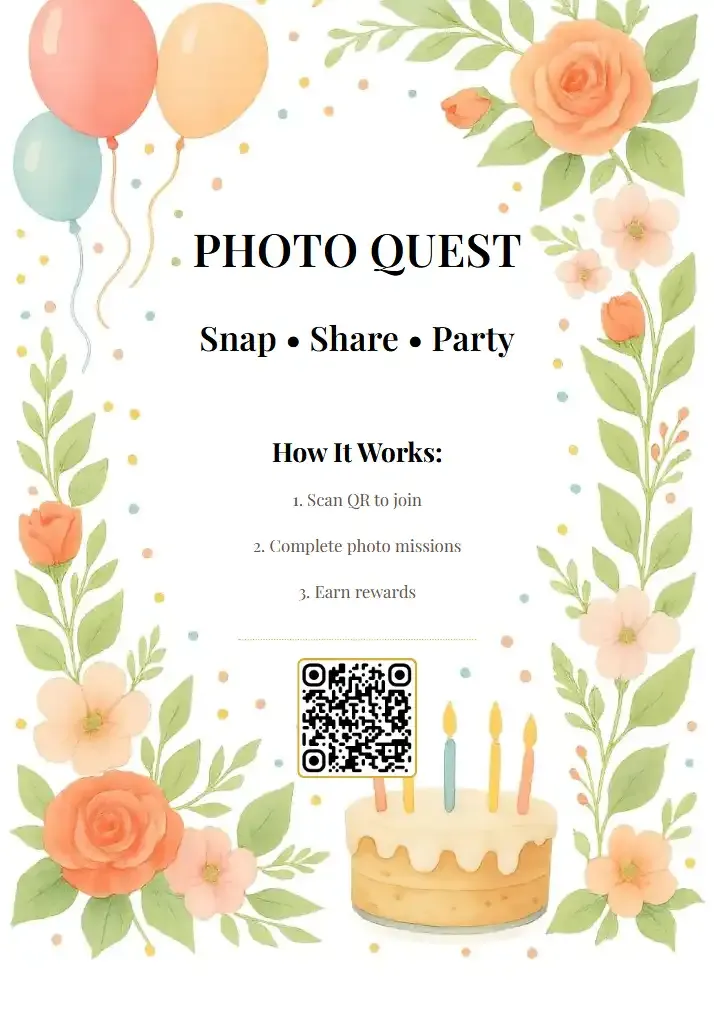
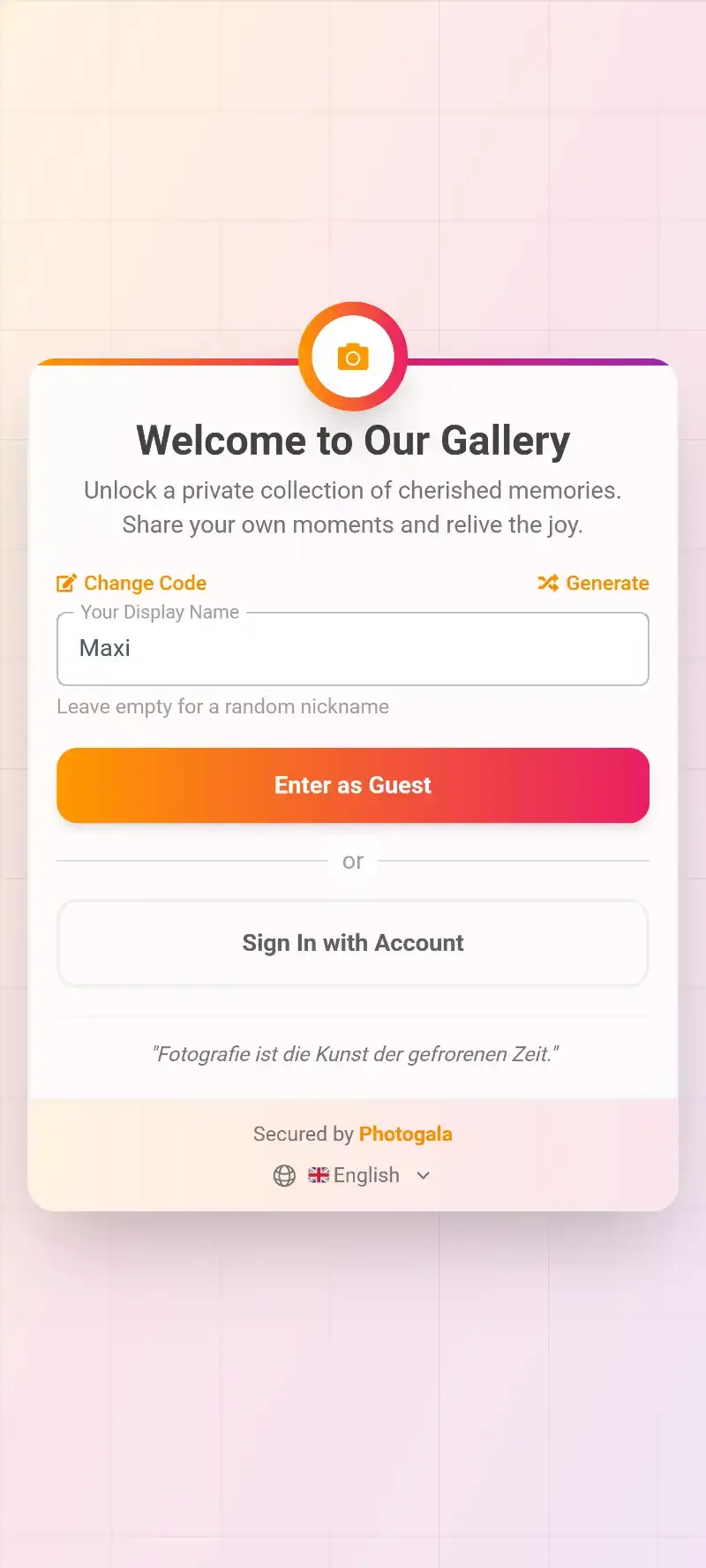
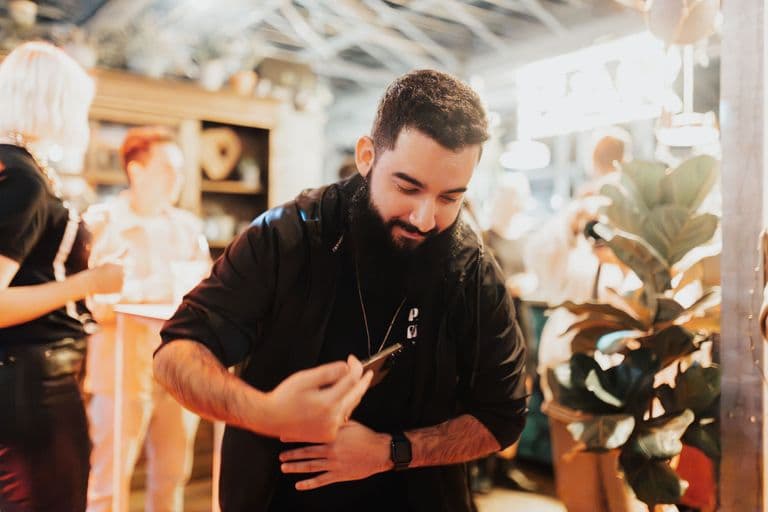
1.Point your phone camera at the QR code. No app download needed.
When Scanning Doesn't Work (and How to Fix It)
Most scanning failures come down to one of four things. None of them require downloading an app to solve.
Bad lighting. QR codes need contrast to be read. If you're in a dimly lit venue, turn on your phone's flashlight. On iPhone, the Control Center scanner has a built-in flash toggle. On Android, most camera apps let you activate the flash without taking a photo.
Too close or too far. The QR code should fill roughly a quarter to a third of your screen. If you're holding the phone 5 centimeters away, pull back. If you're a meter away, step closer. The sweet spot is usually about 15-25 centimeters.
Damaged or low-resolution code. QR codes have error correction built in (they can lose up to 30% of their data and still scan), but a badly printed, creased, or tiny code can still cause problems. If you're the one printing QR codes for an event, make sure they're at least 3×3 centimeters and printed at 300 DPI. Our guide on creating branded QR codes for events covers the design side in detail, and you can use our free QR Code Generator to create one in seconds.
QR Code Generator
Create custom QR codes for your event — link guests directly to your photo gallery.
The setting is turned off. On some phones, QR scanning in the camera is disabled by default. On iPhone: Settings → Camera → Scan QR Codes. On Android: Camera settings → look for "Scan QR codes" or similar. One toggle and you're done.
Older phones: If your iPhone runs iOS 10 or earlier, or your Android is stuck on version 8 or below, native scanning isn't available. In that case, Google Lens (available as a free download on Android) or a lightweight QR reader app is your only option. But this applies to less than 5% of phones still in active use.
See it in action
Every guest photo in one album – no app.
Why This Matters for Event Hosts
Here's where this gets practical beyond "how do I open a restaurant menu."
If you're hosting a wedding, a birthday party, a corporate retreat, or really any gathering with more than 20 people, you want their photos. Not just the photographer's 300 polished shots delivered two weeks later. The candid ones. The silly ones. The stuff nobody posed for.
The old approach: create a WhatsApp group, beg people to send photos, wait three weeks, get 40 blurry images from two people. We've written about why that doesn't scale and what actually works instead.
The QR code approach: print a code on table cards, a poster near the entrance, or even on a napkin holder. Guests scan it with their phone camera (which, as you now know, requires zero downloads), land in a browser-based gallery, and upload photos in under 30 seconds. No account creation. No app install. No friction.
This is exactly how Photogala's QR upload works. The host creates a gallery, gets a unique QR code, and every guest with a smartphone becomes a contributor. The photos appear in a shared gallery in real time, and optionally on a live photo wall at the venue.
The "no app needed" part is the entire point. At a 150-guest wedding, asking everyone to download an app is a guaranteed way to lose 80% of potential contributors. The uncle who's great with his phone? He'll do it. The 70-year-old aunt? She'll smile and put her phone away. But scanning a QR code with the camera she already uses to take photos of her grandkids? That, she can do.
We actually wrote an entire guide on getting non-tech-savvy guests to participate. The short version: remove every possible step between "I took a photo" and "it's in the gallery." QR codes do that.
Practical Setup Tips for QR Code Photo Sharing
If you're going the QR code route for your event, a few things make the difference between 30 uploads and 300.
Print multiple codes. One QR poster by the entrance isn't enough. Put codes on every table, near the bar, at the photo booth area, in the bathroom (seriously, people check their phones there). The more touchpoints, the more uploads. Our step-by-step guide on creating a QR code for photo sharing walks through the whole process.
Add a one-line instruction. "Scan to share your photos" is all you need. Don't write a paragraph. Don't explain what a QR code is. Just tell them what happens when they scan. For restaurant and bar events, even a small table tent works perfectly.
Test before the event. Scan your own QR code on two or three different phones. Check that it loads quickly, that the gallery looks right, and that uploading works on both iPhone and Android. Branded, tested QR codes consistently outperform last-minute printouts. If you spend ten minutes testing the night before, you'll catch problems when they're still fixable.
Consider the lighting. If your event is outdoors at night or in a dark reception hall, a white QR code on a dark background with some backlight scans better than a small code on a textured invitation. You can even customize QR code designs with colors and logos while keeping them scannable.
1.Guest photos appear on a live wall in real time, no app required.
Beyond Scanning: What Happens After the QR Code
Scanning is step one. What makes or breaks the experience is what comes next.
With a basic shared album (Google Photos, iCloud), guests land in a folder and start uploading. Simple, but limited. No moderation if someone uploads something inappropriate. No way to organize photos by person or moment. No engagement features to encourage more sharing.
With a platform built for events, the experience goes further. Guests can browse what others have uploaded, react with likes and comments, and participate in photo challenges that give the gallery more variety. Imagine a challenge card that says "Recreate this pose" with an example photo. Guests mimic it, upload their version, and the results are genuinely hilarious.
For weddings specifically, features like AI face recognition let the couple find every photo of themselves across hundreds of uploads with a single selfie search. No manual scrolling through 600 photos. That alone saves hours after the honeymoon.
And if you're comparing options, we've broken down how QR code galleries stack up against traditional photo booths and why more couples and event planners are making the switch.
The 3-Step Guest Experience
Scan the QR Code
Point phone camera at the code. No app download, no account creation. Works on any iPhone (iOS 11+) or Android (9+).
Pick a Name
Guests enter a display name so their uploads are attributed. Takes 5 seconds.
Upload & Browse
Take photos, upload them, and browse what everyone else is sharing. All in the browser.
The One Honest Limitation
Browser-based QR scanning works brilliantly for photos and standard uploads. But it does have one trade-off compared to a native app: push notifications. A browser-based gallery can't ping your phone when someone uploads a new photo the way a dedicated app can (though some platforms, Photogala included, support in-browser notification prompts).
For most events, this doesn't matter. Guests are physically present, already looking at their phones, already engaged. Push notifications solve a problem that doesn't exist at a live event. But for multi-day trips or group vacations where people upload over several days, it's worth knowing.
Still, the math is clear: a system that 100% of guests can access instantly beats a system that 20% download and 80% forget about. If you want the full picture on app-free sharing, our guide on sharing event photos without any app covers the reasoning in depth.
QR codes aren't new technology. But the fact that every phone in every guest's pocket can scan one without any preparation, that changes what's possible at events. The gap between "everyone took great photos" and "everyone shared great photos" used to be a WhatsApp group and two weeks of follow-up messages. Now it's a one-second scan.
If you're planning an event and want to see how the full experience works, create a free gallery and scan the QR code yourself. You'll understand in 30 seconds why this is replacing photo booths, shared albums, and "I'll send you the photos later" promises.
All of this comes with your own event.
Setting it up takes five minutes. You can build and view everything before you decide.
Starting from €39 one-timeOne-time payment — No subscription
- No App Required
- Setup in 5 Minutes
- 30-Day Money Back
“We were really thrilled, and everything went so much more smoothly, from the seating plan all the way to the photo games! Simply great! Highly recommended!”
Written by

I believe event photos should be more than static galleries. They should be live, playful, and unforgettable.
Categories
Related Posts
How to Reuse One Photo Gallery for a Recurring or Annual Event
Stop rebuilding from scratch every year. Here's how to carry one gallery across annual reunions, corporate retreats, and recurring celebrations.
How to Watermark and Protect Photos in a Shared Event Gallery
Event photos get screenshotted, reshared, and misused more often than you think. Here's how to protect your gallery without ruining the experience.
How to Set Upload Reminders and Deadlines for Event Guests
Most event photos die on guests' camera rolls. Here's how upload windows, gentle nudges, and smart deadlines rescue them.