How to Show Likes and Achievements Live on Your Photo Wall

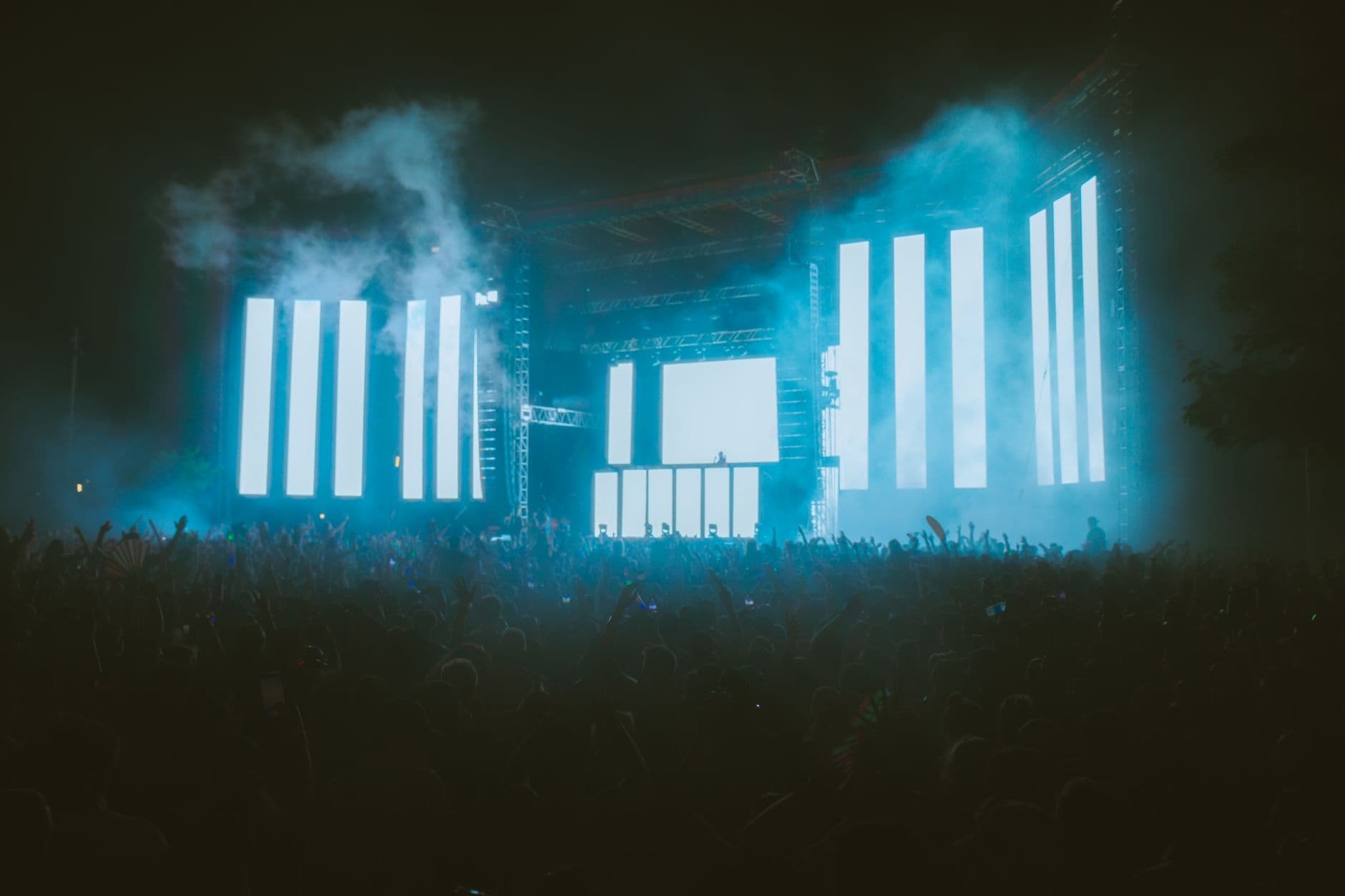
Picture this: a 55-inch screen behind the DJ at a wedding reception, cycling through guest photos. Nice enough. Now picture the same screen, but every few seconds a heart animation floats up when someone likes a photo. A golden badge pops in the corner when a guest unlocks the "First to Upload" achievement. A milestone banner sweeps across: "100 photos shared!" The energy in the room changes. People start watching the screen like it's a live scoreboard.
That's the difference between a photo wall and an interactive photo wall. One is digital wallpaper. The other turns your guests into active participants who keep checking the screen, keep uploading, keep competing.
Most live photo wall setups stop at displaying photos. They cycle through uploads in a grid or slideshow, and that's it. The screen becomes background noise within 20 minutes. But when the wall reacts to what guests are doing (liking photos, completing challenges, earning badges), it becomes something people actually pay attention to. Live overlays turn individual actions into shared, visible moments, and that's what keeps the room engaged past the first hour.
What Live Overlays Actually Are
Overlays are visual elements that appear on top of your photo wall display in real time. They're triggered by guest activity, not by you. Three types work together:
Like overlays show when a photo gets liked. A small heart animation or reaction icon floats up on the photo that received the like. When a photo racks up multiple likes quickly, the animation intensifies. Guests notice which photos are popular, and it creates a subtle feedback loop: popular photos get more attention, which gets more people uploading to compete for likes.
Achievement overlays trigger when a guest unlocks a badge. Say someone completes the "Selfie with the Bride" photo challenge. A notification appears on the wall with the achievement name and the guest's profile. It's public recognition, and it works. Other guests see it and think: "Wait, there are achievements? How do I get one?"
Milestone overlays celebrate collective progress. The 50th photo uploaded. The 100th. The 200th. These banners sweep across the screen and give everyone a shared moment to react to. They work especially well in the first hour when you want to build momentum.
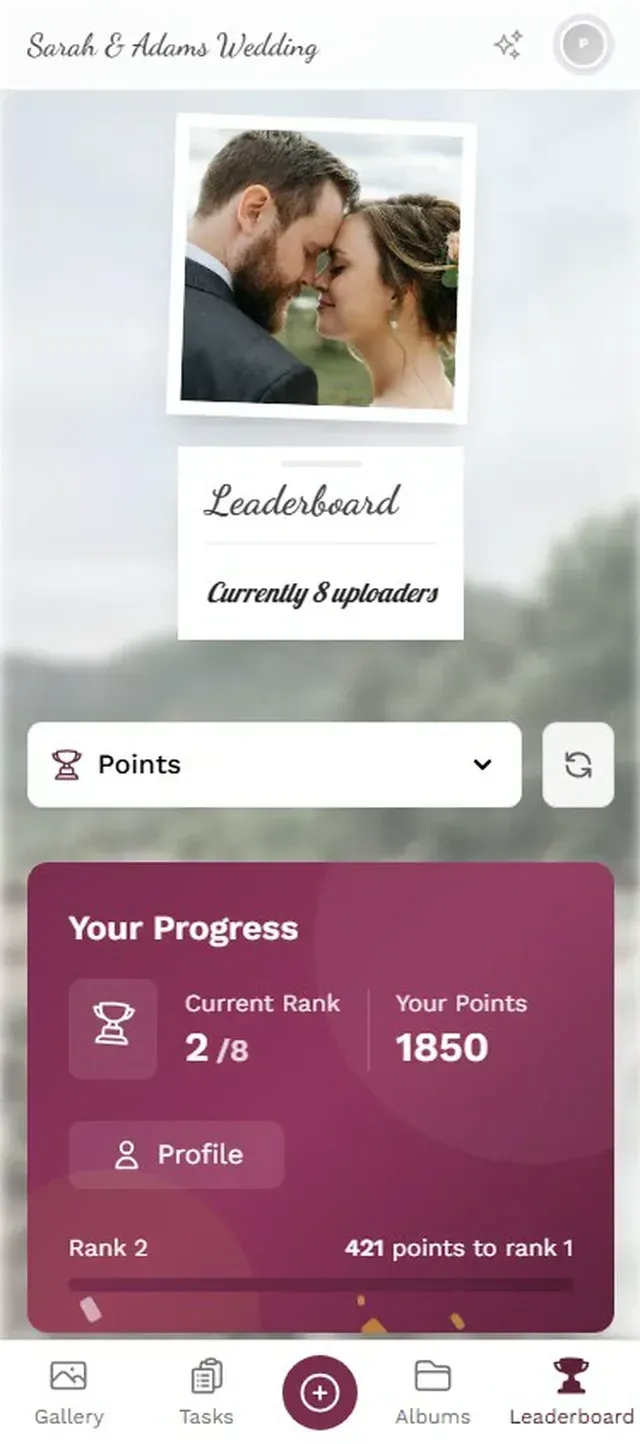
1.The photo wall displays guest uploads in real time with live overlays
Why a Static Photo Wall Loses Attention
Here's the honest truth about photo walls: without interactivity, engagement drops sharply after the novelty wears off. The first 30 minutes, guests are excited. They upload, they point at the screen, they laugh. By hour two? The screen might as well be showing stock photos.
A blog post from LensGo on real-time conference photo walls puts it well: immediate visibility significantly encourages participation. Attendees share more when they know others see them right away. But visibility alone isn't enough. What keeps people engaged past the first hour is reaction. Seeing your photo on a wall is nice. Seeing your photo get 12 likes on the wall? That keeps you uploading.
This is why guest engagement strategies that go beyond the traditional photo booth matter. A photo booth gives you one moment. A photo wall with live overlays gives you an entire evening of moments.
Placement matters more than screen size. A 42-inch TV near the bar or dance floor outperforms a 65-inch screen in a hallway every time. Put the wall where people naturally gather. If you need help choosing between slideshow and collage modes, collage works better for high-energy settings where multiple photos should be visible at once.
See it in action
Photos land live on the big screen.
Setting Up Live Overlays (It Takes 5 Minutes)
The setup is genuinely simple. No separate software, no HDMI splitter wizardry. Once your Photogala gallery is created, you configure the photo wall settings and enable the overlays you want. Then you open the photo wall URL on whatever device is connected to your screen: a laptop, a smart TV browser, a Fire Stick with a browser app.
Enable Live Overlays in 3 Steps
Create your gallery and enable the photo wall
Set up your event gallery and choose a photo wall display mode: live slideshow or collage. Pick a collage style that fits your event vibe (polaroid, vintage, justified, and more).
Turn on overlay types
In the photo wall settings, enable like overlays, achievement overlays, and milestone overlays. You can mix and match: all three for maximum energy, or just milestones for something subtler.
Open the wall on your screen
Navigate to the photo wall URL on your TV or projector-connected device. Overlays appear automatically as guests interact. No refresh needed, no manual control required.
Worth noting: the overlays work in both slideshow and collage modes, and they adapt to the layout. In collage mode, like animations appear on the specific photo tile. In slideshow mode, they overlay the currently displayed photo. Both feel natural.
The Achievement System: Turning Uploads Into a Game
Overlays are the visible layer, but the engine behind them is the gamification system. Achievements, points, and leaderboards create the behavior that triggers the overlays.
Think about it this way. A guest uploads a photo. That earns them points. If it's their first upload, they unlock the "First Shot" achievement, which flashes on the photo wall. Other guests see it, wonder what it is, and start uploading too. Someone completes a photo challenge like "Capture the Dance Floor." Another overlay. The leaderboard updates. Guests check their ranking on their phones. The whole thing feeds itself.
Imagine a corporate team event for 80 people. The HR manager sets up 6 photo challenges and a handful of achievements. By the second hour, people are comparing scores at the buffet. The photo wall behind the stage keeps flashing achievement unlocks. You'd probably hear the event photographer say she's never seen that many people voluntarily posing for photos at a company event. The overlays didn't just display content; they created behavior.
According to EventWrist's research on corporate engagement technology, passive listening retains significantly less information than active participation. When attendees see their contributions on a big screen, the room's energy transforms. Photo wall overlays are one of the simplest ways to create that shift from passive to active.
If you want to go further, Photogala also supports real-world rewards that guests can redeem at the event. Imagine an overlay announcing "Sarah just earned a free cocktail!" That gets attention.
What Works at Weddings vs. Corporate Events
The overlay strategy should match the event. At a wedding, you want warmth and celebration. Milestone overlays ("200 photos shared!") feel like collective cheering. Achievement overlays for completing wedding-specific challenges ("Best Couple Photo," "Catch the Bouquet Toss") add playfulness without turning the reception into a game show. Like overlays let guests vote on their favorite moments.
At a corporate event, the dynamic is different. Leaderboard-driven overlays work better because they tap into professional competitiveness. Achievement overlays tied to networking challenges ("Met 5 new colleagues") encourage mingling. Milestone overlays still work, but tie them to team goals: "Marketing team hit 50 uploads!"
One honest limitation: the social and achievement features require the Premium plan (€69) or higher. The Plus plan (€39) includes the photo wall and unlimited photo challenges, but you won't get like overlays or achievement badges on the wall. If overlays are a priority, check the pricing tiers before committing.
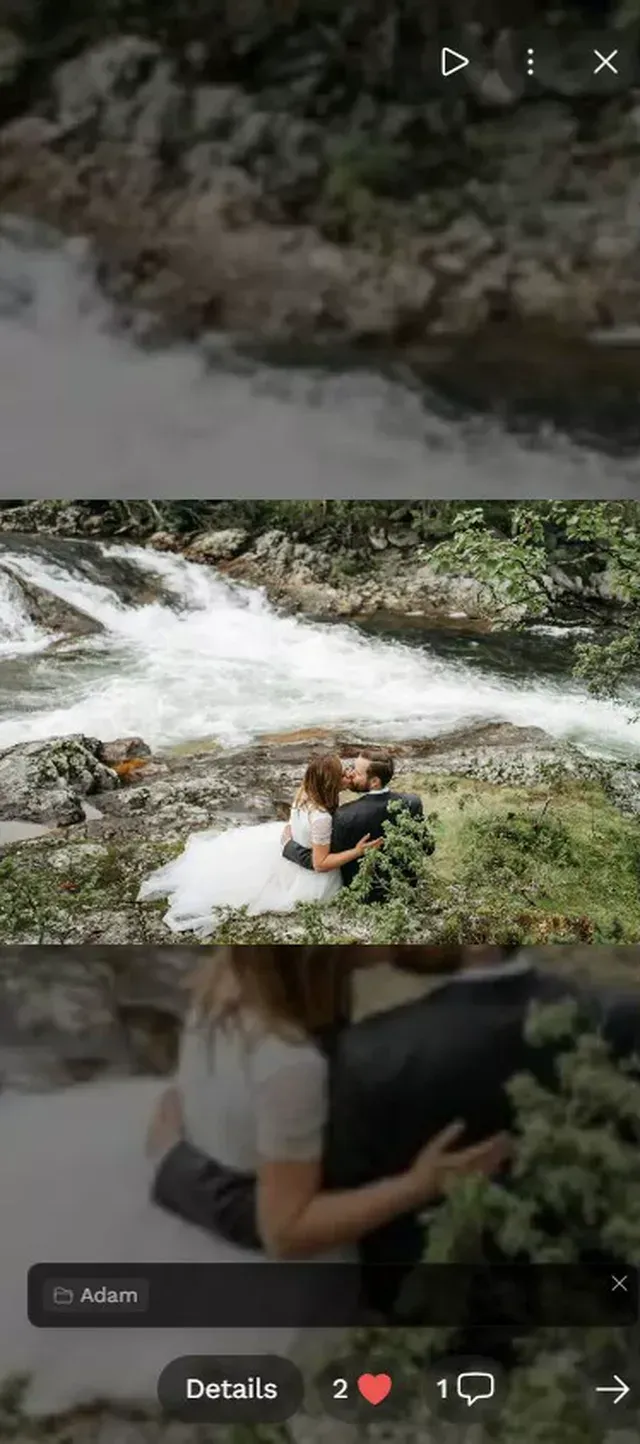
1.Choose which achievements guests can unlock
Making the Most of Milestone Overlays
Milestone overlays are the unsung hero. They're simple (just a counter reaching a threshold), but they create a shared experience. When "100 photos!" sweeps across the screen during the party, people cheer. It's silly. It works.
A few tactical tips:
- Set early milestones low (25, 50 photos) to build momentum in the first hour. Space later ones further apart (100, 200, 500).
- Announce the milestones verbally too. Have the DJ or MC say "We just hit 100 photos, keep them coming!" The wall is the visual trigger; the MC is the amplifier.
- If you're running photo challenges, time a tricky challenge to drop right after a milestone. The energy spike makes people more likely to participate.
- For weddings, align a milestone with a key moment. Imagine the 200th photo milestone hitting right before the first dance. The screen erupts, then transitions into the dance. Memorable.
For more ideas on what to display, our guide on turning guest photos into a live collage covers collage styles in detail. And if you're thinking about how the real-time photo wall actually works under the hood, that's worth a read too.
Quick branding note: On the Deluxe plan, you can add your custom logo to the photo wall. For weddings, this means your monogram or wedding hashtag sitting in the corner of the screen, making every overlay feel on-brand. You can also customize your gallery colors to match your event theme.
The Screen Setup Nobody Tells You About
Here's a practical thing that's easy to get wrong. The photo wall runs in a browser. That means the device connected to your TV needs to stay awake, stay connected to WiFi, and not randomly update in the middle of the reception.
Disable sleep mode. Disable auto-updates. If you're using a laptop, plug it in and set the display to "never turn off." If you're using a smart TV's built-in browser, test it the night before. Some smart TV browsers handle WebSocket connections poorly, and the overlays rely on real-time data.
The safest setup: a mid-range laptop connected via HDMI to a TV or projector, running Chrome in full-screen mode. Works every time. If you want to get fancy with display modes and header styles, our guide on custom headers and branding has visual examples.
And for wedding receptions specifically, setting up the slideshow the night before (or morning of) saves a lot of last-minute stress.
When Overlays Get Quiet (and That's OK)
There will be stretches during any event where the overlays go quiet. Dinner service. Speeches. The moment between the main course and dessert when everyone is just... sitting. That's normal. The photo wall keeps cycling through uploaded photos, and when someone eventually picks up their phone and likes a shot of grandma on the dance floor, the overlay pops back to life.
Don't panic during quiet stretches. The wall is doing its job. It's holding visual attention even without overlays, and it'll ramp up again when the energy returns. If you want to seed activity during a lull, drop a new photo challenge. The completion overlay will remind people the game is still on.
This ties into the psychology of why guests share more when it's easy. The barrier to participation is already low (scan a QR code, no app install). Overlays add a visible reward layer that nudges people from "I could upload a photo" to "I'm going to upload a photo right now."
A photo wall that just shows photos is fine. A photo wall that reacts, celebrates, and competes? That's the one guests remember the next morning. The technology is simple. The overlays are built in. The only question is whether you turn them on.
All of this comes with your own event.
Setting it up takes five minutes. You can build and view everything before you decide.
Starting from €39 one-timeOne-time payment — No subscription
- No App Required
- Setup in 5 Minutes
- 30-Day Money Back
“Excellent service and great pictures! Photogala fully met our expectations at the event. The value for money is unbeatable. Absolutely recommended! The seating plan saved us a lot of hassle!”
Written by

I believe event photos should be more than static galleries. They should be live, playful, and unforgettable.
Categories
Related Posts

Bridal Shower Photo Sharing: Collect Every Sweet Moment in One Gallery
Bridal shower photos end up scattered across 15 phones. Here's how to get them all into one gallery before the mimosas wear off.

Maternity Photo Sharing: How to Keep Every Announcement, Bump Shot, and Memory in One Place
Pregnancy announcements land on 4 different apps. Maternity photos get lost in group chats. Here's how to keep every photo in one shared gallery your whole family can access.

Sales Kickoff Photo Sharing: How to Turn a Mandatory Meeting Into a Team Memory
Sales kickoffs are expensive. The photos from them usually disappear into 14 different camera rolls. Here's how to fix that.