How to Archive and Back Up Your Event Photos for the Long Term


Picture this: your best friend's wedding was eighteen months ago. You remember a hilarious photo of the groom's dad attempting the worm on the dance floor. You pull out your phone to find it. It's gone. You switched phones last fall, and that photo didn't survive the migration.
This happens constantly. Not because people don't care about their photos, but because caring and actually preserving are two very different things. A professional photographer's backup guide documents how common photo loss is: drive failures, phone switches, cloud service shutdowns, accidental deletions. The photographer receives reports of lost photos regularly, often from people who assumed their files were safe.
Event photos are particularly vulnerable. They're scattered across twenty different phones, a photographer's delivery folder, a shared album someone set up, maybe a USB stick that's now in a junk drawer. No single person owns the complete collection, so nobody takes responsibility for preserving it. Whether it's a wedding or a corporate event, the problem is the same.
This guide covers everything you need to protect those photos for decades, not just until your next phone upgrade.
Why Event Photos Disappear (and Why You Should Care)
The UK National Archives puts it bluntly: digital preservation means protecting digital information to ensure authenticity, integrity, and long-term accessibility. The key word there is "proactive." Digital decay is invisible. Files corrupt silently when moved or copied. Software updates render older formats unreadable. And unlike a faded print photo that you can still sort of make out, a corrupted JPEG is just a grey rectangle.
For event photos specifically, there are three common failure points:
- Phone attrition. Guests upgrade phones every 2-3 years. Photos that weren't backed up vanish with the old device.
- Cloud service changes. Free tiers shrink, services shut down, sync errors happen silently in the background.
- The "I'll organize it later" trap. Photos sit in a download folder for months, then get accidentally deleted during a cleanup.
If you've ever tried to collect photos from event guests, you know the first challenge is getting them in one place. But getting them is only half the battle. Keeping them safe is the part most people skip.
The 3-2-1 Backup Rule: Non-Negotiable
Professional photographers live by this rule, and it works just as well for anyone who cares about their event photos. The Photo File Management Guide from Photography Icon lays it out simply:
- 3 copies of every important file (the original plus two backups)
- 2 different storage media types (e.g., an external hard drive and cloud storage)
- 1 offsite copy (stored in a different physical location than your primary files)
Why three copies? Because hardware fails. Why two media types? Because an entire class of storage can become obsolete (remember Zip drives?). Why one offsite? Because fires, floods, and burglaries don't respect your filing system.
For a wedding with 600 photos, this might look like: original files on your laptop, a backup on an external SSD, and a copy in cloud storage. Total cost: maybe €10-15/year for cloud storage plus a one-time SSD purchase. That's less than a single cocktail at the reception.
Don't count your phone's camera roll as a "copy." If you lose the phone or it breaks before syncing, that copy is gone. A real backup is a deliberate copy stored somewhere separate from the original.
Getting All Your Event Photos in One Place First
Before you can archive anything, you need to actually have the photos. And here's where events get messy: the best shots are spread across dozens of phones, a professional camera, maybe a photo booth, plus whatever the venue photographer captured.
The old approach (creating a WhatsApp group and asking everyone to share) rarely works. People send compressed versions, half the group ignores the request, and WhatsApp strips metadata like GPS location and original timestamps. We covered the full breakdown of why WhatsApp falls short for photo sharing in a separate article.
A better approach: use a QR code-based upload system during the event itself. Guests scan a code, upload from their browser (no app needed), and every photo lands in one organized gallery at original quality. If you need to create a custom QR code for your event, Photogala's free QR code generator can help with that. You can even keep collecting after the event ends by sharing the gallery link.
QR Code Generator
Create custom QR codes for your event — link guests directly to your photo gallery.
1.Guests upload directly from their browser. No app, no compression.
Once everything is collected, you download the full archive as a ZIP. Original quality, original metadata. That ZIP becomes your master copy for the 3-2-1 strategy.
See it in action
Every guest photo in one album – no app.
Choosing the Right File Format
Not all image formats are created equal when it comes to long-term preservation. Here's what actually matters:
JPEG is the universal standard. Every device, every operating system, every piece of software can open a JPEG. It uses lossy compression (meaning some data is permanently discarded to reduce file size), but for event photos taken on smartphones, this is perfectly fine. The originals were already compressed by the phone. Don't re-compress them by exporting or converting. Just keep the originals.
TIFF is the archival gold standard. Lossless, no data discarded, massive files. If your professional photographer delivered TIFFs, keep them exactly as-is. But don't convert your phone JPEGs to TIFF thinking it'll improve quality. You can't add data that was already thrown away.
HEIC/HEIF (the default format on iPhones since 2017) is trickier. It's more efficient than JPEG, but not universally supported. Windows and some older software struggle with it. For long-term archiving, consider keeping the HEIC originals and also exporting a JPEG copy as insurance. Yes, that's two copies of the same photo in different formats. That's the point.
One thing to avoid: don't run your event photos through editing apps and save over the originals. Always keep the unedited original file. Edit a copy. This sounds obvious, but it's the most common way people accidentally destroy their photo archives.
Organizing Before You Archive
Dumping 800 photos into a folder called "Wedding Photos" technically preserves them, but it makes finding anything later painful. Spend 30 minutes organizing before you archive, and future-you will be grateful.
A simple folder structure works best:
Event_Name_YYYY-MM-DD/
├── Originals/           # Untouched files, never modify these
├── Edited/              # Post-processed versions
├── Photographer/        # Professional photographer's delivery
├── Photo_Wall/          # Screenshots from the live display
└── Highlights/          # Your curated favorites
Name the root folder with the event and date. Not "Sarah's wedding" (you'll forget which Sarah in ten years) but "Wedding_Sarah-Tom_2026-06-14". Searchable, sortable, unambiguous.
If you used Photogala's smart albums to sort photos by uploader or time window during the event, those groupings carry over into your download. The structure is already done for you. If your event used face recognition, you could even have person-specific albums ready to go, which makes it easy to send people their own photos later.
One honest caveat: Photogala doesn't export folder structures per album yet. You get a flat ZIP of all photos. So if album-based organization matters to you, you'll need to sort them manually after downloading. It's on the roadmap, but not there today.
Cloud vs. Local Storage: You Need Both
This isn't an either-or decision. A Cloudwards comparison from 2026 frames it well: external drives give you more control, cloud storage offers automatic backup and easier sharing. For event photo archives, the answer is both.
Local storage (external SSD or hard drive): Fast, offline, no monthly fees. Buy a 1TB external SSD for €60-80, and it'll hold roughly 200,000 high-quality JPEGs. That's probably every event photo you'll ever take in your lifetime. The downside: drives fail, and they're vulnerable to physical damage. An SSD is more durable than a spinning hard drive, but neither is immortal.
Cloud storage (Google Drive, iCloud, Backblaze, etc.): Automatic, offsite, accessible from anywhere. The downside: monthly costs add up, free tiers keep shrinking, and you're trusting a company to stay in business. Google Photos compressed unlimited storage ended in 2021. iCloud's free 5GB fills up fast.
The smart play: keep your primary archive on a local drive. Back it up to the cloud. That's your two media types and one offsite copy from the 3-2-1 rule covered in one move.
Say you organized a corporate team event and collected photos from everyone at the venue. You download the full-quality ZIP from your event gallery, save it to your work laptop and an external SSD, then upload to your company's cloud storage. Three copies, two media types, one offsite. Done in twenty minutes.
The Maintenance Step Everyone Skips
Archiving isn't a one-time task. It's a habit. Here's what catches most people off guard: storage media degrades over time, and file formats evolve. The photo you archived in 2026 might not open cleanly in 2040 without some attention along the way.
Annual Archive Health Check
Verify your backups
Open 10-15 random files from each backup location. Can you see them? Are they corrupted? This takes five minutes and catches silent corruption early.
Check your hardware
External drives older than 5-7 years should be replaced. Copy everything to a new drive before the old one fails. SSDs are more reliable than spinning drives, but nothing lasts forever.
Update your cloud subscription
Make sure your cloud storage is still active and synced. Auto-renew failures silently delete backups. Check the last sync date.
Review file formats
If a new universal format emerges (like JPEG XL or AVIF gaining mainstream support), consider creating converted copies alongside your originals. Never delete the originals.
This sounds tedious, but it's one hour per year. Compare that to losing irreplaceable photos from your family reunion or your best friend's wedding. Not a hard trade-off.
Building a Complete Archive Workflow
Here's how this all fits together. Imagine you're wrapping up a 150-person company anniversary party. During the event, guests uploaded 340 photos to the shared gallery via QR code. The photo wall behind the stage showed a live slideshow all evening. A few colleagues ran photo challenges and the leaderboard got surprisingly competitive.
1.The photo wall runs throughout the event, showing uploads in real time.
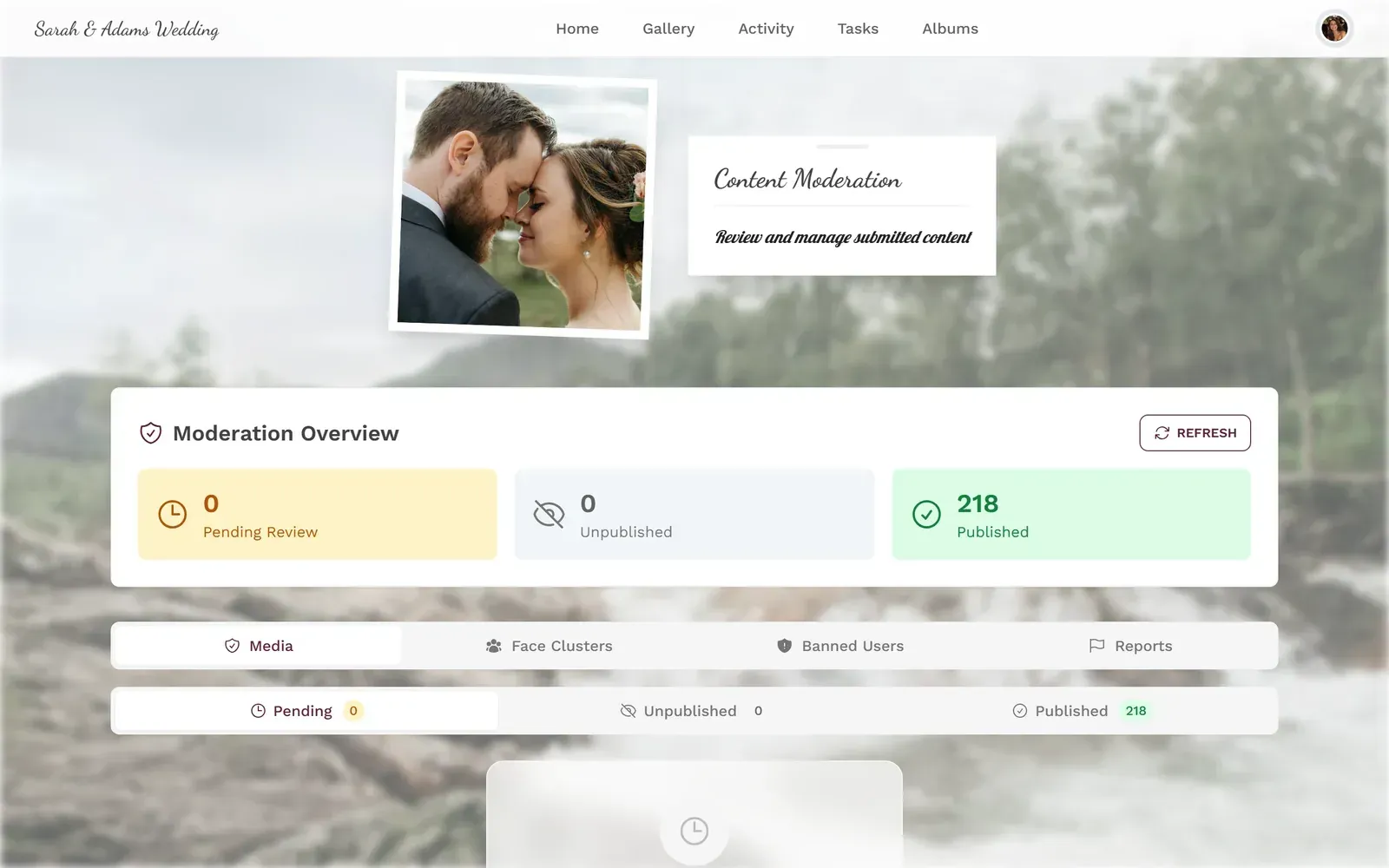
The next morning, you log into the moderation dashboard, review any flagged photos, and download the full gallery as a ZIP. Now you have 340 original-quality photos in one file.
You save the ZIP to your work laptop (copy 1), copy it to a department external SSD (copy 2), and upload to the company Google Workspace (copy 3). Total time: about 15 minutes. You rename the folder "CompanyAnniversary_2026-06-14" and add a text file noting the event details, the gallery link (in case anyone still needs to upload late photos), and the photographer's delivery folder location.
That's it. Three copies, two media types, one offsite. The photos will survive hardware failures, cloud hiccups, and the inevitable office move.
If you used Photogala's Deluxe plan with AI face recognition, you could also run selfie-to-search to let individual team members find and download their own photos before you archive. People love getting their personal highlights without digging through hundreds of group shots.
And if you're also creating a keepsake from the event, our guide on building a digital memory book from event photos walks through that process step by step.
Event photos are the kind of files you don't think about until you desperately want them. The wedding toast. The team photo where everyone was actually smiling. The candid shot of your grandmother on the dance floor. These don't get taken twice.
Twenty minutes of organizing and backing up after the event protects years of memories. The 3-2-1 rule isn't complicated. It just needs to happen.
All of this comes with your own event.
Setting it up takes five minutes. You can build and view everything before you decide.
Starting from €39 one-timeOne-time payment — No subscription
- No App Required
- Setup in 5 Minutes
- 30-Day Money Back
“I use PhotoGala Deluxe and I'm absolutely thrilled. It was the perfect solution for documenting a sports event. Uploading and downloading via the link is a breeze for every participant. What won me over most were the photo wall and the slideshow – both are quick to set up and look really professional. Big praise also to Peter from the PhotoGala team: he's very easy to reach by email, replies quickly and even took my suggestions on board and added new features that made my slideshow even better. You rarely get support this dedicated. A clear 5-star recommendation!”
Written by

I believe event photos should be more than static galleries. They should be live, playful, and unforgettable.
Categories
Related Posts
How to Reuse One Photo Gallery for a Recurring or Annual Event
Stop rebuilding from scratch every year. Here's how to carry one gallery across annual reunions, corporate retreats, and recurring celebrations.

How to Watermark and Protect Photos in a Shared Event Gallery
Event photos get screenshotted, reshared, and misused more often than you think. Here's how to protect your gallery without ruining the experience.

How to Set Upload Reminders and Deadlines for Event Guests
Most event photos die on guests' camera rolls. Here's how upload windows, gentle nudges, and smart deadlines rescue them.