Achievements & rewards
Achievements reward your guests for joining in – with a badge, points and optionally a real reward with stock. As the host you set the name, image, unlock conditions and optionally a real-world reward. Achievements are part of the Tasks & Points area; this guide covers only the Achievements tab.
How to reach this area
Section titled “How to reach this area”-
Open the admin area of your event (see Reaching the admin area).
-
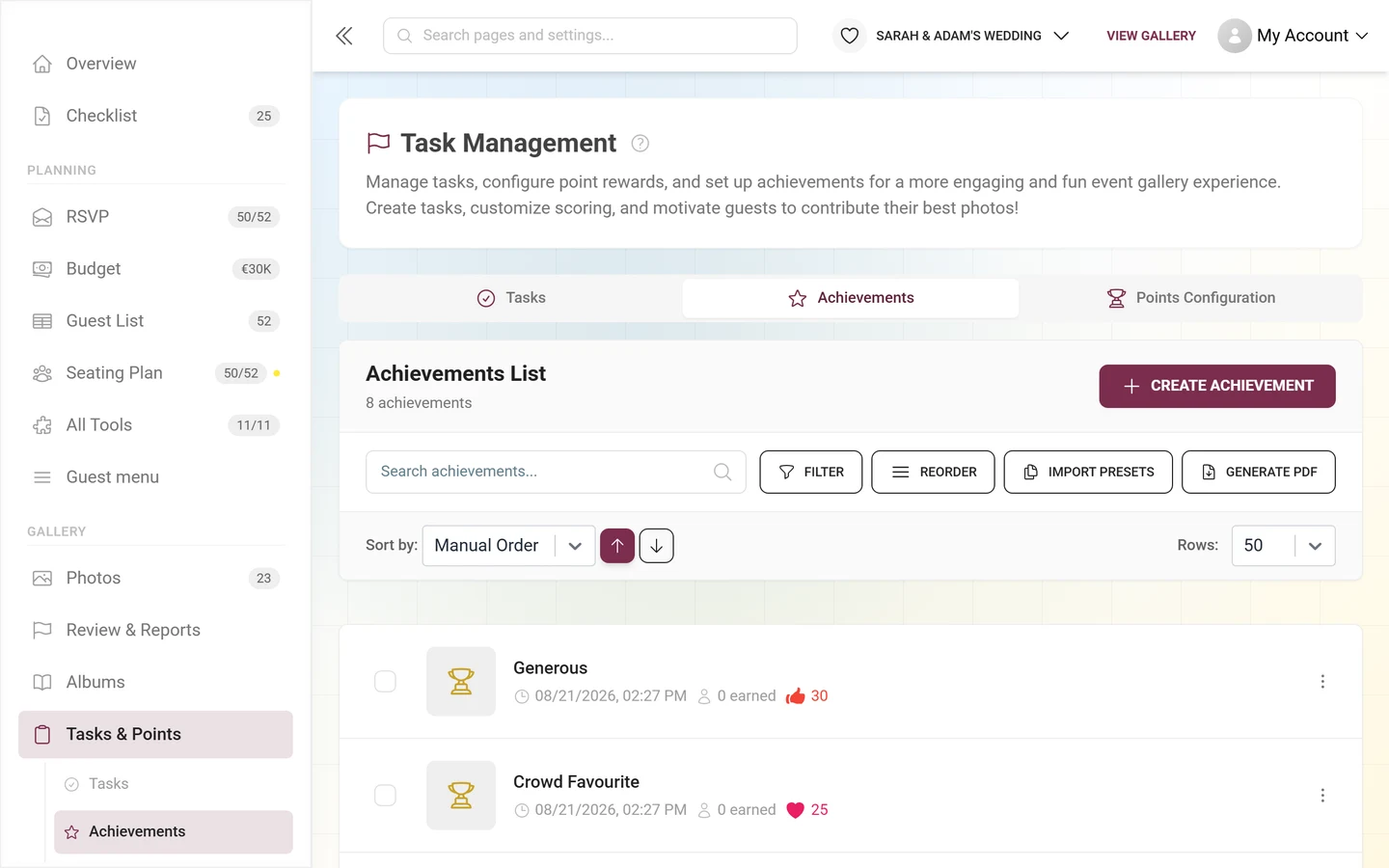
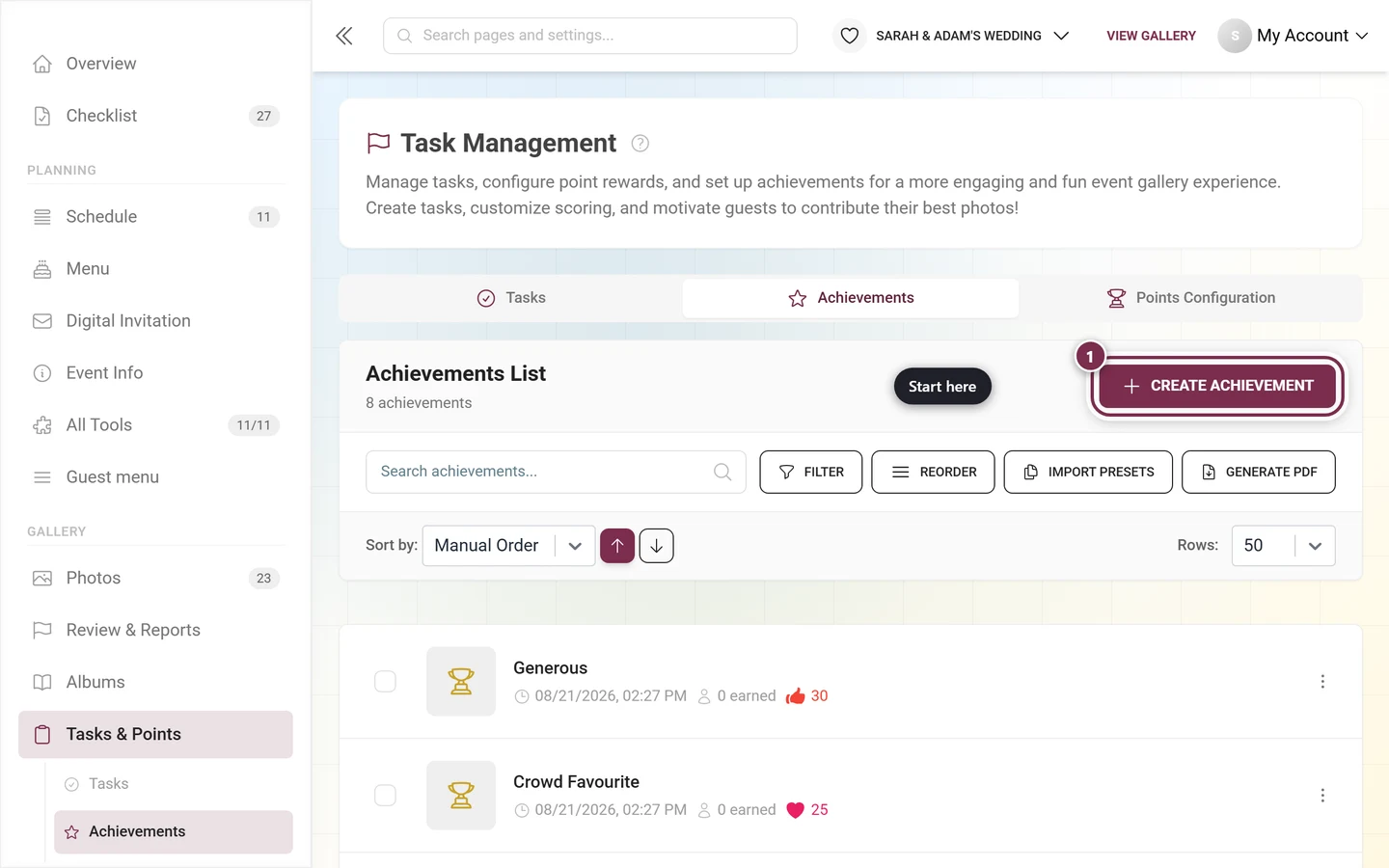
In the left sidebar, under the Gallery category, click Tasks & Points. The Task Management page lives at the route
/admin/gallery/tasks-managerand shows three tabs:- Tasks – check-circle icon
- Achievements – star icon
- Points Configuration – trophy icon
The same three tabs also appear as sub-entries in the sidebar once you are inside this area – together with the follow-up pages Real Rewards and Winners.
-
Select the Achievements tab. You can also reach it directly by URL at
/admin/gallery/tasks-manager?tab=achievements.
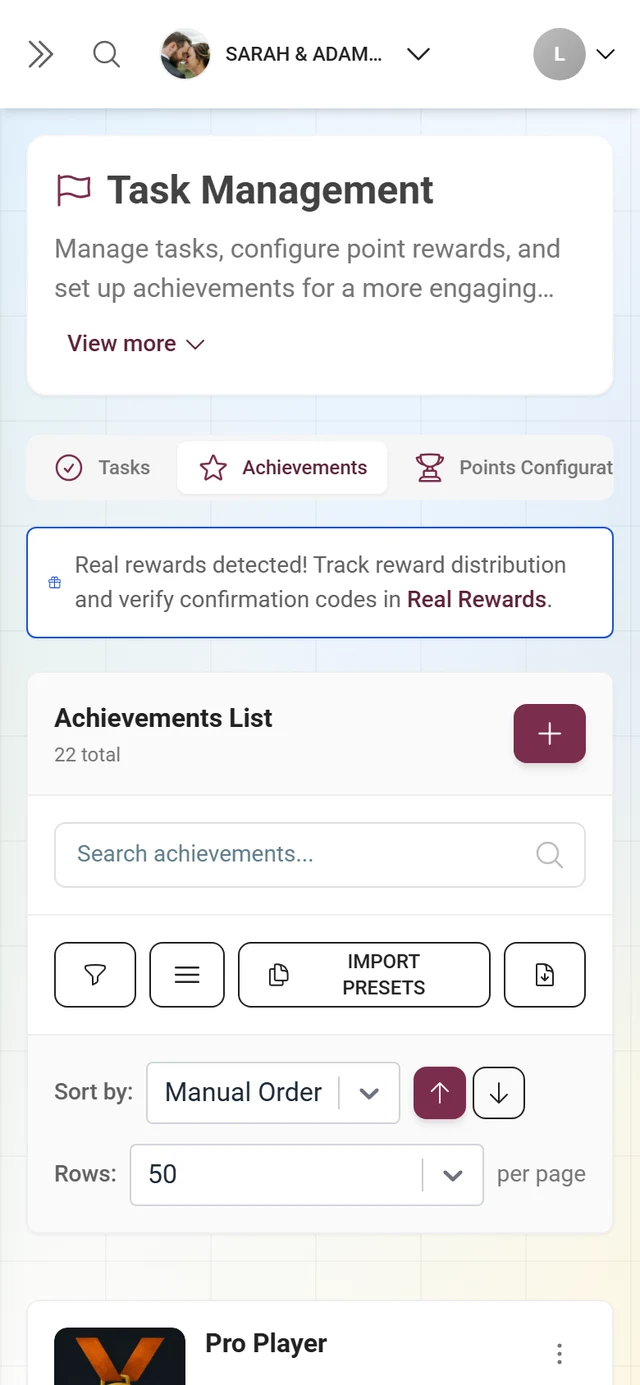
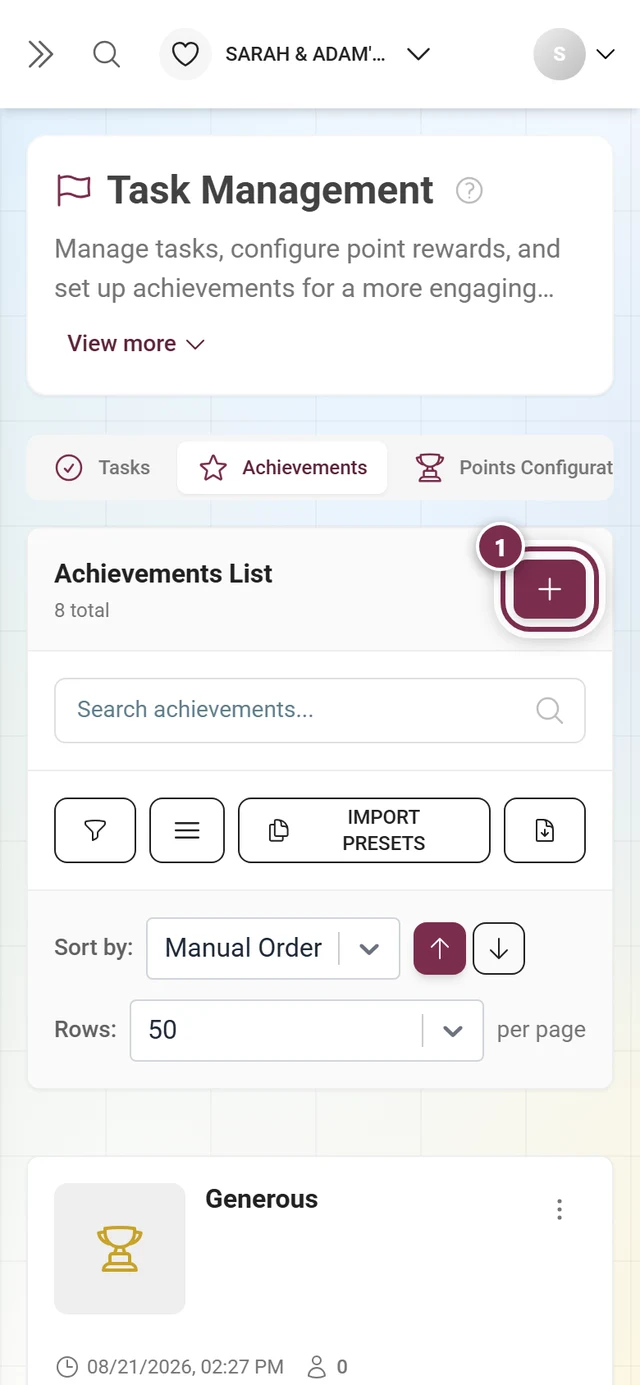
The Achievements tab at a glance
Section titled “The Achievements tab at a glance”At the top you see the title Achievements List with the number of achievements below it. If your plan sets a limit, used/limit is shown next to it; at 75% the number turns yellow, at 90% red, and an info icon shows Achievement limit almost reached!.
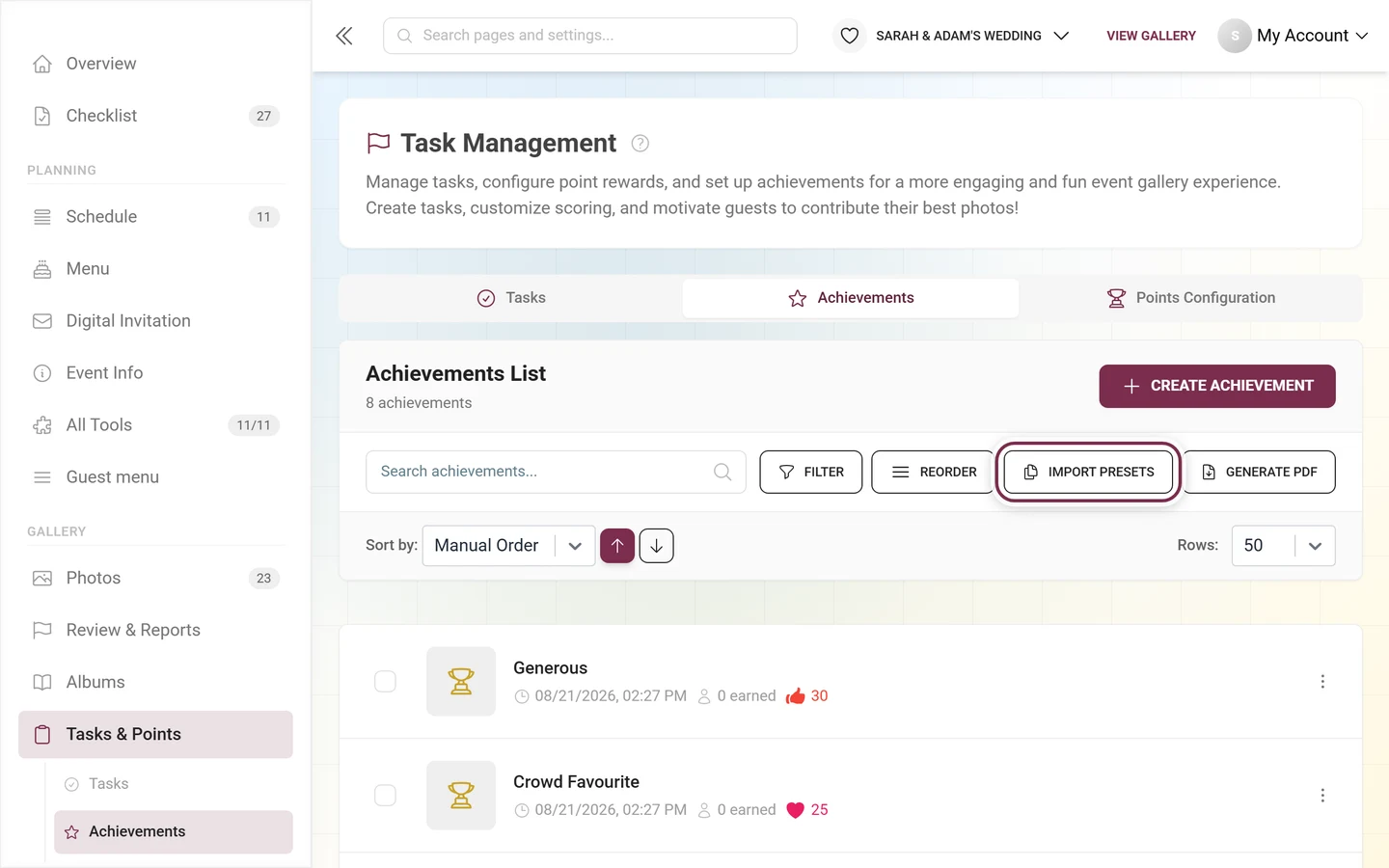
Header actions
Section titled “Header actions”- Create Achievement – button with a plus icon, opens the editor for a new achievement. Premium feature; locked without the right.
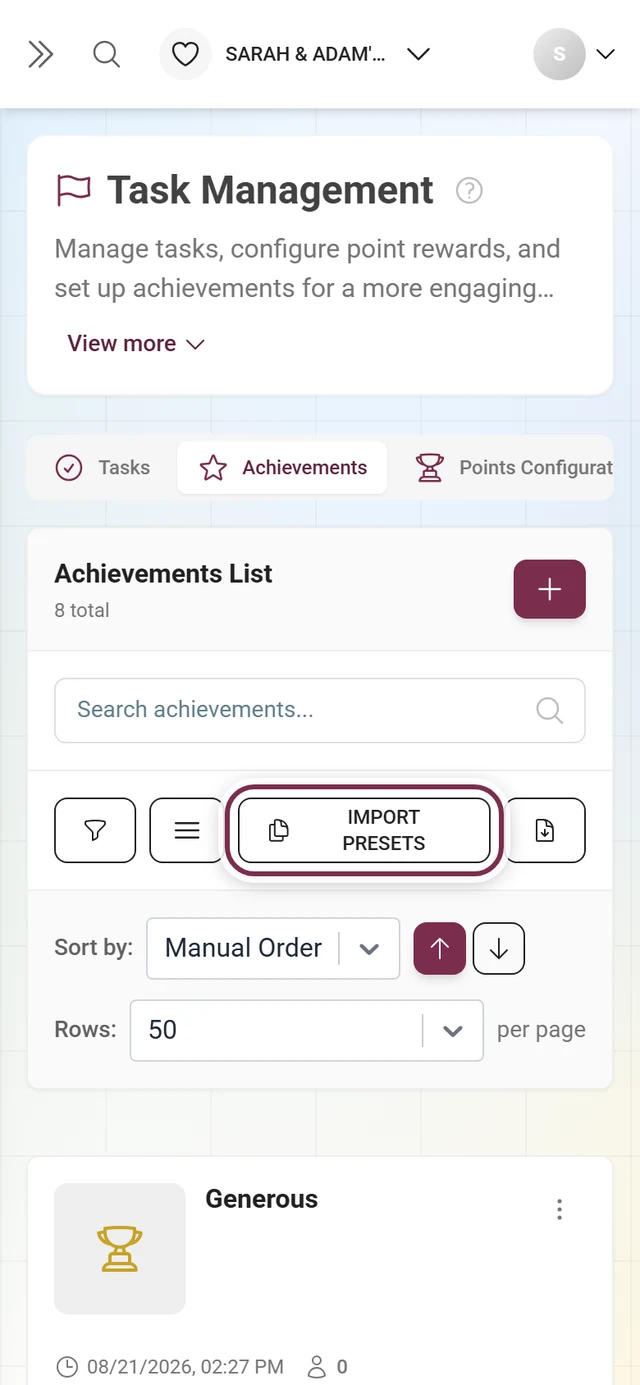
- Import Presets – opens the templates dialog to import ready-made achievements (premium).
- Generate PDF – creates a QR-card PDF for the achievements (premium). Disabled with 0 achievements.
- Filter – funnel icon with a badge counting active filters; opens a filter accordion.
- Reorder / when active Done – only visible when sorting is set to Manual Order. Enables drag-and-drop reordering; Done saves the order.
- Search – the field “Search achievements…” searches name, description, reward type and the public ID.
- Sort by: – dropdown with Manual Order, Name (English), Creation Date, Earned Count and Natural (by conditions), plus ascending/descending arrows.
- Rows: – 5 / 10 / 20 / 50 / 100 / 200 (default 50).
Notice banners
Section titled “Notice banners”- Yellow alert “Achievements are not enabled!” – appears when achievements are not switched on in settings. Achievements only become visible in guest profiles once you enable them under Turning features on & off.
- Info card “Real rewards detected!” – appears as soon as at least one achievement has a real reward. It links, with the text Real Rewards, to Redeeming rewards.
A list entry
Section titled “A list entry”Clicking a row opens the edit dialog directly. Each entry shows the image (or a trophy placeholder), name and translation status. Watch for these icons and chips:
- Template (cloud icon) – the achievement was imported from a preset (“Achievement is imported from Template!”).
- Manual (yellow triangle) – the achievement has no conditions and must therefore be awarded manually (“Manual Award Required”). The tooltip points to Participants.
- Metadata – creation date, “x earned” (how often it was unlocked), condition icons and reward icons (gift with remaining stock, green check with number of redemptions).
The three-dot menu (or right-click) offers: Select, View Recipients (only when earned at least once), Edit and Delete. Deleting is confirmed with “Delete achievement?” and “This action cannot be undone.” In selection mode (checkboxes) a bar floats at the bottom with the count, bulk delete and a PDF for the selection only; the X on the right clears the selection.
Creating or editing an achievement
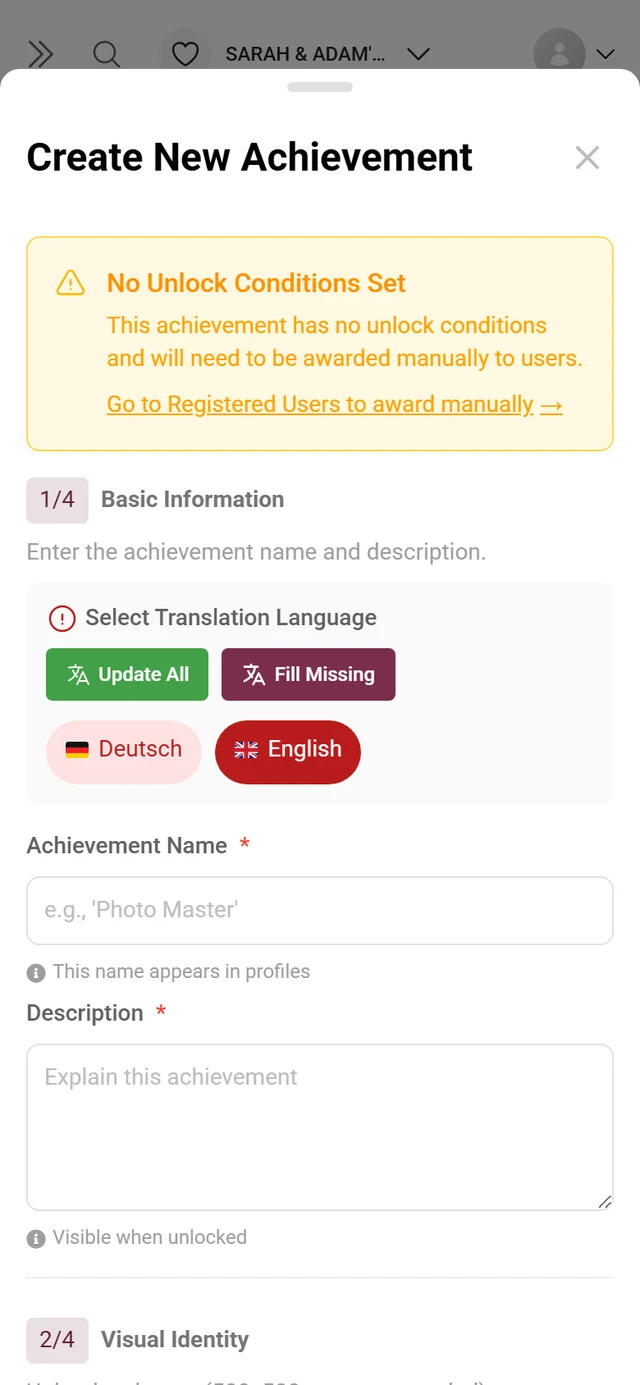
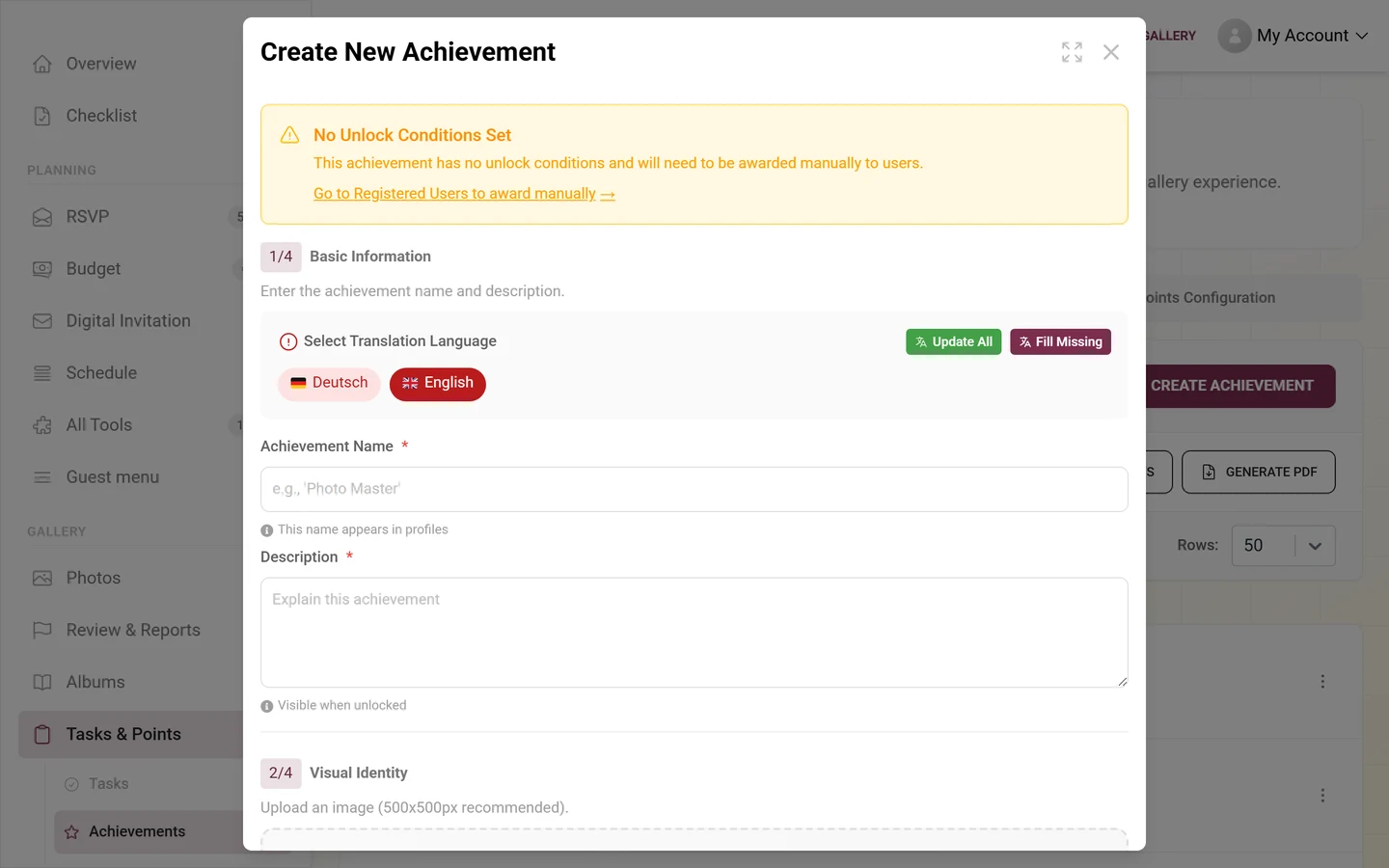
Section titled “Creating or editing an achievement”Open the editor via Create Achievement or by clicking an entry or Edit. The dialog is titled Create New Achievement or Edit Achievement. It is not a tabbed dialog but a single, scrollable dialog with four numbered sections in this order: basic info → image → reward → conditions.
Section 1/4 – Basic Information (required)
Section titled “Section 1/4 – Basic Information (required)”Heading Basic Information, description “Enter the achievement name and description.”
-
Pick the language via the language selector. Name and description are multilingual; automatic translation is available.
-
Achievement Name (required) – placeholder “e.g., ‘Photo Master’”. This name appears in the guests’ profiles.
-
Description (required) – text field, placeholder “Explain this achievement”. Shown to the guest when they unlock it.
Section 2/4 – Visual Identity (optional)
Section titled “Section 2/4 – Visual Identity (optional)”Heading Visual Identity, description “Upload an image (500x500px recommended).”
- Upload a badge image via the drop zone (recommended 500 × 500 px, square).
- Alternatively pick a ready-made badge via the template picker.
- Without an image the list shows a trophy placeholder.
Section 3/4 – Reward Type (premium)
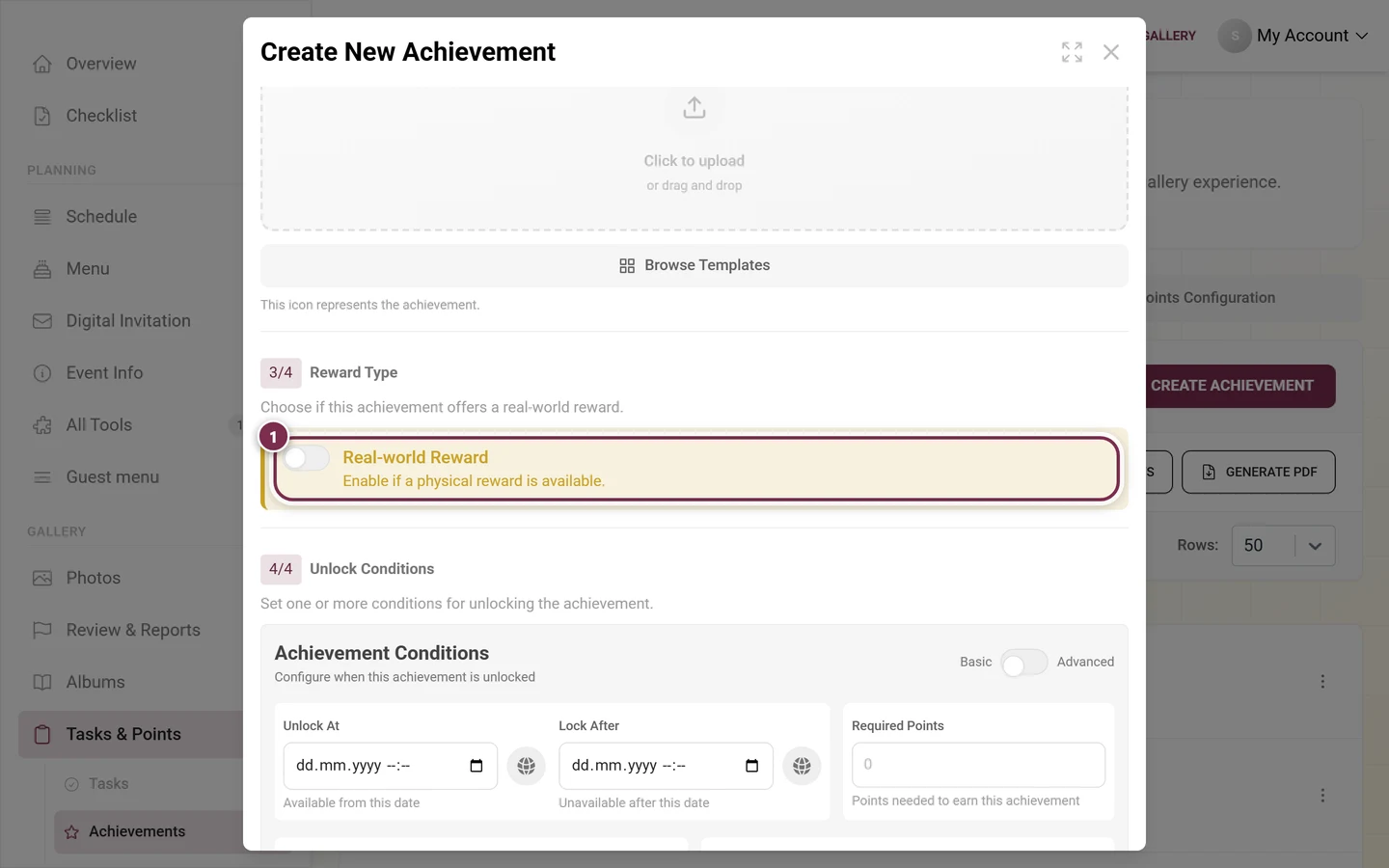
Section titled “Section 3/4 – Reward Type (premium)”Heading Reward Type, description “Choose if this achievement offers a real-world reward.” The whole section sits behind a premium overlay: without the right for real rewards it is visible but locked.
-
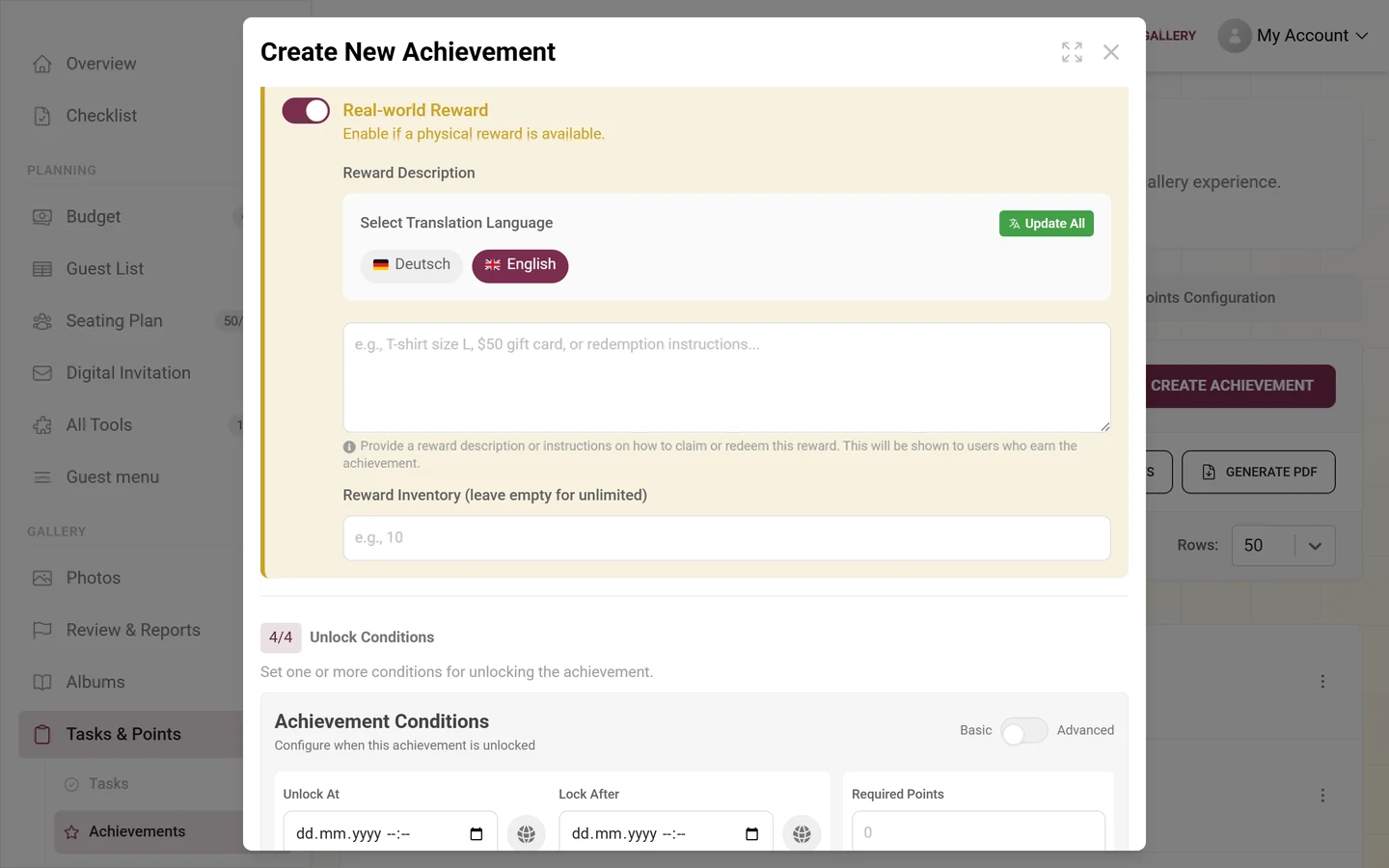
Turn on the Real-world Reward switch (“Enable if a physical reward is available.”). This marks the achievement as a physical reward.
-
Reward Description (multilingual, with language selector) – placeholder “e.g., T-shirt size L, $50 gift card, or redemption instructions…”. Enter the exact redemption instructions here; the guest sees them when they unlock the achievement.
-
Reward Inventory (leave empty for unlimited) – number field, placeholder “e.g., 10”. Empty means unlimited. If the reward has already been redeemed, a note shows how many times the achievement has been claimed.
Section 4/4 – Unlock Conditions
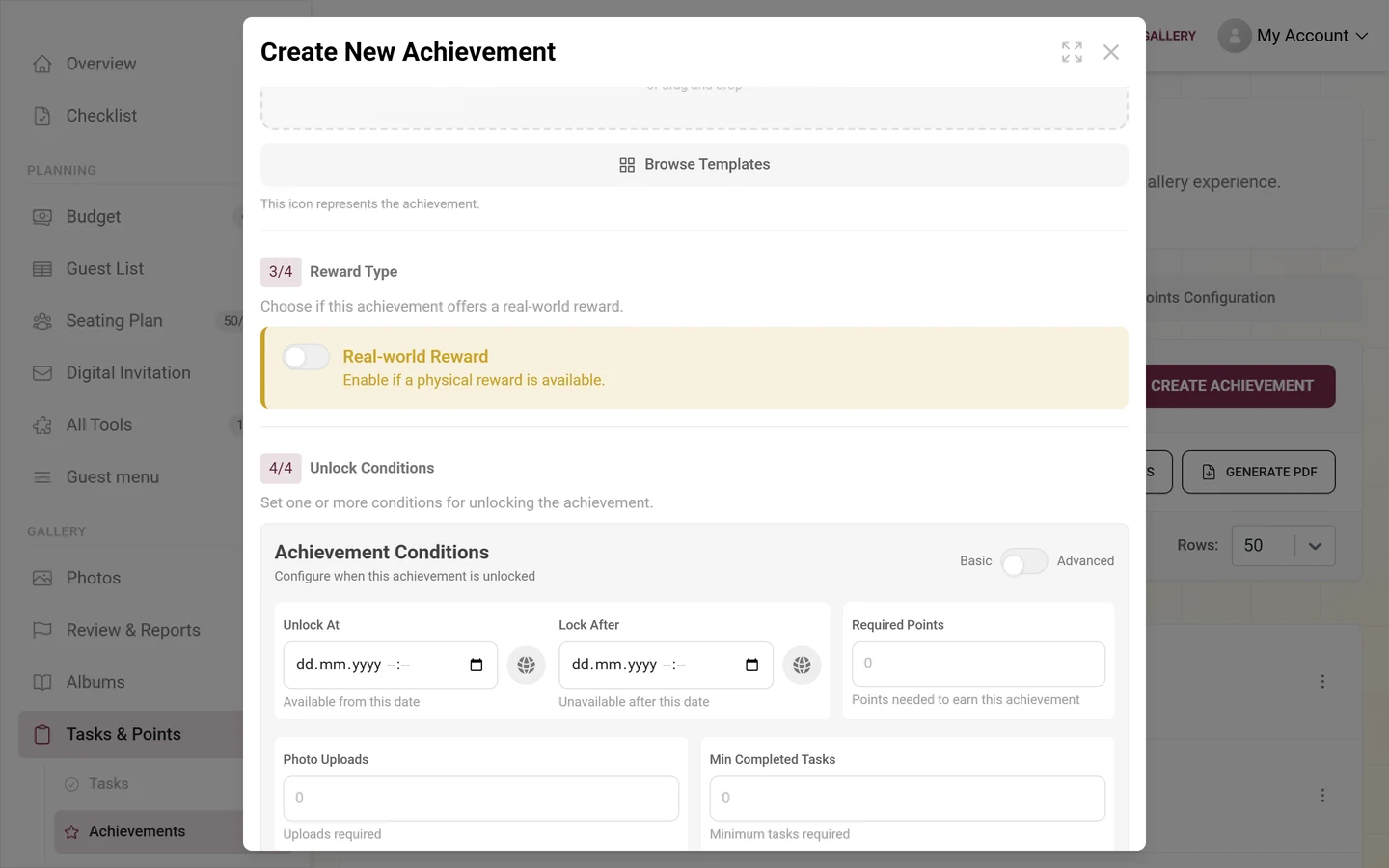
Section titled “Section 4/4 – Unlock Conditions”Heading Unlock Conditions, description “Set one or more conditions for unlocking the achievement.” At the top there is a Basic / Advanced toggle. Advanced mode is a premium feature; without the right the toggle is blocked by a small lock overlay.
Basic conditions (always visible):
Essentials:
- Unlock At – “Available from this date” (date/time with time zone).
- Lock After – “Unavailable after this date”.
- Required Points – points needed to earn the achievement.
Common conditions:
- Photo Uploads – uploads required.
- Likes Received – likes received.
- Min Completed Tasks – minimum number of completed tasks.
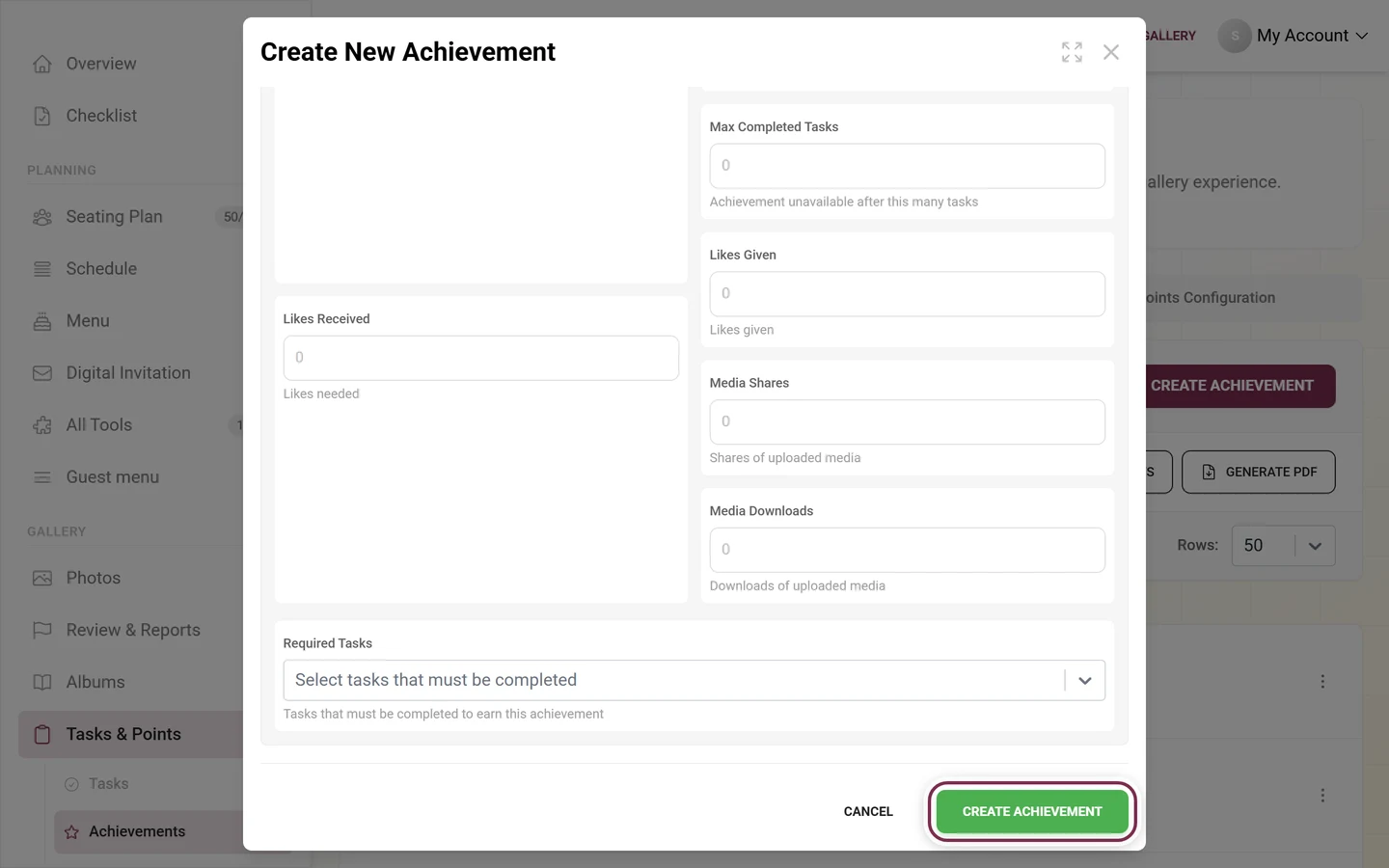
- Max Completed Tasks – the achievement is unavailable after this many tasks.
- Likes Given – likes given.
- Media Shares – media shared.
- Media Downloads – media downloaded.
Required Tasks:
- Multi-select “Select tasks that must be completed” (with task thumbnails). Only in Advanced mode does the block Minimum Contributions Per Task additionally appear for each chosen task – how many times the task must be completed.
Advanced conditions (Advanced mode only):
Advanced Points & Achievements:
- Max Points – the achievement is unavailable above this threshold.
- Min Achievements – minimum number of achievements already earned.
- Min Unique Tasks – number of different tasks solved.
- Required Achievements – multi-select of dependent achievements that must be earned first.
User Engagement:
- Max Images Uploaded – limit for advanced users.
- Min Shares – minimum number of users invited.
- Min Album Contributions – total contributions to albums.
- Required Albums – multi-select of albums.
- Required Invitations – multi-select of invitation codes (with role badge). Only guests with these codes can earn the achievement. Only active invitations are shown.
Saving and cancelling
Section titled “Saving and cancelling”At the bottom you find Cancel and Create Achievement (new) or Save Changes (edit). During image upload you see “Uploading…” with progress (cancellable), then “Saving…”. After saving the dialog closes and the list refreshes.
Importing presets
Section titled “Importing presets”Via Import Presets you open the Achievement Templates dialog with ready-made achievements (premium).
-
The dialog is called Achievement Templates; below the title it says how many categories you pick from (currently 6). Find presets with the “Search achievements…” field – the blue chip next to it shows how many you picked.
-
Presets are grouped into categories as collapsible accordions. Each category has Select All and Deselect All; an achievement can appear in several categories. Each preset shows its image, name, description and a summary of its Requirements.
-
Click Import Selected at the bottom (disabled until you select at least one) or Cancel.
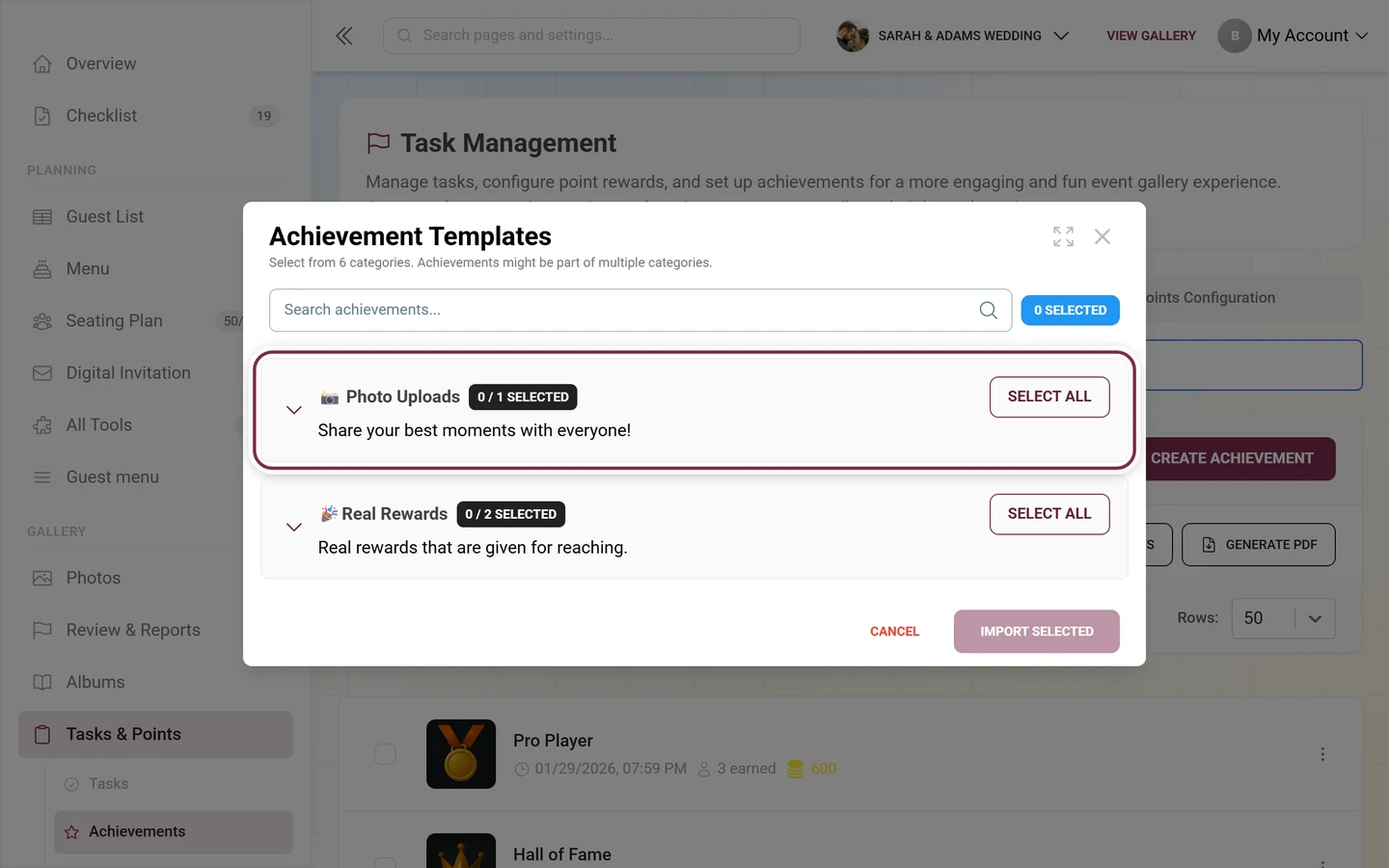
Already imported achievements are excluded. Once everything is imported, “No achievements are left to import.” appears.
Achievements or winner prizes?
Section titled “Achievements or winner prizes?”Photogala has two ways to hand out real prizes – do not mix them up:
- Achievements (this page): every guest who meets the condition unlocks the achievement – no matter how many that is. The prize hangs on a feat, not on a rank. You manage handout under Redeeming rewards.
- Winner mode on the leaderboard: at the end of the event you freeze the standing and the top places are crowned. Here it is not about clearing a bar but about finishing in front. These prizes have their own management page with its own code checker – see Leaderboard & winners.
How it all fits together
Section titled “How it all fits together”-
Enable achievements. For achievements to appear in guest profiles, switch them on under Turning features on & off.
-
Create matching tasks. Many conditions (Required Tasks, Min/Max Completed Tasks) refer to tasks you create under Creating challenges.
-
Redeem real rewards. If an achievement has a real reward, you verify and log redemptions under Redeeming rewards.
-
Award manually. Achievements without a condition (chip Manual) are awarded directly via Participants.
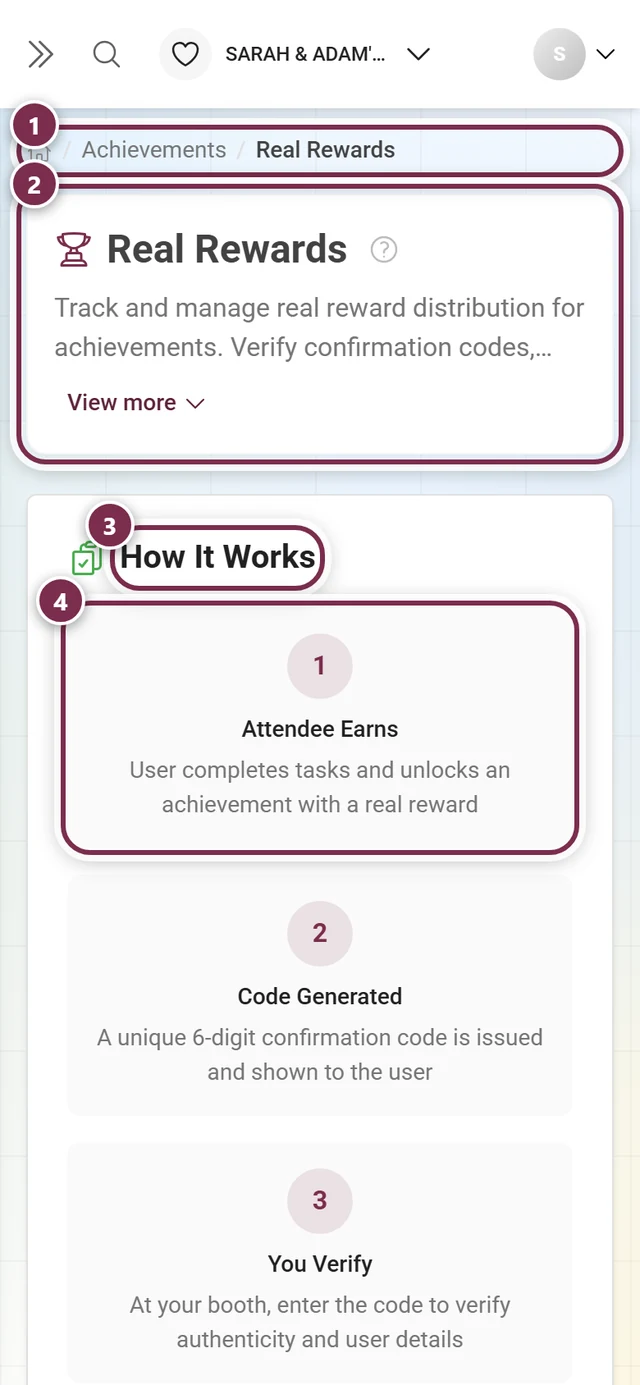
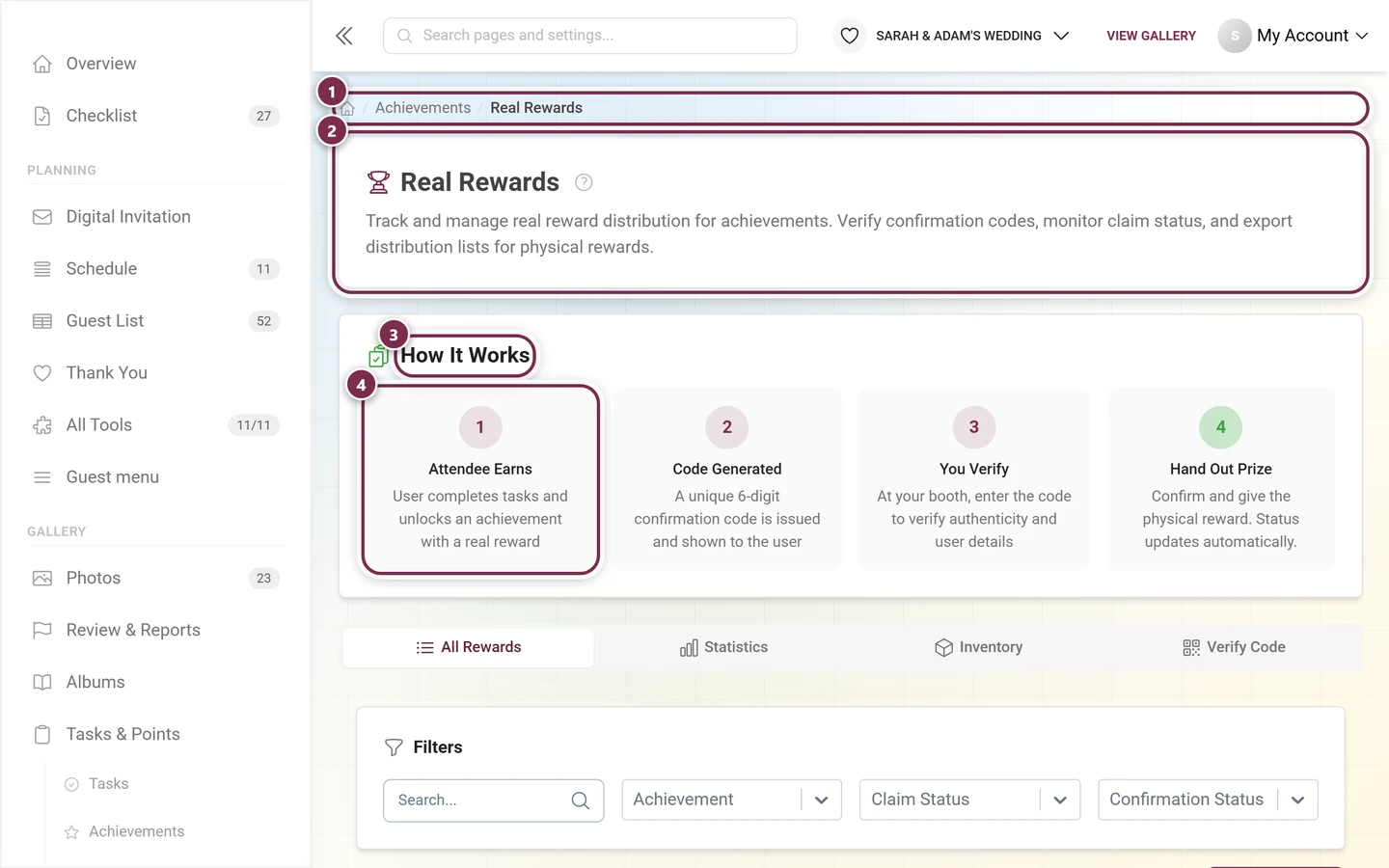
To see how your guests experience achievements: Points & rewards and Redeeming real rewards.
Troubleshooting
Section titled “Troubleshooting”- Achievement doesn’t appear in a guest profile – enable achievements under Turning features on & off; the yellow alert in the tab points this out.
- A guest never unlocks the achievement – likely no condition is set (chip Manual). Add a condition or award the achievement manually via Participants.
- Reward section or Advanced toggle locked – the relevant premium feature is not included in your plan (see Plan & term).
- Stock used up – the remaining stock shows as an icon in the list; tracking and redemption run through Redeeming rewards.
- I cannot find a winner’s verification code – leaderboard winners have their own checker under Leaderboard & winners.
- Limit reached – the
used/limitcounter in the header warns from 75% and 90%. - Conflicting conditions – combinations like Max lower than Min, or a lock date before the unlock date, are not strictly validated. Set values deliberately so the achievement stays reachable.
Best practices
Section titled “Best practices”- Use short, meaningful names and a motivating description – the guest sees both when unlocking.
- Upload a square badge at 500 × 500 px or use a template, otherwise the trophy placeholder appears.
- Start with one clear condition (e.g. Photo Uploads = 5) rather than many at once.
- For real rewards: write precise redemption instructions in Reward Description and set a realistic Reward Inventory; then verify redemptions in achievement tracking.
- Set time windows (Unlock At / Lock After) deliberately, e.g. for an early-bird achievement.
- Arrange achievements logically via Reorder (easy → hard) and use the Natural (by conditions) sort to review them.