Moderation & safety
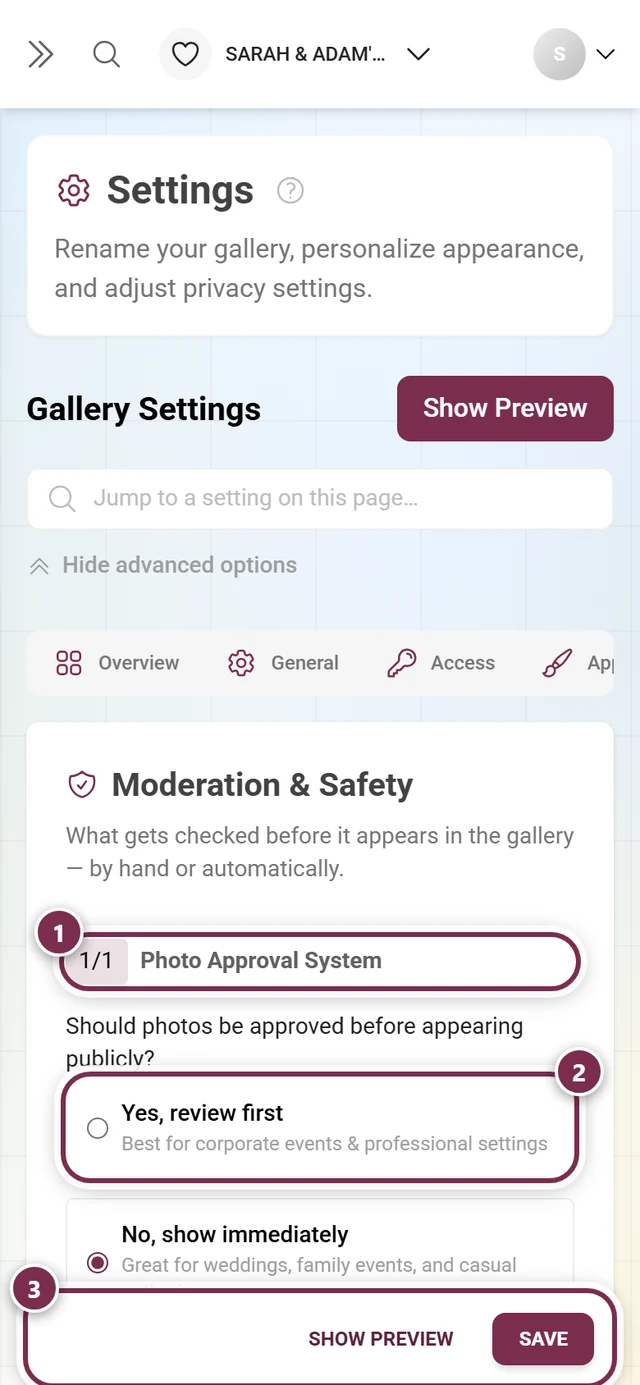
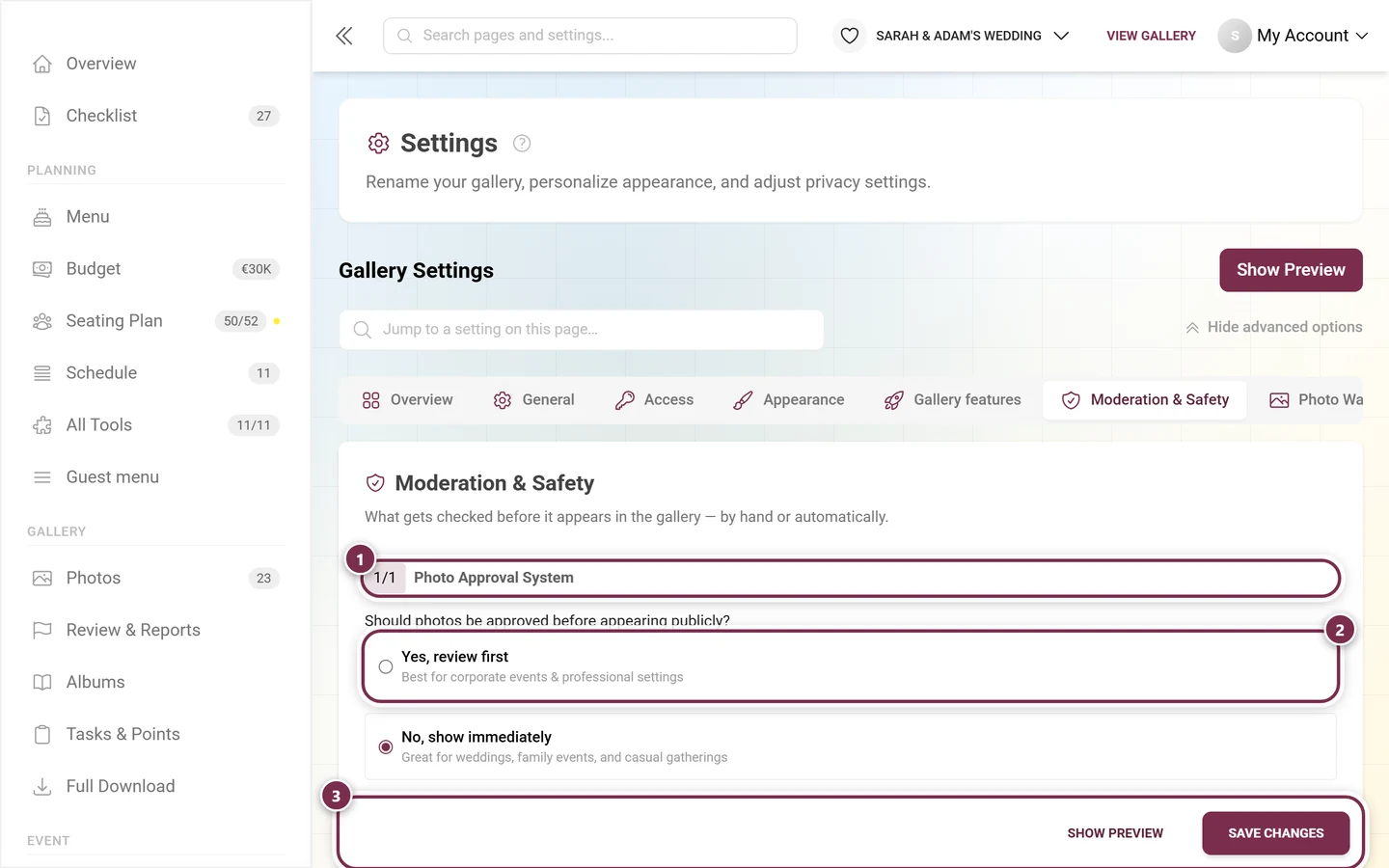
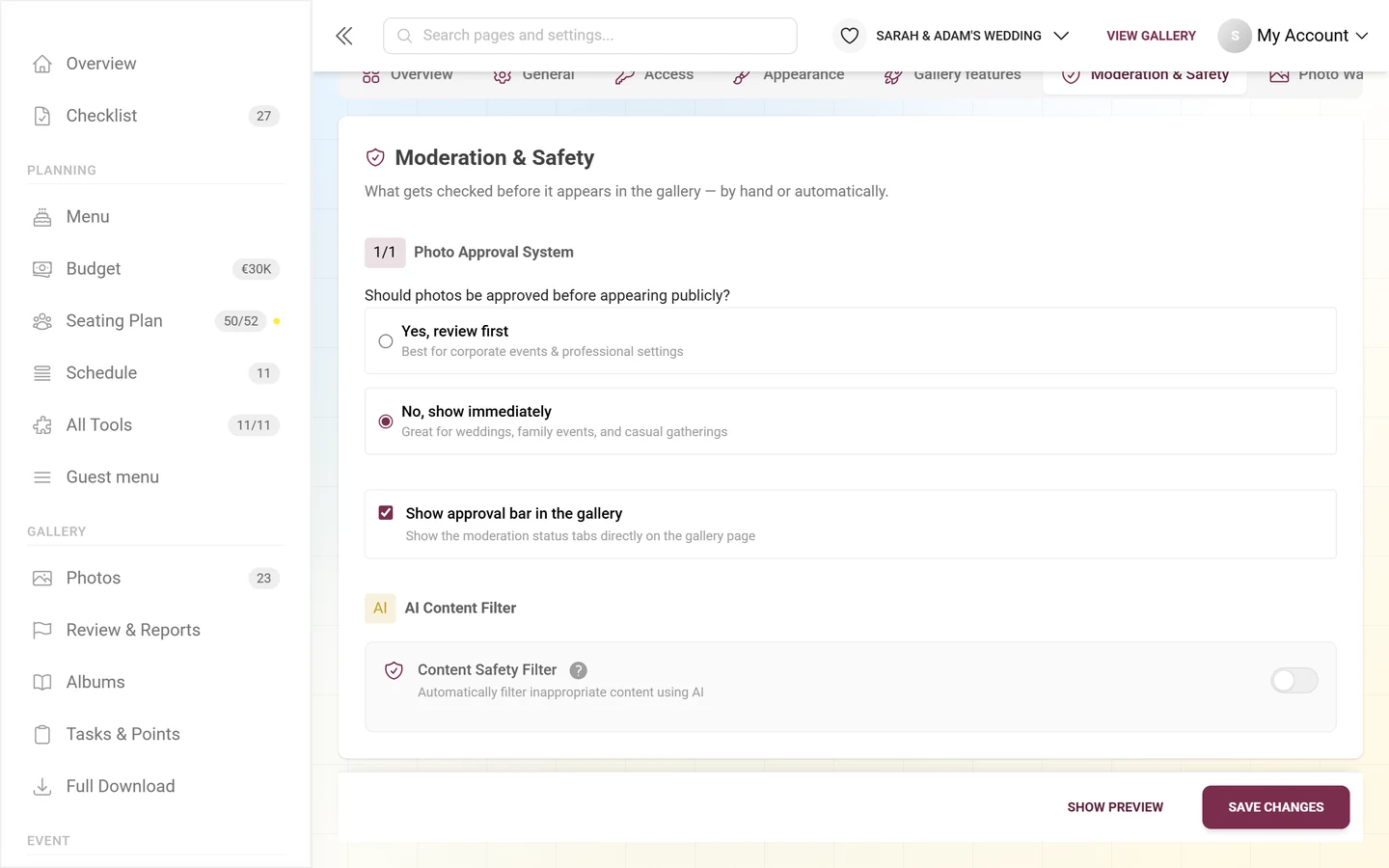
The Moderation & Safety tab answers exactly one question: what gets checked before it appears in the gallery — by hand or automatically? Here you set photo pre-approval, switch the AI content filter on or off, and decide whether moderators see the approval bar right on the gallery page.
Reaching the area
Section titled “Reaching the area”-
Open your event’s admin area — via the profile menu in the top right (Admin portal) or directly through the admin route. How to get into the admin area is covered in Access your event.
-
In the left sidebar, in the Event group, choose Settings. You land on the Overview first, a grid of tiles with one sentence per area.
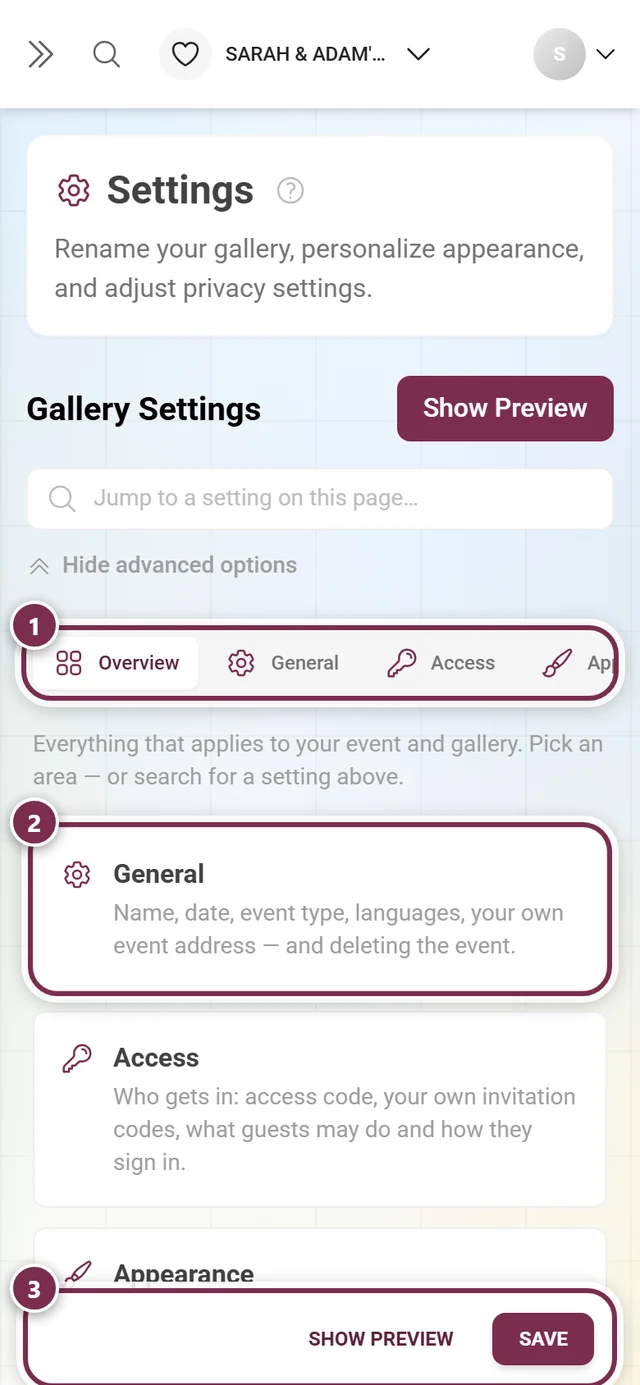
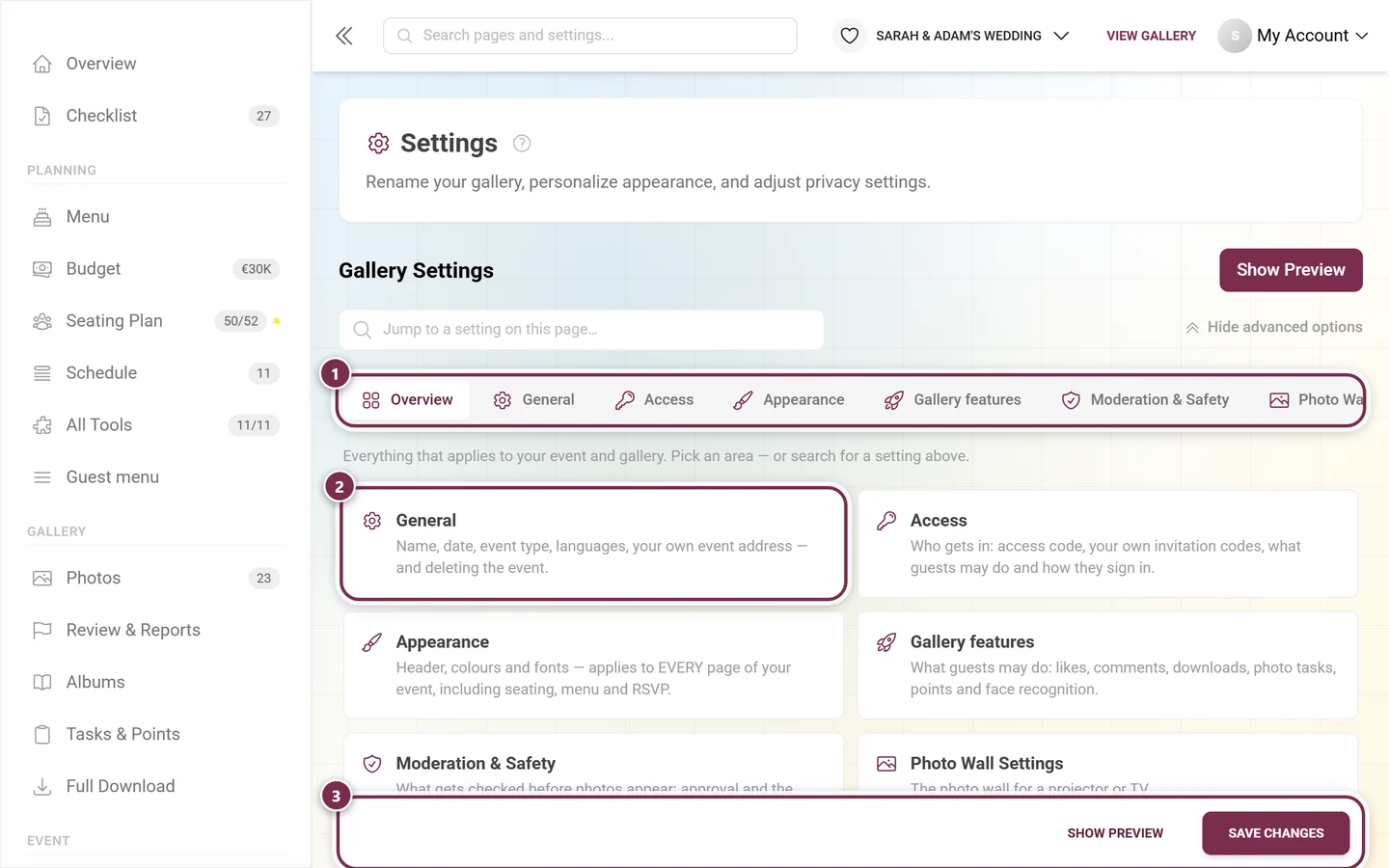
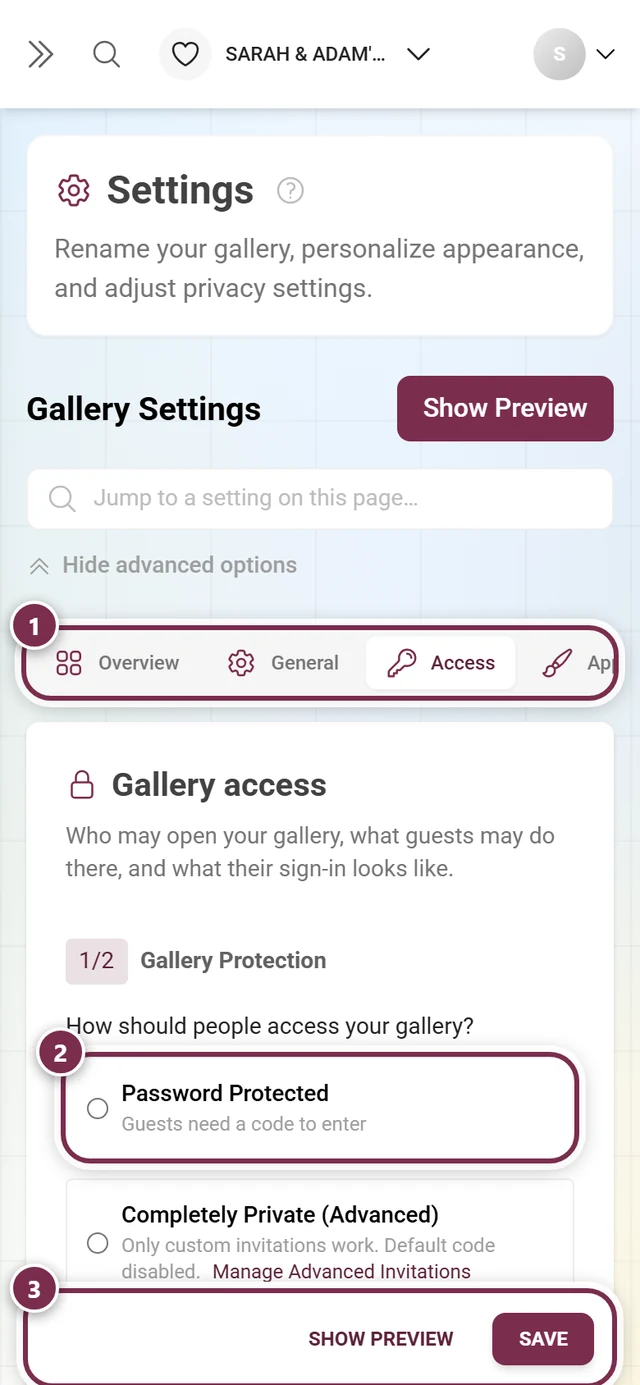
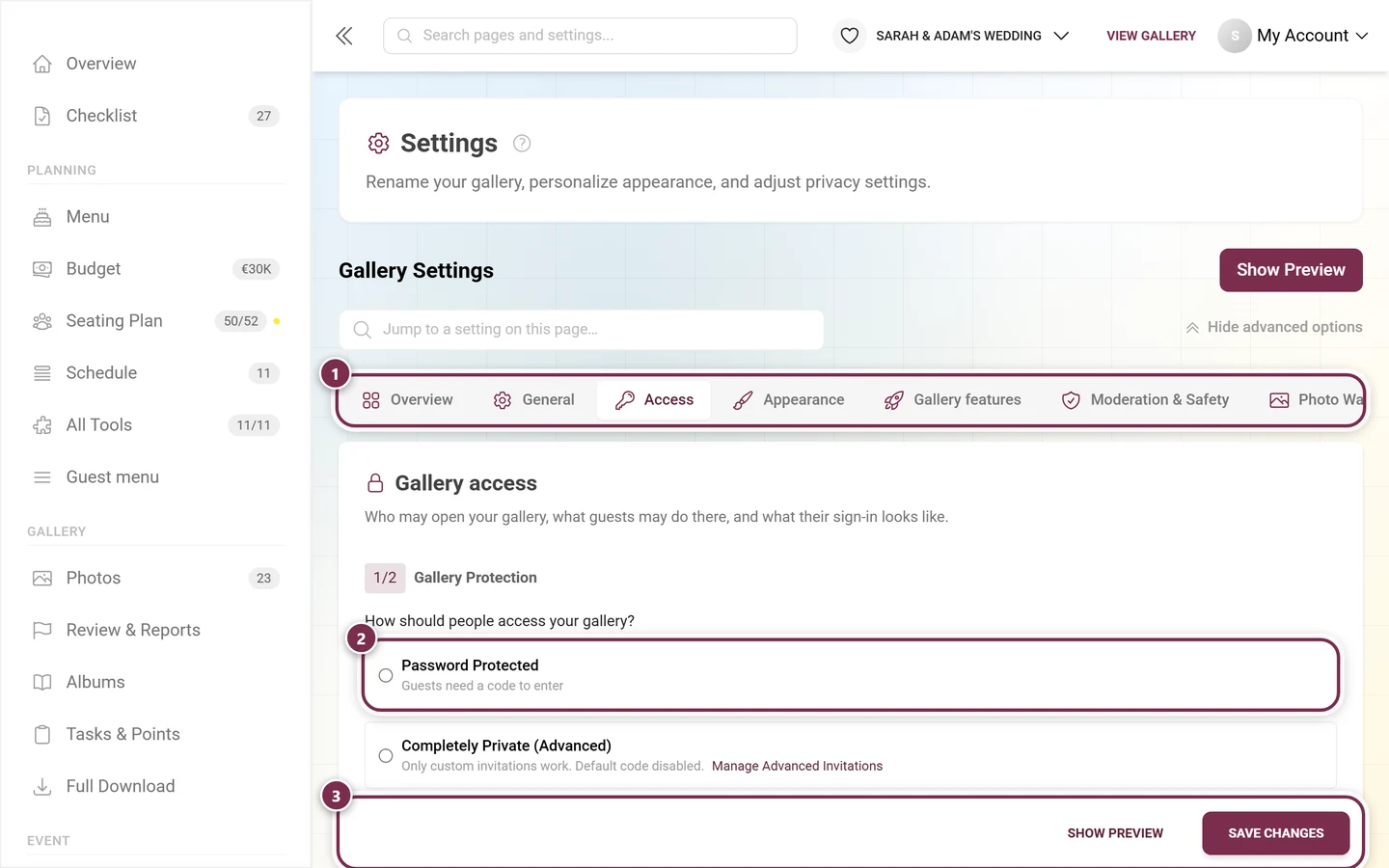
Settings open on the Overview. The “Moderation & Safety” tile reads: what gets checked before photos appear. ① the tab row with every area – it is wider than the window and scrolls sideways; on a phone only three tabs fit at once, ② one card per area, each with a line about what it holds, ③ the bar that stays at the bottom: Show Preview opens the gallery with your changes, Save Changes (just Save on a phone) commits them. -
Click the Moderation & Safety tile, or the tab of the same name (shield icon). Direct link:
/admin/settings?tab=privacy. Inside, the tab is headed “Moderation & Safety” with the subline “What gets checked before it appears in the gallery — by hand or automatically.”
How the tab is laid out
Section titled “How the tab is laid out”The tab has become short — it holds only three things, in this order:
-
1/1 – Photo approval system (premium) — the step marker left of the heading counts numbered blocks only, and here there is exactly one.
-
Show approval bar in the gallery — a toggle right under the approval question, without a number.
-
AI content filter — no number, but an AI badge instead.
1/1 Photo approval system (pre-moderation)
Section titled “1/1 Photo approval system (pre-moderation)”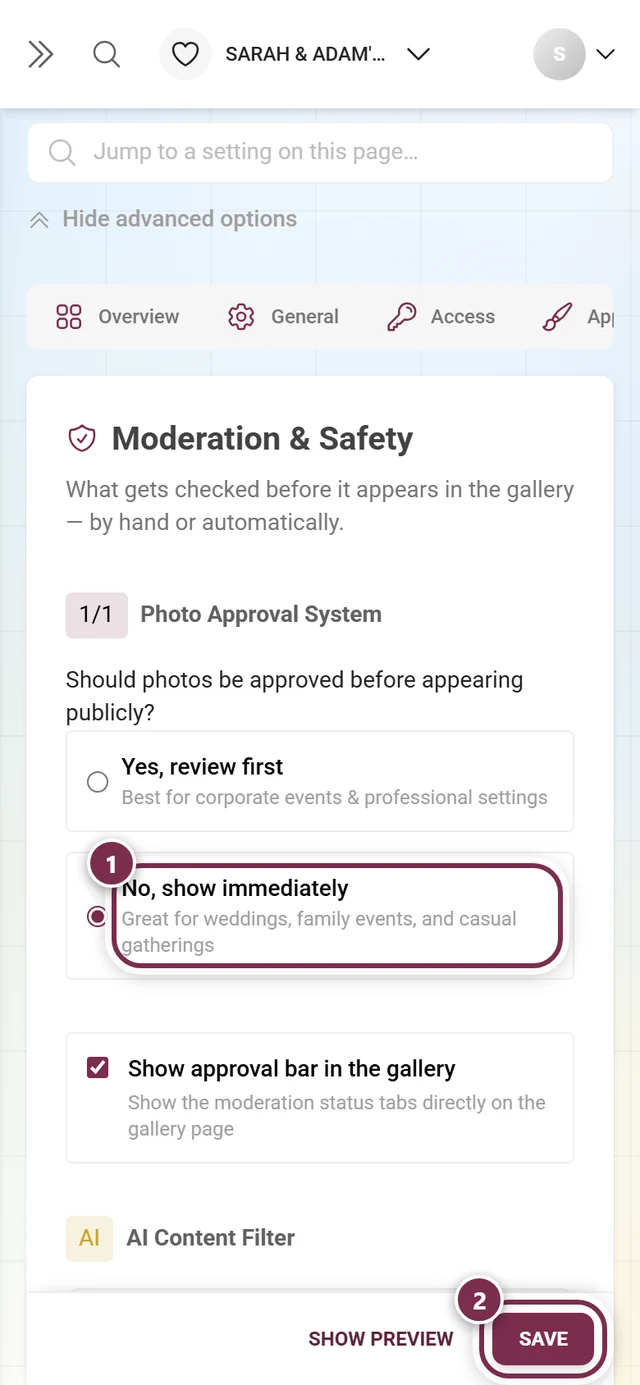
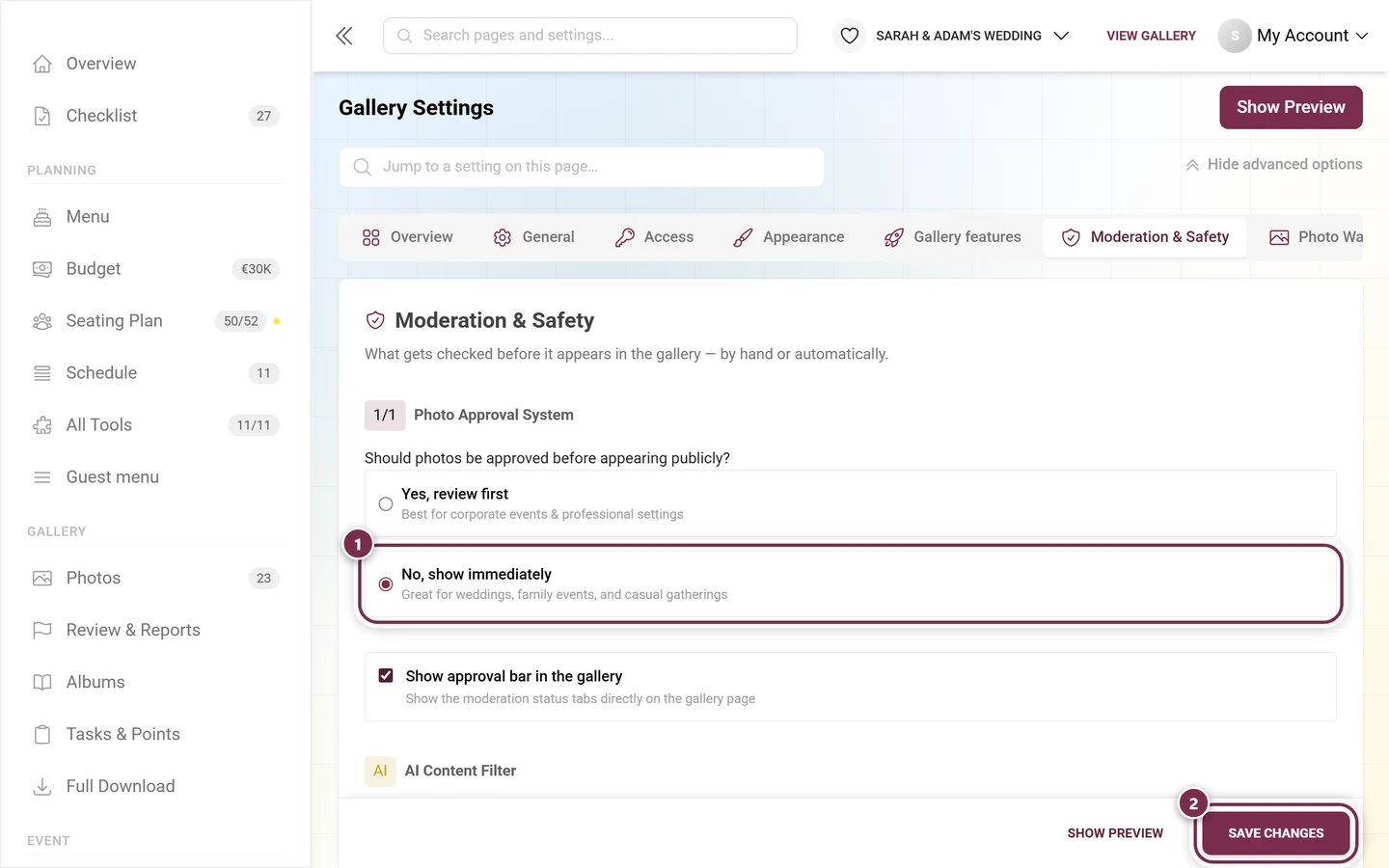
Under Photo approval system you answer: Should photos be approved before they are shown publicly?
- Yes, review first — best for corporate galleries and professional settings. New uploads land as Pending in the approval queue and become visible only after you approve them.
- No, show immediately — ideal for weddings, family galleries and casual gatherings. Photos appear right away.
How to work through the queue is covered in Moderation.
Show approval bar in the gallery
Section titled “Show approval bar in the gallery”Right under the approval question sits the toggle Show approval bar in the gallery — “Show the moderation status tabs directly on the gallery page”.
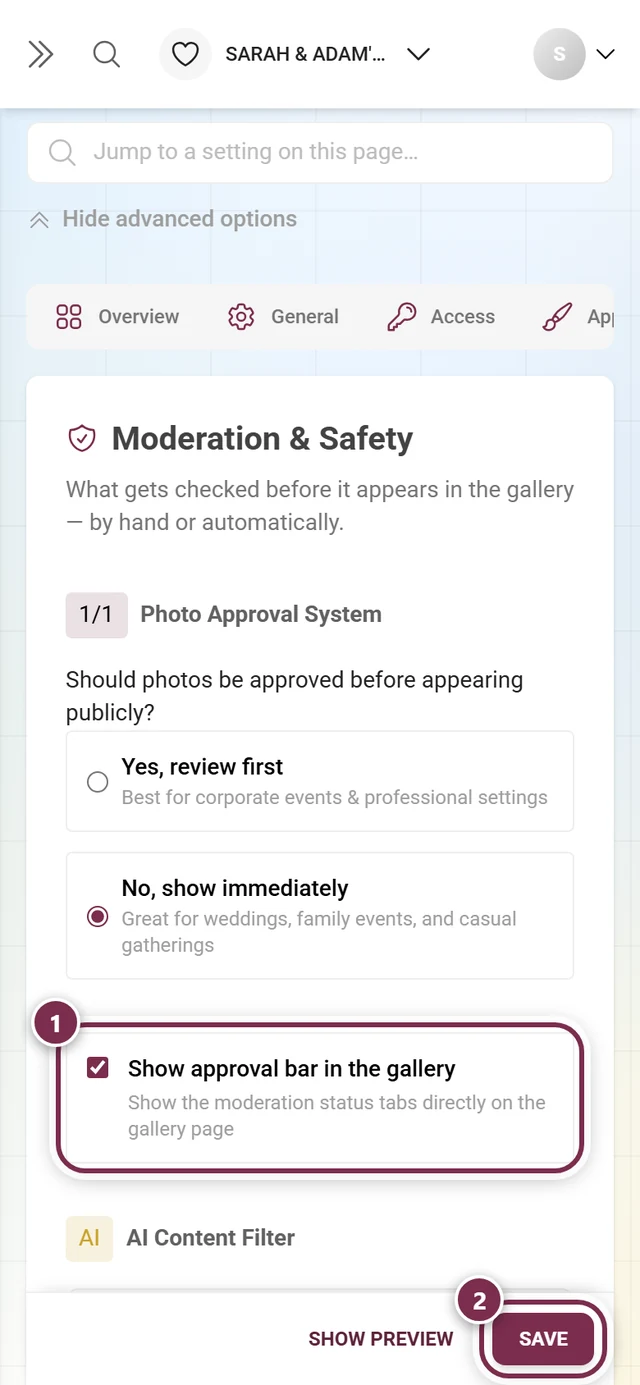
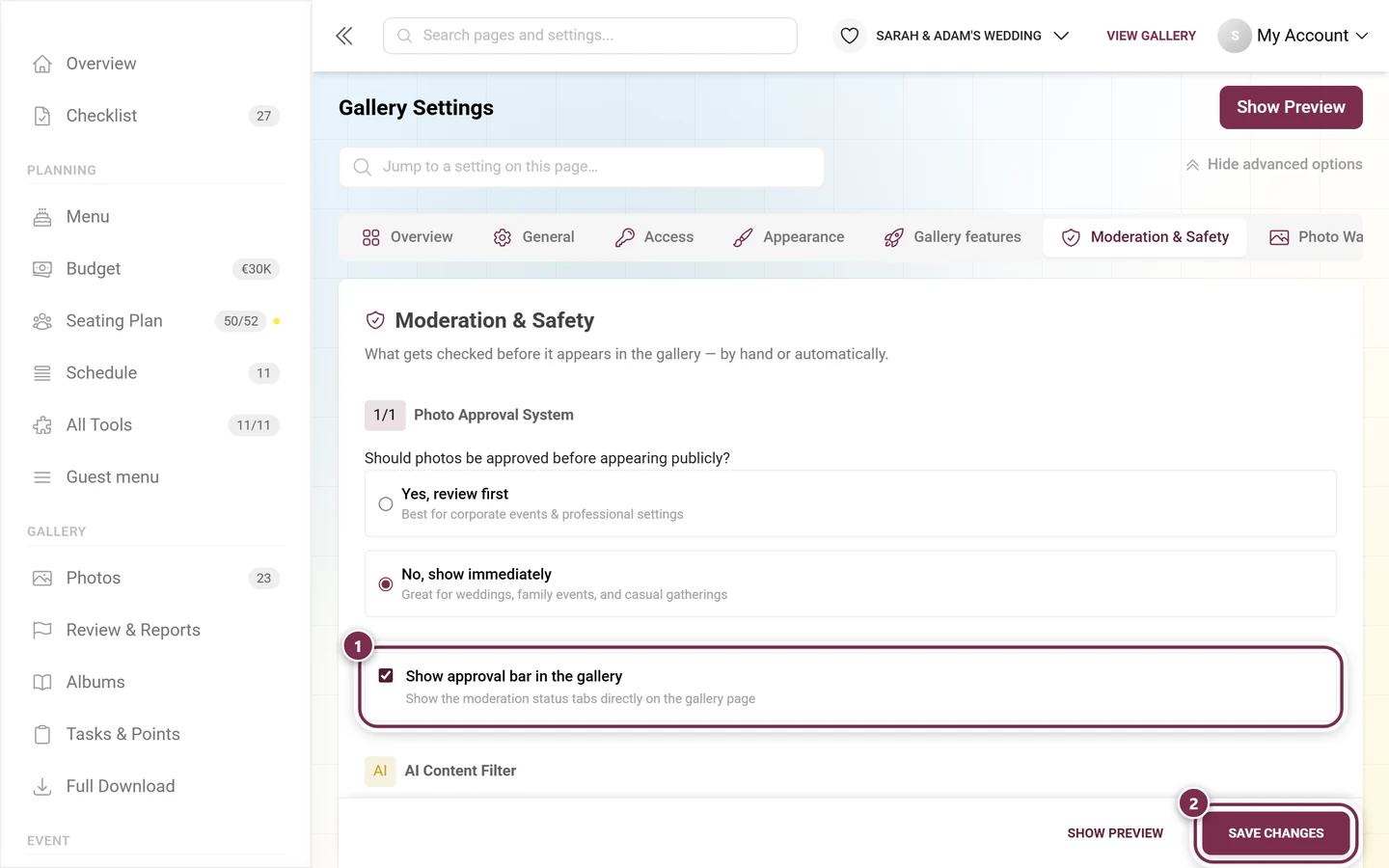
- On: moderators and admins see a bar on the gallery page itself with the tabs Published / Pending / Unpublished and can filter there without opening the moderation page.
- Off: the gallery page looks the same for everyone; approving happens exclusively in Review & Reports.
The toggle is locked while content moderation is not part of your plan.
AI content filter (NSFW)
Section titled “AI content filter (NSFW)”Instead of a step number this block carries an AI badge. The card inside is called Content safety filter and has a switch. When enabled, the AI automatically filters inappropriate content.
-
Turn on the Content safety filter.
-
An info box Auto-moderation active appears. Its text depends on the photo approval system:
- Pre-moderation on: NSFW uploads are automatically not published, while other uploads wait for manual review.
- Pre-moderation off: NSFW uploads are automatically not published, while safe uploads are published immediately.
-
Optional: enable Also scan existing media / Re-evaluate existing media to run already-uploaded photos through the filter after the fact. If a scan is already running you see Scan already in progress with a countdown — just wait for it to finish.
You can see the AI’s results and statistics under AI processing.
What moved to the Access tab
Section titled “What moved to the Access tab”Everything about getting in now sits in the Access tab (/admin/settings?tab=access, key icon). It also swallowed the former Manage invitations page: the invitation codes render right below in the same view, and the “simple” and “advanced” modes are gone.
The heading there reads “Gallery access”, and the numbered blocks run 1/2 Gallery protection (who gets in) followed by 2/2 Gallery mode (whether guests may upload):
- Gallery protection — the three mutually exclusive options Password protected (with the default invitation code and the checkbox “Include default invitation code in QR code”), Completely private (custom invitations only) and Open access (with the default guest roles Viewer and Contributor). In detail: Inviting guests and Roles & permissions.
- Gallery mode — View Only Gallery (only event admins and owners upload, with the note “All guest uploads are disabled”) or Allow guest uploads (Contributors may contribute photos). Below it, Result of your selection shows who can upload in the end.
- Guest experience — an unnumbered, collapsed section with three checkboxes (see below).
Guest experience (collapsed section in the Access tab)
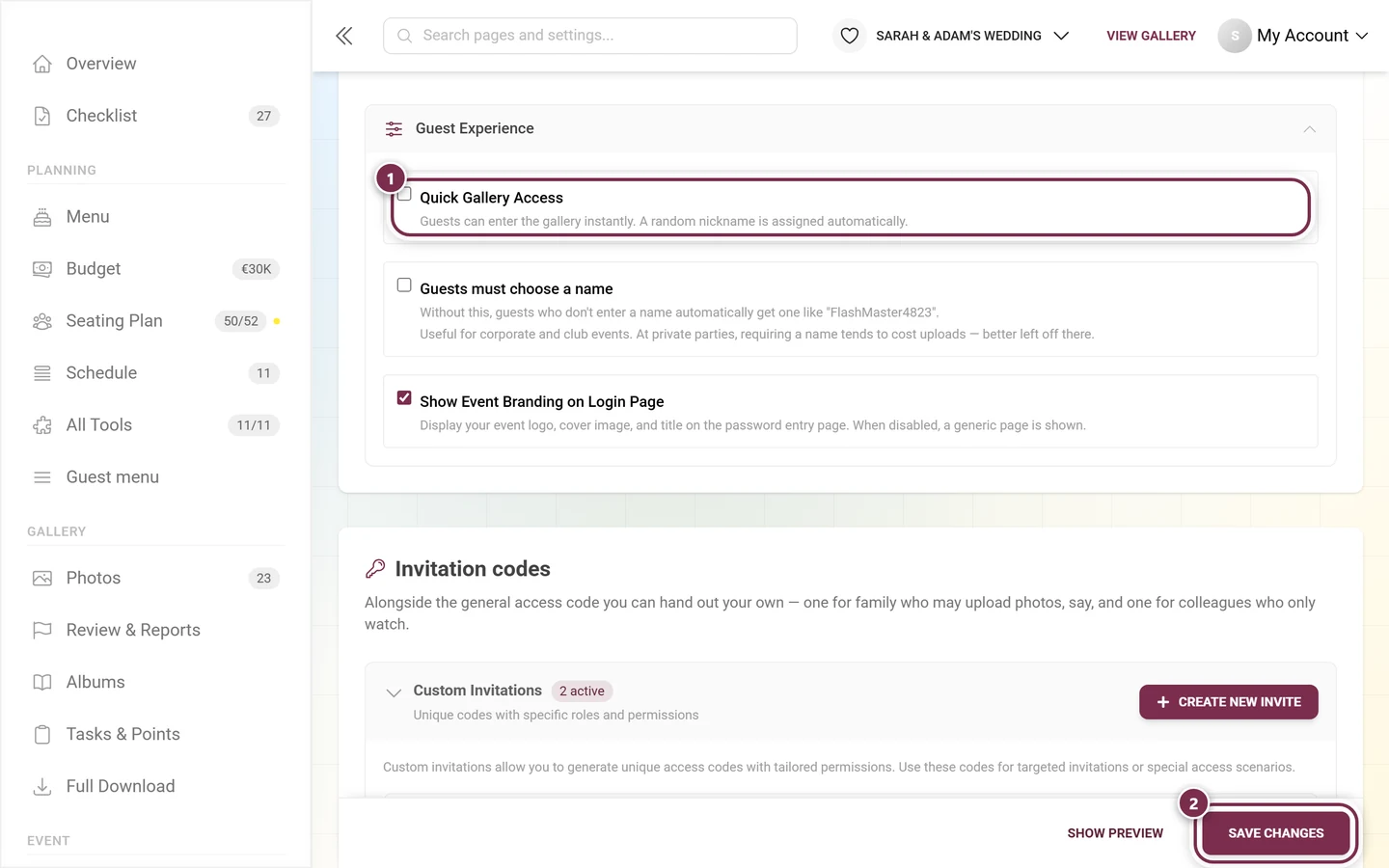
Section titled “Guest experience (collapsed section in the Access tab)”The Guest experience section is collapsed by default and carries no step number. Expand it (or use Show all advanced options at the top). It holds three checkboxes:
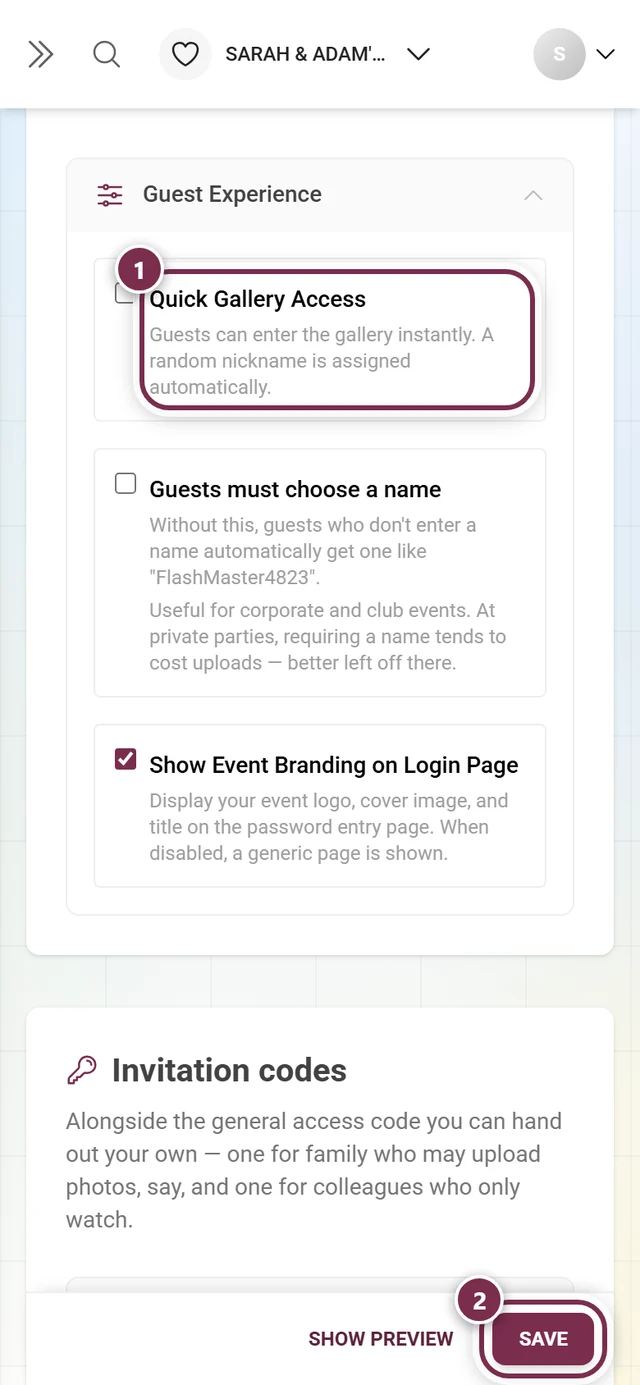
Quick gallery access — guests enter the gallery instantly; a random nickname is assigned automatically. For a password-protected or private event an extra note says that guests still have to enter the password — only the nickname selection step is skipped.
Guests must choose a name — off by default. Without this option, guests who don’t enter a name are reminded of it but can still join without one via Continue without a name anyway – they then appear as “Anonymous”. Once you tick it, this changes for your guests:
- The welcome dialog with the name prompt can no longer be dismissed, and the Continue without a name anyway link disappears – in the dialog as well as on the Welcome to Our Gallery page.
- Submitting empty does not work: whoever taps Continue to photos without a name sees the hint “A name is required for this event so others can recognise your photos.” No name is invented in the background either.
The admin hint next to it says when it pays off: “Useful for corporate and club events. At private parties, requiring a name tends to cost uploads — better left off there.”
Show event branding on login page — displays your logo, cover image and title on the password/login page. Disabled, guests see a generic page.
How to switch one of these on
Section titled “How to switch one of these on”-
Tick the box in the row you want – in the picture below that is ① Quick gallery access.
-
Tap Save changes at the bottom (②). Only then does the option take effect for your guests – without this step it reverts the next time the page loads.
Deleting the gallery — now in the General tab
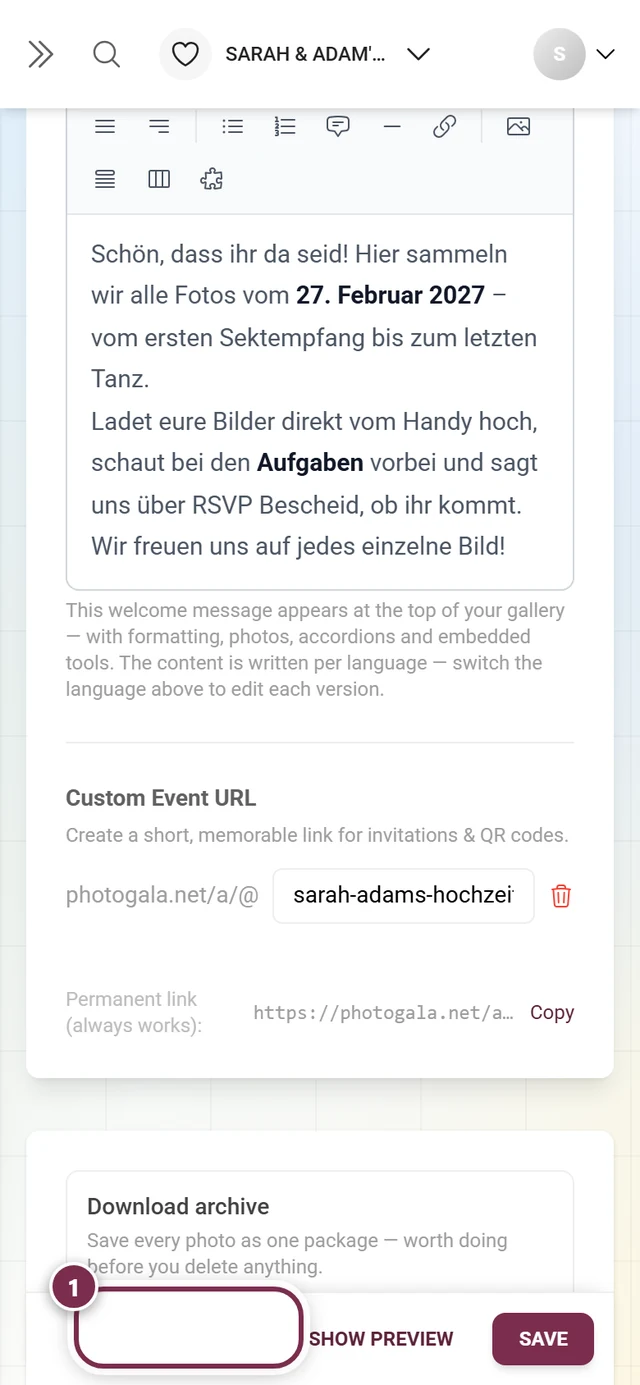
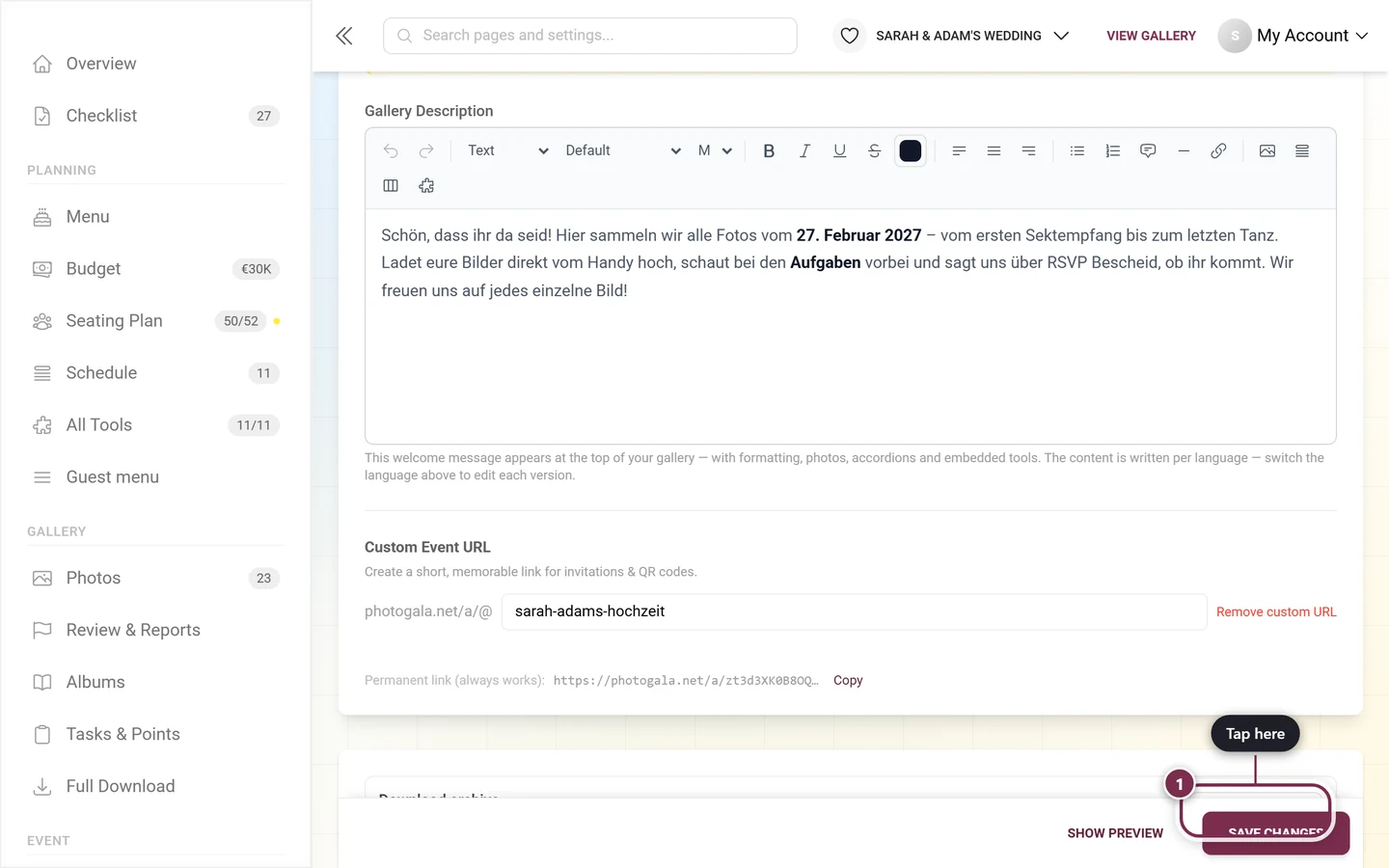
Section titled “Deleting the gallery — now in the General tab”The danger zone (“Dangerous actions”) is no longer here. It sits in the General tab below the event basics and is still visible to the owner only: the Download archive backup reminder, the red expandable section, the DELETE type-to-confirm field and the final confirmation dialog. The full description is in General settings.
Approval workflow
Section titled “Approval workflow”As soon as pre-moderation is active or the AI filter holds content back, new media land in the approval queue.
-
In the left sidebar, in the Gallery group, open Review & Reports (route
/admin/moderation). Its badge shows what is waiting right now — pending uploads plus open reports.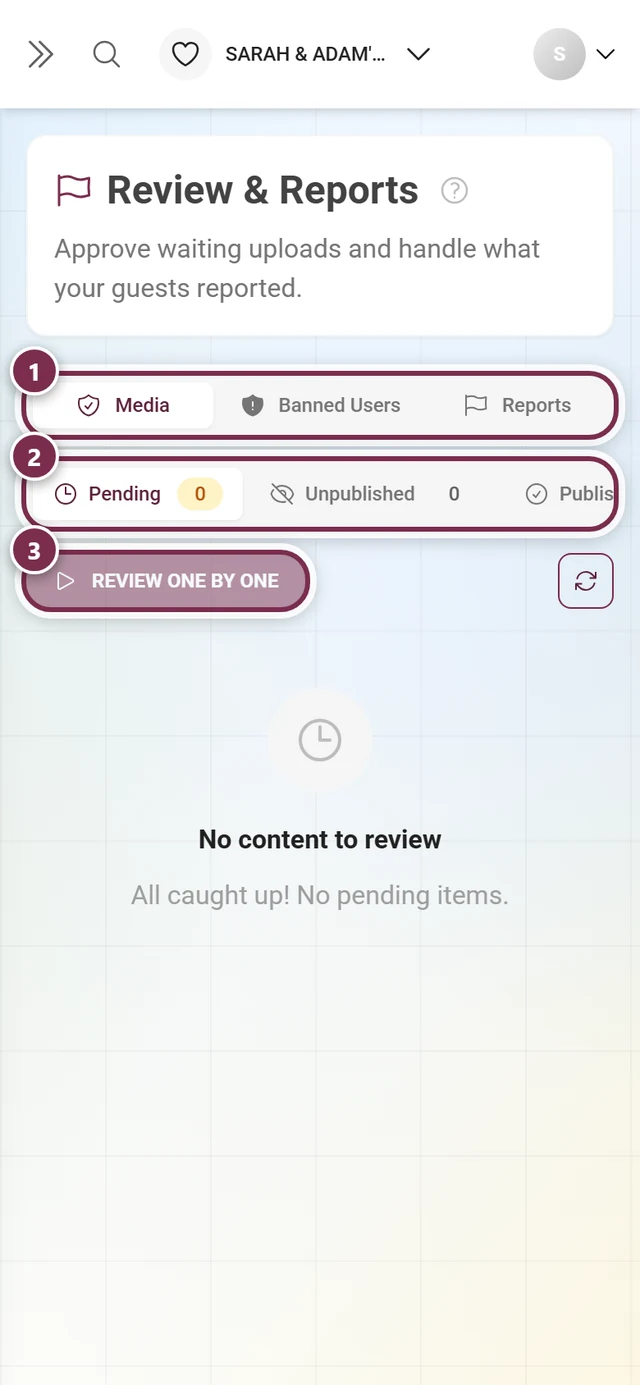
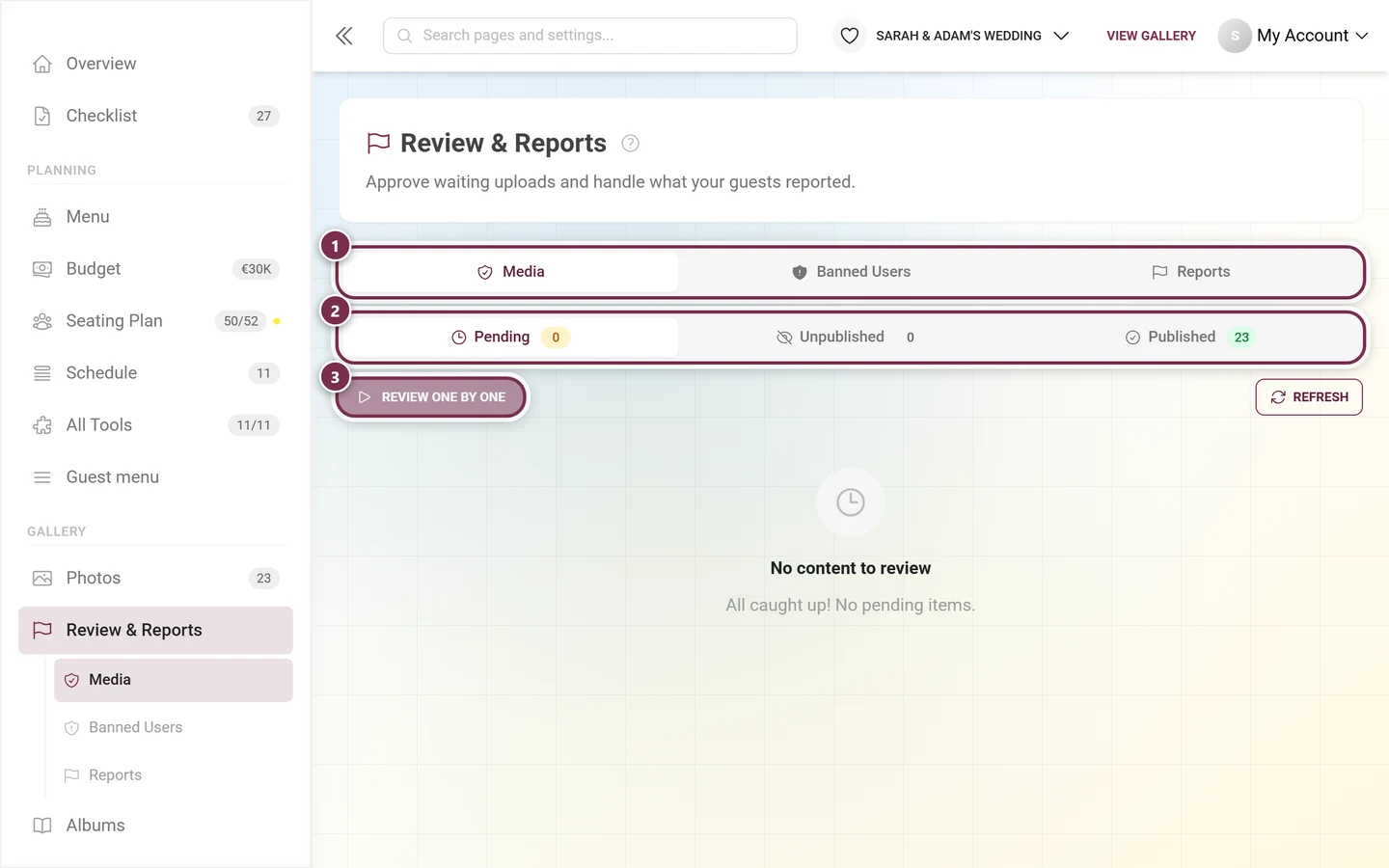
“Review & Reports” now lives inside the admin area — with the tabs Media, Banned Users and Reports; Face Clusters only joins them when face recognition is part of the plan and switched on for the event. ① the tab row Media, Banned Users and Reports – Media only appears when review is part of your plan or uploads are still queued; Face Clusters slots in between as soon as face recognition is part of the plan and switched on for the event, ② the status row Pending, Unpublished and Published, each with its count next to it, ③ Review one by one starts the run with keyboard shortcuts; while the current list is empty the button stays grayed out. -
Stay on the Media tab. Below it are the status tabs with live counters: Pending, Unpublished and Published.
-
Decide per tile with Approve or Reject — or work through the queue full-screen via the Review one by one button. Every decision takes effect at once and can be taken back with Undo last in the bar at the bottom.
The full queue guide is under Moderation. You ban individual guests as described in Banning users.
Edge cases & troubleshooting
Section titled “Edge cases & troubleshooting”- “I can’t find the ‘Privacy & moderation’ tab any more.” It is called Moderation & Safety now, and access moved into its own Access tab. The address
?tab=privacystayed the same. - “Where is gallery protection / the default invitation code?” In the Access tab — which also holds the former invitation manager.
- “Where is the danger zone?” In the General tab, under the event basics.
- “I can’t see the photo approval system or the AI filter, or it’s locked.” Both are premium features — check your plan under Plan & term.
- “My changes are gone after switching tabs or reloading.” They weren’t saved — watch for the red dot on the tab and click Save changes.
- “New photos don’t appear in the gallery.” Pre-moderation is active; approve them under Review & Reports in the Pending status.
- “The AI re-scan says ‘already running’.” Wait for the displayed countdown; then you can scan again.
- “My moderators can’t find the approval queue.” Turn on Show approval bar in the gallery — then they see the status tabs right on the gallery page.
Best-practice tips
Section titled “Best-practice tips”- For corporate and children’s events: pre-moderation “Yes, review first” plus the AI filter on.
- At private celebrations, better leave pre-moderation off — otherwise every guest photo waits for you and the gallery looks dead.
- Turn on the approval bar in the gallery when several moderators should approve alongside each other.
- Before every deletion, download an archive — a deleted event cannot be restored.