Setting up your event
Before your guests get started, your event should be fully set up. There are three tools that go hand in hand: the guided setup wizard (takes your event from zero to ready in minutes), the checklist (your customizable map of what’s left to do), and the guided tour (a walkthrough of the interface). This page also serves as your signpost to every other admin area.
How to reach these areas
Section titled “How to reach these areas”You’ll find all three tools in the admin area. Here’s how to get there:
-
Open the profile menu in the top right and, under Management, choose Admin portal. You land on the dashboard at the
/adminroute.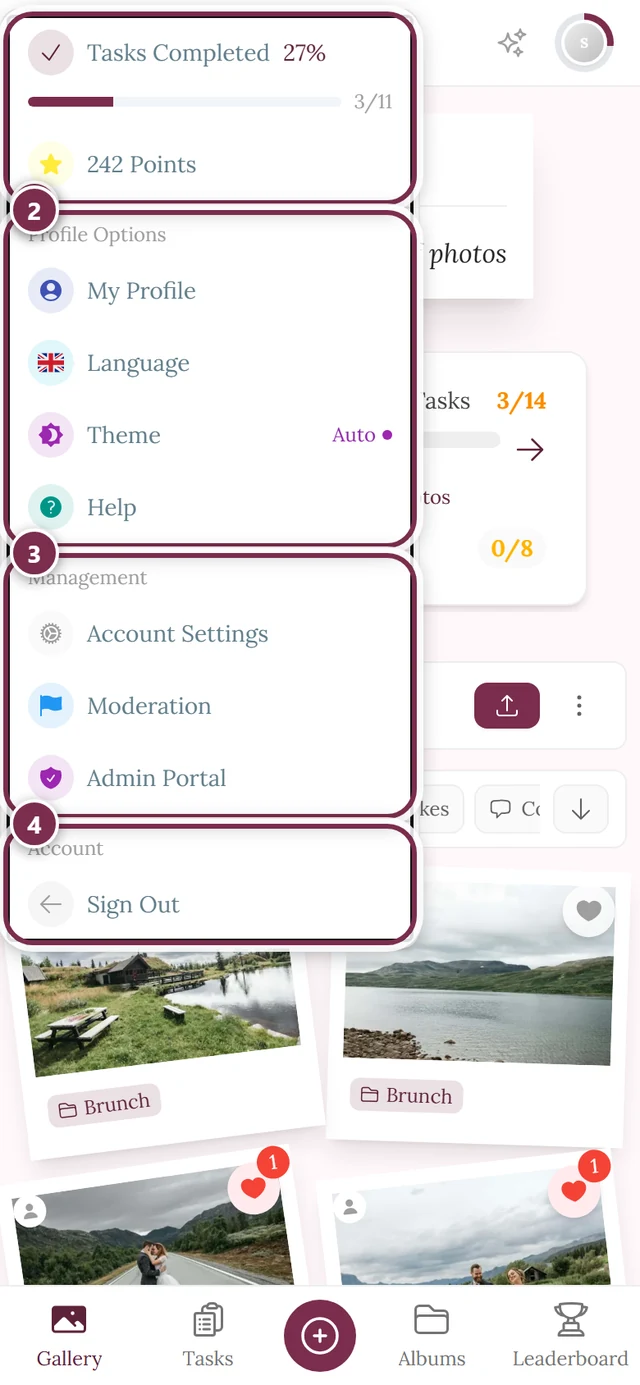
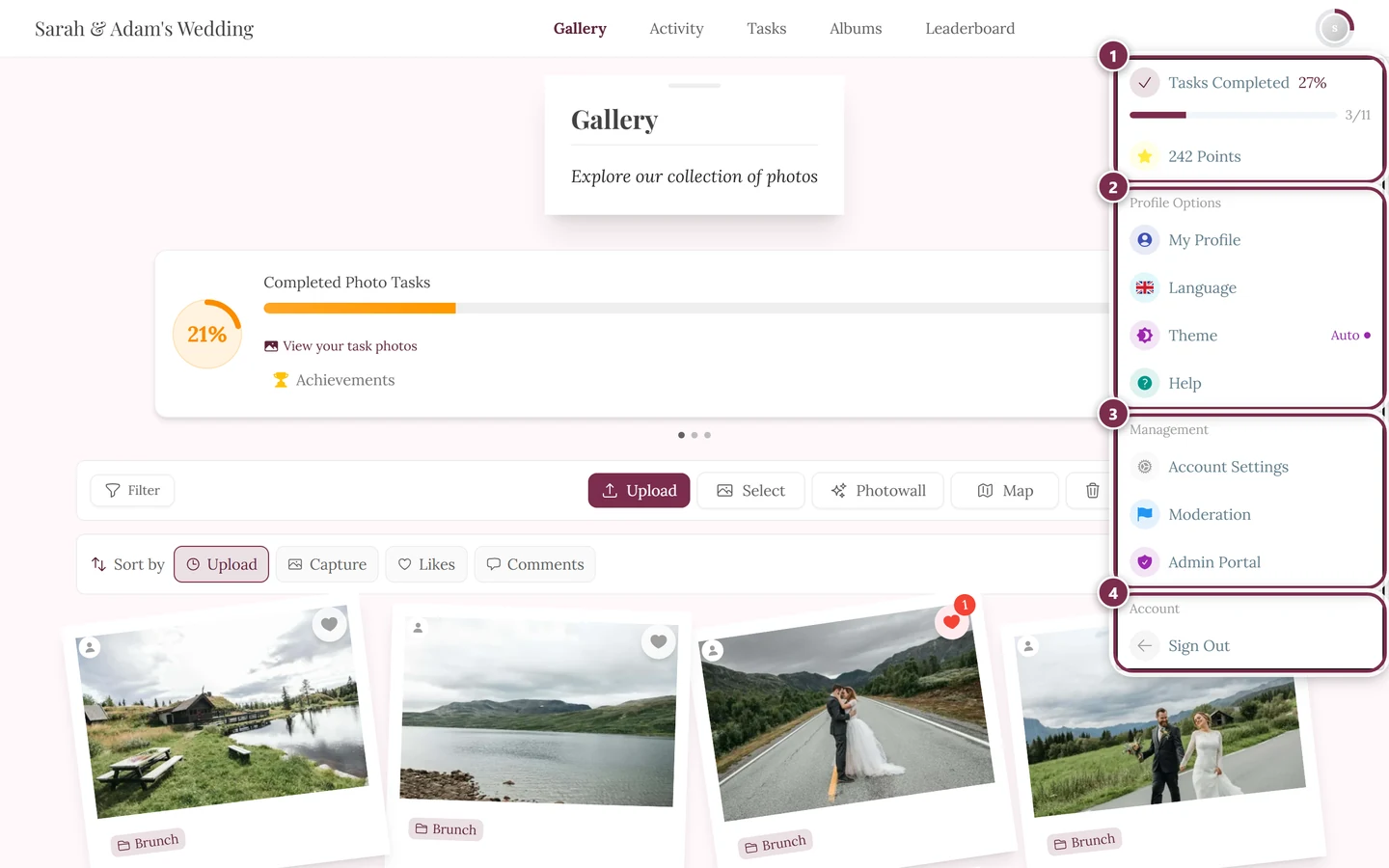
The profile menu in the top right takes you into the admin portal. ① your points and solved tasks, ② Profile options with My Profile, Language, Theme and Help, ③ Management with Account Settings, Moderation and Admin Portal – this section is missing until you hold a role for it, ④ Account with Sign out. -
On the dashboard, a right-aligned bar above the cards holds three buttons: “Setup Event” opens the setup wizard, “Start Tour” starts the guided tour, and “Set up dashboard” opens the card manager (once you’ve hidden cards it reads “· N off”).
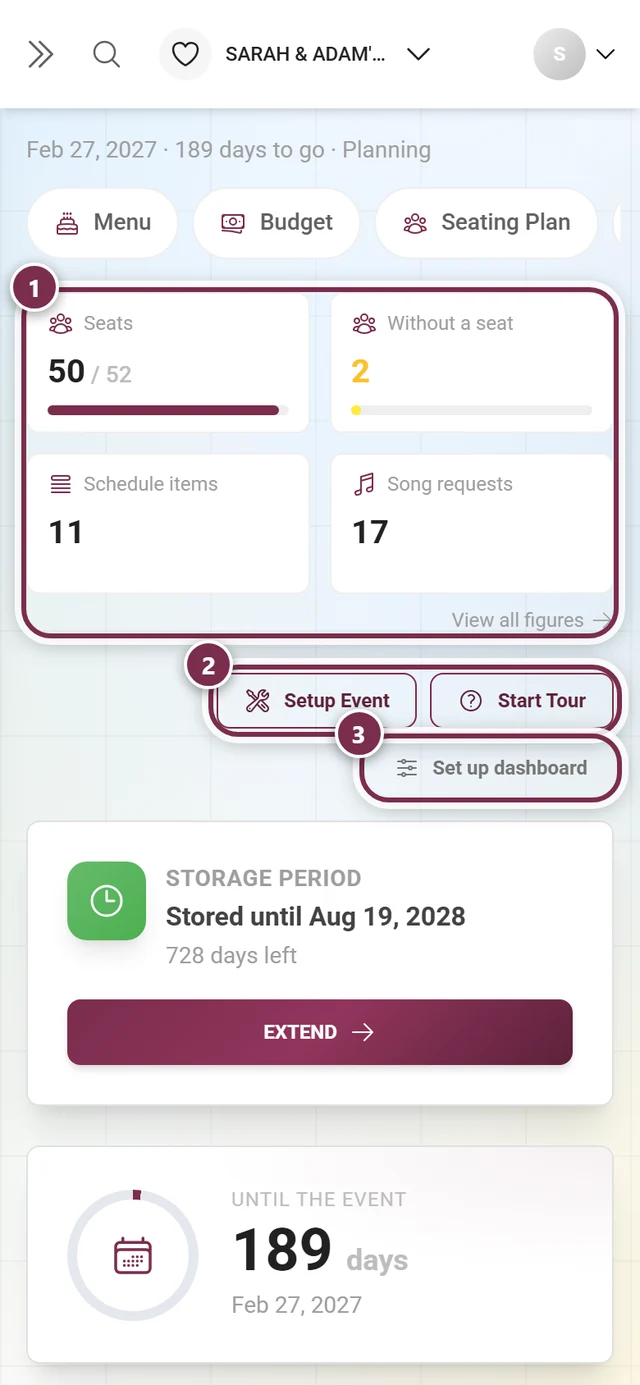
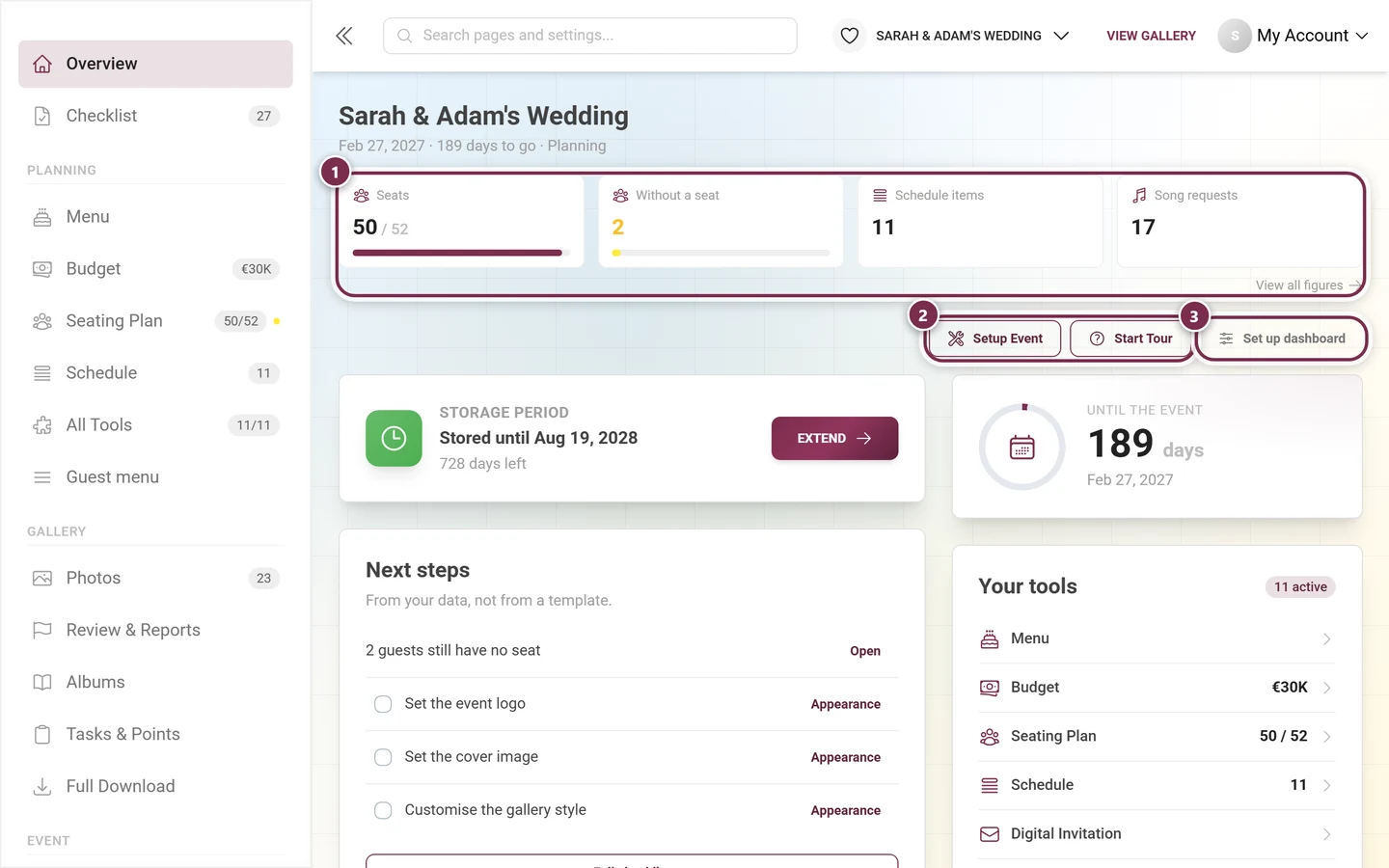
The dashboard bundles the setup wizard, the tour, and the “Next steps” card. ① the figure band: up to four tiles that follow your event's phase and the tools you have switched on – each one is clickable and takes you where you act on that number; below it on the right, View all figures opens the full statistics. On a phone the four sit as a 2×2 block. ② Setup Event reopens the setup wizard, Start Tour walks you through the admin area. ③ Set up dashboard opens the dialog for figures and cards: switch them on or off, drag them into order. With cards switched off the count shows in the button – Set up dashboard · 2 off. -
Open the checklist from the left sidebar under “Checklist” – the second entry in the topmost group, which deliberately carries no heading. While something is outstanding, the entry shows the count next to it. It opens the full view at
/admin/checklist. A short version also sits on the dashboard as the “Next steps” card.
| Goal | Where |
|---|---|
| Setup wizard | Dashboard button “Setup Event” (opens a full-screen wizard) |
| Guided tour | Dashboard button “Start Tour” |
| Show/hide dashboard cards | Dashboard button “Set up dashboard” |
| Checklist (full view) | Sidebar → “Checklist” (/admin/checklist), with the number of open items |
| Checklist (short version) | The “Next steps” card on the dashboard (/admin) – its position follows the event phase, and it can be switched off |
The setup wizard
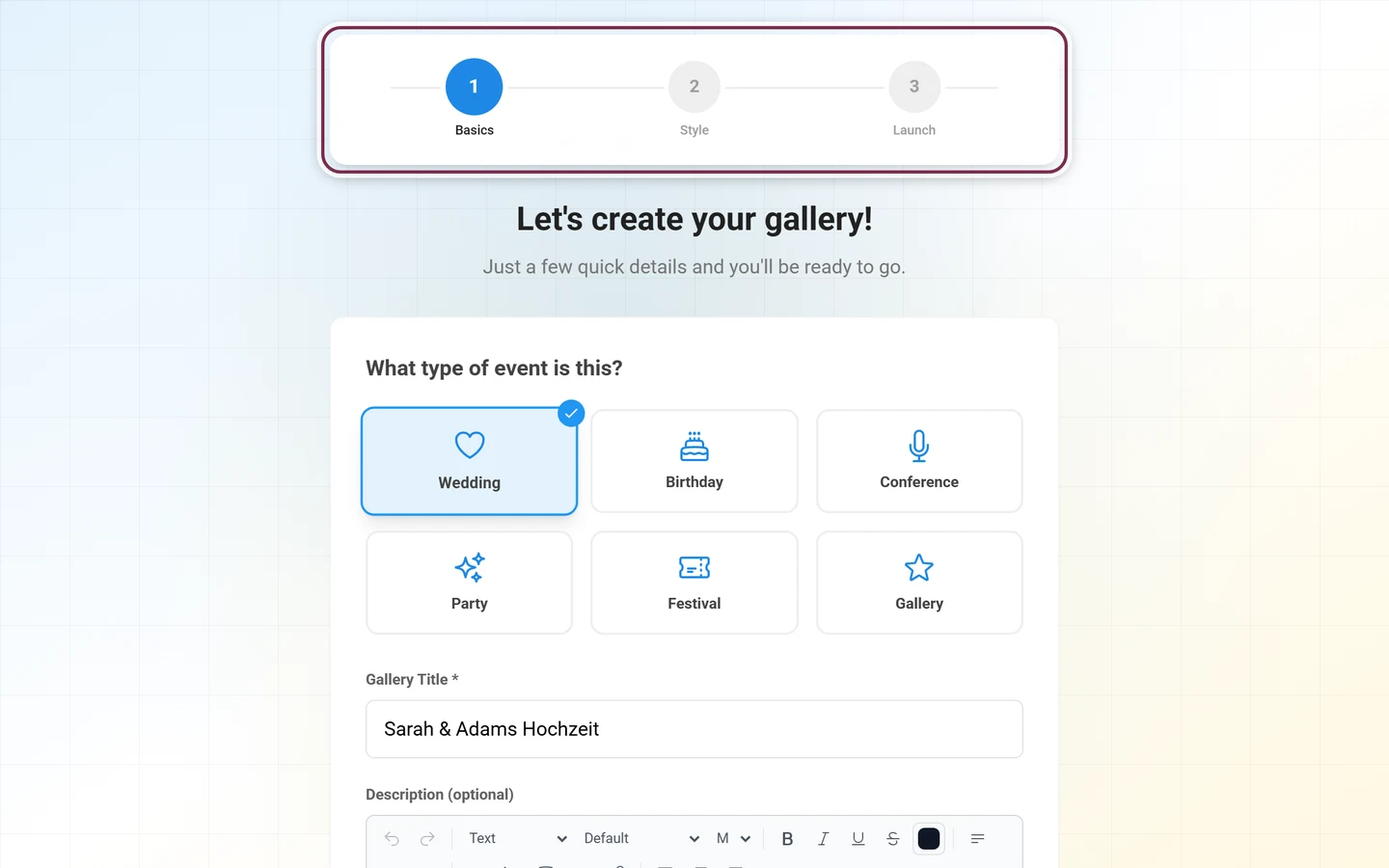
Section titled “The setup wizard”The wizard runs full-screen and walks you through the essentials in two to three steps. A progress indicator sits at the top. Your progress is kept – if you leave mid-way, the browser warns you. When you reopen it, it preloads your existing values, so you only change what you actually want to. Nothing is changed until you tap “Launch gallery” at the end.
Your wizard has fewer steps than described here?
Section titled “Your wizard has fewer steps than described here?”Then you very likely arrived through a specific topic page – say a page about the seating plan, the invitation, the guest list, the menu, or the schedule. In that case the wizard deliberately starts shortened, so you land straight on the tool you came for:
- The style step is dropped entirely – the wizard then has just two steps.
- In the final step the playful toggles are hidden (photo likes, photo challenges, points and leaderboard, achievements). Their preset values still apply and are saved along as usual.
- For some topics the event type is already fixed; the tile picker in the first step is then missing.
- Once you finish, the matching tools are already switched on, and the success screen offers a button straight into that tool – into the seating plan or the RSVP form, for example. The guest link then points at the tool as well.
Step 1 – Basics
Section titled “Step 1 – Basics”Heading “Let’s create your gallery!”. Here you lay the foundation:
-
Event type (“What kind of event is this?”): Pick a tile, e.g. wedding or birthday. The type drives sensible defaults – such as which challenge and achievement templates are imported automatically and which style presets apply.
-
Gallery title (required, marked with an asterisk): Give your event a name. While this field is empty, the “Continue” button stays grayed out.
-
Description (optional): A short welcome text your guests will see.
-
Event date (optional): Via the date picker; you can also set the date later.
-
Gallery language: A toggle between German and English – this sets your event’s main language.
-
Tap “Continue”.
Step 2 – Style (only on a matching plan)
Section titled “Step 2 – Style (only on a matching plan)”Heading “Design your gallery”. This step only appears if your plan unlocks it:
- Choose a theme (“Choose your theme”): A horizontal selection of eight layout variants with real preview images – Modern Grid, Polaroid Wall, Vintage Collage, Timeline, Uniform Grid, Seamless Mosaic, Highlights, and Flush Rows. Only shown if your plan supports multiple layouts.
- Add branding (optional): Upload a logo (square, 1:1, PNG or JPEG) and a cover image (16:9). Only shown if your plan supports custom branding.
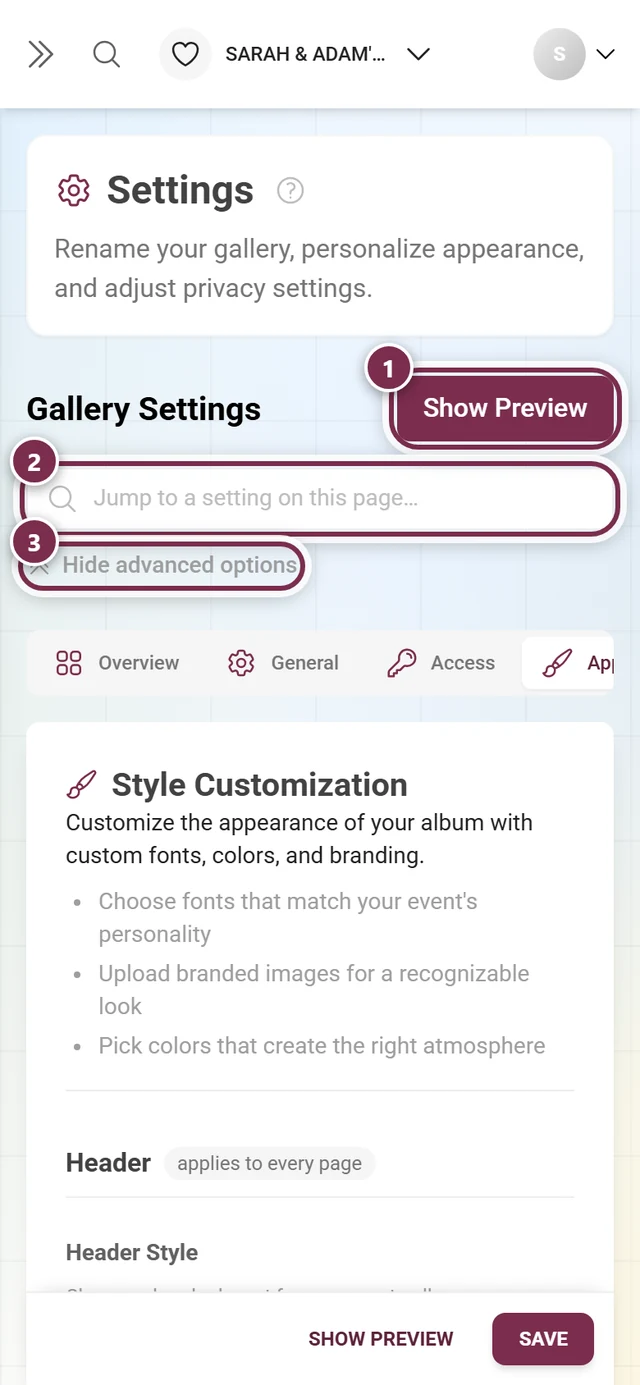
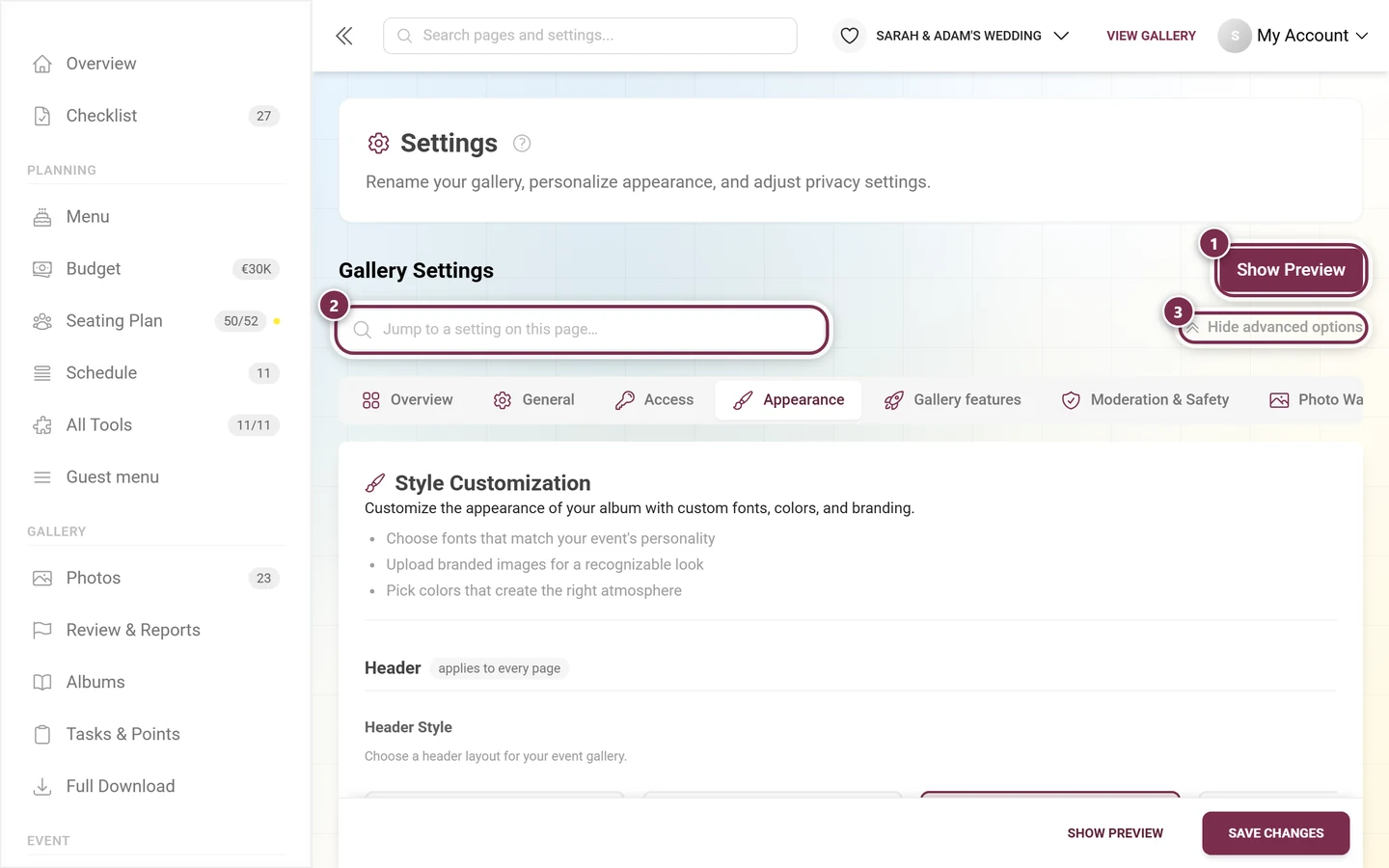
Use “Back” and “Continue” to navigate. To fine-tune these settings later, see Customizing the look.
Step 3 – Launch
Section titled “Step 3 – Launch”Heading “Ready to launch!”. The final step bundles privacy and features:
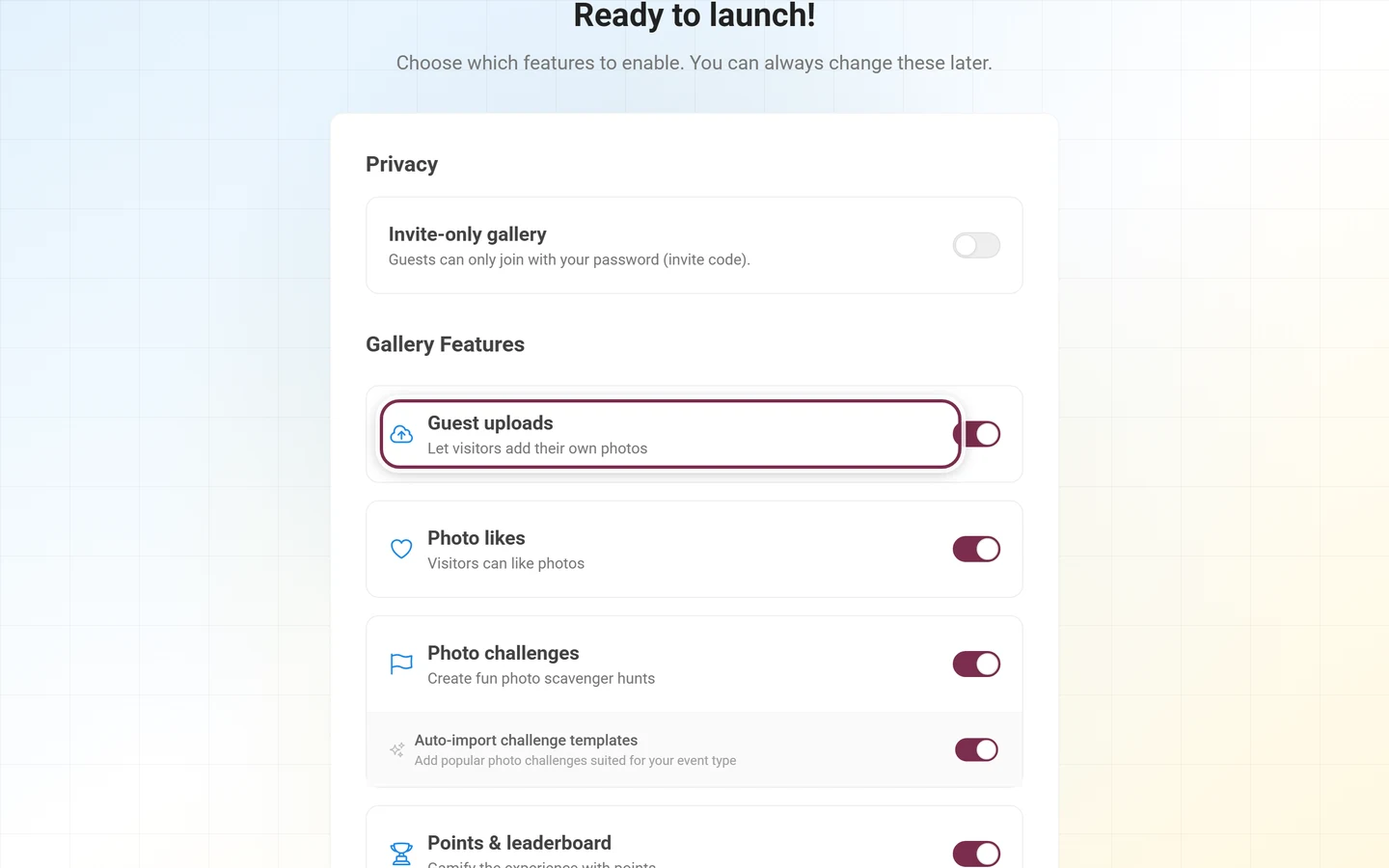
- Privacy: The “Invite only” toggle makes your event private. When you turn it on, the “Password (invitation code)” field appears – it’s automatically prefilled with an easy-to-read code (example: lisa-max-2026) that you can overwrite; at least 4 characters. Only people who know this code can get in. More on this under Privacy and access.
- Gallery features: One toggle per feature. Which toggles appear depends on your plan:
- Guest uploads – always available; lets your guests contribute their own photos.
- Photo likes – guests can like photos.
- Photo challenges – with a sub-toggle to automatically import challenge templates.
- Points and leaderboard – playful competition with a score.
- Achievements and rewards – with a sub-toggle to automatically import achievement templates.
Use “Back” to step back; “Launch gallery” saves everything (it reads “Creating…” meanwhile). Afterwards a success screen appears with “Go to dashboard” and “View gallery”.
The guided tour
Section titled “The guided tour”The “Start Tour” button on the dashboard lays an interactive walkthrough over your real interface. The tour is organized into seven chapters; the chapter is shown as a small line above every title:
| Chapter | What it covers |
|---|---|
| Getting started | “This is your control center” |
| What your guests see | The link your guests get · Appearance · What guests are allowed to do |
| How guests get in | Access and password · QR codes and print templates · Your digital invitation |
| What guests do there | Planning tools · Photo tasks, points and rewards · Albums |
| What you steer | Photos · Moderation and safety · Where you approve · Participants · Cameras and live upload · Photo wall for the projector |
| After the event | Statistics and recap · Download everything · How long the gallery stays online |
| How to carry on | Your next steps · That was it |
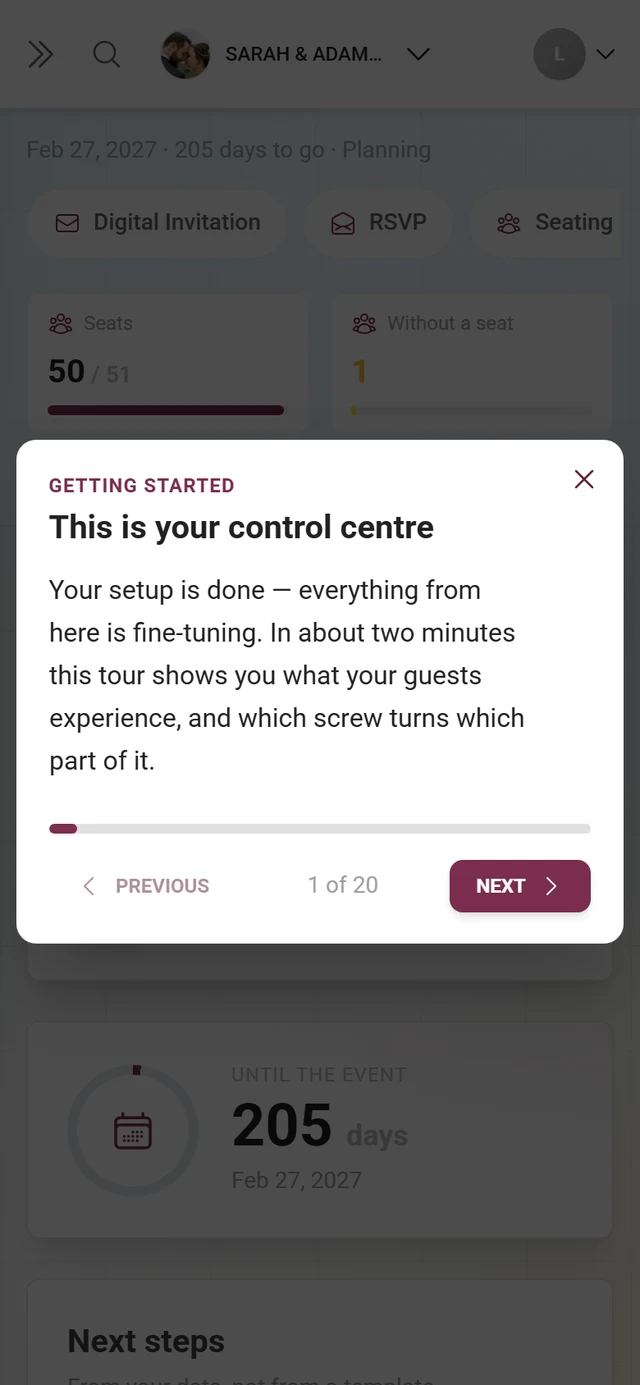
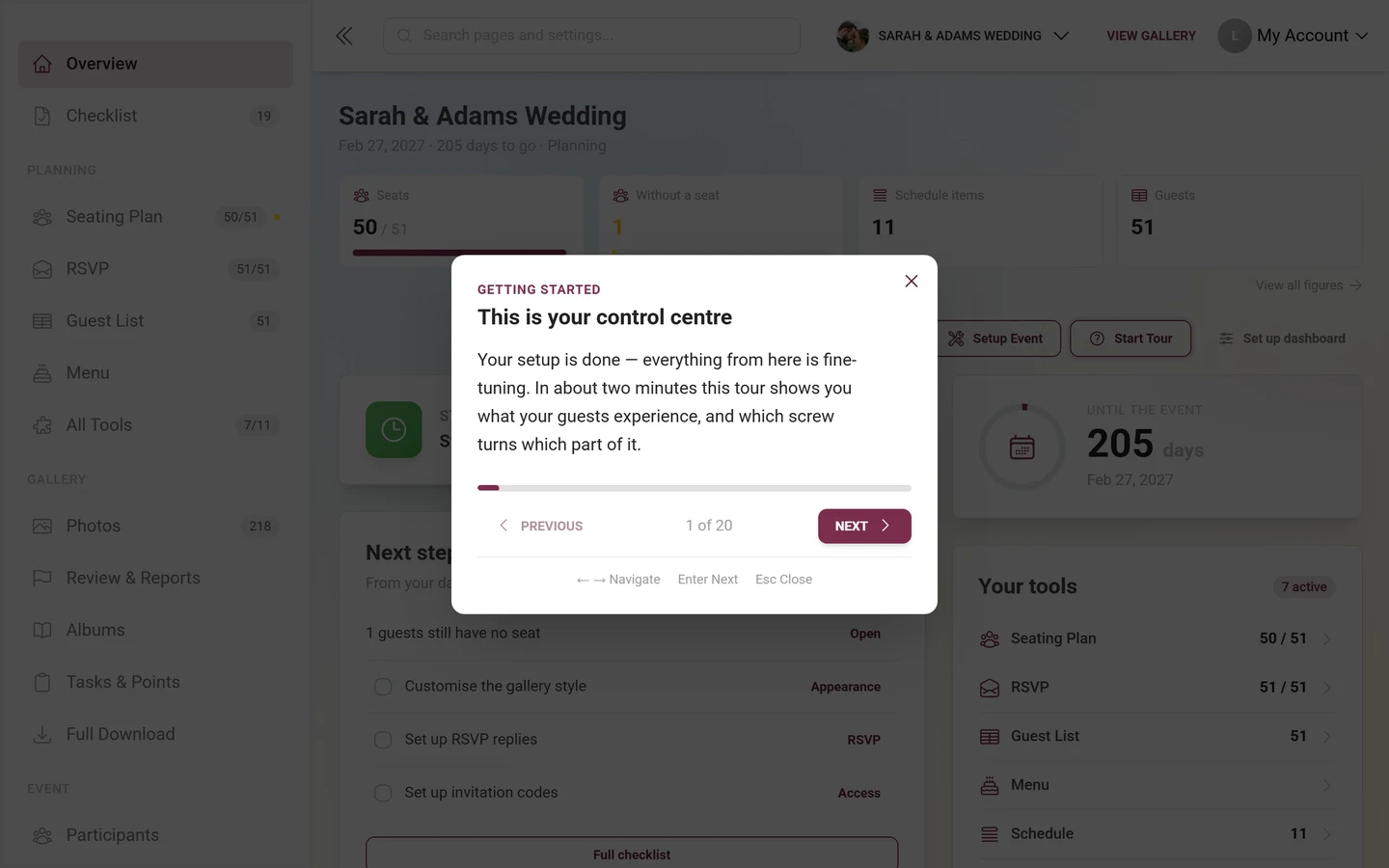
That adds up to as many as 21 steps. How many you actually get depends on your event: steps that don’t apply are left out while the tour is built, instead of being skipped later on. Conditional are QR codes and print templates (dropped only on white-label without print templates), Your digital invitation (only when the invitation tool is switched on), Photo tasks, points and rewards (only when the feature and your plan match), Cameras and live upload, Photo wall for the projector and Download everything.
The checklist – short version on the dashboard
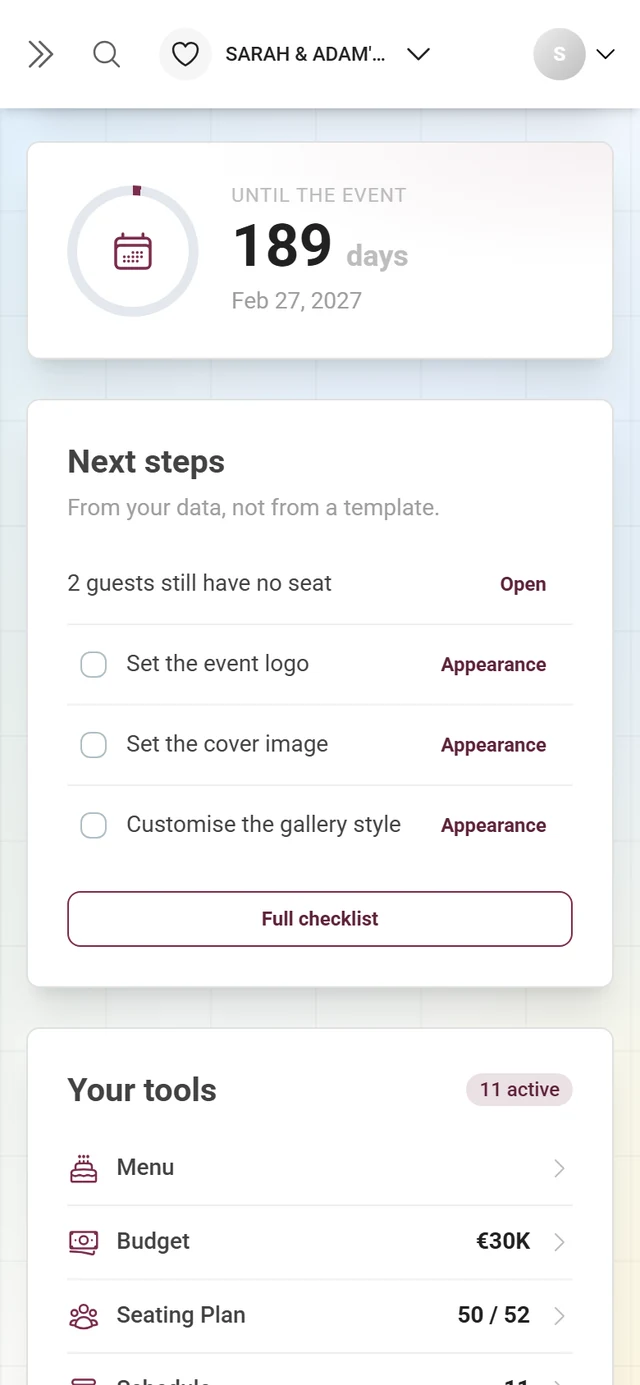
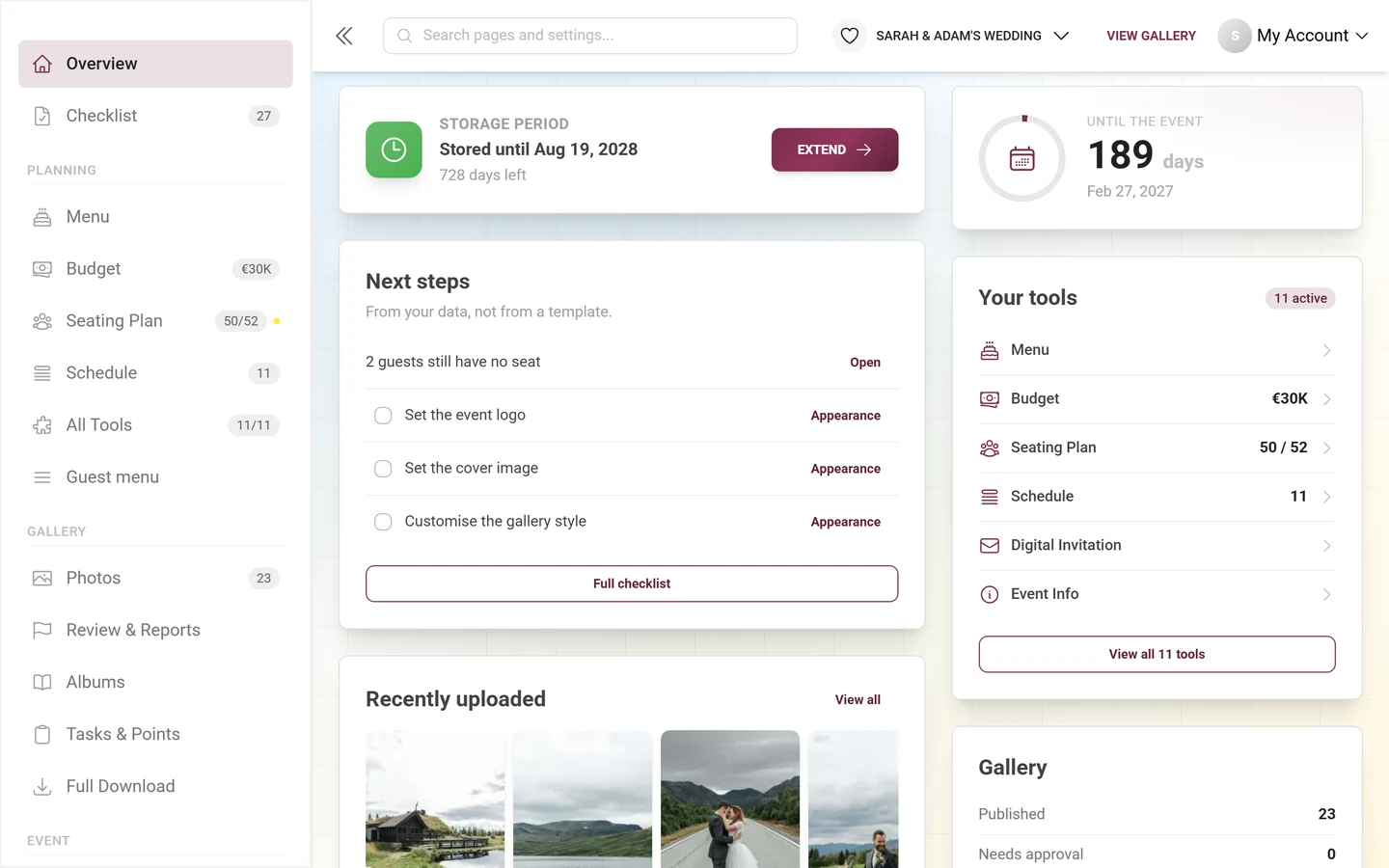
Section titled “The checklist – short version on the dashboard”The dashboard carries the “Next steps” card with the subtitle “From your data, not from a template.” It shows at most four entries, in this order:
- Steps derived from your live data – for example “4 guests still have no seat”, “3 replies are still outstanding” or “12 uploads are waiting for approval”. Each of these has an “Open” text button on the right that jumps straight into the responsible area.
- Open tasks from your checklist – with a checkbox to tick them off and, if one exists, the first action as a text button.
If a tool already produced a derived step, the template task for that same tool is suppressed – you don’t read the same thing twice. Tasks your plan doesn’t cover drop out entirely. When nothing is outstanding, the card reads “All done – nothing outstanding right now.”
The card has exactly one footer button: “Full checklist” takes you to the full view at /admin/checklist.
The checklist – full view and management
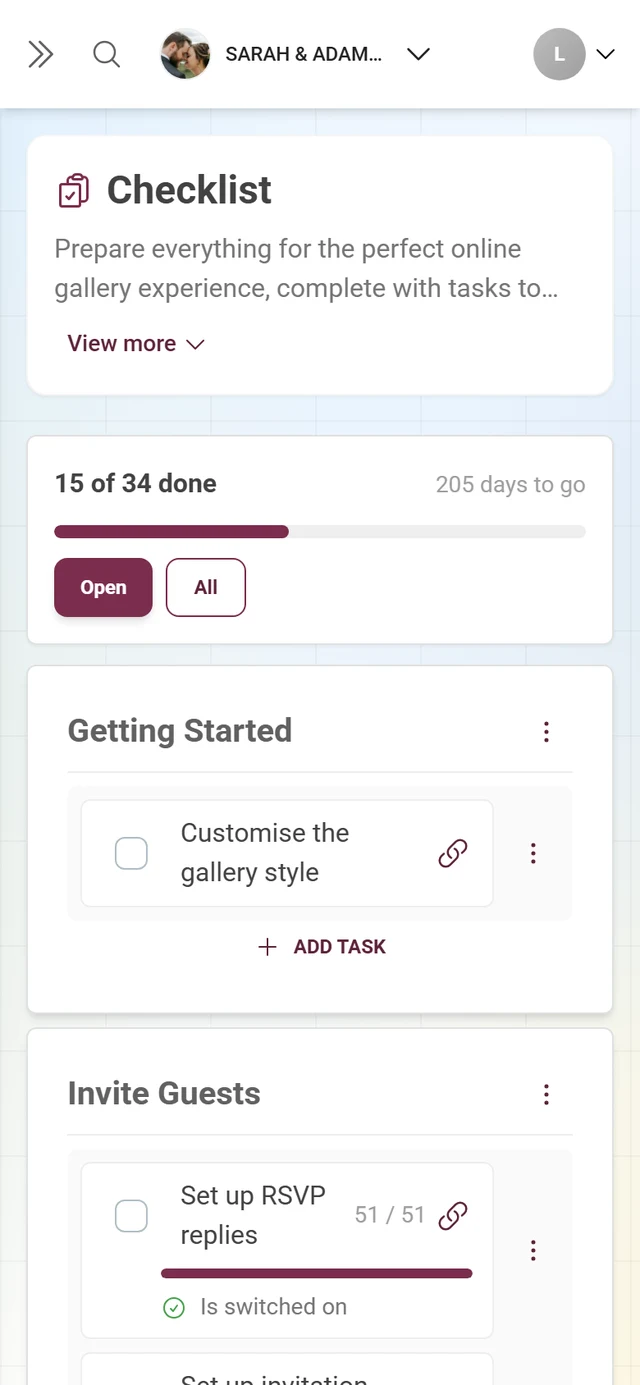
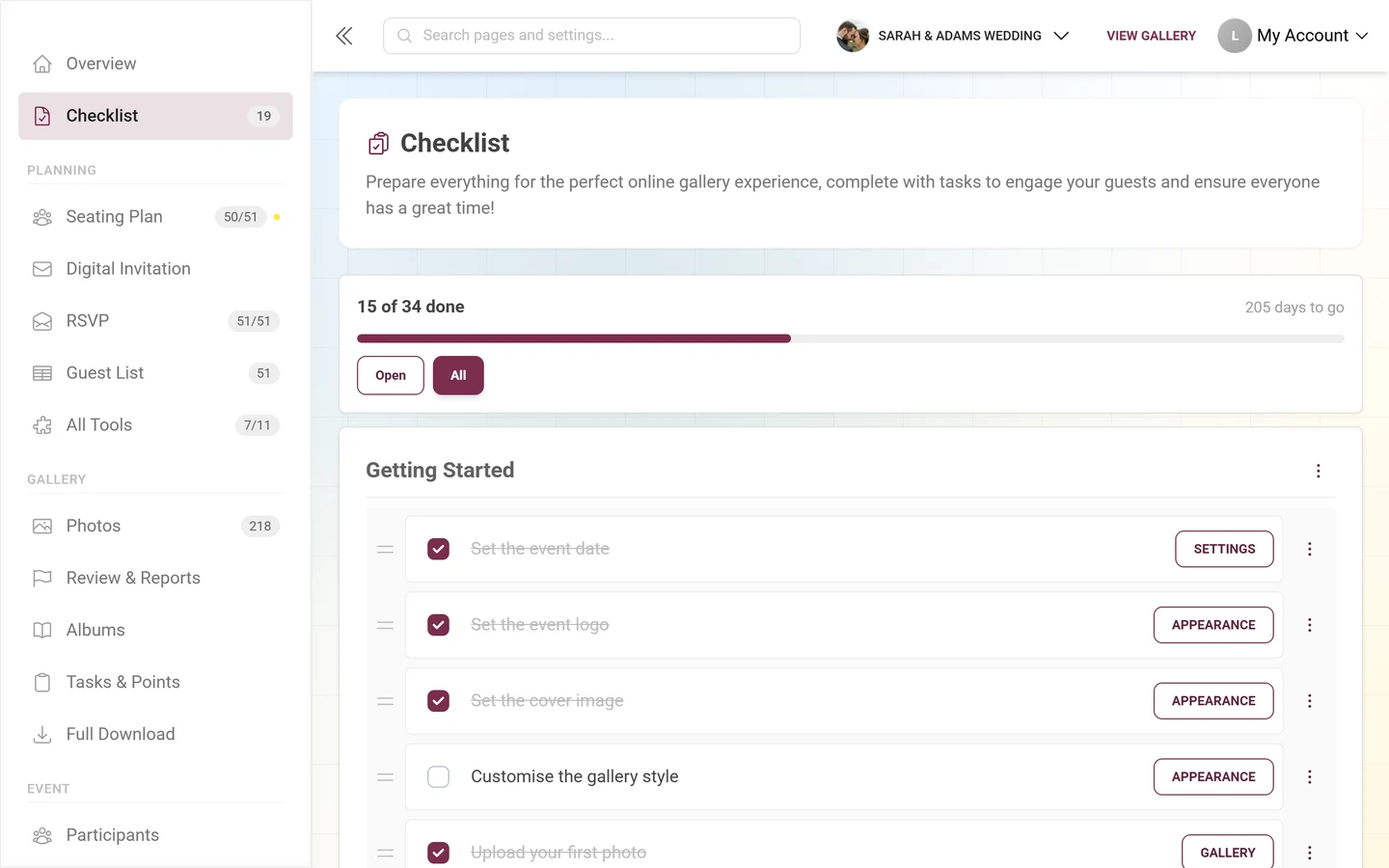
Section titled “The checklist – full view and management”The template that ships with your event holds 7 categories with 35 tasks – from “First steps” through “Inviting guests” and “Preparing the photo fun” to “On the day” and “Afterwards”. Beyond that the checklist is fully customizable: you can create, edit, sort, and delete your own categories and tasks, building a clickable setup map for your team.
-
Open “Checklist” in the left sidebar. At the top are a title and a short description, below them a progress block, and only then your categories as cards.
-
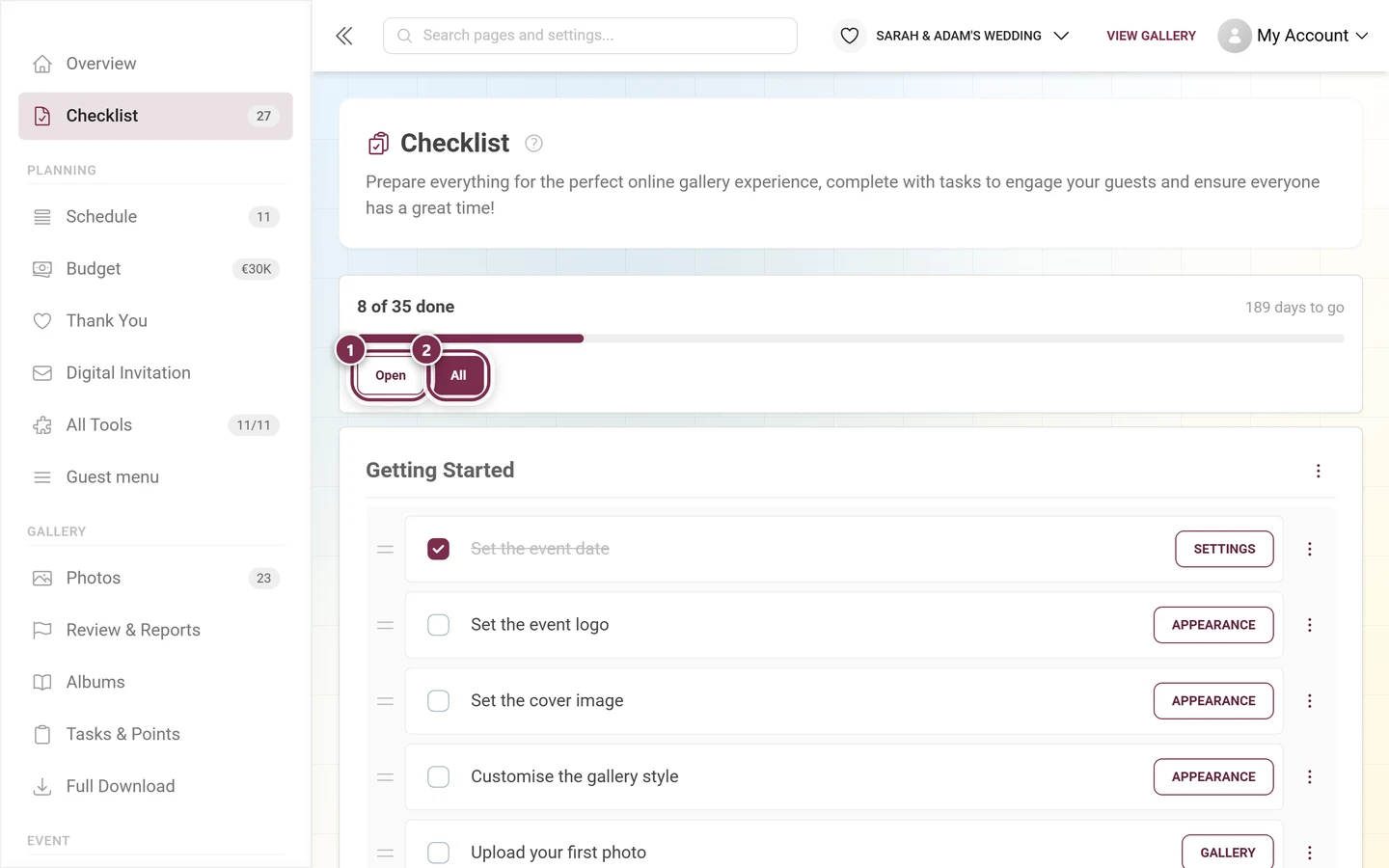
The progress block: on the left “X of Y done”, on the right – if an event date is set – a countdown (“N days to go”, “Tomorrow is the day”, “Today is the day” or “Celebrated N days ago”), below that a bar and the two filter buttons “Open” and “All”.
-
Tick off tasks: Check the box in front of a task – it saves immediately. If the task carries actions, its link jumps you straight into the responsible admin area (internal links stay in the admin portal, external ones open a new tab).
Many tasks don’t need you at all: they carry a condition and tick themselves as soon as it is true (see “Done, when” below).
-
Finish a task right in its row: Under some open tasks sits a small control – for “Set the event date” a date field with “Save”, and for the song requests and RSVP tasks the note “This tool is still switched off.” with a “Switch on” button (when it is on, it reads “Is switched on”). Once the task is done, the control disappears.
-
Real numbers from your tools: Six tasks show the state of their tool on the right of the row – guest list, RSVP, seating plan, schedule, budget and song requests. You see something like “12 / 40”, a progress bar underneath and a sentence such as “4 guests still have no seat” or “3 replies outstanding”. When the tool is switched off, no number appears.
-
Edit or move a category: The three-dot menu in each category header offers “Edit”, “Delete”, “Move up”, and “Move down”. The same actions are available via right-click or long-press on the category.
-
Edit or move a task: Each task has its own menu for editing, deleting, and moving.
-
Sort by drag and drop: Categories and tasks can be dragged and rearranged with the mouse (the cursor turns into a move symbol). Alternatively use the “Move up/down” menu entries. The order is saved immediately.
-
Create a new task: The “Add task” button at the bottom of each category opens the task dialog.
-
Create a new category: At the very bottom sits a dashed card “Add category” with a plus symbol.
The “Add / edit category” dialog
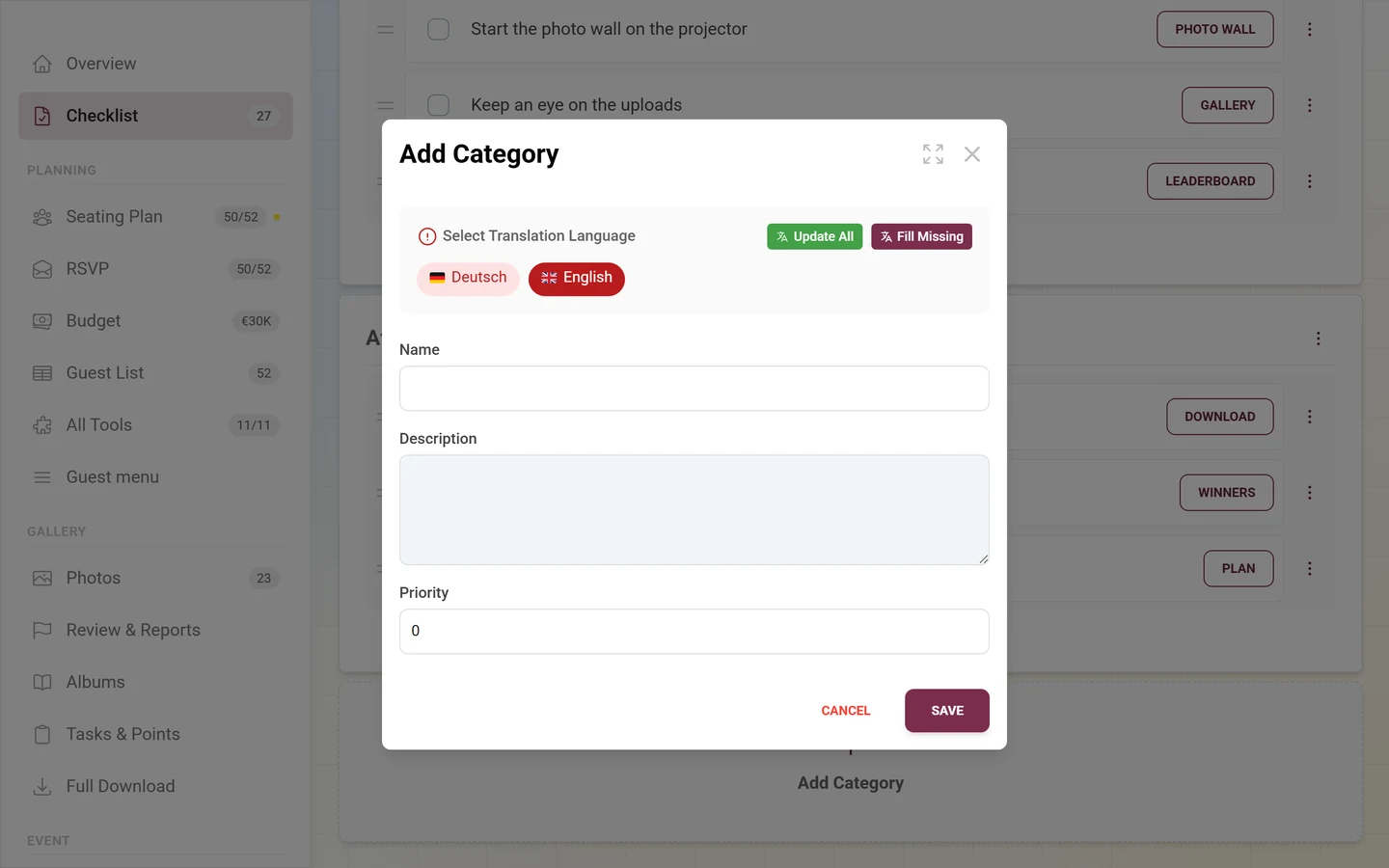
Section titled “The “Add / edit category” dialog”When you create or edit a category, a dialog opens titled “Add category” or “Edit category”. It contains:
- Language selector – at the top you switch between your event’s languages, so you can maintain name and description in multiple languages.
- Name (per language, required) – the category title.
- Description (per language, optional) – an explanatory text.
- Priority – a number that controls sorting (a higher priority moves up).
Use “Cancel” to discard, “Save” to apply. Saving is optimistic: the dialog closes immediately and the change appears in the list right away.
The “Task details” dialog
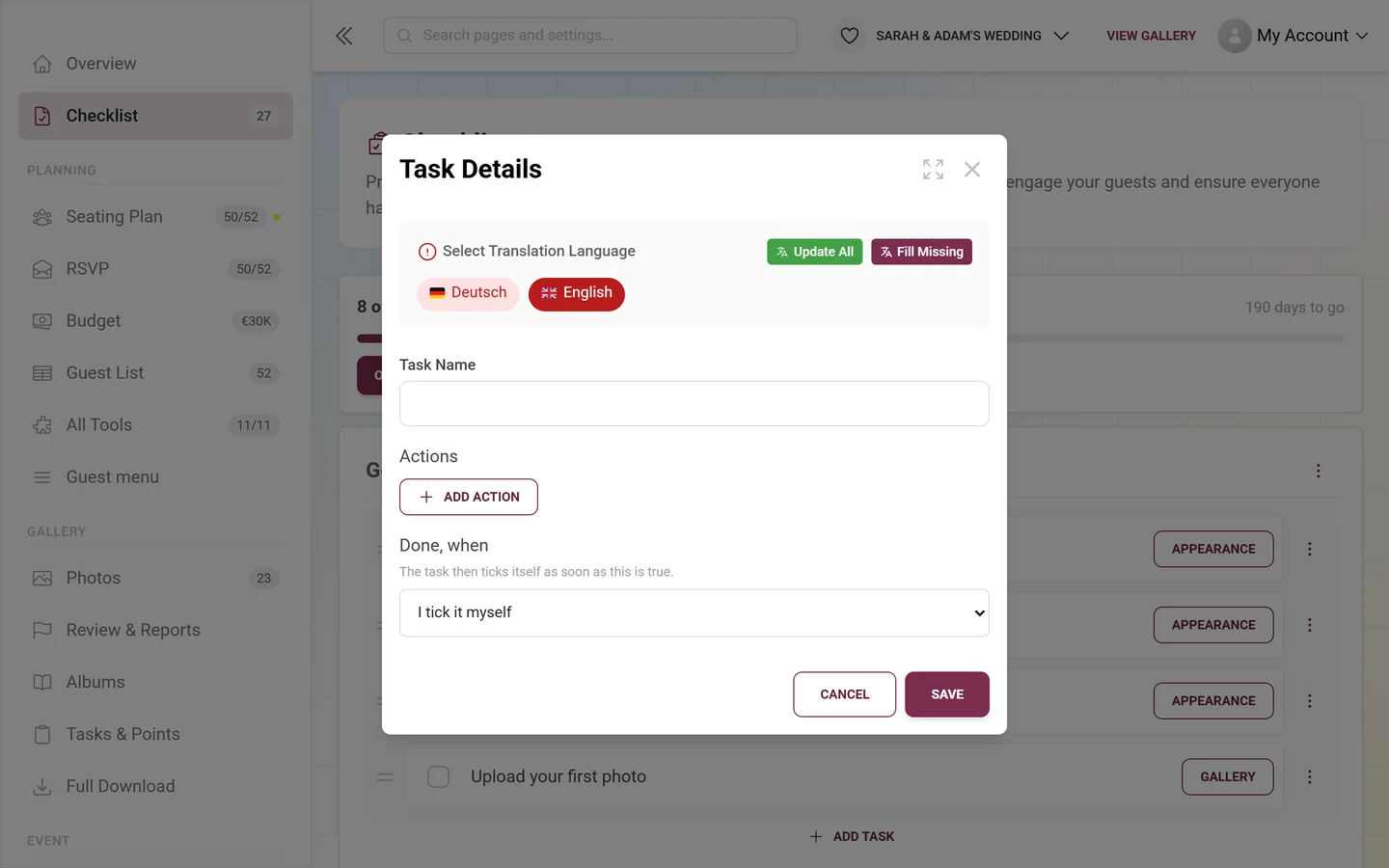
Section titled “The “Task details” dialog”The task dialog is titled “Task details”. Here’s how to fill it in:
- Language selector – switches the language for the task name and action labels.
- Task name (per language) – what to do, e.g. “Check the cover image”.
- Actions – zero or more clickable links per task. Use “Add action” to create one; per action you fill in:
- Action label (per language) – the menu text you click in the checklist, e.g. “Go to style settings”.
- Link – either an internal path that starts with a slash (e.g.
/admin/settings?tab=style) and navigates within the admin portal, or a full external URL (opens a new tab). - Use the trash icon to remove an action again.
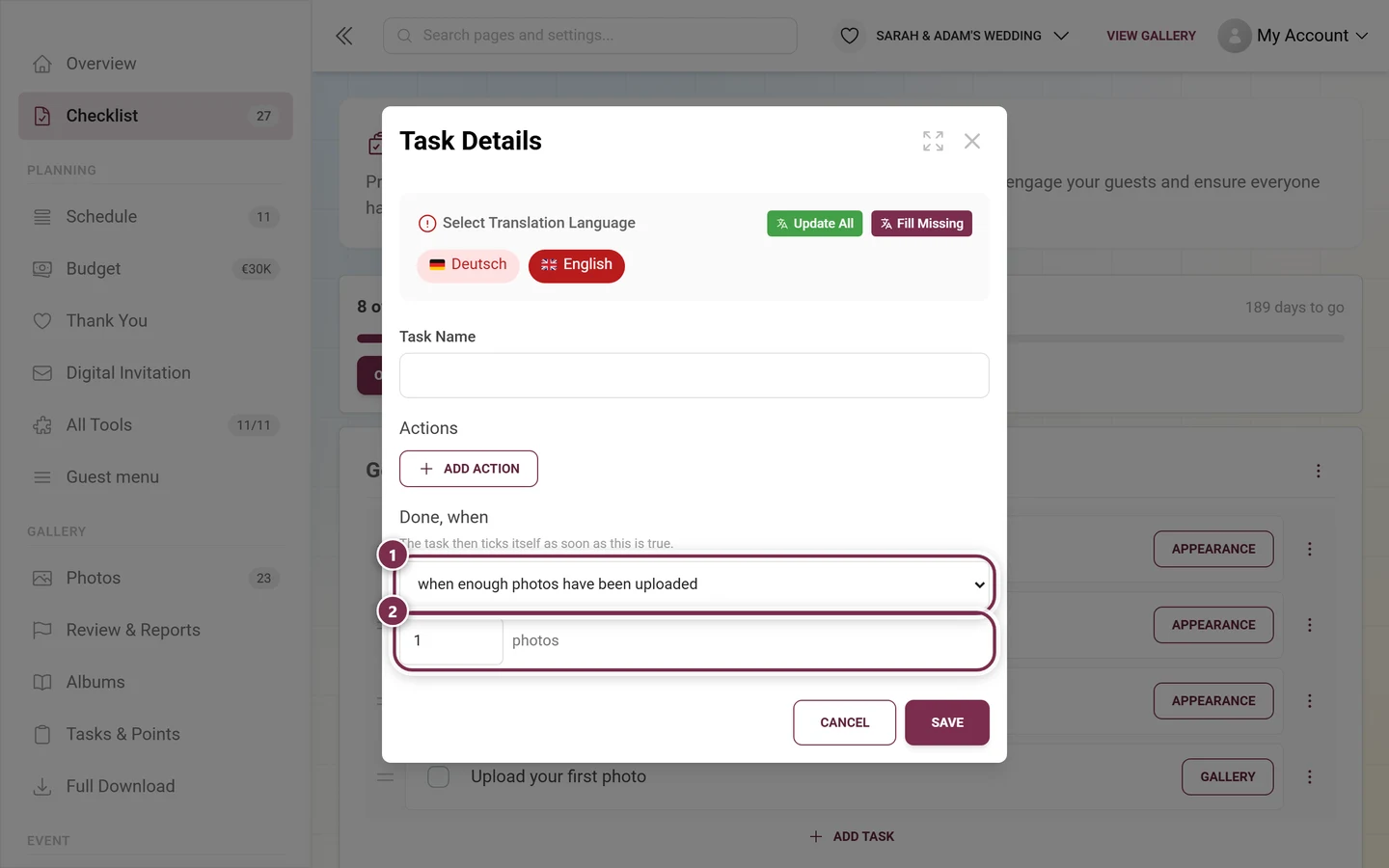
- “Done, when” – this is where you set the condition under which the task ticks itself. Below it sits the hint “The task then ticks itself as soon as this is true.”
Use “Cancel” to discard, “Save” to apply.
The choices under “Done, when”
Section titled “The choices under “Done, when””There are 20 ready-made rules to pick from, among them: when the event date is set, when a logo or a cover image is in place, when enough photos have been uploaded (with a field for the number), when albums, photo tasks or achievements exist, when the gallery has been downloaded, when the guest list is not empty or enough guests are on it, when an invitation exists, when custom invitation codes exist, when a seating plan exists, when the menu has dishes, when a schedule exists, when the budget has entries, when enough song requests have come in, when custom pages exist, when the event details are written, and when a thank-you is written.
Two special cases round it off:
- “I tick it myself” – the default for new tasks, with no automation.
- “Keep the custom rule” – only shown for template tasks whose rule isn’t in this list. The rule is then spelled out in plain words and left untouched when you save.
Saving and behavior
Section titled “Saving and behavior”- Ticking a task: reported to the server immediately. If it fails, you see an error – just tick it again.
- Creating or editing a category/task: optimistic. The dialog closes at once and the change appears right away; on a server error it’s rolled back automatically.
- Order: persisted immediately as you drag.
- “Launch gallery” in the wizard: sends only the changed or filled fields; branding images are uploaded first.
When something goes wrong
Section titled “When something goes wrong”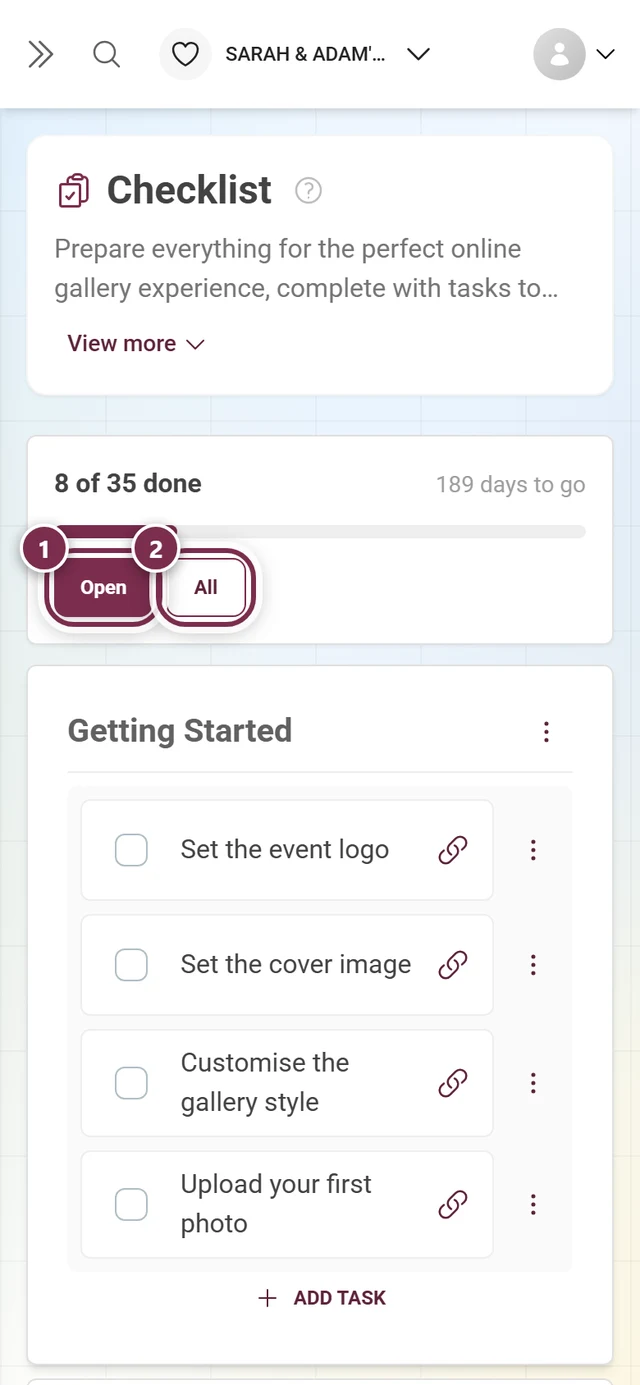
- “Set up event” seems to do nothing – you’re already set up. The wizard then opens in edit mode with your existing values and only changes anything when you tap “Launch gallery”.
- “Continue” stays gray in the Basics step – the gallery title is missing; it’s required.
- No style step appears – either your plan doesn’t include multiple layouts and custom branding, or you arrived through a topic page and the wizard runs shortened (see above). Adjust style and branding later under Customizing the look, or move to a larger plan under Upgrade your plan.
- No toggles for likes, challenges, points and achievements in the final step – that’s the shortened flow too. The features aren’t lost; switch them on and off any time under Features.
- An action link unexpectedly opens a new tab – internal paths must start with a slash, otherwise the link is treated as an external URL.
- A category is gone by accident – deleting can’t be undone and removes all tasks it contained.
- Ticked tasks have vanished – the full view starts on the “Open” filter. Click “All” and the whole list is back.
- A task ticks itself – that’s on purpose: it carries a condition under “Done, when”. Set it to “I tick it myself” in the task dialog.
- The “Next steps” card is missing from the dashboard – it is either hidden under “Set up dashboard” or sorted further down for your current event phase. The card only ever shows up to four items anyway; the rest is behind “Full checklist”.
Recommended order
Section titled “Recommended order”-
Run the setup wizard first to set the foundation (title, style, privacy, features) in one go.
-
Then use the checklist as a progress tracker. Create your own categories and tasks with action links to the matching admin pages, and set priorities to pull important things to the top.
-
Before the event, tick off every item and review your event via “View gallery”.
Related pages
Section titled “Related pages”- Dashboard – the entry point with the three buttons and the “Next steps” card
- Customizing the look – logo, cover, colors, and layout
- Features – the toggles from step 3 in detail
- Privacy and access – “Invite only” and the access code
- Tooling overview – the tools a shortened wizard switches on for you
- Challenges · Achievements & rewards · Albums
- Inviting guests · Backing up all photos · Upgrade your plan
- For guests: Access the event shows how your guests join after setup.