Managing participants
The participant management page (sidebar Event ▸ Participants) is your central overview of everyone who has joined your event – both registered users with an account and plain guests without one. At a glance you can see who is most active, who has contributed the most and which role each person holds. From a user’s detail dialog you can also manage individuals: adjust their role, edit points and nickname, award achievements manually, add or remove invitation codes, and moderate them (ban, unban, remove profile picture).
Opening the page
Section titled “Opening the page”-
Open your event’s admin area. If you are currently in the gallery, reach it via the profile menu at the top right under Management → Admin portal.
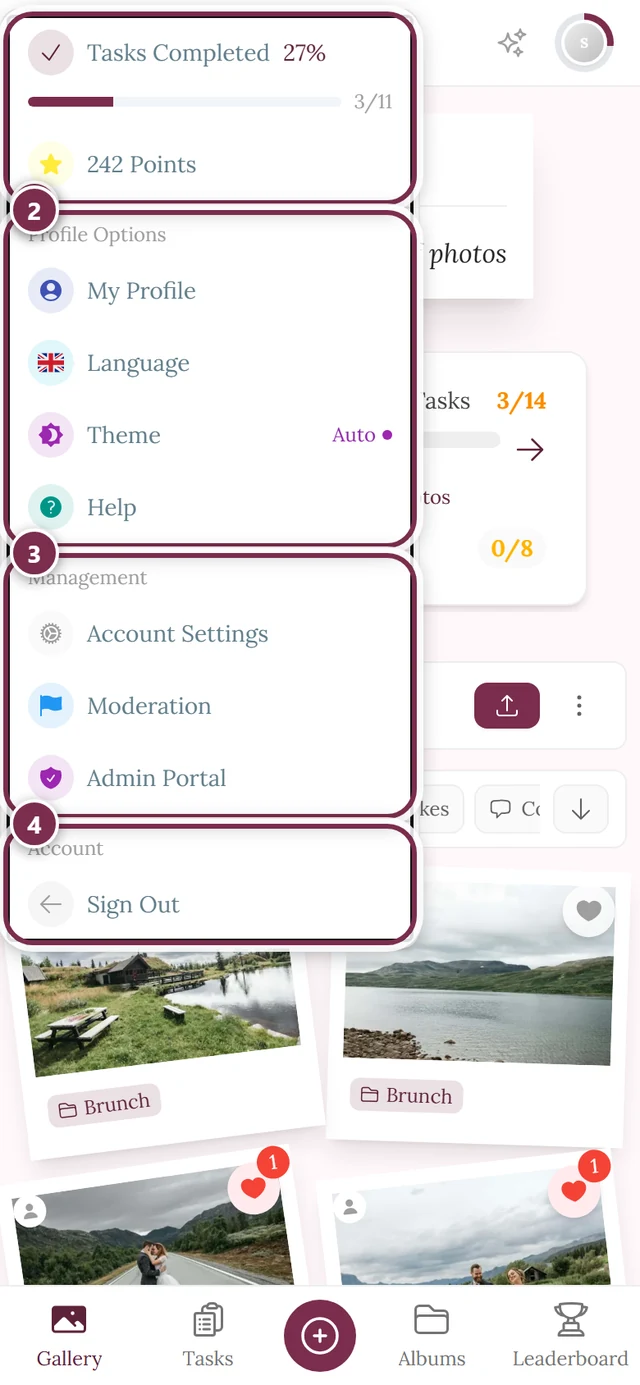
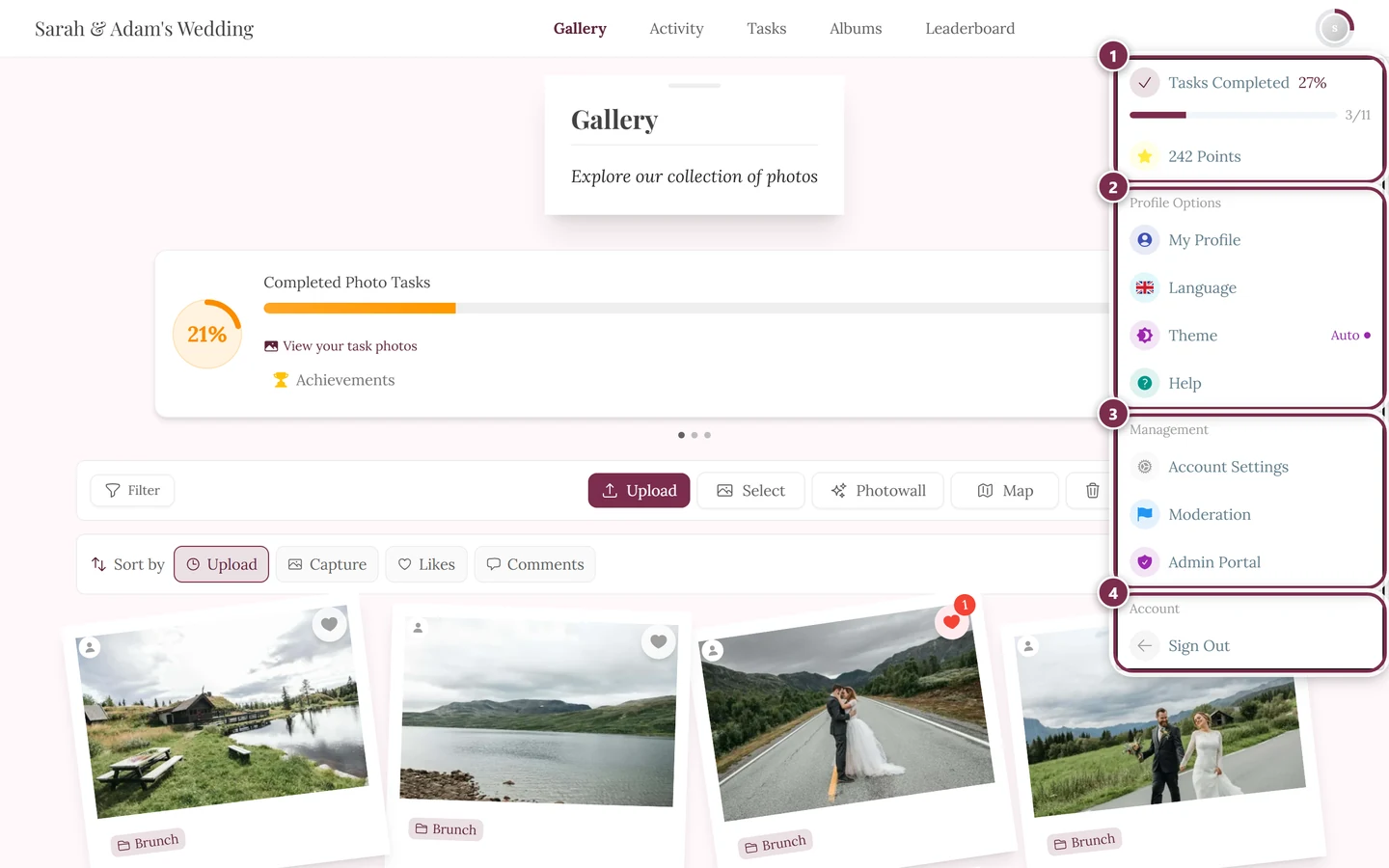
Use the profile menu at the top right to open the Admin portal under “Management”. ① your points and solved tasks, ② Profile options with My Profile, Language, Theme and Help, ③ Management with Account Settings, Moderation and Admin Portal – this section is missing until you hold a role for it, ④ Account with Sign out. -
In the left sidebar, under the Event category, choose Participants. The route is
…/admin/registered-users. The page itself is headed Registered Users – same thing.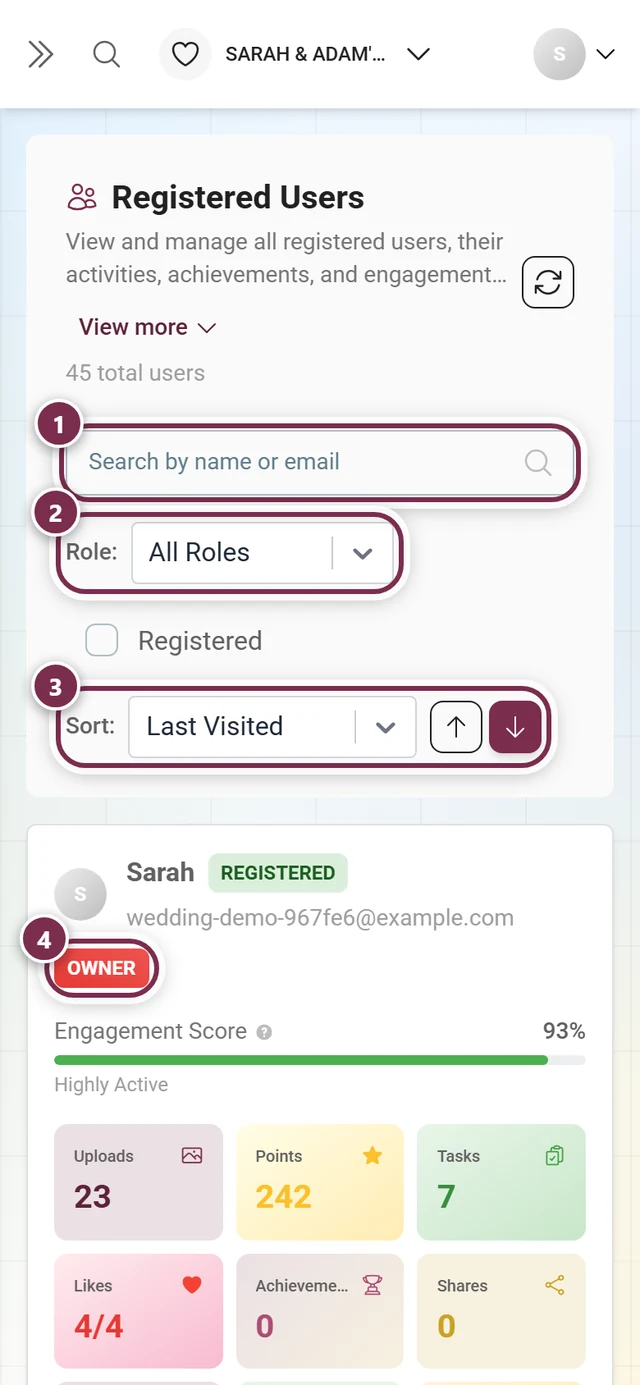
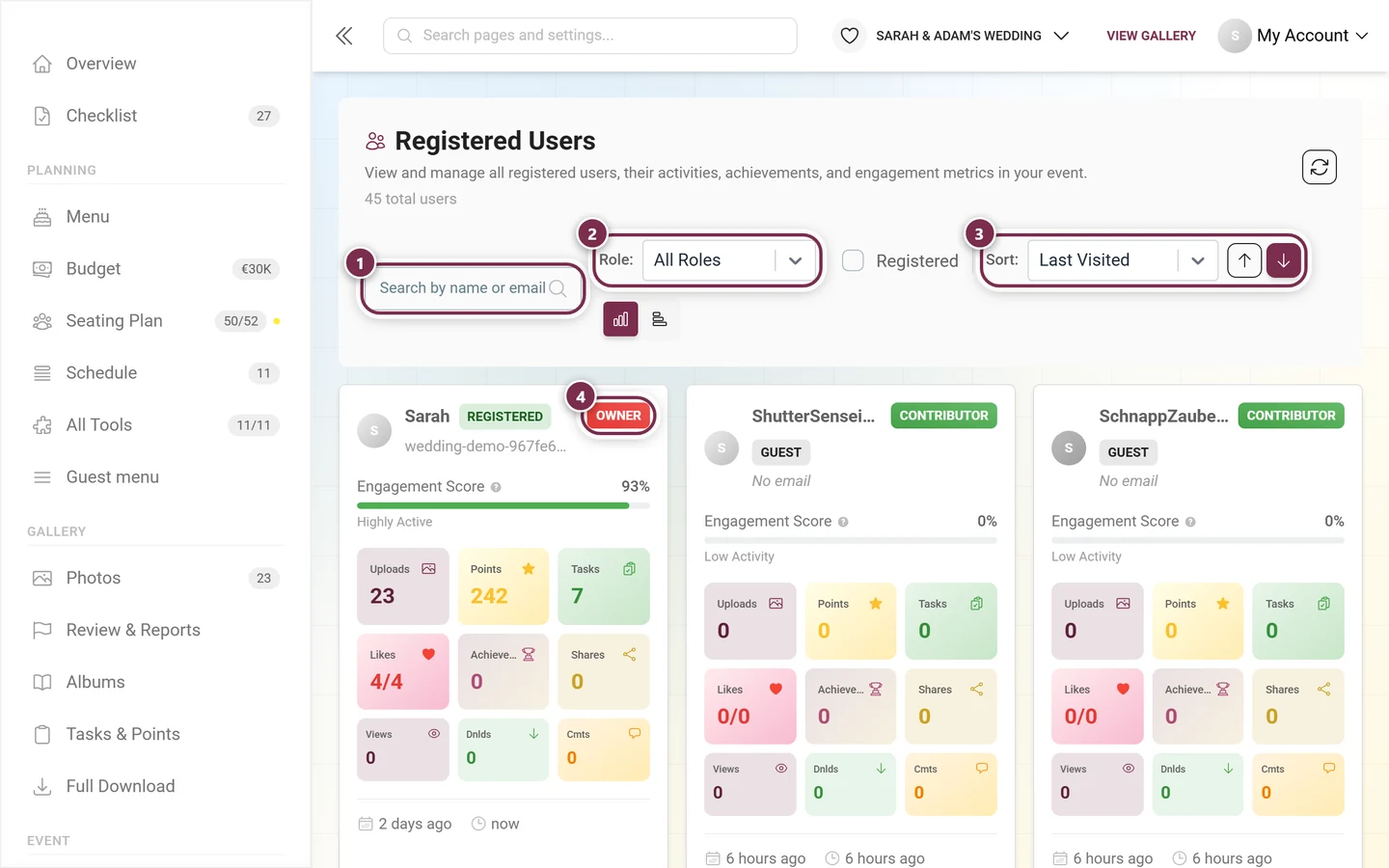
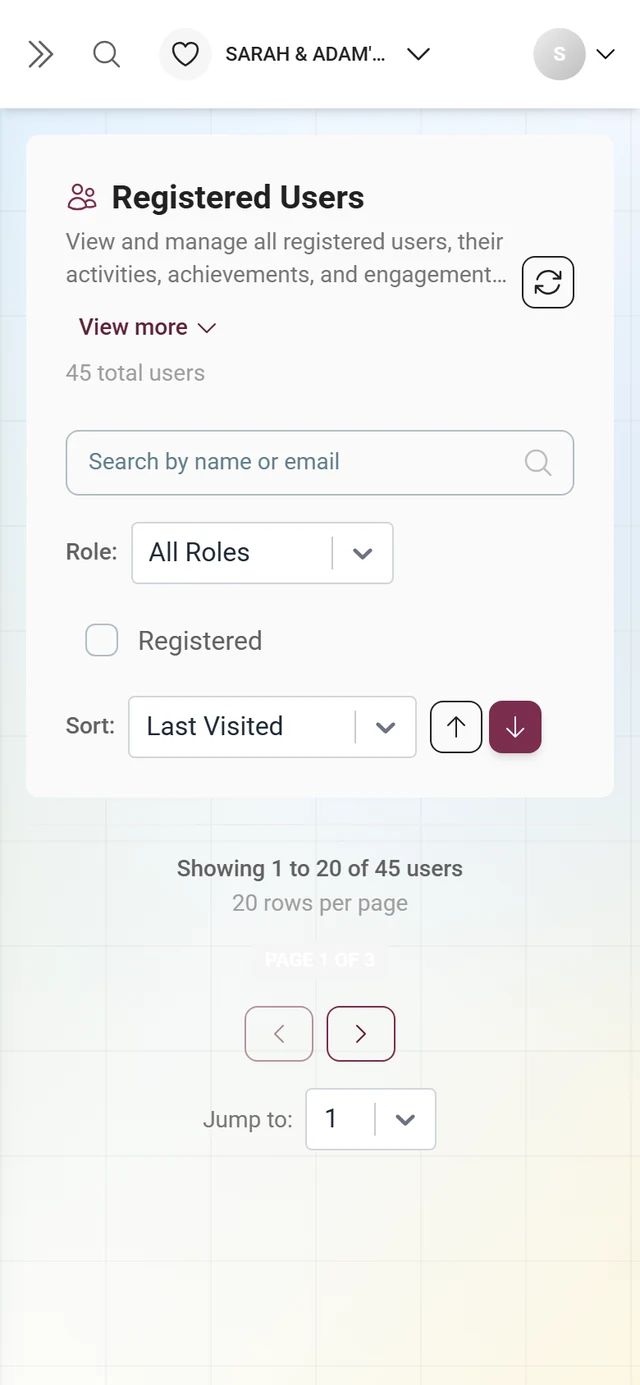
The participant management page shows all registered users and guests with their activity metrics: ① search by name or email, ② filter by role – Owner, Admin, Moderator, Contributor, Viewer or Unauthorized, ③ sort the list (last visited, points, uploads, likes, tasks …) with the arrow for the direction. ④ the role chip on the card; the chip next to it says whether this is a registered account or a guest. Clicking the card opens the details. -
The header shows the total number of participants (“N total users”). At the top right sits the Refresh button (circular arrow): click it after making changes to reload the list.
Searching, filtering and sorting
Section titled “Searching, filtering and sorting”The toolbar above the list helps you find the right people quickly in large events.
-
Search: Type a name, nickname or email address in the Search by name or email field. The search runs automatically after a short delay (300 ms); the X inside the field clears it.
-
Filter by role: In the dropdown next to Role: choose between All Roles, Owner, Admin, Moderator, Contributor, Viewer and Unauthorized. This lets you, for example, show only your moderators.
-
Registered only: Tick Registered to hide plain guests without an account, separating real accounts from one-time visitors.
-
Sort: Pick a criterion in the dropdown next to Sort: – Last Visited (default), Points, Uploads, Likes, Tasks, Achievements, Shares, Downloads, Views, Comments, Joined Date, Name or Role. The two arrow buttons beside it toggle between ascending and descending order (default: descending).
-
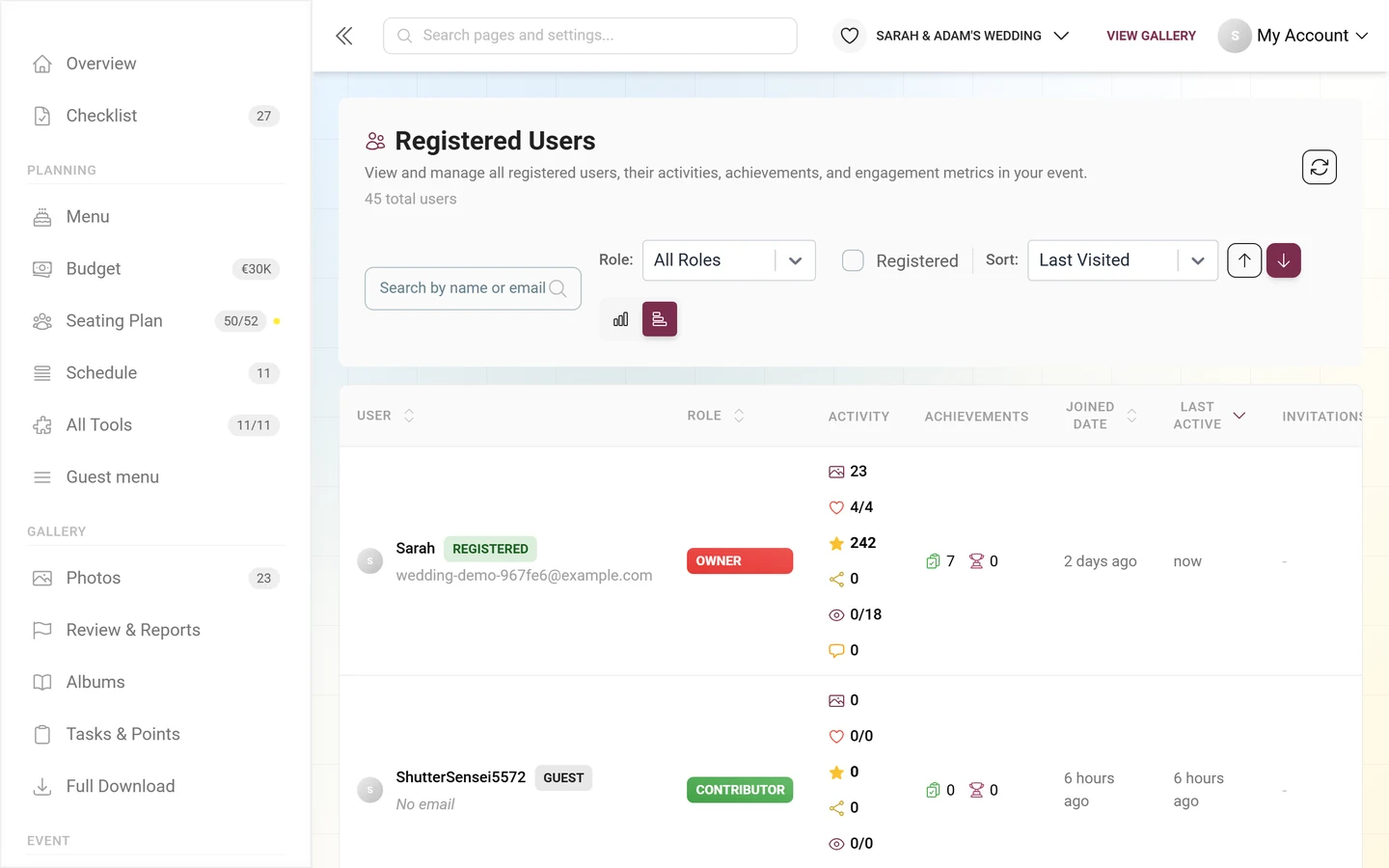
Switch views (desktop only): On the right you can switch between the card view (9 cards per page) and the table view (20 rows per page). There is no toggle on a phone – you always get cards there. In the table, the column headers User, Role, Joined Date and Last Active are clickable and sort the list directly; the Activity, Achievements and Invitations columns are display-only.
-
Active filters: When search, a role filter or the Registered checkbox is active, an Active filters: row appears below with removable chips and a Clear All button that resets everything at once.
-
Paging: At the bottom, navigate with First / Previous / Next / Last; Jump to: takes you straight to a page number. The “Showing X to Y of Z users” line tells you which slice you are viewing.
What the user card shows
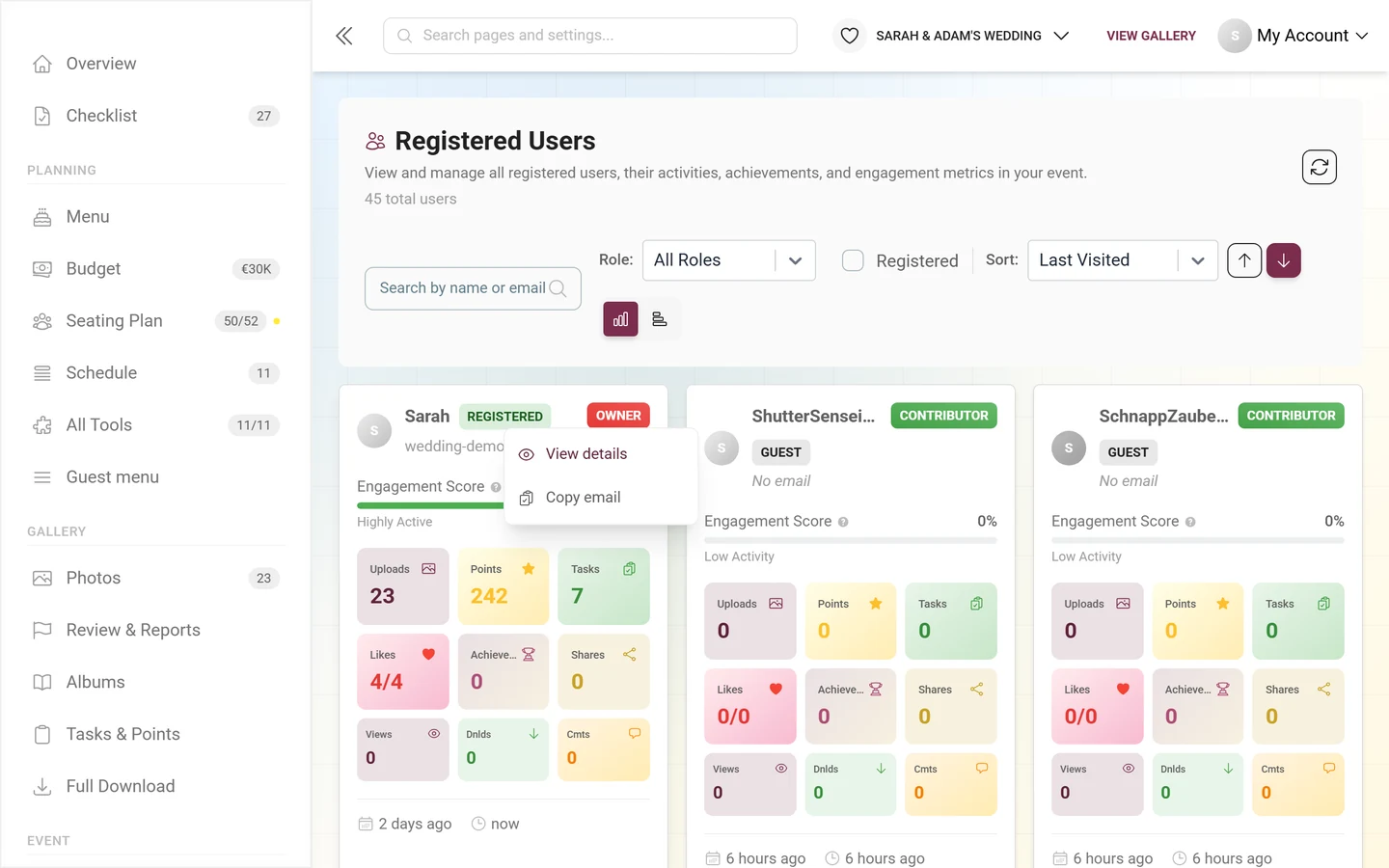
Section titled “What the user card shows”Each card summarizes one person compactly. Clicking a card opens the detail dialog.
- Badges: a Guest or Registered chip at the top, the role chip (e.g. Contributor) and – if present – ban hints such as Upload Ban or Comment Ban.
- Engagement Score (0–100 %): a measure of activity. The tooltip “How Engagement Score is Calculated:” breaks it down: uploads +2 points each, likes given +1, likes received +2, tasks completed +5 and achievements +10 points each (Max: 100%). Depending on the value, a level appears: Highly Active, Active User, Moderate Activity or Low Activity.
- Stat tiles: Uploads, Points, Tasks, Likes (tooltip “Likes (Received/Given)”), Achievements, Shares, Views, Dnlds (downloads) and Cmts (comments).
- Footer: join date, last visit and the user’s active invitation codes as chips – followed by +N more when there are many. If the user has no active code, it reads No active.
Quick actions via the context menu
Section titled “Quick actions via the context menu”A right-click on a card or row (on desktop) or a long press (on mobile) opens a small menu with:
- View details – opens the detail dialog.
- Copy email – copies the email address to the clipboard (only if the user has one on file).
A user’s detail dialog
Section titled “A user’s detail dialog”Clicking a card or row (or View details) opens the full detail dialog. It is your tool for managing a single person completely.
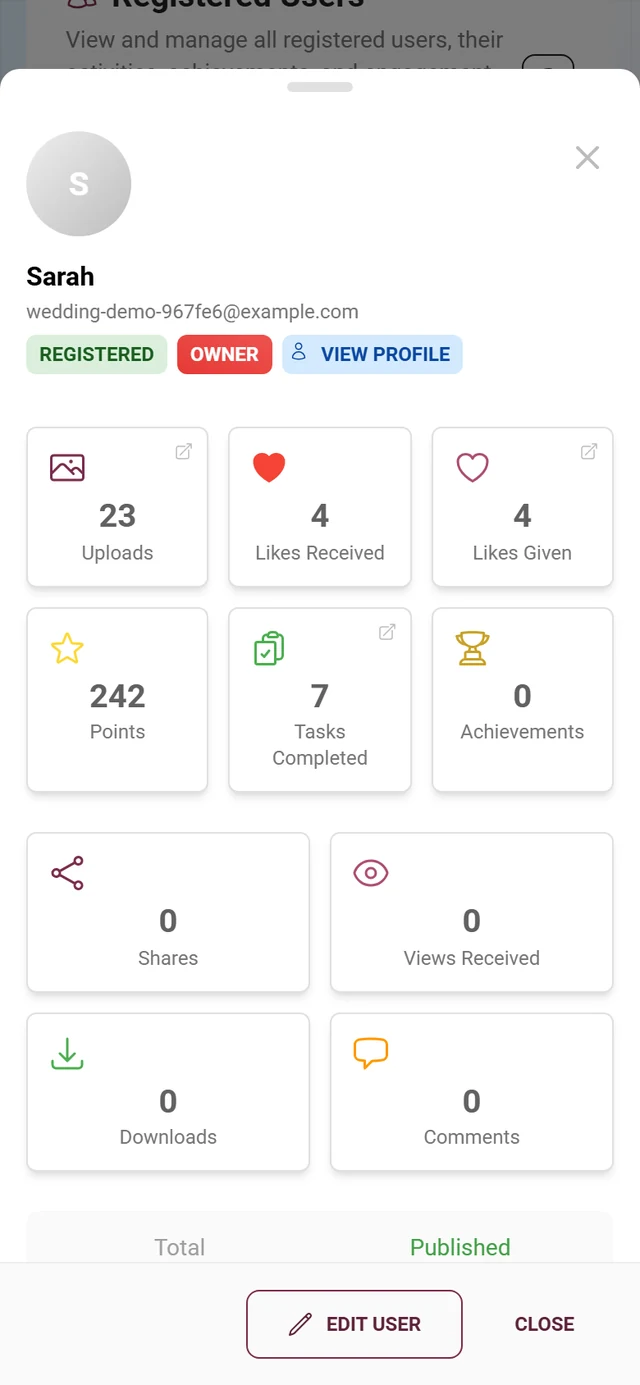
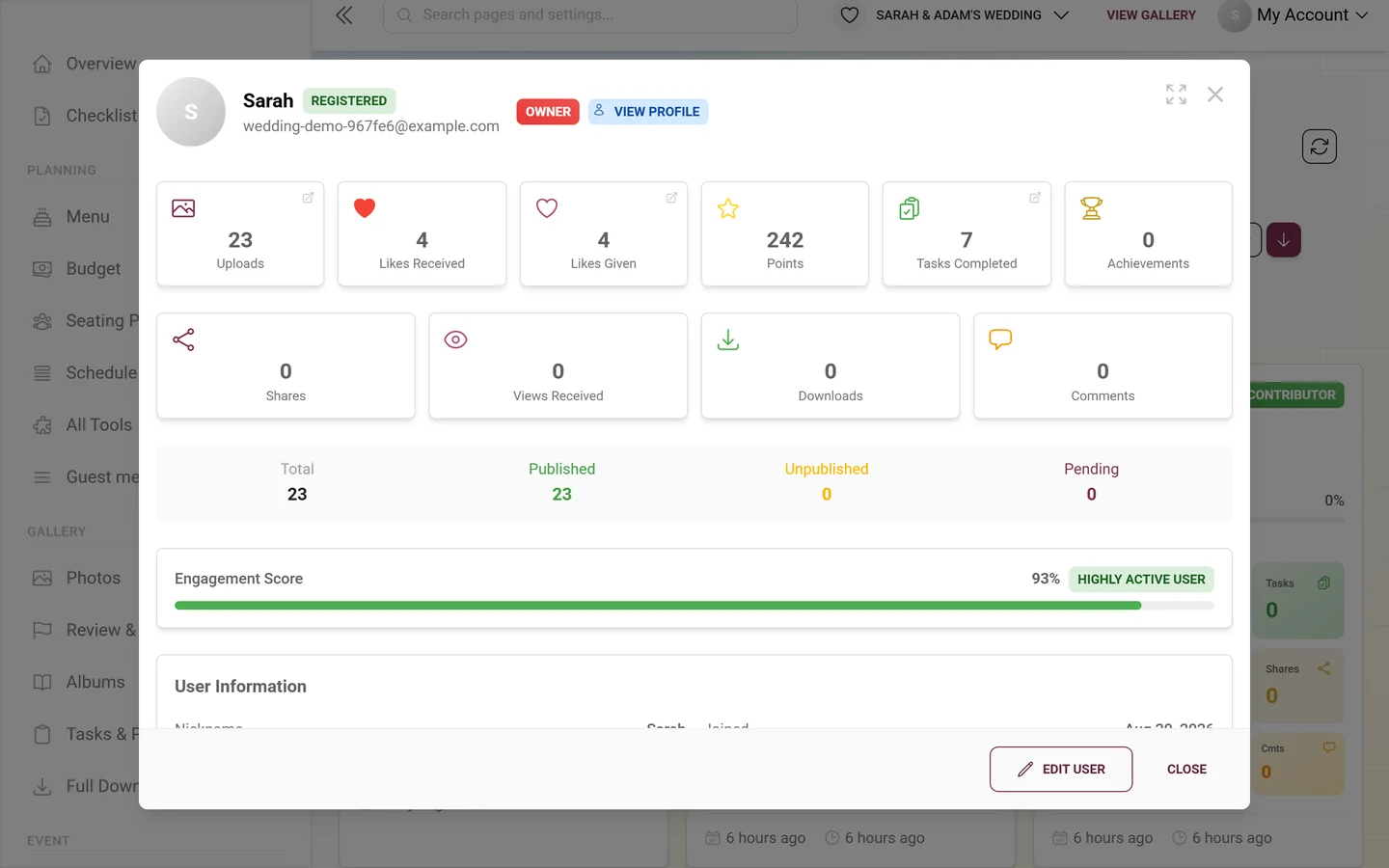
Header: avatar, name, a Guest or Registered chip, email address (or the note No email address), the role chip and a View Profile chip that opens the user’s public profile. In edit mode an Editing chip is added.
Body: below follow the statistics, User Information, Achievements, Completed Tasks and Moderation sections (see below).
Footer: the Edit User button switches to edit mode; Cancel (discard) and Save then appear. Outside edit mode the button reads Close.
Reading the statistics
Section titled “Reading the statistics”The statistics section shows two rows of tiles:
- Uploads – total count; the tooltip breaks it down into Published / Unpublished / Pending. Clicking opens the gallery filtered to this user’s uploads (View uploads in gallery).
- Likes Received and Likes Given – clicking Likes Given shows the media the user liked in the gallery.
- Points – the current point total (editable directly in edit mode, see below).
- Tasks Completed – solved tasks (only when the Tasks feature is active).
- Achievements – earned achievements (only when the Achievements feature is active).
- Second row: Shares, Views Received (tooltip shows Views Given), Downloads and Comments (tooltip shows Comments Received).
Below that follow an upload overview (Total / Published / Unpublished / Pending) and the Engagement Score bar with its percentage value and activity level: above 75 % Highly Active User, above 50 % Active User, above 25 % Moderate Activity, below that Low Activity.
Editing user info
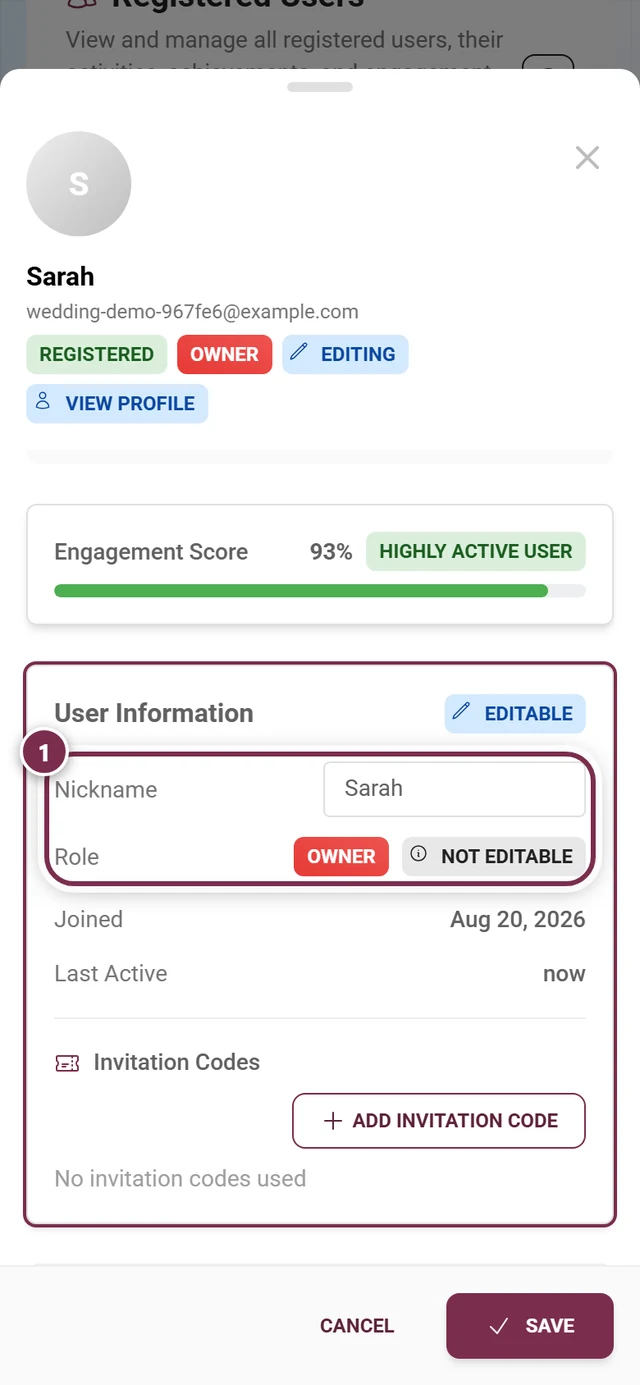
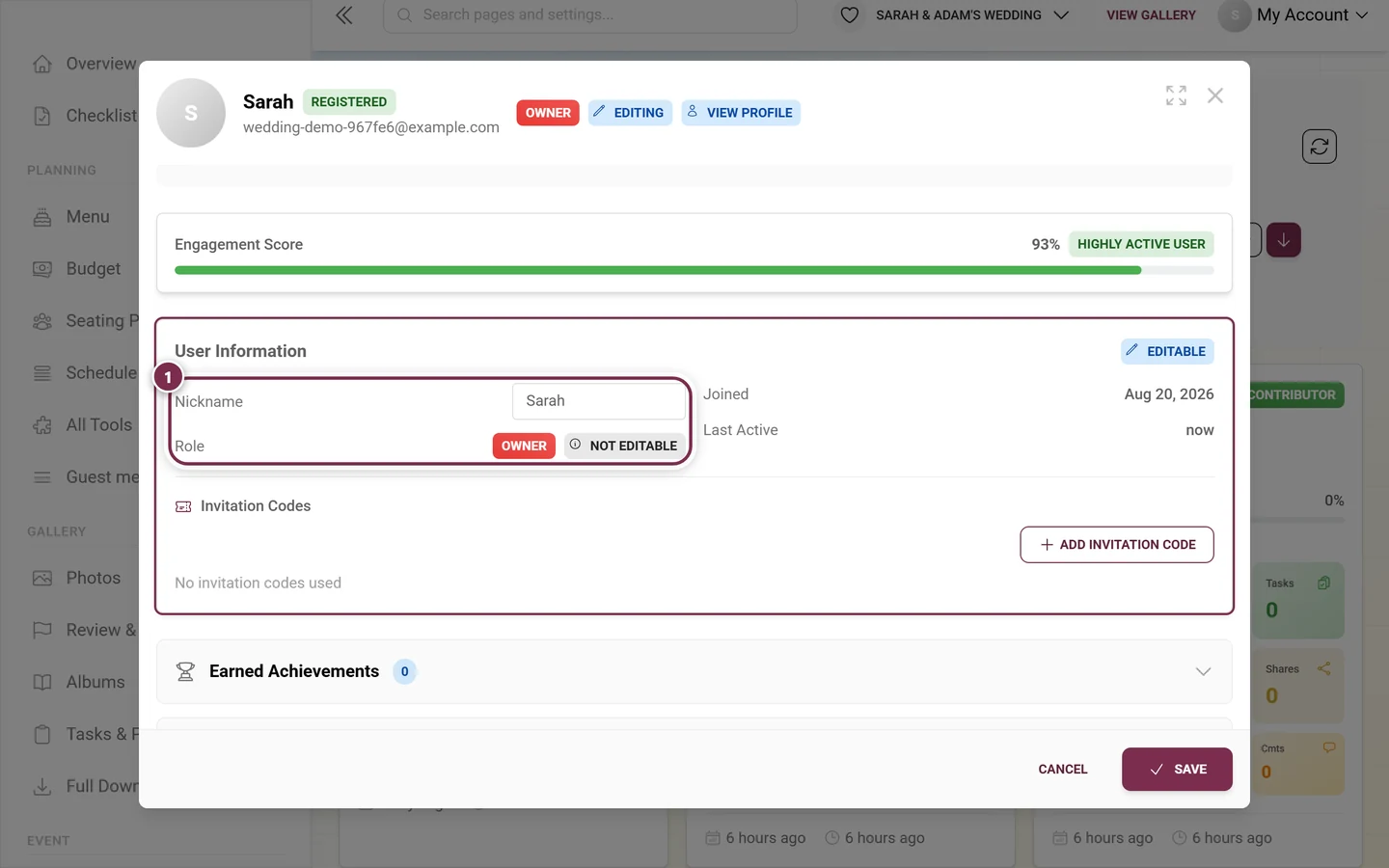
Section titled “Editing user info”Click Edit User – the User Information section is highlighted and carries an Editable chip.
-
Nickname: Enter a new display name in the text field. If the user has none, it reads No nickname outside edit mode.
-
Adjust the role: Pick a new role in the dropdown (Select role…). It helps to understand where the role comes from – there are three source chips for this:
- Override – “This role was manually set by an admin and overrides the invitation code role”.
- Event Owner – “This user is the event owner/creator”. This role is not editable (chip Not Editable); ownership must be transferred first to change it.
- From Invite – “This role is determined by the highest-privilege invitation code the user has”.
-
Clear an override: If a user has a manually set role, click Clear in edit mode (“Remove the role override and revert to role from invitation codes”). The chip Will be cleared appears; after saving, the role from the highest invitation code applies again automatically.
-
Points: Edit the point total directly in the Points tile in the statistics section. Enter the new number.
-
Save or discard: Save applies all changes (“User updated successfully”), Cancel discards them.
Awarding an achievement manually
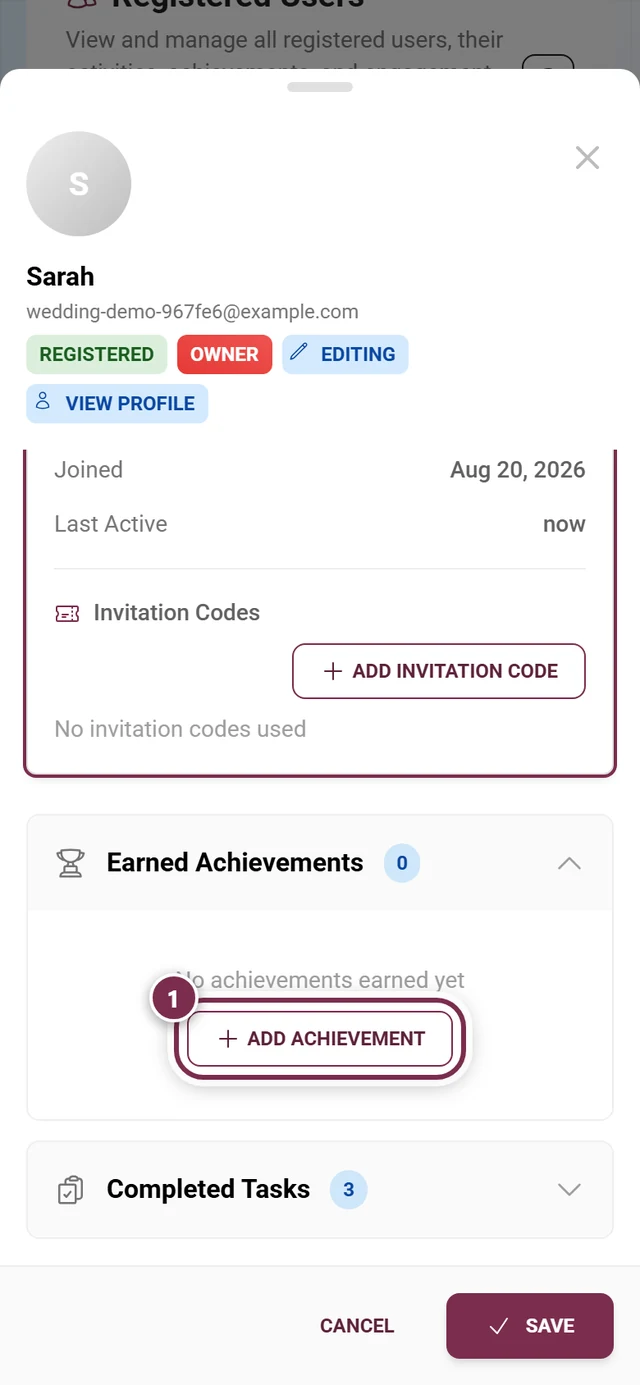
Section titled “Awarding an achievement manually”If the Achievements feature is active, you can grant an achievement directly to a user. Expand the Achievements section in the detail dialog and choose Add Achievement.
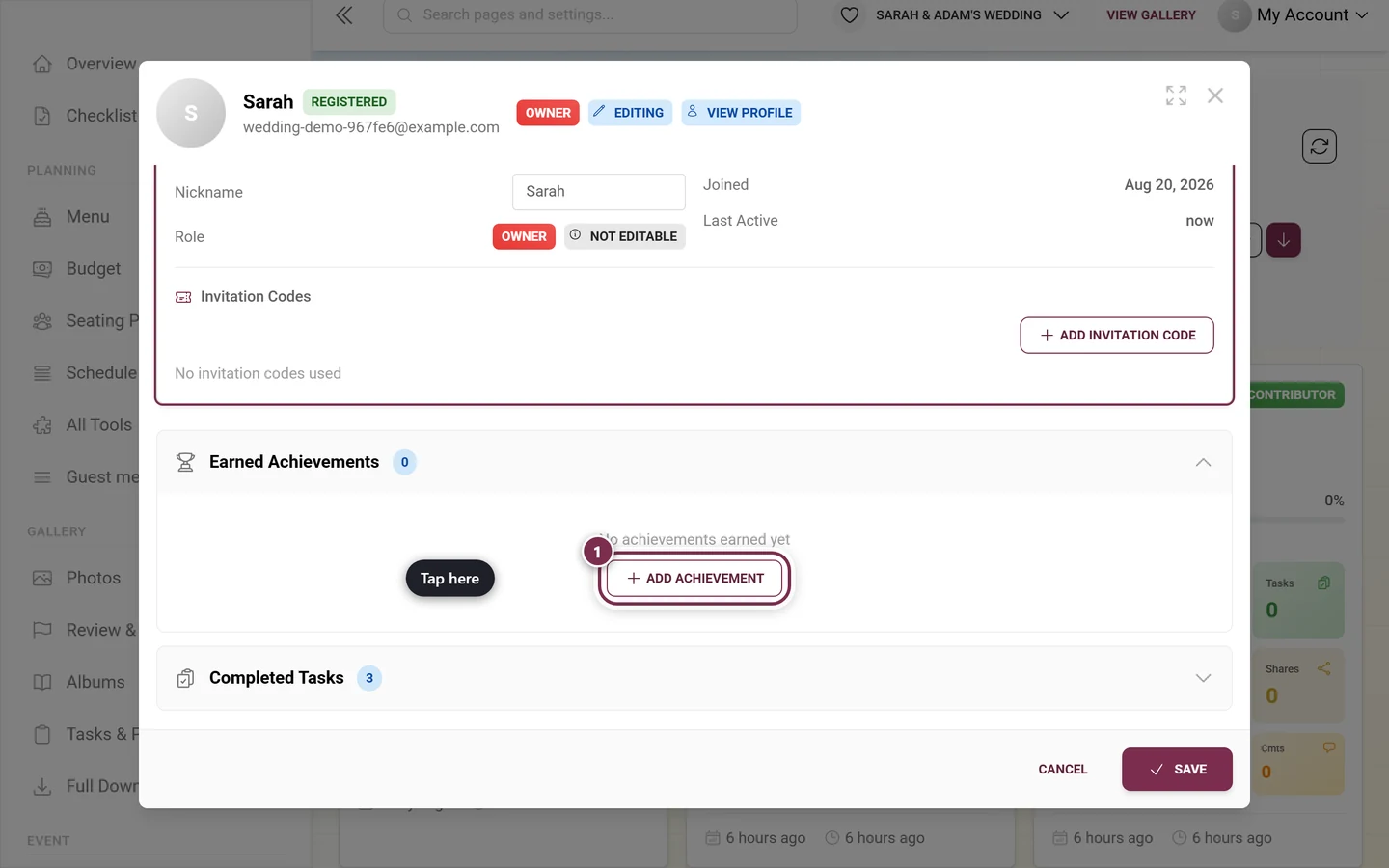
-
The Add Achievement dialog opens with the subtitle “Select an achievement to award to NAME”.
-
Find the right achievement using the Search achievements… box, the sort order (Name (A-Z), Name (Z-A), Least earned, Most earned) or the filter chips Time-based, Points, Tasks, Engagement, Social and Has Reward.
-
Each row shows an image, name, description, how many times the achievement has already been earned, its requirements and – if present – a reward icon. Achievements the user already has are hidden; if they have them all, it reads “No achievements available to award. The user already has all achievements.”
-
Select the achievement and confirm with Award Achievement. A success message appears.
Adding or removing an invitation code
Section titled “Adding or removing an invitation code”In edit mode you manage the person’s codes under Invitation Codes (with the counter “N active of M”).
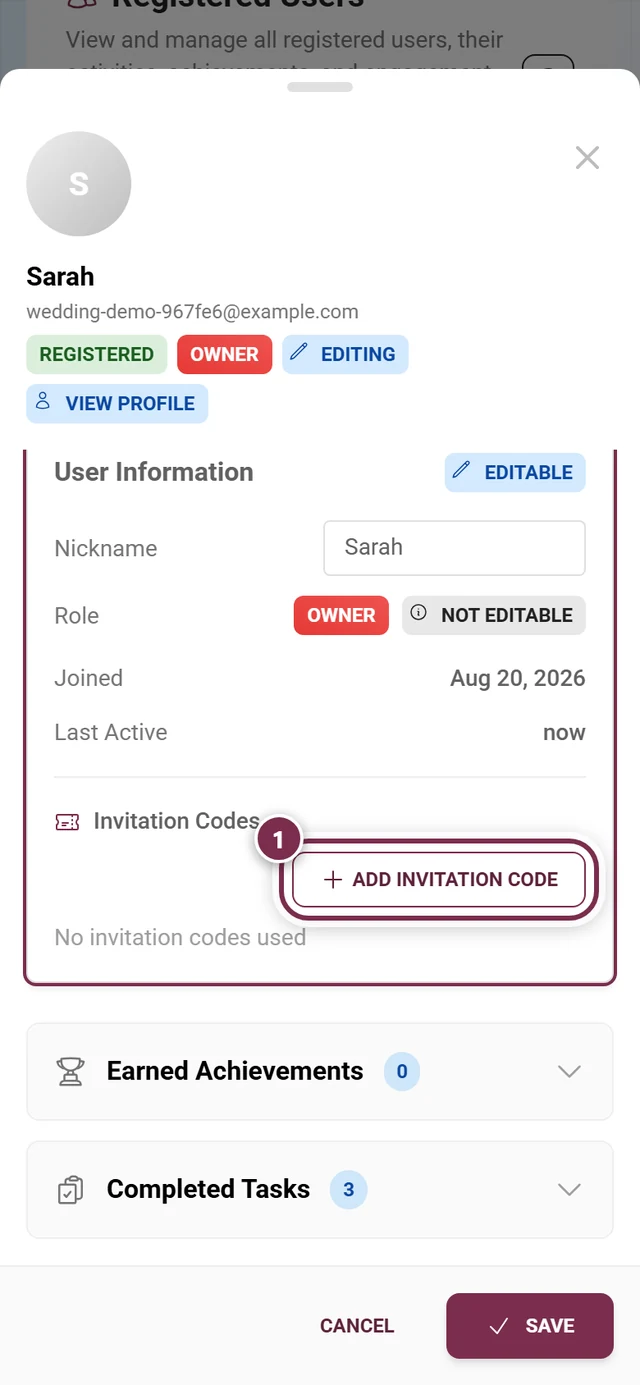
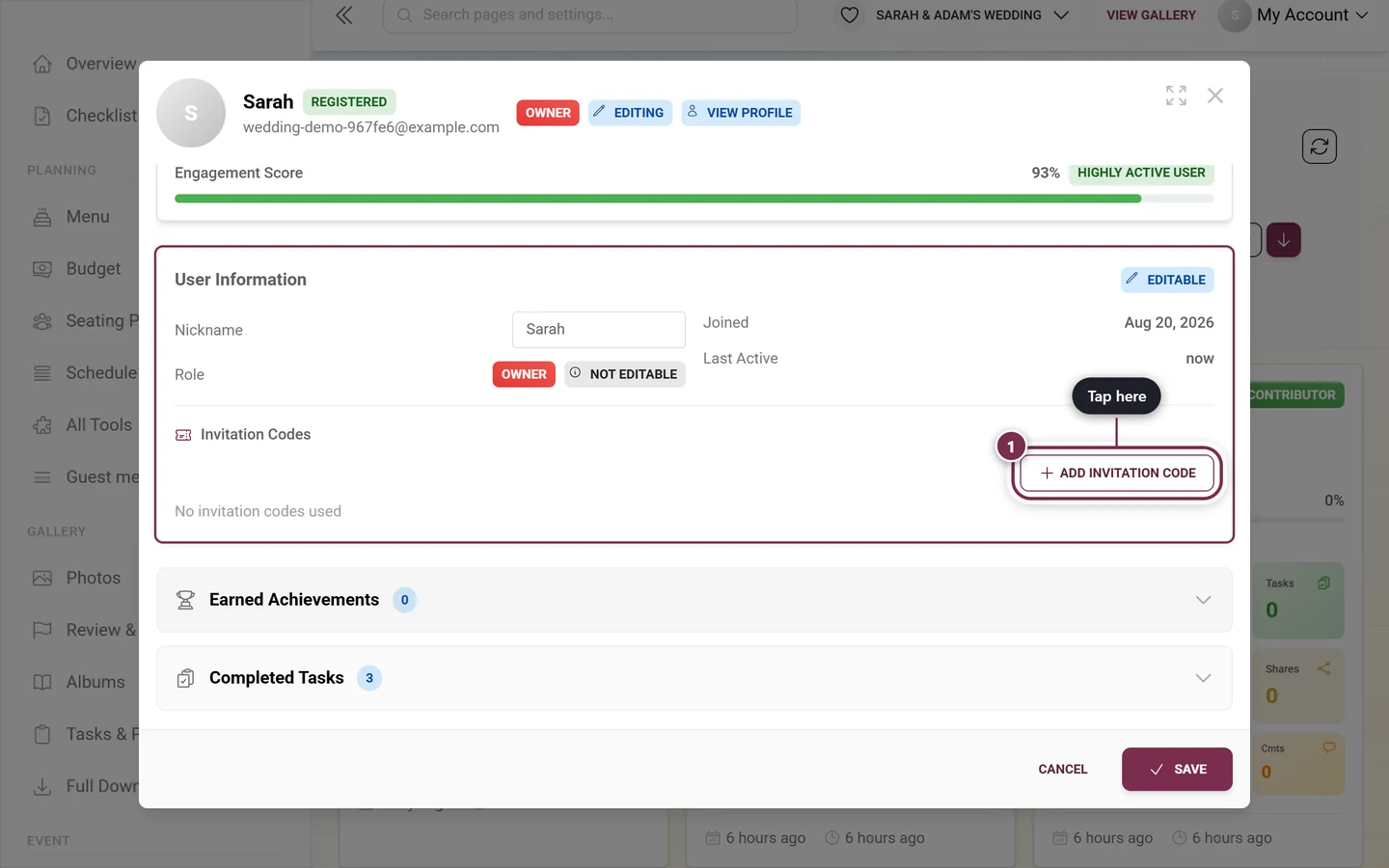
-
Add: Click Add Invitation Code. The dialog of the same name opens with the subtitle “Select an invitation code to add to NAME”, a Search invitation codes… box, sorting (Code (A-Z), Code (Z-A), Least used, Most used, By role) and the Filter by role: control.
-
Each row shows the code (in monospace), a Default chip or Active / Inactive/Deleted Invitation, the description, usage (“X/Y used” or “X used (unlimited)”), any expiry date (Expires) and the role.
-
If the chosen code has a higher role than the user’s current one, a yellow banner notes that the role will be raised automatically when you add it. If nothing changes, a gray note appears instead.
-
Confirm with Add Invitation Code.
-
Remove: In edit mode, each code chip has a small red X. Clicking it opens the confirmation dialog Remove Invitation Code? before the code is removed. If an invitation has since been deleted, the chip reads “This invitation has been deleted”.
Moderating a user
Section titled “Moderating a user”The Moderation section is only usable when you are allowed to moderate this user – they have a lower role than you and you hold moderation rights. Otherwise the section explains why: Cannot moderate event owner, Cannot moderate this user or No moderation permission.
-
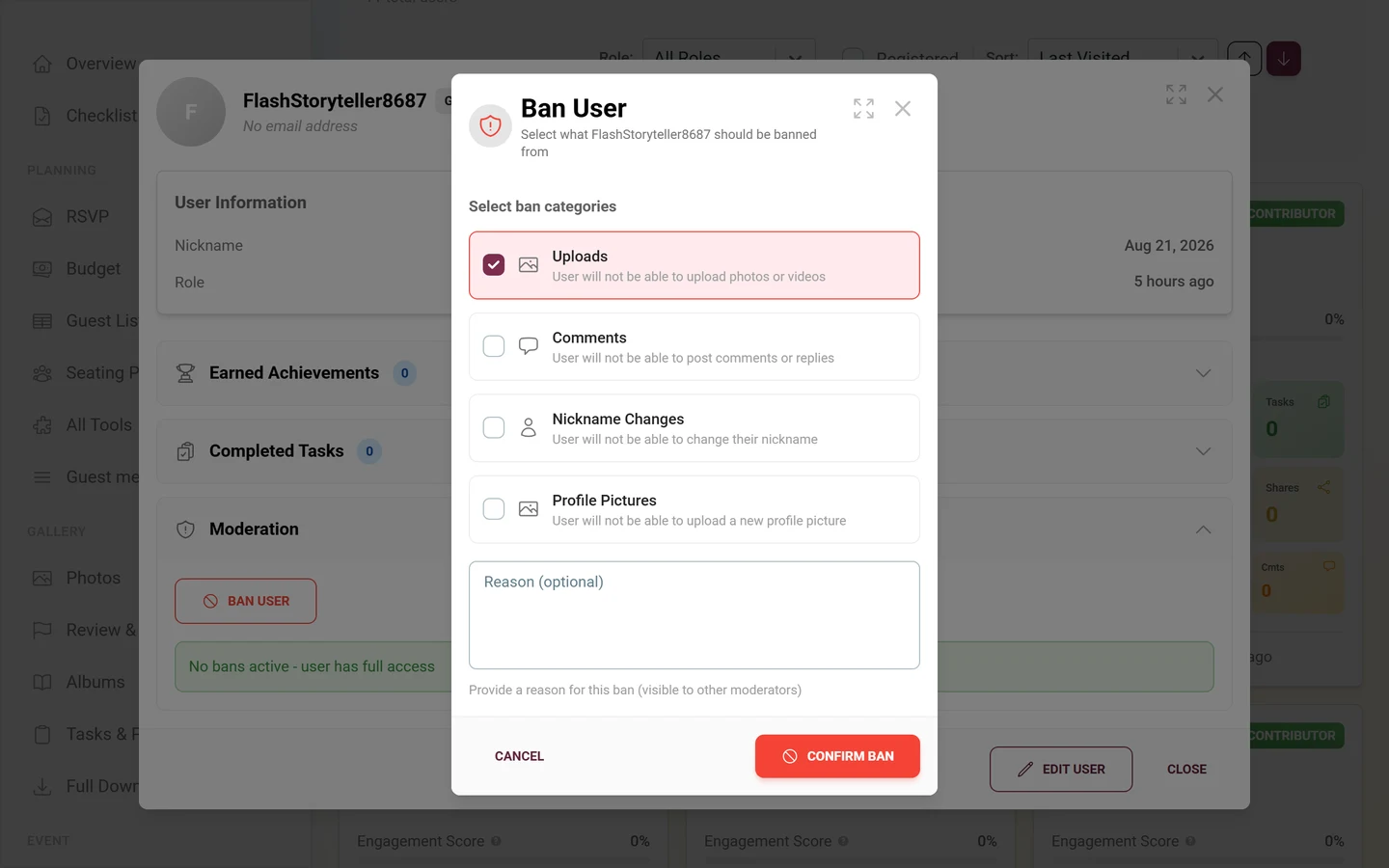
Ban: Click Ban User. In the dialog (“Select what NAME should be banned from”) you pick one or more categories under Select ban categories via checkbox:
- Uploads – “User will not be able to upload photos or videos”.
- Comments – “User will not be able to post comments or replies”.
- Nickname Changes – “User will not be able to change their nickname”.
- Profile Pictures – “User will not be able to upload a new profile picture”.
-
The Reason (optional) field is voluntary but recommended: “Provide a reason for this ban (visible to other moderators)”. This documents the ban traceably for your team.
-
Confirm with Confirm Ban. You can ban several categories at once.
-
Unban: When bans are active, the Unban User button appears. The dialog lists only the currently banned categories under Select categories to unban; confirm with Confirm Unban.
-
Remove profile picture: If the user has an inappropriate profile picture, remove it with Remove Profile Picture (only visible when an image is present).
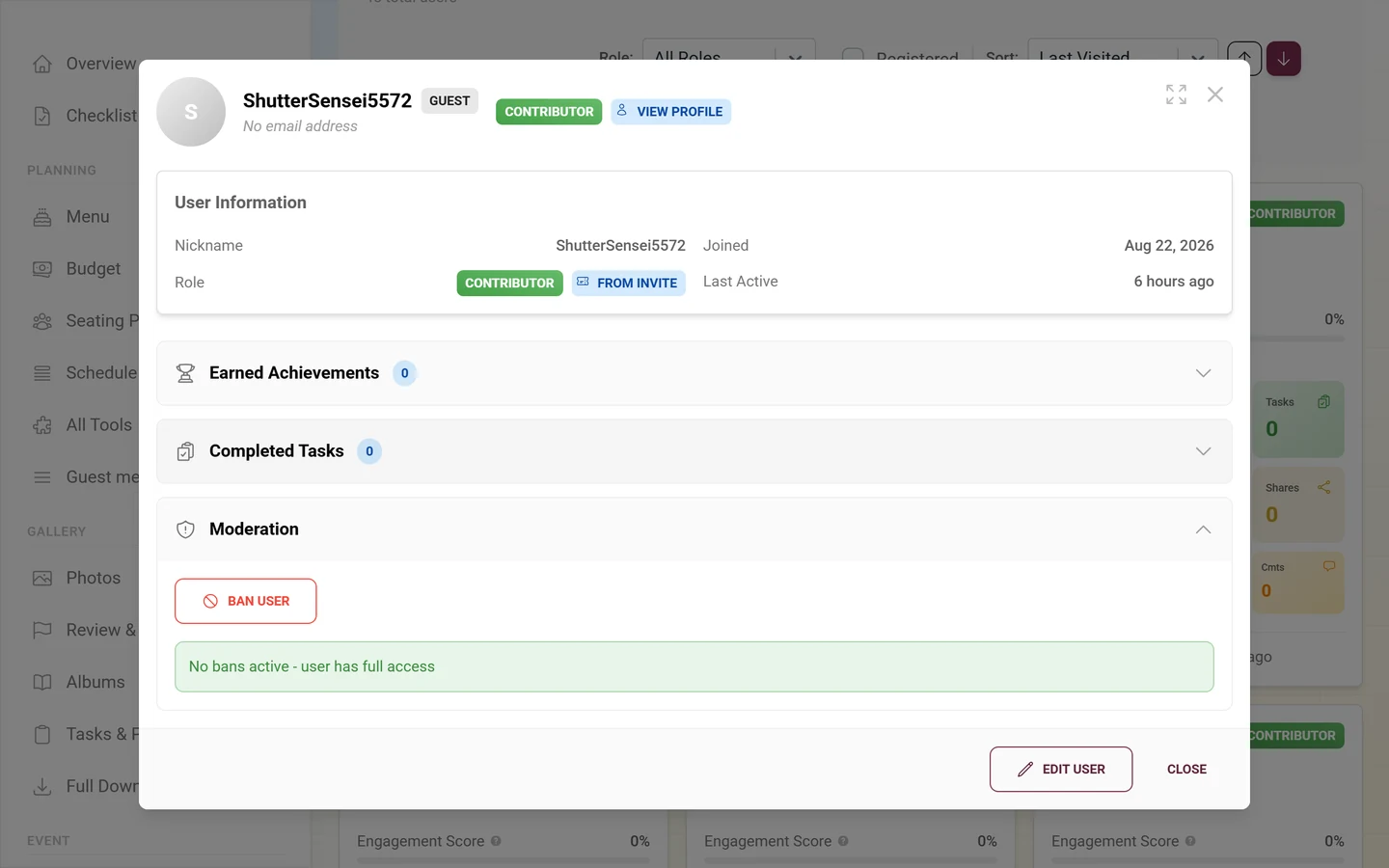
The section also shows the status: Currently banned from: in red with the banned categories, or No bans active - user has full access in green.
Viewing a user’s achievements and tasks
Section titled “Viewing a user’s achievements and tasks”- The Earned Achievements section (only with the feature active) lists earned achievements along with the status of their rewards: Reward claimed, Reward dismissed or Reward available to redeem. Show N more fetches additional ones; in edit mode, individual achievements can be removed. If the user has none, it reads No achievements earned yet.
- The Completed Tasks section (only with the feature active) shows the tasks the user has solved with a Completed Nx note; with no solved tasks it reads No tasks completed yet.
Recommended practices
Section titled “Recommended practices”- Before awarding rewards, sort by Points or Uploads to identify the most active participants.
- Prefer to control roles via invitation codes rather than individual overrides – it is traceable for the whole team.
- Document every ban with a reason, even though the field is optional.
- For abuse, ban specific categories rather than issuing a full ban.
- Use the Registered checkbox to distinguish real accounts from one-time guests.
Common questions and troubleshooting
Section titled “Common questions and troubleshooting”- The Achievements or Tasks section is missing: the respective feature is disabled in your plan or settings. Check Features or Plan & term.
- The Moderation section is not usable: you have no moderation rights for this user – for example because they hold a higher or equal role. The section spells out the reason.
- Admin/Owner locked in the role dropdown: only the owner may grant these roles (chip Owner Only).
- “Add Invitation Code” shows no codes: there are no active, grantable codes. Create them first under Inviting guests.
- A user does not appear: they are probably hidden by the Registered checkbox or a role filter. Click Clear All.
- Back in card view after a reload: that is intended – the view hangs off the
?view=tableparameter in the address bar, not off your account. - Changed points or nickname do not show: use the Refresh button in the header to reload the list.
Related pages
Section titled “Related pages”- Roles & permissions – what each role can do
- Inviting guests – creating and managing invitation codes
- Banning users and Moderation – moderating your event fully
- Achievements and Task manager – managing awards and tasks
- Redeeming rewards – tracking real rewards
- Event statistics – aggregated metrics for your event
- From the guest side: Points & rewards, Challenges, Real rewards, Profile