How long do photos stay online?
How long the gallery stays online is the host’s decision. They pick a plan with a term — exactly the time the event stays reachable afterwards. After that they can renew, keep the gallery online for less in the archive, or have it renewed automatically every year with a subscription. There is no single deadline that applies to every event.
When the clock starts running
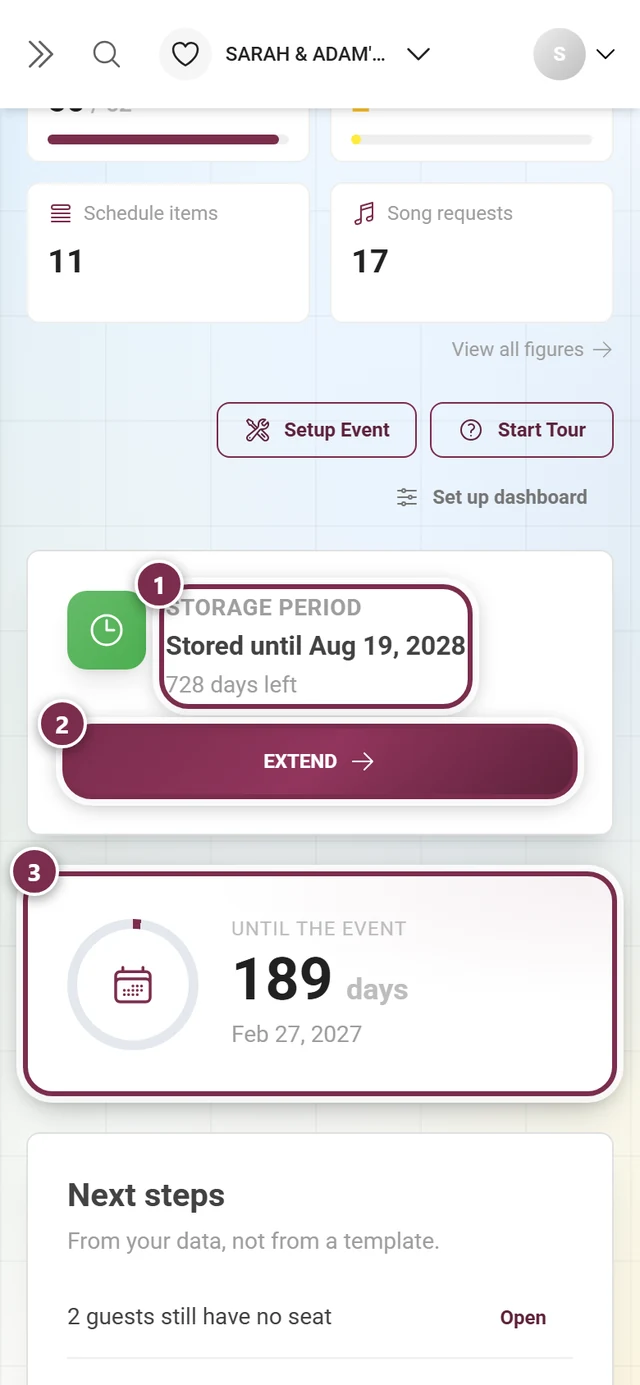
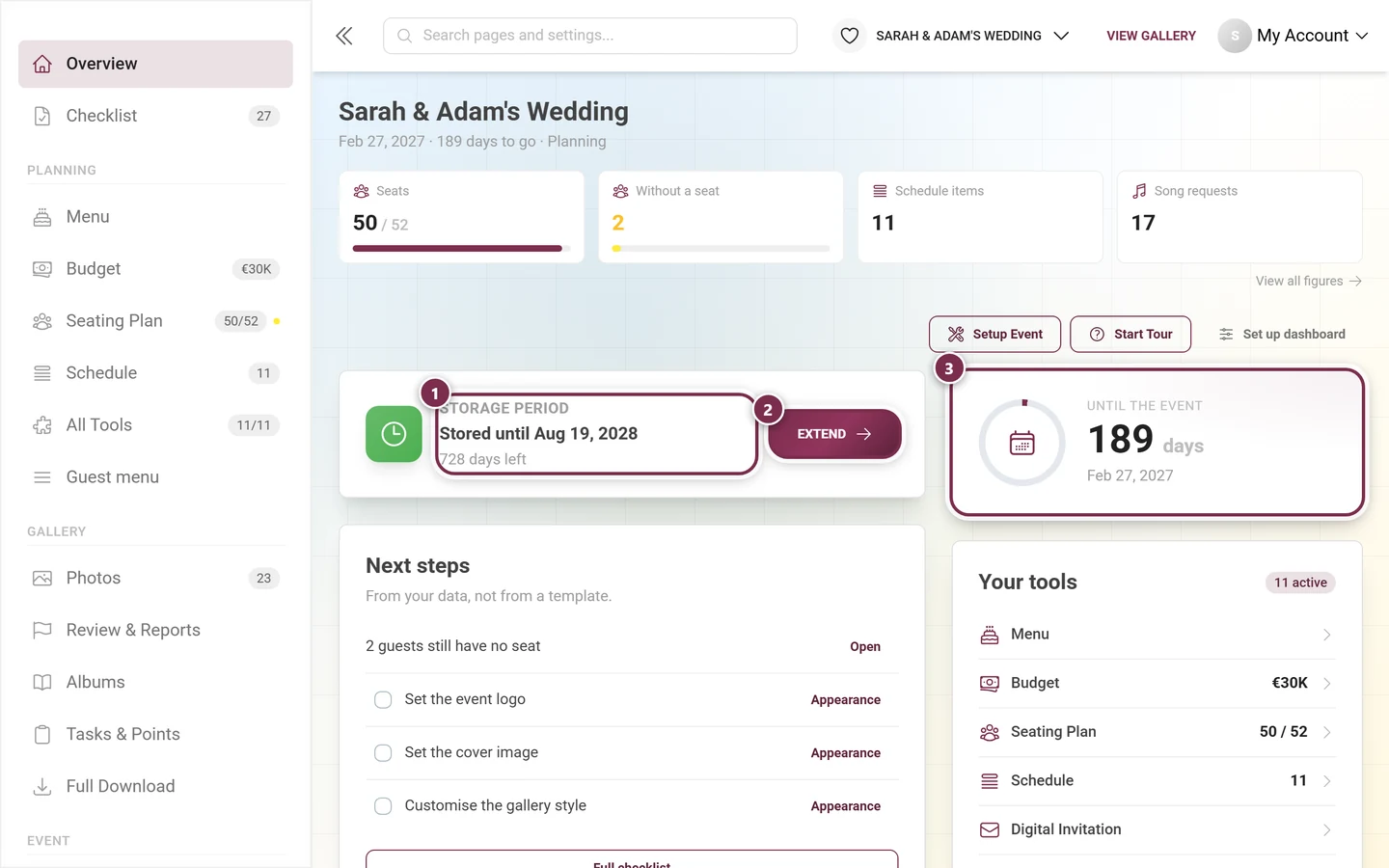
Section titled “When the clock starts running”This is the part that surprises most people: the storage period doesn’t start at purchase, it starts at upload.
- Free galleries: the clock starts with the first uploaded photo. The app says so word for word to the host: “For free galleries the storage period starts with the first uploaded photo.”
- Paid galleries: the clock only starts with the tenth uploaded photo. That is spelled out in the admin area too: “Your storage period only starts with the 10th uploaded photo, not at purchase.”
Every photo in the event counts — including yours. So a host can create and share the gallery well in advance without losing any time.
What happens once the time is up
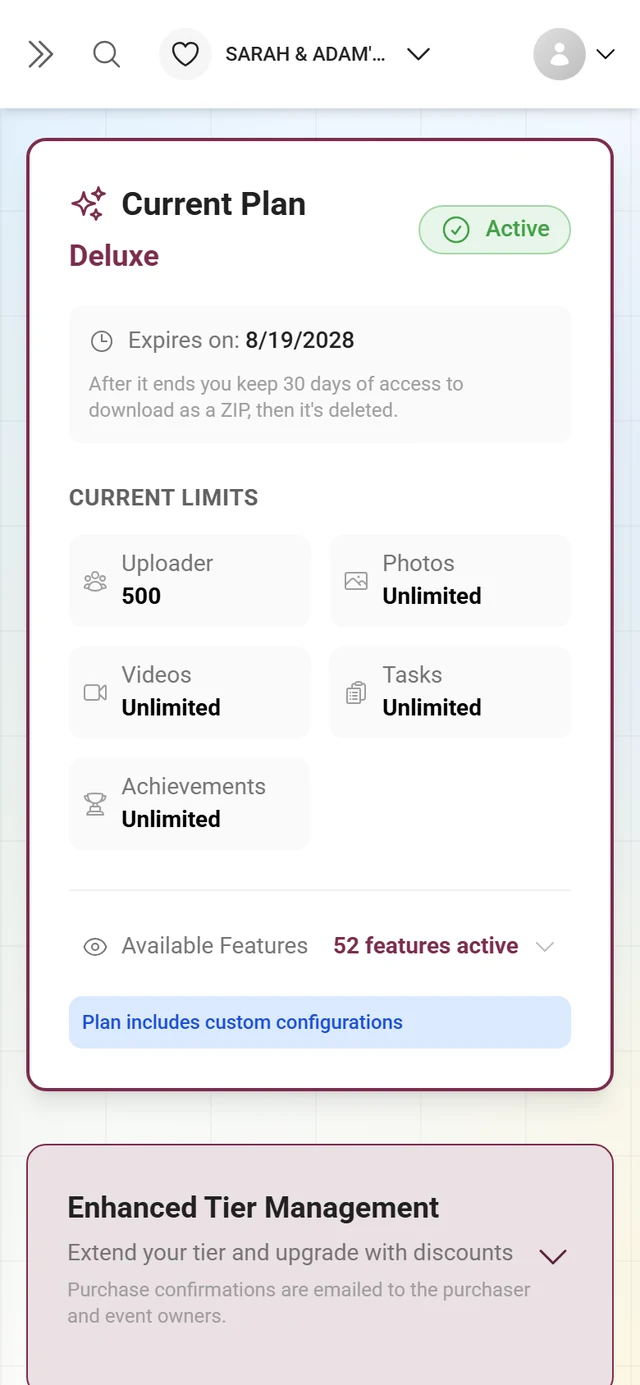
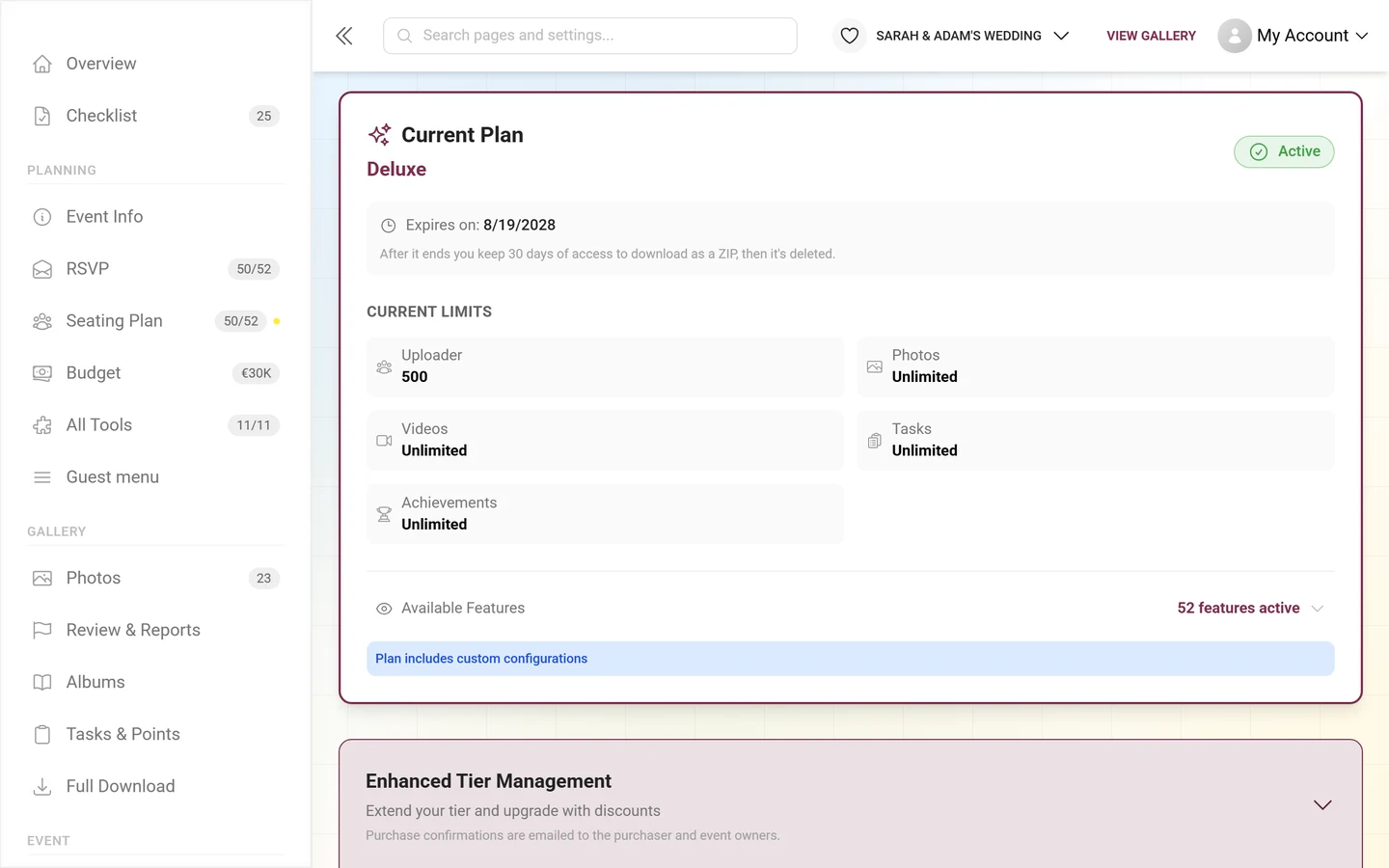
Section titled “What happens once the time is up”Towards the end there can be an in-between state where you can still look but no longer upload. The message for that reads: “This event has expired and is no longer accepting new uploads. You can still browse and view the gallery.”
That doesn’t mean anything is deleted yet. Until a date the host sees in their admin area, they can bring the gallery back themselves – with a renewal, a plan, or for less in the archive – and so reopen it for guests. After that it is only possible through support, and then everything is permanently deleted.
Save your favorites in good time
Section titled “Save your favorites in good time”Don’t wait until the last minute. While the gallery is open you can download pictures directly:
- Right-click, or press and hold on a phone, on a photo → Download
- or in fullscreen via the control bar → Download
The details are in Downloading photos.
Want to know exactly?
Section titled “Want to know exactly?”Only the host sees the actual storage period in their admin area. Just ask — and while you’re at it, ask whether they will renew the gallery or keep it online in the archive.