Activity feed
The activity feed is the chronological live timeline of everything happening at this event – new photos, comments, likes, people joining, new albums, completed tasks and unlocked achievements. Important: the feed is not just a display. Almost every row is clickable and jumps you straight to the right place – a photo, a profile, the filtered gallery, the albums or the tasks.
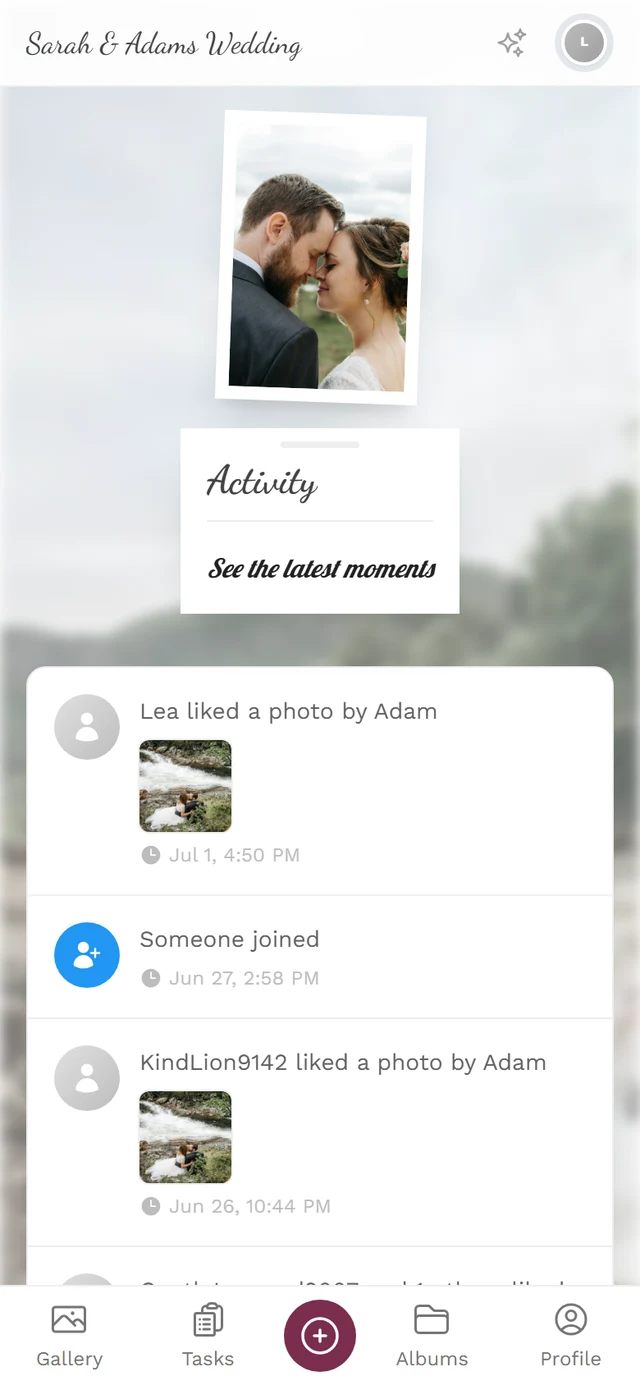
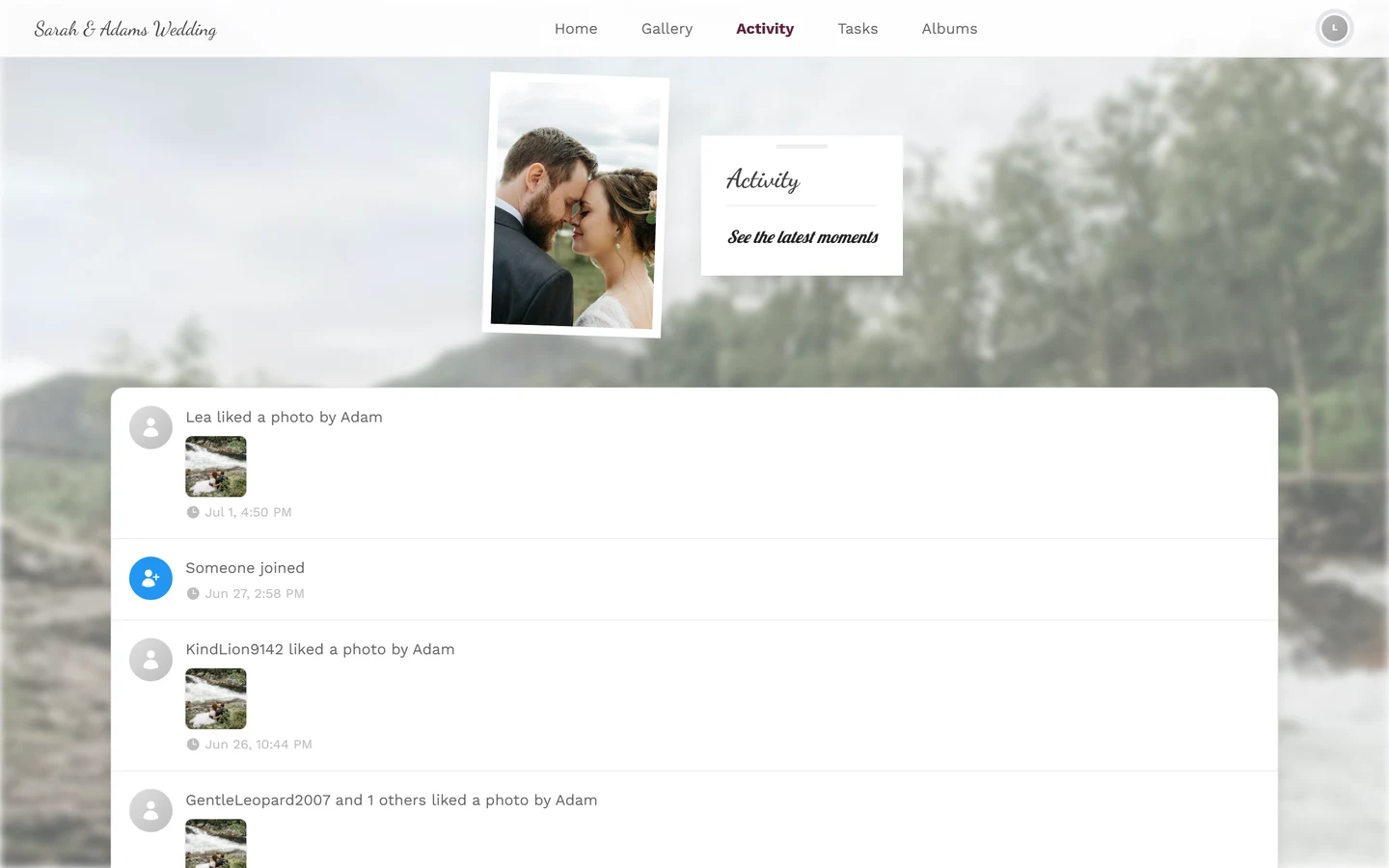
Where to open the activity feed
Section titled “Where to open the activity feed”-
Open your event’s navigation bar.
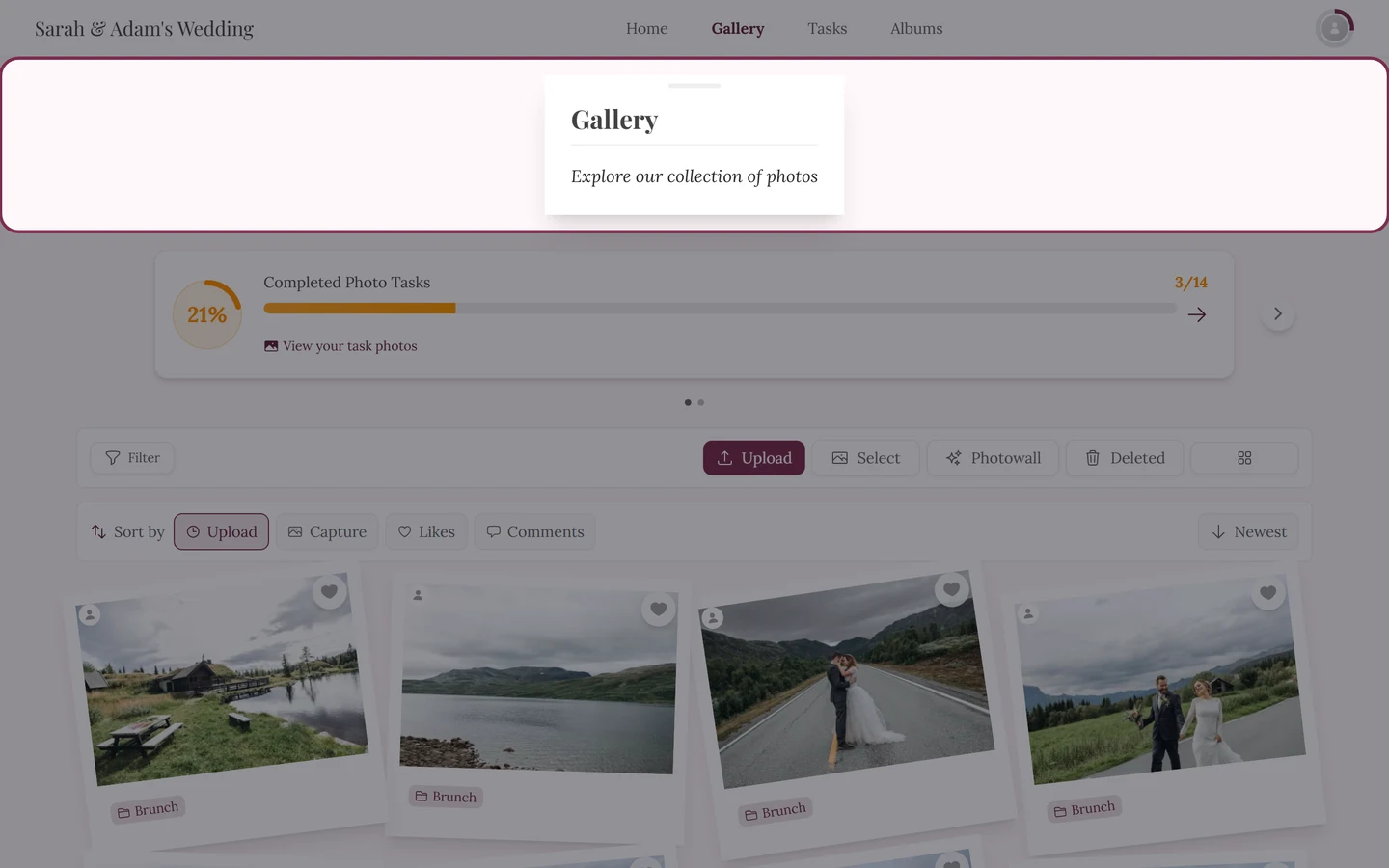
On a computer, Activity is a text link in the top bar. -
Tap Activity. On a computer this is a text link in the top bar. On a phone it appears as a sparkles icon in the navigation instead.
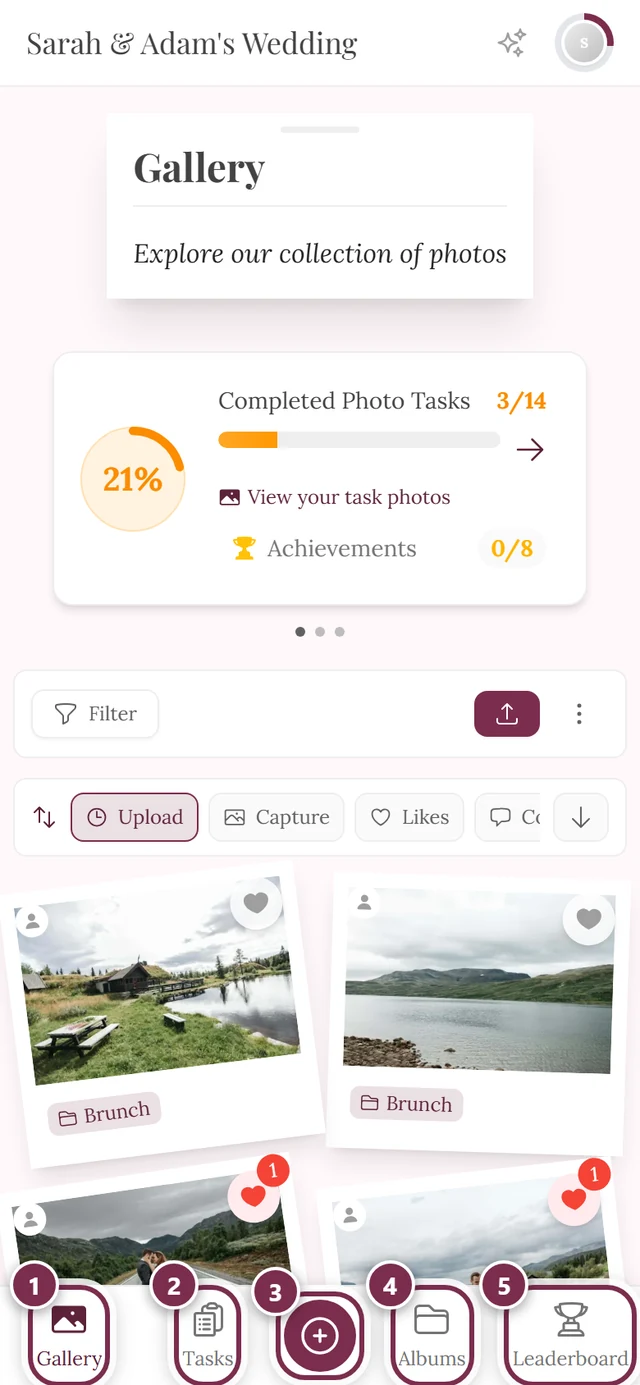
On a phone you reach Activity through the sparkles icon in the navigation. ① Gallery, ② Tasks, ③ the round button in the middle opens the upload, ④ Albums, ⑤ Leaderboard. Switched-off areas are missing from the bar – without photo tasks, for instance, the remaining entries close the gap. -
The feed opens with the newest events at the top.
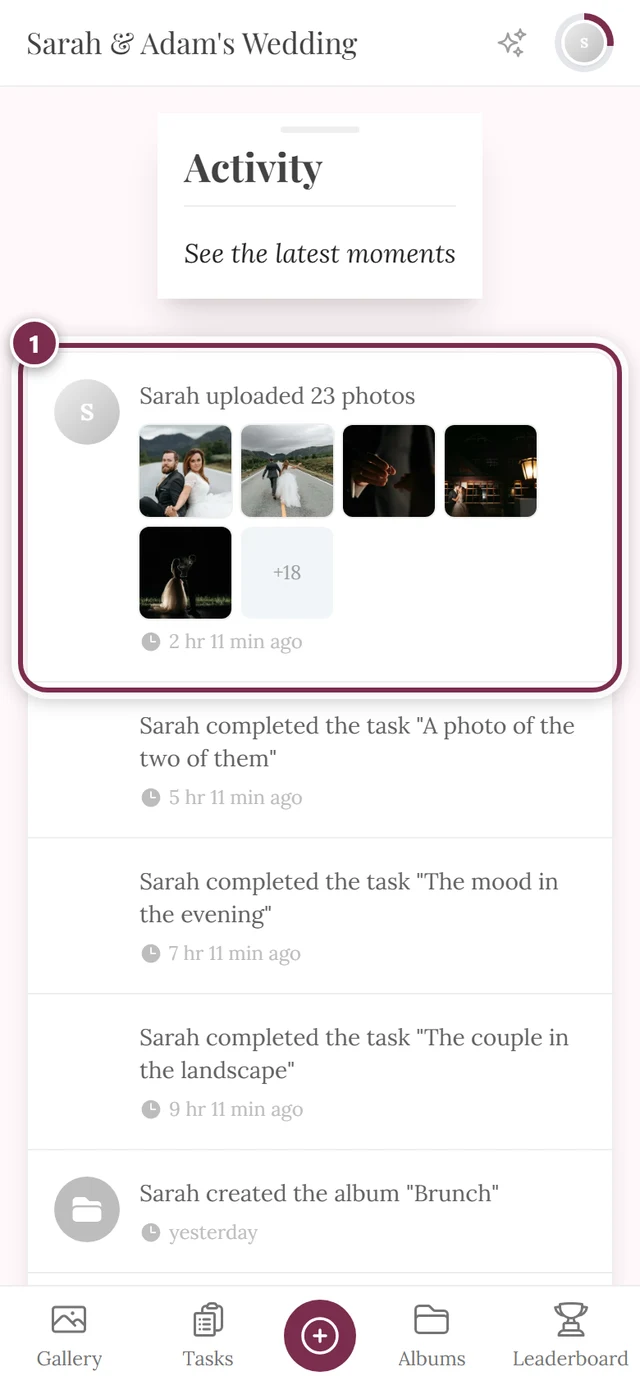
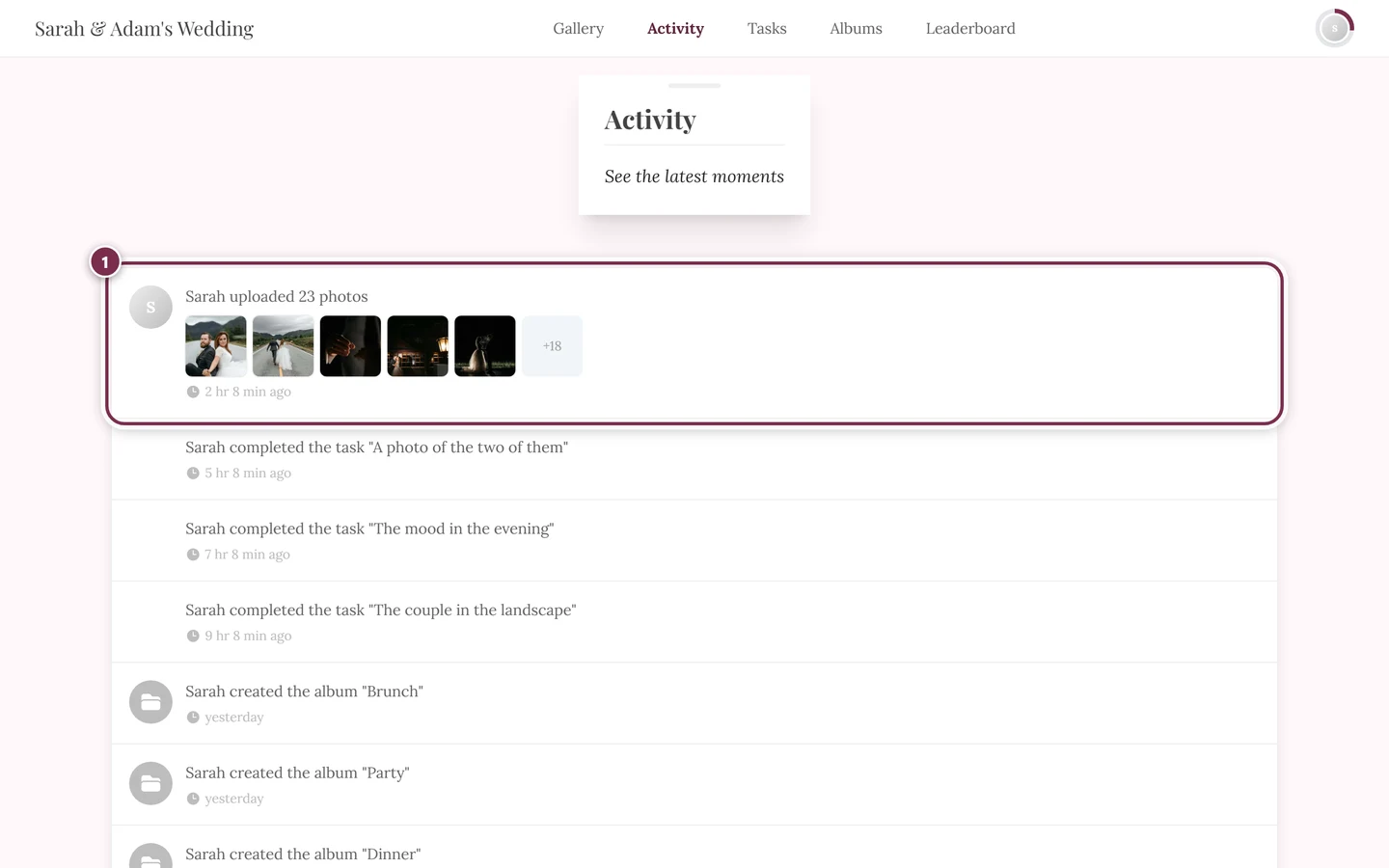
Newest events are at the top — the highlighted row is the most recent; you load older ones by scrolling.
Alternative via the home page: The home page shows a Recent activity block near the top with a short preview of the latest events. Tap View all there to jump to the full feed.
That preview is visible by default as long as the feed is active – the host does not have to switch anything on for it. It only stays away if they deliberately turn it off, or if there simply are no events yet.
What shows up in the feed
Section titled “What shows up in the feed”The feed has exactly seven event types. Every row shows who did something, what happened and when. If no name is known, it shows “Someone”.
| Event | How it reads in the feed | A click opens |
|---|---|---|
| Uploaded a photo | “{Name} uploaded a photo” | the photo in the slideshow |
| Uploaded several photos | “{Name} uploaded {N} photos” | the gallery, filtered to that person |
| Commented on a photo | “{Name} commented on a photo” (with the quote in italics) | the photo with the comment thread open |
| Liked a photo | “{Name} liked a photo by {owner}” | the photo |
| Several likes bundled | “{Name} and {N} others liked a photo by {owner}” | the photo |
| Joined | “{Name} joined” | that person’s profile |
| Created an album | “{Name} created the album ‘{album}’” | the albums |
| Completed a task | “{Name} completed the task ‘{task}’” | the tasks |
| Unlocked an achievement | “{Name} unlocked ‘{achievement}’” | that person’s profile |
Photo events show a preview thumbnail (or several for groups). The other events have a colored circle icon instead, easy to recognize at a glance:
- Joined – blue icon with a person-plus,
- Album – gray folder icon,
- Task – green check/checklist icon,
- Achievement – yellow trophy icon.
Interacting from a row
Section titled “Interacting from a row”The real value of the feed: you jump onward from here. There are several ways to trigger the same action.
-
Click the whole row (mouse/touch). Tap anywhere on a row. Depending on the event type, it opens the photo, the profile, the filtered gallery, the albums or the tasks (see the table above).
-
With the keyboard. Use the Tab key to focus a row and press Enter or the Space bar. That triggers the exact same action as a click – handy on a computer without a mouse.
-
Tap a single thumbnail in an upload group. When someone uploaded several photos, the row shows a strip of thumbnails and – for many photos – a +N tile. If you tap a single thumbnail directly, exactly that photo opens instead of the filtered gallery. Useful when only one specific image from the bundle interests you.
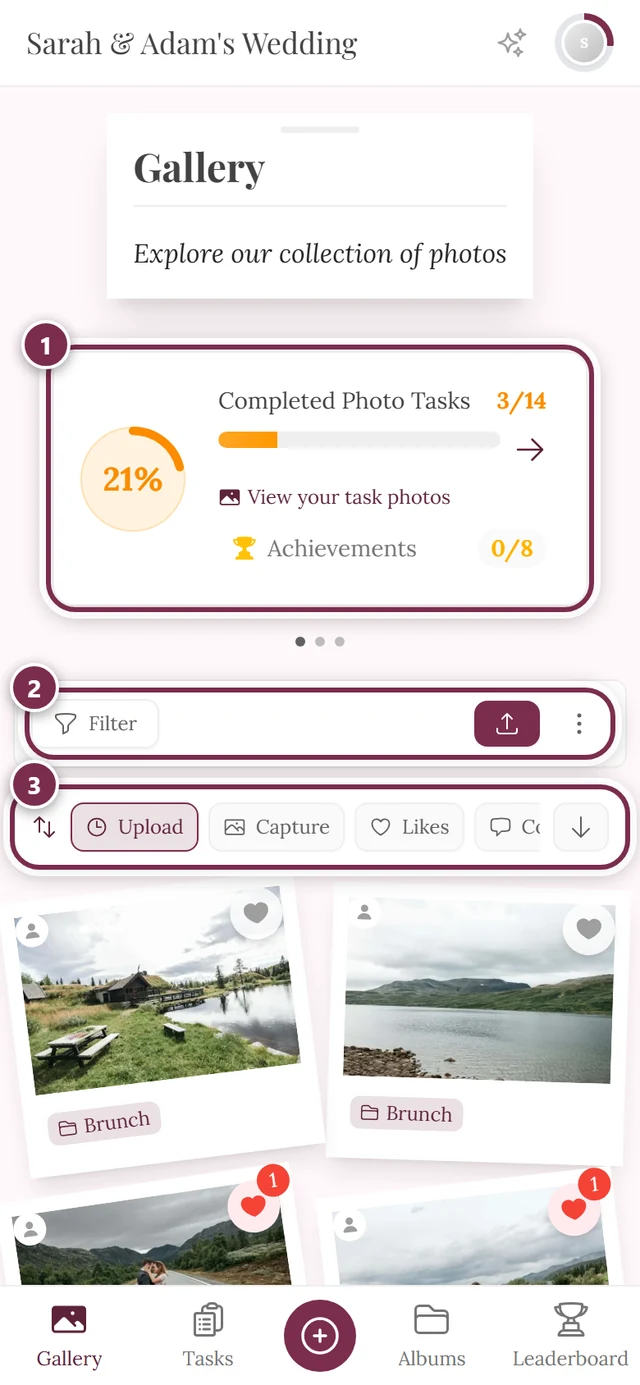
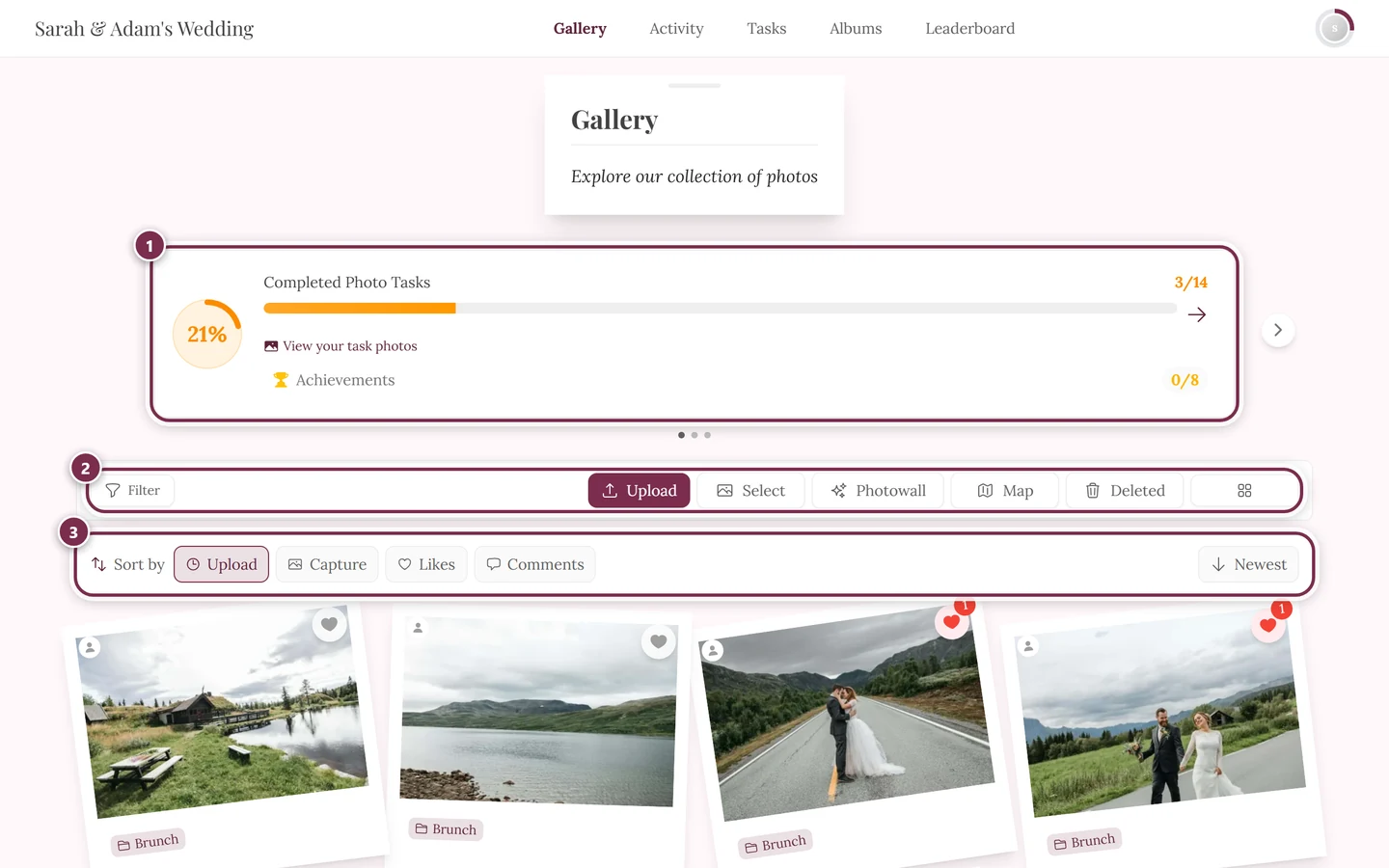
Clicking the whole upload row opens the gallery filtered to that person; clicking a single thumbnail opens just that photo. ① the progress card – it only shows when photo tasks are switched on and tasks exist, ② the toolbar with Filter, Upload, Select, Photowall, Map, Deleted and the column picker – on a phone only Filter and the upload button stay, the rest moves into the three-dot menu next to them, ③ the Sort by bar with Upload, Capture, Likes and Comments; the control on the far right reverses the direction. -
Photo events open the slideshow over the feed. The image appears as a full-screen overlay right in the feed. When you close it, you land back in exactly the same spot – your scroll position isn’t lost.
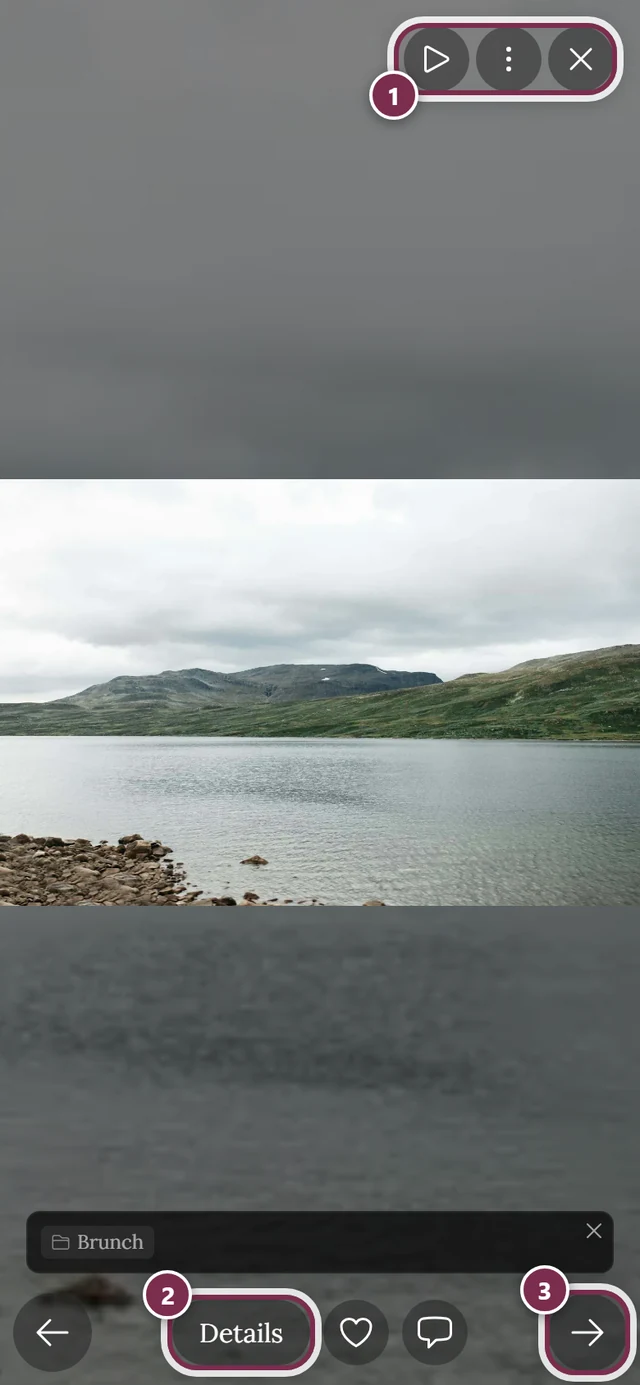
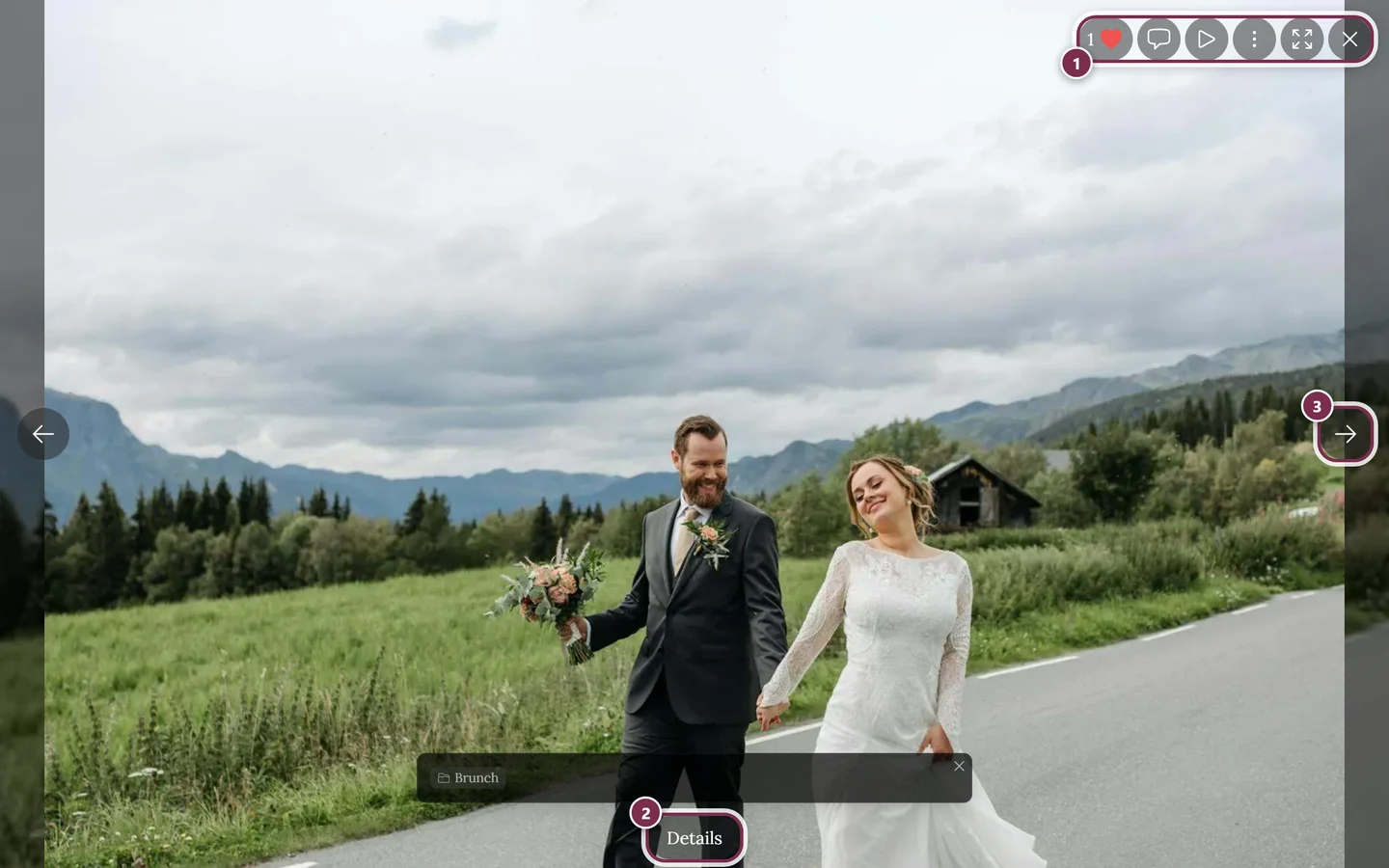
Photo rows open the slideshow right over the feed – closing brings you back to the same spot. ① the icon bar in the top right – on a computer with Like, Comments, Slideshow, the three-dot menu, Fullscreen and Close, on a phone only Slideshow, the menu and Close, ② Details reveals title, album and capture data, ③ the arrow to the next photo – on a phone you can swipe instead. Like and Comments sit next to Details at the bottom on a phone. -
Comment rows open the photo and comment thread together. Tapping a comment row opens the photo with the relevant comment area right above it, scrolled to the comment. You can reply or like there directly.
More on the destinations in the matching guides:
- Viewing photos and using full screen: Slideshow
- Liking and commenting: Like & comment
- Albums: Albums
- Solving tasks: Photo tasks
- Profiles, leaderboards and achievements: Profile and Points & rewards
Understanding the timestamps
Section titled “Understanding the timestamps”Below each event, a clock icon shows a timestamp. It adapts to how long ago the event happened:
- just now – a few moments ago,
- X minutes ago – within the last hour,
- 2 hr 15 min ago – within the same day,
- yesterday – the day before,
- 3 days ago – within the last week,
- after 7 days the feed shows the absolute date with time.
The wording appears automatically in your language. You can change it under Changing the language.
Names follow your language too
Section titled “Names follow your language too”It is not only the timestamps and sentence fragments that switch with the language – the names of albums, tasks and achievements in the feed are shown in the language you picked, as long as the host provided a translation for them.
So a row like “Anna created the album ‘Ceremony’” shows the album name in your language when a translation exists – otherwise it stays in its original form. The same goes for task titles and achievement names. Guests’ nicknames, by contrast, always stay in the original. Which content is translated depends on whether your language is a main language for this event – see Changing the language.
Live updates, loading more and states
Section titled “Live updates, loading more and states”-
Real-time updates. New events appear automatically at the top of the feed – no reload needed. You don’t have to refresh anything manually. If the connection ever stalls, simply reload the page.
-
Load older events. As you scroll down, the feed automatically loads more events (in blocks). The home-page preview only shows the most recent entries; the full history is in the Activity tab. Very long feeds stay smooth because only the visible part is rendered.
-
Empty state. If it says “No activity yet” with a note that events appear once photos are uploaded and commented on, simply nothing has happened yet. On the home page, the preview isn’t shown at all when there are zero events – the page stays clean.
-
Loading error. If it says “Could not load activity. Please try again.”, loading failed. Use the reload button or refresh the page.
Availability: the host enables the feed
Section titled “Availability: the host enables the feed”The activity feed is off by default – the host has to enable it deliberately.
- If it’s off, the Activity tab shows “Activity feed is off” with a note that the feed is disabled for this event. Usually the tab is missing entirely in that case.
- As a guest you can’t enable the feed yourself – ask the host to do it.
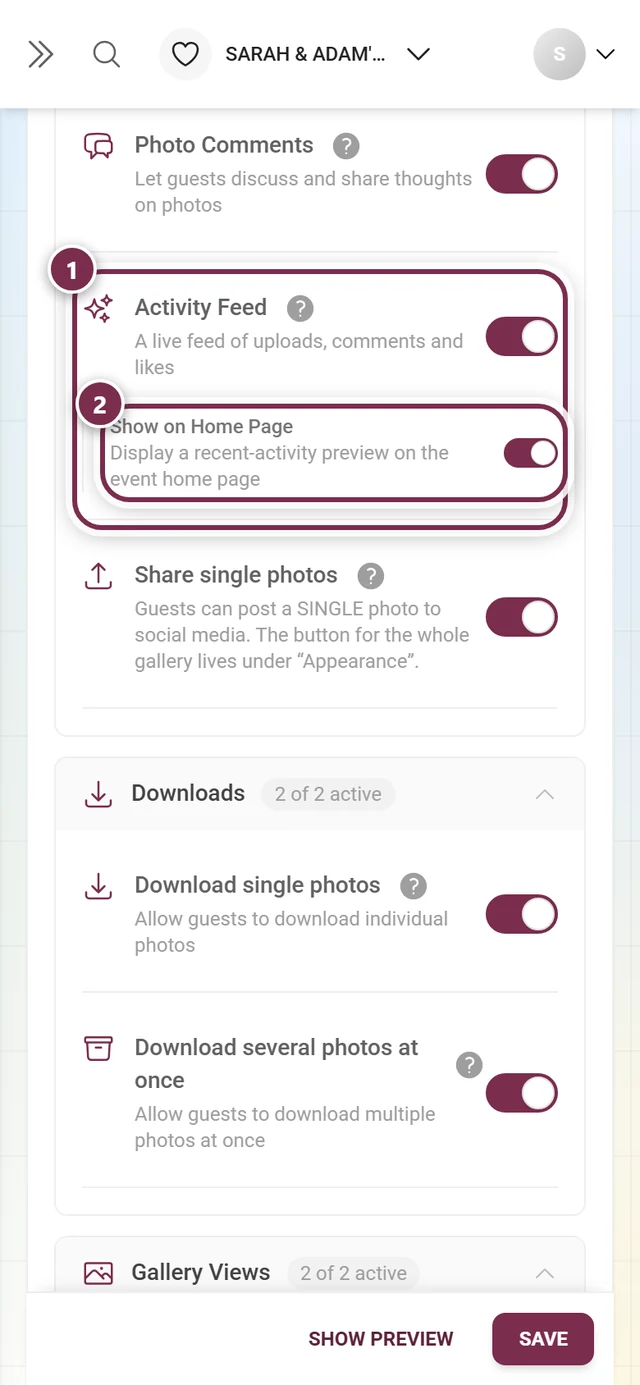
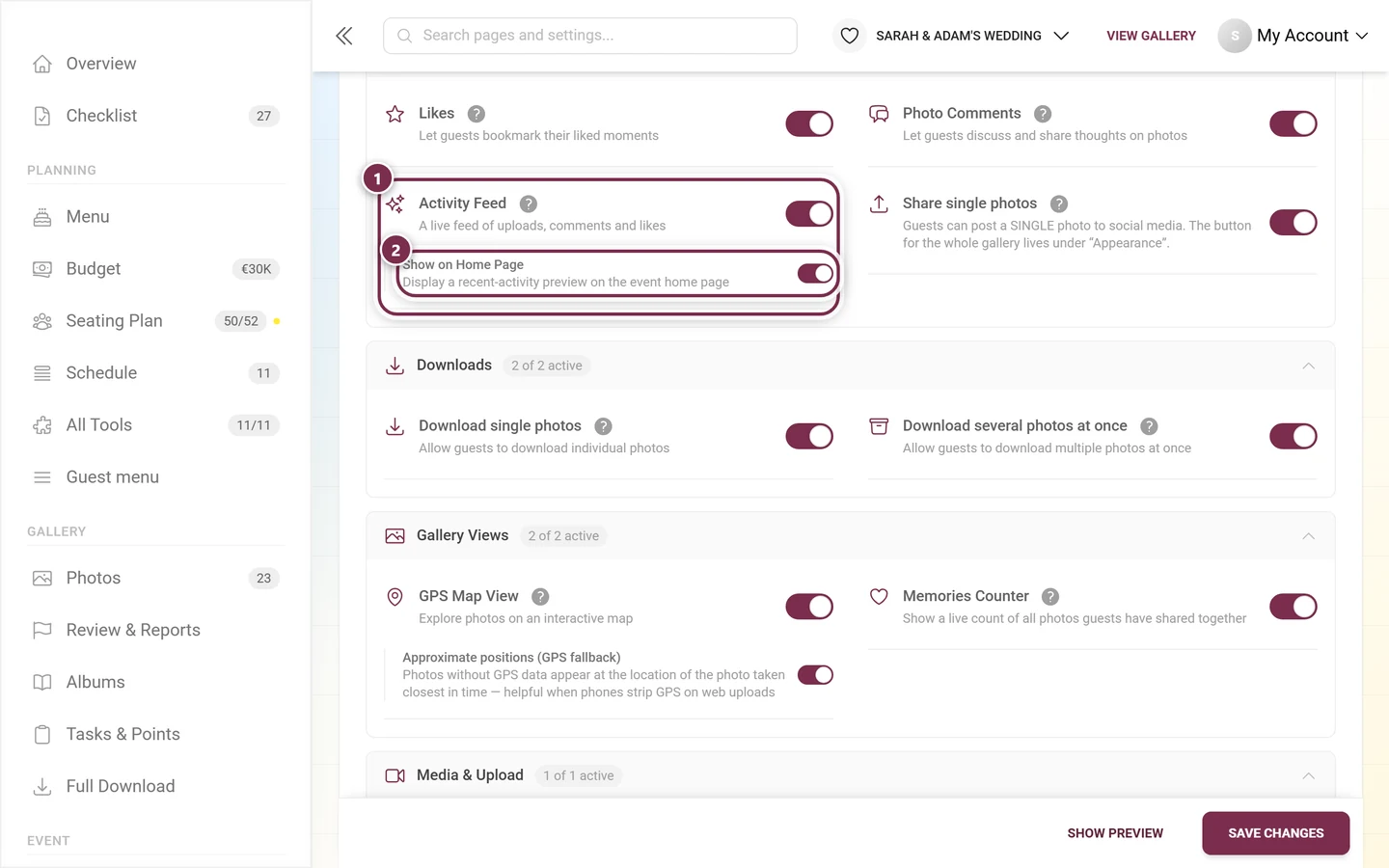
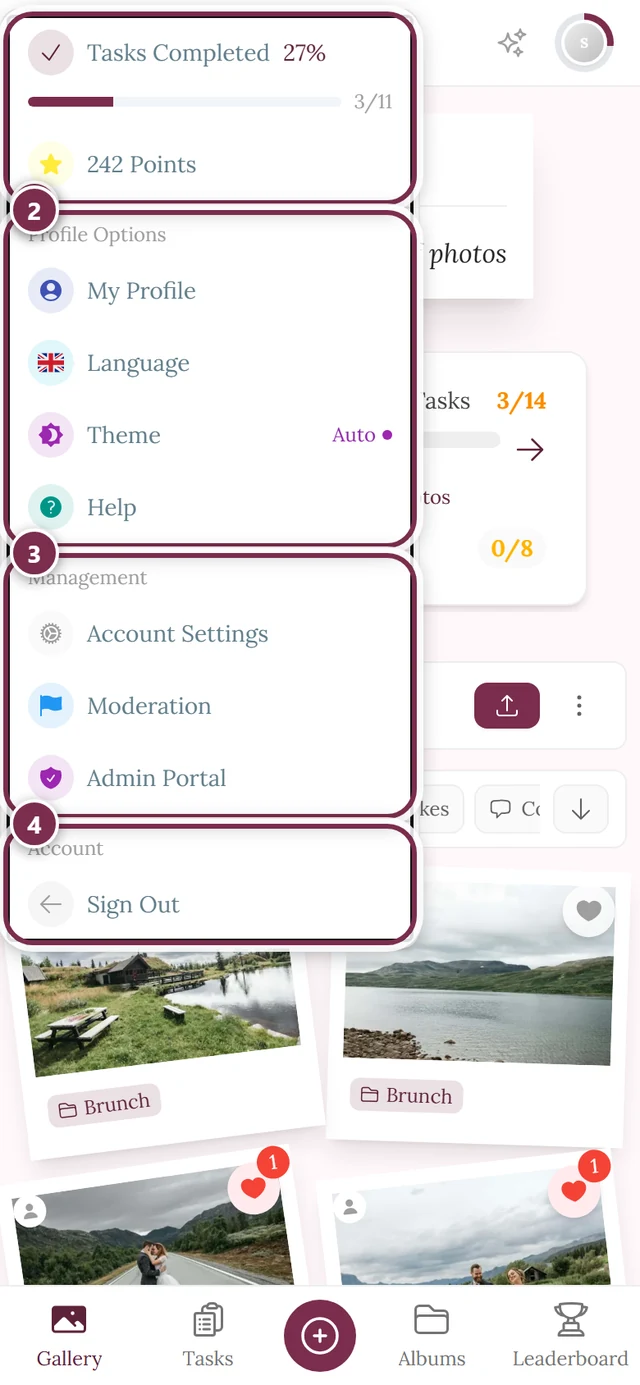
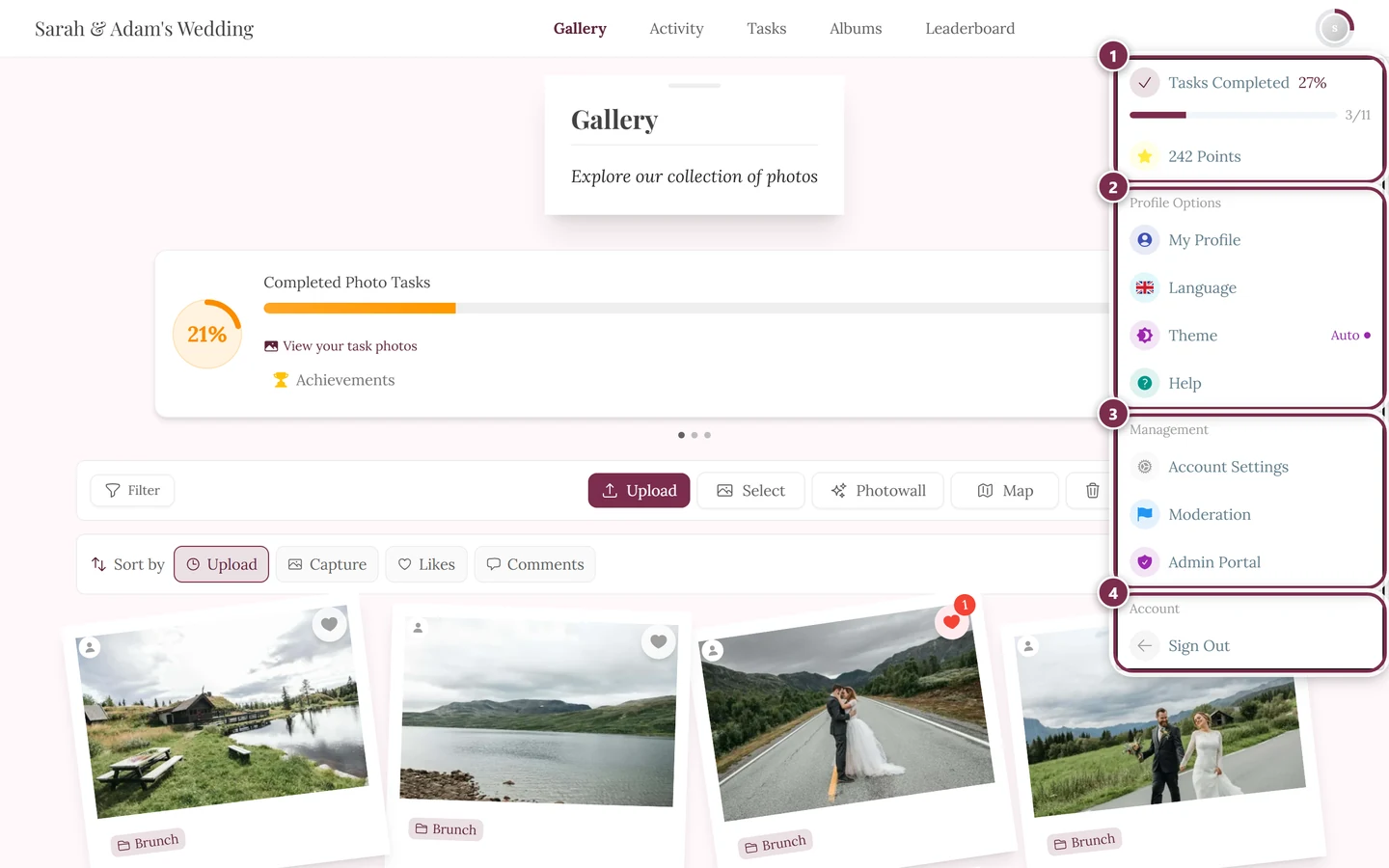
For hosts and moderators: Open the profile menu at the top right and switch to the admin portal. There you’ll find the setting under Settings → Features, in the Interaction & Engagement section, in the Activity Feed card. Below it sits the sub-toggle Show on Home Page for the preview; it only takes effect when the feed itself is on.
Role differences
Section titled “Role differences”- Guests see all events visible to them. What you see depends on the event’s visibility settings – you only see activity for content that’s been shared with you.
- Hosts and moderators see the same feed and additionally have access to the feature toggle to turn the feed and the home-page preview on or off.
Related topics
Section titled “Related topics”- Uploading photos – fills the feed with new photos
- Like & comment
- Slideshow
- Albums
- Photo tasks
- Points & rewards
- Notifications
- For hosts: Feature settings