Custom domain & white-label
By default your gallery runs on a Photogala address. In the White-Label tab you turn it into something of your own: a free custom subdomain, your fully own domain, your own email sender domain, and a consistent brand experience (custom loading screen, custom browser tab icon, hiding the Powered-by note).
So “custom domain” is only one building block of a larger area. This guide walks you through the entire White-Label tab.
How to reach the White-Label tab
Section titled “How to reach the White-Label tab”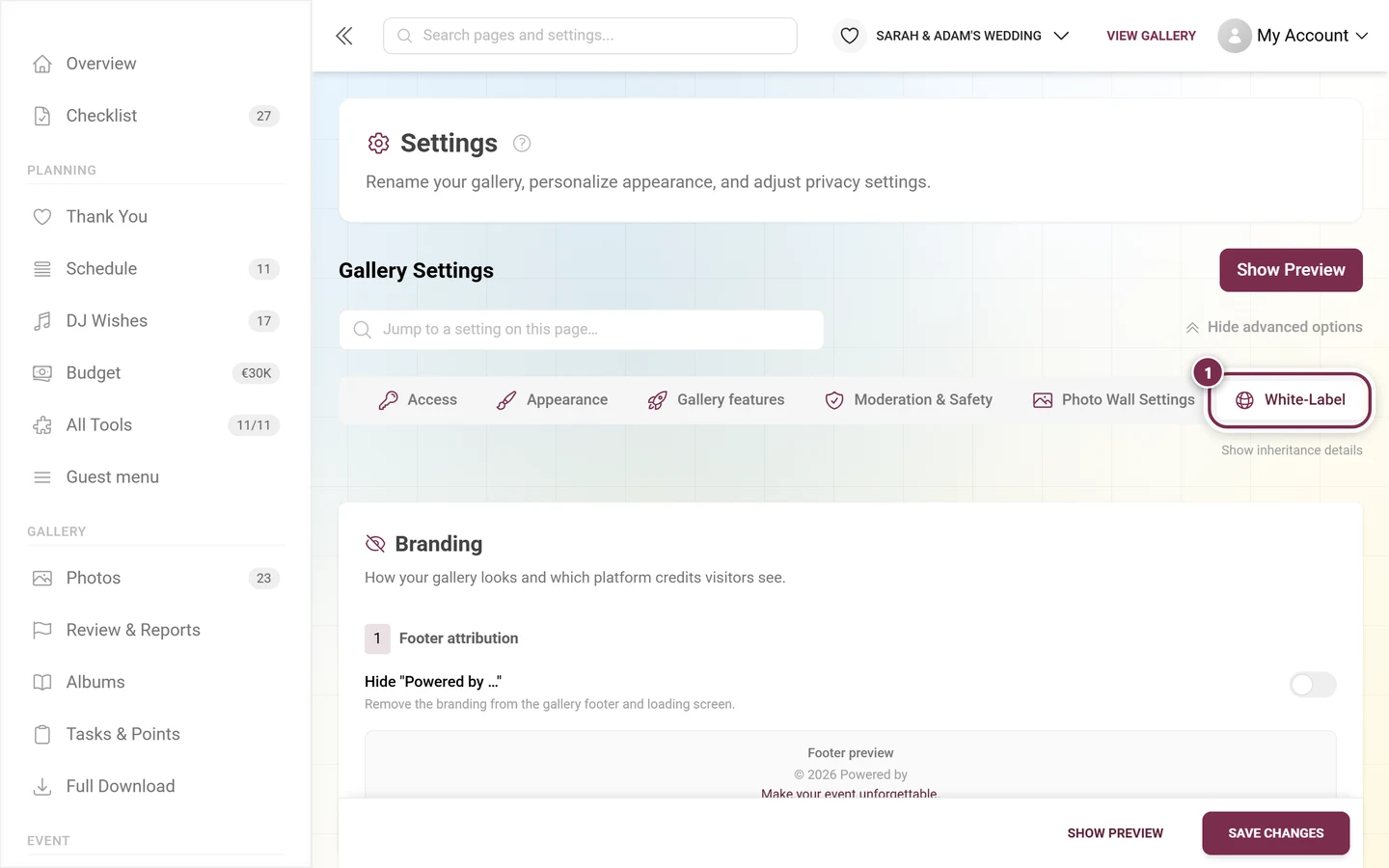
-
Open the profile menu at the top right and choose Management → Admin portal to enter your event’s admin area.
-
Open Settings and switch to the White-Label tab (globe icon). It sits next to General, Access, Image Quality, Appearance, Gallery features, Moderation & Safety, Photo Wall Settings and Live Upload.
-
The tab has three areas top to bottom: Branding, Your Gallery URL, and the collapsed Legal documents section. Which ones you see depends on your plan and — for partner-managed events — on your partner’s permissions.
Area 1 — Branding
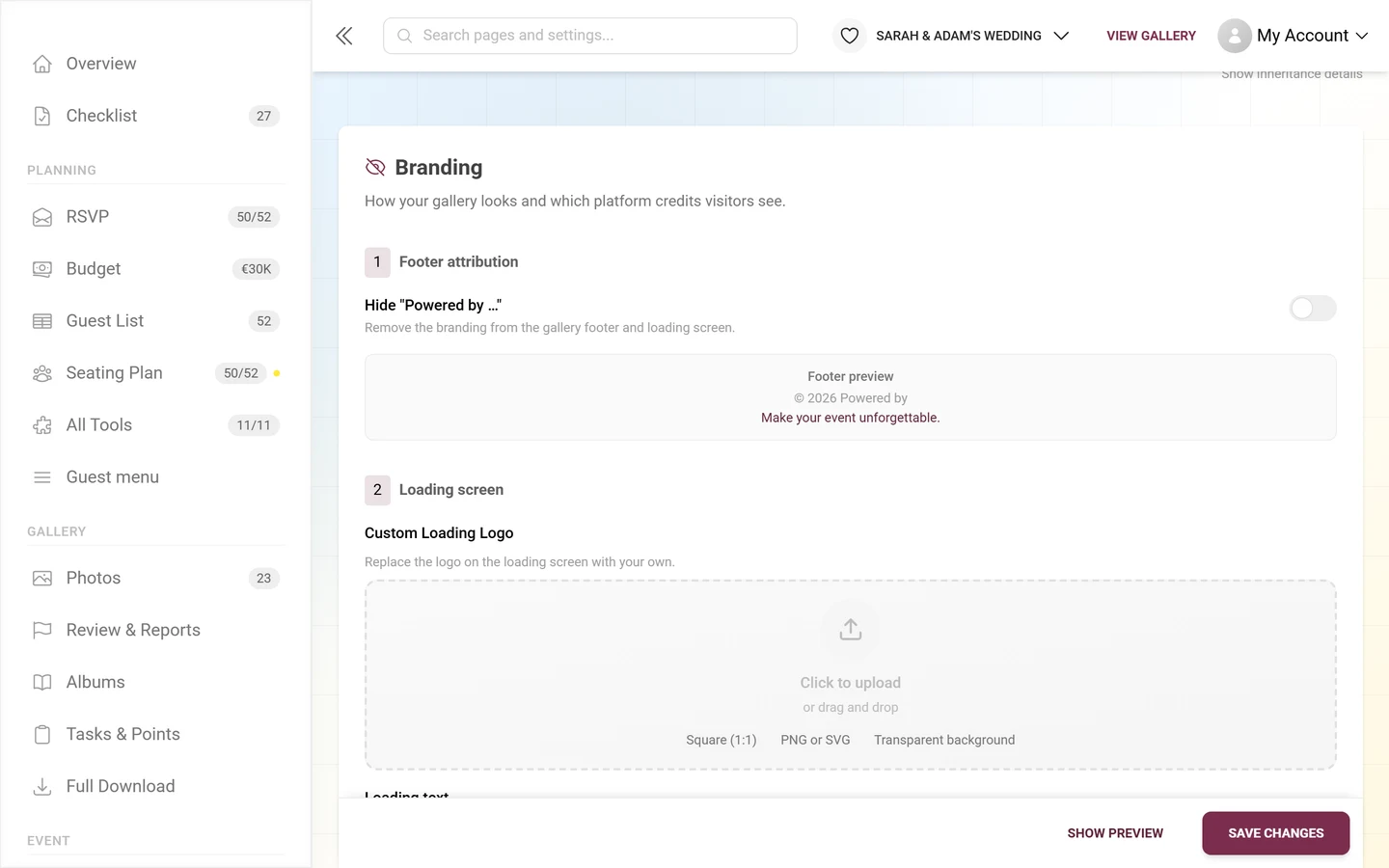
Section titled “Area 1 — Branding”The top of the tab is headed Branding with the subtitle “How your gallery looks and which platform credits visitors see.”
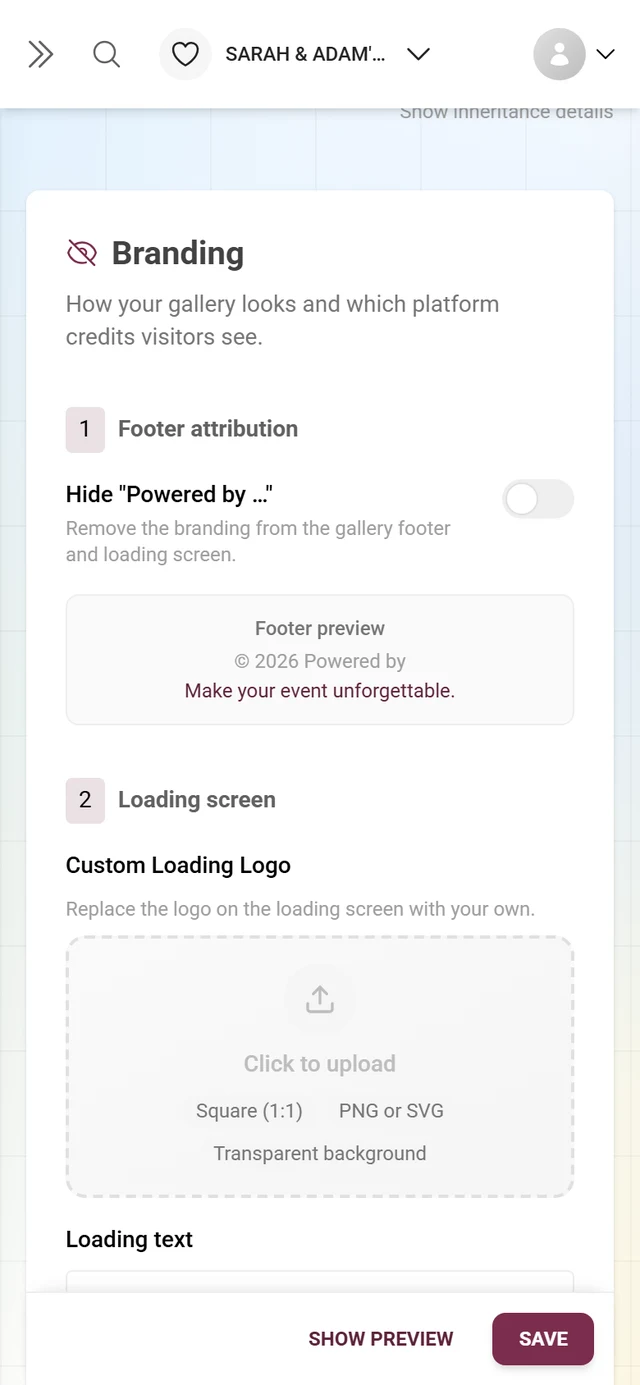
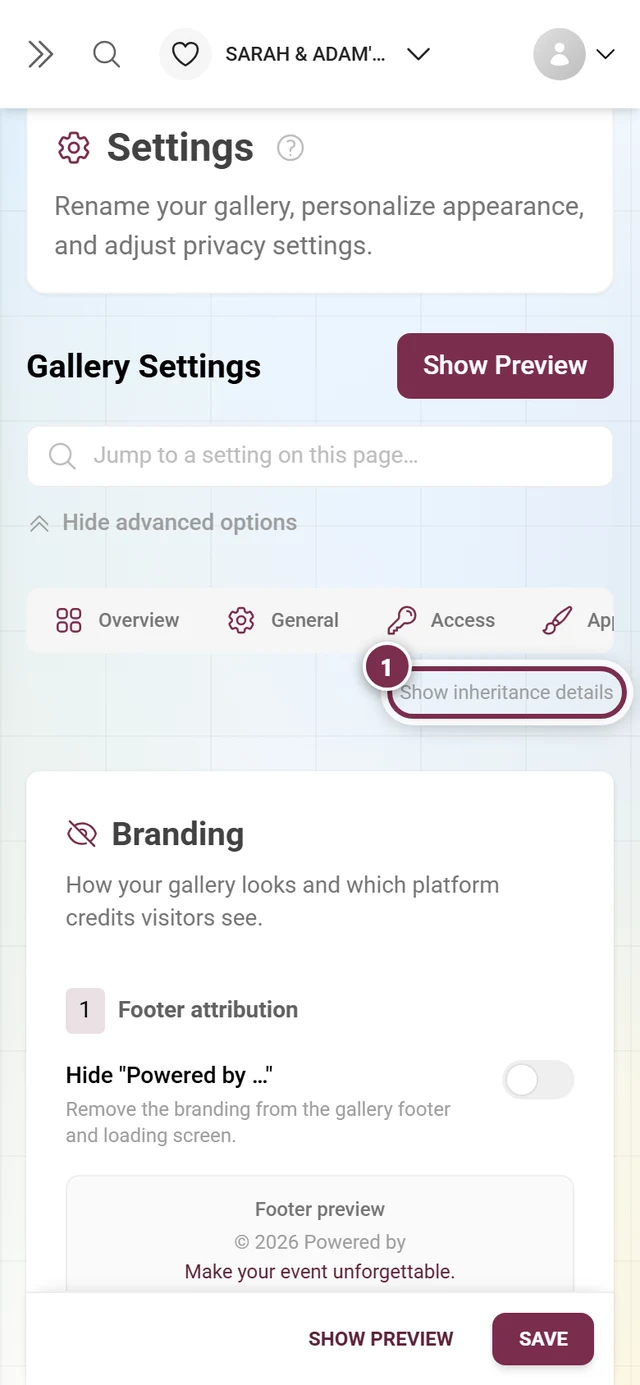
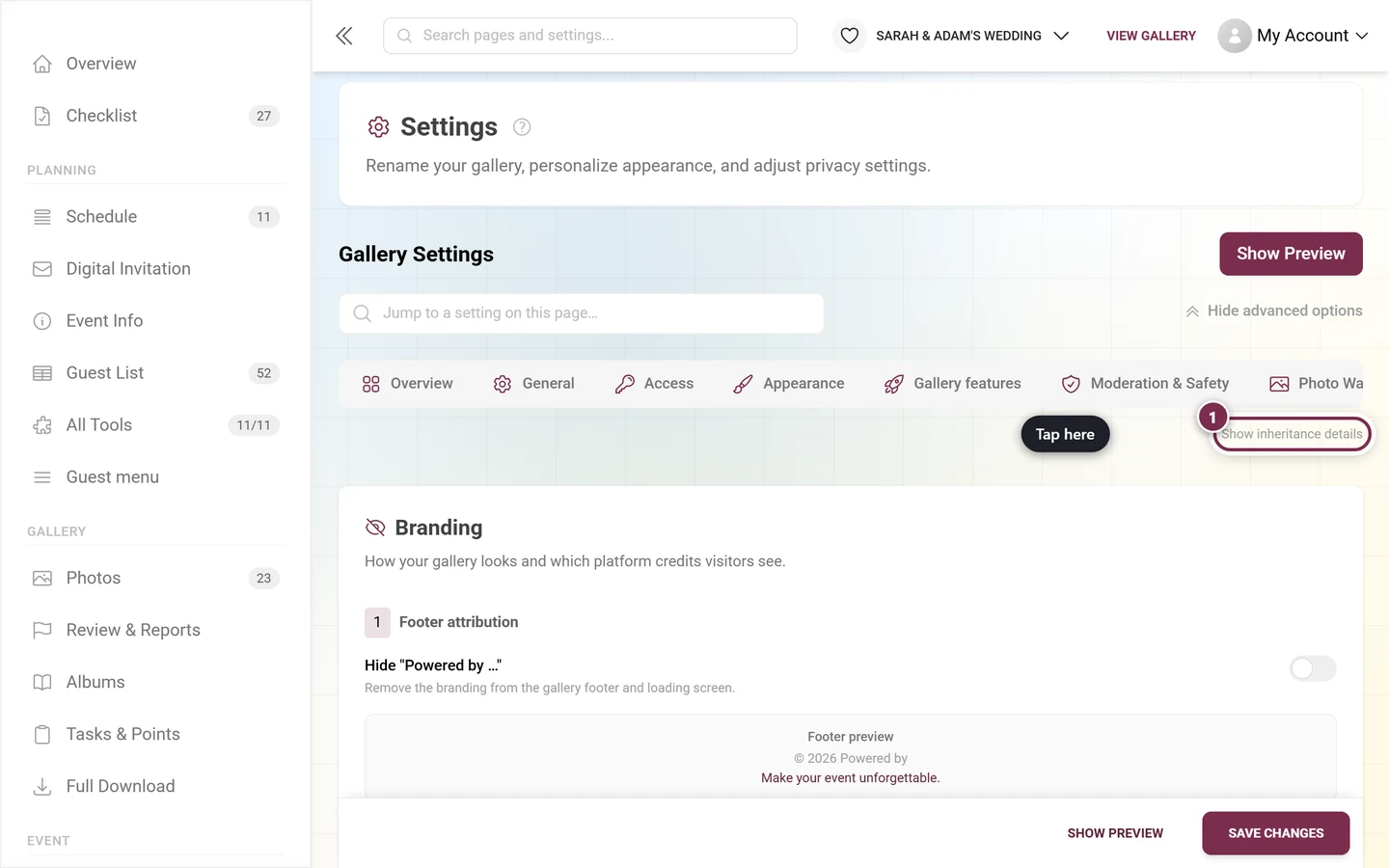
At the top right of the tab there’s a Show inheritance details / Hide inheritance details toggle. On partner-managed events it reveals source badges (from Brand / overridden) so you can see which values are inherited from your partner and which are overridden locally. On standalone events you rarely need it.
1 — Footer attribution
Section titled “1 — Footer attribution”The first numbered block is called Footer attribution. The toggle inside it reads Hide “Powered by Photogala” and removes the note from the footer and the loading screen. On partner-managed events it reads Hide “Powered by …” with your partner brand’s name instead, and its description becomes “Fully white-label: visitors won’t see any platform or agency attribution in the footer.”
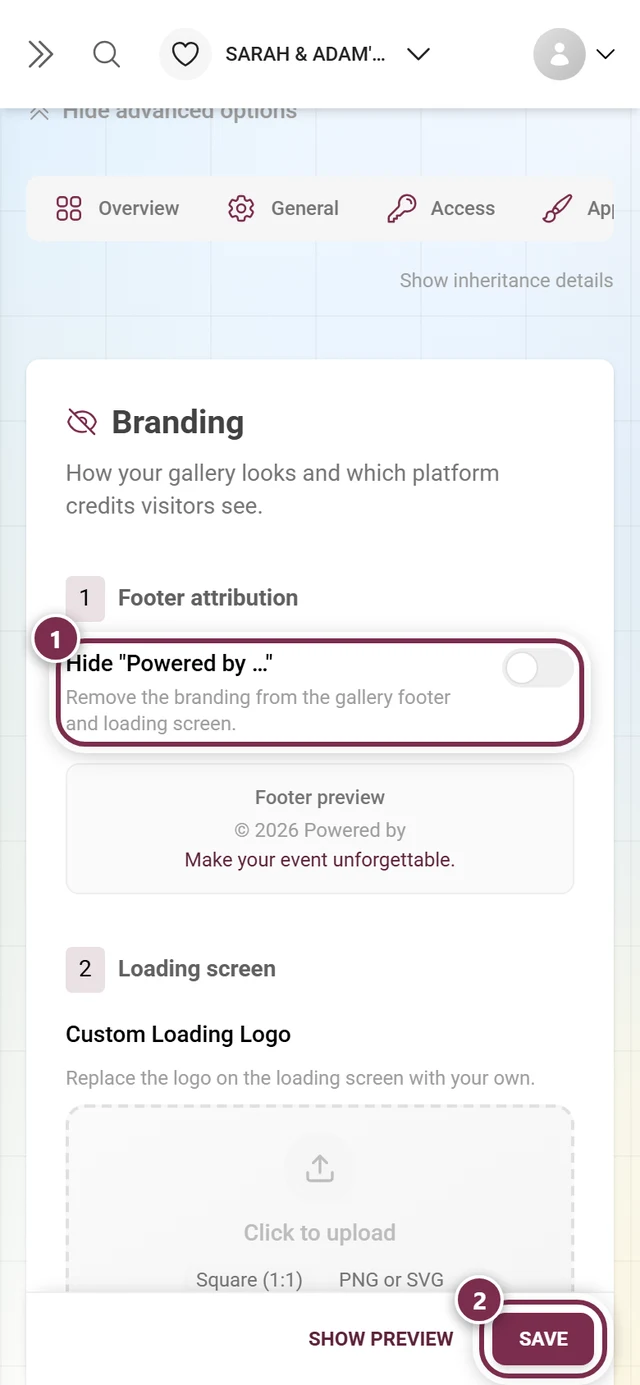
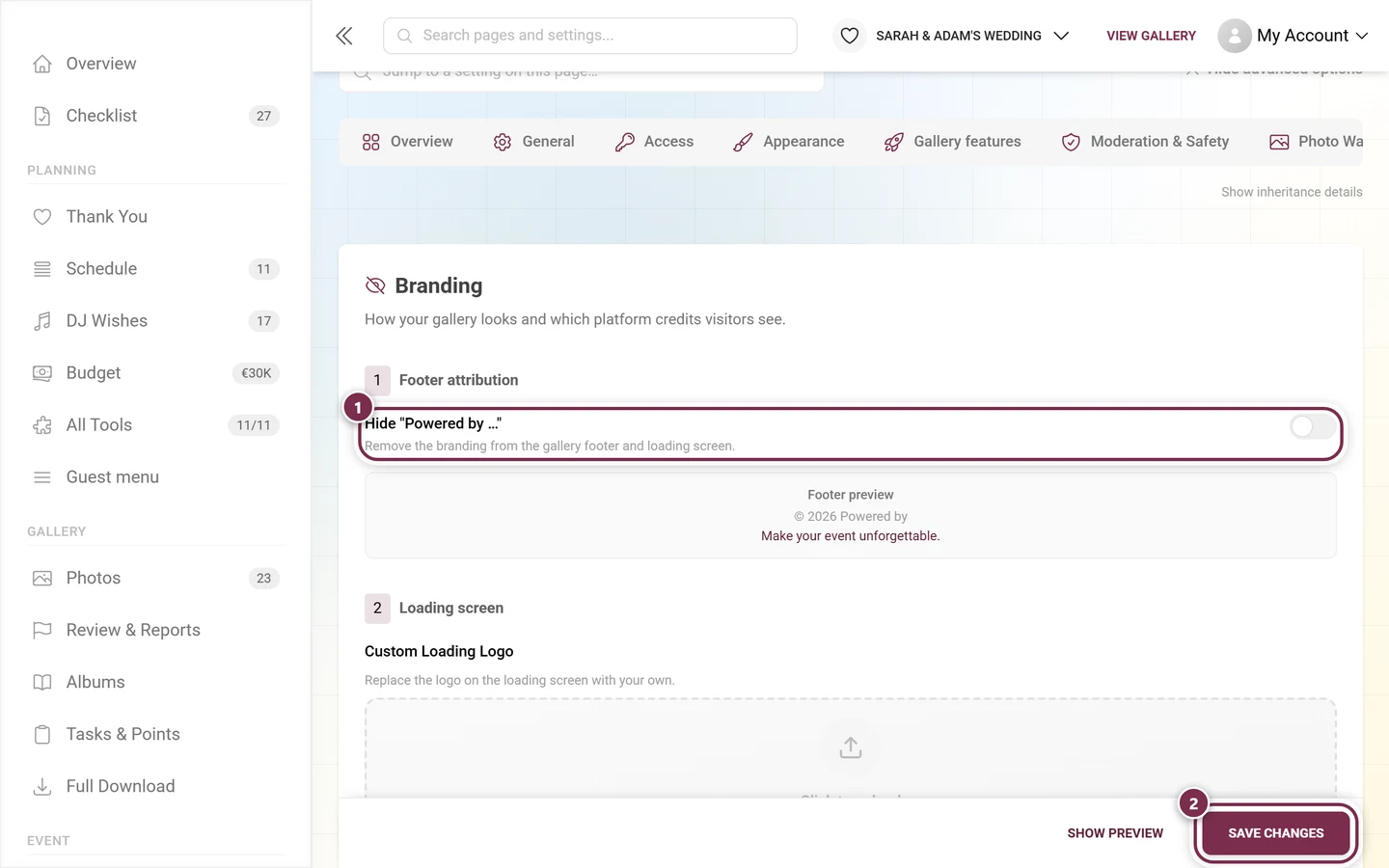
Right below it the Footer preview shows live what visitors will see. With the toggle on, only the year line remains (“© 2026”). With it off you get two lines: the year line with the Powered-by note and a short platform tagline underneath.
If your partner has locked this toggle, it’s hidden — only the preview remains, and you can’t remove the branding yourself.
2 — Loading screen
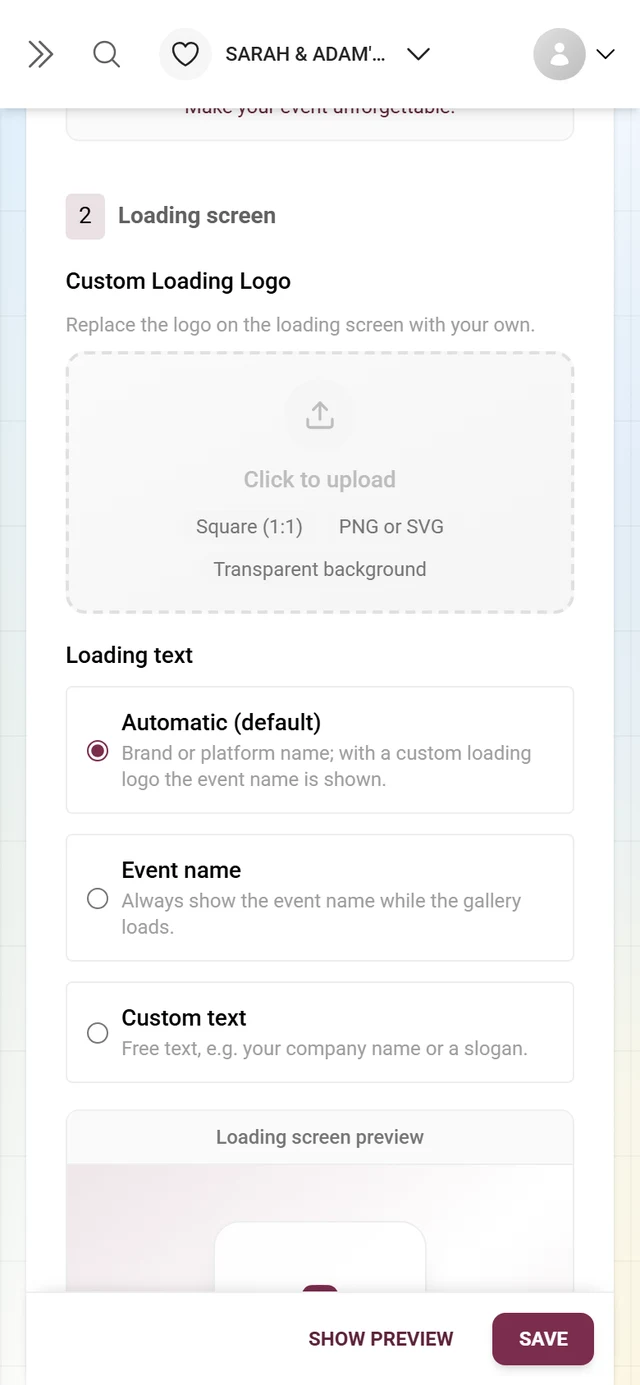
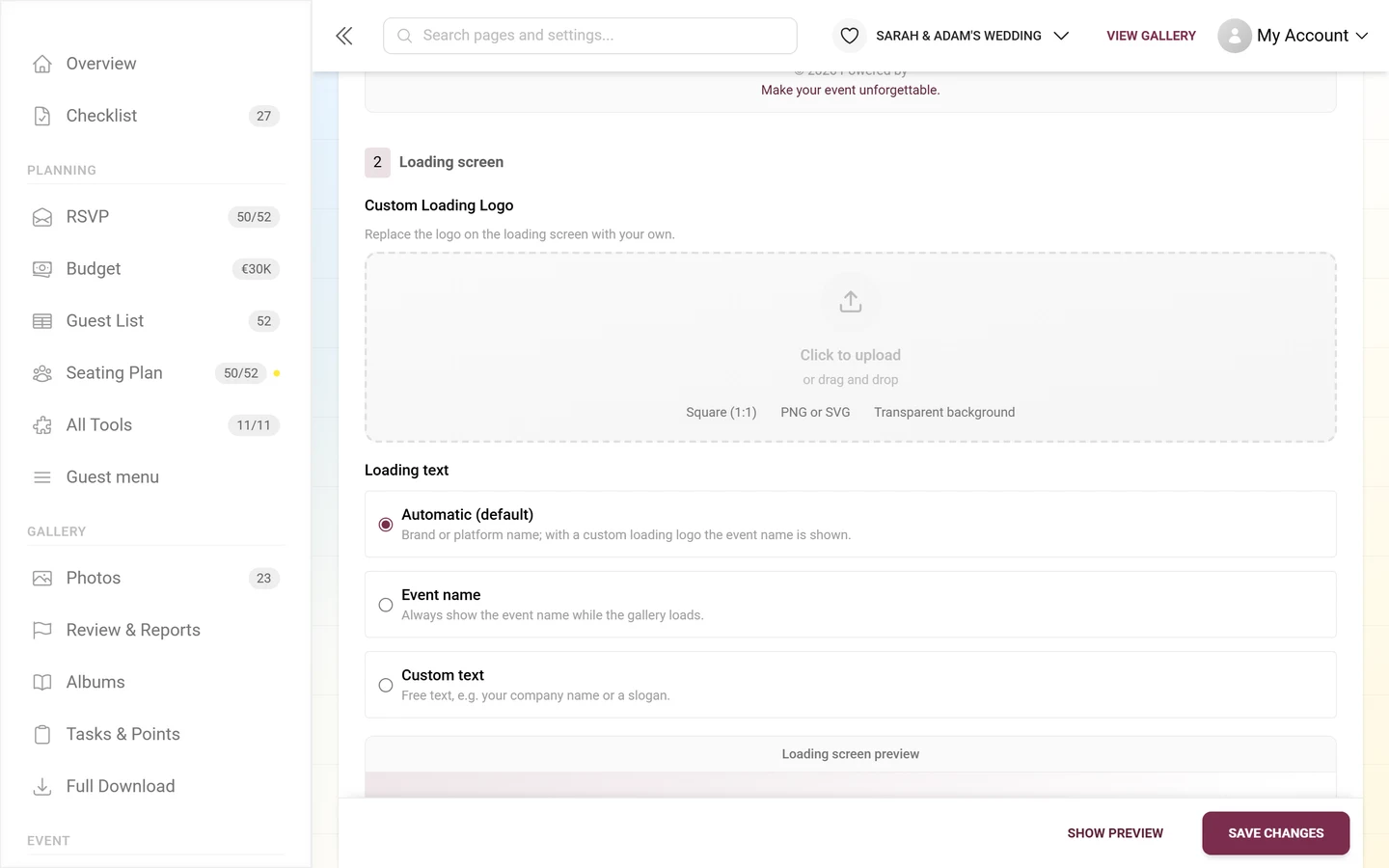
Section titled “2 — Loading screen”The second block is called Loading screen and it is more than a logo: it has three parts — logo, loading text and a live preview. This is where most people look in the wrong place, because the loading text does not live under “Style”, it lives here.
Custom Loading Logo
- The field description reads “Replace the Photogala logo on the loading screen with your own.”
- Drag a file into the drop zone or click to choose one.
- The recommendations shown are Square (1:1), PNG or SVG and Transparent background.
Loading text
Under the heading Loading text you pick with a radio button which large line appears while the gallery loads:
- Automatic (default) — “Brand or Photogala name; with a custom loading logo the event name is shown.” So without a custom loading logo you get the brand or platform name, with one you get the event name.
- Event name — “Always show the event name while the gallery loads.” Regardless of whether a logo is set.
- Custom text — “Free text, e.g. your company name or a slogan.” Only this choice reveals a free-text field below it (placeholder “e.g. Your Company Name”, at most 100 characters).
Loading screen preview
At the bottom of the block sits the Loading screen preview box. It mocks up the real loading screen and follows your current, still unsaved draft, so you see immediately how logo and text work together:
- Logo: your draft logo, otherwise the saved event or brand logo, otherwise the brand icon, otherwise the default camera icon.
- Text: depending on the mode your free text, the event name, or the automatic value.
- Background: a gradient from your event’s primary and accent color (see Customizing the look).
The whole loading-screen block disappears if your partner has locked logo changes.
Browser tab icon (favicon)
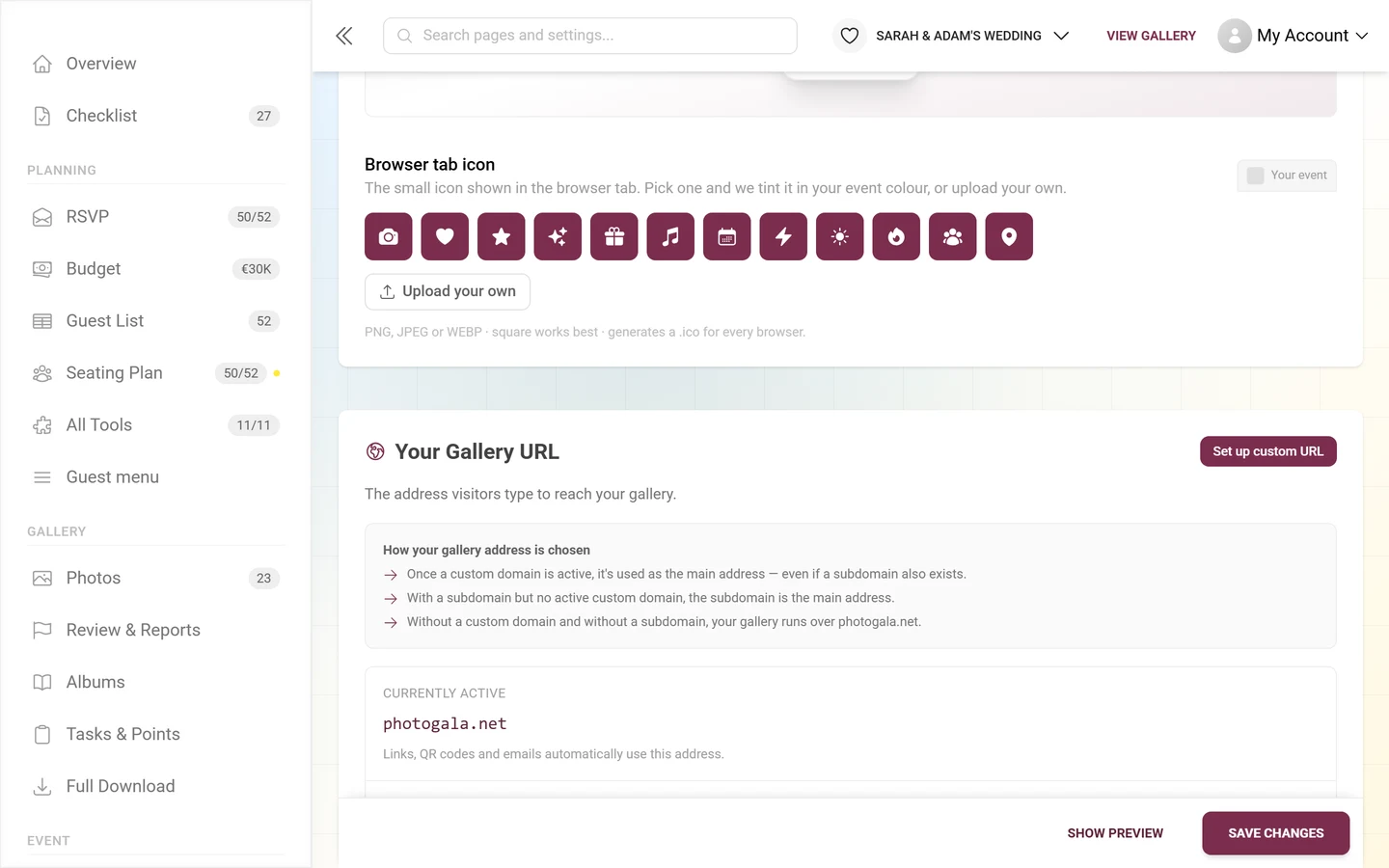
Section titled “Browser tab icon (favicon)”Under Browser tab icon you set the small symbol that appears in the browser tab next to the title. The description reads: “The small icon shown in the browser tab. Pick one and we tint it in your event color, or upload your own.” You have two options:
- Pick a preset glyph: a grid of twelve symbols (camera, heart, star, sparkles, gift, music, calendar, bolt, sun, fire, people, pin), each tinted in your event’s primary color. One click generates a clean icon.
- Upload your own: choose your own file. PNG, JPEG and WEBP up to 5 MB are accepted; empty files and other formats are rejected with a message.
Next to the heading a live preview shows the icon as a mini browser tab. If an icon is already set, Remove appears. The note Will be applied when you save. means the icon is only uploaded with Save Changes. Below it a permanent hint reads “PNG, JPEG or WEBP · square works best · generates a .ico for every browser.”
Area 2 — Your Gallery URL
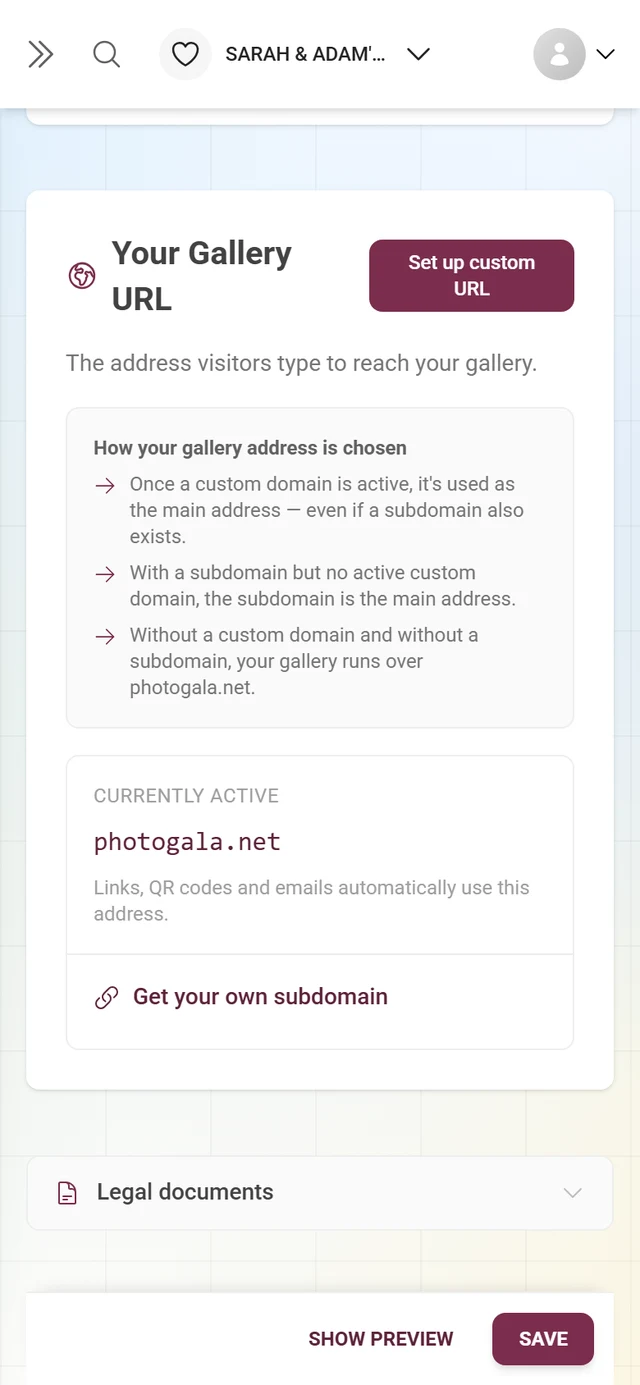
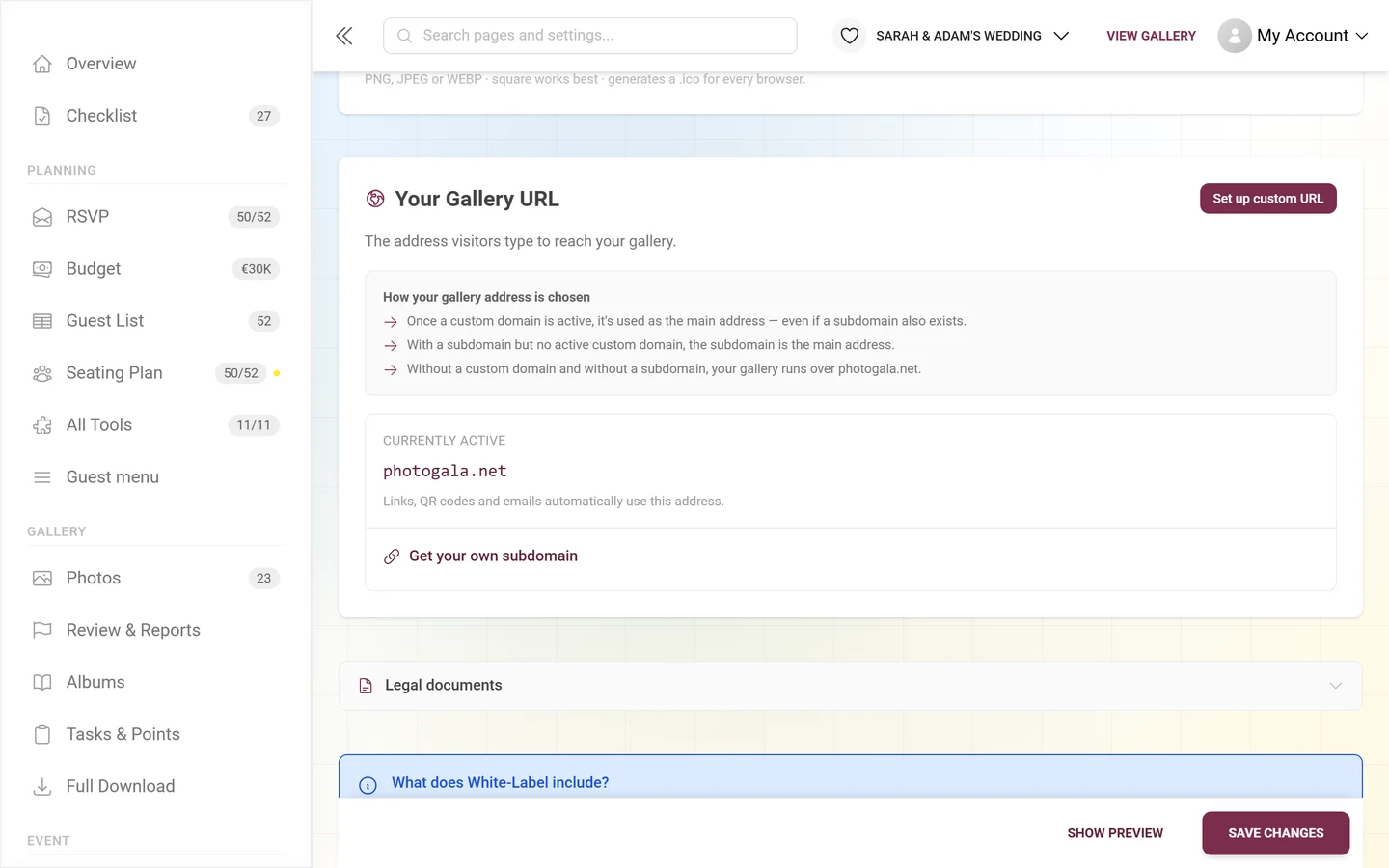
Section titled “Area 2 — Your Gallery URL”The heart of this guide. Under the heading Your Gallery URL it says “The address visitors type to reach your gallery.”
How your gallery address is chosen
Section titled “How your gallery address is chosen”An explainer block How your gallery address is chosen sums up the priority rule. Remember it, or you’ll be puzzled about which address is active:
- Custom domain wins. “Once a custom domain is active, it’s used as the main address — even if a subdomain also exists.”
- Subdomain with no active custom domain. “With a subdomain but no active custom domain, the subdomain is the main address.”
- Neither. “Without a custom domain and without a subdomain, your gallery runs over photogala.net.”
Status overview
Section titled “Status overview”Below it you see the current state as read-only rows:
- Currently active — the actually active address. The hint below reads “Links, QR codes and emails automatically use this address.”
- Quick subdomain — if set, with Change and Remove (Remove asks for confirmation). Remove only appears for event-owned subdomains; partner-issued subdomains are released in the partner area.
- Custom domain — if set, with a status badge, Manage (opens the wizard), and Remove domain.
- Email Sender Domain — if set, with a status badge and Remove email domain.
Set up or change the address
Section titled “Set up or change the address”-
At the top right of the URL area, click Set up custom URL (if nothing is configured yet) or Change URL (if a subdomain or domain already exists). This opens the Set up your gallery URL wizard.
-
The wizard guides you through setup in up to three steps (see below). For a subdomain you’re done in seconds; for your own domain you add a DNS record and verify it.
-
If nothing is set up yet but a subdomain is available, you’ll also see a Get your own subdomain link, which likewise opens the wizard.
The wizard “Set up your gallery URL”
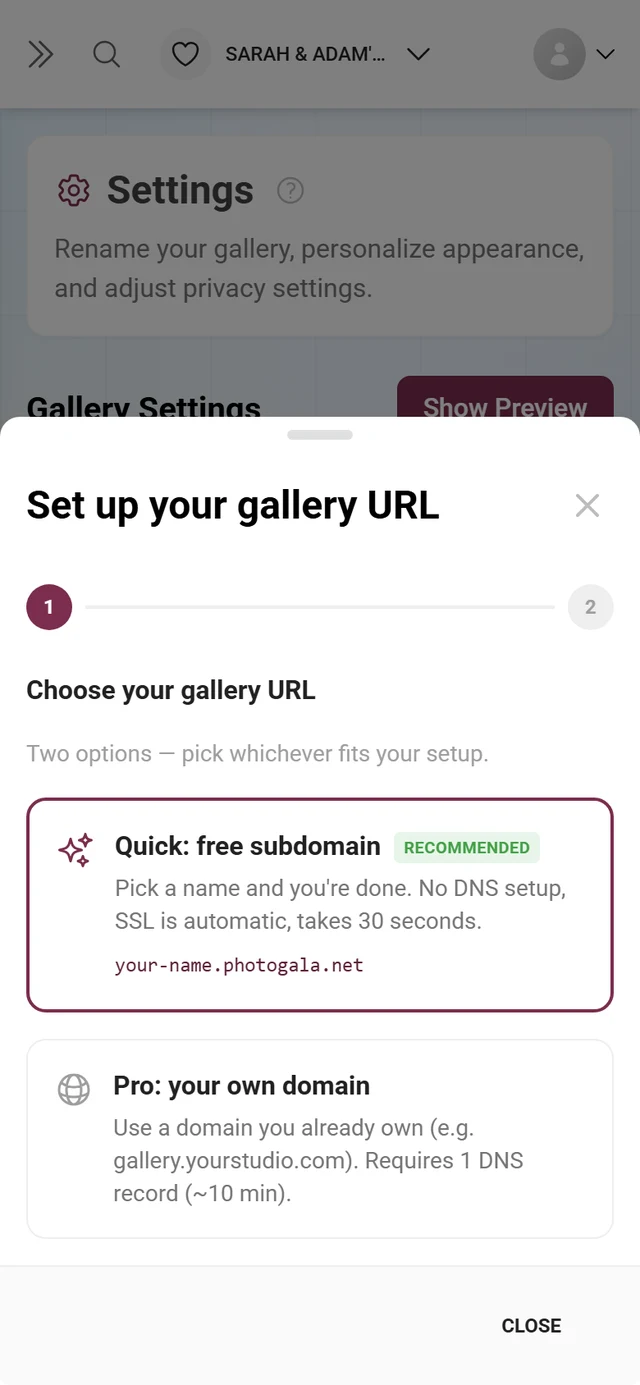
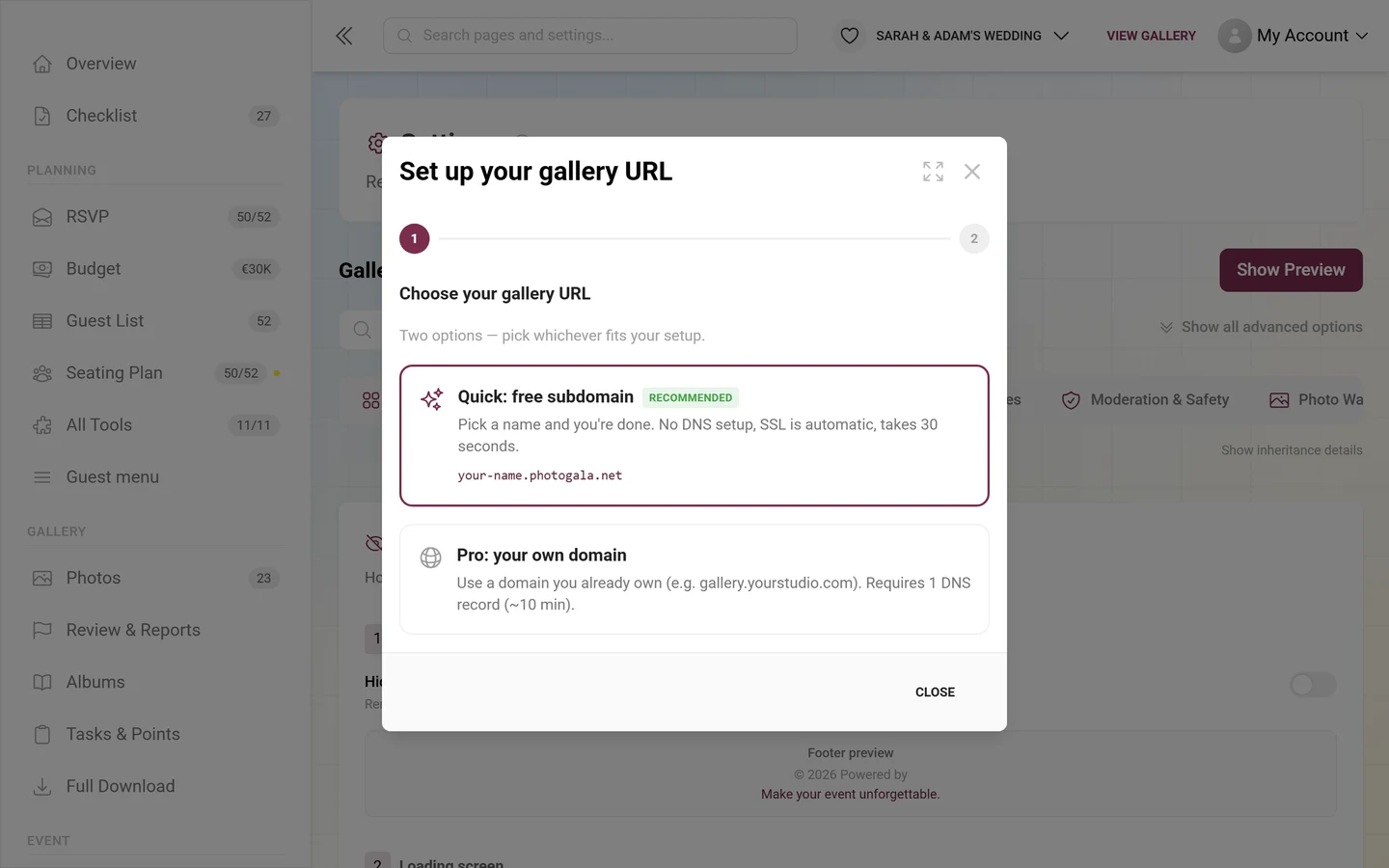
Section titled “The wizard “Set up your gallery URL””The wizard has a step indicator at the top (1 → 2 → 3) and Back and Close buttons at the bottom.
Step 1 — Choose your path
Section titled “Step 1 — Choose your path”Heading Choose your gallery URL, below it “Two options — pick whichever fits your setup.” There are two large option cards:
- Quick: free subdomain — with a Recommended badge. “Pick a name and you’re done. No DNS setup, SSL is automatic, takes 30 seconds.” Below it a preview in the form
your-name.domain. - Pro: your own domain — “Use a domain you already own (e.g. gallery.yourstudio.com). Requires 1 DNS record (~10 min).”
Step 2a — The subdomain path
Section titled “Step 2a — The subdomain path”-
Enter your desired name in the Subdomain name field (placeholder
your-name). Only lowercase letters, digits and hyphens are allowed, at least 3 characters — otherwise the wizard reports “Only lowercase letters, digits, dashes” or “Subdomain must be at least 3 characters”. -
If several wildcard domains exist, pick the one you want from the list on the right; otherwise it’s fixed.
-
The live preview Your gallery will be at: shows the finished address.
-
Click Claim subdomain at the bottom. After the “Subdomain assigned!” confirmation the wizard closes. No DNS is needed, SSL is automatic.
Step 2b — The custom domain path
Section titled “Step 2b — The custom domain path”-
In the Your domain field, enter the domain to use (placeholder
gallery.yourstudio.com). Invalid input is rejected with “Please enter a valid domain”. -
Optional: enable Also set up email sender (recommended). Event emails then come from a
noreply@address on your domain instead of the default address, and three more DNS records (MX, SPF, DKIM) become required. -
With the email option on, two fields appear: Email domain (default = the apex of your gallery domain, so
studio.comforgallery.studio.com) and Sender name (optional) (the “From” name in emails; it defaults to your brand name). -
Click Next: DNS setup to move to step 3.
Step 3 — Set up DNS (custom domain path only)
Section titled “Step 3 — Set up DNS (custom domain path only)”-
The subtitle names common providers (Cloudflare, GoDaddy, Namecheap). Open the DNS area at your provider.
-
Copy the values from the yellow DNS table with the columns Type, Name and Value:
- CNAME for a subdomain (recommended), Value = the shown CNAME target.
- A for a root or apex domain, Value = the shown server IP.
Add either CNAME or A — not both. SSL is issued automatically once DNS resolves; no extra records needed.
-
If you chose the email option, also copy the entries from the Email DNS records box (MX, SPF, DKIM). The DKIM key is generated per domain — copy the exact values from the table. While they are still being generated, a hint appears instead of the table.
-
Click I’ve added the record — verify. On success a green Your domain is live! appears and the wizard closes shortly after. If verification fails, a red “DNS not yet propagated. This can take up to a few minutes — try again shortly.” appears with a 15-second countdown, after which it rechecks automatically — up to eight times, after that only on click. At the foot there’s the tip “DNS usually propagates within 5 minutes. Coffee break?”
DNS configuration outside the wizard
Section titled “DNS configuration outside the wizard”If a domain is on file but not yet active, the URL area shows the same information directly as a yellow DNS Configuration Required box with the Type/Host/Value table and a Verify DNS button (Verifying… while it runs). Success reports “DNS verified successfully!”, otherwise “DNS verification failed”. Likewise, an inactive email domain shows an Email DNS Configuration Required box with Verify Email DNS.
Area 3 — Legal documents
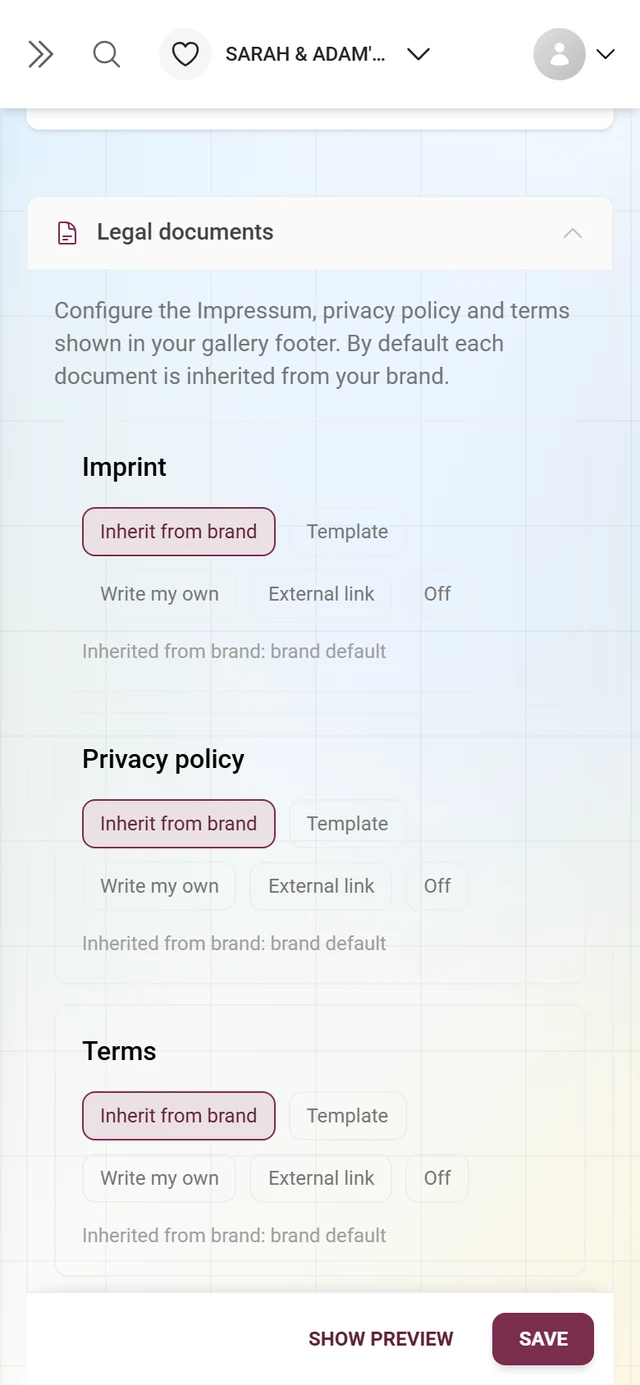
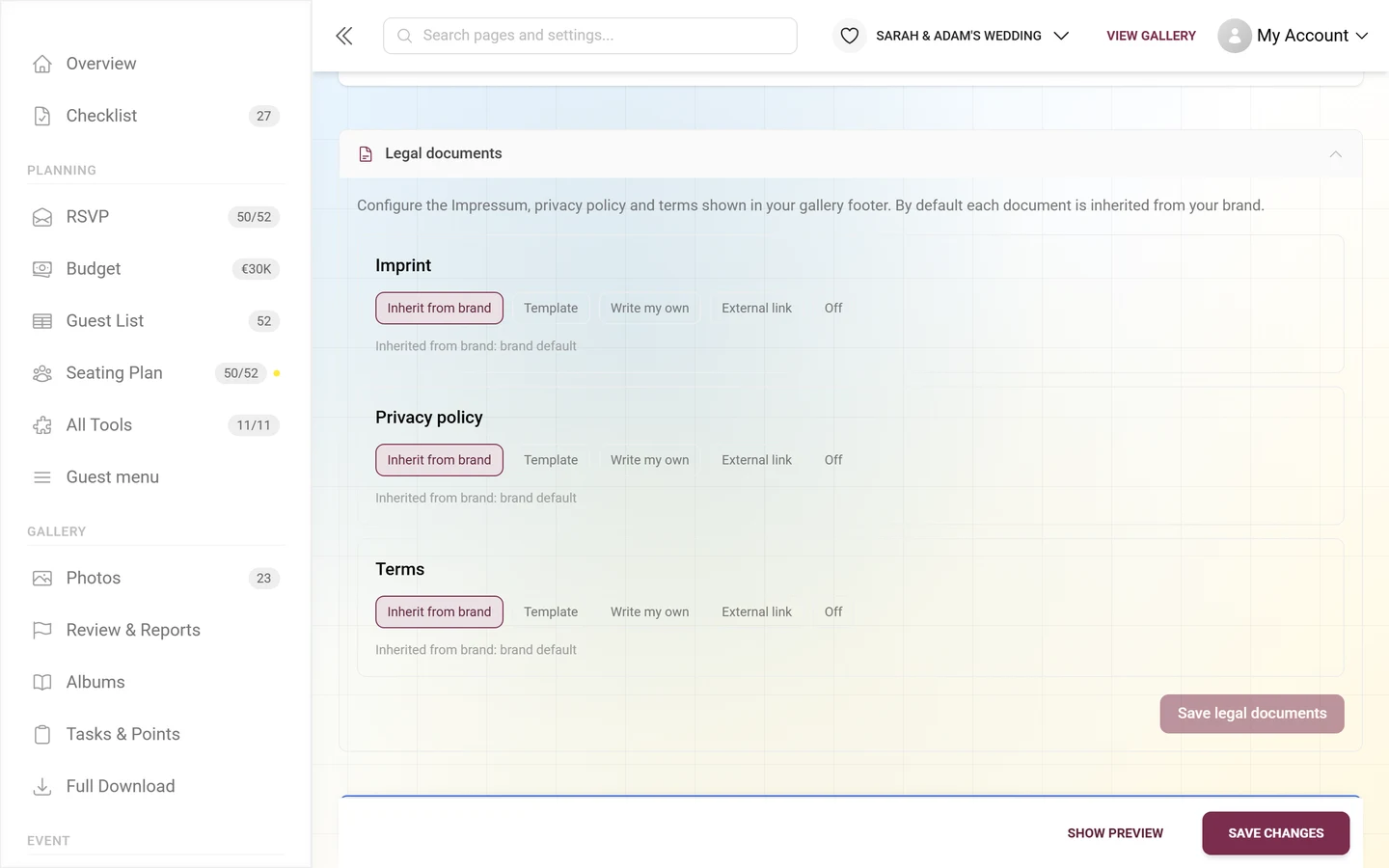
Section titled “Area 3 — Legal documents”At the very bottom of the tab sits the collapsed Legal documents section (document icon). Only after clicking its header do you see the three cards Imprint, Privacy policy and Terms. For each document you pick a mode: Inherit from brand, Template, Write my own, External link or Off. This section has its own save button (Save legal documents), separate from the global save.
Details are in the dedicated guide → Legal pages.
Host event or partner brand?
Section titled “Host event or partner brand?”This page describes what you can configure as a host for your own event. That is different from the partner/reseller area: there a partner manages a brand with its own domain, its own default design and central legal documents for many events at once.
- Your event is standalone: everything on this page is yours. You set the subdomain or domain, the loading screen, the tab icon and the legal documents yourself.
- Your event is partner-managed: many values are inherited from the brand. The partner can lock individual areas — locked blocks are simply hidden. Whatever you still change counts as overridden (visible via Show inheritance details).
- You are the partner setting up a brand, its domain or its default design: that belongs in the partner area → Reseller basics.
Who sees what (roles & permissions)
Section titled “Who sees what (roles & permissions)”- The White-Label tab only exists with the “custom domain” or “white-label” plan features.
- The Branding area appears only with white-label.
- The URL area is always visible on standalone events; on partner-managed events only if your partner has enabled the domain settings.
- The Powered-by toggle, loading screen and tab icon can be locked by your partner — they’re then hidden. Loading screen and tab icon share the same permission and disappear together.
- The legal documents appear on partner-managed events only with the matching permission.
- Remove for a domain, subdomain or email domain exists only for event-owned resources, not partner-managed ones.
- In practice the owner works here; moderators usually have no access to settings.
Troubleshooting & edge cases
Section titled “Troubleshooting & edge cases”- I can’t find the loading text. It isn’t in the Style tab, it’s in the White-Label tab inside the Loading screen block under the heading Loading text. The Jump to a setting on this page… field finds it as Loading Screen (Logo & Text).
- The free-text field is missing. It only appears once you have selected Custom text.
- DNS takes time. Propagation often takes a few minutes, occasionally longer. Verify multiple times — the wizard also retries on its own.
- CNAME or A — not both. Subdomain (
gallery.your-domain.com) → CNAME to the shown target. Root/apex (your-domain.com) → A record to the shown server IP. - The A record shows no value. It only appears after you save the domain.
- SSL is automatic — no manual certificate, no extra records.
- Email DNS is separate. MX + SPF + DKIM; the DKIM key is unique per domain. Email verification does not block the gallery domain.
- Removing redirects for 30 days. After removing a domain or subdomain, old links redirect to the default address for 30 days, then they stop working. You can set it up again anytime.
- Mind the priority rule. An active custom domain overrides the subdomain as the main address.
- Tab icon and loading logo only take effect with “Save Changes”, not immediately.
Best-practice tips
Section titled “Best-practice tips”- For most hosts the free subdomain is enough — no DNS, SSL automatic.
- A custom domain pays off mainly for photo studios and brands with an existing domain.
- Where possible pick a subdomain over root (
gallery.your-domain.com) — that’s a simple CNAME instead of an A record. - Configure the email sender domain too, so event emails with clean SPF and DKIM don’t land in spam.
- For a complete white-label look: hide the Powered-by note, set your own loading logo, choose the Loading text deliberately, and add a square, high-contrast tab icon.
- Set up DNS early (before the event), so propagation and SSL finish in time.
Related topics
Section titled “Related topics”- Legal pages — imprint, privacy and terms in the same tab.
- General settings — including the custom-URL slug (
@name) and other basic options. - Customizing the look — colors, logo and header of the gallery.
- Email notifications — matches your own email sender domain.
- Reseller basics — everything that belongs to a partner brand.
- Plan & term — if the White-Label tab is missing.