Sharing photos & the gallery
The more guests join in, the fuller and better the gallery gets – which makes sharing one of the most important ways to keep an event alive. This guide is written for guests and walks through every way in detail: passing on the whole gallery, sending a single photo, and what sharing an album really means.
The basic idea is simple: anyone who opens your link or QR code needs no account and no app and lands straight in the gallery. The share dialog says so too: “Anyone with this link can open the gallery.”
Share the whole gallery
Section titled “Share the whole gallery”The share button in the gallery header (main way)
Section titled “The share button in the gallery header (main way)”If the host has enabled it, a round share icon sits in the top right above the photo grid, labeled “Share gallery” for screen readers. On a computer it stands free at the right edge, level with the header card carrying the gallery title; on a phone it overlaps that card’s top right corner. You will not find it in the navigation bar at the very top. It opens the full share dialog with a QR code, a link, and direct buttons.
-
Open the gallery (the event home page) and look to the top right.
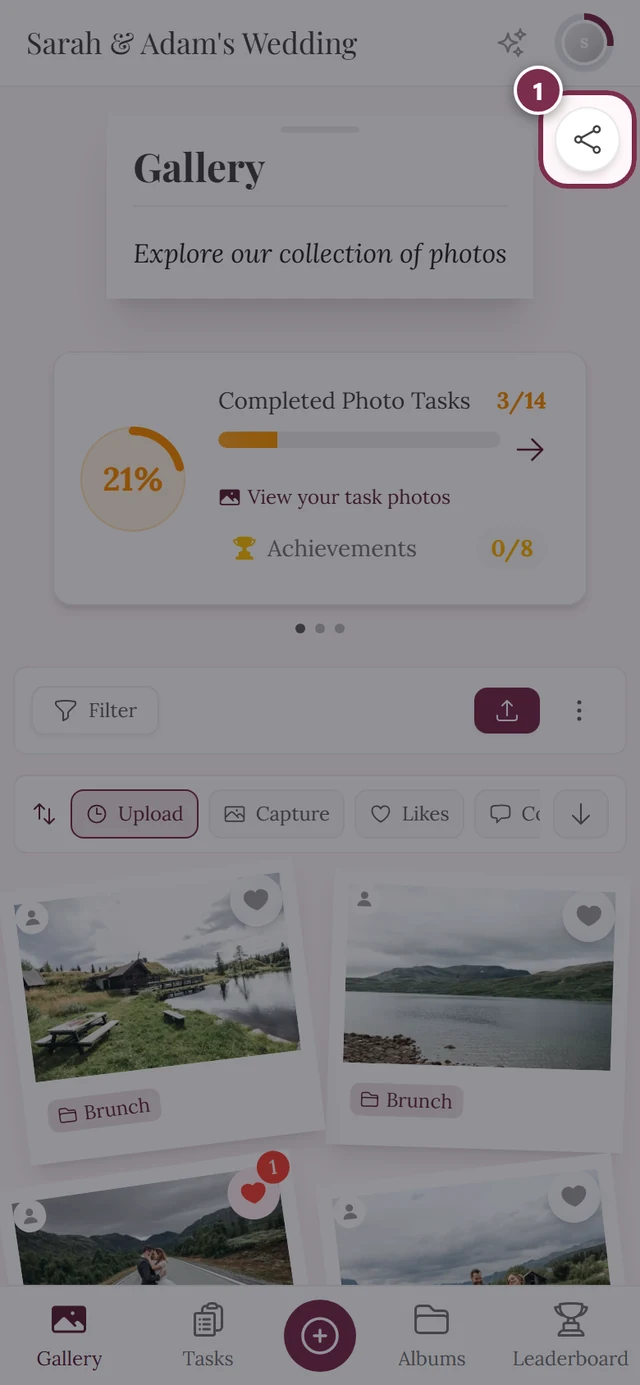
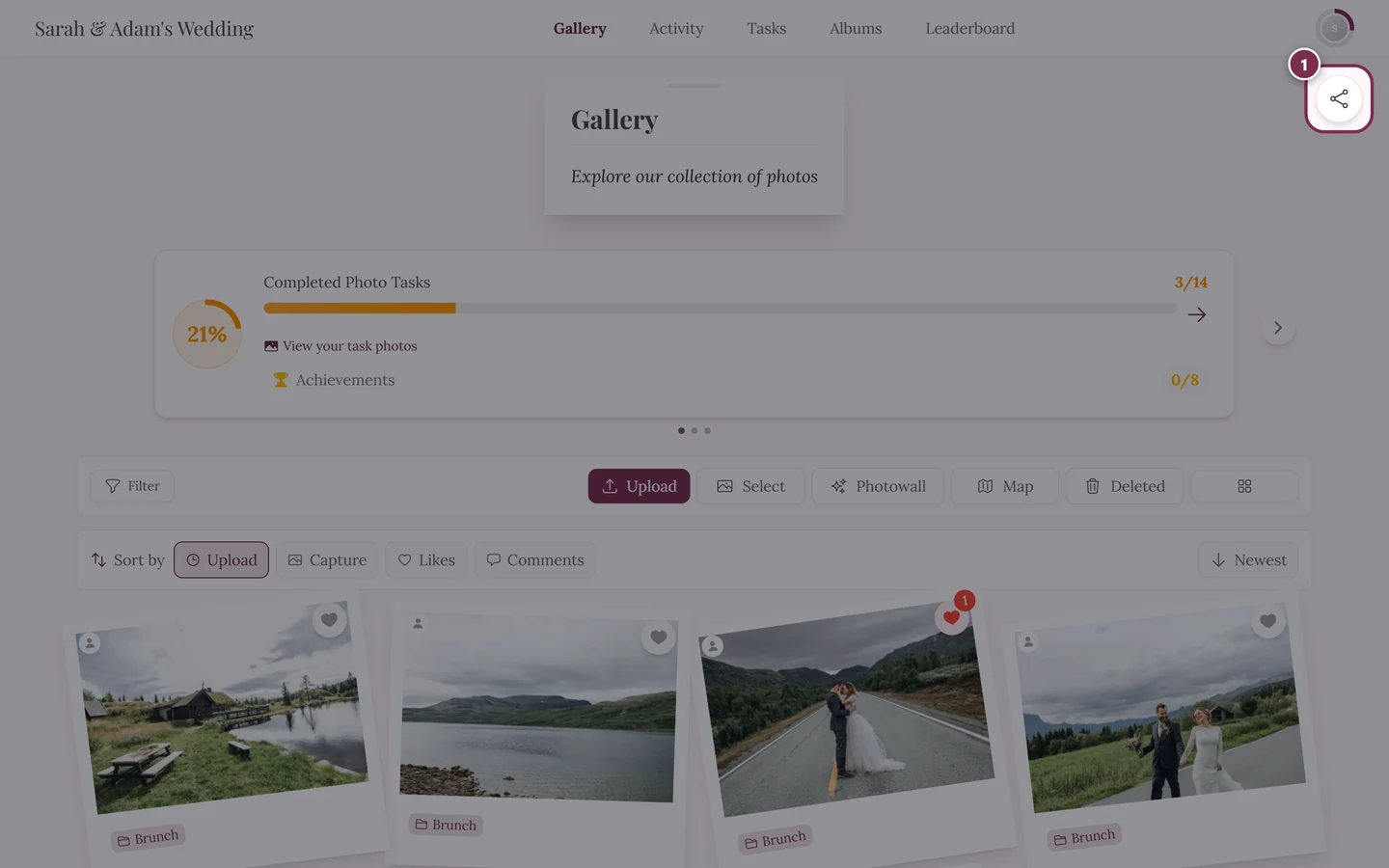
① the round share icon. On a computer it stands free at the right edge, level with the header card; on a phone it sits in that card's top right corner – either way above the photo grid and not in the navigation bar. It only appears once the host has switched it on; otherwise that spot is simply empty. -
Tap the round share icon in the top right.
-
The share dialog opens, titled Share with the subtitle “Invite others — they can view the photos and add their own.”
What’s in the share dialog
Section titled “What’s in the share dialog”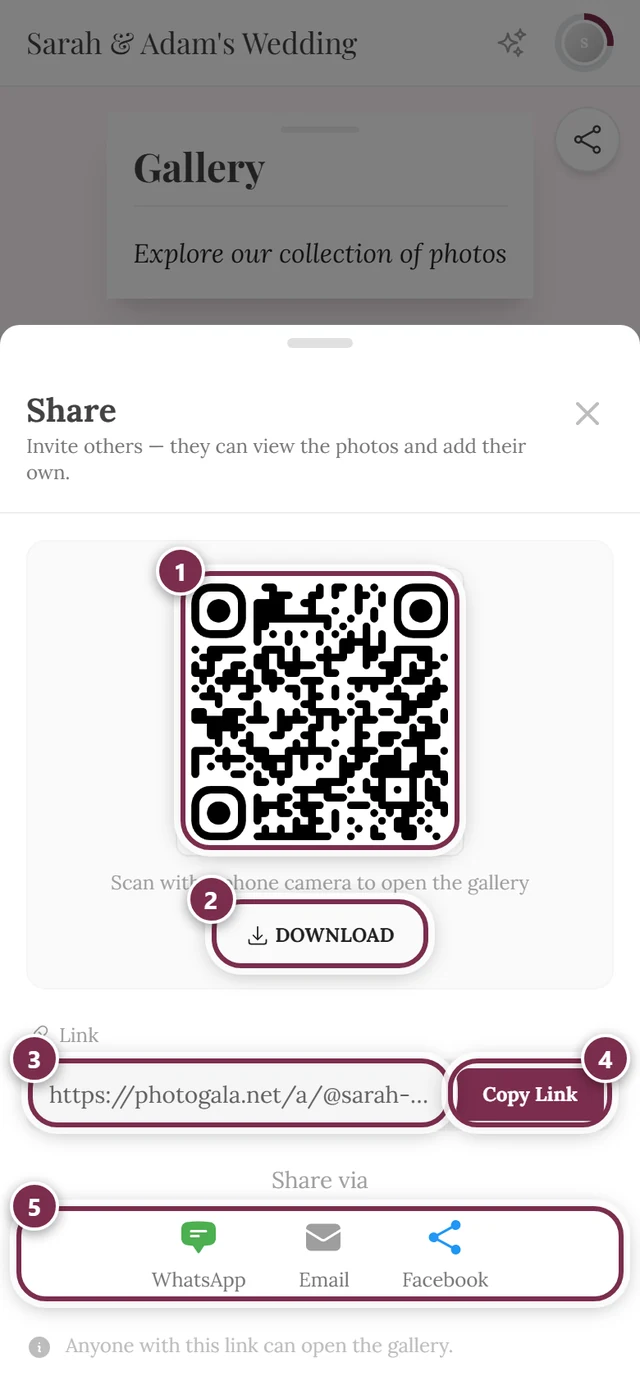
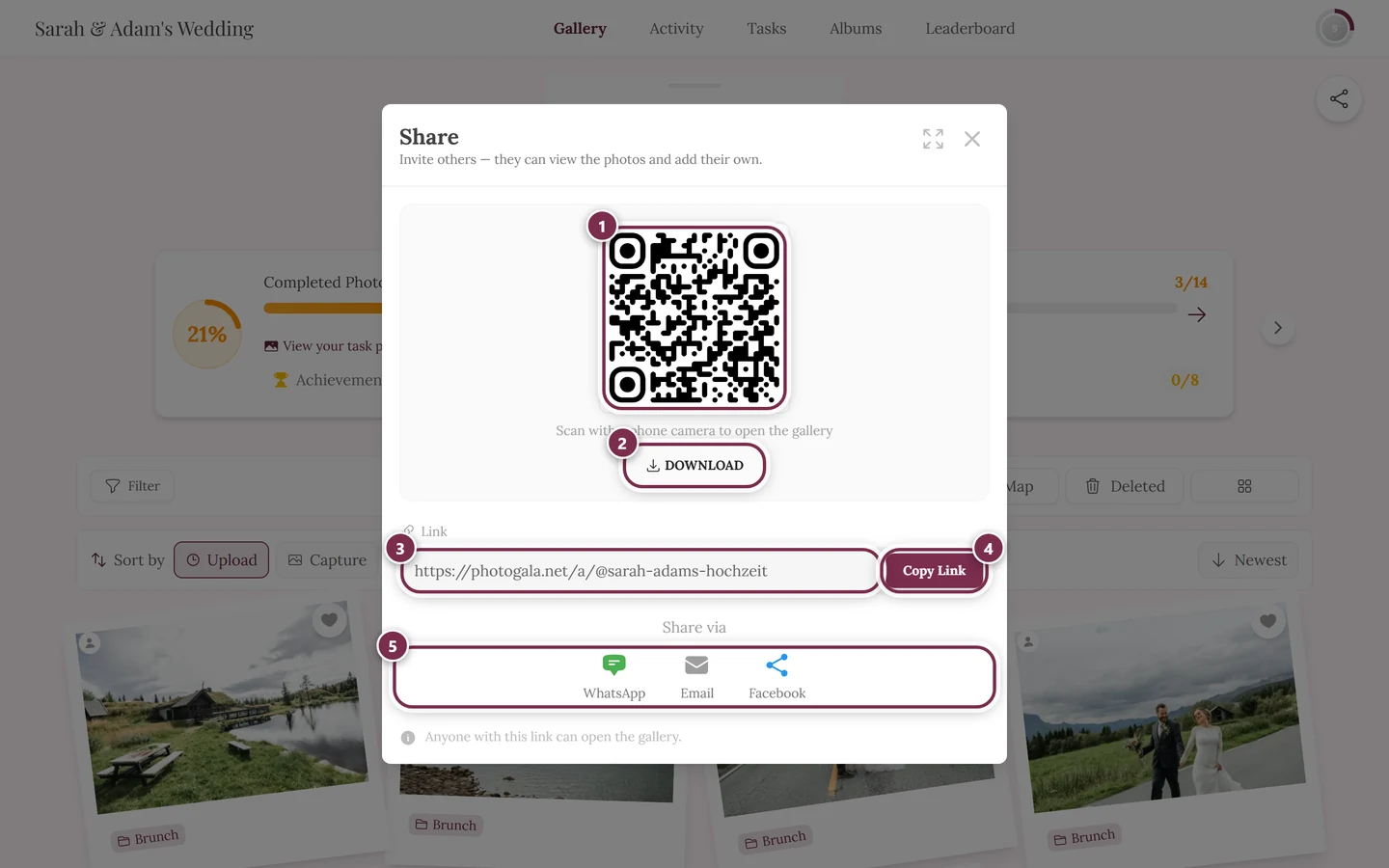
The share dialog gathers every option in one place. From top to bottom:
- Share… – only on devices with native sharing, usually smartphones. Opens your familiar system share sheet to pass the gallery to WhatsApp, Signal, AirDrop, and so on. This is the fastest way on a phone.
- QR code with the hint “Scan with a phone camera to open the gallery”. Below it is a Download button that saves the QR code as a PNG (
gallery-qr-code.png, 1024 px across) – large enough to print. Ideal when you’re together in person: print it, put it on a card, or show it on a TV. - Link field labeled Link with a Copy Link button. After you click, a brief Copied! with a checkmark appears. Tapping the field selects the link automatically. Use it to paste the link into a chat, email, or story.
- A Share via section with three direct buttons:
- WhatsApp – opens WhatsApp with a pre-filled message: a short invitation text with the link below it.
- Email – opens your mail app with the subject “Check out this album” and an invitation text plus the link in the body. If the host has set their own Share title and Share text, those appear in the subject and the message (see Customizing the look).
- Facebook – opens the Facebook share dialog.
- At the bottom, the note “Anyone with this link can open the gallery.” – remember: the link is the access.
Other ways to get the gallery link
Section titled “Other ways to get the gallery link”If the header share button is missing (it’s off by default), you can still get a shareable link:
- The browser address bar. The current gallery URL is shareable – just copy it from the address bar and send it. Note: for protected events, a plain address-bar link may land the recipient at the invitation or password wall. In that case the host’s share dialog is better, because it can embed the access code.
- A QR code from the host, the photo booth, or a table card. Often the QR code is already displayed on site. See Scanning a QR code.
- Ask the host. The classic fallback: ask for the link or QR from the share dialog.
How the link arrives at the other end
Section titled “How the link arrives at the other end”- A preview in the messenger. When you send the link via WhatsApp, Facebook and the like, Photogala serves a dedicated response with a title and an image for the preview. So the recipient doesn’t just see a bare address but a card they recognize the event by. Which image appears is set by the host under Appearance ▸ Link preview and share text; free galleries always show the Photogala image. For a single photo, the preview shows exactly that picture – but only in paid galleries where the event branding is visible on the login page. Otherwise the normal gallery preview appears.
- The address with the event slug is the recommendation. If the event has a slug, Photogala automatically puts it into the link with an
@instead of the long event ID. The share dialog then shows exactly this shape, plus a short addition:photogala.net/a/@annas-wedding?prev=…. The?prev=…addition only makes sure that WhatsApp and the like show the new preview after the preview image or share text has changed. It plays no role for access – if you type the address by hand, you can leave it out. The/a/belongs there – it is the language-neutral permalink that takes the recipient into the gallery no matter what language you have set yourself. That address can be read aloud, fits on a table card, and can be typed by hand if need be. The even shorter form without/a/–photogala.net/@annas-wedding– works too, but is never offered anywhere; when in doubt just copy what the dialog shows. Without a slug, the long event ID takes the place of@annas-wedding. - Filters travel with it. If you open the gallery filtered (to an album, say) and copy the address, the filters are active for the recipient right away.
Share a single photo
Section titled “Share a single photo”You can share a single photo from three places. All three are only visible when sharing is enabled for the event. What happens next depends on your device (see Phone vs. computer).
From the gallery via right-click or long press
Section titled “From the gallery via right-click or long press”-
On a computer: right-click a photo in the gallery grid. On a phone: press and hold the photo.
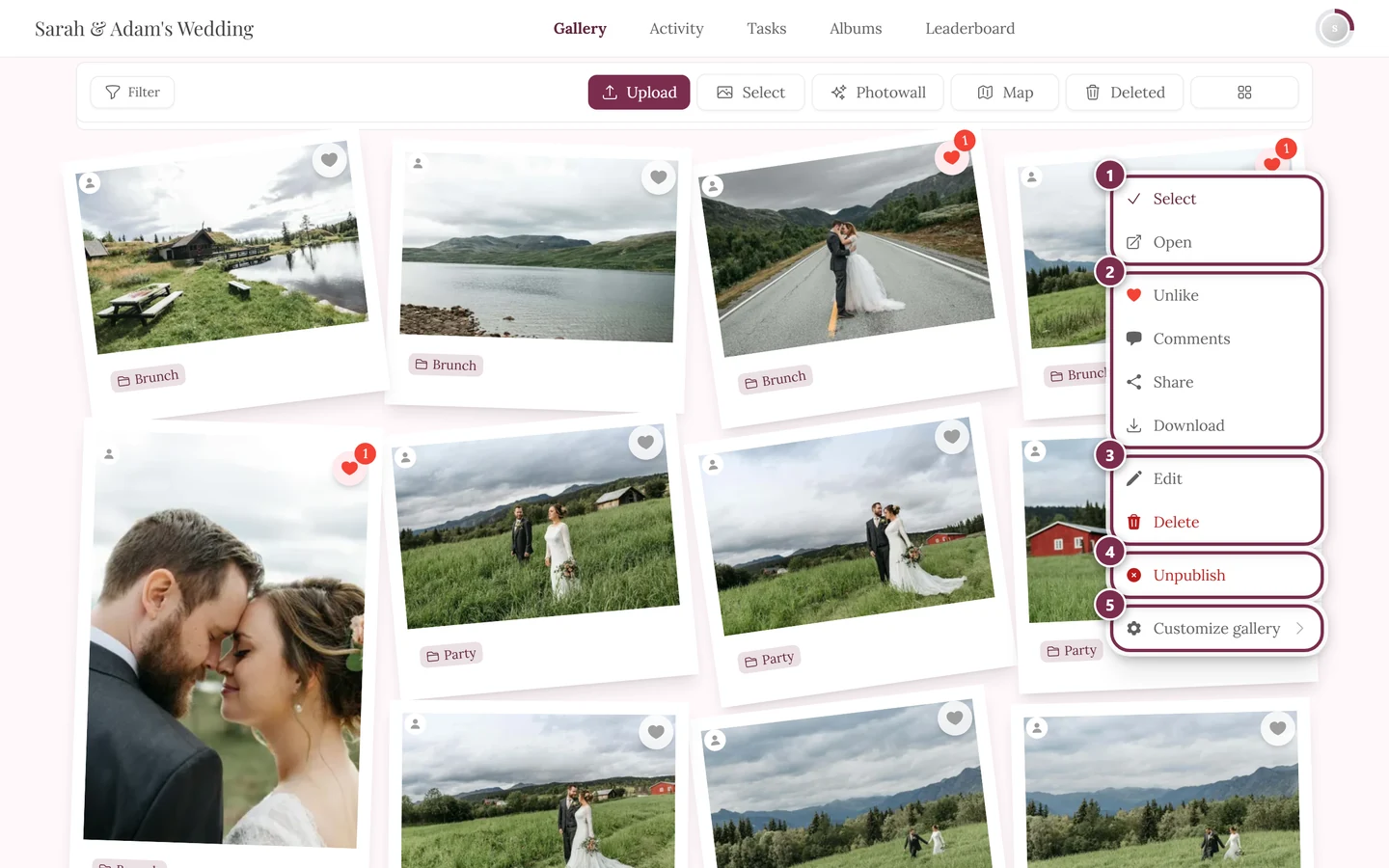
Right-click opens the context menu – Share is here. ① Select and Open, ② Like, Comments, Share and Download – Share only appears when sharing is switched on for the event, Download only when single downloads are allowed, ③ Edit and Delete – on your own photos, on other people’s only with moderation rights, ④ Unpublish – only with moderation rights; on a photo that is not approved yet the entry reads Publish, ⑤ Customize gallery – for hosts and admins only. -
Choose Share in the context menu.
-
On a phone, the system share sheet opens including the image file. On a computer, the share dialog opens instead with the direct photo link.
In full screen / the slideshow
Section titled “In full screen / the slideshow”-
Tap a photo to open it in full screen.
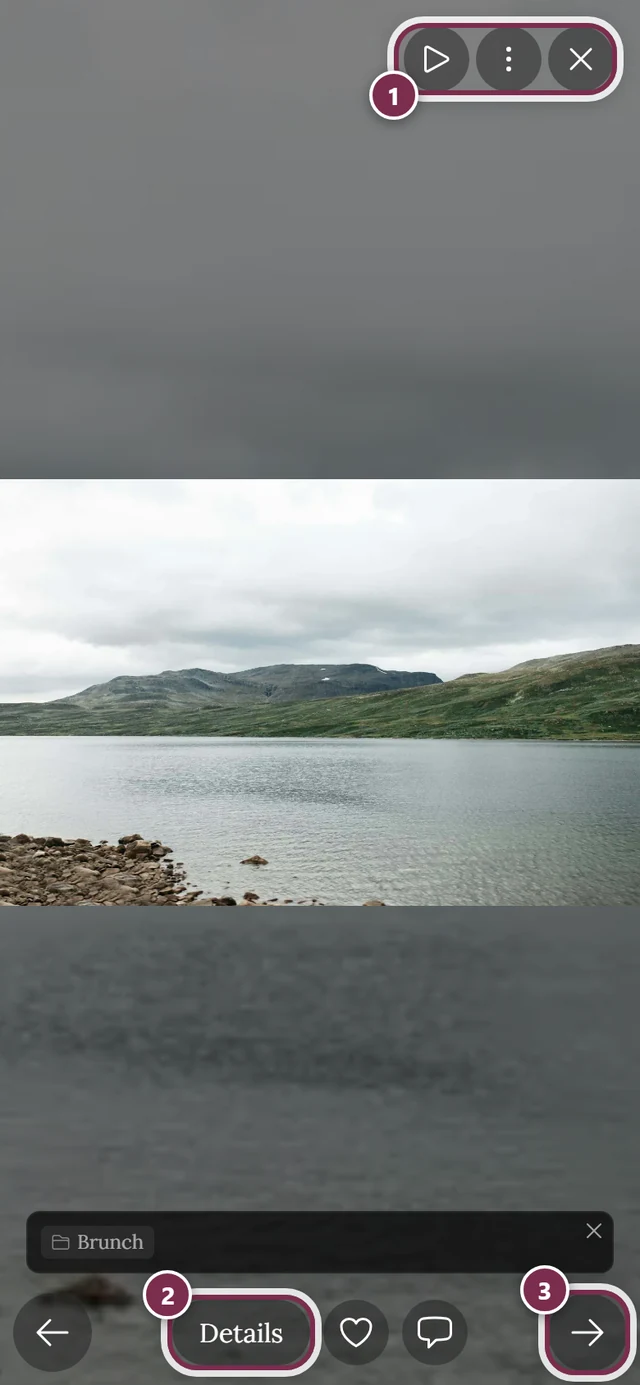
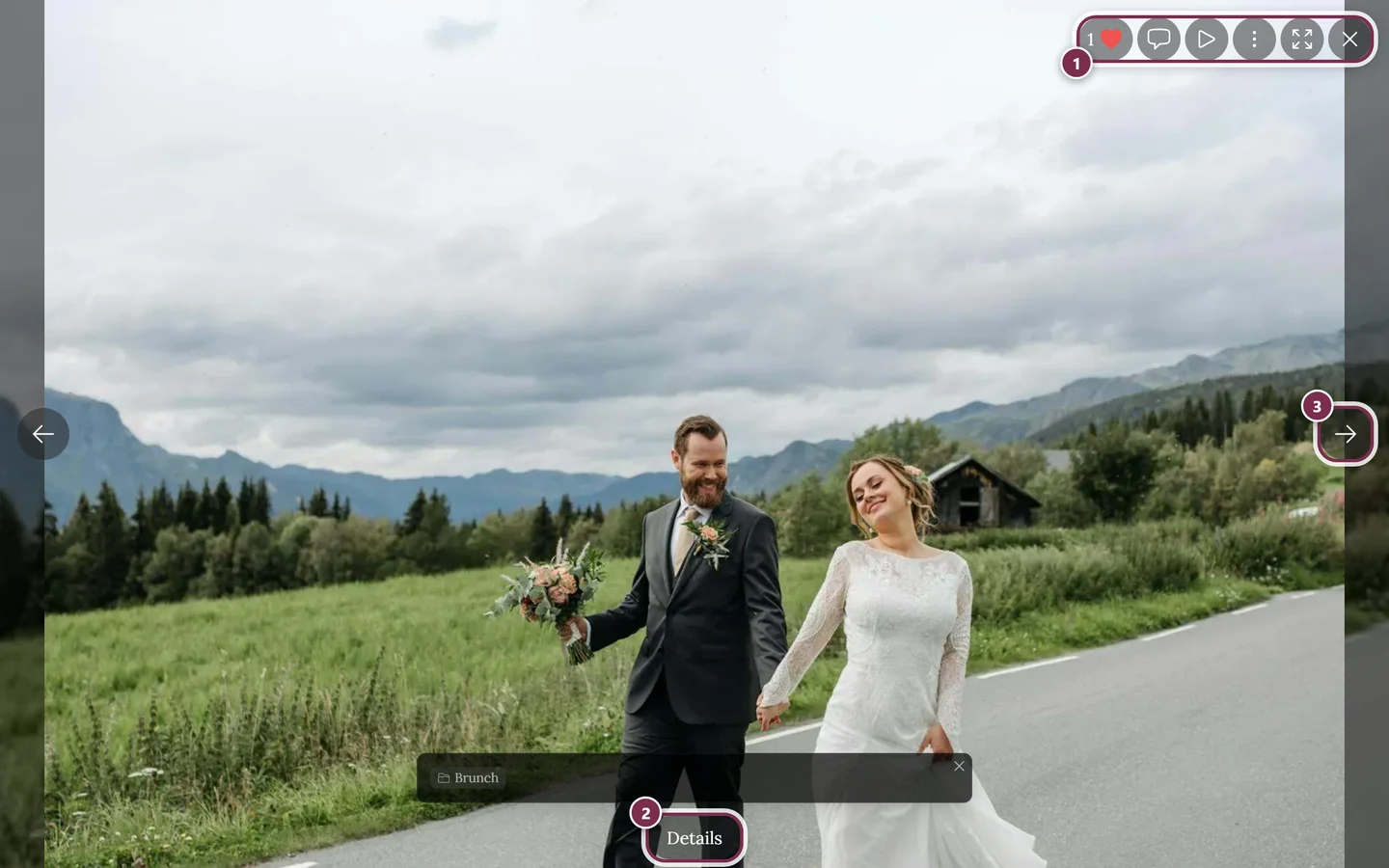
Full-screen view with the control bar and kebab menu. ① the icon bar in the top right – on a computer with Like, Comments, Slideshow, the three-dot menu, Fullscreen and Close, on a phone only Slideshow, the menu and Close, ② Details reveals title, album and capture data, ③ the arrow to the next photo – on a phone you can swipe instead. Like and Comments sit next to Details at the bottom on a phone. -
Open the ⋮ menu (kebab, three dots) and choose Share.
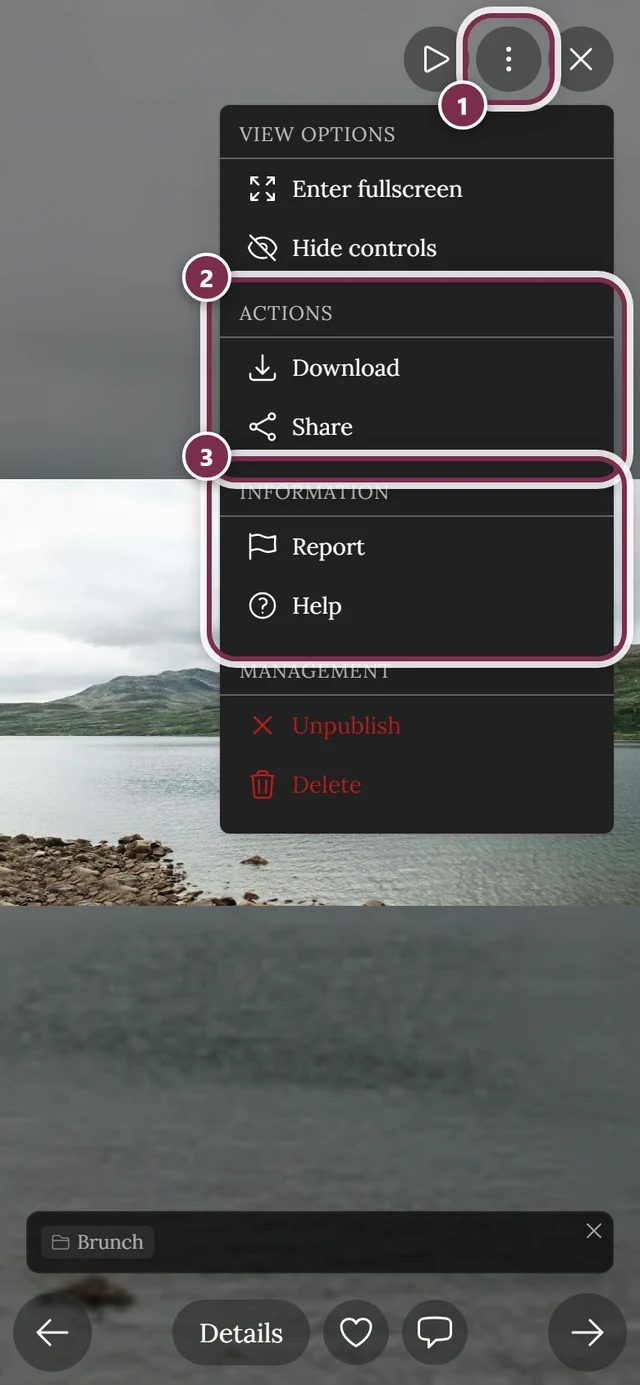
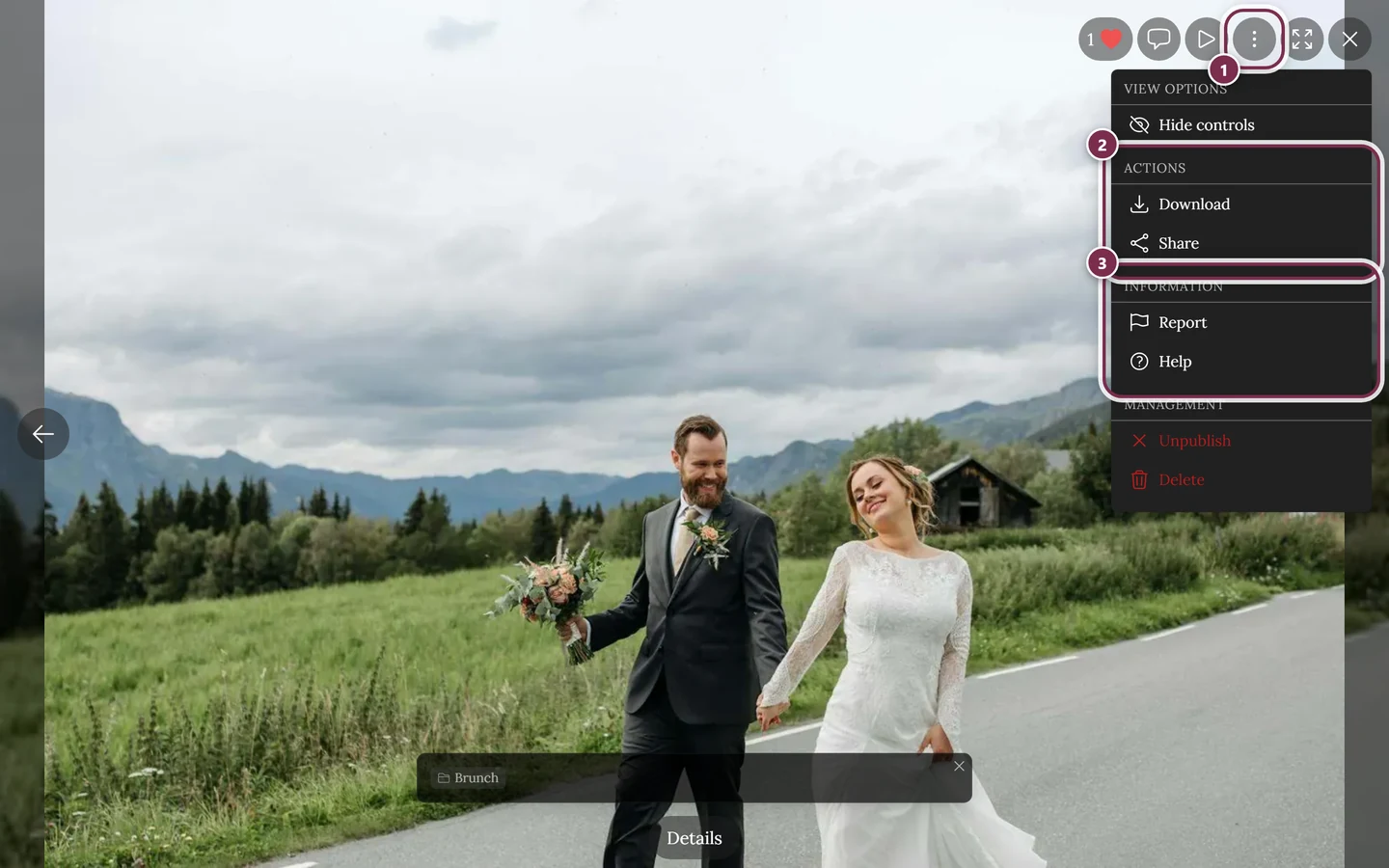
The kebab menu holds Download and Share under Actions, Report and Help under Information. ① the ⋮ menu in the toolbar at the top right – to its left sit like, comments, play, full screen and close. ② Actions with Download and Share: this section only exists when downloading or sharing is allowed for the event – with both switched off it disappears entirely. ③ Information with Report and Help. Above them sits View Options with Hide controls (on a phone also Enter full screen). The Management section – Unpublish and Delete – only appears if you manage the event or uploaded the photo yourself; guests never see it. -
On a phone, the system share sheet opens with the image file; on a computer, the share dialog opens.
From the image details
Section titled “From the image details”-
Open a photo’s details – via the Details button in the bottom control bar of full screen (on a phone, a swipe up on the photo works too).
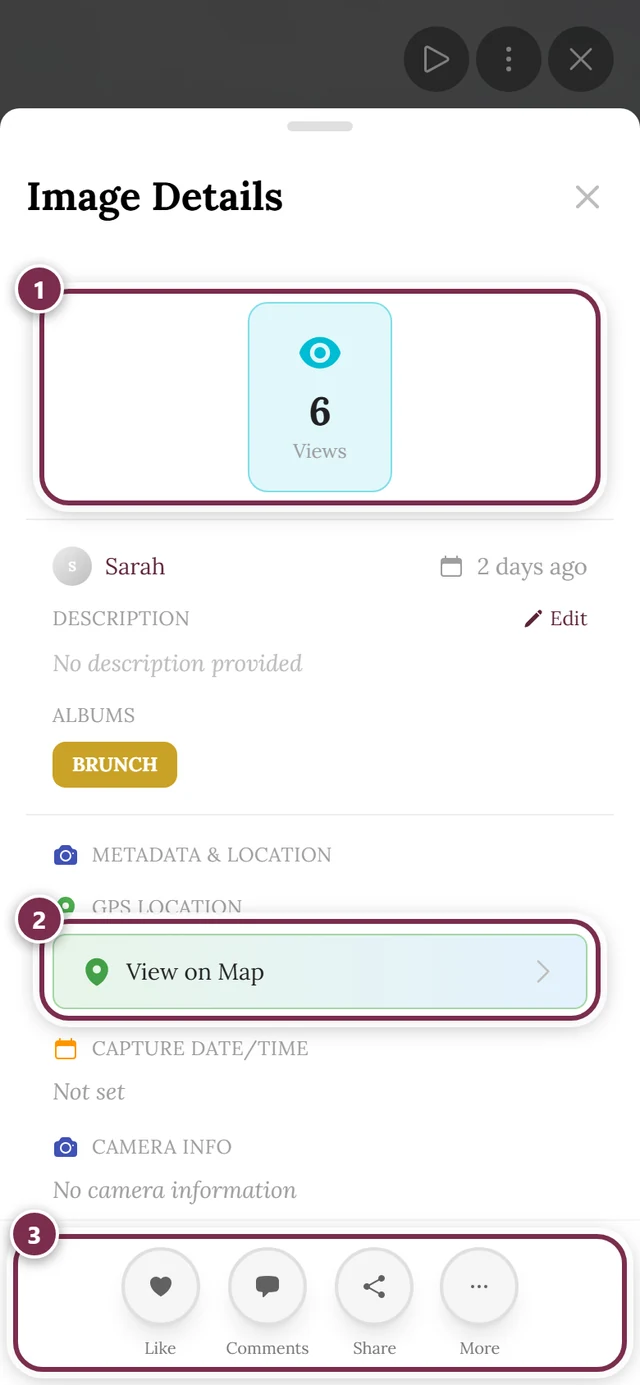
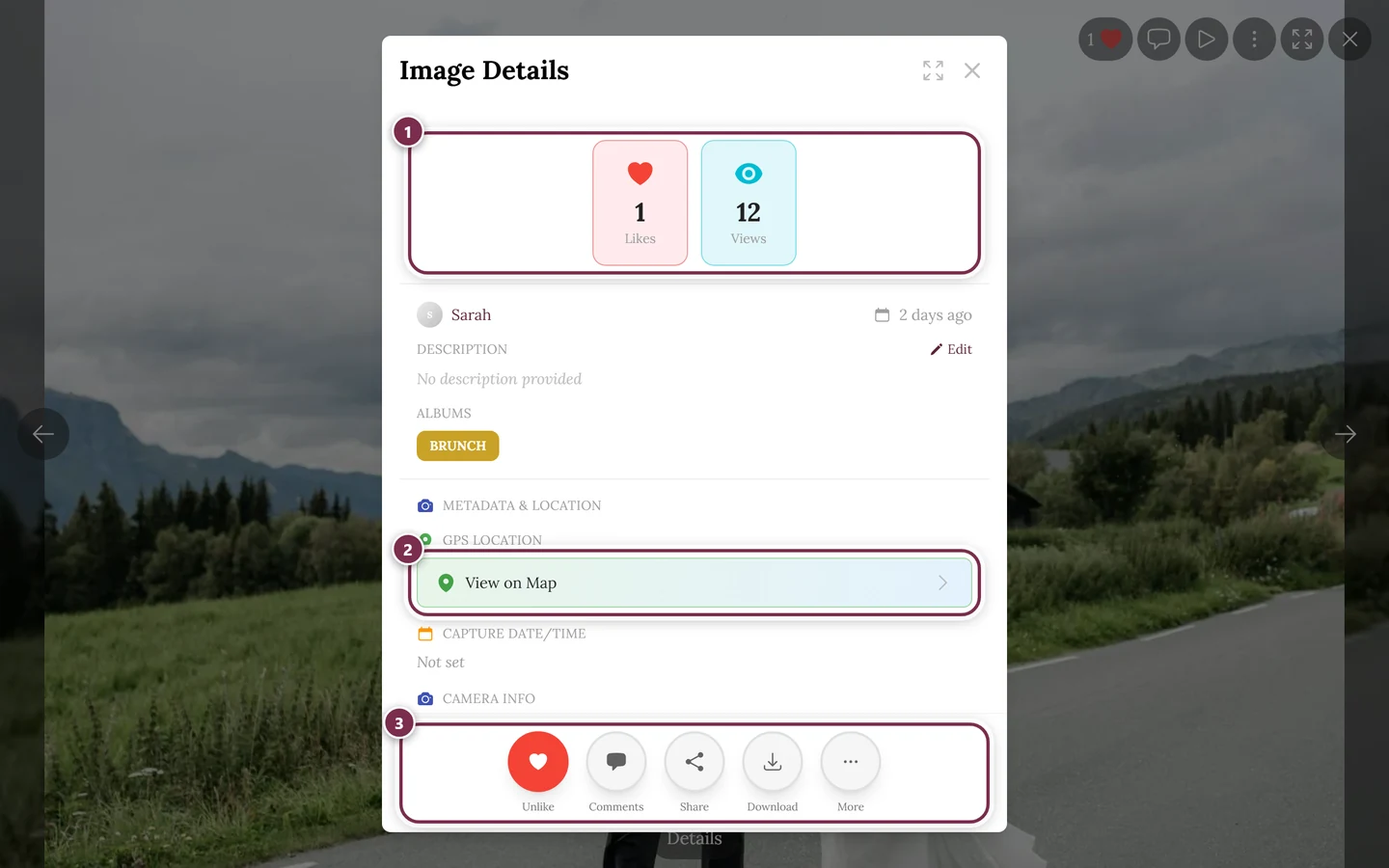
The image details gather stats and info – and the share button. ① the figures: Likes, Comments, Shares, Downloads, Views. A tile only shows when its number is above zero – for the first four also only when the feature is switched on for the event; Views always counts. Likes, Comments and Downloads are clickable and open the matching list. ② View on Map under Metadata & Location – only for photos carrying a GPS location; below it sit capture date and camera info. ③ the button row at the bottom. It fills up in order with Like, Comments, Share, Download – and, if you are allowed to, Edit, Unpublish, Delete. On wide screens the first four of them sit in the row, on a phone the first three; the rest live under More (if only one entry is left there, it joins the row instead). In between you find uploader and date, the Description (with Edit if you uploaded the photo or manage the event) and Albums, if the photo belongs to one. -
Tap the round Share action button. When there are many actions, “Share” sits in the overflow submenu.
-
Depending on the device, the system share sheet or the share dialog opens.
What exactly gets shared: file or link
Section titled “What exactly gets shared: file or link”When you share a photo, Photogala always tries to include the image file first – a picture in the chat is worth far more than a link. If that doesn’t work out, it falls back to the link silently. In this order:
-
Image file plus link. The normal case on modern phones: the actual file is attached in the system share sheet. WebP is converted to JPEG on the way, because not every app accepts WebP. The file name carries the gallery name, not “Photogala” – for example
annas-wedding-<id>.jpg. Videos and motion photos work this way too. -
The link only. If your device can’t share files, or preparing the file takes too long, only the link is shared without asking. That time limit is deliberate: browsers only allow sharing shortly after your tap – if the app waits any longer for the file, the share sheet won’t open at all.
-
The share dialog. If your browser doesn’t support native sharing at all (typical on a computer), the Photogala share dialog opens instead, with Copy Link, a QR code and the direct buttons – the link then points straight to this one photo.
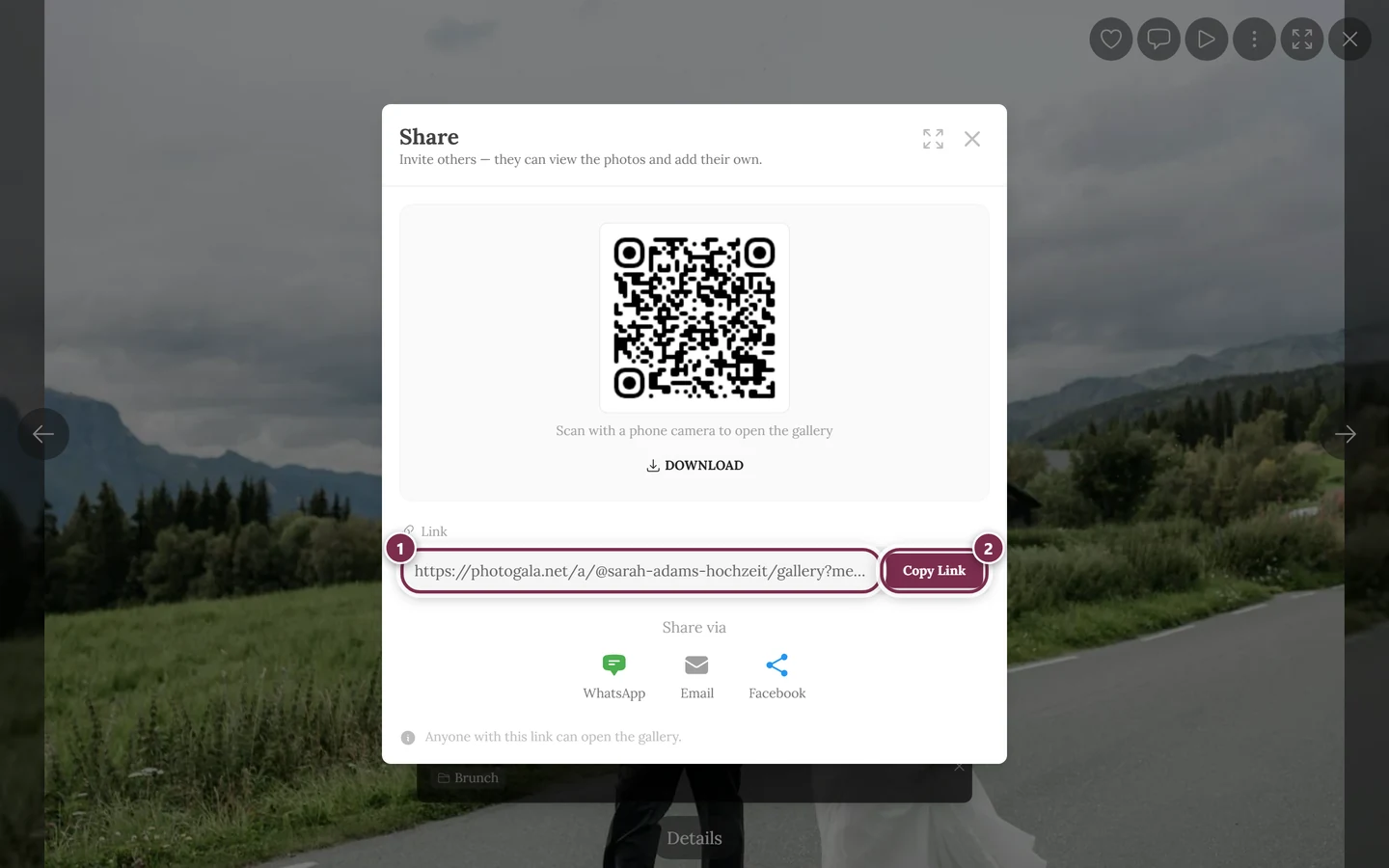
The same dialog, but opened from a photo in full screen. ① the Link field – the address now ends in `/gallery?media=…&prev=…` and leads to exactly this one picture, ② Copy Link. Title, subtitle and the line at the bottom still talk about the whole gallery; that is an inaccuracy of the interface – what counts is the link in the field.
Share an album or a selection
Section titled “Share an album or a selection”Photogala has no dedicated “Share album” button. Here’s how you still share a sub-collection on purpose:
-
Filter the gallery to the album you want (e.g. “Ceremony” or “Party”).
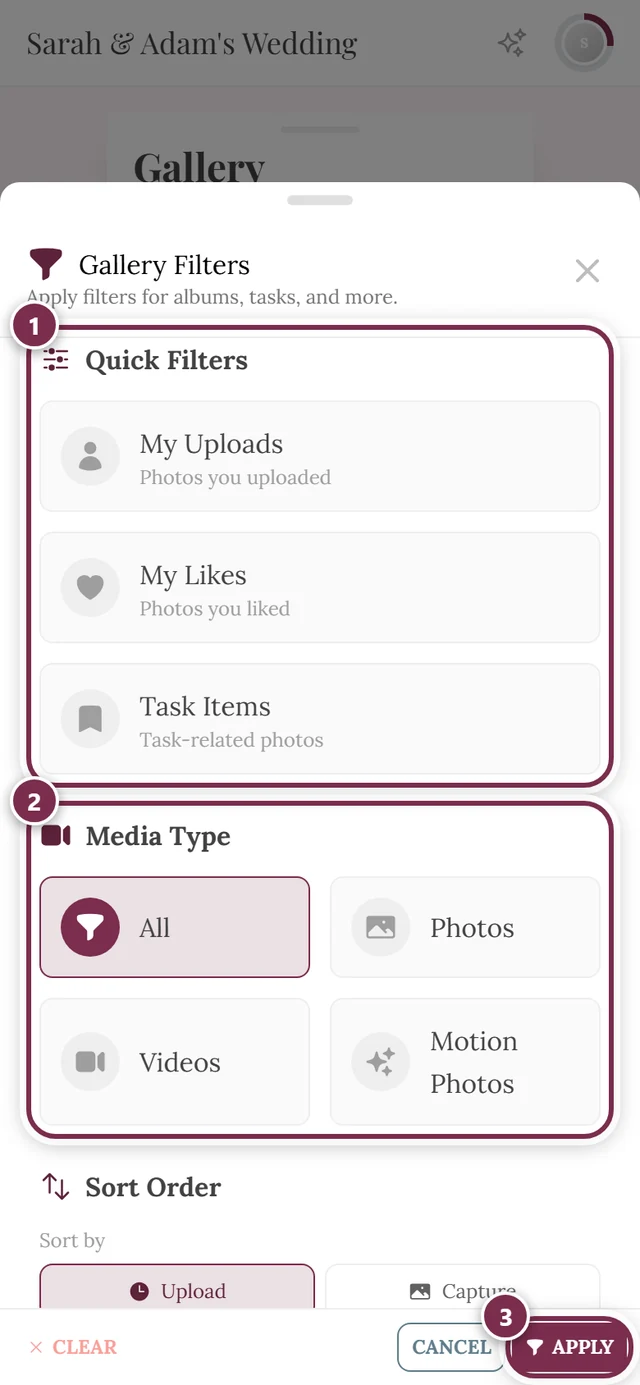
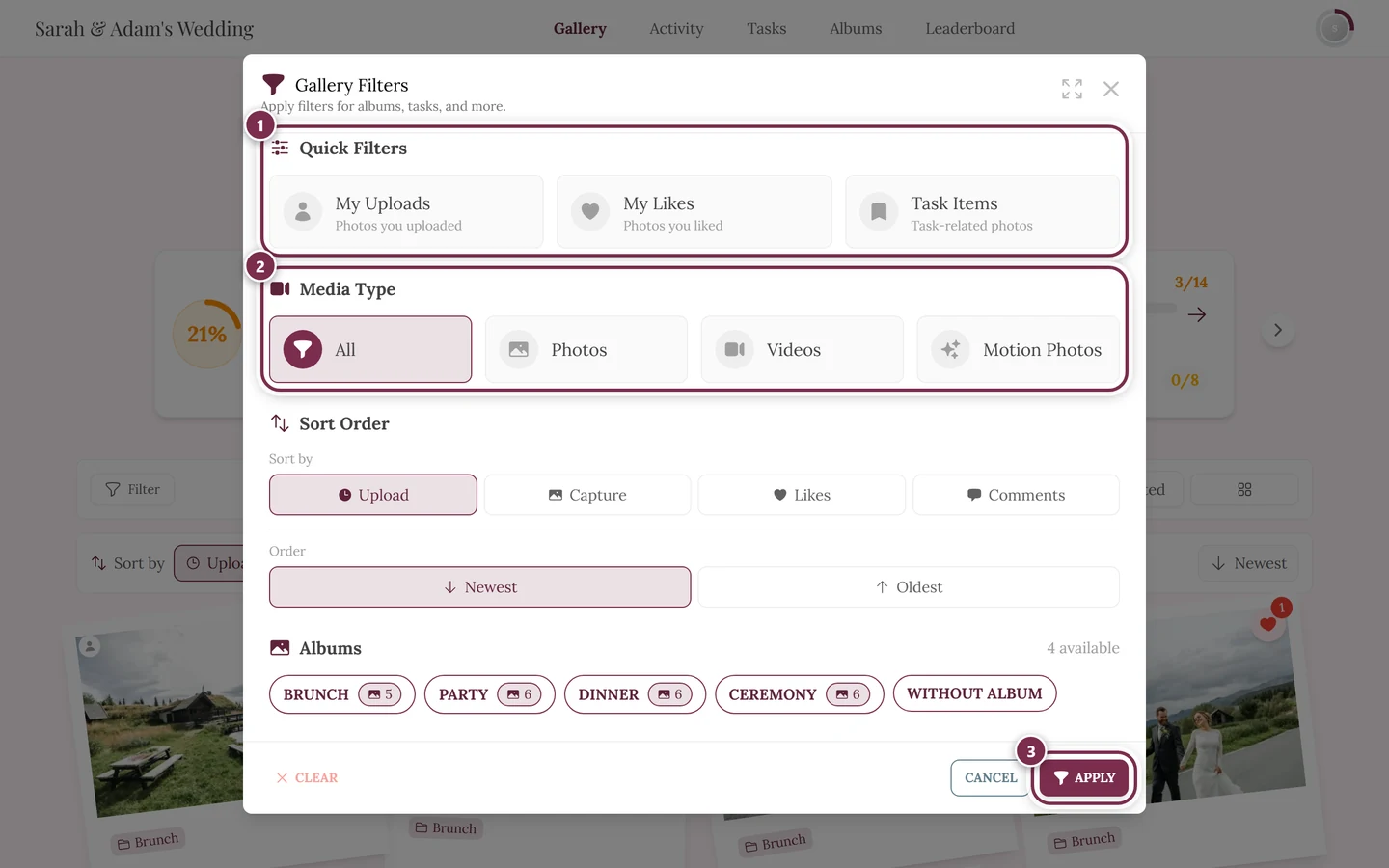
Use the filter to narrow the gallery to an album or a person. ① Quick Filters: My Uploads shows only what you uploaded yourself, My Likes only your hearts, Tasks only photos taken for a photo task – one tap switches a filter on, the next one off again. ② Media Type: All, Photos, Videos, Motion Photos. ③ Apply commits your choice; to its left Clear resets everything and Cancel closes without changes. Further down come Sort Order and Albums – and, depending on the event, Tasks, Filter by People, Filter by Number of People and Filter by Number of Likes; on a phone you scroll to reach them. There is no filter for a date or a time range. -
Now share the gallery link – via the header share button or the address bar. When the gallery is opened through the album entry, the link carries the album state.
-
Alternatively, just share a single, characteristic photo from the album (see above).
Phone vs. computer
Section titled “Phone vs. computer”Why sharing feels different on a phone and a computer:
- On a phone: the share button opens the system share sheet (WhatsApp, Messages, AirDrop …). For single photos, the image file comes along. Instead of right-click you use a long press.
- On a computer: the share button and right-click open the share dialog with a QR code, Copy Link, and the WhatsApp / email / Facebook buttons. There’s usually no system share sheet here, because desktop browsers rarely offer that feature.
When you can’t see a share button
Section titled “When you can’t see a share button”For moderators and hosts
Section titled “For moderators and hosts”The sharing options are the same for every role – guests, moderators, and admins see the same buttons, as long as the feature is on. To enable it, open the profile menu in the top right and switch to the admin area.
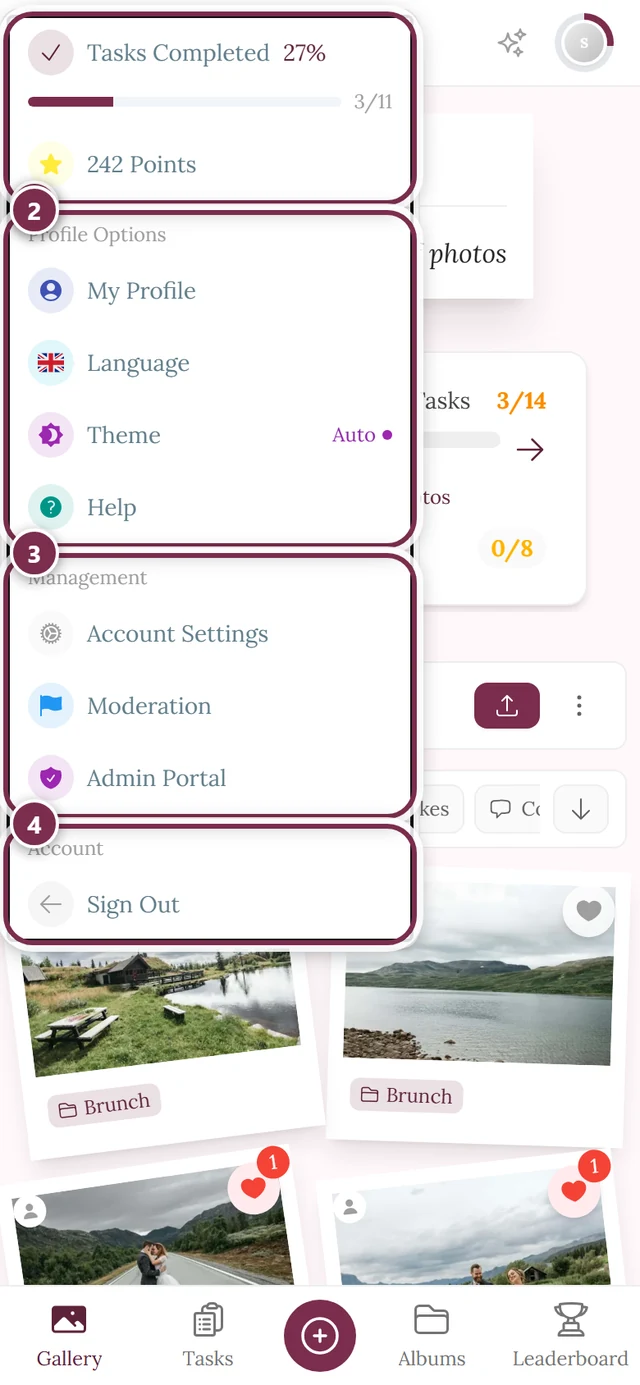
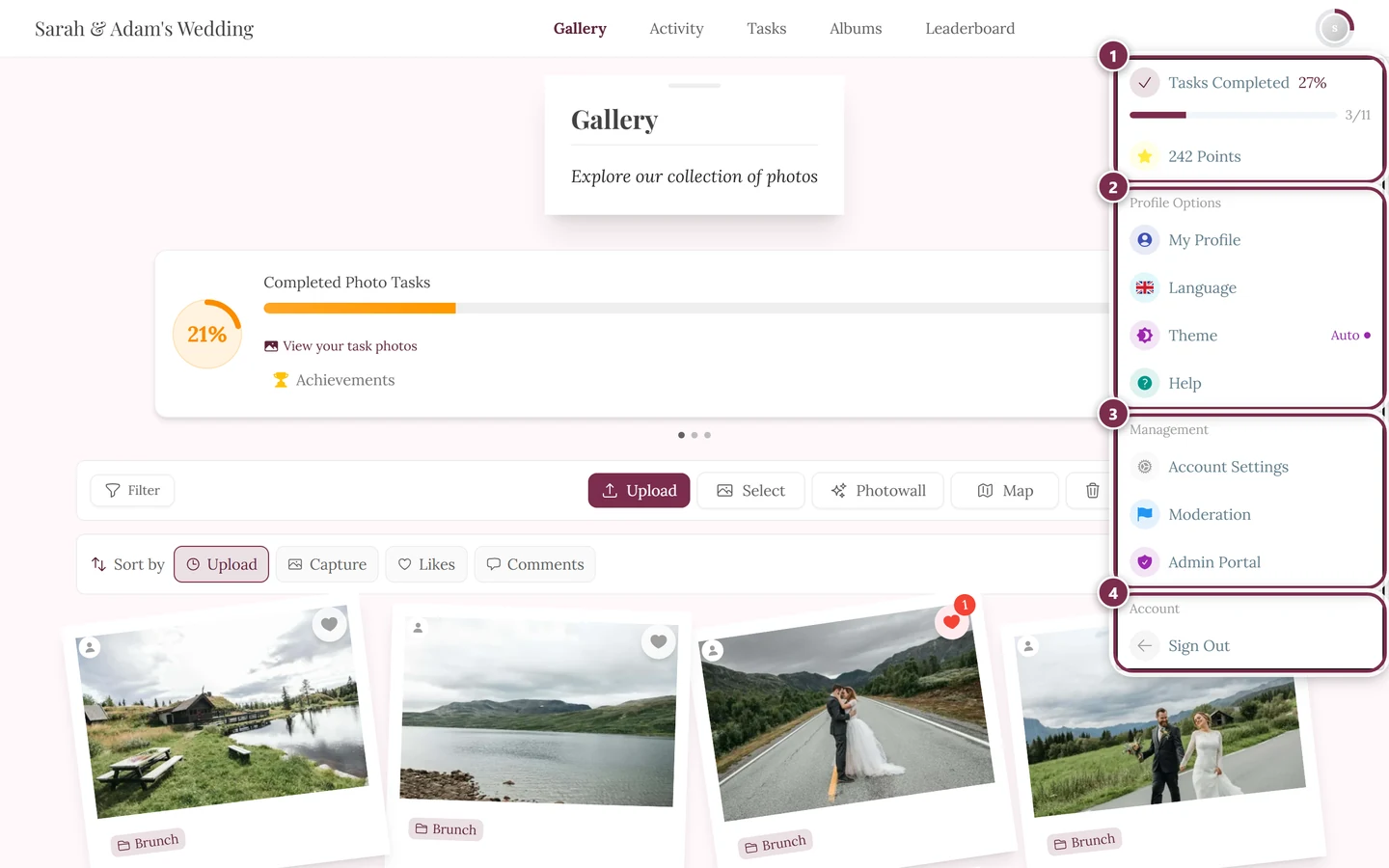
There are three separate switches, and they live in three different tabs. One by one:
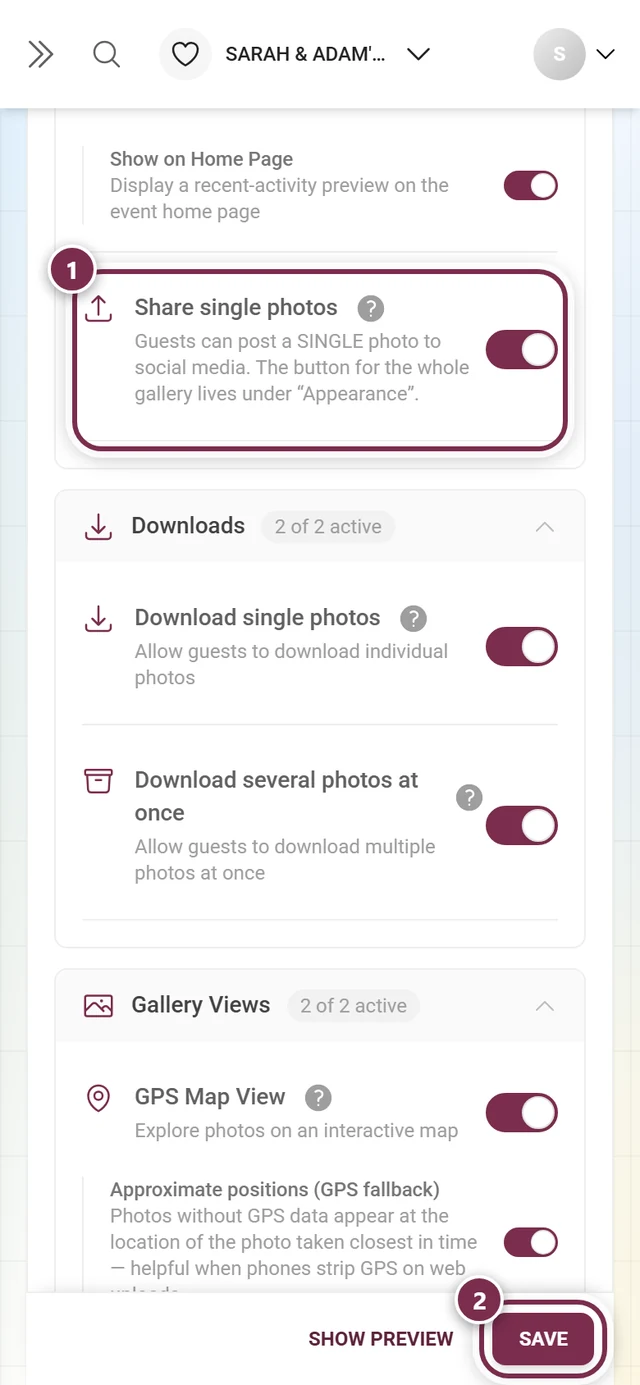
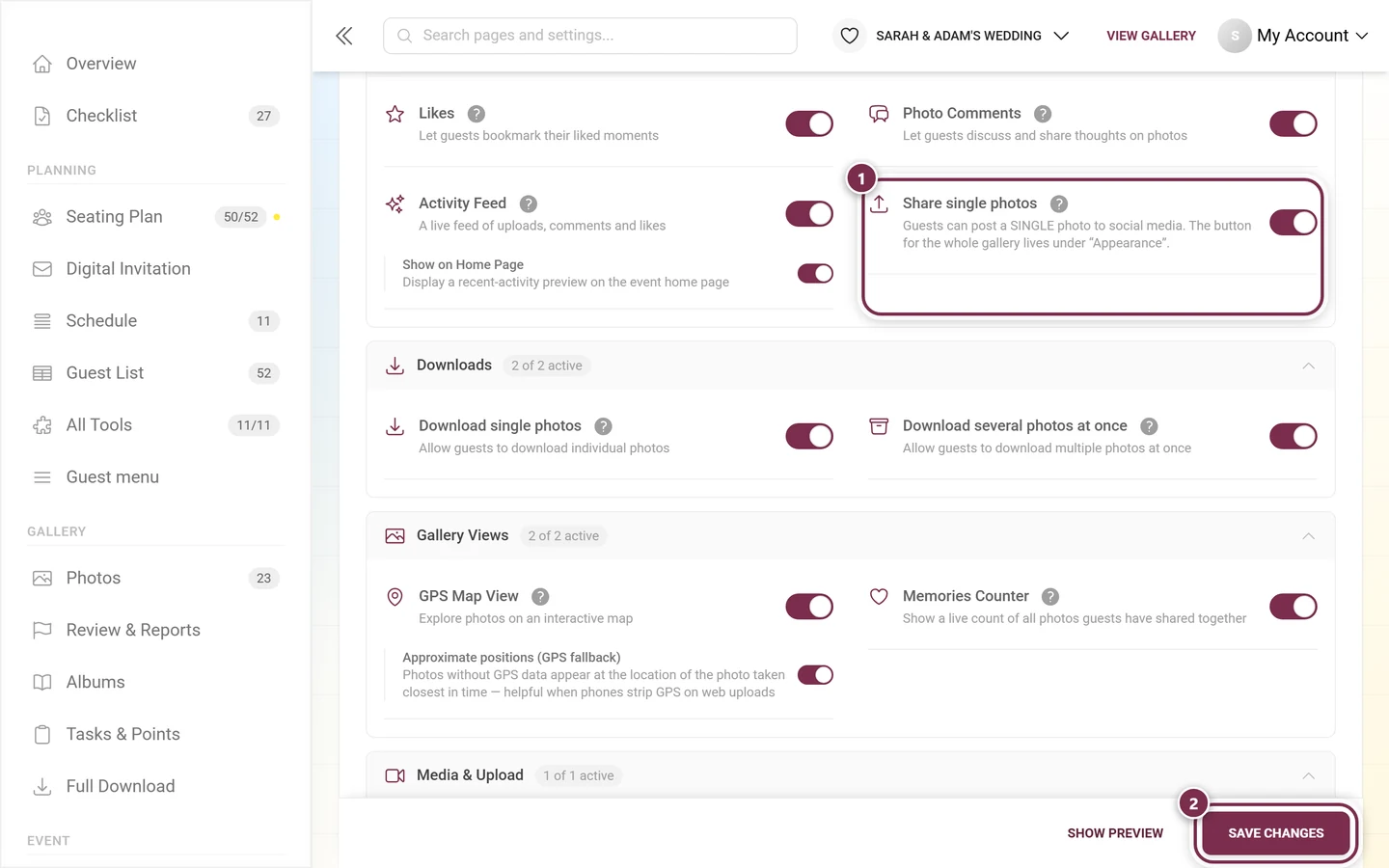
1. “Share single photos” – the share buttons on the photos
Section titled “1. “Share single photos” – the share buttons on the photos”This switch is what makes Share appear in the context menu, in the ⋮ menu of full screen and in the image details. With it off, all three are gone.
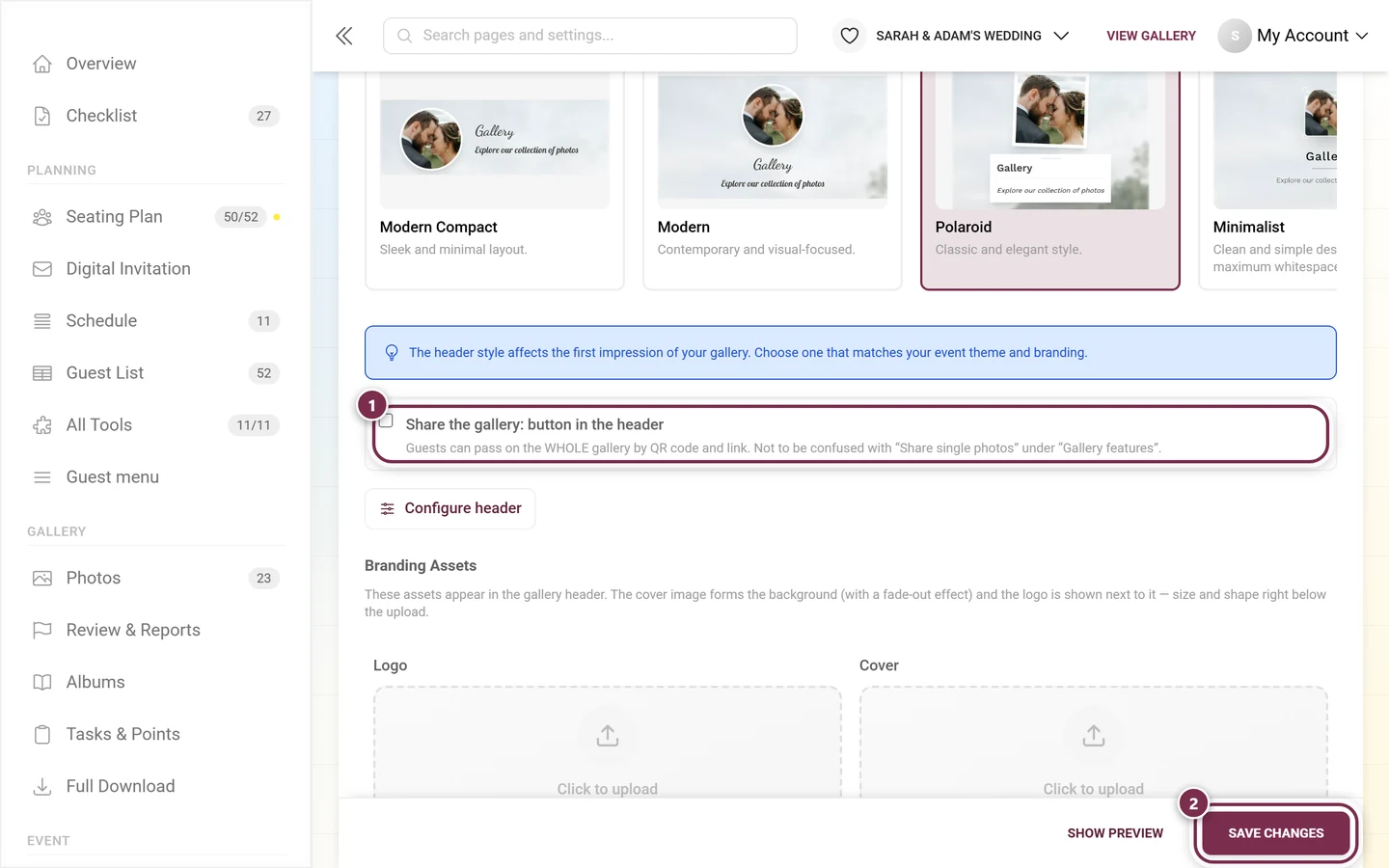
2. “Share the gallery: button in the header” – the round button on top
Section titled “2. “Share the gallery: button in the header” – the round button on top”This one shows the round share icon above the photo grid. Off by default – which is the most common reason guests cannot find it.
3. “Include default invitation code in QR code” – the code inside the link
Section titled “3. “Include default invitation code in QR code” – the code inside the link”It decides whether the default invitation code is embedded into the link and the QR code automatically. You find it under Settings → Access; everything about it is in Inviting guests.