Selecting multiple photos
When you want to act on several photos at once, use selection mode. Instead of handling each photo separately, you mark a whole group and apply an action in one go – for example, give every photo of one round a heart, or save them all as a ZIP archive.
Entering selection mode
Section titled “Entering selection mode”There are two ways into selection mode. Both work on a computer and on a phone – only the gesture or the place in the bar differs. Take whichever one you come across.
Way A – via the gallery bar
Section titled “Way A – via the gallery bar”-
When there is room in the bar (computer, tablet, wide window): tap Select in the gallery bar at the top.
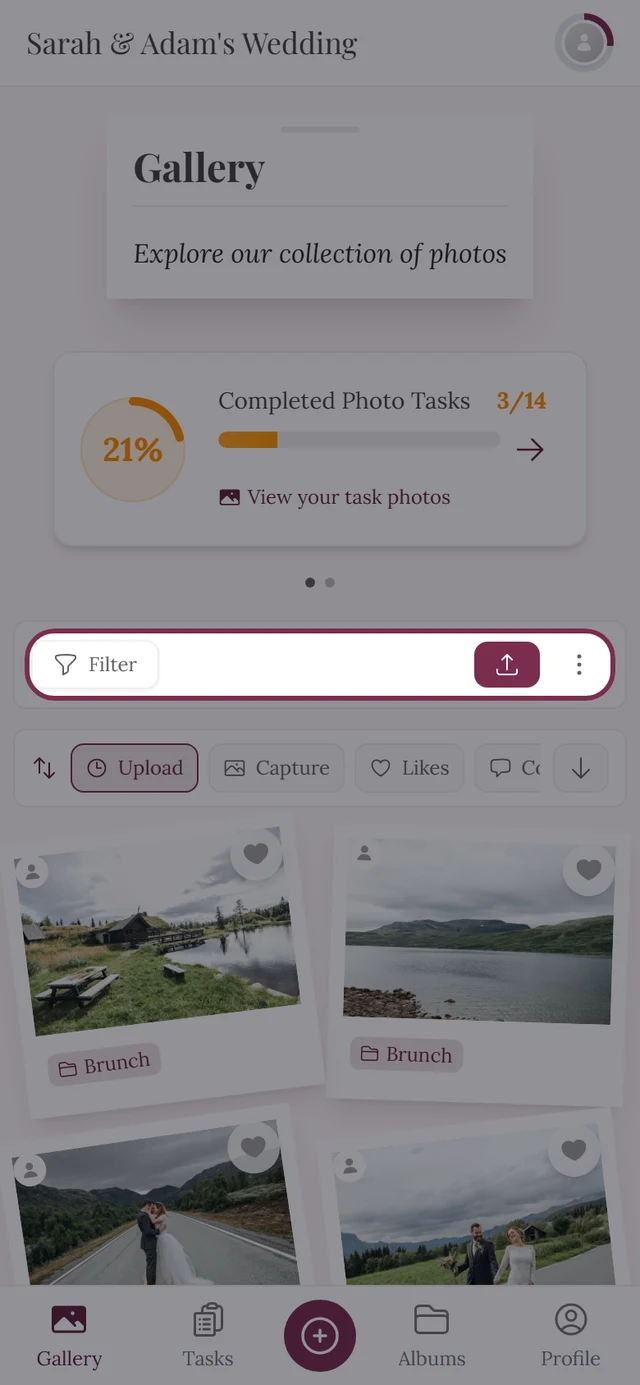
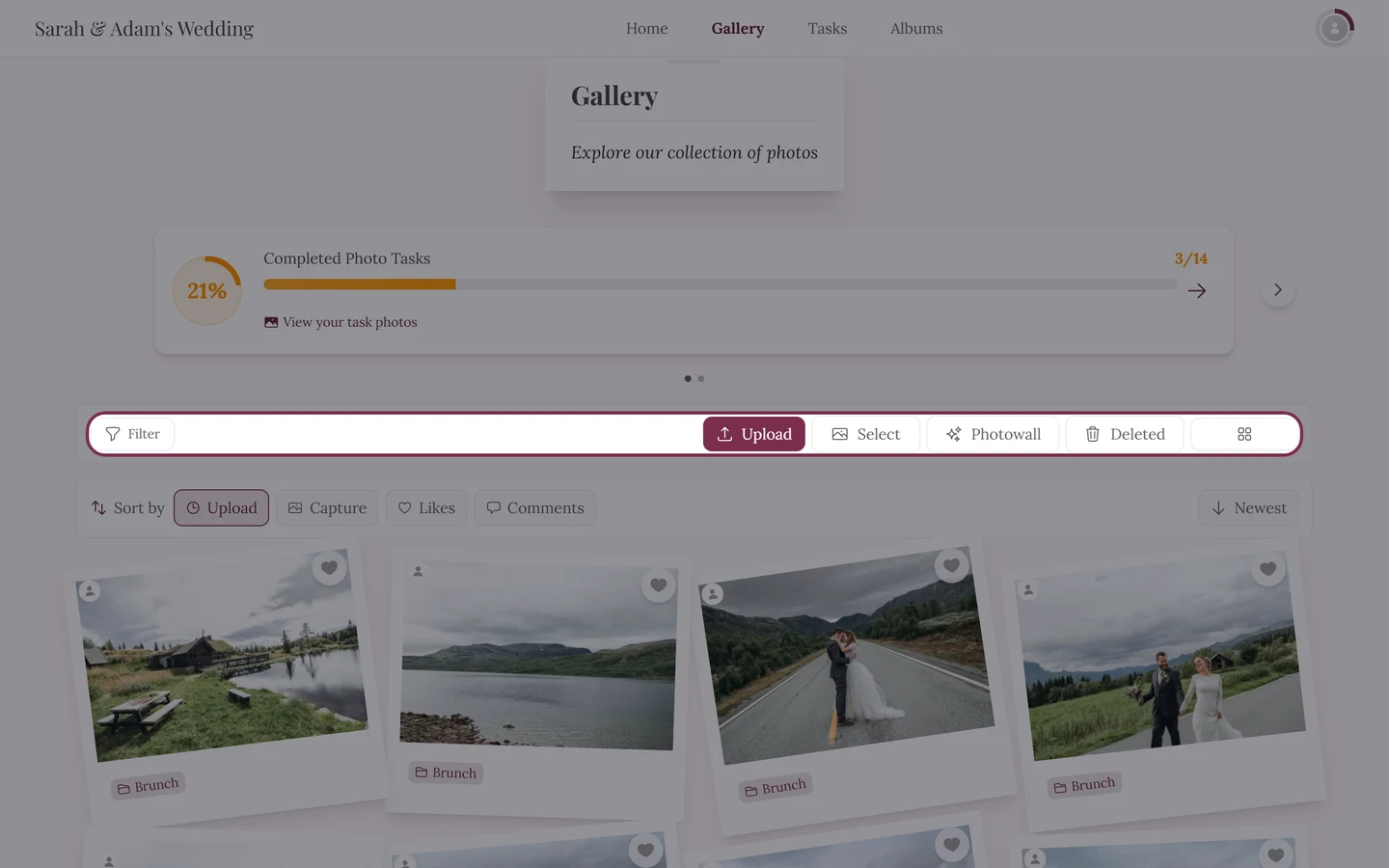
The Select button sits in the gallery bar as soon as the screen is wide enough. -
On narrow screens the button moves into the “…” menu (three dots on the right of the bar) – there it reads Select Photos.
-
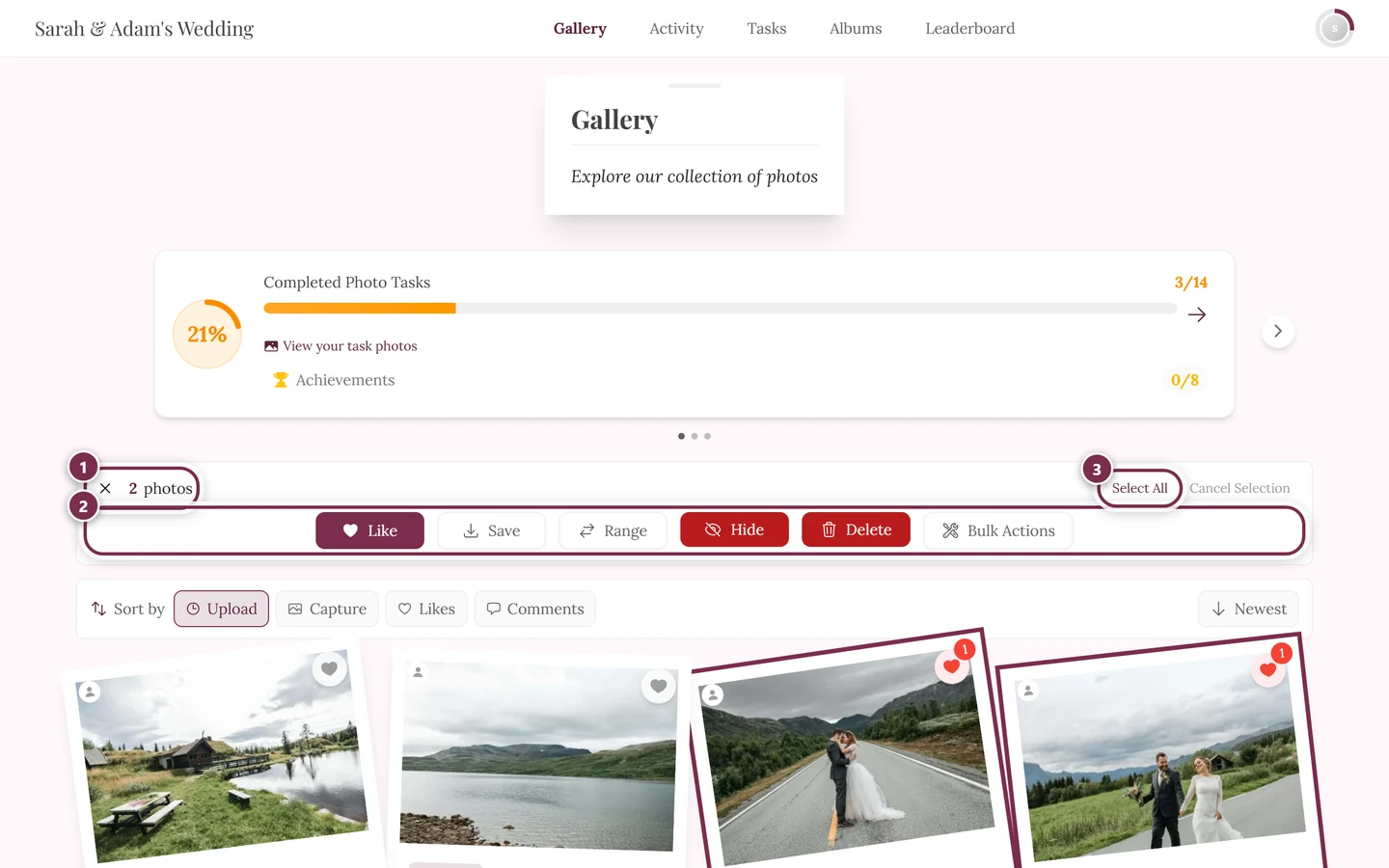
The selection bar appears. It replaces the gallery bar at the top, in the same place. The counter first reads Select photos until you mark your first photo; after that it counts live (“N photos”).
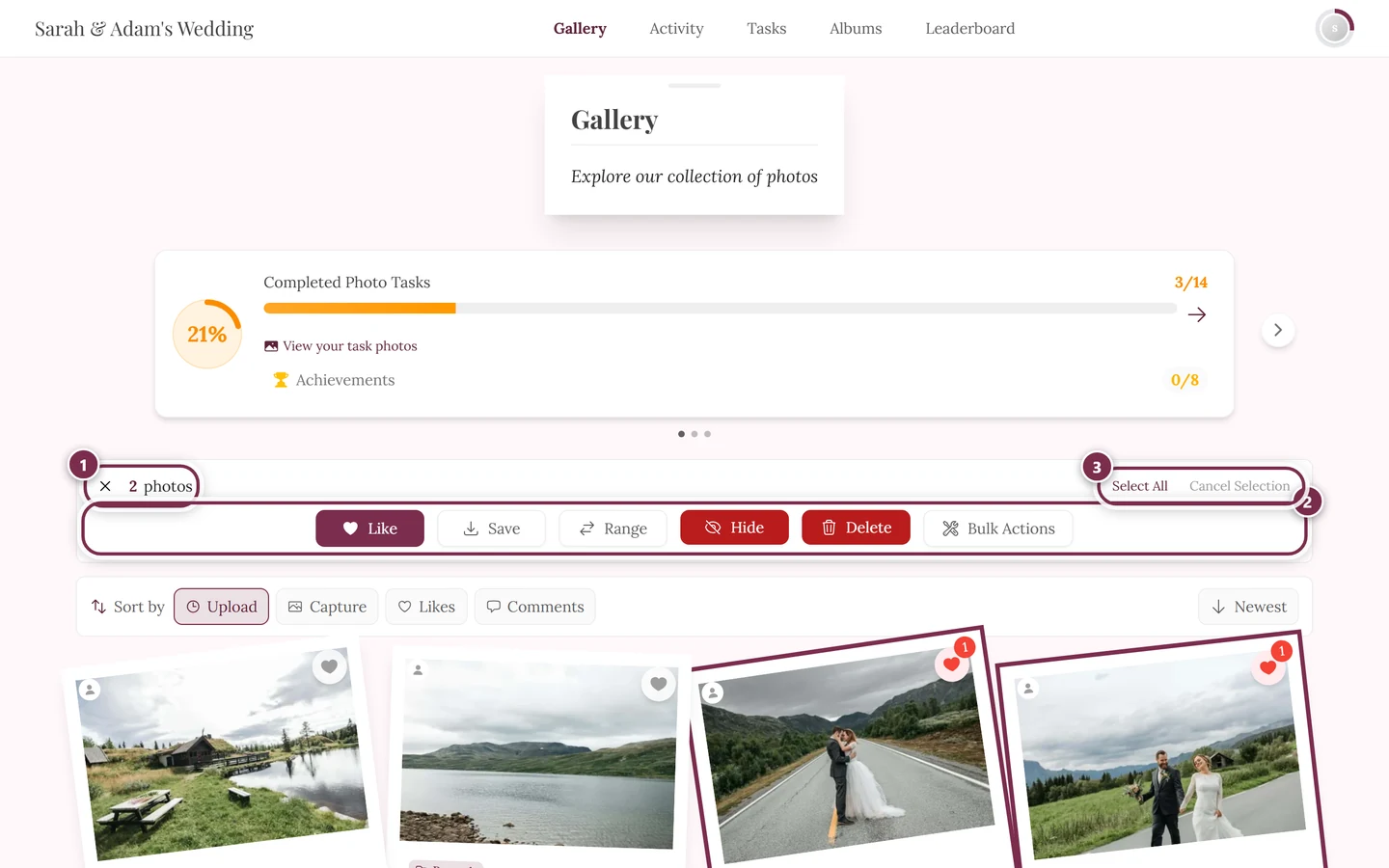
The selection bar with counter, Select All and Range – it replaces the gallery bar at the top. ① the counter: it says how many photos are currently marked; the × in front of it leaves selection mode. ② the action row. As a guest it holds Like, Save and Range – Range marks everything between two taps. If you manage the event, Hide, Delete and Bulk Actions join them (as in this shot); guests never see those three. The button that takes photos with you is called Save, not “Download”. ③ Select All marks the whole loaded gallery, Deselect All clears the marks again.
Way B – via a photo’s context menu
Section titled “Way B – via a photo’s context menu”This way saves a step, because the photo you press is marked straight away.
-
Open a tile’s context menu:
- On a computer: right-click any photo in the grid.
- On a phone or tablet: press and hold the photo (long-press) – about half a second, with your finger still.
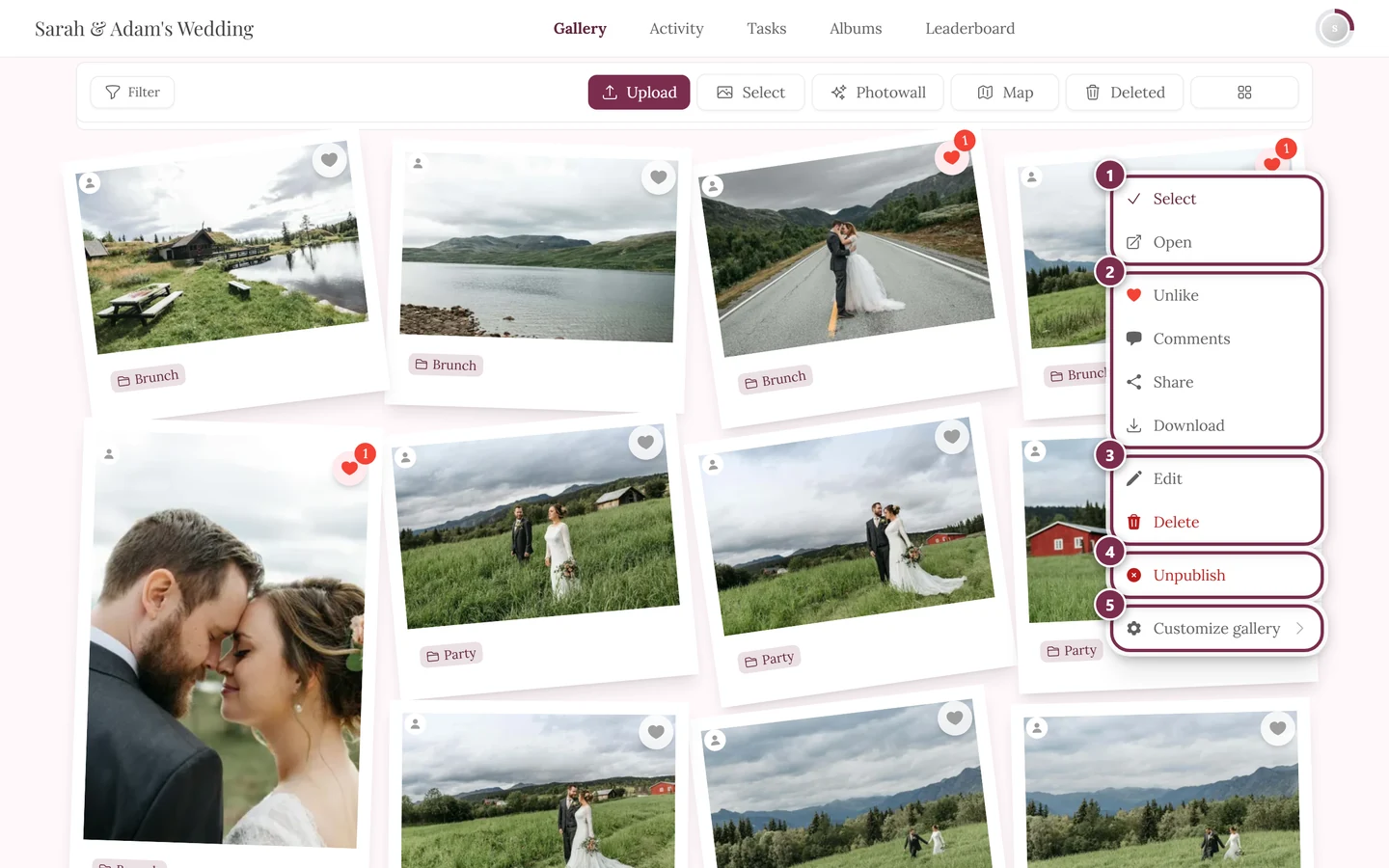
Right-click and press-and-hold open the very same context menu with Select. ① Select and Open, ② Like, Comments, Share and Download – Share only appears when sharing is switched on for the event, Download only when single downloads are allowed, ③ Edit and Delete – on your own photos, on other people’s only with moderation rights, ④ Unpublish – only with moderation rights; on a photo that is not approved yet the entry reads Publish, ⑤ Customize gallery – for hosts and admins only. -
Choose Select. The photo is marked instantly and selection mode turns on.
-
When selection mode is already active, that same menu item reads Deselect and removes the mark again.
Marking and unmarking photos
Section titled “Marking and unmarking photos”Once selection mode is active, you collect your photos:
- Tap a photo once to mark it – it gets a red border. Tap again to clear the mark.
- Keyboard (accessibility): use Tab to focus a photo, then press Enter or the Space bar to mark or unmark it.
- Select All (top of the bar) marks every currently loaded photo at once. If a filter is active, it only marks the filtered set.
- Range is the fastest way to grab a continuous group: mark the first and the last photo of the group, then tap Range – every photo in between is marked as well. The button is grayed out while you have fewer than two photos marked.
- The counter at the top (“N photos”) updates live as you mark.
Leaving selection mode
Section titled “Leaving selection mode”You leave selection mode via the X at the top left or via Cancel Selection (which appears as soon as at least one photo is marked). Selection mode also turns off automatically once an action (such as Like or Save) is finished.
What you can do with the selection – as a guest
Section titled “What you can do with the selection – as a guest”The selection bar offers these actions for all marked photos at once. All three stay grayed out while nothing is marked.
-
Like – gives every marked photo a heart in one go. The button only appears when liking is enabled for this event. More on this: Likes & comments.
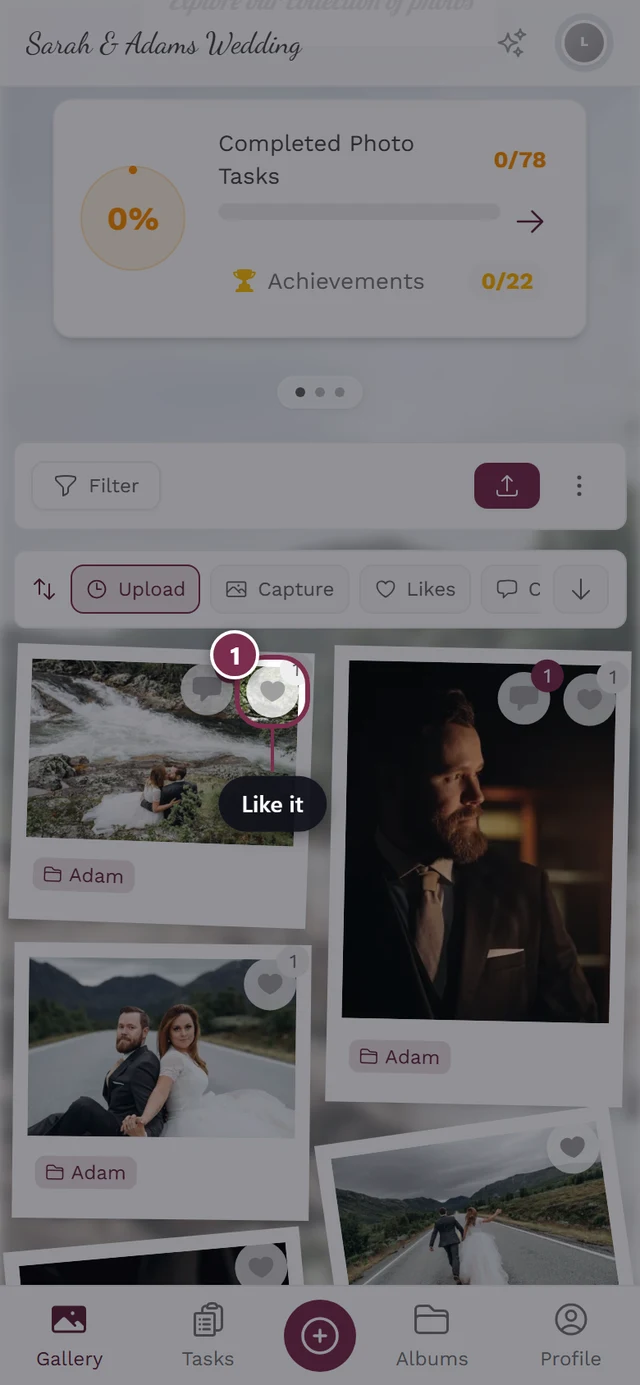
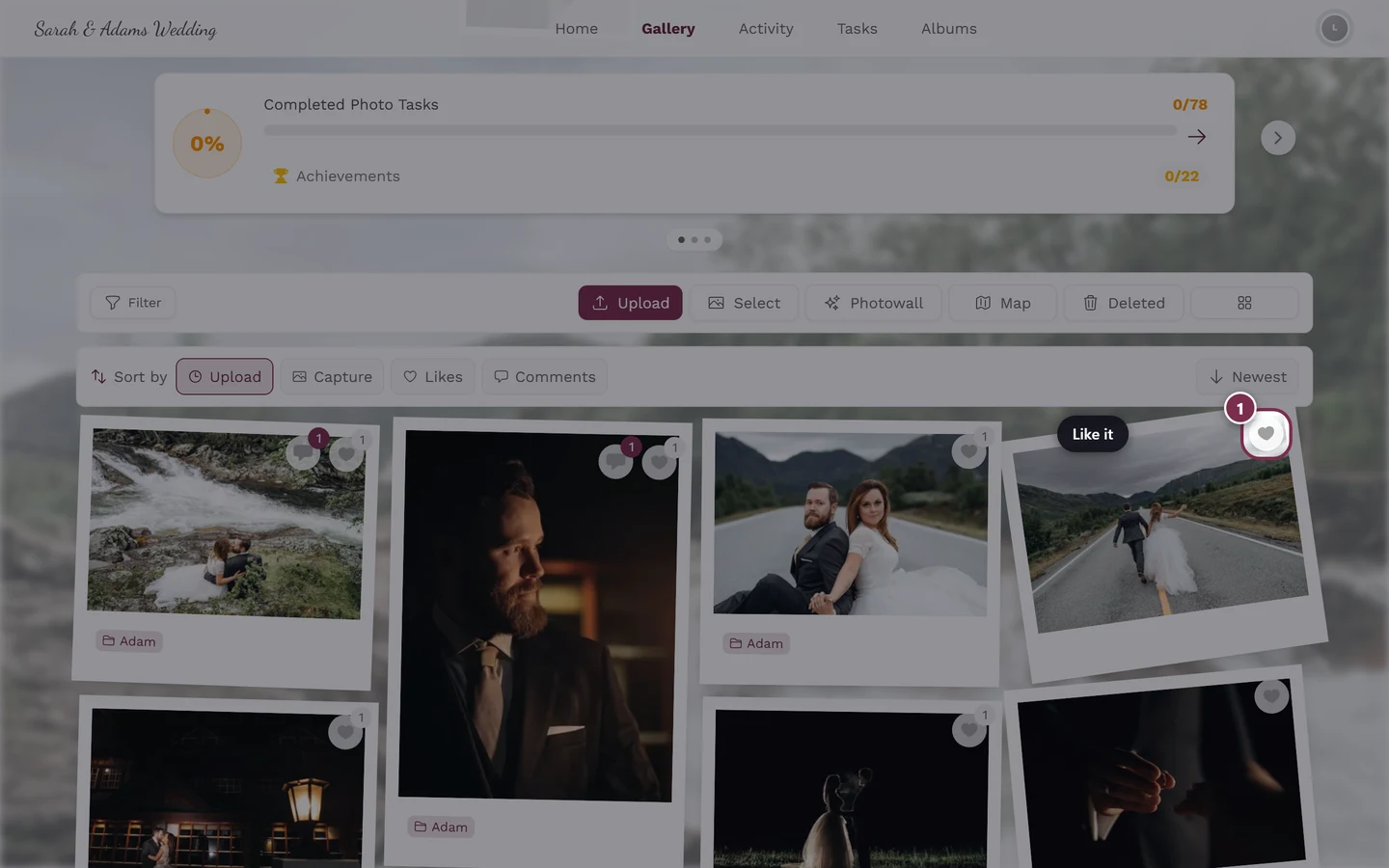
Like gives all marked photos a heart in one sweep. -
Save – downloads the selection as a ZIP archive (see the next section).
-
Range – fills the gap between the first and last marked photo (see above).
Saving the selection as a ZIP
Section titled “Saving the selection as a ZIP”There is one more dialog between the Save button and the finished ZIP file – that is where you pick the quality.
-
Mark your photos and tap Save in the selection bar.
-
The Download Options dialog opens. Choose one of the two versions:
- Original Quality – subtitle “Highest resolution available”. Full resolution without any optimization, ideal for print and archiving.
- Web Optimized – subtitle “Recommended for sharing online”. Balanced quality at a smaller file size, ideal for passing photos on quickly.
The dialog also tells you how many files are involved and notes that they will be packaged as a ZIP archive.
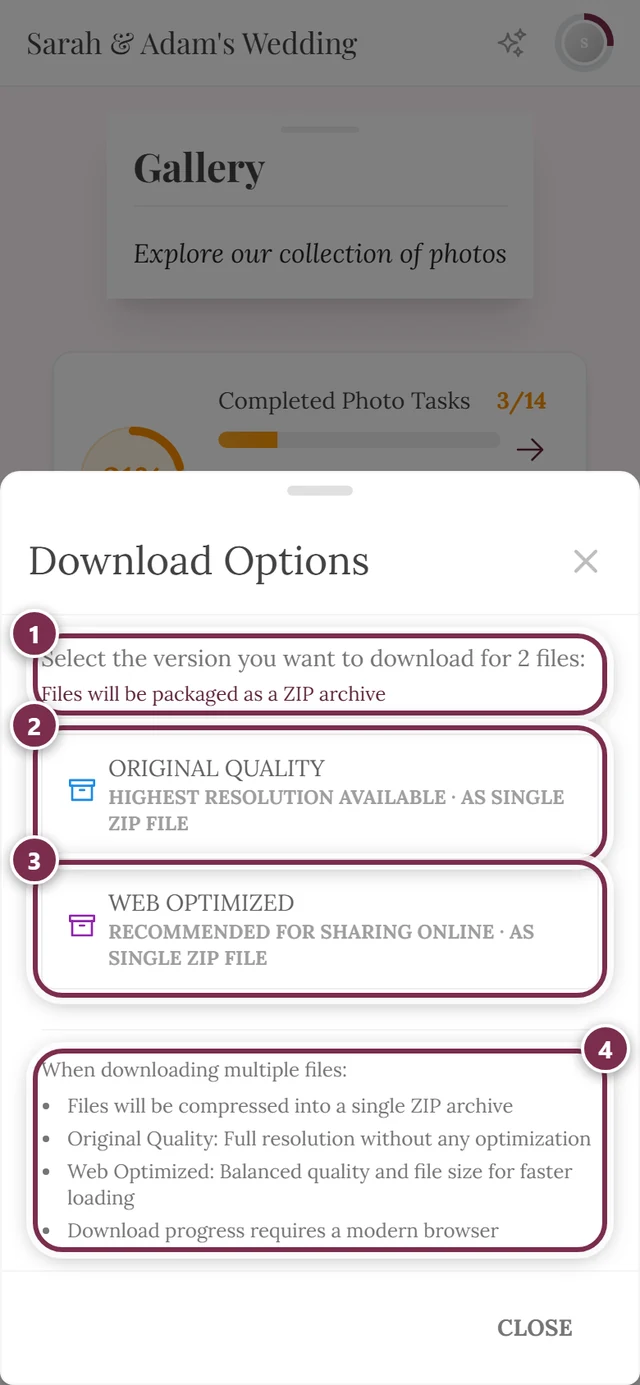
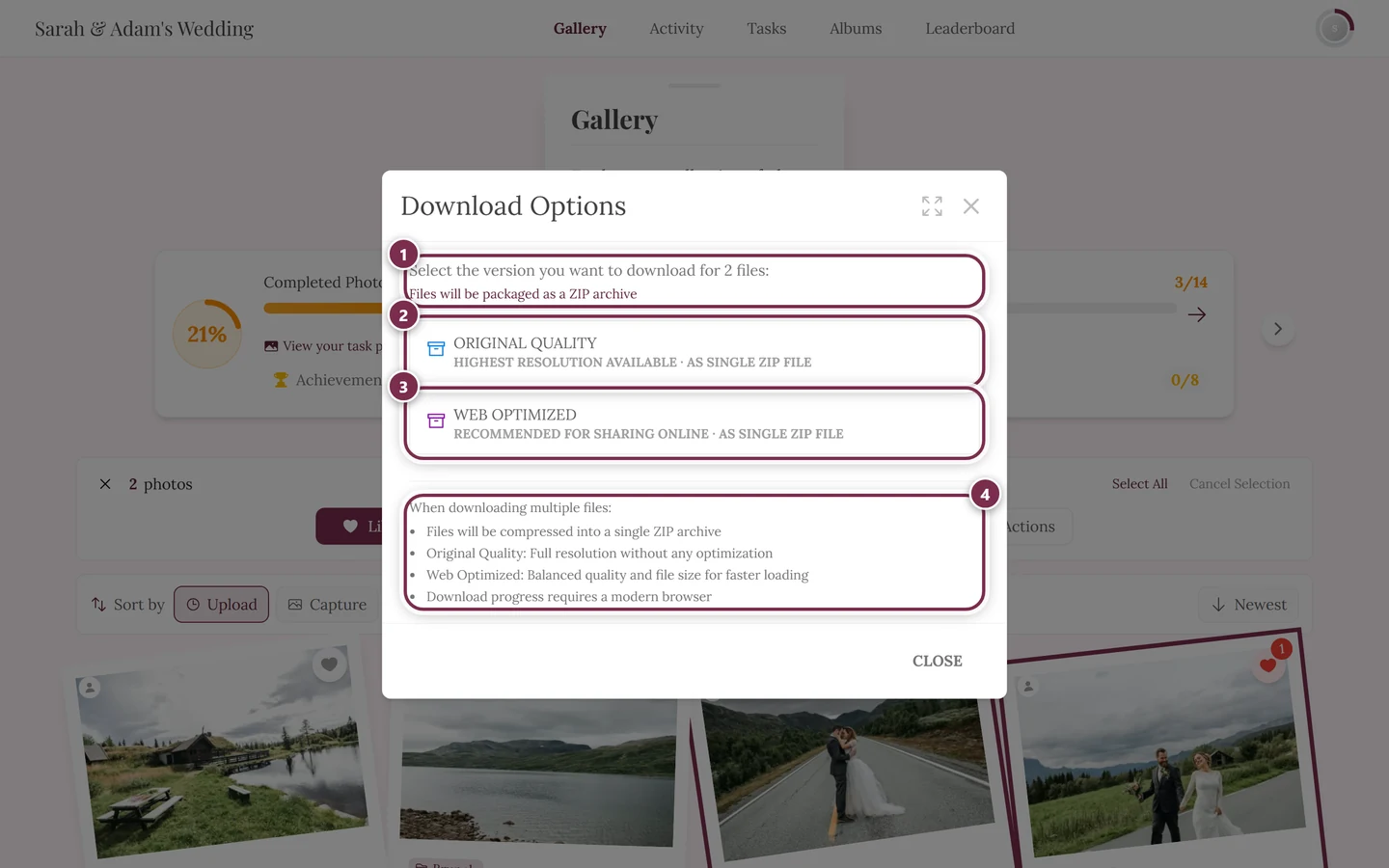
The same dialog as for a single download – just with the ZIP additions. ① “Select the version you want to download for 2 files:” names the count, and below it: “Files will be packaged as a ZIP archive”. ② Original Quality, its subtitle now ending in “· as single ZIP file”. ③ Web Optimized with the same addition. ④ the box When downloading multiple files: explains the compression and both quality levels. As long as you pick neither, nothing downloads – Close at the bottom backs out. -
Only after this choice does the download start. You see a progress bar with a status text (“Creating ZIP archive…”, and at the end “Download complete!”) and can step in with Pause, Resume and Cancel.
Extra actions for hosts and moderators
Section titled “Extra actions for hosts and moderators”- Hide / Publish – toggles the visibility of the marked photos. See Moderation.
- Delete – moves the photos to the recycle bin (recoverable for 30 days). See Recycle bin.
- Remove from album – only appears when exactly one album filter is active, and removes the photos from that album only. See Browsing albums.
- Bulk Actions – opens a powerful dialog (admin/owner only), see the next section.
The “Bulk Actions” dialog (admin/owner only)
Section titled “The “Bulk Actions” dialog (admin/owner only)”The Bulk Actions dialog has several tabs. Which ones appear depends on the event: Challenge only if the event has photo challenges; Album only if there are albums. Description, Rotate and Metadata are always there.
- Challenge – assign marked photos to a photo challenge or remove the assignment. Ties in with your event’s photo tasks.
- Album – add photos to albums or remove them from albums. The “Search albums…” box helps you find the right album quickly; you can tick several albums. See Browsing albums and Managing albums.
- Description – set a shared description for all photos (up to 2000 characters), prepend some text (up to 500 characters), or clear the description (red, irreversible).
- Rotate – Clockwise, Flip or Counter-clockwise. Rotation is queued for background processing, so it isn’t visible immediately.
- Metadata – add location (latitude/longitude/altitude; “Pick on map” or “Current position”), capture time, camera/lens, and artist name/copyright notice. Only the filled-in fields are updated.
At the bottom you confirm with the action button, whose text changes per tab (e.g. “Add to albums” or “Update metadata”). For very large selections the action runs automatically in blocks of 500 photos; at the end you see one combined message.
Troubleshooting
Section titled “Troubleshooting”Related topics
Section titled “Related topics”- Downloading photos – single downloads and the two quality levels.
- Likes & comments – every way to like, including one at a time.
- Browsing albums – filter photos by album before you mark them.
- Backing up all photos – the full export for hosts.
- Settings: Features – the download and like switches.