Take a photo directly
You don’t have to open your camera app first, take a photo and then hunt for it. With Take Photo you launch your camera straight from the upload dialog, and the finished picture is uploaded in the background right away – without a review view.
Photogala has no camera mode of its own
Section titled “Photogala has no camera mode of its own”This is the most important point on this page: Take Photo is not a built-in camera. Photogala has no viewfinder, no shutter button and no flash toggle. The button merely hands the request to your device – on a phone your system camera opens, on a computer the file picker.
Everything else follows from that:
- Your operating system decides about permissions. Camera access is governed by your device or your camera app, not by Photogala. You won’t see the classic website camera prompt on this path.
- Capturing, confirming and discarding happen entirely inside your device’s camera app.
- On some devices the photo picker opens instead. Some phones and browsers implement the camera request differently. If so, pick your camera app in that dialog, or shoot normally first and use Choose photo.
That’s why we cover phone and computer separately below.
How to reach Take Photo
Section titled “How to reach Take Photo”The button lives in the upload dialog you open from the gallery.
-
Open the gallery and tap the Upload button.
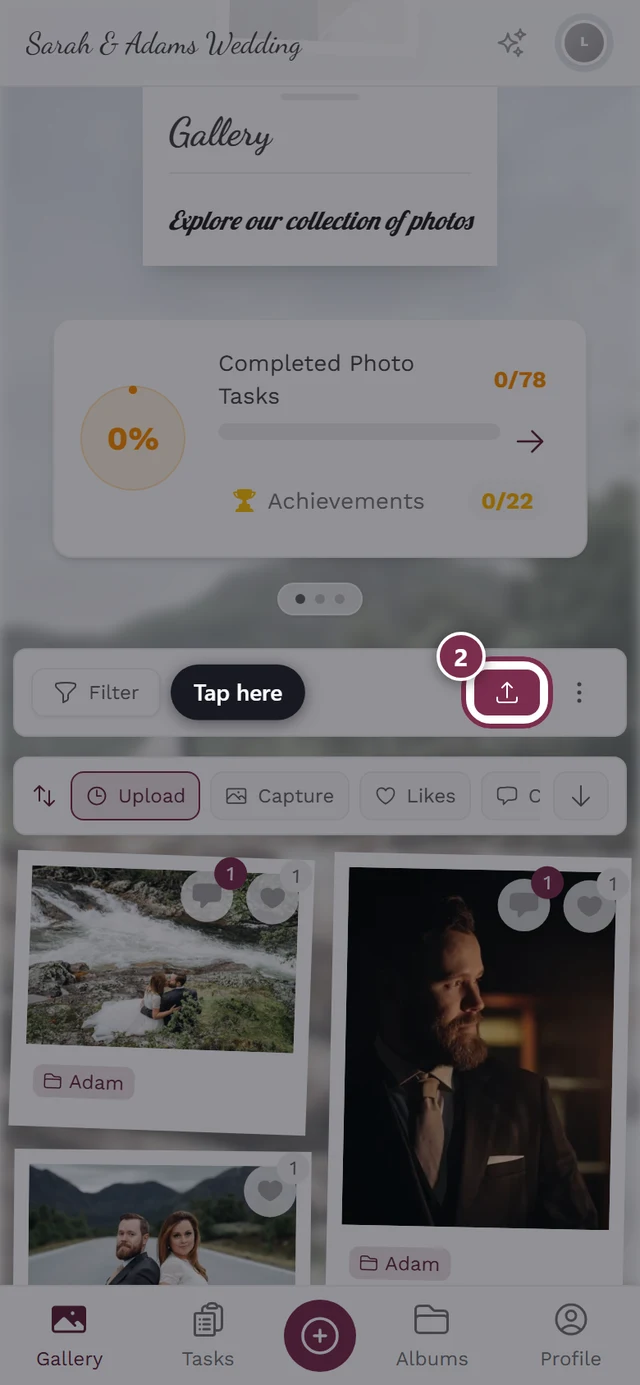
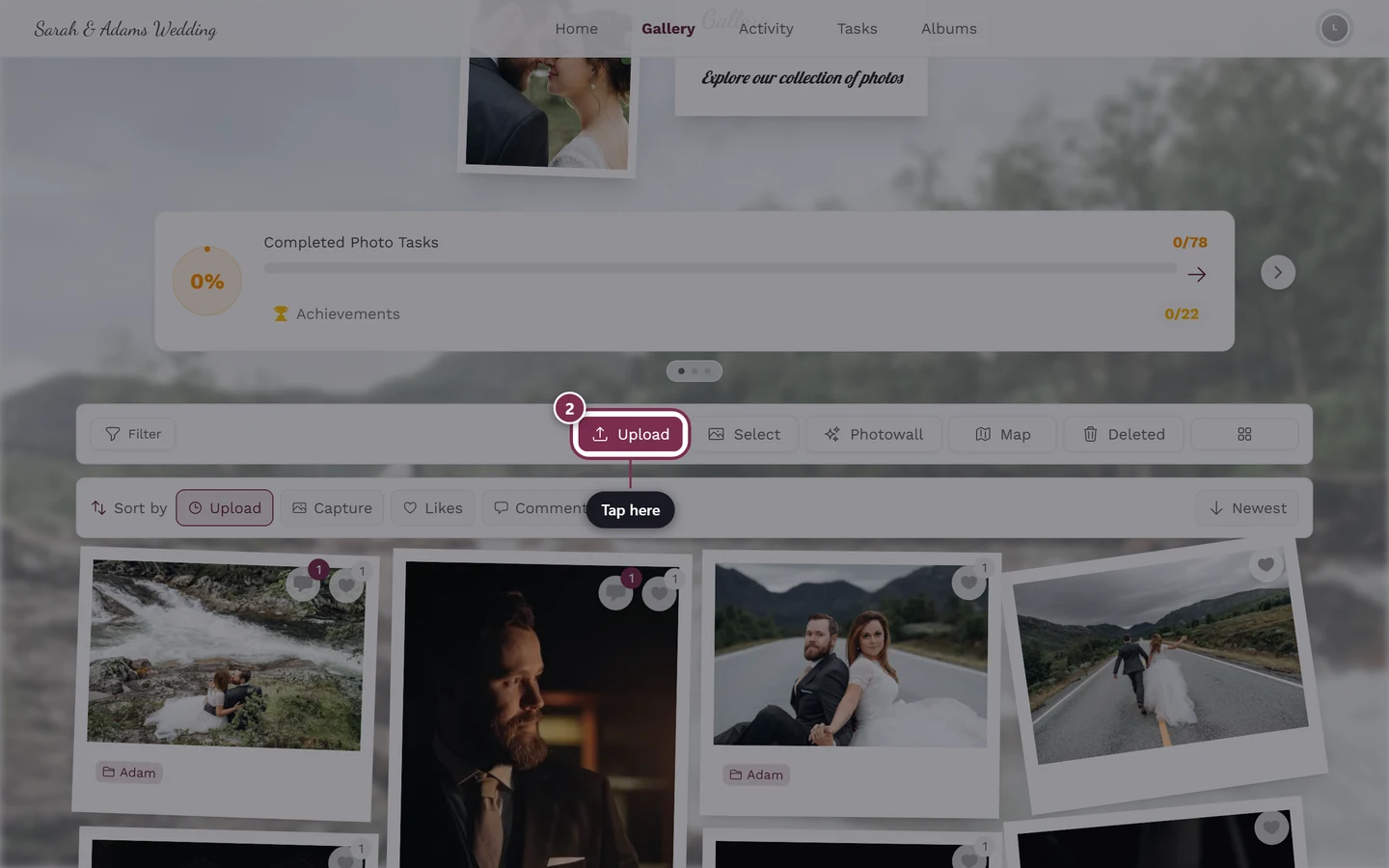
The Upload button in the gallery opens the dialog. -
In the Share photos dialog you’ll see two buttons: Choose photo and Take Photo. Tap Take Photo (camera icon).
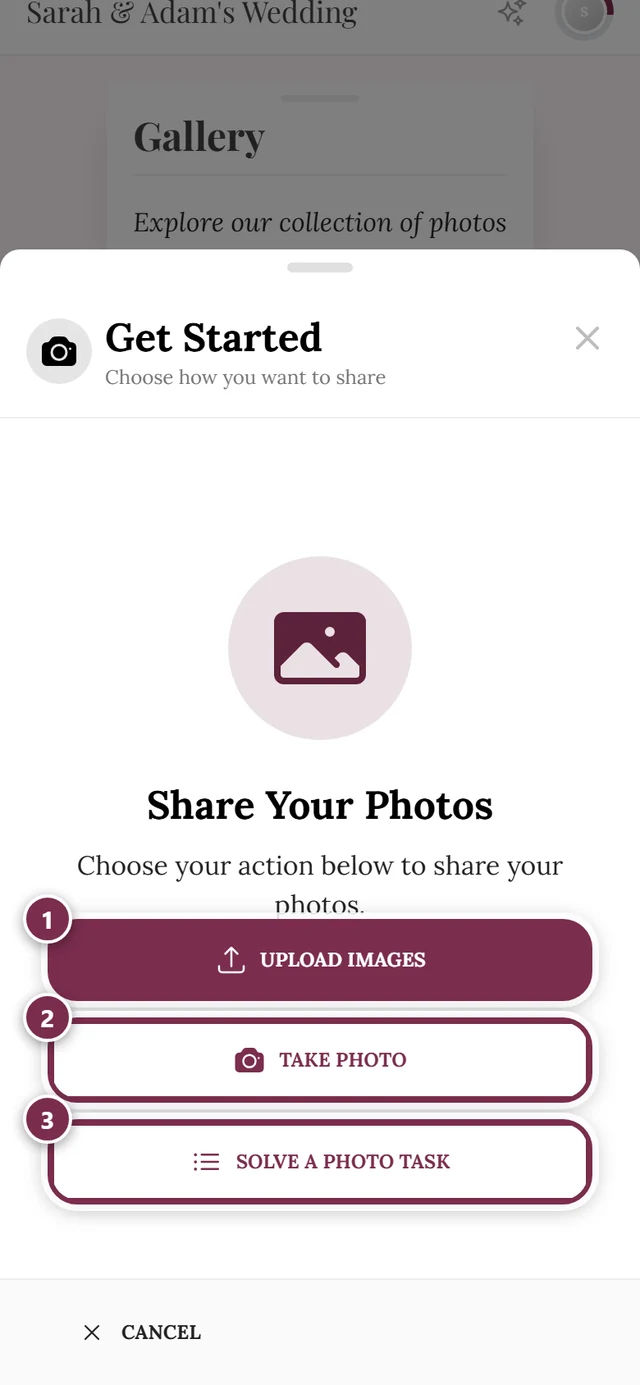
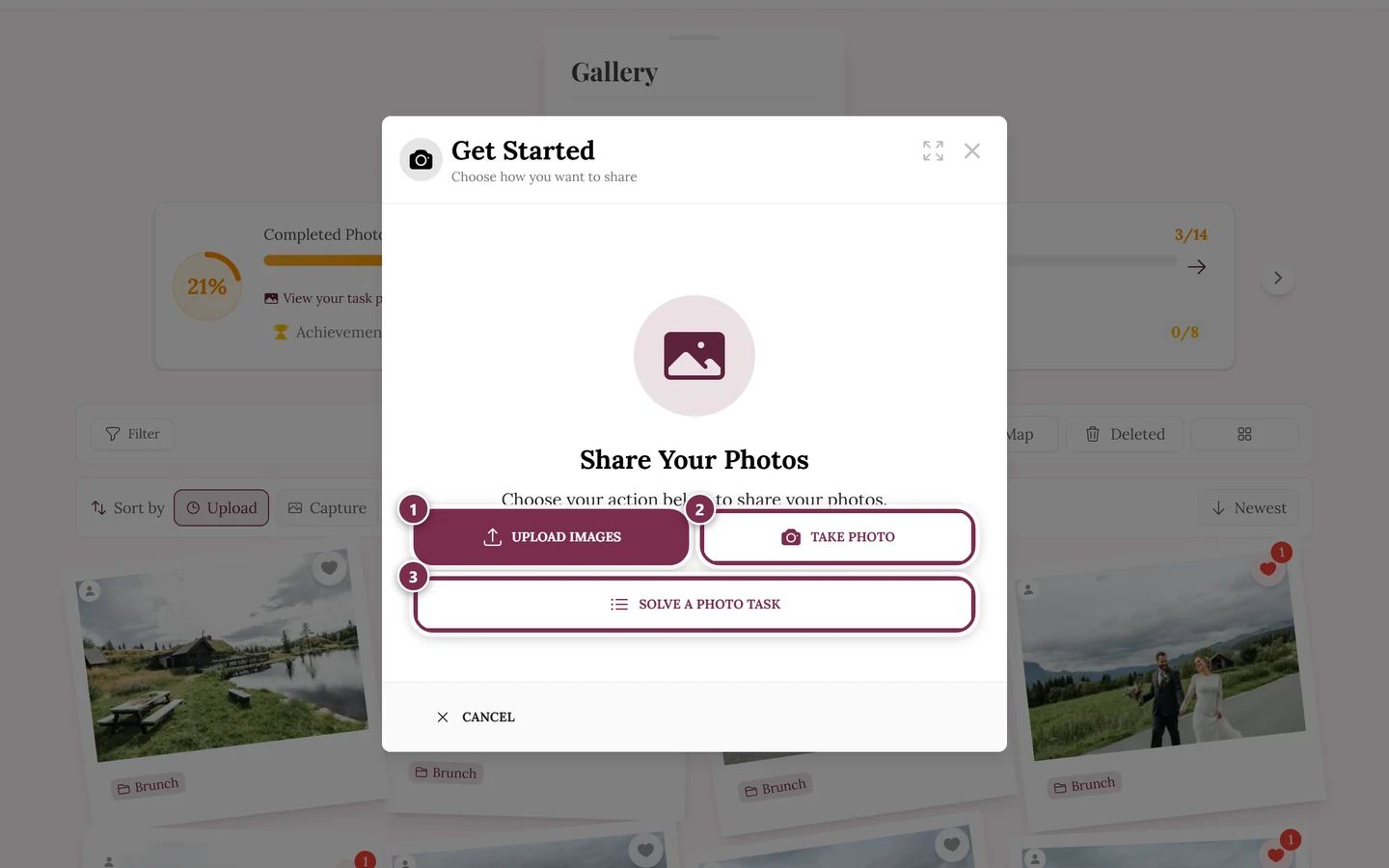
The Share photos dialog, opened by the upload button in the gallery: ① Choose photo opens your device’s file picker – several files at once are fine, ② Take Photo opens the camera straight away, ③ the Photo task card only appears when photo tasks are switched on for the event and you can solve one of them. If you may not upload – because the event has ended or expired, for instance – the dialog shows a notice instead. 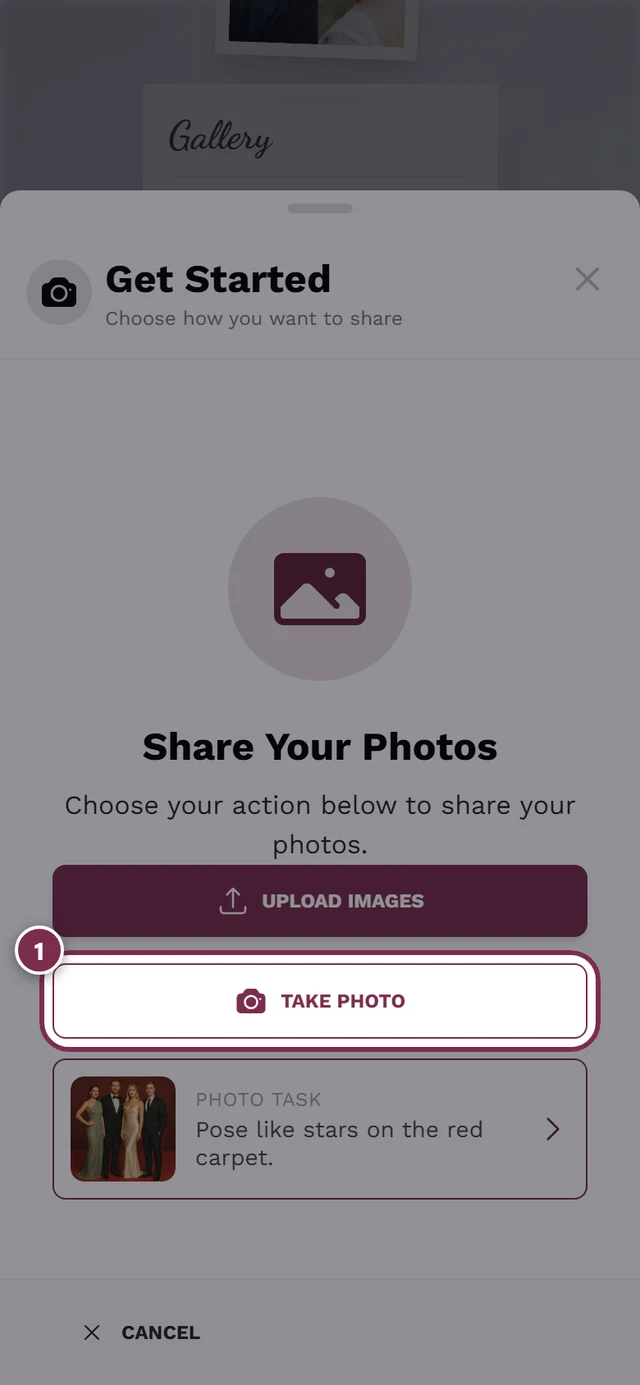
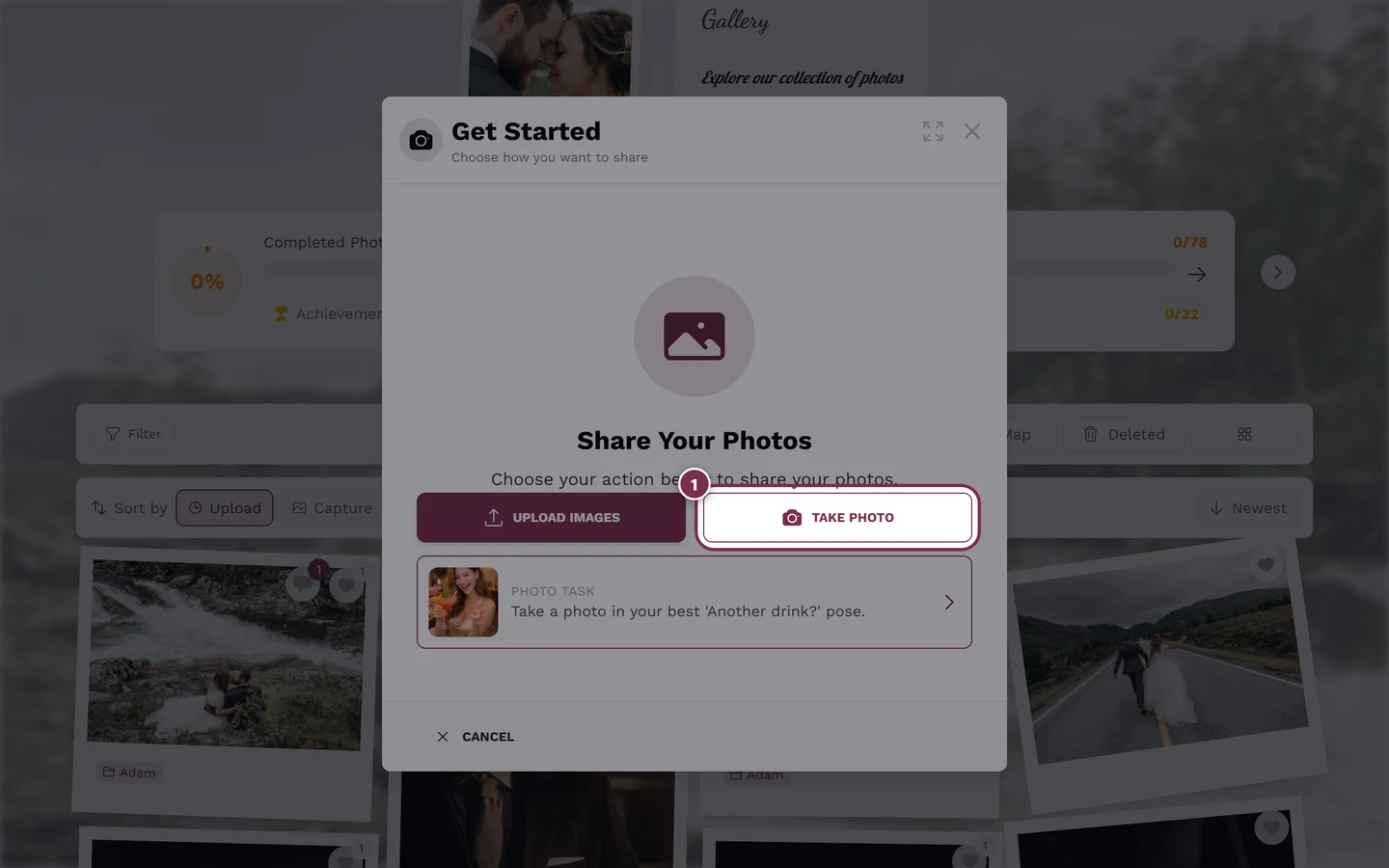
Take Photo opens your device camera.
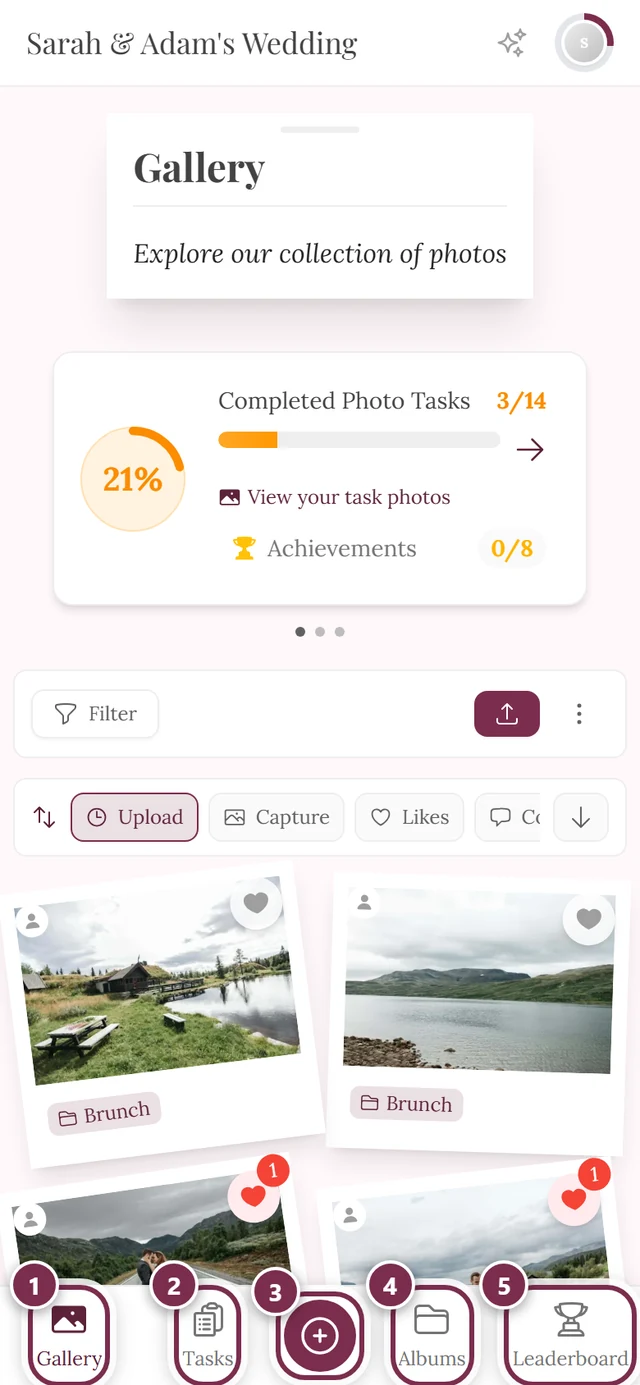
On a phone the quickest way to the upload button is the bottom navigation bar.
Each camera run produces exactly ONE photo
Section titled “Each camera run produces exactly ONE photo”The camera path allows no multi-select. One tap on Take Photo always delivers exactly one picture – unlike Choose photo, where you can select several files at once.
In return it is fast: as soon as you confirm the photo in the camera app, Photogala uploads it right away in the background. There is no review view on this path. Instead the dialog shows you:
- Photo received (with several, Photos received) with a small preview per photo and the status “Uploading”, “Uploaded” or “Already added”,
- a counter like “2 uploaded · 1 is uploading”,
- the hint “Uploading in the background. You can keep going.”
If you want several photos, simply tap Take Photo again under Upload another photo. Each photo is uploaded on its own. Done – Back to gallery takes you back to the gallery while the last photos are still being transferred.
On a phone or tablet
Section titled “On a phone or tablet”This is the real use case.
-
Open the gallery and tap Upload → Take Photo.
-
The first time, your operating system or camera app may ask for camera permission. Tap Allow.
-
Take the photo in your system camera. The rear camera is preselected. Switch to the front/selfie camera using the toggle inside the camera app itself.
-
Confirm the photo in the camera app (checkmark/OK) – or discard it (X) and reshoot if it’s blurry. This retake step belongs to your device’s camera app.
-
After you confirm, Photogala uploads the photo right away. In the dialog you see Photo received with a preview and the status “Uploading” or “Uploaded”.
-
Take the next photo via Take Photo or tap Done – Back to gallery. Once it has been processed, your photo appears in the gallery.
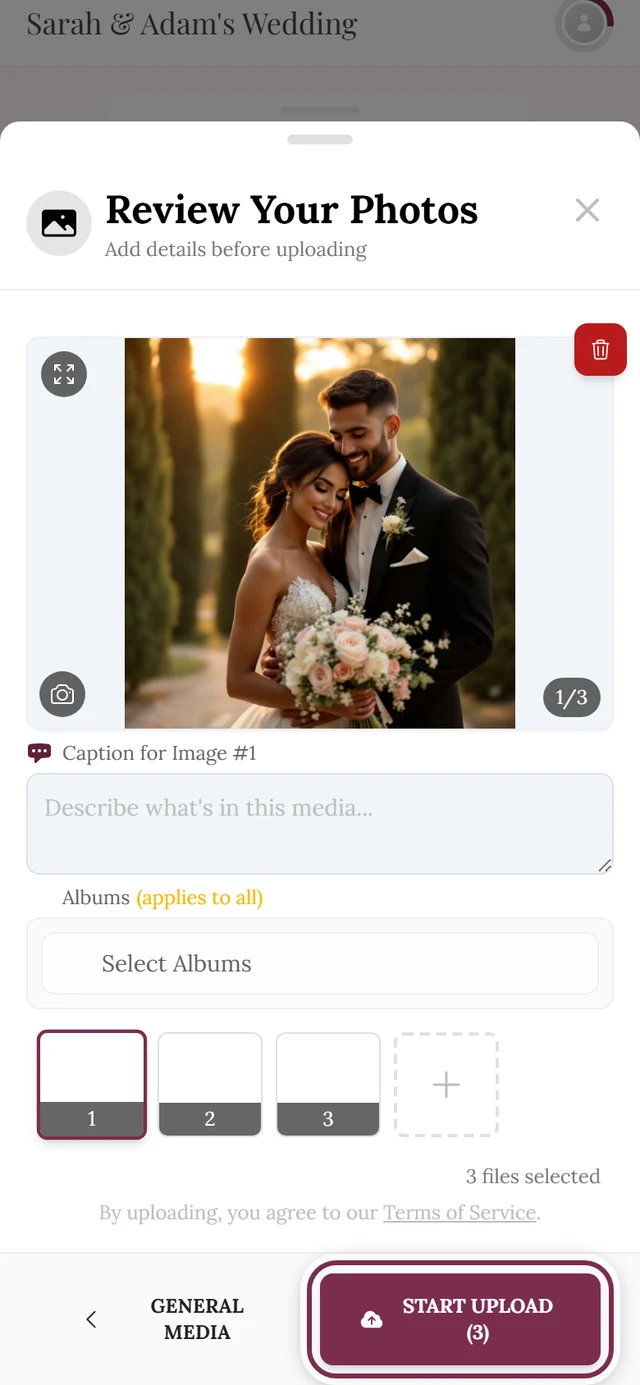
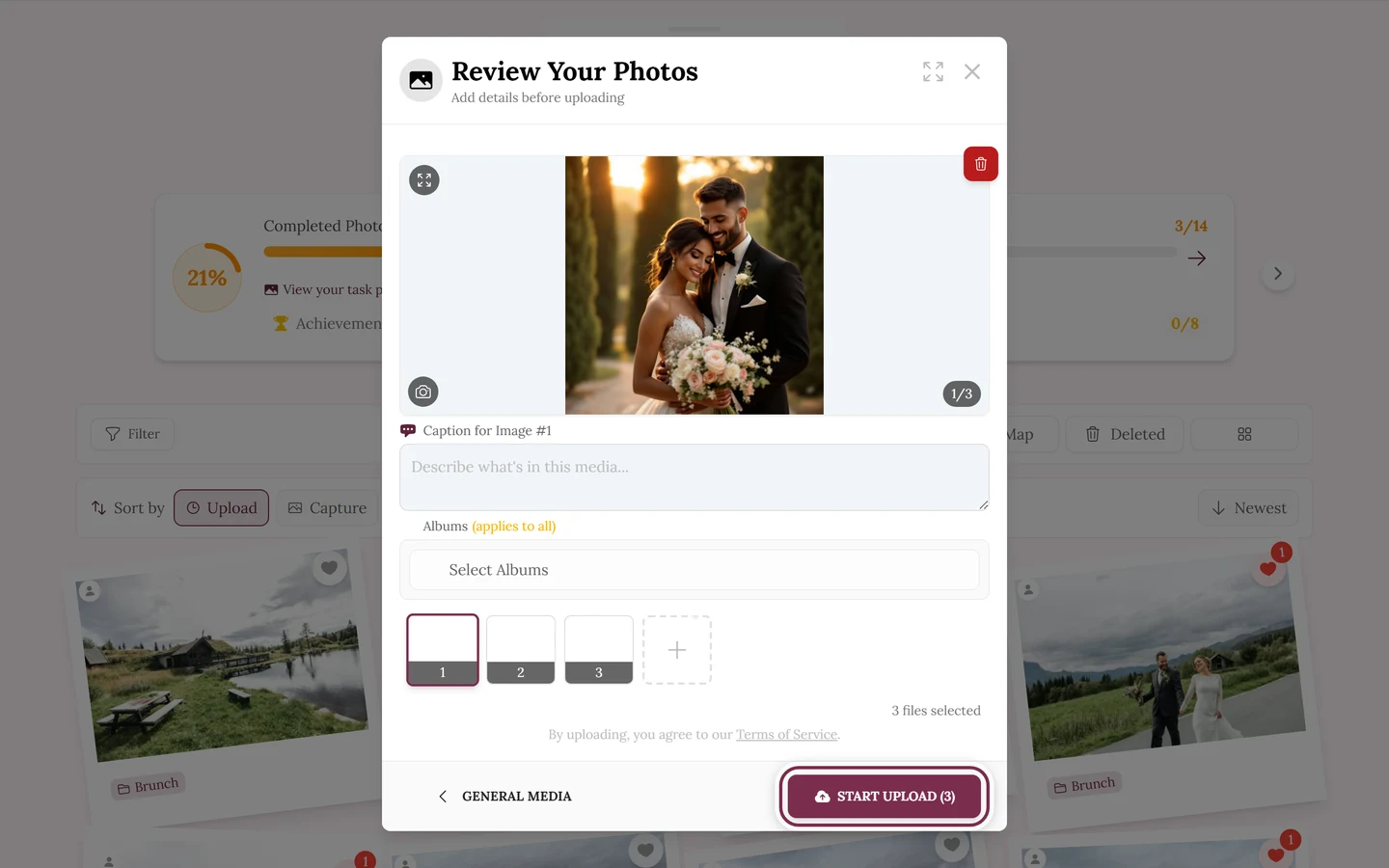
If you record a video instead of a photo, the path still leads through the review view:
On a computer or laptop
Section titled “On a computer or laptop”On desktop there’s no viewfinder. Most browsers ignore the camera request there, so Take Photo opens the same file picker as Choose photo. If you pick a single image there, it is uploaded right away as well.
- On a computer, just choose Choose photo. Guide: Uploading photos.
- If you want a genuine webcam shot, take it with an external camera or photo app and then upload the file via Choose photo.
Retake and delete
Section titled “Retake and delete”Photogala has no dedicated “retake” screen – retaking works in two ways:
- Before confirming – discard and reshoot right in your device’s system camera. That’s normal camera operation.
- After confirming – the photo is already uploaded by then. Simply take a new one with Take Photo. You delete a failed shot afterwards in the gallery, as described under How do I delete my own photo?.
Photo or video?
Section titled “Photo or video?”- Take Photo accepts photos and motion pictures (Live/Motion photos, animated GIFs). This is intentionally broad – this path is in fact the only way animated GIFs get into an upload from a phone, because the image picker deliberately leaves them out.
- You can only capture video here if the host allowed videos for the event. If they didn’t, only a photo is possible.
- Storage, photo and uploader limits apply at the upload step. Details under Uploading photos.
Camera photos and the map
Section titled “Camera photos and the map”Photos you capture this way in the browser generally carry no location data. But the map places photos precisely by that GPS data – which is why browser camera shots normally do not appear there. That is not a bug and cannot be changed inside the app. How the map handles this is covered under Photo map.
After uploading
Section titled “After uploading”A camera photo shows no completion screen of its own. The dialog stays open, reports “Photos uploaded. Processing continues in the background.” and then “Your photos are uploaded.” If the photo belonged to a photo task, the Thank you for your photo! card appears instead, with your points and the Next task button (see Solve photo tasks).
After that the picture shows up briefly in the Media Processing section above the gallery before appearing in the grid as usual. All the details: Uploading photos.
Don’t see a Take Photo button?
Section titled “Don’t see a Take Photo button?”It’s not because of a dedicated camera switch – there isn’t one. The button always appears when you are allowed to upload at all. It’s missing when:
- guest uploads are disabled → “No Upload Permission”,
- the event has ended or expired → “Event Has Ended” or “Event Has Expired”,
- you’ve been banned from uploading → “Upload Banned”; in that case reach out to a moderator.
If something’s off
Section titled “If something’s off”- On a computer, only the file picker opens, no camera – that’s normal, the camera request is ignored on desktop. Take the photo with a camera app and use Choose photo.
- On a phone, the photo library opens instead of the camera – pick your camera app in that dialog, or shoot first and use Choose photo.
- Camera permission denied by accident – re-enable it in your device’s system settings (device level, not just website permission).
- Nothing happens after the photo, or a file won’t add – wait a moment; the app prepares the files automatically (overlay “Preparing files…”). If you get “Some Files Could Not Be Added”, take the photo again.
- Photo is blurry – simply take a new one via Take Photo; delete the blurry one afterwards in the gallery.
- Upload failed – on network problems Photogala retries up to three times by itself. If that doesn’t work, tap Retry, Choose another photo or Discard this upload on the Photo could not be uploaded card.
Related topics
Section titled “Related topics”- Uploading photos – the main alternative and the way to go on a computer.
- Solve photo tasks – take a photo directly for a task.
- Photo map · Privacy and moderation