Challenges & tasks
Challenges turn any event into a little game: you get creative photo tasks, solve them with a matching photo – and earn points along the way. Some tasks have unlock conditions or a time window, others can be solved multiple times and award points each time.
Getting to the tasks page
Section titled “Getting to the tasks page”There are several ways to reach your tasks:
- The “Tasks” menu – in the top bar on a computer, in the bottom navigation bar on a phone (clipboard icon). The menu item only appears when the feature is on and at least one task already exists.
- Via the progress card – the card above the gallery grid takes you to the tasks page with one click (see below).
- Straight from the gallery – via the upload dialog, without opening the tasks page (see Route B).
The progress card above the gallery
Section titled “The progress card above the gallery”You don’t have to leave the gallery to check where you stand. A card with your task progress sits directly above the photo grid:
- a progress ring with your percentage – clicking it opens the tasks page;
- the heading Completed Photo Tasks with your score to its right; once you’ve finished them all it reads All Challenges Completed – with confetti;
- a bar: the colored part is what you solved, an extra gray segment at the end stands for expired tasks. Without expired tasks the bar is single-colored;
- an arrow in the event color at the end of the bar – it also leads to the tasks page;
- as soon as you have solved at least one task, the link View your task photos.
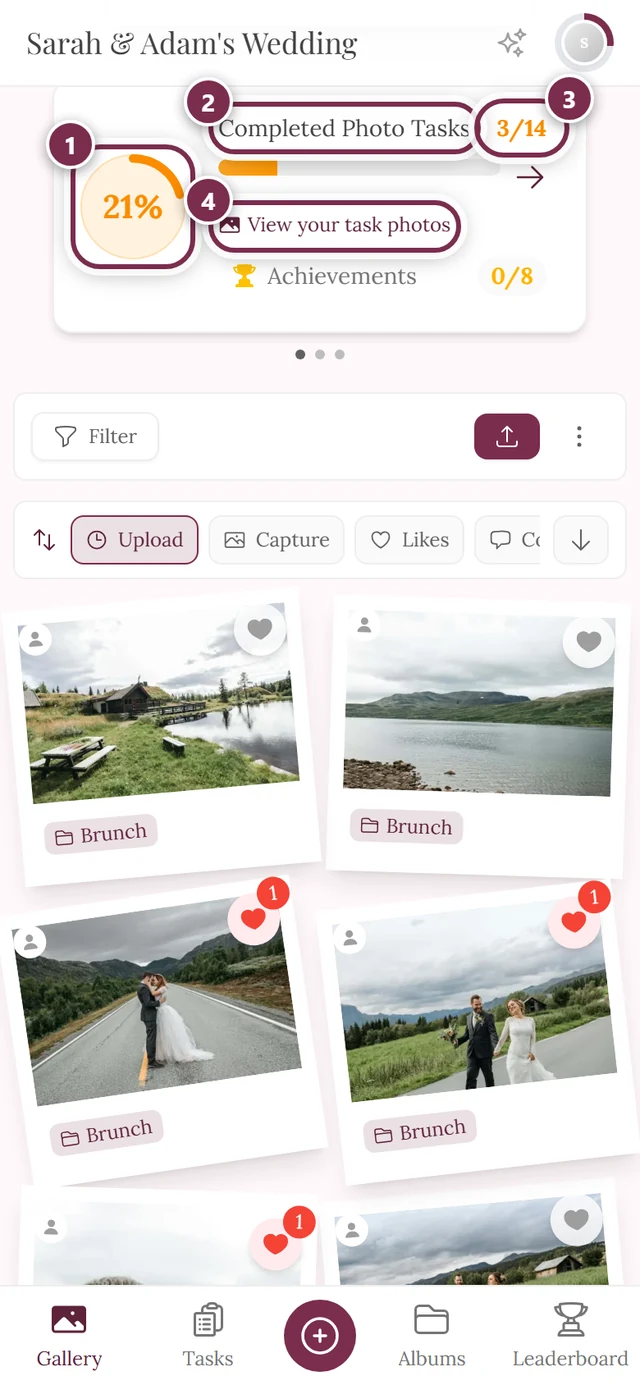
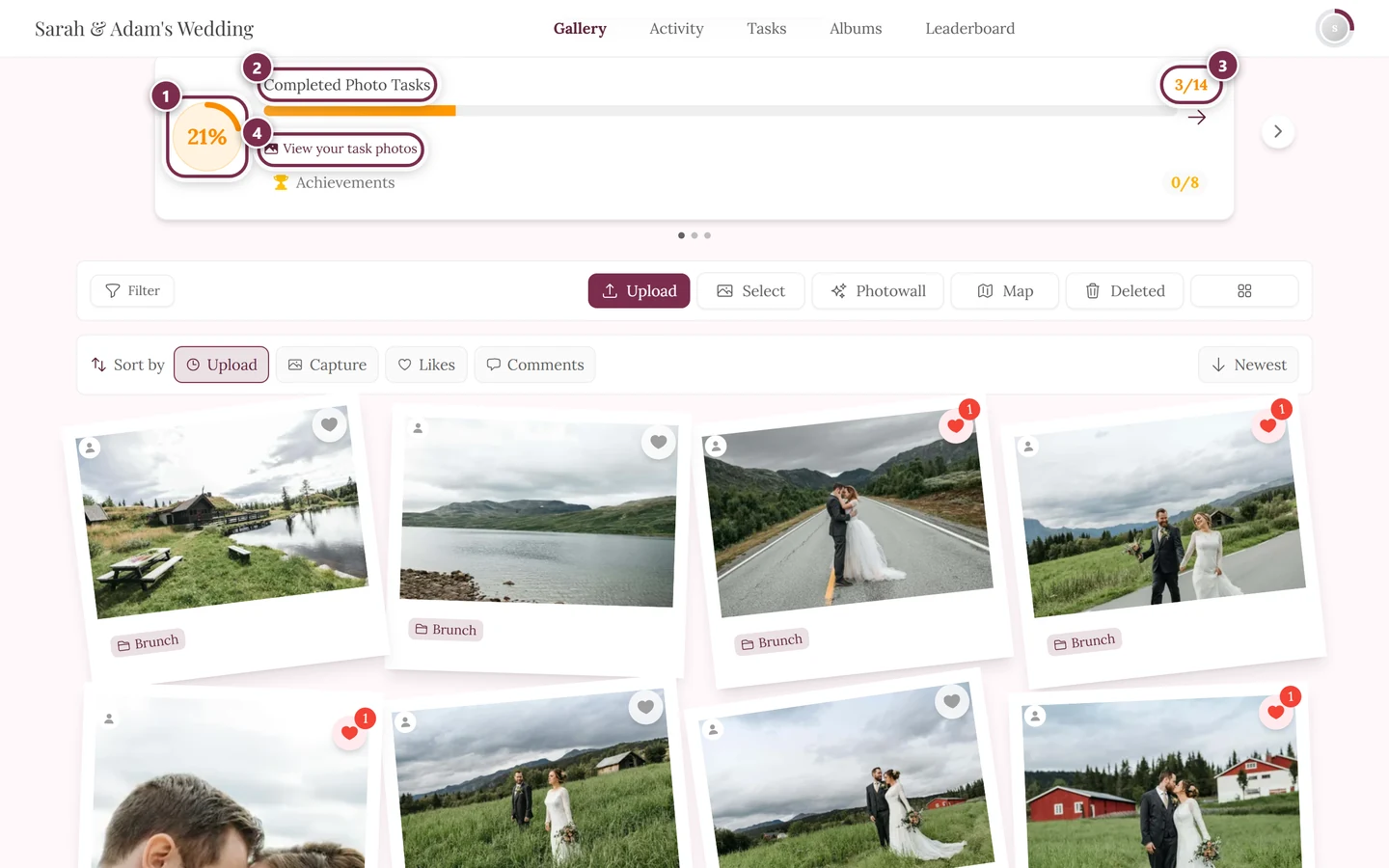
The gray arrow on the far right and the dots below the card do not belong to the tasks: above the grid sits a small carousel of up to three cards – task progress, next achievement and collective memories. It only appears once at least two of them have something to show.
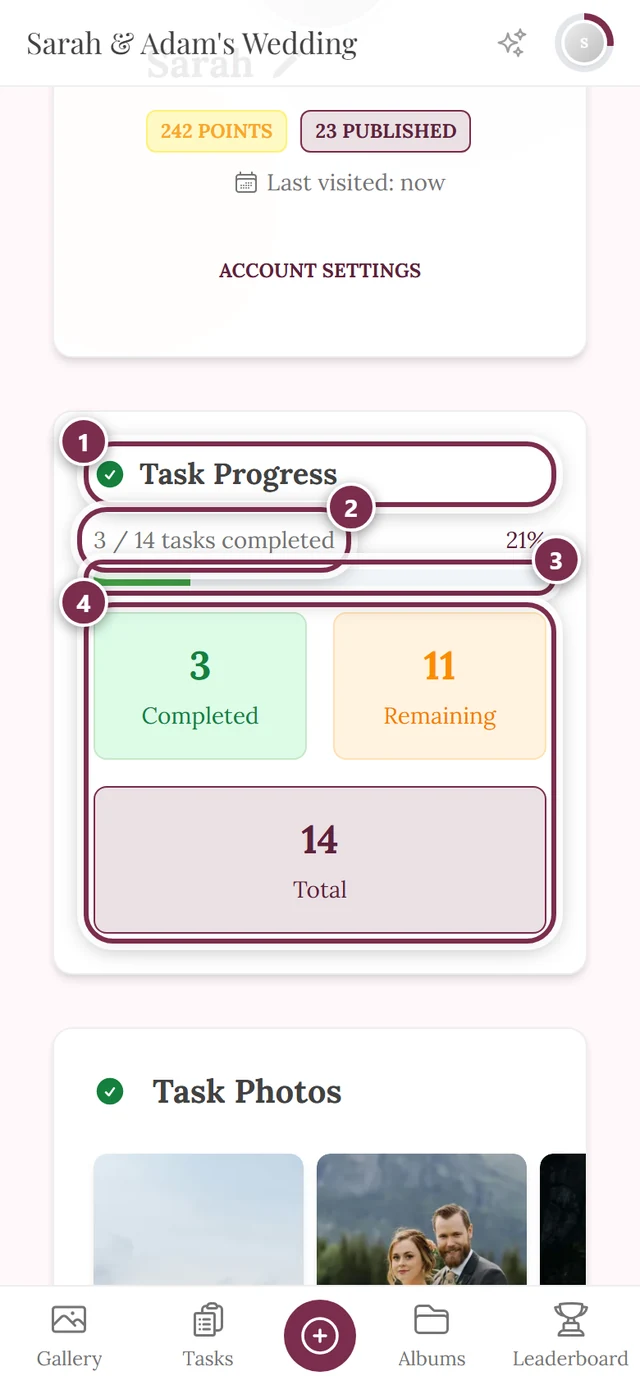
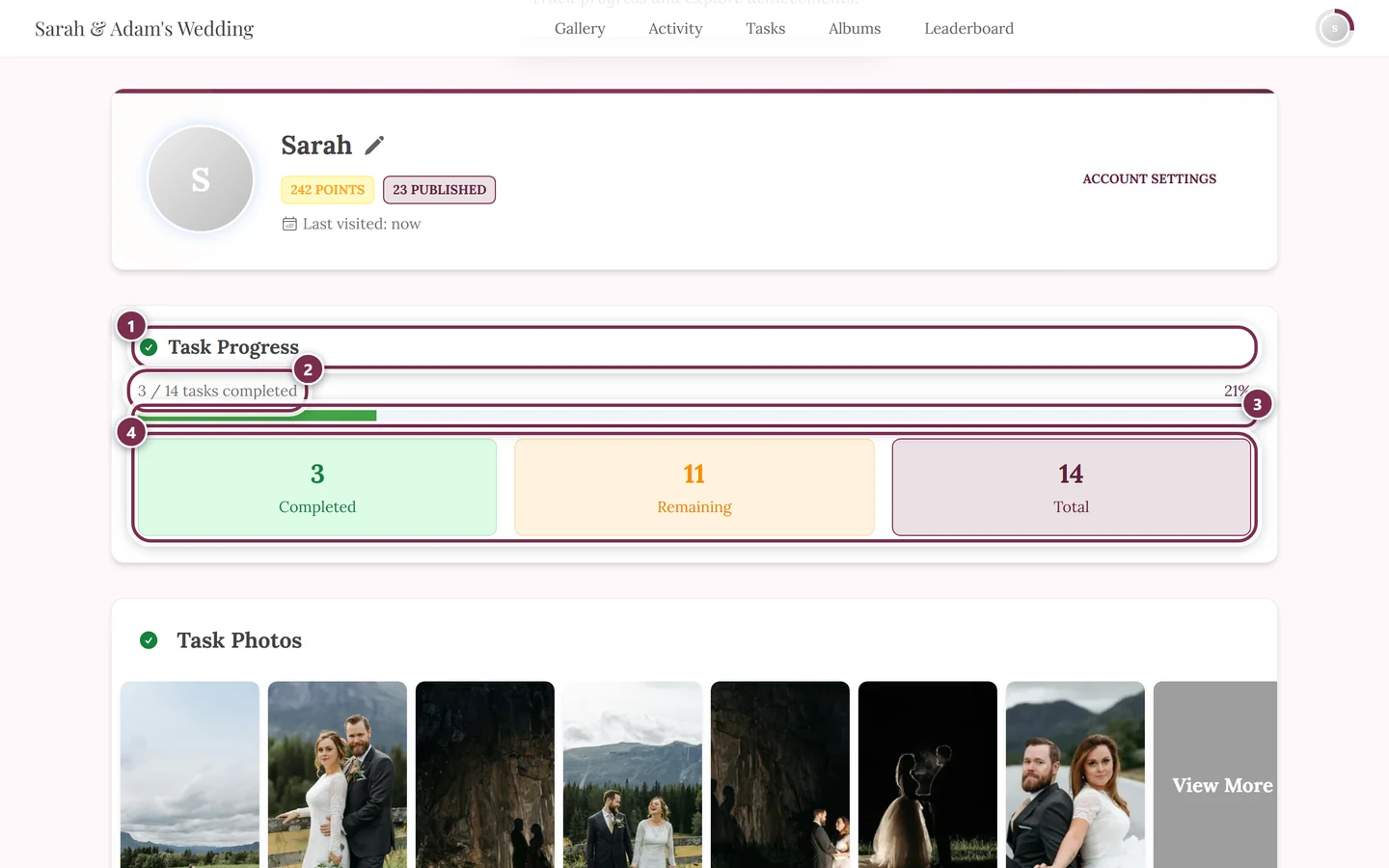
A second, more detailed display sits on your profile under Task Progress: a bar plus tappable tiles – Completed, Remaining and Total are always there, Expired only joins them once a deadline has actually passed. Each tile opens the matching task list. Right below it is the section with your task photos.
Solving a task
Section titled “Solving a task”Photos always reach the event through the same upload dialog. “Solving a task” simply means your photo gets assigned to a task. There are several entry points that all end up in the same dialog – pick whichever is closest at hand.
Route A – from the tasks page (recommended)
Section titled “Route A – from the tasks page (recommended)”The targeted route when you want to solve a specific task. You see the reference image and point value up front.
-
Open the Tasks area.
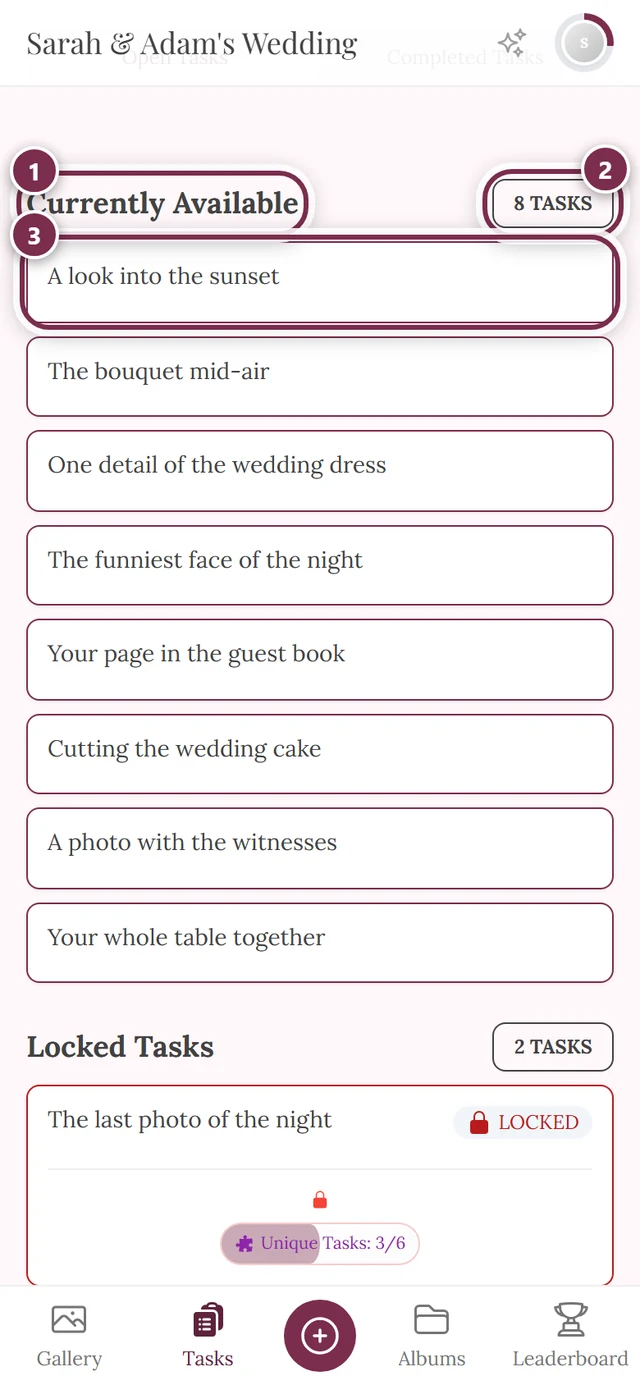
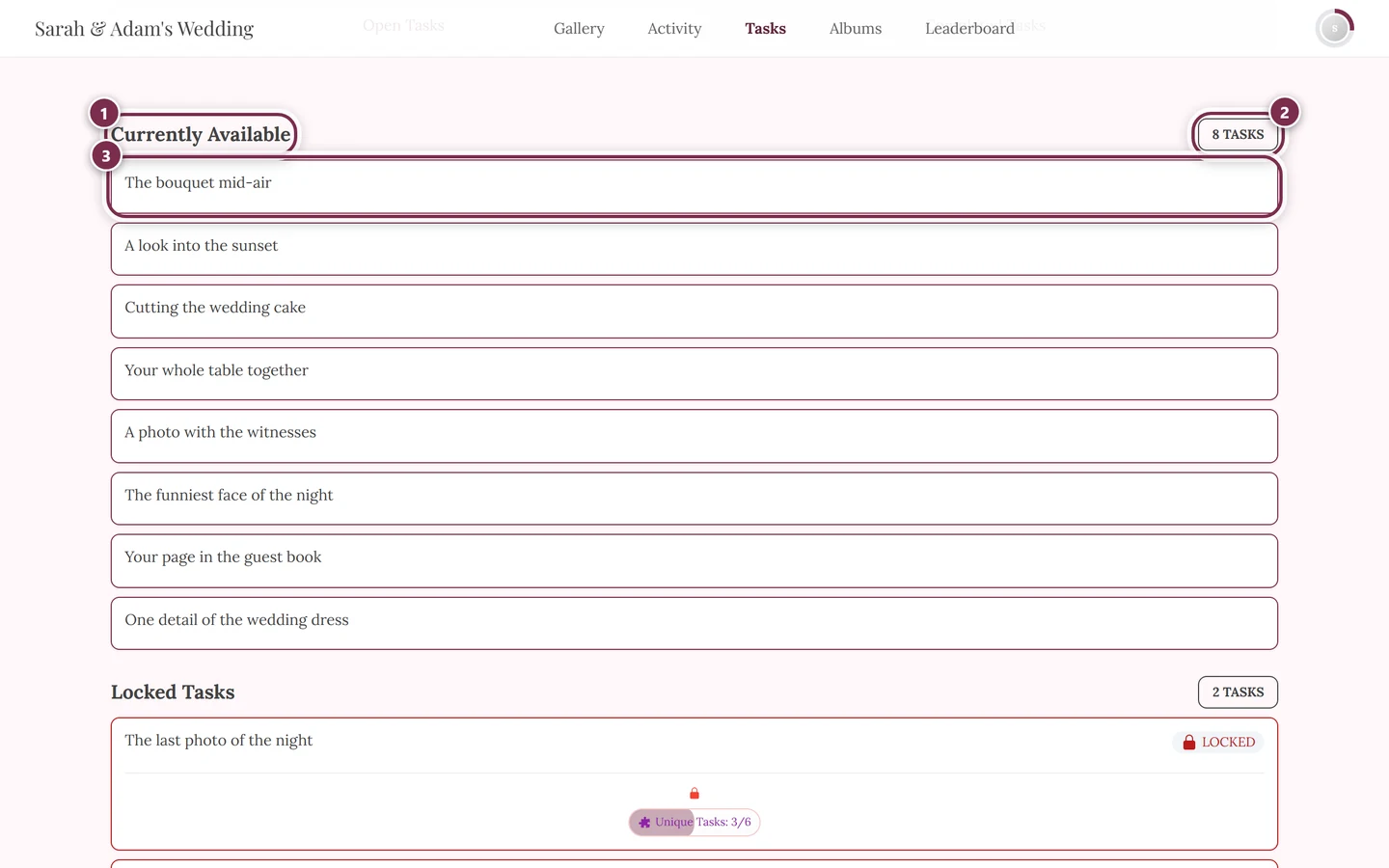
① the heading Currently Available, ② the counter on the right tells you how many tasks you can solve right now, ③ the first task card – tapping it opens the upload dialog with exactly that task. -
Under Currently Available, tap a task card. You’ll see the title, description and how many photos have already been uploaded.
-
The upload dialog opens right at the task selection (“Photo tasks”) – your task is already preselected as a Photo task card, with its reference image (if set) and the point value “+X”.
The task you tapped is already selected – now just add the photo. -
Tap Choose photo to pick an existing photo, or Take Photo to shoot one with the camera. Several photos are possible via Choose photo. Under More ▸ Album & description (optional) you can give the photo a description or an album beforehand.
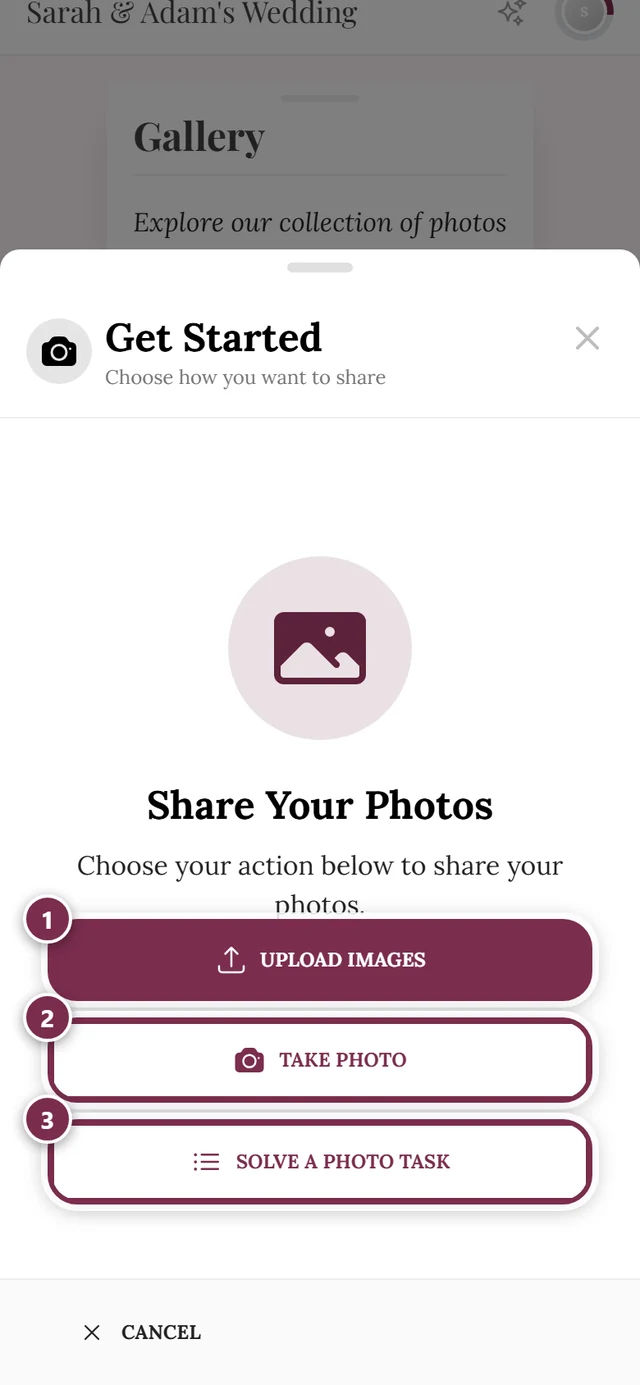
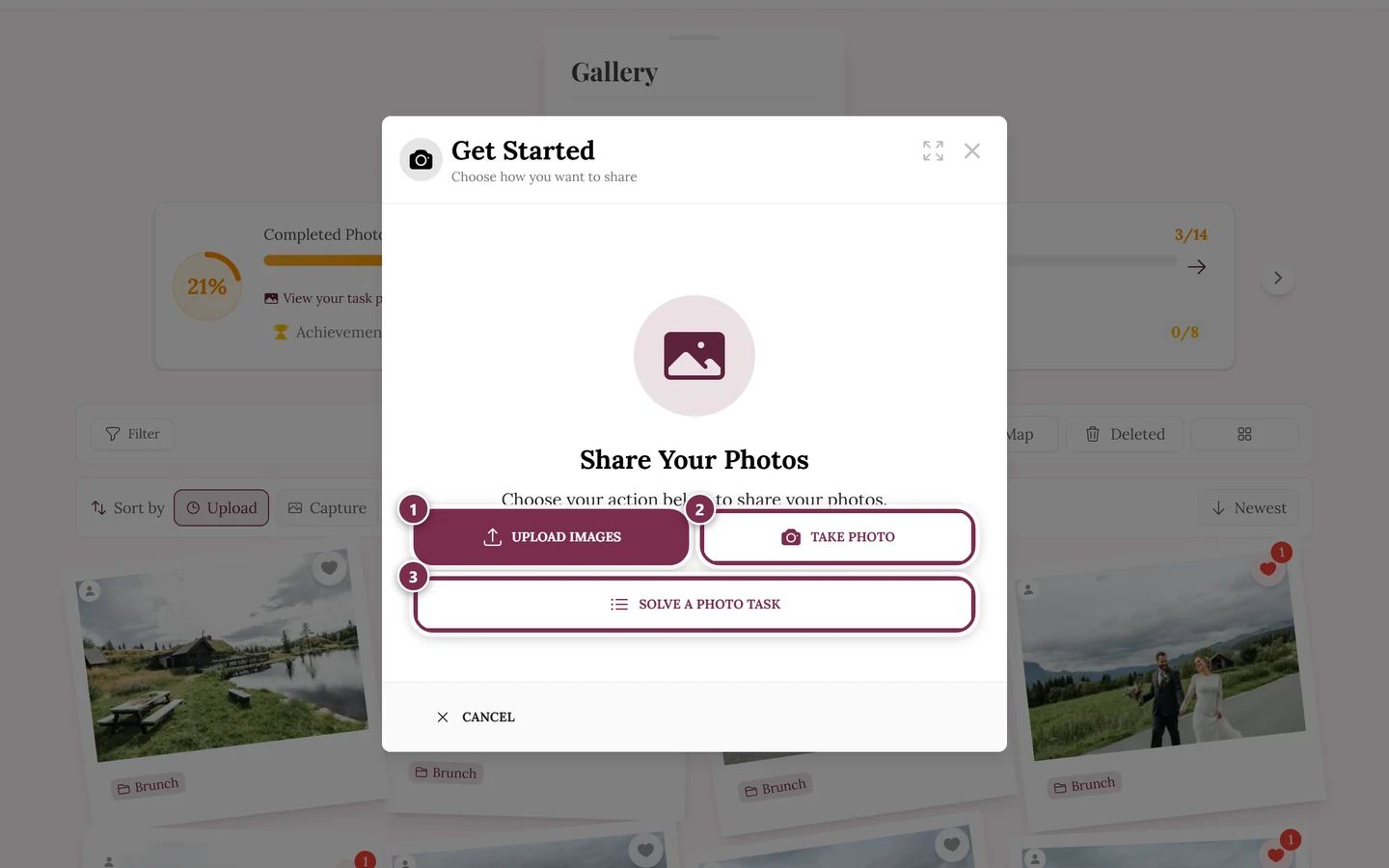
Choose photo or Take Photo – both assign the result to the task. ① Choose photo opens your device’s file picker – several files at once are fine, ② Take Photo opens the camera straight away, ③ the Photo task card only appears when photo tasks are switched on for the event and you can solve one of them – with a reference image or a photo icon and the name of the suggested task. If you may not upload – because the event has ended or expired, for instance – the dialog shows a notice instead. -
A single camera photo uploads straight away; photos you picked get a quick check before you tap Start Upload. Then Thank you for your photo! appears with your points. The task moves to Completed, and you may unlock an achievement or reward. After ten seconds the dialog moves on to the next task by itself – Pause stops that, Back to gallery takes you back.
Route B – spontaneously from the upload dialog
Section titled “Route B – spontaneously from the upload dialog”Already in the gallery and want to join in on a whim? Then you don’t need the tasks page at all.
-
In the gallery, open the Upload dialog.
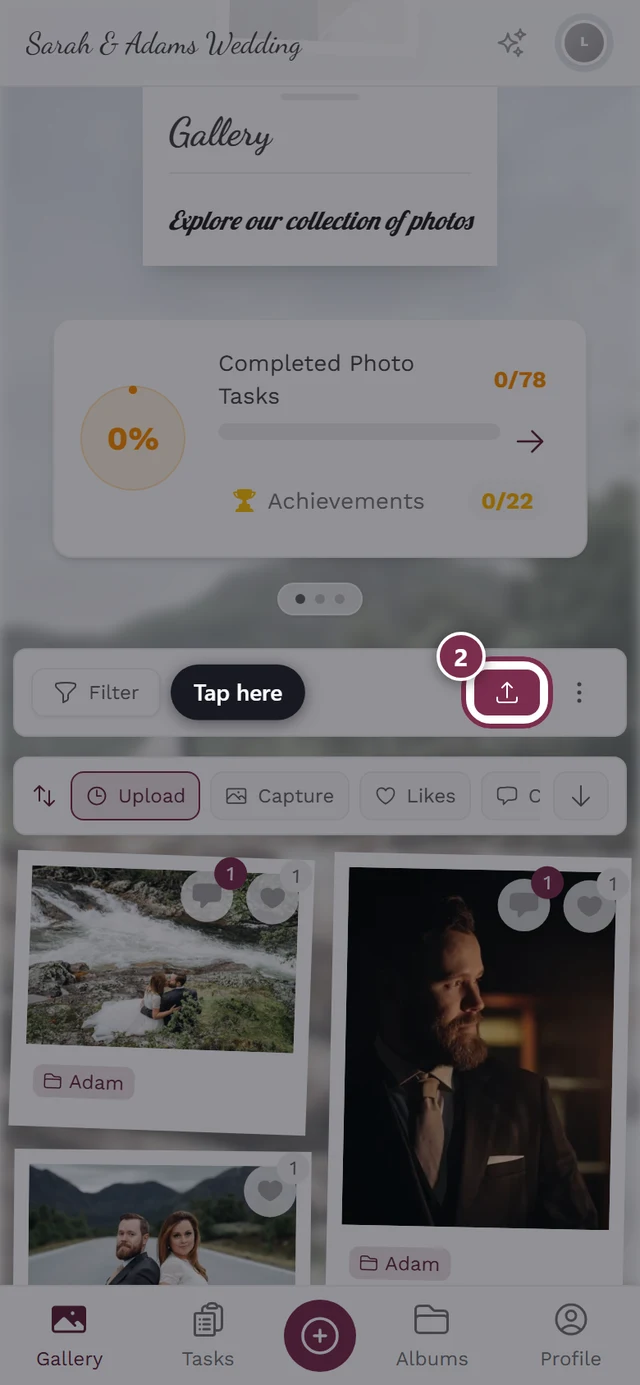
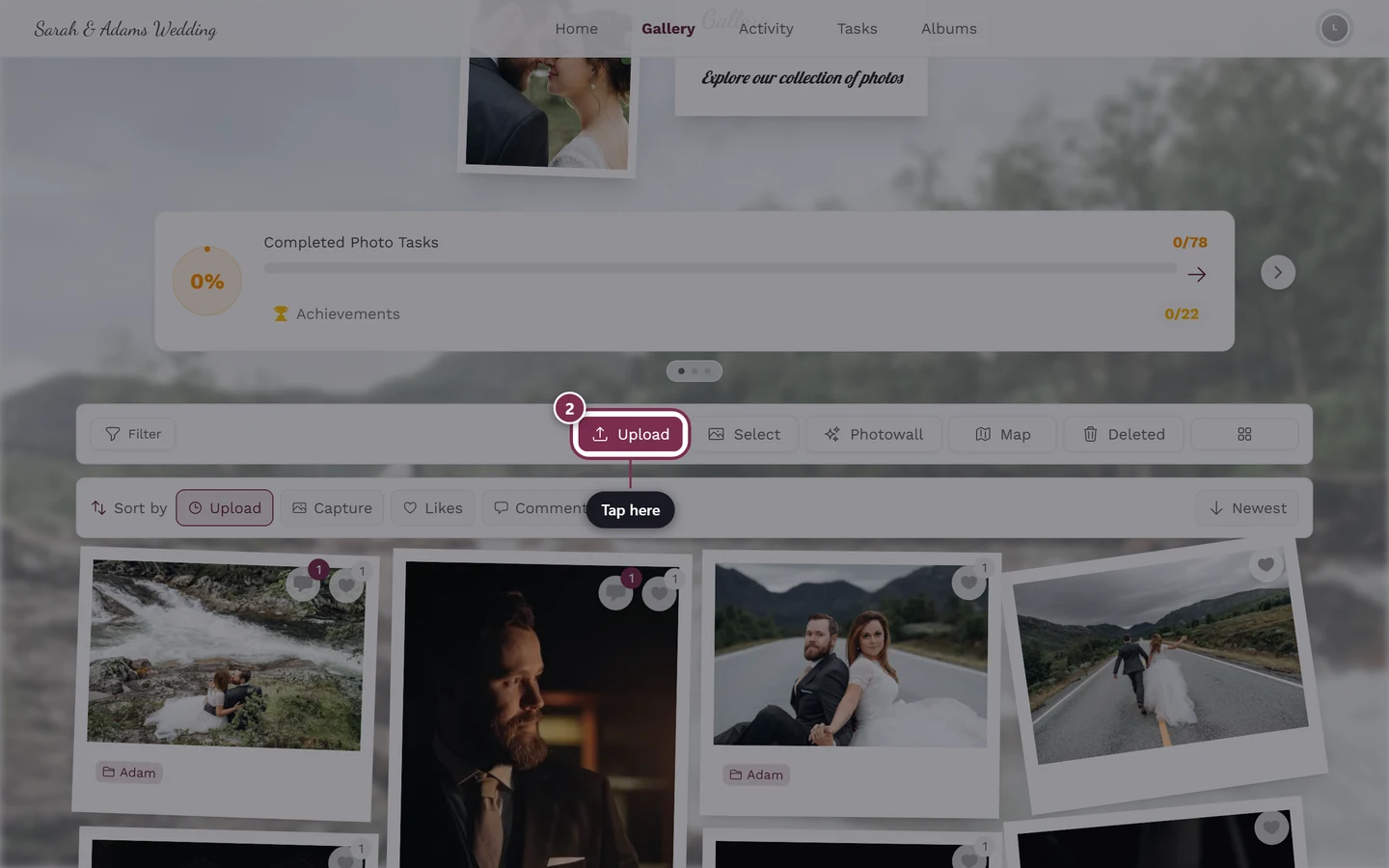
The upload button opens the upload dialog. -
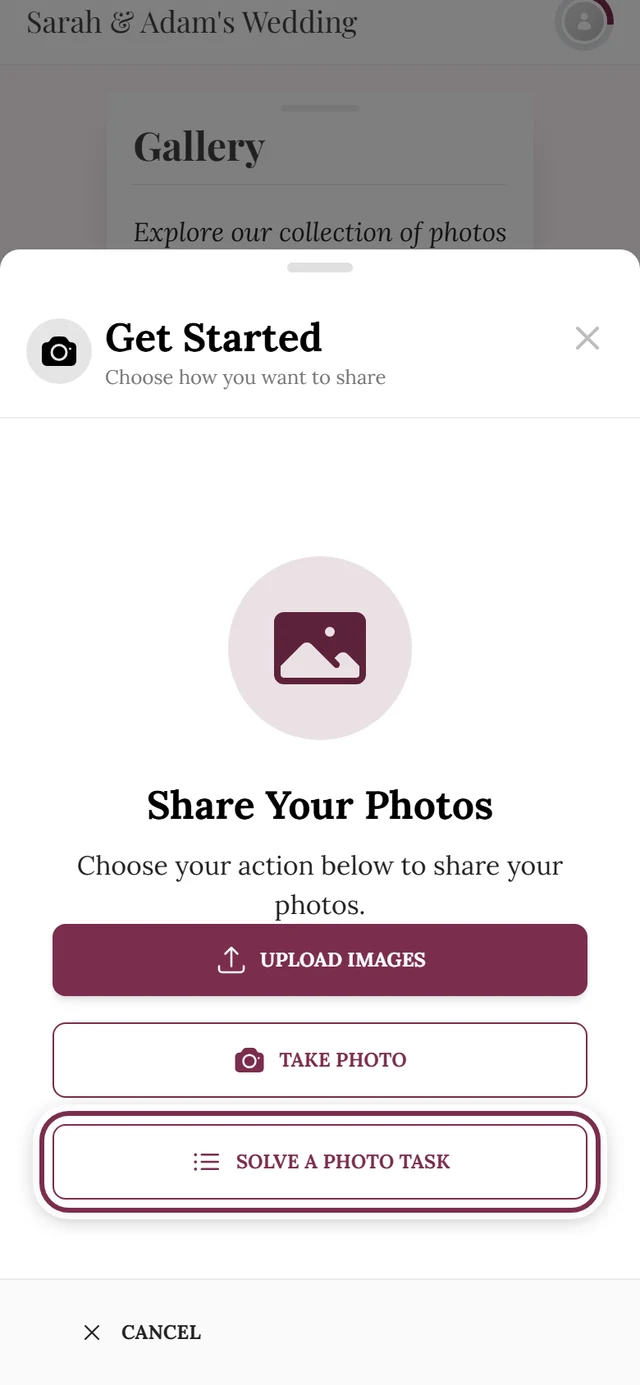
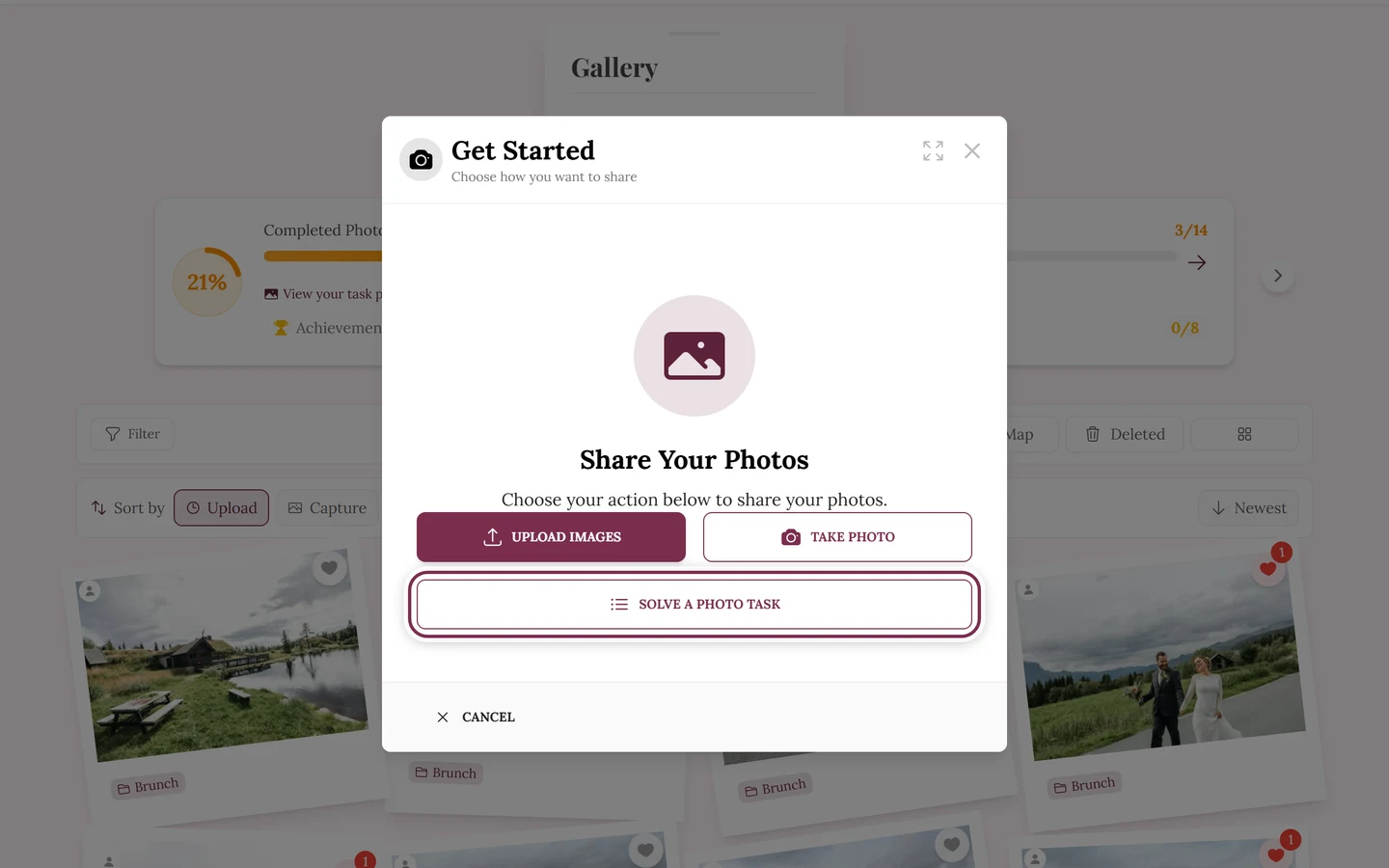
On the first step Share photos, tap the Photo task card at the bottom. It shows a suggested task – the next one you haven’t solved yet, in the order the host set for the tasks page – with its reference image (or a photo icon) and task name, and opens the selection with exactly that task.
-
From here continue as in Route A from step 4: Choose photo or Take Photo.
Route C – choose a different task in the dialog
Section titled “Route C – choose a different task in the dialog”You’re in the upload dialog but the preselected task doesn’t fit? No problem:
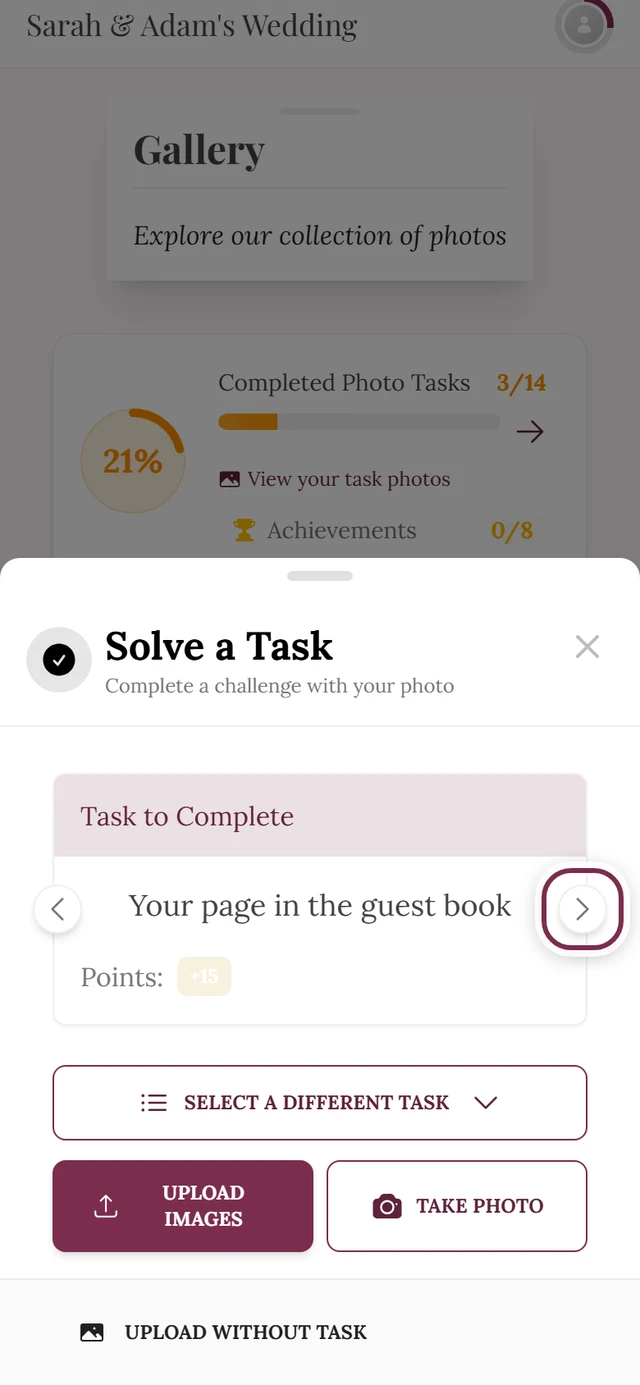
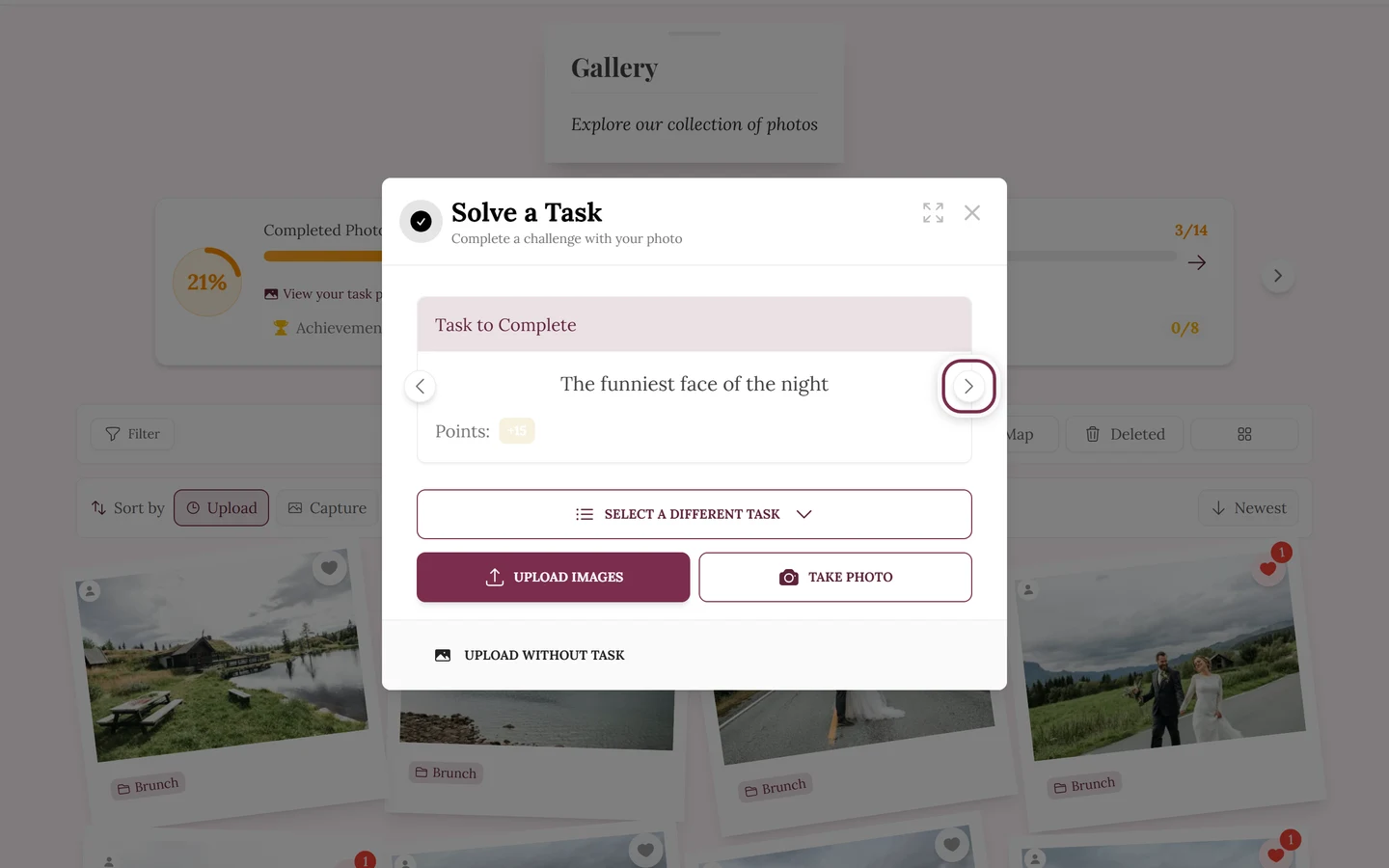
- Below the task card, tap Other task. The Select Task dialog opens with:
- Quick actions Random (dice icon) and Unsolved (light bulb, only when solvable tasks exist).
- Tabs All Tasks, To Solve, Completed and Locked. View More expands longer lists.
- Alternatively, right on the task card, swipe between tasks (on a phone) or use the arrow buttons left/right (on a computer). Open tasks come first, then the ones you have already solved (in case you want to repeat one), and finally the locked ones. The arrows and the swipe gesture only appear when there is more than one task.
Route D – from a gallery photo
Section titled “Route D – from a gallery photo”If you open a photo that belongs to a task, the image details contain a Task section. Clicking the task name filters the gallery to exactly that task. In this filtered view the gallery shows a task header with a Solve Task button that reopens the upload dialog for that task. More on image details and filtering in the gallery help and under Filtering & search.
Route E – carry straight on after uploading
Section titled “Route E – carry straight on after uploading”The most eye-catching entry point arrives unprompted – right after uploading:
- If you just uploaded for a task, the dialog shows Thank you for your photo! with your points. Next task takes you to the next open task; if you do nothing, the dialog goes there by itself after ten seconds (“Continuing in 10 …”). Pause stops the countdown, Back to gallery takes you back. If there is no further task, it reads “You can repeat an available task or return to the gallery.”
- If you uploaded without a task, the completion screen shows a banner – There’s a photo idea to join in on, or the matching number when several are open – and the button Solve Another Task.
- If the completion screen shows a progress card (such as a new achievement or an unlocked task), the banner and the task button are left out.
The banner and the button lead to the same place: the upload dialog stays open and jumps back to the task selection – deliberately with nothing preselected, so you choose freely. From there continue as in Route A from step 4. More on uploading itself under Uploading photos.
Route F – the “Just unlocked” hint
Section titled “Route F – the “Just unlocked” hint”If one of your uploads unlocks a new task, the gallery shows a small card at the bottom: Just unlocked with the name of the task, or “3 new photo tasks unlocked!”. Discover photo ideas opens the upload dialog right at that task, the X hides the hint. While an upload or a download is running, or while dialogs are open, the card stays hidden.
The tasks page in detail
Section titled “The tasks page in detail”Your progress
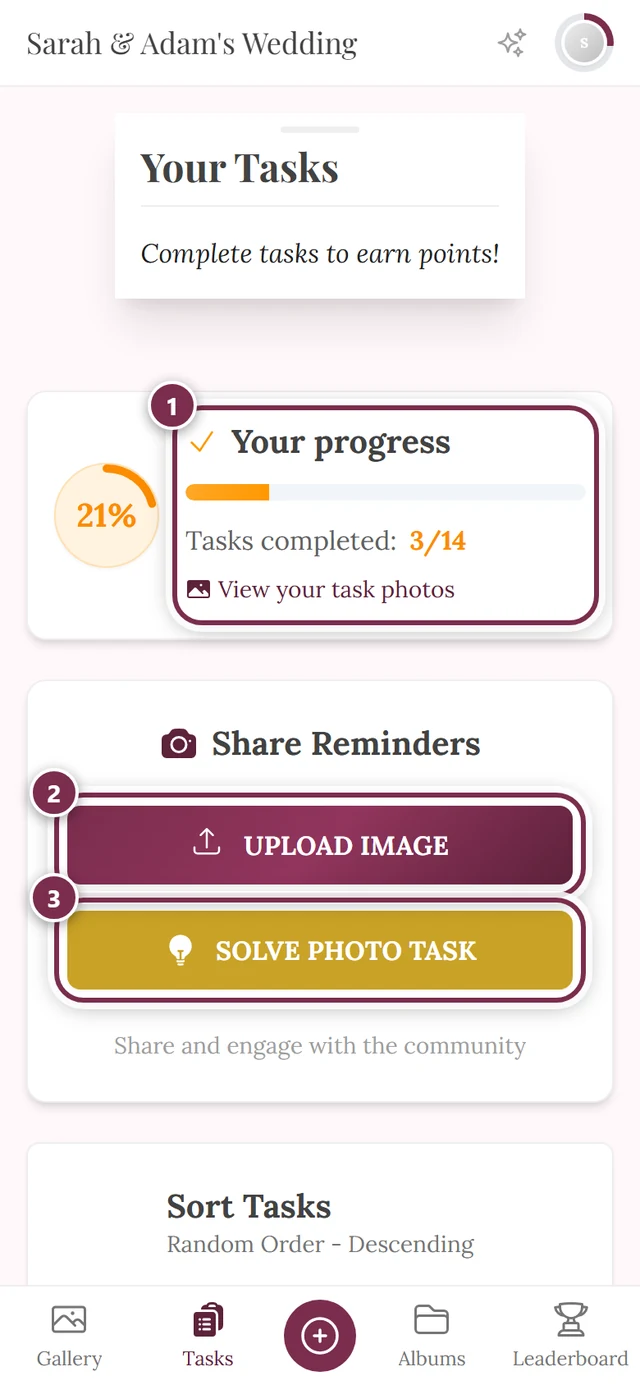
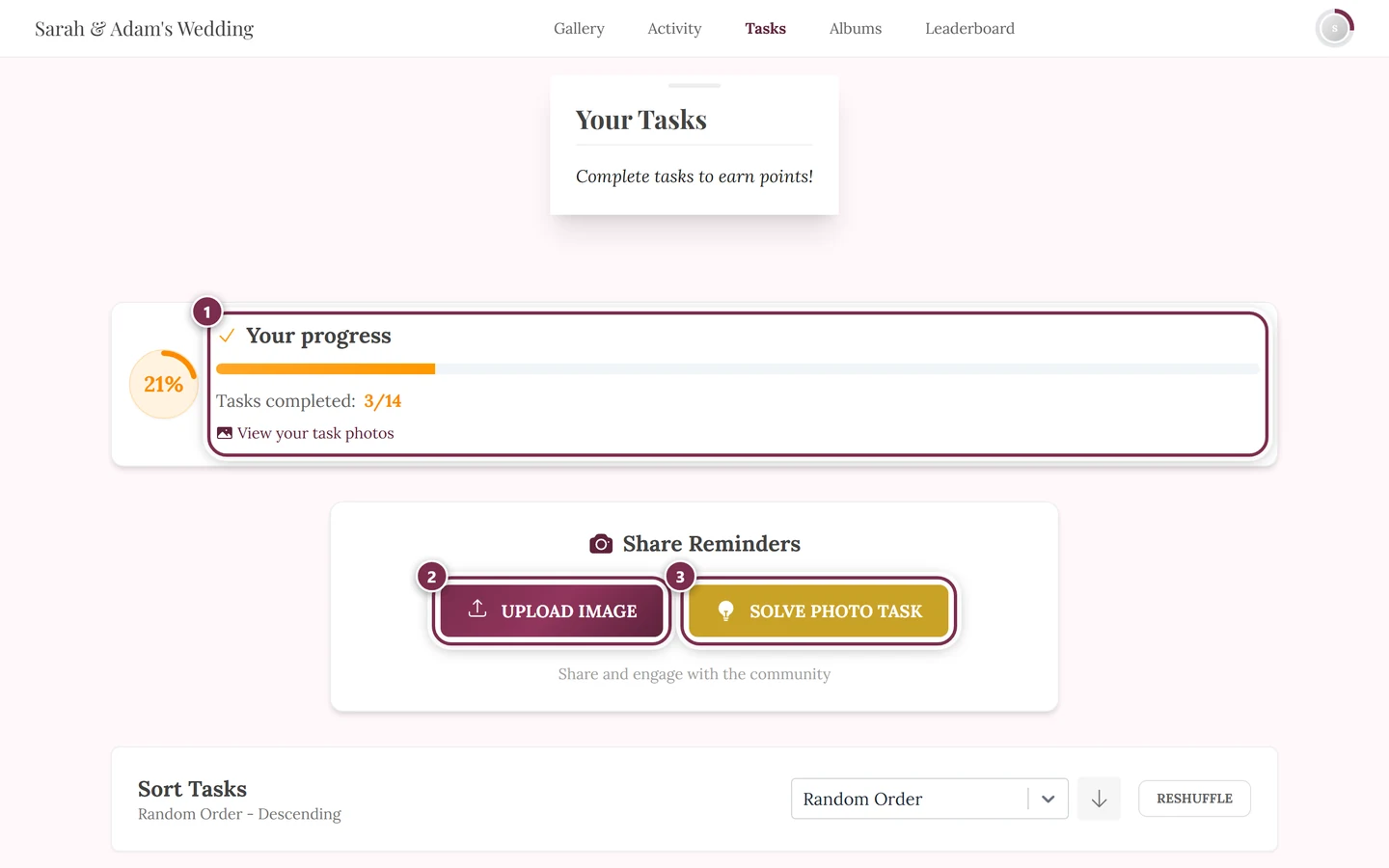
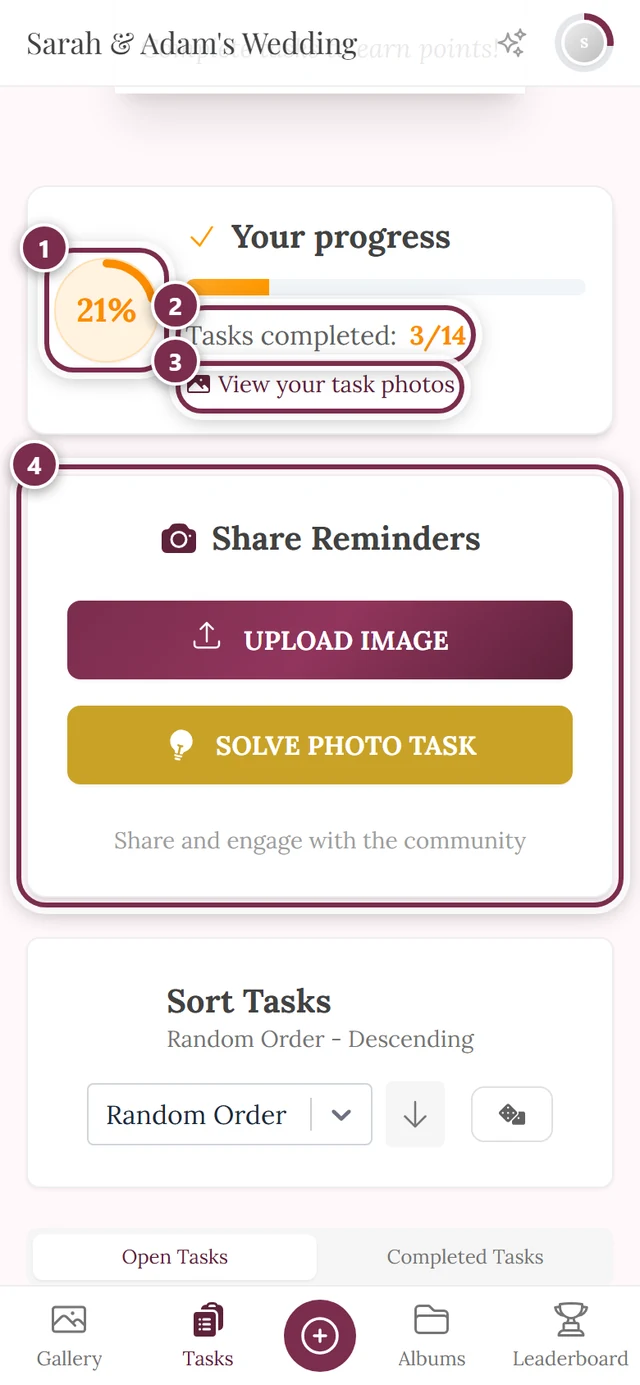
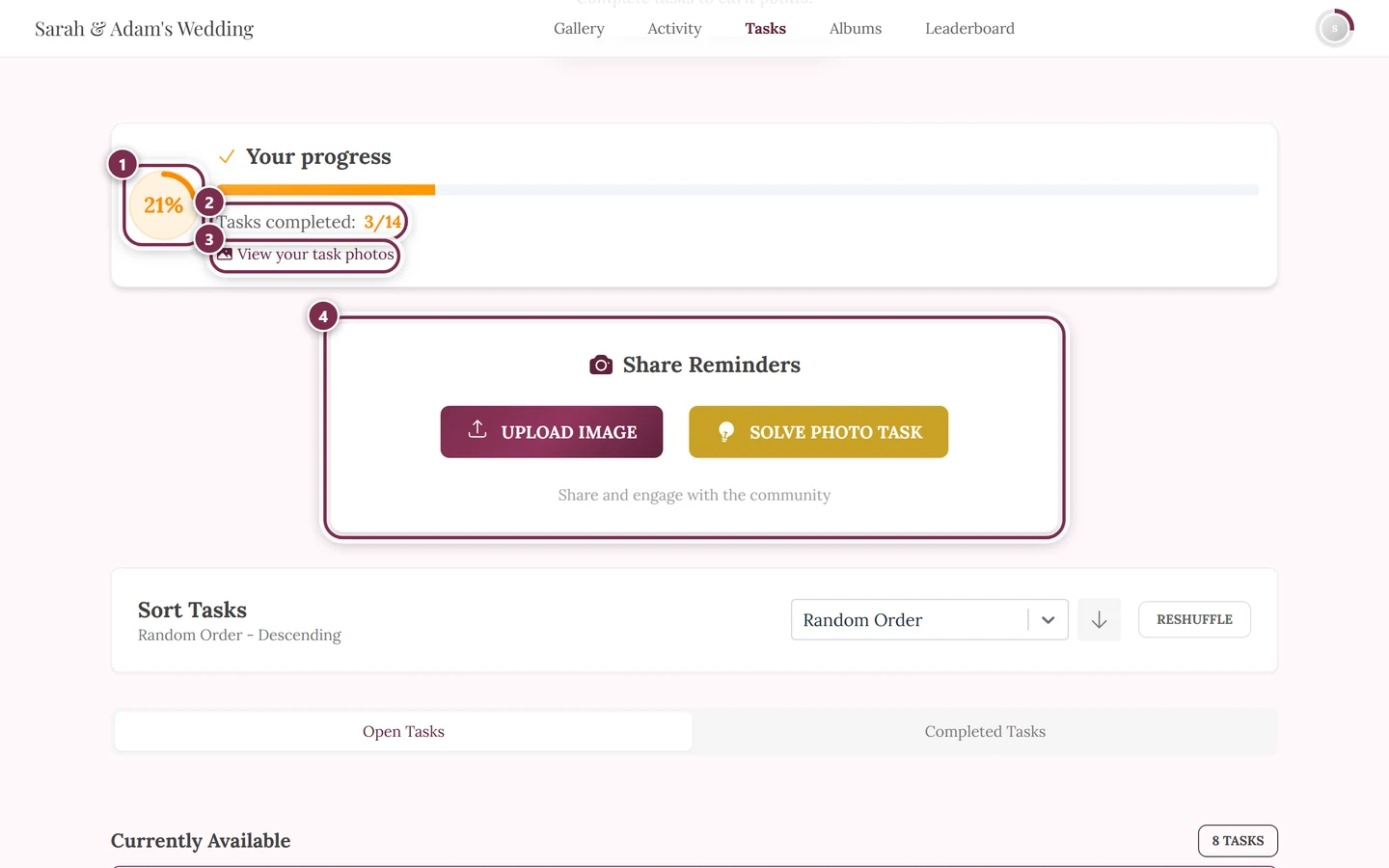
Section titled “Your progress”The card Your progress sits at the very top: a progress ring with your share of completed tasks as a percentage (solved and expired tasks both count), next to it a bar and the line Tasks completed: X/Y. Once you’ve finished them all, the heading turns into a completion message with confetti. As long as you’ve solved at least one task, you’ll also find the link View your task photos here, which shows only your task photos in the gallery.
The “Share Reminders” card
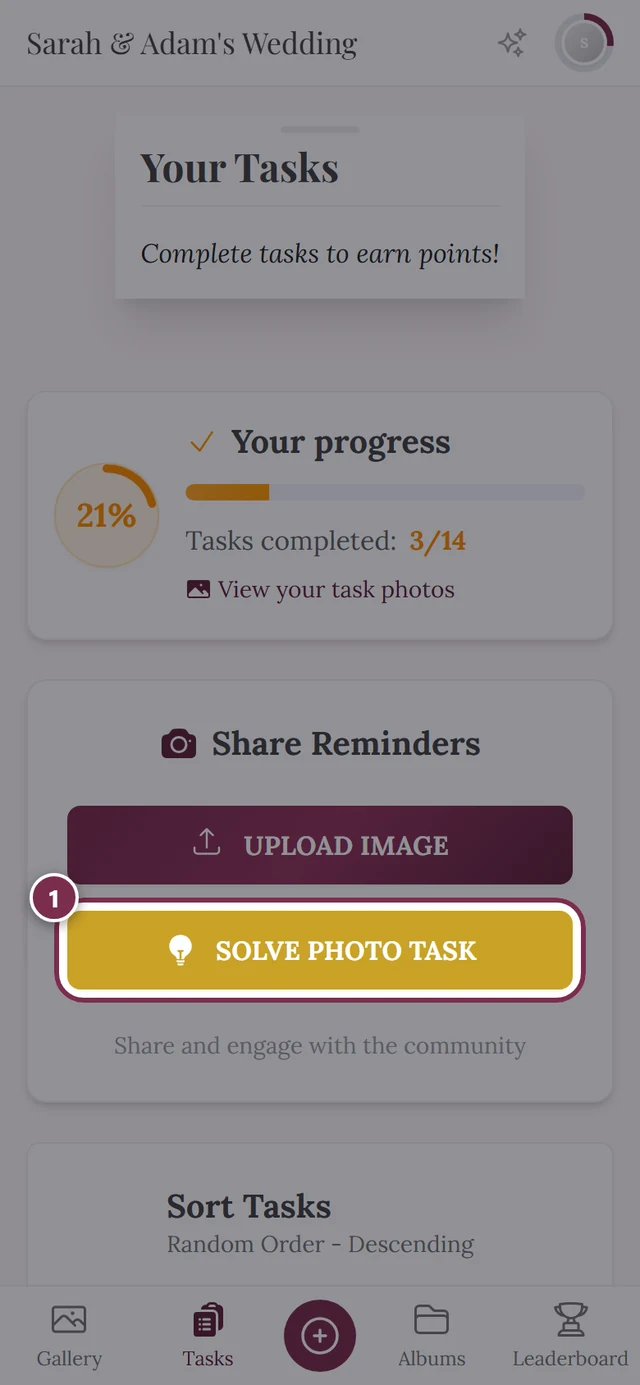
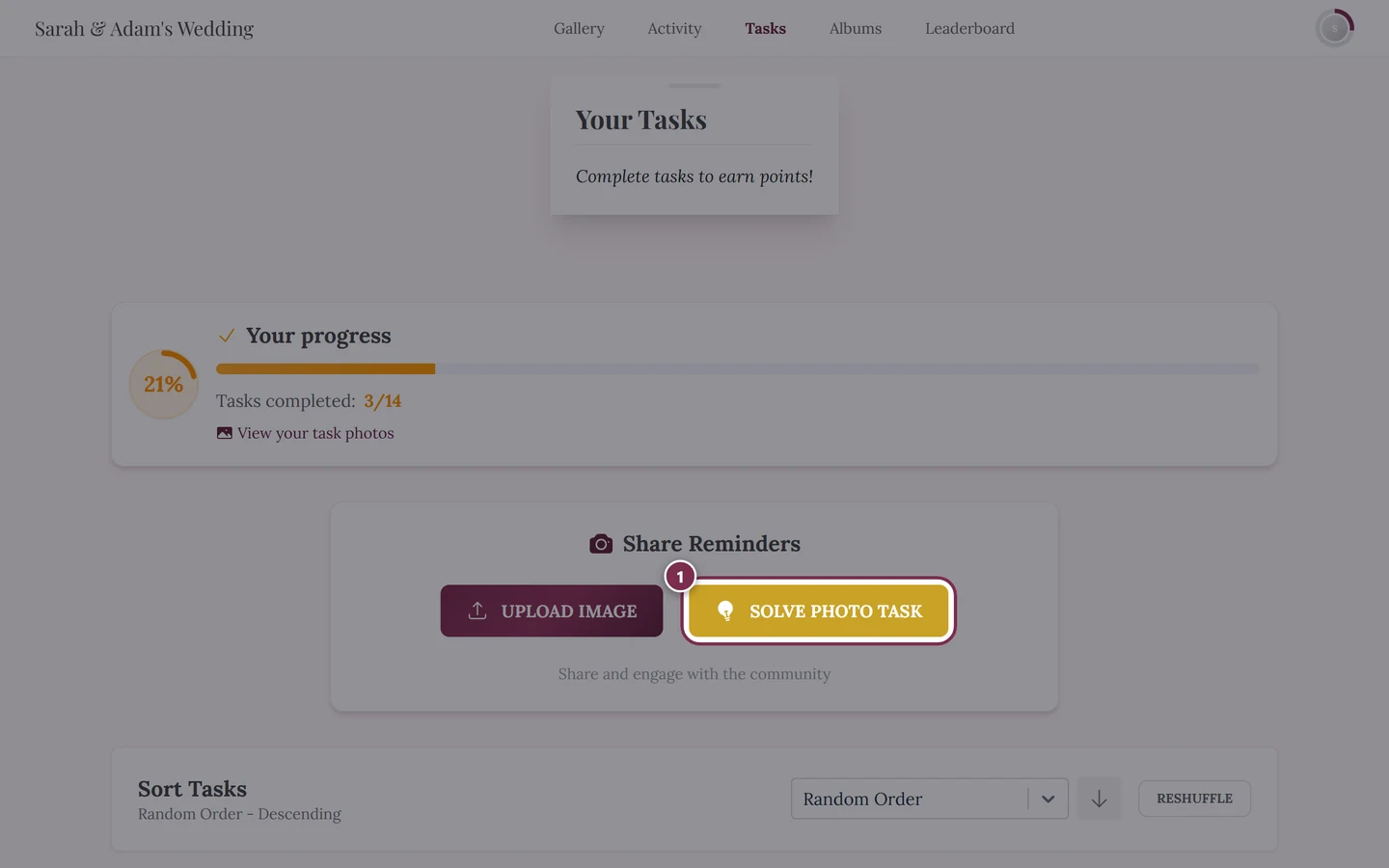
Section titled “The “Share Reminders” card”Right below sits the card Share Reminders with two buttons: Upload Image opens the normal upload, Solve Photo Task jumps into the task selection. This card is always there – even when you have no task left open.
Sorting
Section titled “Sorting”As soon as open tasks are present, you order the list with the Sort by select in the card at the top of the page. Until you change anything, the order the host set applies – out of the box that is Random Order. The select field offers five options:
- Order set by the host (the way the host arranged the tasks)
- Random Order
- Alphabetical
- Total Uploads (how often a task has been solved overall)
- Your Uploads (how often you solved it)
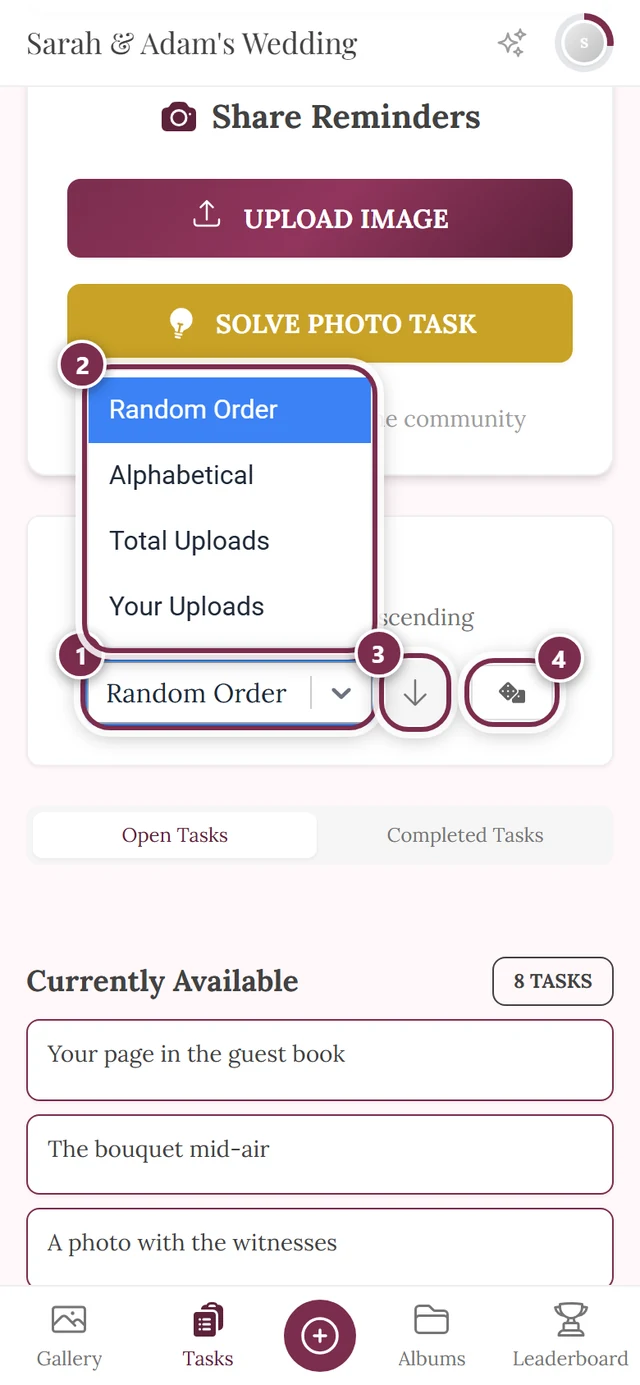
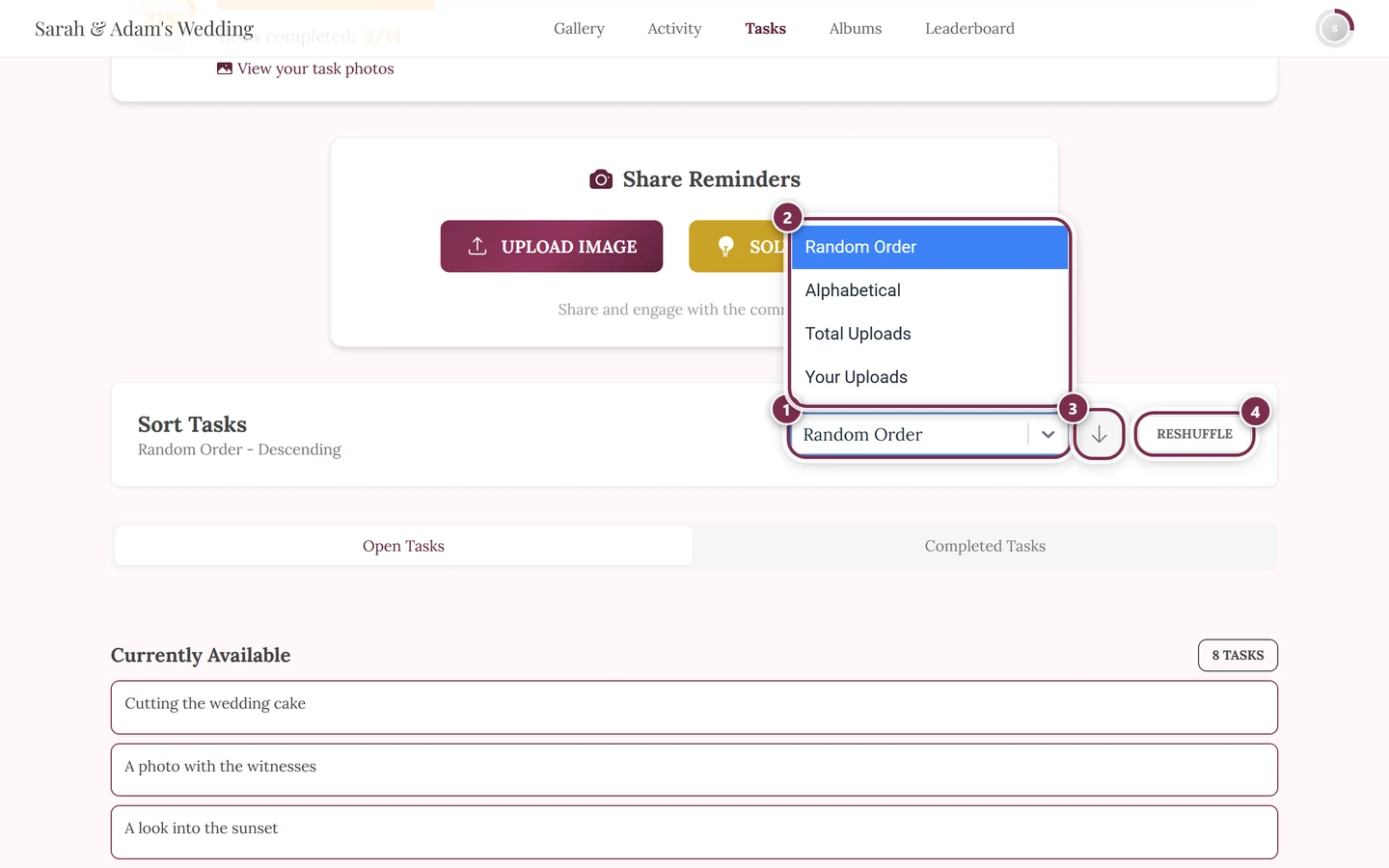
The arrow button next to it toggles between ascending and descending; for “Order set by the host” and “Random Order” it is missing, because the direction makes no difference there. Only for “Random Order” does Reshuffle appear as well (a dice icon on a phone) to re-roll the order.
Searching tasks
Section titled “Searching tasks”Above the sort field there is a search field with the placeholder “Search photo tasks…”. Type a few words – it finds tasks whose title or description contains all the words. Upper and lower case and accents don’t matter, and the search uses the language you are currently viewing the tasks in.
The search applies to every section and both tabs at once. While it is active, Open Tasks and Completed Tasks show the number of matches in brackets, and collapsed sections open by themselves. The X in the field (Clear search) empties the search again.
Groups and tabs
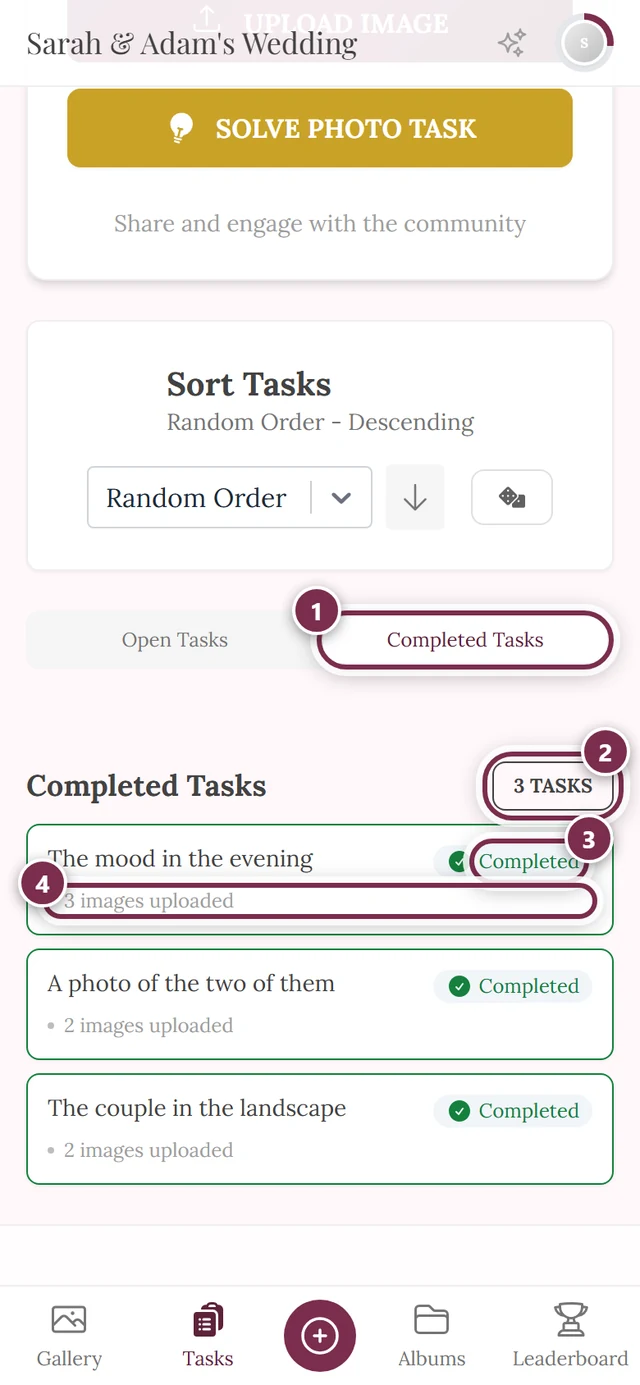
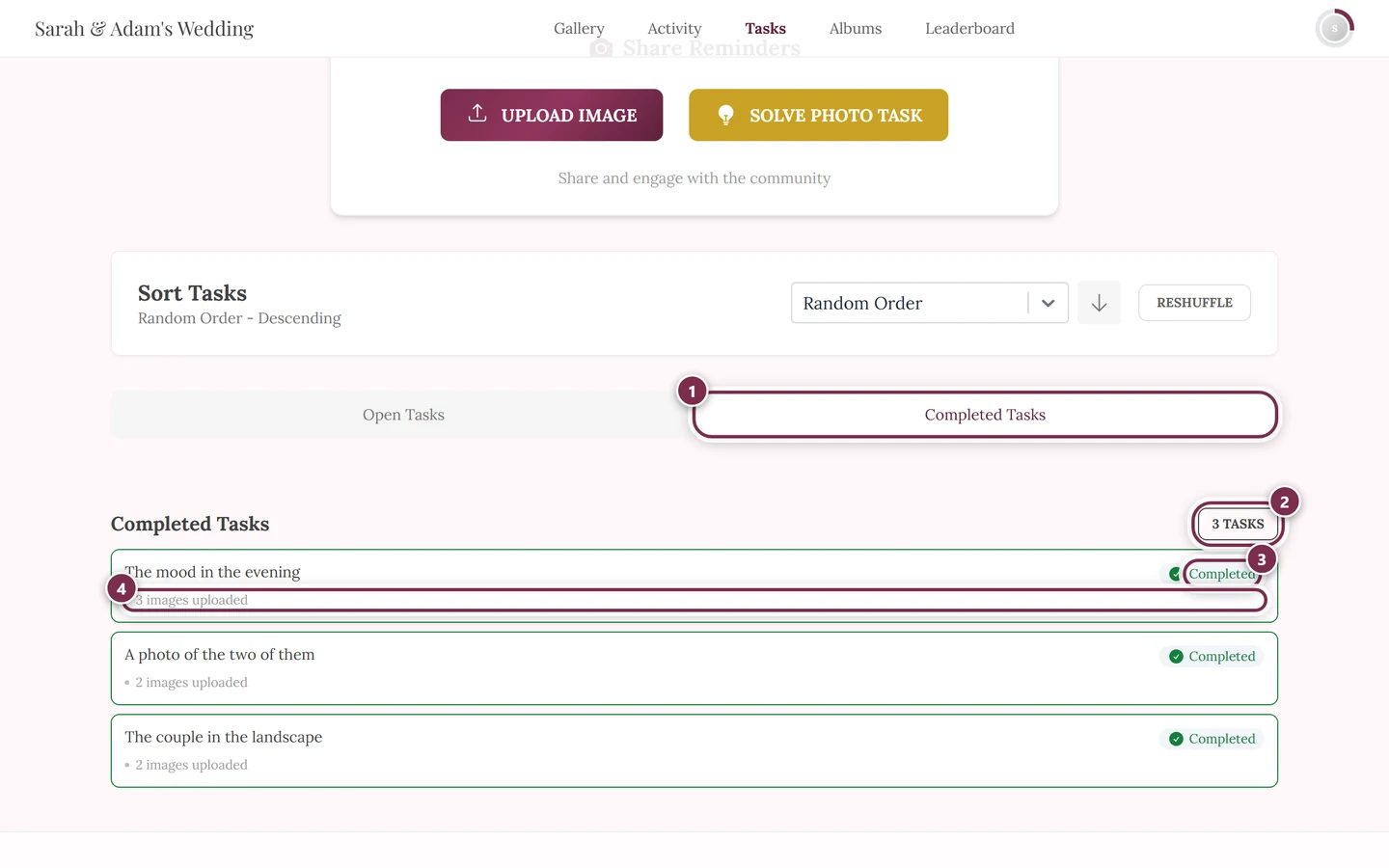
Section titled “Groups and tabs”If there are both open and completed tasks, the page splits into two tabs: Open Tasks and Completed Tasks. If only one group has content, the tabs disappear and the list is shown directly.
Within the open tasks there are several sections depending on what exists. Each section heading shows the number of tasks on the right (e.g. “3 tasks”) and an arrow: tapping the heading collapses or expands the section, and your device remembers that for this event.
- Currently Available – solvable now.
- Locked Tasks – solvable only after conditions are met or from a set time (gray border).
- Expired Tasks – the deadline has passed, they can no longer be solved.
Open tasks have a border in the event color, completed ones a green one. On large screens the cards sit in two columns.
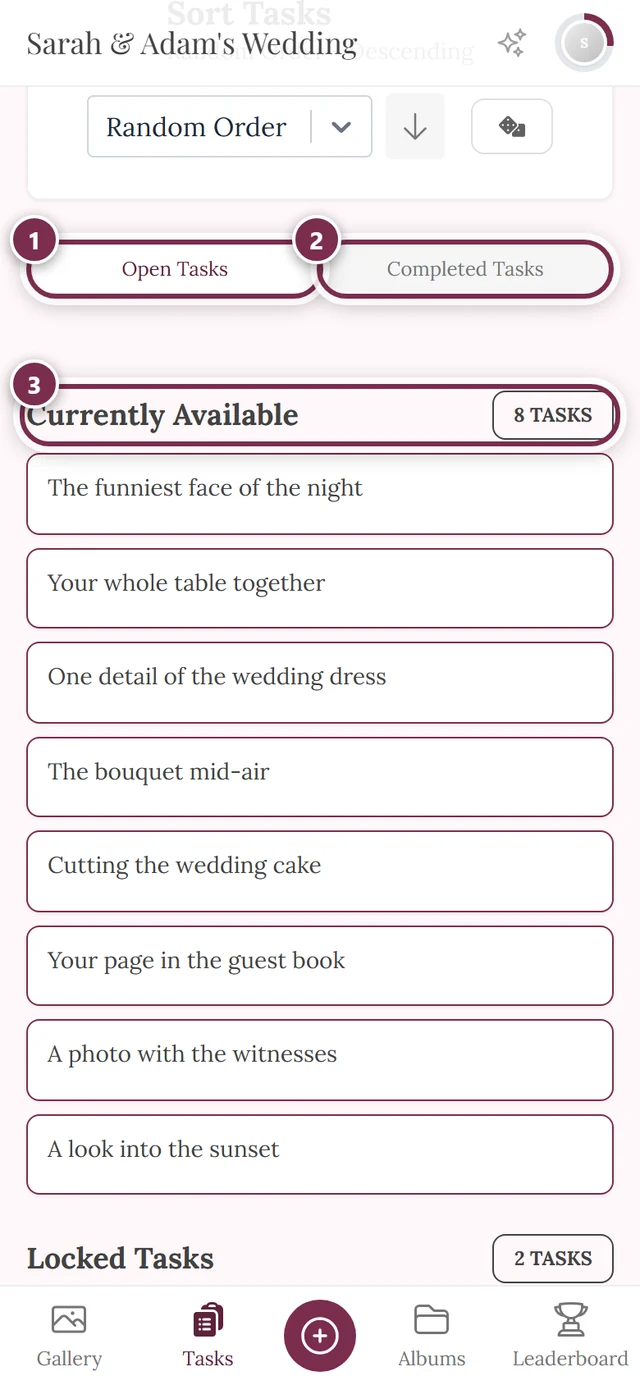
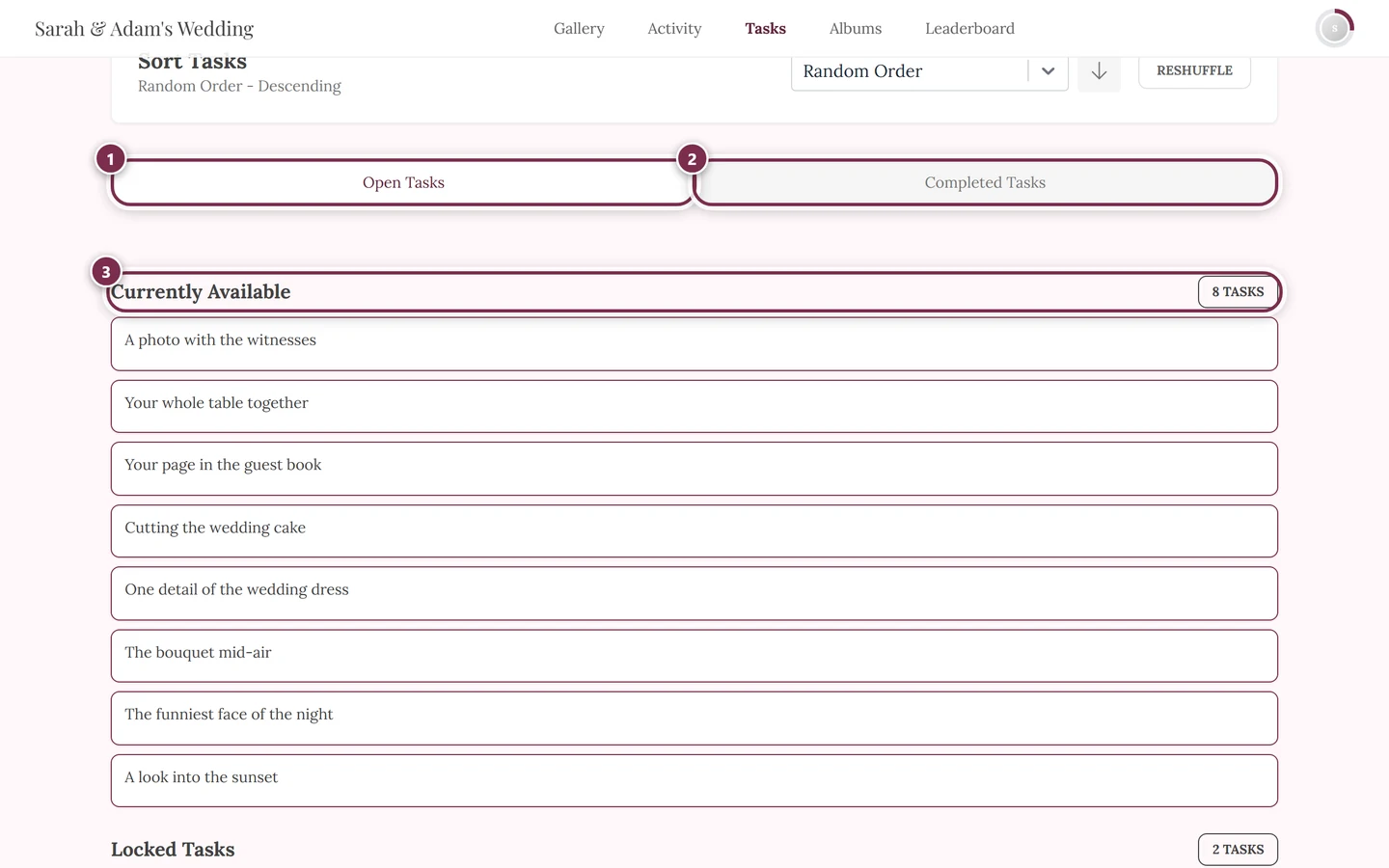
A small icon in the top right shows the status: a green checkmark for completed tasks, a gray clock for expired ones and a blue clock for tasks that are still waiting to unlock. Open and locked tasks have no icon. Below that, depending on the task, you’ll see details like “3 photos uploaded”, “Unlocks on …”, “Expires on …” or “Expired on …” – each with the concrete date. If an expired task has already been solved, View in Gallery takes you to its photos. If a section holds more than ten tasks, View More reveals ten more at a time.
Unlocking locked tasks
Section titled “Unlocking locked tasks”Tapping a locked task does not open an upload. Instead, the card shows the unlock criteria under Requirements to unlock: – collapsed into a chip holding the first condition: the number before the slash is where you stand, the one after it is the target. Once a condition is met, the chip turns green and gets a checkmark. If more conditions exist, a chip like +2 more sits next to it. Time conditions don’t appear as a chip but as a line “Unlocks on …”.
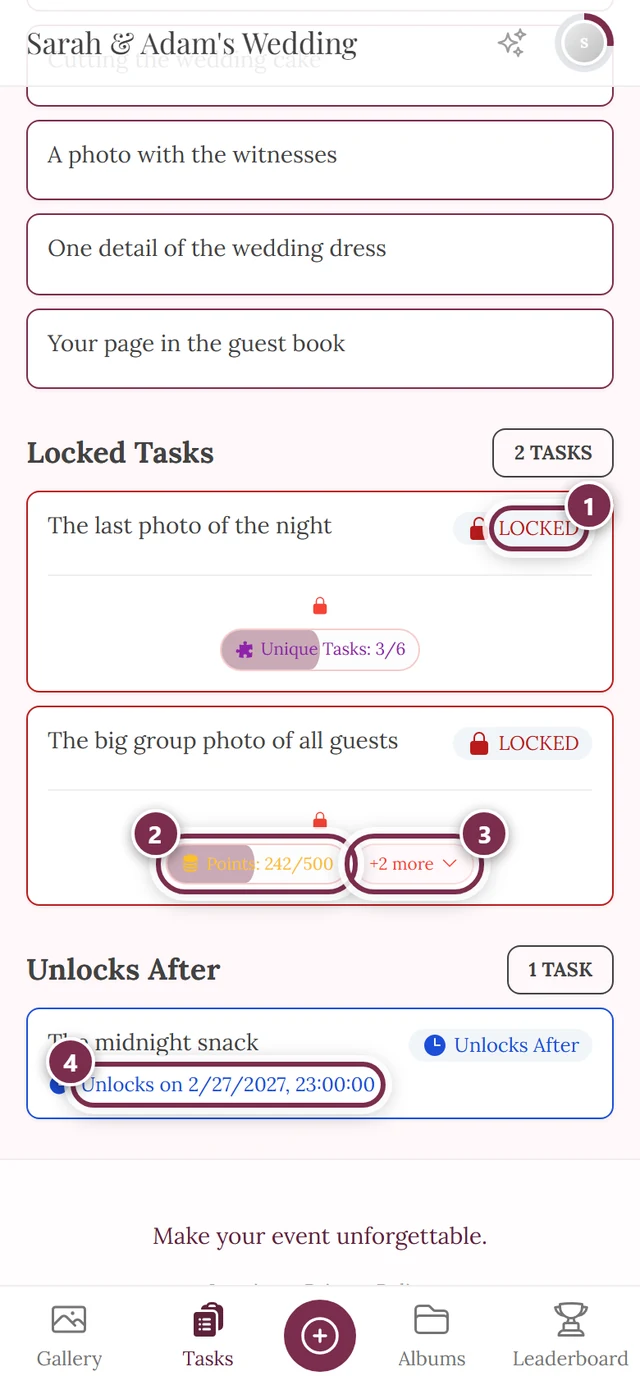
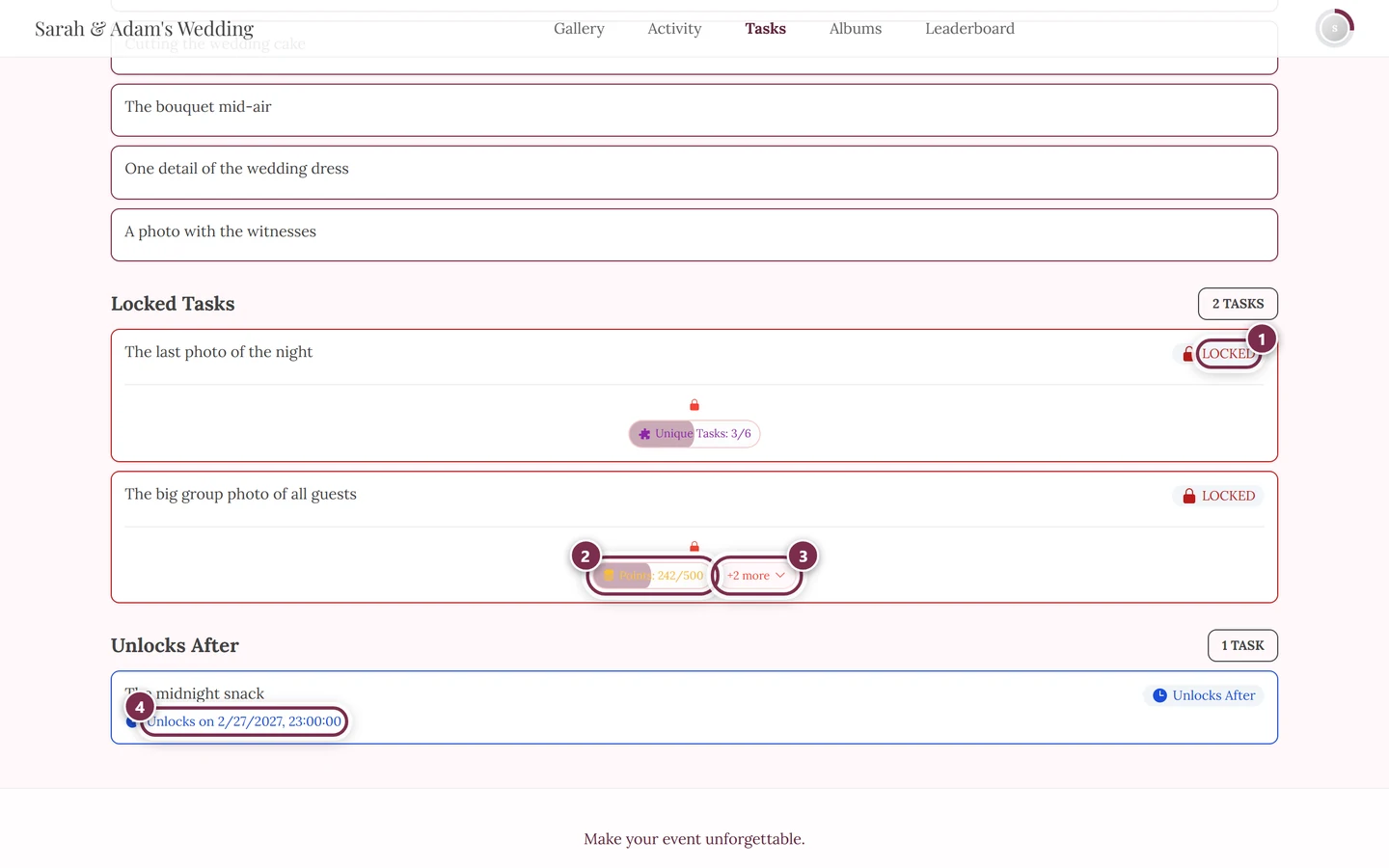
Clicking the chip opens the Unlock Requirements dialog. At the top, a Locked Task box names the task with its image and point value, and then, under Requirements to unlock:, every condition with a progress bar and a pair of numbers.
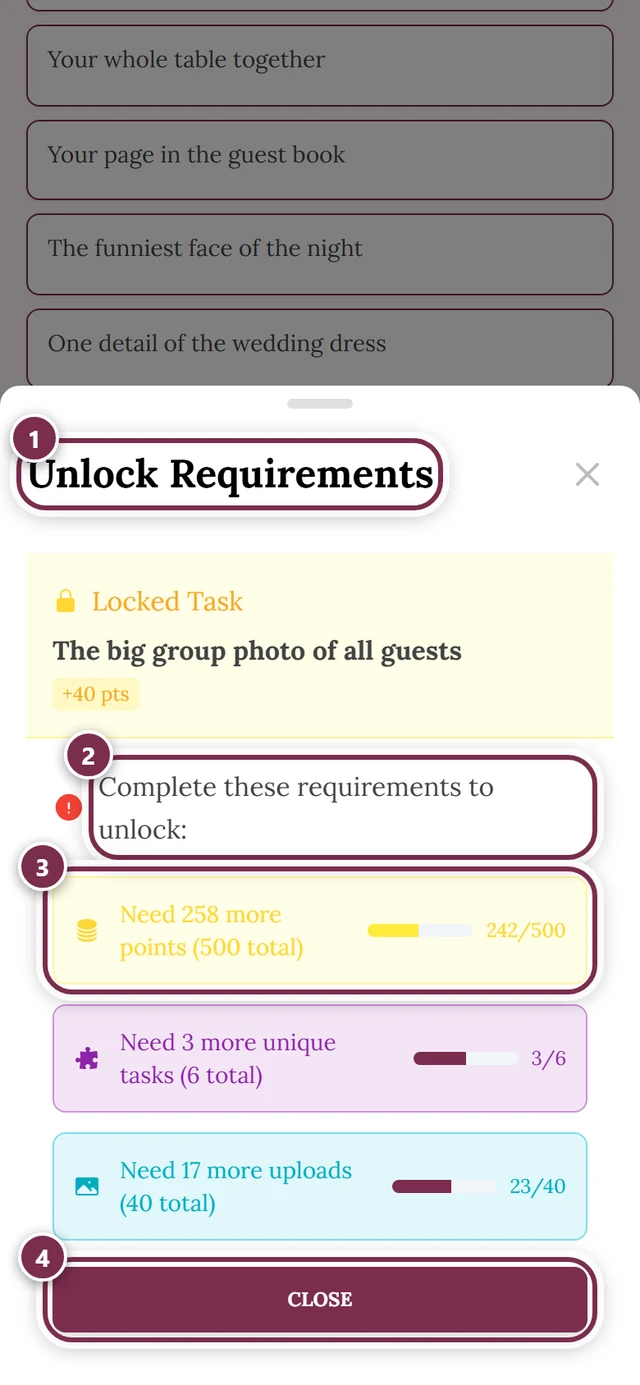
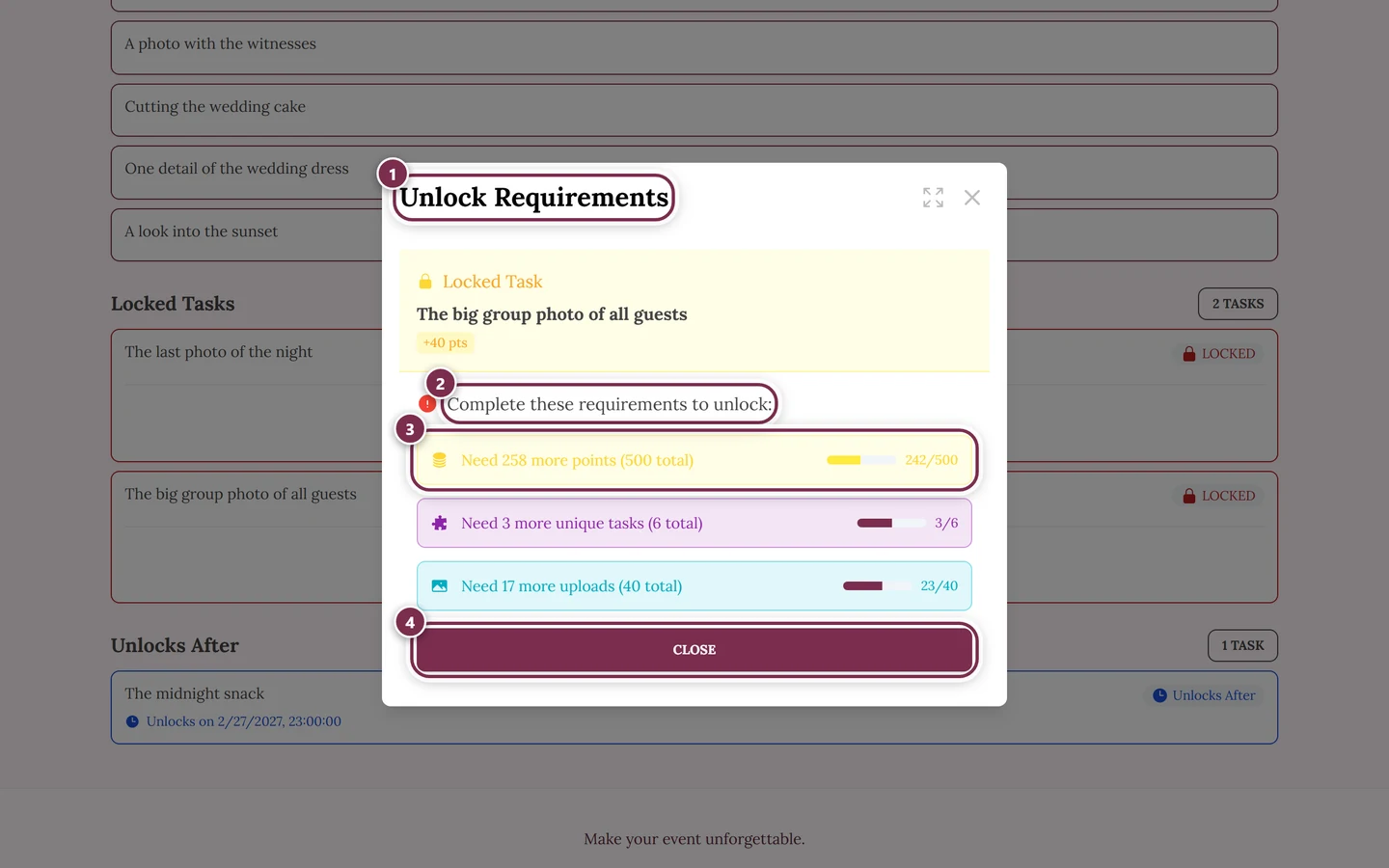
Possible conditions are:
- Time – the task opens at a specific time.
- Points – you need a minimum number of points (with a progress bar).
- Tasks – you must solve certain other tasks (with a progress bar).
- Dependency – another task must be completed first.
- Reward – you must first earn a specific achievement or reward.
Anything already met is marked with a checkmark. If a task is still missing, it’s usually clickable – tapping it jumps straight to the required task so you can solve it first. Reward conditions are informational only.
Seeing only one task’s photos
Section titled “Seeing only one task’s photos”To see all the results of a challenge side by side, there are three ways:
- Progress link – View your task photos at the top of the tasks page takes you to your own task photos.
- From the image details – open a photo of the task, tap the task name in the Task section, and the gallery shows only that task.
- Via the filter – the Gallery Filter dialog has a Tasks section with one checkbox per task.
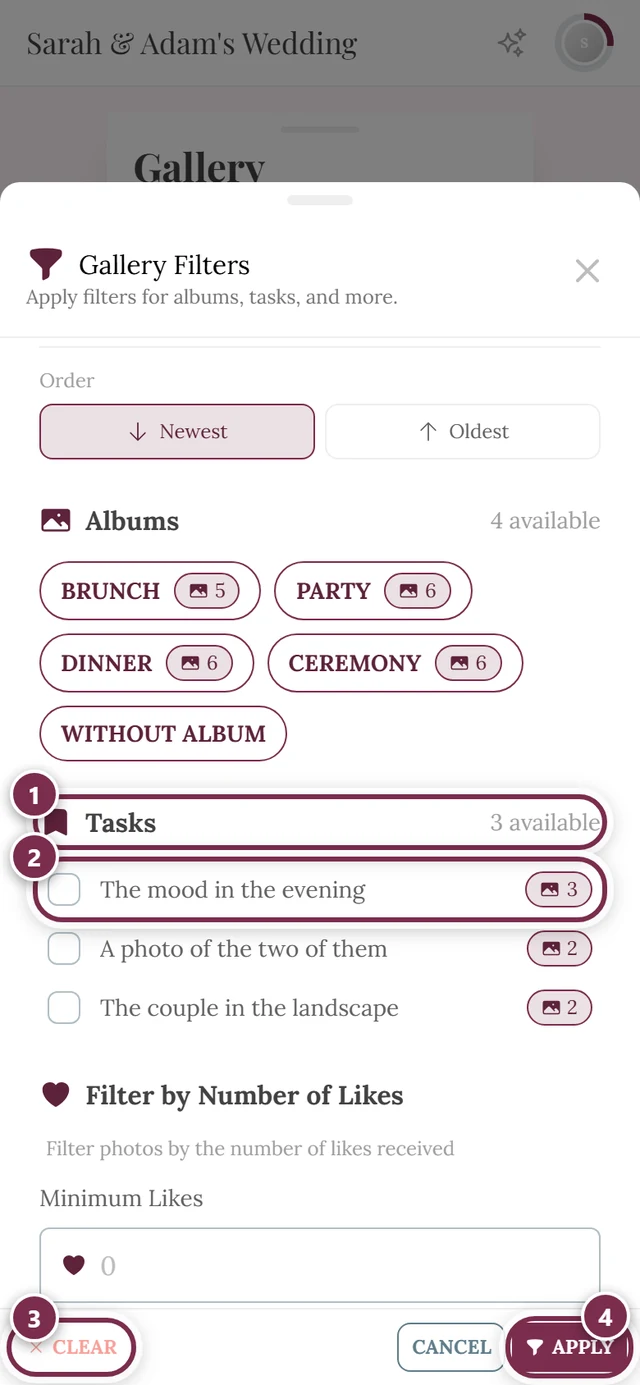
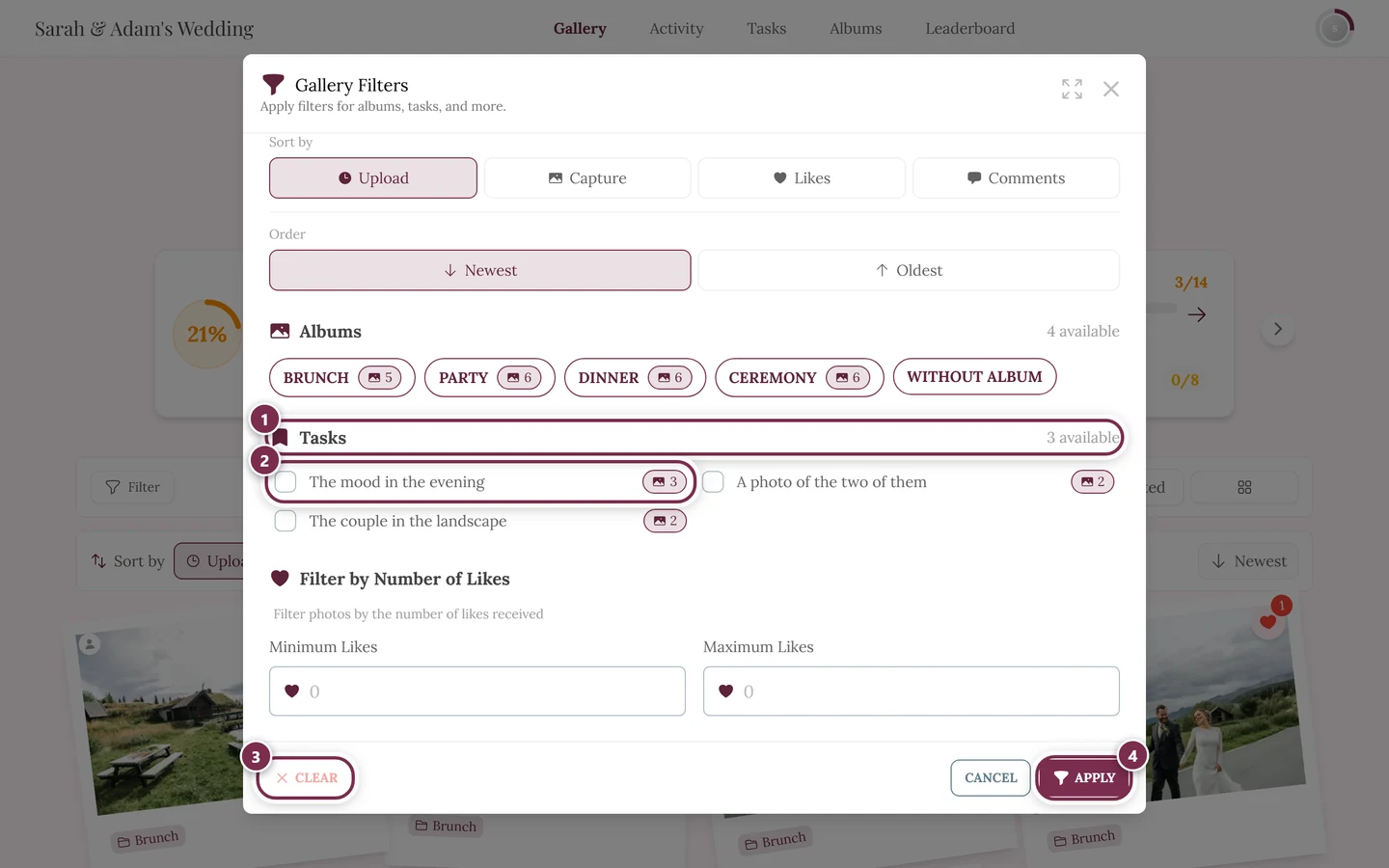
After Apply, the gallery shows a task header in the event color at the top with the reference image (a clipboard icon when none is set), the task name, the photo count and a Solve Task button.
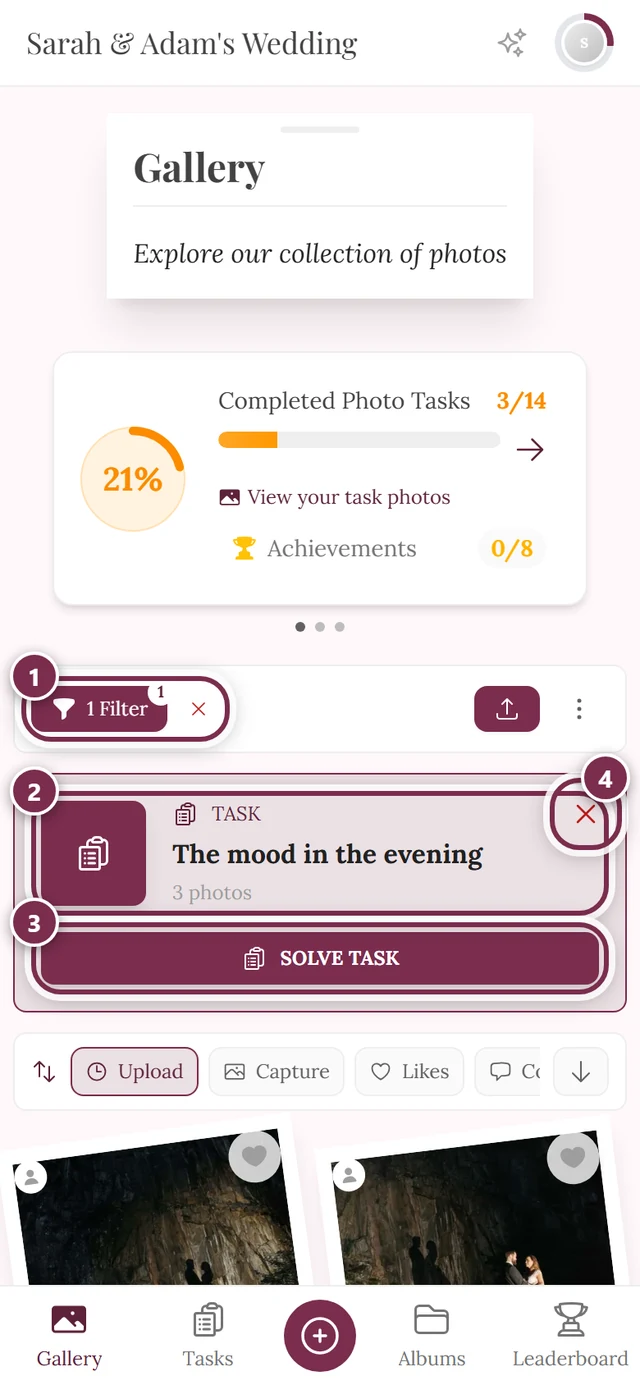
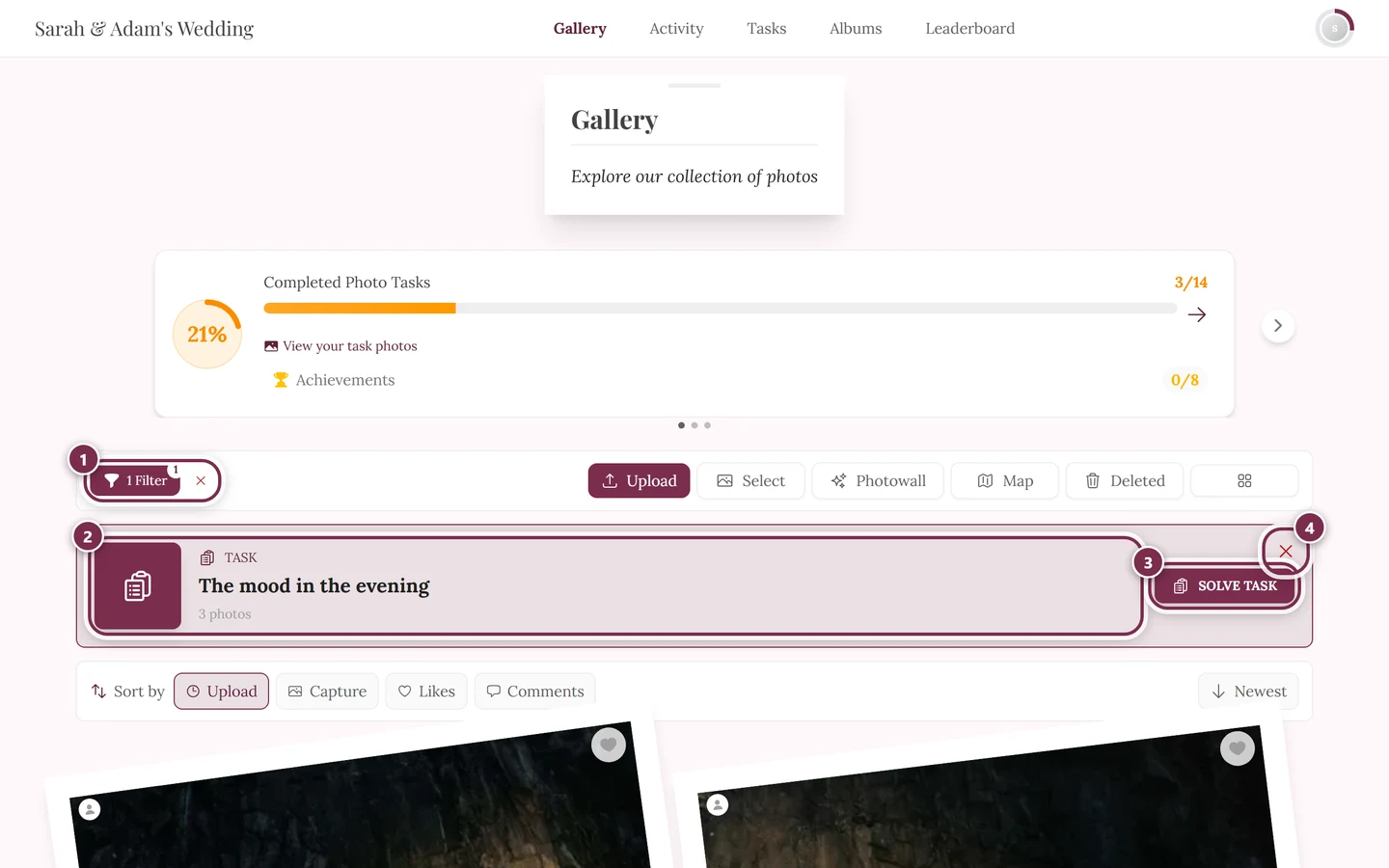
Remove the filter via the X on the right of the task header or the X next to the 1 Filter chip. More on this under Filtering & search.
When the gallery is filtered to one task
Section titled “When the gallery is filtered to one task”If you arrive in the gallery through a task QR code or a shared task link, it builds up in two stages:
- the contributions to that task at the top – as a grid of their own;
- below them a divider with the heading More photos;
- and under that the rest of the gallery, without this task’s photos.
That way you see what it’s about first, without losing the thread of the rest of the event.
Two special cases:
- No contributions yet: you get Be the first! with an Add the first photo button that opens the upload dialog for exactly this task.
- Task removed: you get This task is no longer available with a View all photos button.
If you don’t see anything
Section titled “If you don’t see anything”- No tasks menu? The feature is off, not included in the plan, or no task has been created yet.
- Area present but empty? Then the page shows No Tasks Available together with a note to check back later – there are currently no challenges.
- Upload not working? Possible reasons: no upload permission, the event has ended or expired, or a moderator has blocked you from uploading. In those cases you can only view tasks, not solve them.
- Picked a locked task in the dialog? Then the card carries the line Locked Task, Choose photo and Take Photo are disabled, and below it you can see what is still missing to unlock it. If it says “Confirmation pending · still locked”, your last upload is still being processed – after that the task is free. Otherwise choose an open task (Route C).
For hosts and moderators
Section titled “For hosts and moderators”As a host/admin you’ll see a Manage tasks header with an Add button at the top of the tasks page. Long-pressing or right-clicking a task card opens a menu with Upload to task, Edit and Delete. For full management – conditions, points, time windows, reference images – use the task manager in the admin portal.
You reach the admin or moderation area via the profile menu in the top right.
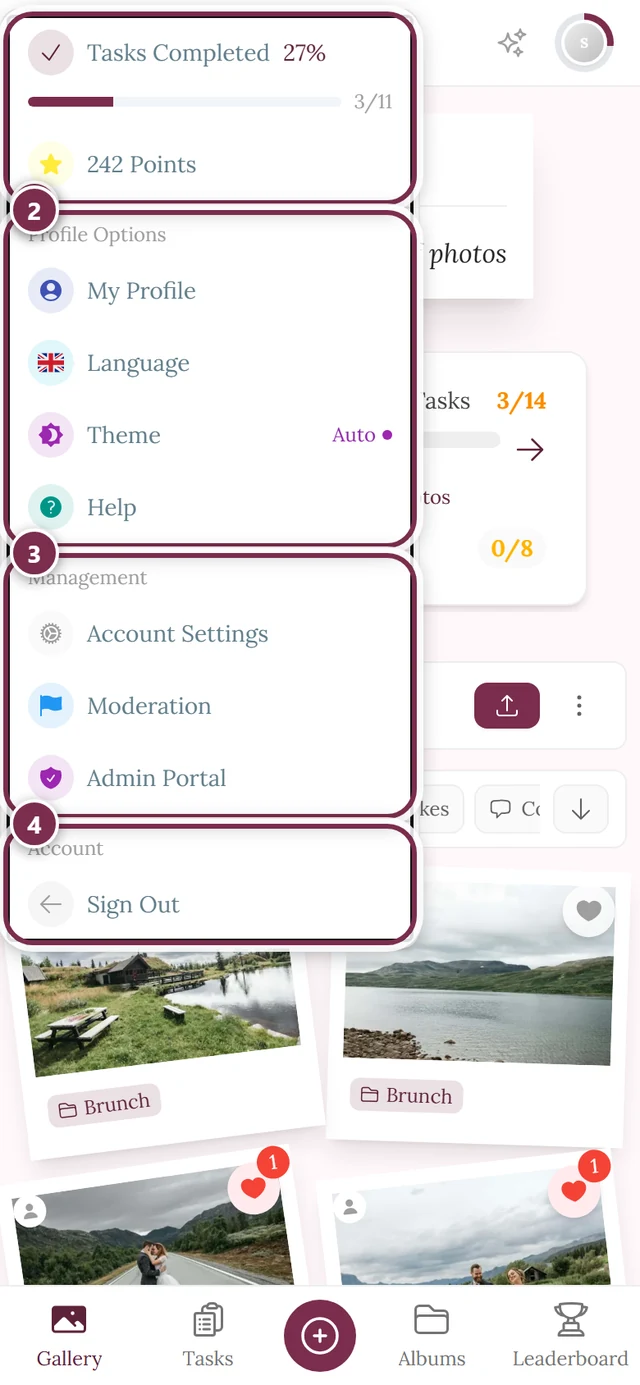
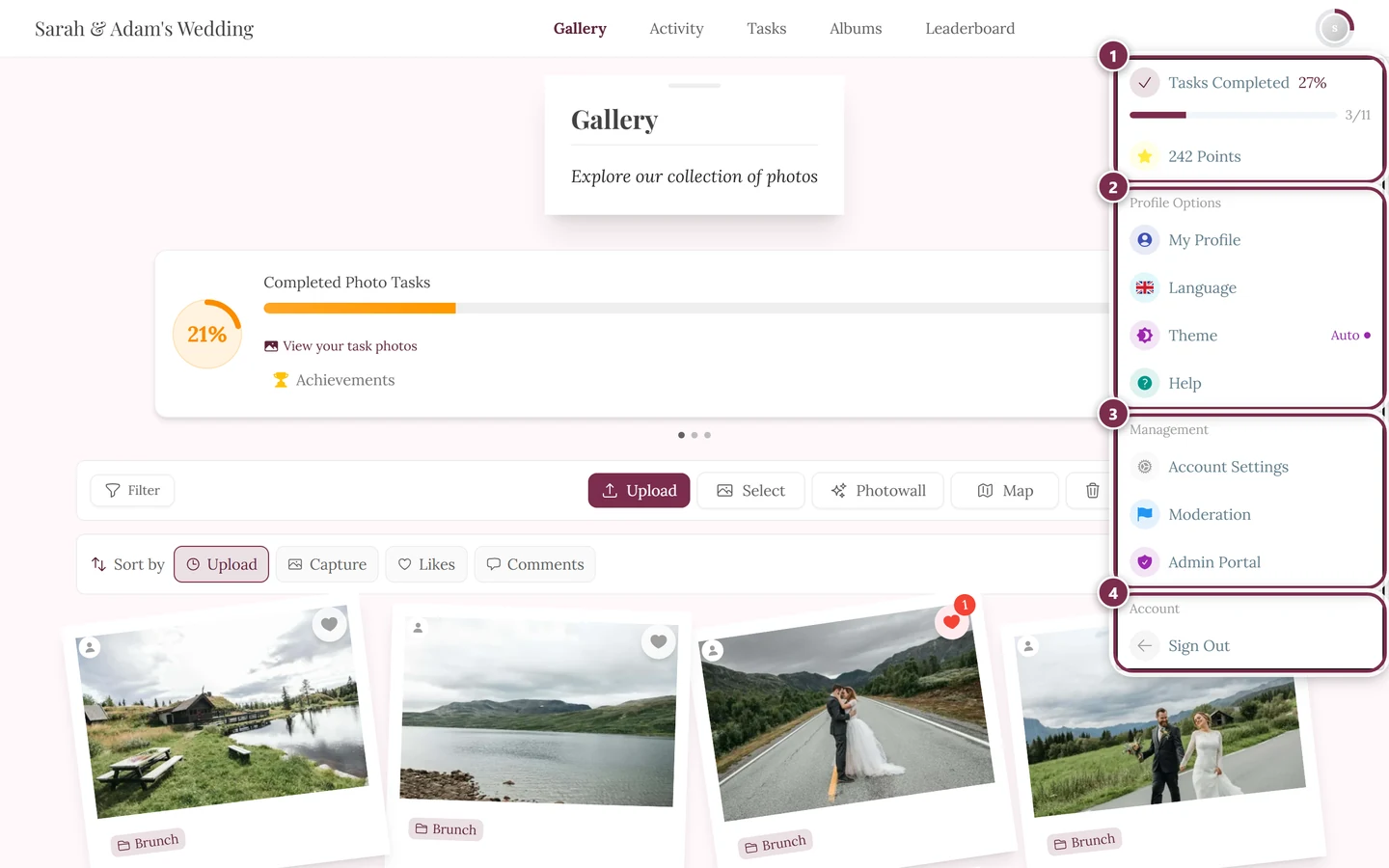
Moderators can block guests from uploading; that explains why an upload is sometimes not possible.
Related help pages
Section titled “Related help pages”- Uploading photos – the upload dialog and the completion screen
- Points, achievements & rewards
- Gallery & uploading
- Filtering & search
- Albums