Plan & term
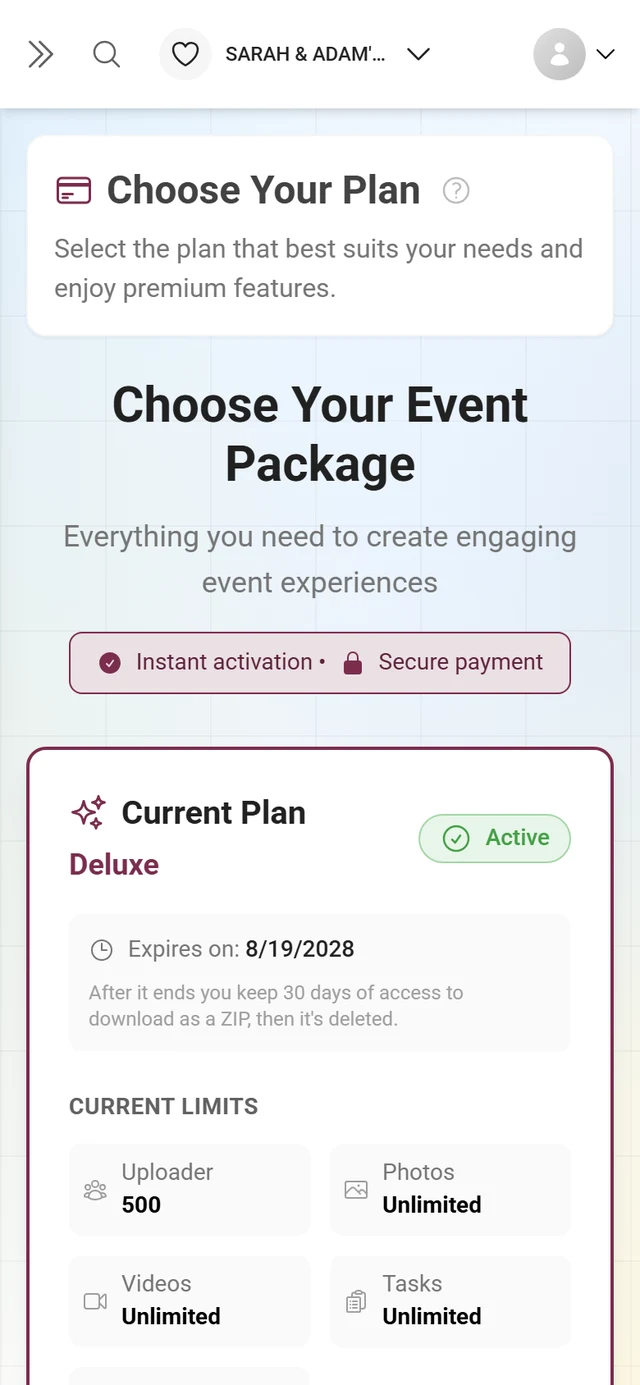
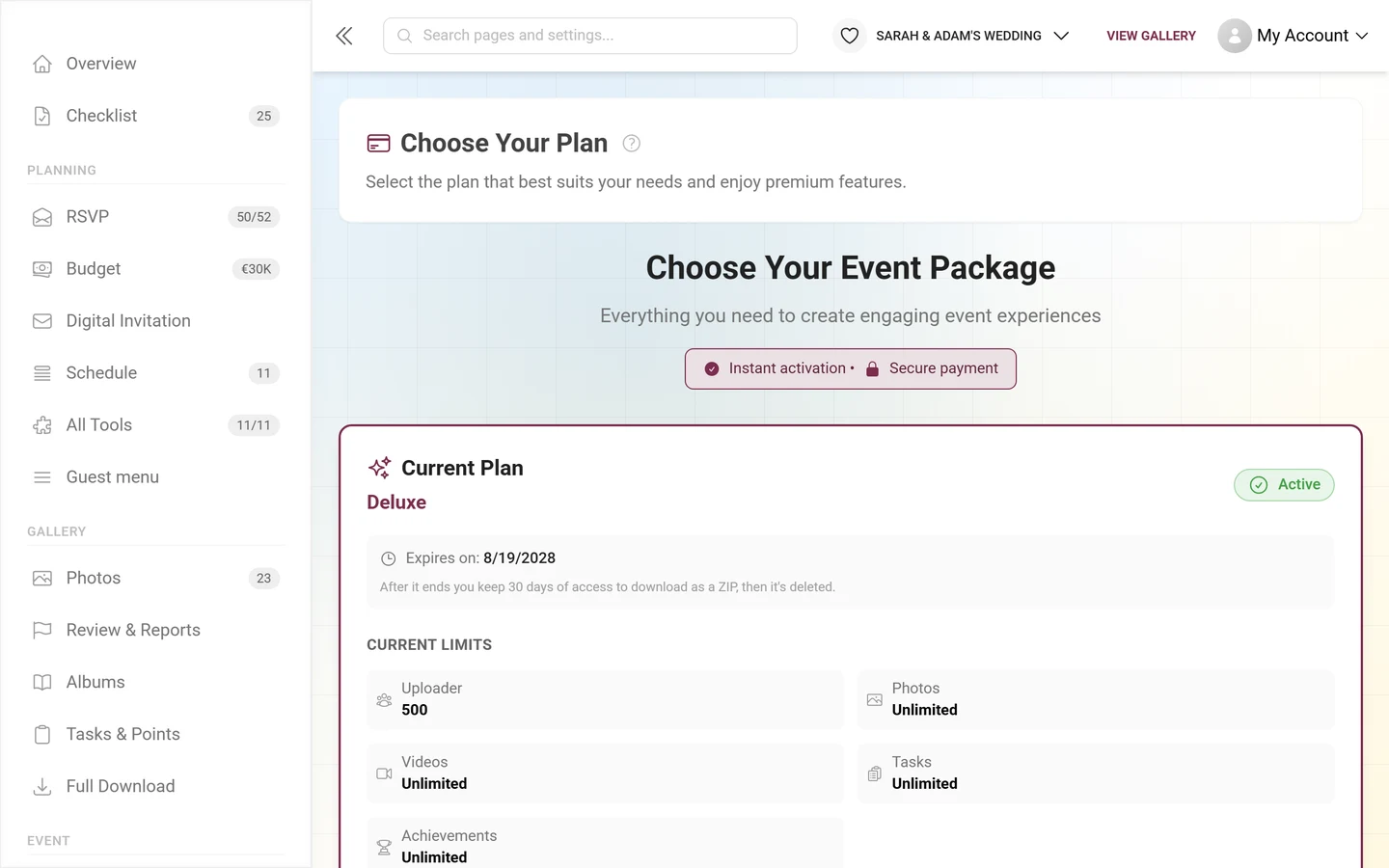
On the Plan & term page you see how long your gallery stays online and what happens after that. From there you can switch to a bigger plan right away (upgrade), renew the term, keep the gallery in the archive for less and switch automatic renewal on or off. This page explains every block from top to bottom.
Who can buy? (Roles and brands)
Section titled “Who can buy? (Roles and brands)”What you see on the page depends on your role and the type of event:
- Owner (event owner): sees Plan & term and is the only one who can buy, upgrade, renew, move to the archive or cancel a subscription.
- Admin/moderator (not owner): sees a read-only overview of the current plan with a note that only event owners can buy changes. If the gallery is in the archive, it shows Archive with the note “No new uploads in the archive – viewing and downloading stay.” instead of the current limits. For changes, contact the owner.
- Brand/white-label event: if your event runs under a custom brand, the page only shows Plan Managed by [Brand] with a note to contact your provider for plan changes. No purchase is possible here.
How to reach the page
Section titled “How to reach the page”-
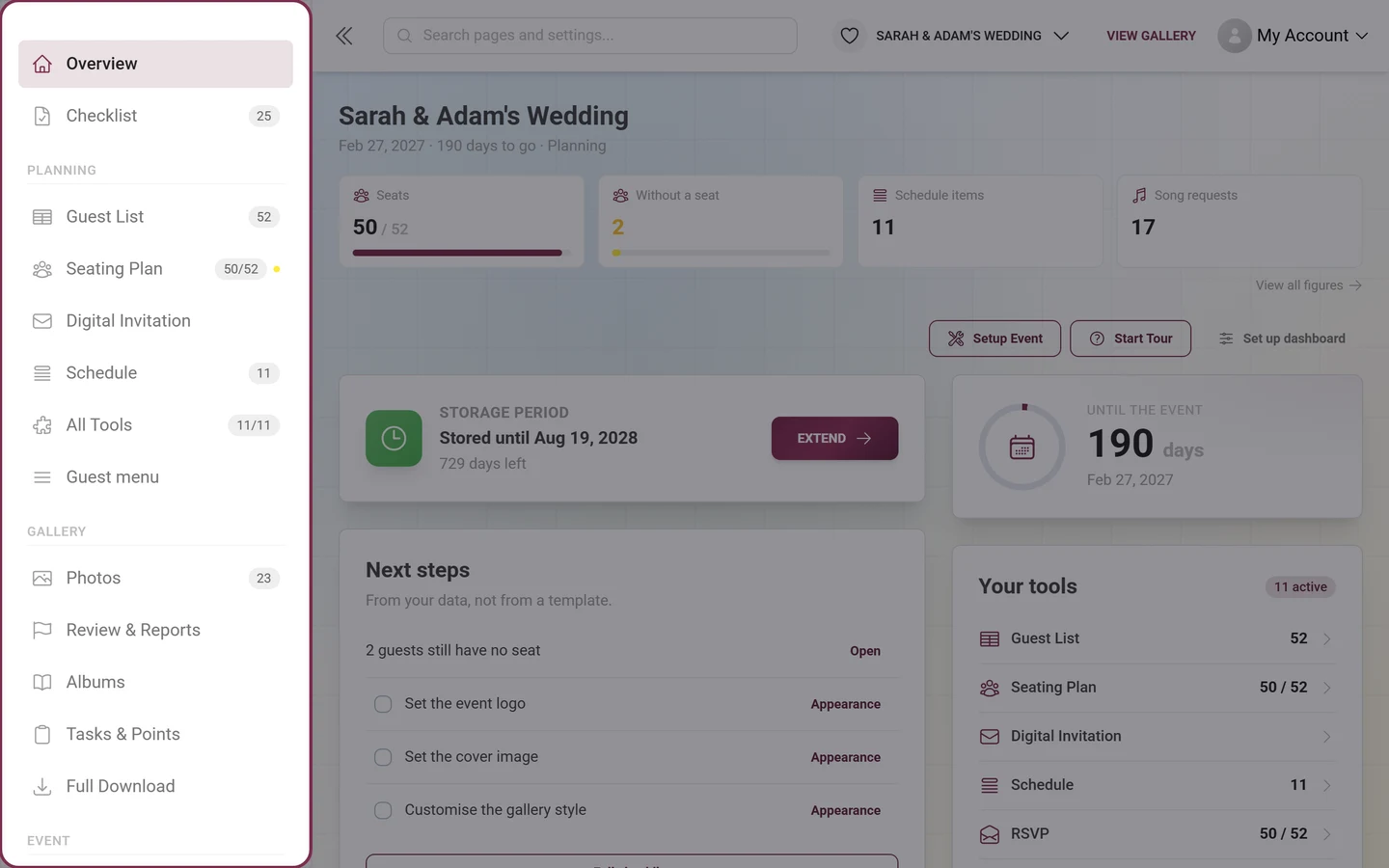
Open your event’s admin area. If you’re in the gallery, get there via the profile menu at the top right.
-
In the admin sidebar at the bottom, open the Upgrade Plan box. If you’re already on the highest plan it reads Manage Plan; while a discount is running the button reads Claim discount.
-
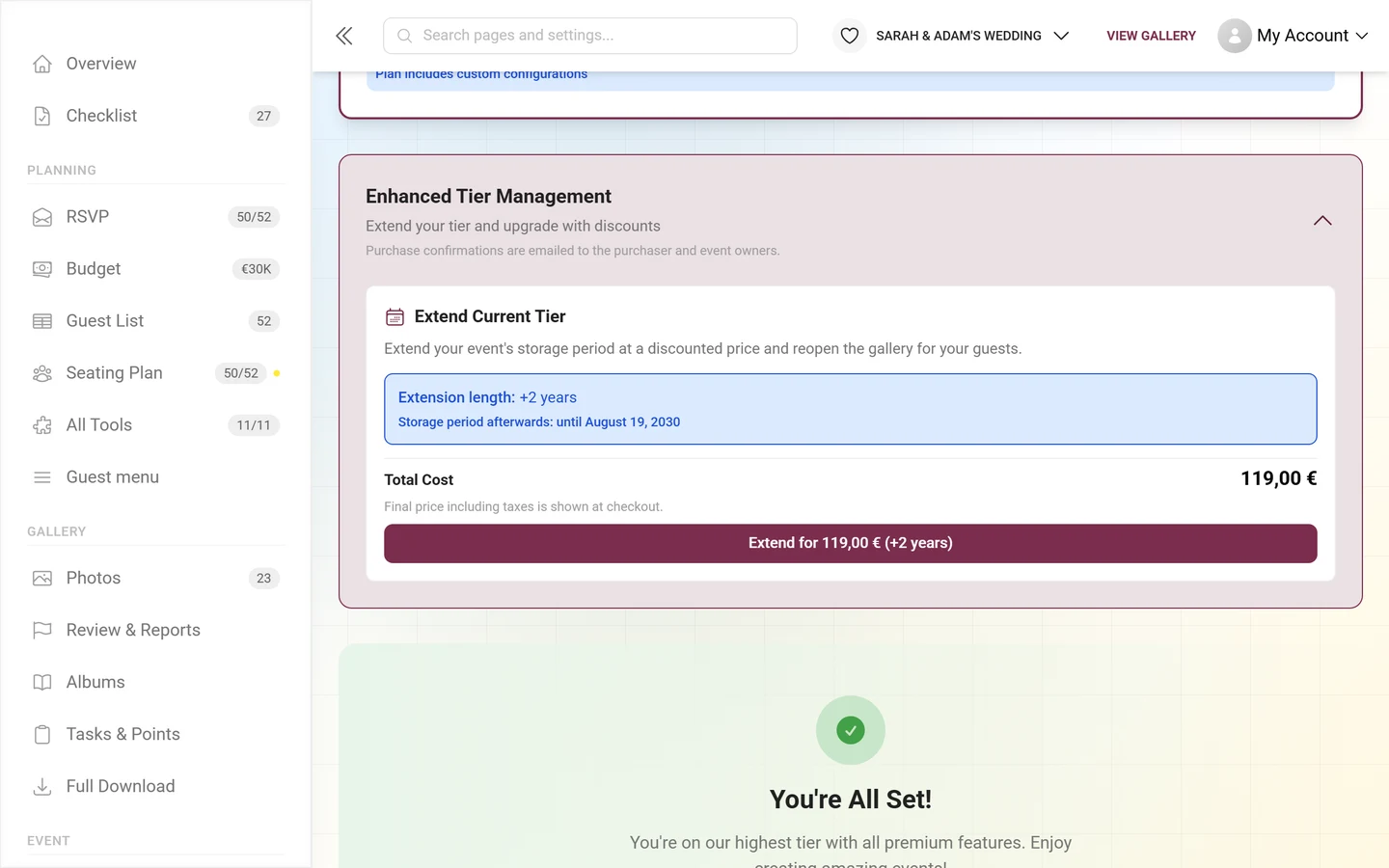
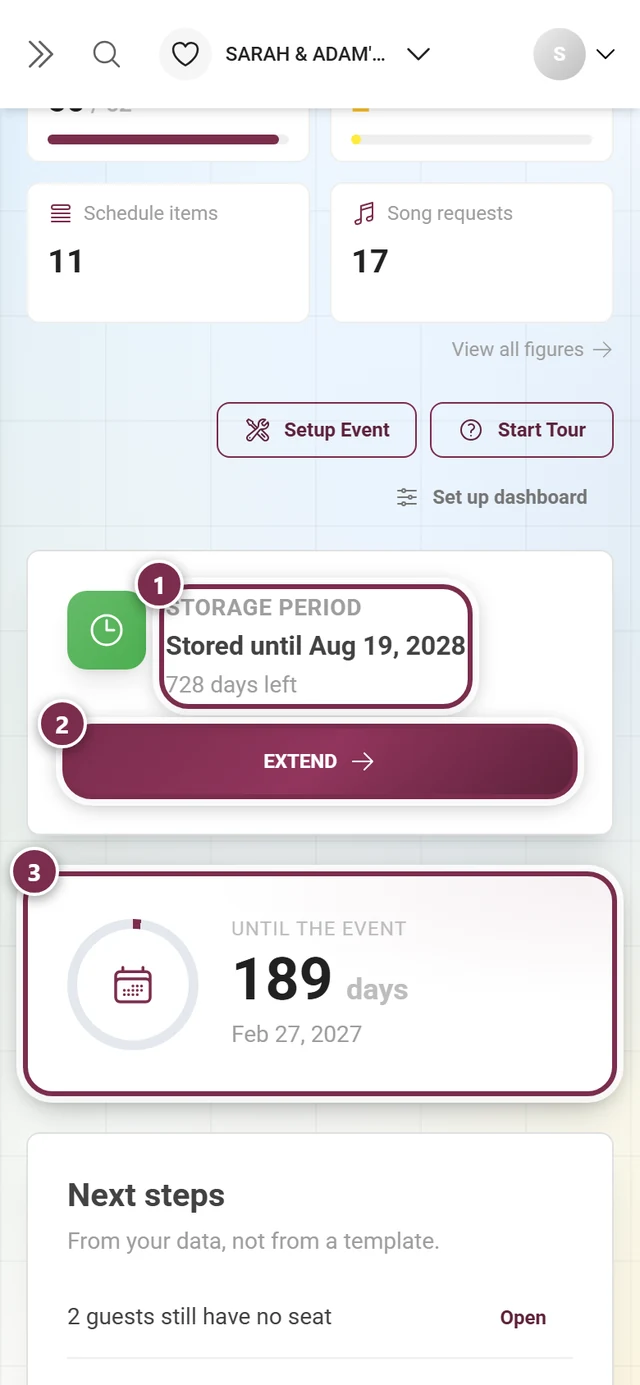
Alternatively you land here automatically when you tap a locked feature in the gallery or settings, or via Extend on the Storage period card in the dashboard.
The “Your plan” card
Section titled “The “Your plan” card”At the very top is the Your plan card. It shows your event’s current state.
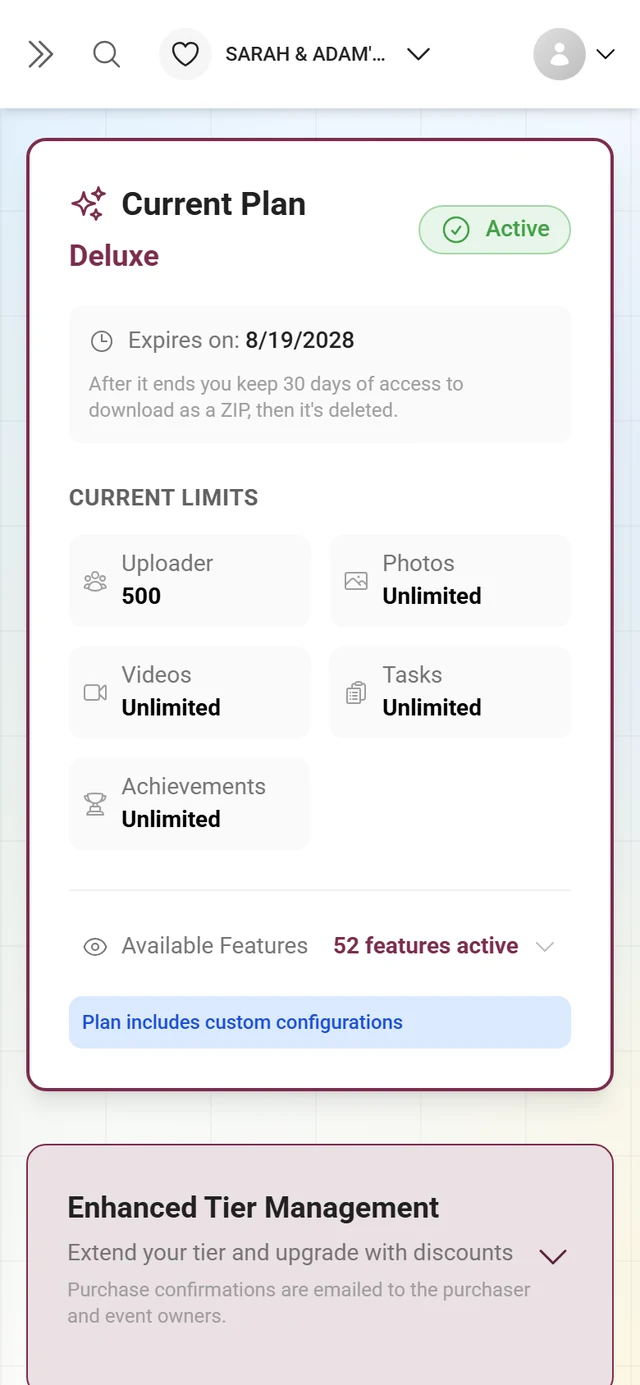
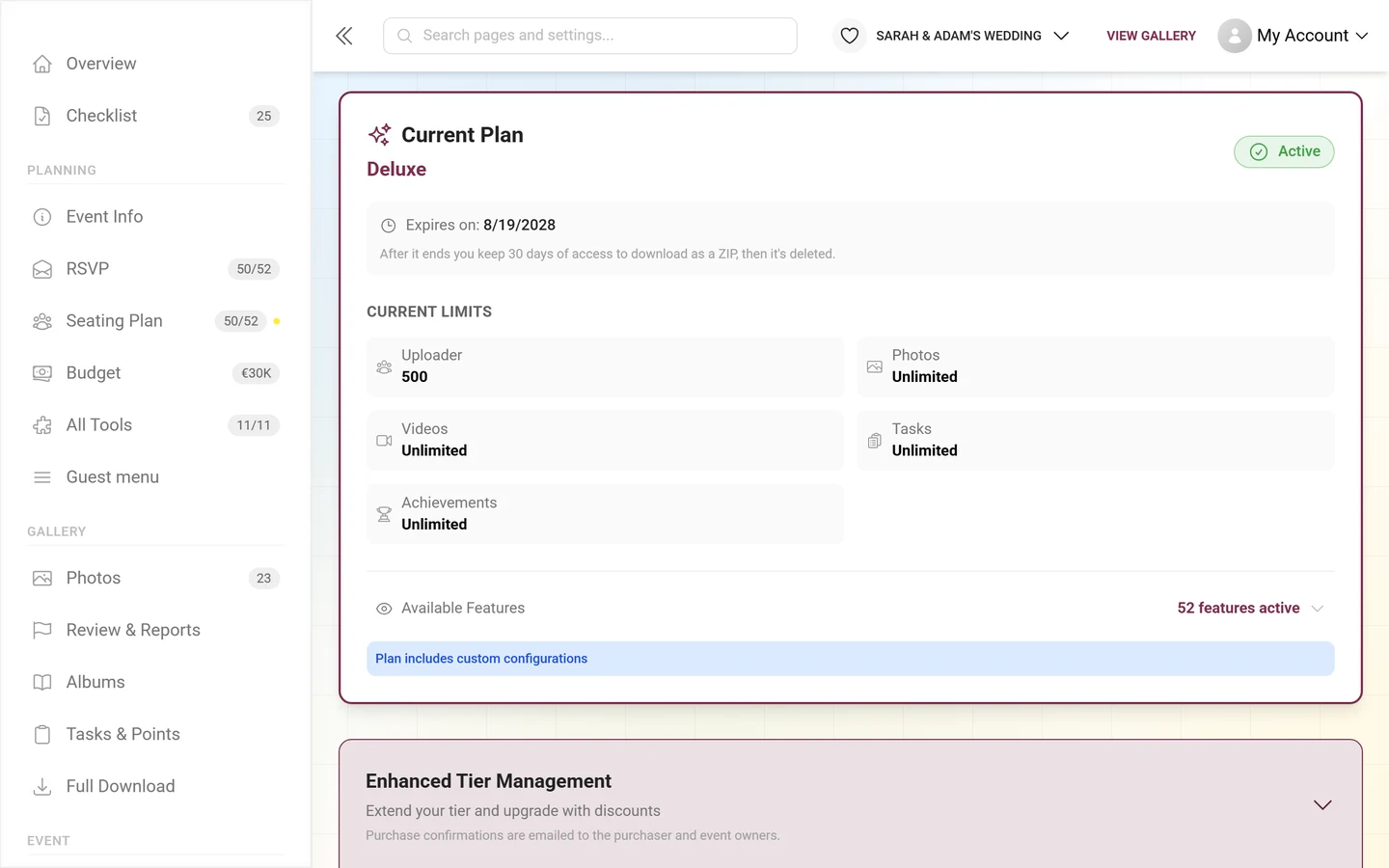
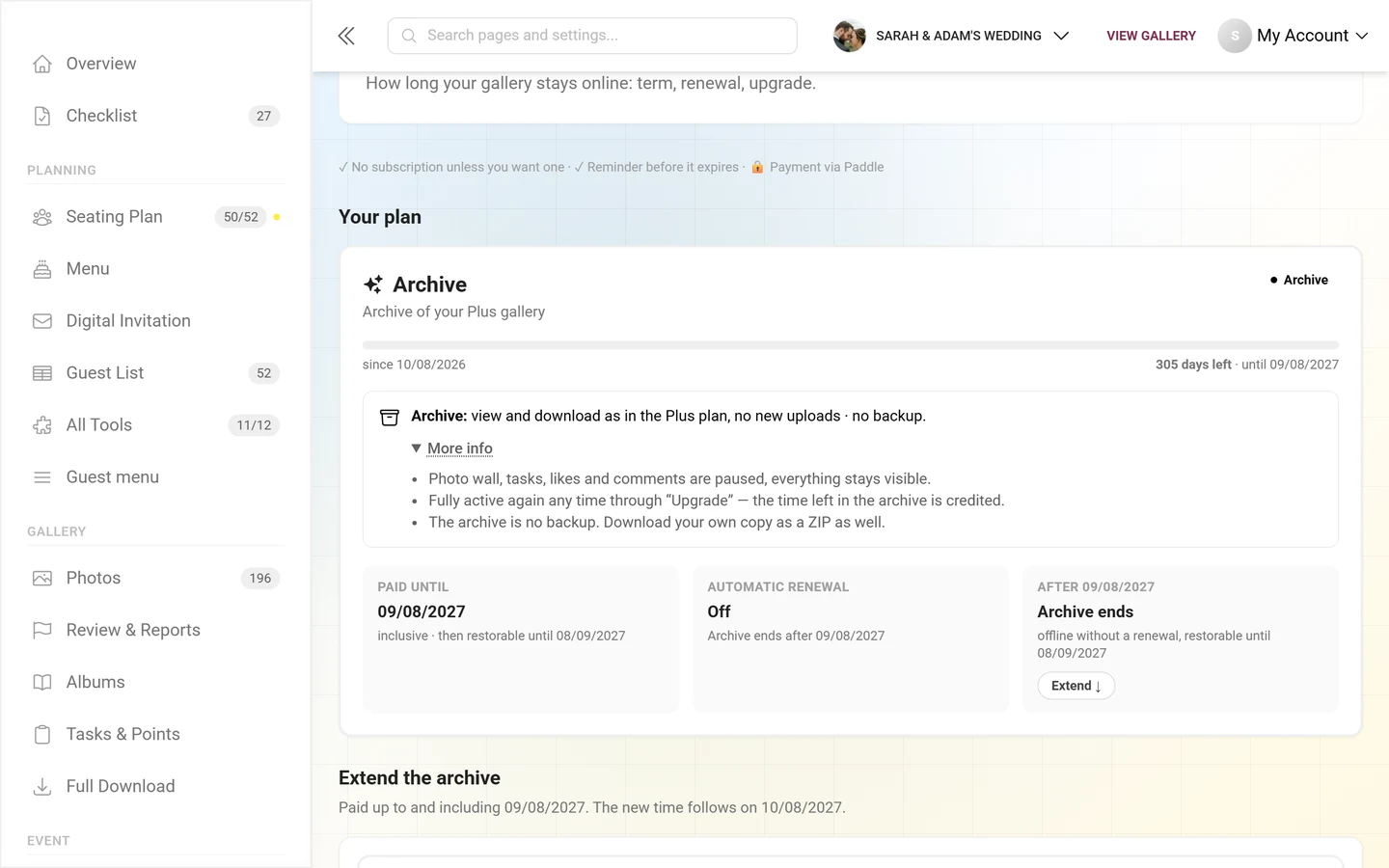
- Header: plan name, below it the type of purchase – for example One-time purchase · 2 years, Subscription · yearly or Renewal · 1 year – and on the right a status pill such as Active.
- Term bar: on the left since [date], on the right N days left · until [date]. Below it the usage, for example “0.2 GB of photos from 1 uploader”.
- “Paid until” tile: the last paid date. The note below says what happens afterwards: inclusive · then it expires, inclusive · then renewed or inclusive · then [plan] if a switch is planned.
- “Automatic renewal” tile: Off with the note One-time purchase, no subscription – or On with the next charge.
- “After [date]” tile: what is planned after the expiry date. If it reads Not decided yet, Decide now ↓ jumps straight to the block for the time afterwards.
- More info: expands the details – for example that Photogala makes no backup copy and that you should download your own copy as a ZIP.
The card changes with the state: before the start it reads Term not started yet with the photo counter (“3 of 10 photos uploaded”), for an expired gallery Offline since [date] together with the date until which you can restore it, and in the archive Archive of your [plan] gallery.
If a subscription is running or the gallery is in the archive, the card looks different – see Archive and Yearly payment (subscription) further down.
After the term: renew or archive
Section titled “After the term: renew or archive”Below it sits the block After [date]: renew or archive – “Paid up to and including [date]. The new time follows on [date].” This is where you decide what happens after the expiry date. Nothing here is paid right away unless you click Continue to payment.
- “Renew [plan]” tile: renews for one year from your current end date. The pills in the tile let you choose which plan continues – a smaller one works too, as long as your storage fits.
- “Into the archive” tile (or Archive · keep only): the low-cost option once the party is over. The gallery stays online for viewing and downloading, but without new uploads; the photo wall, tasks and new guests are paused. Liking, commenting and organizing carry on. The archive is no backup. The price depends on the storage in use.
- Hint “A bigger plan from today?”: an upgrade applies right away and the time left is credited – To the upgrade jumps to the upgrade block.
- Renew automatically every year: with this checkbox the renewal (or the archive) becomes a yearly subscription at the same price as a renewal by hand – details under Yearly payment (subscription).
- Summary: as long as nothing is chosen, it reads Nothing chosen yet. plus what happens without a choice: “Without a choice offline from [date], restorable until [date].” After choosing you see Pay today, the new Period and the Continue to payment button.
- Comparison & details: expands a side-by-side view of the options.
- Your own copy: below it reads “Your own copy – best before [date]:” with the ZIP · [size] GB button. It downloads all photos at once (from a paid plan up).
How to renew
Section titled “How to renew”-
Scroll to the block After [date]: renew or archive – or tap Decide now ↓ in the card.
-
Choose the Renew [plan] tile (and, if needed, a different plan via the pills) or Into the archive.
-
If you like, tick Renew automatically every year.
-
Check the summary and click Continue to payment. You confirm the payment in the secure Paddle window.
The free Starter plan cannot be renewed: “Starter cannot be renewed. The gallery stays online with the archive or a plan.” If the gallery has already expired, you bring it back right away via this block or an upgrade – all photos are still there until the date shown.
Archive – keep it for less
Section titled “Archive – keep it for less”Once the party is over and no more photos are coming in, you don’t need to keep paying for the full plan. In the archive your gallery stays online for a year – for viewing and downloading – but costs much less than a renewal.
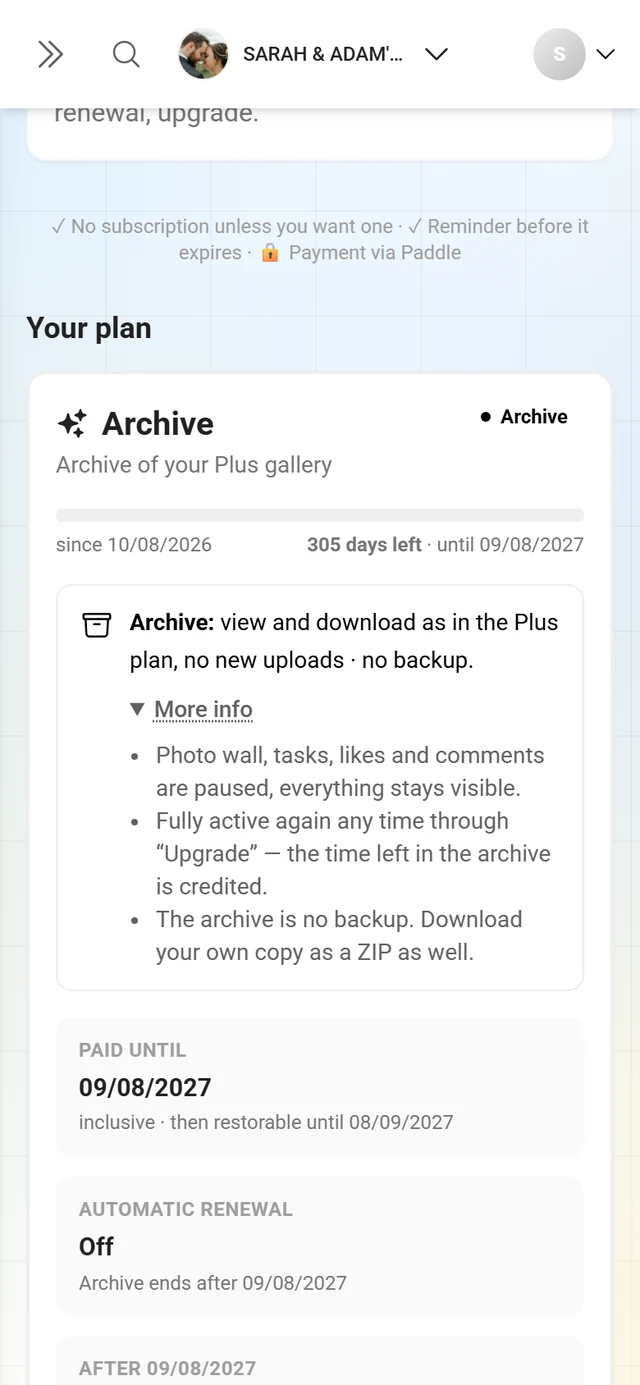
What applies in the archive:
- The gallery stays online for guests. Viewing and downloading work as in your previous plan – photos, videos, albums and settings are kept.
- Nothing new gets added: uploads, live upload and the photo wall are paused – for you as the owner, too. New guests can no longer join; anyone who has already joined opens the gallery on the device they joined with, or signs in with their account. Tasks stay visible, but there are no new tasks or points.
- Everything already there keeps working: liking, commenting, albums, descriptions, rotating and cropping, naming and merging faces, approvals and the leaderboard work as before – within your plan and the roles.
- At the top of the gallery the notice This gallery is in the archive. appears. As the owner you also get the Reactivate gallery button there, which takes you straight to this page.
- No backup: Photogala keeps no second copy of your photos. Download your own copy as a ZIP as well.
- Price: depends on the storage your event uses. The price level is fixed at purchase.
- ZIP download: once every 7 days in the archive. If you come from the free Starter plan, you download one by one in the archive – a ZIP of all photos is only available from a paid plan up.
How to move your gallery into the archive
Section titled “How to move your gallery into the archive”-
Scroll to the block After [date]: renew or archive.
-
Choose the Into the archive tile (or Archive · keep only). The archive follows on seamlessly from your current end date – until then your plan stays fully usable.
-
If you want the archive to keep running every year, tick Renew automatically every year.
-
Click Continue to payment and confirm in the Paddle window.
If the gallery is already in the archive, the tile reads Extend the archive. When the archive is about to end, the card shows the pill Archive ends in N days and the link Extend ↓.
Yearly payment (subscription)
Section titled “Yearly payment (subscription)”Instead of renewing by hand every year, you can switch on automatic renewal. Then the same price as a renewal by hand is charged every year, and the gallery stays online without a gap until you cancel. Without your tick there is no subscription – every purchase is otherwise a one-time payment.
Set up automatic renewal
Section titled “Set up automatic renewal”-
In the block After [date]: renew or archive, choose a renewal or the archive.
-
Tick Renew automatically every year. The line below names price and date: “[price]/year · today [amount], then yearly on [date] · cancel any time”. How does the renewal work? explains the details.
-
Click Continue to payment and confirm the subscription in the Paddle window.
Next term already paid? If you have already booked the next term as a one-time purchase, the Automatic renewal tile shows the link Set up for after [date] ↓. In the block Keep renewing automatically you then set up the subscription for the time after that with Renew automatically from [date]. Nothing is charged today – only the payment method is stored. Paddle calls the time you have already paid a “trial” (for example in the confirmation email); the first charge only happens on the date shown.
The card with a running subscription
Section titled “The card with a running subscription”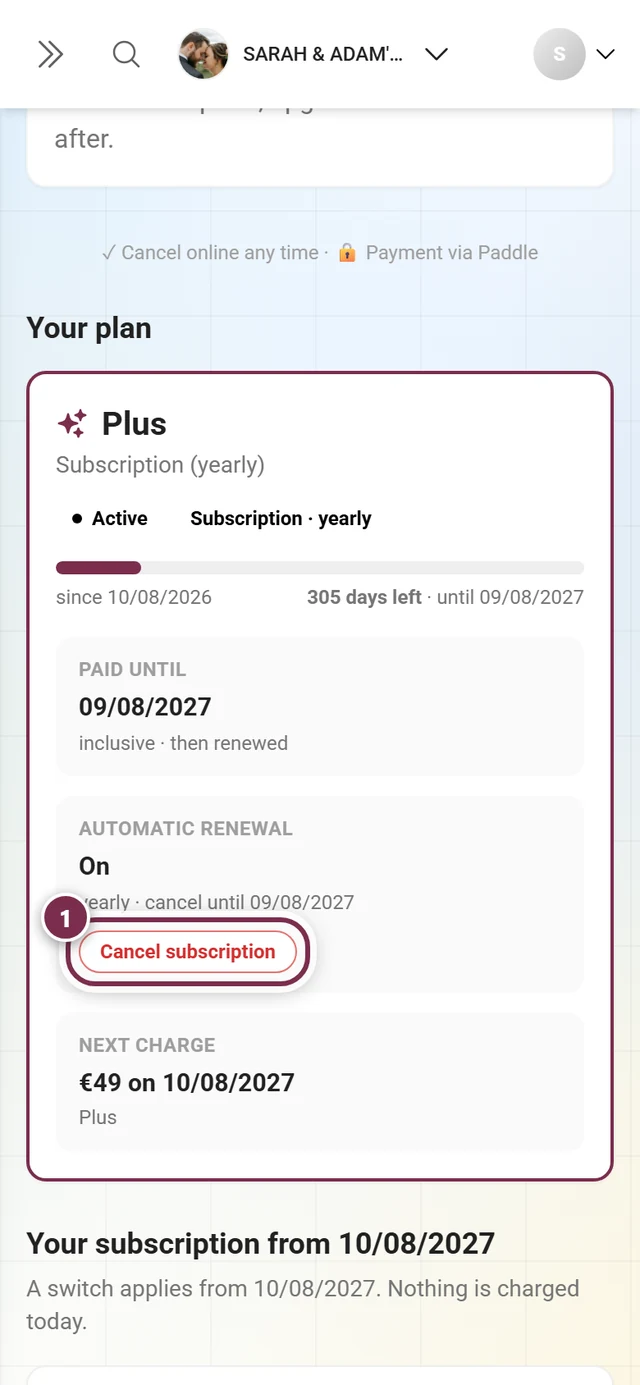
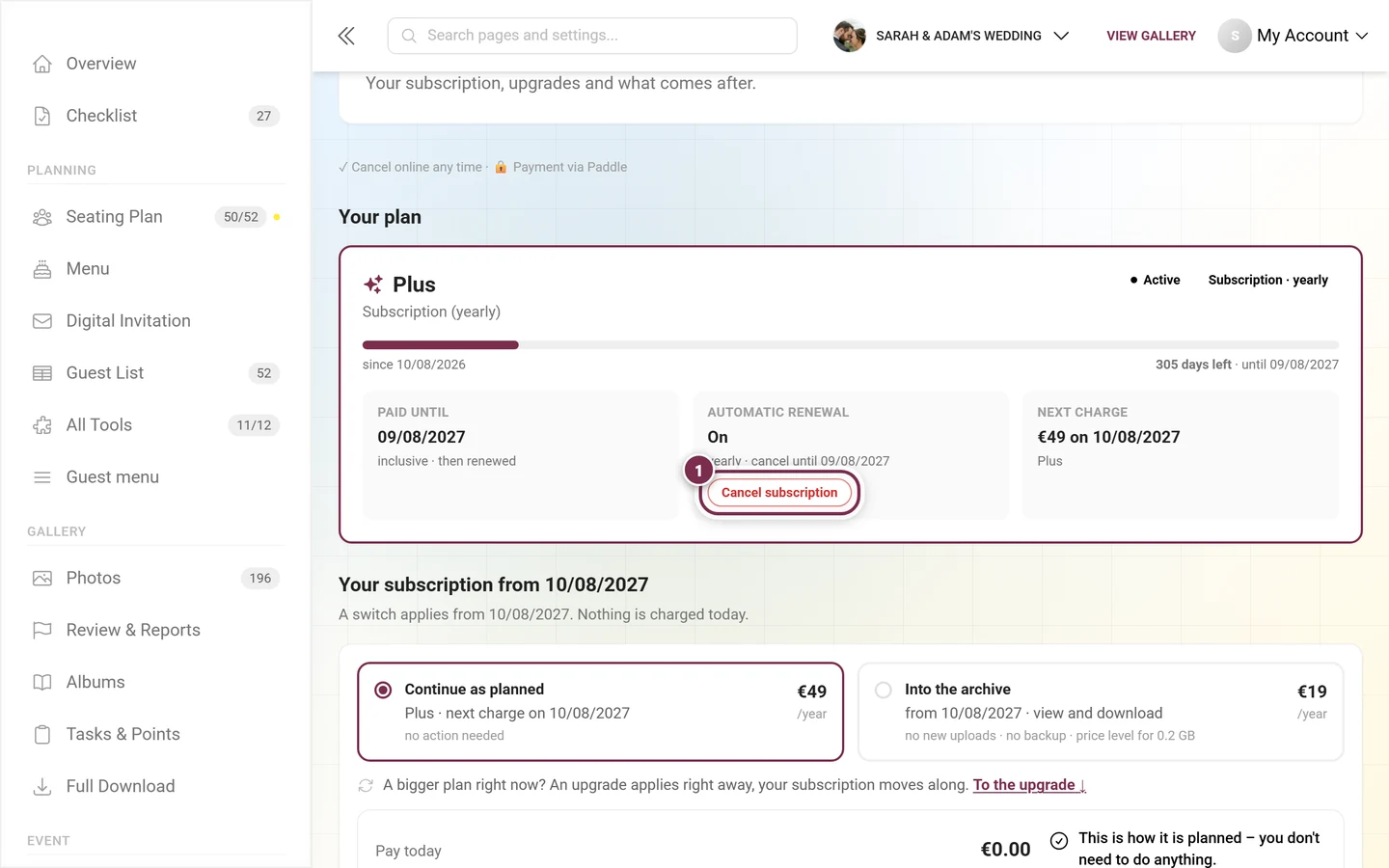
- Paid until: with the note inclusive · then renewed.
- Automatic renewal: On, “yearly · cancel until [date]”, below it the Cancel subscription button.
- Next charge: “[price] on [date]” and the plan it continues with.
Switch plans for next year
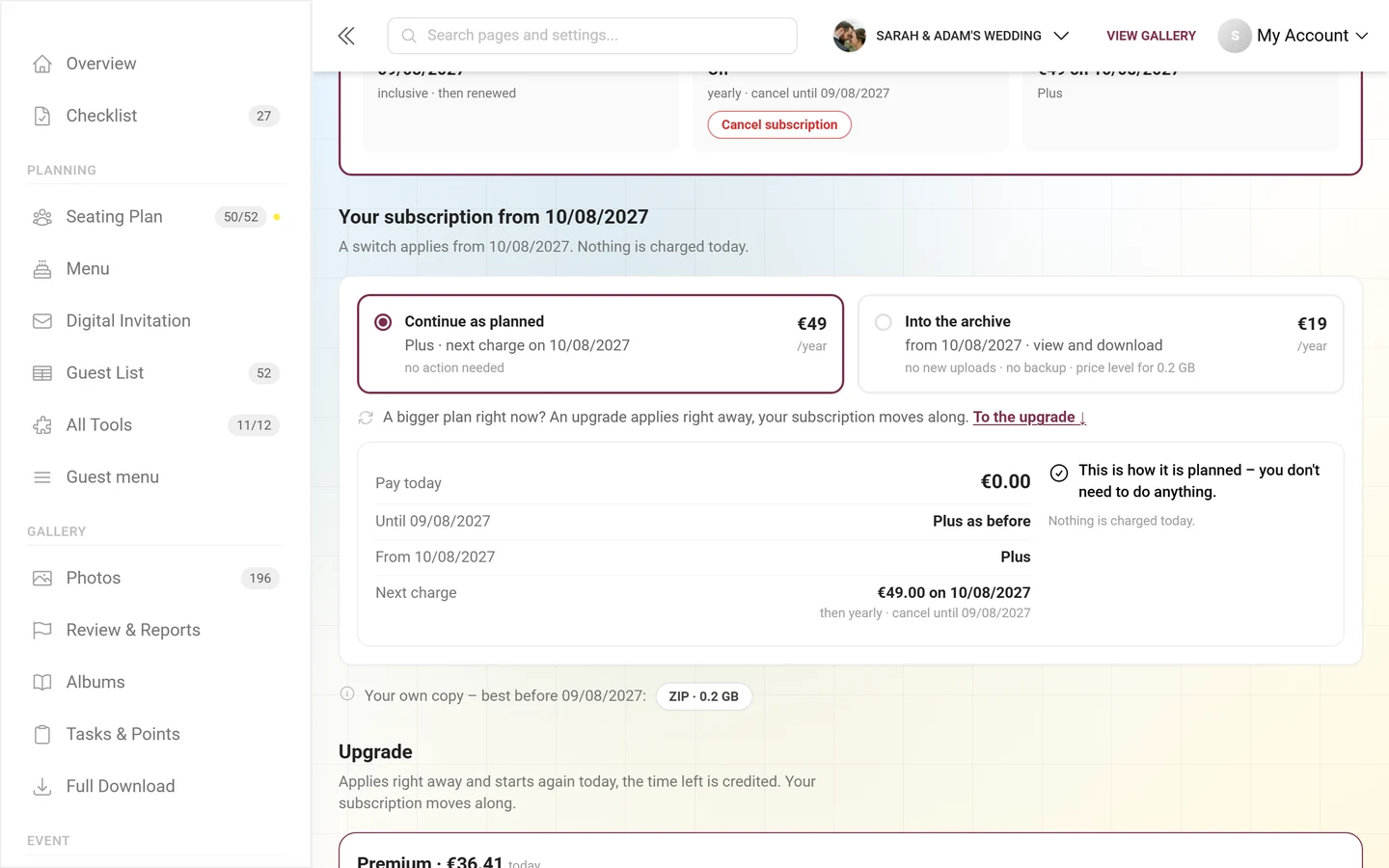
Section titled “Switch plans for next year”With a running subscription the block below the card is called Your subscription from [date] – “A switch applies from [date]. Nothing is charged today.”
-
Choose the tile for next year – a smaller plan (as long as your storage fits) or the Archive. Continue as planned means: nothing to do.
-
Click Plan the switch for [date] and confirm. Nothing is charged or refunded today; until the next charge your plan stays fully usable, and nothing is deleted.
A planned switch then shows in the card as Switch planned – with date, new plan and yearly price. What changes shows what will be different afterwards. If you change your mind, click Take back the switch and confirm with Order with obligation to pay.
You don’t plan a bigger plan for next year – you book it right away via the upgrade block. The subscription moves along with it – the buy bar shows under Your subscription keeps running – with [plan] what changes. The previously planned charge is dropped, so you never pay twice.
Cancel a subscription
Section titled “Cancel a subscription”-
In the Your plan card, click Cancel subscription.
-
Read the prompt Cancel the subscription? – your plan stays online until the end of the paid time, nothing is charged after that. Then the gallery goes offline for guests and can be restored until the date shown.
-
Confirm with Cancel now. Use Back to abort.
The card then shows the pill Subscription canceled and, in the Automatic renewal tile, the value Canceled – “no further charge”. Nothing is refunded for the current period; it stays usable until the end.
Resume subscription: as long as the paid time is running, you can take back the cancellation. In the card’s note, click Resume subscription, check the price and date of the next charge and confirm with Subscribe with obligation to pay. Nothing is charged today.
If a charge fails
Section titled “If a charge fails”If Paddle cannot charge for the next year (for example because the card has expired), the page shows the note “The last charge failed. Please update your payment method – the gallery stays online until [date].” at the top. Use Update payment method to store a new payment method.
Upgrade – switch to a bigger plan right away
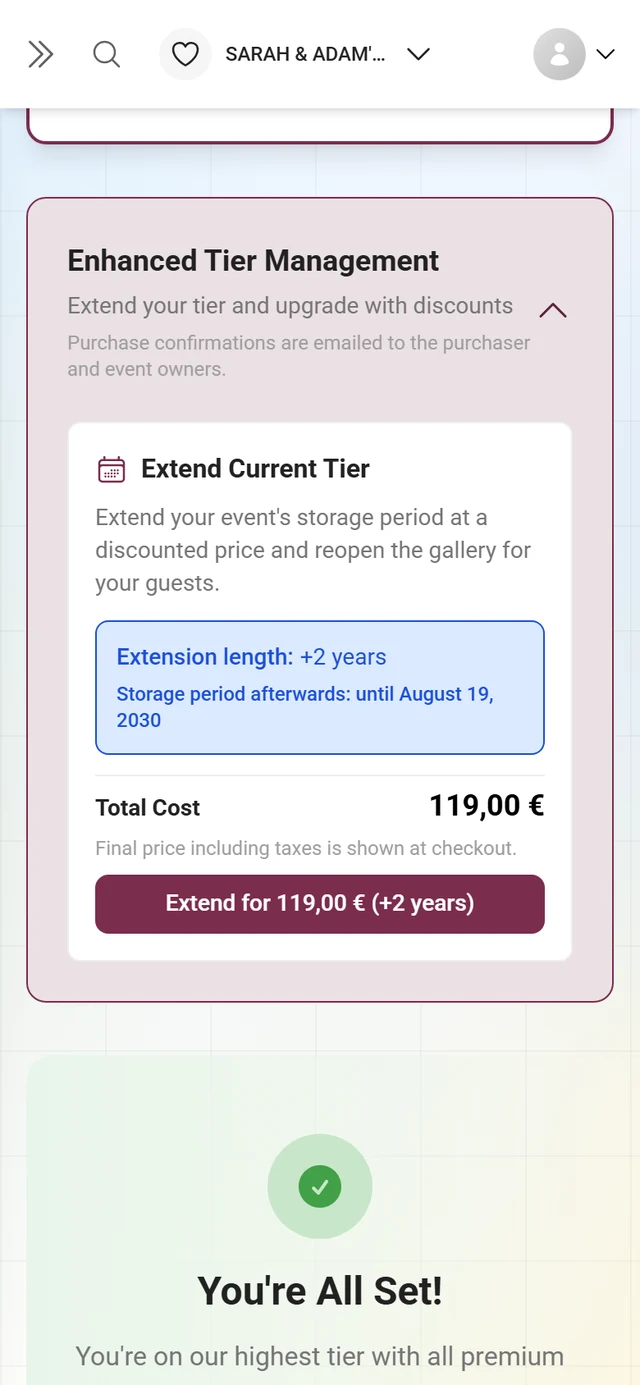
Section titled “Upgrade – switch to a bigger plan right away”If there is a bigger plan than yours, the page shows the Upgrade block. It is missing if you are already on the biggest plan. An upgrade applies right away: “Applies right away for [duration], until [date]. Unused time is credited.” On the free Starter plan the page first asks How many people should upload photos? and then recommends the matching plan.
From the second year on, every plan runs for one year. Longer terms for individual plans (such as two years) are only available on the first purchase – the page explains this under Why not [duration] with [plan]?. The plans then only differ in size and features.
The comparison table
Section titled “The comparison table”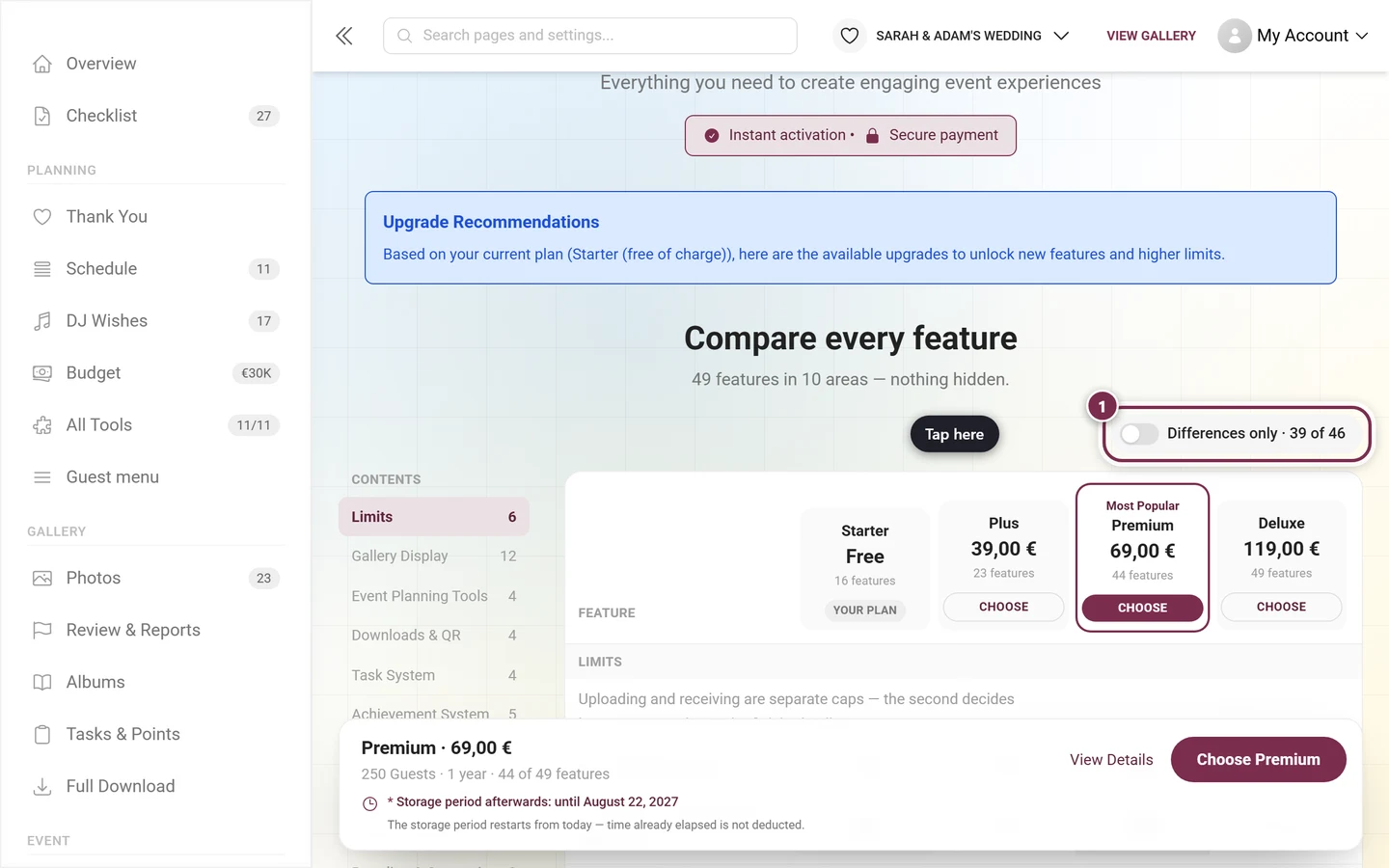
- Column head per plan: name, price with one-time or for [duration], below it “today [amount] (time left credited)”. Your own column carries the Your plan pill, every other one the Choose button.
- Toggle “Differences only · [X] of [Y]”: hides every row where the plans do not differ. What remains is exactly what the upgrade adds.
- “Limits” area: Guests who upload, Guests in seating plan & guest list, Photos, Videos, Storage and Storage period.
- Feature areas: each row shows a tick (Included) or a dash (Not included).
- On a phone the table only ever compares two columns – your plan and a target you pick with the pills above it.
- Below the table it says what applies afterwards: “Renewable yearly after that: active from [price]/year or archive from [price]/year.”
Details for a row
Section titled “Details for a row”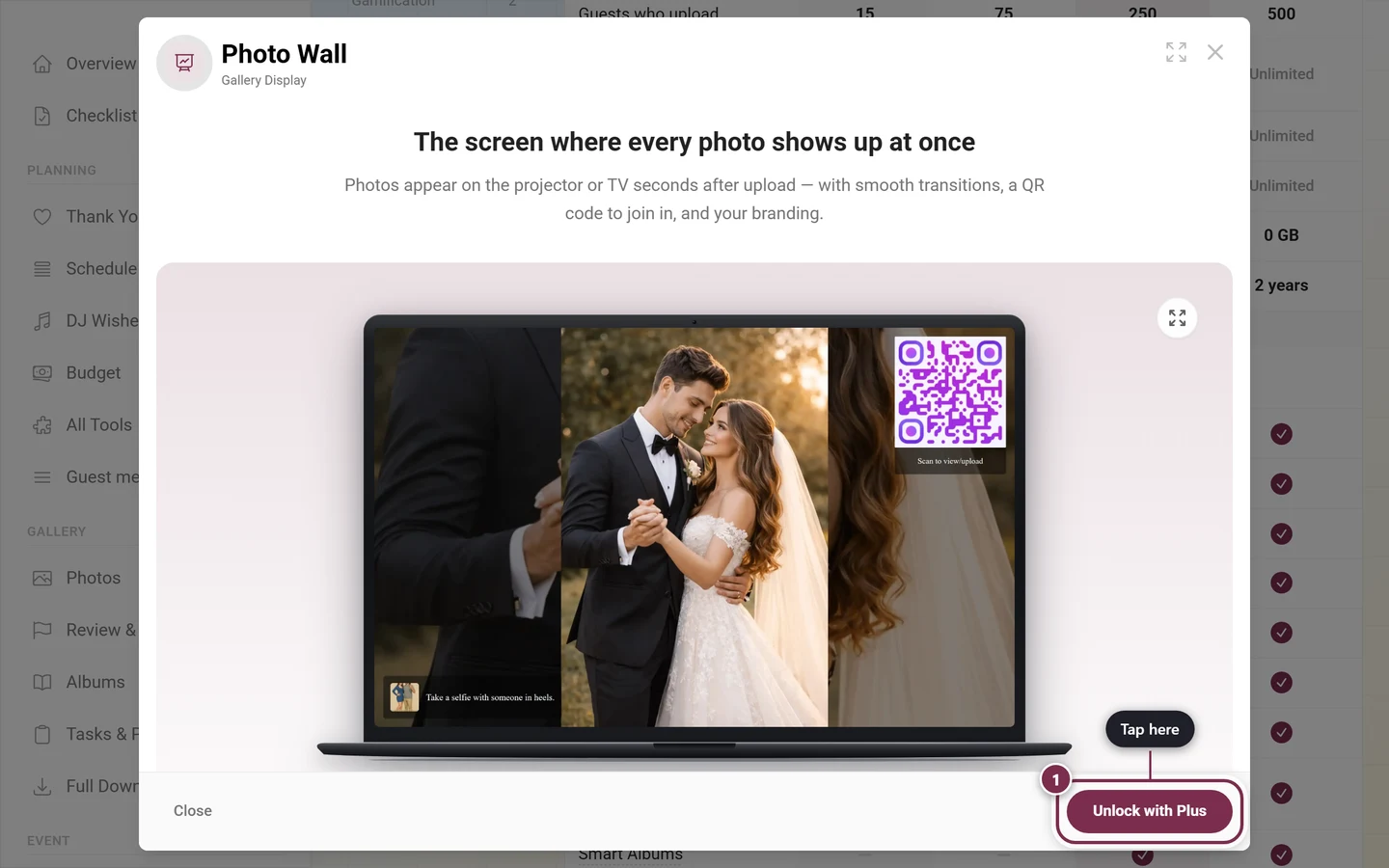
How to upgrade
Section titled “How to upgrade”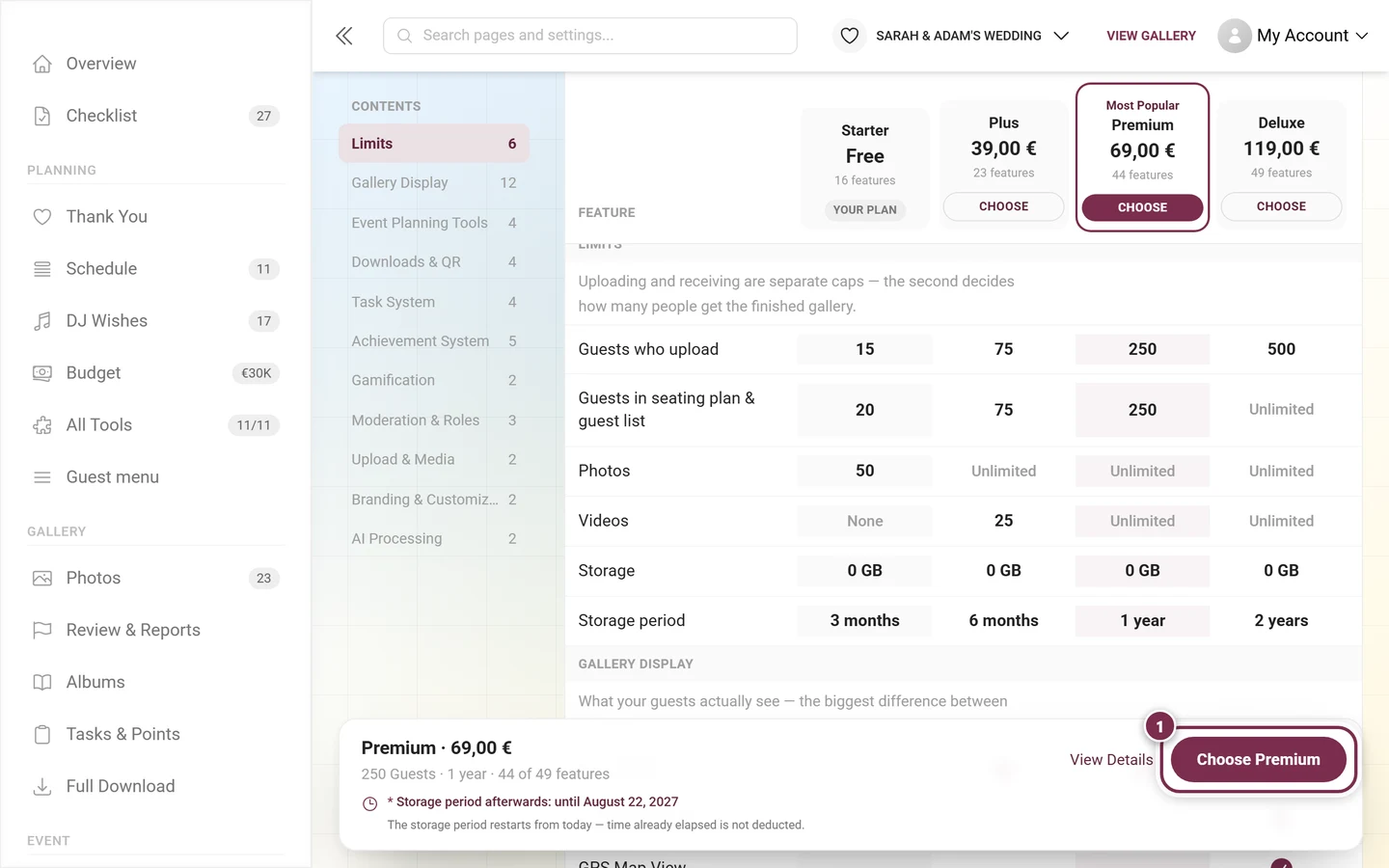
-
Look through the comparison table – Differences only reduces it to what actually changes.
-
Click Choose in the column head of the plan you want. The buy bar with today’s amount appears below the table.
-
What’s included? ▴ shows what you gain, and How is this calculated? shows how your time left is credited.
-
Click Continue to payment and confirm the payment in the secure Paddle window. You then see “Payment received – we are unlocking it, this takes a few seconds …”. The plan is usually active within a few seconds, in rare cases it takes up to 30 minutes. You can leave the page in the meantime and don’t have to pay again. If you cancel, nothing is bought. If a payment went through anyway, we book it automatically.
Rescue deleted or expired events
Section titled “Rescue deleted or expired events”A colored banner may appear at the top of the page:
- Deleted, not yet expired: banner “This event is deleted and not visible to guests or participants. You can restore it for free!” plus a countdown to permanent deletion. Use Restore Event (Free) to bring the event back as long as paid time is left (or a subscription is running). If the expiry ended the event, it runs again afterwards; if you ended it yourself, it stays ended.
- Deleted and expired: red banner – here only a renewal brings the event back. If you try it for free anyway, the page reports “Restoring needs an extension”. Nothing is charged.
- Being permanently deleted: red banner “This event is being permanently deleted. Restoration is not possible.”
- Locked after a chargeback: you cannot restore an event whose payment was charged back yourself (“Event locked”). Contact support.
You recognise a gallery that has only expired by the Your plan card (“Offline since …”). Below it, How to bring your gallery back offers two ways:
- Bring back with [plan]: online again right away with all features, uploads, ZIP and photo wall – the plan starts today.
- Choose archive: online again right away for viewing and downloading, without new uploads – the lower-cost option.
You can restore the gallery yourself until the date the card names. After that it only works via support (“You can no longer bring the gallery back yourself. Support can still restore it until [date].”), and then it is permanently deleted. More on deleted photos under Recycle bin; for the ZIP download see Download & export.
Payment and activation
Section titled “Payment and activation”- No save button: all purchases run through Continue to payment and the Paddle window (Paddle.com is the merchant of record). After the payment we unlock the change, usually within a few seconds. While that is running, you can’t buy anything else. The page shows you a Reference that you can give to support.
- Started purchase: if you closed the payment window without paying, the page reminds you of it (“You started a purchase: …”). Continue to payment carries on, Discard drops the purchase.
- Review by support: if it says “our support team is checking this payment before it is activated”, you don’t need to do anything or pay again. We will get in touch with you.
- Money back: on your first purchase you get 30 days money back, on top of the right of withdrawal.
- Confirmation emails go to the purchaser and all event owners.
- Upgrade applies right away and starts again today, the time left is credited. Renewal follows on from your end date. Archive follows on as well and keeps the gallery online at low cost, without new uploads. With Renew automatically every year this becomes a yearly subscription that you can cancel online at any time.
Troubleshooting
Section titled “Troubleshooting”- I only see a read-only overview. You are not the owner – only owners see Plan & term and can buy. For a brand event the provider manages the plan.
- The upgrade block is missing. You are already on the biggest plan. Renewing and the archive remain possible.
- The card shows “Term not started yet”. That’s not a bug: the term only starts with the first (free) or tenth (paid) photo. Until then you can use the planning tools without limit.
- The payment window won’t open. Disable your browser’s pop-up blocker and try again.
- “Payment received – we are activating it”, but nothing changes. Don’t pay again. Unlocking usually takes a few seconds, sometimes up to 30 minutes. Check again fetches the current status. If nothing is unlocked after 30 minutes, click Contact support and quote the Reference.
- “The price has changed in the meantime.” The price changed between display and purchase, for example because a day has passed or your term has changed. Check the new price and click Continue to payment again.
- “Our payment provider can’t be reached right now.” Try again in a few minutes.
- “Something went wrong (code …)” Try again. If it still fails, send the code shown to support.
- The upgrade costs less today than the list price. That’s your credited time left. How is this calculated? in the buy bar shows the calculation.
- My gallery has expired – are the photos still there? Yes, until the date shown in the Your plan card. With a renewal, the archive or an upgrade it is back online right away.
- My subscription keeps being charged. Cancel via Cancel subscription in the Your plan card; the plan stays online until the end of the paid time.
- Nobody can upload in the archive. That’s intended. With an upgrade the gallery is fully active again right away; the time left in the archive is credited.
- “The last charge failed.” Click Update payment method and store a valid payment method. The gallery stays online until the date shown.
- Paddle shows a “trial”. That’s the time you have already paid for. The first charge only happens on the date of the first charge.
- I can’t plan a bigger plan for next year. You book bigger plans right away via the upgrade block – your subscription moves along.
Related help
Section titled “Related help”- Setup checklist – getting started with your event
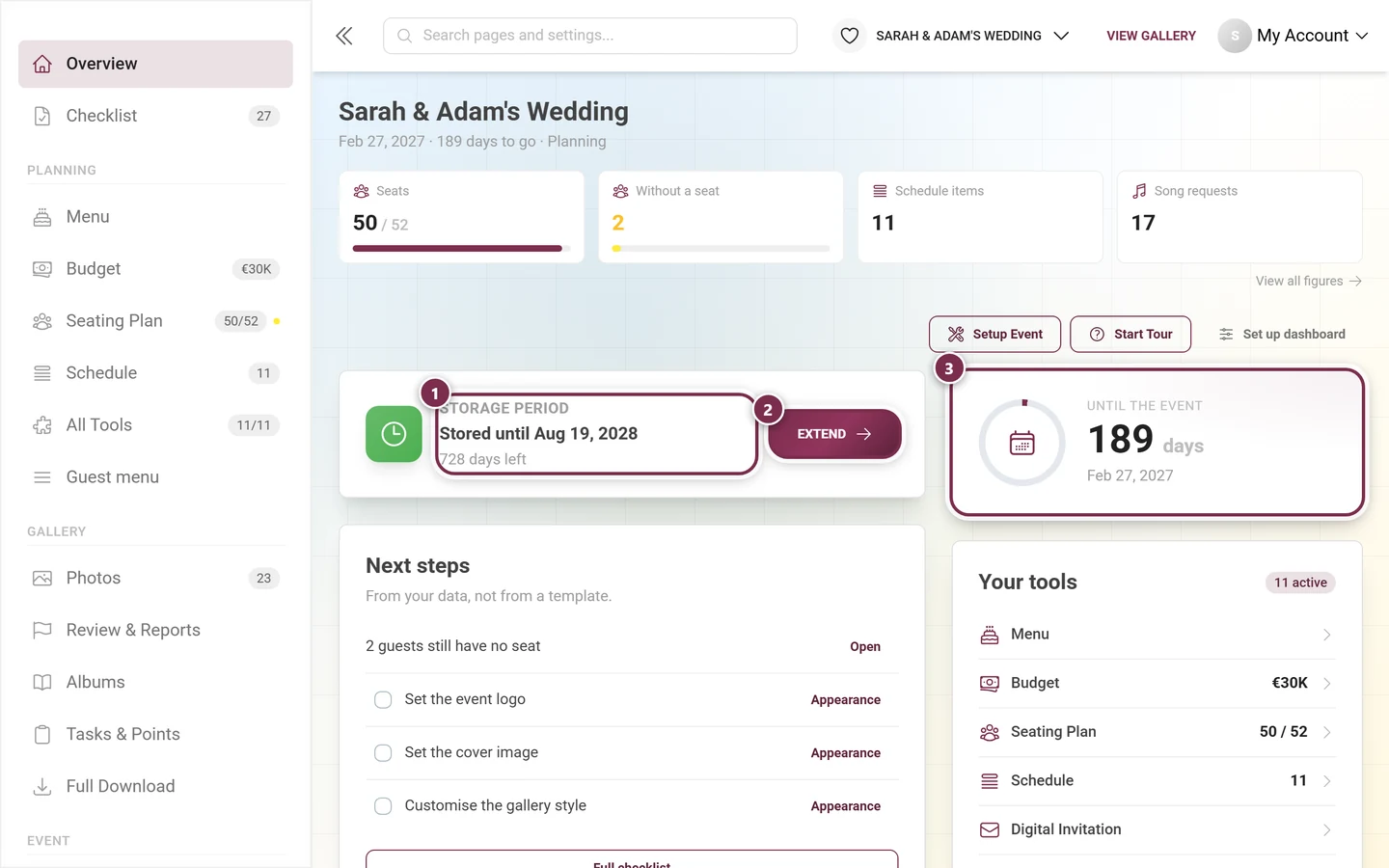
- Dashboard – upgrade prompts and storage period at a glance
- Event statistics – storage period and usage
- Features – which features a plan includes
- Recycle bin – restore deleted photos
- Download & export – ZIP download
- Storage period – the clock in detail