Email notifications
As a host you want to know what’s happening in your event – but without your inbox overflowing. In your Account settings you therefore decide, all in one place:
- whether Photogala sends you emails at all (a single global switch), and
- which notifications appear in the in-app bell (at the top of the gallery) – 12 types across 3 categories.
These two levels are deliberately separate: the email switch is a pure on/off. The in-app notifications, by contrast, can be tuned individually.
Who sees these settings
Section titled “Who sees these settings”The Notifications tab is meant for registered users – host, admins and moderators with their own account. Anonymous guests can’t access it: instead the dialog shows a Guest account banner with a button to register (see Troubleshooting).
Where to find the settings
Section titled “Where to find the settings”Notifications live not in the event settings but in your personal Account settings. You reach them through the profile menu in the top right.
-
Open your event admin, e.g. the Dashboard.
-
Click My account in the top right. The profile menu opens.
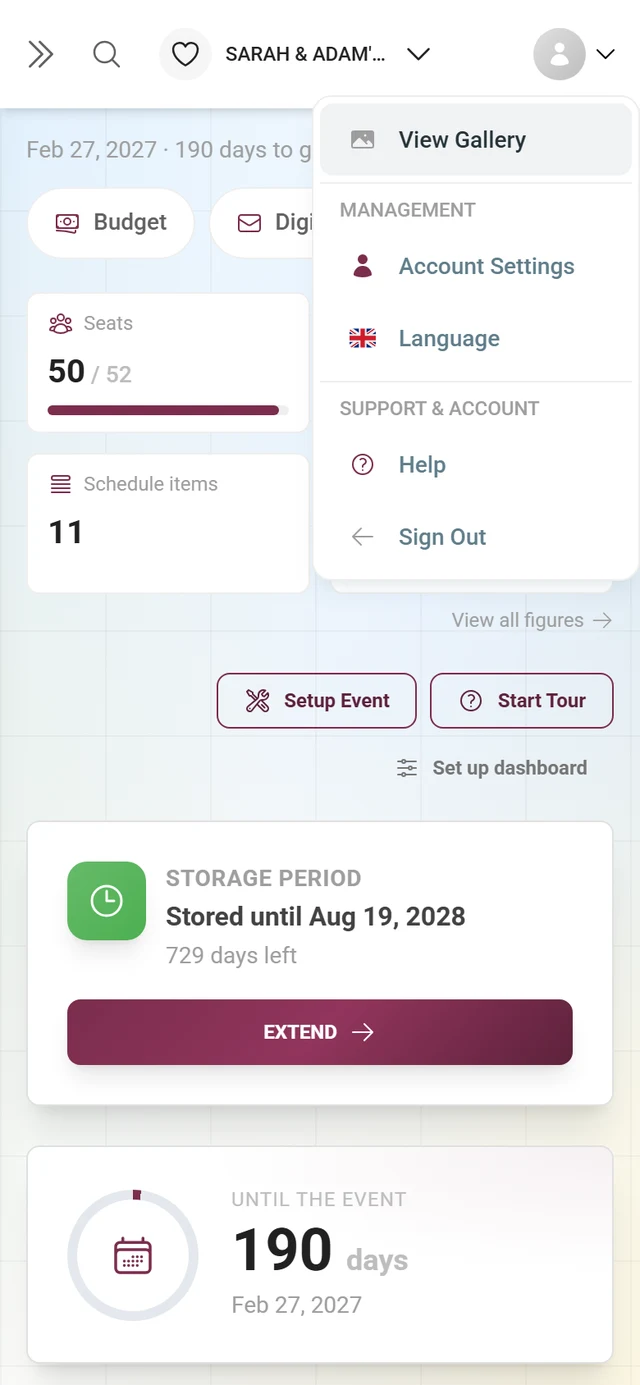
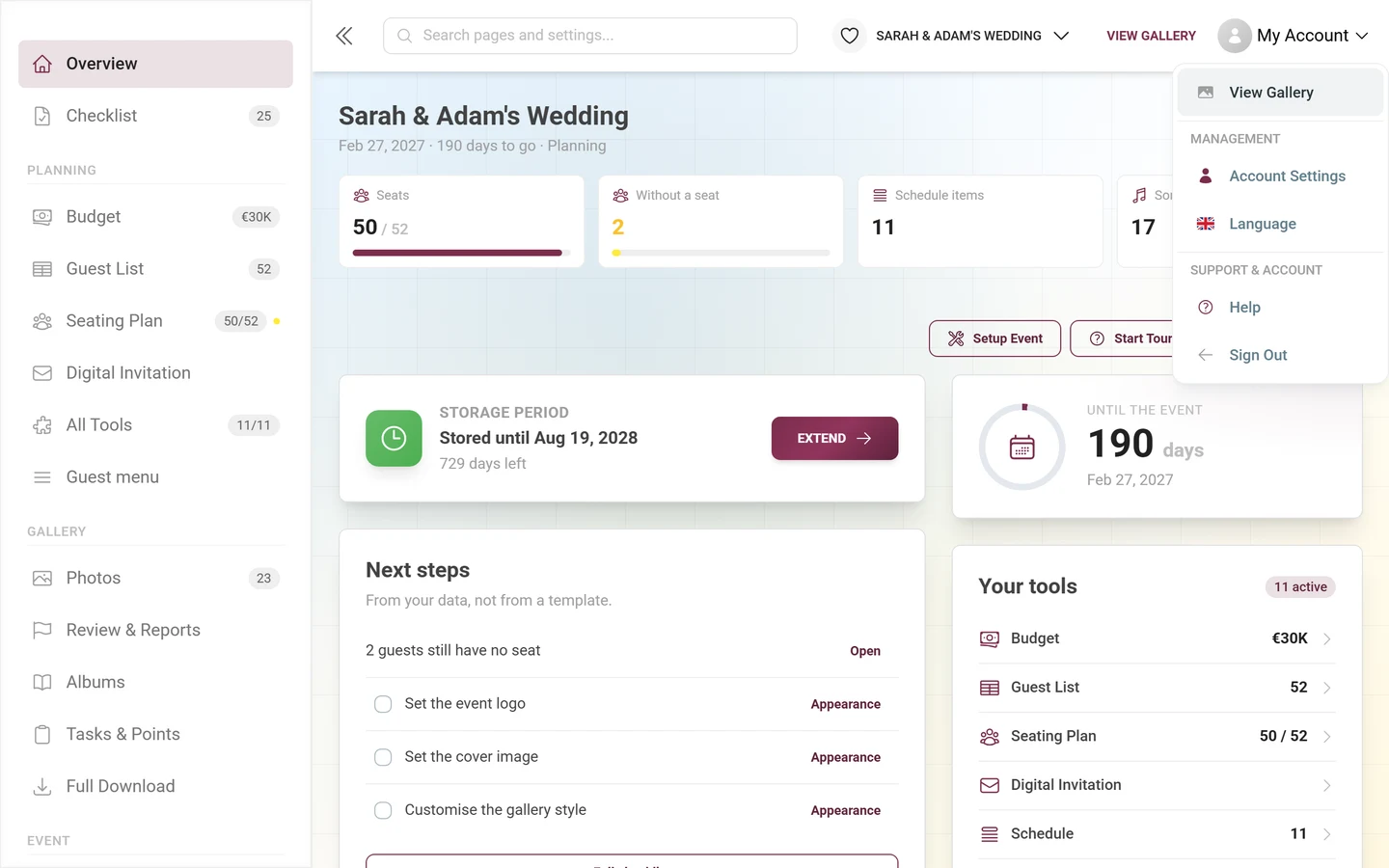
The menu behind “My account”: Account settings and Language sit under MANAGEMENT, with Help and Sign out below. -
Choose Account settings. The Account settings dialog opens with the subtitle “Configure your account preferences and settings”.
-
Switch to the Notifications tab at the top of the dialog (bell icon). The address bar then shows
?account-tab=notifications.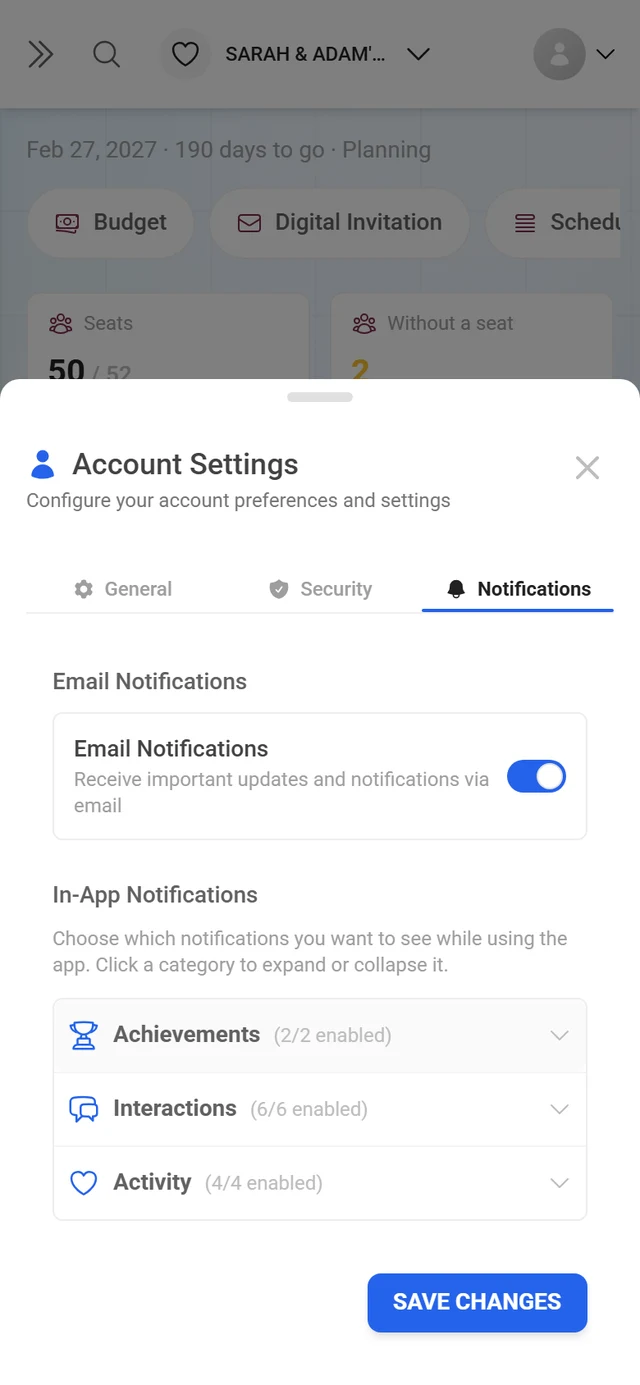
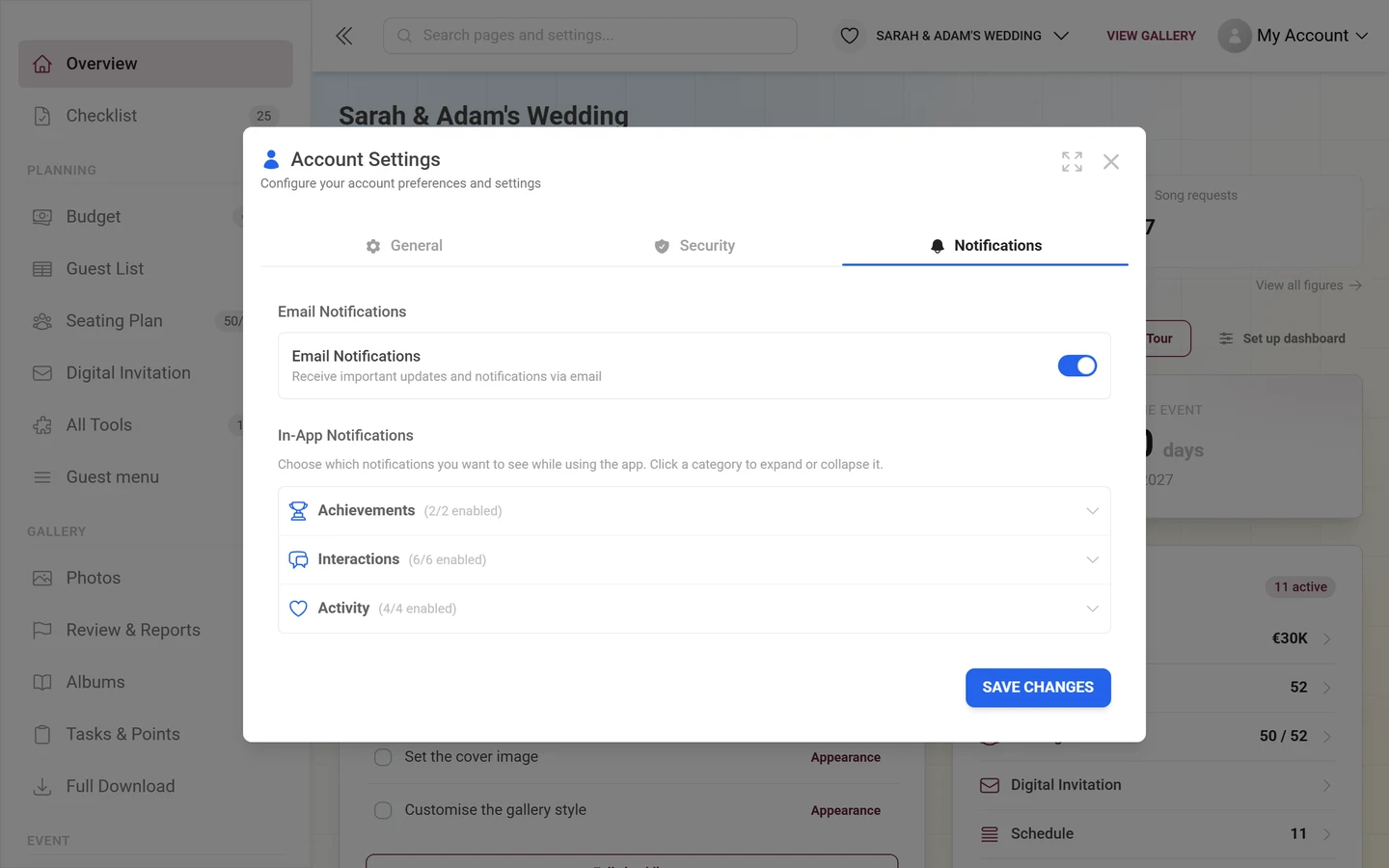
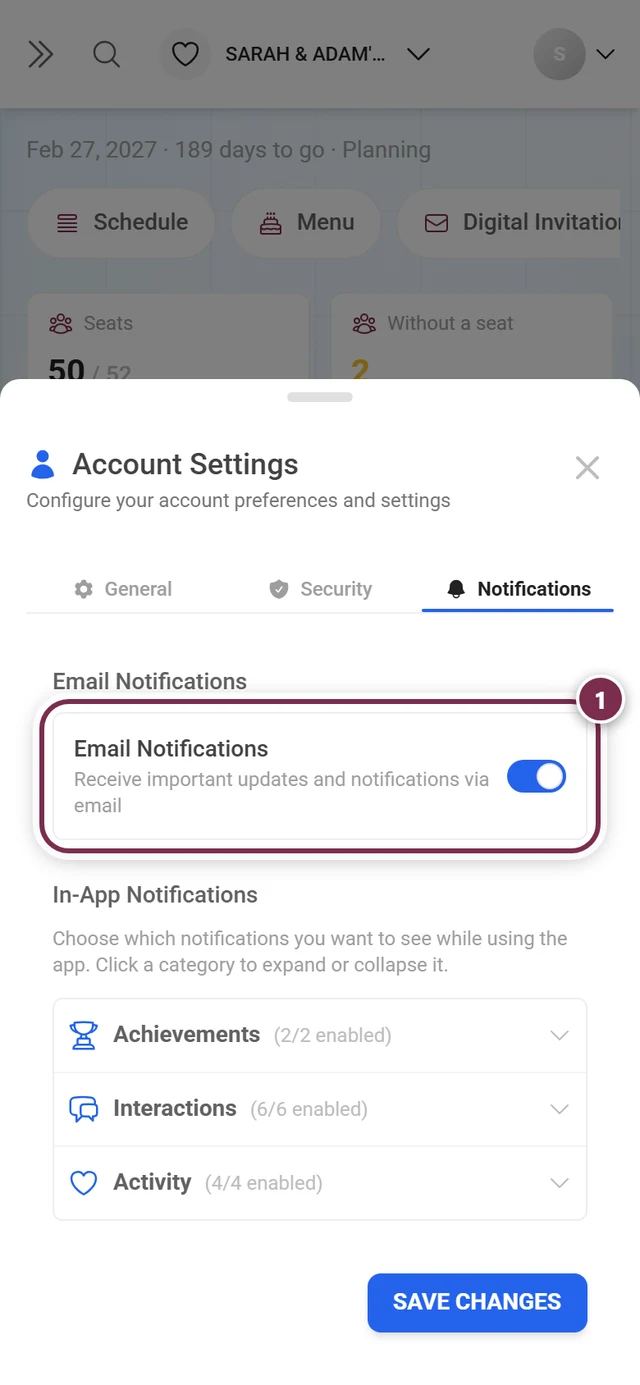
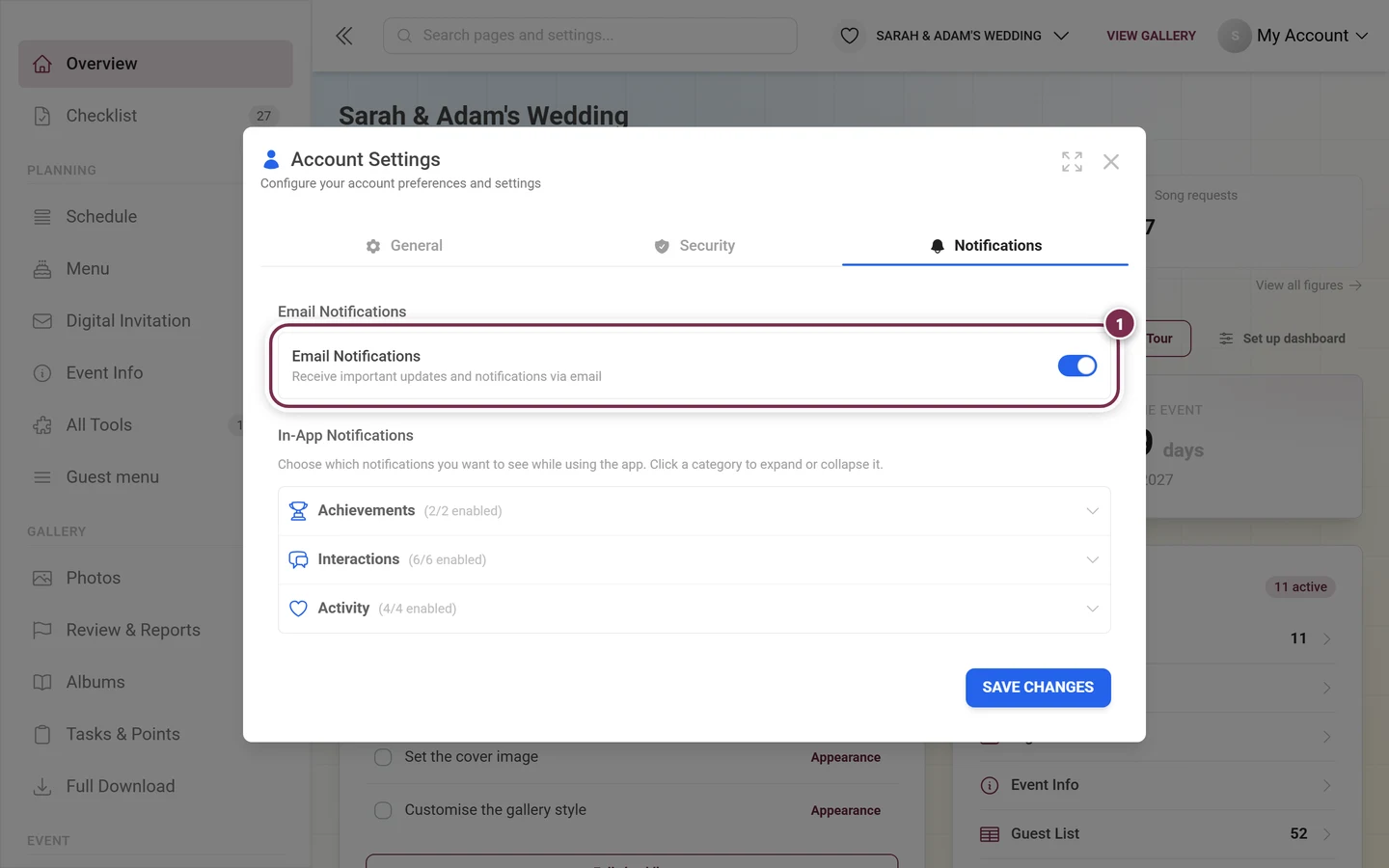
The Notifications tab: the global email switch on top, the three in-app categories below – and Save changes at the bottom.
The tabs in the Account settings dialog
Section titled “The tabs in the Account settings dialog”The dialog has several tabs, in this order:
- General – the default tab (name, email address, basic account data).
- Security – password and sign-in security.
- Billing – only visible if you have paid at least once. If you’ve never made a payment, this tab is missing entirely. That’s normal – don’t go looking for it.
- Notifications – the tab covered here, always last (for registered users).
The “Notifications” tab in detail
Section titled “The “Notifications” tab in detail”The tab has two sections and a save button at the bottom.
1. Email notifications (the global switch)
Section titled “1. Email notifications (the global switch)”At the very top is the Email notifications section with a single box:
- Title: Email notifications
- Description: “Receive important updates and notifications via email”
- On the right: a toggle
What the switch does:
- On – You receive the emails tied to things happening in your events.
- Off – You no longer receive any of the opt-out emails. Security and purchase confirmations still arrive (see below).
This is deliberately a pure on/off. There is no per-event fine control at the email level – the fine-grained control lives only in the in-app notifications below.
Which emails the switch affects
Section titled “Which emails the switch affects”Photogala distinguishes two kinds of email.
Can be switched off – these stay away when the switch is off:
- Limit notices: an early warning when your free photo allowance is running out, and an acute message the moment a guest upload is rejected because of the limit.
- Tips and prompts around your event: setup tips, feature introductions, reminders before your event date, recaps after the party, plus anniversary and memory emails about your gallery.
- Partner summaries: the monthly overview in the affiliate programme.
Cannot be switched off – these still reach you because they concern your account, your money or your data:
- Account and security: password reset, password changed, confirm email address, account verification, sign-in links.
- Purchase and event ownership: the event key after a purchase, plan changes, refunds, and the confirmations when an event is claimed or deleted.
- Finished ZIP downloads: the email as soon as the download you requested is ready – you started it yourself, after all. See Download & export.
- Expiry and rescue warnings: the reminders before your storage period ends, the download reminders before that, and the notices before a deleted event is removed for good. If an archive can be bought for your event, these emails also state its price – see Archive – keep it for less.
2. In-app notifications (12 types, 3 categories)
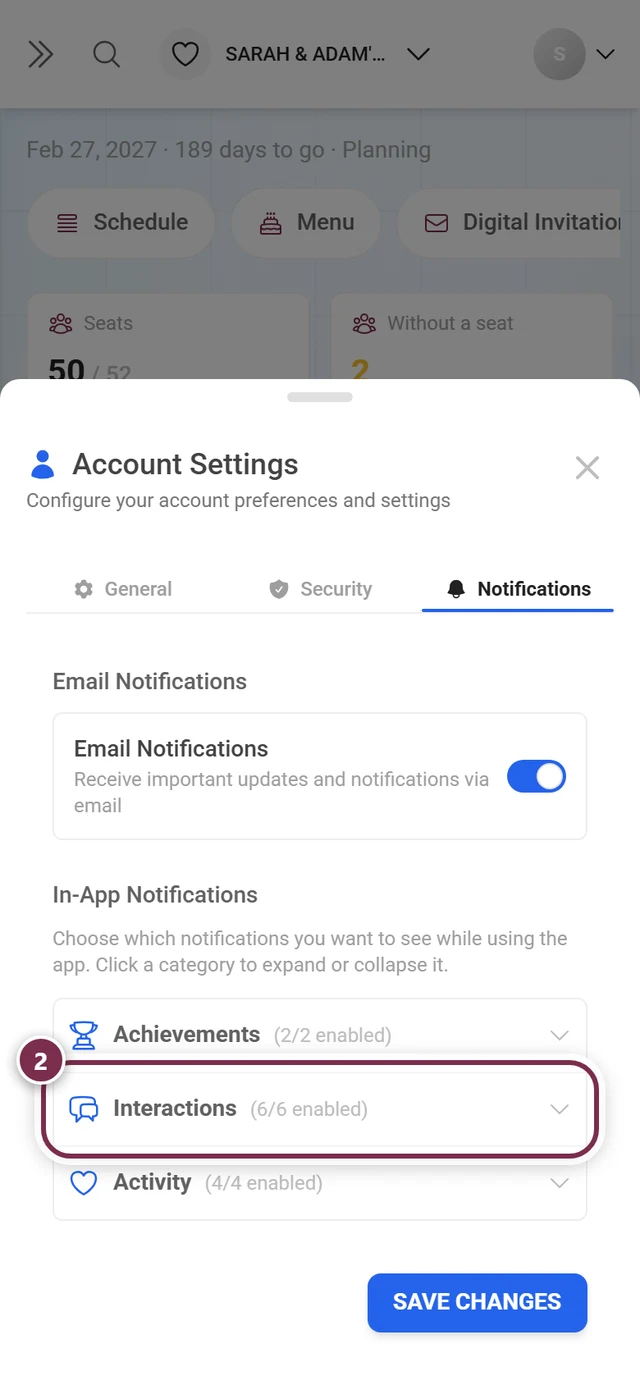
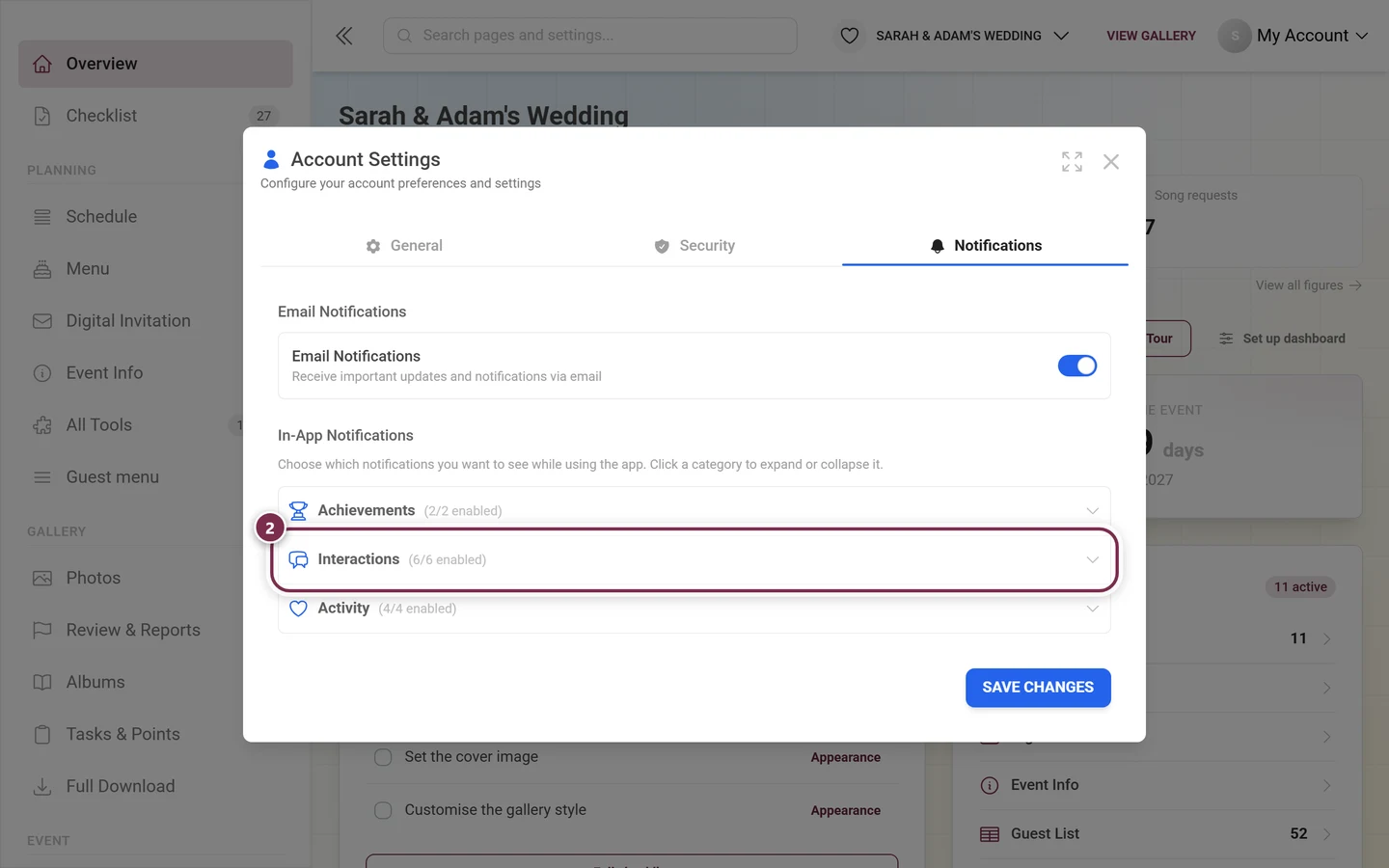
Section titled “2. In-app notifications (12 types, 3 categories)”The second section is called In-app notifications. The help text reads: “Choose which notifications you want to see while using the app. Click a category to expand or collapse it.”
These switches control the in-app bell (the notifications that appear at the top of the gallery) – not individual emails.
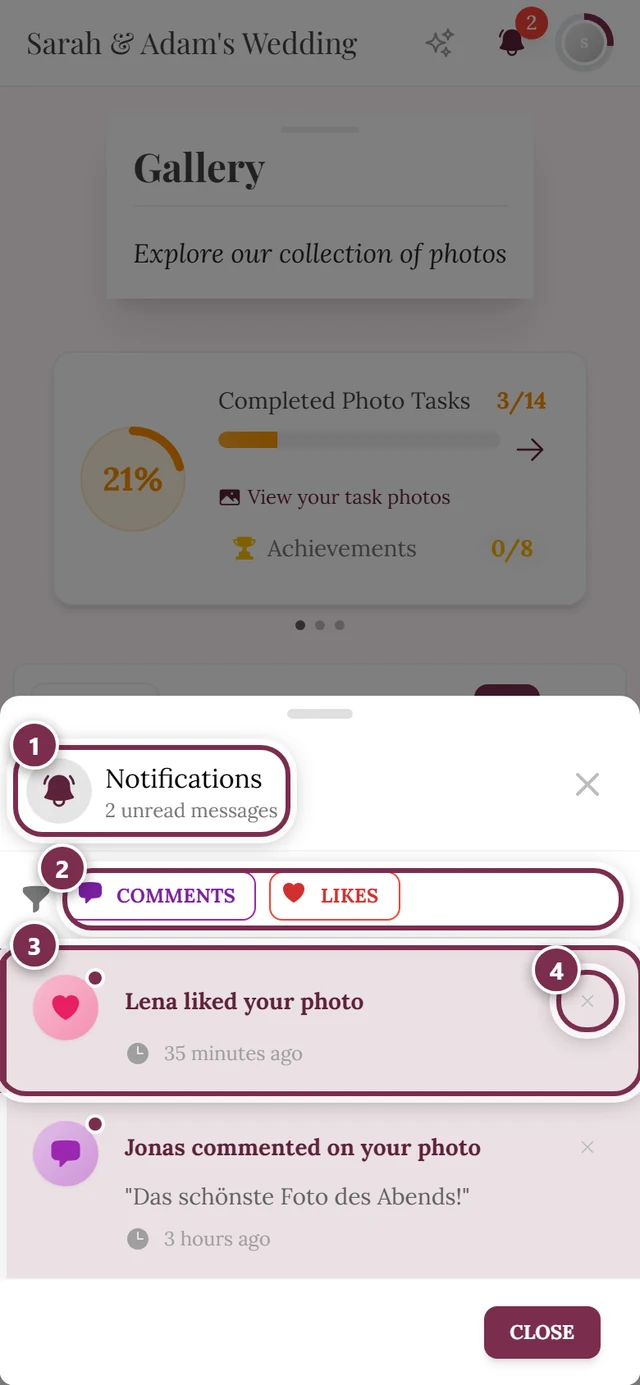
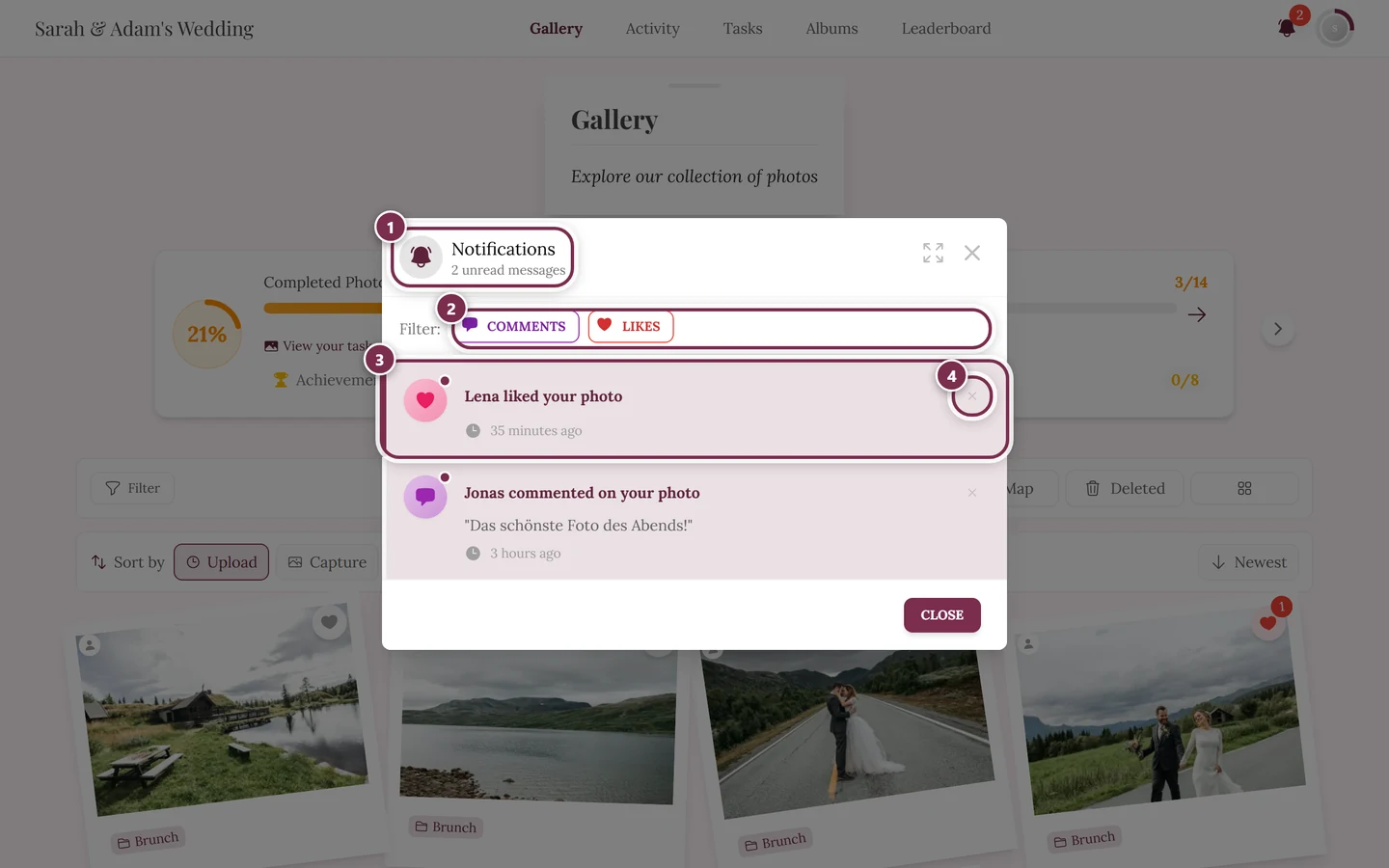
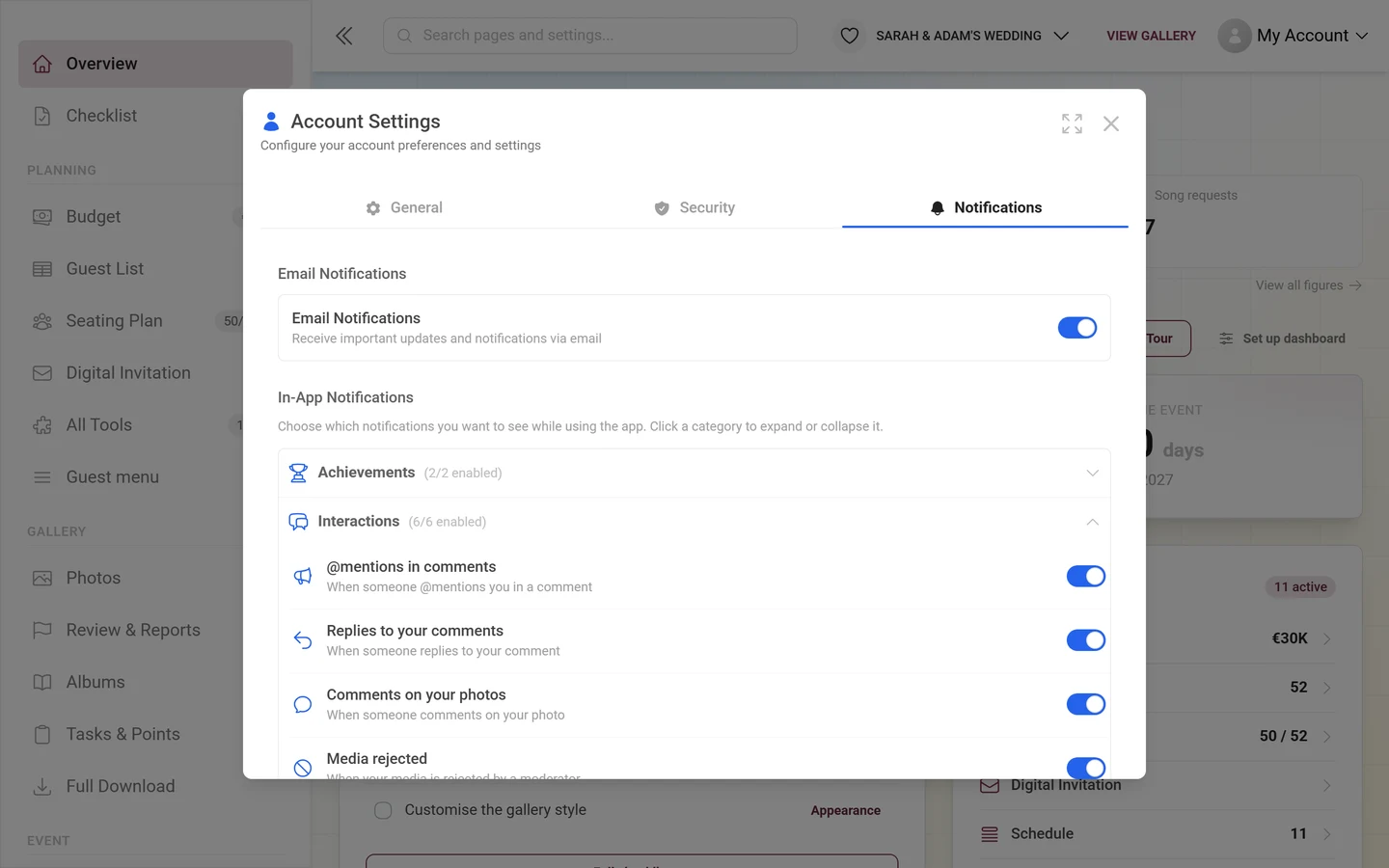
The 12 types are grouped into 3 collapsible categories. By default all categories are collapsed. Click a category header (arrow icon) to open it. Each header shows a counter “(x/y enabled)” so you can see at a glance how many types inside are active. Each entry has its own toggle – on = the notification appears in the bell, off = it is suppressed.
Category “Achievements” (trophy icon) – 2 types:
| Switch | What triggers it |
|---|---|
| Achievement unlocked | When you unlock a new achievement |
| Role changes | When your role in an event changes |
Category “Interactions” – 6 types:
| Switch | What triggers it |
|---|---|
| @mentions in comments | When someone @mentions you in a comment |
| Replies to your comments | When someone replies to your comment |
| Comments on your photos | When someone comments on your photo |
| Media rejected | When your media is rejected by a moderator |
| Media unpublished | When your media is unpublished by a moderator |
| Processing failures | When your media fails to process |
Category “Activity” (heart icon) – 4 types:
| Switch | What triggers it |
|---|---|
| Likes on your comments | When someone likes your comment |
| Likes on your photos | When someone likes your photo |
| Photos added to albums | When your photo is added to an album |
| Report resolved | When action is taken on your report |
3. Saving – no auto-save
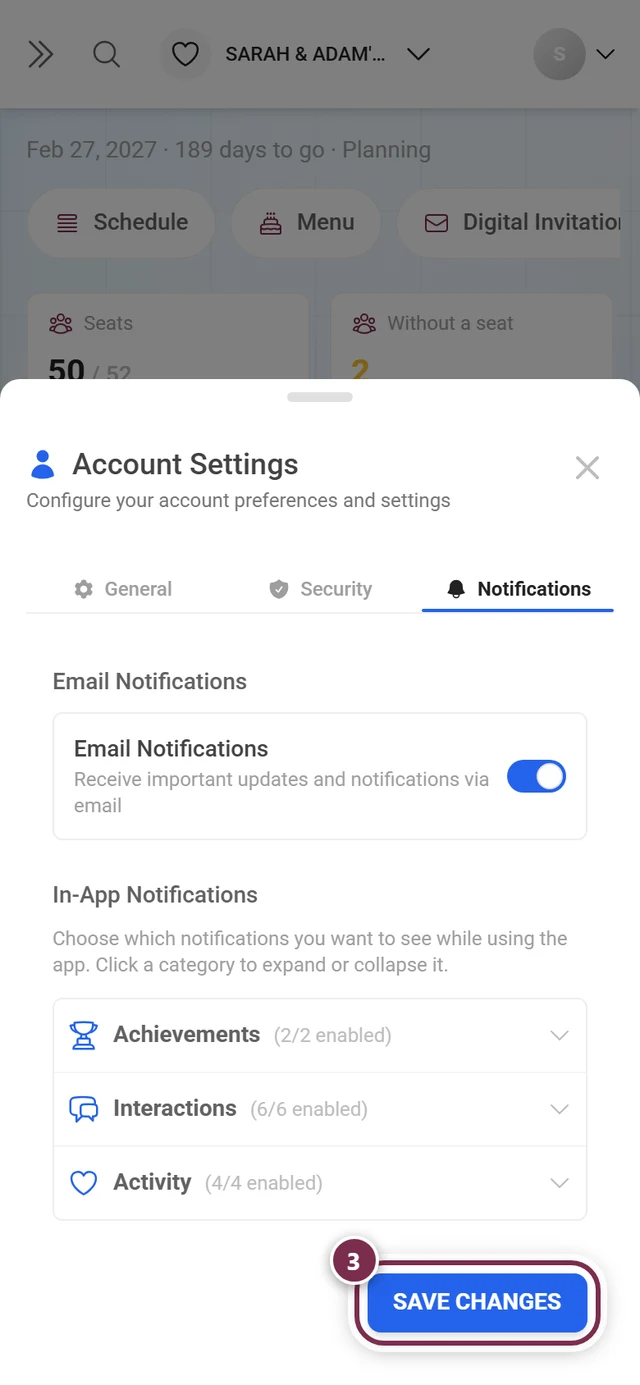
Section titled “3. Saving – no auto-save”At the bottom right is the Save changes button. Click it after adjusting the email switch or individual in-app types:
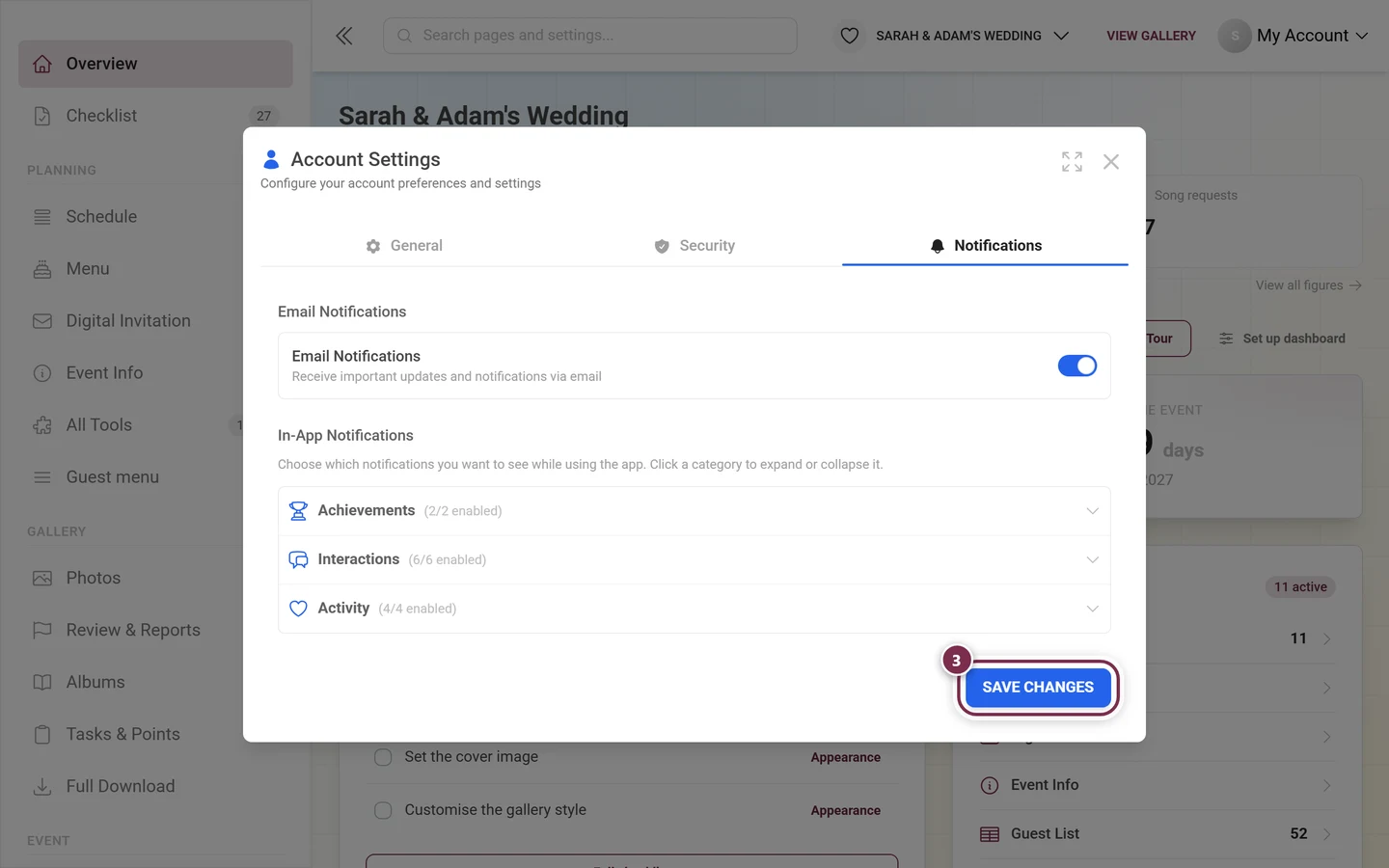
-
Set the global email switch to On or Off.
-
Open the categories that interest you and turn individual types on or off.
-
Click Save changes at the bottom right. While saving, the button shows a loading state.
-
On success the confirmation “Notification settings saved” appears.
Recommendations for practice
Section titled “Recommendations for practice”- Inbox too full? Turn off the global email switch. The in-app bell is unaffected – you still see everything in the app.
- As a moderator you should keep Media rejected, Media unpublished, Processing failures and Report resolved enabled. That way you notice when moderation-relevant things happen. More on this under Moderation.
- Large events: Likes on your photos and Comments on your photos can fire very often. Turn them off in the app if needed to reduce the noise.
- Several events? Everything here applies account-wide. You set it once and don’t have to deal with it per event.
Edge cases & troubleshooting
Section titled “Edge cases & troubleshooting”“I don’t see the Notifications tab.” You’re probably signed in as a guest. The dialog then shows only a Guest account banner with a Register account button. Register or sign in – the tab appears afterwards. How to turn your guest account into a real account is described under Account & sign-in.
“The Billing tab is missing.” That’s normal if you’ve never made a payment. The tab appears only after your first payment.
“I flipped a switch but nothing happened.” You have to click Save changes. Without that click nothing is applied.
“I still don’t get any emails.” Check in order: (a) is the global email switch On? (b) is the message in the spam folder? (c) is your email address correct and confirmed (the General or Security tab in the same dialog)?
“The switch is off but I still get emails.” That’s not a bug. Account, security, purchase, download and expiry emails deliberately cannot be switched off – see the list under “Which emails the switch affects”.
Loading error. On a network error the note “Failed to load notification settings. Please try again.” appears. Close the dialog and open it again.
Related topics
Section titled “Related topics”- Managing registered users
- Moderation – explains the “Media rejected”, “Media unpublished” and report events
- Leaderboard & winners – relates to the leaderboard win
- Download & export – relates to the “ZIP download ready” email
- Setting up achievements – relates to “Achievement unlocked”
- Roles & permissions – relates to “Role changes”
- Account & sign-in