Map view
Map view shows you at a glance where your event’s photos were taken. It is a view mode inside the gallery – you do not switch to a separate page, you flip the gallery from the grid over to the map.
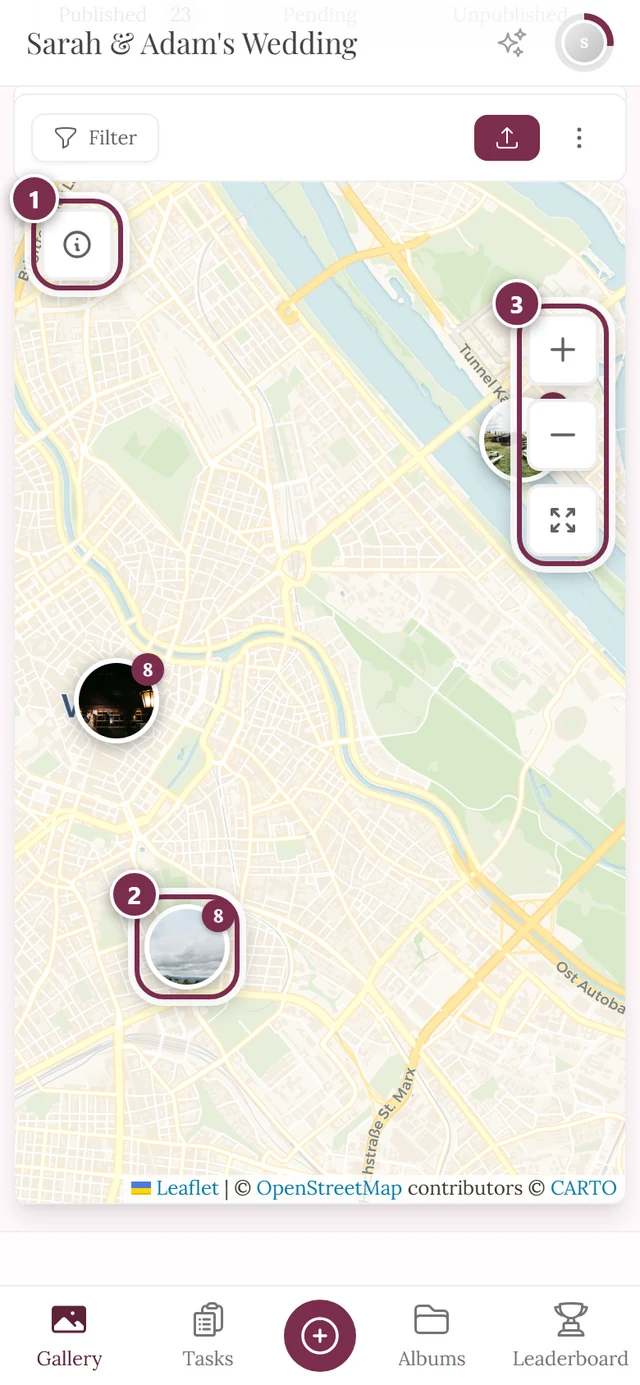
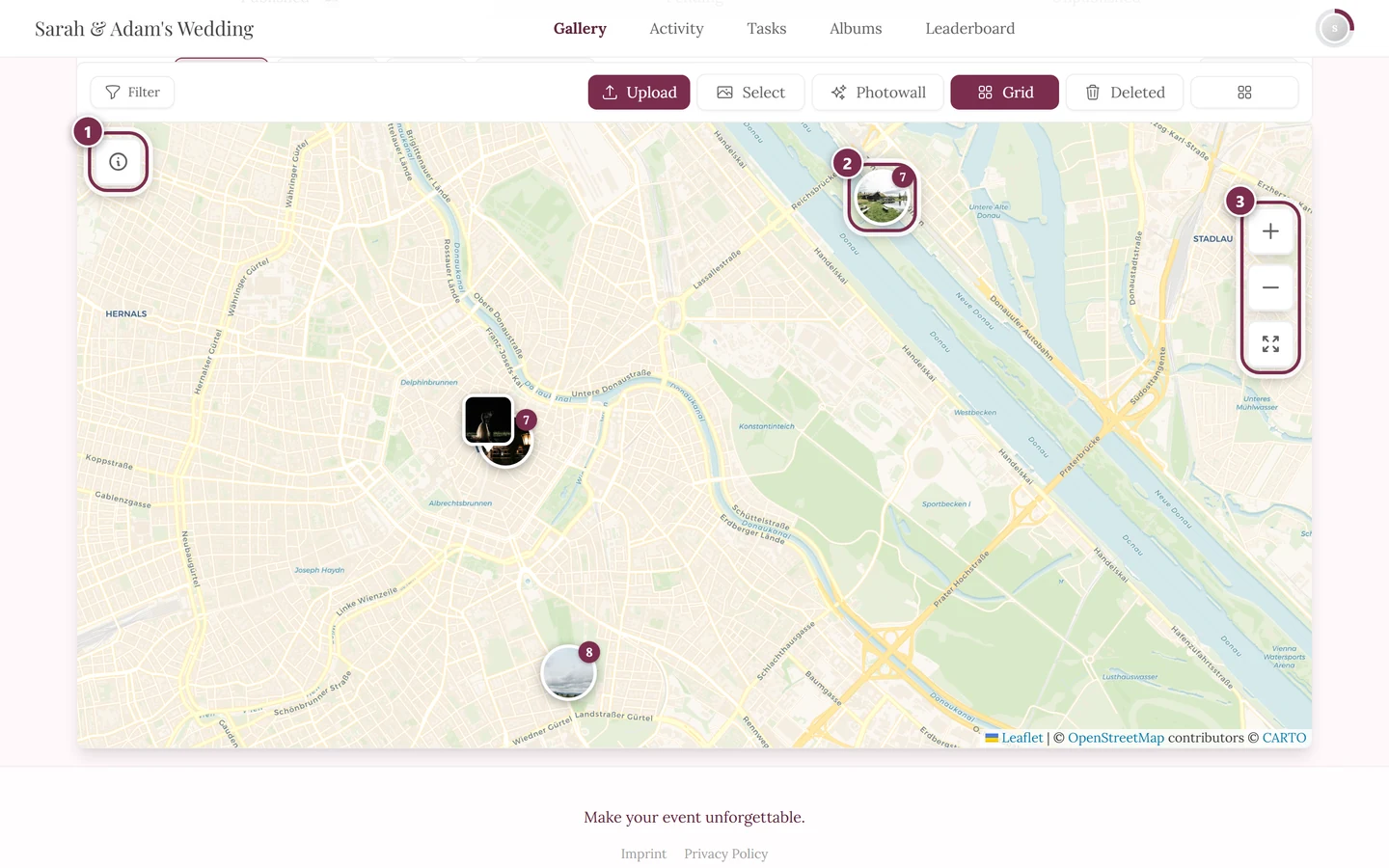
Only photos that stored location info (GPS) when they were taken end up on the map. That is why the map is often smaller than the full gallery – that’s normal (more on that below).
Opening the map
Section titled “Opening the map”-
Open your event’s gallery.
-
In the gallery toolbar tap Map (icon: an open map) – not Filter.
On a computer (wide window) the Map button sits visibly in the toolbar.
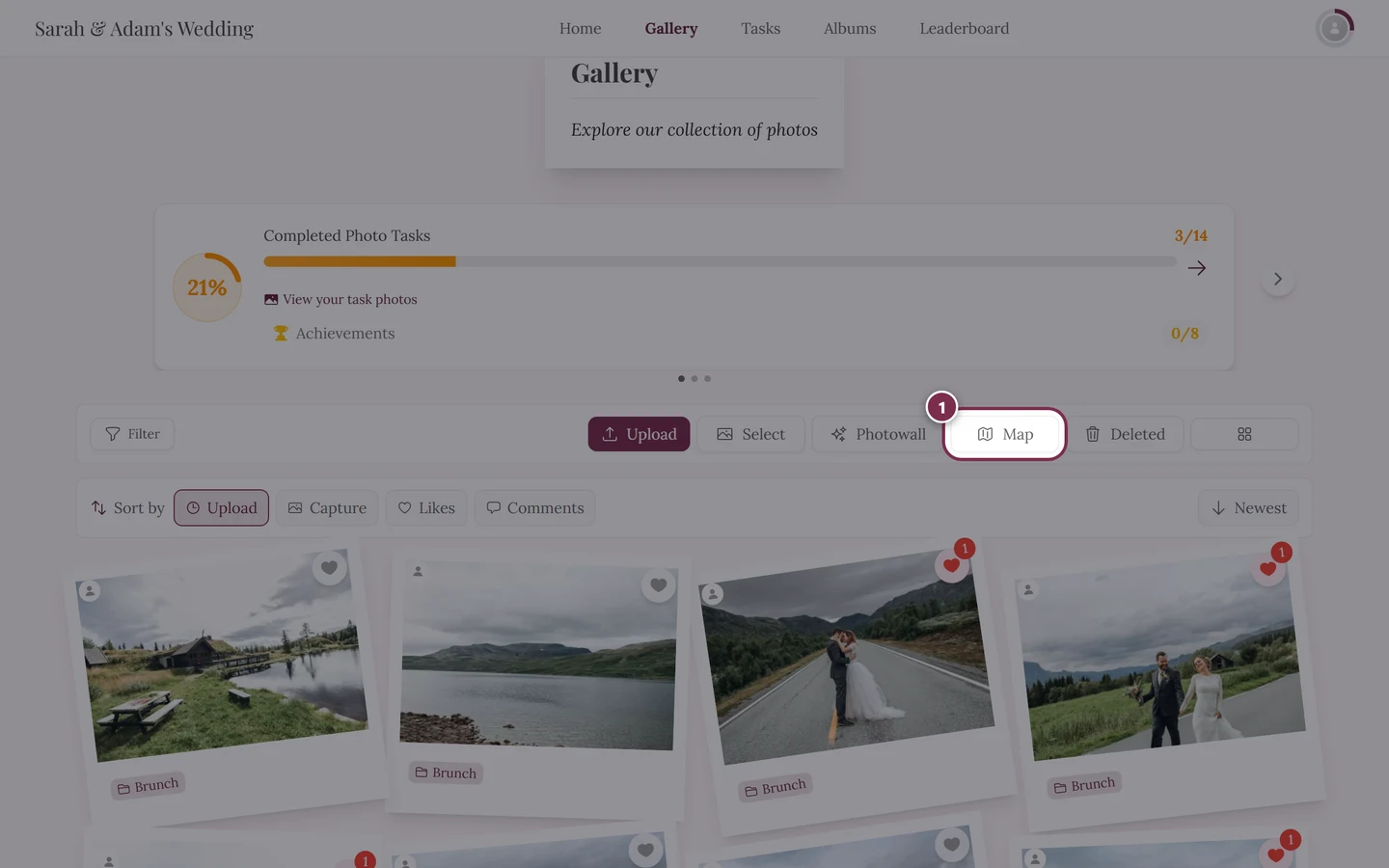
On a computer the Map button sits directly in the toolbar – tap here, not Filter. On a phone or in narrow windows the bar is too short for it: there you find Map in the ⋮ overflow menu (three-dot icon to the right of the upload button).
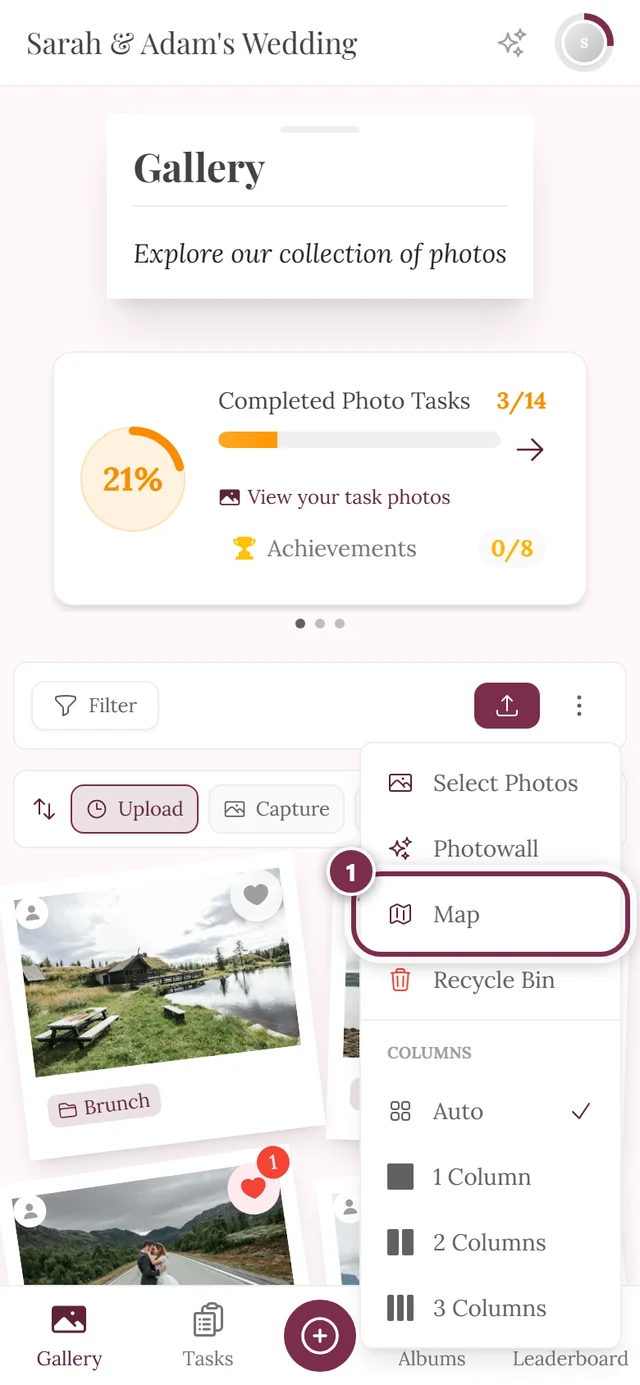
On a phone: tap ⋮ to the right of the upload button – Map sits between “Photo wall” and “Recycle bin”. -
The gallery switches to map view. The same button is now labeled Grid – tap it again to return to the familiar grid.
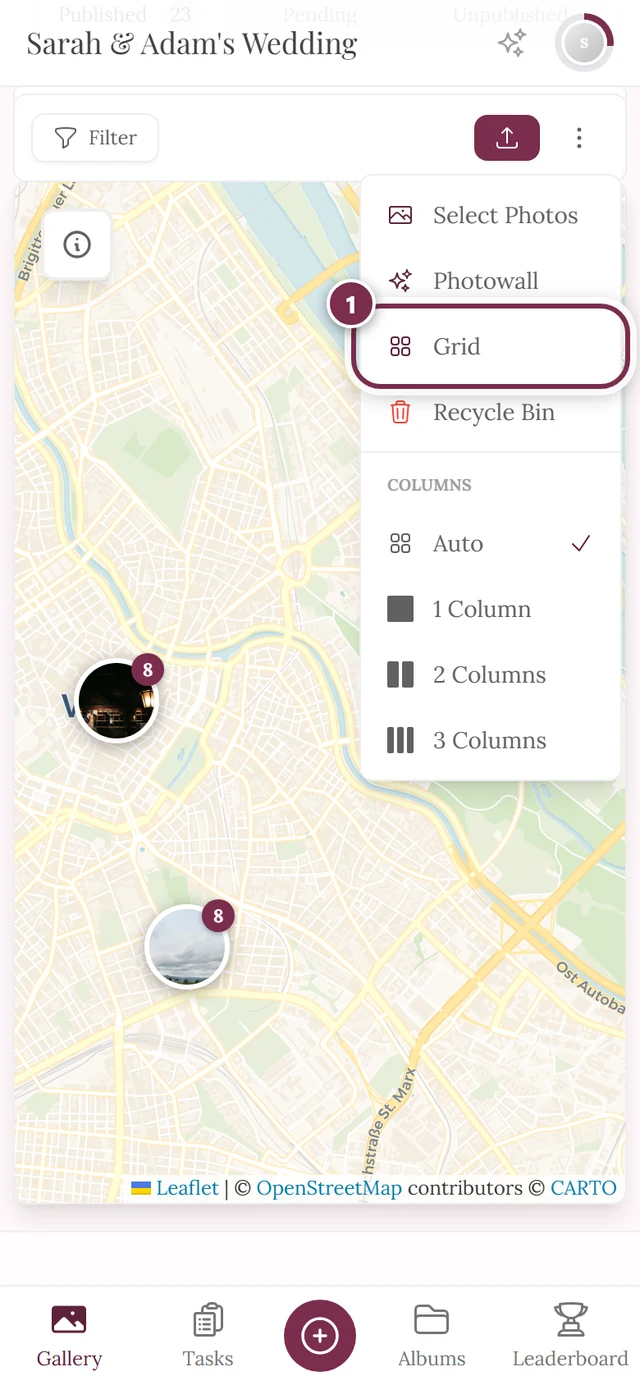
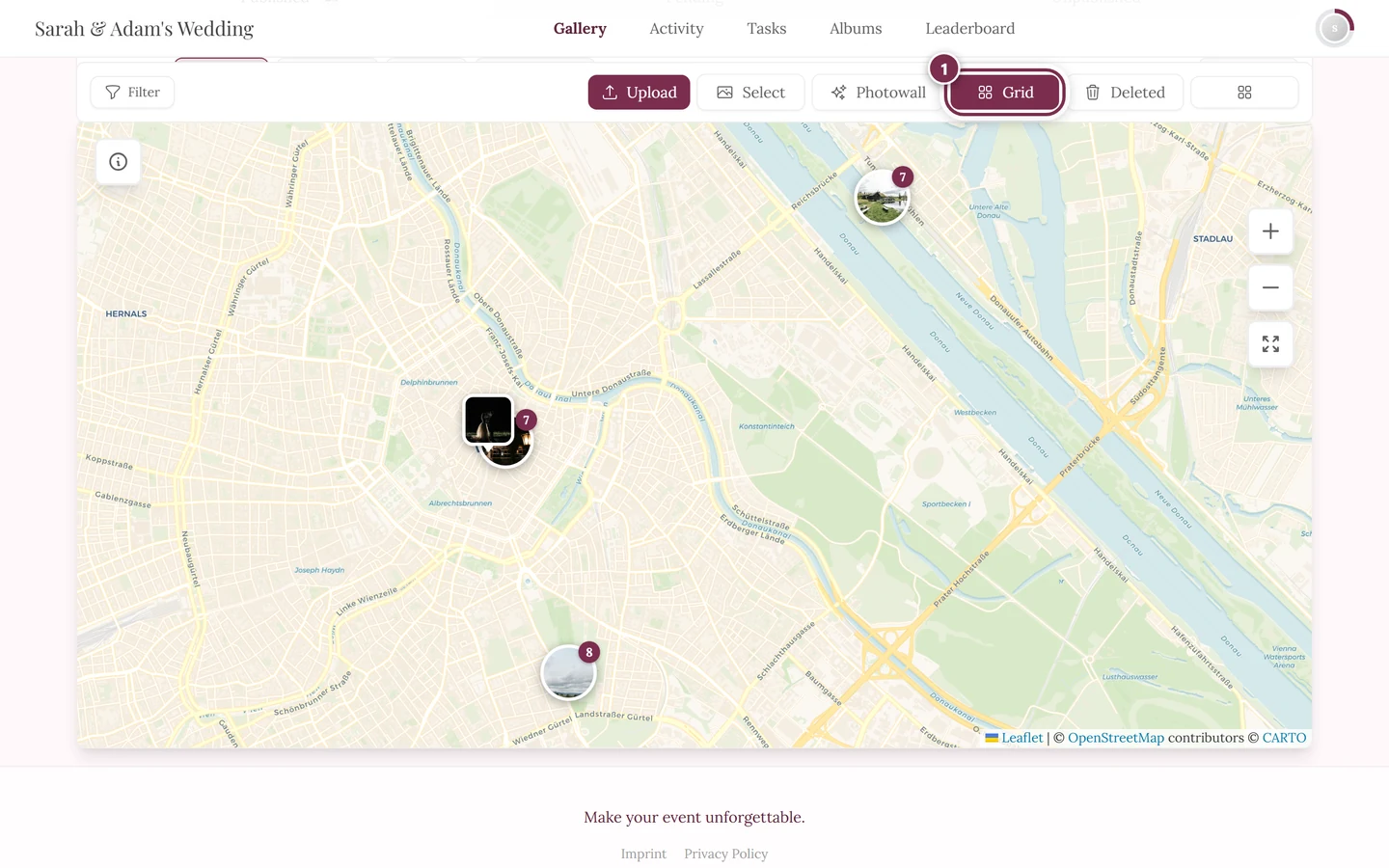
Back to the grid: on a computer Grid sits in the toolbar, on a phone in the ⋮ menu in the exact spot where Map was before.
What you see on the map
Section titled “What you see on the map”Every photo with a location appears as a marker at the place it was taken. There are three kinds of markers:
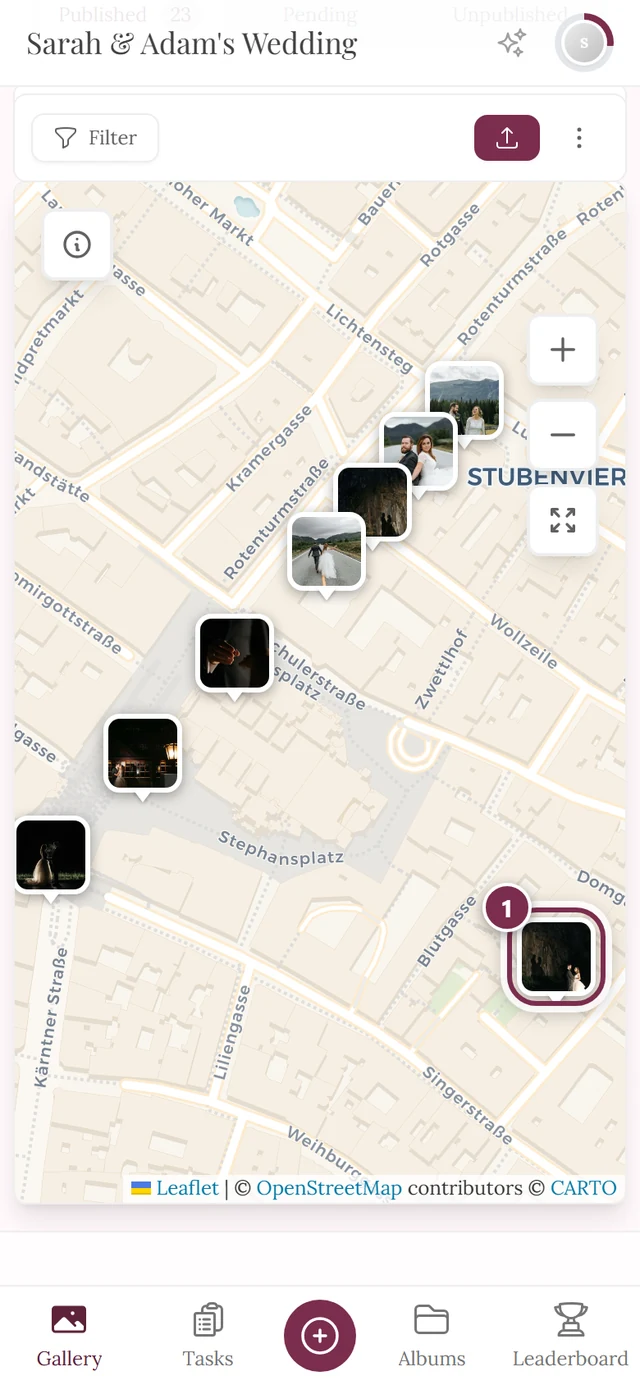
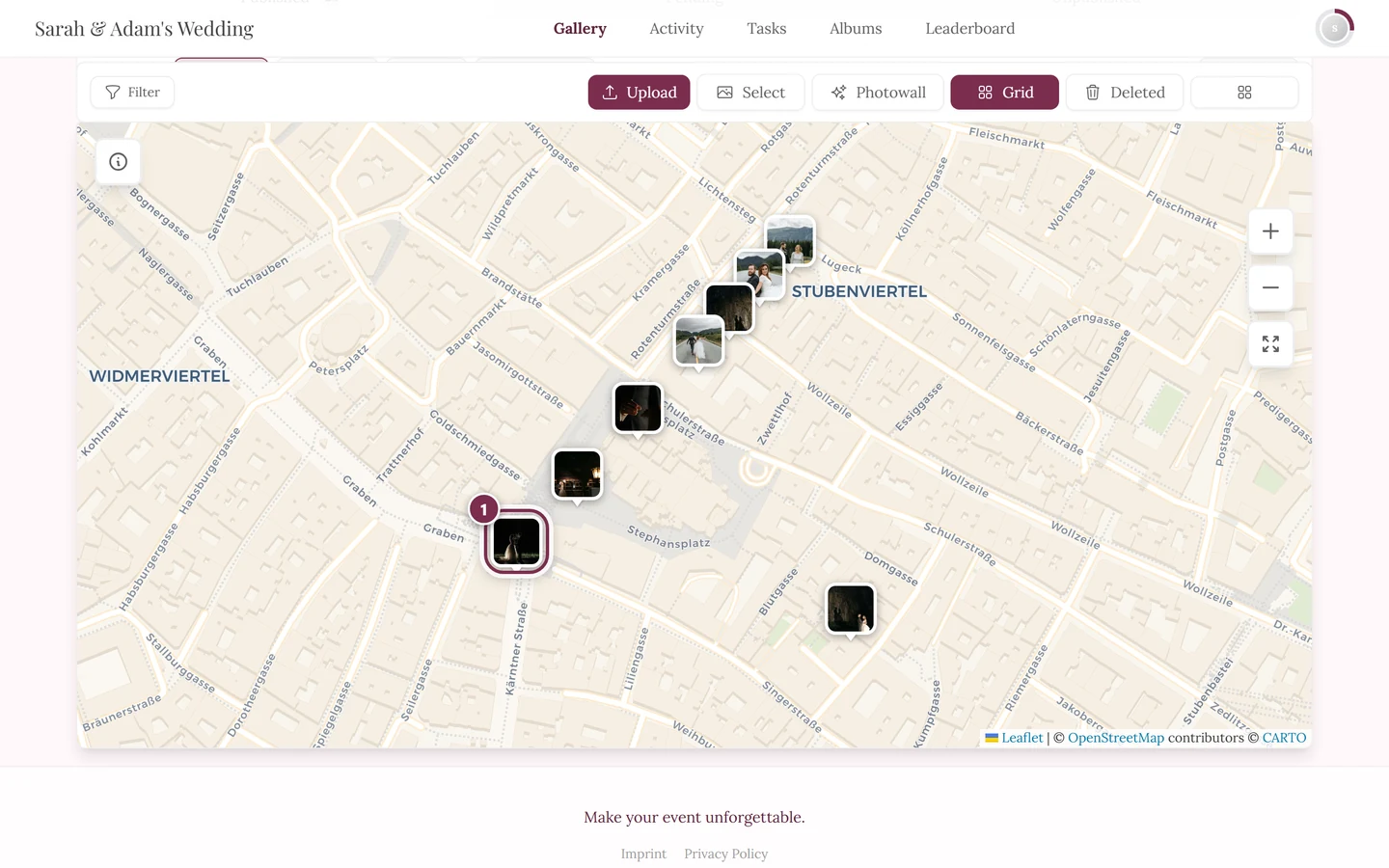
- Photo marker – the photo itself as a small framed thumbnail with a pointer tip. This is the normal case.
- Pin marker – a classic location pin. Appears when no thumbnail is loaded (yet).
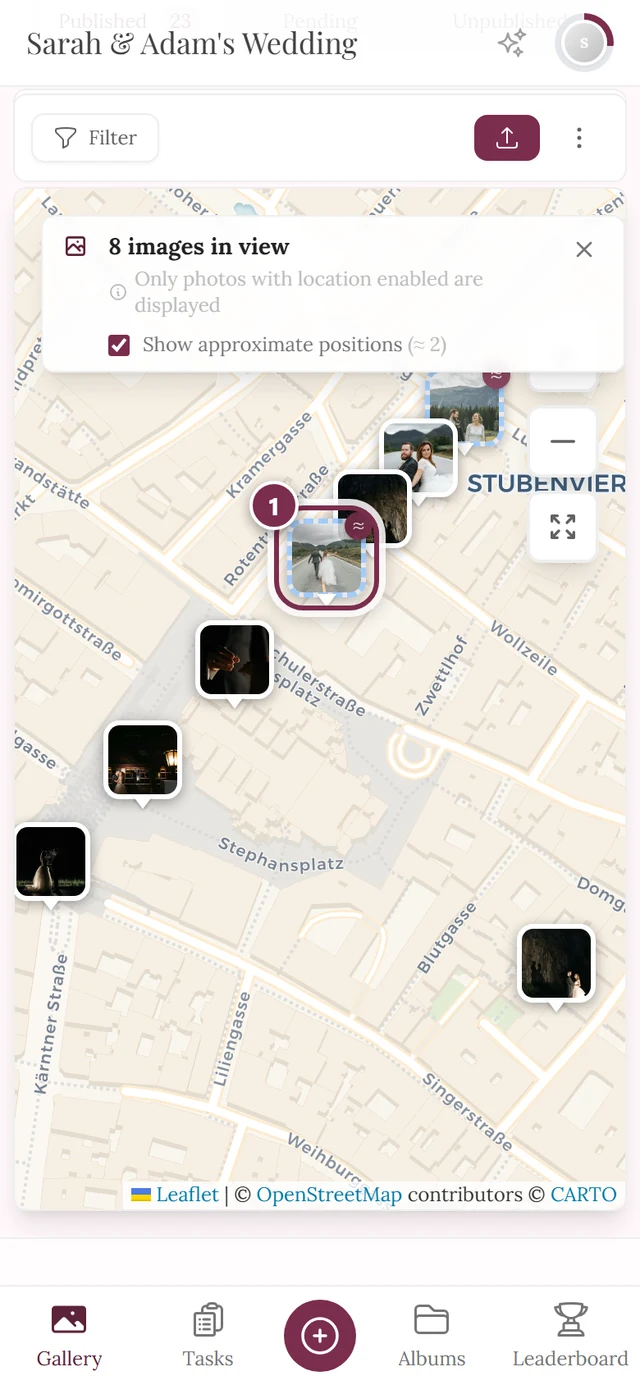
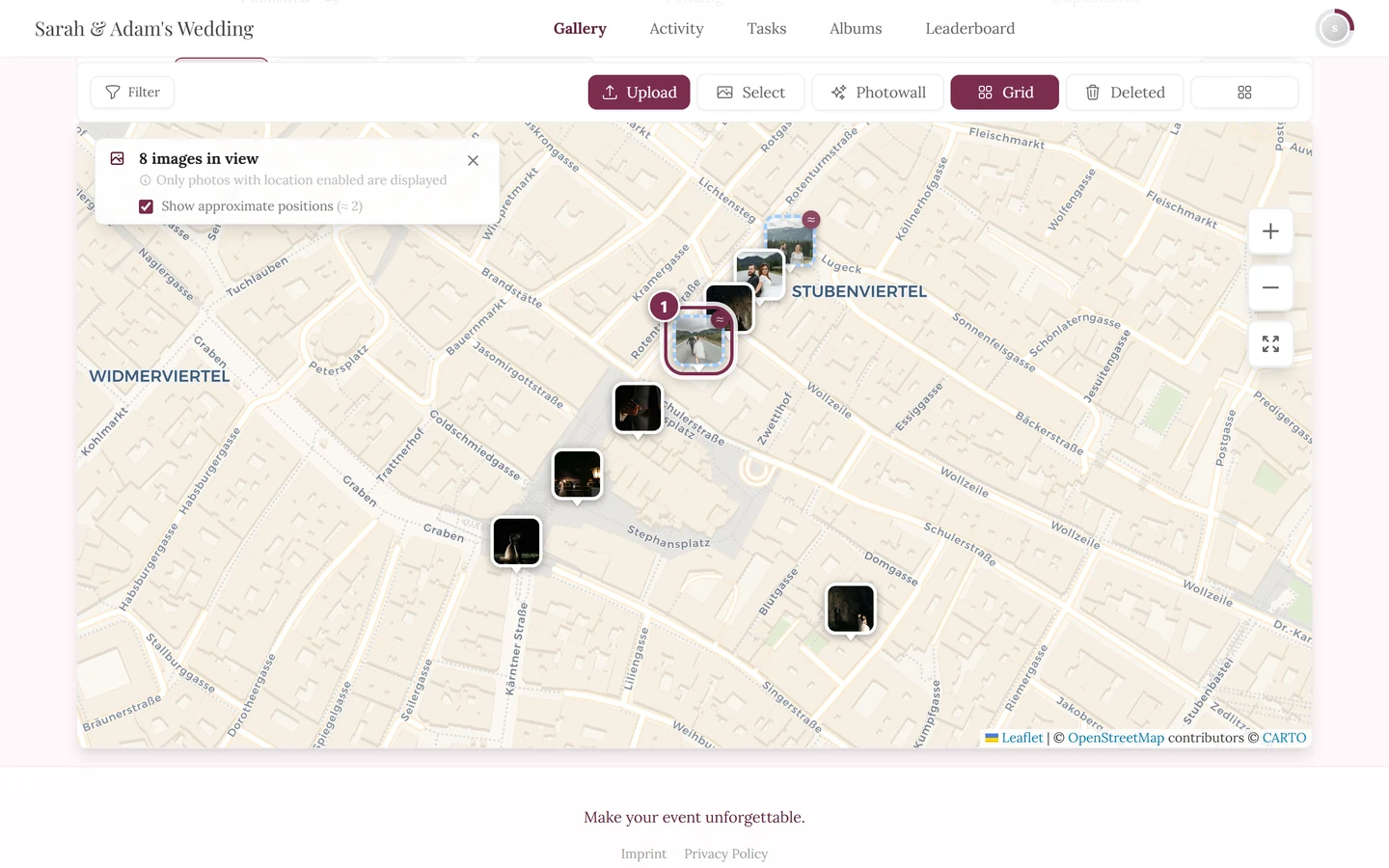
- Estimated position – a marker with a dashed border and an ≈ badge. It shows an approximate, not an exact position (see Approximate positions).
Clusters
Section titled “Clusters”When several photos sit close together, the map groups them into a cluster – recognizable by a thumbnail with a number in the corner (how many photos are there).
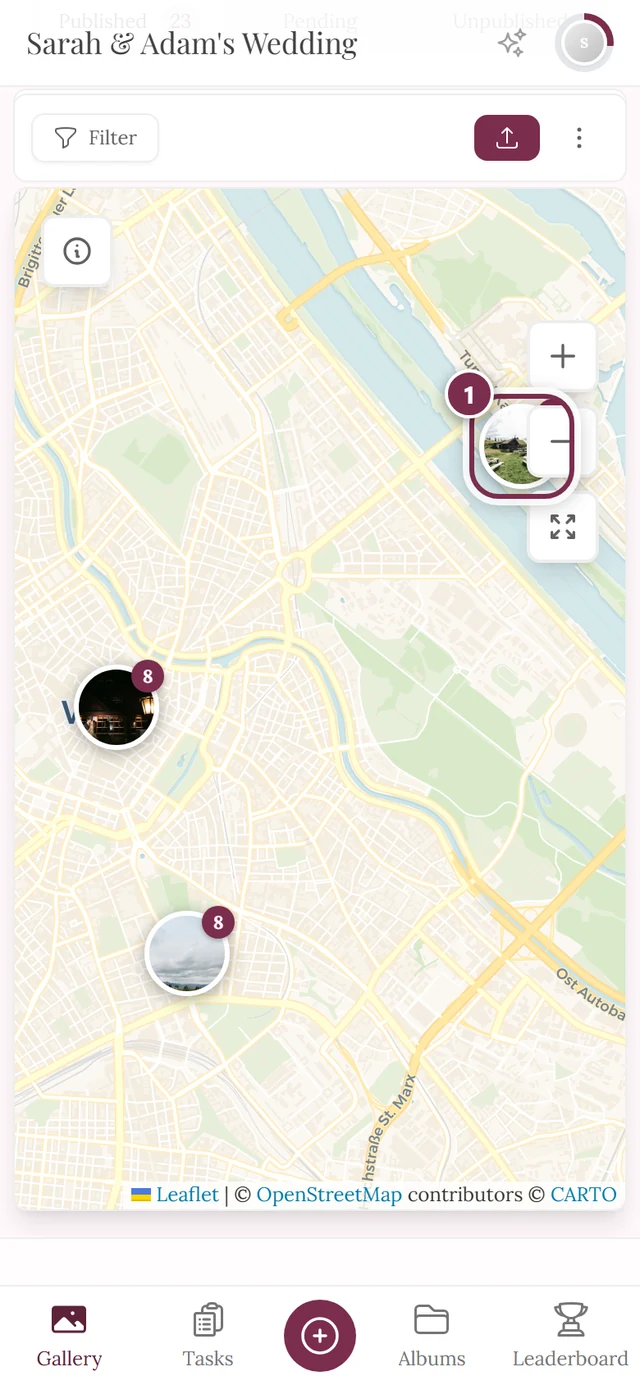
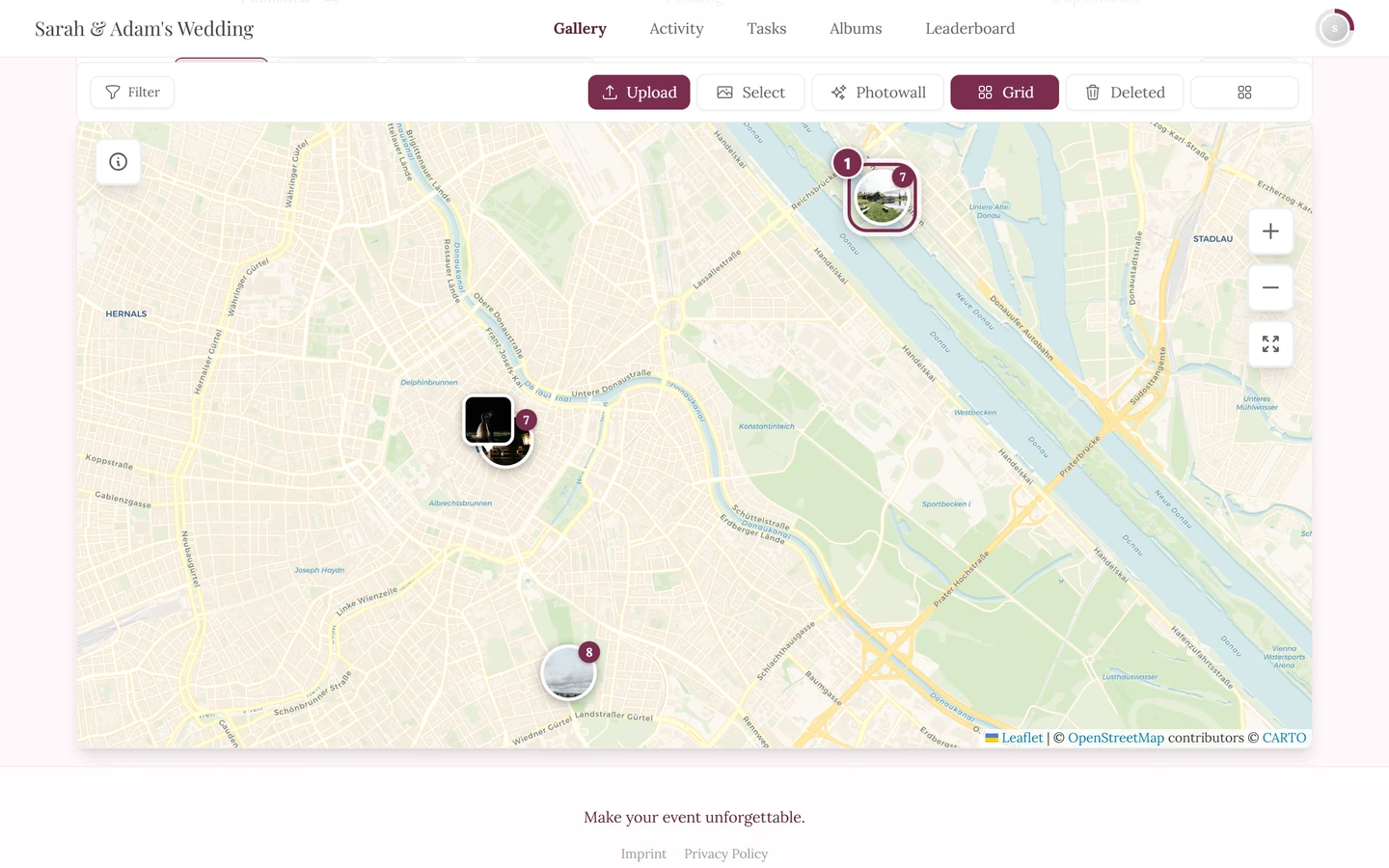
“Close together” is measured in screen pixels, not in metres: fully zoomed out, markers within roughly 120 pixels are grouped, at street zoom only 30 pixels. That is why clusters break apart as you zoom in – a single thumbnail reading “7” turns into seven individual photo markers.
Opening a photo
Section titled “Opening a photo”Unlike a classic map popup, tapping a marker does not open a bubble at the marker – it opens a preview panel along the bottom edge.
-
Tap a cluster or a single marker.
- For a cluster the panel shows all photos in that cluster in chronological order. The header counts along how many are loaded (e.g. “12 / 40 photos”).
- For a single photo marker the panel shows the photo plus its neighbours within about 30 metres – not just that one image. That way you don’t miss anything taken right next to it.
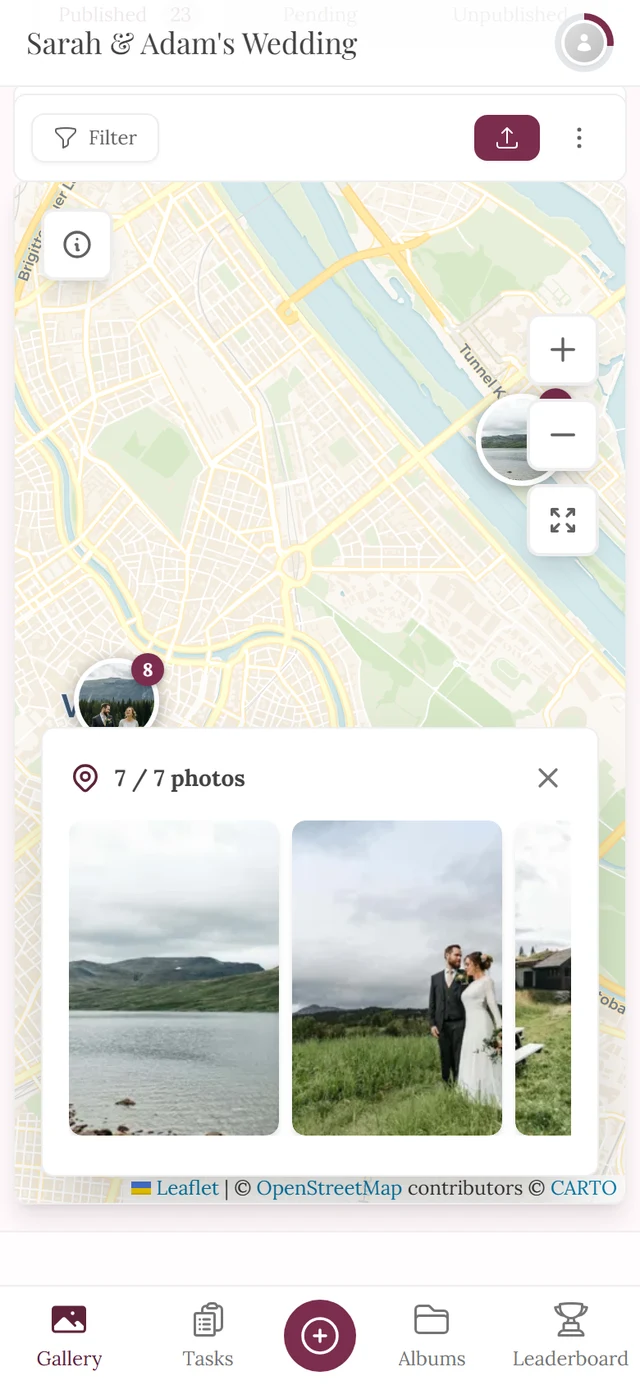
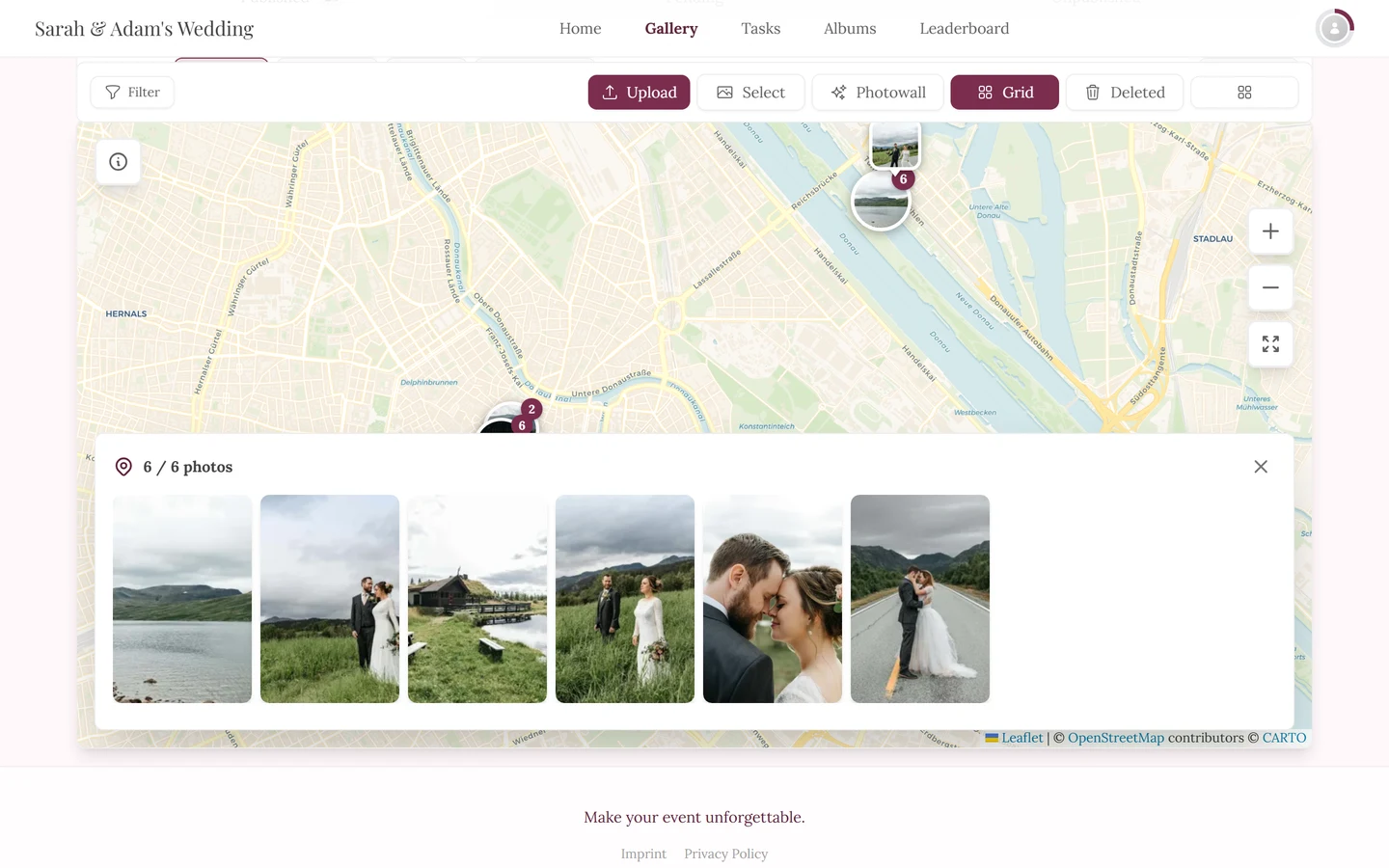
Tapping the cluster opens the preview panel at the bottom. The header counts along: “3 / 3 photos” – the location icon on the left, the X to close on the right. -
Scroll horizontally through the photos in the panel. More images load automatically as you scroll (placeholders appear briefly).
-
Tap a photo in the panel to open it in fullscreen. From there you can page on, like, comment or share as usual.
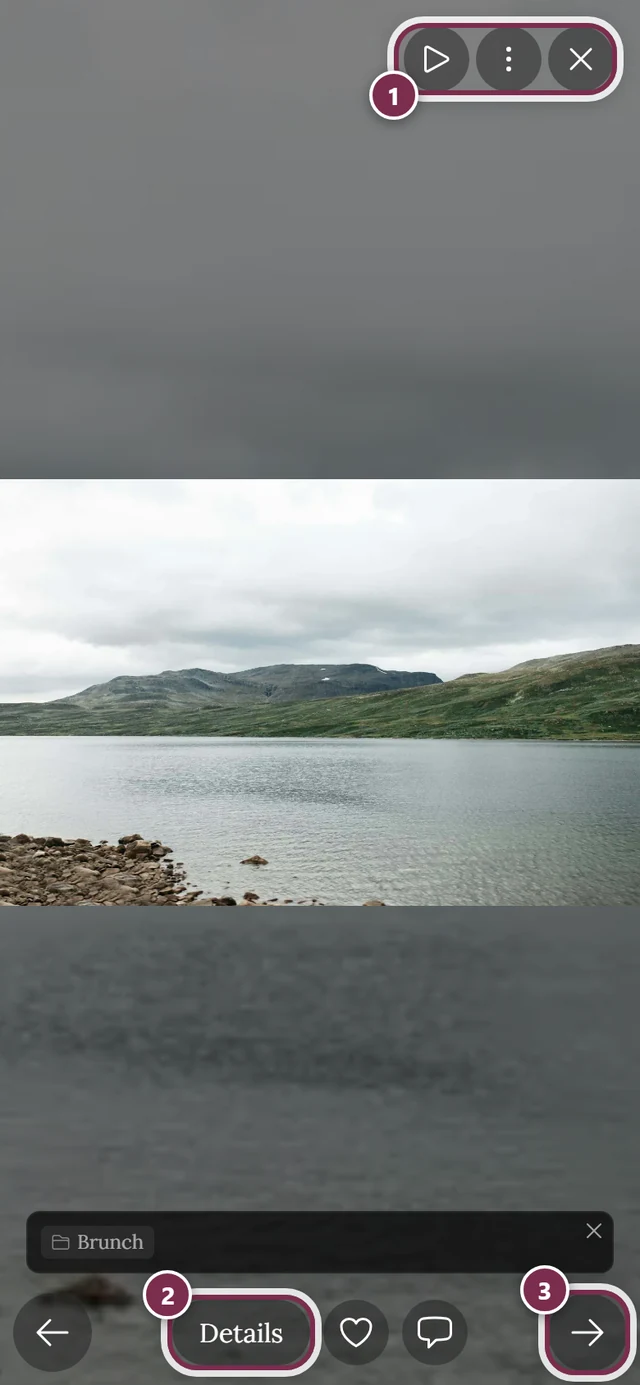
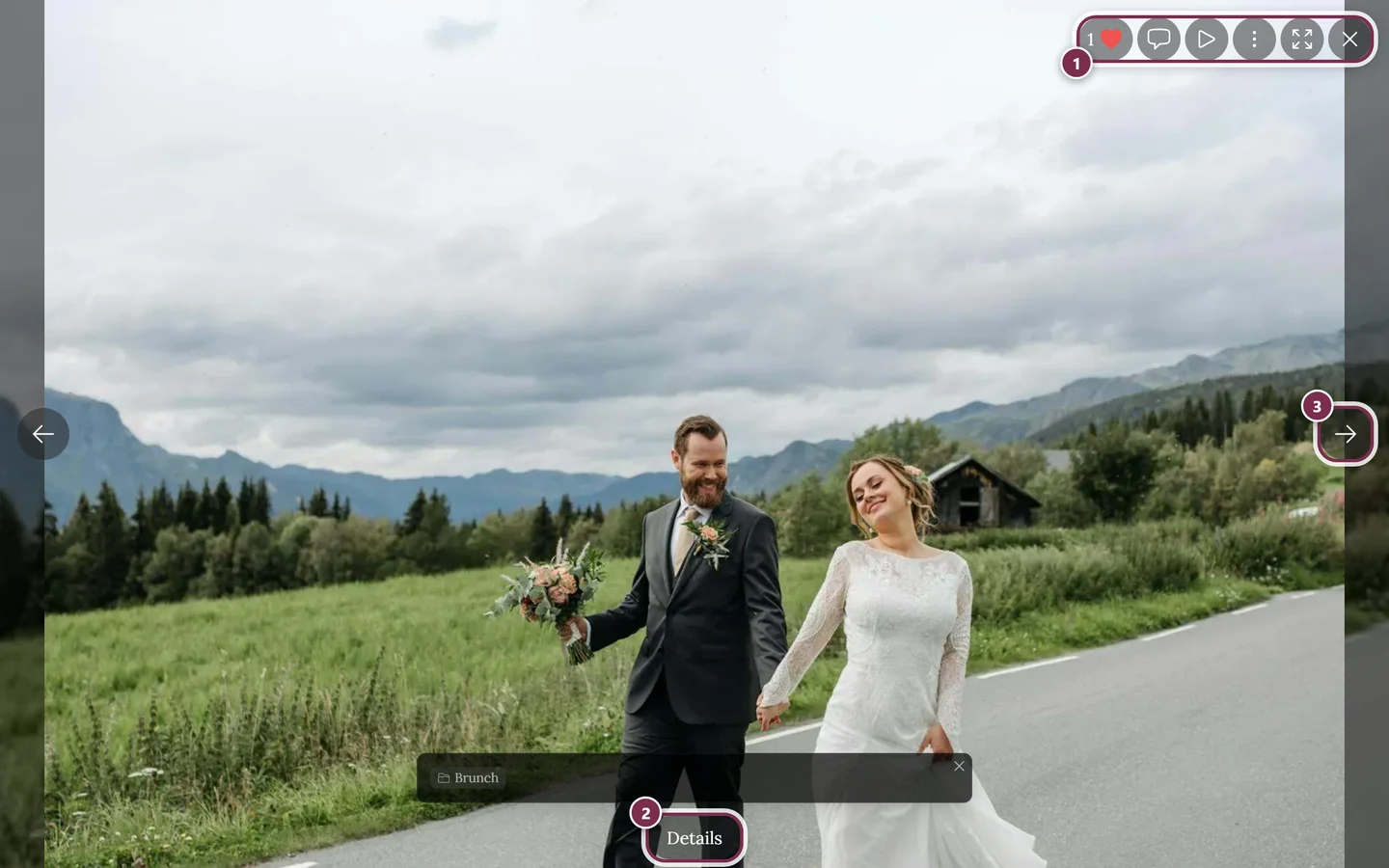
From the preview panel you go straight to fullscreen. ① the icon bar in the top right – on a computer with Like, Comments, Slideshow, the three-dot menu, Fullscreen and Close, on a phone only Slideshow, the menu and Close, ② Details reveals title, album and capture data, ③ the arrow to the next photo – on a phone you can swipe instead. Like and Comments sit next to Details at the bottom on a phone. -
Close the panel with the X in the top right (Close preview).
Zooming & panning
Section titled “Zooming & panning”The map has its own gestures so that ordinary page scrolling doesn’t move or zoom it by accident.
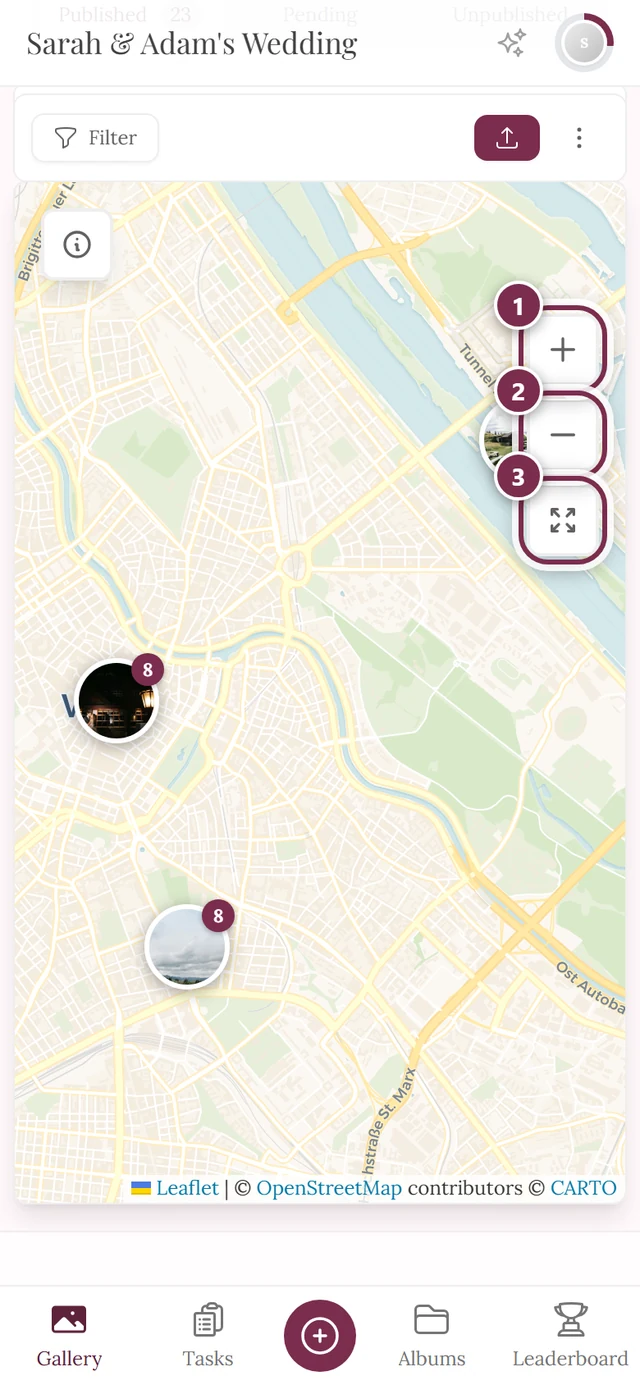
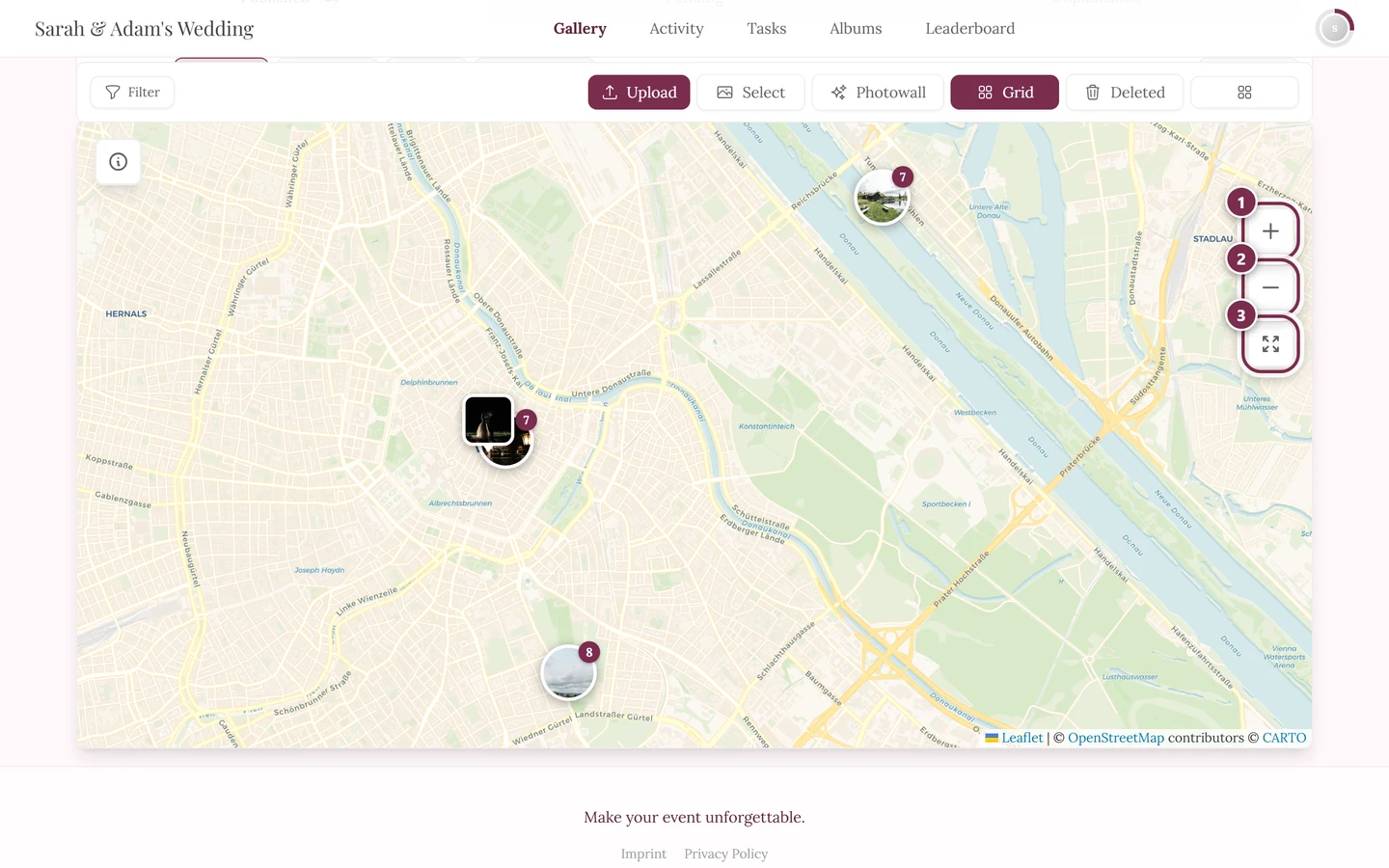
On a computer (mouse)
Section titled “On a computer (mouse)”- Pan: hold the left mouse button and drag.
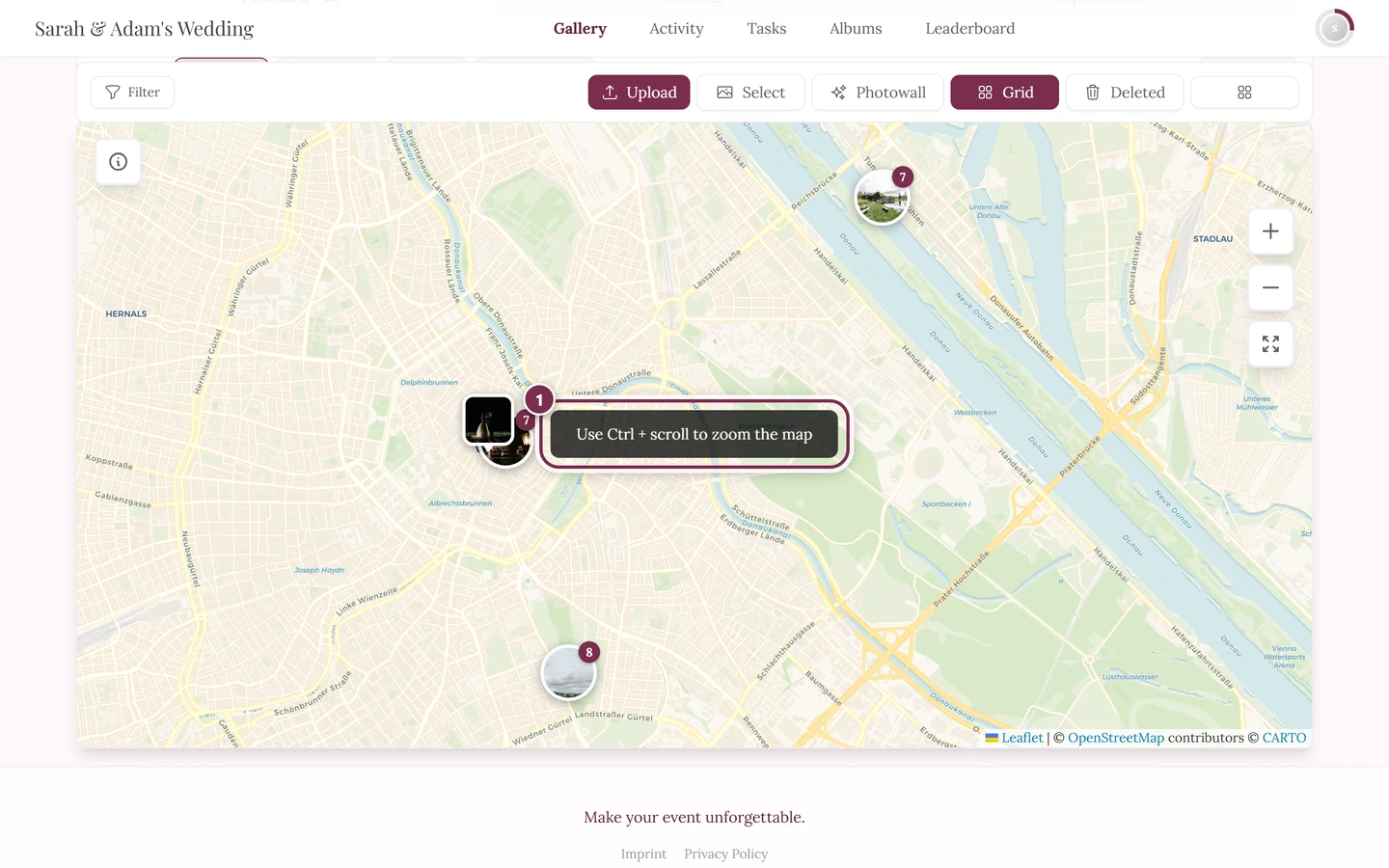
- Zoom: Ctrl + scroll wheel (Cmd + scroll wheel on a Mac).
- Scrolling without Ctrl over the map does nothing – the map doesn’t zoom and the page underneath doesn’t scroll away either. Instead the hint “Use Ctrl + scroll to zoom the map” appears for about two seconds.
On a phone (touch)
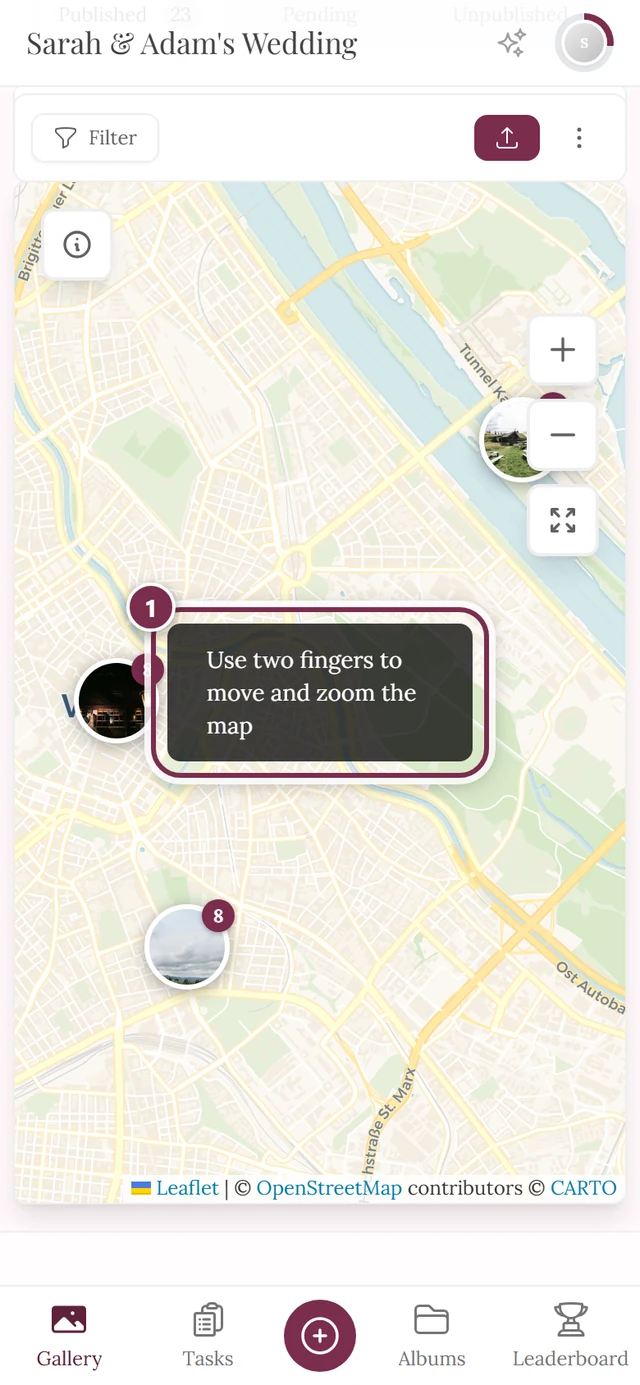
Section titled “On a phone (touch)”- Panning and zooming take two fingers. Swiping across the map with one finger scrolls the page – and shows the hint “Use two fingers to move and zoom the map”.
- Zoom: pinch with two fingers.
- The + / − buttons work on a phone as well.
Reset view
Section titled “Reset view”If you get lost, tap the third button in the top right (“Reset view to show all photos”). The map flies back to the area covering all photos.
Info card (i icon)
Section titled “Info card (i icon)”In the top left sits a small i icon (“Show map information”). Tap it to expand an info card. It shows:
- How many photos are in the current view.
- If none are visible: “No photos in this area” with the hint “Move the map to see photos in other locations”.
- The permanent note “Only photos with location enabled are displayed”.
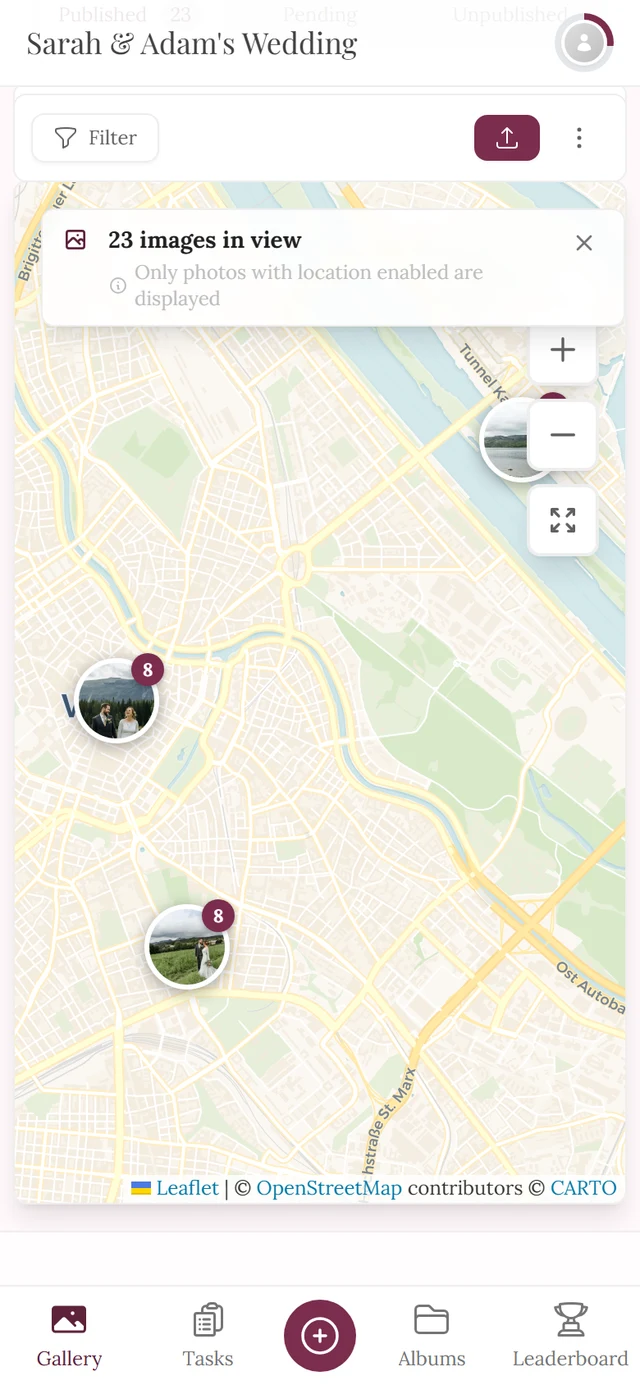
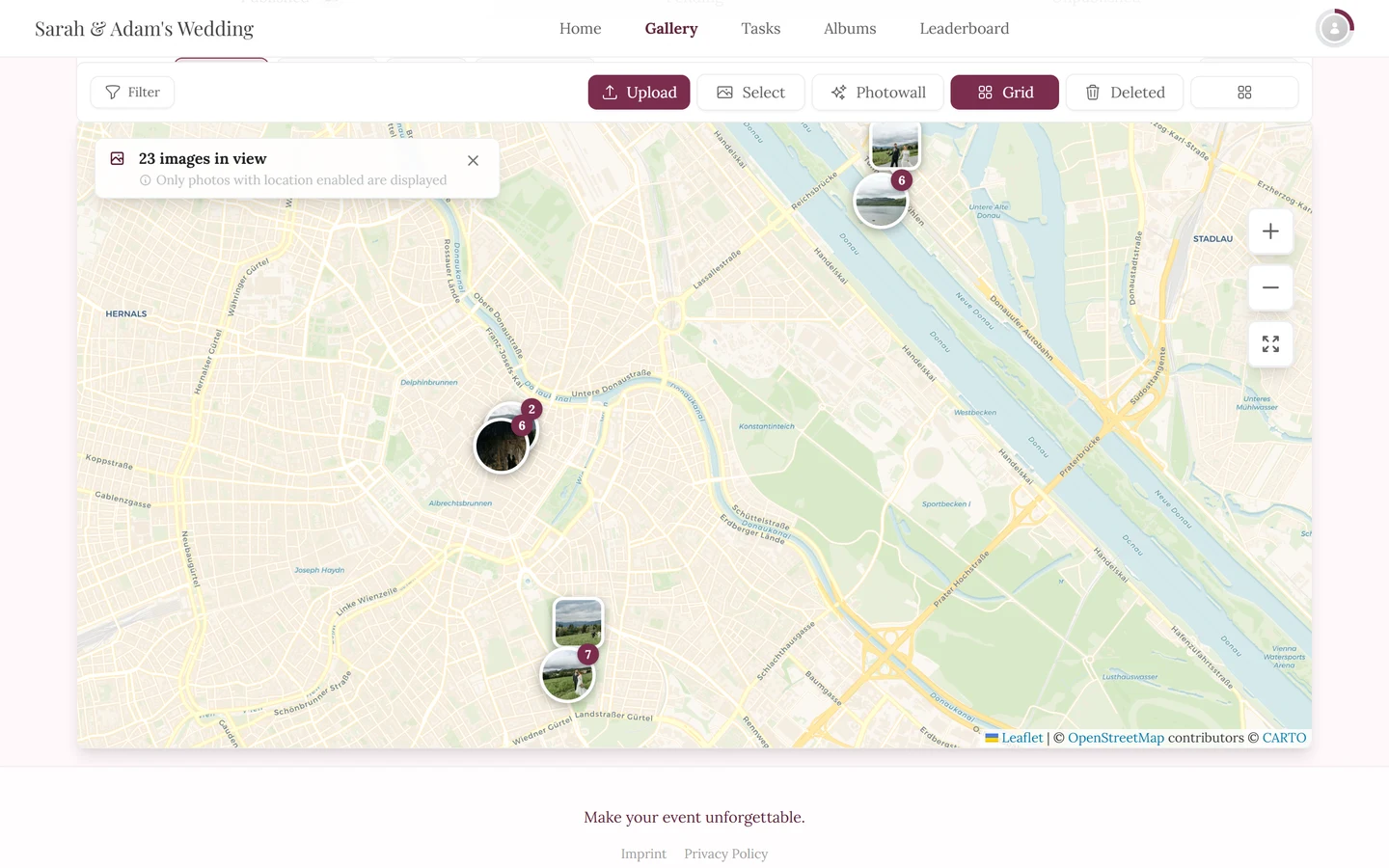
The counter is tied to the visible section: move the map and it recounts. Land in an area without photos and the heading changes.
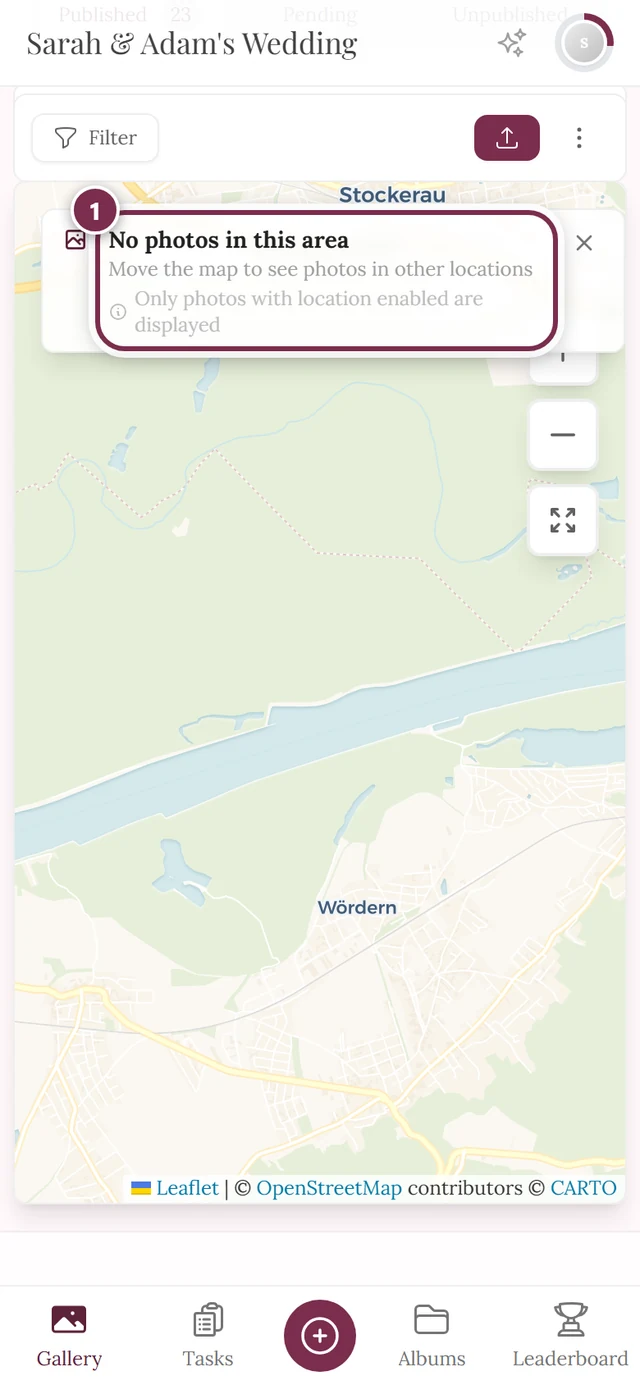
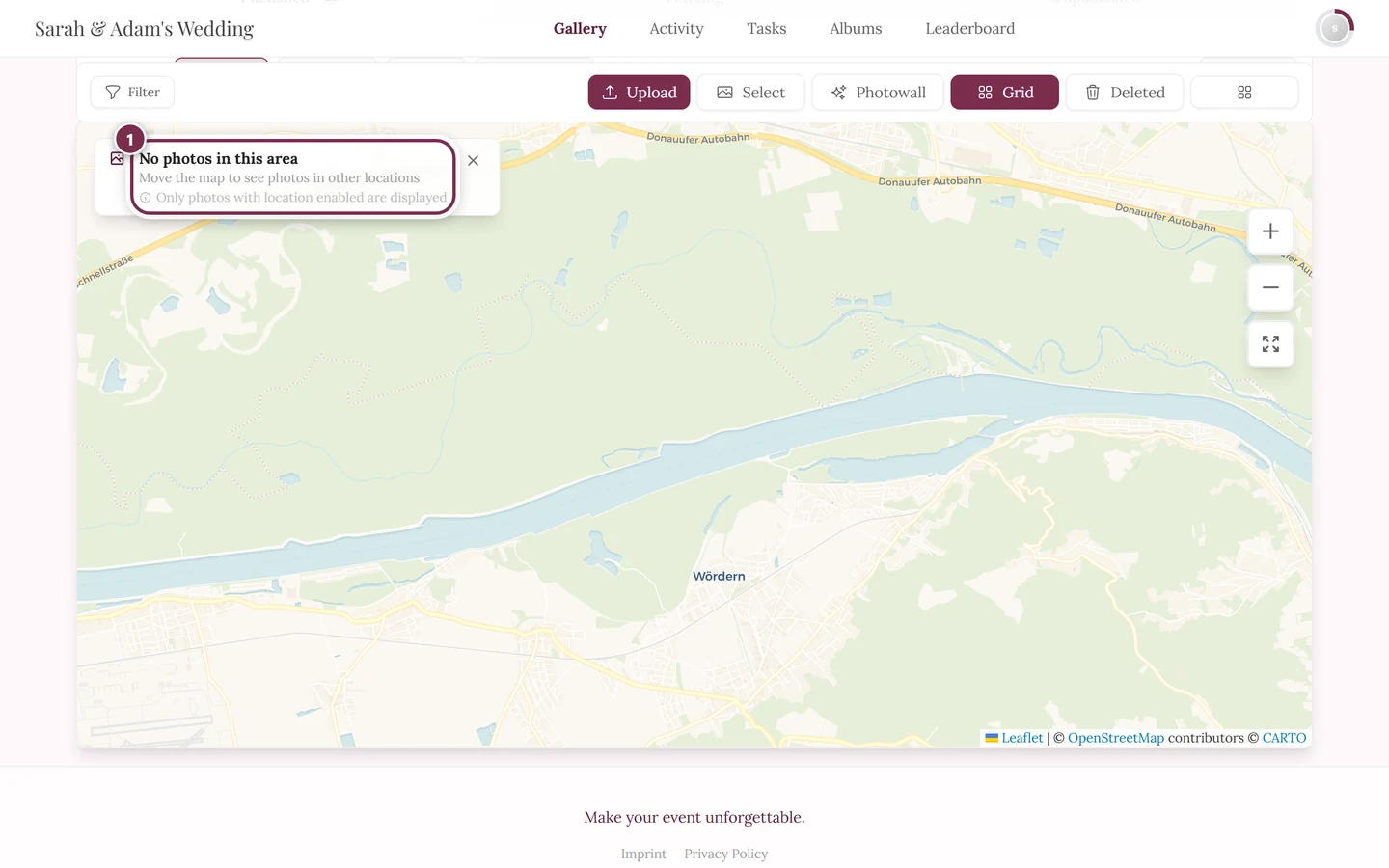
You collapse the card again with the X (“Close information”).
Showing approximate positions
Section titled “Showing approximate positions”Some devices or browsers (e.g. certain Android web uploads) strip the GPS data out of photos. If the host has enabled it, Photogala can derive an estimated location for such photos – for example from photos taken shortly before or after at the same place.
In the expanded info card you then find the checkbox Show approximate positions with a counter (≈ n).
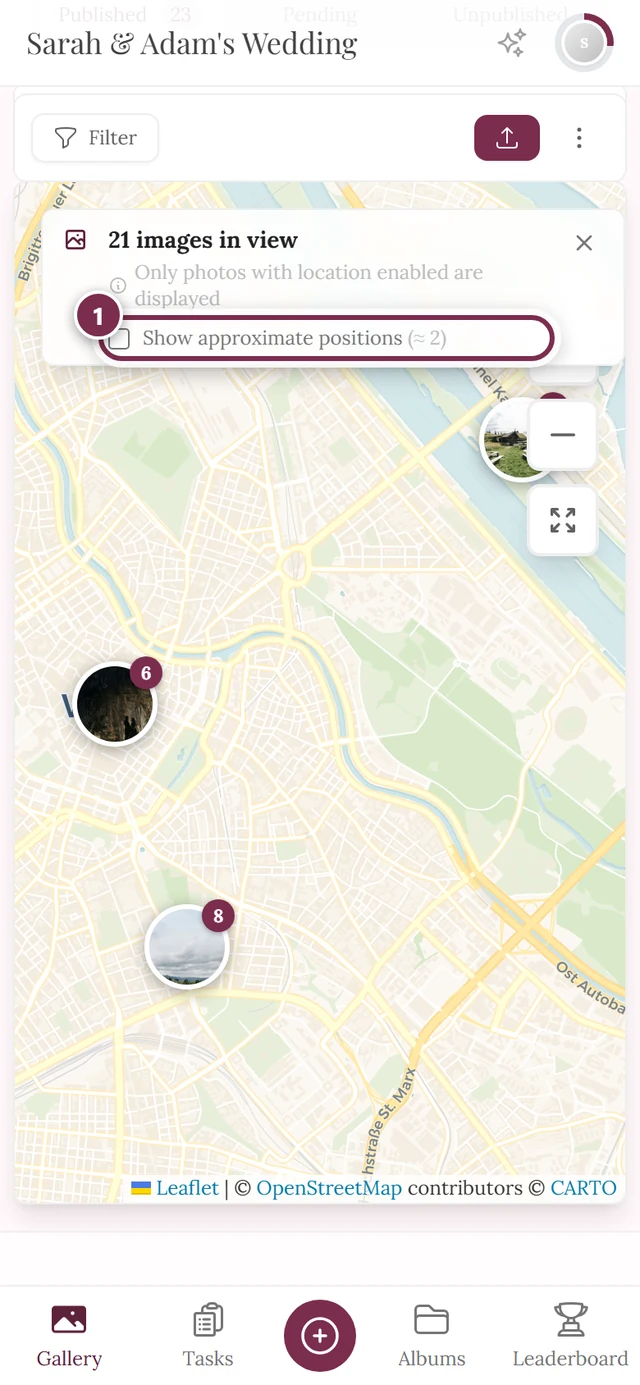
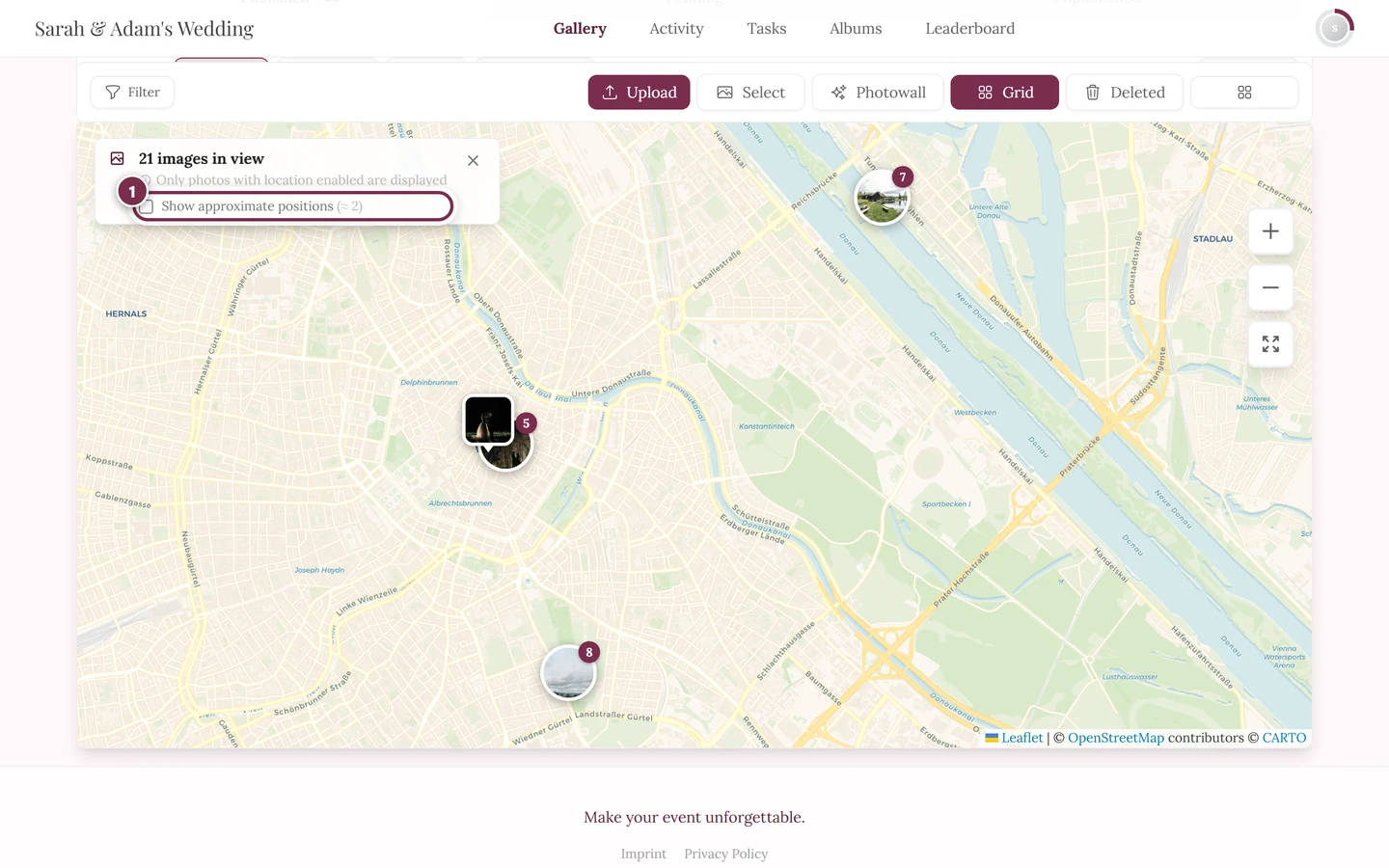
Tick it to show the estimated photos. They appear with a dashed border and an ≈ badge, so you can tell them apart from exact GPS photos at a glance.
Playing the journey (timeline)
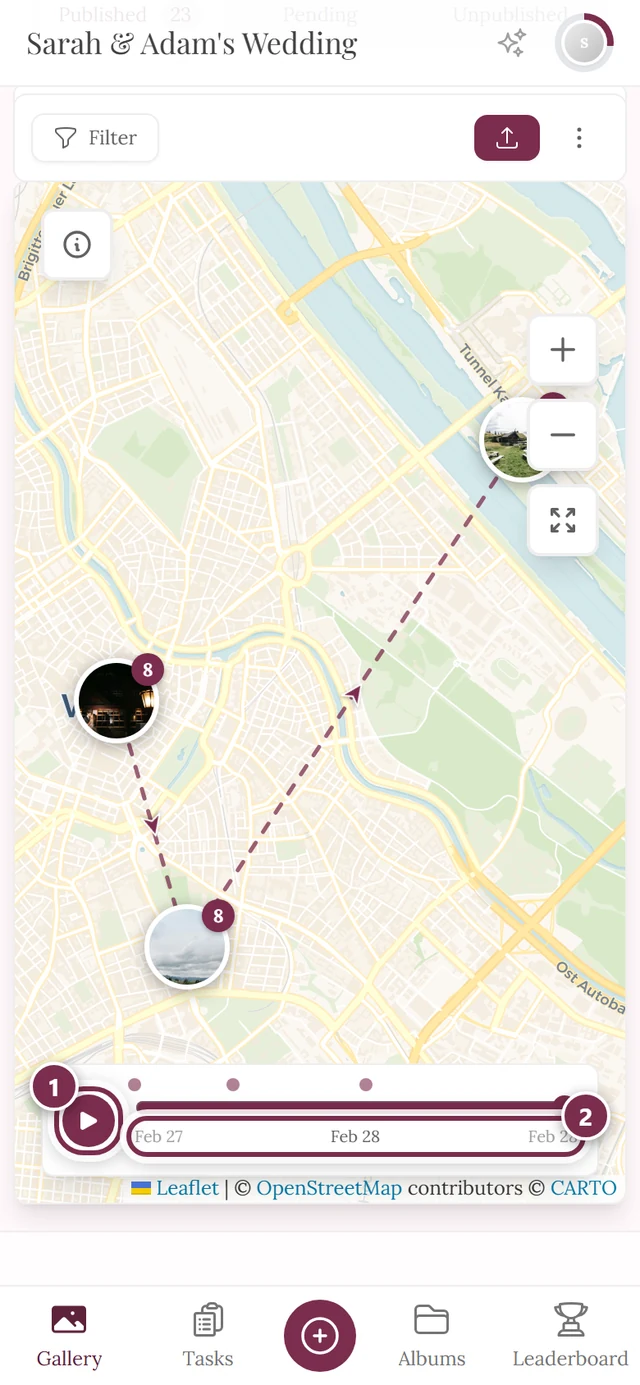
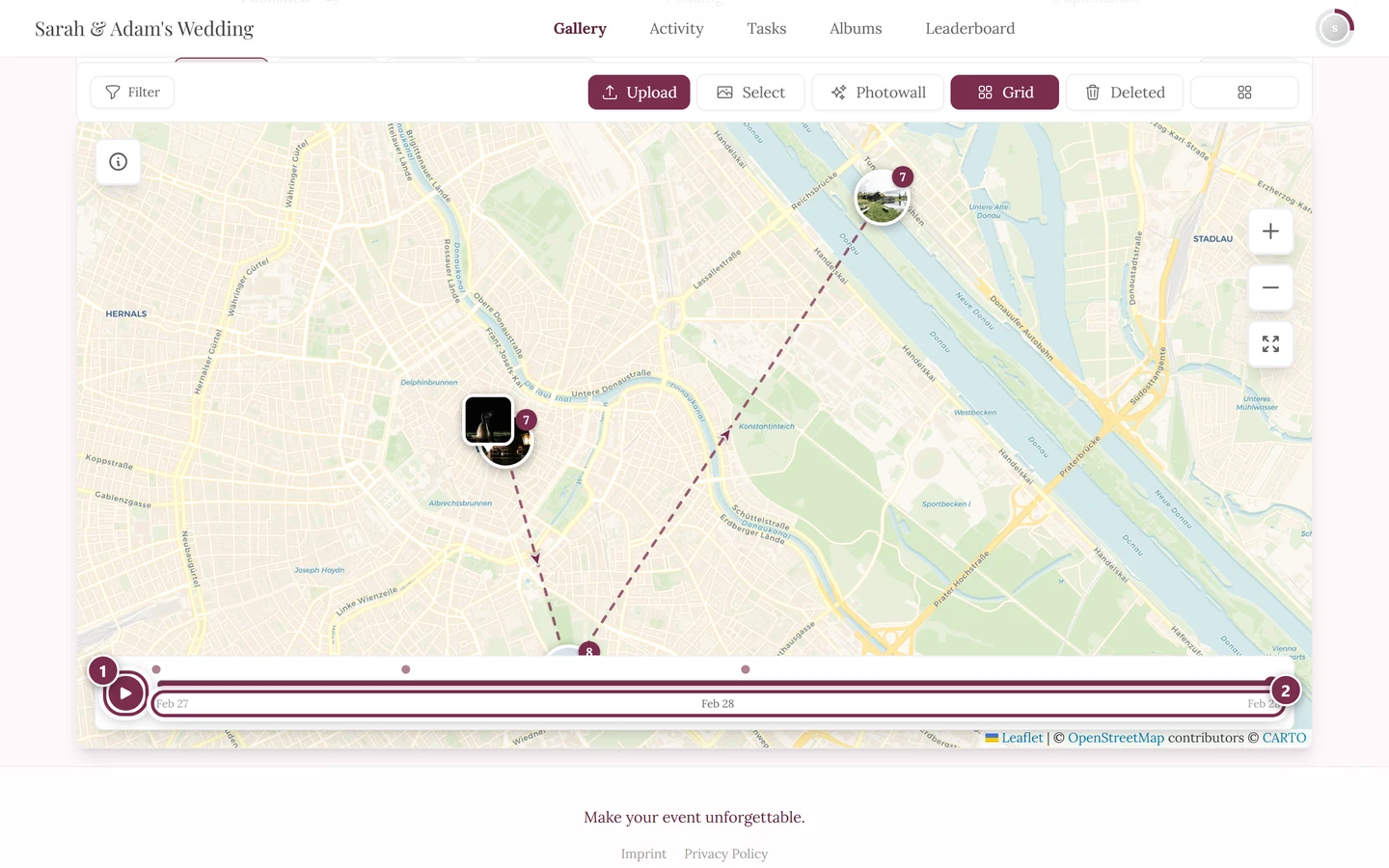
Section titled “Playing the journey (timeline)”If your event has photos at several points in time, a timeline appears at the bottom – a small time bar that lets you replay the course of the event like a journey.
-
Tap the round play button Play journey. The map plays the stations in discrete stops: each step reveals a whole station (all of its photos plus the leg leading there). The tour takes about 12 seconds in total, but every station stays for at least 1.4 seconds – with many stations the tour gets correspondingly longer.
-
The same button turns into Pause so you can stop at any time. Once you’ve reached the end, tapping again starts the journey over from the beginning.
-
Drag the slider through the journey manually (“Scrub through the journey”). Only photos up to the chosen point in time are shown. As soon as you drag, automatic playback stops.
-
Along the axis there are segment dots – each stands for the start of a station. Tap one to fly straight there; a tooltip shows the date and photo count (e.g. “Feb 27 · 8”).
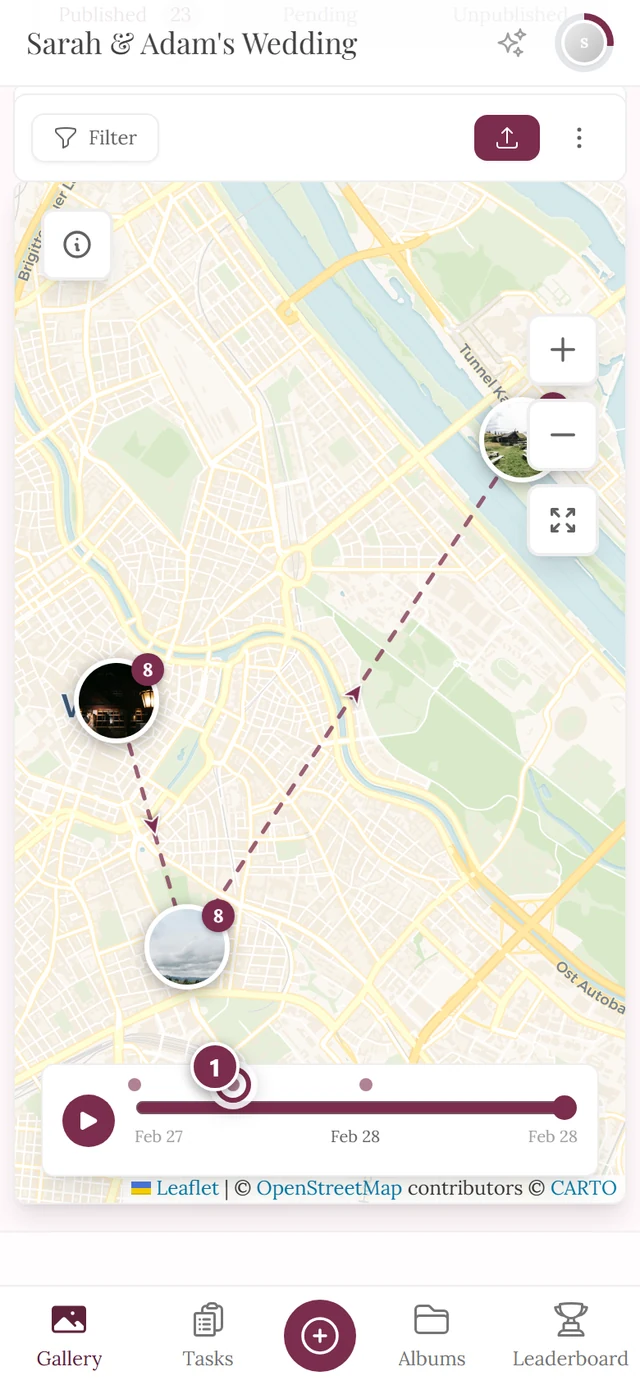
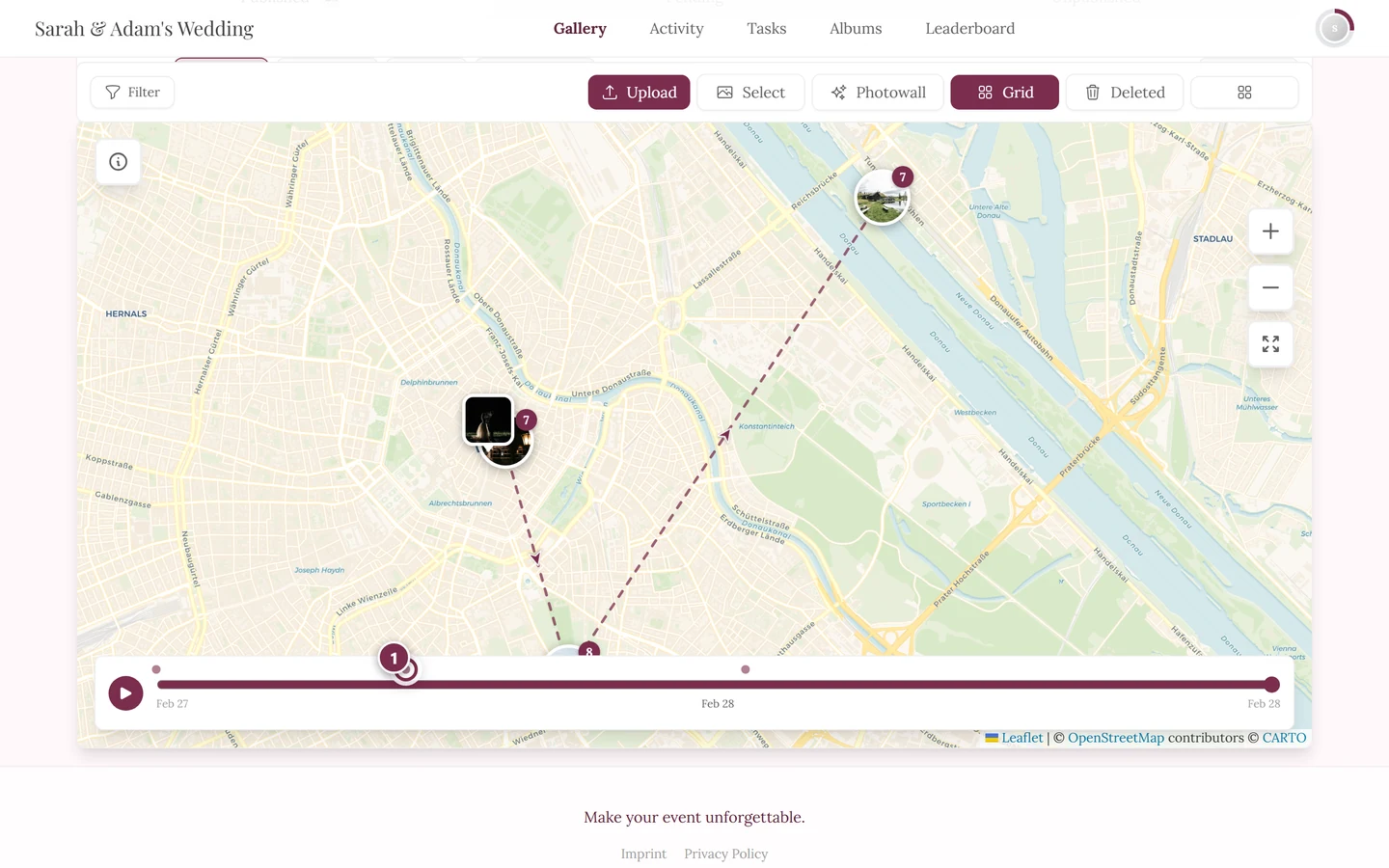
The small dots on the axis are the stations. Their spacing reflects the real time gaps – a long break becomes a long gap. -
The date labels show the start on the left, the current position in the middle (bold) and the end on the right. They only name day and month – so at a one-day event the same date appears three times.
-
While a time filter is active a circular arrow appears – Show all photos – which clears the time selection and shows all photos again.
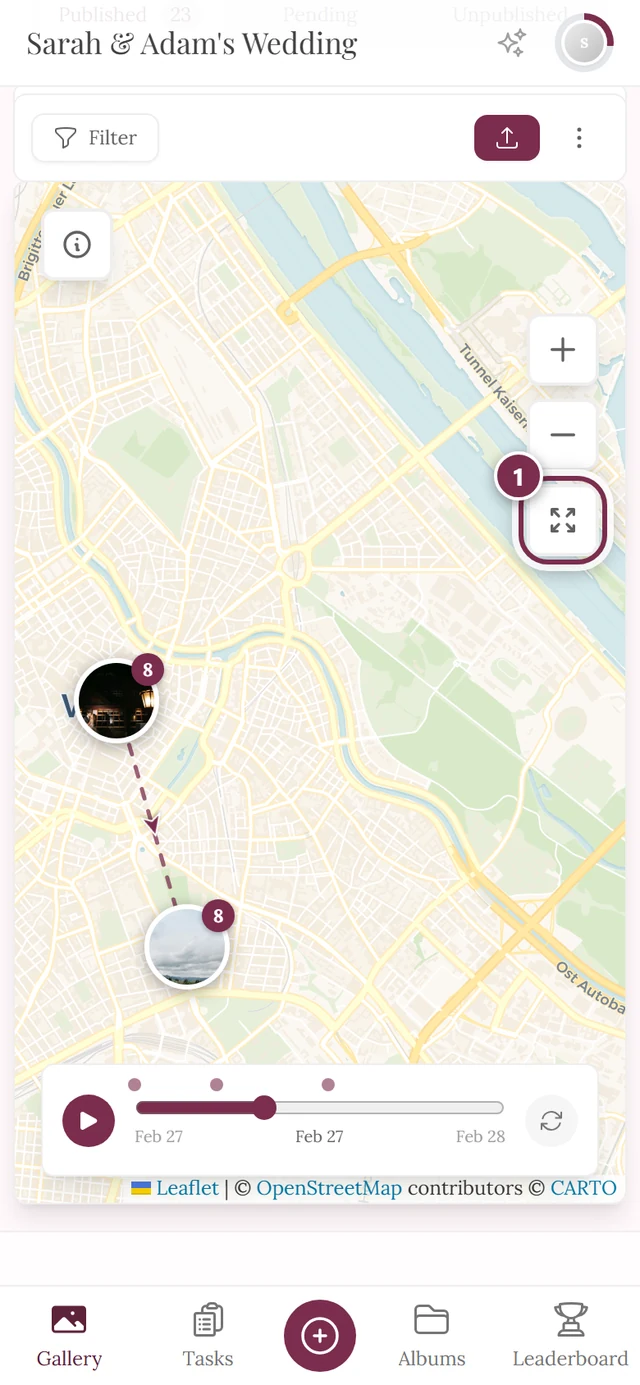
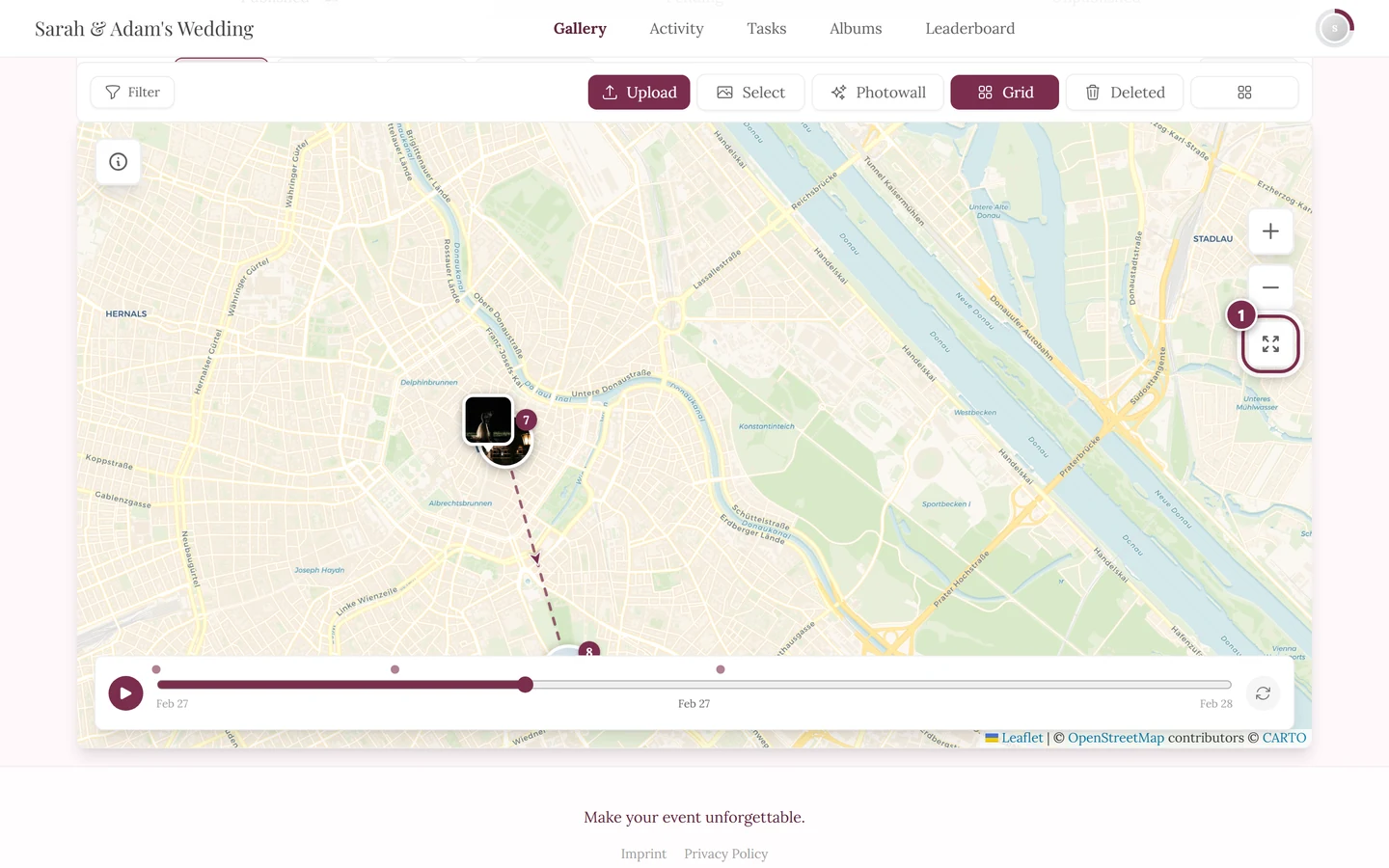
The slider sits at a good third: only the first station is left on the map, and the middle date jumps to the chosen point in time. The highlighted circular arrow on the right brings all photos back – it only appears while a filter is active.
The travel route on the map
Section titled “The travel route on the map”Between the chronological stations the map draws a dashed line with direction arrows per leg. The route only appears from two stations onward.
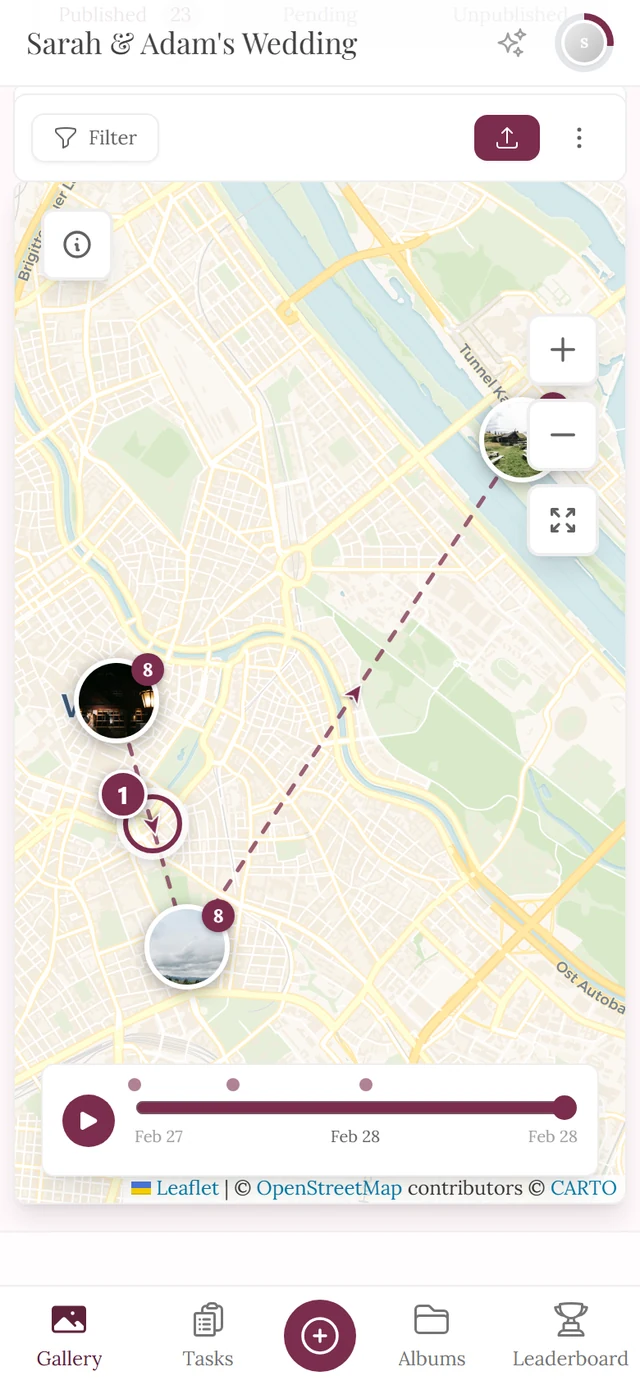
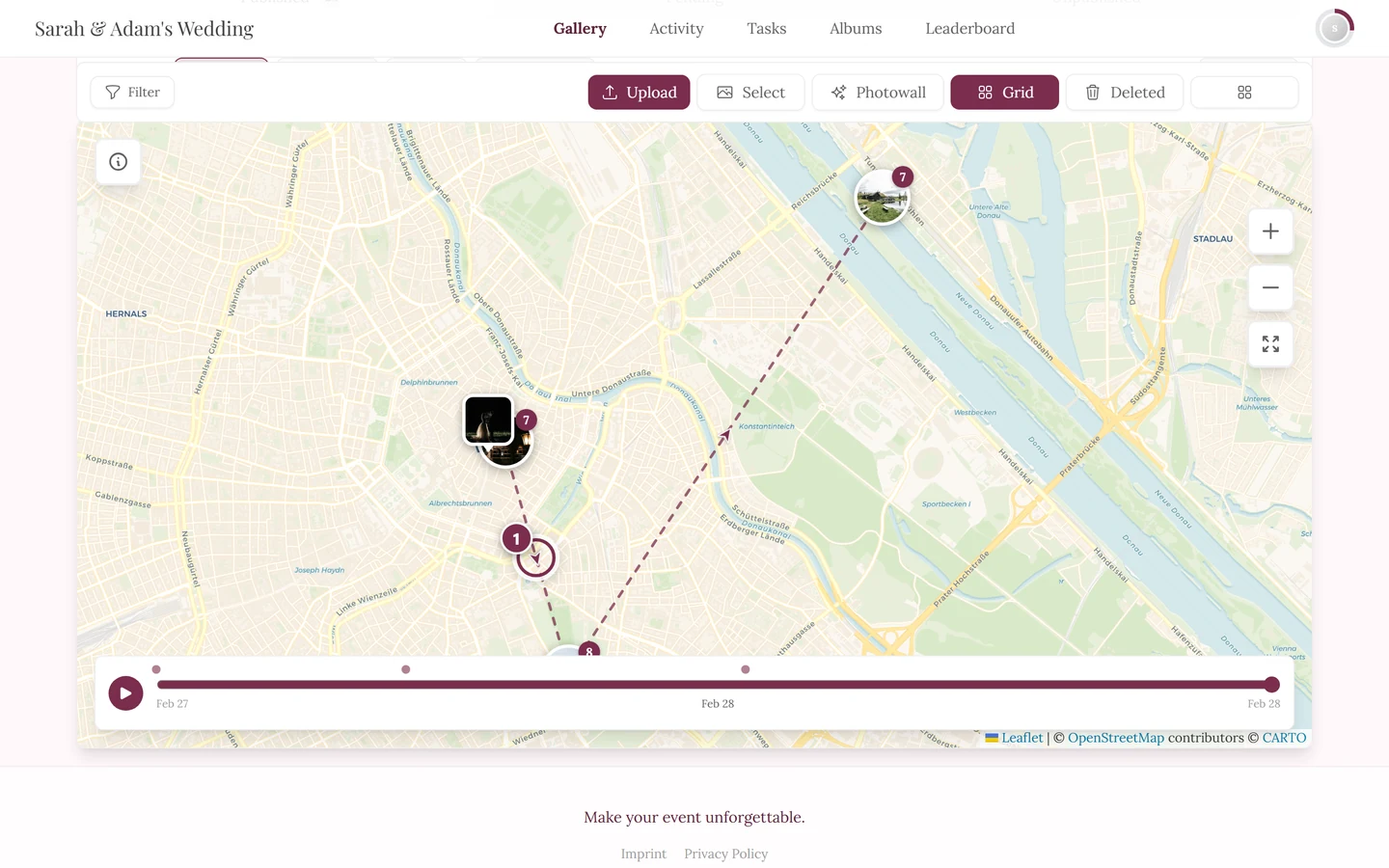
A few subtleties:
- Short legs get no arrow. The measure is the distance on screen: if two stations are less than about 90 pixels apart, the line stays arrowless – zoom in and the arrow shows up.
- A path walked there and back appears as a plain line without an arrow.
- What counts as a separate station depends on the zoom. The radius grows with every zoom step outwards: around 250 metres at street zoom, 600 metres in the neighbourhood, 2 km in the town view, 8 km in the regional view and up to 400 km in the world view. Zoomed in, church and restaurant are separate stations; zoomed out they merge into “Vienna”.
- Time counts too: a break of more than five hours starts a new station, even if you stayed in the same place.
When the map stays empty
Section titled “When the map stays empty”Related topics
Section titled “Related topics”- Fullscreen view (slideshow) – how to open and control photos from the preview panel.
- Uploading photos and Take a photo – why some photos have a location and others don’t.
- Filtering and the gallery filters – filters apply to the map too.
- Albums – when albums and filters interact.