Downloading photos
You’ll want to keep the best moments. There are several ways to save – and when you save you almost always choose between two quality levels: the high-resolution original or a smaller, web-optimized version for quick sharing. This page walks you through every route to a photo (and video) and the difference between the two versions.
Is download enabled for this event?
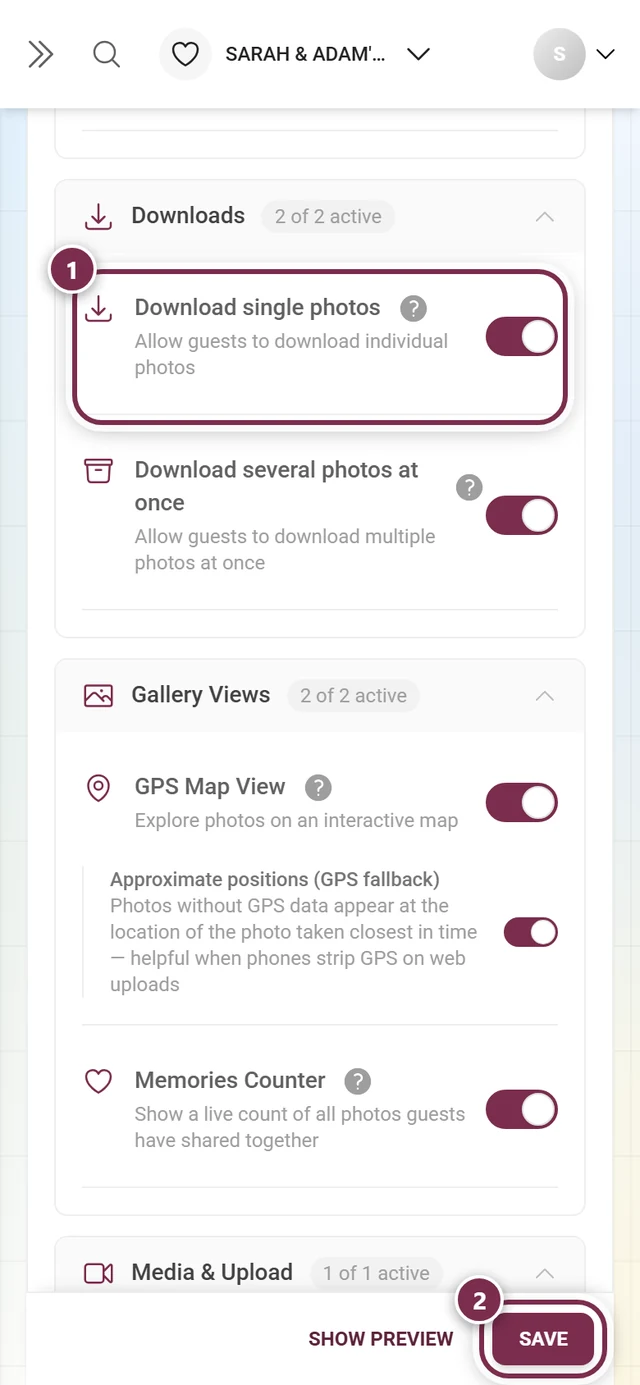
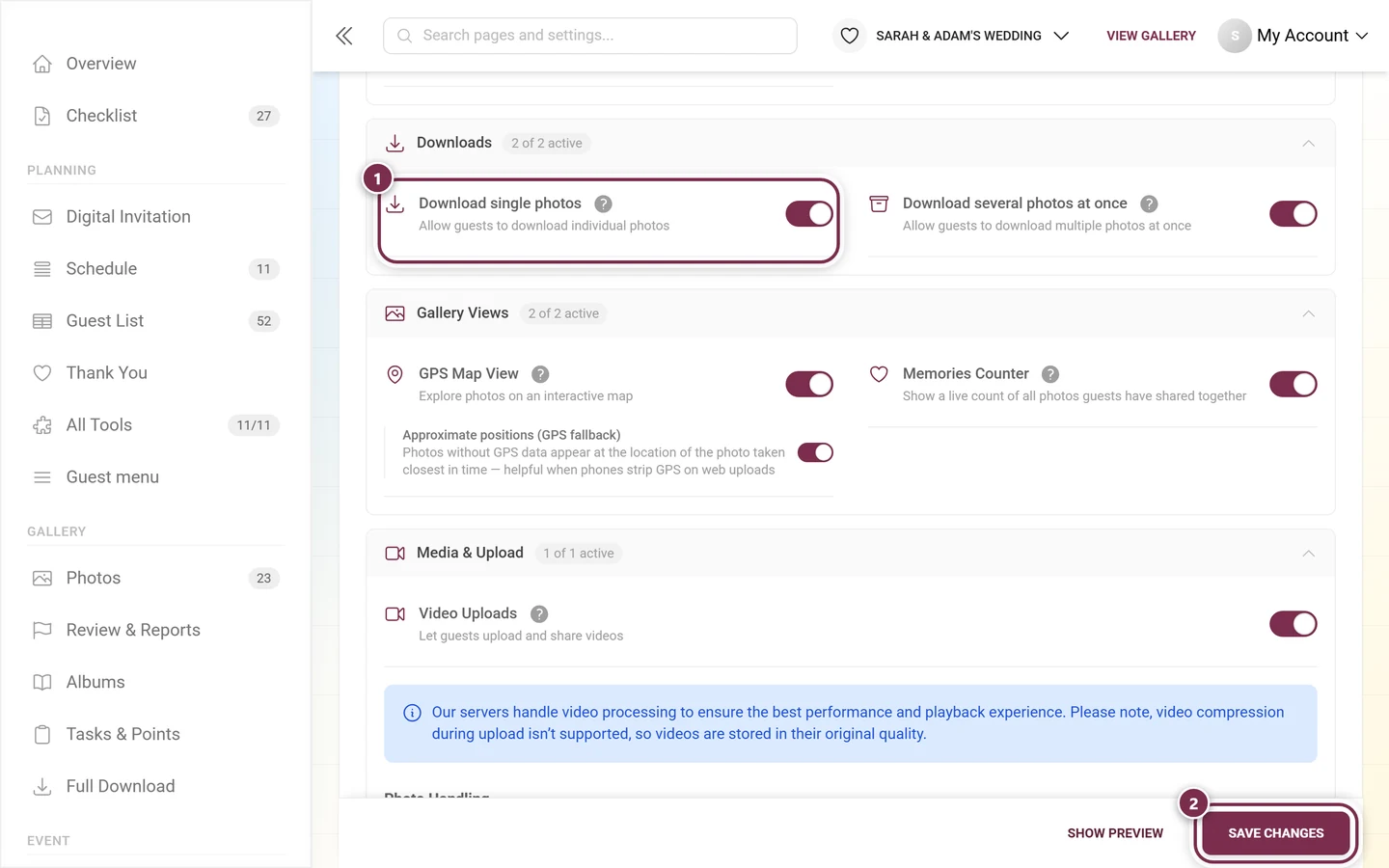
Section titled “Is download enabled for this event?”The host has to turn download on. There are two separate switches under Settings → Features:
- Single download – save one specific photo/video.
- Bulk download – save several selected photos as a ZIP.
The two are independent: bulk download can be on while single download is off – and vice versa.
Saving a single photo – three ways
Section titled “Saving a single photo – three ways”There are three equivalent ways to do a single download. Pick whichever is quickest right now.
Way A: Straight from the photo grid (fastest)
Section titled “Way A: Straight from the photo grid (fastest)”Best when you just want one specific image from the overview without opening it.
-
Open the gallery and find the photo you want in the grid.
-
Open the tile’s context menu: on a computer, right-click; on a phone or tablet, press and hold (long-press, about half a second with your finger still). Both gestures open the same menu right where you pressed.
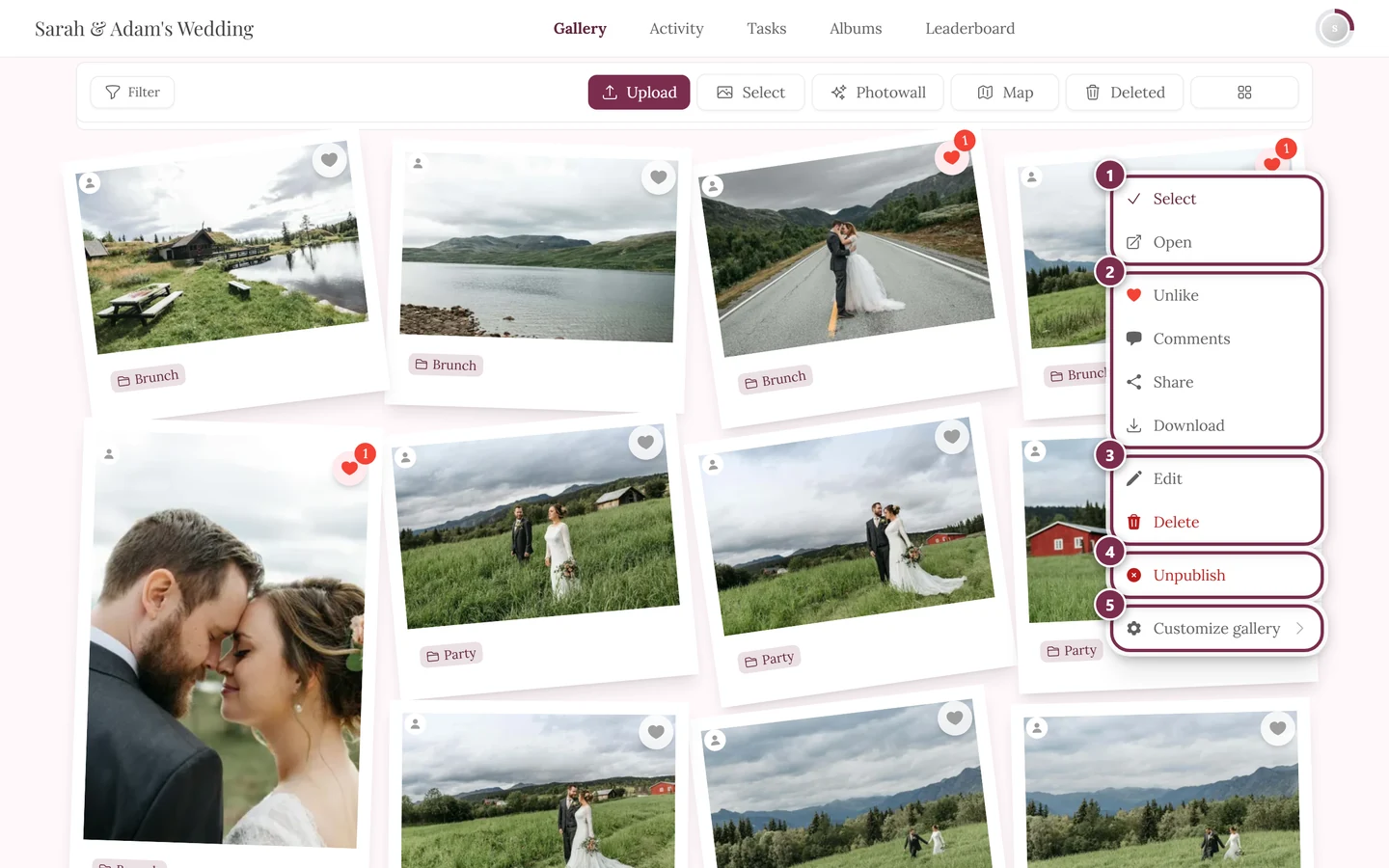
Right-click on a computer and press-and-hold on a phone open the same context menu with Download. ① Select and Open, ② Like, Comments, Share and Download – Share only appears when sharing is switched on for the event, Download only when single downloads are allowed, ③ Edit and Delete – on your own photos, on other people’s only with moderation rights, ④ Unpublish – only with moderation rights; on a photo that is not approved yet the entry reads Publish, ⑤ Customize gallery – for hosts and admins only. -
Choose Download (down-arrow icon). Depending on what’s enabled and on your role, the same menu also offers Select, Open, Like, Comments, Share and – on your own photos – Edit and Delete.
Way B: From fullscreen / the slideshow
Section titled “Way B: From fullscreen / the slideshow”Best when you’re already viewing the image large or flipping through the photos.
-
Tap/click a photo – it opens in fullscreen (slideshow).
-
Open the ⋮ menu in the top right (three-dot icon, labeled Open menu).
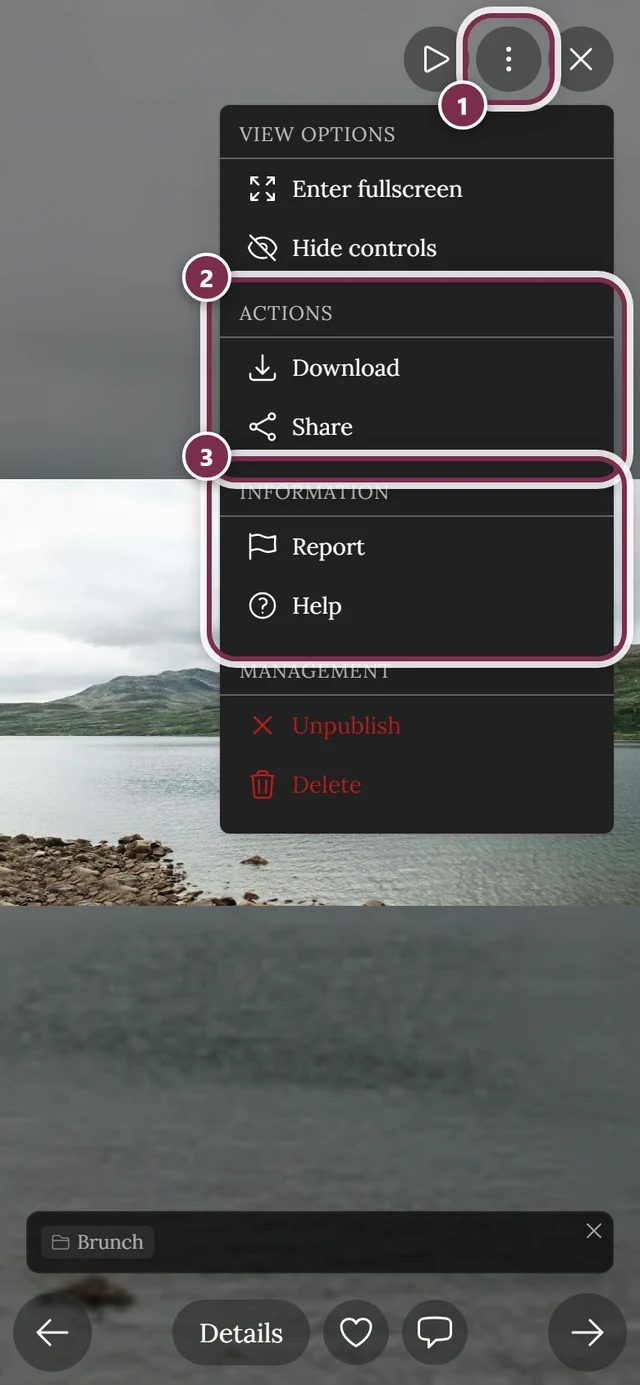
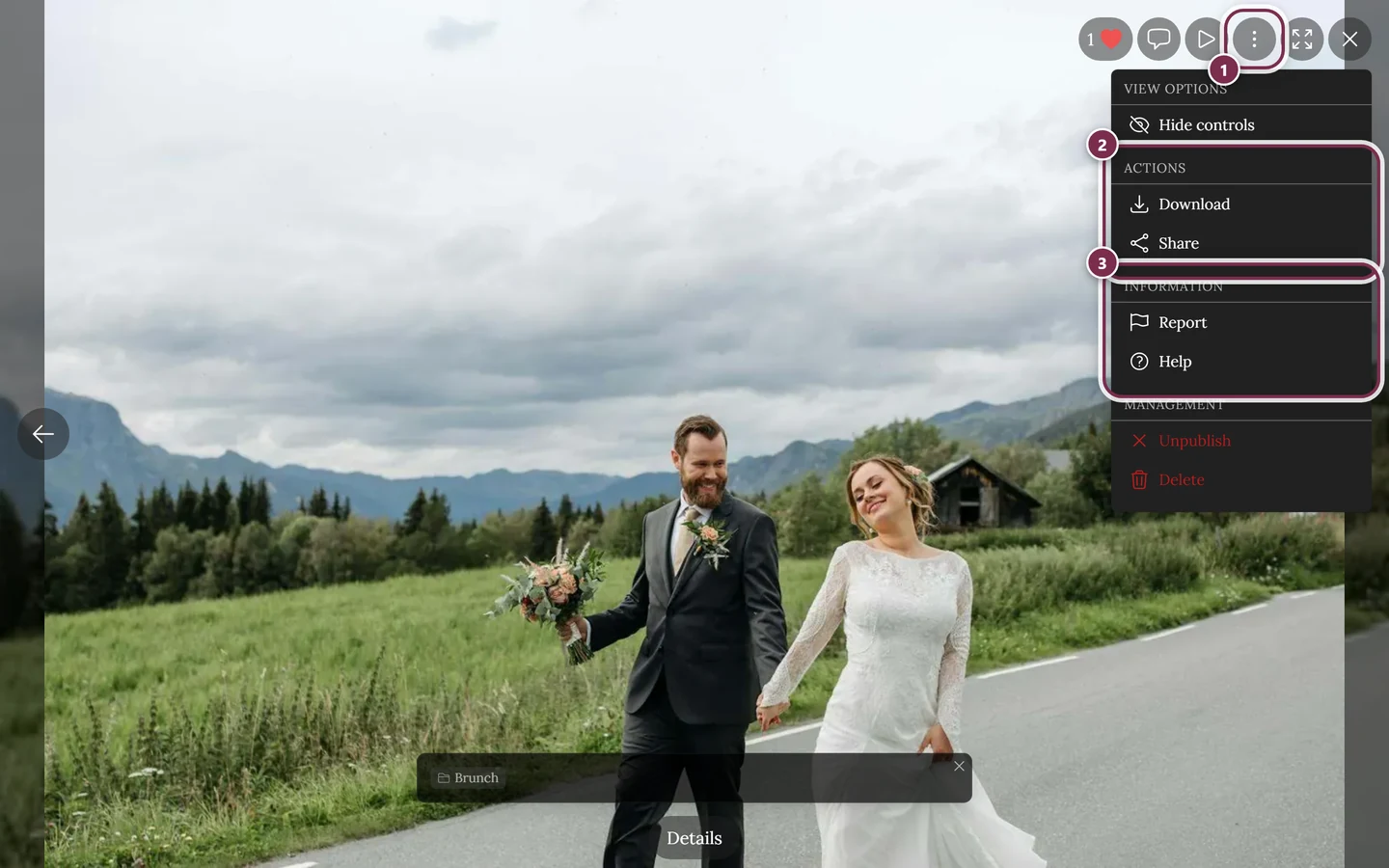
The ⋮ menu in fullscreen has a Download entry in the Actions section. ① the ⋮ menu in the toolbar at the top right – to its left sit like, comments, play, full screen and close. ② Actions with Download and Share: this section only exists when downloading or sharing is allowed for the event – with both switched off it disappears entirely. ③ Information with Report and Help. Above them sits View Options with Hide controls (on a phone also Enter full screen). The Management section – Unpublish and Delete – only appears if you manage the event or uploaded the photo yourself; guests never see it. -
Under Actions, choose Download.
Way C: Via the details view (with photo info)
Section titled “Way C: Via the details view (with photo info)”Best when you also want to see the capture date, uploader, album or location and save from there.
-
Open the photo in fullscreen and tap Details in the control bar at the bottom.
-
The Image Details dialog opens with stats, uploader, date, album, people and EXIF data.
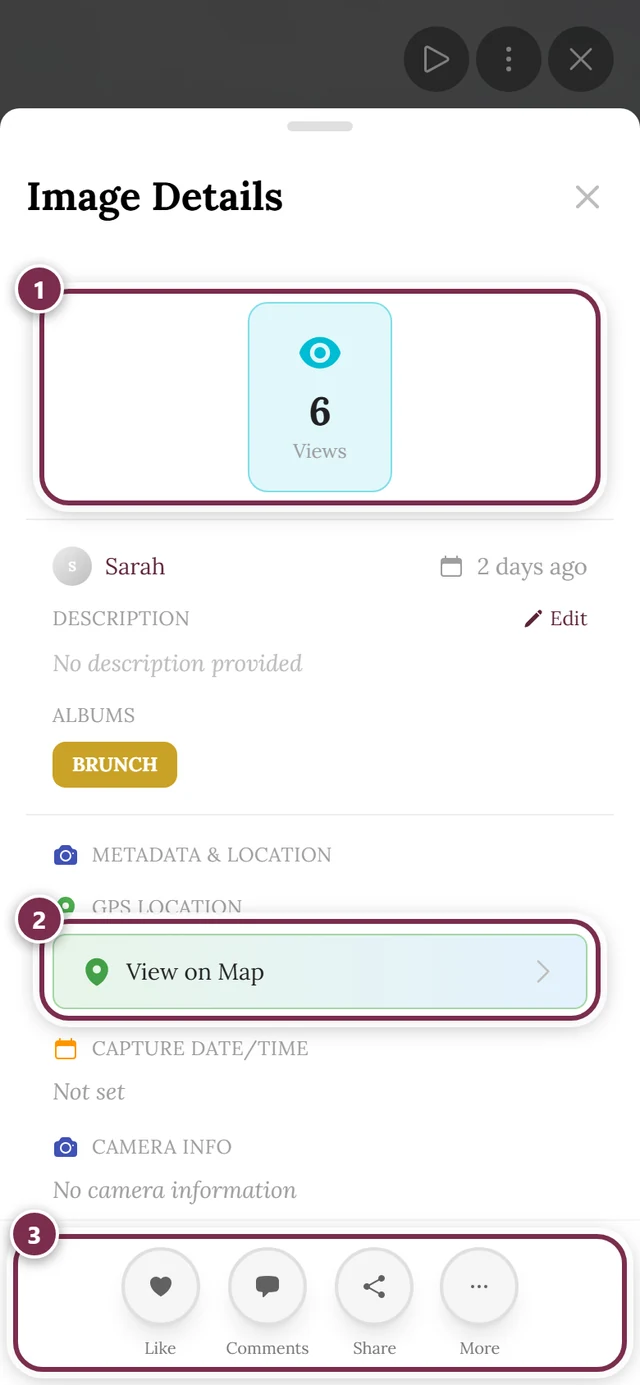
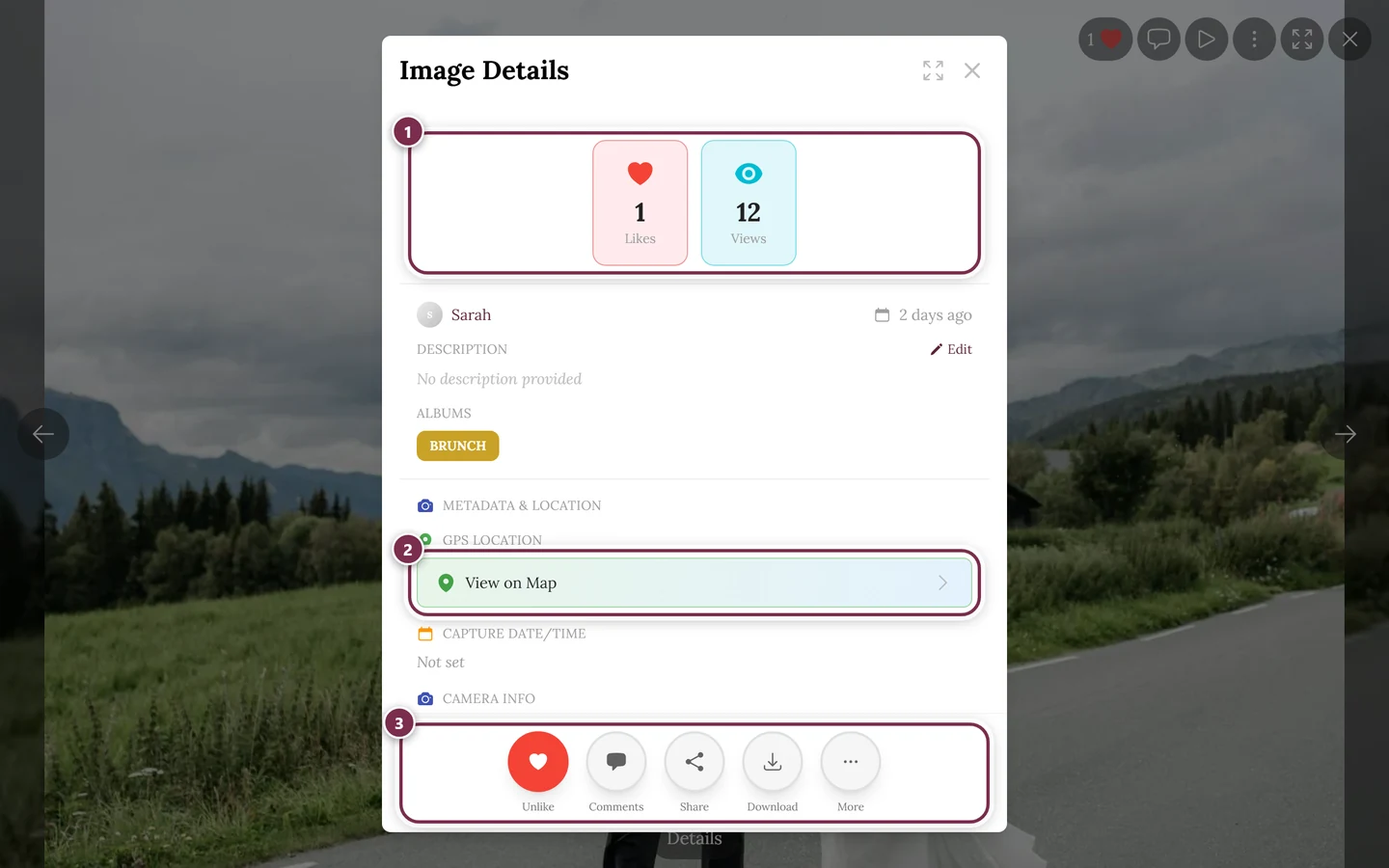
The top of the image details dialog holds one tile per figure – but only if the number is above zero and the feature is switched on for the event. Likes, Comments and Downloads are clickable and open the matching list, Shares and Views are read-only. ① the figures: Likes, Comments, Shares, Downloads, Views. A tile only shows when its number is above zero – for the first four also only when the feature is switched on for the event; Views always counts. Likes, Comments and Downloads are clickable and open the matching list. ② View on Map under Metadata & Location – only for photos carrying a GPS location; below it sit capture date and camera info. ③ the button row at the bottom. It fills up in order with Like, Comments, Share, Download – and, if you are allowed to, Edit, Unpublish, Delete. On wide screens the first four of them sit in the row, on a phone the first three; the rest live under More (if only one entry is left there, it joins the row instead). In between you find uploader and date, the Description (with Edit if you uploaded the photo or manage the event) and Albums, if the photo belongs to one. -
Use the Download action button at the bottom. Alternatively, click the downloads count in the stats bar at the top – that opens the download dialog too.
Original or web-optimized?
Section titled “Original or web-optimized?”Whichever of the three ways you take: after clicking Download, the Download Options dialog appears first with two buttons. Only then does the actual download begin.
- Original Quality – subtitle “Highest resolution available”. Full resolution without any optimization. Use this for print, archiving or further editing.
- Web Optimized – subtitle “Recommended for sharing online”. Balanced quality at a much smaller file size. Ideal for WhatsApp, social media and quick sharing.
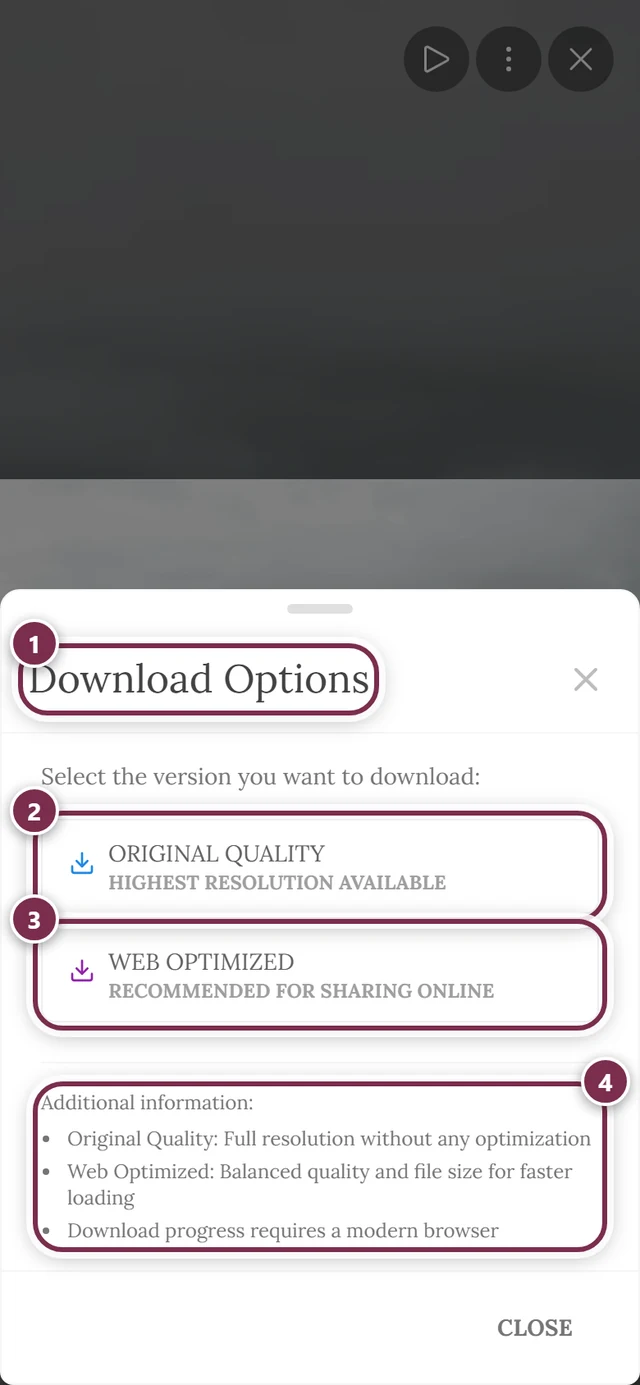
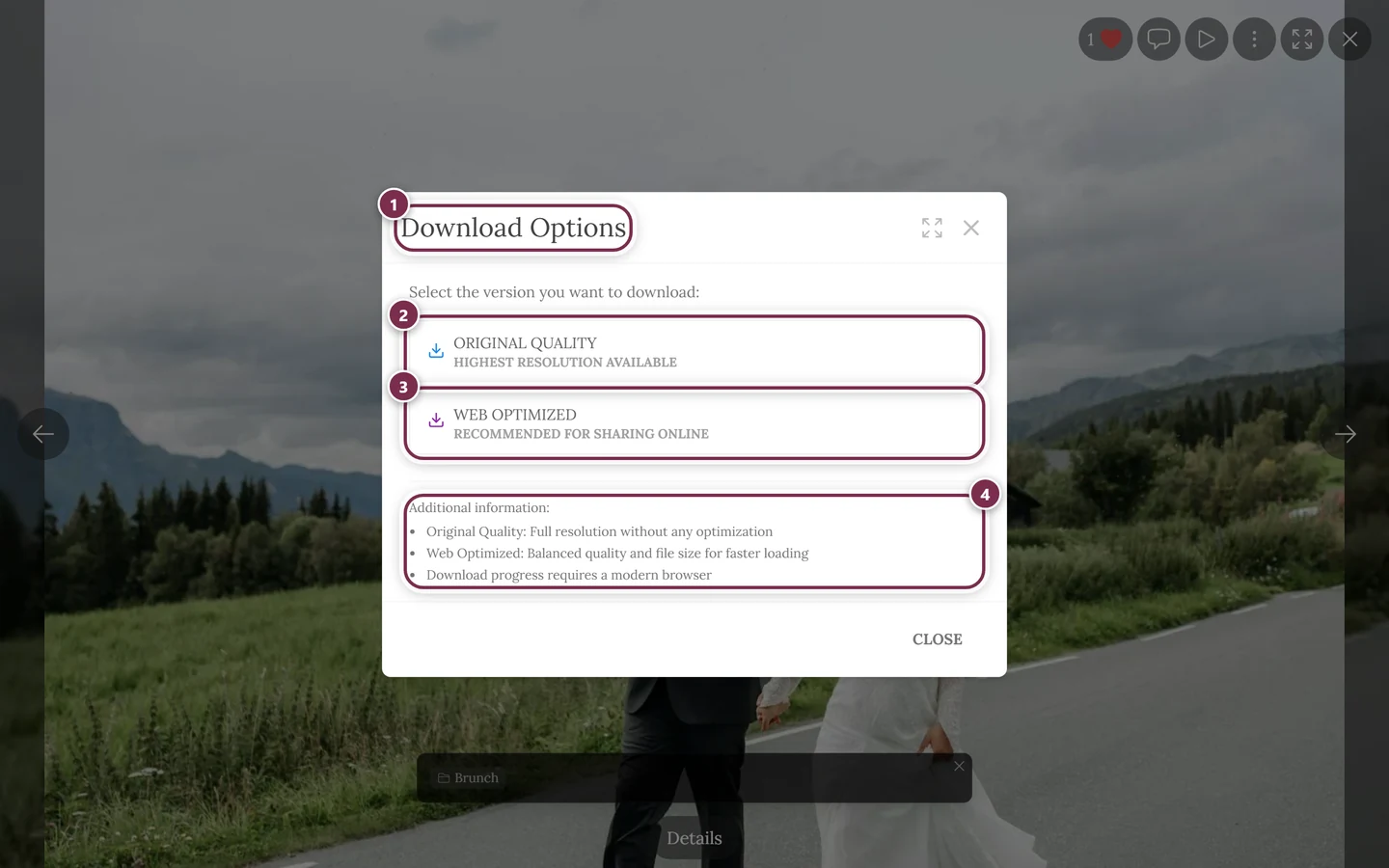
After your choice you see a progress bar with a percentage and a status text (“Downloading…”, and at the end “Download complete!”). While it’s loading you can:
- Pause – halts the download (status “Download paused”).
- Resume – continues a paused download.
- Cancel – stops it.
This is handy mainly for large original files or a slow connection. These buttons only appear during the loading phase.
Where does the file go?
Section titled “Where does the file go?”When it’s done, the file lands in your device’s or browser’s Downloads folder. The file name follows a fixed scheme: a type (photo_, video_, motion_), a number, a timestamp and the suffix original or web – so you can tell at a glance which version you saved.
Several photos at once
Section titled “Several photos at once”To save several photos together, use selection mode. The result is a ZIP archive.
-
Turn on selection mode. There are four equivalent ways in:
- Right-click a photo → Select (on a computer).
- Press and hold a photo → Select (on a phone or tablet).
- Select in the gallery bar at the top, when the screen is wide enough.
- On narrow screens: the “…” menu of the gallery bar → Select Photos.
-
Mark the photos you want – or use Select All in the selection bar.
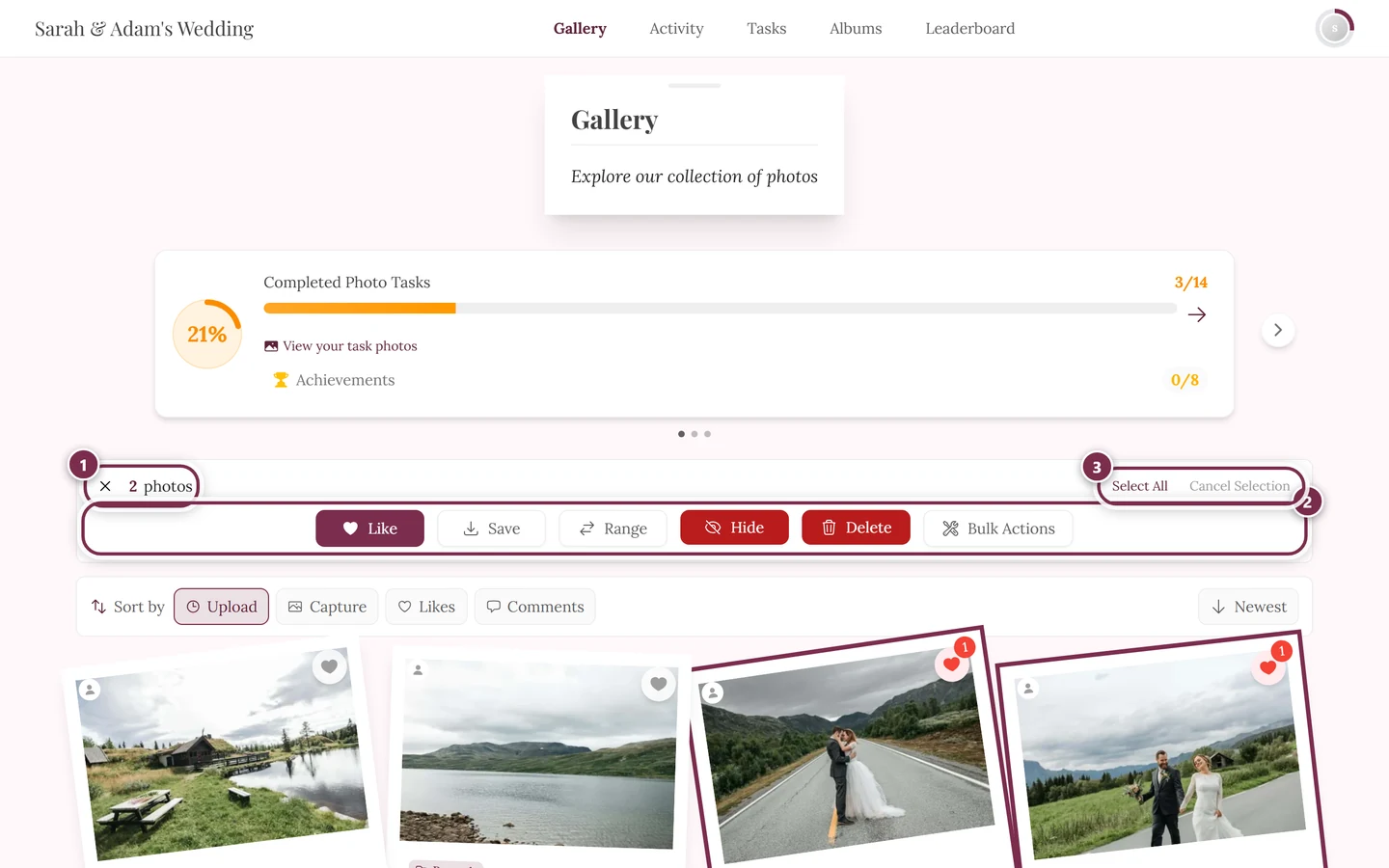
In selection mode the selection bar replaces the gallery bar at the top – with Select All, Save and Range. ① the counter: it says how many photos are currently marked; the × in front of it leaves selection mode. ② the action row. As a guest it holds Like, Save and Range – Range marks everything between two taps. If you manage the event, Hide, Delete and Bulk Actions join them (as in this shot); guests never see those three. The button that takes photos with you is called Save, not “Download”. ③ Select All marks the whole loaded gallery, Deselect All clears the marks again. -
Tap Save in the selection bar. The same Download Options dialog opens as for a single download; once you pick Original Quality or Web Optimized, all marked photos are packed into a ZIP archive.
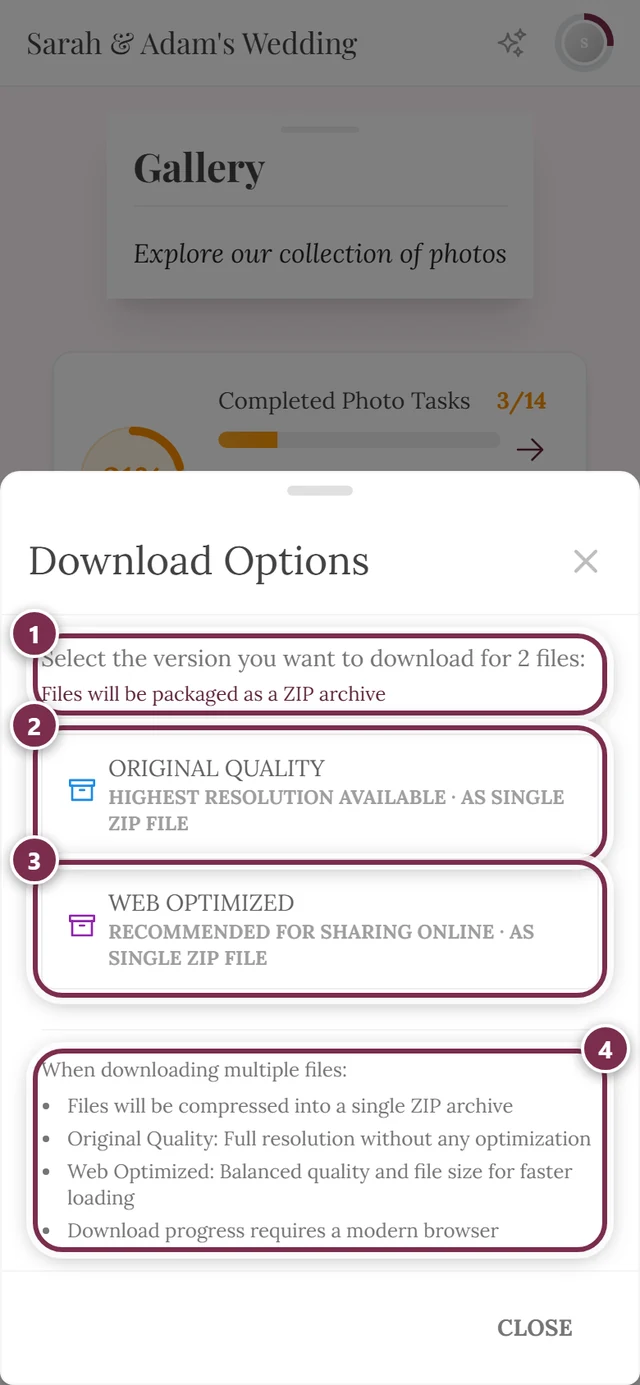
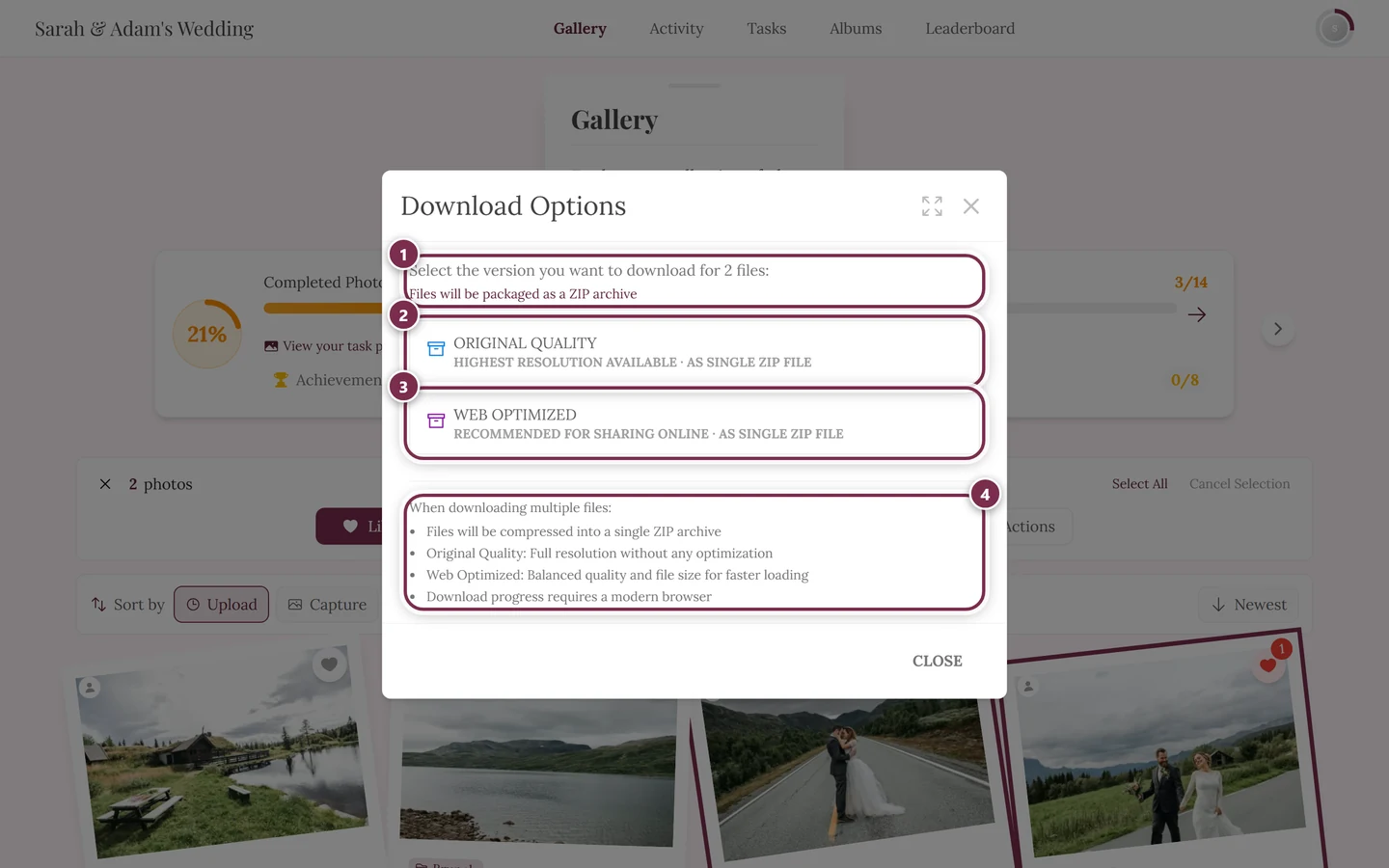
With several photos it's the same dialog – just with three additions. ① the header now names the count: “Select the version you want to download for 2 files:”, and below it “Files will be packaged as a ZIP archive”. ② Original Quality: its subtitle now ends with “· as single ZIP file”. ③ Web Optimized with the same addition. ④ the info box is titled When downloading multiple files: and starts with the ZIP compression. The count at the top tells you how many photos you marked – if it's off, close the dialog and fix the selection.
More on this: Selecting multiple photos.
As a host: back up the whole gallery
Section titled “As a host: back up the whole gallery”If, as a host, you want to save all your event’s photos at once, use the full export in the admin area. You reach it via the profile menu in the top right → Management → Admin portal, then the Download/Export section. Details: Backing up all photos. It’s especially worth it before the storage period ends.
When something doesn’t work
Section titled “When something doesn’t work”Related topics
Section titled “Related topics”- Selecting multiple photos – selection mode and ZIP in detail.
- Slideshow & fullscreen – all the fullscreen controls.
- Sharing photos – share instead of download.
- Backing up all photos – the full export for hosts.
- Settings: Features – enable the download switches.