Notifications
The bell in the top right is your personal message center. It collects everything that affects you directly: someone likes your photo, comments on it, mentions you with @, you unlock an achievement, a reward becomes redeemable, or a moderator changes your role. New notifications appear in real time – no page reload needed.
Finding the bell
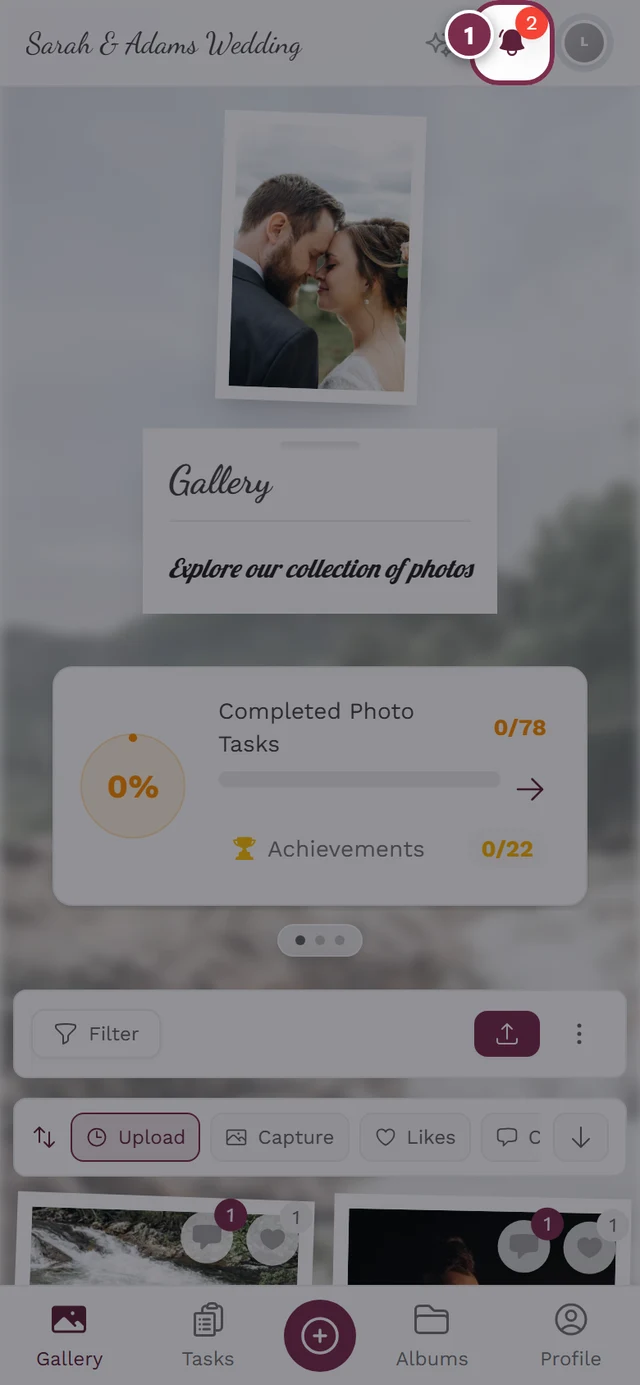
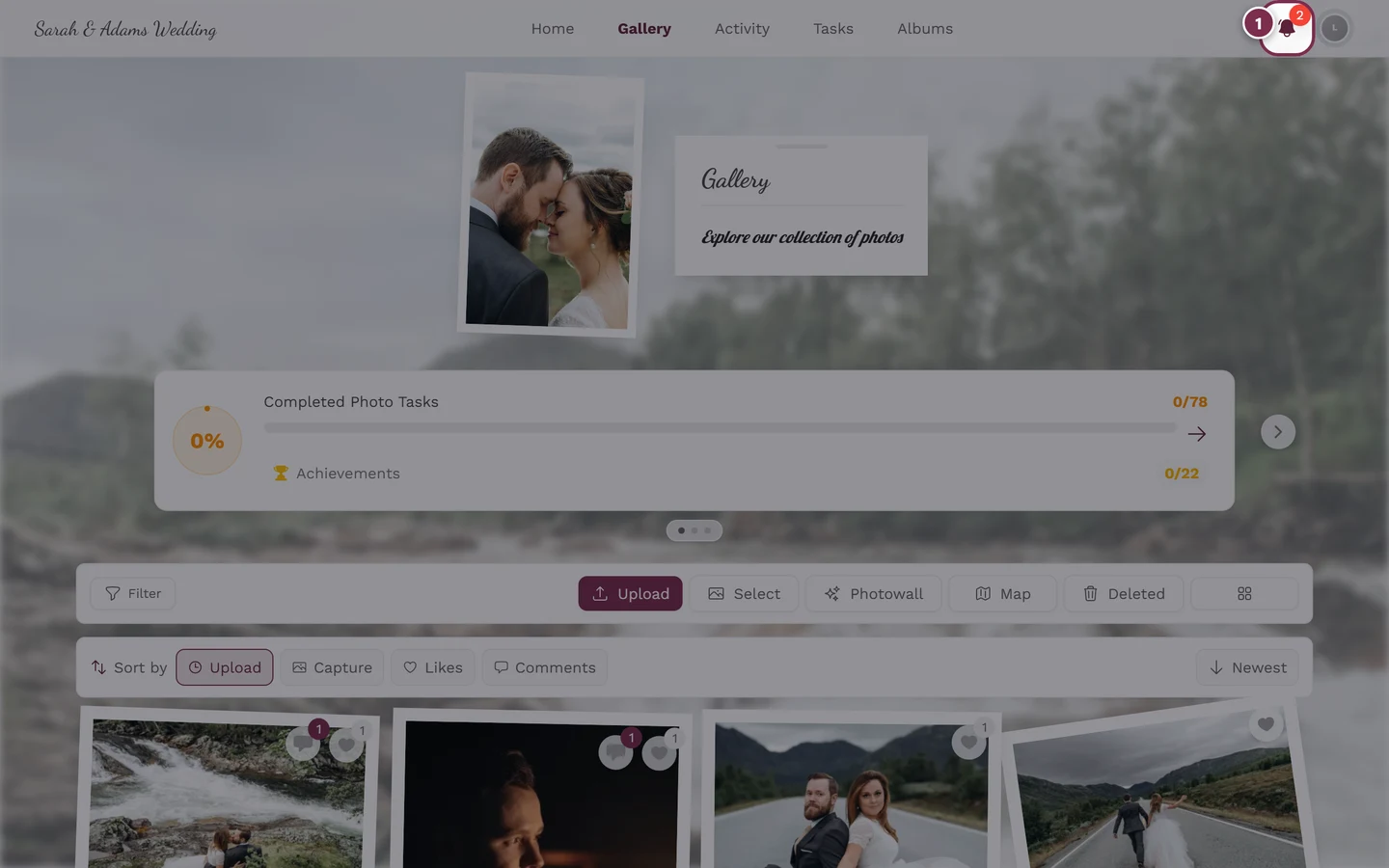
Section titled “Finding the bell”The bell sits in the top right, right next to your profile menu – in the same place on computer and on phone.
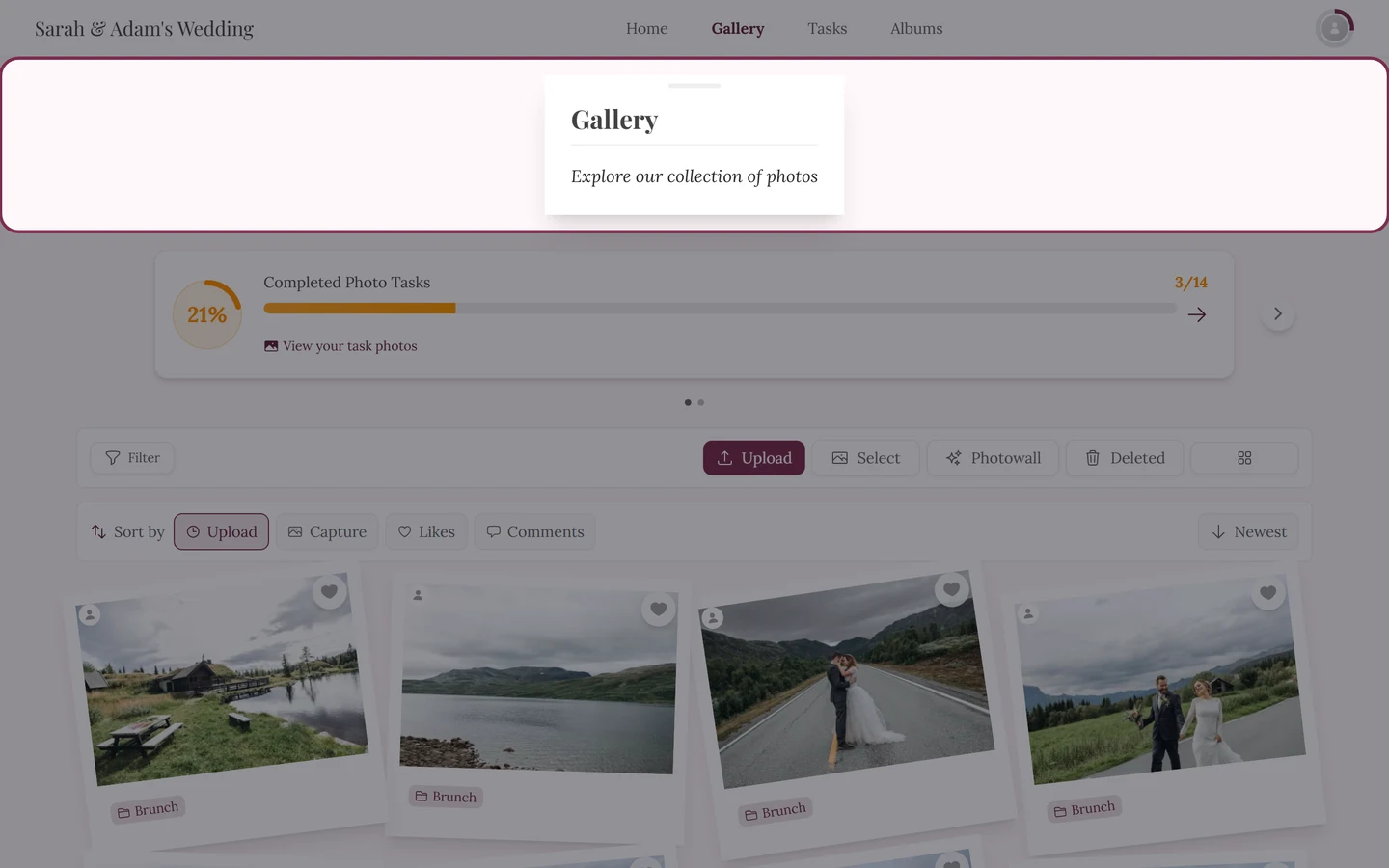
The bell also acts as a status indicator:
- No unread notifications: a gray outline bell.
- Unread notifications present: a filled bell in the event/brand color that briefly wiggles every few seconds to catch your eye.
- Red counter badge: the small red number on the bell shows how many unread notifications there are. From 100 onwards it shows 99+.
Opening and reading the bell
Section titled “Opening and reading the bell”-
Tap or click the bell. The Notifications dialog opens.
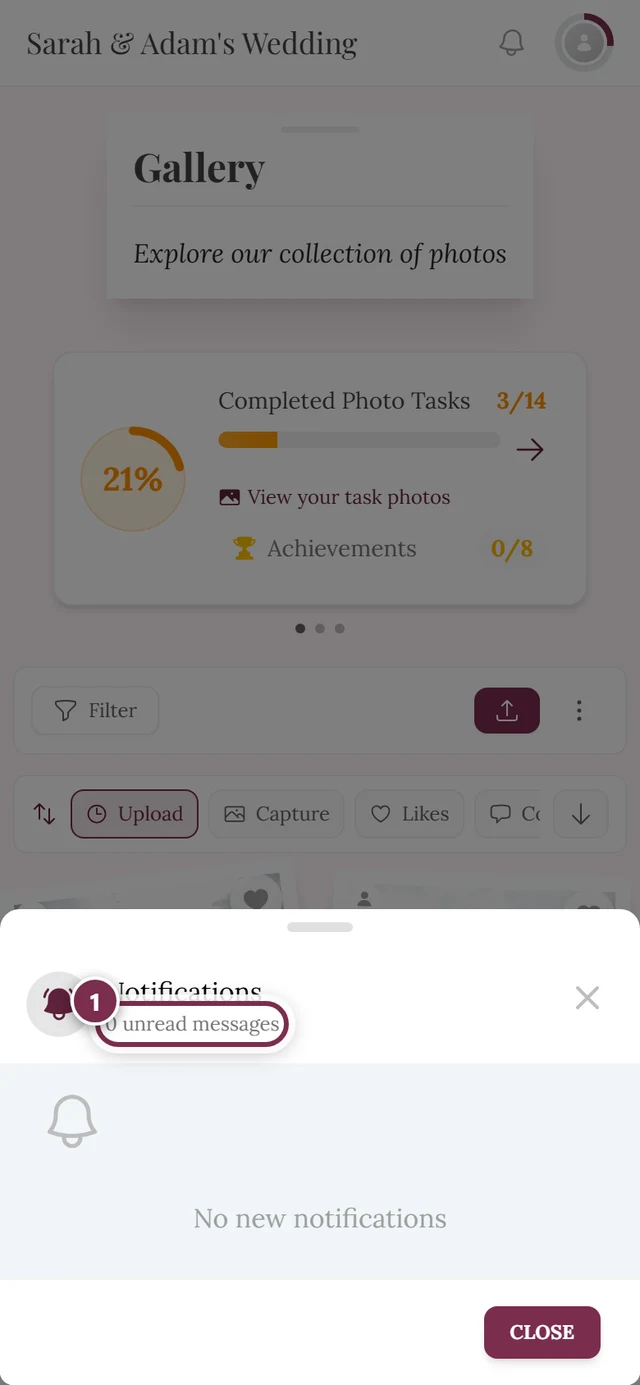
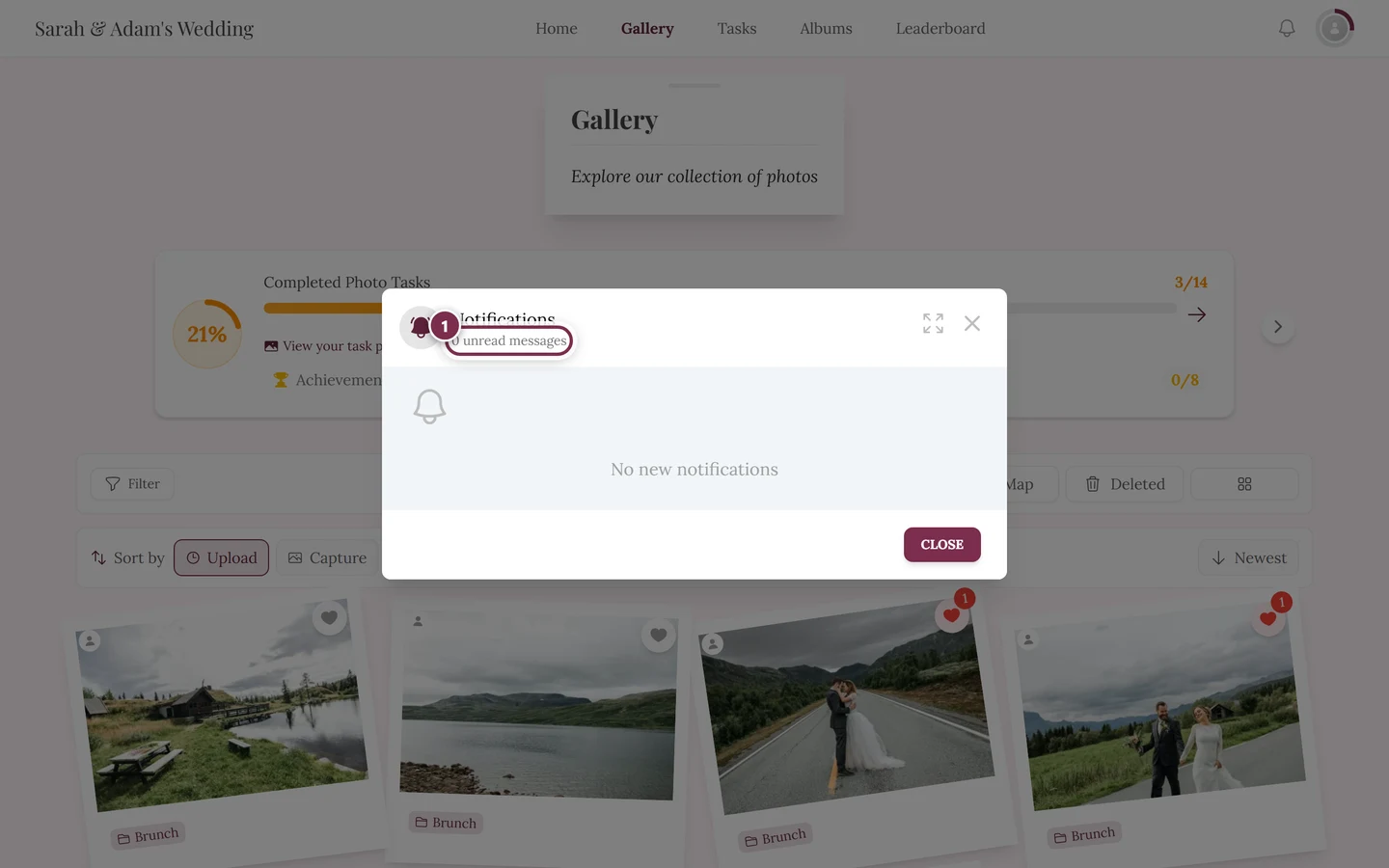
After tapping the bell: the Notifications dialog — the highlighted line summarizes what is still unread. -
Below the title a summary reads “{count} unread messages”.
-
The list shows the newest notifications first. Unread items are highlighted: a brand-colored bar on the left and a small dot on the top right of the icon.
-
Scroll down to load older notifications – the list loads more automatically (10 per page). At the very end you see “No more notifications”.
-
If there is nothing right now, the dialog shows “No new notifications” with a bouncing bell.
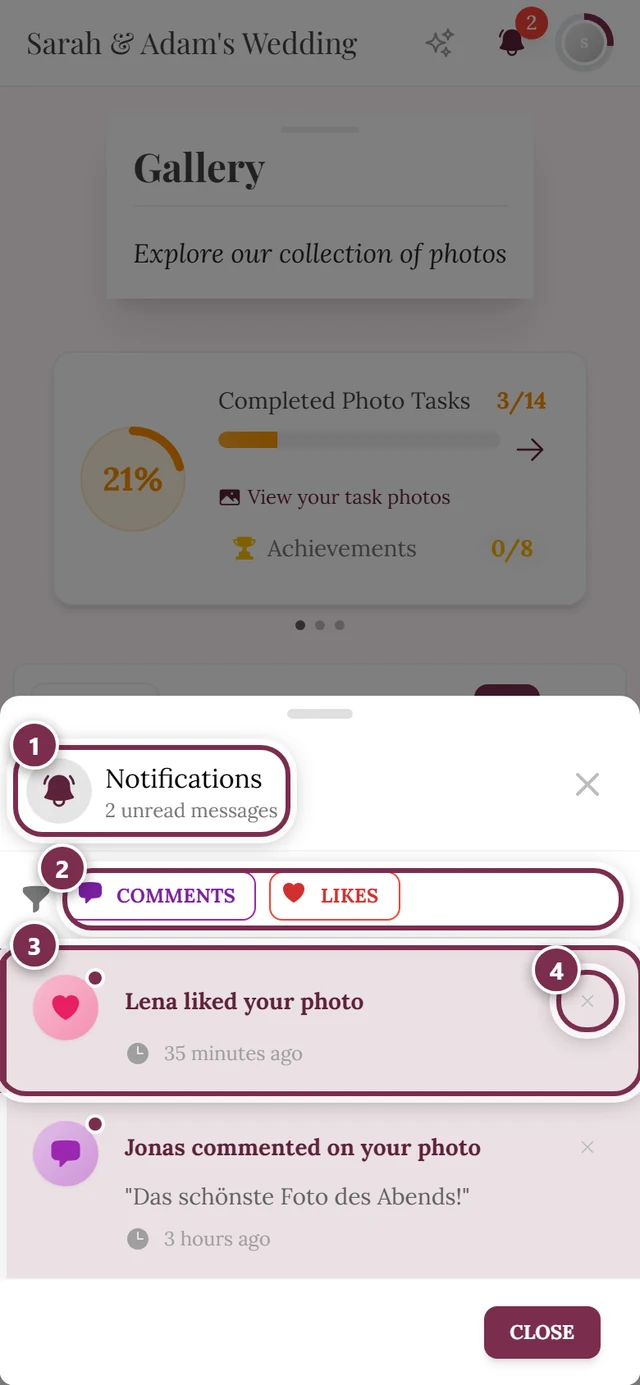
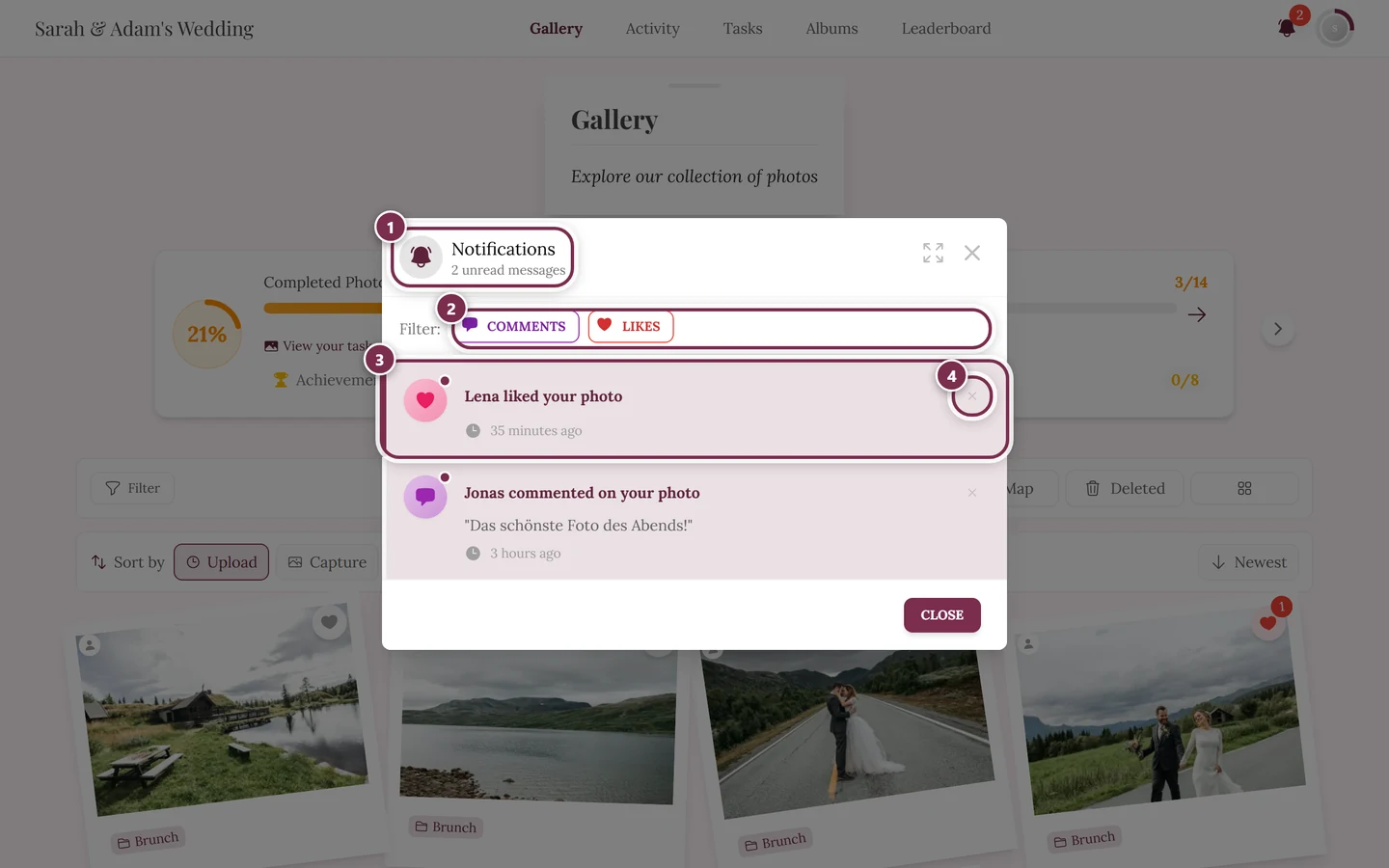
To close, tap Close at the bottom right or the X at the top of the dialog.
Tapping a notification – where it takes you
Section titled “Tapping a notification – where it takes you”Every item is clickable and jumps straight to the right place:
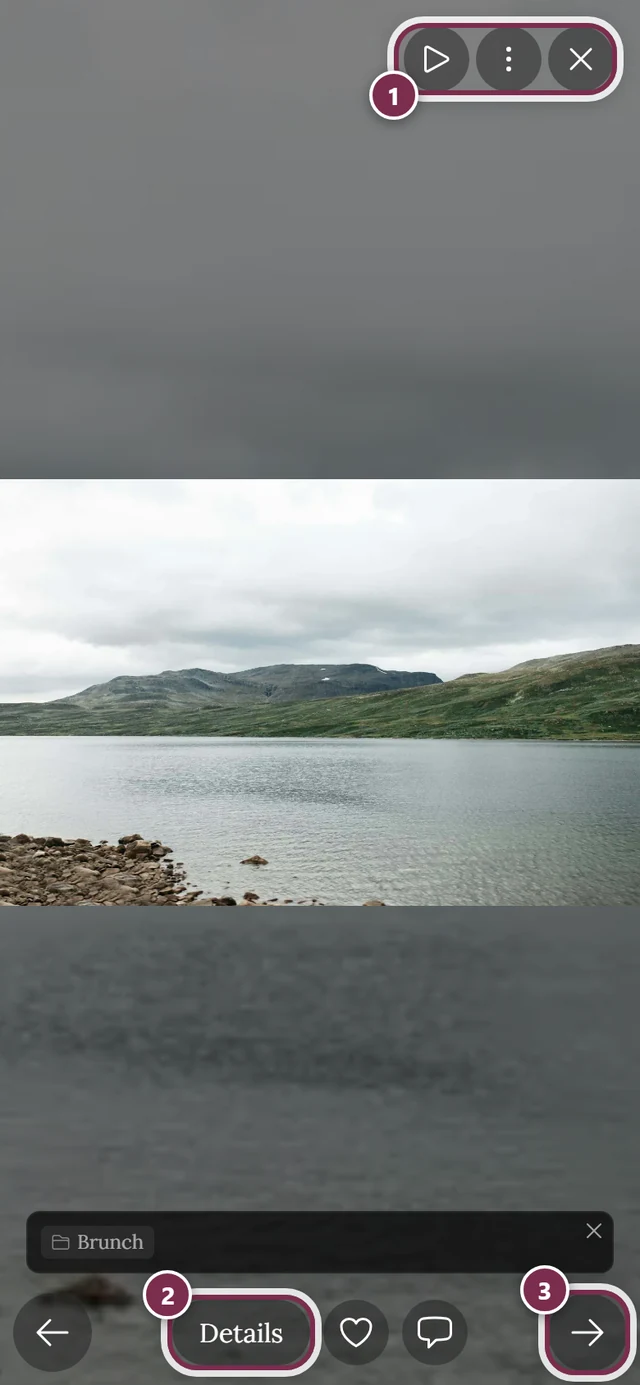
- Like on your photo, comment on your photo, mention or reply → opens the slideshow with exactly that photo. For comment and mention notifications the comments are already open and the relevant comment is in focus.
- Achievement → opens the achievement dialog with the details.
- Role change → jumps to the gallery.
- Moderation notification → opens the slideshow with the affected photo – as long as it still exists. If the photo was removed, the item is not clickable.
What you’re notified about
Section titled “What you’re notified about”These notifications appear with their own text in the list – here with the wording shown and the trigger:
| Event | Displayed text | When |
|---|---|---|
| Photo like | “<Name> liked your photo” · multiple: “… and {count} others liked your photo” · without name: “Someone liked your photo” | Someone likes one of your photos (multiple are grouped) |
| Comment like | “… liked your comment” · “… and {count} others …” | Someone likes your comment |
| Comment on photo | “… commented on your photo” · “… and {count} others …” | New comment on your photo |
| Mention (@) | “<Name> mentioned you” · “Someone mentioned you” | Someone names you with @ |
| Reply | “… replied to your comment” | Reply to your comment |
| Achievement | “Achievement Unlocked!” (+ Redeemable chip when a real reward is pending) | You unlock an achievement |
| Role change | “You are now <Role> for this event!” (+ “Updated by <Name>”) | A host changes your role |
| Moderation: rejected | “Your photo was rejected” (+ “Reason: …”) | Your upload was rejected |
| Moderation: unpublished | “Your photo was unpublished” (+ “Moderated by …”) | A photo was unpublished |
| Processing failed | “Photo processing failed” (+ filename/error) | Technical upload error |
| Report reviewed | “Your report was reviewed” / “Report dismissed” | Your content report was handled |
Filtering by type
Section titled “Filtering by type”With many notifications you can quickly find, say, only mentions or only likes.
-
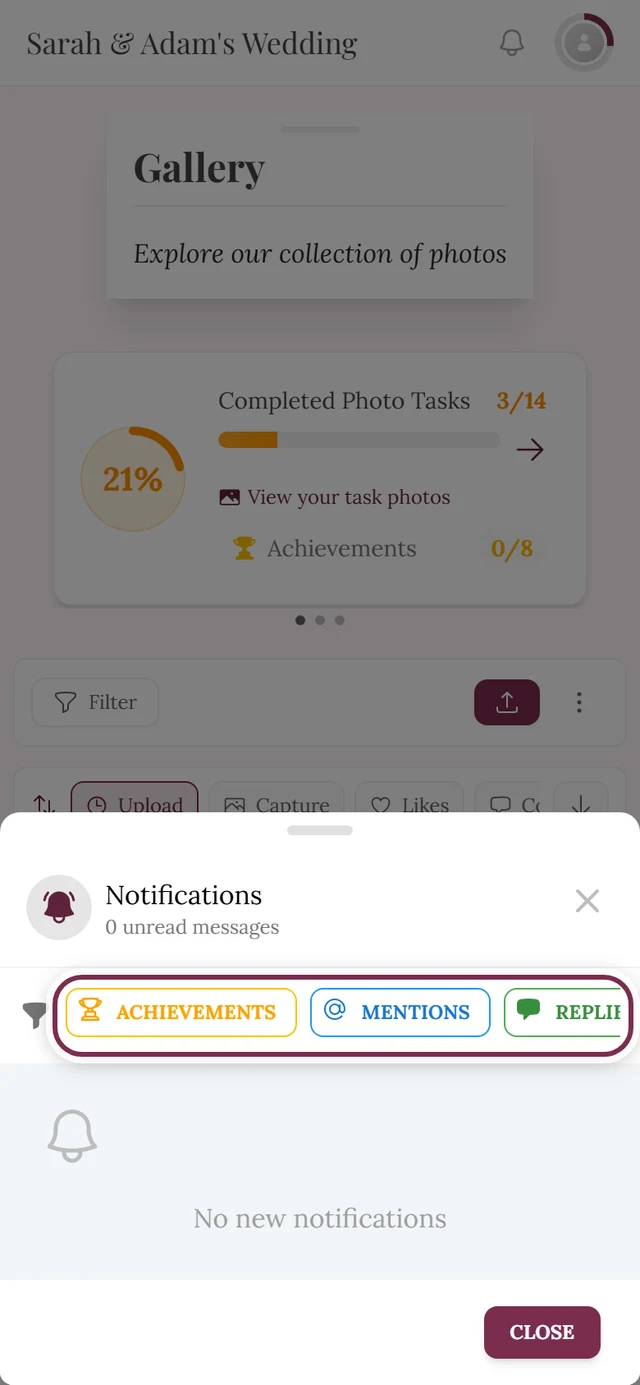
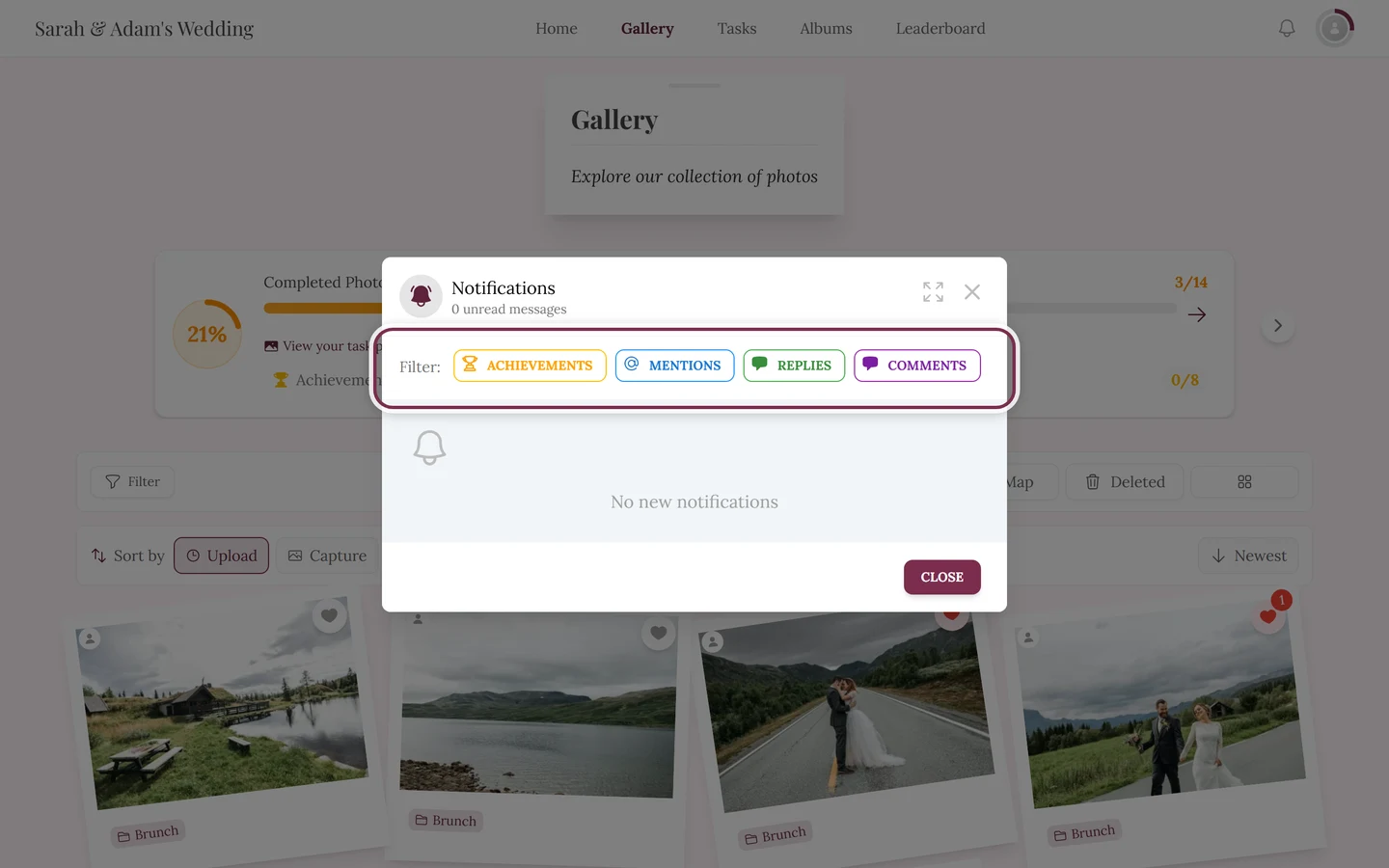
Open the bell. Above the list you see the filter bar. On the computer it starts with “Filter:”, on the phone with just a funnel icon.
-
Tap one of the color-coded chips. Available – depending on what you have received: Achievements, Mentions, Replies, Comments, Likes, Role Changes and Moderation.
-
You can combine several chips. The Likes chip toggles both photo and comment likes; Moderation toggles all moderation types together.
-
To reset, tap Clear all (on the computer) or the trash icon (on the phone). This option only appears once at least one filter is active.
Deleting a single notification
Section titled “Deleting a single notification”You can remove items from the list without the underlying photo or comment disappearing.
-
Via the X icon: at the right edge of every item there is an X (tooltip “Delete notification”). Tapping it swipes the item off to the left and removes it immediately.
-
Via the context menu: right-click (on the computer) or long-press (on the phone) on an item opens a small menu with Open and Delete notification.
-
While deleting, the footer briefly shows “Deleting…”.
Switching notifications on and off
Section titled “Switching notifications on and off”You are not at the mercy of these notifications: as a signed-in user you get a whole tab where every single type can be switched off – plus one switch for emails.
-
Open the settings. Tap the avatar at the top right and pick Account Settings in the Management section. Switch to the Notifications tab there.
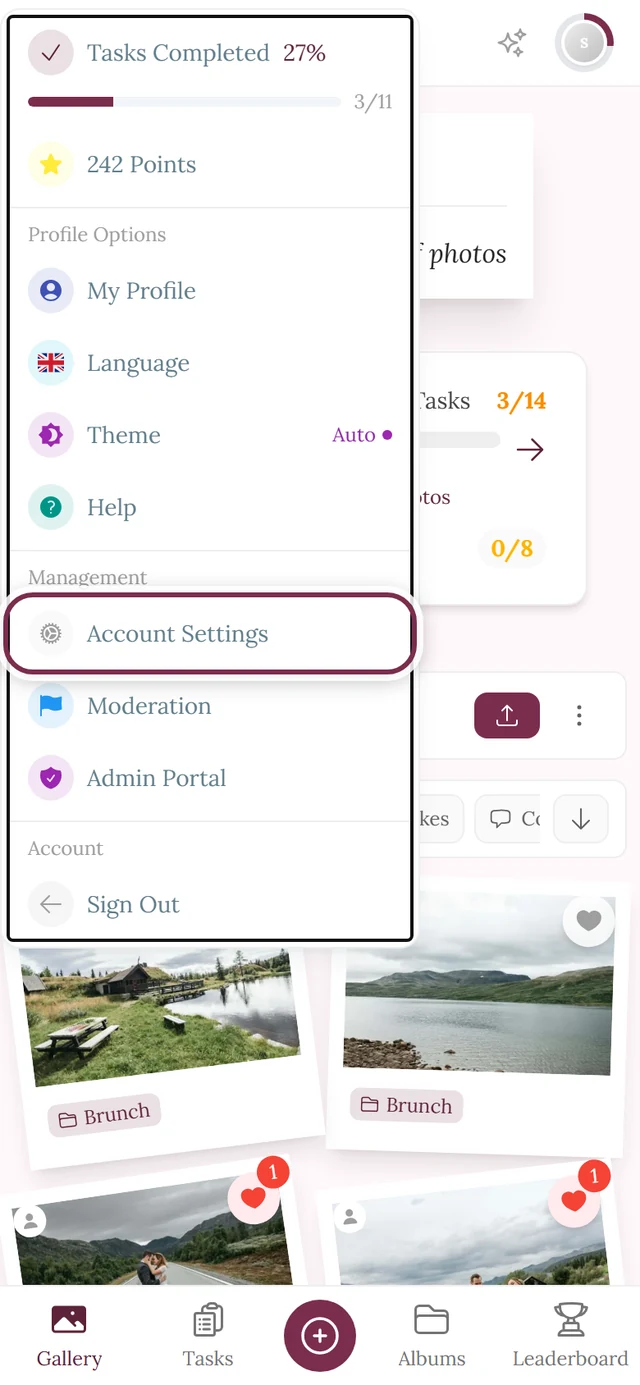
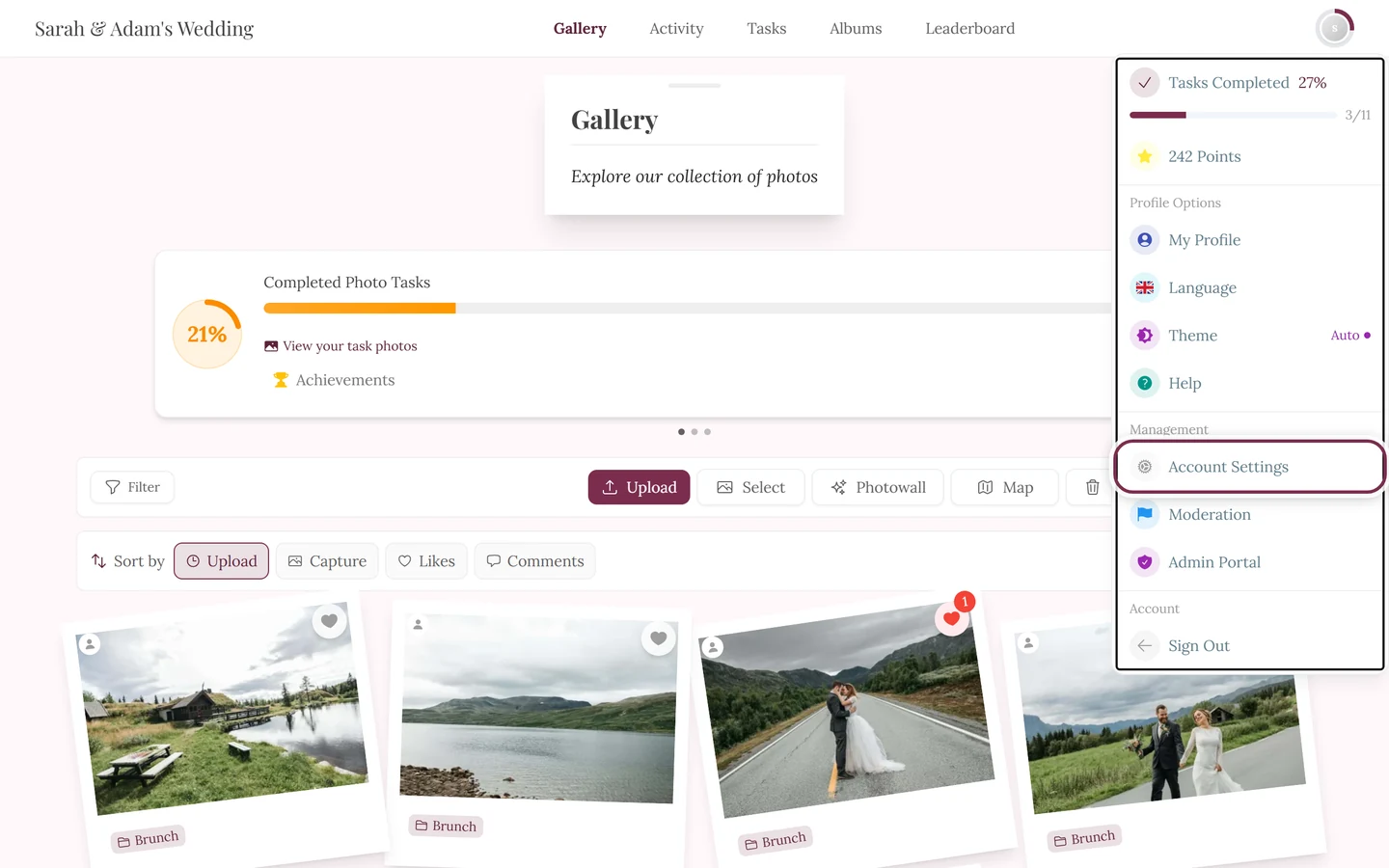
The route to the notification settings runs through Account Settings in the profile menu. -
Emails on or off. At the very top sits the Email Notifications block with a single switch: “Receive important updates and notifications via email”. Off means: no more notification emails.
-
Fine-tune in-app notifications. Below it comes In-App Notifications: “Choose which notifications you want to see while using the app. Click a category to expand or collapse it.” The types sit in three collapsible categories; each category name is followed by how many of them are currently enabled.
-
Flip individual switches. Every type has its own switch with an icon, a name and a short explanation. Off means: that notification no longer shows up in your bell at all.
-
Save. Tap Save Changes at the bottom right – only then are your changes applied.
The three categories and their switches
Section titled “The three categories and their switches”| Category | Switch | Trigger |
|---|---|---|
| Achievements | Achievement unlocked | When you unlock a new achievement |
| Achievements | Role changes | When your role in an event changes |
| Interactions | @mentions in comments | When someone @mentions you in a comment |
| Interactions | Replies to your comments | When someone replies to your comment |
| Interactions | Comments on your photos | When someone comments on your photo |
| Interactions | Media rejected | When your media is rejected by a moderator |
| Interactions | Media unpublished | When your media is unpublished by a moderator |
| Interactions | Processing failures | When your media fails to process |
| Activity | Likes on your comments | When someone likes your comment |
| Activity | Likes on your photos | When someone likes your photo |
| Activity | Photos added to albums | When your photo is added to an album |
| Activity | Report resolved | When action is taken on your report |
In the app or by email?
Section titled “In the app or by email?”There are exactly two channels – and they are switched separately:
- In the app: the bell in the top right. It updates in real time while the gallery is open and collects whatever you missed. Which types land there is what the individual switches above control.
- By email: selected messages also arrive in your inbox. The single Email Notifications switch turns that channel entirely on or off.
Everything live – but two separate mechanisms
Section titled “Everything live – but two separate mechanisms”Photogala updates in real time, but through two different channels that are easy to mix up:
- The bell shows new personal notifications (likes, comments, mentions, achievements …). They appear without a reload: the badge counts up and the bell wiggles.
- The live Gallery updates banner appears at the top of the gallery when new, updated or restored photos arrive in general. It has its own Refresh button and an X to close it, and it expands to show the list of changes. It may also point out that the sort order might have changed.
Availability
Section titled “Availability”- The bell only appears once you have received at least one notification.
- Which types can occur at all depends on the active event features: without comments enabled there are no comment, mention or reply notifications; without achievements/rewards no achievement notifications; moderation notifications only with moderation active.
- The bell itself is not an on/off switch – clicking it always just opens the list. What ends up in that list is what you configure in the Notifications tab of Account Settings (see above) – which requires a registered account.
Troubleshooting
Section titled “Troubleshooting”Related topics
Section titled “Related topics”- Guest or account – this is where the notification settings live.
- Likes & comments
- Slideshow
- Redeeming real rewards
- Points & rewards
- Changing the language – notification texts and numbers are language-dependent.