Inviting guests
An event lives through its guests. This page teaches you step by step how to share and control access to your gallery – from a quick QR code and link (the default code) to finely granular invitation codes with their own role, expiration and usage limit.
Reaching the “Access” area
Section titled “Reaching the “Access” area”-
Open the admin area via the profile menu in the top right (entry Management → Admin portal).
-
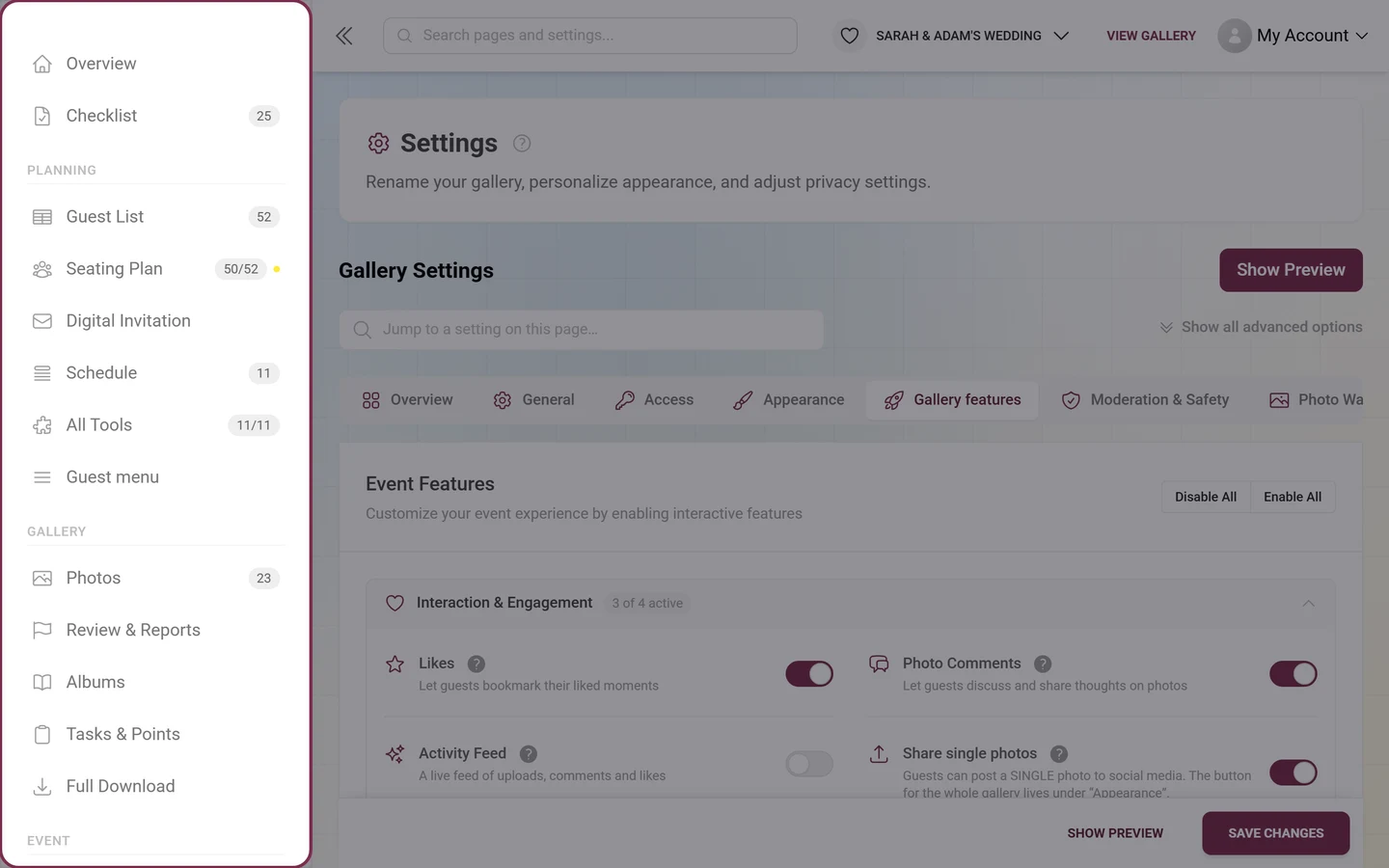
In the left sidebar, group Event, click Settings and then the Access tab (key icon). Direct route:
/admin/settings?tab=access. -
The tab is headed Gallery access with the subtitle “Who may open your gallery, what guests may do there, and what their sign-in looks like.”
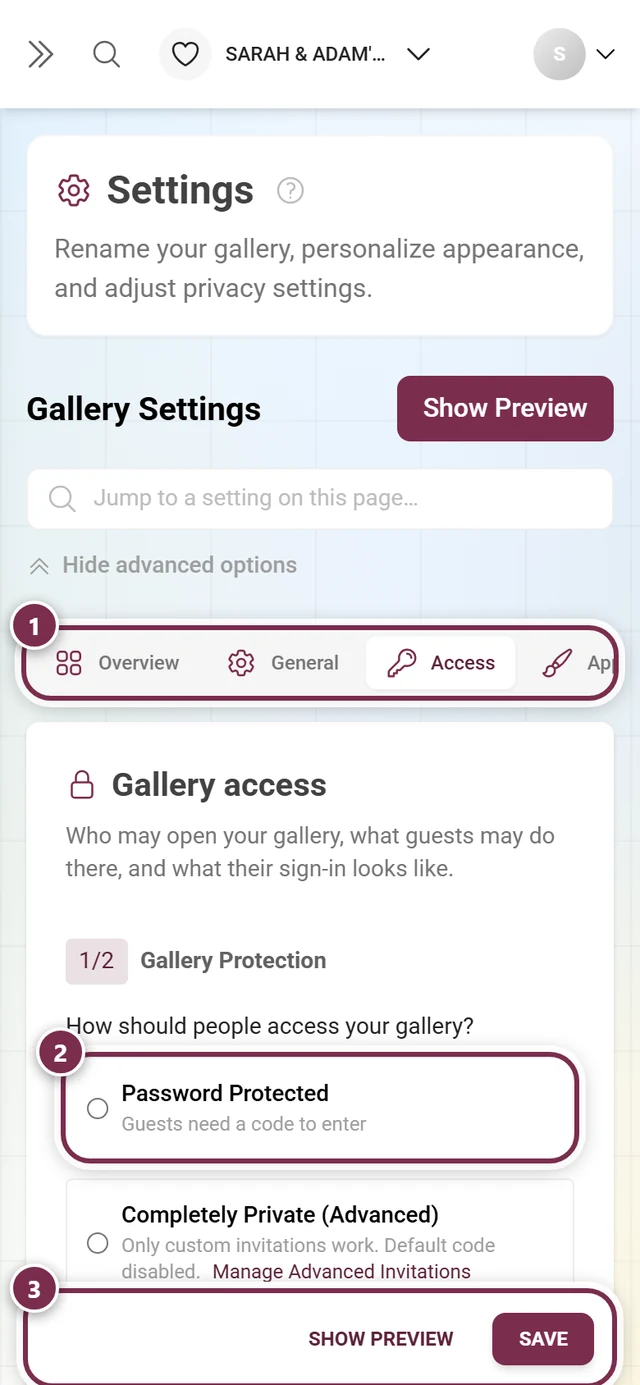
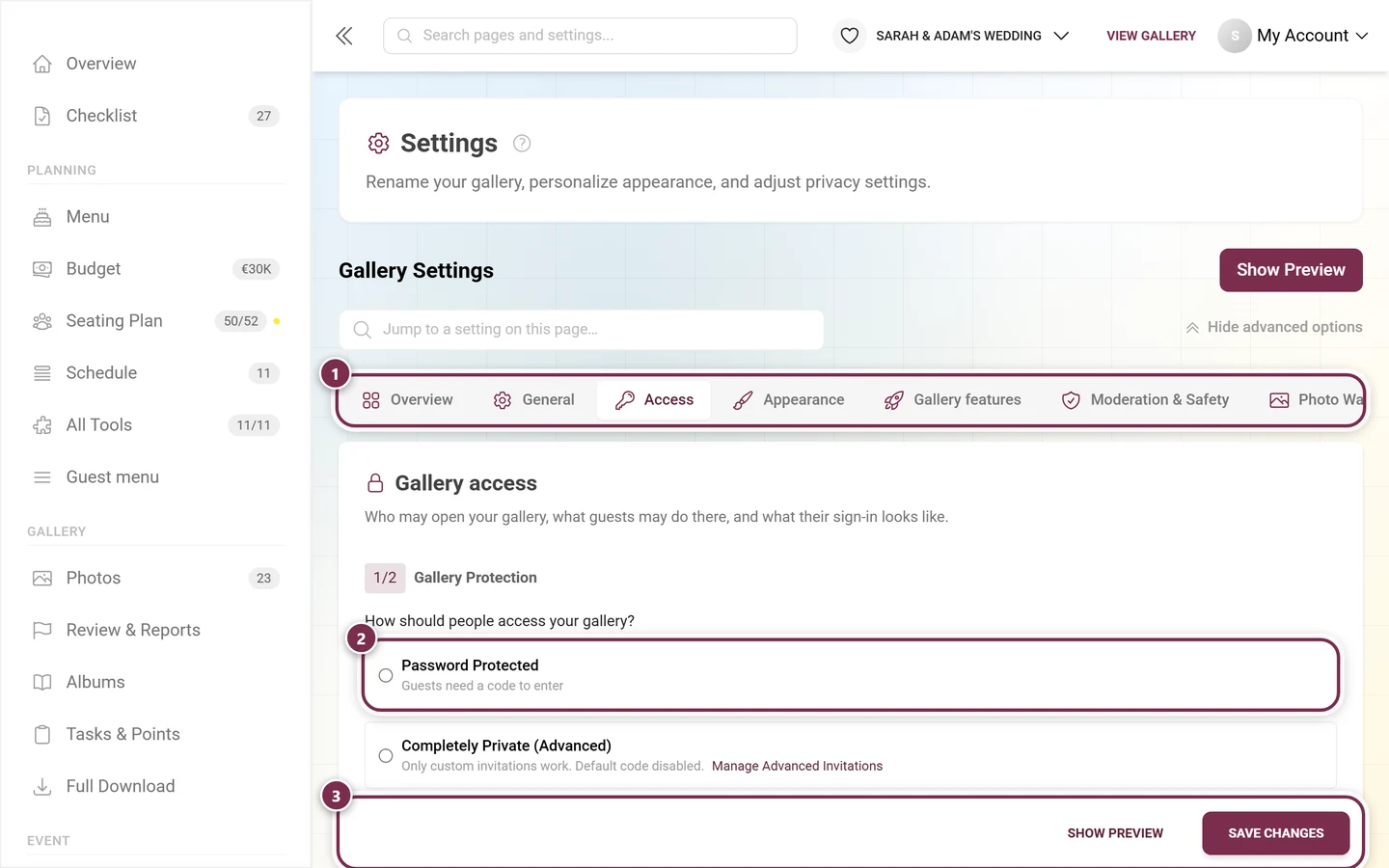
Settings → Access: gallery protection, what guests may do, and the invitation codes – all on one page. ① the tab row with Access open, ② gallery protection with three choices: Password Protected (guests need a code), Completely Private (Advanced) (only invitations you create yourself work, the default code is off) and Open Access (anyone with the link can view), ③ Save Changes at the bottom. Further down the page come the guests' default permissions and the Invitation codes card.
What this tab contains
Section titled “What this tab contains”The tab is made of two cards, one below the other:
- Gallery access – with the numbered sections 1/2 Gallery Protection and 2/2 Gallery mode plus the unnumbered fold Guest Experience.
- Invitation codes – holding the Custom Invitations block, your own codes with their own role.
1/2 Gallery Protection: choosing the access mode
Section titled “1/2 Gallery Protection: choosing the access mode”Under the question How should people access your gallery? you pick one of three options:
-
Password Protected – “Guests need a code to enter”. Two fields fold out:
- Default Invitation Code (placeholder “e.g., wedding-2024”). The Random button generates a readable code. This code is embedded in the simple invite links and QR codes (“This code is used for simple invite links and QR codes.”).
- Checkbox Include default invitation code in QR code – when ticked, the code is baked into the generated QR codes so guests join without typing.
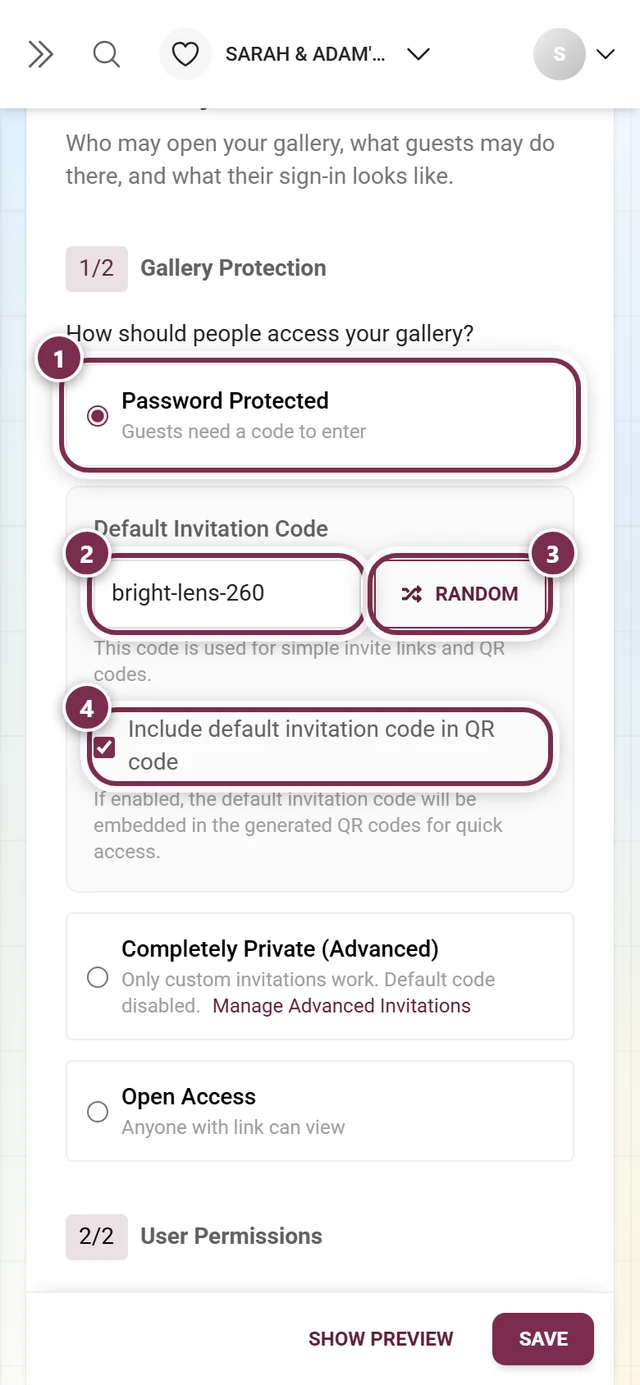
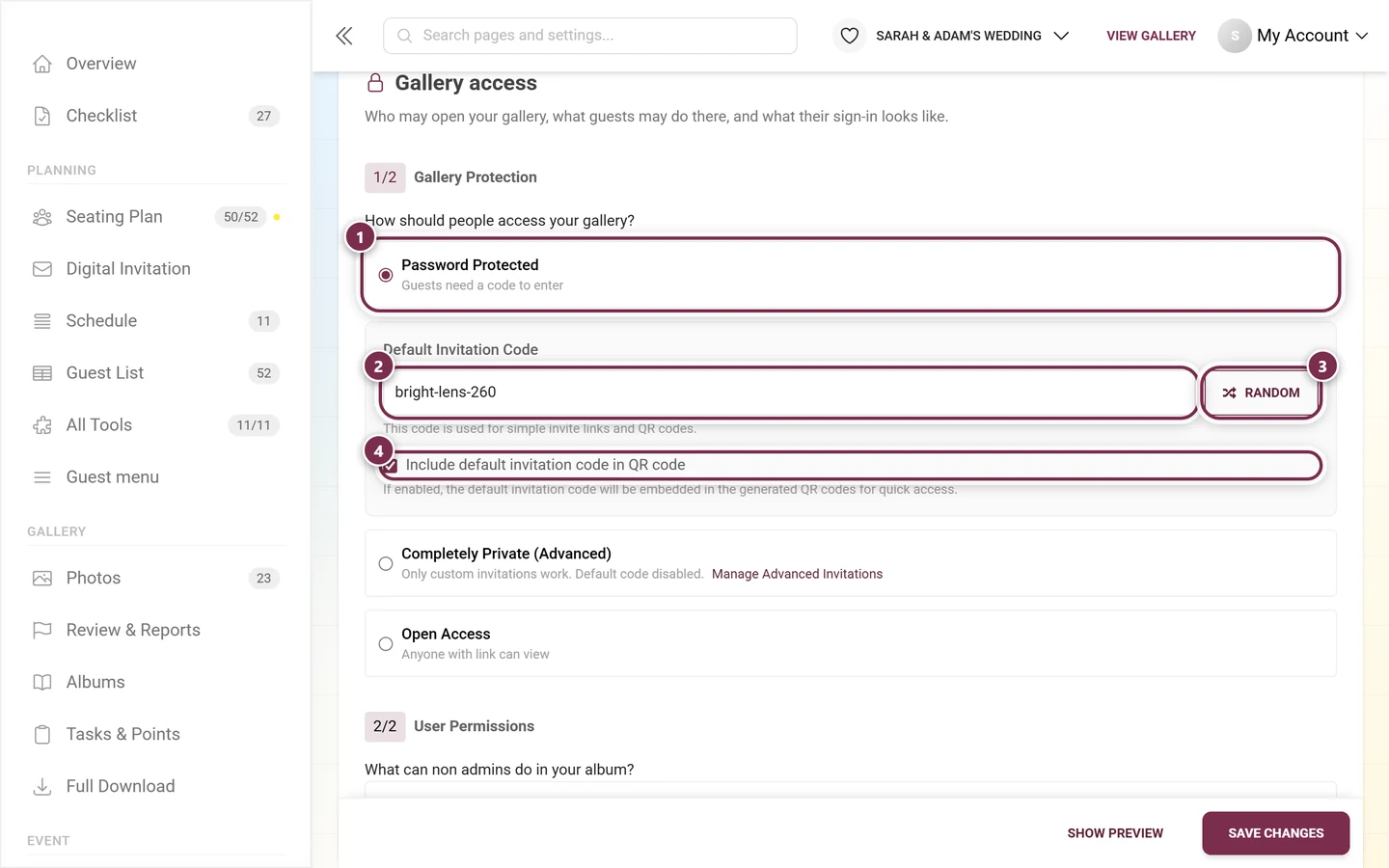
① Password Protected is selected – only then do the fields below fold out. ② the Default Invitation Code, here ‘bright-lens-260’. ③ Random rolls a new, readable code. ④ the checkbox Include default invitation code in QR code. -
Completely Private (Advanced) – “Only custom invitations work. Default code disabled.” The link Manage Advanced Invitations already sits in that very row; once selected, the info box Maximum Privacy Mode appears with the same button. Both jump to the Invitation codes card further down.
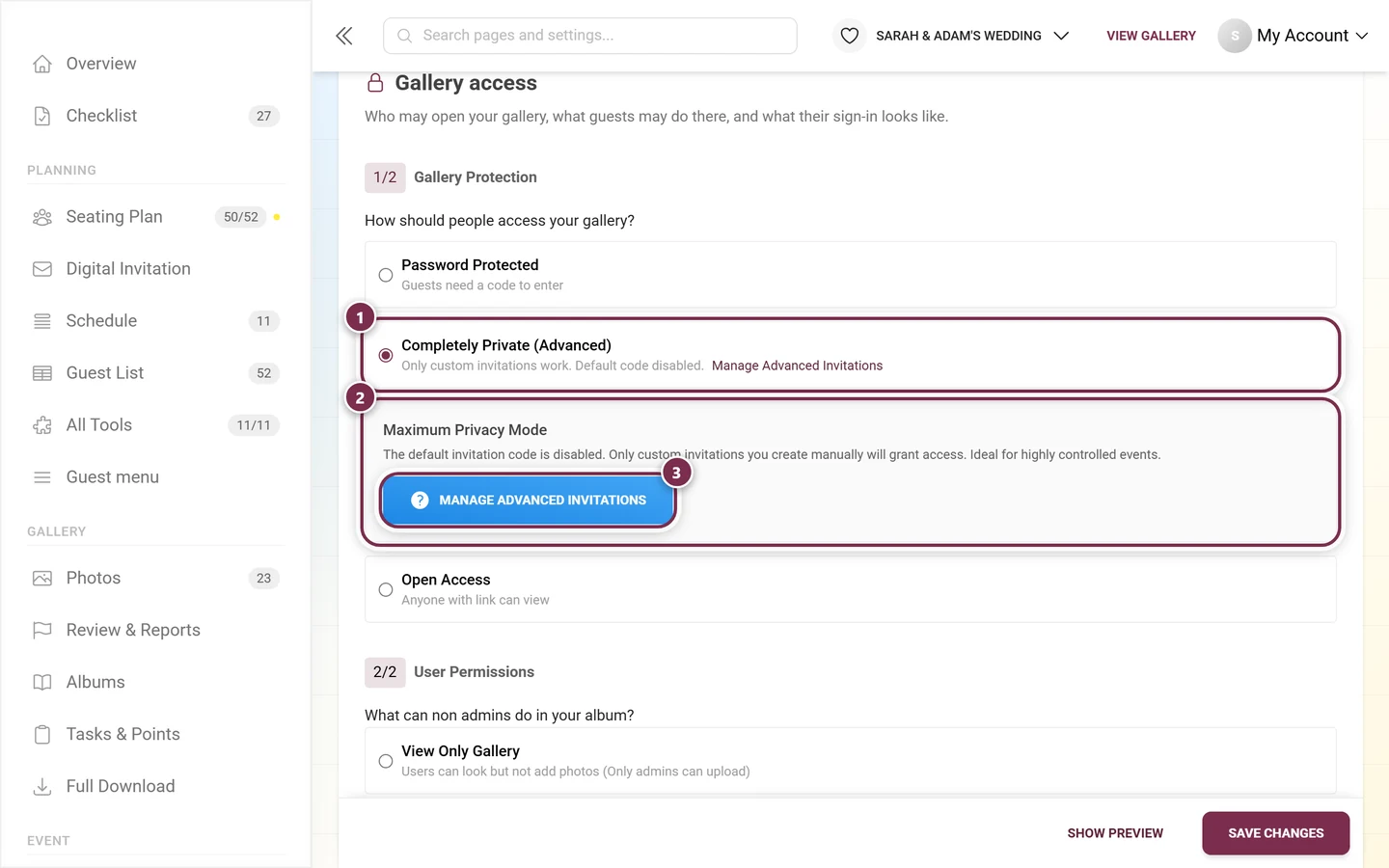
① Completely Private (Advanced) is selected. ② the Maximum Privacy Mode box spells out the consequence: ‘The default invitation code is disabled. Only custom invitations you create manually will grant access.’ ③ the Manage Advanced Invitations button jumps to the invitation codes. -
Open Access – “Anyone with link can view”. Once selected, the row adds “(Set default permissions below)”, and the card Default Guest Permissions appears with the line “Applies to the general gallery link and standard code. Individual invitations may assign other permissions.” and two options:
- Viewer (eye icon) – “Can view and like photos. Cannot upload photos or videos.”
- Contributor (camera icon) – “Can upload photos and videos when guest uploads are allowed.”
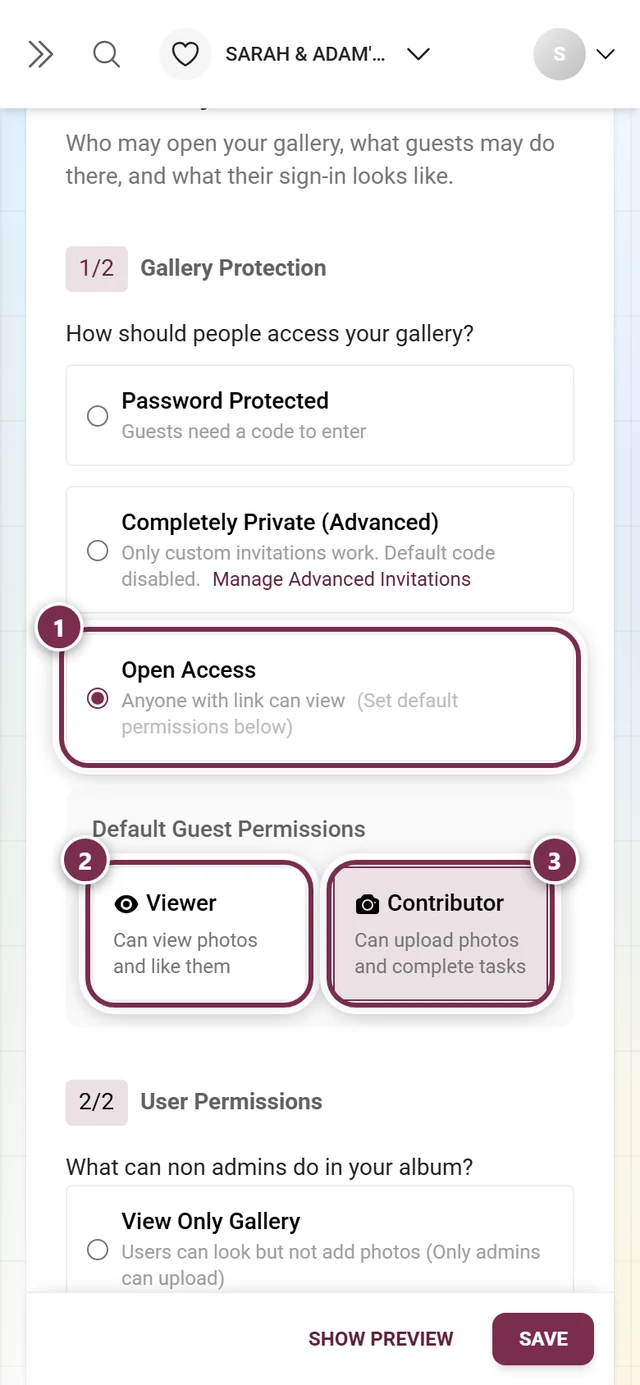
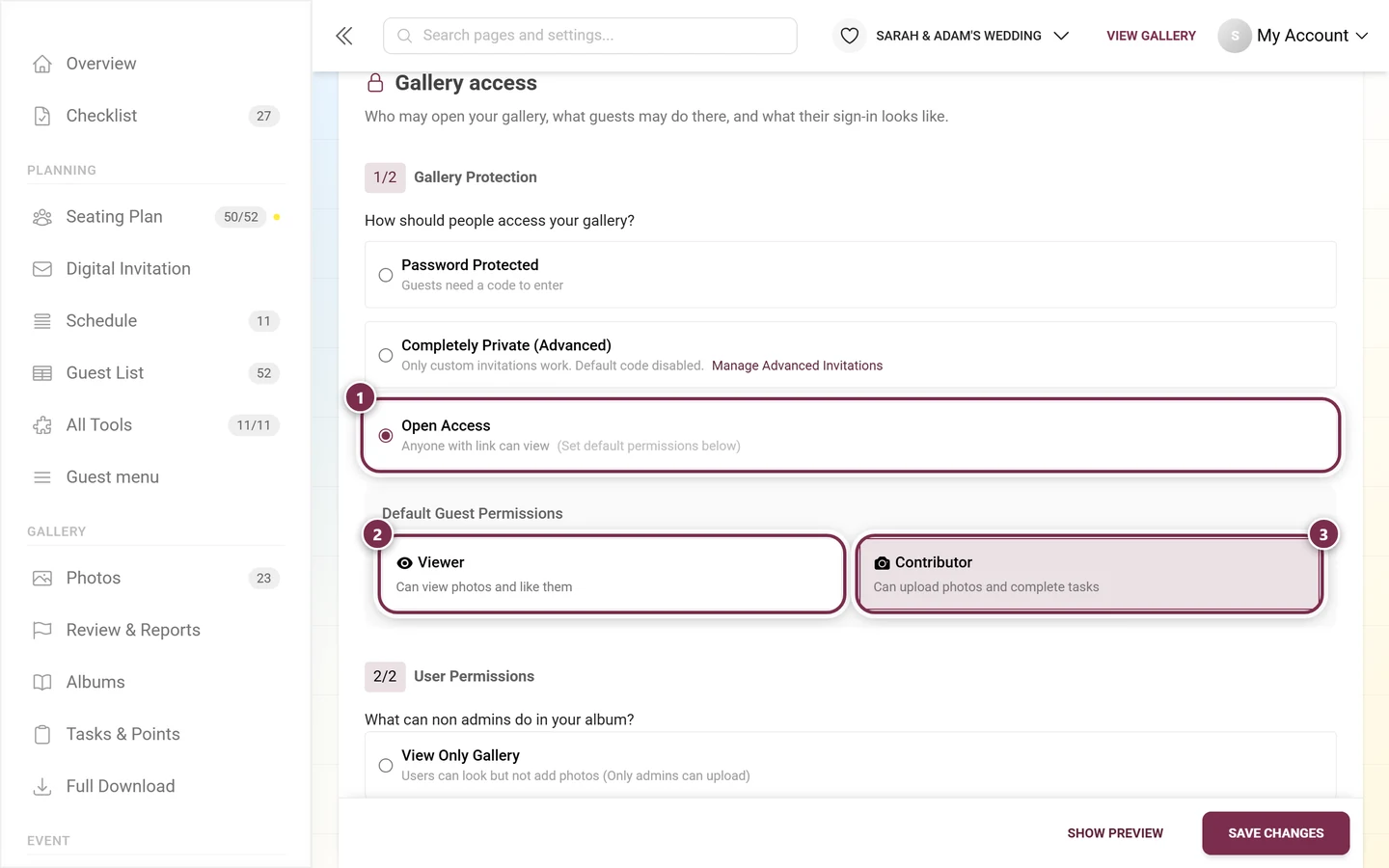
① Open Access is selected, which is why ‘(Set default permissions below)’ follows it. ② the Viewer option, ③ the Contributor option – the marked option is the active default role. This choice is the default role: it applies to every printed QR code, to public invitation links and to any access without a code of its own. Pick Viewer and the note Viewers cannot contribute photos appears below it with the line “These guests can view and like photos, but cannot upload. To collect their photos, choose Contributor or give them a Contributor invitation.” plus a Manage Invitations link – uploading is then reserved for whoever gets a custom code with the Contributor role. If View Only Gallery is selected at the same time, the line reads “This role does not allow uploads. View Only Gallery also blocks Contributors and individual upload invitations.”, and the link is dropped. Below the note, depending on what is saved, it says “Applies after you save your changes.” or “This setting is saved.”
2/2 Gallery mode
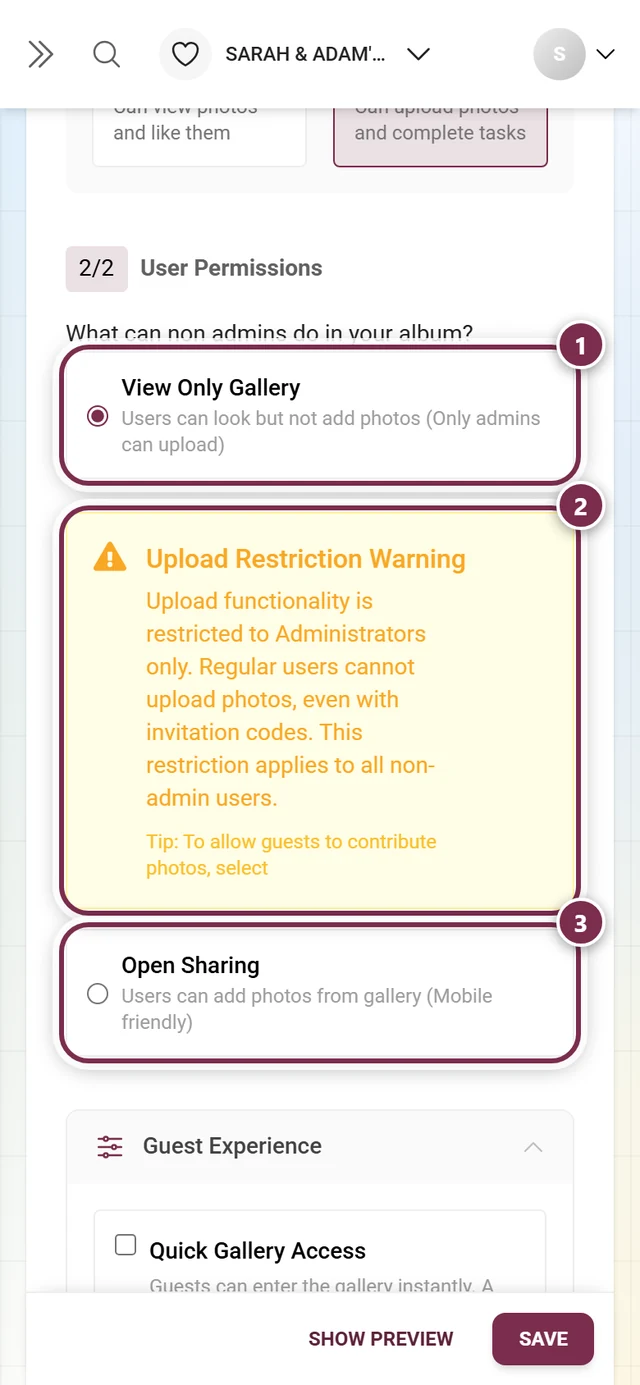
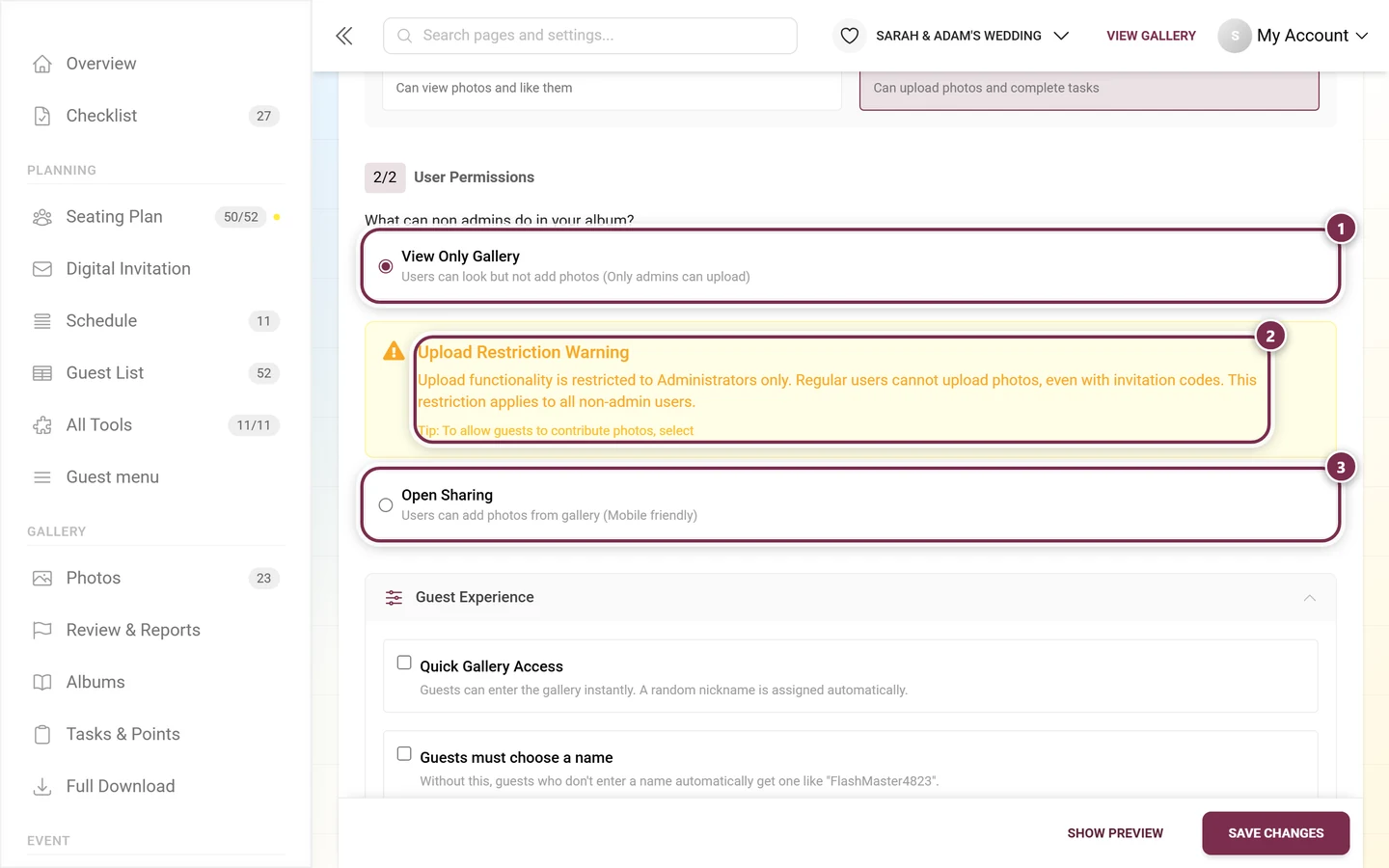
Section titled “2/2 Gallery mode”Right below it you answer the question Allow guest uploads in this gallery? – again with two options:
- View Only Gallery – “View only. Uploads are restricted to event admins and owners.” Pick it and the note All guest uploads are disabled appears below: “Contributors and guests with a Contributor invitation cannot upload photos or videos either. This mode takes precedence over roles and invitations. Event admins and owners can still upload.”
- Allow guest uploads – “Contributors can upload. Viewers keep their viewing permissions.”
Below that, Result of your selection sums up what gallery protection, default role and gallery mode do together – for example “No guest can upload. Invitations do not override this restriction.”, “Standard guests cannot upload. Individually invited Contributors can upload.” or “Standard guests and invited Contributors can upload.” As long as the saved settings say guests can’t upload, a warning banner above every page of the admin area reminds you of it as well (see Dashboard).
The “Guest Experience” fold
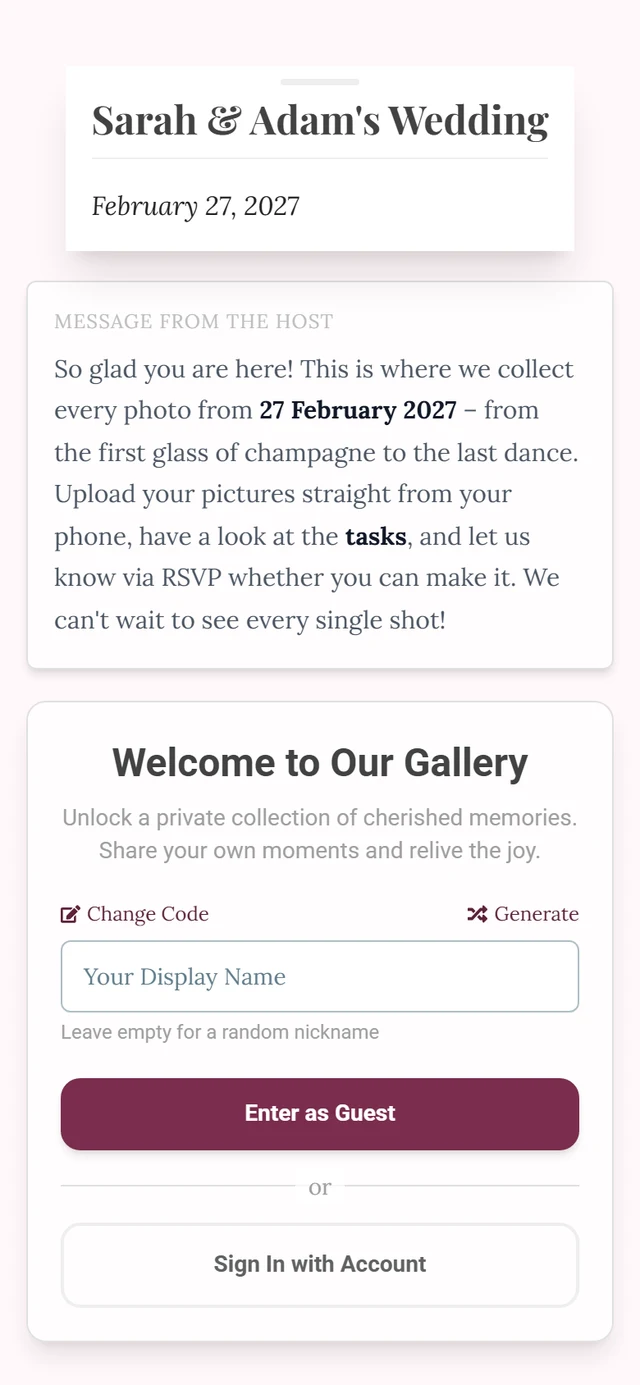
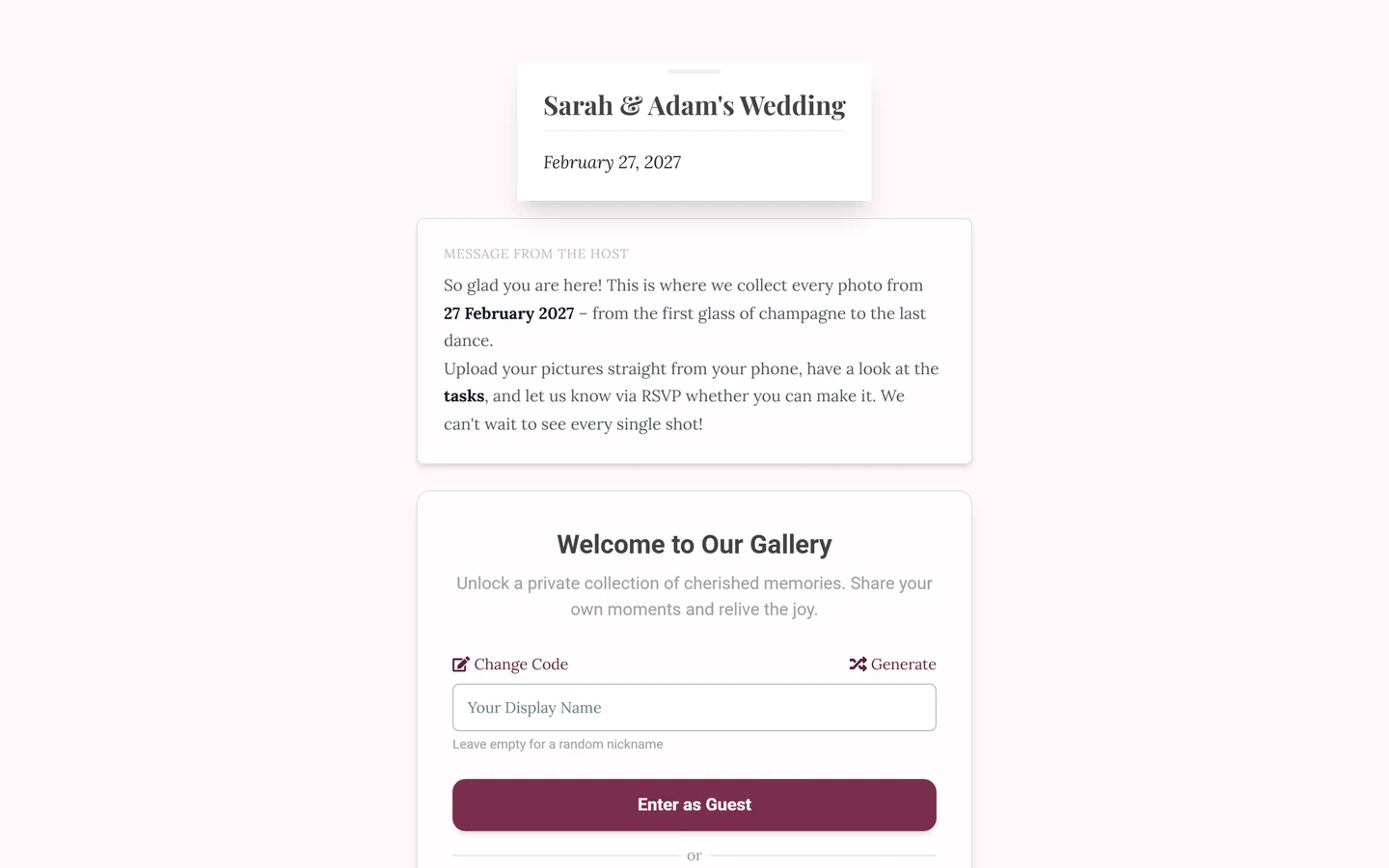
Section titled “The “Guest Experience” fold”Below the two numbered sections sits an unnumbered fold with three checkboxes around how your guests sign in. If it is collapsed, tap the Guest Experience row once – the three options then sit below each other.
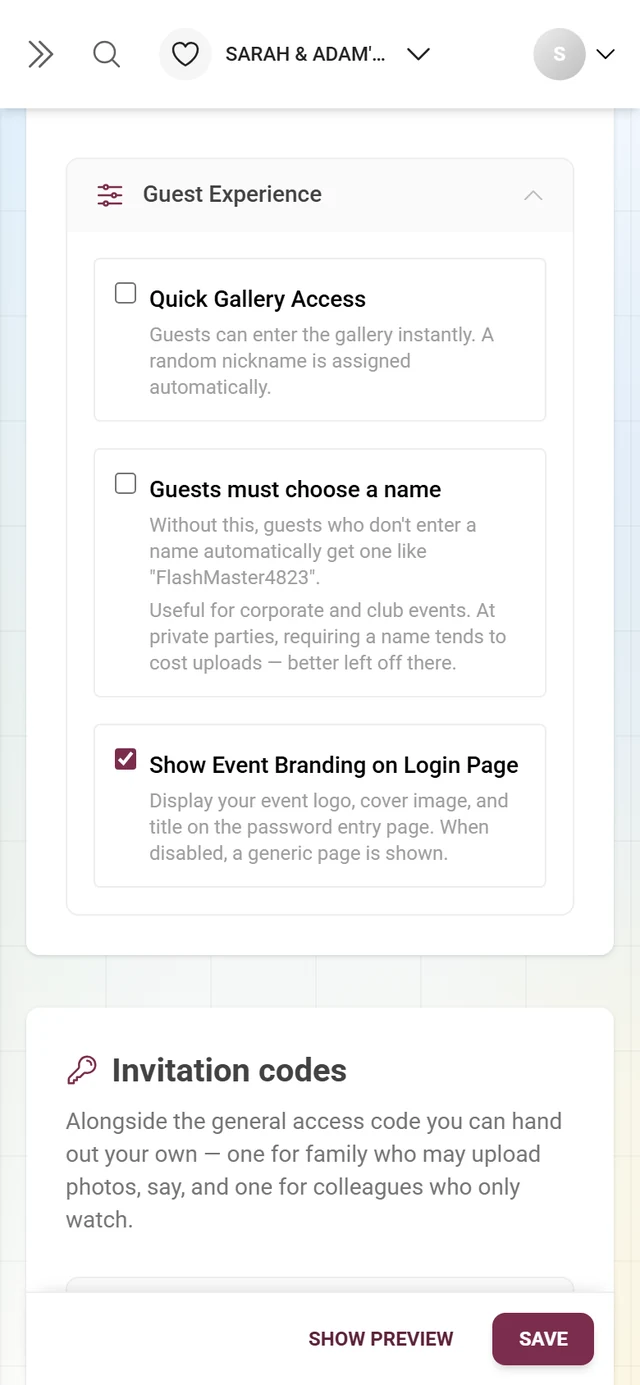
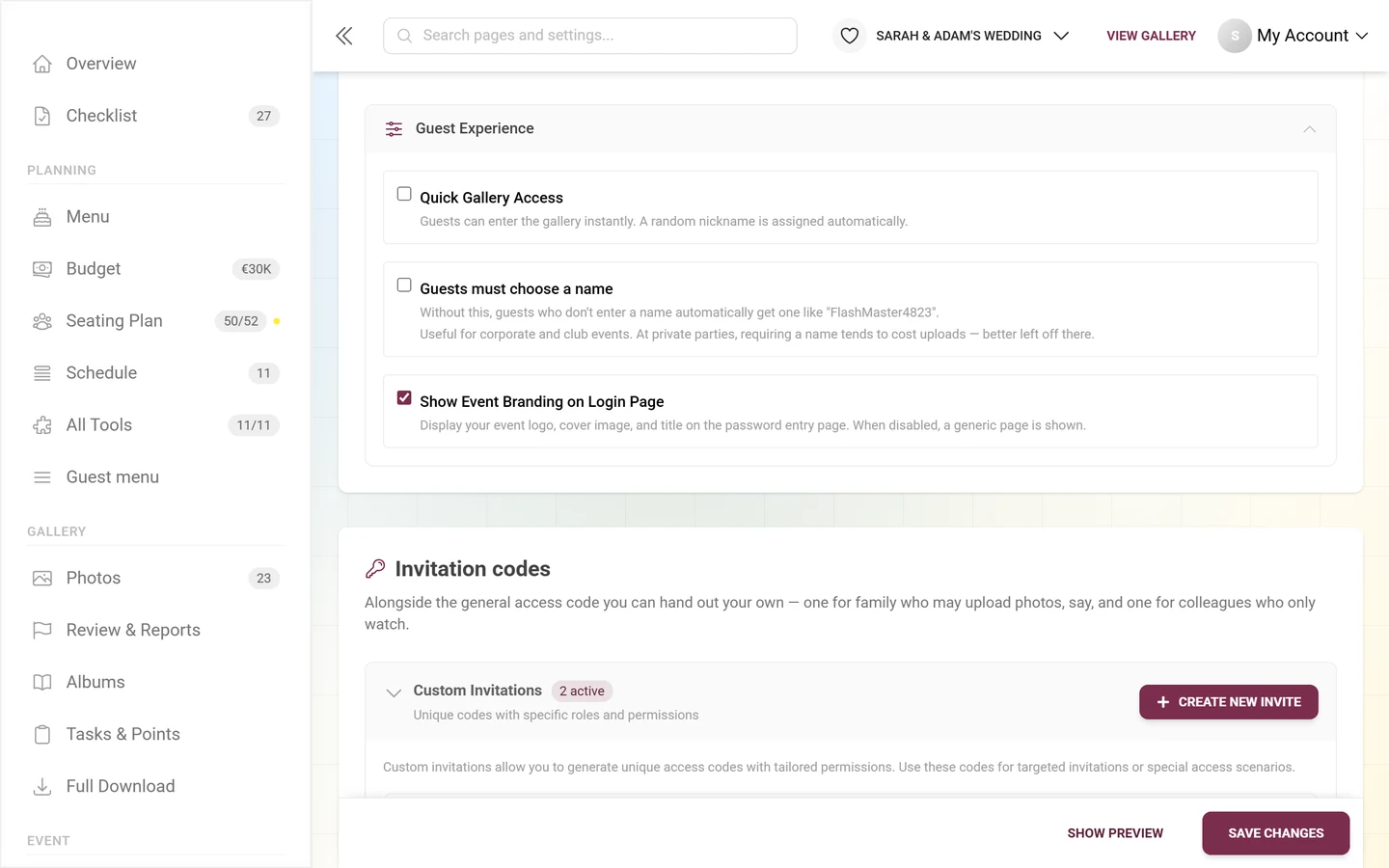
This is how you switch one of them on: tick the box → tap Save Changes at the bottom. Only then does it take effect for your guests.
- Quick Gallery Access – “Guests can enter the gallery instantly. A random nickname is assigned automatically.” If the gallery is password-protected or completely private, one more line adds: the password is still required, only the nickname step is skipped. Off means every guest lands on the welcome screen first and chooses there.
- Guests must choose a name – without it, anyone who enters no name gets an automatic nickname like “FlashMaster4823”. The hint below: useful for company parties and club events; at private celebrations a mandatory name tends to cost you uploads. On means no name, no entry.
- Show Event Branding on Login Page – shows your logo, cover image and title on the password page. Untick it and guests see a plain page without your event.
Saving
Section titled “Saving”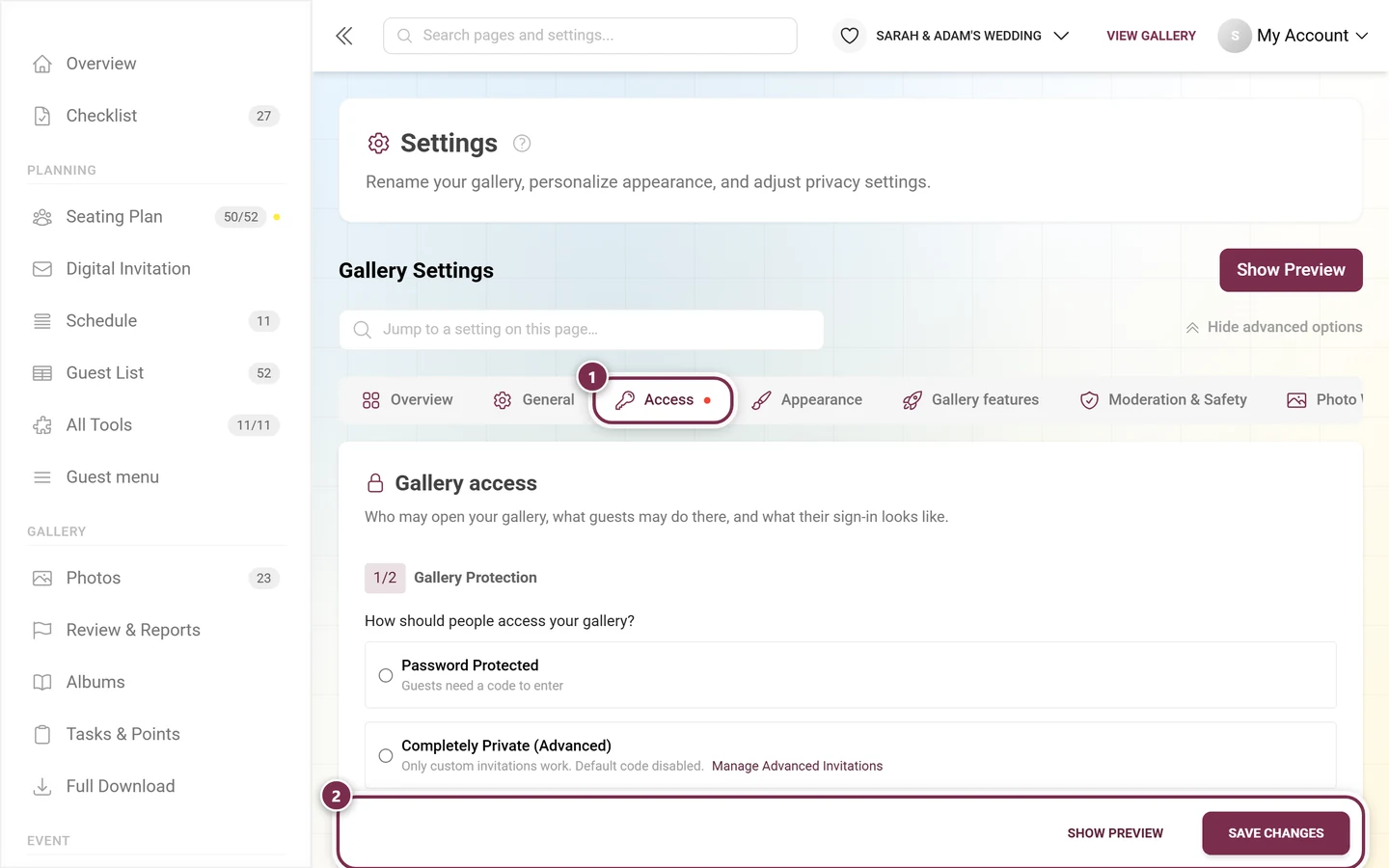
The “Invitation codes” card
Section titled “The “Invitation codes” card”The second card on the tab is headed Invitation codes with the line: “Alongside the general access code you can hand out your own — one for family who may upload photos, say, and one for colleagues who only watch.” Inside sits the collapsible Custom Invitations block with counter badges active / inactive.
Empty state: No Custom Invites Yet with the button Create Your First Invite.
The action bar above the table
Section titled “The action bar above the table”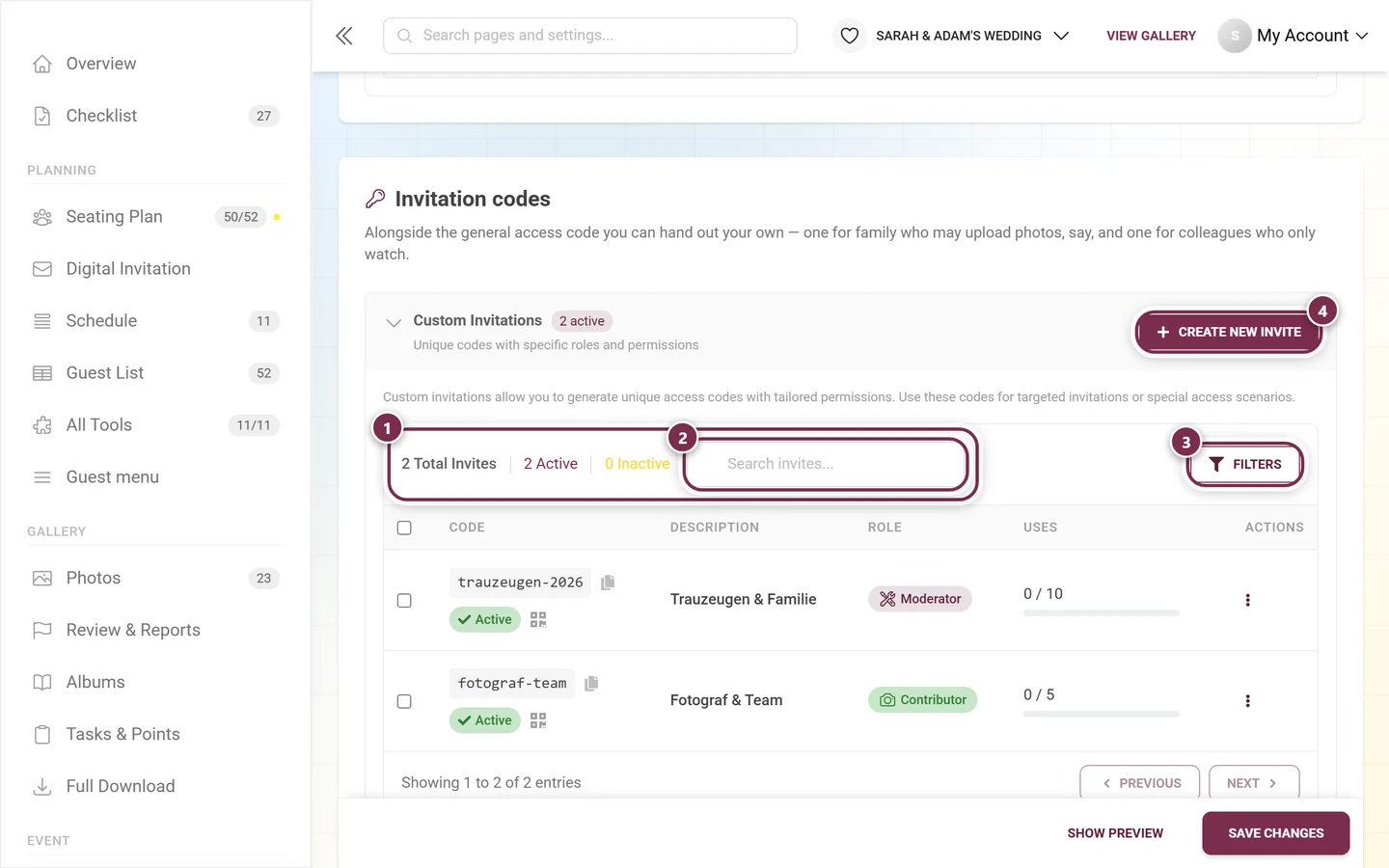
- Metrics on the far left: a count plus Total Invites, Active and Inactive. Clicking them does not filter – the numbers are display only.
- Search field Search invites… – searches code and description.
- Button Filters opens a dropdown (see below).
- Button Create New Invite top right, above the bar. The same button appears once more below the table, next to the italic Pro tip: “Create separate invites for different roles or user groups for better access management.”
The filter menu
Section titled “The filter menu”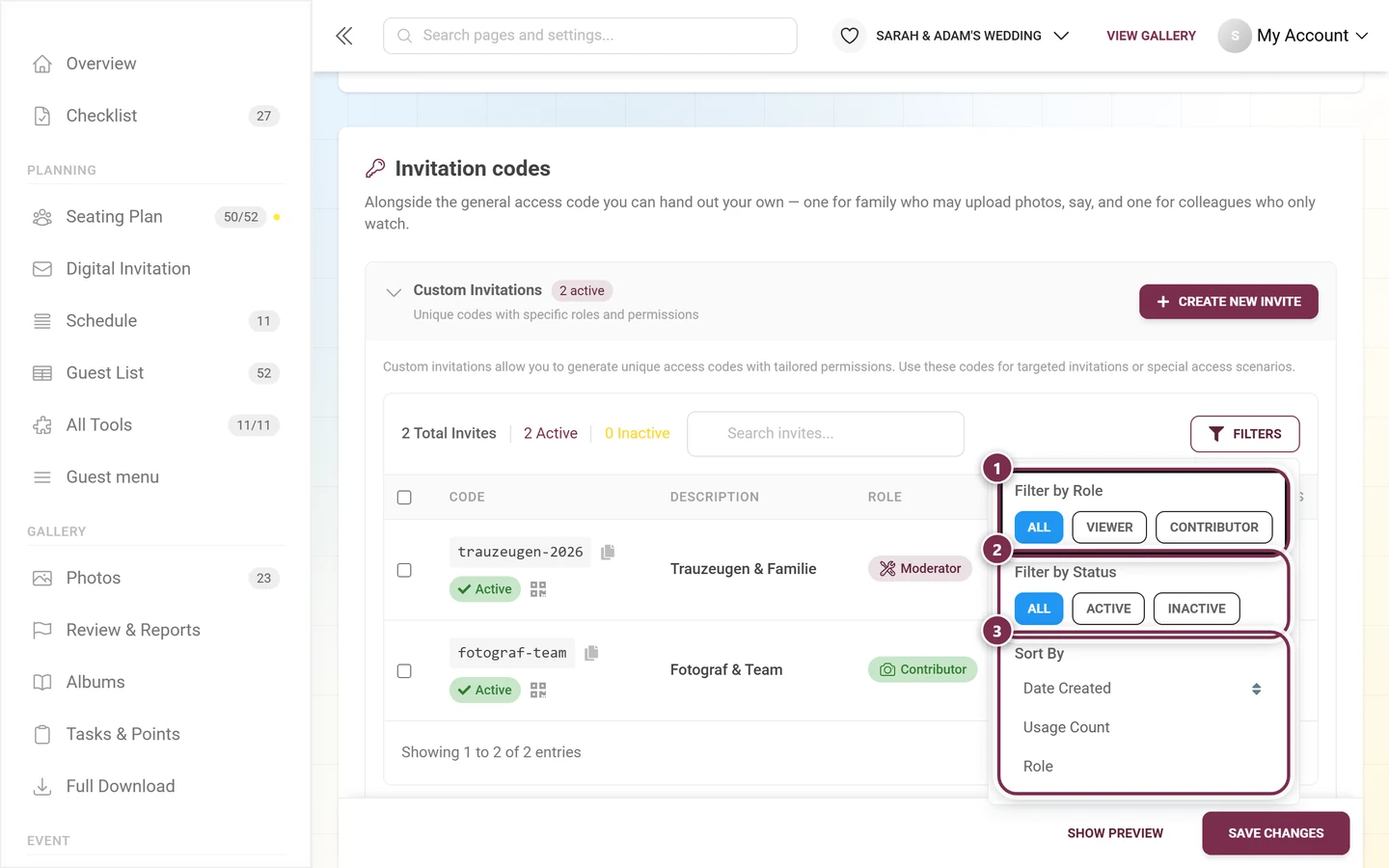
- Filter by Role: three chips – all, viewers only, contributors only. No other role can be used as a filter.
- Filter by Status: all, active codes only, inactive codes only.
- Sort By: Date Created, Usage Count, Role. Clicking the same criterion twice flips the direction – the small double arrow on the active entry shows it.
If active filters show No matching invites found, reset everything with Clear All Filters.
Several codes at once
Section titled “Several codes at once”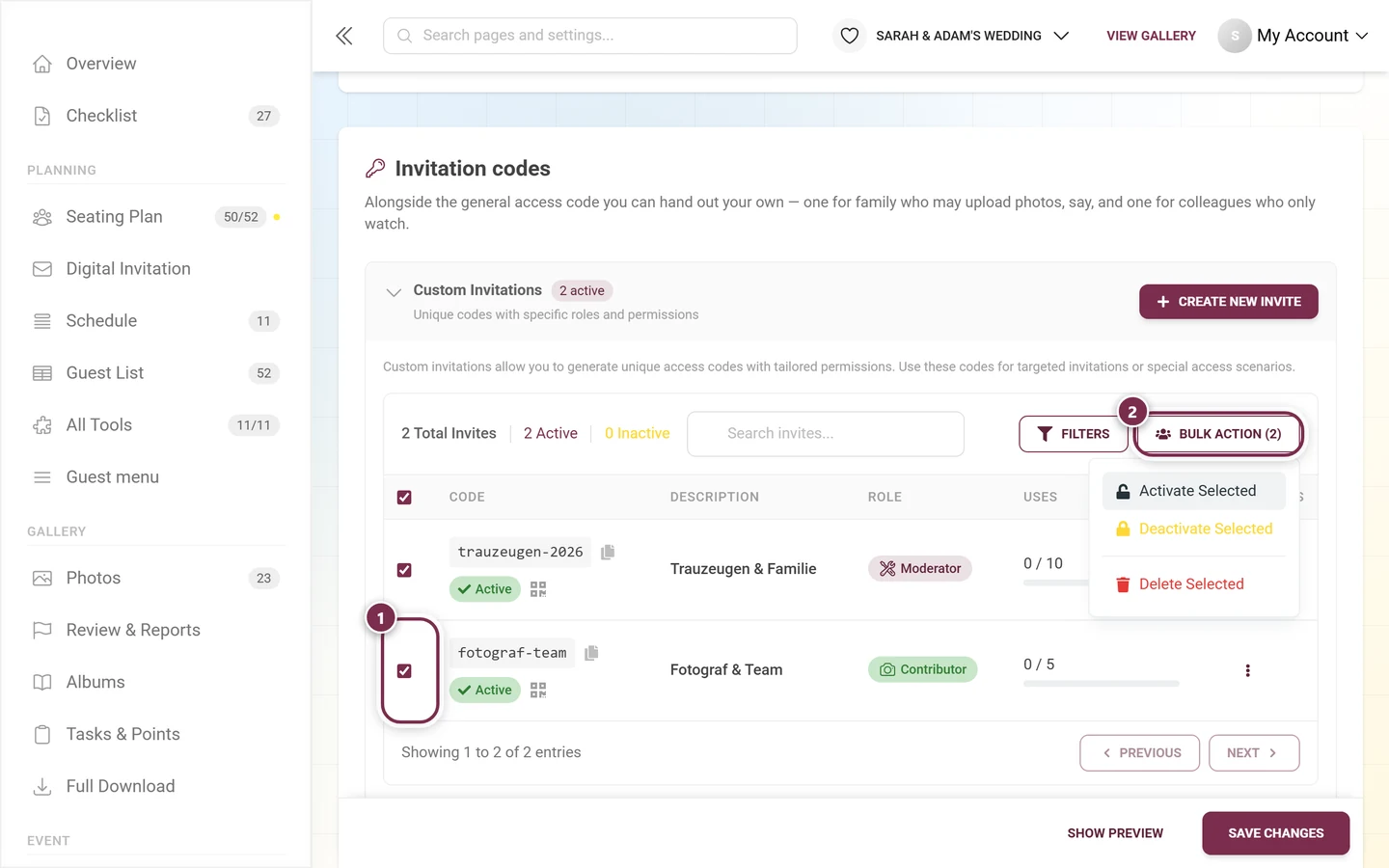
As soon as you tick rows, the Bulk Action (N) dropdown appears next to Filters – N being the number of selected codes. On a narrow bar both buttons wrap onto a second line together. It holds Activate Selected, Deactivate Selected and Delete Selected. Deleting asks first with Confirm Bulk Delete (“Are you sure you want to delete N invites? This action cannot be undone.”).
The table
Section titled “The table”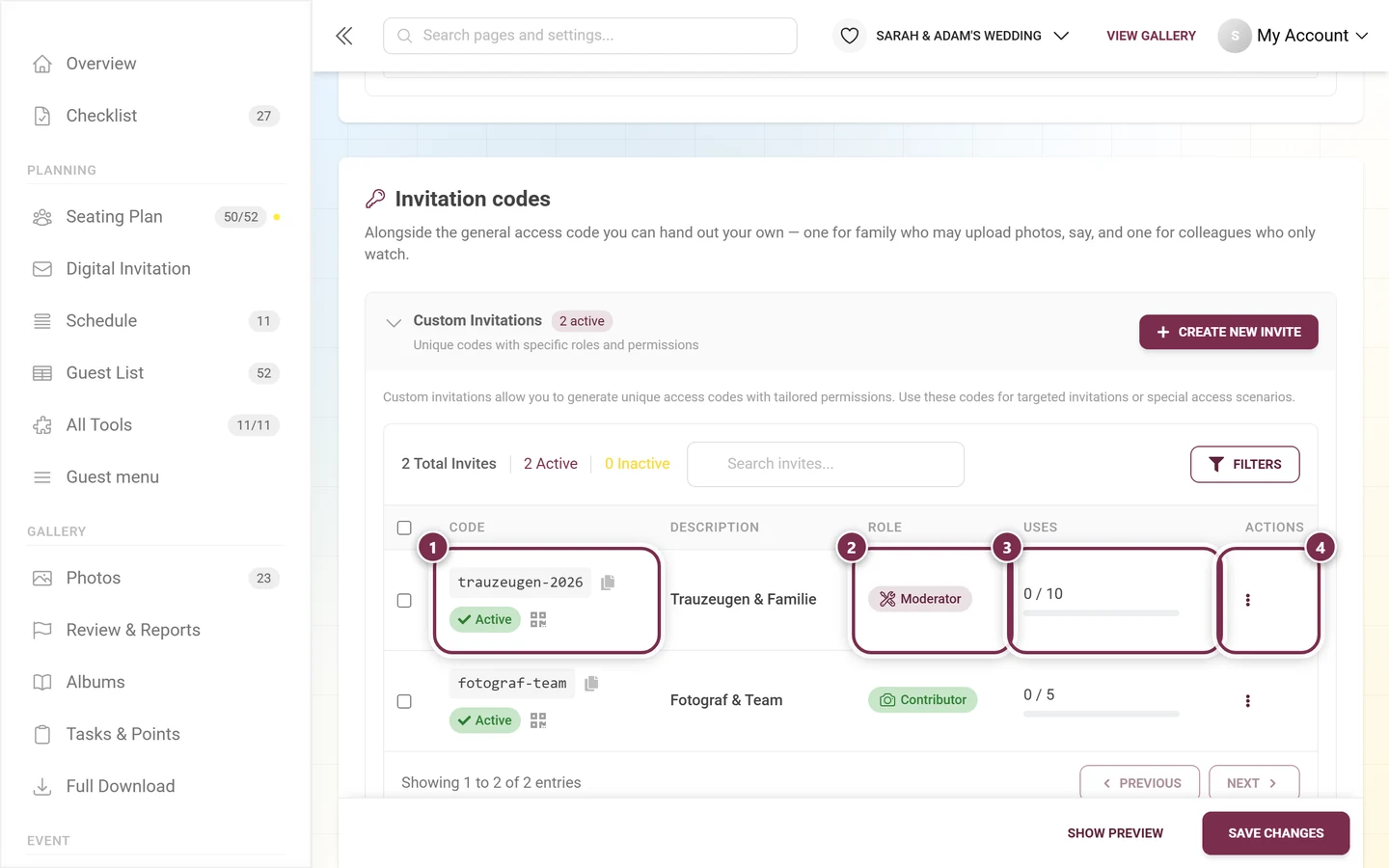
It has six columns:
- Selection checkbox (header: select all).
- Code – the code in monospace with a Copy to clipboard button next to it; below it the status chip Active / Inactive and a small QR button that opens the share dialog. There is no separate QR column.
- Description – the internal description and the creation date (Created).
- Role – a role chip with icon and color (Viewer = eye, Contributor = camera, Moderator = wrench, Admin = gear, Owner = people icon).
- Uses – used/maximum with a progress bar; a Limit reached badge when the limit is exhausted.
- Actions – the row’s three-dot menu.
Below the table sits Showing 1 to N of N entries with the Previous and Next buttons. Both stay grayed out permanently: the list always shows every code at once, the pager is display only.
The row menu
Section titled “The row menu”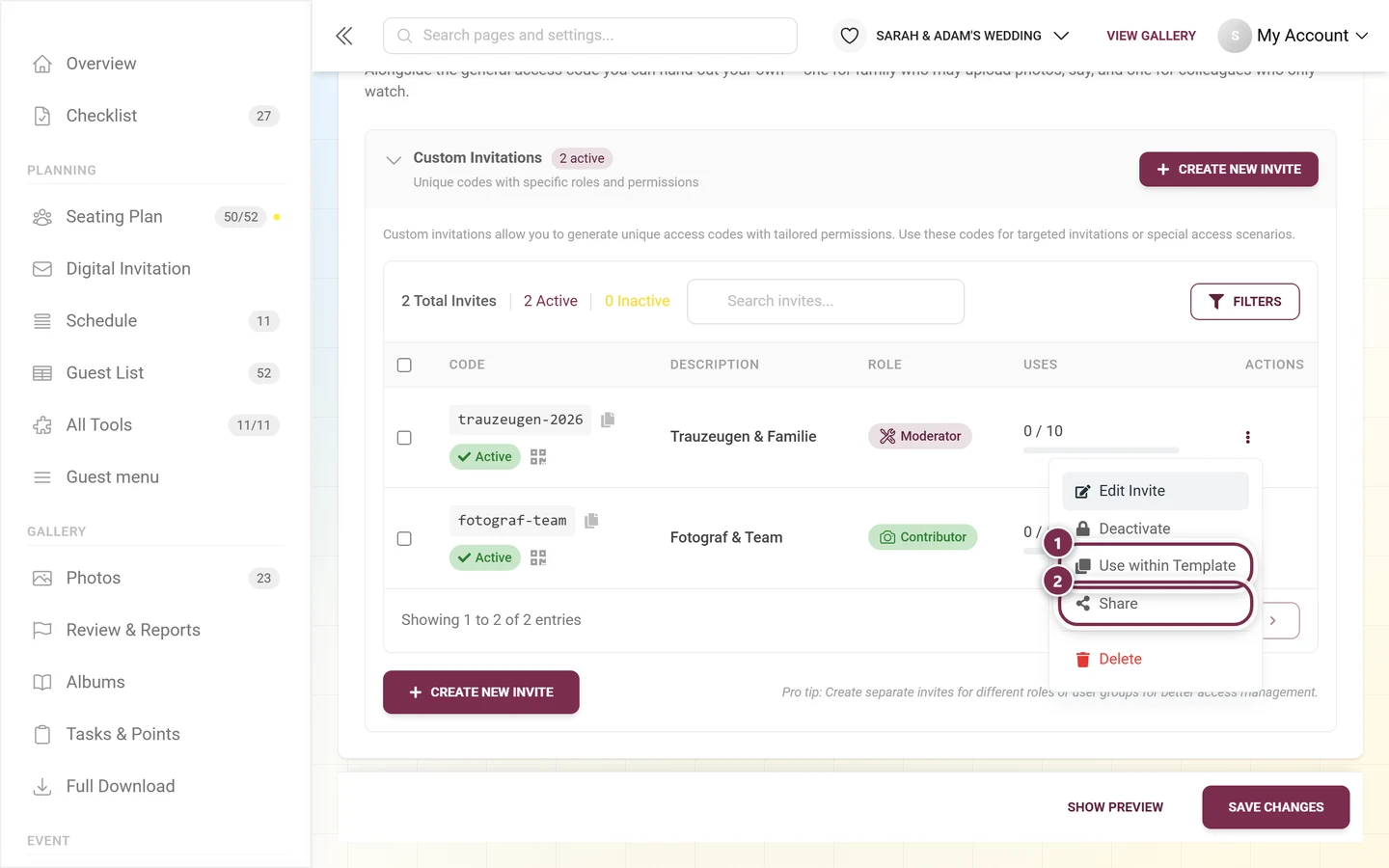
The five entries come in this order: Edit Invite, Deactivate or Activate, Use within Template, Share and – set apart – Delete.
Handing a code out: the share dialog
Section titled “Handing a code out: the share dialog”The small QR button in the code column and the Share entry in the row menu open the same Share dialog (“Invite others — they can view the photos and add their own.”).
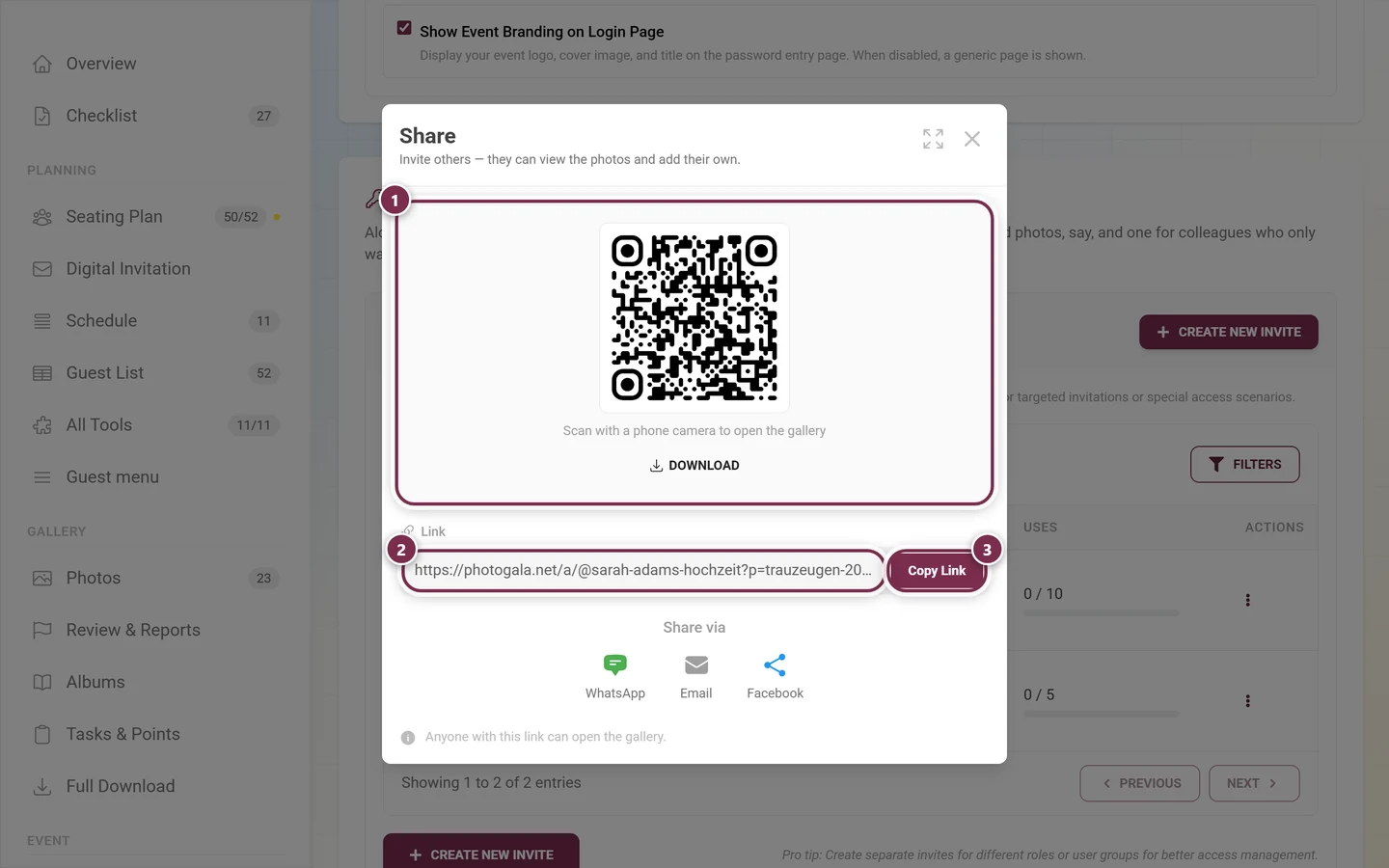
- The QR code carries the hint “Scan with a phone camera to open the gallery”. Download saves it as an image – handy for WhatsApp or a printed poster.
- The link carries the code as a parameter, for example
https://photogala.net/a/@sarah-adams-hochzeit?p=trauzeugen-2026. Whoever opens it is in without typing anything. - Below the field, WhatsApp, Email and Facebook share the link directly.
- At the very bottom it says “Anyone with this link can open the gallery.” – so treat the link as confidential as the code itself.
The “Create New Invite” / “Edit Invite” dialog
Section titled “The “Create New Invite” / “Edit Invite” dialog”Via Create New Invite (or Create Your First Invite, or editing a row) the dialog opens with the title Create New Invite or Edit Invite. It has six numbered sections:
-
1. Access Level Configuration (badge Most Important). In the dropdown with the placeholder Select a role you choose:
- Viewer – “Can view photos and like them”.
- Contributor – “Can upload photos and complete photo challenges”.
- Moderator – “Approve/reject content and manage basic event settings”.
- Admin – “Full configuration access and user management capabilities”.
- Owner – “Full access and ultimate control over the event”.
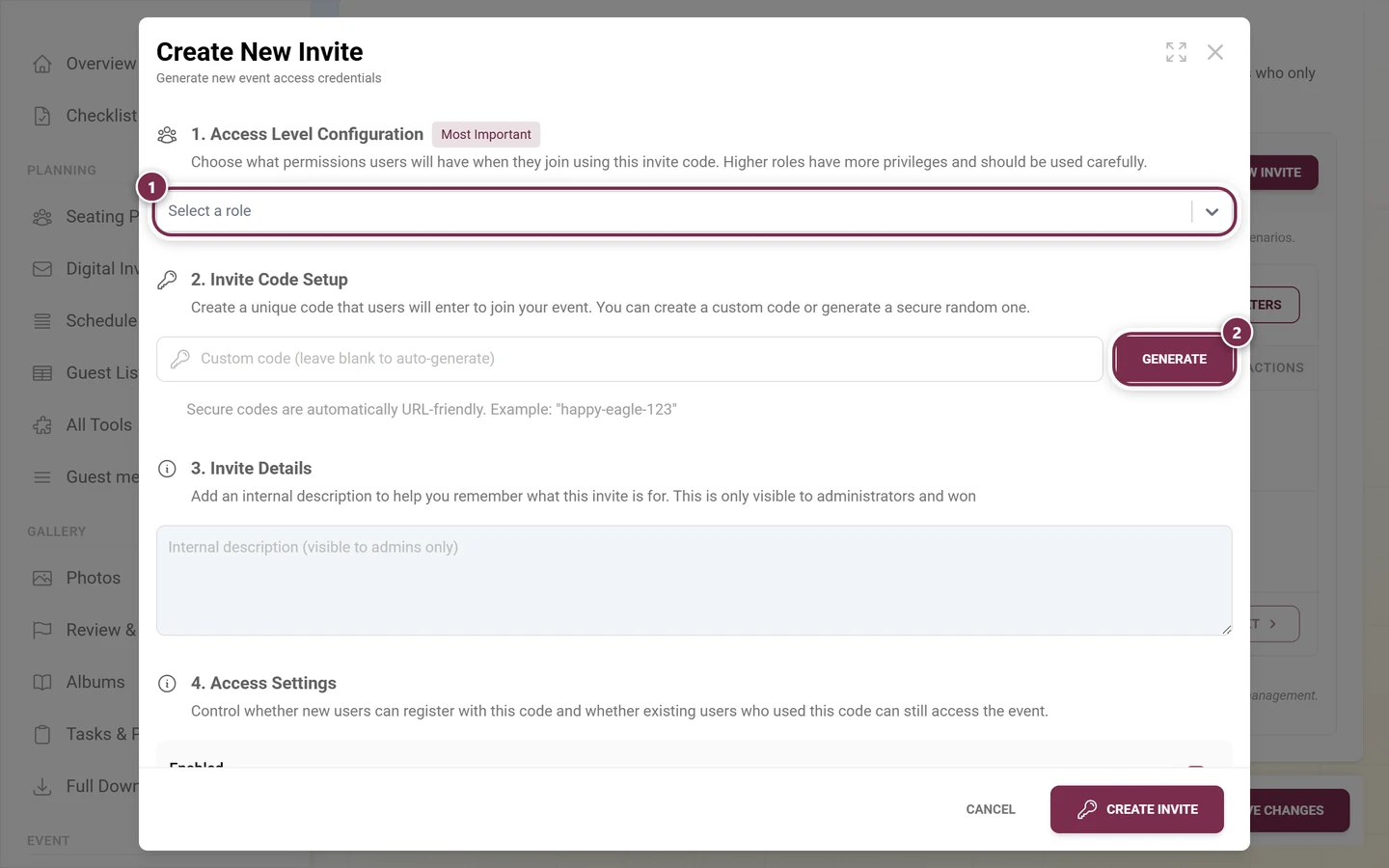
① the Select a role dropdown – the step that matters most, hence the Most Important badge. ② Generate rolls a code; the field may also stay blank. For Moderator, Admin or Owner a red Security Note appears right under the dropdown: “Security Note: For privileged roles, it is recommended to set max usage to 1 for better security.”
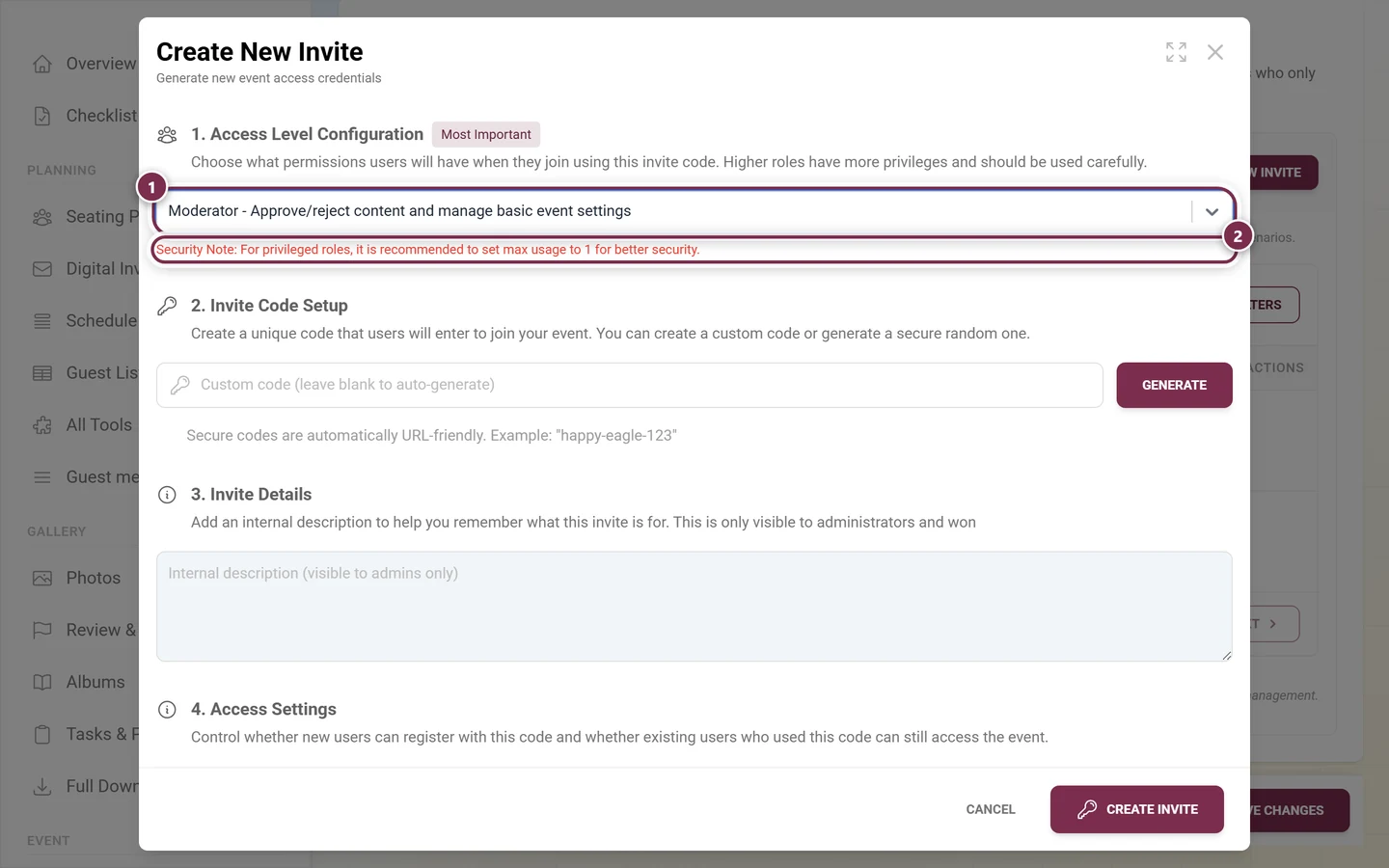
① the Moderator role is selected. ② which brings up the red Security Note – and further down the usage limit already reads 1. -
2. Invite Code Setup (key icon). Text field with the placeholder “Custom code (leave blank to auto-generate)” and a Generate button. Leave the field blank and a code is generated automatically. The hint below uses ‘happy-eagle-123’ as its example.
-
3. Invite Details. A text area for an internal description (“Internal description (visible to admins only)”) – not shown to guests. Use it descriptively, e.g. “Photographer” or “Catering staff”.
-
4. Access Settings. Two checkboxes, both ticked by default:
- Enabled – “When enabled, new users can register using this invitation code”.
- Active – “When active, users who previously used this code can still access the event”.
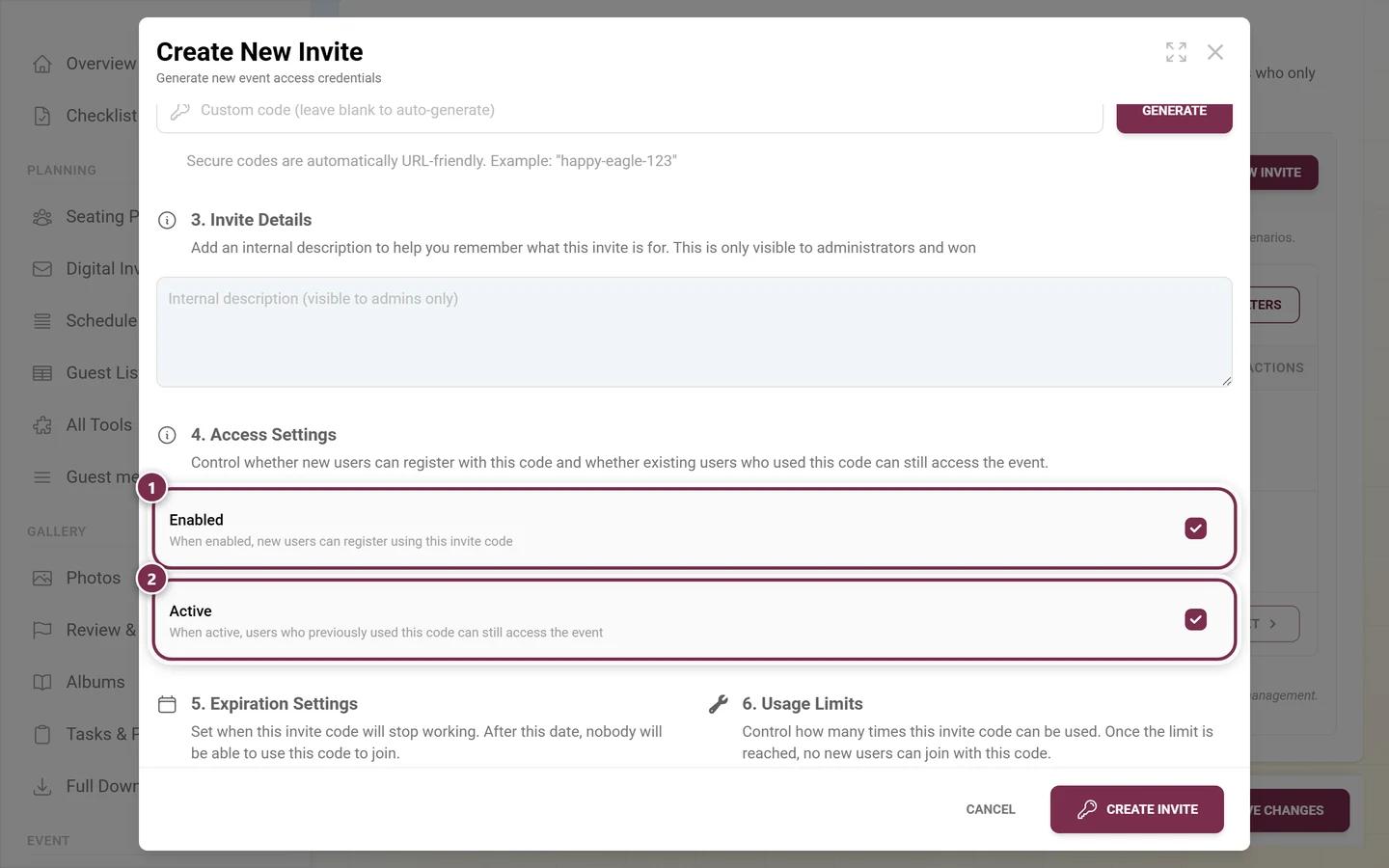
① Enabled decides whether anyone *new* can still come in with the code. ② Active decides whether the people who already used it stay in. Untick only the first and you lock nobody out – the code just stops taking newcomers. -
5. Expiration Settings (calendar icon). A date/time field: “Leave blank for no expiration. Times are in your local timezone.”
-
6. Usage Limits. A number field (placeholder “0 = unlimited uses”). If you pick Moderator, Admin or Owner, Photogala sets the limit to 1 by itself and shows the red Security Note above.
On a computer, sections 5 and 6 sit side by side:
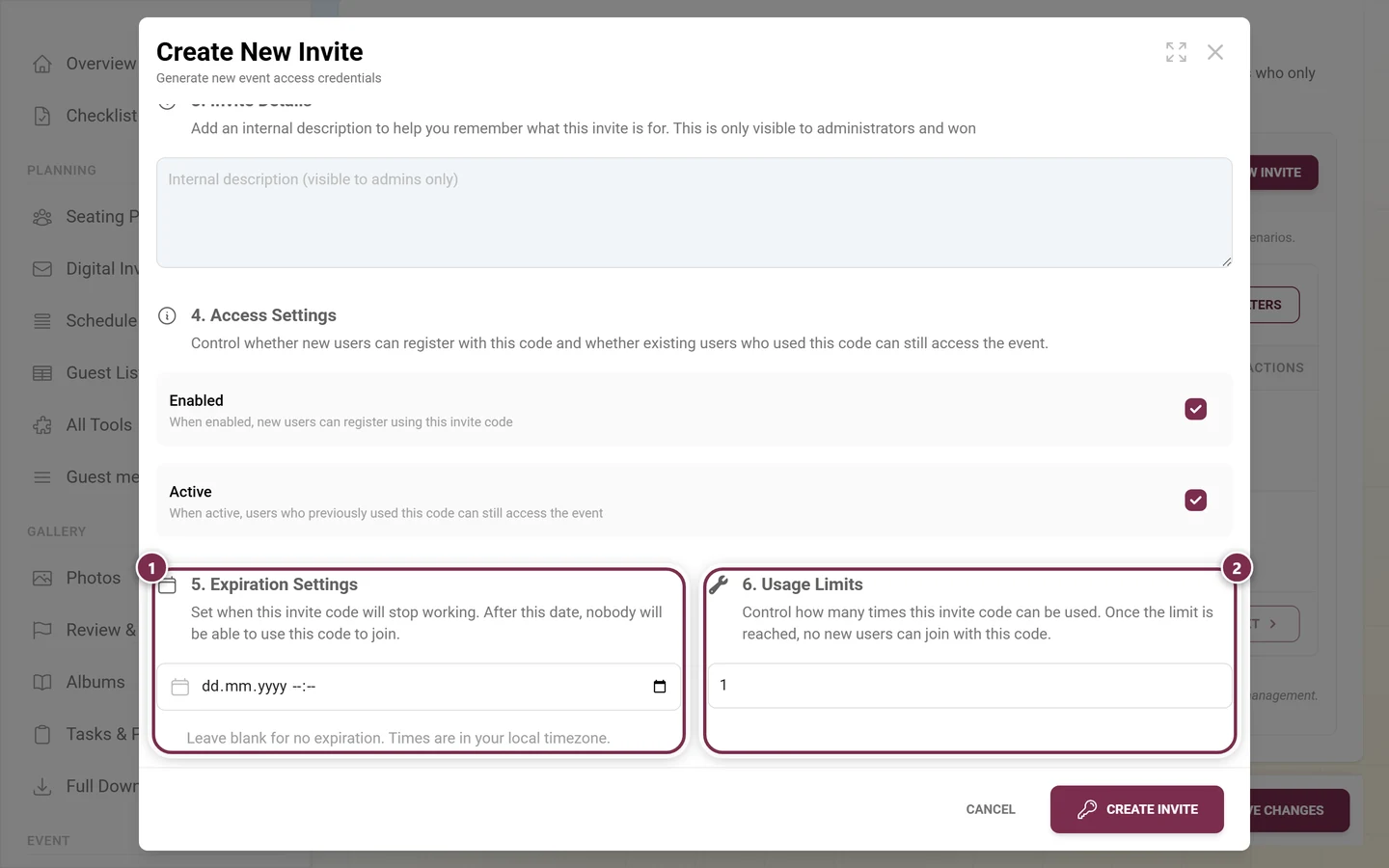
① Expiration Settings – blank means the code never expires. ② Usage Limits – the 1 is already there because Moderator was picked above.
Saving: at the bottom the buttons Cancel and Create Invite or Update Access Code (loading state Saving…). If you pick a privileged role with a limit other than 1 and save, a security warning appears first that you must confirm.
Unlike the gallery protection above it, this dialog does not wait for the save bar at the foot of the page: with Create Invite the code is live at once.
Role gating for admins and moderators
Section titled “Role gating for admins and moderators”- Only roles you are allowed to grant are selectable. Non-grantable roles appear disabled with the suffix Owner only.
- Event admins can create codes up to and including Moderator – a note explains: “Event admins can create Moderator and lower invites. Only owners can create Admin or Owner invites.”
- Existing Admin or Owner codes can only be edited by the owner; otherwise the save button is disabled and a red box explains why (“Only owners can edit existing Admin or Owner invites.”).
For what each role may do, see Roles & permissions.
Thinking about the default role and your own codes together
Section titled “Thinking about the default role and your own codes together”There is no separate Default Role Assignment card any more – the default role is the Viewer / Contributor tile choice at the top of gallery protection. It applies whenever somebody comes in without a code of their own: through printed QR codes, through public invitation links and through any shared access.
Assigning a code directly to a guest
Section titled “Assigning a code directly to a guest”From Managing participants you can assign an existing code to an already-registered guest. Here is how to get there:
-
Open Participants and tap the guest’s row – the detail dialog opens.
-
Tap Edit User at the top. Without this step you can see the codes already used, but no button to add one – it only appears in edit mode (and only if your role may manage that guest).
-
In the Invitation codes block, tap Add Invitation Code.
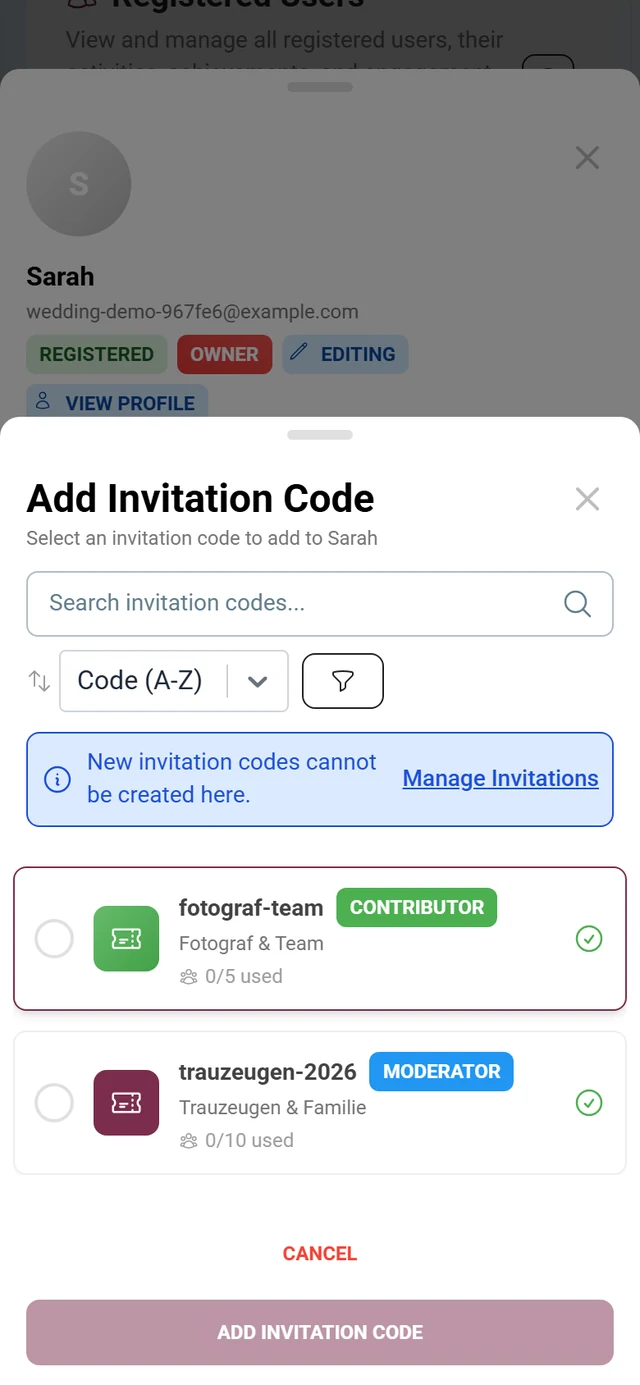
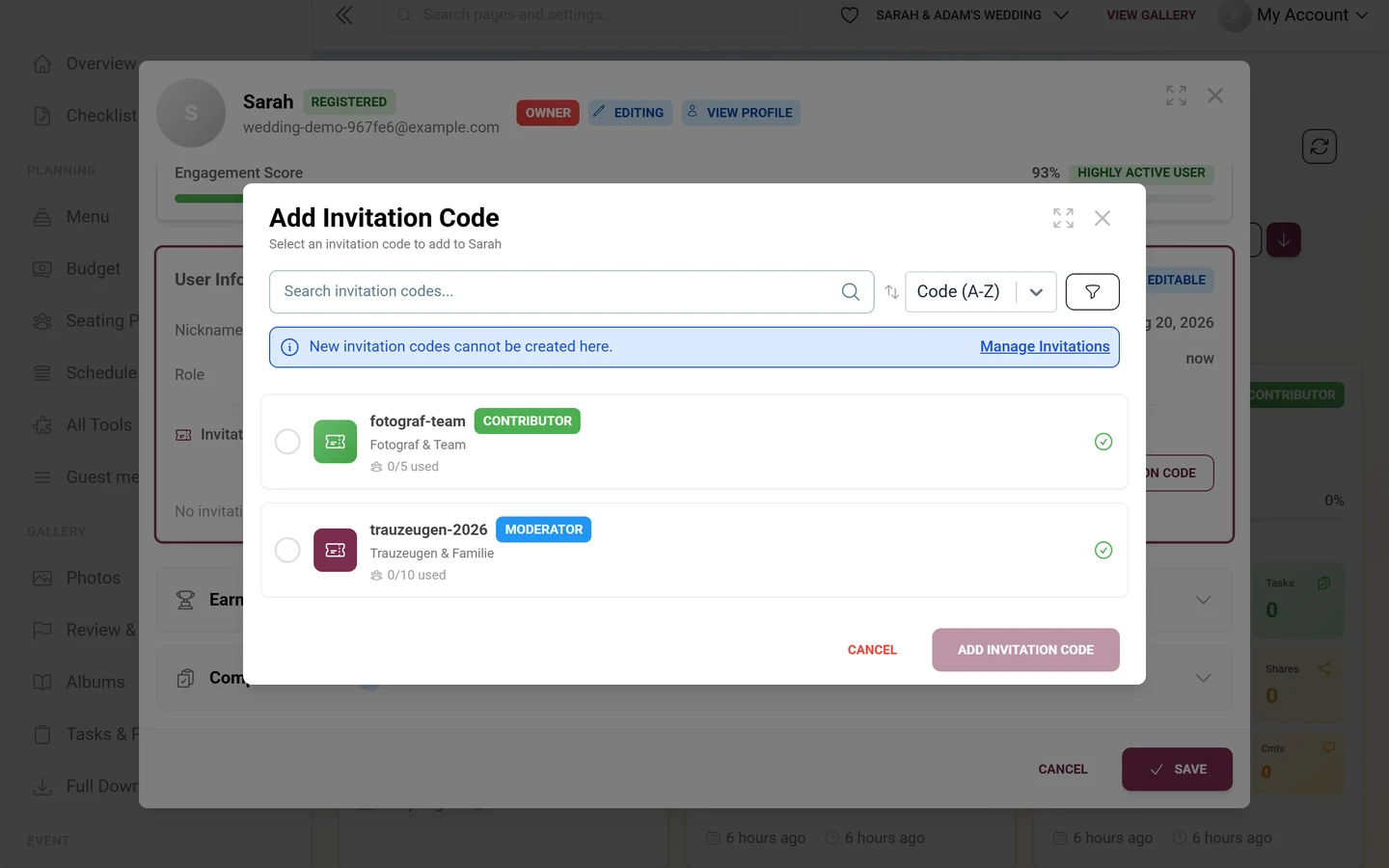
The dialog offers:
- Search Search invitation codes… and the sorting (Code (A-Z) / Code (Z-A), Least used / Most used, By role). The Filter by role: control hides behind the funnel icon next to it – it only unfolds after a tap.
- An info banner “New invitation codes cannot be created here.” with the link Manage Invitations, which jumps to the invitation codes on this Access tab – in the dialog you only assign, never create.
- If the code has a higher role, a yellow banner notes that the guest’s role is raised automatically. For an equal or lower role it stays unchanged.
- Only active, non-expired and non-exhausted codes are offered. Role gating applies here too (“Only owners can assign Admin or Owner invitation codes.”).
Printing a code on QR cards
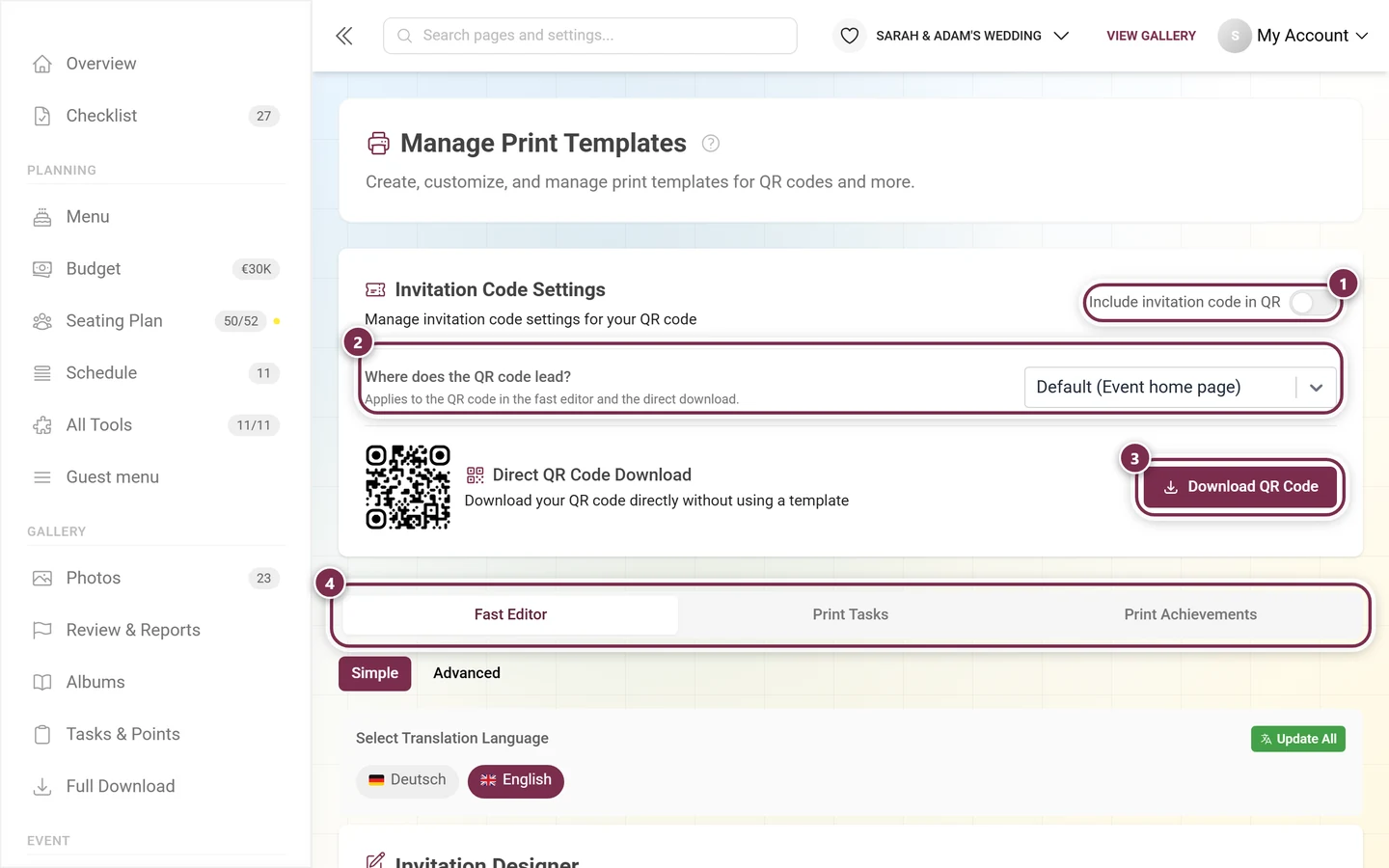
Section titled “Printing a code on QR cards”Via Use within Template in the row or context menu you jump into the template manager with exactly this code, to use it on QR cards or posters. If you only want to send it quickly, use Share instead – the QR image and link are ready there. More about this under QR cards & posters.

Troubleshooting
Section titled “Troubleshooting”- I cannot find the sidebar entry “Protection” any more → it does not exist any more. The area has dissolved into Settings → Access;
/admin/manage-invitationsredirects there. - I am looking for advanced mode → there is none any more. Access protection and your own codes now sit one below the other on the same tab.
- A premium hint covers the invitation codes → the multiple-roles feature is missing from your plan. See Plan & term. The gallery protection above still works.
- Old QR code / link no longer works → the default code was changed (see the warning above).
- A code does not work → check: Enabled off? Active off? Expiration date passed? Usage limit reached (Limit reached)?
- Role not selectable / “Owner only” → your role is not allowed to grant that role.
- “New invitation codes cannot be created here.” → create the code first in the Invitation codes card on this tab.
- My change to the access code is gone → the gallery-protection fields only save via Save Changes at the bottom of the page. Only the invitation codes save immediately.
- “Previous” and “Next” below the table are grayed out → that is by design. The table always shows every code; the pager is display only.
- The role chip always reads “Contributor”, “Viewer”, “Moderator” → chip and filters print the raw role name, so they stay English even when the interface is set to another language. It is the same role.
Best-practice tips
Section titled “Best-practice tips”What comes next
Section titled “What comes next”Which role fits which job, and how co-hosts take a bigger event off your shoulders, is covered under Roles & permissions. From the guest side, joining is described under Joining an event. The neighbouring settings areas: General · Appearance · Gallery features · Moderation & safety.