Roles & permissions
You don’t have to run your event alone. Roles give other people exactly the rights they need – no more, no less. That way you share the work and still stay in control.
There are two ways to grant a role:
- Via the invitation code. Whoever joins with a given code automatically gets the role you assigned to that code. This is the standard route for whole groups.
- Via the per-user role override. In the participant details dialog you set a different role for a single person, which overrides the code. Ideal when you want to make exactly one person a moderator or admin after the fact.
The five roles at a glance
Section titled “The five roles at a glance”Photogala has five grantable roles. From restricted to comprehensive:
| Role | Icon | What the role may do |
|---|---|---|
| Viewer | Eye, gray | View the gallery and like photos. No upload. Ideal for anyone who just wants to watch. |
| Contributor | Camera, green | Upload photos, complete tasks, take part in challenges. The default role for guests. |
| Moderator | Wrench, blue | Approve and reject content and manage basic event settings. |
| Admin | Cog, purple | Full configuration access and user management. But may only grant Moderator and lower. |
| Owner | – | Full control. Can delete the event and grant any role – including Admin and Owner. Usually that’s you. |
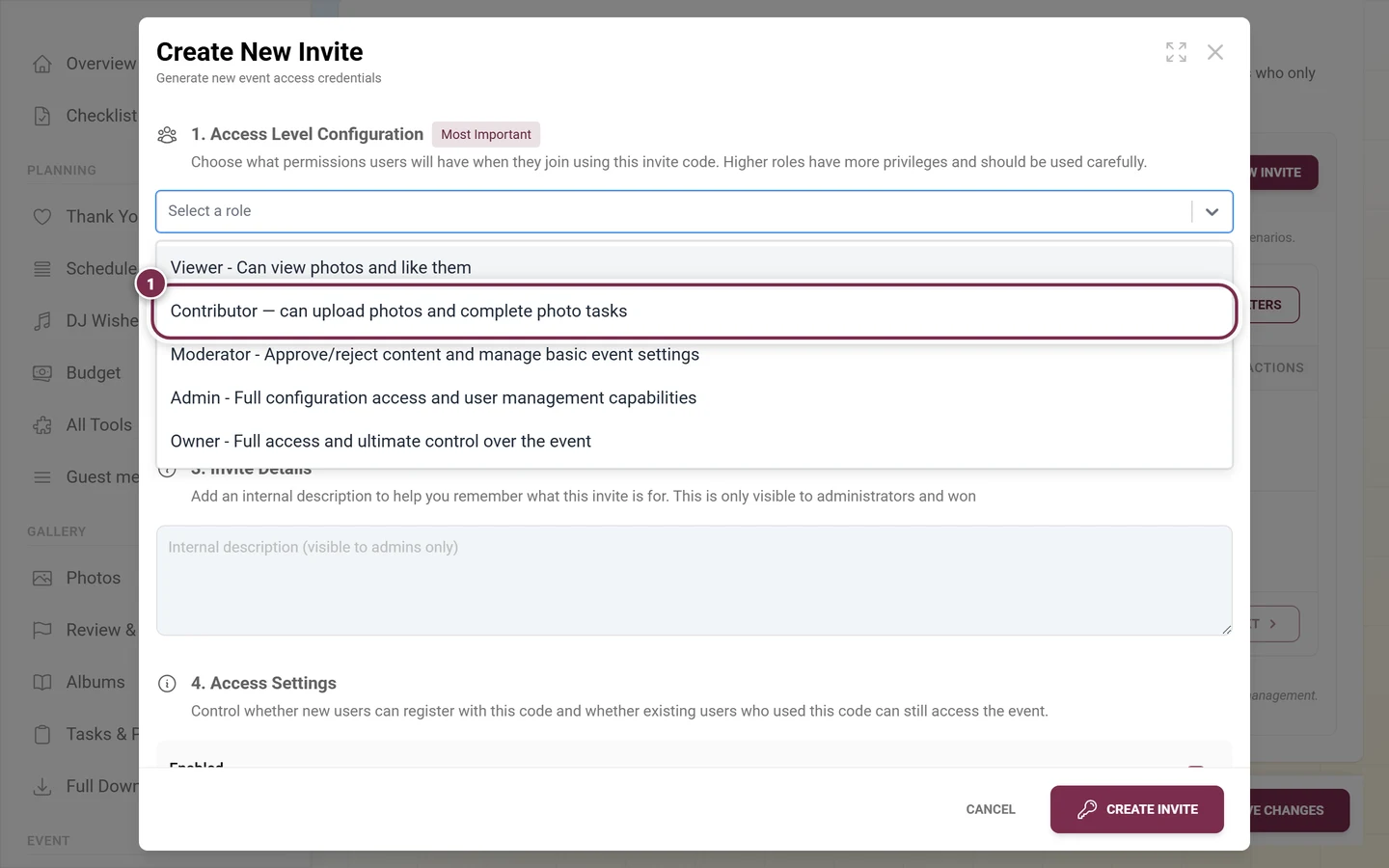
The descriptions shown in the role selector read:
- Viewer – “Can view photos and like them”
- Contributor – “Can upload photos and complete photo challenges”
- Moderator – “Approve/reject content and manage basic event settings”
- Admin – “Full configuration access and user management capabilities”
- Owner – “Full access and ultimate control over the event”
Who may grant which role?
Section titled “Who may grant which role?”Not everyone may pass on every role. Photogala enforces a clear hierarchy:
- Owner may grant every role – including Admin and Owner.
- Admin (the event admin, not the global Photogala admin) may only grant Moderator and lower. An admin cannot create Admin or Owner codes and cannot edit existing Admin or Owner codes.
This rule applies to both routes – invitation codes as well as the per-user role override.
If you create an invitation code as an admin, a note appears at the top of the dialog:
“Event admins can create Moderator and lower invites. Only owners can create Admin or Owner invites.”
If you try to edit someone else’s Admin or Owner code as an admin, you see:
“Only owners can edit existing Admin or Owner invites.”
In the role selector, roles you may not grant are disabled and marked Owner only. In the list of custom invitation codes an admin only sees the codes they may actually manage.
Override a single person’s role
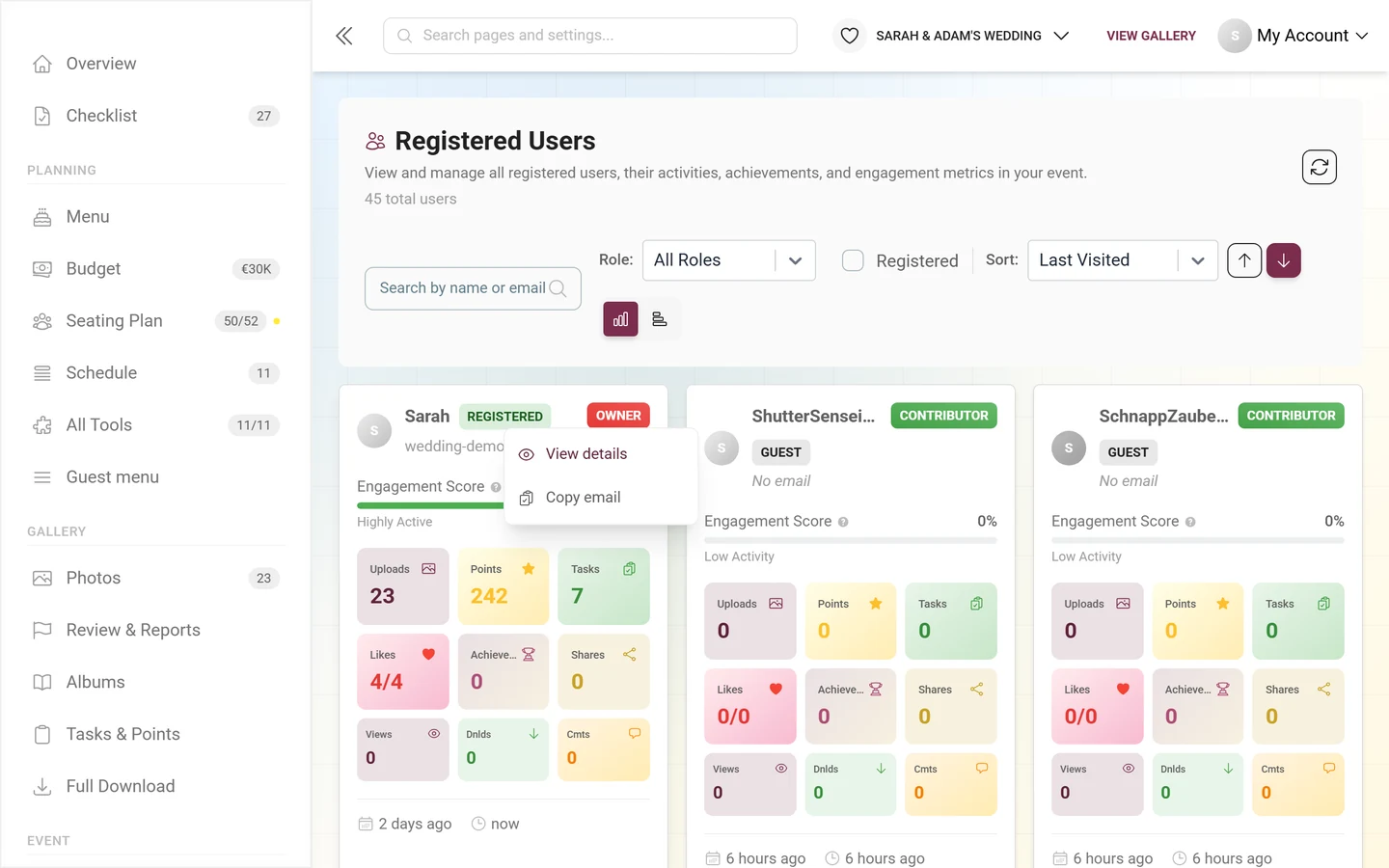
Section titled “Override a single person’s role”If someone has already joined, you don’t need to build a new code – you change the role directly on the person.
-
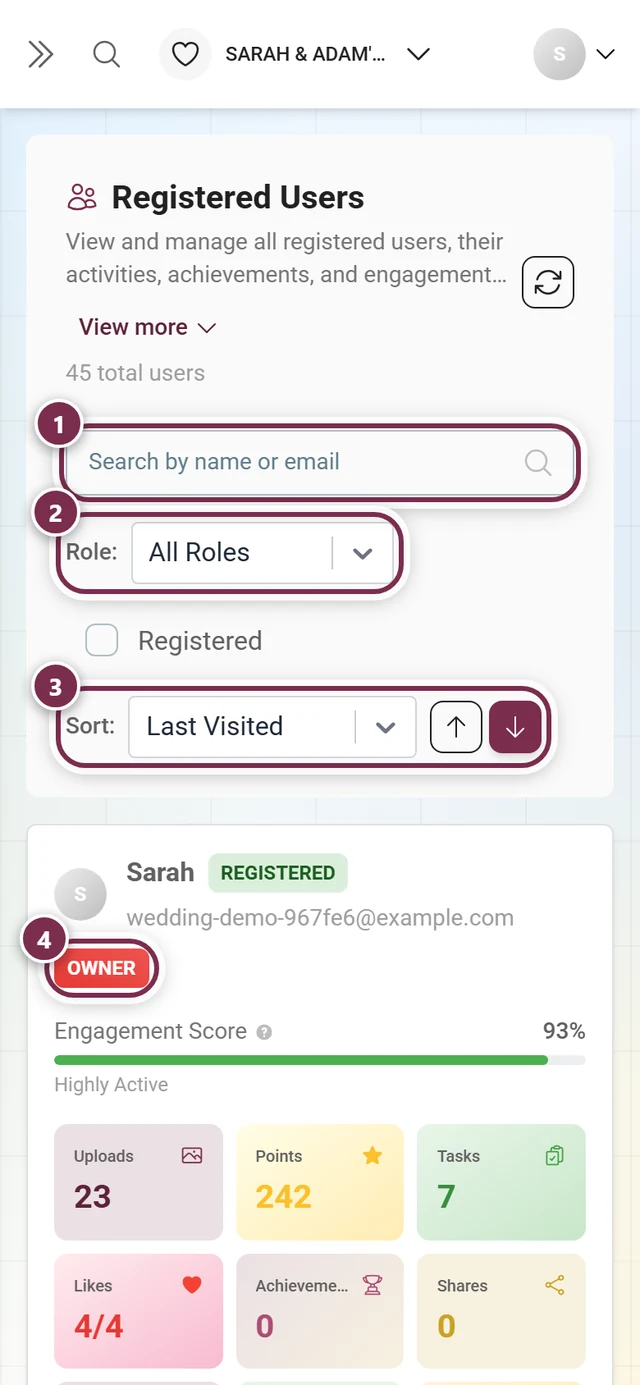
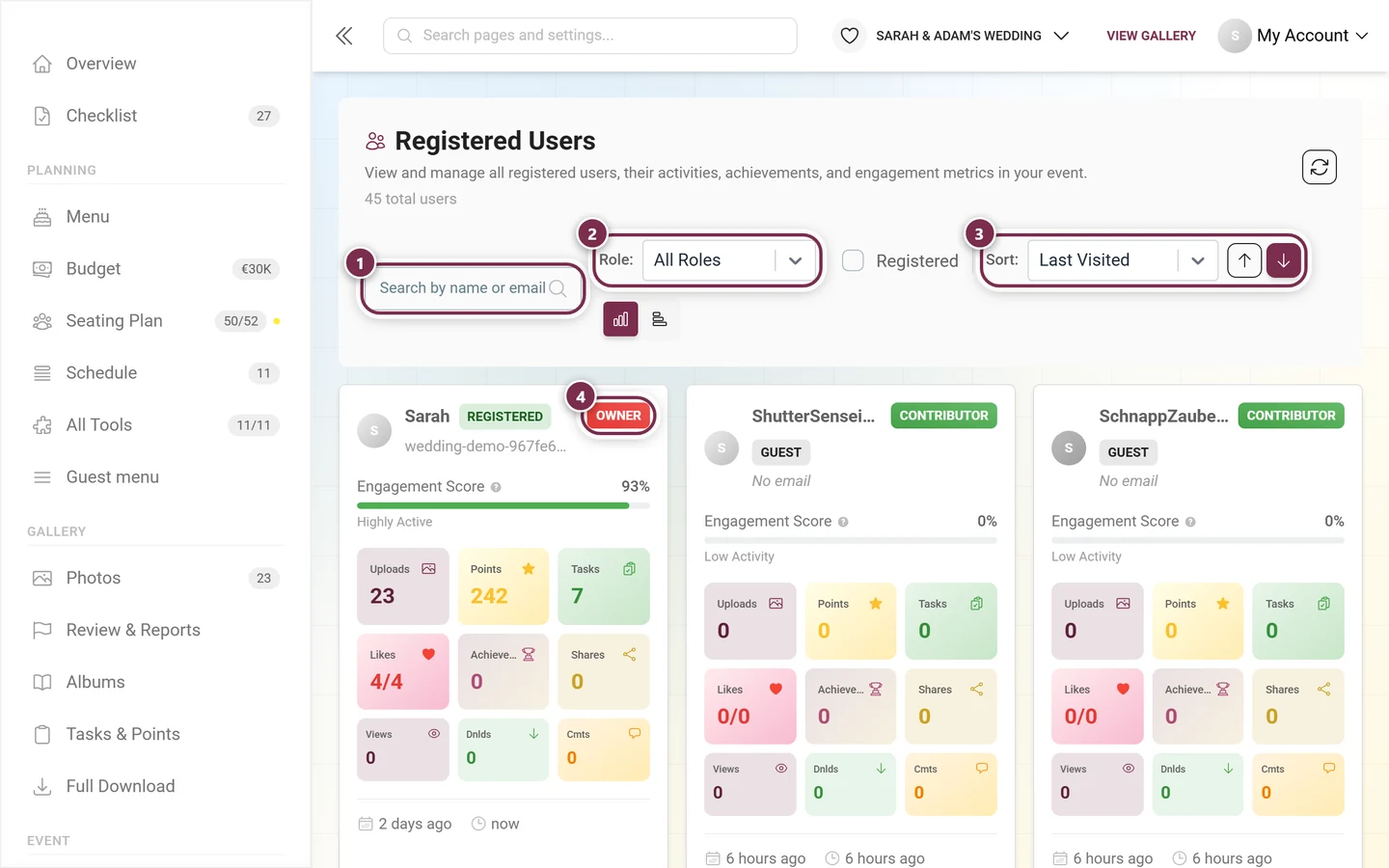
Open participant management in the admin area and find the person in the list.
-
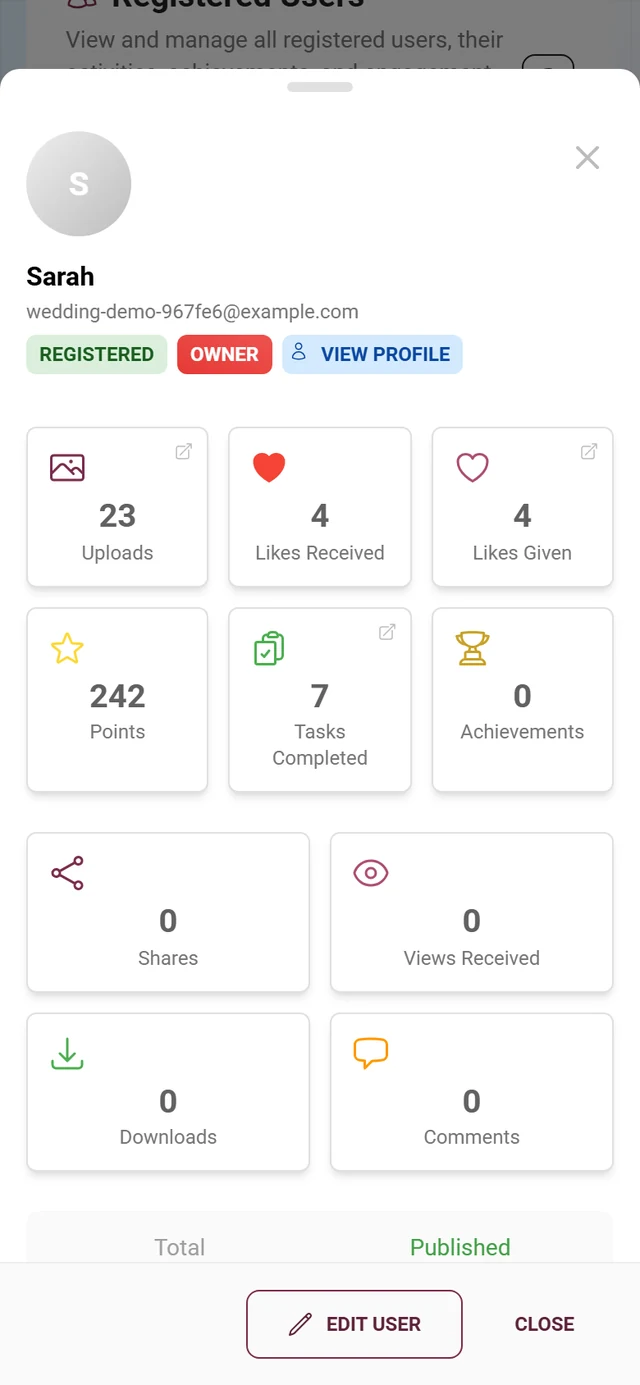
Open their details dialog and switch to edit mode.
-
Pick the role you want in the Role field. As an event admin you’ll see an Owner Only chip next to it with the note: “Event admins can only grant Moderator and lower access. Only owners can grant Admin or Owner access.”
-
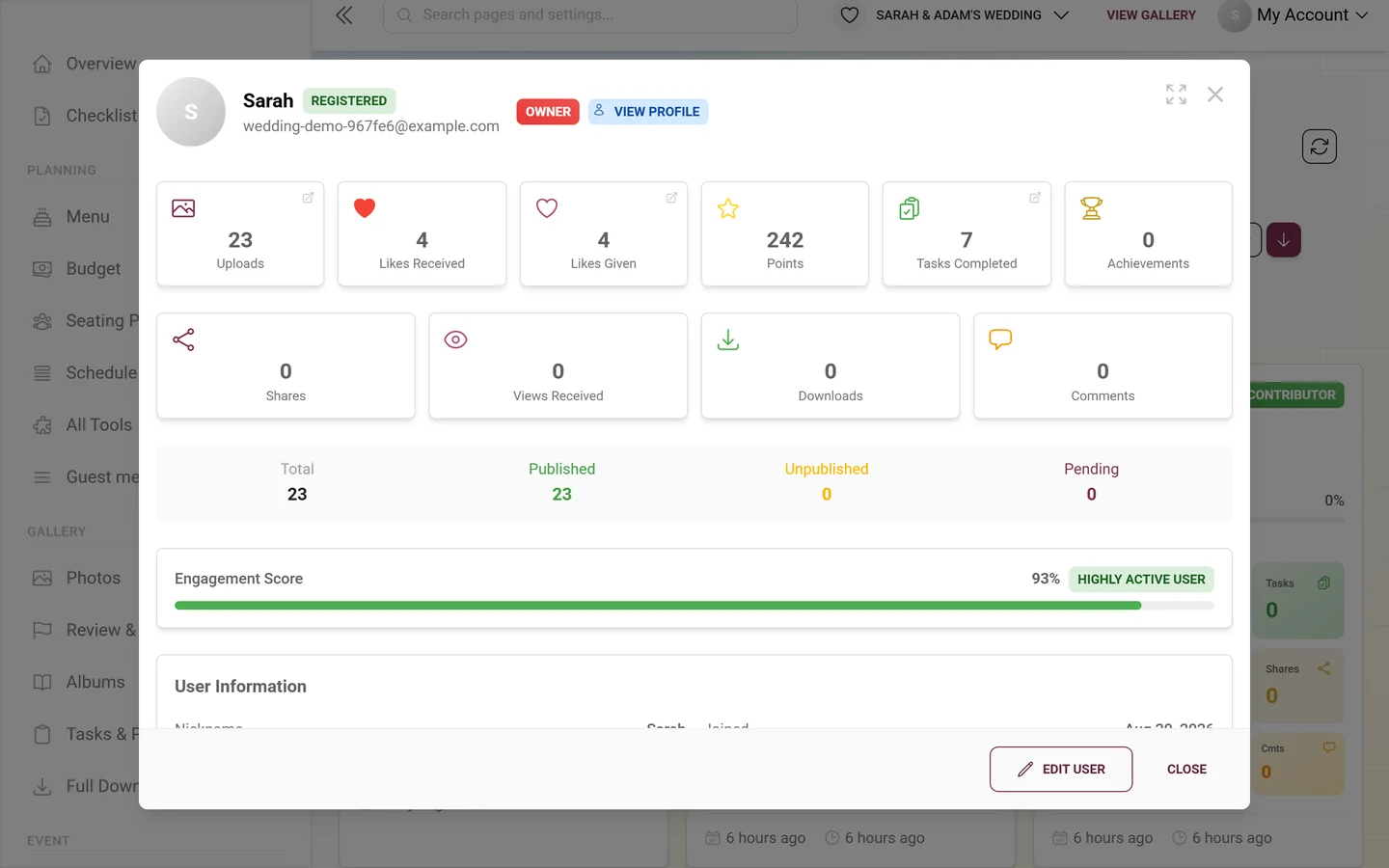
Save. From now on the person carries an Override chip next to their role.
A small chip next to the role tells you where that role comes from:
- From Invite – “This role is determined by the highest-privilege invitation code the user has”. The normal case.
- Override – “This role was manually set by an admin and overrides the invitation code role”.
- Event Owner – the owner of the event.
The Clear button next to the role field removes an override again (“Remove the role override and revert to role from invitation codes”). Before saving, a Will be cleared chip indicates that the override disappears on save.
All other fields of the details dialog – points, achievements, bans – are covered on Registered users.
Reaching the invitation codes
Section titled “Reaching the invitation codes”You grant roles to whole groups via custom invitation codes. Since August 2026 they live in the settings:
-
Open your event’s admin area, pick Settings in the sidebar under the Event group, then the Access tab (route
/admin/settings?tab=access).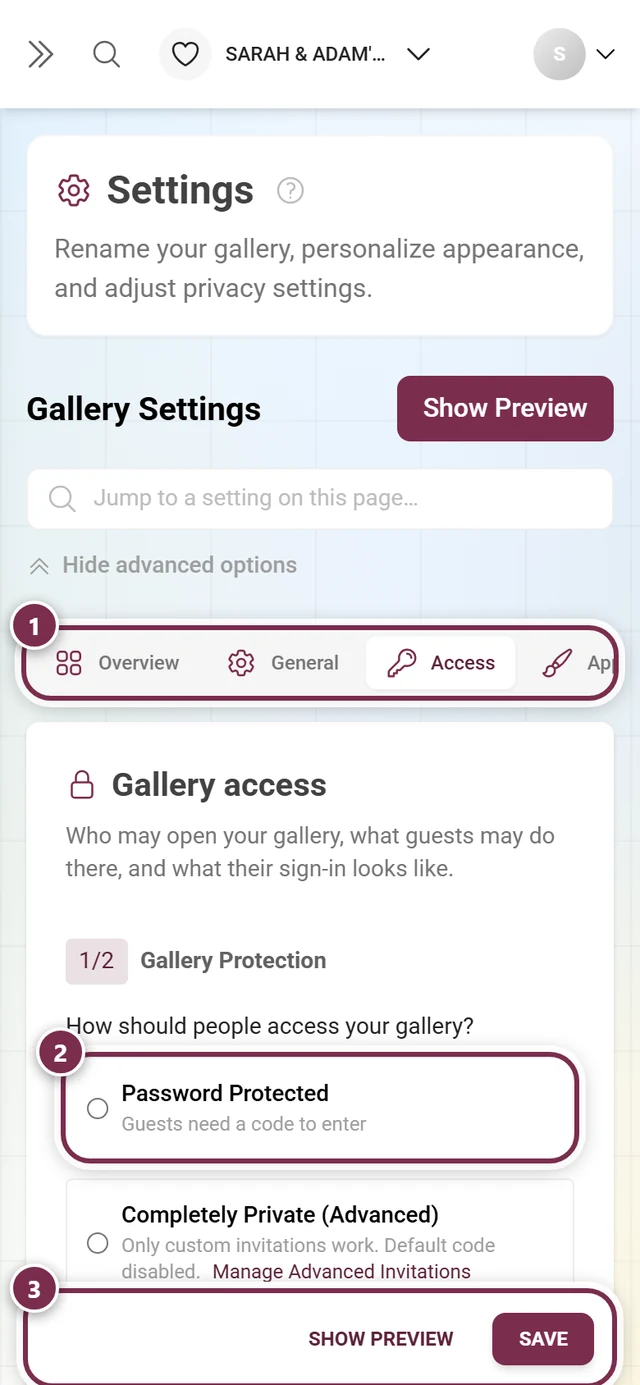
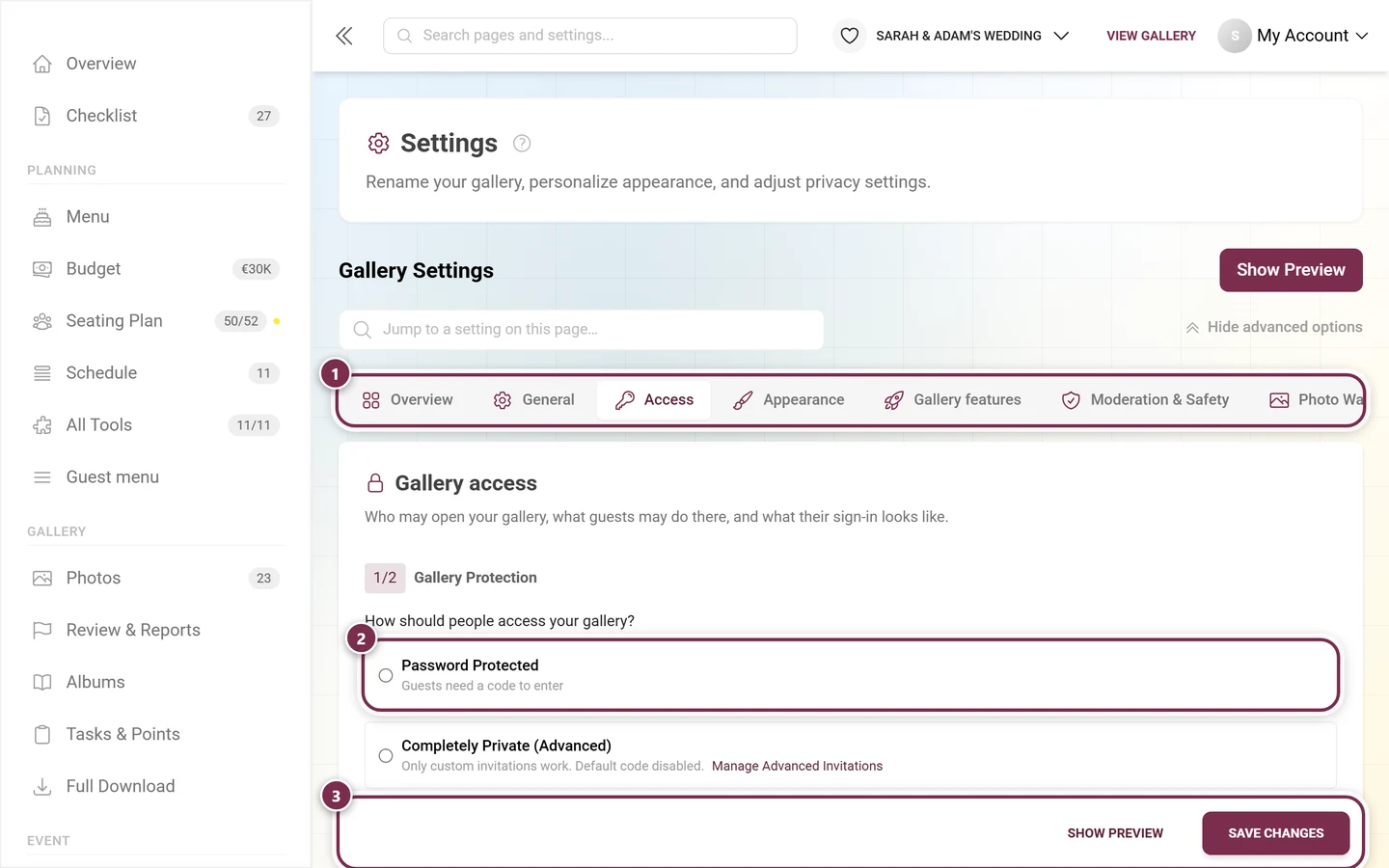
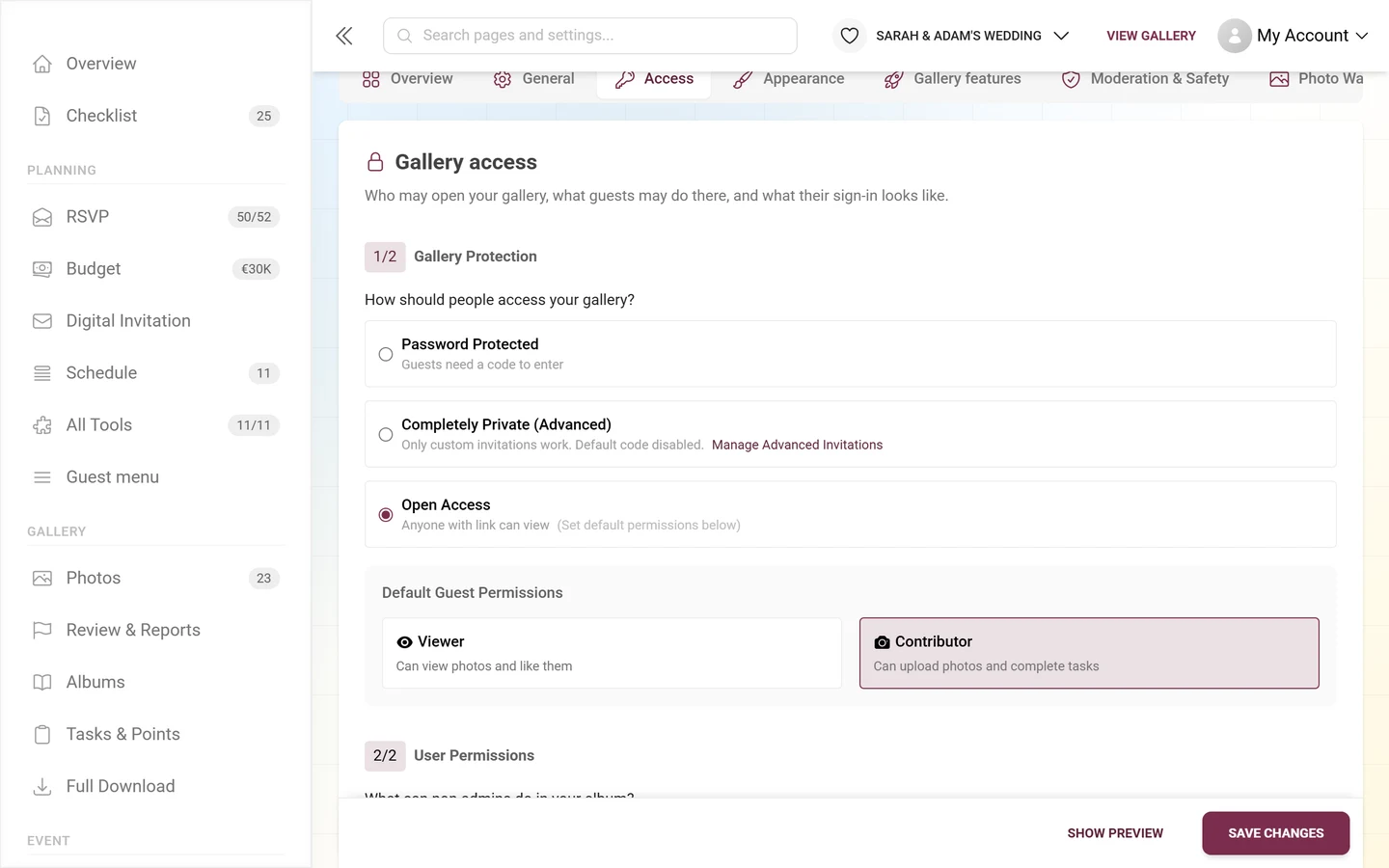
Settings → Access: gallery protection on top, the “Invitation codes” card further down the same page. ① the tab row with Access open, ② gallery protection with three choices: Password Protected (guests need a code), Completely Private (Advanced) (only invitations you create yourself work, the default code is off) and Open Access (anyone with the link can view), ③ Save Changes at the bottom. Further down the page come the guests' default permissions and the Invitation codes card. -
Scroll to the second card, Invitation codes, and unfold the Custom Invitations block.
-
Create your own codes there, each with its own role (see below).
Special case: Completely Private
Section titled “Special case: Completely Private”If your event is in Completely Private mode, the default access code is disabled and only your custom codes grant access. Gallery protection then shows the info box Maximum Privacy Mode with the text “The default invitation code is disabled. Only custom invitations you create manually will grant access. Ideal for highly controlled events.” and a button Manage Advanced Invitations that jumps to the card below.
No mode is forced any more – there are no two views left to switch between. You change the mode on the same tab: Settings → Access, section 1/2 Gallery Protection. See Inviting guests.
The invitation codes in detail
Section titled “The invitation codes in detail”Section “1/2 Gallery Protection”
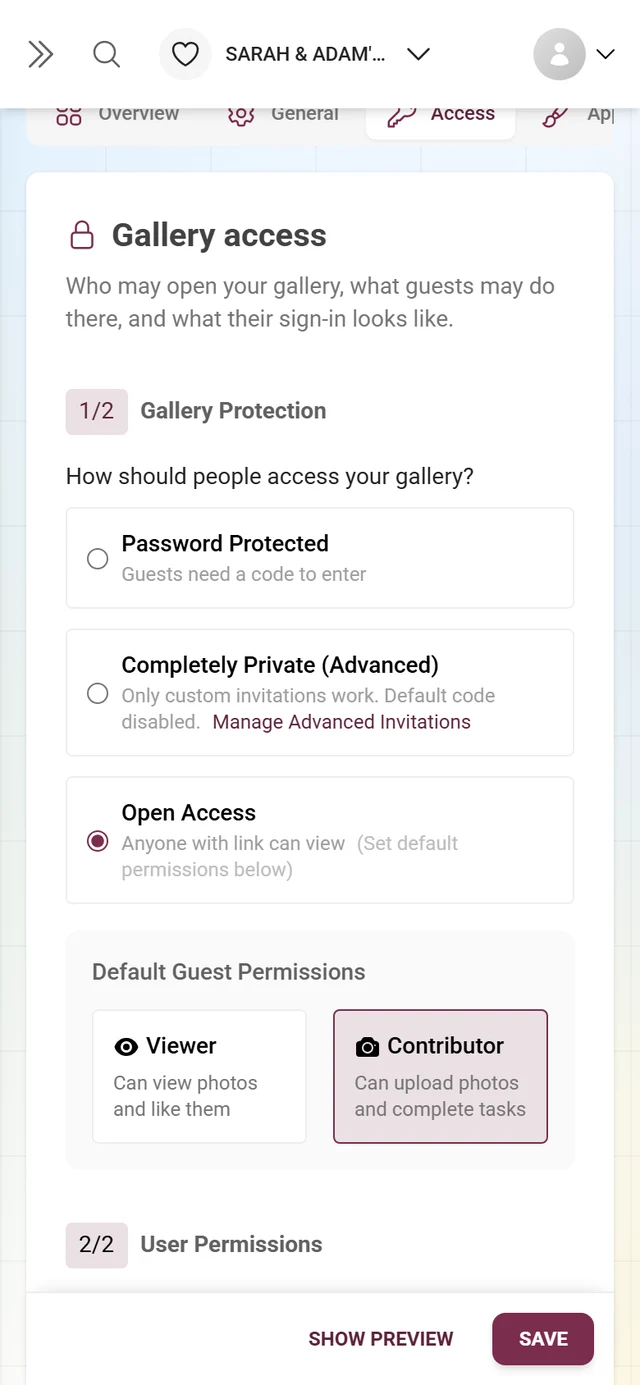
Section titled “Section “1/2 Gallery Protection””At the top of the Access tab sits gallery protection with the question “How should people access your gallery?” and the three options Password Protected, Completely Private (Advanced) and Open Access. With Open Access you set the default role below it via the Default Guest Permissions tiles: Viewer (view and like only) or Contributor (upload and take part as well).
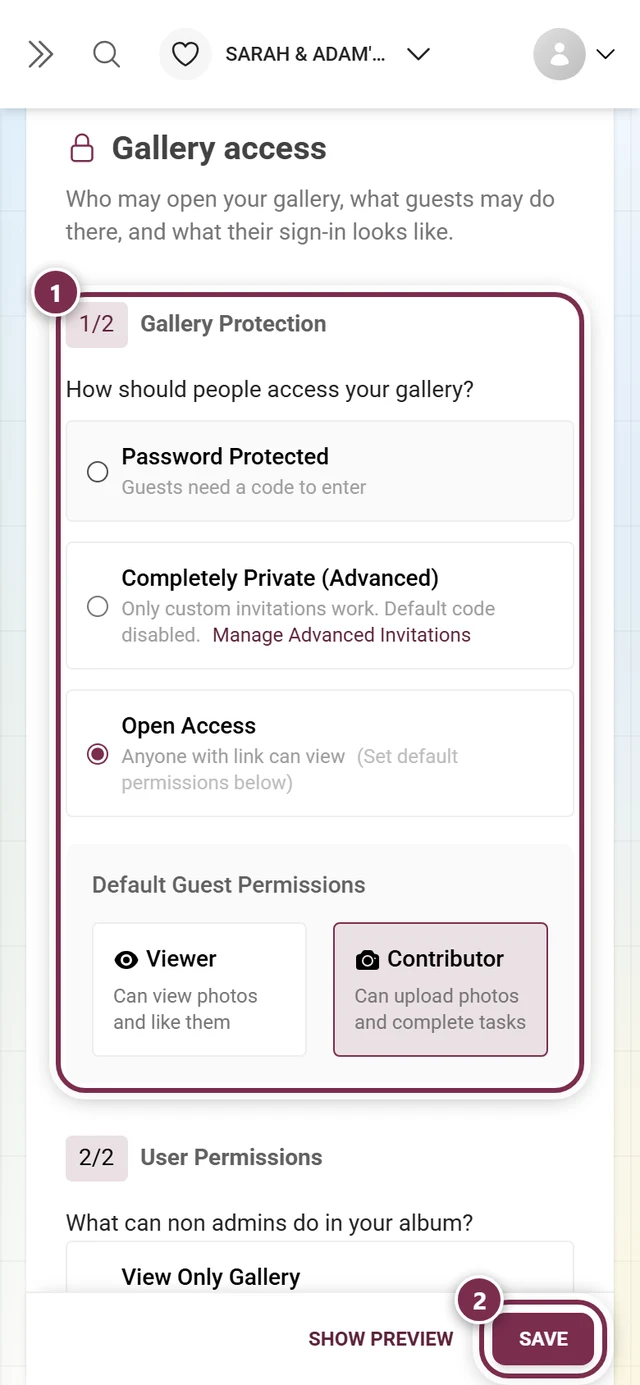
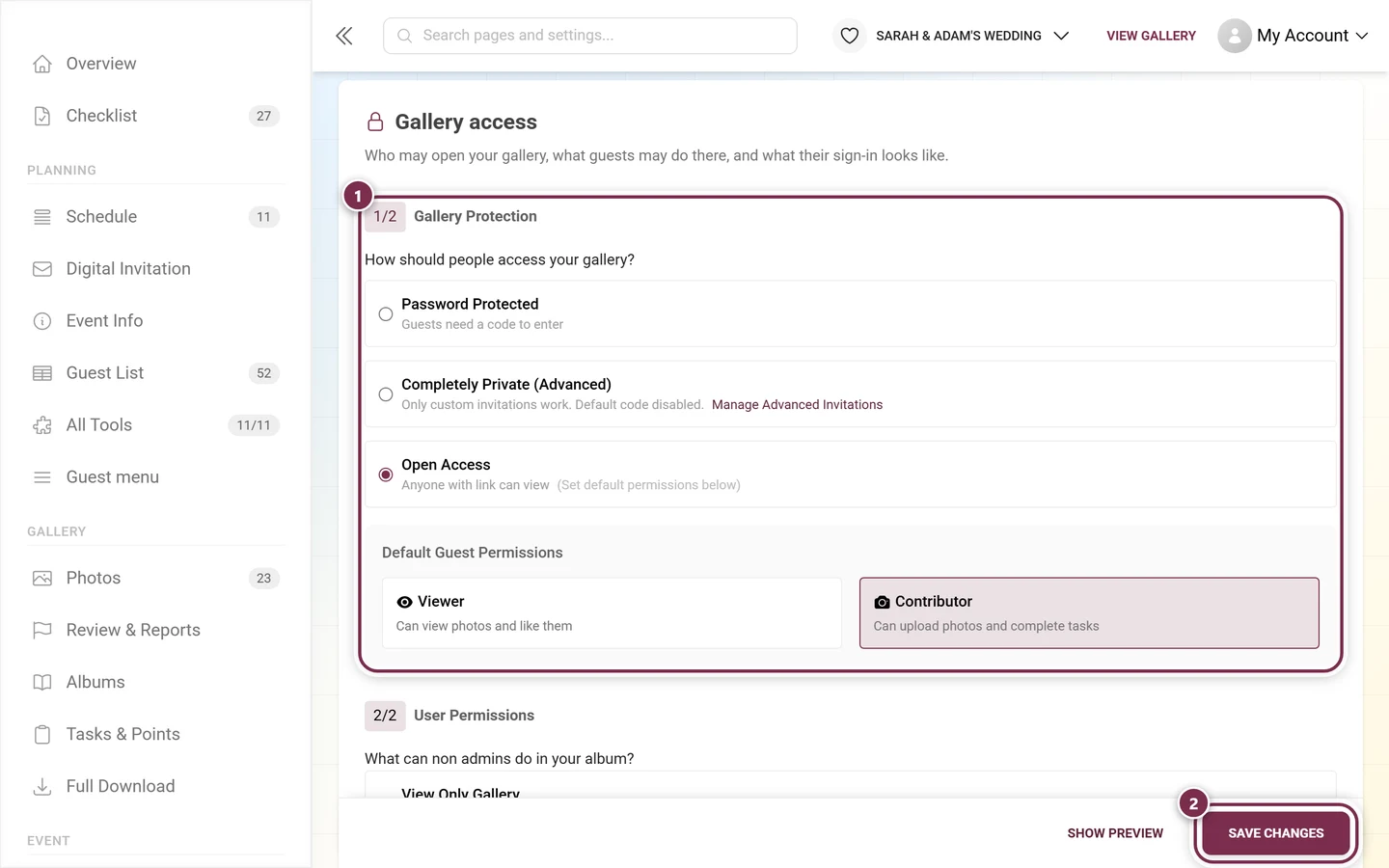
This is the same setting that used to appear in simple mode and under “Privacy & Moderation” as well – today there is exactly this one place for it. It is saved with the central Save Changes button at the bottom of the settings page; a separate Save Protection Settings button no longer exists.
The “Invitation codes” card / “Custom Invitations” block
Section titled “The “Invitation codes” card / “Custom Invitations” block”The heart of it. Here you create any number of access codes, each with its own role. Create New Invite (the very first time Create Your First Invite) opens the creation dialog. Existing codes appear in a table with the columns Code, QR, Description, Role, Uses and Actions. If a usage limit is reached, it reads Limit reached in red.
Above the table you’ll find the search field Search invites… and a Filters menu with filters by role (All Roles) and status (All, Active, Inactive) plus Sort By (Date Created, Usage Count, Role).
The actions menu per code offers:
- Edit Invite – edit the code.
- Deactivate / Activate – shut a code down or release it again.
- Use within Template – use the code in a template or QR card (see Design Studio).
- Share – share the invitation.
- Delete – delete the code, with a Confirm Delete prompt.
If you select several codes via the checkboxes, bulk actions appear: Activate Selected, Deactivate Selected and Delete Selected. Below the table the line “Showing X to Y of Z entries” shows the current slice, next to the paging buttons Previous and Next.
At the foot of the block, beside the Create New Invite button, sits the note: “Pro tip: Create separate invites for different roles or user groups for better access management.”
The creation dialog field by field
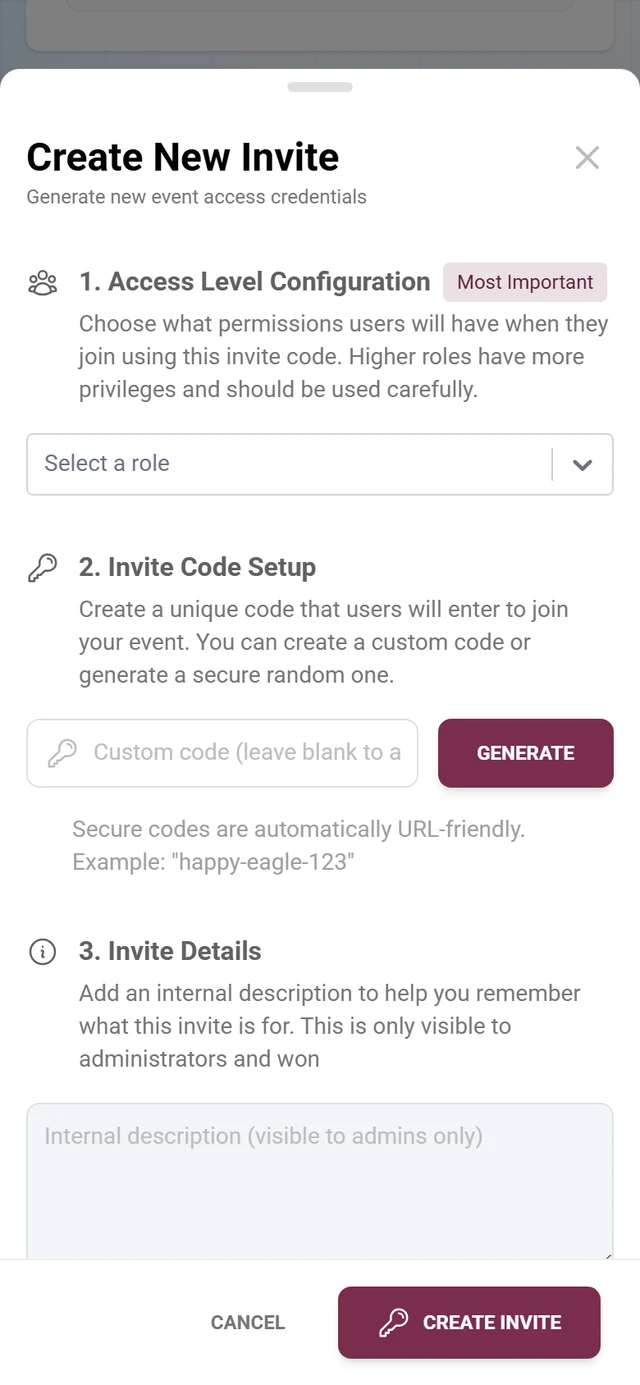
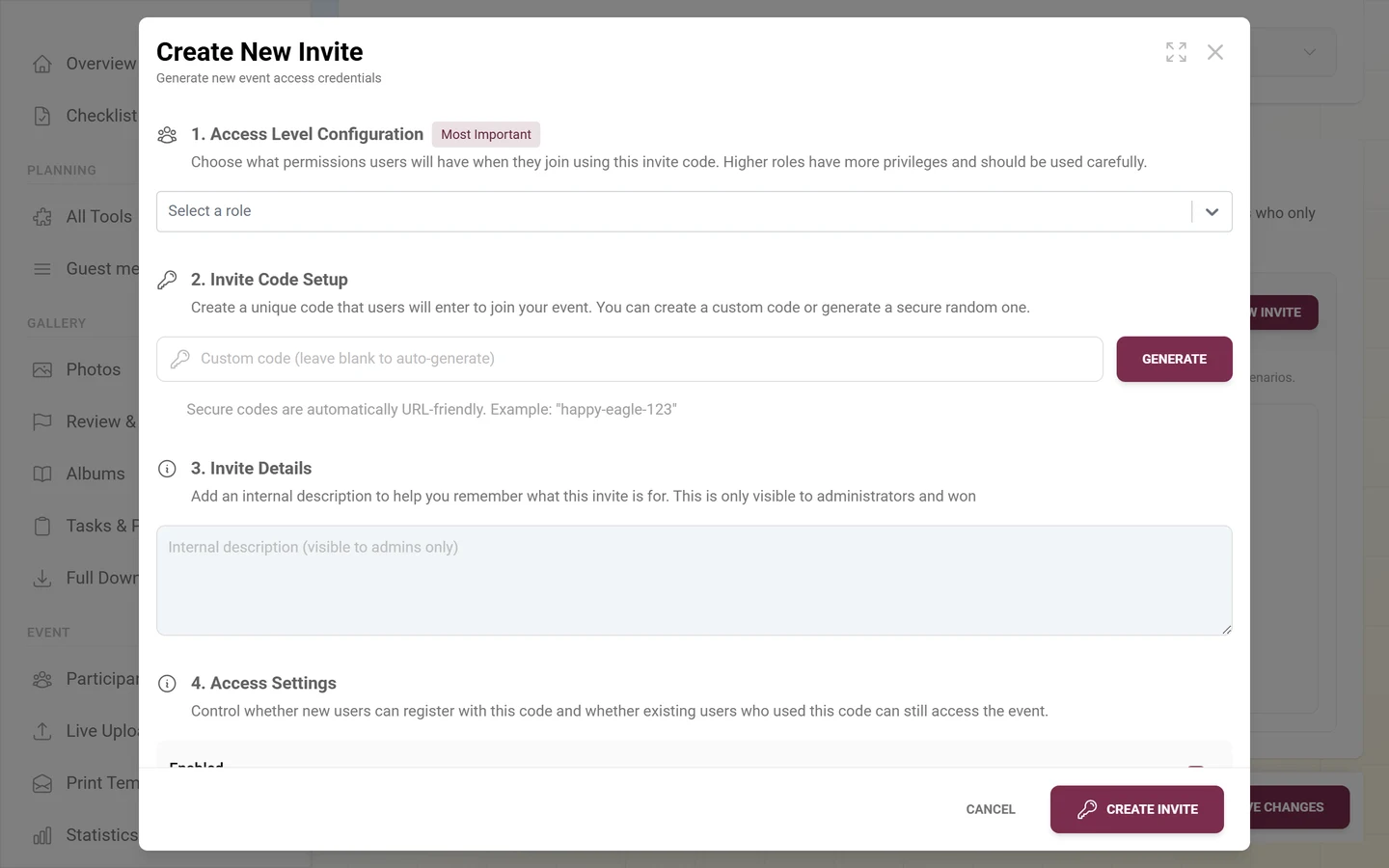
Section titled “The creation dialog field by field”Create New Invite (or Edit Invite) opens the most important dialog. It carries the subtitle “Generate new event access credentials” or “Update existing access code” and is split into six numbered sections.
-
1. Access Level Configuration (with the Most Important badge). Here you pick the role joiners get with this code. For a privileged role (Moderator, Admin or Owner) a note appears: “Security Note: For privileged roles, it is recommended to set max usage to 1 for better security.” Roles you may not grant are disabled and marked Owner only.
-
2. Invite Code Setup. Type your preferred code into the text field (placeholder “Custom code (leave blank to auto-generate)”). Leave it empty and one is generated on save. The Generate button immediately creates a readable, URL-friendly code – for example
happy-eagle-123. -
3. Invite Details. In the description field (placeholder “Internal description (visible to admins only)”) you write a note about what the code is for. Only admins see this description, never the guests.
-
4. Access Settings. Two switches whose difference matters:
- Enabled – “When enabled, new users can register using this invitation code”. Controls whether new people can still join with this code.
- Active – “When active, users who previously used this code can still access the event”. Controls whether people already let in keep their access.
In short: Enabled = door open for newcomers; Active = those already in stay in. So you can close a code for new people without locking out existing guests.
-
5. Expiration Settings. In the date field (date and time) you set when the code stops working: “Leave blank for no expiration. Times are in your local timezone.”
-
6. Usage Limits. In the number field you enter how often the code may be used (placeholder “0 = unlimited uses”). For privileged roles with a value other than 1, a Security Recommendation box appears advising at most one use for such roles.
Saving. At the bottom sit Cancel and Create Invite (new) or Update Access Code (editing). Two automatic behaviors are worth knowing:
- As soon as you pick a privileged role, Photogala sets the usage limit to 1 automatically if no value was set yet.
- If you still save a privileged code with a different value, a prompt appears: “Security Warning: For roles such as moderator, admin, and owner, it is recommended to set max usage to 1 for better security. Do you want to proceed with a higher max usage?” – so you have to actively agree.
Co-hosts for larger events
Section titled “Co-hosts for larger events”When your event grows, sharing responsibility pays off:
- During the party someone can take over moderation so you can celebrate too.
- With lots of uploads, several moderators keep the gallery tidy.
- A second admin can adjust settings at short notice when you’re not reachable.
Best create one code per co-host with the matching role – and for privileged roles with a usage limit of 1, so the code doesn’t wander off. If the person is already there, the role override in the details dialog is faster.
Troubleshooting
Section titled “Troubleshooting”- I don’t see the custom codes. You’re missing the Advanced User Roles feature; a premium overlay then covers the block. Without it there’s only one default code with one role. See Plan & term.
- I’m looking for advanced mode. There is none any more – everything sits together on the Settings → Access tab.
- I can’t create an Admin or Owner code. You’re an admin, not the owner. The same applies to the per-user role override.
- A code stopped working. Check in order: is Enabled off? Is Active off? Has the expiry date passed? Is the usage limit reached (Limit reached)?
- Someone still has the old role despite a new code. Then a role override is probably in place – it beats the code. The details dialog shows an Override chip; Clear removes it.
- Old printed codes no longer work. When you change the default access code, all printed codes and links become invalid (“Password changes will update all printed codes and links. Old passwords stop working.”).
- Completely Private is active. Then the default code is disabled – only your custom codes grant access. Change it under Settings → Access, section Gallery Protection, see Inviting guests.
Best practices
Section titled “Best practices”- Keep the Owner role for yourself or someone you trust absolutely.
- For privileged roles always use a usage limit of 1 – one code, one person.
- Create a separate code per audience (photographers, best man, kids’ table …). That keeps things clear.
- Use the internal description consistently so you can identify every code at a glance.
- Set an expiry date for temporary helpers so access closes by itself.
- Promote individuals via the role override rather than building yet another code for them.
Related help
Section titled “Related help”- Registered users – change individual roles, points and bans
- Inviting guests – the full invitation flow on the Access tab: link, QR code, access modes, Completely Private and default role
- Moderation – approve, hide and handle reported content
- Moderation & safety – upload approval and the AI content filter
- Joining a gallery – the guest view when entering a code