Supported browsers & devices
The gallery runs right in your browser — on your phone just as well as on your computer.
Which browsers work
Section titled “Which browsers work”- On a phone: Safari on iPhone and iPad, Chrome on Android. Firefox, Edge and Samsung Internet are common too and work fine.
- On a computer: Chrome, Firefox, Safari and Edge.
As a lower bound: the versions of the last few years. To be honest, it can’t be pinned down more precisely — Photogala keeps no hard list of minimum versions, so there is no number to point at. If you update your browser now and then, you’re on the safe side.
JavaScript has to be enabled. If it’s switched off, all you get is a note that the app requires JavaScript.
There is no warning for outdated browsers
Section titled “There is no warning for outdated browsers”When something looks off, this order usually helps:
- Update your browser.
- Reload the page.
- Try a different up-to-date browser.
- Temporarily switch off content and ad blockers.
Installing: not needed, but possible
Section titled “Installing: not needed, but possible”You don’t need an app — you simply open the link to the event. You can still install the gallery: use your browser’s menu to put it on your home screen or in your applications. It then starts in its own window without an address bar.
There is no button for it inside Photogala — the route always goes through the browser menu. How to do it is described in Installing the app.
Camera access
Section titled “Camera access”Two features want the camera — and they behave differently:
- QR scanner: here Photogala accesses the camera live, so your browser asks for permission. If you decline or there is no camera, you’ll see: “Camera not available. Please check permissions or use a device with a camera.” You can grant permission later at any time in your browser’s site settings.
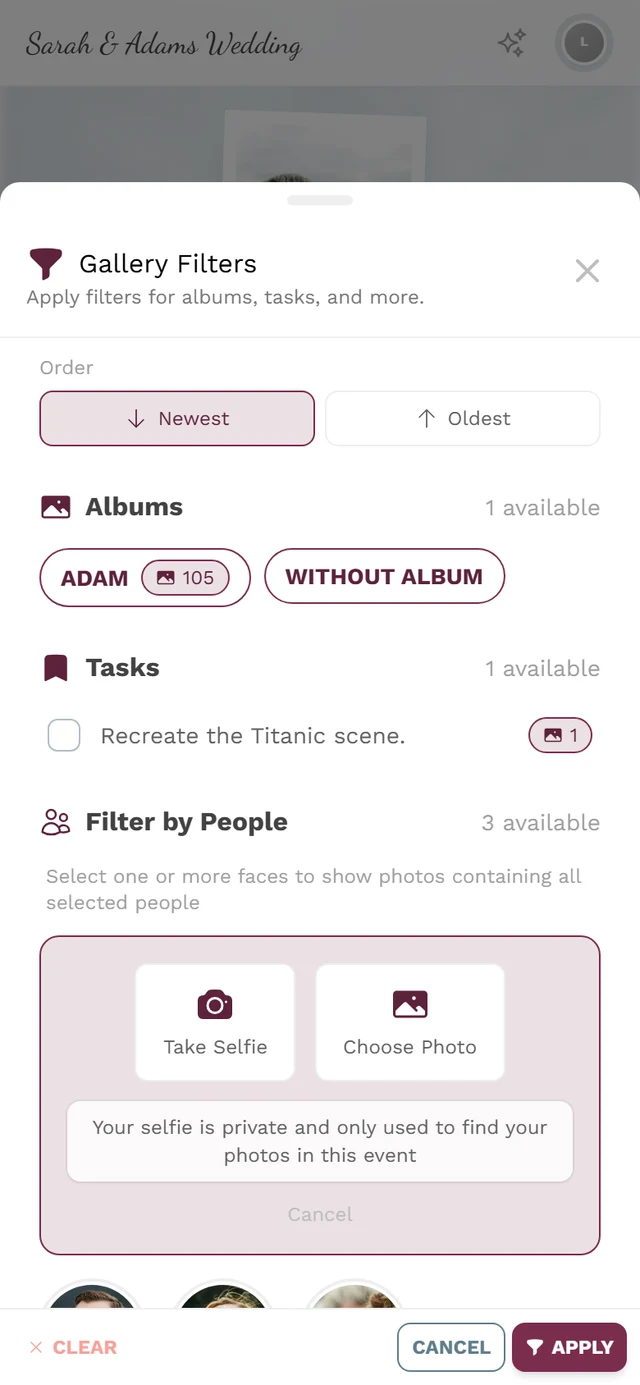
- Taking a photo and the selfie search (Find me → Take Selfie): here your device’s camera app opens. The browser asks nothing, and Photogala only receives the finished picture. If nothing happens, the system has blocked the camera — use Choose Photo from your gallery instead.
Content and ad blockers
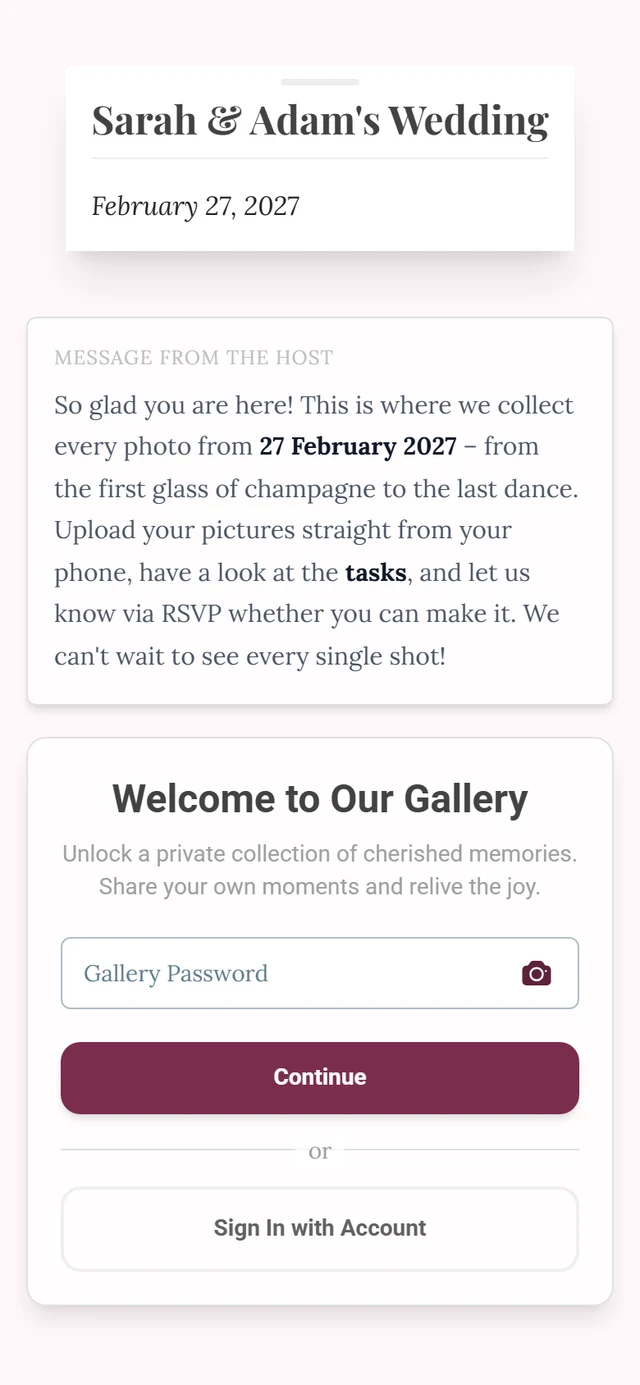
Section titled “Content and ad blockers”Strict blockers and privacy extensions can knock out individual parts of the page. You notice it most clearly on the password screen, where it then says: “The captcha could not be loaded. Check your connection or disable content blockers.” Switch the blocker off for this site briefly and reload.