Redeeming real rewards
Some events reward active guests not just with points, but with real rewards – a drink or a small prize at the prize table, say. Such rewards are tied to achievements you unlock by joining in. This guide shows you every way to find a unlocked reward, redeem it, and present your confirmation code.
Two routes to a real prize
Section titled “Two routes to a real prize”An event can hand out real prizes on two independent routes:
- Achievement rewards – you unlock these through activity. Meet the conditions of an achievement and you get the reward attached to it. That is the flow described on this page.
- Winner prizes – you get these for your placement at the end. The host freezes the leaderboard standing at a point in time, and the top places of each category receive a prize. That flow is described in Points & rewards.
Both can run at the same time. The redemption is similar – in both cases you end up showing the host a six-digit code – but they are separate systems: a winner code never shows up in your profile under Redeemable, and an achievement reward doesn’t disappear when the standing gets frozen.
Requirements
Section titled “Requirements”Three things have to come together for your event to hand out real rewards:
- The host has enabled the feature under Settings → Features (Achievements). If it is off, you will see no reward banner.
- There are achievements with a physical reward (e.g. “upload 5 photos → free drink”). Without such achievements there is nothing to redeem.
- The reward still has stock. The host can set a quantity per achievement. Once it is used up the reward counts as Out of stock and appears neither in the banner nor in the Redeemable tab. If the host leaves the quantity empty, stock is unlimited – the achievement card in your profile then reads Available: ∞.
Real rewards are a premium feature. Unlocking itself works like any achievement – see Points & rewards and Challenges.
Step 1 – How you unlock a reward
Section titled “Step 1 – How you unlock a reward”-
Build up activity: upload photos, solve challenges, collect likes and points.
-
When you meet the criteria of an achievement tied to a real reward, that achievement becomes redeemable.
-
You notice it from three signals:
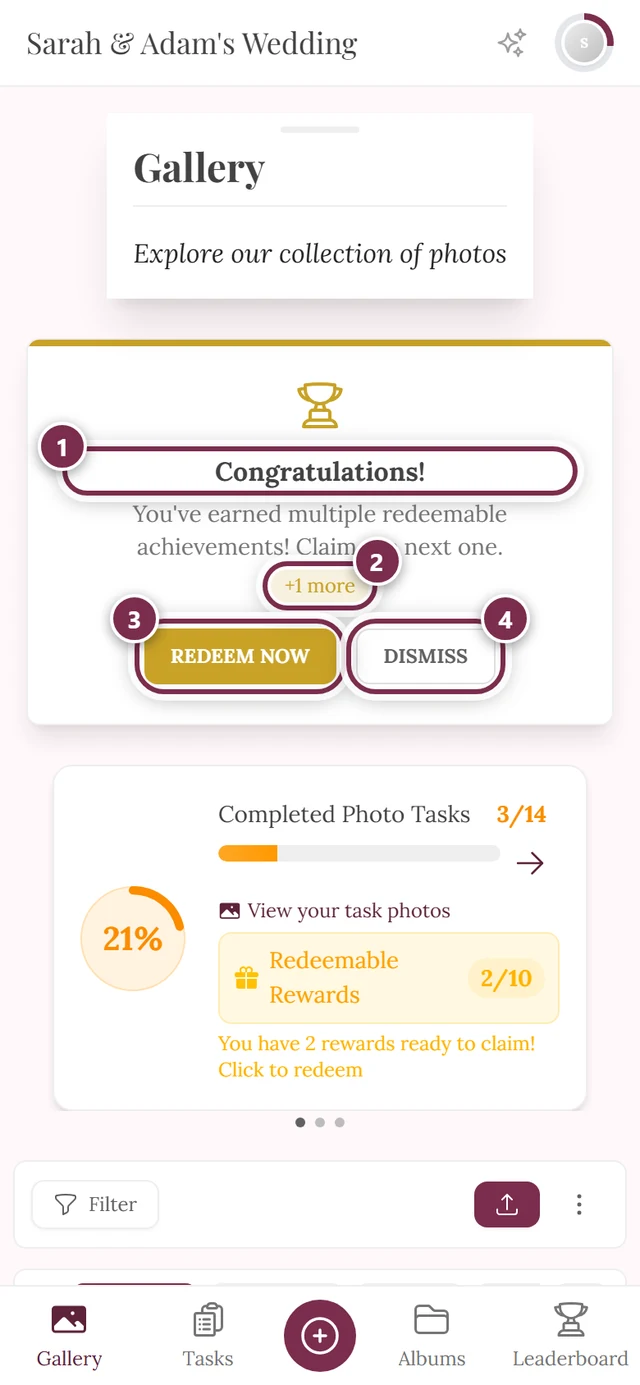
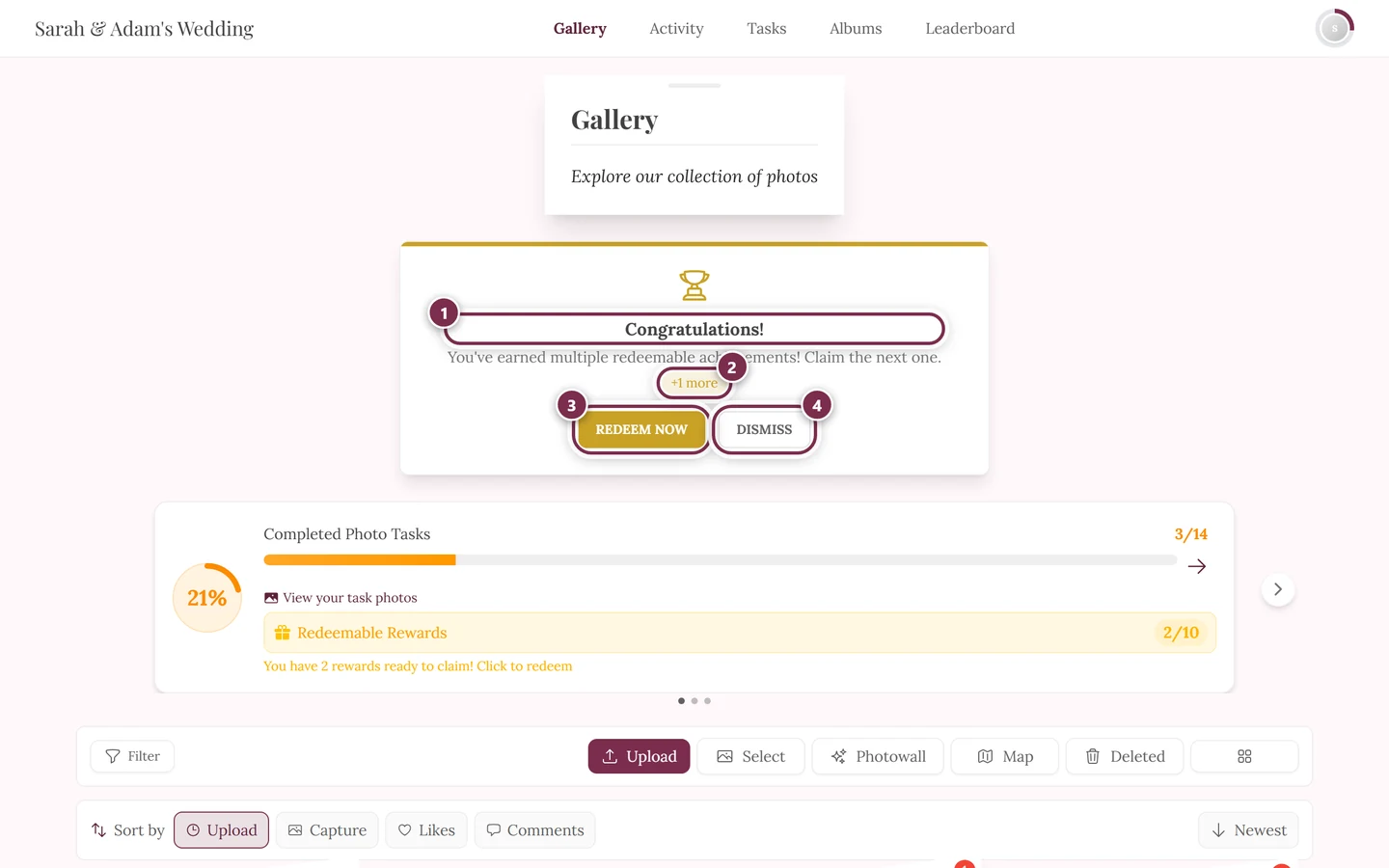
- A banner “Congratulations!” at the top of the page.
- A notification “Achievement Unlocked!” with a “Redeemable” chip (see the bell).
- A “N redeemable” chip in your profile.
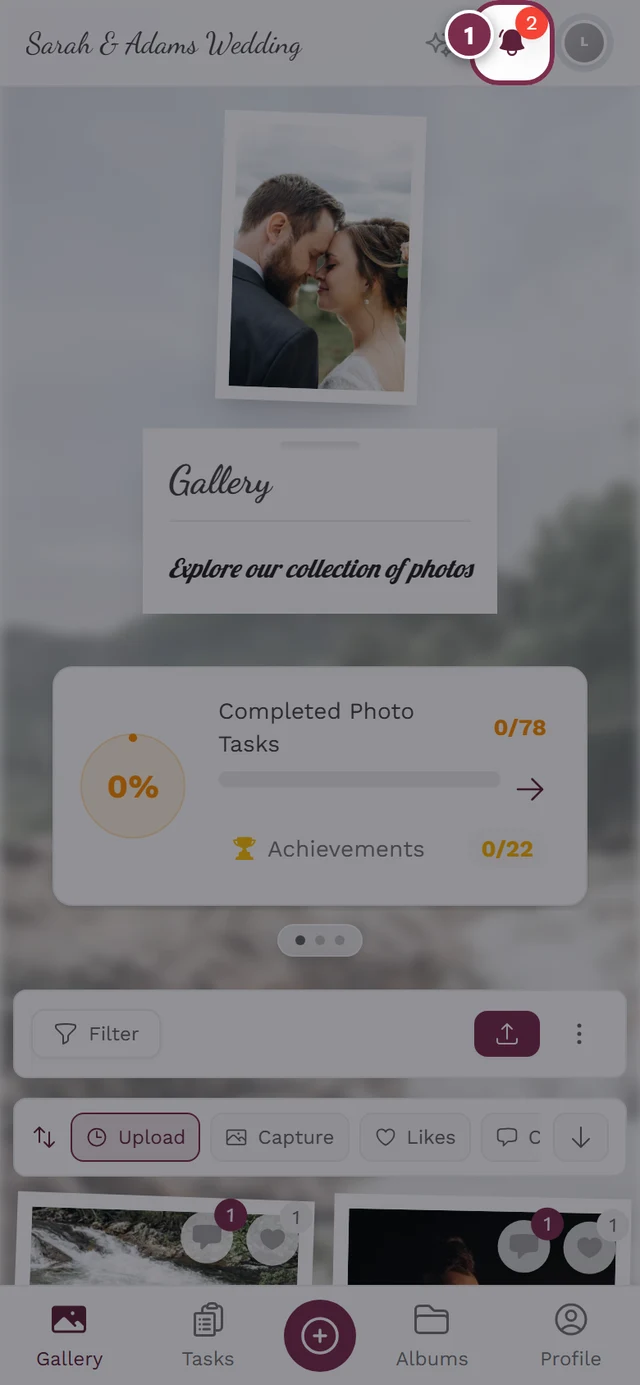
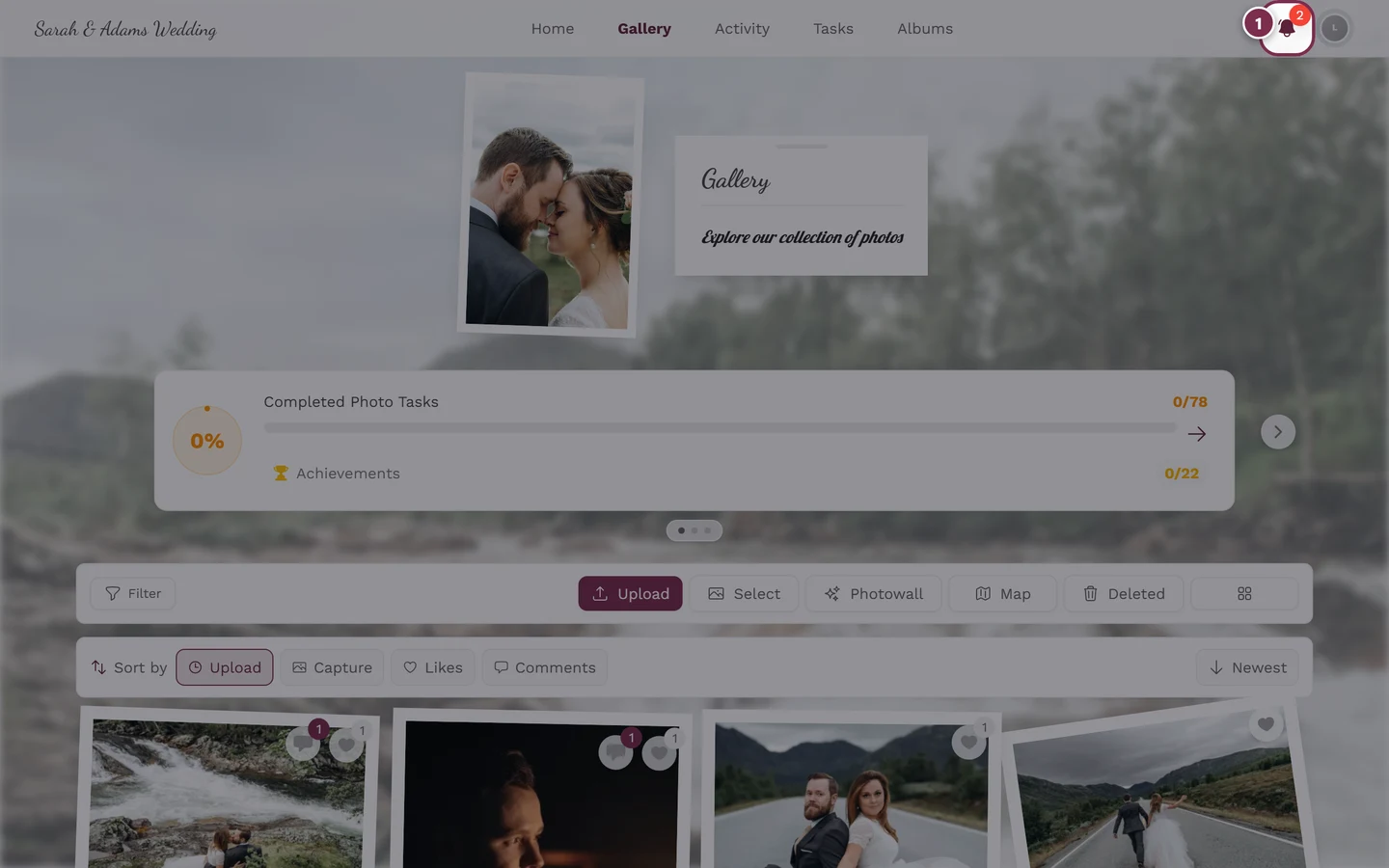
You now have three ways to redeem the reward. All three lead to the same redemption dialog (Step 5). Use whichever you come across.
Way A – Straight from the reward banner
Section titled “Way A – Straight from the reward banner”As soon as a physical reward is pending, the “Congratulations!” banner appears automatically at the top of every guest page – not only right after uploading. It has exactly two buttons.
-
Tap “Redeem Now” in the banner.
- If only one reward is pending, the detail dialog opens directly (continue with Step 5).
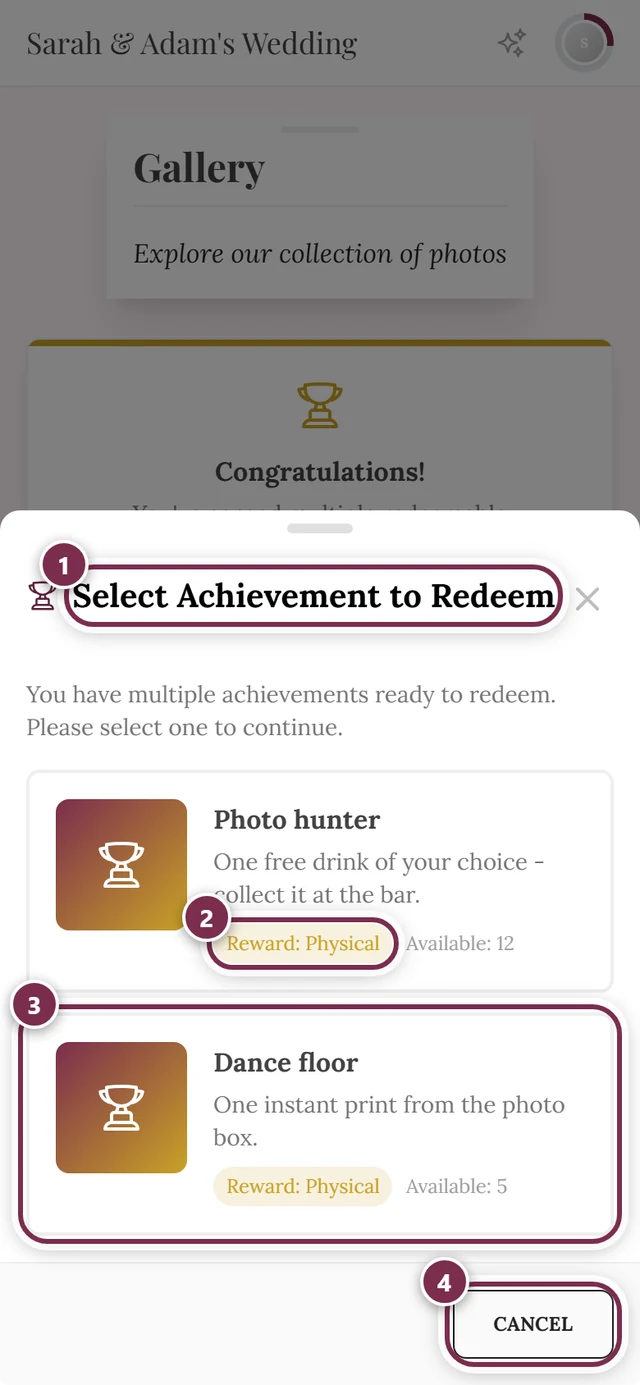
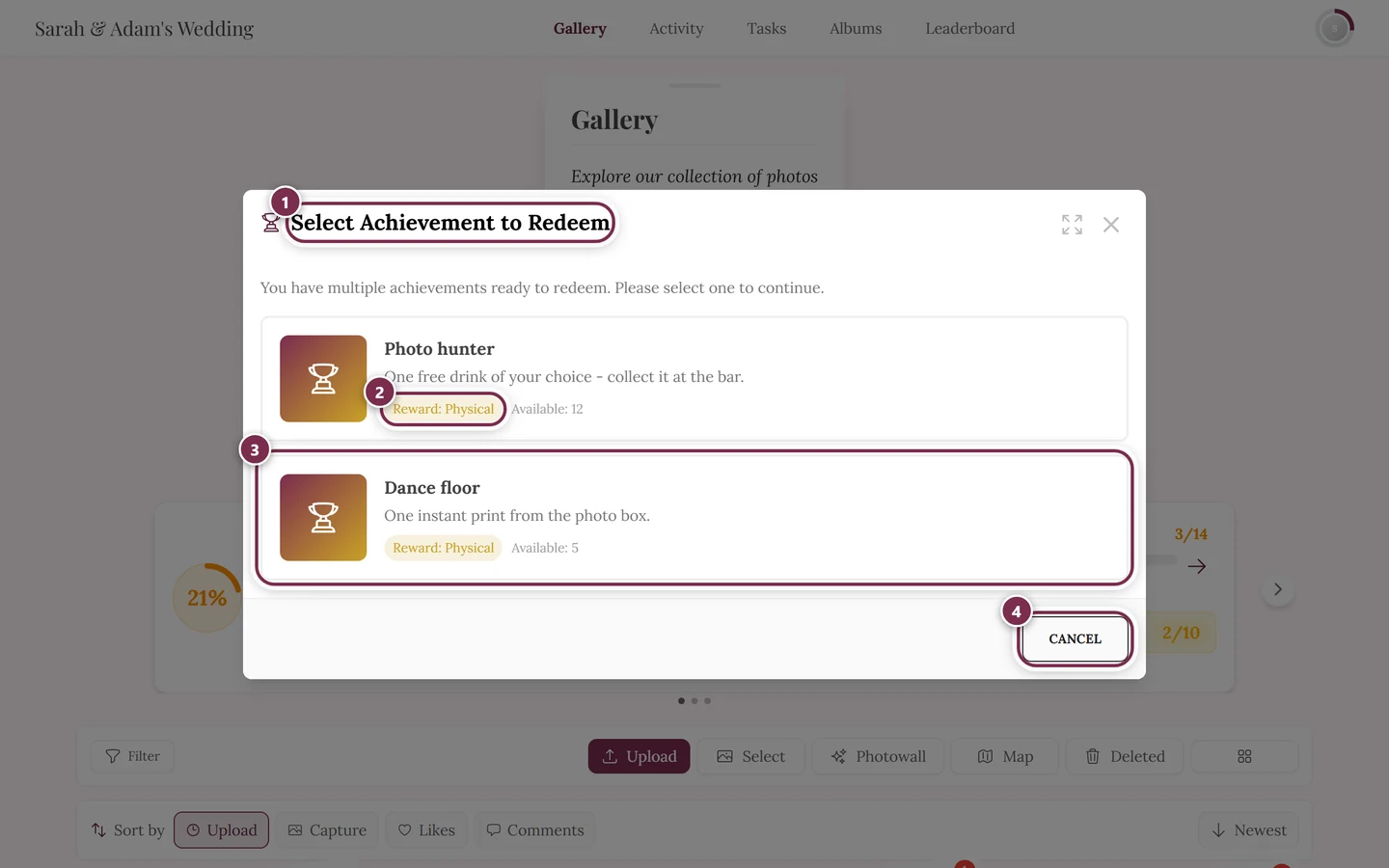
- If several are pending, the selection dialog “Select Achievement to Redeem” opens first. A “+N more” badge on the banner shows the count. Pick the reward you want.
-
In the selection dialog every reward carries the chip “Reward: Physical” – and next to it “Available: N”, but only if the host set a quantity. With unlimited stock that line is missing here. Tap the card you want to redeem; “Cancel” takes you back out without consequences.
Way B – From your profile (any time)
Section titled “Way B – From your profile (any time)”This is the most reliable route, independent of the banner.
-
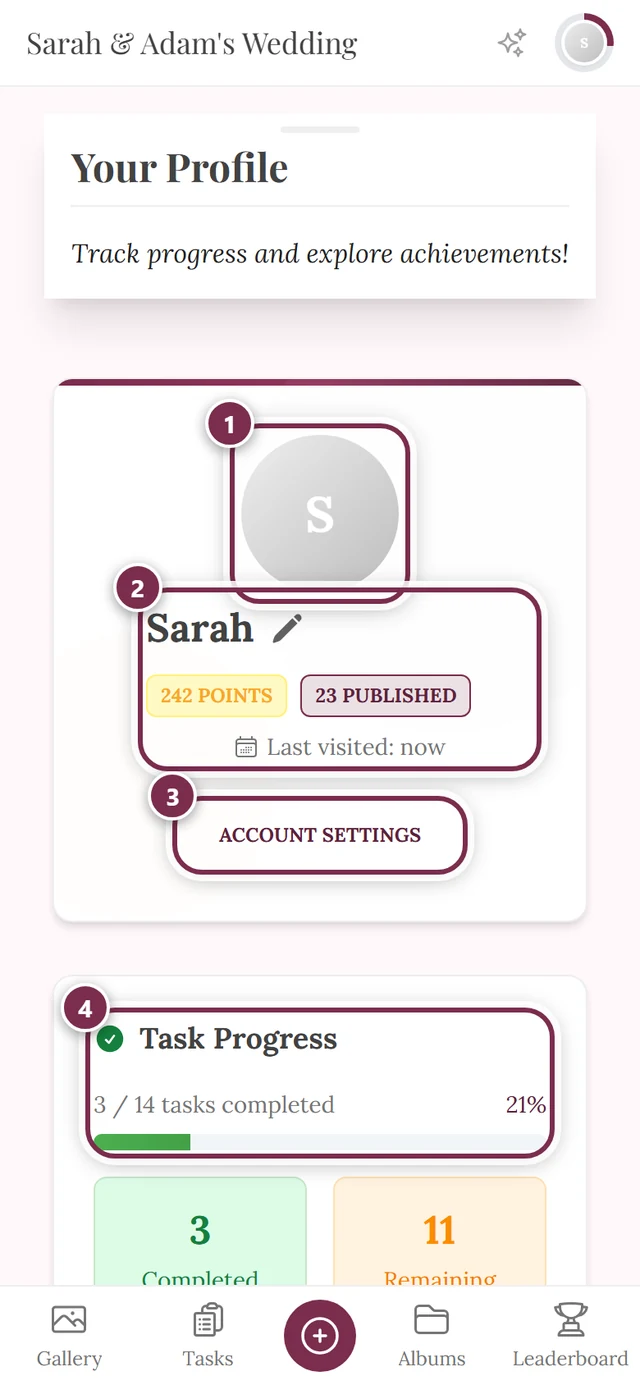
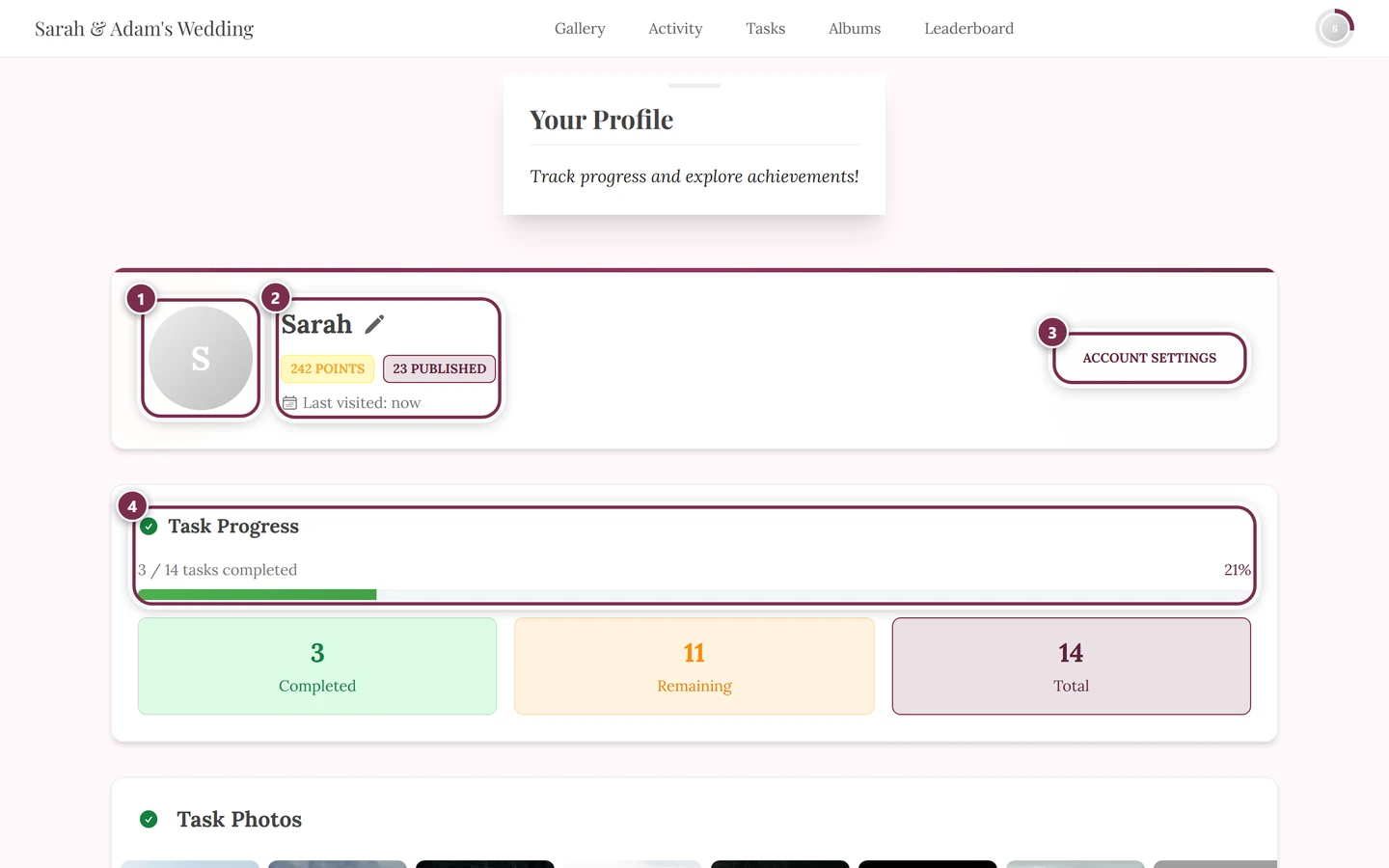
Open your profile via the profile menu at the top right (avatar → My Profile). More on the profile page under Your profile.
-
From there four entry points lead on:
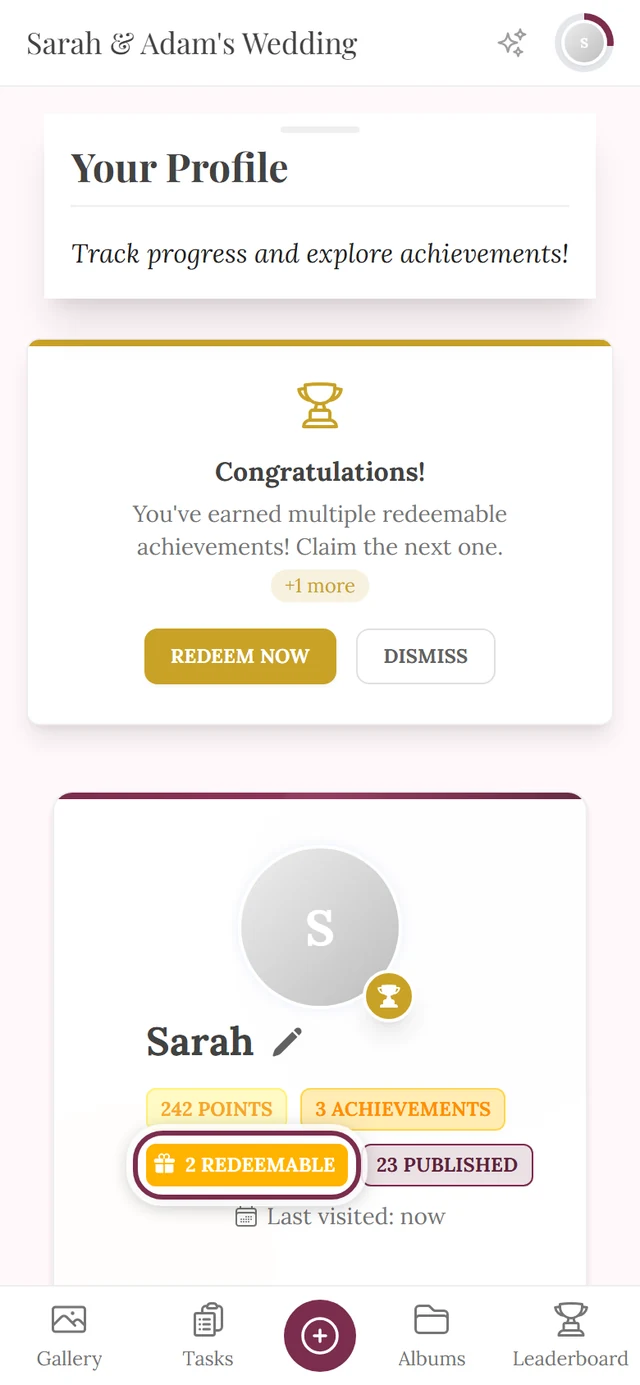
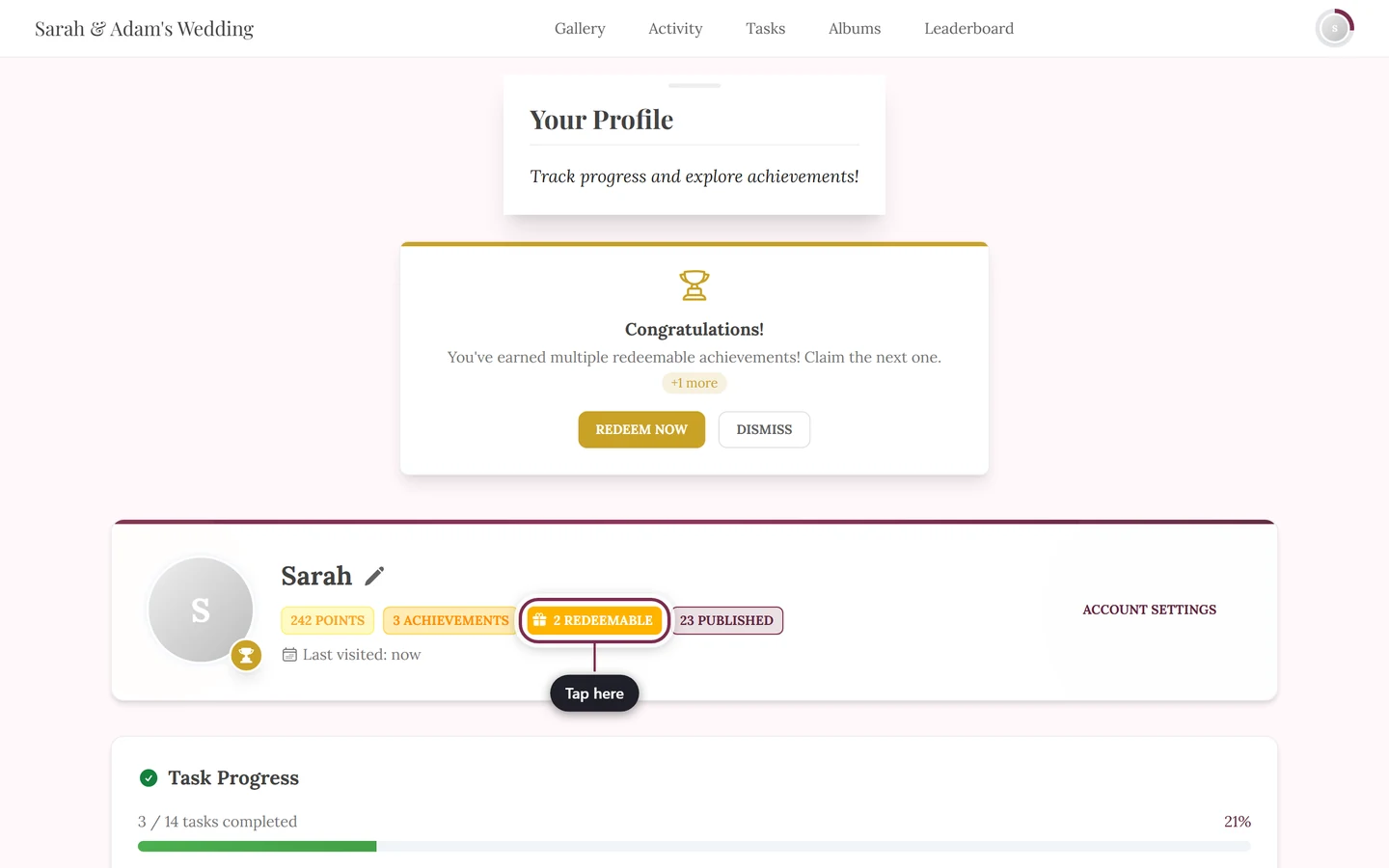
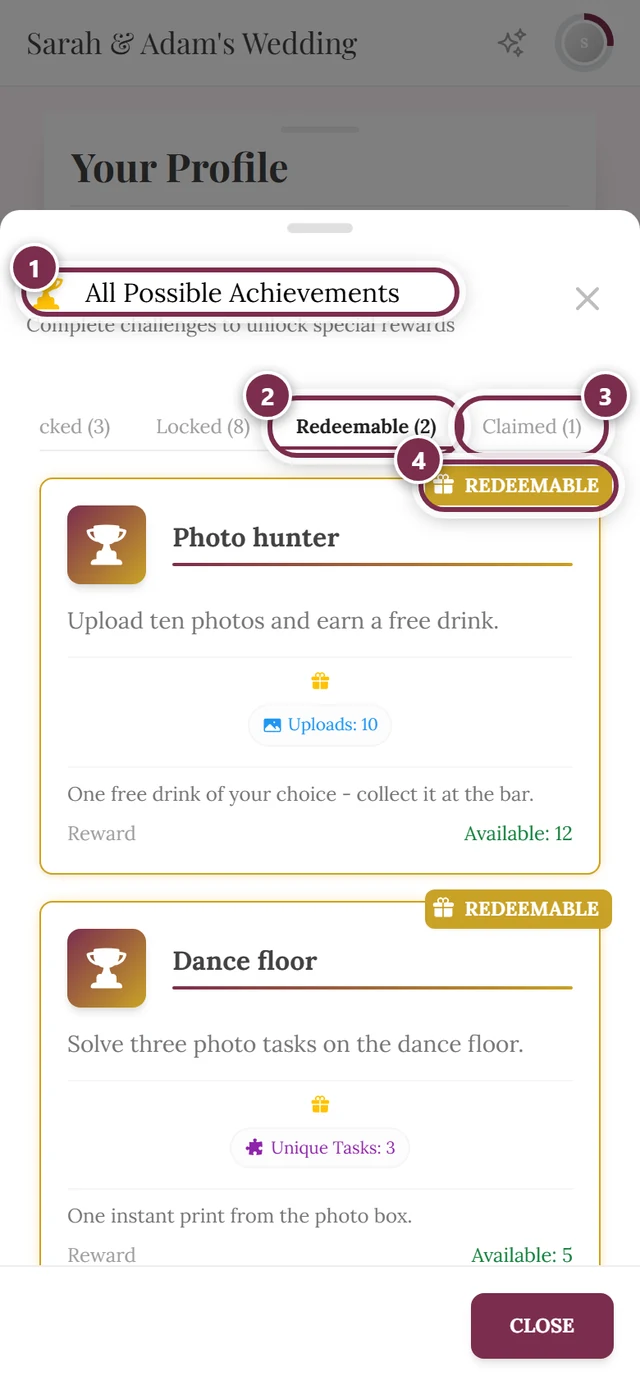
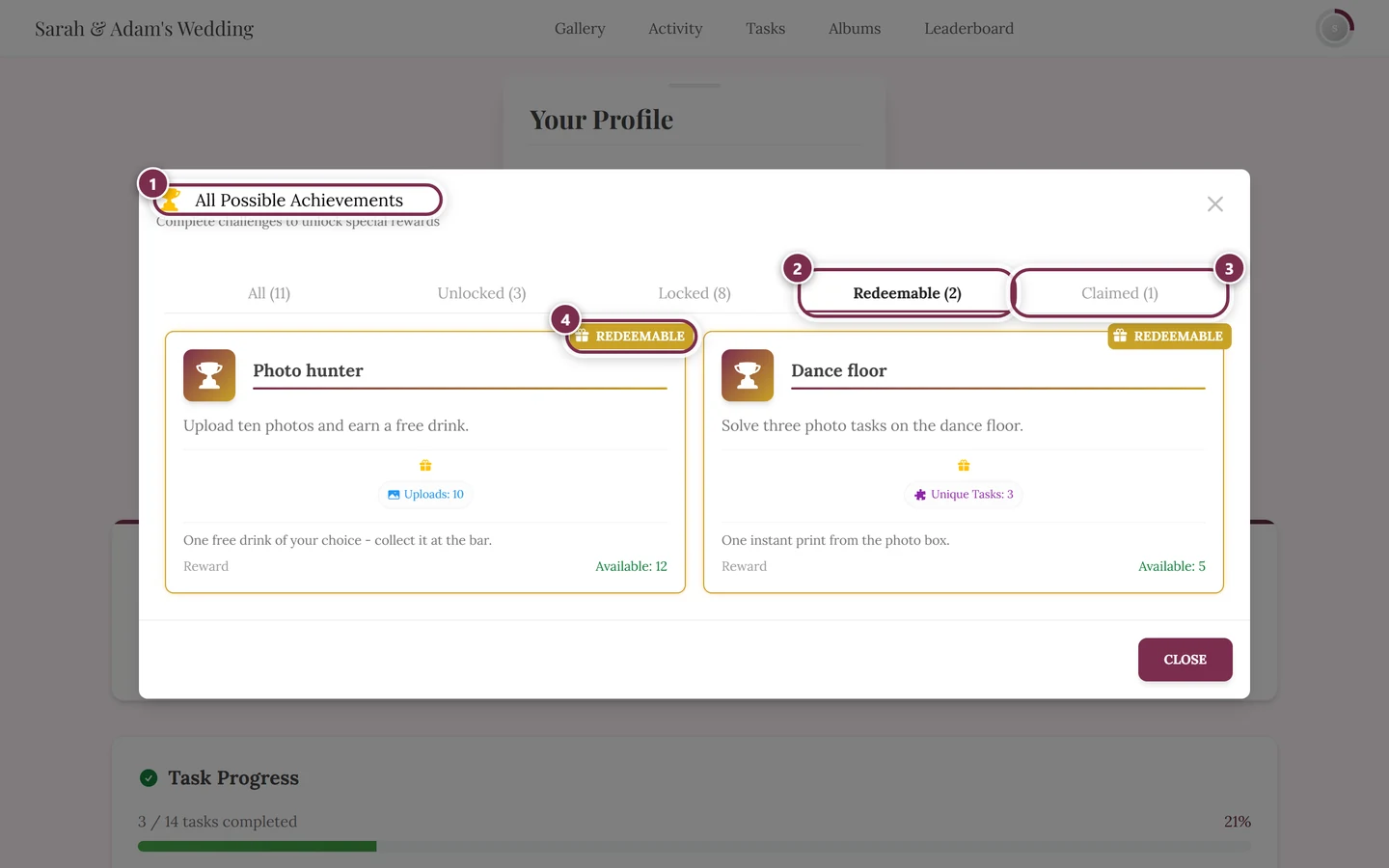
- The amber chip “N redeemable” (gift icon) at the top of the profile header, in the row with your points and achievements – it opens the achievements dialog straight in the Redeemable tab. That is the shortest route.
- The “Achievements” heading further down – it opens the same dialog in the Unlocked tab.
- The “See Available Achievements” button below the achievement cards – it opens the dialog in the All tab; you then pick the Redeemable tab yourself.
- Or tap the gold-bordered card in the Achievements section directly – that jumps straight into the detail dialog (continue with Step 5).
-
In the dialog, tap the reward card (status ribbon “Redeemable”, gold-bordered and glowing). The detail dialog opens (continue with Step 5).
Way C – From your notifications
Section titled “Way C – From your notifications”-
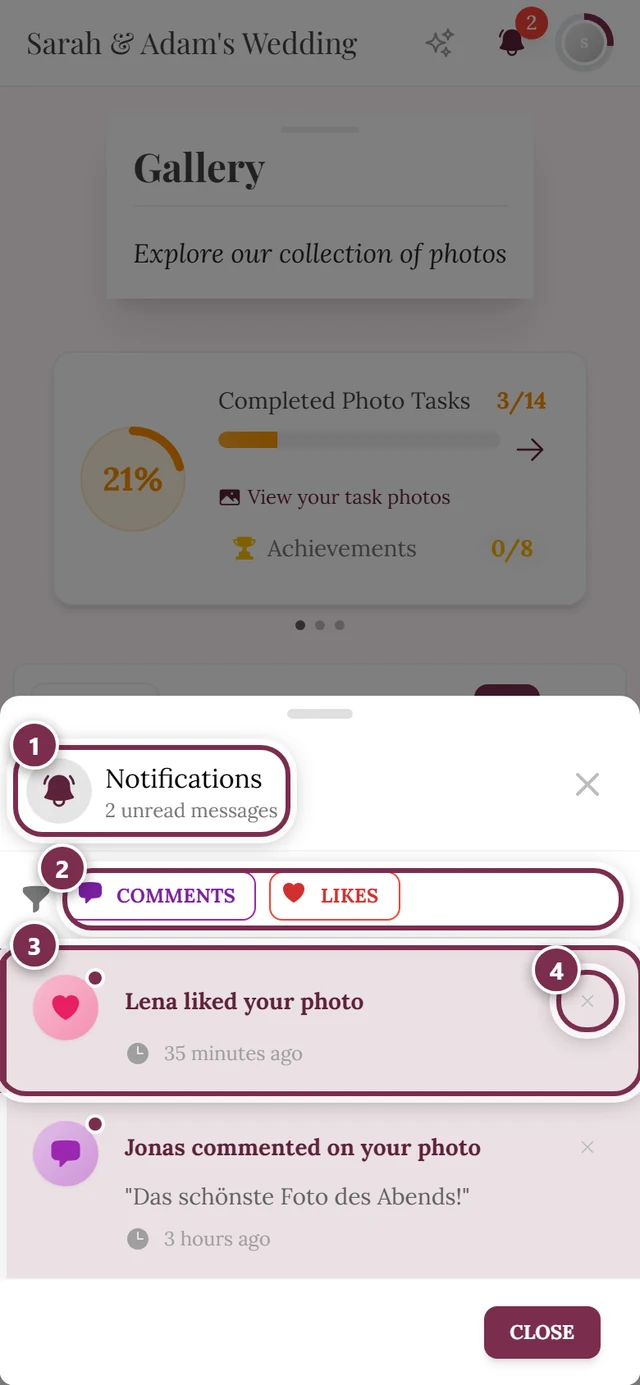
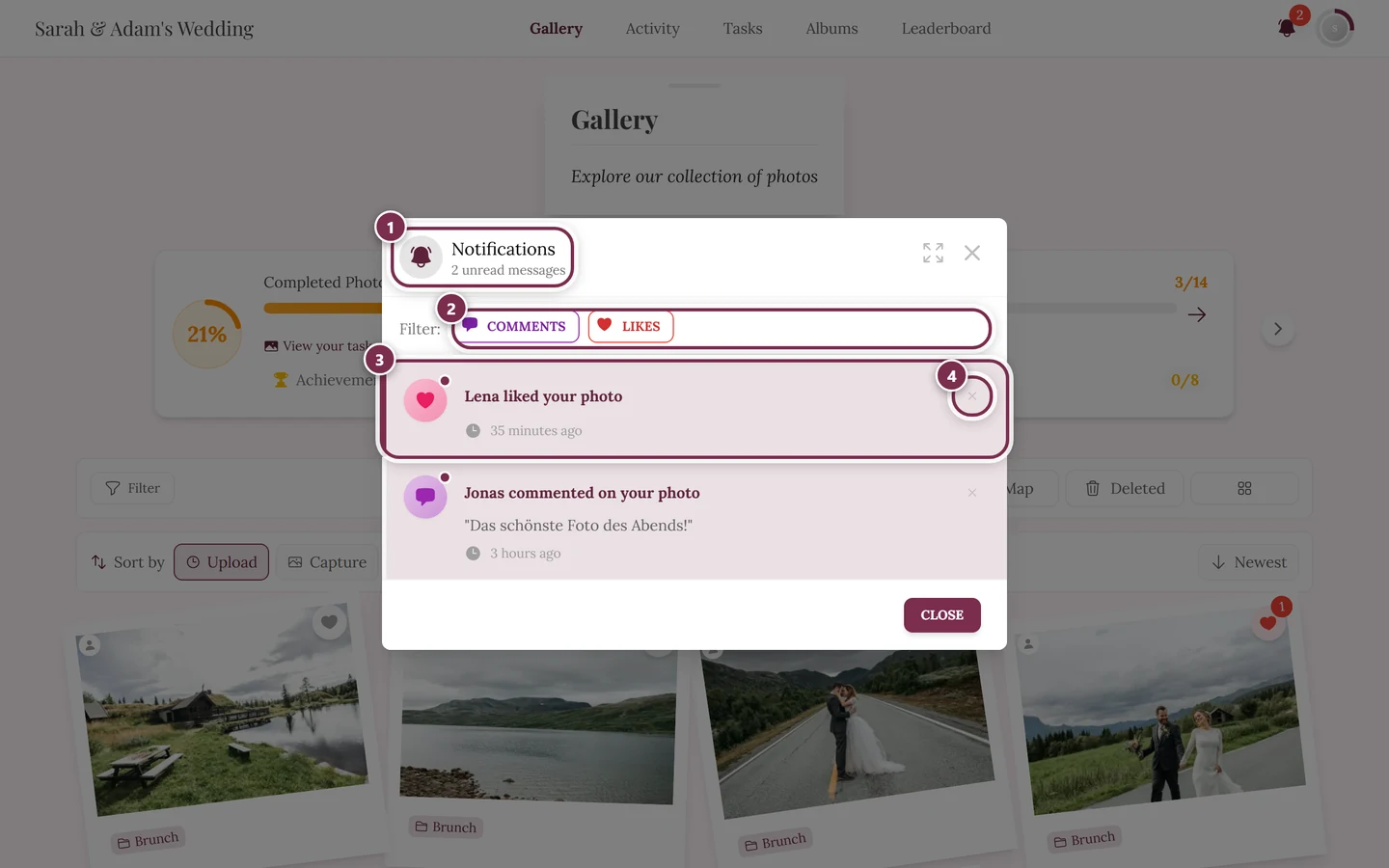
Tap the bell at the top. Unread items show a dot or counter.
-
Open the notification “Achievement Unlocked!” carrying the “Redeemable” chip.
-
The detail dialog opens (continue with Step 5).
Step 5 – The redemption process (same for every way)
Section titled “Step 5 – The redemption process (same for every way)”All three ways end in the reward’s detail dialog. From here the flow is identical.
-
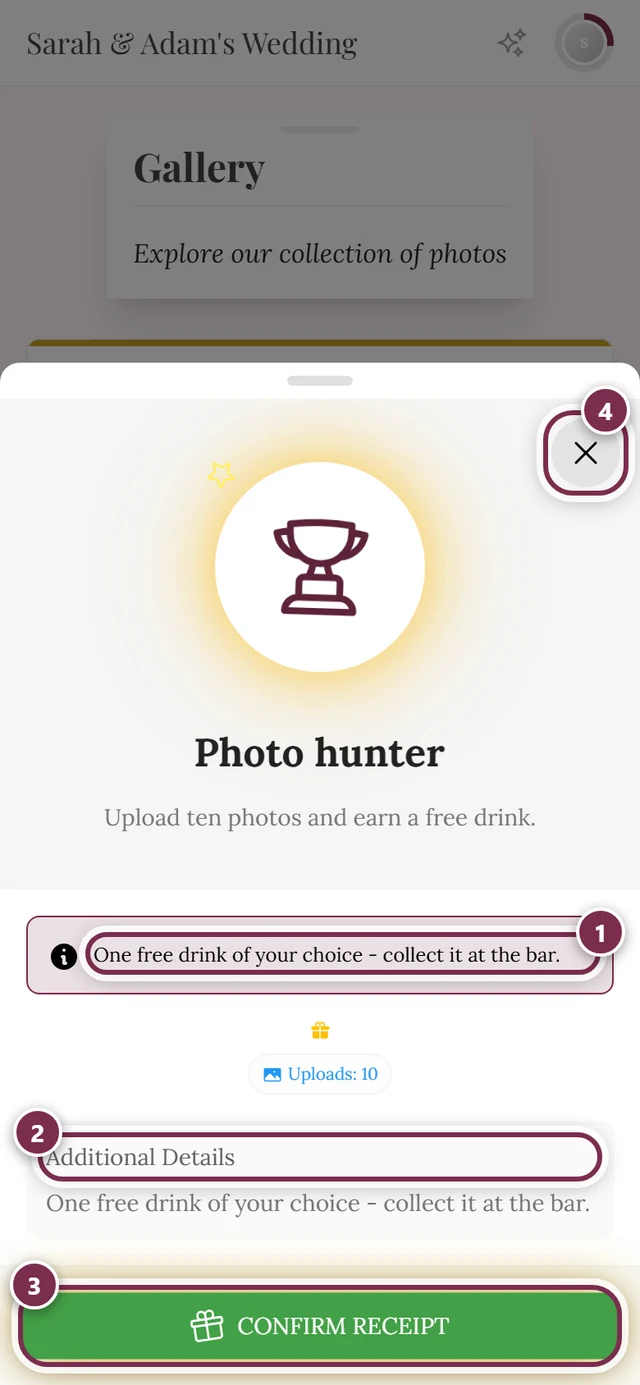
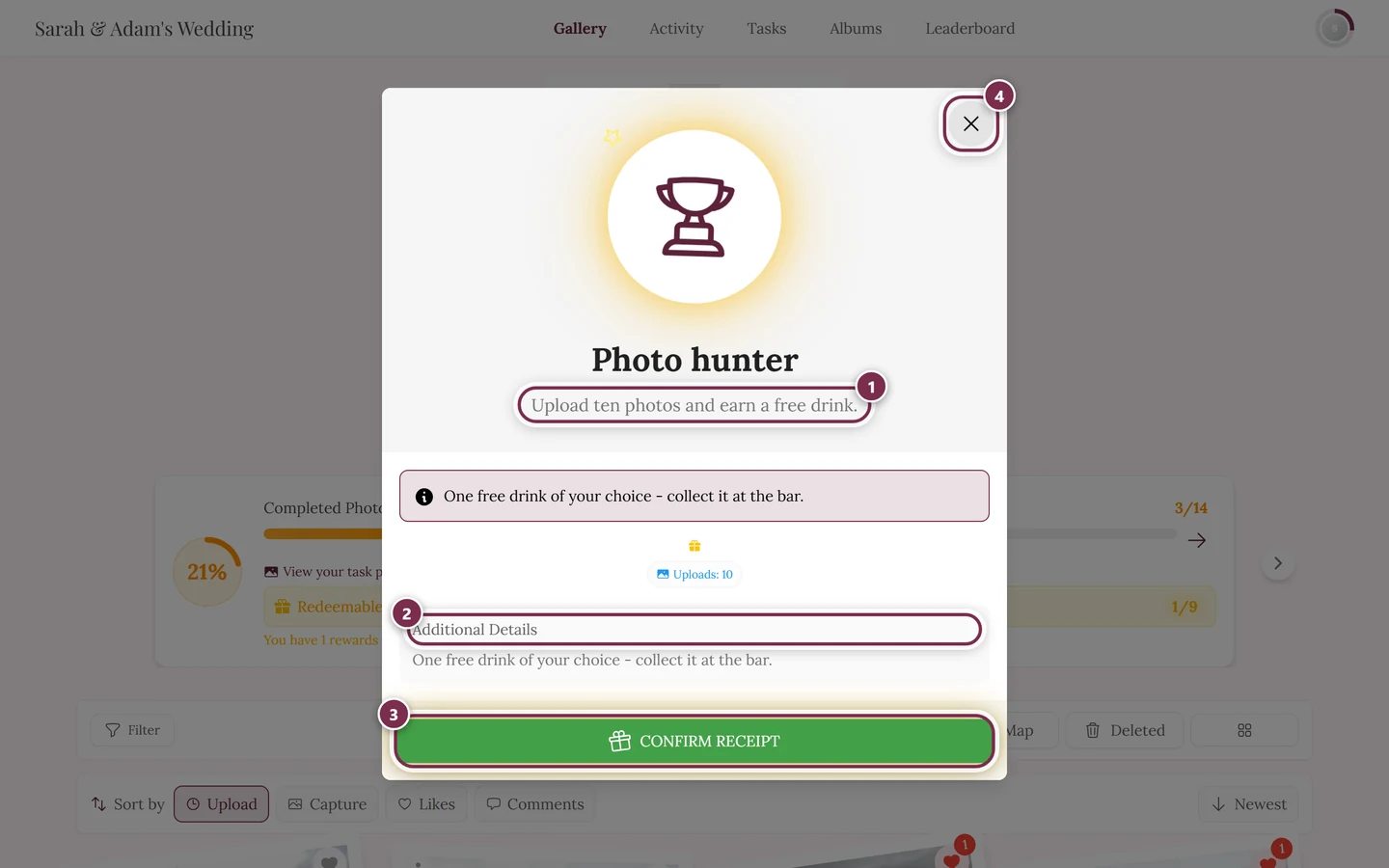
Check the reward: the detail dialog shows the name, image and an info box with the pickup hint. If the host wrote their own text for the reward, it appears there (e.g. “One free drink of your choice – collect it at the bar.”) and once more further down under “Additional Details”; otherwise the info box shows the default sentence “You can fetch your prize at the prize table!”. This dialog does not state a stock figure – if the reward is sold out, “Out of Stock” replaces the green button.
-
Tap the green, pulsing “Confirm Receipt” button (gift icon). This is not the same as “Redeem Now” – that one was only on the banner.
-
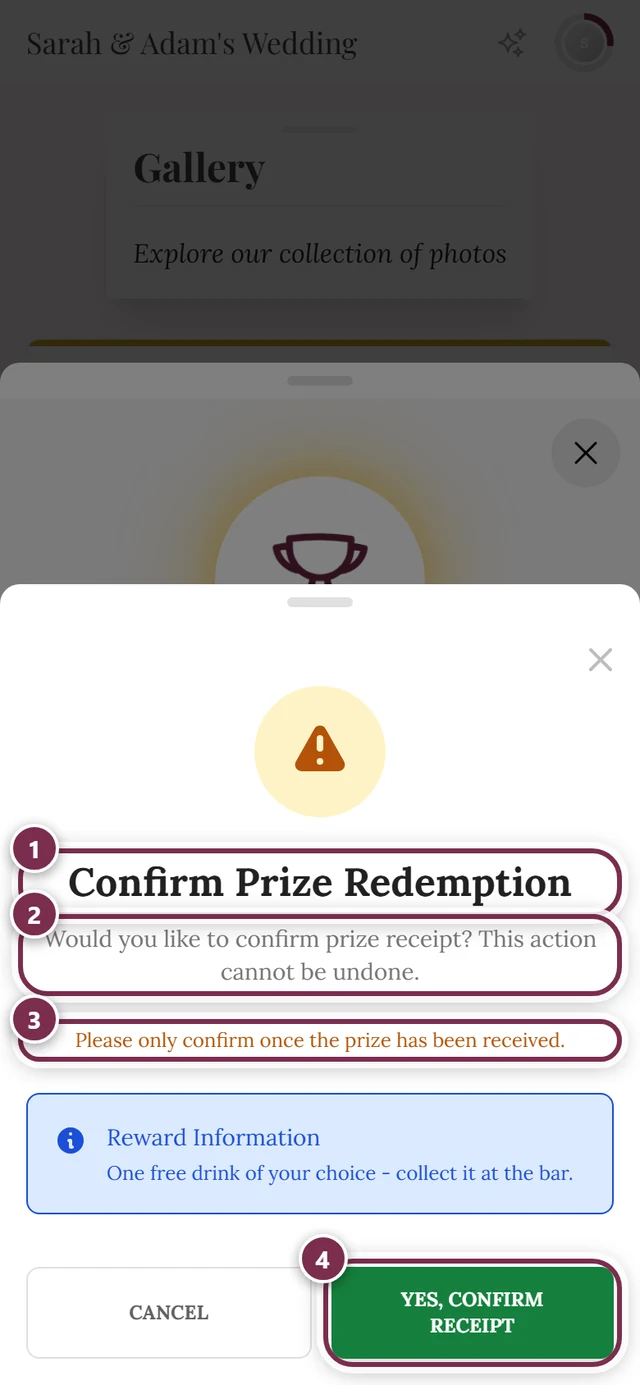
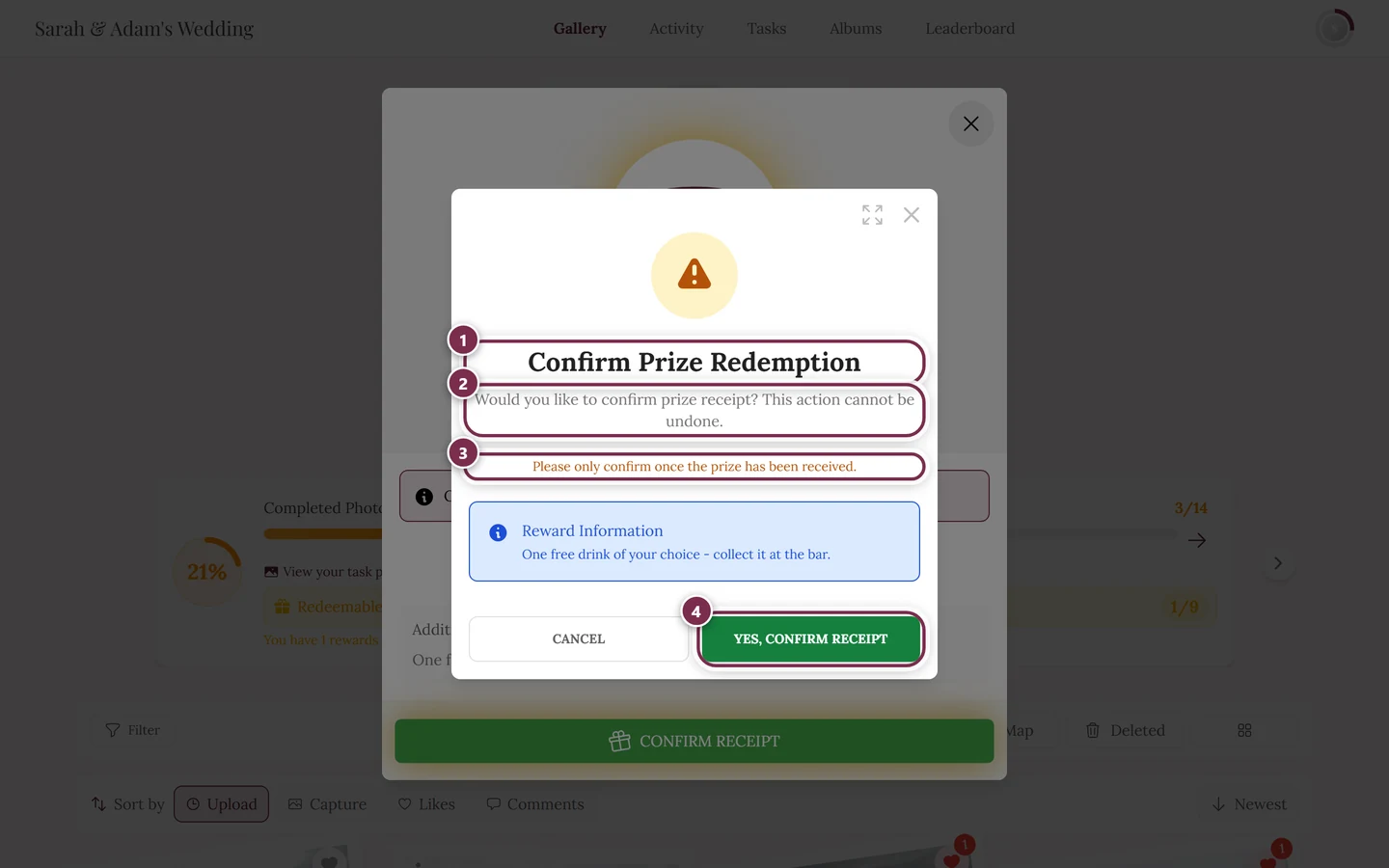
The warning dialog “Confirm Prize Redemption” appears: “Would you like to confirm prize receipt? This action cannot be undone.” plus a yellow hint “Please only confirm once the prize has been received.” and – if the host set one – a blue “Reward Information” box with their text.
-
Confirm with “Yes, Confirm Receipt” (brief “Confirming…” state). Changed your mind? Tap “Cancel”.
-
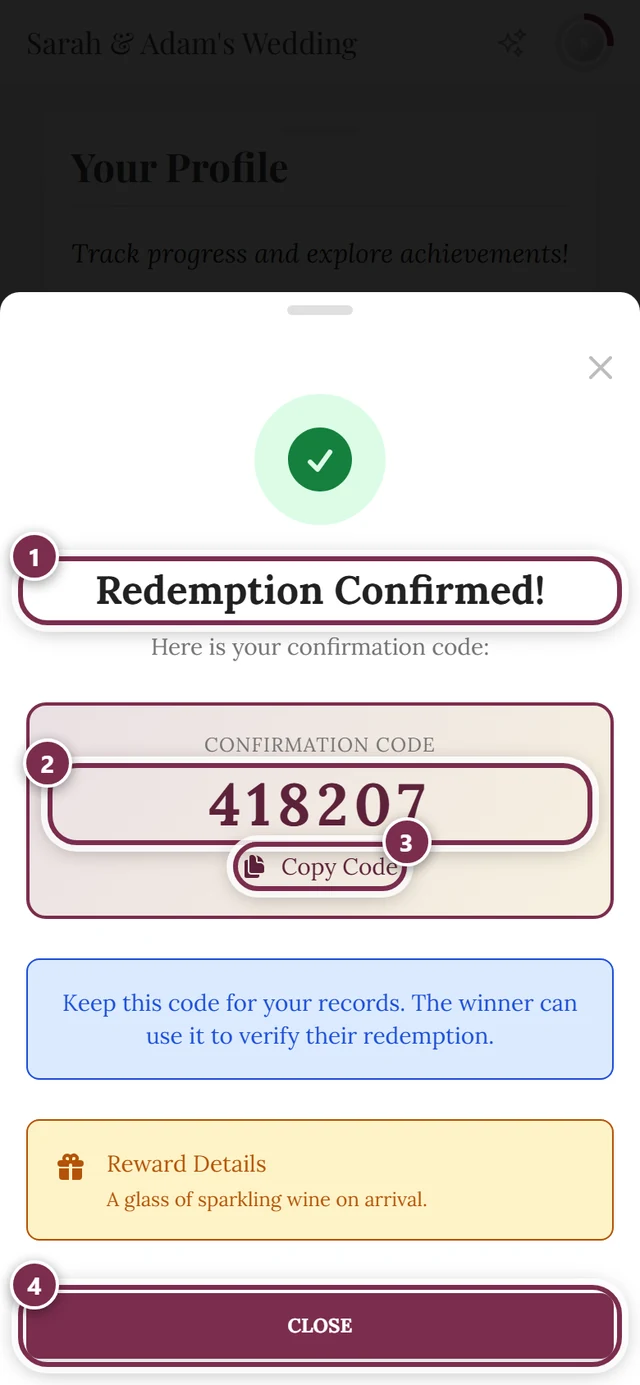
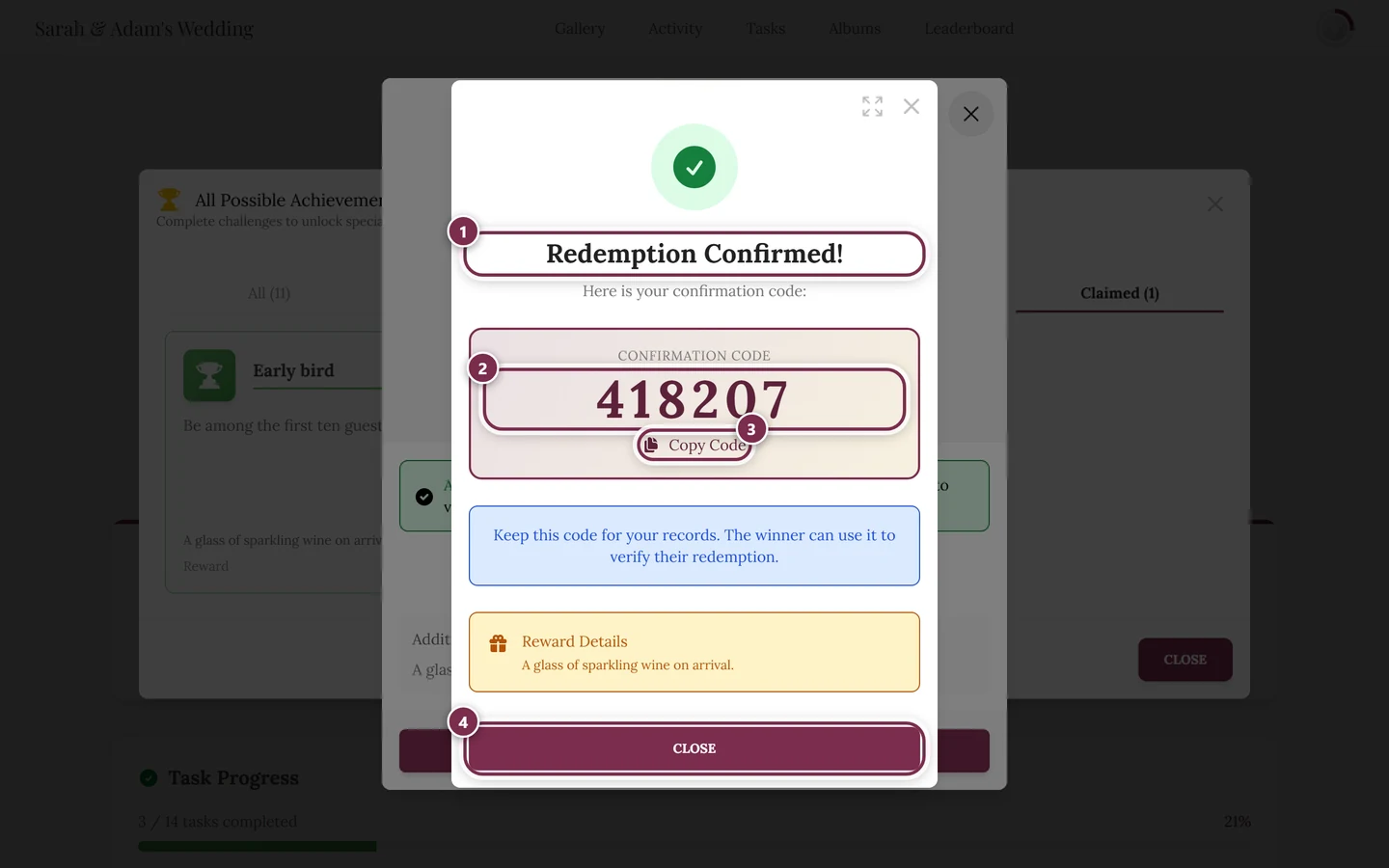
The success dialog “Redemption Confirmed!” appears with your confirmation code: six digits, large and in monospace – for example 418207. Optionally copy it with “Copy Code” (turns into “Copied!”). Below it sits the reminder to keep the code, plus the Reward Details once more.
-
Show the code to the host (or at the photo booth). On the host’s side the check runs through Redeeming rewards.
-
Finish with “Close”.
Edge cases & troubleshooting
Section titled “Edge cases & troubleshooting”For moderators & hosts
Section titled “For moderators & hosts”This entire flow is for you as a guest on your own profile. The host side – checking the code, managing stock, verifying the redemption – is a separate flow.
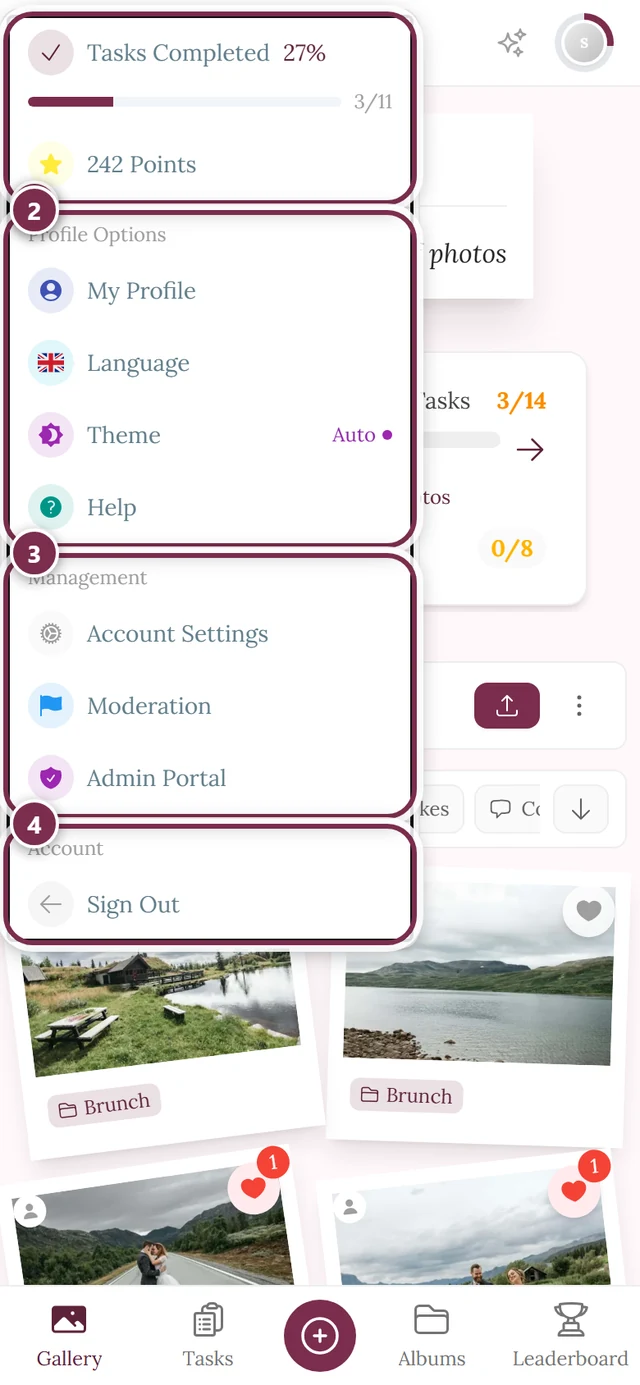
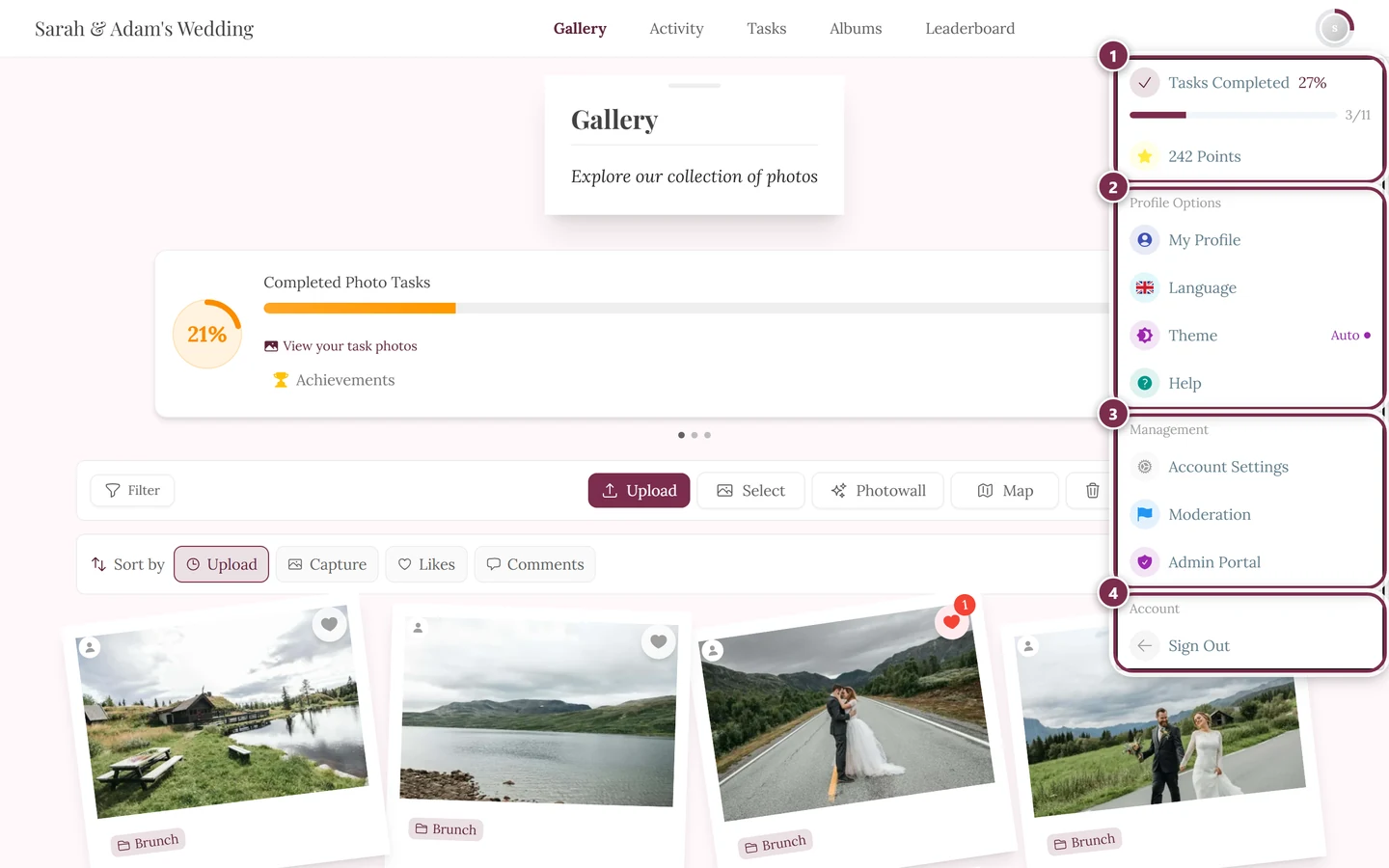
If you are a moderator or host, you reach the management area via the profile menu at the top right (Management section → Moderation or Admin Portal, visible only with the matching role).
The host-side verification is described under Redeeming rewards.
Related help pages
Section titled “Related help pages”- Points & rewards – how achievements get unlocked and how winner prizes work
- Challenges – solve tasks for more points
- Your profile – stats, Redeemable/Claimed tabs
- Notifications – unlock notifications
- Redeeming rewards – for hosts/moderators
- Crowning winners & handing out prizes – winner mode from the host’s side