Budget
The Budget answers the question every planner asks first: what will all of this cost? It is not an empty spreadsheet – it calculates from the data your event already holds. How many guests confirmed, how many tables the seating plan has, how long a programme item runs: all of that becomes the quantity of a cost position. Change the number and the total changes with it.
The four areas
Section titled “The four areas”The editor has four sections: Overview, Positions, Timeline and Settings.
Overview
Section titled “Overview”At the top are the four numbers that matter:
- Budget – the amount you set yourself. If there is none yet it reads Set a budget; the wizard offers its own estimate via Adopt …, optionally incl. buffer.
- Estimated – what the current list adds up to.
- Booked – how much of that is already committed.
- Remaining / Contribution – what is left.
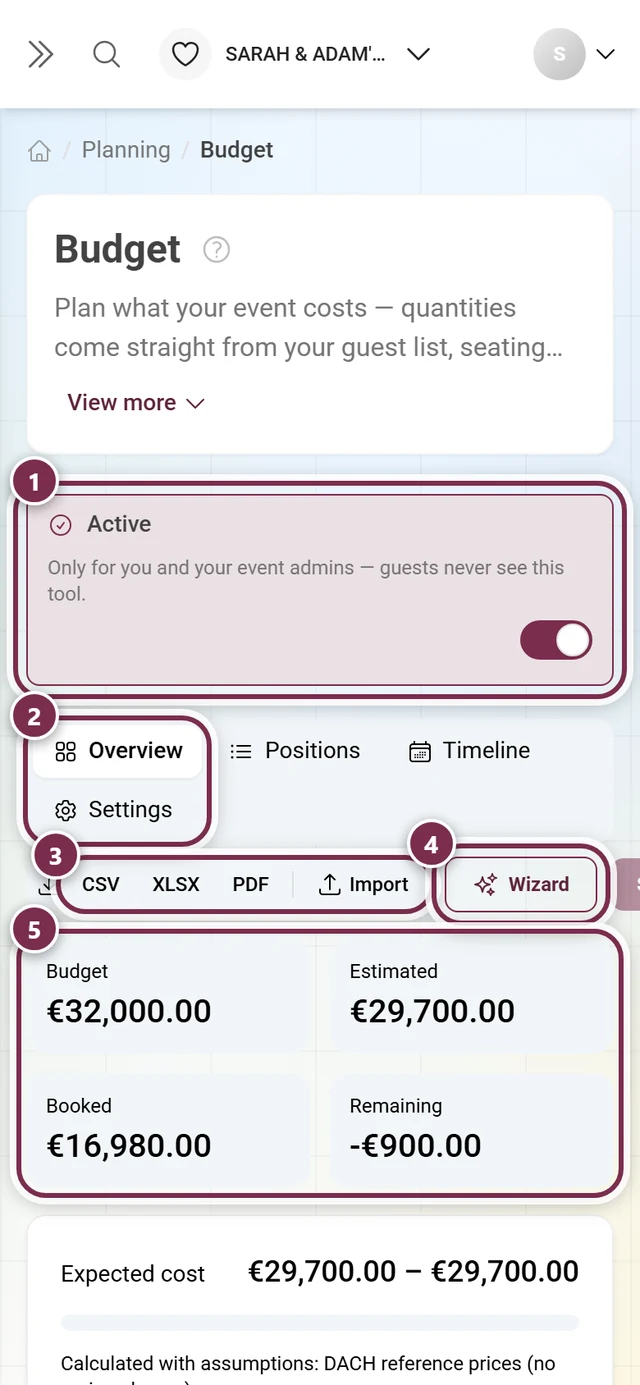
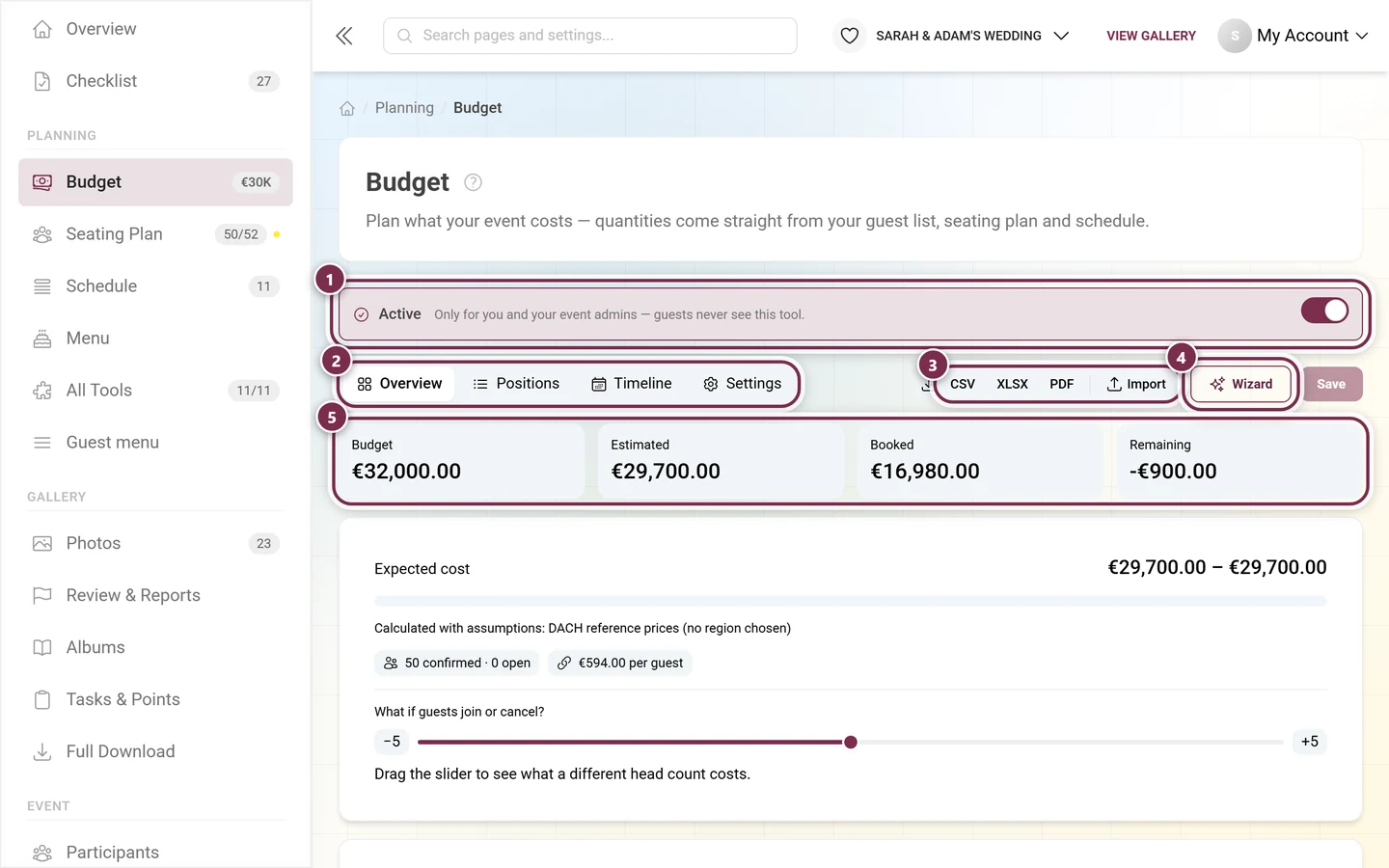
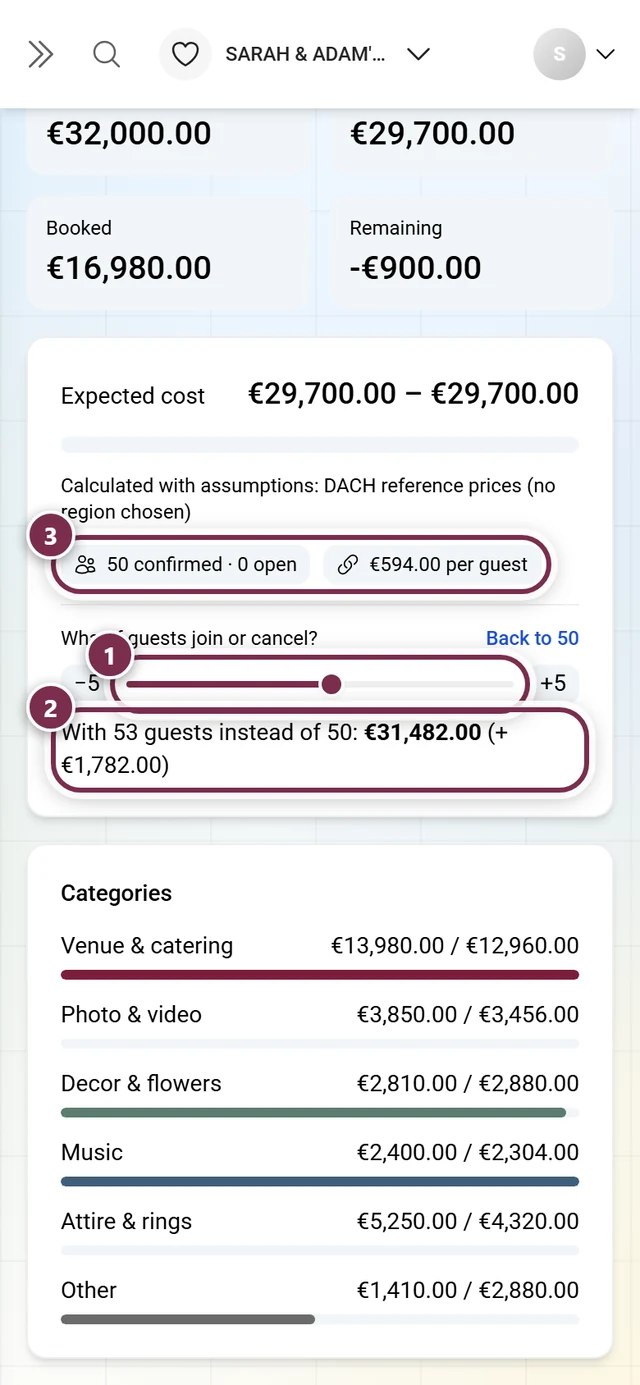
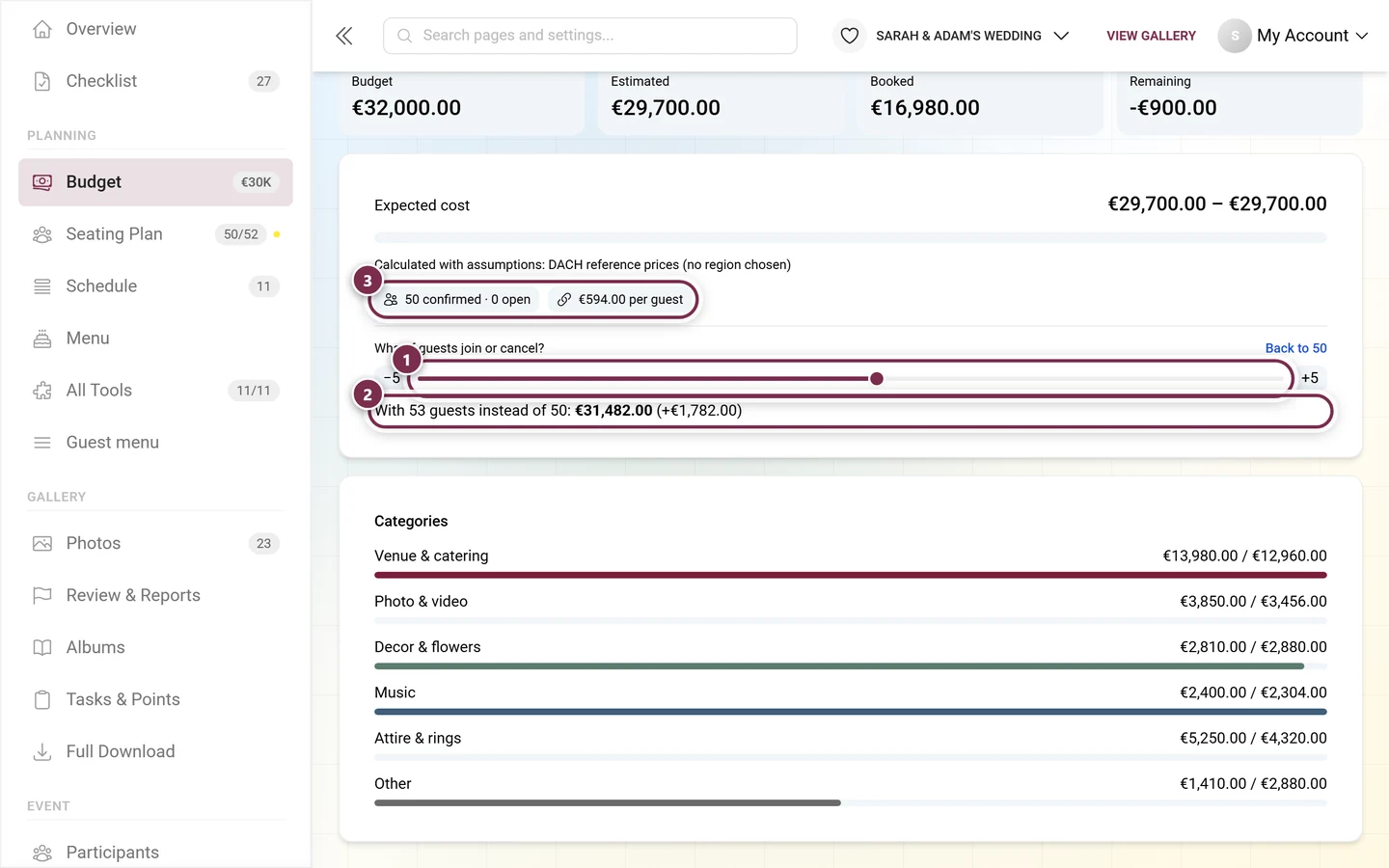
Below sits the Expected cost band with the cost per guest, a completeness percentage and a note on how many positions are still without an amount. Under Calculated with assumptions you can always see what stood in for missing data – for example “2 people per invitation” or “8 guests per table”.
What if guests join or cancel?
Section titled “What if guests join or cancel?”A slider that changes the head count on a trial basis. You immediately see what a different number of guests would cost, without touching your data. Back to … restores the real figure.
Income and coverage
Section titled “Income and coverage”If you also record income, the budget works out at how many guests it breaks even. Where head count cannot make up the difference, it says so plainly instead of inventing a nice number.
Split the cost
Section titled “Split the cost”Creates an income position that grows with your guest count – for celebrations where guests chip in. The tool suggests an amount per person.
What’s still missing
Section titled “What’s still missing”A list of concrete gaps instead of a question mark. Typical messages and what they mean:
- The guest list is empty – guest-scaled quantities sit at 0.
- The seating plan is missing or changed – the quantity no longer arrives.
- A linked programme item no longer exists or runs for 0 minutes.
- No guest has an age group – child prices cannot be calculated.
- The quote covers fewer guests than you are planning for.
- The menu is missing prices.
- More was paid than planned.
Every message has Show (jumps to the position) and, where possible, Apply – which makes the correction for you.
The wizard
Section titled “The wizard”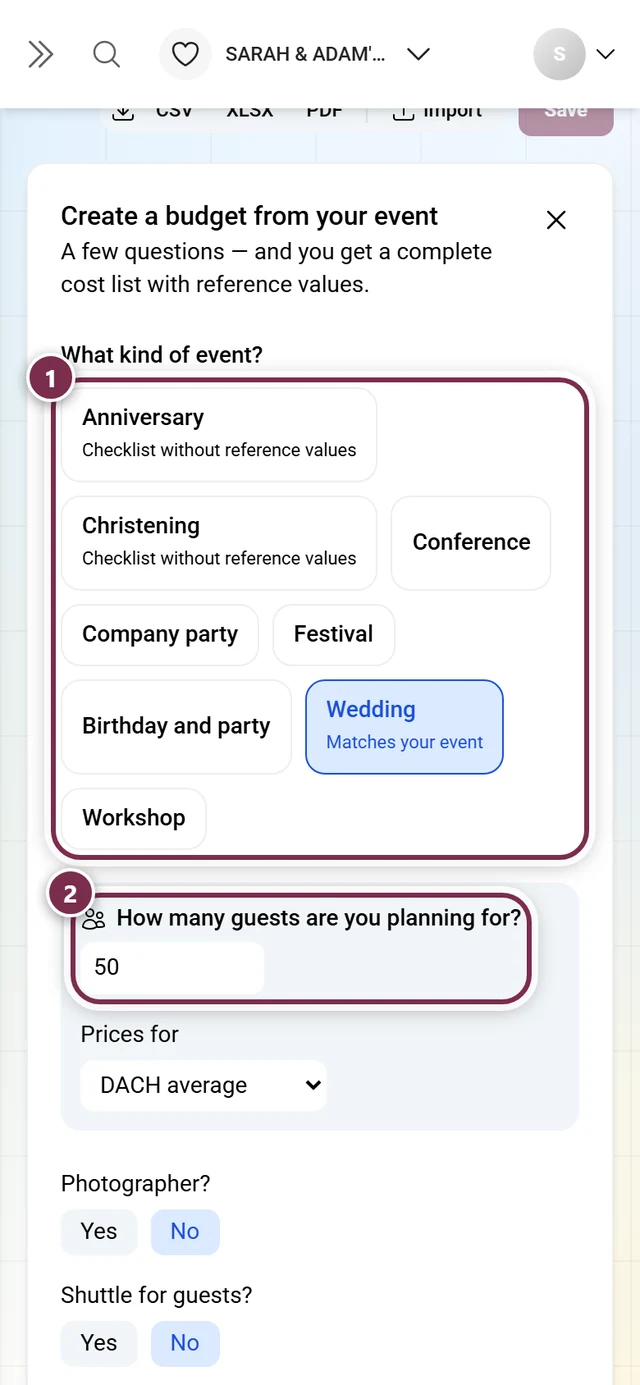
-
Create budget opens the wizard. Later the button reads Wizard and you can run it again at any time.
-
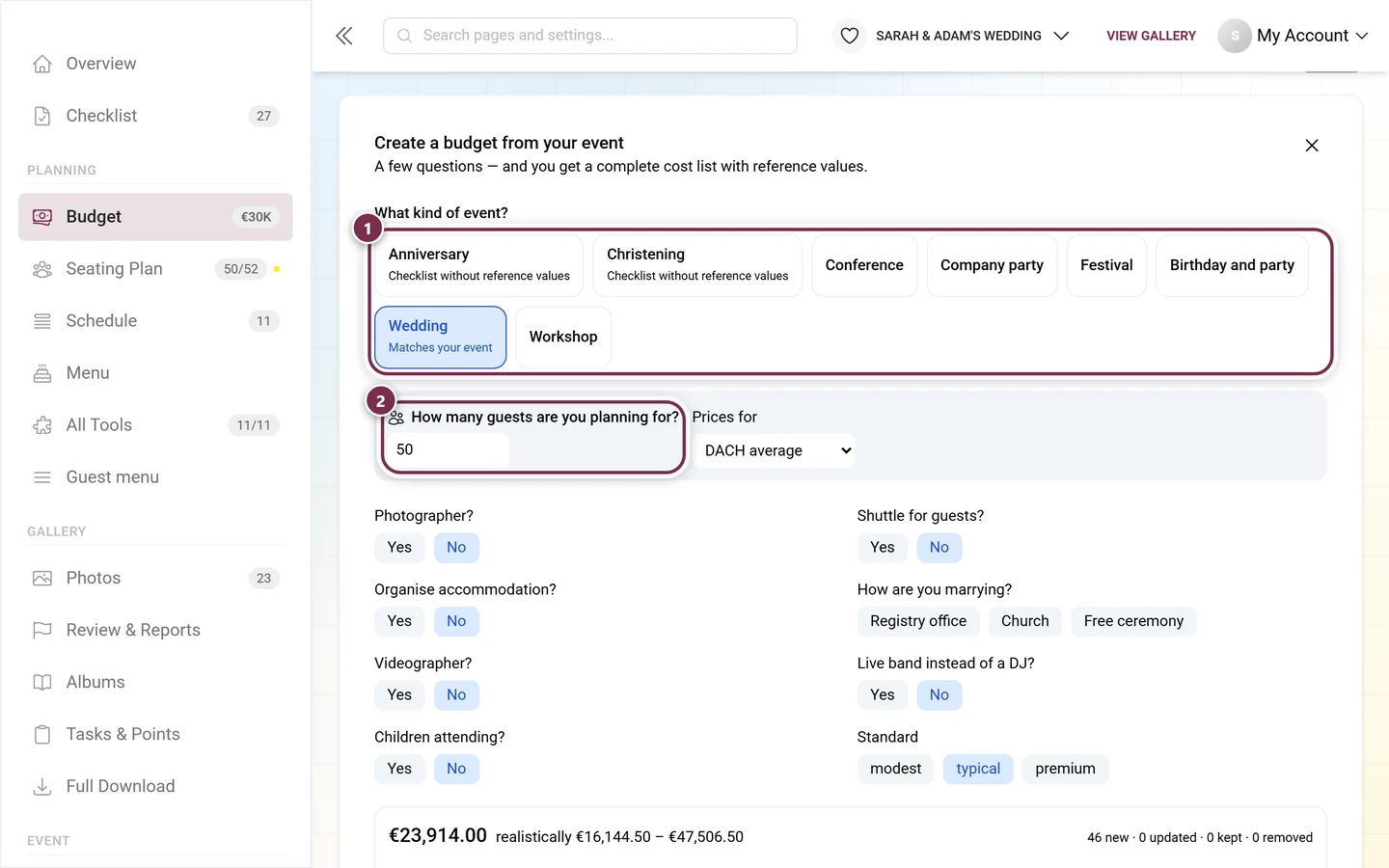
Answer the questions: what kind of occasion?, how many guests are you counting on? (with Adopt … from the guest list once guests are in there), how many of them children and the standard – thrifty, typical or upscale. Under Price region you pick the region.
-
Calculate preview shows you up front what will happen: how many positions are new, updated, kept or hidden.
-
Apply writes the list.
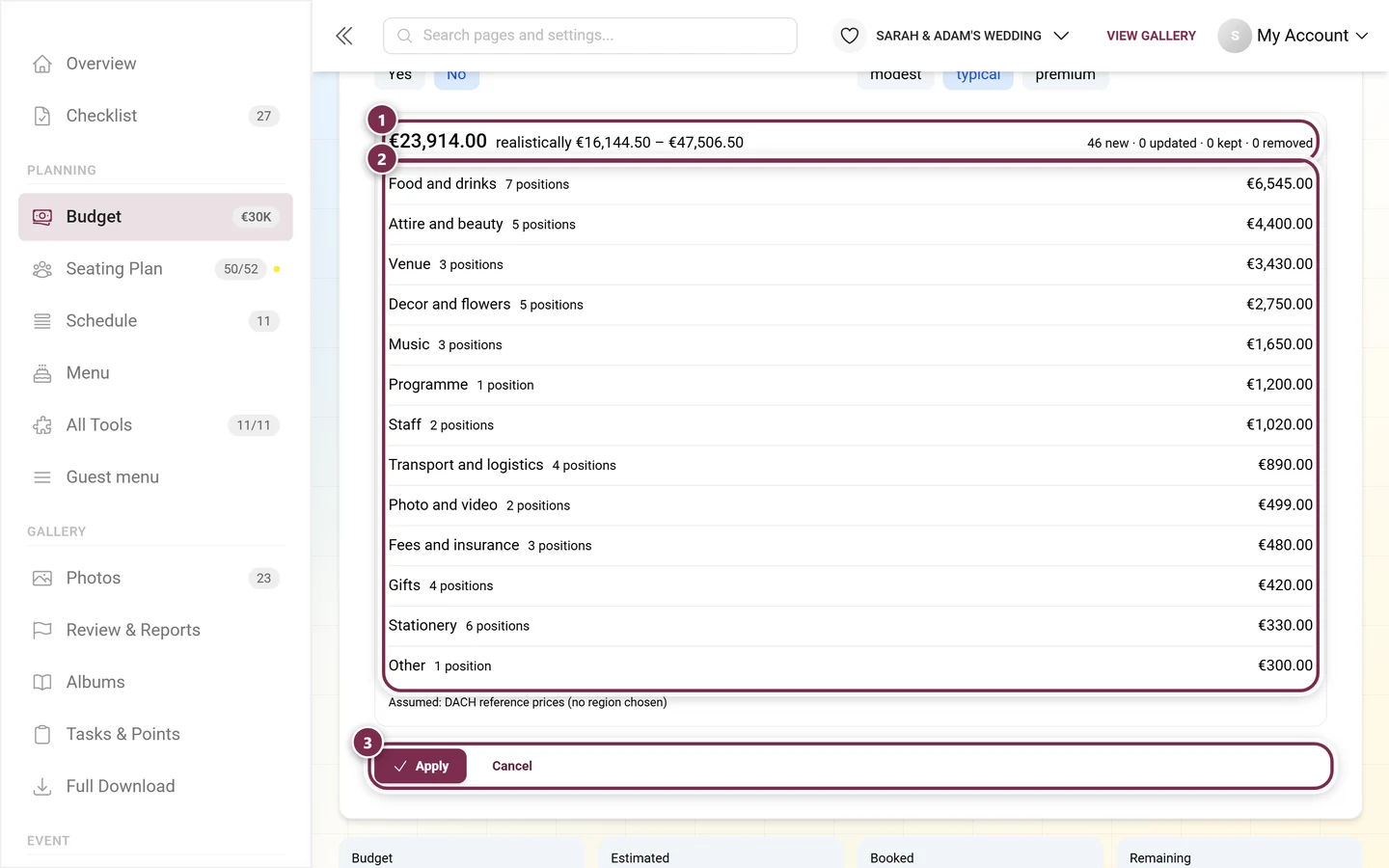
If you only want the structure without figures, choose Checklist without reference prices. Some event types have no reference data yet – then the list deliberately arrives without amounts.
Positions
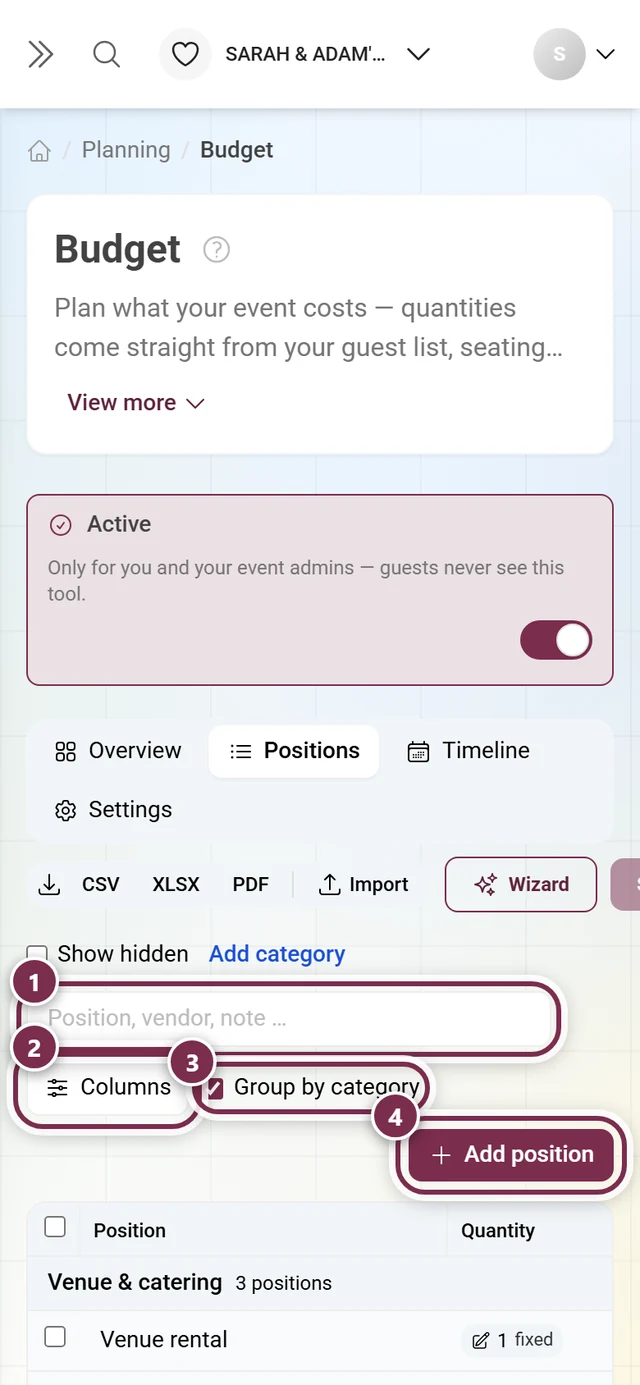
Section titled “Positions”The actual cost list. Default columns: Position, Quantity, Unit price, Total, Status and Book by.
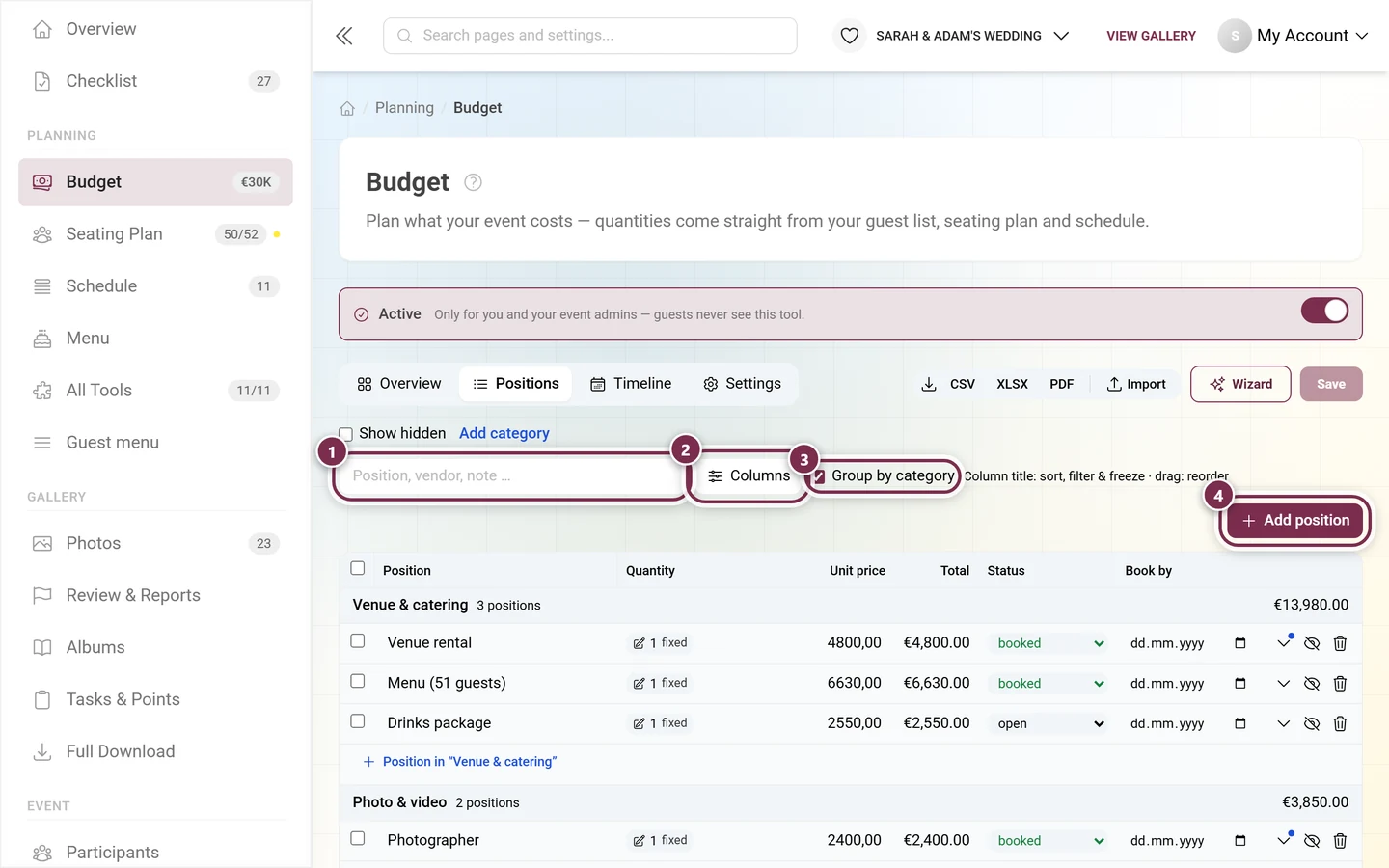
One row from left to right
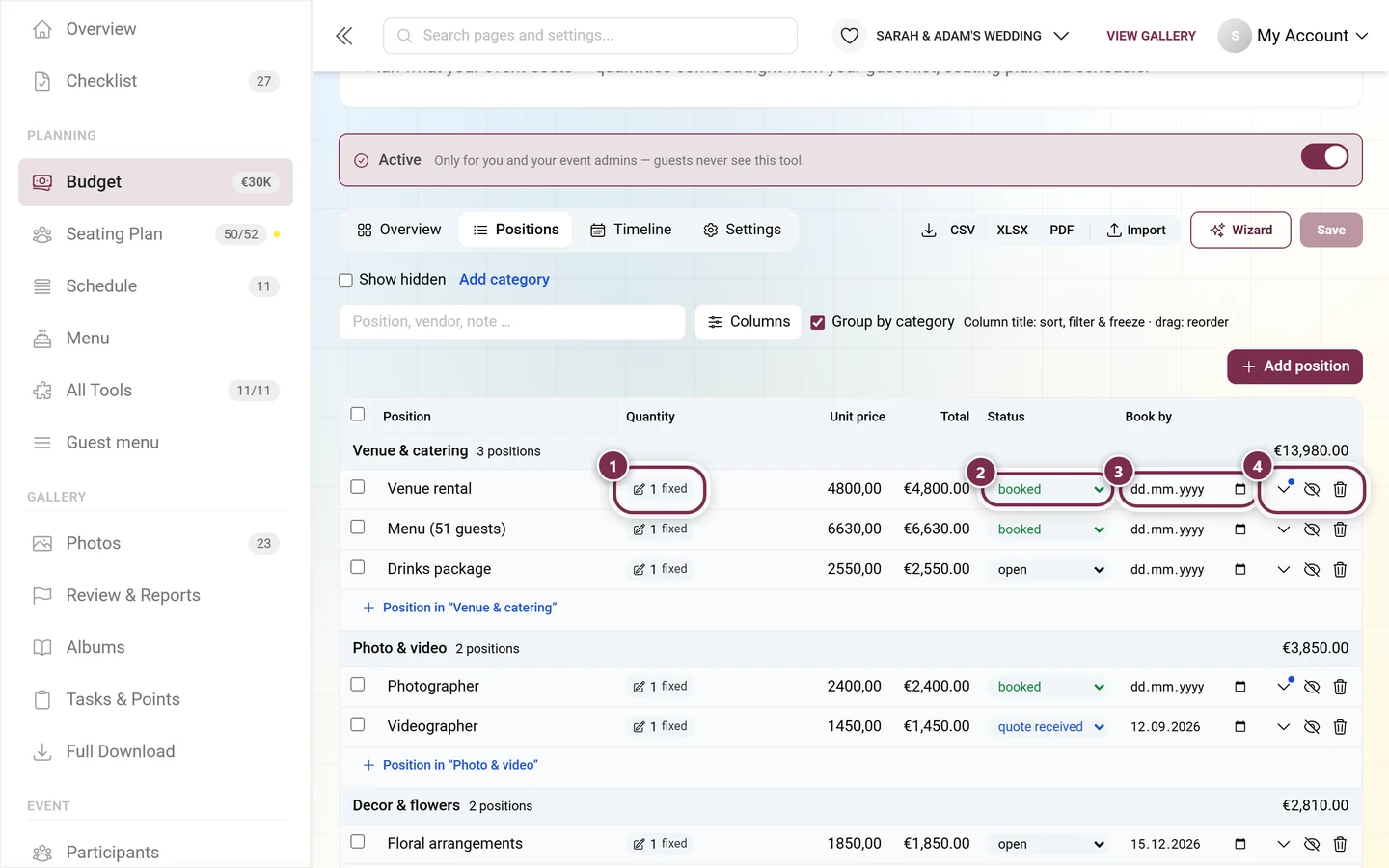
Section titled “One row from left to right”Every row carries four controls that are easy to miss: the quantity chip, the status dropdown, the Book by deadline field and, on the far right, the three row buttons.
Where the quantity comes from
Section titled “Where the quantity comes from”This is the heart of the tool. Instead of typing a number, you choose what the quantity depends on:
| Driver | Quantity comes from |
|---|---|
| one-off | fixed value |
| per guest / per adult / per child | guest list |
| per invitation | households in the guest list |
| per table / per seat | seating plan |
| per hour | schedule |
| per night, per unit, per vendor | your own value |
| per group / per group member | groups in the guest list |
| per menu selection | menu |
| one per n guests | ratio, e.g. one server per 20 guests |
For guest-scaled positions you also choose who counts: confirmed, confirmed + open or everyone invited. Linked positions carry the note Comes from another tool – their quantity cannot be typed directly, because it would be overwritten the next time the source data changes.
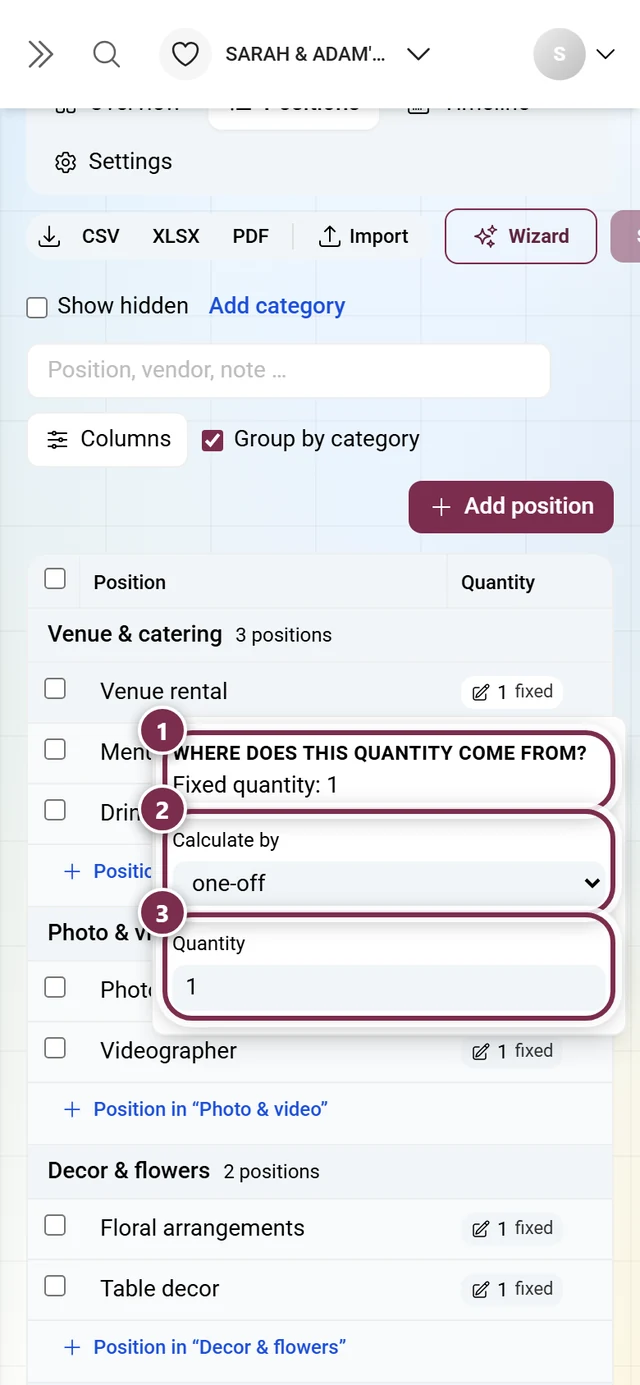
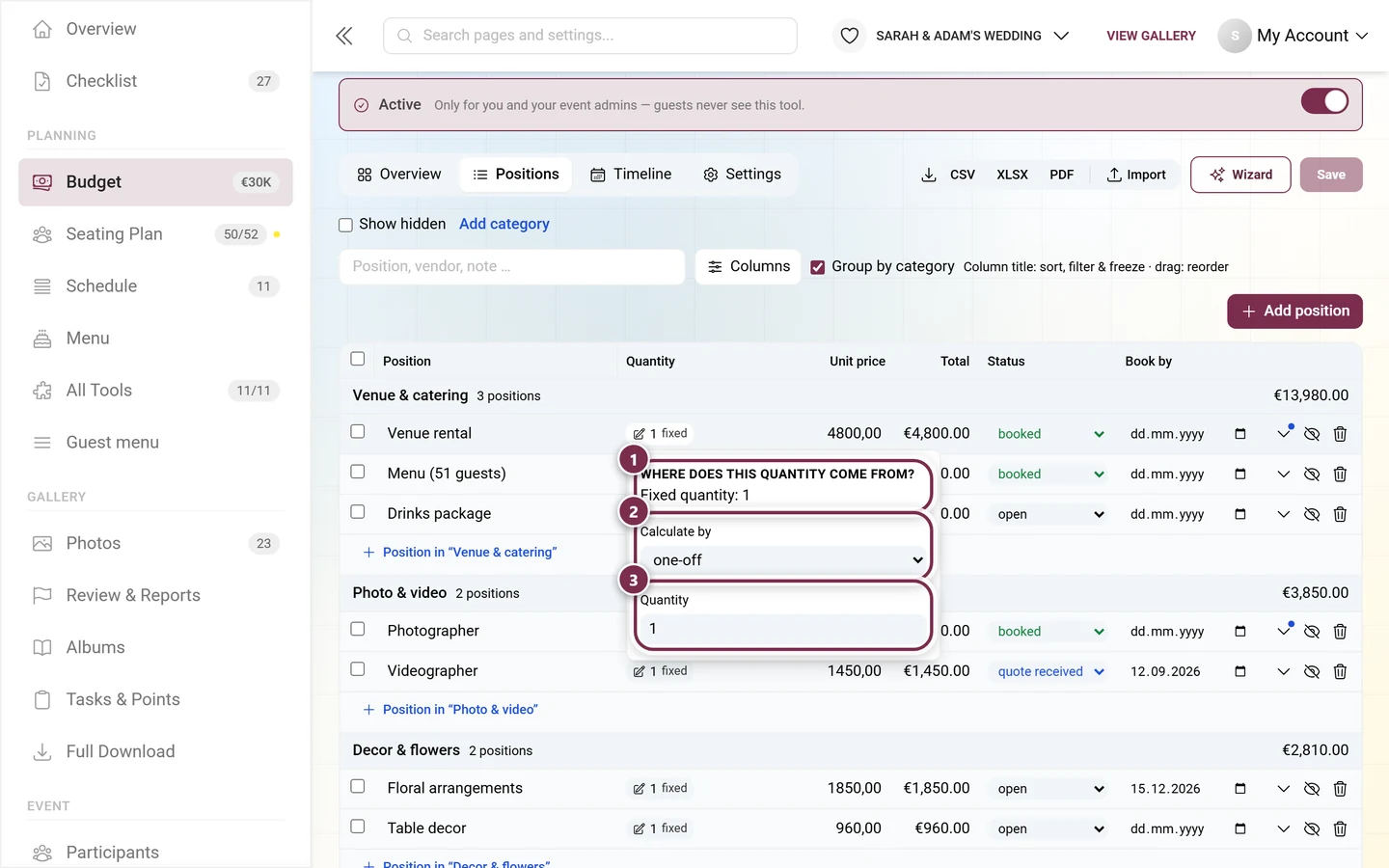
The chip in the Quantity column is a button: one click opens Where does this quantity come from? — that is where you set Calculate by, and one sentence tells you how the current number came about.
Amounts
Section titled “Amounts”The price field takes a fixed amount or a range – simply write 1800-2400. Until you have your own figure, the estimate for your region sits there for comparison.
Status
Section titled “Status”open · inquired · quote received · booked · deposit paid · paid · canceled. Use Status for selection … to set it for several rows at once.
The detail area
Section titled “The detail area”Quotes, payments, vendor opens three blocks for each position:
- Quotes – several quotes per position, either total or per unit, with covers (how many guests the quote applies to). The selected quote determines the position’s amount.
- Payments – part payments with a date and a label (such as “deposit”). Below them Paid, Remaining and, where applicable, Overpaid.
- Vendor & notes – name, contact, link, cost center, VAT in percent (amount gross or net), cancellation fee and Paid from (see pots).
Working with the table
Section titled “Working with the table”Same as the guest list: click a column title to sort, filter, hide or freeze to the left, drag a column title to reorder. Plus Group by category, the search field across position, vendor, note, Reset filters and Reset layout. At the bottom sits the Total cost row; with a filter set, the total of the shown positions as well.
Positions you no longer need do not have to be deleted – Hide takes them out of the calculation, Show hidden brings them back.
Timeline
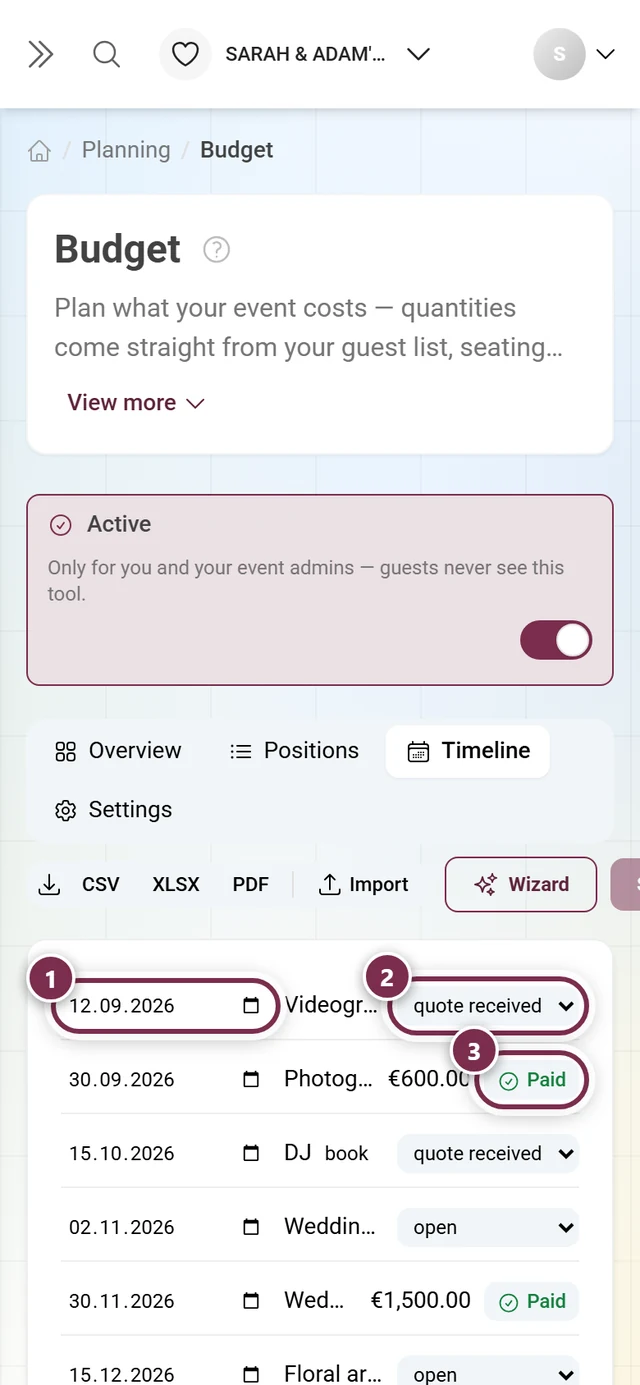
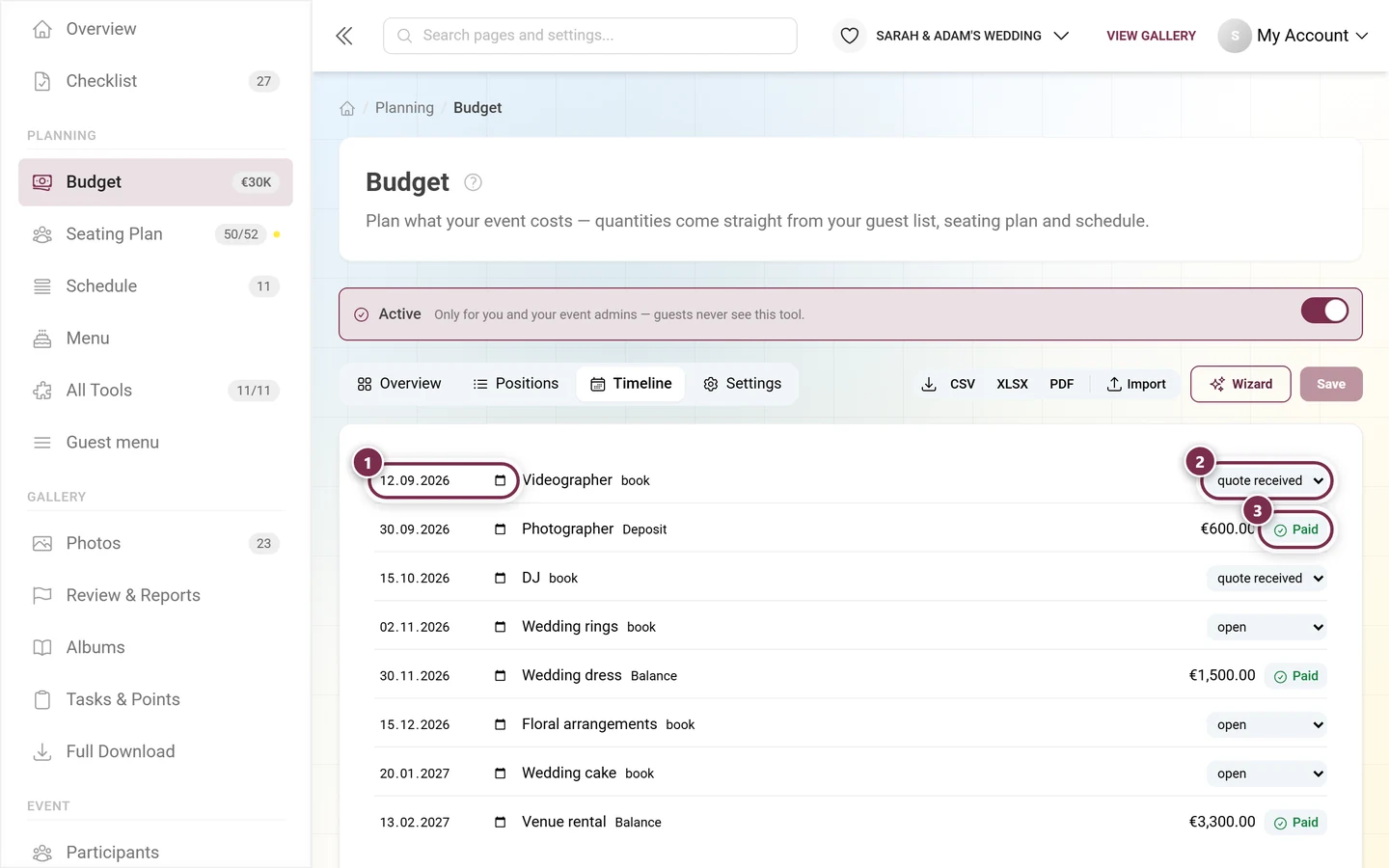
Section titled “Timeline”Every deadline on one axis: when something has to be booked and when it has to be paid. Overdue items are marked as such, a click jumps to the position, and Paid settles it right there.
Settings
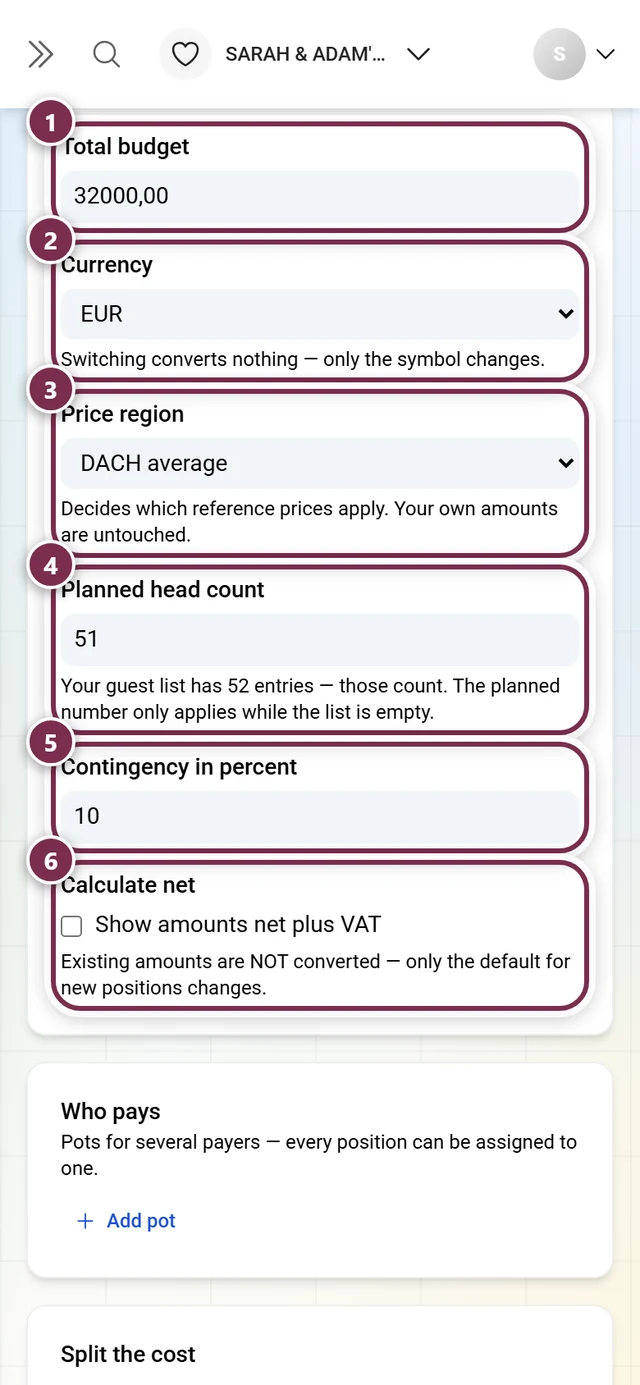
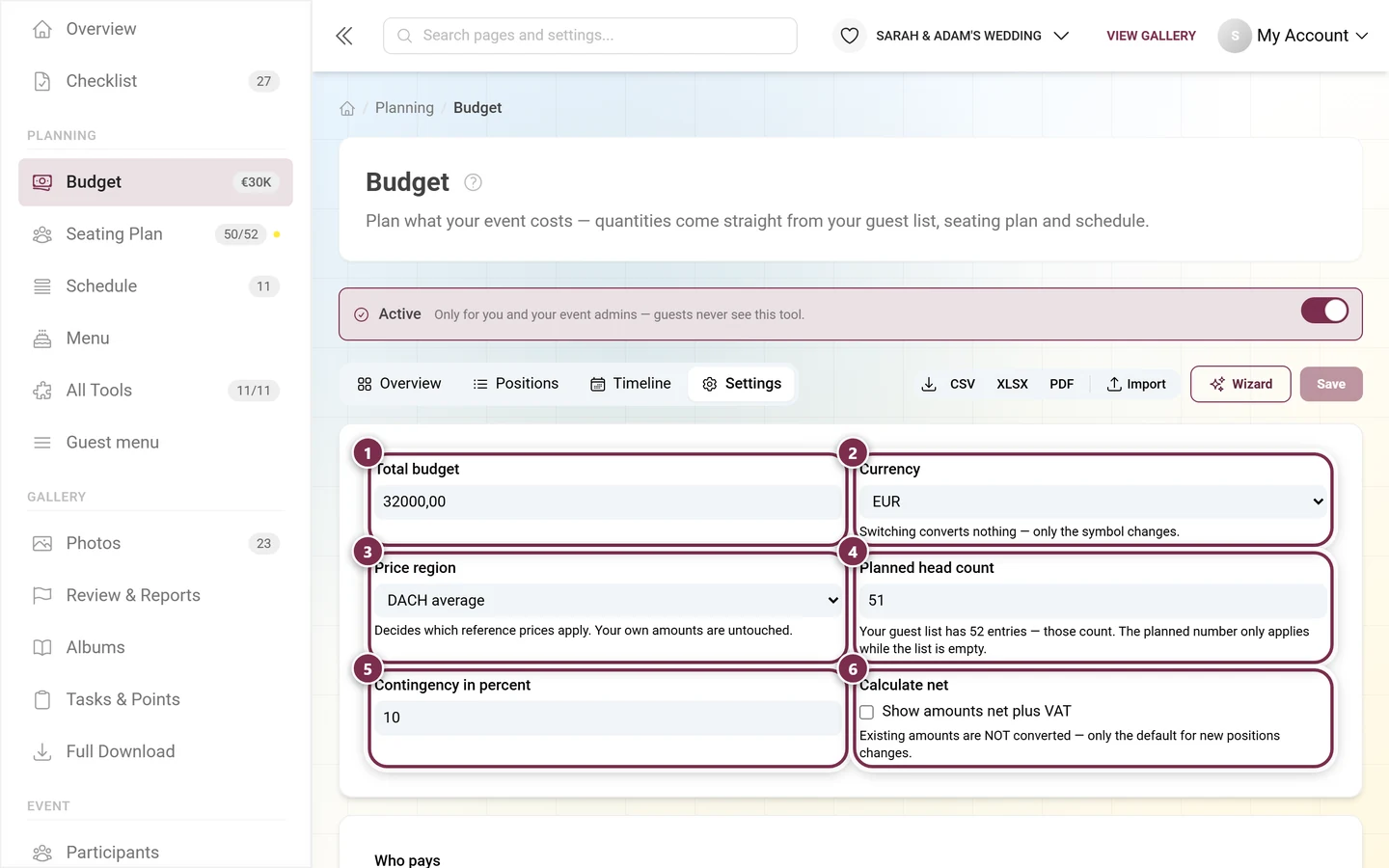
Section titled “Settings”- Currency – switching converts nothing, only the symbol changes.
- Price region – decides which reference prices apply. Your own amounts are untouched.
- Planned head count – the assumption used while the guest list is empty. Once real guests are in it, the list counts and the tool tells you so.
- Contingency – a percentage for the unforeseen.
- Net/gross – whether your amounts are recorded with or without VAT. Switching only changes the default for new positions; existing amounts are not converted.
- Categories – how your list is grouped, extendable at any time.
- Who pays – pots for several payers, each with their contribution. Every position can be assigned to a pot, so you can see who carries how much.
- Own columns – contract number, contact person, your own rating. Types: text, number, amount, date, select, checkbox. They appear in each position’s detail area and in the export. A deleted column does not take its values with it – they come back if you restore the column.
Sharing, import and export
Section titled “Sharing, import and export”Read-only link
Section titled “Read-only link”A link to look at – no account, no editing. Whoever has it sees totals, categories and deadlines. With Hide vendors and their terms, your suppliers’ names and prices stay out of it. Create a new link invalidates the old one immediately, Disable link switches it off entirely.
Import and export
Section titled “Import and export”Existing lists can be imported. The export contains positions, categories, quantities including their source, net/gross, the payment plan and the summary – as a table or as a PDF.
How it works with the other tools
Section titled “How it works with the other tools”The budget pulls figures from four tools. The more complete those are, the more reliable the total:
- Guest list – head count, replies, groups, age groups, menu choices
- Seating plan – tables and seats
- Schedule – duration of programme items
- Menu – price per course
So it pays to set the budget up once the guest list and seating plan are in place – or to run the wizard again after every major change.