Discount codes & payouts
A discount code is the alternative to your referral link, not an add-on. The subtitle of the Discount Codes page sums it up: when your customer redeems a code, you get a flat commission instead of your tier rate.
The two code slots
Section titled “The two code slots”You have exactly two slots. The code is generated for you — the hint on the button reads: “We generate the code automatically (based on your referral code).”
| Tool used | Customer saves | Your commission |
|---|---|---|
| Referral link (no code) | — | Tier rate (20 / 25 / 30 %) |
| 10 % discount code | 10 % | 15 % |
| 15 % discount code | 15 % | 10 % |
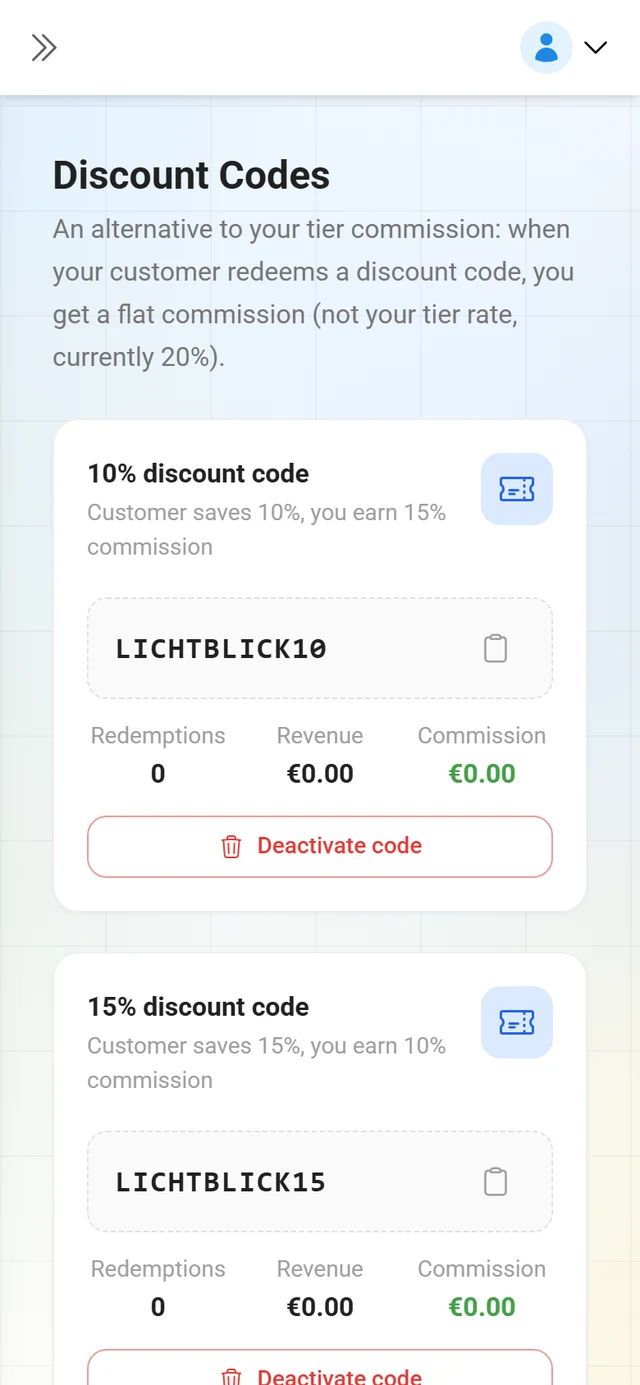
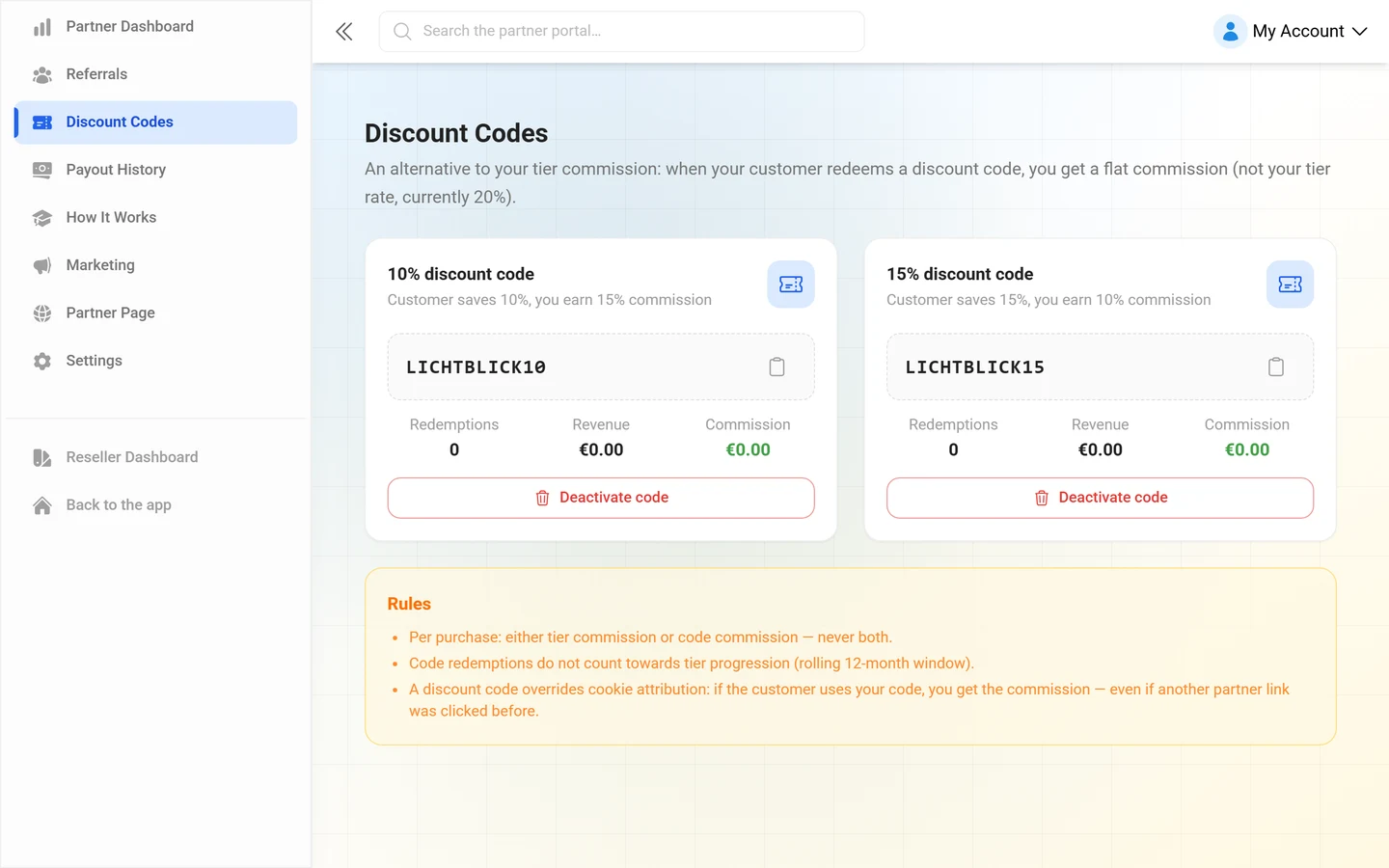
The more discount you hand over, the less commission stays with you. Each slot card says it directly: Customer saves 10 %, you earn 15 % commission.
-
Open Discount Codes in the sidebar.
-
On the slot you want, click Create 10 % code or Create 15 % code. The code appears on the card immediately.
-
Copy puts it on your clipboard (confirmation: Code copied).
-
To take a code out of circulation, click Deactivate code. The confirmation reads: “Really deactivate this code? Customers can no longer redeem it afterwards.” The slot is then free for a new code.
If support agreed individual rates with you, they are shown above the cards as Individual 10% code commission rate or Individual 15% code commission rate together with the percentage.
Tracking redemptions
Section titled “Tracking redemptions”Every code card shows three numbers:
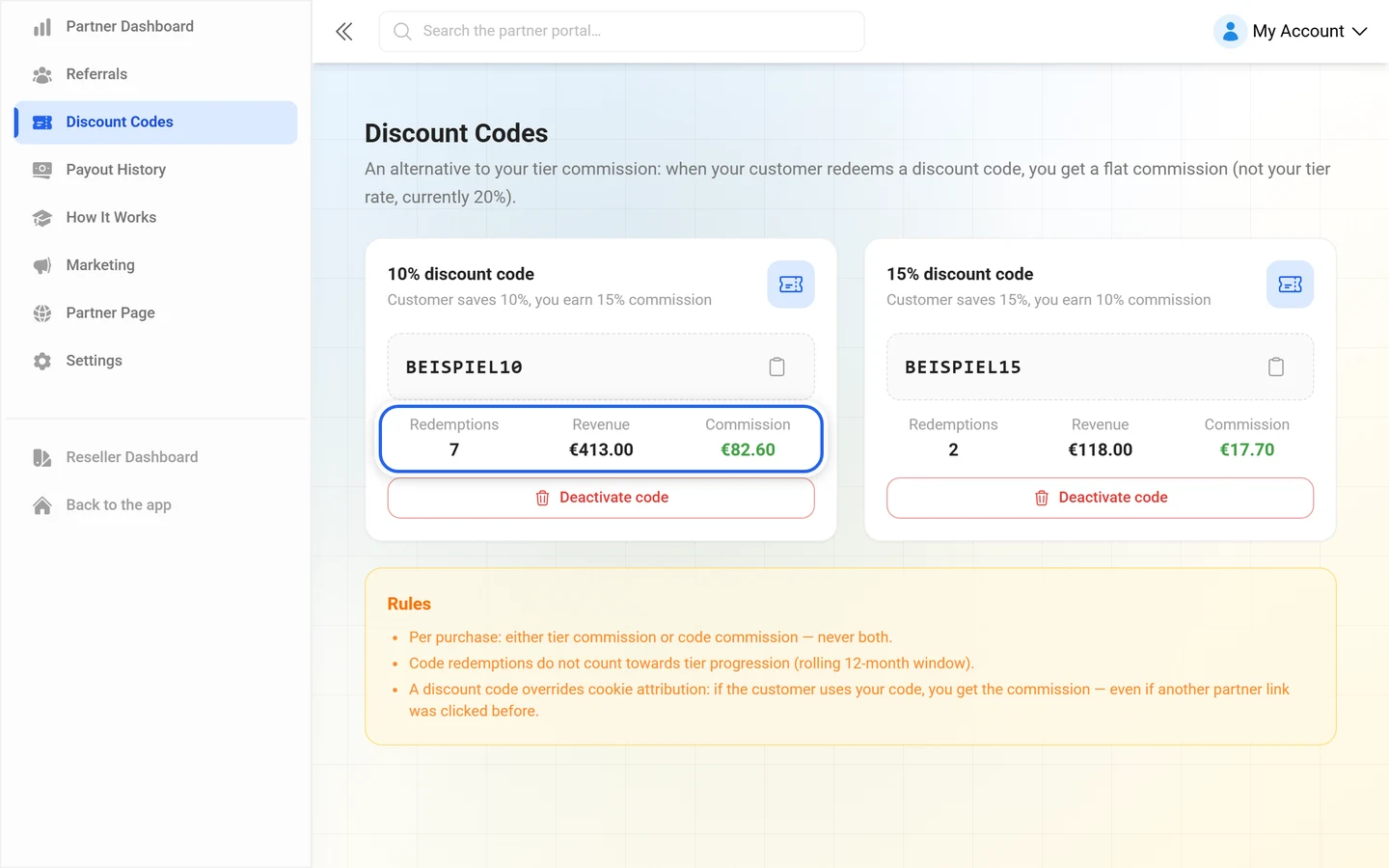
- Redemptions — how often the code was used at checkout.
- Revenue — the gross revenue it generated.
- Commission — what reached you out of that.
In the Referrals list, code purchases carry the source Code at Checkout. The commission column then shows Code with the applied percentage; link purchases show Tier with your tier rate.
The Rules box below the cards lists three points:
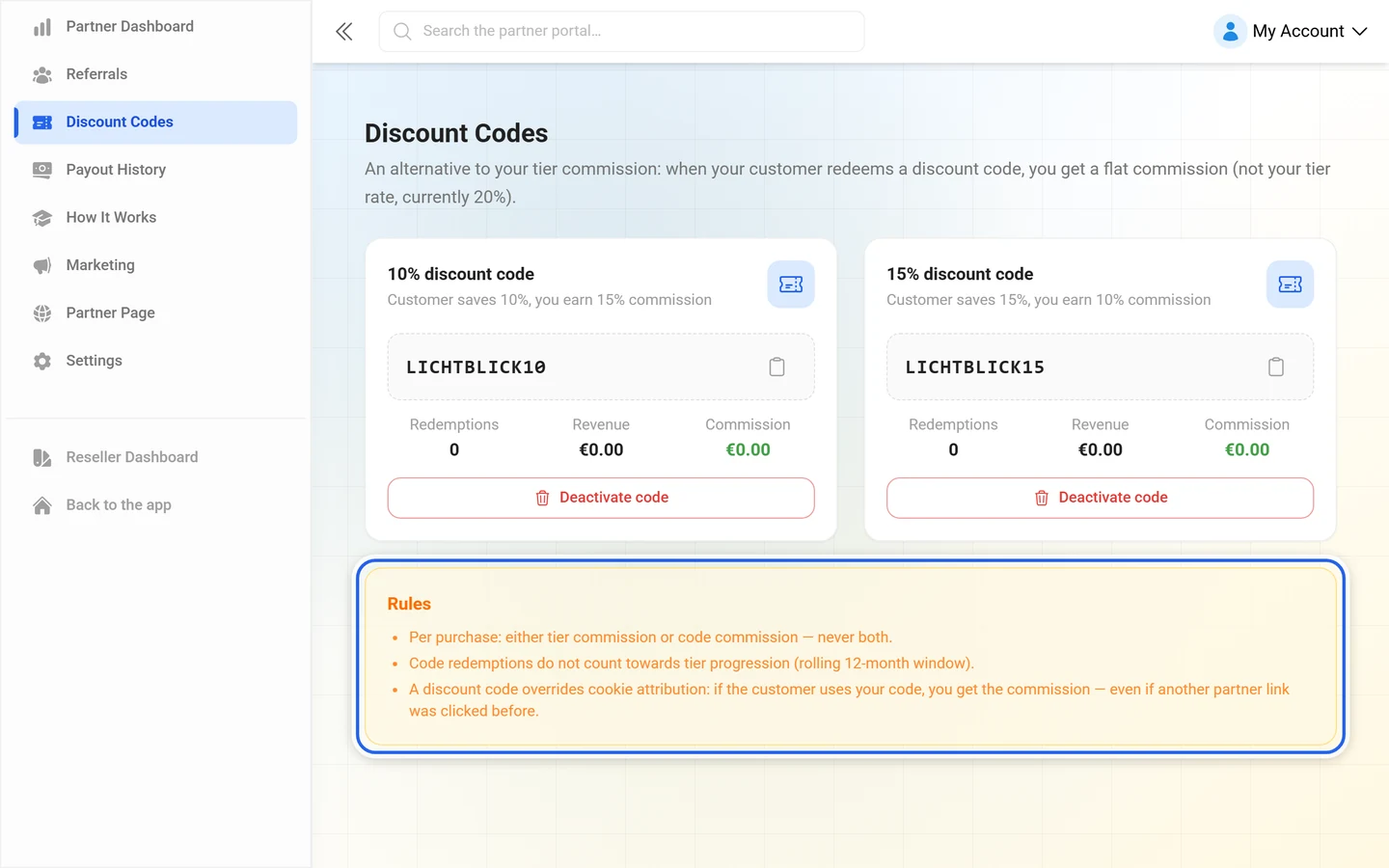
- Per purchase: either tier commission or code commission — never both.
- Code redemptions do not count toward tier progression (rolling 12-month window). A code sale therefore does not move you towards Silver or Gold.
- Discount code overrides cookie attribution: if the customer uses your code, you earn the commission — even if another partner’s link was clicked earlier.
That is the flip side of the last-click rule from Getting started as an affiliate: the most recently used referral link or discount code before the purchase gets the commission — and a redeemed code is the strongest possible last touch.
Link or code?
Section titled “Link or code?”- Use your link when… “…the customer is already sold. Then you keep your full tier commission (up to 30 %) and give away no discount.”
- Use a discount code when… “…the customer is on the fence about price. A 10 % or 15 % saving can close the deal — you trade some commission for a higher conversion rate.”
From sale to bank account
Section titled “From sale to bank account”A commission travels through four stations:
- 30-day hold period — “Commissions are released 30 days after the sale — this covers the refund and revocation window. Refunded sales do not pay commission.”
- €50 minimum threshold — released balance is paid out monthly once it reaches €50. Smaller amounts roll over to the next month. When the program ends, the remaining balance is paid regardless of threshold.
- Wise with four payout options — SEPA (EUR), UK Local (GBP), US ACH (USD) or SWIFT worldwide. Wise converts at the mid-market rate.
- Self-billing invoices — Photogala issues a monthly credit-note invoice on your behalf. If your tax details are incomplete, payouts are paused.
Commission statuses
Section titled “Commission statuses”The payout-status column tells you where an individual commission stands:
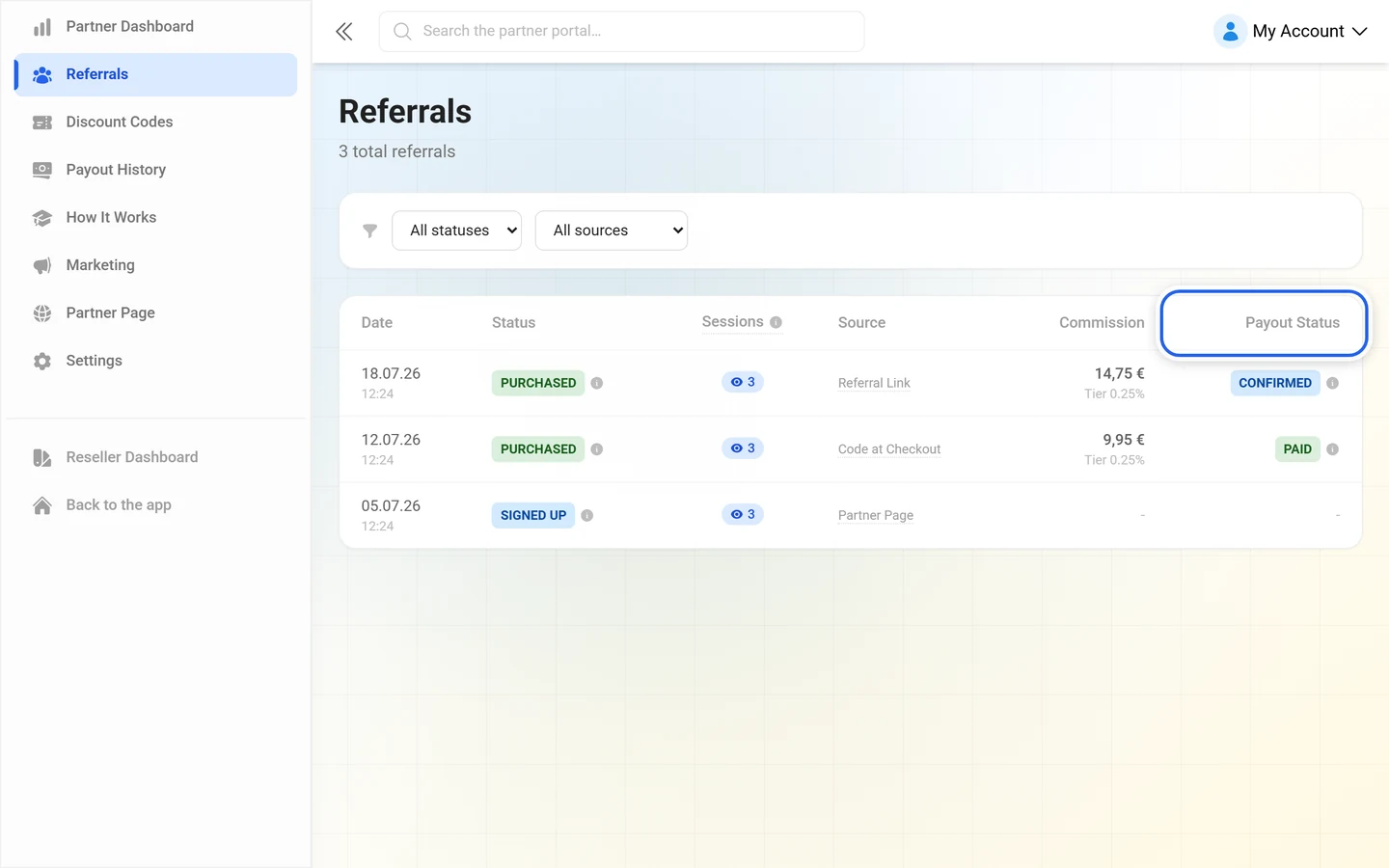
- Settlement Pending — payment received, final settlement data still missing. The amount is an estimate and updates automatically.
- Pending — the commission is still under review (hold period).
- Confirmed — no chargeback, the commission stands.
- Approved — ready for payout in the next cycle.
- Paid — transferred.
- Reversed — taken back because of a refund.
- Forfeited — for example when an account is suspended.
Payout history
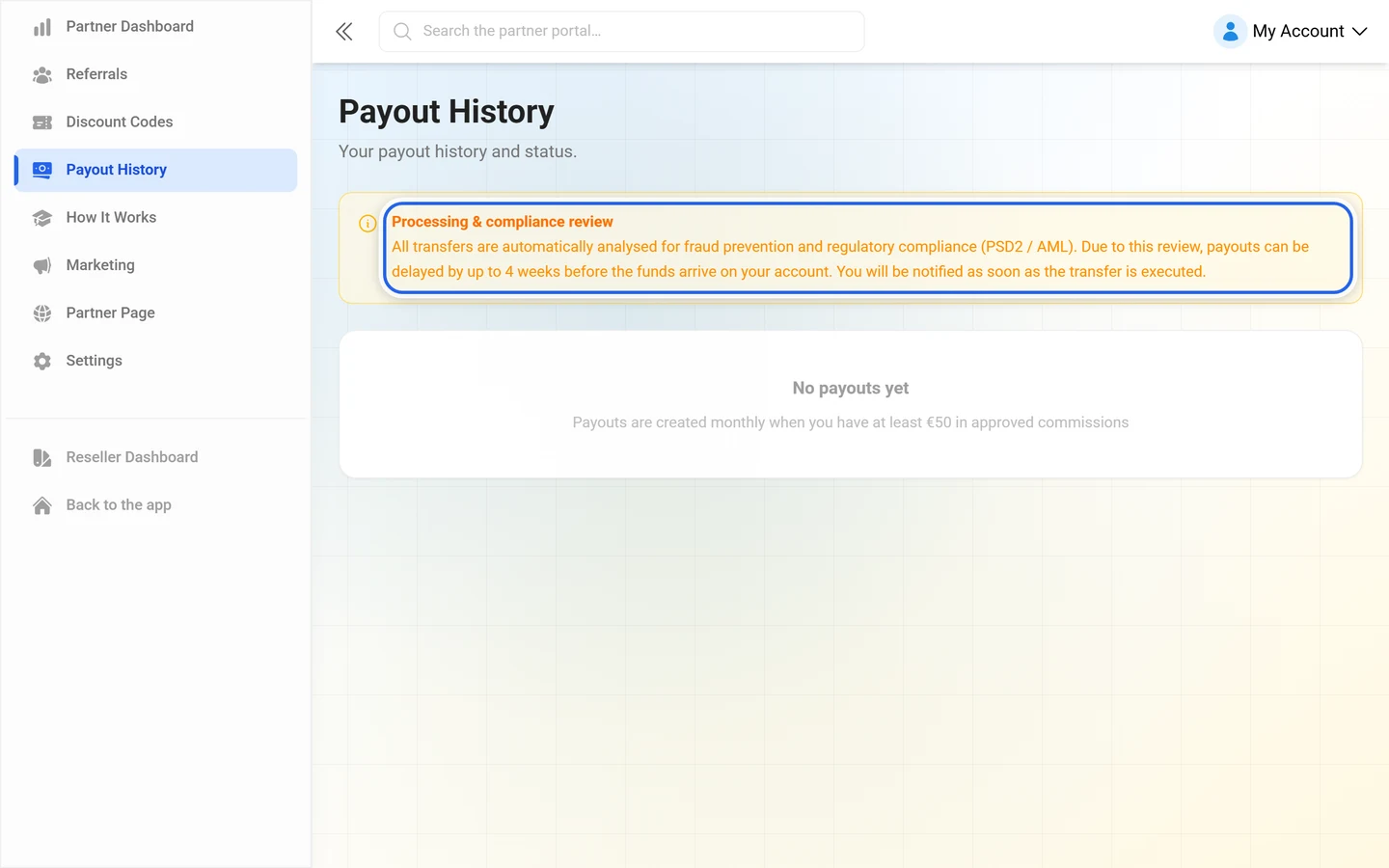
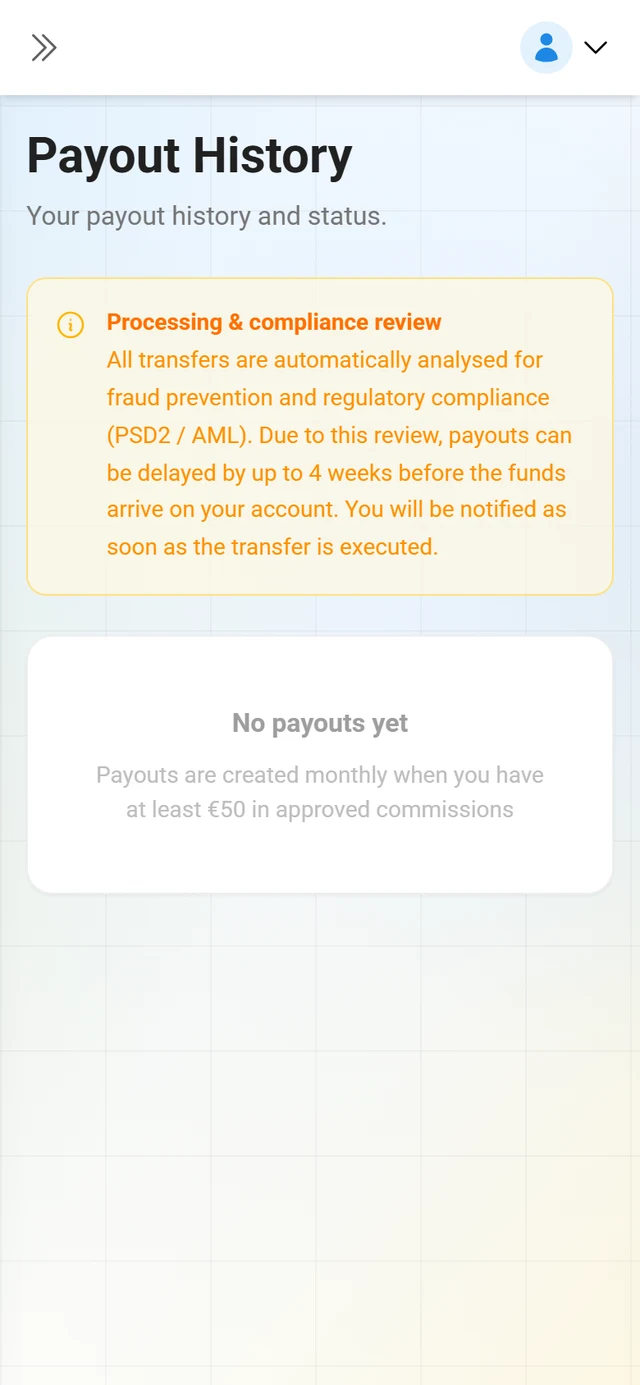
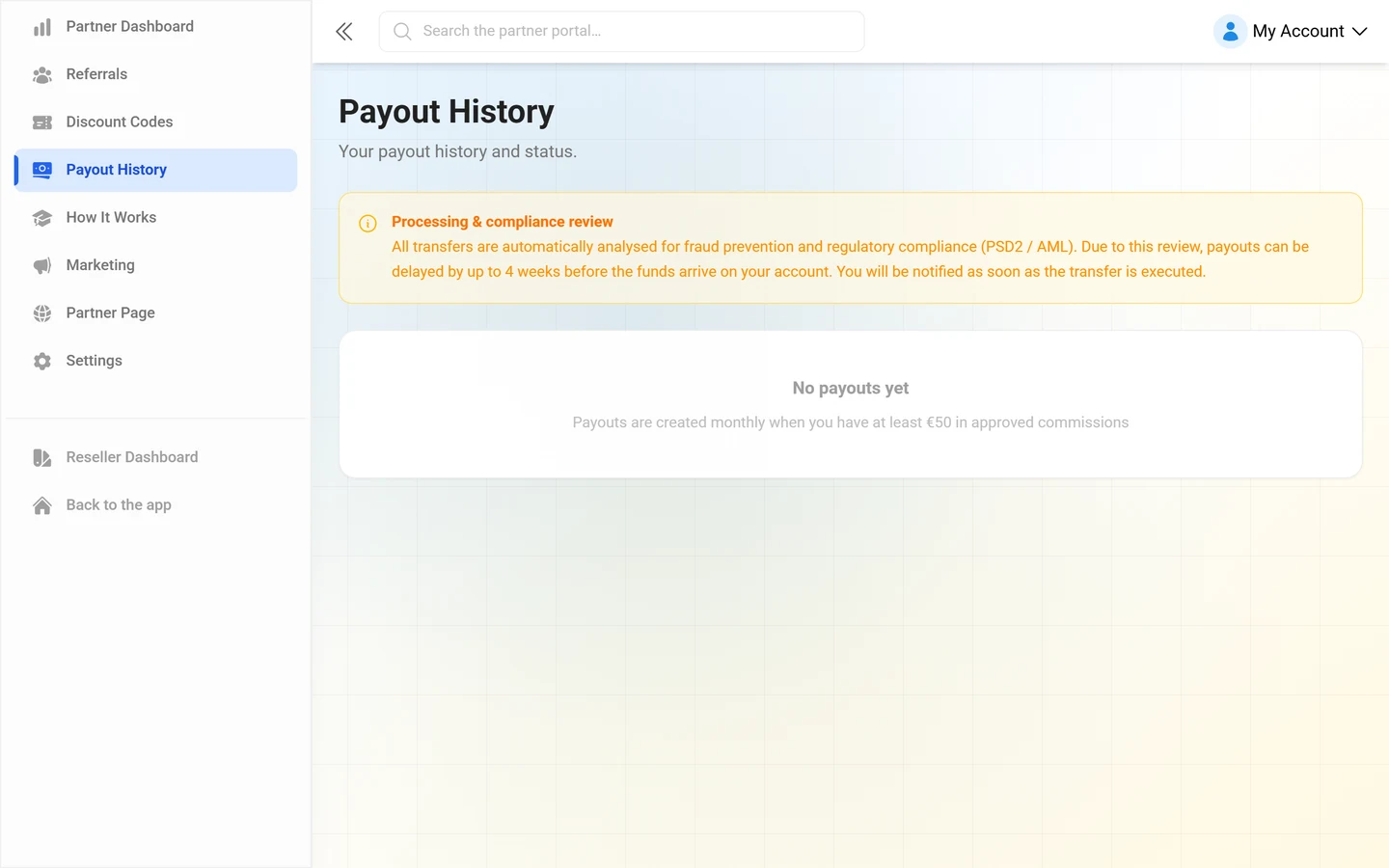
Section titled “Payout history”Under Payout History every payout is listed with Date, Gross, Clawback, Net, Status and Reference. The status is Pending, Processing, Completed or Failed. If nothing has happened yet, you see No payouts yet with the note that payouts are created monthly once you have at least €50 in approved commissions.
Payout settings and tax details
Section titled “Payout settings and tax details”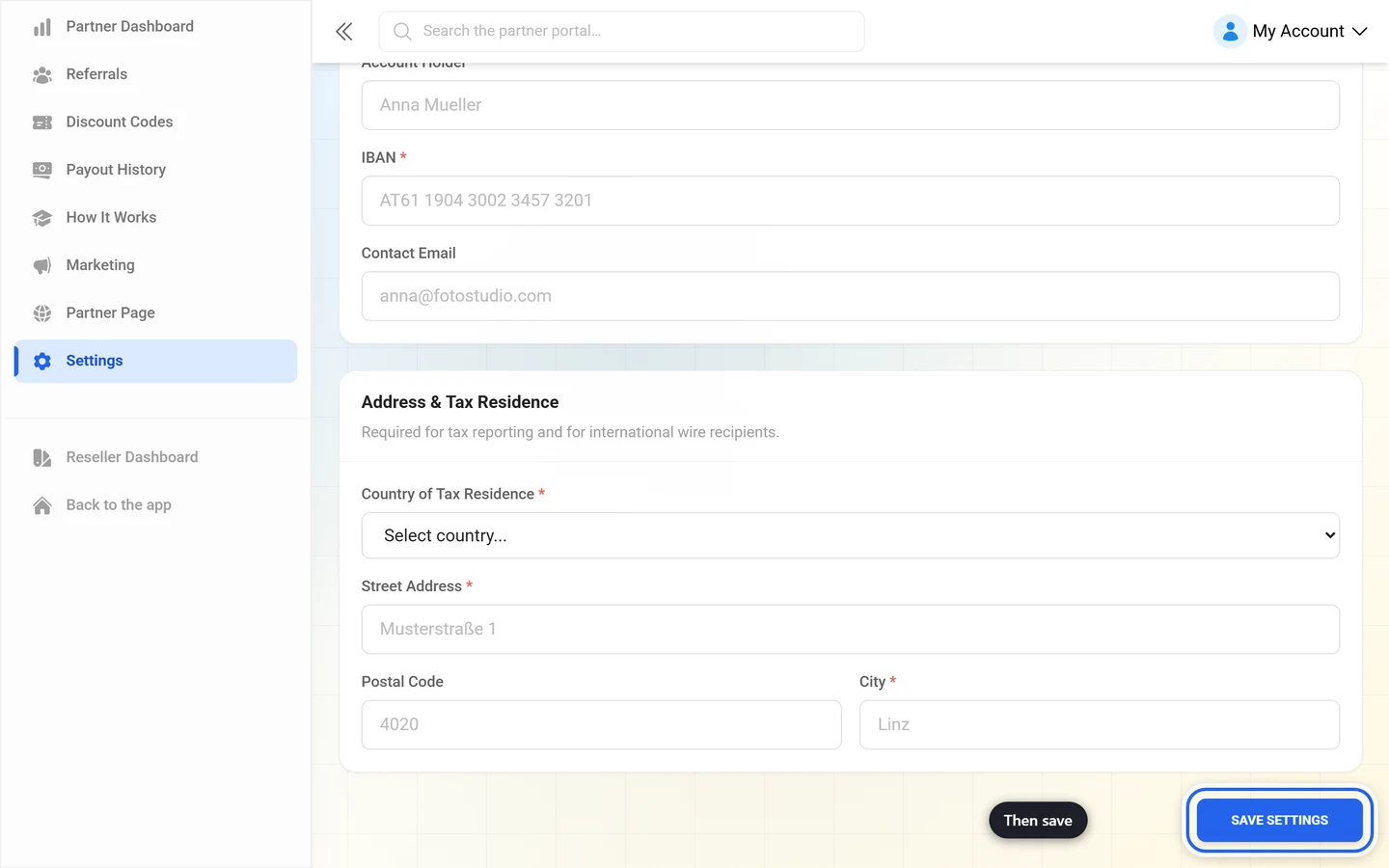
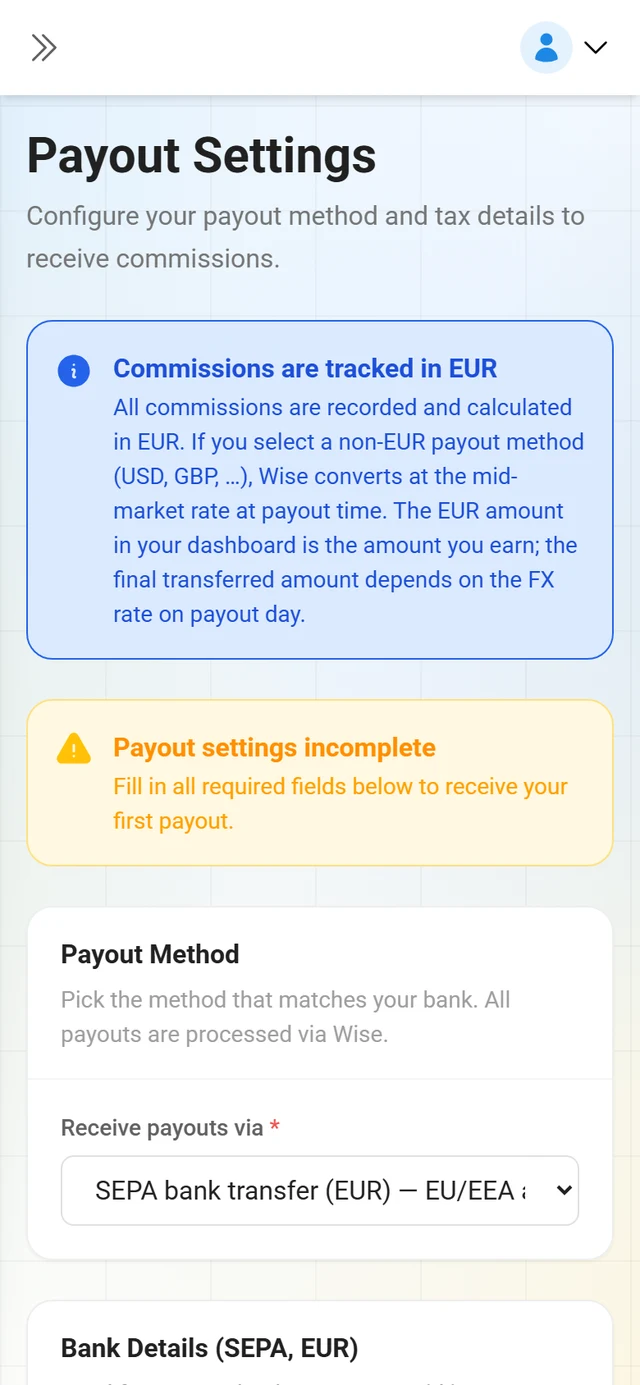
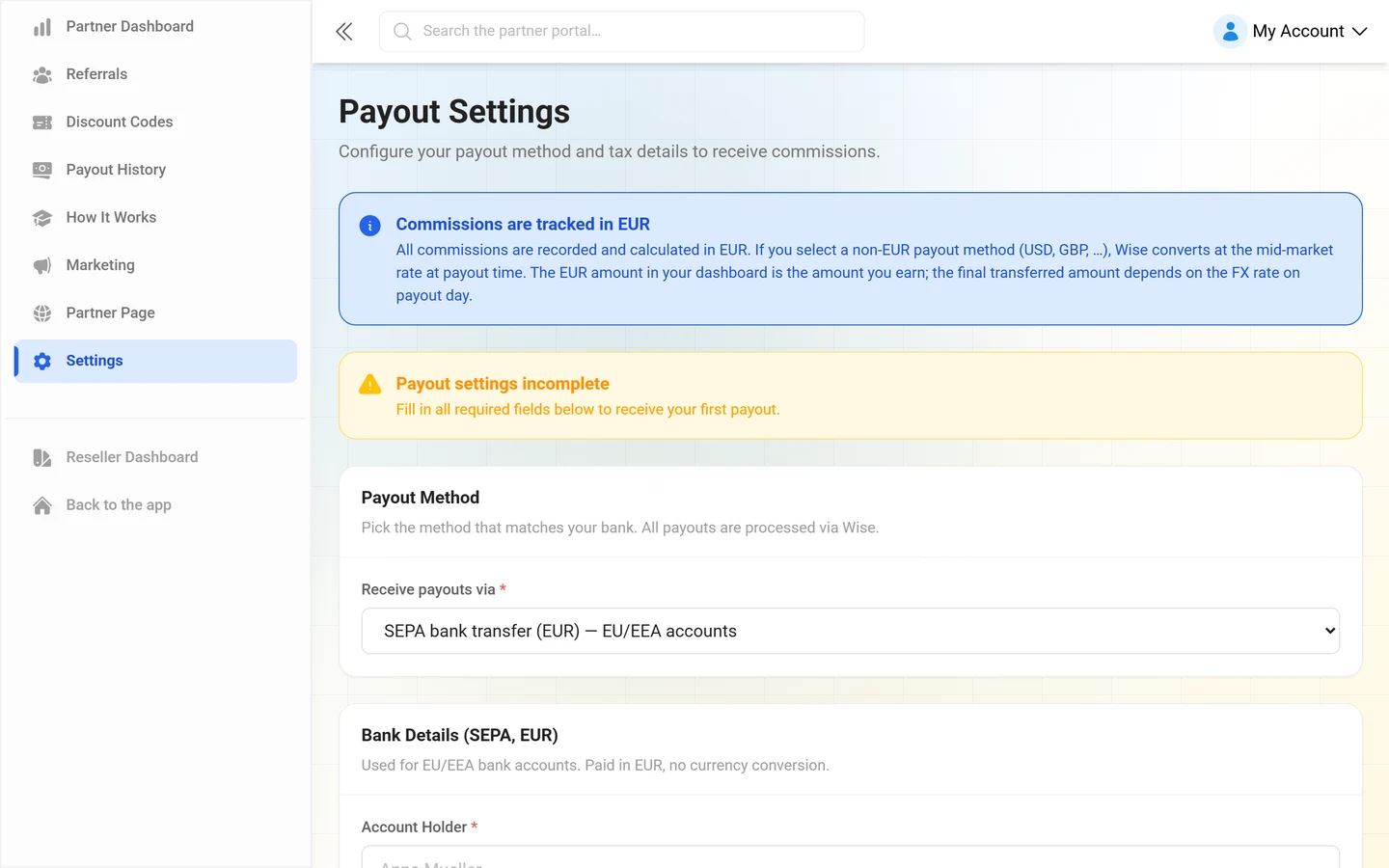
Settings holds everything the transfer needs. At the top a banner shows either Payout settings incomplete or Payout settings complete — you’re ready for payouts.
Payout method
Section titled “Payout method”In the Payout Method section, Receive payouts via offers four options:
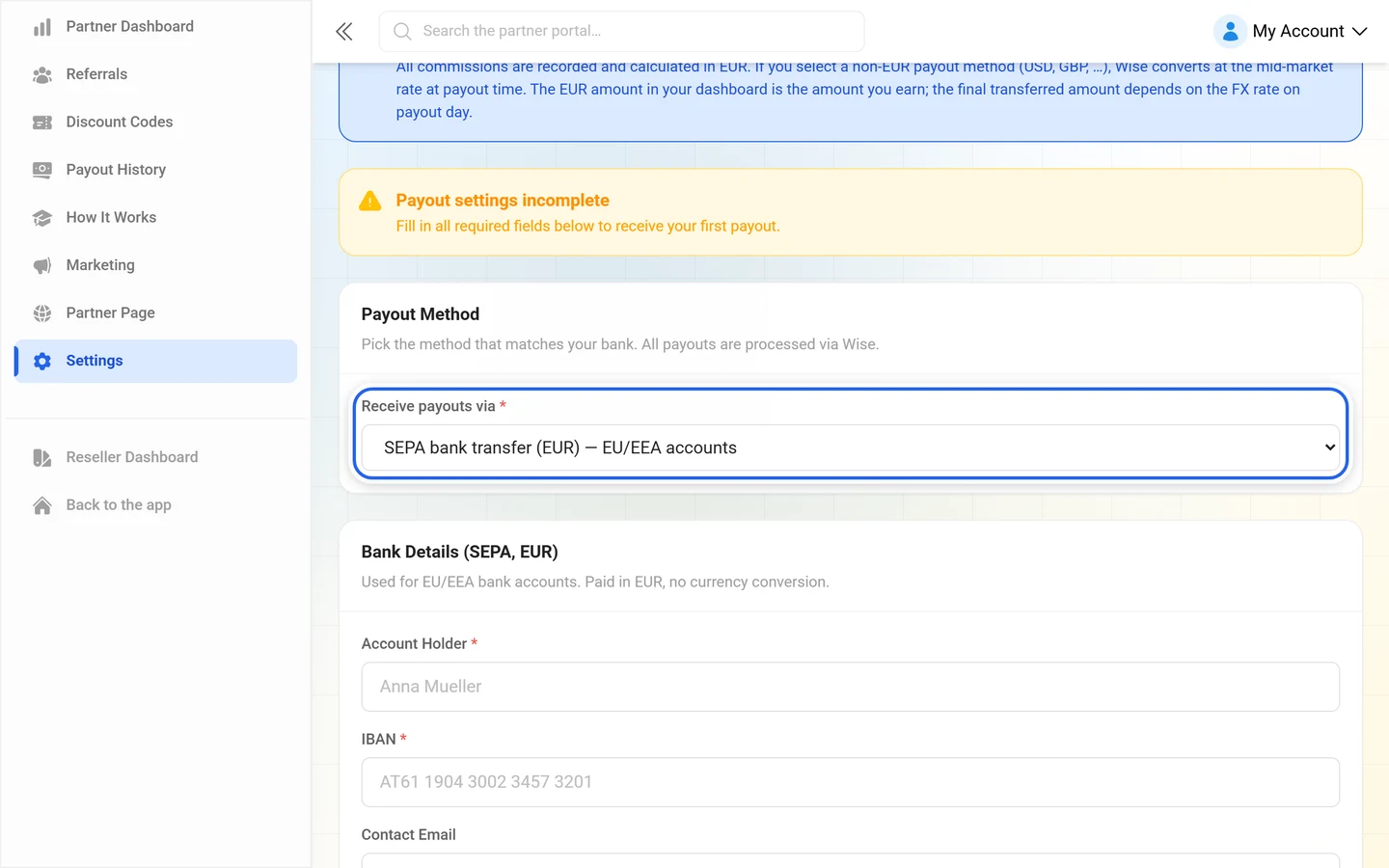
- SEPA bank transfer (EUR) — EU/EEA accounts — paid in EUR, no currency conversion. Field: IBAN.
- UK Local transfer (GBP) — UK accounts — Sort Code (6 digits) and Account Number (6–8 digits).
- US ACH transfer (USD) — US accounts — Routing Number (ABA) (9 digits), Account Number and Account Type (Checking or Savings).
- SWIFT international wire — worldwide — BIC / SWIFT Code (8 or 11 characters), Account Number / IBAN and your preferred Receiving Currency.
On top of that: Account Holder and Contact Email.
Address & tax residence
Section titled “Address & tax residence”The second section is required for tax reporting and international transfers:
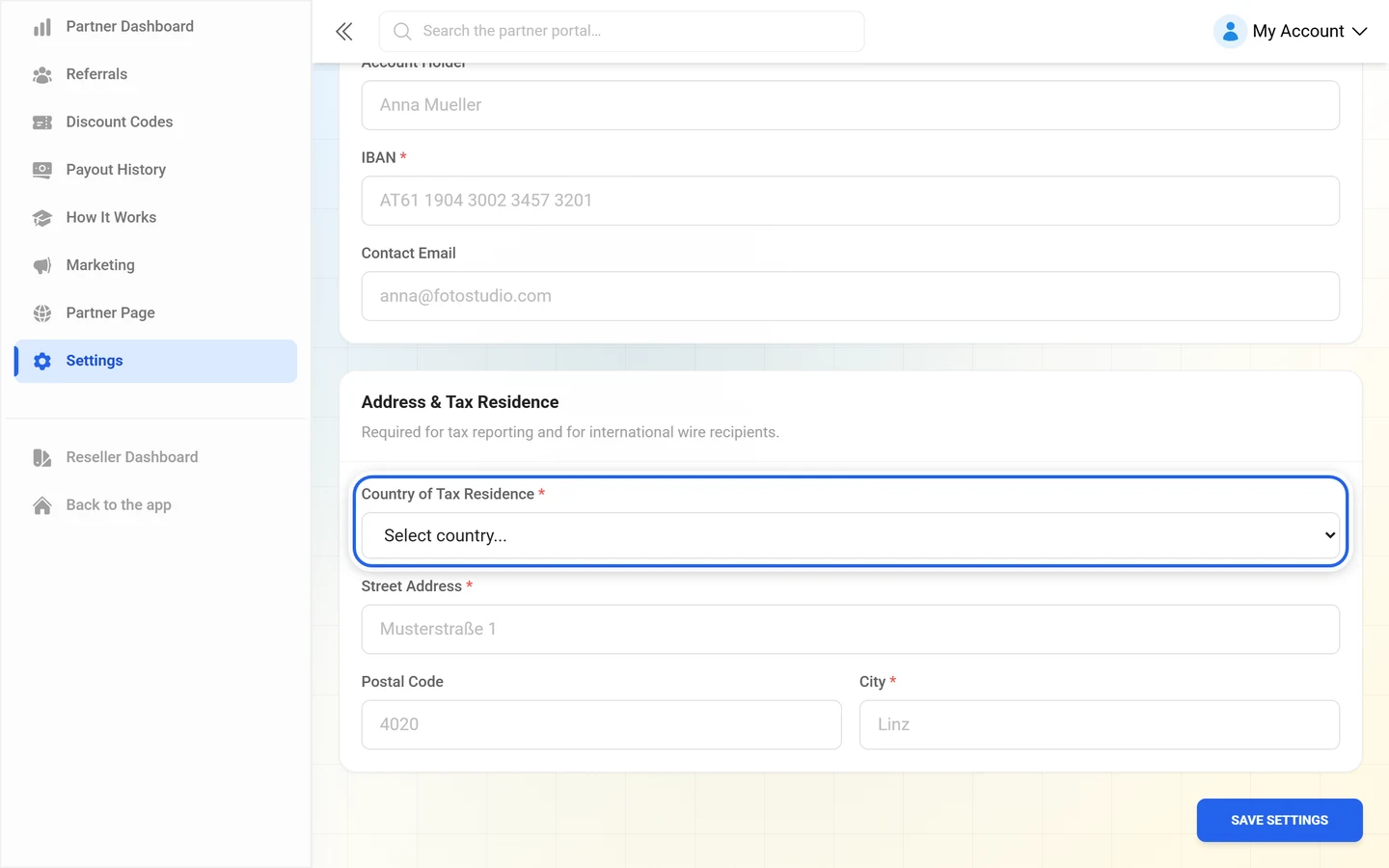
- Country of tax residence
- Street & number, Postal code, City
- State / Province — as a 2-letter code (e.g. CA, NY, TX for the USA; ON, QC for Canada). Wise requires it for certain countries.
- Date of birth — required for Austrian tax reporting (§109a EStG).
Save Settings applies your entries.
Troubleshooting
Section titled “Troubleshooting”- No payout arrives. Check the threshold first: payouts only run from €50 of approved commission. Then check Settings — if address, country or (where applicable) VAT ID are missing, payouts are paused. Earned commission is not lost, it just waits.
- The Payout settings incomplete banner stays. A required field of the selected method is missing. The method determines which bank fields are demanded.
- A payout shows Failed. You then see a Payout failed notice with the amount and a Check settings button — usually a bank detail is wrong.
- The transferred amount differs from the dashboard. With non-EUR methods the difference comes from the FX rate on payout day.
- My code sale did not move me towards Gold. Code redemptions deliberately do not count towards tier progression.
- I only got the code rate although the customer came via my link. As soon as a discount code is redeemed at checkout, the flat code rate applies and your tier rate is dropped for that sale.
- The discount code no longer works. Deactivated codes cannot be redeemed. Create a new one on the same slot.
Related pages
Section titled “Related pages”- Getting started as an affiliate — sign-up, referral link, tiers and attribution
- Reseller basics — credits, setup links and your own brand
- Setting up brand & domain — legal details and business data of the brand
- Plan & term — what discount and commission relate to