Tips for a great gallery
A lively gallery doesn’t happen by itself – but with a few deliberate moves you make sure your guests love contributing photos. This page is your best-practice hub: for every tip you get the exact route into the right admin area, the key fields and a link to the in-depth guide.
How to reach the admin portal
Section titled “How to reach the admin portal”All of the areas below live in your event’s admin area.
-
Open your gallery and tap your profile menu in the top right.
-
Choose the entry for the admin area (or go straight to the
/adminroute). The detailed route is described under Reaching the admin area. -
On the left you navigate through the sidebar. Overview and Checklist sit right at the top without a group heading, followed by three groups:
- Planning – your active tools as their own rows, and All Tools below them
- Gallery – Photos, Review & Reports, Albums, Tasks & Points, Full Download
- Event – Participants, Live Upload, Print Templates, Statistics, Settings
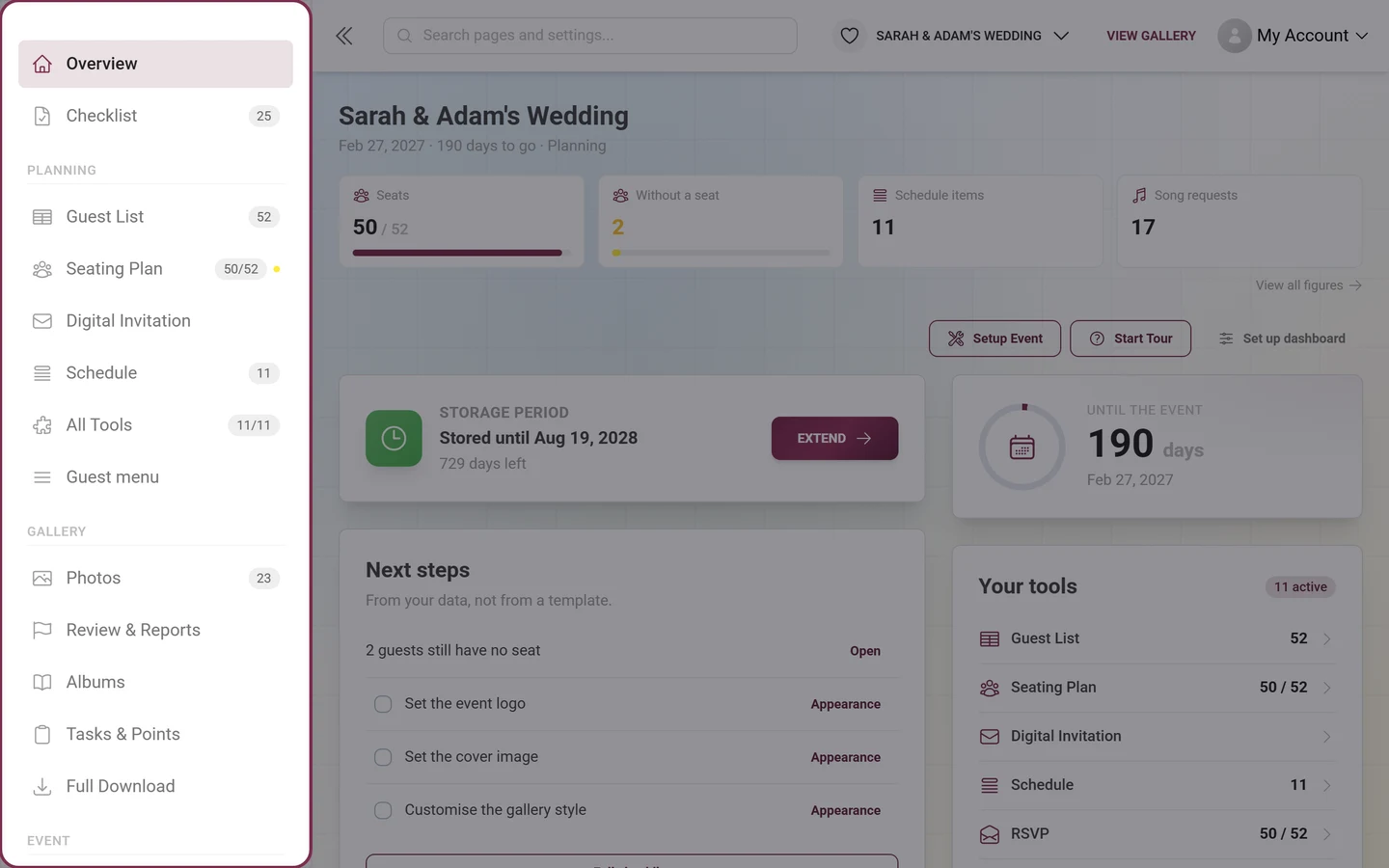
The sidebar: Overview and Checklist on top, then the “Planning”, “Gallery” and “Event” groups.
1. Start with an inviting look
Section titled “1. Start with an inviting look”First impressions count. Give your event a fitting cover image, a logo and colors that match the occasion – romantic for a wedding, playful for a birthday.
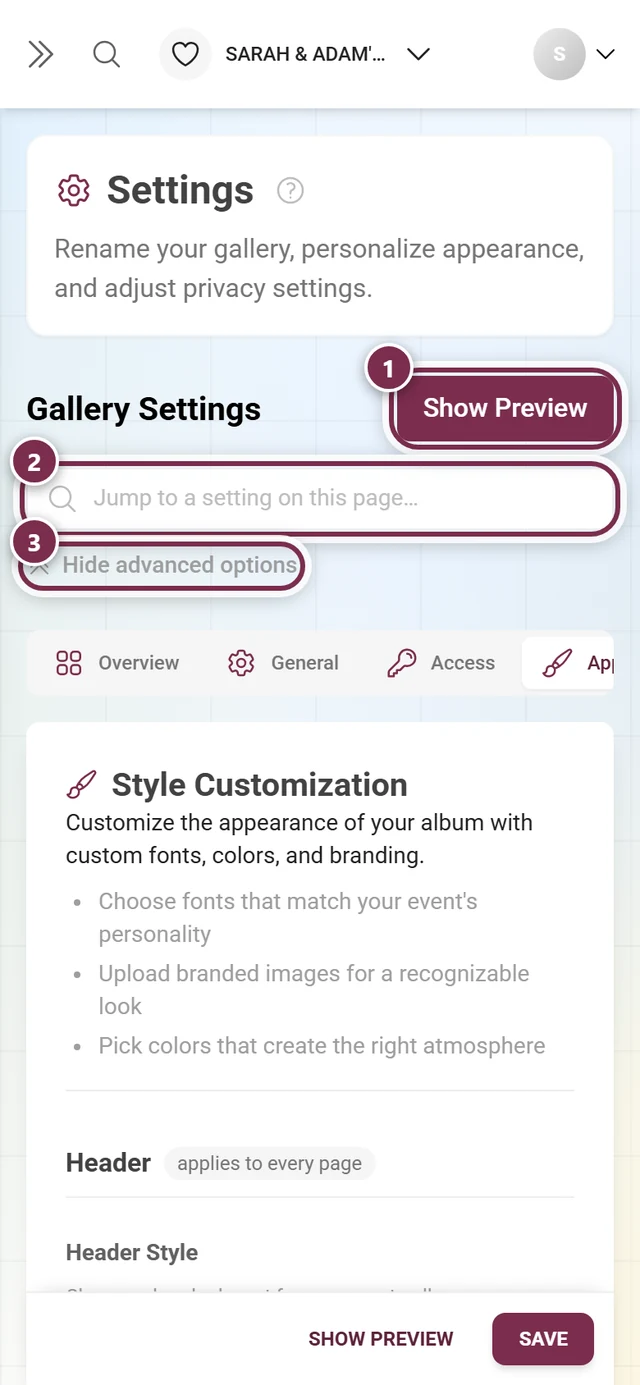
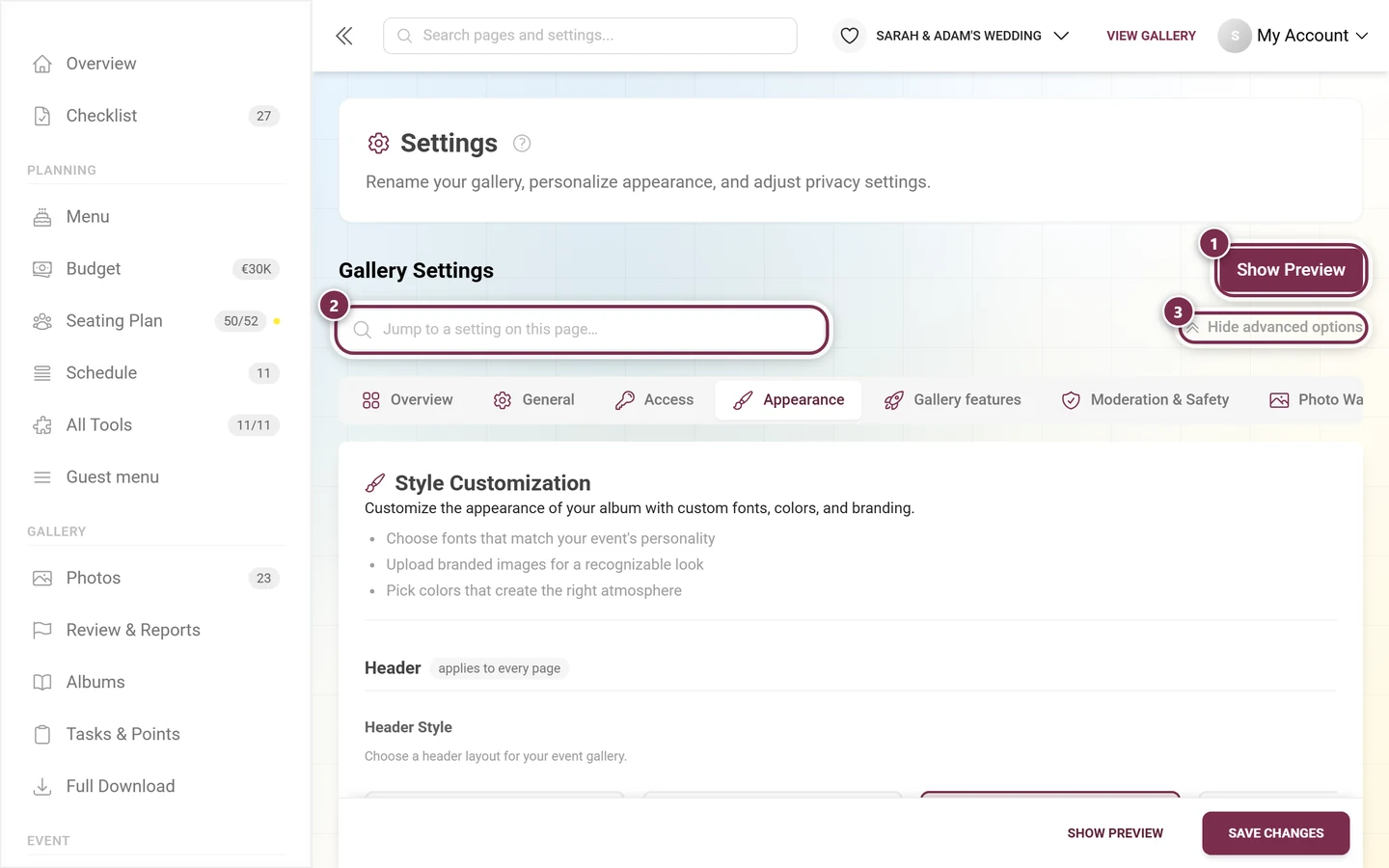
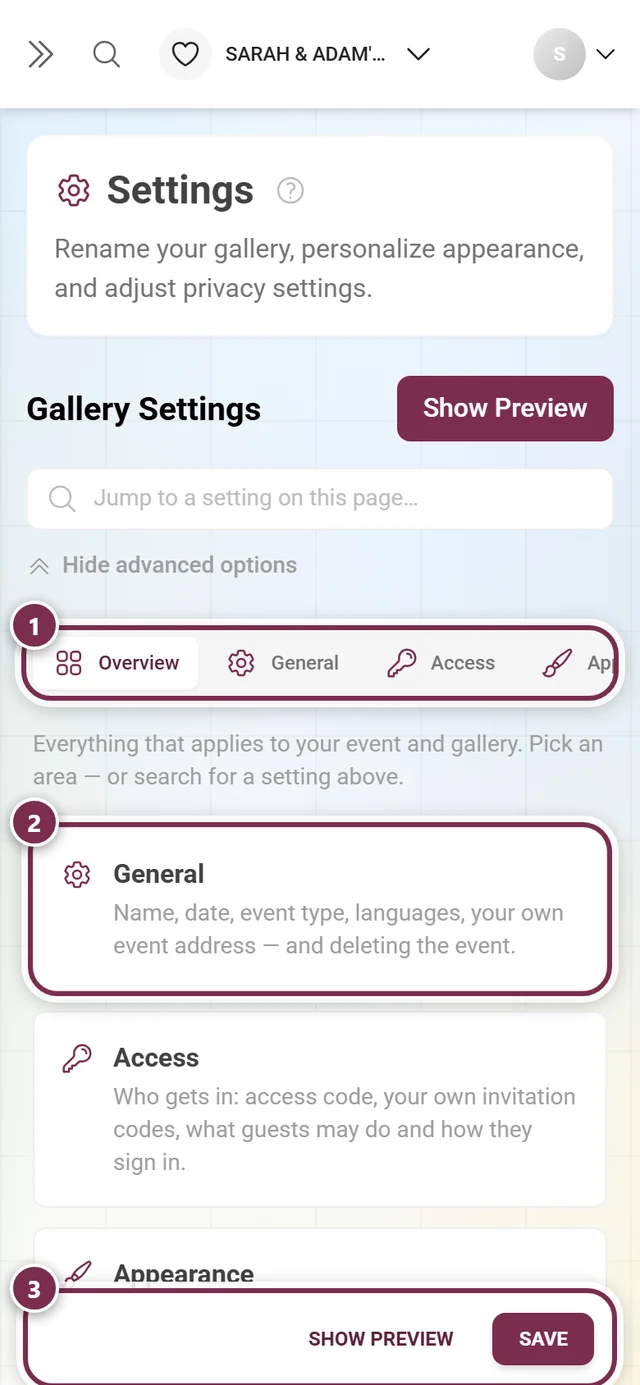
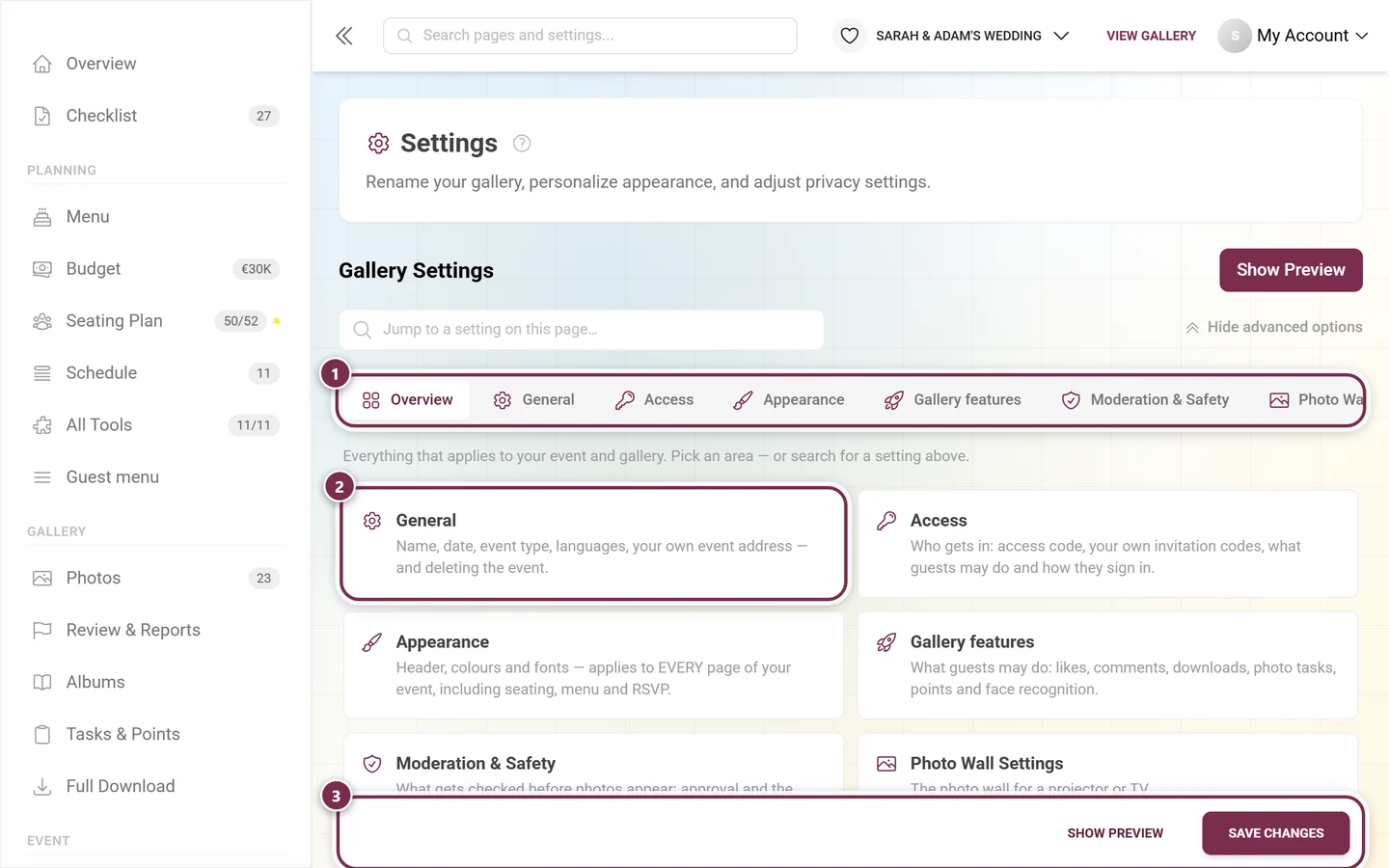
Open Settings and switch to the Appearance tab (formerly “Style”; the ?tab=style deep link still works). The tab is split into four groups, and each one states with a small pill how far it reaches:
- Header – applies to every page: header variant plus cover image and logo.
- Photo grid – the photo view only: layout, tile settings, default sorting and the Controls above the grid (quick sort bar, album quick select).
- Basics – applies to every page: colors and fonts. The color picker only appears with the matching plan.
- QR code – for printouts: the look of the QR code.
Check your look with the preview before you save at the bottom with Save Changes. Unsaved changes mark the tab with a red dot; if you navigate away, a dialog warns you.
2. Enable the right features
Section titled “2. Enable the right features”Think about what suits your event: likes and comments for interaction, challenges and rewards for fun, the map for travel events, video uploads for moving moments.
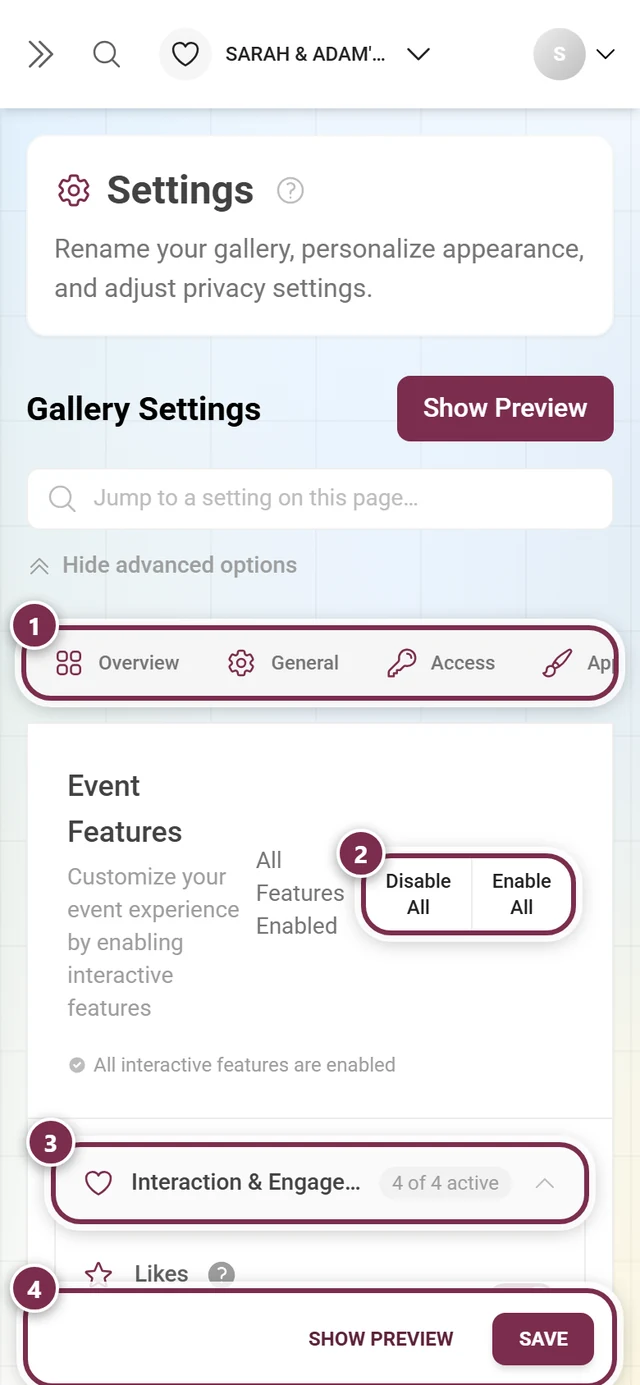
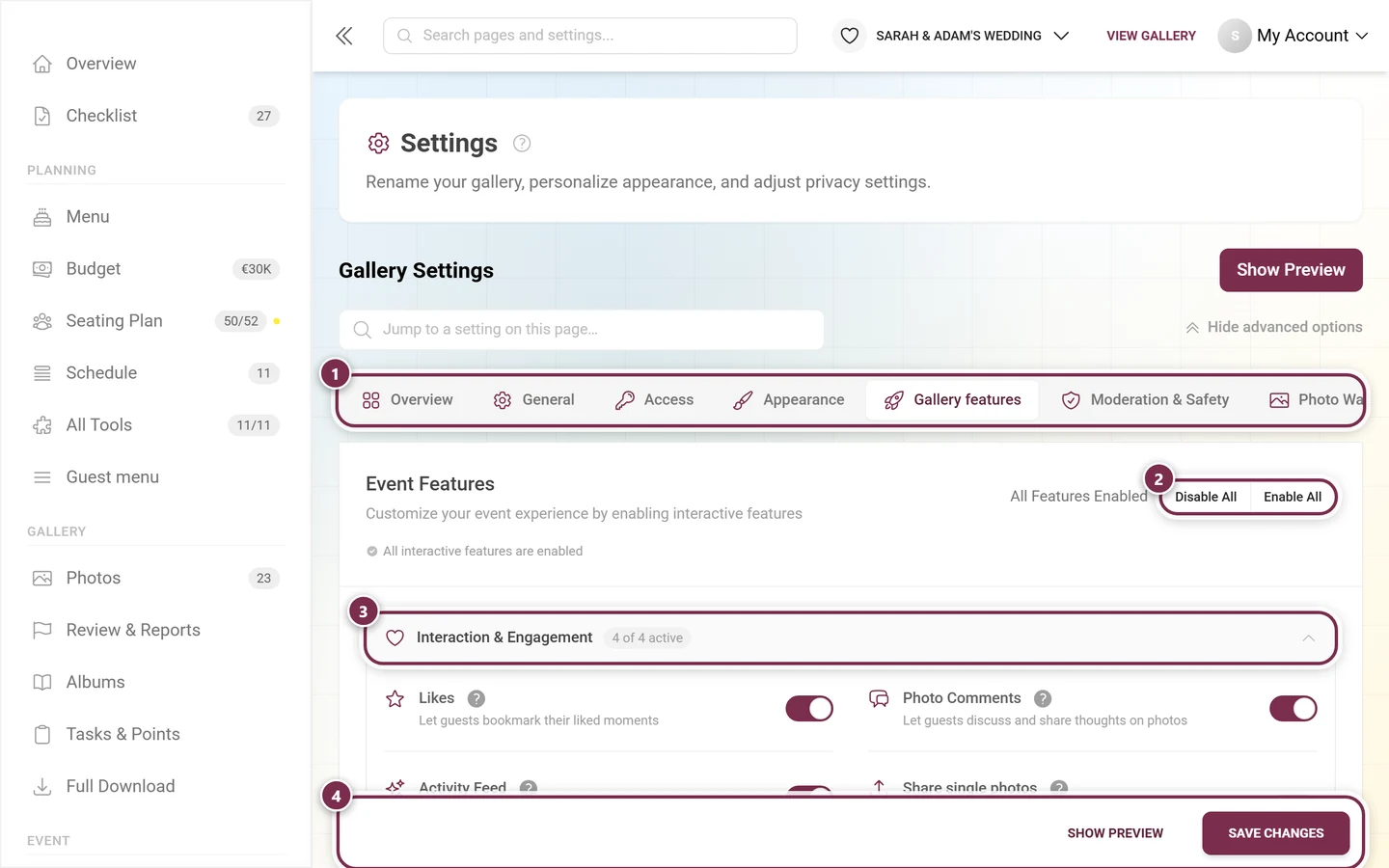
Open Settings ▸ Gallery features. The toggles live in six collapsible sections: Interaction & Engagement, Downloads, Gallery Views, Media & Upload, Joining in & points and AI Processing. There you enable, among others, liking, comments, tasks, achievements, points, the leaderboard, map view, sharing single photos, single and bulk download, video upload and the activity feed. Only turn on what you really want – too many features quickly feel cluttered.
3. Add energy with challenges & rewards
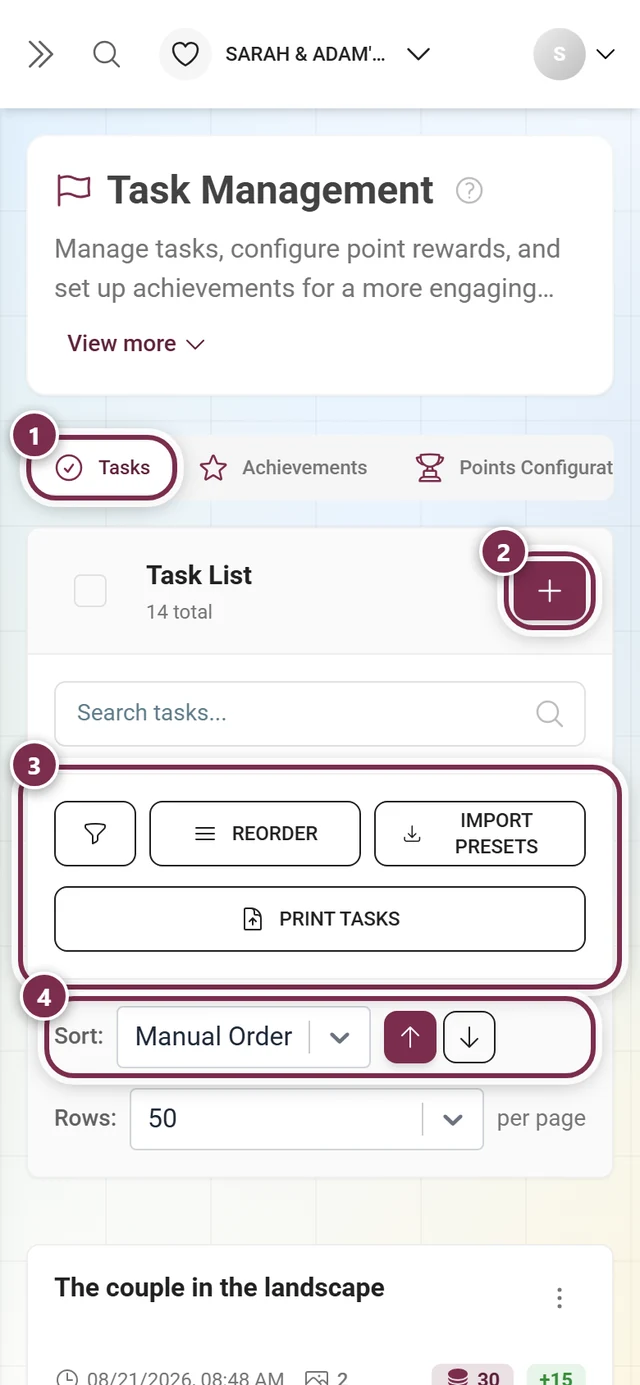
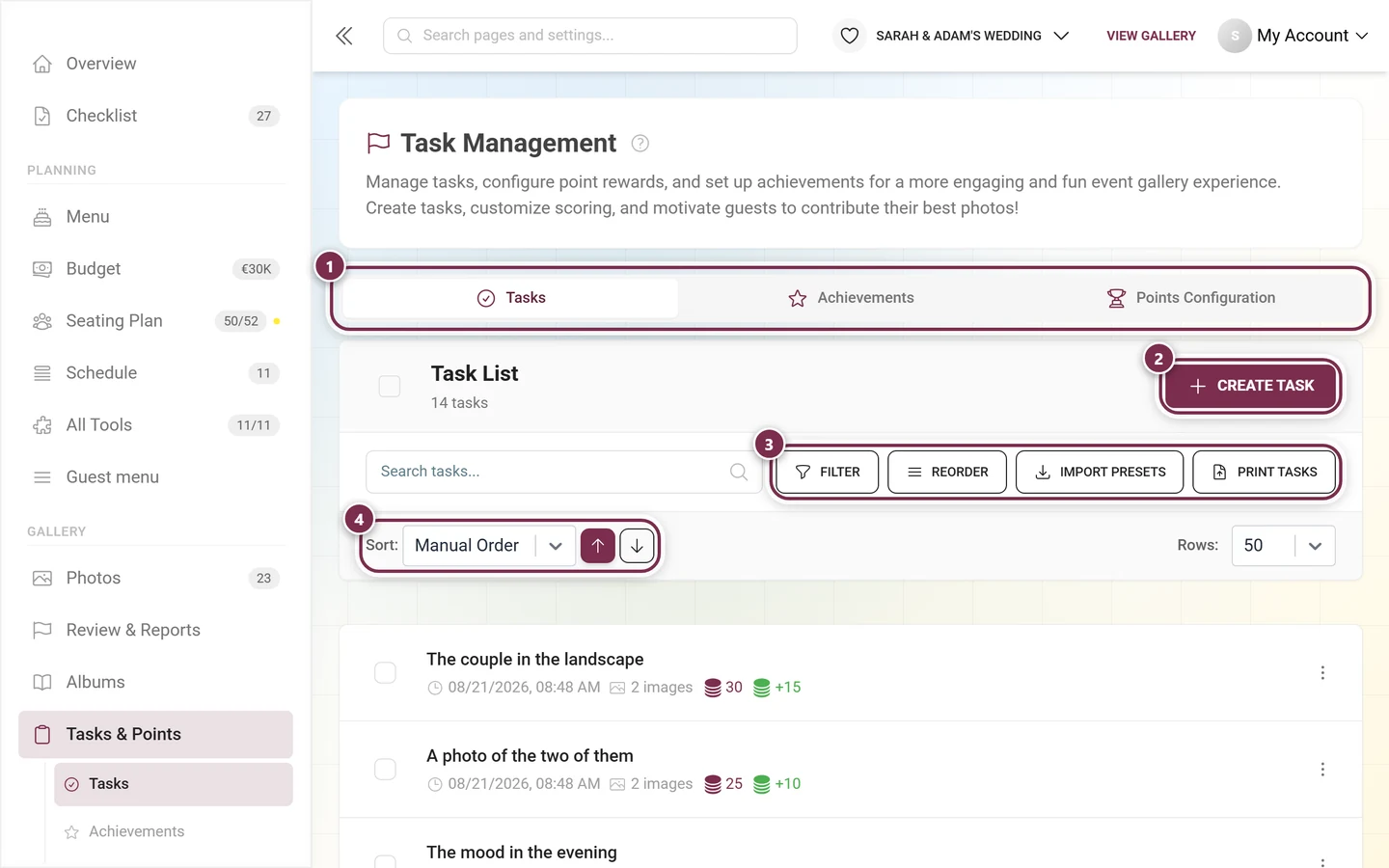
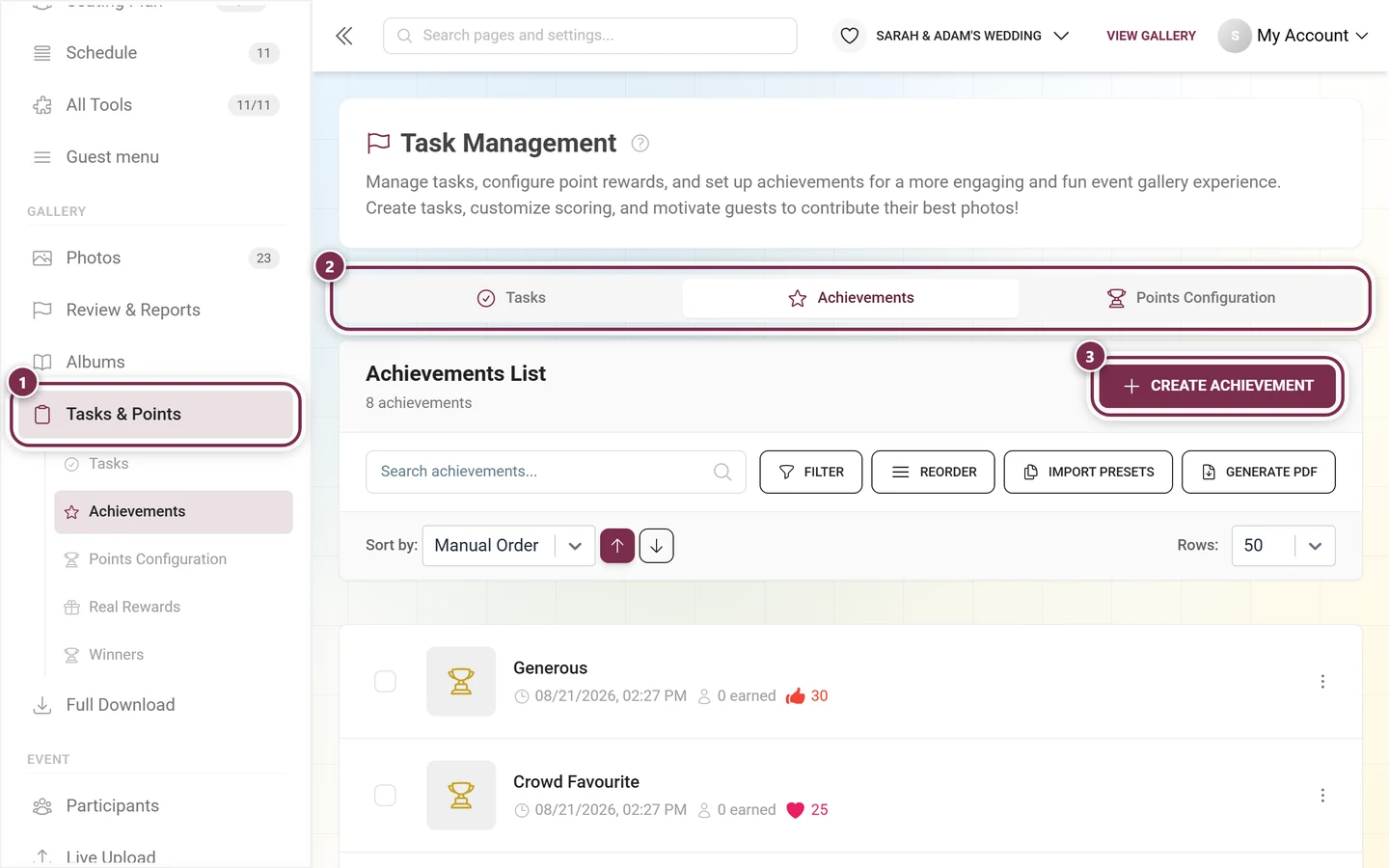
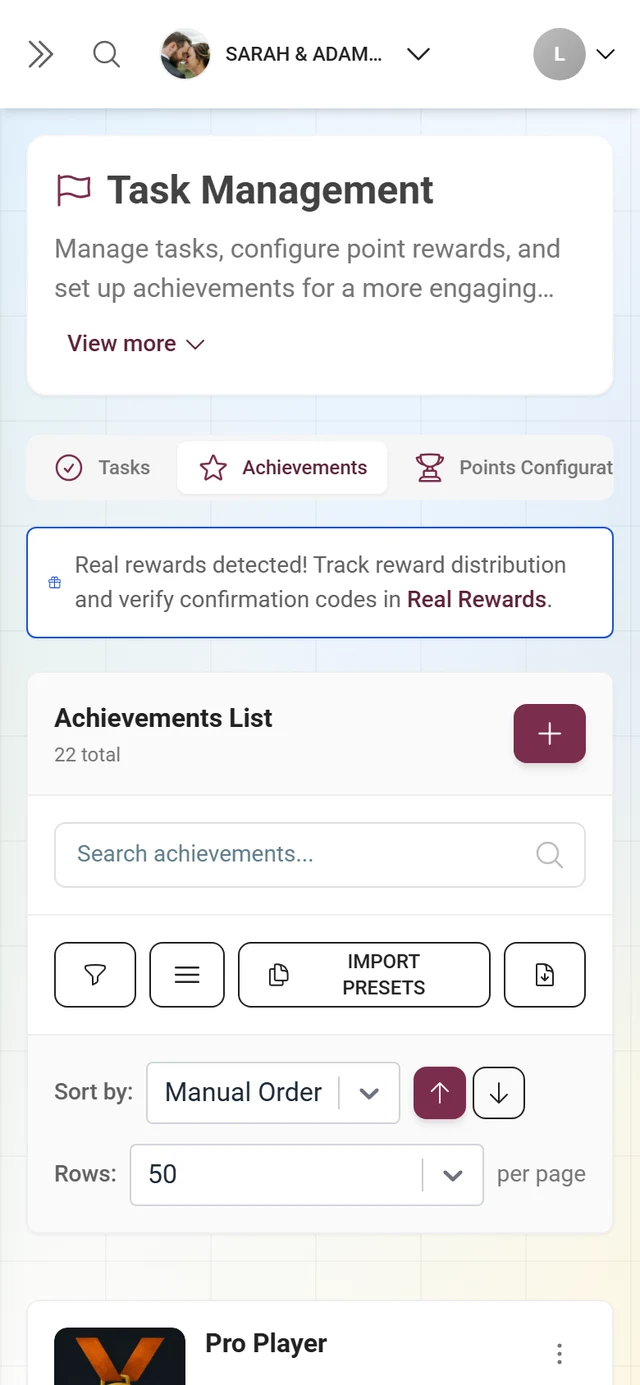
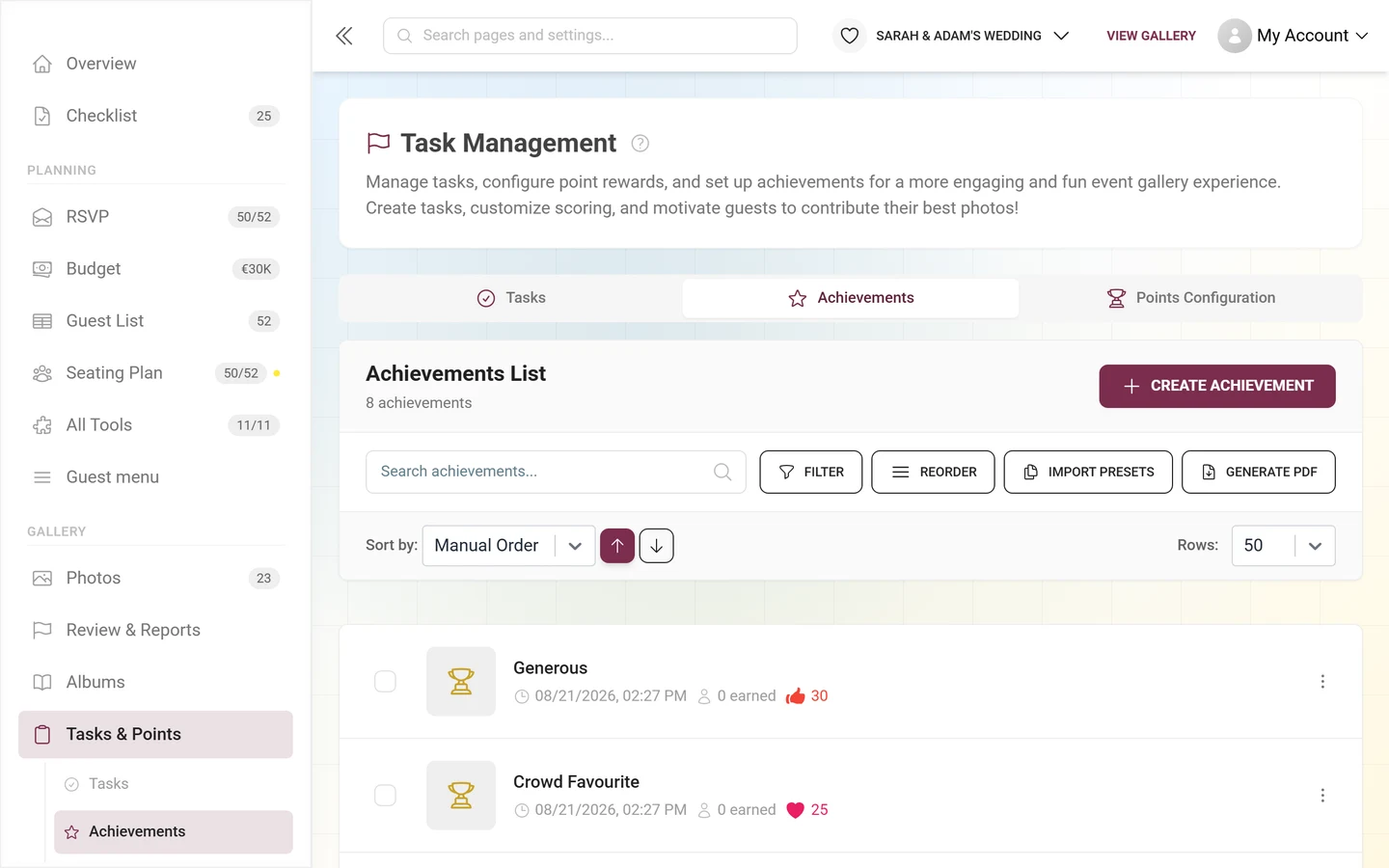
Section titled “3. Add energy with challenges & rewards”This area is the strongest lever for more photos. Reach it via the sidebar Gallery ▸ Tasks & Points (/admin/gallery/tasks-manager). At the top you’ll find three tabs: Tasks (your challenges), Achievements (badges and real rewards) and Points Configuration. Every tab is always visible; if the feature isn’t in your plan, it shows a premium overlay.
3a. Create a challenge
Section titled “3a. Create a challenge”-
In the Tasks tab click Create Task in the top right.
-
The Add Task dialog opens with its own inner tabs. In the General tab, describe the challenge in the Task field (e.g. “The best smile of the night”). For multilingual events pick the language at the top.
-
Optionally upload an image under Task Image or choose a template.
-
Under Auto-assign to Albums you decide that photos for this challenge automatically land in certain albums. If no suitable album exists yet, the dialog offers to create one with the task’s name in a single click.
-
Use Sort photos by and Order to set the default sorting of the task gallery (event default, upload date, capture date, likes, comments; newest or oldest first).
-
In the Points tab you grant points for the first solve and for repeats (only with the points feature active). In the Conditions tab you set availability conditions, toggling between Basic (time windows, dependencies on other tasks or albums) and Advanced (Max Points, Min Achievements and more – plan-dependent).
-
Save with Add (or Save when editing).
3b. Create an achievement
Section titled “3b. Create an achievement”-
Switch to the Achievements tab and click Create Achievement.
-
In the Create New Achievement dialog fill in Basic Information: Achievement Name and Description are required (multilingual). If one is missing, a red warning appears.
-
Under Visual Identity give the achievement an image or badge.
-
Under Reward Type you optionally enable a Real-world Reward (e.g. a free drink): with a Reward Description and Reward Inventory (quantity). This section is plan-dependent.
-
Under Unlock Conditions you define how the achievement unlocks. If you leave the conditions empty, the dialog warns you: you’ll then have to grant the achievement manually via Participants.
-
Save with Create Achievement.
3c. Configure points
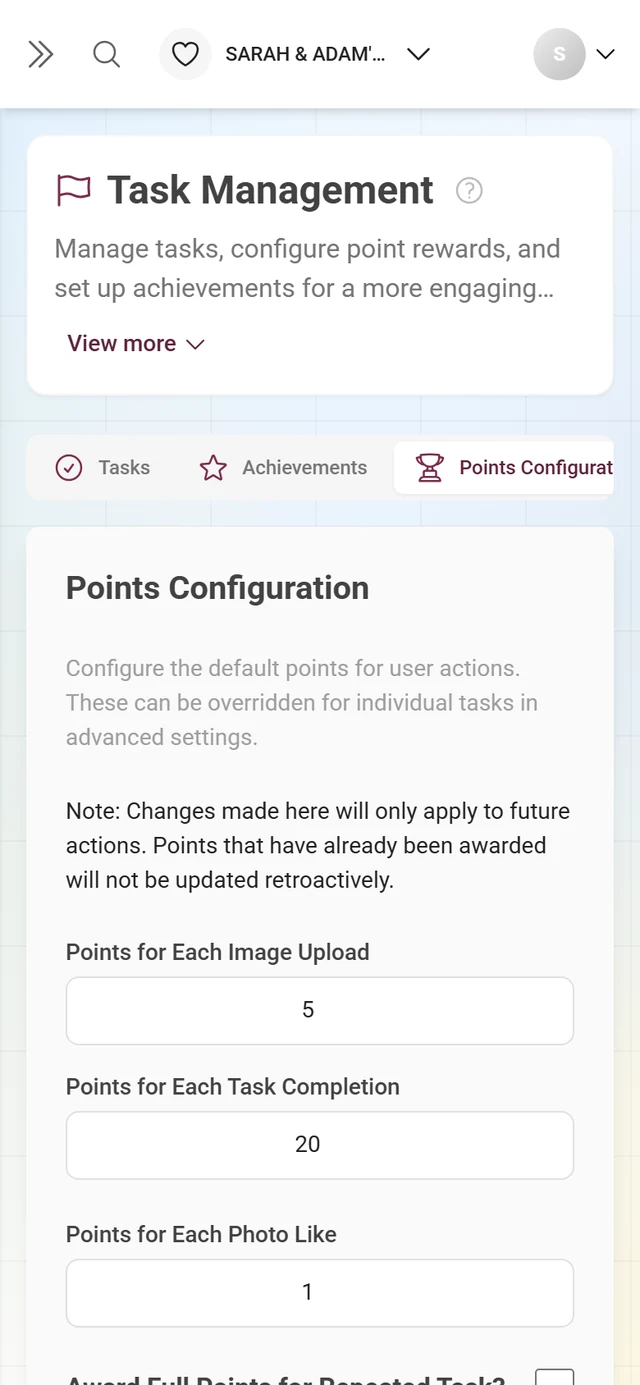
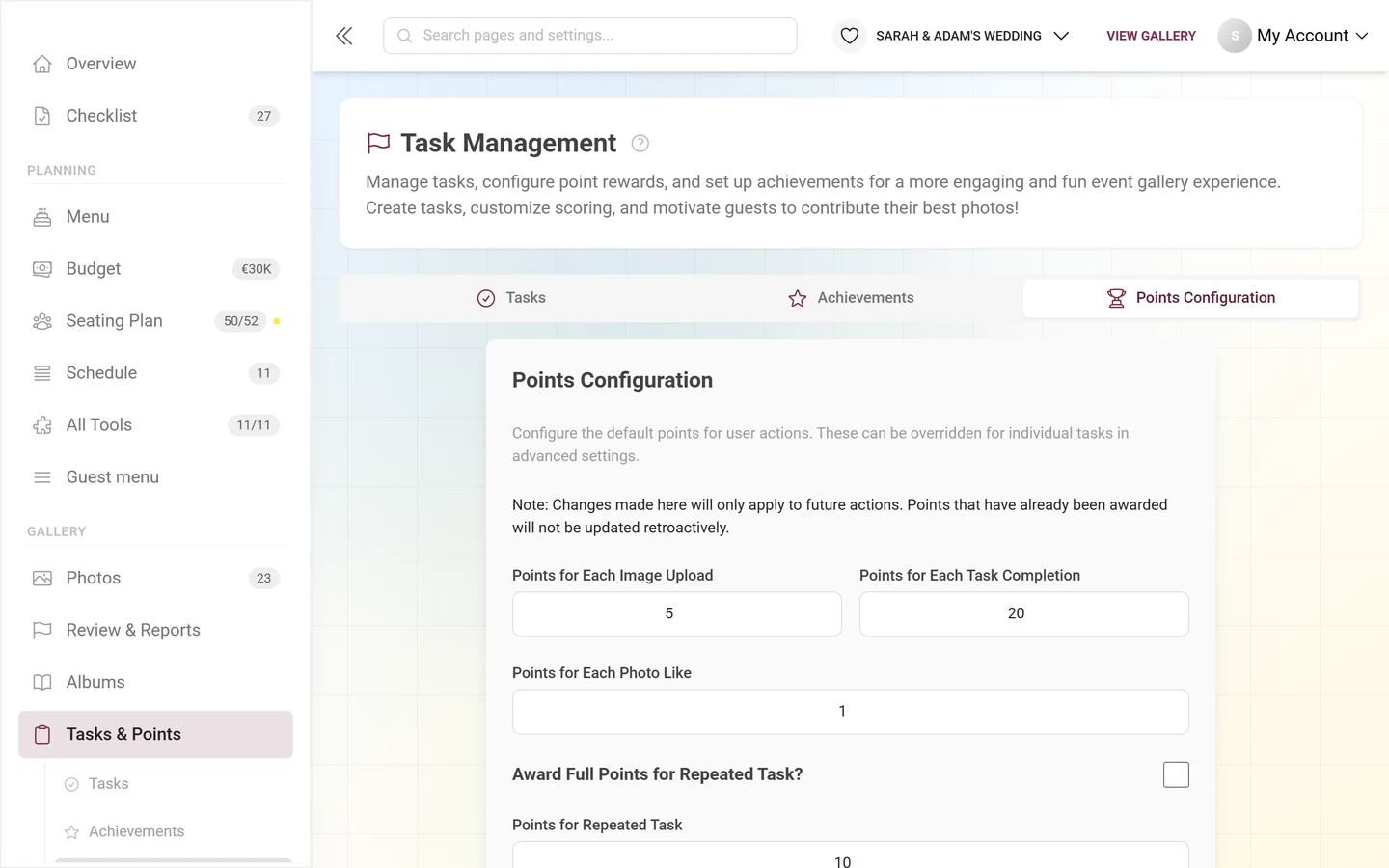
Section titled “3c. Configure points”In the Points Configuration tab you set up the points system. Best practice: start low and tie points to challenges and achievements – a lively leaderboard is hugely motivating.
You hand out real rewards later under Real Rewards (Redeeming rewards) using a code, and keep an eye on the stock there.
→ Creating challenges · Achievements & rewards · Redeeming rewards
4. Use albums to organize
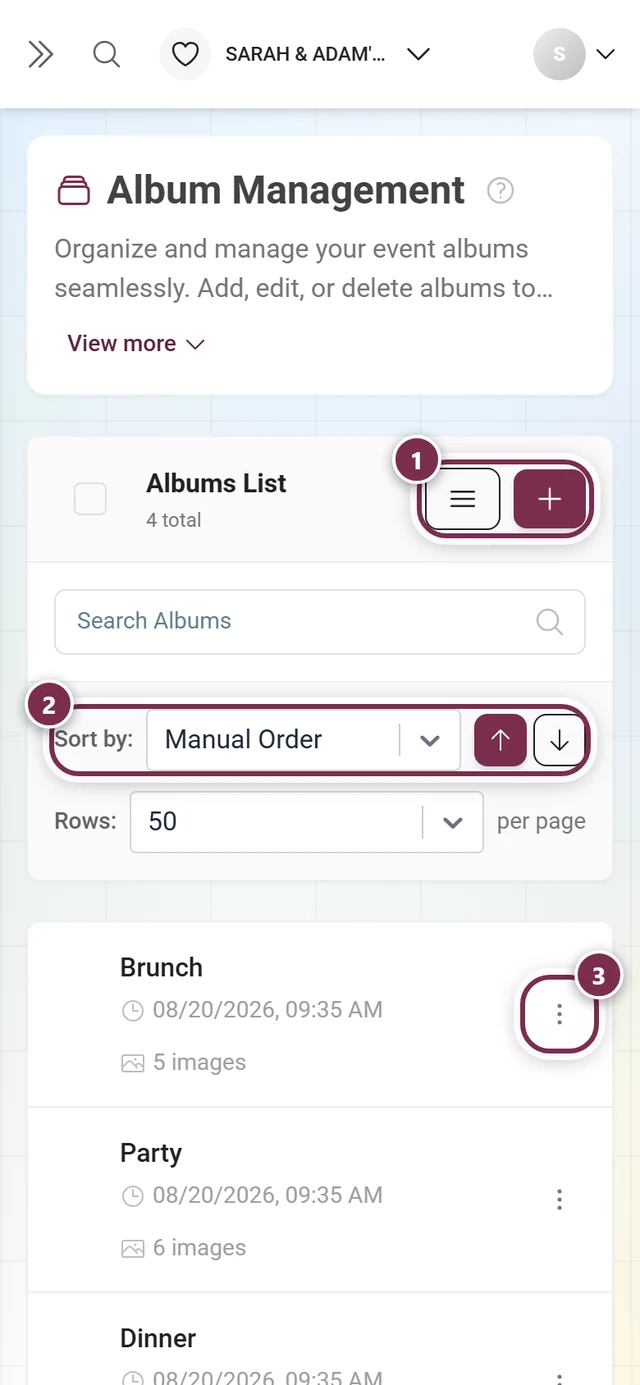
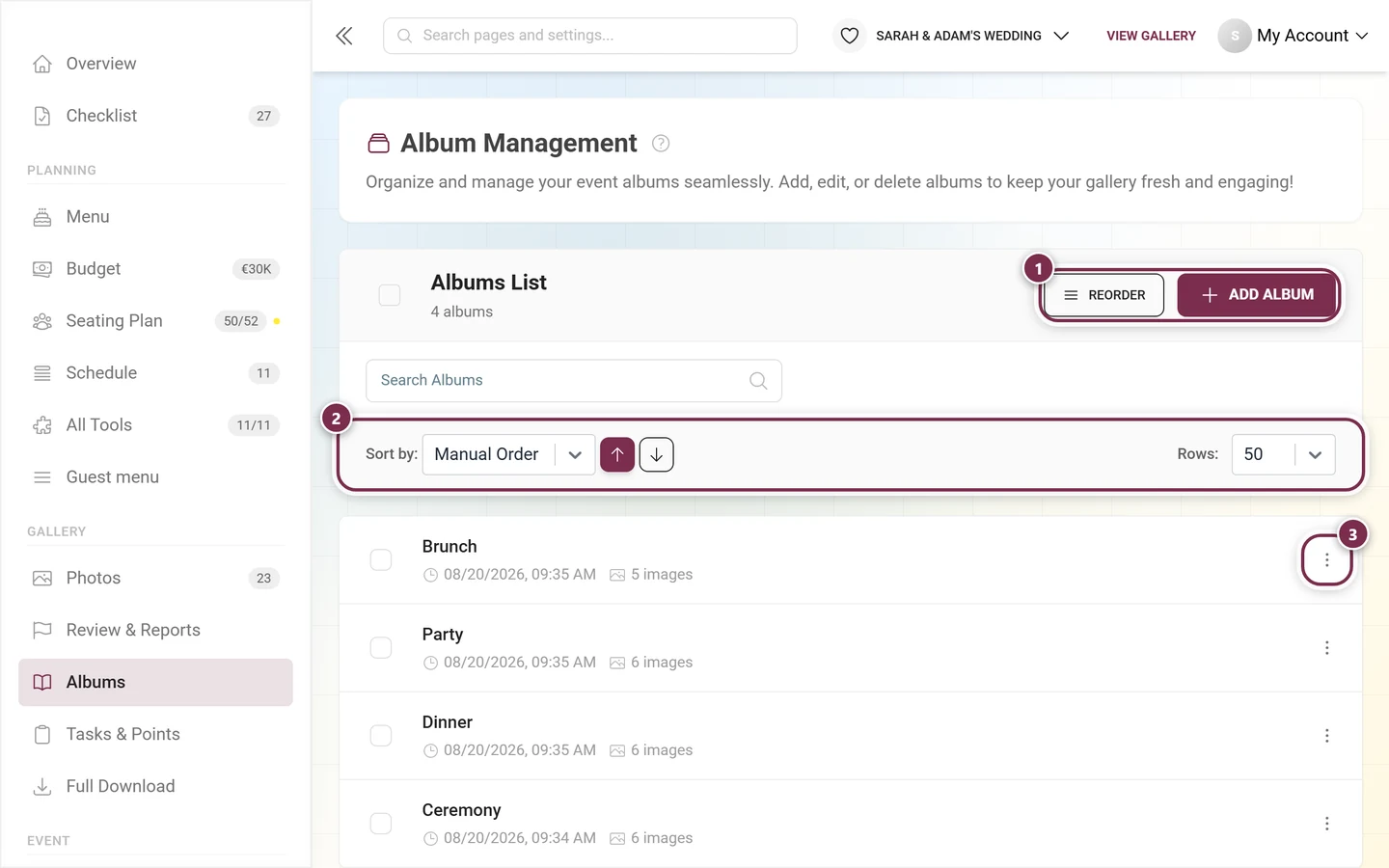
Section titled “4. Use albums to organize”Albums keep the gallery tidy. Via the sidebar Gallery ▸ Albums (/admin/gallery/album-manager) click Add Album. In the dialog of the same name you choose:
- Album type – Manual (you sort yourself) or Smart (photos land automatically by rules; plan-dependent).
- Title (required) and optionally a Description, multilingual.
- For smart albums, the Auto-fill rules with criteria (including Person, From task, Minimum likes) and the Match switch between all and any.
- Sort photos by / Order just like in the task dialog.
- Cover image – Automatic, Upload or (for existing albums) From gallery; applied only when you save.
Save with Save.
5. Use the guest tools for planning
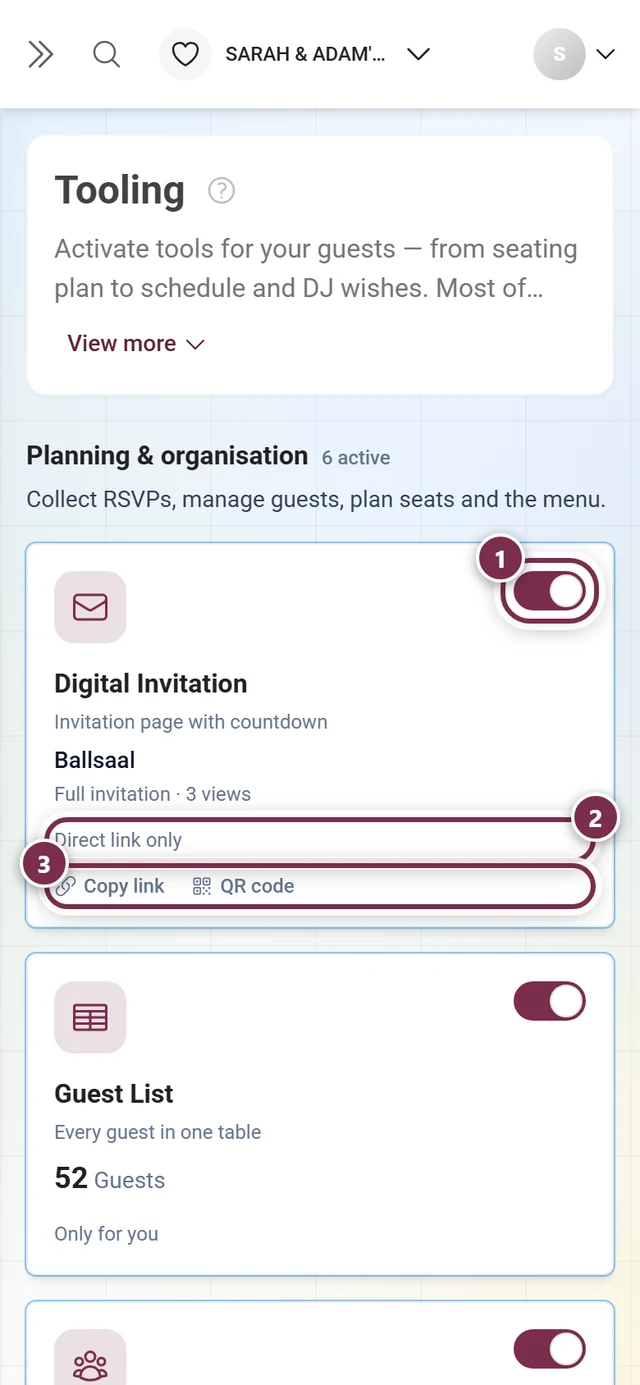
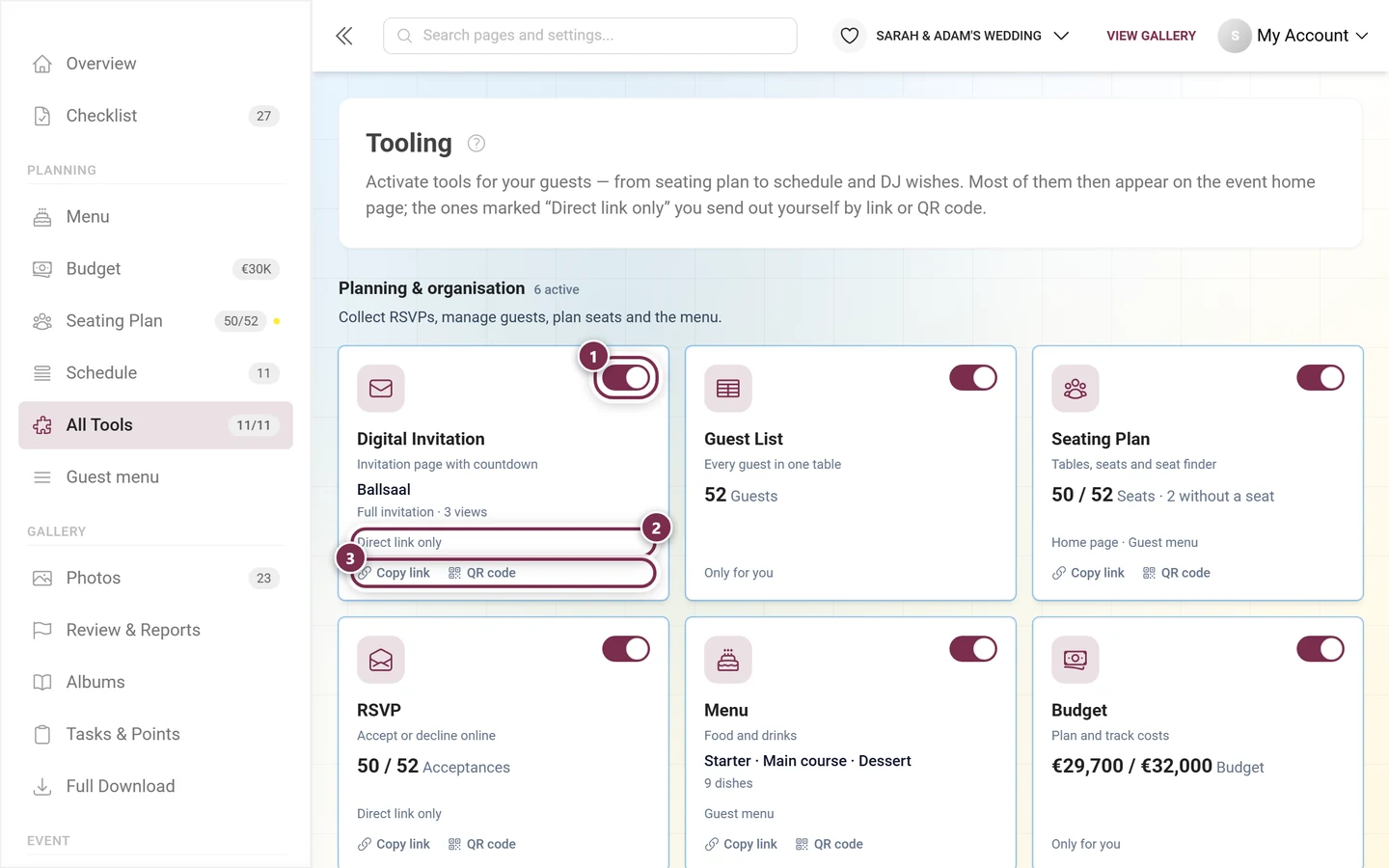
Section titled “5. Use the guest tools for planning”Your gallery does more than photos: under Planning ▸ All Tools (/admin/tools) sit the eleven guest tools you use to plan and organize the whole event. As soon as a tool is active it also gets its own row in the Planning group – with a metric badge and unfoldable tabs. The dashboard has the Your Tools card for this, with the footer button “View all N tools”; on a phone there is an extra horizontal tool rail right below the dashboard header.
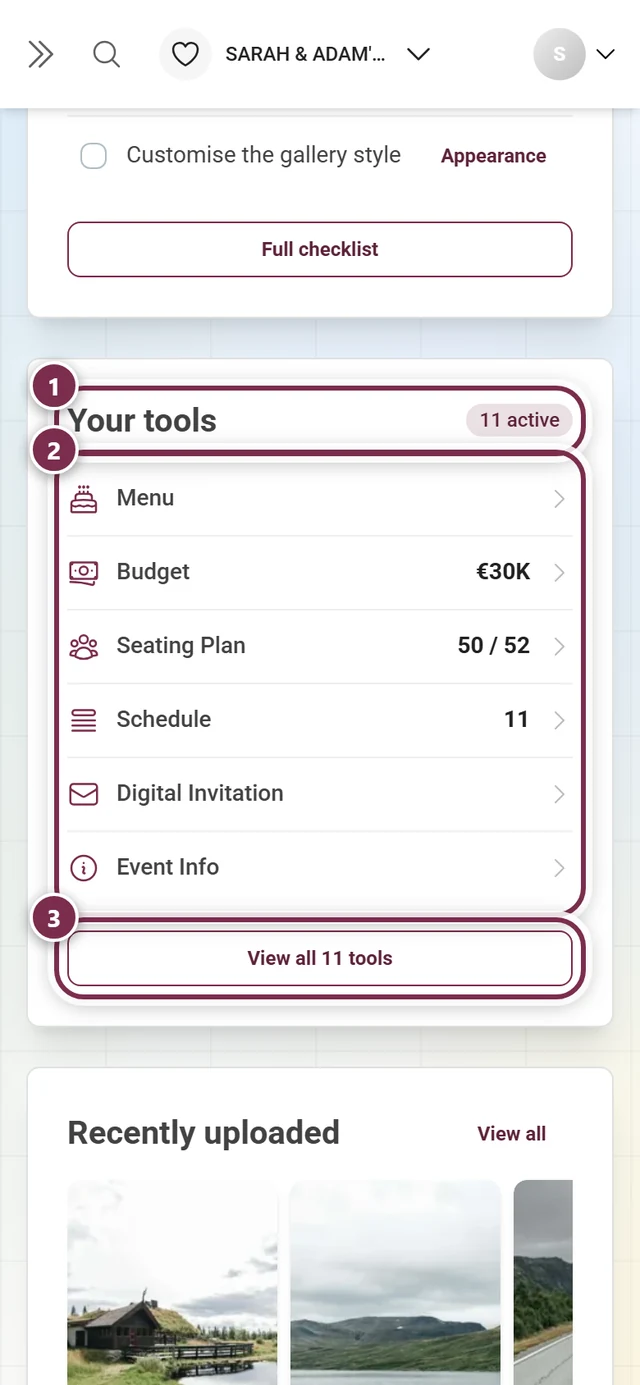
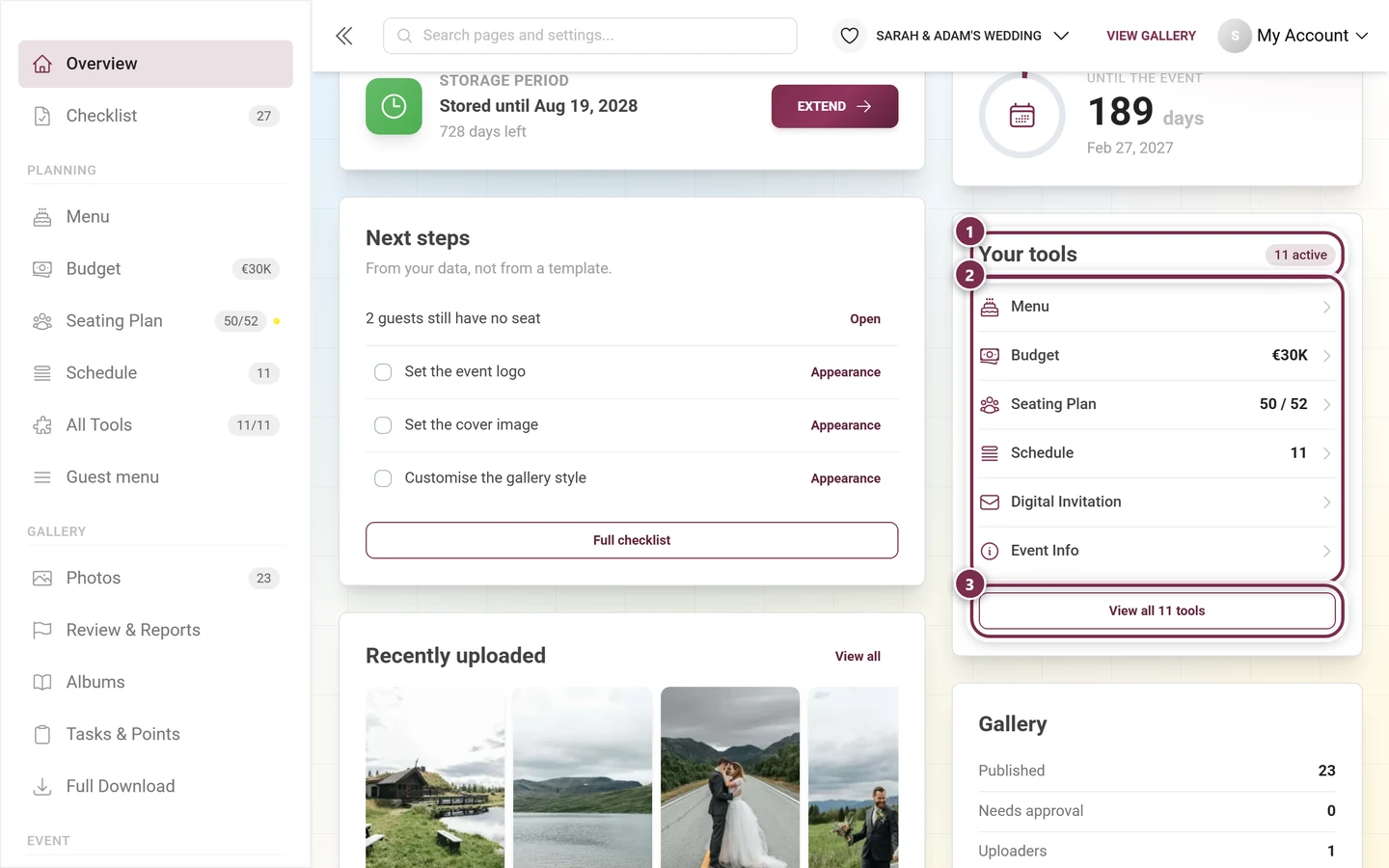
A sensible order looks like this:
-
Send the invitation. With Digital Invitation you build a designed invitation page and send a link instead of a card. → Digital invitation
-
Collect RSVPs. RSVP takes acceptances and cancellations, including plus-ones and your own questions. That way you know early how many guests to expect. → Collecting RSVPs
-
Keep menu and schedule up to date. The Menu shows courses and dishes with notes; the Schedule tells guests when what happens. Both stay current without reprinting anything. → Menu · Schedule
-
Build the seating plan. With the Seating Plan you place your guests at tables; every guest can look up their own seat later. → Seating plan
-
Prepare the thank you. After the party you thank everyone who was there with Thank You – right inside the gallery. → Thank You
6. Place QR codes where guests gather
Section titled “6. Place QR codes where guests gather”Access has to be easy to find. Print your QR codes and put them where guests are anyway:
- on the tables
- at the bar
- next to the buffet
- at the entrance to welcome people
You design cards and posters via the sidebar Event ▸ Print Templates: the Create tab guides you step by step to a card, a poster or a plain QR file, and under Templates & designs you edit existing designs directly in the Design Studio. Access itself (link, codes, the default invitation code inside the QR) is configured under Settings ▸ Access.

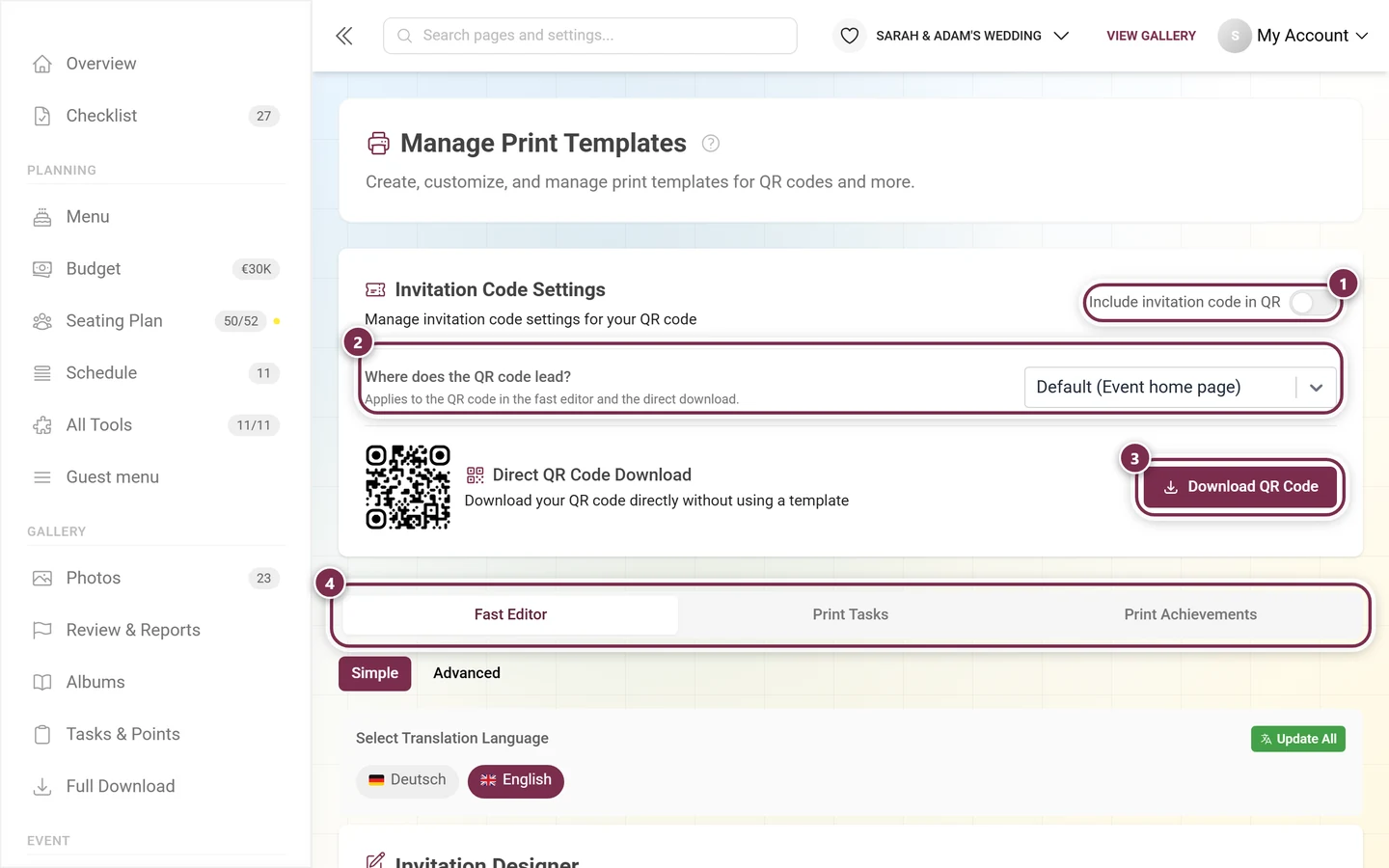
→ QR cards & posters · Inviting guests
7. Use the photo wall as an eye-catcher
Section titled “7. Use the photo wall as an eye-catcher”A live photo wall on a big screen next to the dance floor shows new photos in real time – hugely motivating, because everyone spots themselves right away.
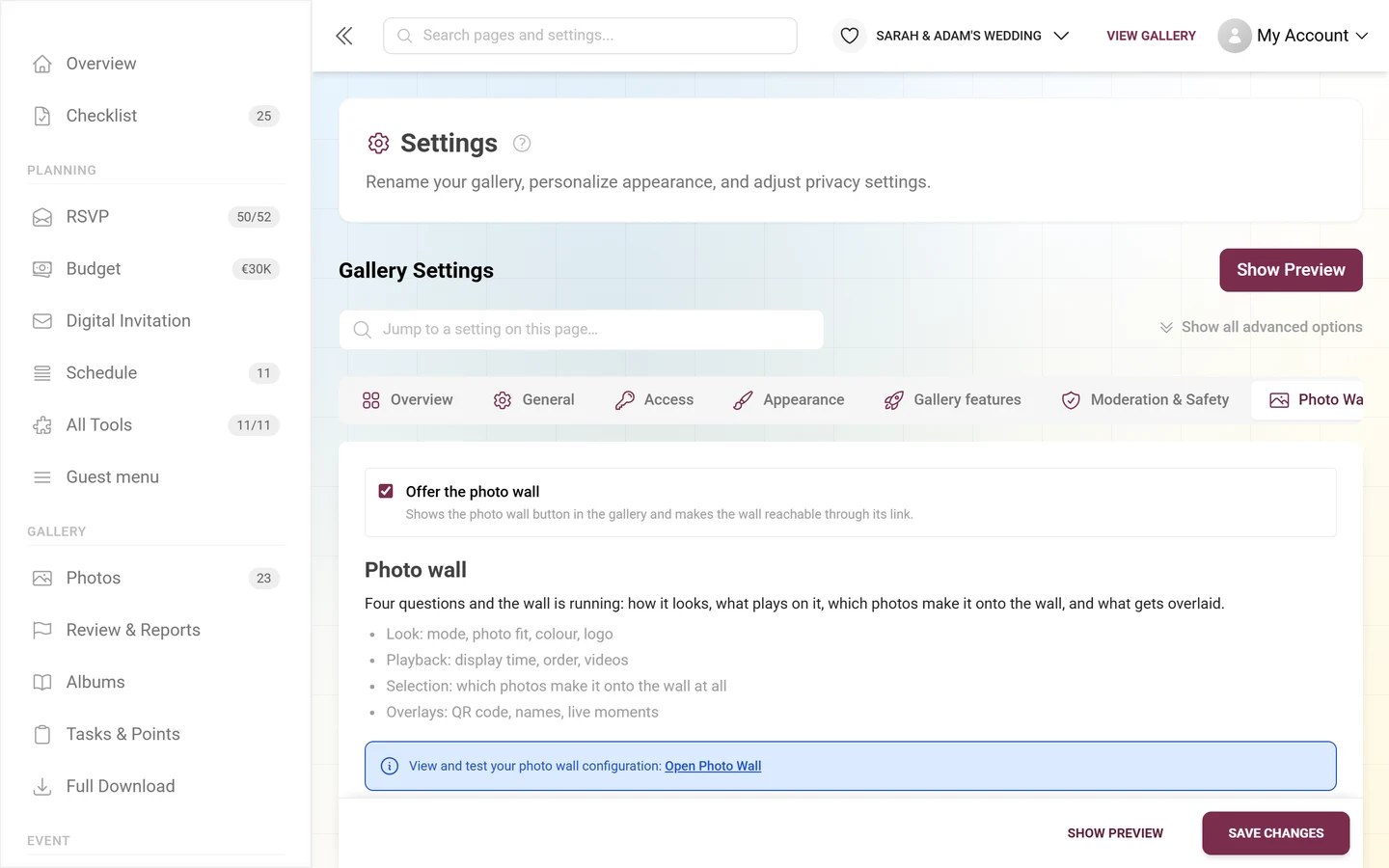
Switching the photo wall on and fine-tuning it happen in the same place: Settings ▸ Photo Wall Settings. At the very top sits the Offer the photo wall toggle, below it the wall’s four areas: Look (mode, photo fit, color, logo), Playback (display time, order, videos), Selection (which photos make it onto the wall at all) and Overlays (QR code, names, live moments).
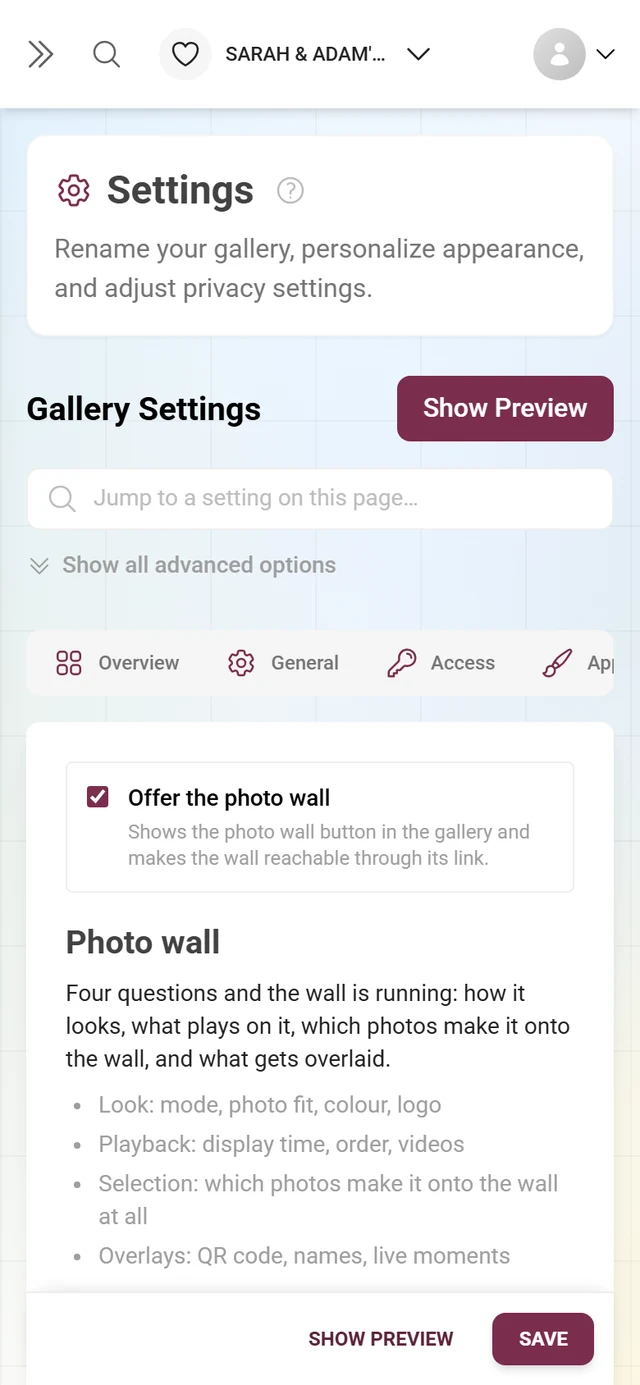
→ Setting up the live photo wall
8. Get the first uploads rolling
Section titled “8. Get the first uploads rolling”An empty gallery invites no one. Via Gallery ▸ Photos (/admin/gallery) upload a few first photos yourself or ask close friends to start. Once the first pictures are visible, everyone else joins in too. For photo booths you can also use live upload, which pushes captures straight into the gallery.
9. Share the load: co-hosts & moderators
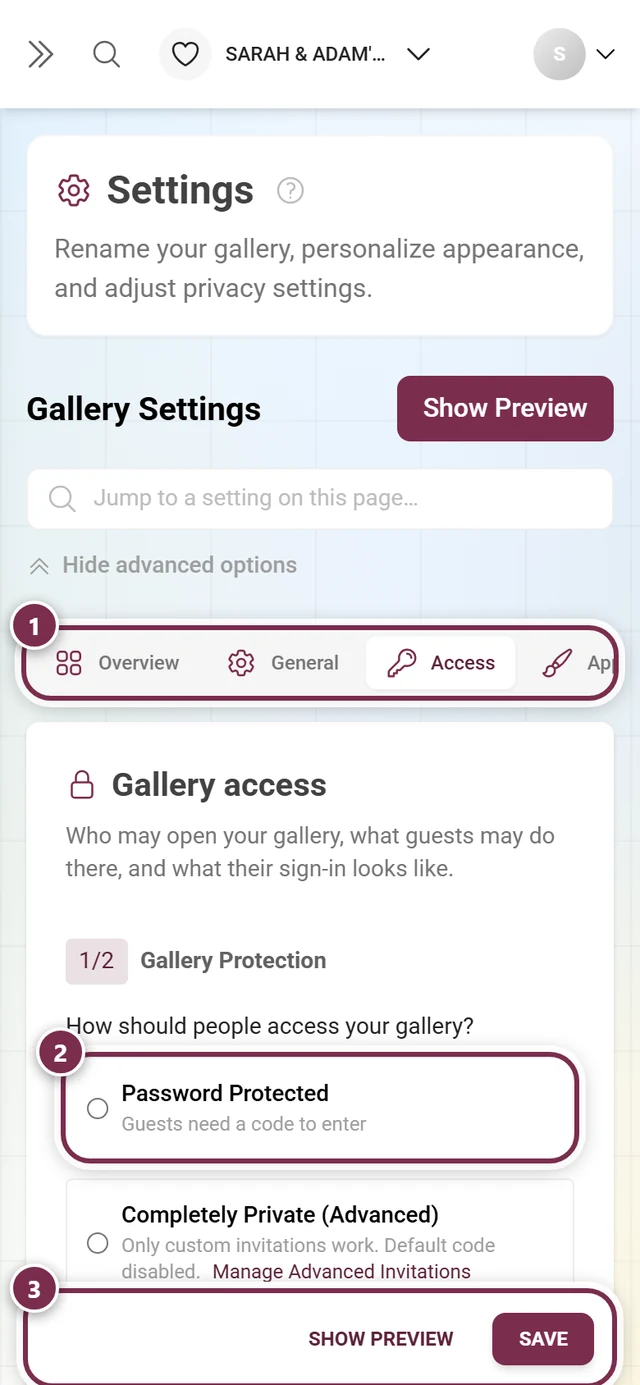
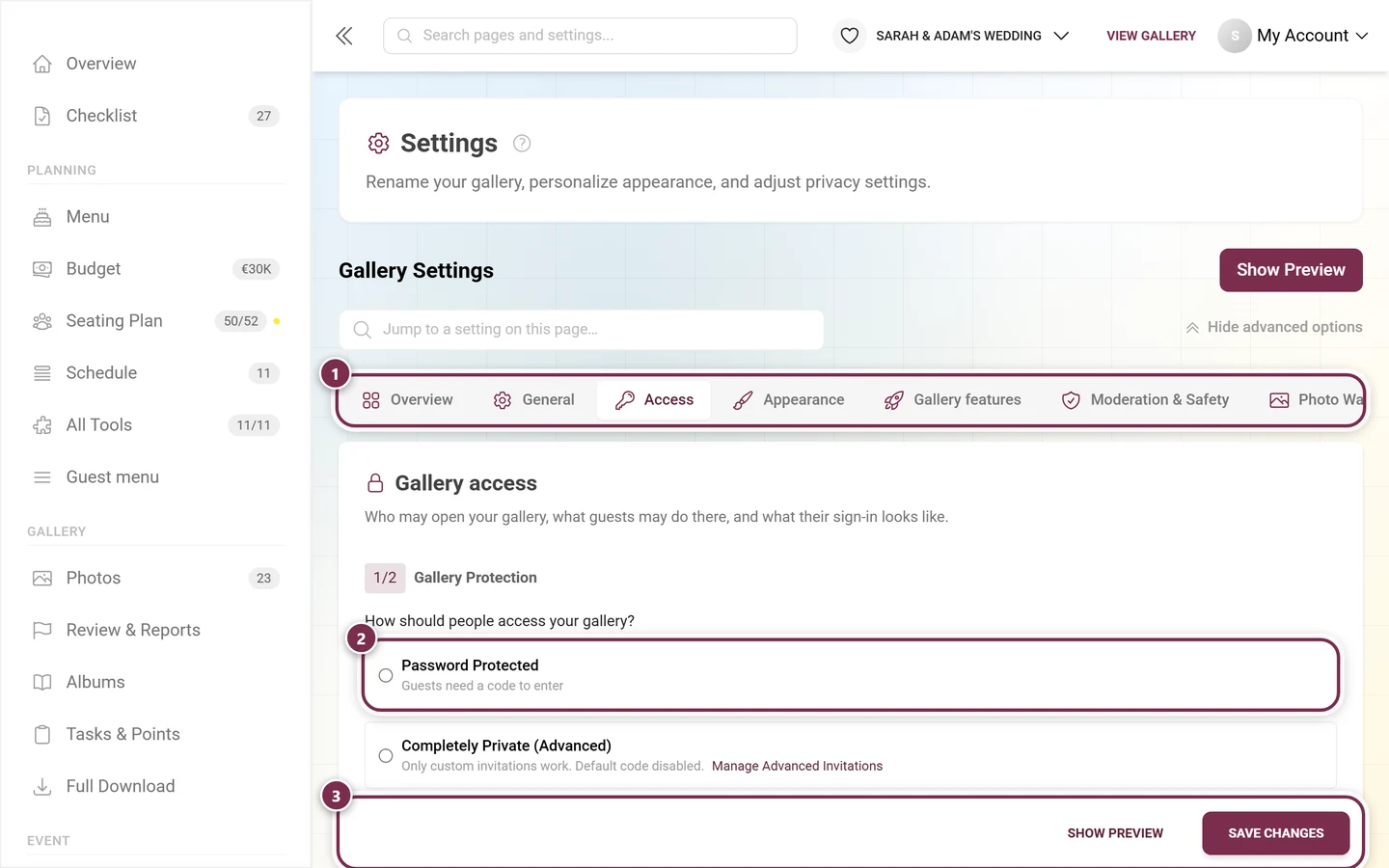
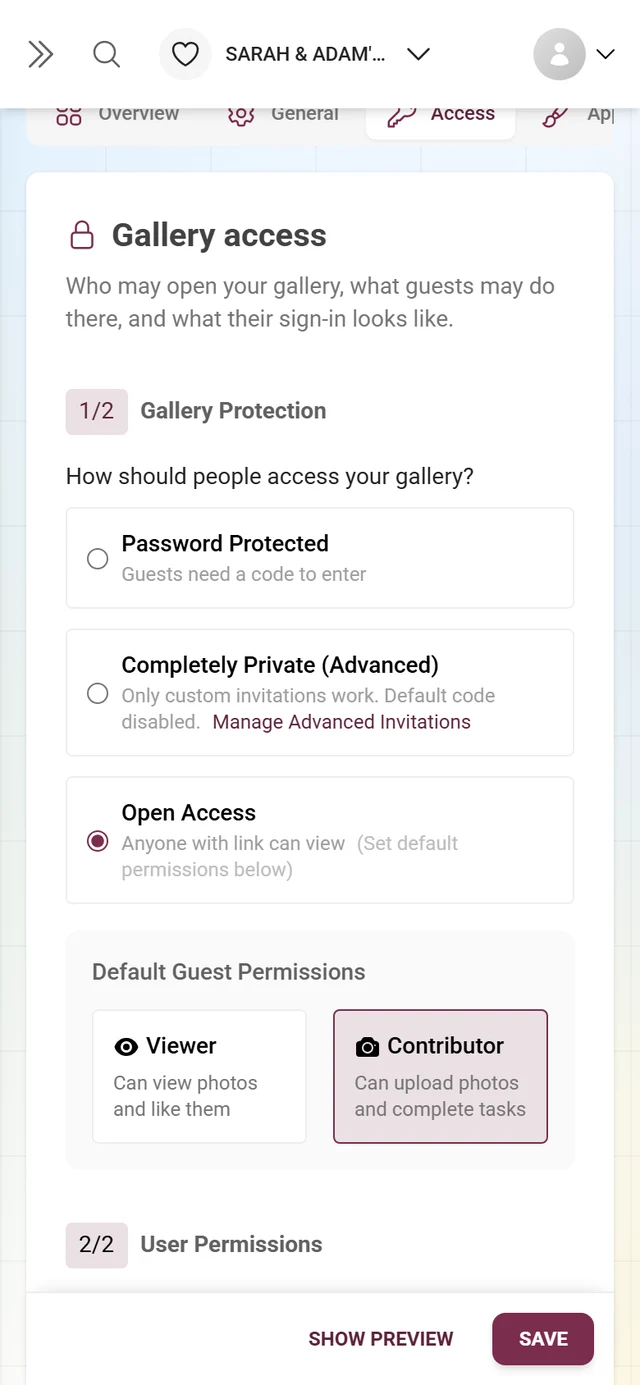
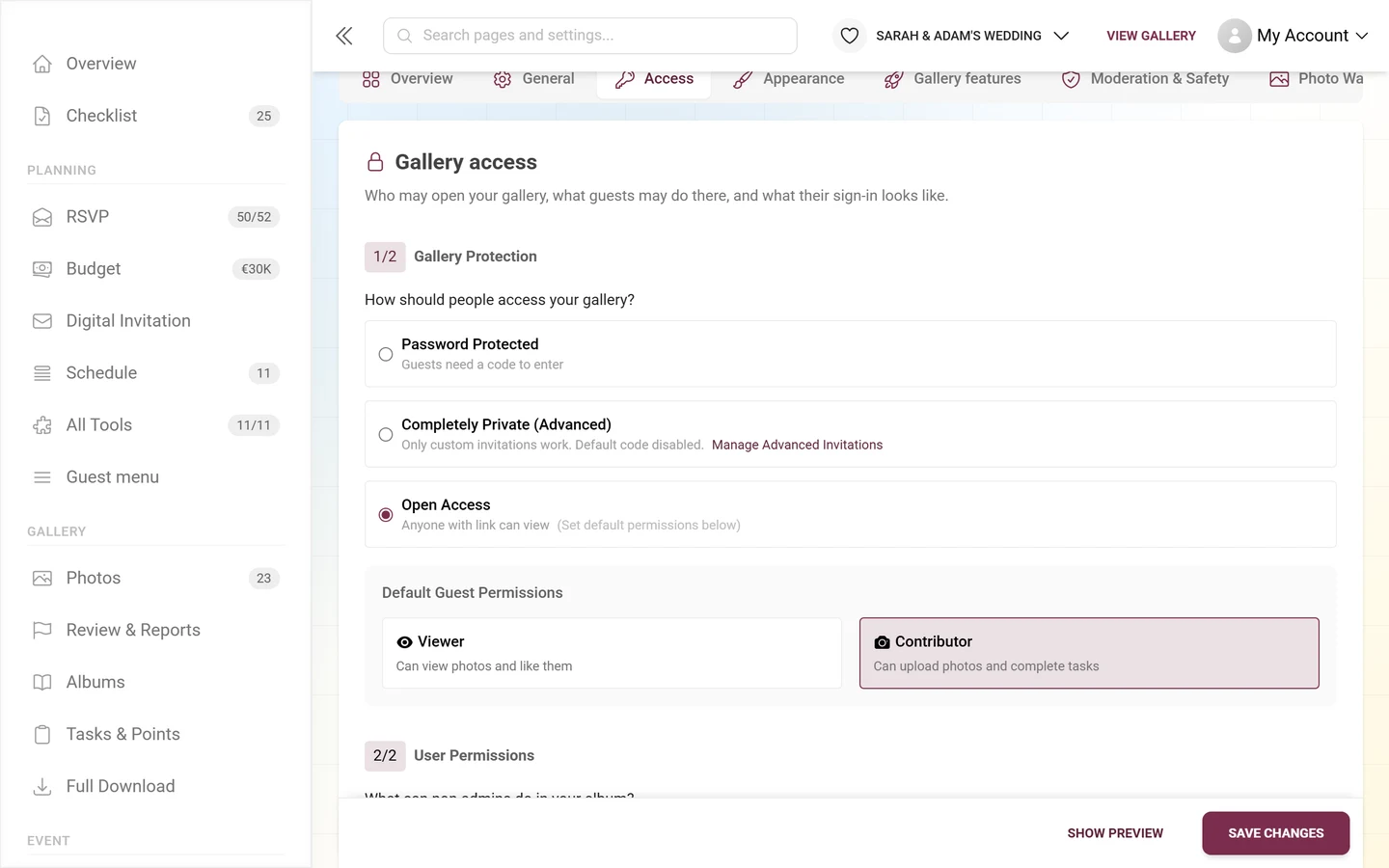
Section titled “9. Share the load: co-hosts & moderators”For bigger events you don’t have to do it all alone. Give the Moderator or Admin role to people you trust who keep an eye on the gallery during the party. Invitation codes and the roles behind them now live in Settings ▸ Access – the former standalone “Manage Invitations” page redirects there, and there is no “advanced mode” any more: both modes are merged.
10. Keep an eye on moderation
Section titled “10. Keep an eye on moderation”With an open gallery it’s worth checking Gallery ▸ Review & Reports (/admin/moderation) regularly. This screen used to live outside the admin area – now it runs inside the admin frame, and the sidebar entry carries a badge with everything still waiting for a decision.
-
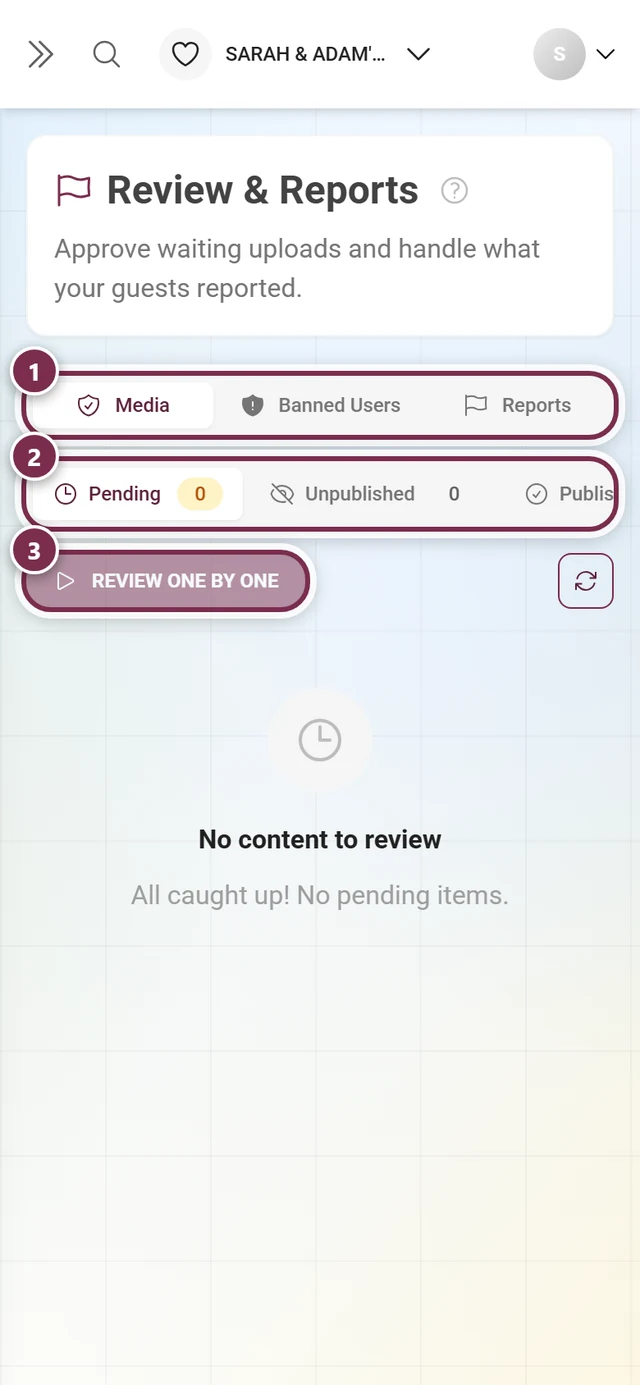
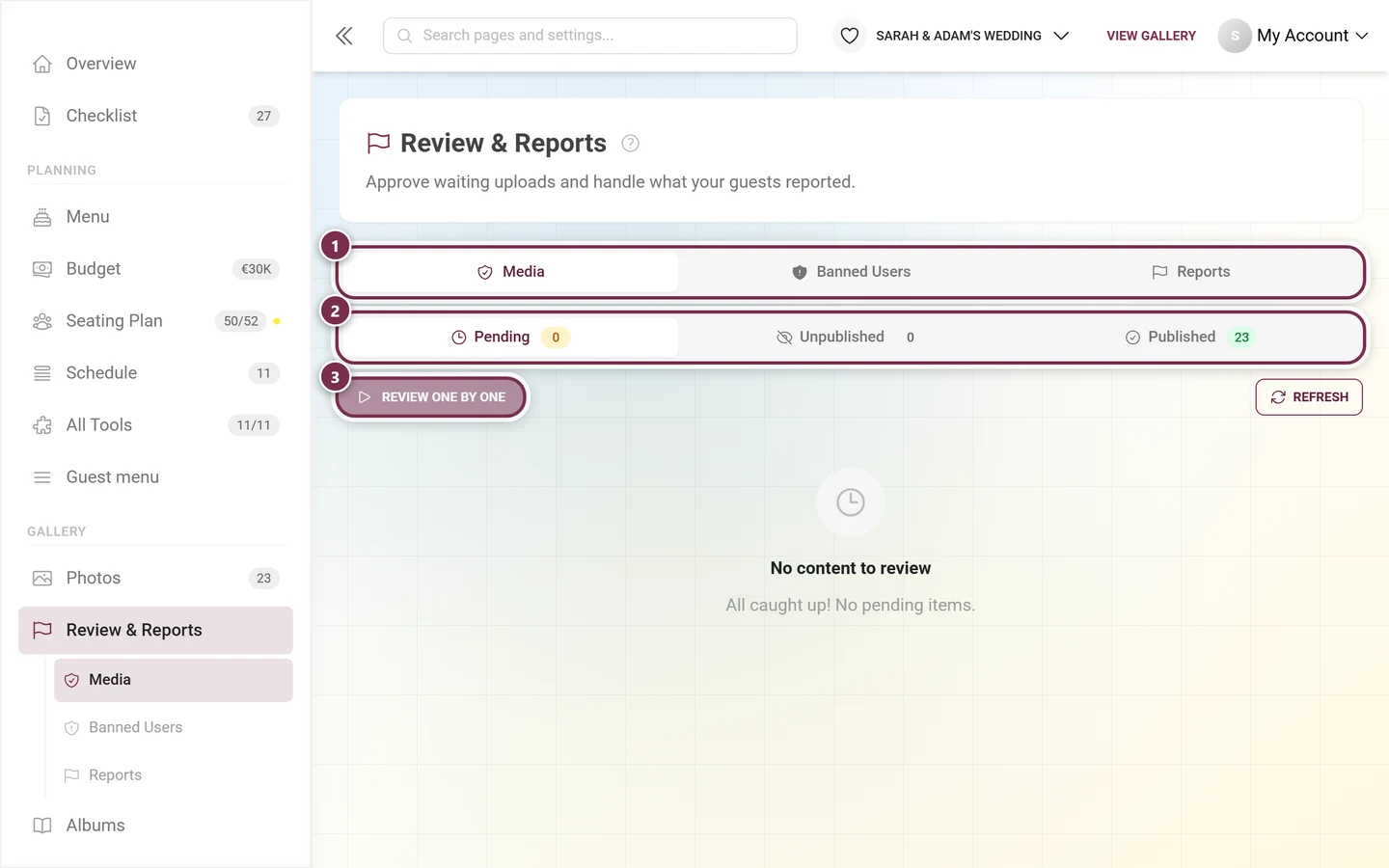
Open Review & Reports, especially when it’s busy. Four tabs: Media, Face Clusters (only with AI), Banned Users and Reports.
-
Approve waiting uploads or hide unsuitable photos – the latter go to the recycle bin and can be restored. The Review one by one button opens a full-screen mode where A approves, D rejects and Z undoes.
-
Check the Reports tab for what your guests reported.
Anyone who repeatedly causes trouble can be restricted.
11. Set privacy & language to fit
Section titled “11. Set privacy & language to fit”Since the rework this lives on two tabs:
- Settings ▸ Access – access code, “invitation only”, completely private, the default role guests get and what guests are allowed to do.
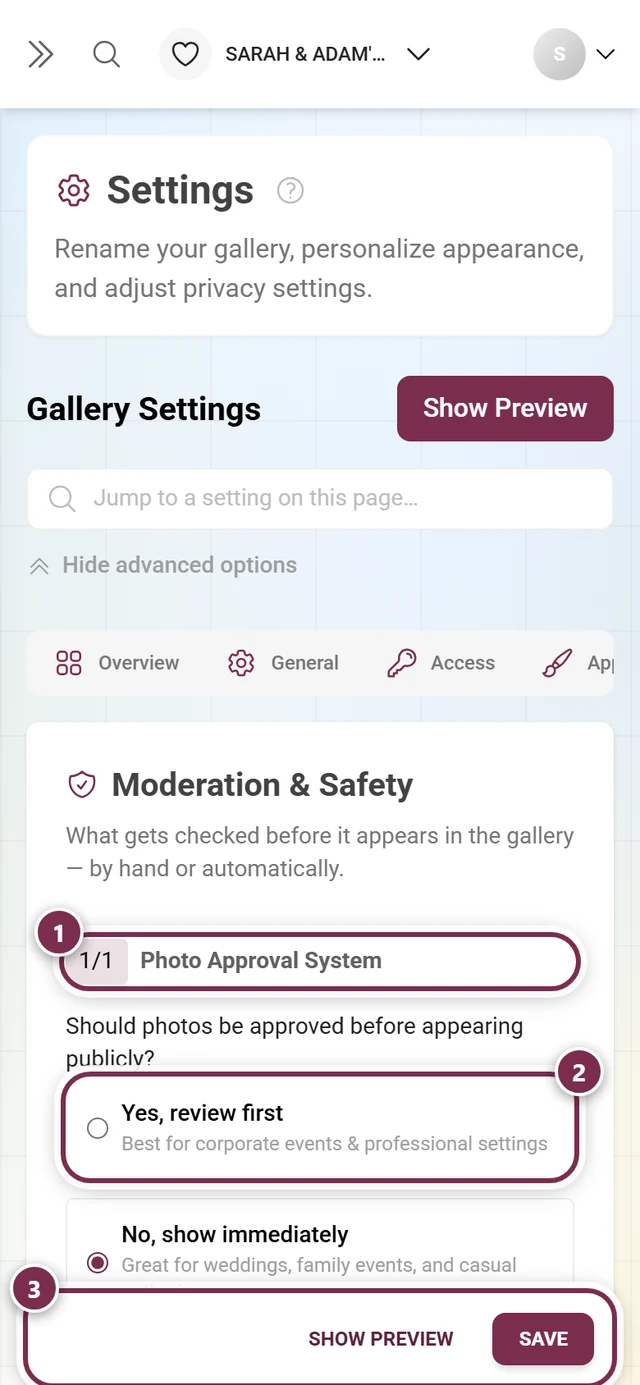
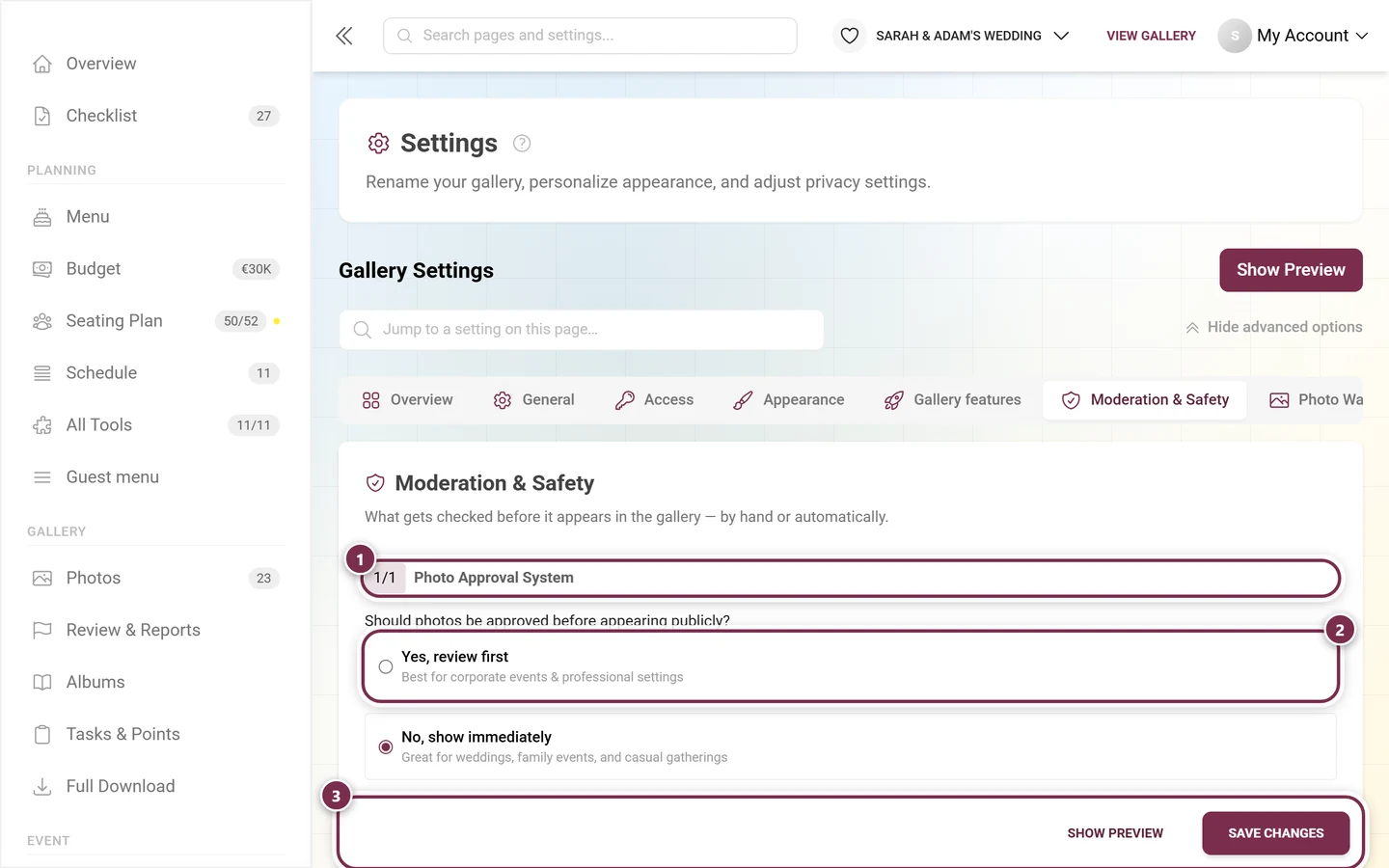
- Settings ▸ Moderation & Safety (formerly “Privacy & Moderation”, the
?tab=privacydeep link still works) – the approval requirement (photos only appear after your review), the NSFW filter and the switch for the review bar inside the gallery.
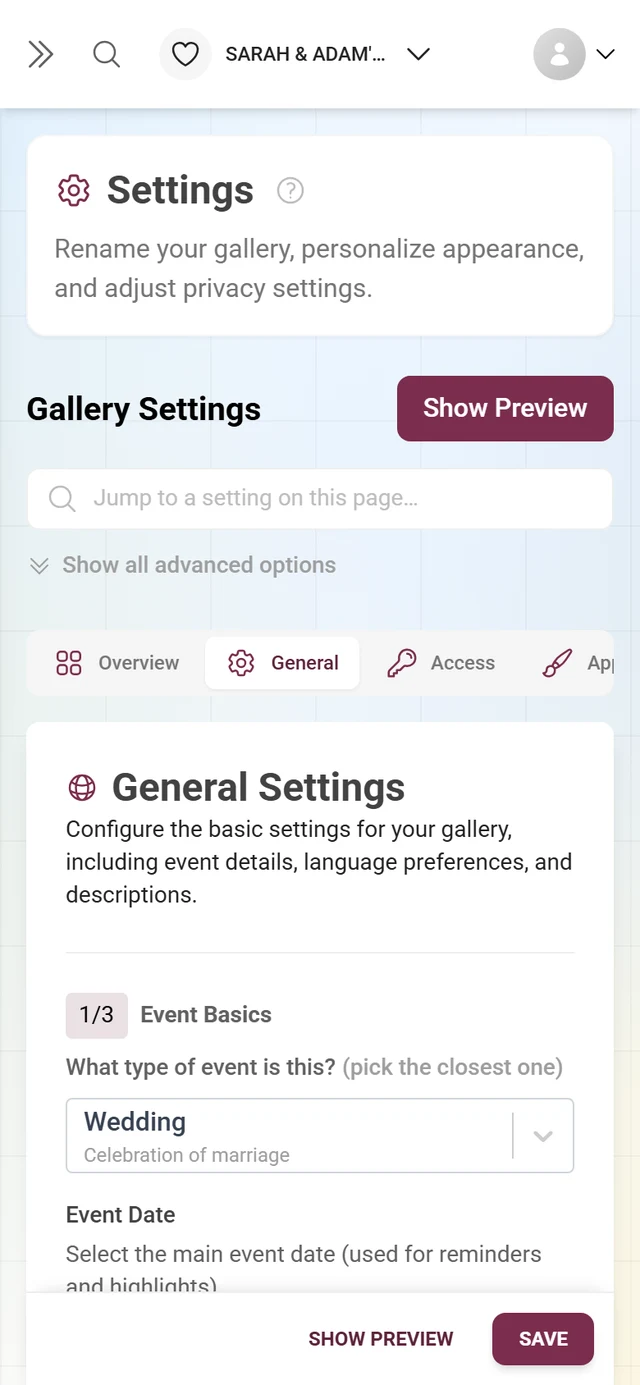
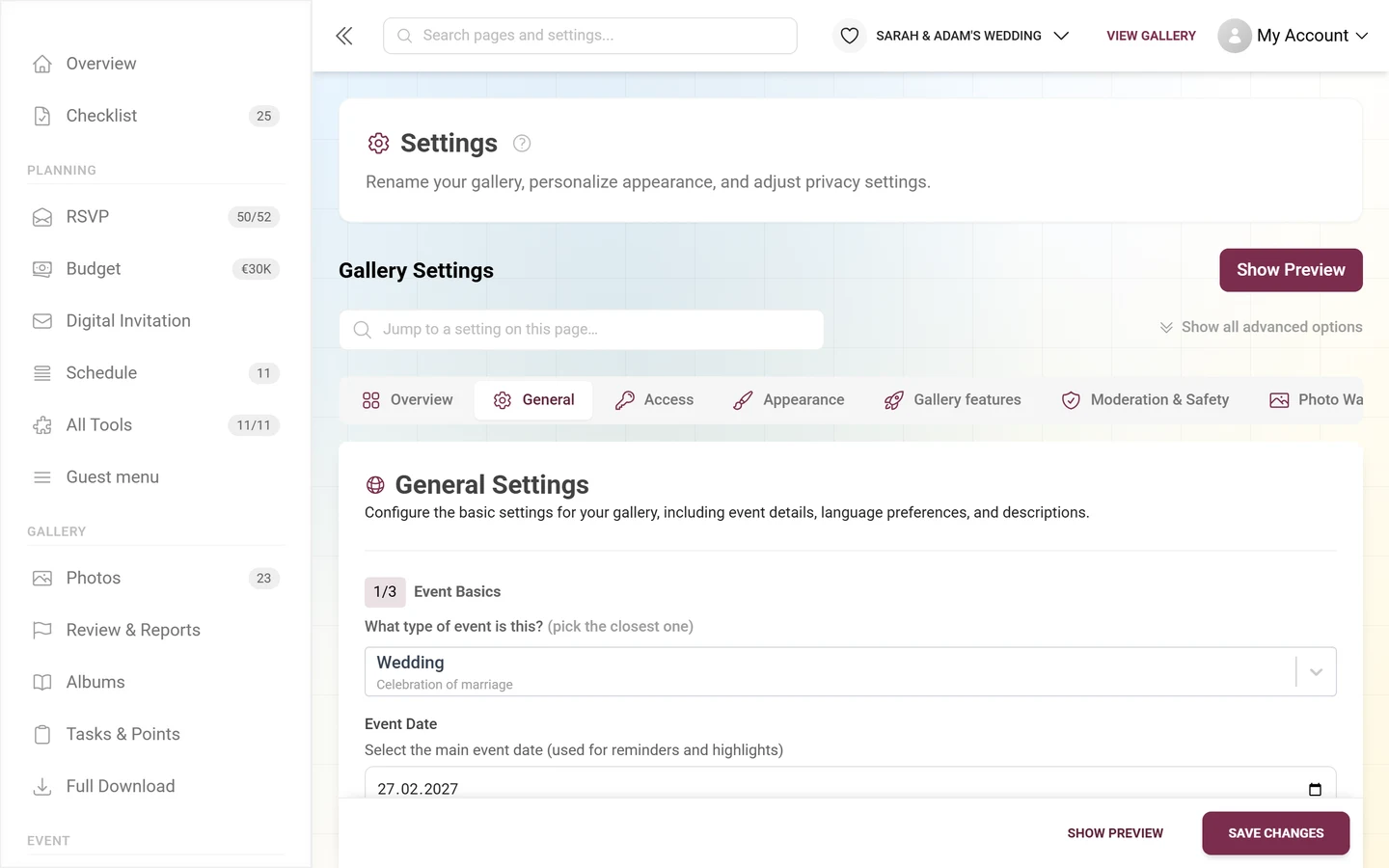
If guests from different countries join in, set up several languages under Settings ▸ General.
→ Moderation & safety · General settings
12. Crown the winners at the end
Section titled “12. Crown the winners at the end”If points and the leaderboard were active, you need a clean cut-off – otherwise the order still shifts while you hand out the prizes. That is exactly what winner mode is for: you freeze the standing (Freeze now) so later uploads or deletions change nothing, and from then on guests see the final result instead of the live leaderboard.
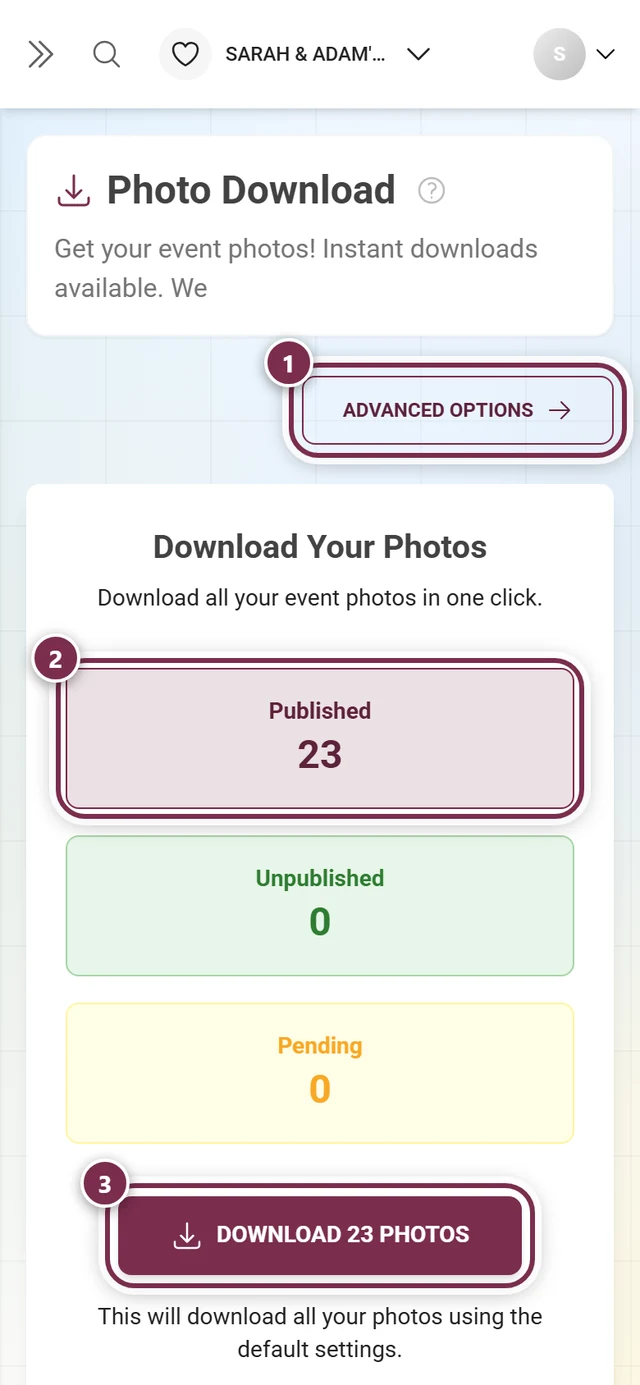
The winners get a 6-digit code on their device. On the Winners page (sidebar Gallery ▸ Tasks & Points ▸ Winners) you enter it under Verify code and mark the prize as handed out. Winner mode is switched on under Settings ▸ Gallery features ▸ Joining in & points, in the Leaderboard card.
13. Back everything up at the end
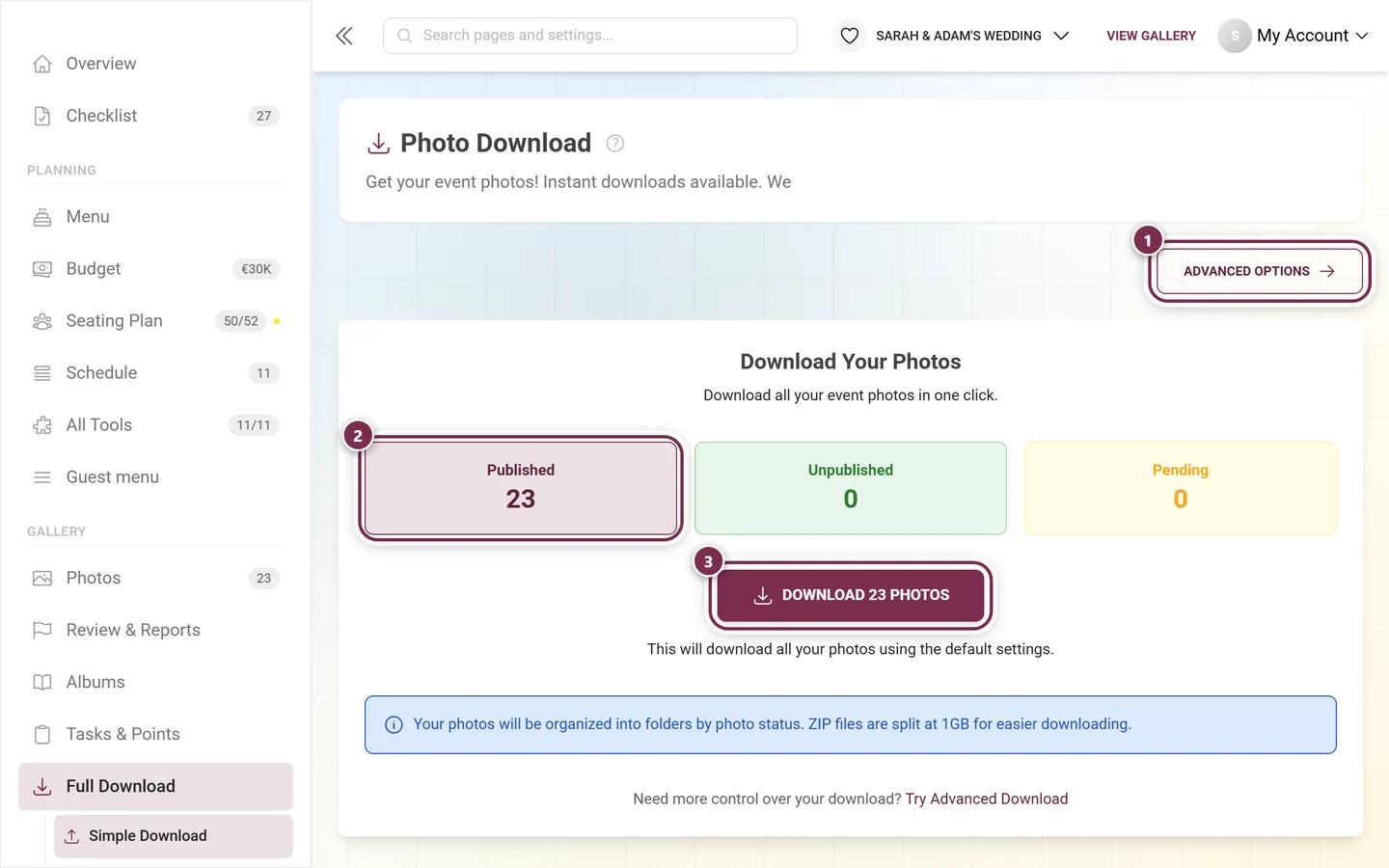
Section titled “13. Back everything up at the end”Once the event is over, the memories are too precious to lose. Via the sidebar Gallery ▸ Full Download (/admin/download) you download the whole gallery as a ZIP – ideally well before the storage period ends.