Creating albums
Albums let you organize your event’s photos by moment or theme – for example “Ceremony”, “Party” or “Best photos”. Albums can be filled manually, or fill themselves as a Smart album based on rules (e.g. all videos, or every photo of a specific person). This guide walks you as the host through the complete album manager. To see how guests browse albums later, see Browsing albums.
Reaching the album manager
Section titled “Reaching the album manager”-
Open your event’s Admin portal. Tap your profile menu at the top right and choose the Admin portal entry under Management. See Reaching the event admin for details.
-
In the left sidebar, open the Gallery category and click Albums. The route is
/admin/gallery/album-manager. You can also reach the page from the dashboard or the global search. -
The page heading reads Albums List; the browser tab reads Album Manager.
Understanding the album list
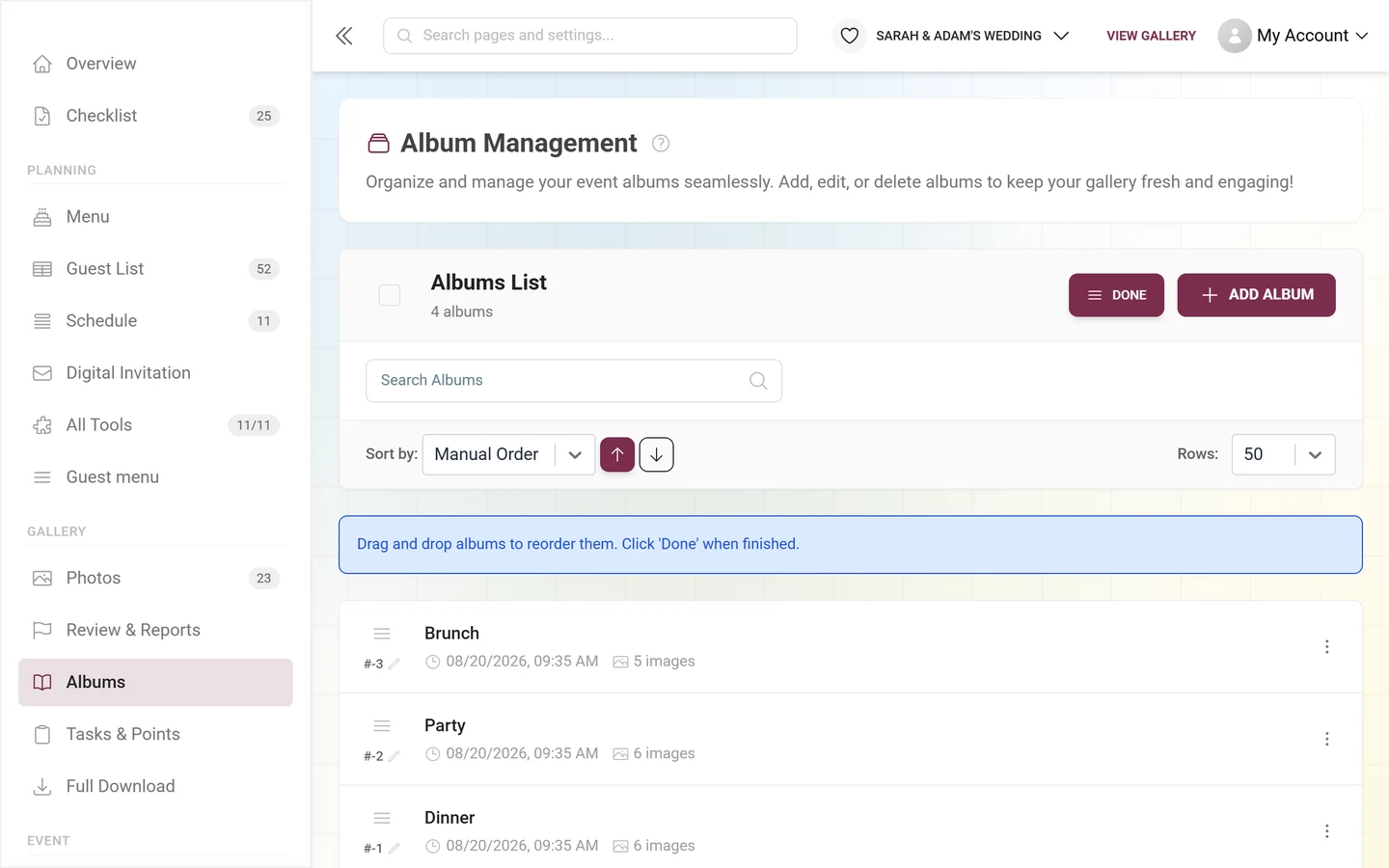
Section titled “Understanding the album list”The top area controls how the list is displayed – this does not affect how photos are sorted inside an album (you set that later in the dialog).
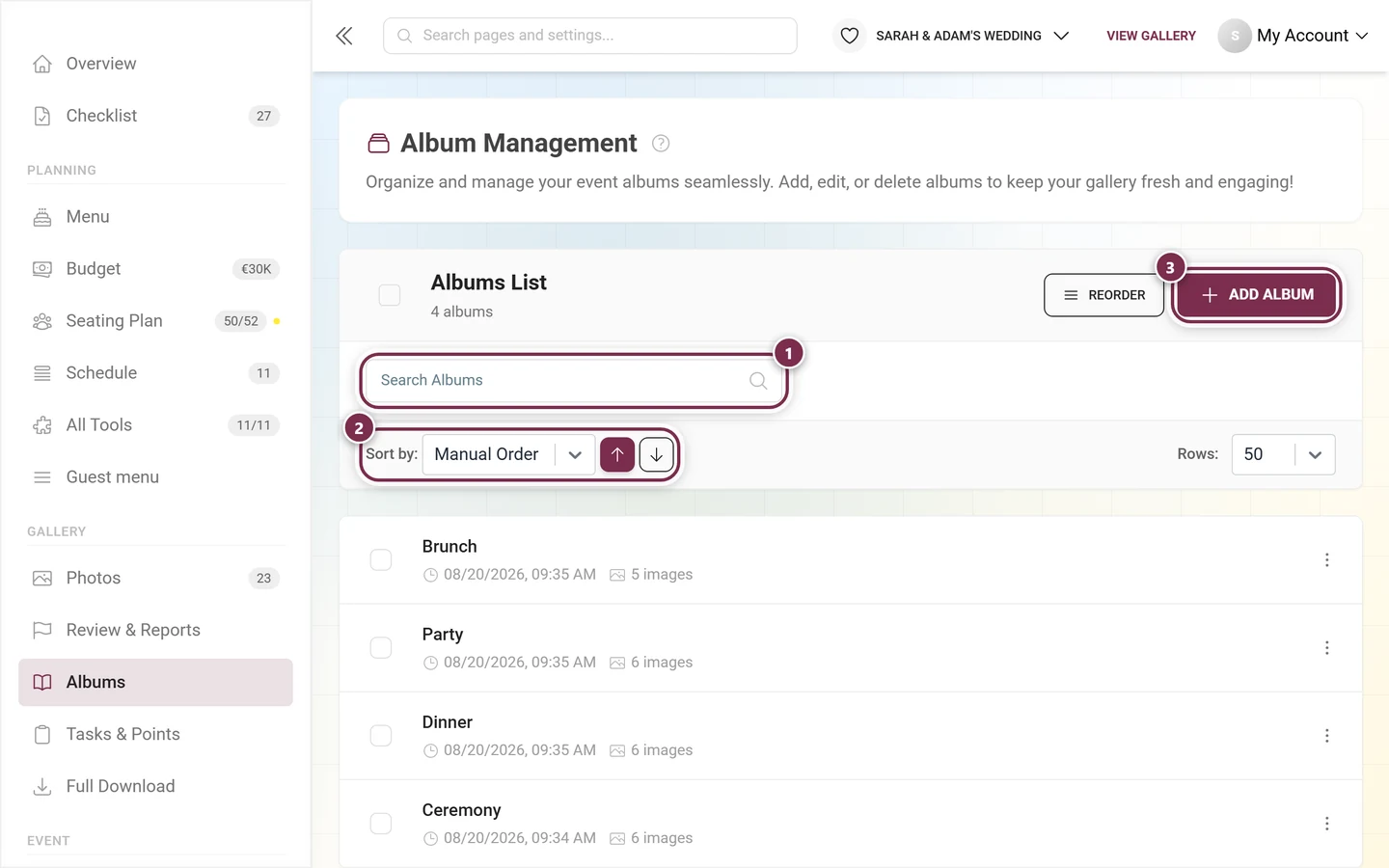
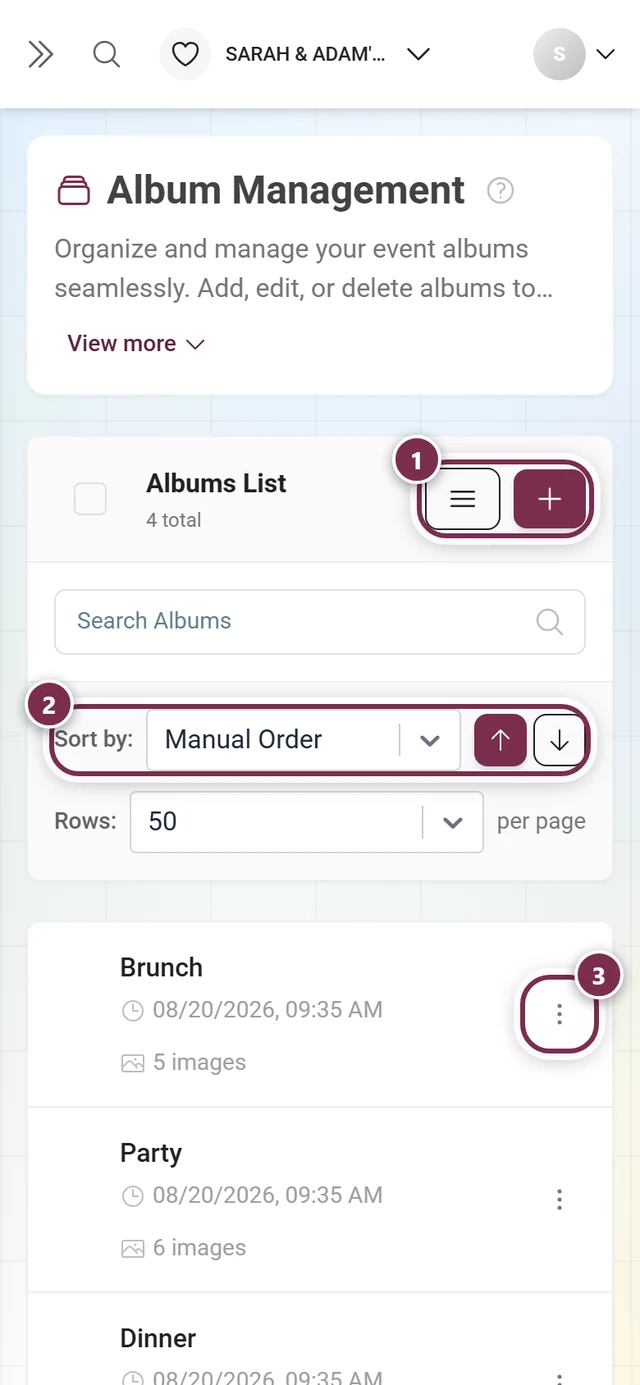
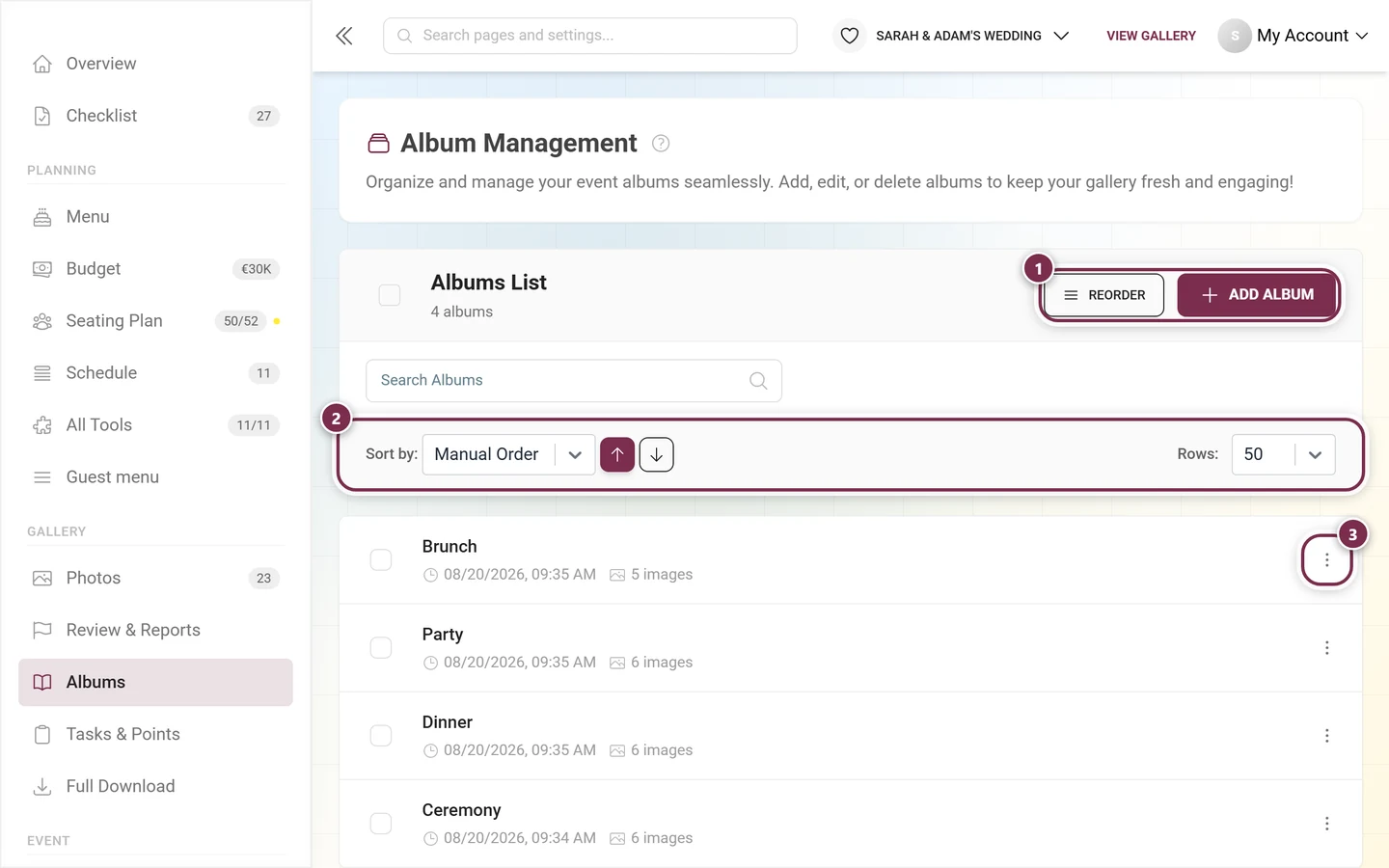
- Title & counter – the heading reads Albums List, with the total below it followed by album or albums. As soon as you mark albums, the heading switches to the count plus Selected.
- Search – the Search Albums field filters the list live by title (with a short delay of 300 ms).
- List sorting – the Sort by: dropdown orders the displayed list. Options: Manual Order, Title, Created At and Images Count. The two arrow buttons next to it toggle ascending and descending.
- Rows per page – the Rows: field sets how many albums appear per page (default 50).
- Reorder – this button appears only when “Sort by” is set to Manual Order (see “Reordering albums”). While the mode is active it reads Done.
- Add Album – the button with the plus icon opens the create dialog (icon only on narrow screens).
Each album row shows a selection checkbox, a translation-status icon, the title, plus the creation date and the number of images. Clicking the row opens the edit dialog directly. The three-dot menu (or right-click, or a long press on a phone) gives you:
- Select – mark the album for multi-selection.
- View Images – jumps to the filtered gallery showing only this album’s photos (route
/admin/gallery?albums=…). This is how you assign photos to a manual album. - Edit – opens the edit dialog.
- Delete – deletes the album after the prompt Delete Album / “Do you really want to delete this album?”. The photos themselves stay in the gallery; only the album assignment is removed.
As soon as you select at least one album, a selection bar appears showing how many albums are marked, plus a Delete Selected button; the X on the right clears the selection. After the prompt Are you sure? / “This will permanently delete the selected albums.” all marked albums are deleted.
If there are no albums yet, the page shows No albums found. with the hint “Get started by creating a new album” and an Add Album button. If the search finds nothing, it shows No results for with your search term instead.
Creating an album: the dialog
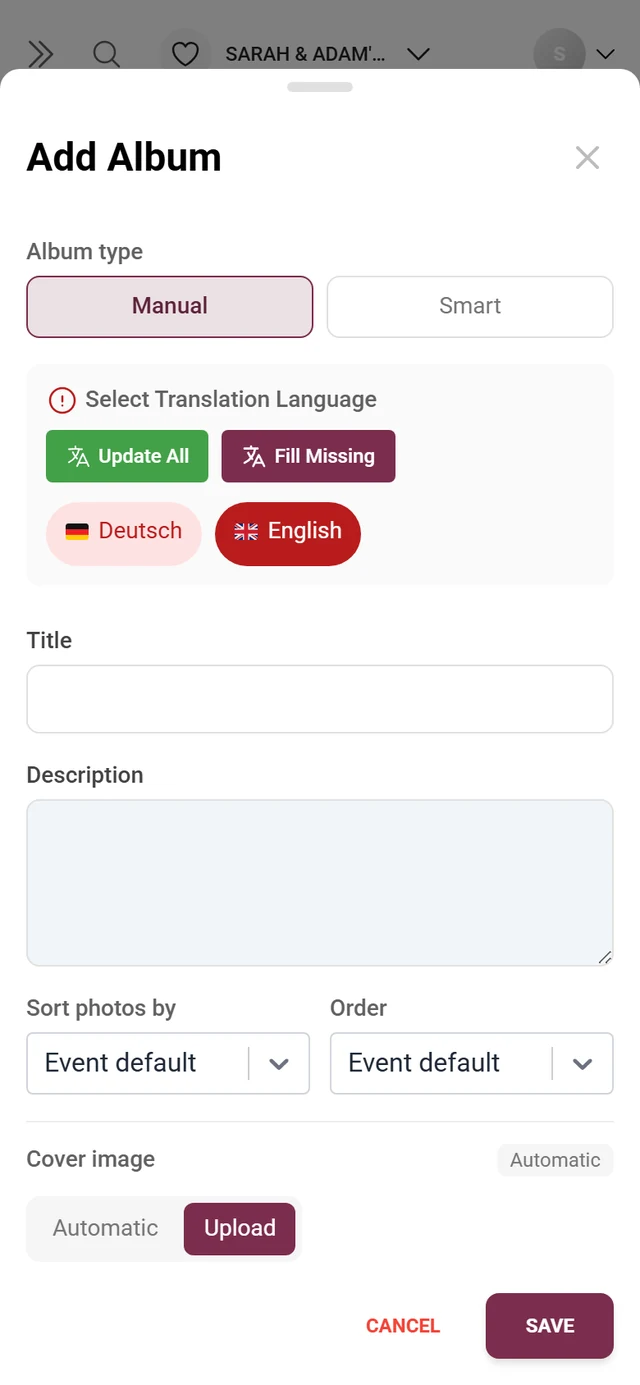
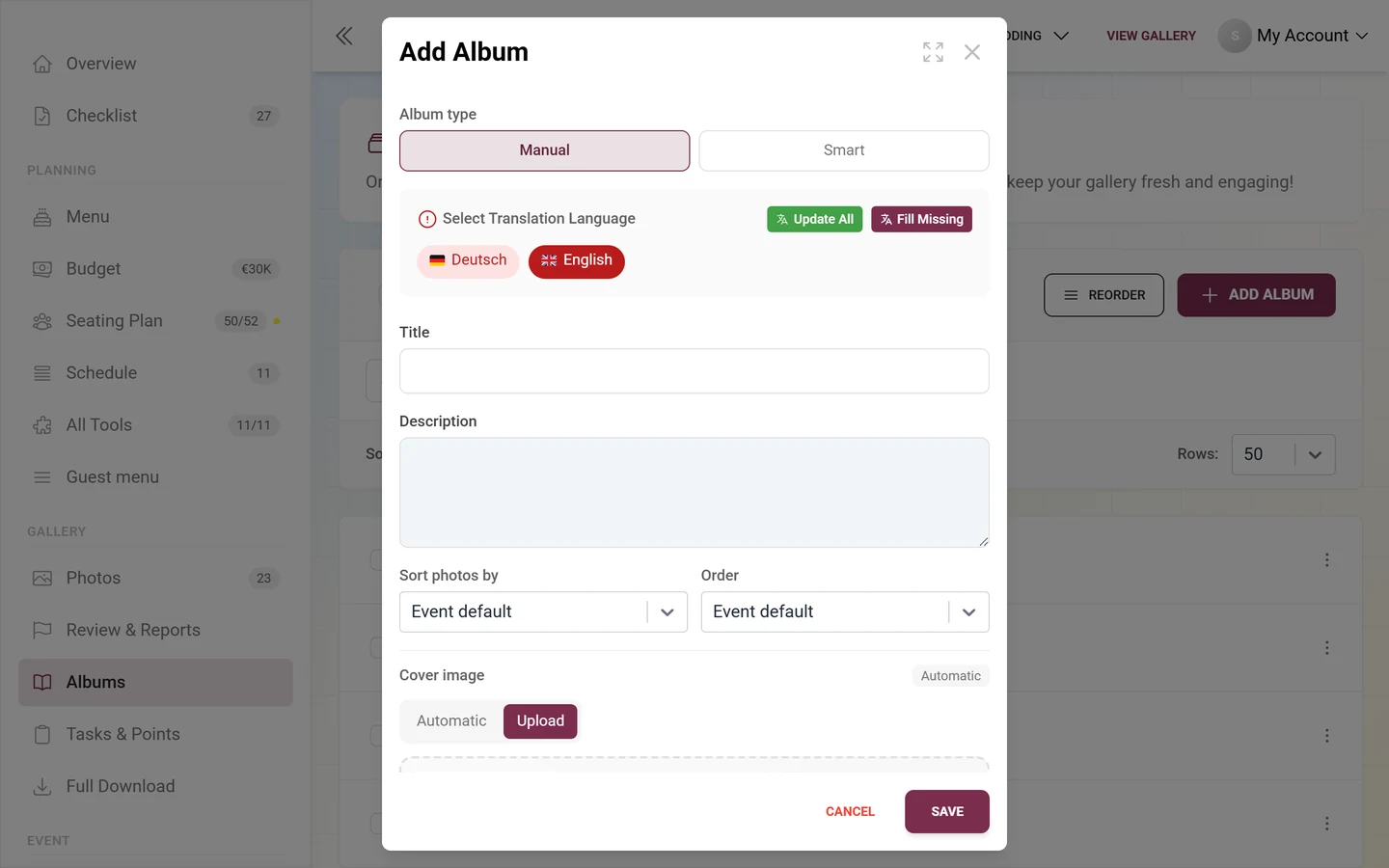
Section titled “Creating an album: the dialog”Tap Add Album. The Add Album dialog opens (when editing it reads Edit Album). The fields appear top to bottom in this order:
-
Album type – two buttons:
- Manual – a normal album you assign photos to manually.
- Smart – fills itself automatically by rules. If you lack the smart-album feature, this button carries a star icon as a premium hint.
There is no separate faces album type any more – people are now a rule inside a smart album.
-
Language selector / translation – here you pick the active event language. For multi-language events you maintain title and description per language separately.
-
Title – the required title for the active language.
-
Description – an optional description (a multi-line text field).
-
Auto-fill rules – appears only for the Smart type (see “Smart albums”).
-
Sort photos by and Order – control how guests see the photos within this album. “Sort photos by”: Event default, Upload date, Capture date, Likes or Comments. “Order”: Event default, Newest first or Oldest first. Don’t confuse this with the list sorting above – here it’s about the order of photos in the opened album. Event default inherits the event-wide setting.
-
Cover image – see “The cover”.
-
Tap Save at the bottom. While saving you’ll see Saving…, and during a cover upload Uploading… with a percentage. Cancel discards the dialog.
The cover
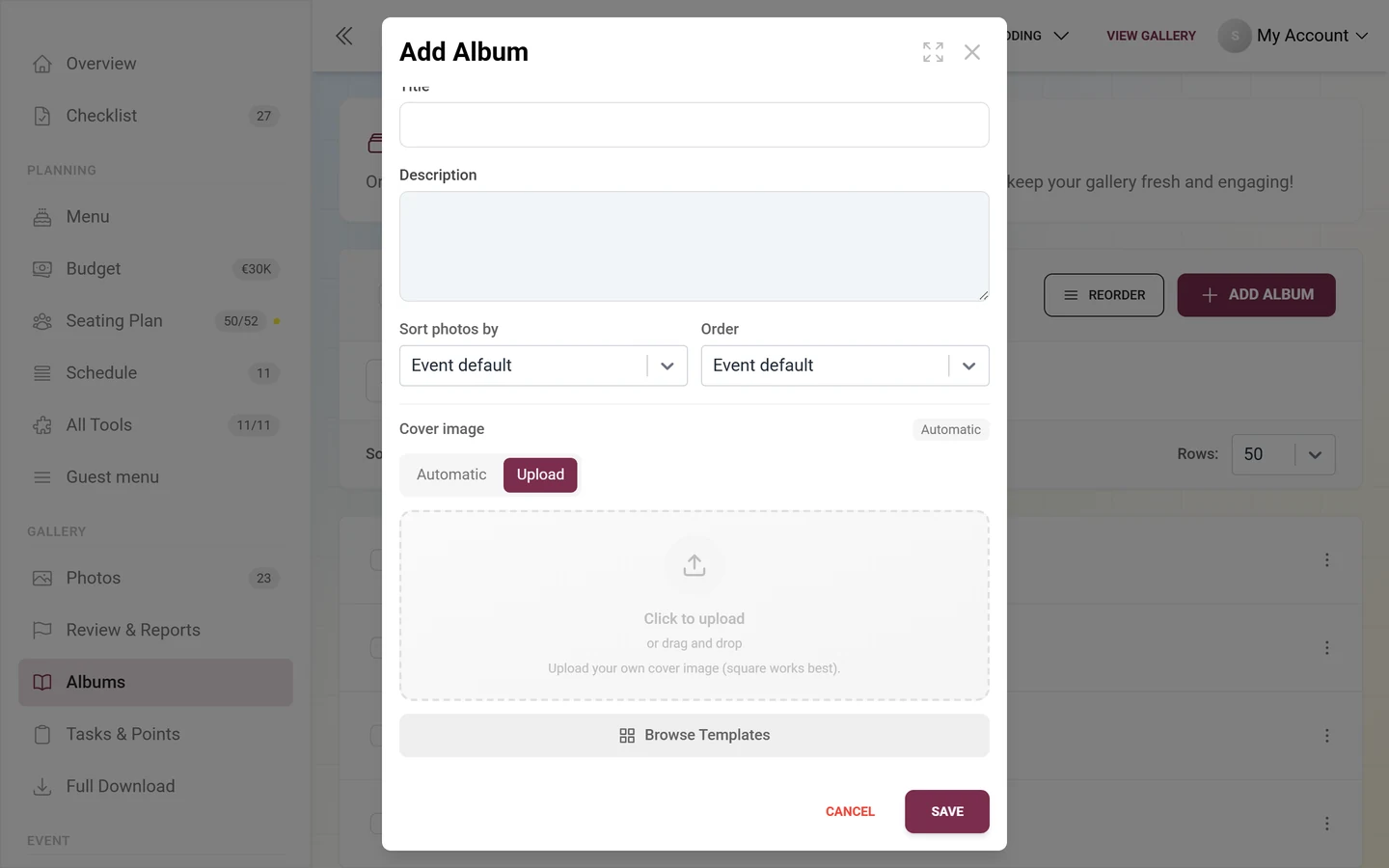
Section titled “The cover”The Cover image area has three tabs. A status badge next to it shows where the current cover comes from: Automatic, Manual (picked from the gallery) or Uploaded.
- Automatic – the cover is picked from the album’s photos: “A cover is picked automatically from the album’s photos (most liked, then newest).” The simplest choice for new or empty albums.
- From gallery – available only for albums that are already saved; a brand-new album does not show this tab yet because it has no photos. Pick a single photo, or turn on Collage and pick 2–4 photos – the hint “Pick 2–4 photos” and a counter guide you, and the chosen photos are numbered. If no photos are published yet, it shows “No published photos in this album yet.”; with many photos, the button below loads more.
- Upload – upload your own cover: “Upload your own cover image (square works best).” After the upload, open Image settings via the gear icon on the image: Set focus point, Rotate 90° left, Rotate 90° right and Crop …. The focus point decides which part of the image stays visible in a square crop. Below the upload field, Browse Templates opens the Choose Template dialog with ready-made images – handy when you have no picture of your own at hand.
Best practice: For a consistent album look, upload square and place the focus point on faces or the main subject. For mixed collections, use the collage.
Smart albums: fill automatically
Section titled “Smart albums: fill automatically”When you choose Smart as the album type, the Auto-fill rules section appears. The album then continuously fills itself with every photo that matches your rules.
-
Tap Add rule and pick a field. The X icon removes a rule again.
-
From two rules onward, Match appears at the top right with all (AND – every rule must match) or any (OR – one is enough).
-
Watch the live preview below: Counting… or ≈ N photos shows how many photos currently match. Check this before saving.
-
Tap Save.
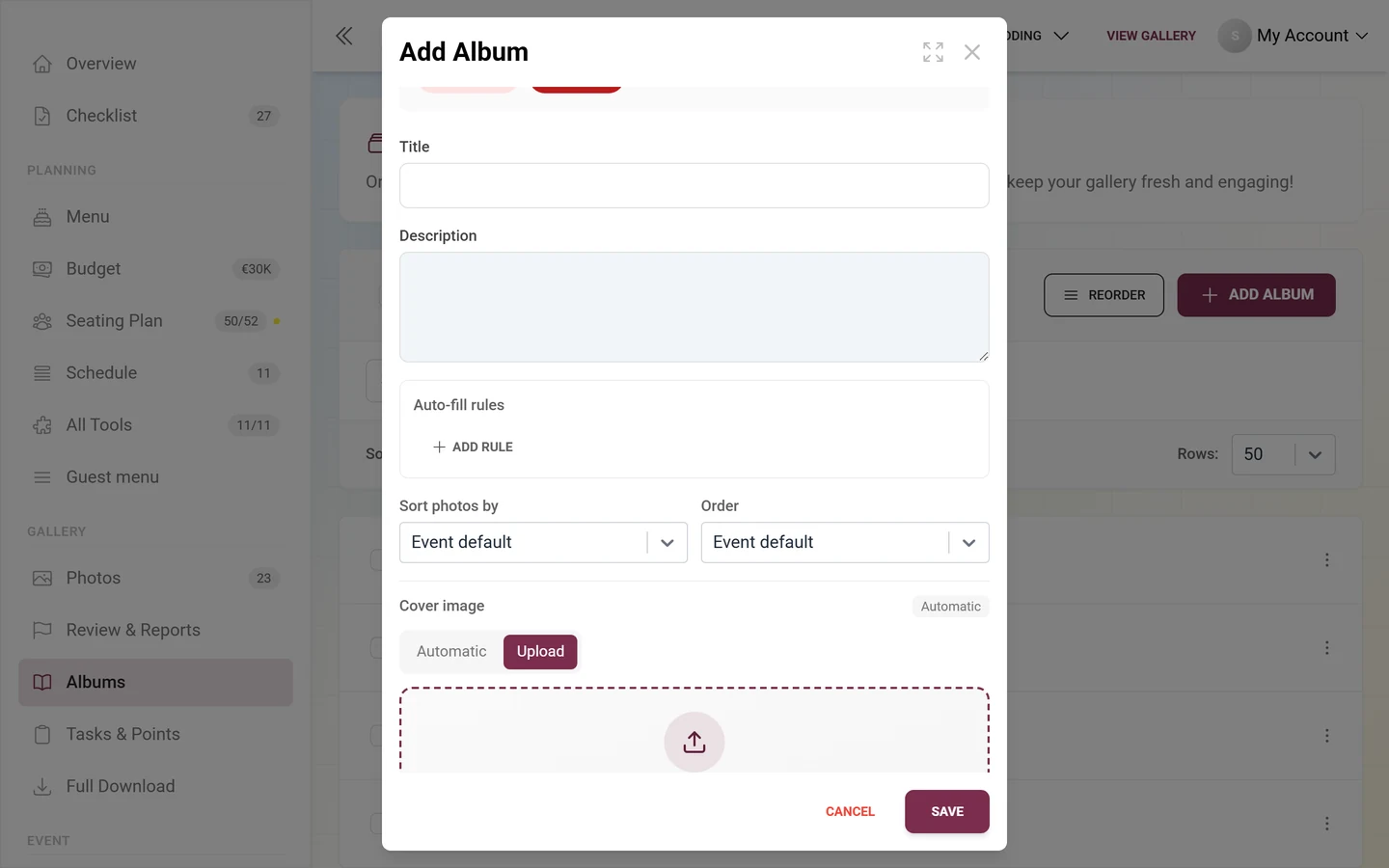
The available rule fields:
- Media type – Photos, Videos or Live photos.
- Minimum likes – a minimum number of likes.
- Uploaded by – one or more people (“Select people…”).
- Caption contains – text that appears in the caption.
- In album / Not in album – in or not in the selected album (the album itself is excluded).
- From task – photos from a specific task (see Managing tasks).
- Captured between / Uploaded between – a date range with a start and an end field (each with date plus time; the time activates only once a date is set).
- Person – only with face recognition enabled (see below).
Best practice: Combine rules with all to narrow the result – e.g. “Media type = Photos” AND “Minimum likes = 5” for a “Best photos” album. Use the ≈ preview as a sanity check.
Smart albums by person
Section titled “Smart albums by person”With face recognition unlocked, the field list offers Person as well. Choosing it opens the People in this album section with the hint: “Pick one or more detected people, or upload a reference photo. The album updates automatically.”
- Path A – pick detected people: Tap the tiles of the detected faces to select them. Show more people (N) loads additional tiles. If no people are detected yet, it shows “No people detected yet. Face recognition runs as photos are uploaded.”
- Path B – upload a reference photo: In the Or upload reference photos section you upload a clear photo of one face (JPEG, PNG, WebP or HEIC/HEIF). This works only for an already-saved album – for a new album it reads “Save the album first, then upload reference photos here.” Each reference shows its state as an icon: loading dots while processing, a green checkmark on success, a red exclamation mark on error. The X icon on the tile removes a reference again (Remove reference).
- A ≈ counter shows live how many photos match the selected people. If it says there are no matching photos yet, processing is still running – the album fills itself as soon as faces are recognized.
More on face recognition: AI processing.
Reordering albums
Section titled “Reordering albums”The order in which guests see the albums is controlled by manual ordering:
-
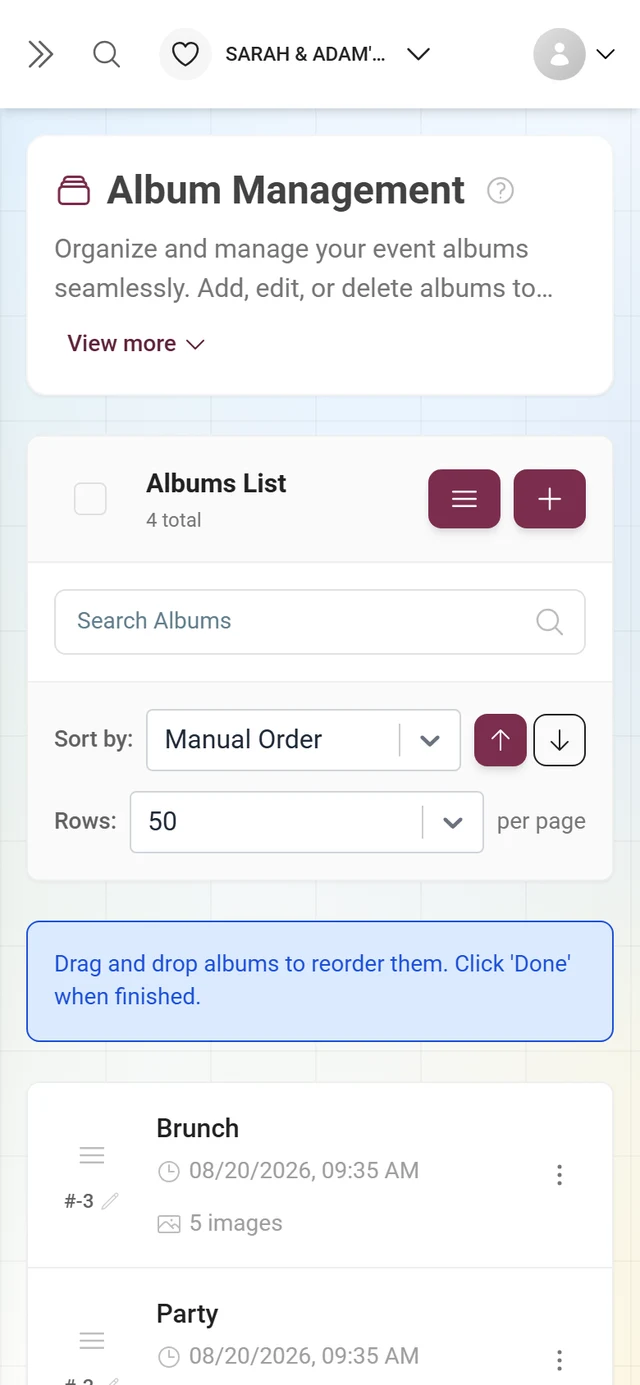
Set Sort by: at the top to Manual Order. Only then does the Reorder button appear.
-
Tap Reorder. A hint appears: “Drag and drop albums to reorder them. Click ‘Done’ when finished.” Now drag the albums by their handle into the order you want. Alternatively, type the sort position directly as a number in a row (Edit sort order).
-
Tap Done to save the order. While the mode is active, the list shows all albums without paging.
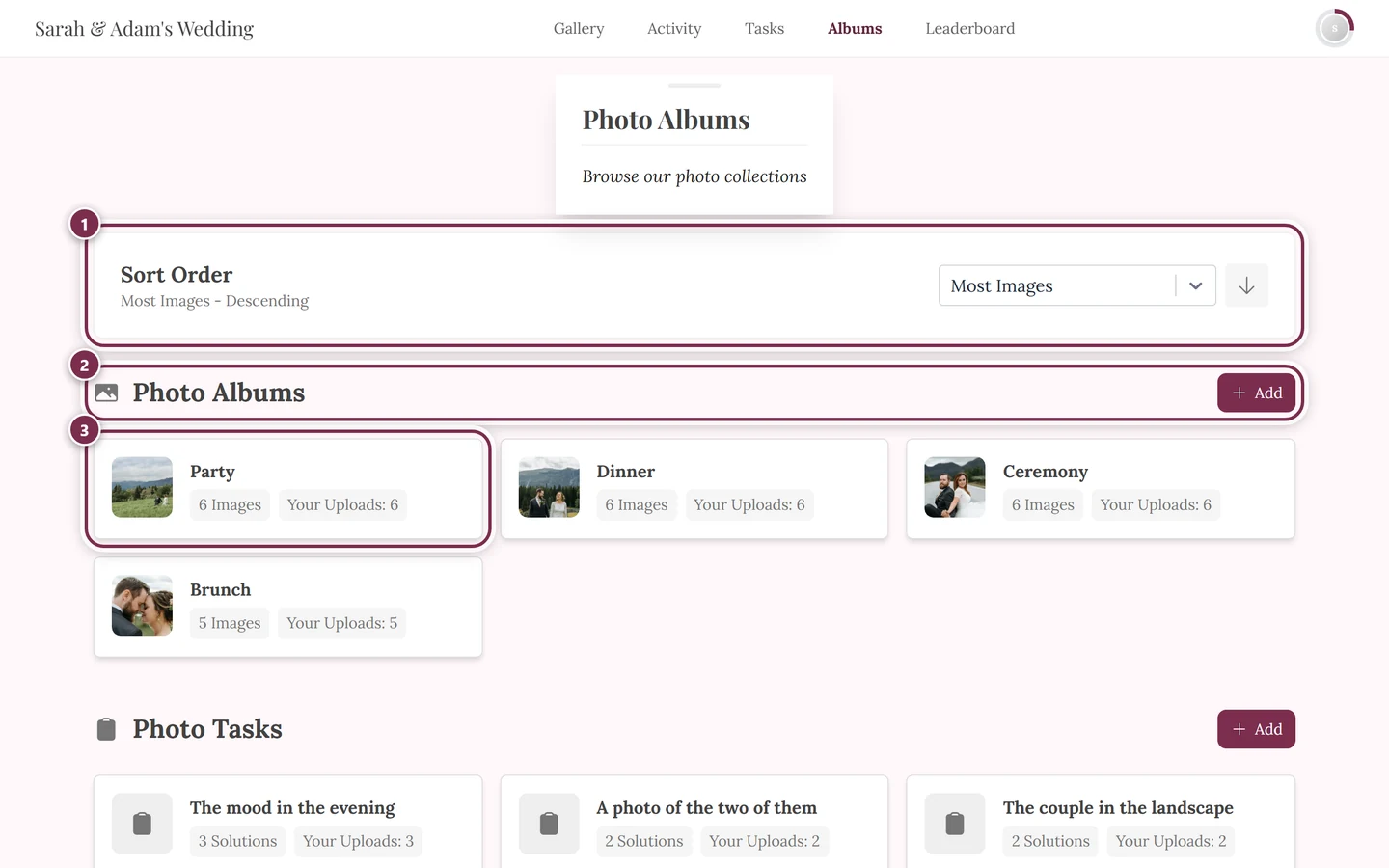
This order takes effect on the albums page when its sorting is set to manual – you set that in the Style settings.
What guests can – and cannot – do
Section titled “What guests can – and cannot – do”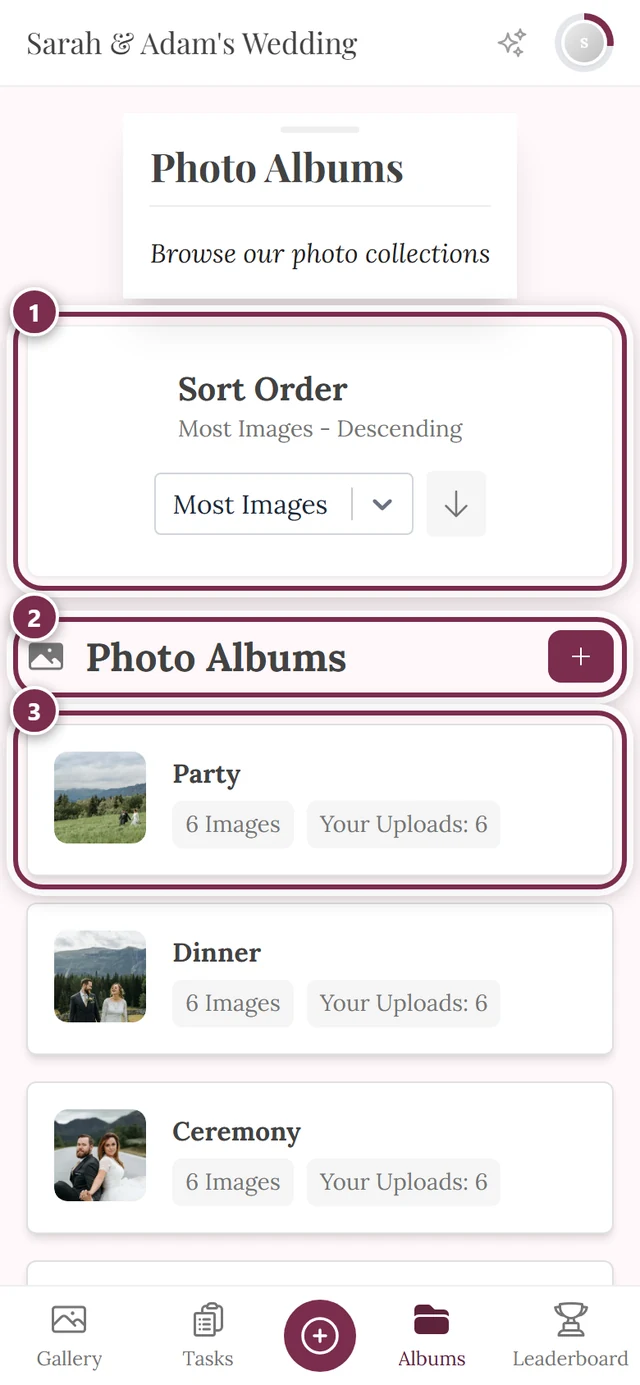
Premium & roles
Section titled “Premium & roles”Troubleshooting
Section titled “Troubleshooting”- No album feature: The create dialog shows a premium hint. You can still edit existing albums.
- Smart chosen but no smart feature: Instead of the rule builder a premium hint appears and the Save button stays disabled. Switch to Manual or upgrade.
- “Person” missing from the field list: Face recognition is not active. See AI processing.
- Reference photo won’t upload: Save the album first, reopen it, then upload the reference.
- Preview shows ≈ 0 photos: The rules are too strict (too many combined with all) or people aren’t detected yet. Wait for processing or loosen the rules.
- The “Reorder” button is missing: “Sort by:” is not set to Manual Order. Switch it.
- Cover doesn’t change: The choice only takes effect after Save.
- The “From gallery” tab is missing: The album is not saved yet. Save it first, then reopen it.
Best-practice tips
Section titled “Best-practice tips”- Prefer few, clearly named albums over many overlapping ones. For international guests, maintain titles in multiple languages.
- Smart albums are great for “Best photos” (minimum likes), “Videos” (media type) or “Per person” (bride/groom via reference photo).
- Leave the album-internal photo sorting on Event default in most cases and override it only deliberately.
- Set the album order via Manual Order and Reorder – this matches the manual albums-page sorting in the style settings.
Related help
Section titled “Related help”- Guests: Browsing albums
- Admin: AI processing / face recognition
- Admin: Style settings
- Admin: Managing tasks