Face recognition & privacy
Some events group photos by person automatically so guests find their own shots faster. Here is the honest version of what happens – and what is actually in your hands.
When the people search appears at all
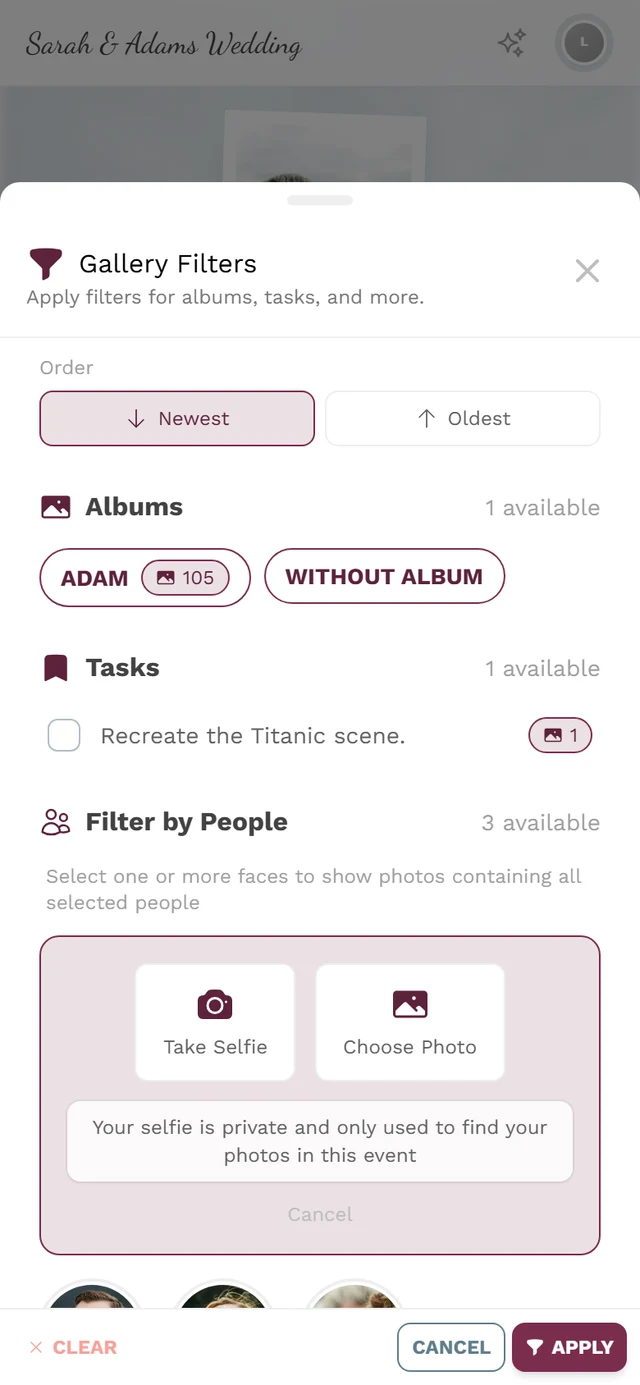
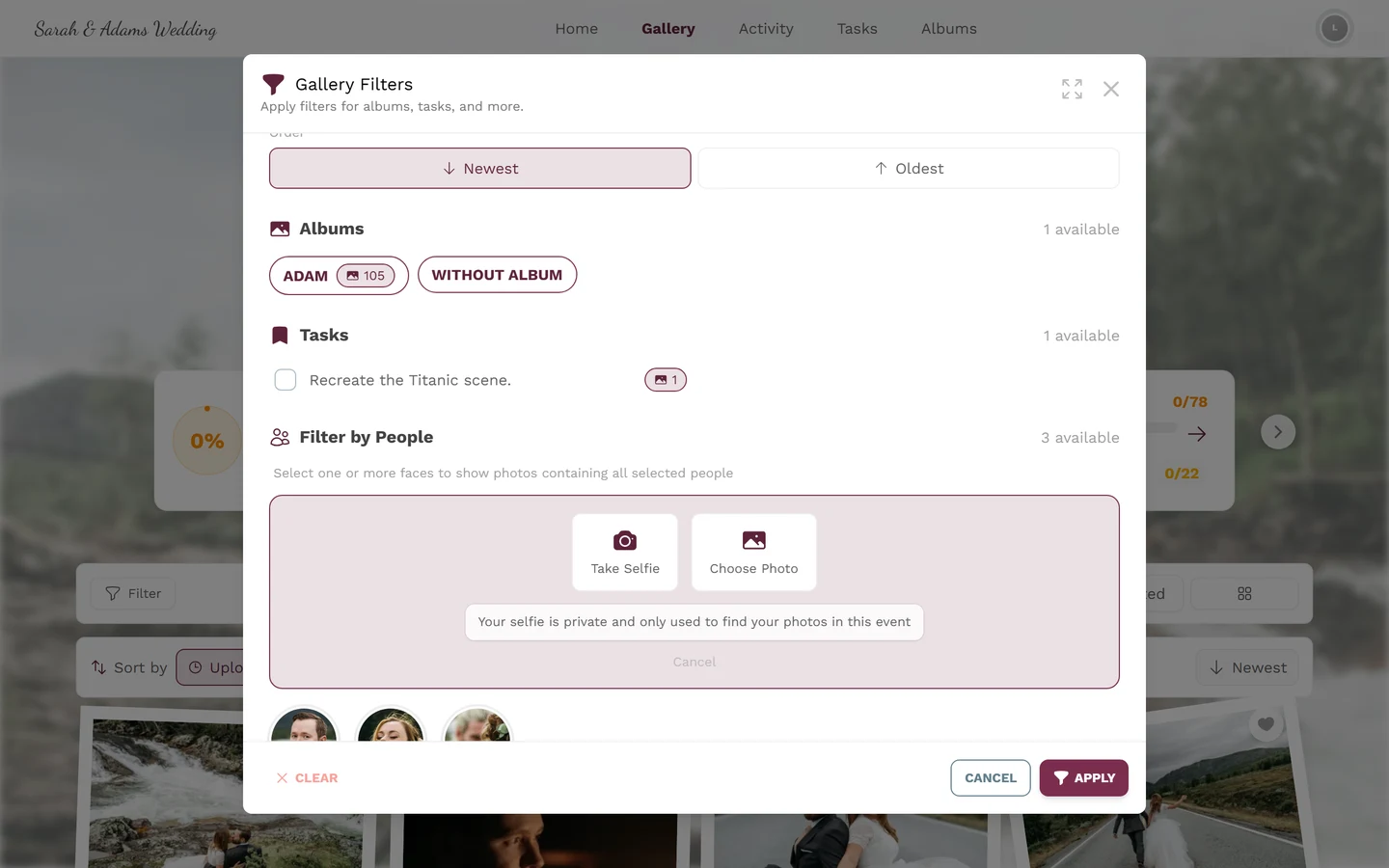
Section titled “When the people search appears at all”The Filter by People section only shows up in the gallery filter when both are true:
- The event’s plan covers AI face processing, and
- the host switched face recognition on in the event settings.
If either is missing, the section is not there at all.
Important – “not using it” does not mean “not processed”
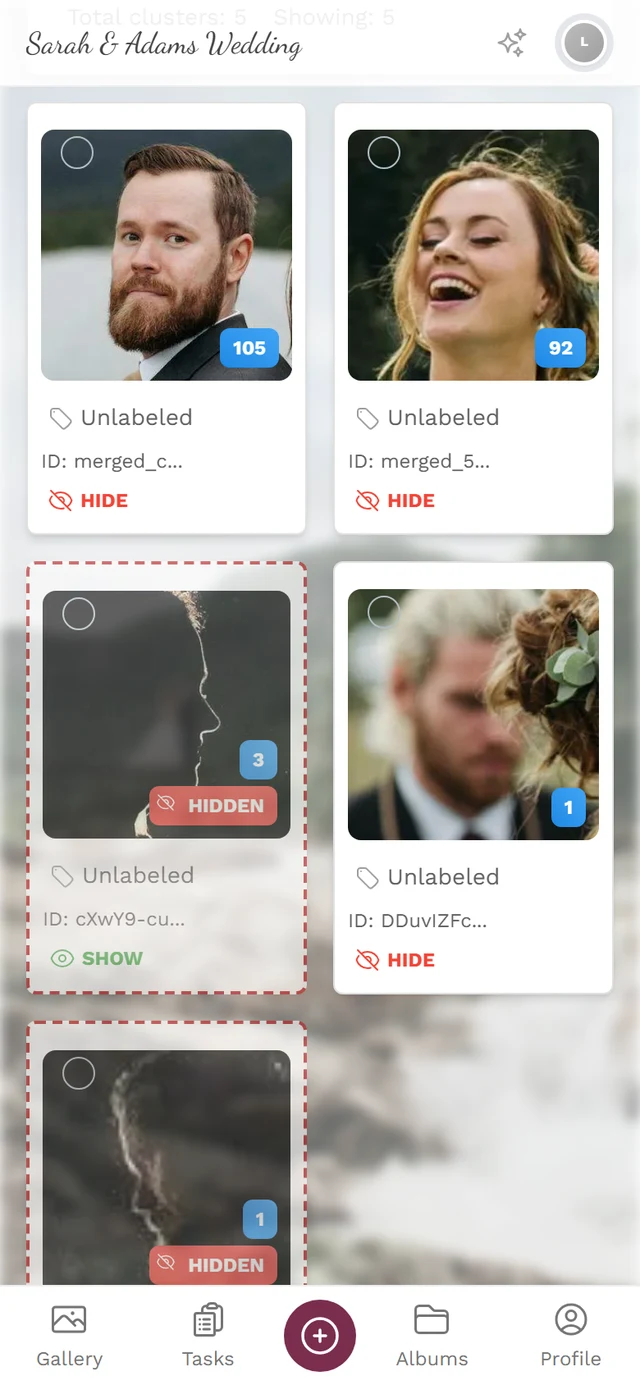
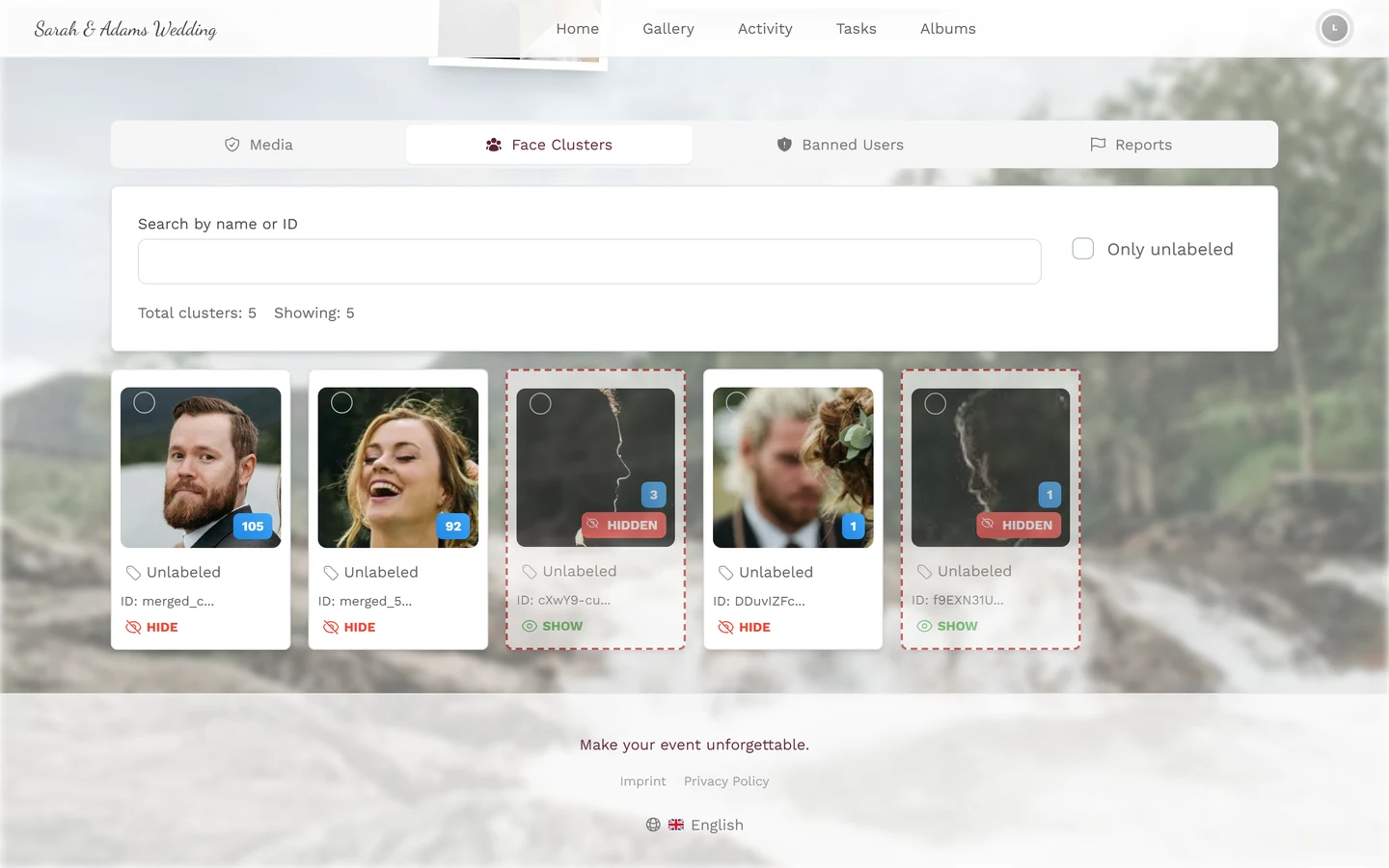
Section titled “Important – “not using it” does not mean “not processed””Once the host has enabled face recognition, it runs across all photos of the event and groups the faces it detects. That happens whether or not you use the feature.
So by not using Find me you only give up your own match list – the automatic grouping of the photos still runs.
Delete your selfie and face data yourself
Section titled “Delete your selfie and face data yourself”This is the one route you can take without the host – and it works at any time:
-
Open the Filter in the gallery and scroll to Filter by People.
-
Tap the trash icon next to the Find me card.
-
Confirm Remove selfie. The note reads: “This will remove your selfie and face data for this event.”
Afterwards the “this is you” match for this event is gone. Deleting stays possible even if the host has since switched face recognition off again.
What only the host can do
Section titled “What only the host can do”- Delete the automatically detected face data that did not come from your selfie.
- Switch face recognition off for the whole event.
- Tell you what is stored about you.
You will find their contact details in the event’s legal pages. If you appear in someone else’s photo and want it gone, the reporting route in the gallery is the fastest lever – see Reporting & moderating content.
Related pages
Section titled “Related pages”- Your privacy – the detailed version with every step
- Finding photos of you
- What happens to my data?
- How long do photos stay online?