Song requests
If your host enabled DJ Wishes, you get to ask for music. The host and the DJ see the list live — so your request arrives right away, with nobody having to collect it.
How to get there
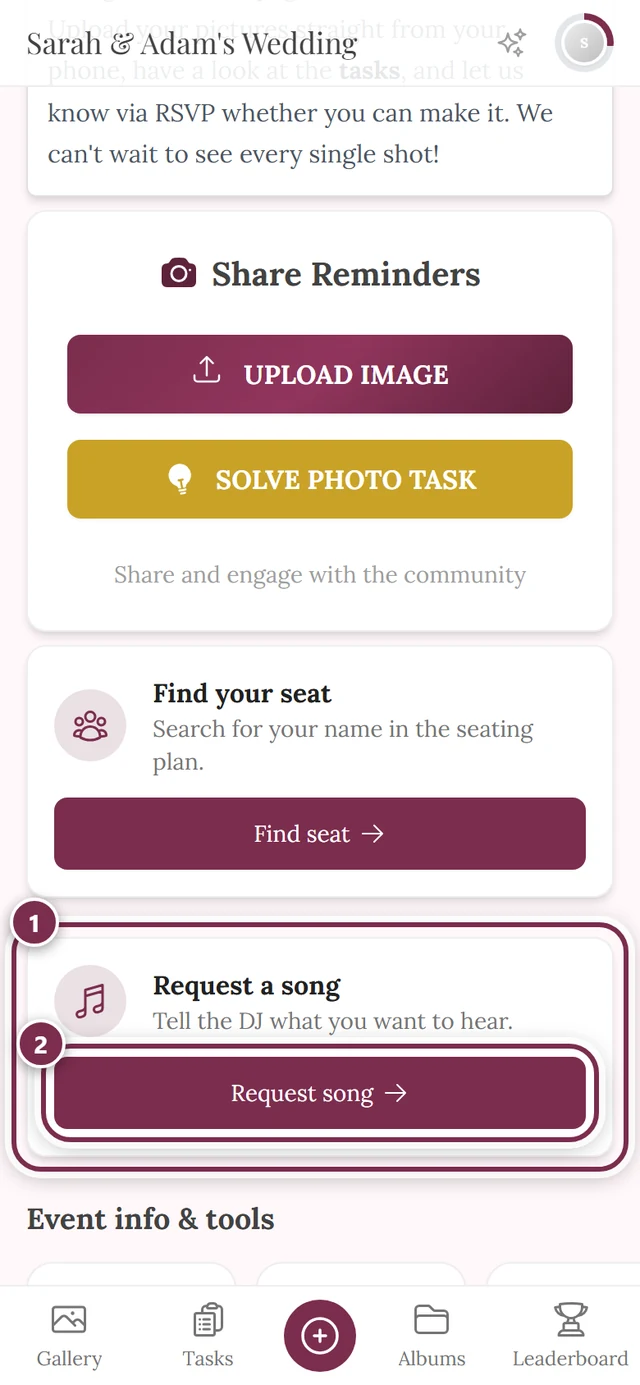
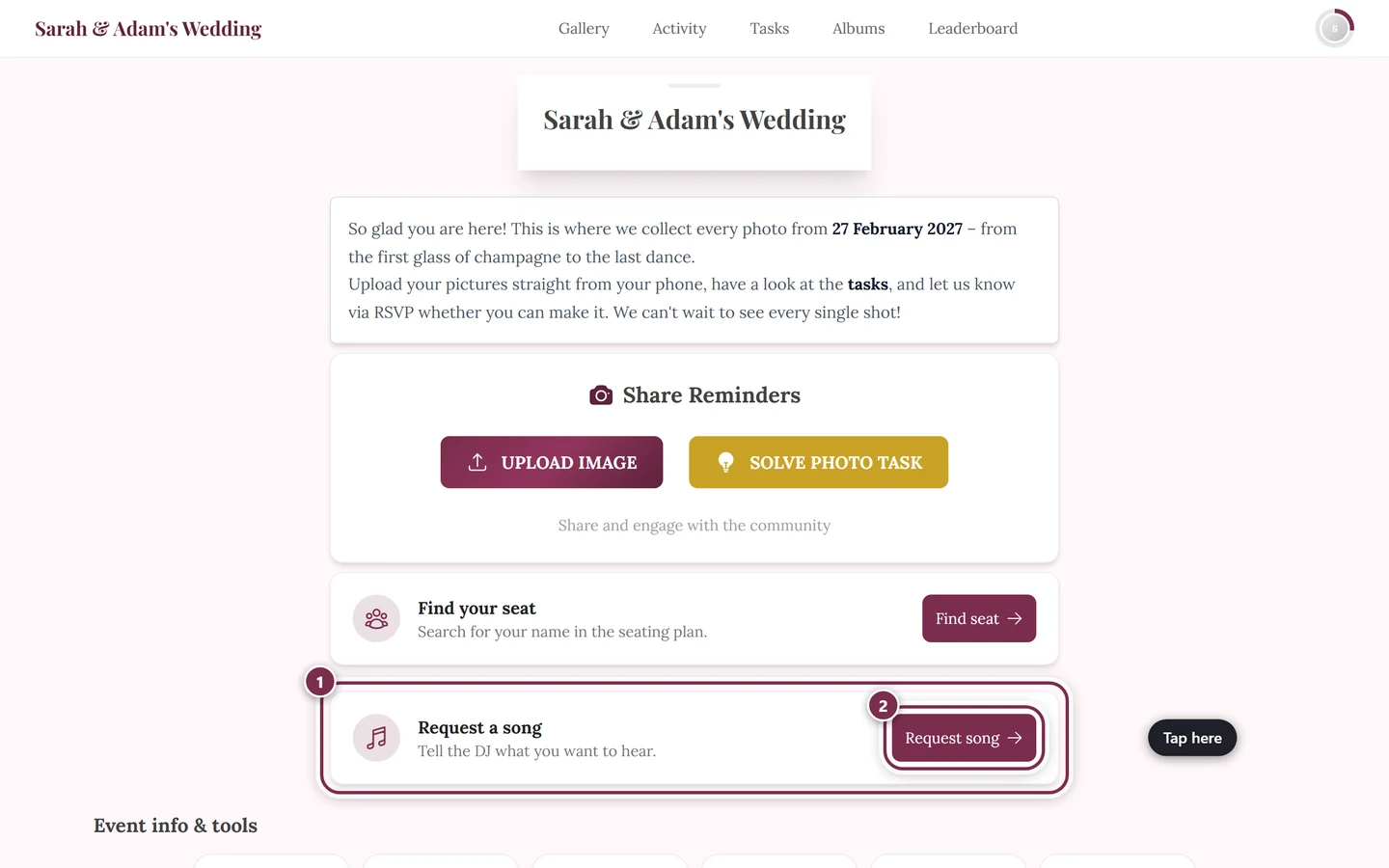
Section titled “How to get there”Via the widget on the home page. Scroll down to the card Request a song with the subtitle Tell the DJ what you want to hear. The button is called Request song.
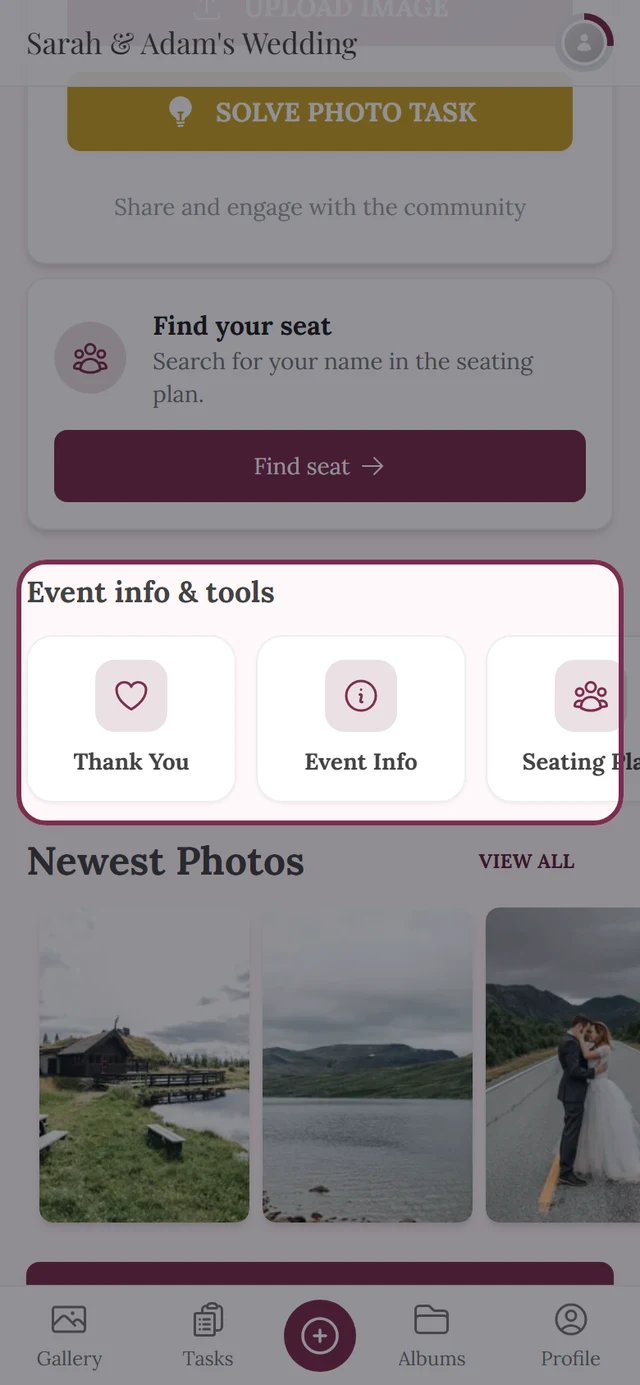
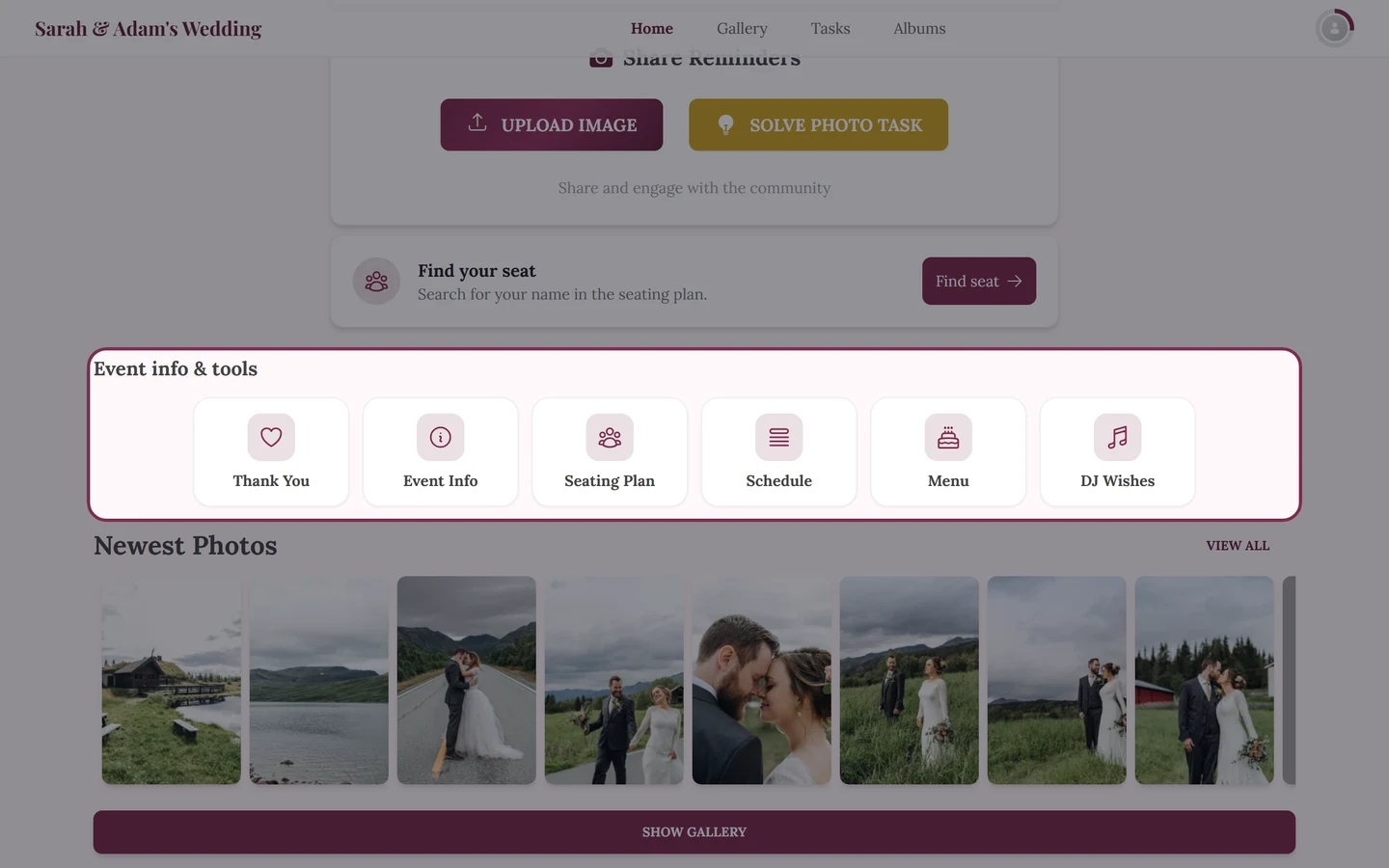
Via the tool rail. In the row Event info & tools you will find the tile DJ Wishes. The page itself is then headed Song requests.
Via a QR code. Your host can put up a QR code for this tool — handy at the entrance or on the tables.
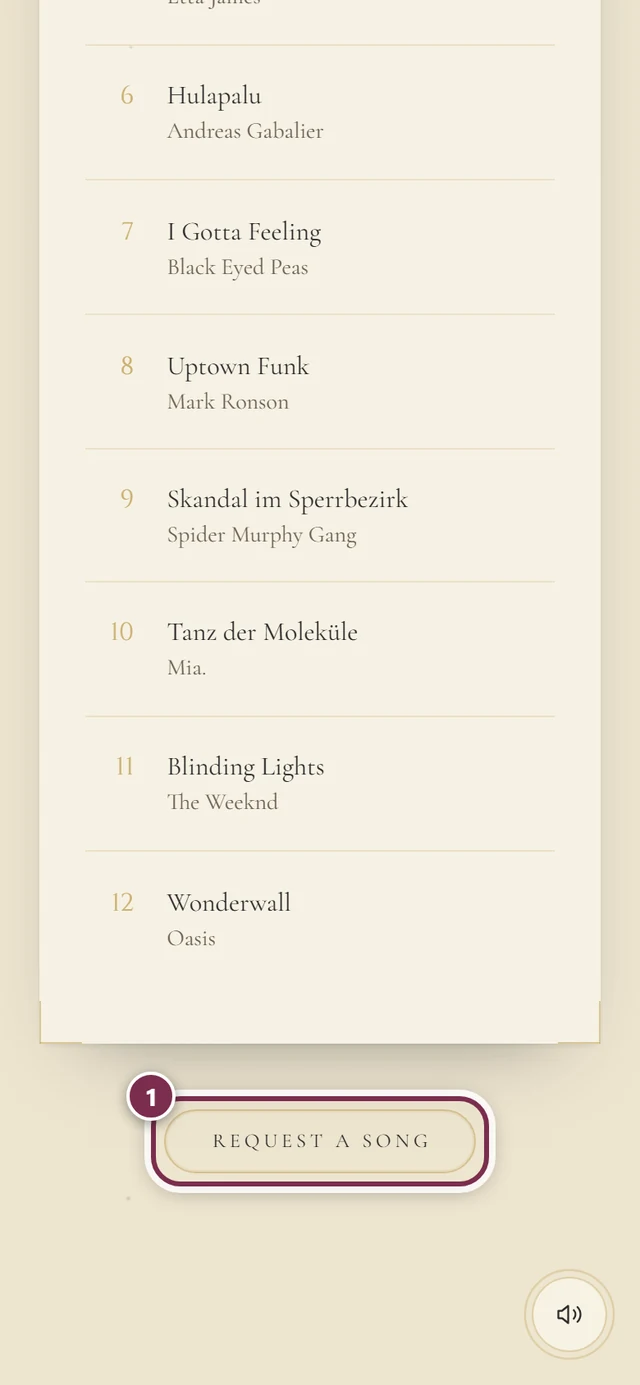
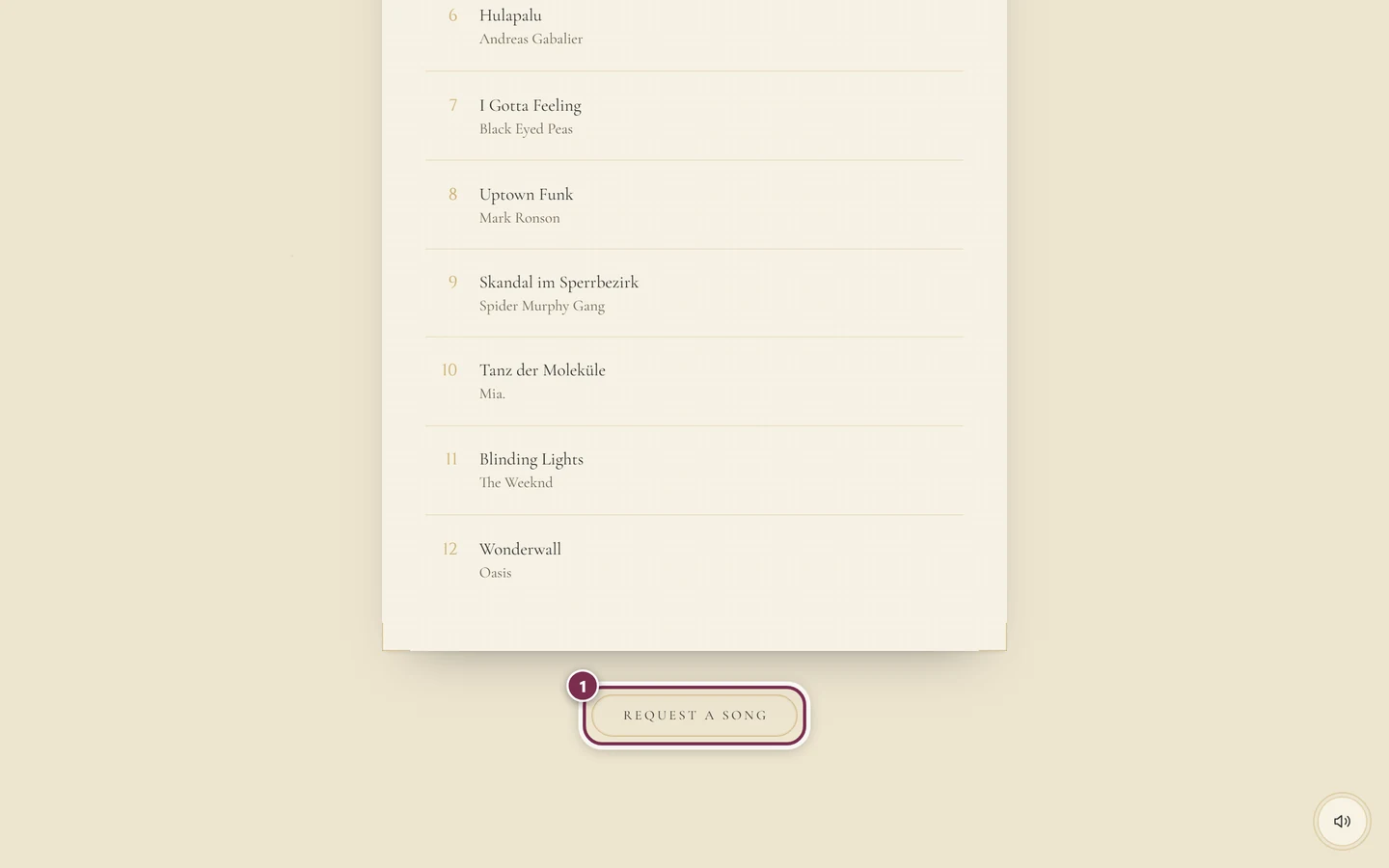
Via the digital invitation. If the Our Playlist section is switched on, you see the songs there as a numbered list. The Request a song button below it opens the very same form inside the invitation, without you leaving the page.
Requesting a song
Section titled “Requesting a song”-
Open the song requests.
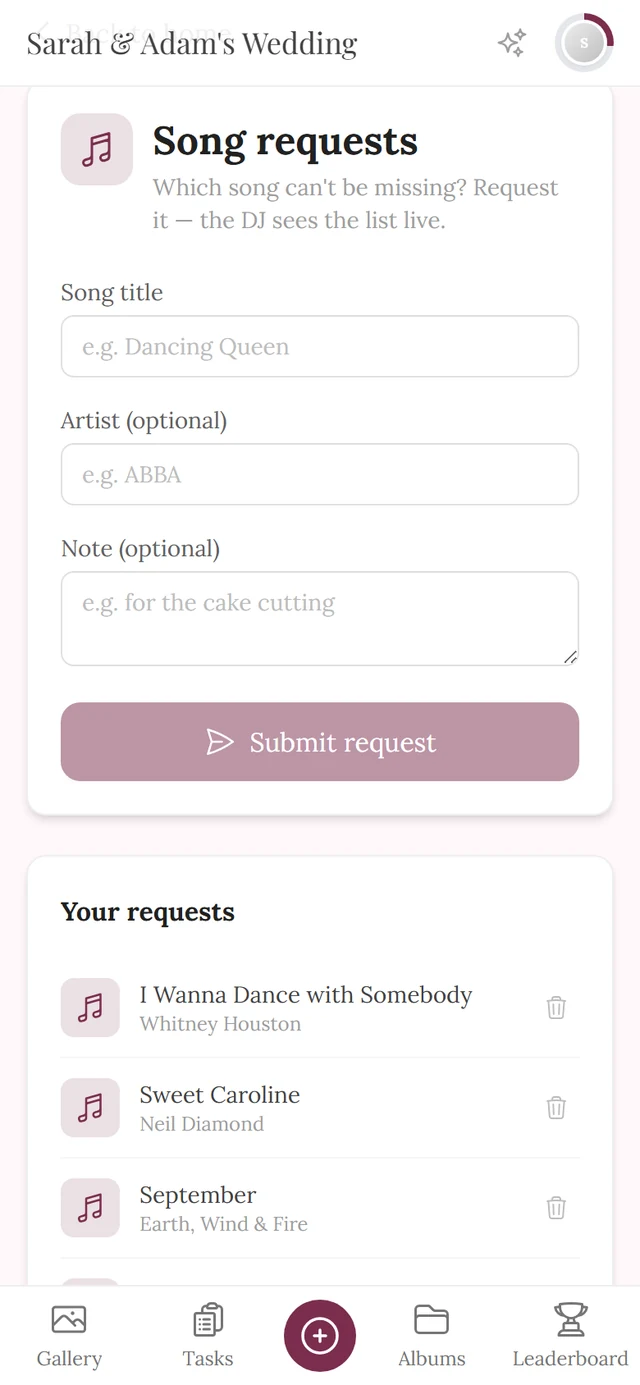
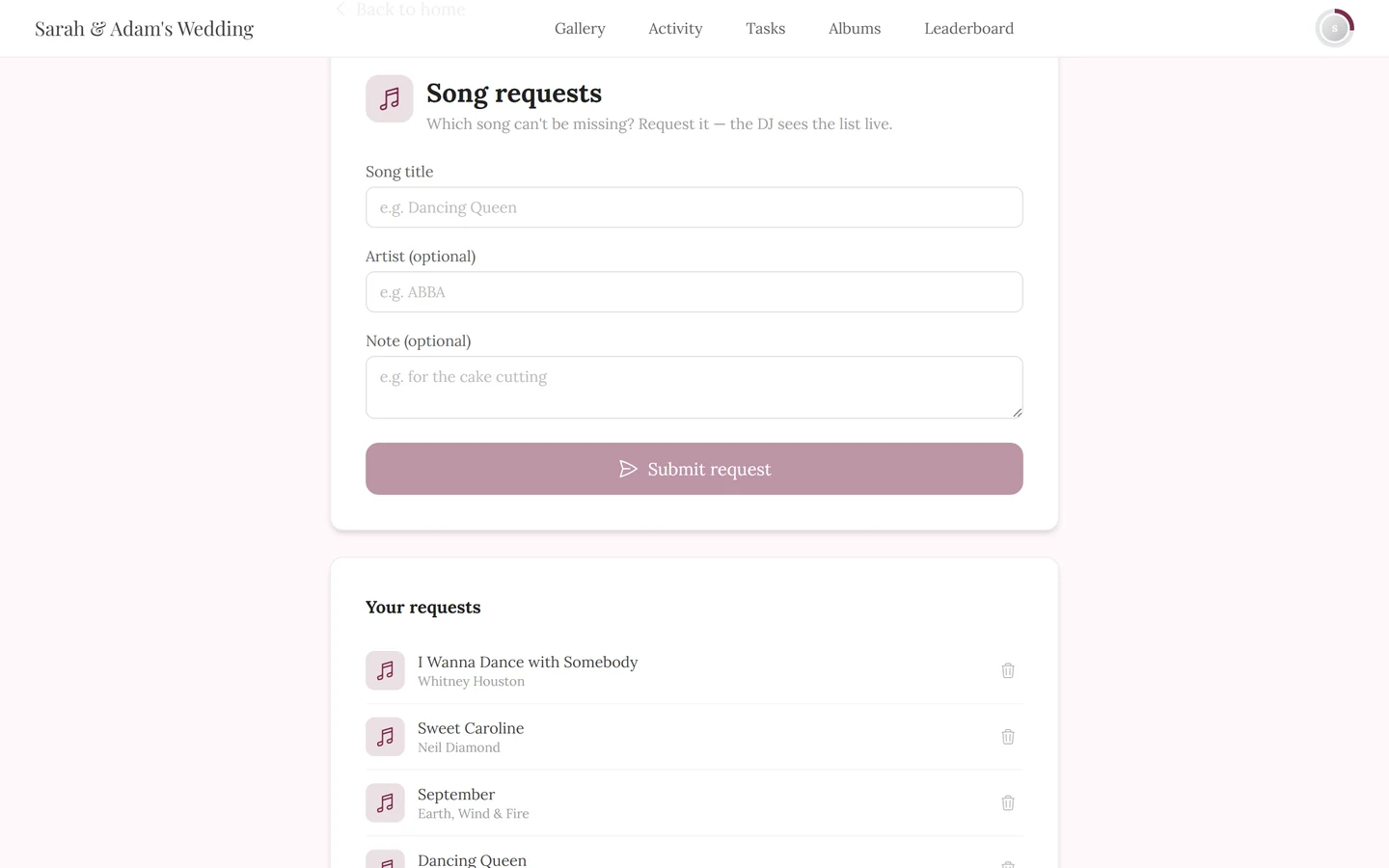
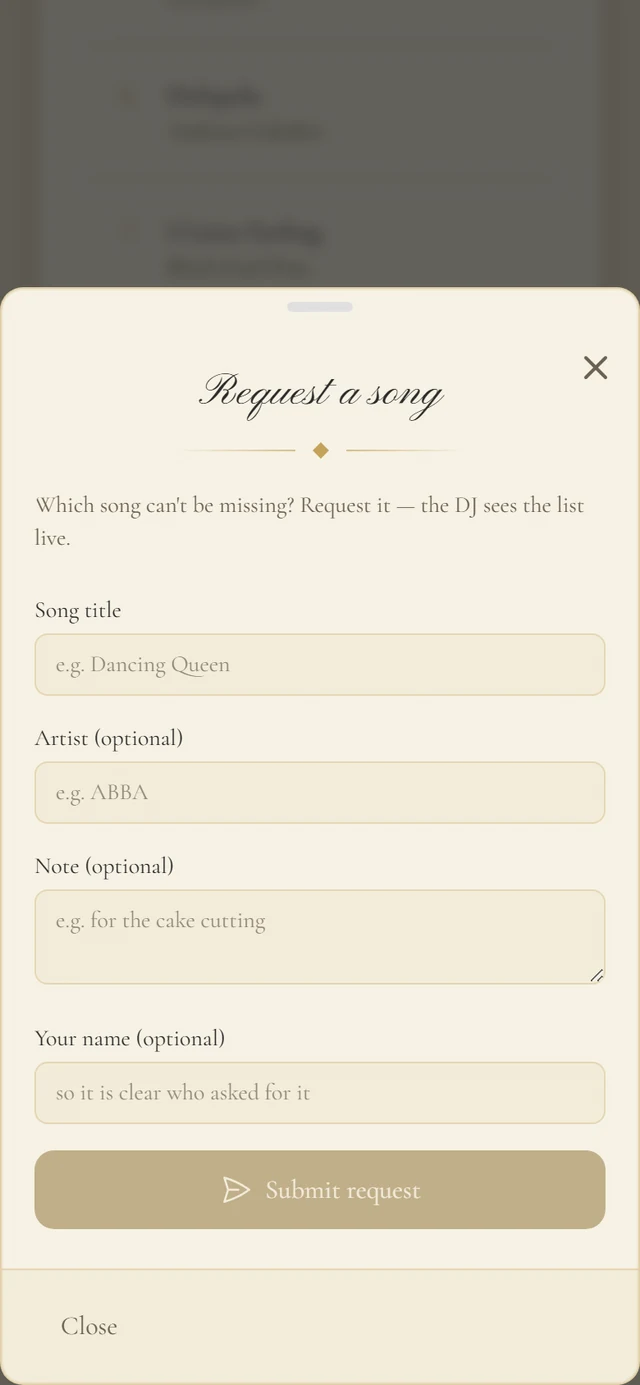
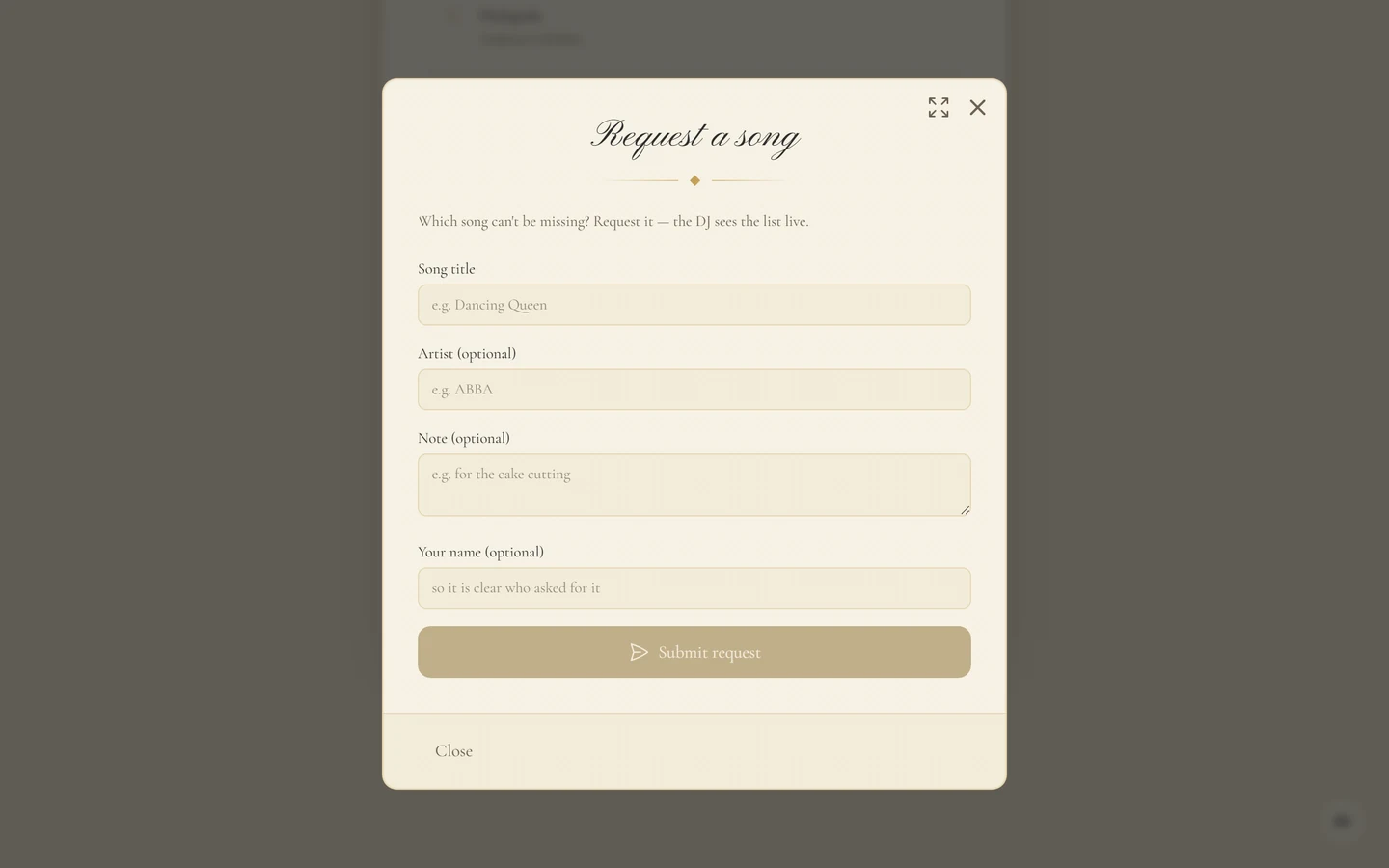
The empty form. Only the song title is required — artist and note help the DJ find the right track. -
Enter the song title (the placeholder suggests Dancing Queen). It is the only required field.
-
Optional: Artist (optional) — ABBA, for instance. Helpful when a title exists more than once.
-
Optional: Note (optional) — for the cake cutting, for example.
-
Only if you are not signed in to the gallery does a fourth field appear: Your name (optional), with the hint so it is clear who asked for it. Leave it empty and your host later sees Anonymous. If you are signed in, the field is missing — Photogala then uses your gallery nickname.
-
Tap Submit request. While it is sending, the button reads Sending…
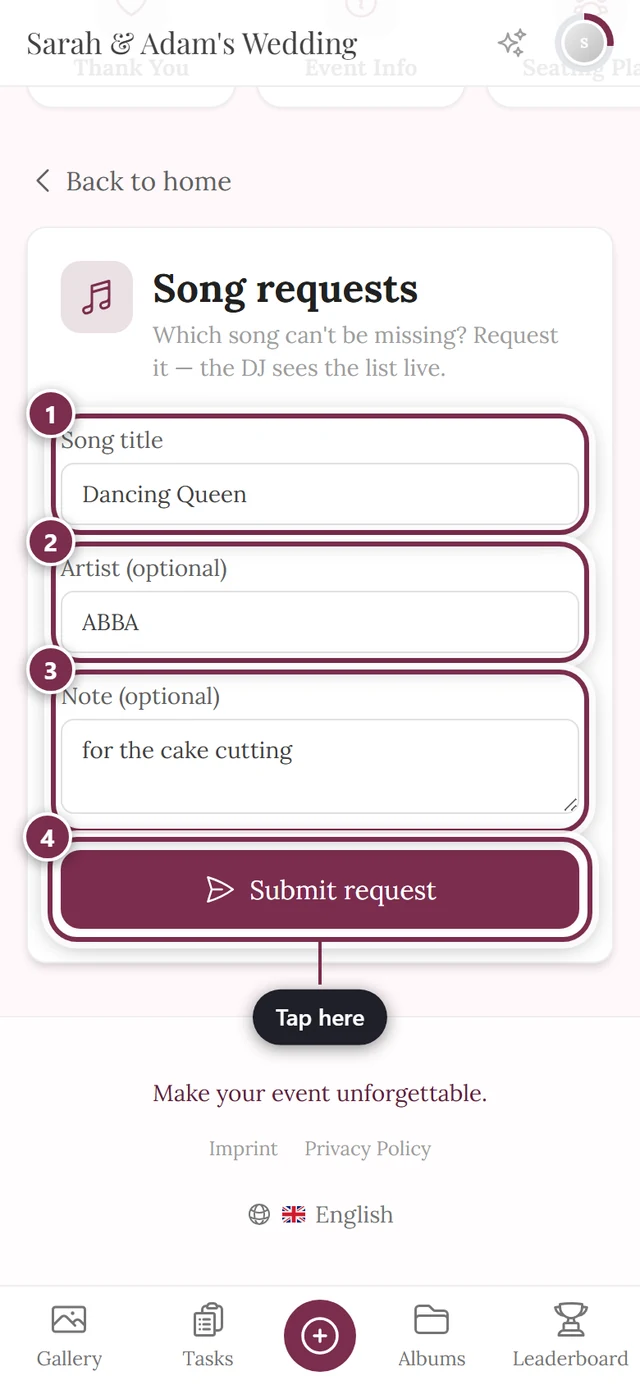
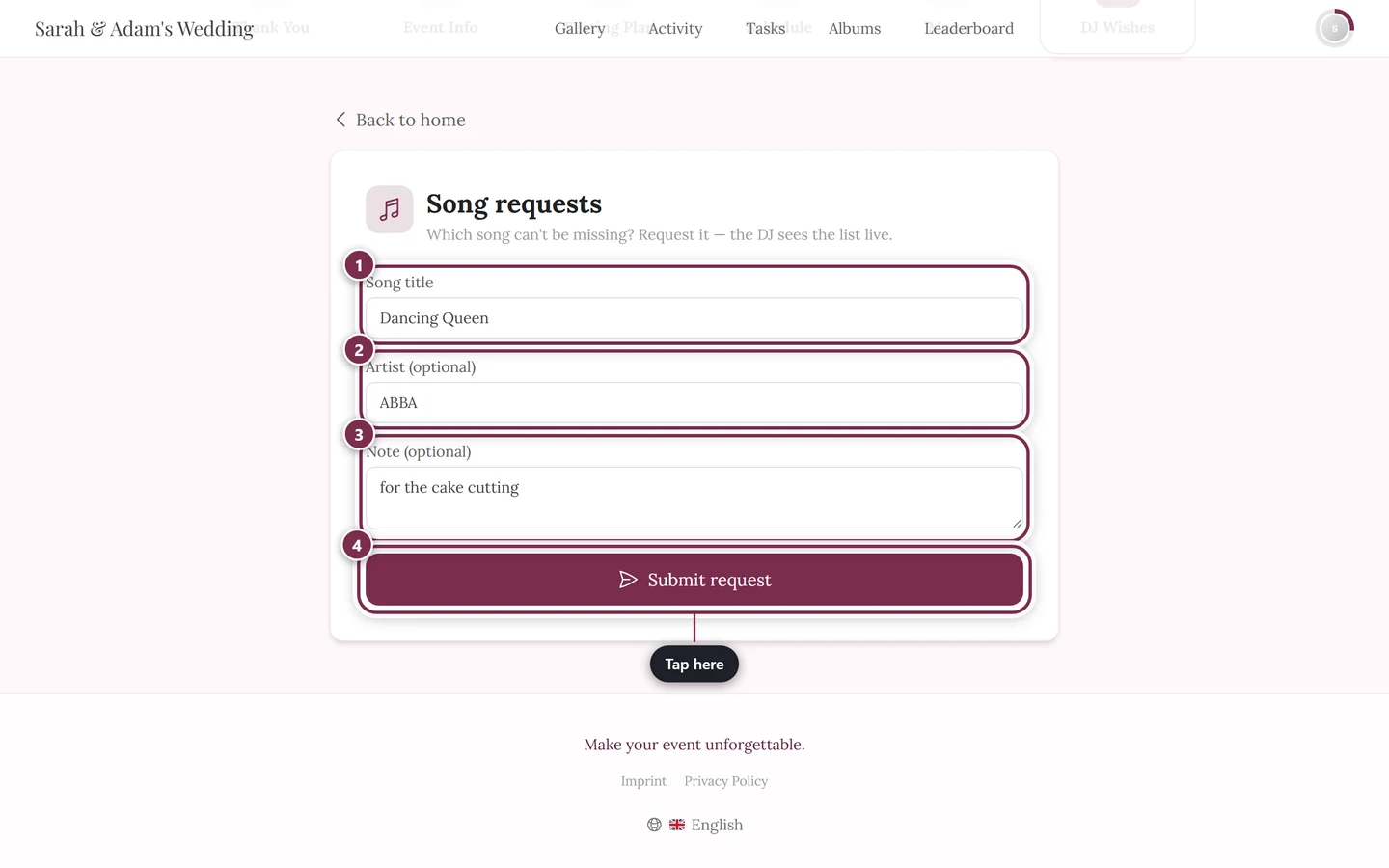
A fully filled-in example: ① Song title *Dancing Queen* (required), ② Artist *ABBA*, ③ Note *for the cake cutting*, ④ Submit request. This guest is signed in, which is why the Your name field is missing. -
You then get the confirmation Request submitted! with the note that your track is on the list and the DJ sees it live. Request another song takes you straight to the next one.
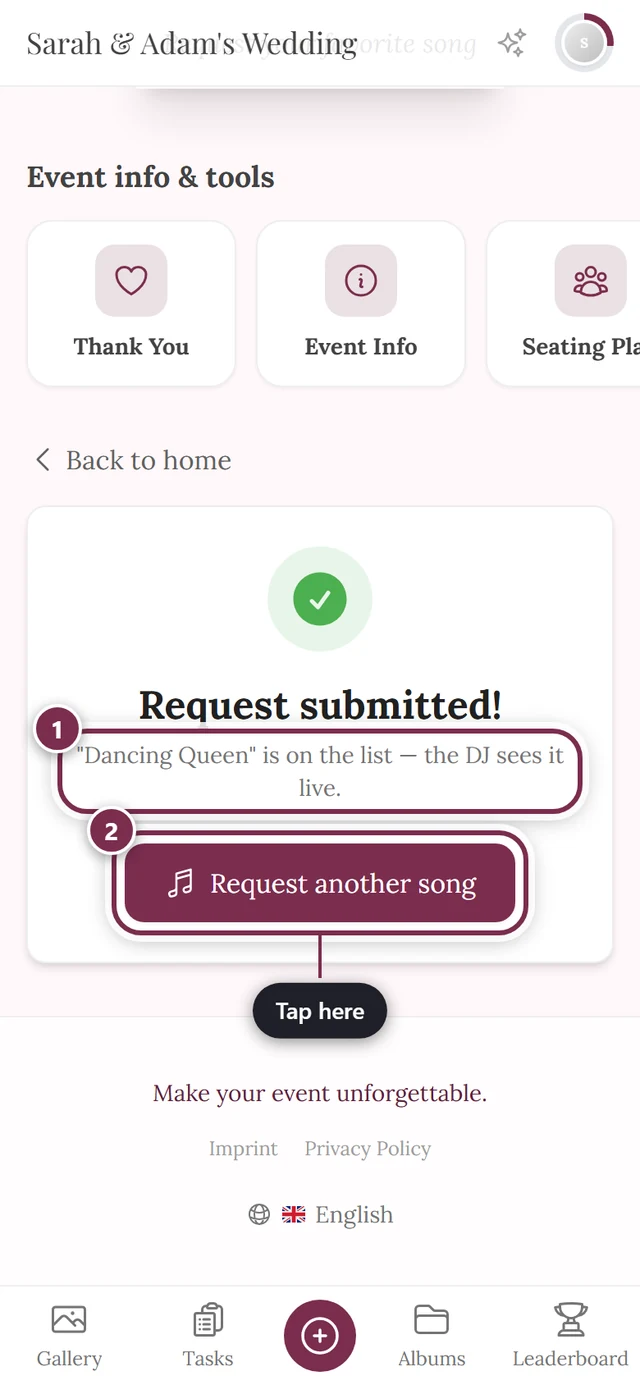
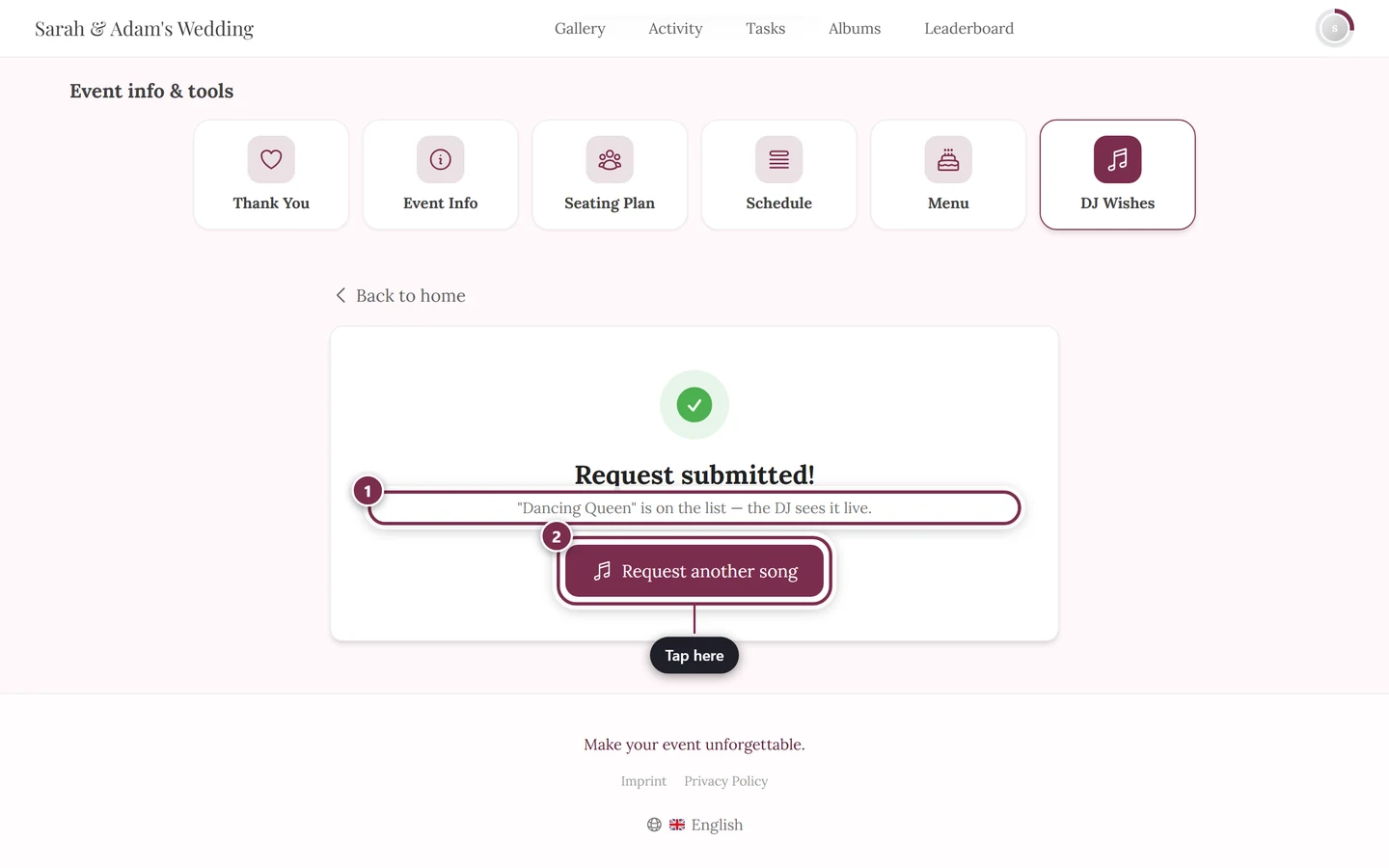
① The sentence repeats your title back to you – so you can see that exactly this song arrived. ② Request another song clears the form for the next one.
How many requests you have
Section titled “How many requests you have”Every guest has a quota. Unless the host sets something else, it is five requests; they can choose any value between 1 and 50.
What matters is the difference between set and not set:
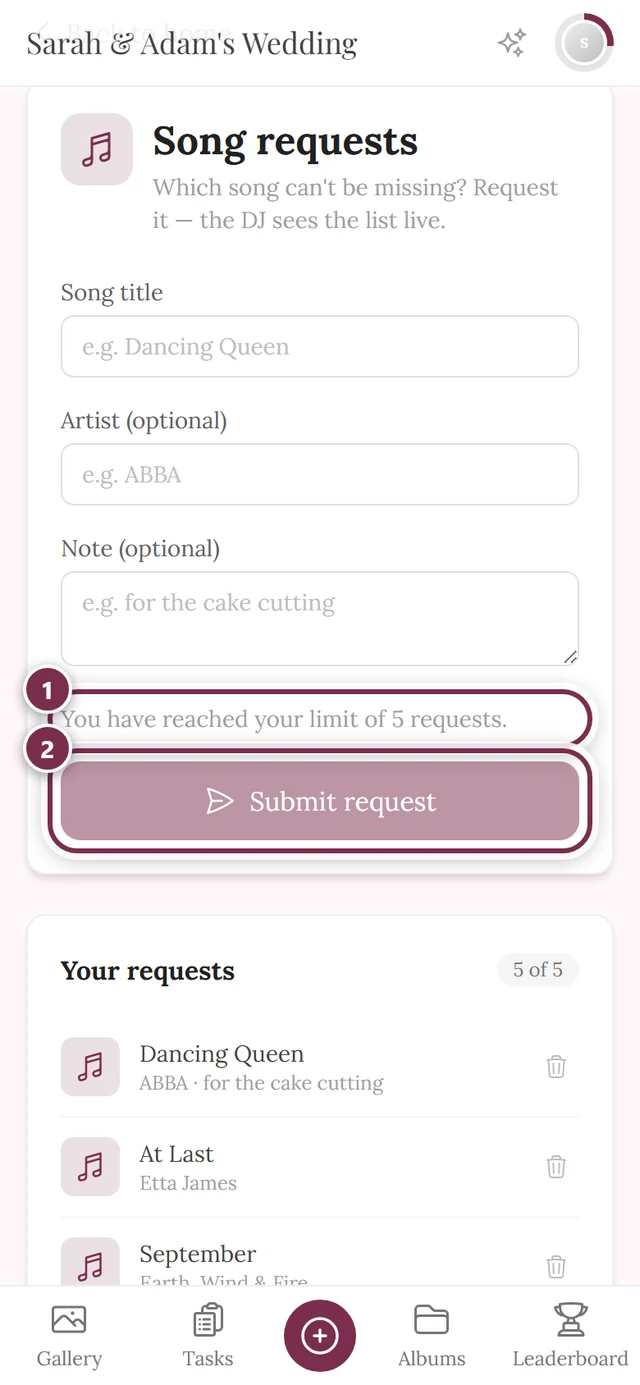
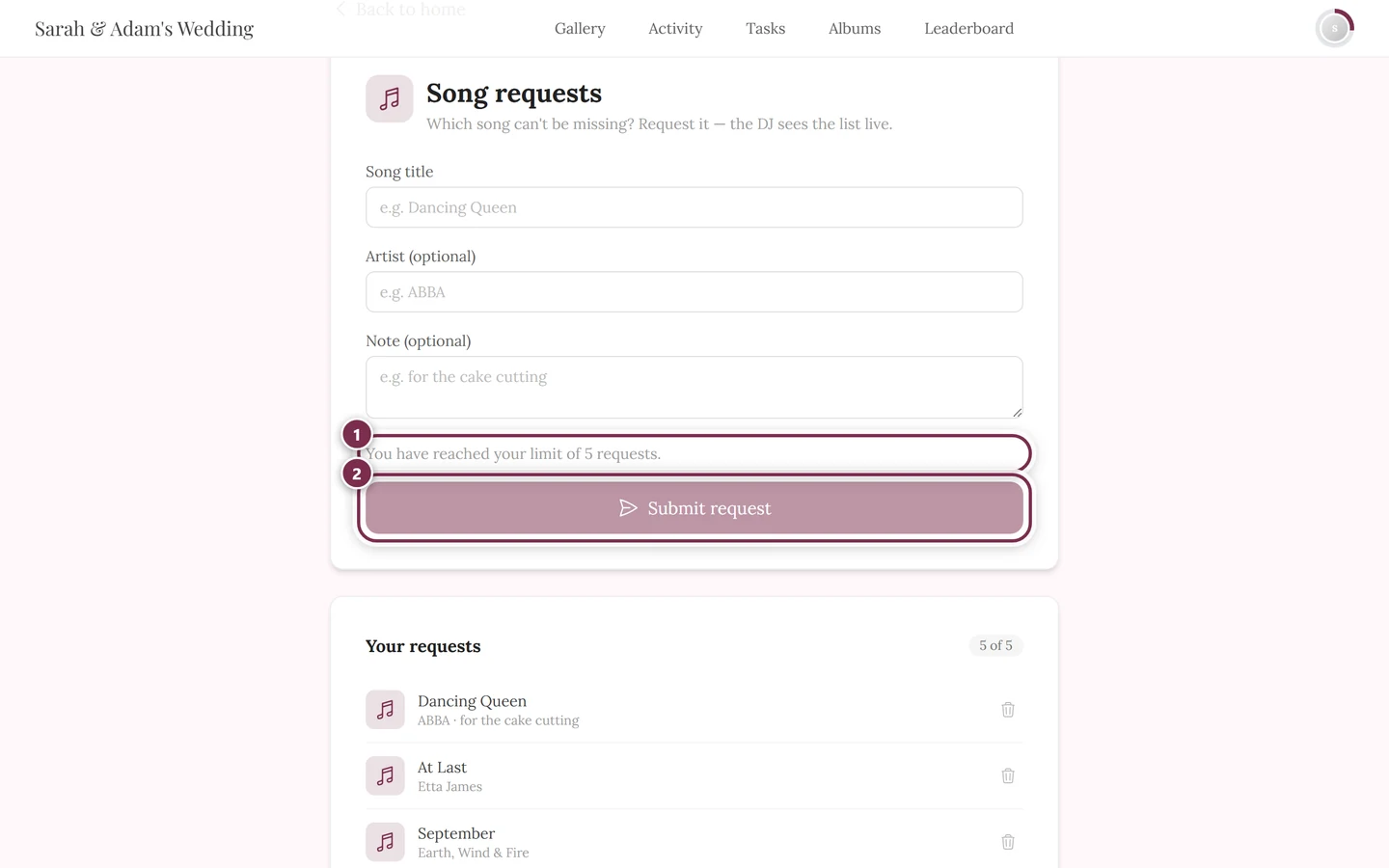
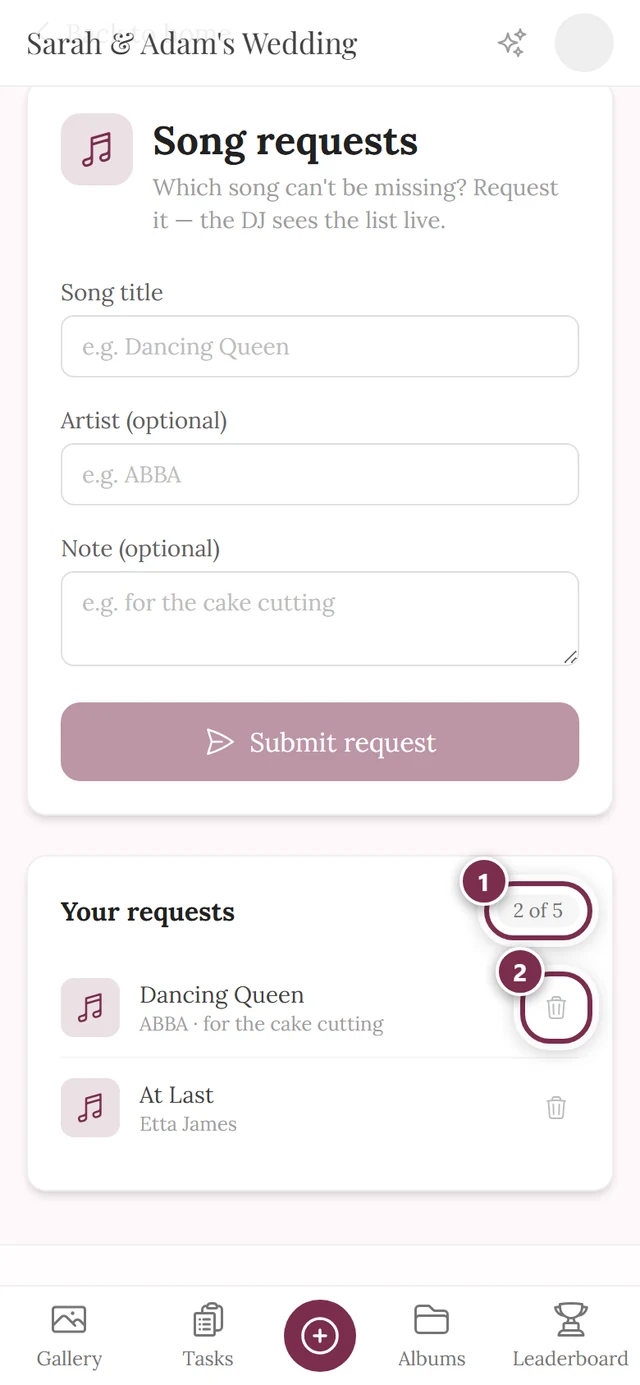
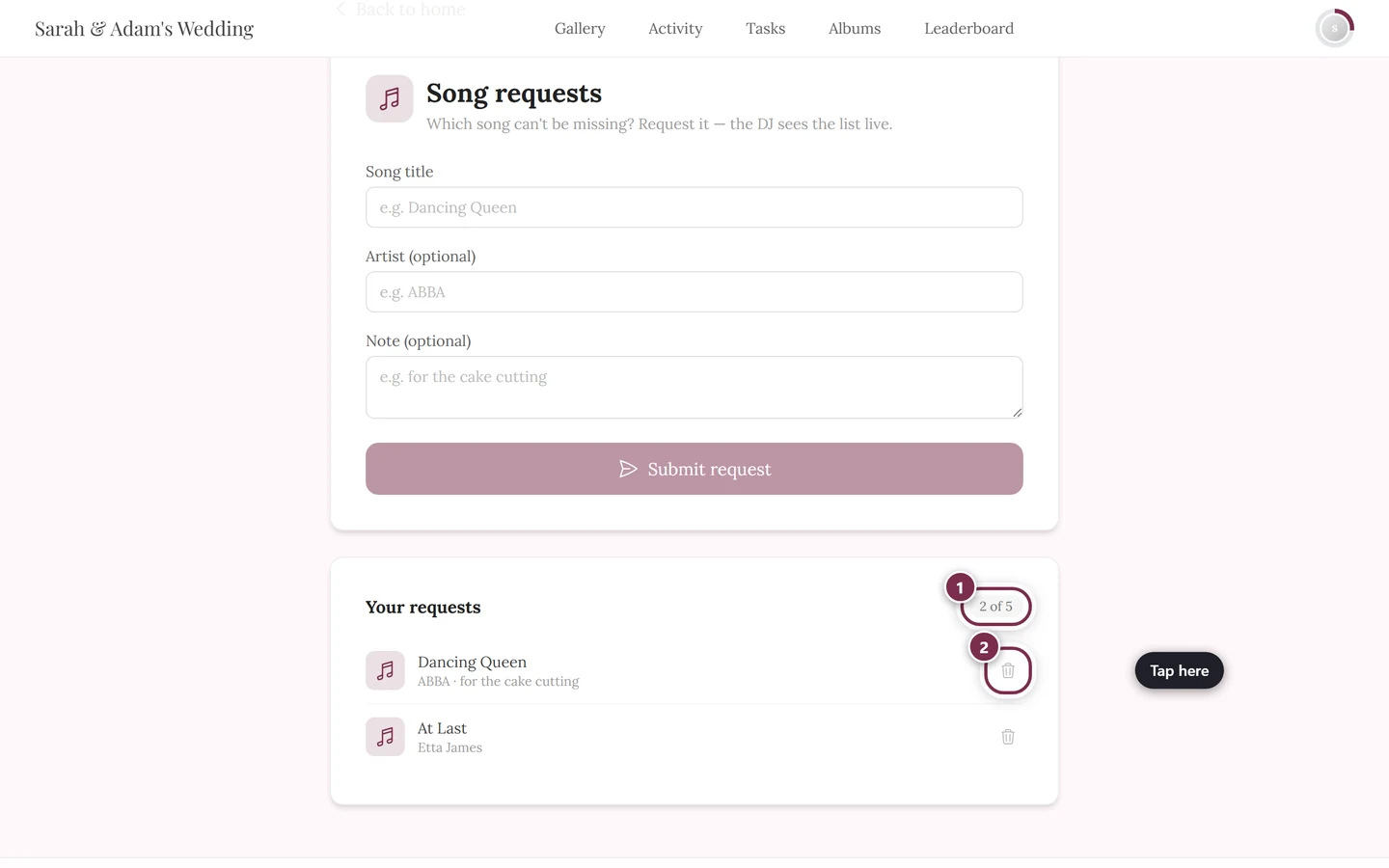
- Your host set a value. Then a counter in the form 2 of 5 appears next to the heading Your requests. Once the quota is used up, the button turns gray and the line You have reached your limit of 5 requests. appears above it — with whatever number applies at your event.
- Your host set nothing. Then you see neither a counter nor a hint, and the button stays tappable to the very end. The limit of five still applies — it only speaks up when you submit the sixth request, as the error message All requests are taken for now — ask the host to raise the limit.
Withdraw a request and the slot is free again, in both cases.
Seeing and withdrawing your requests
Section titled “Seeing and withdrawing your requests”Below the form sits the section Your requests with your own entries. Each row shows the title and, underneath, the artist and the note.
On the right of the row there is a bin icon — that is Withdraw request. One tap removes the entry immediately, without a confirmation prompt.
Who sees your request
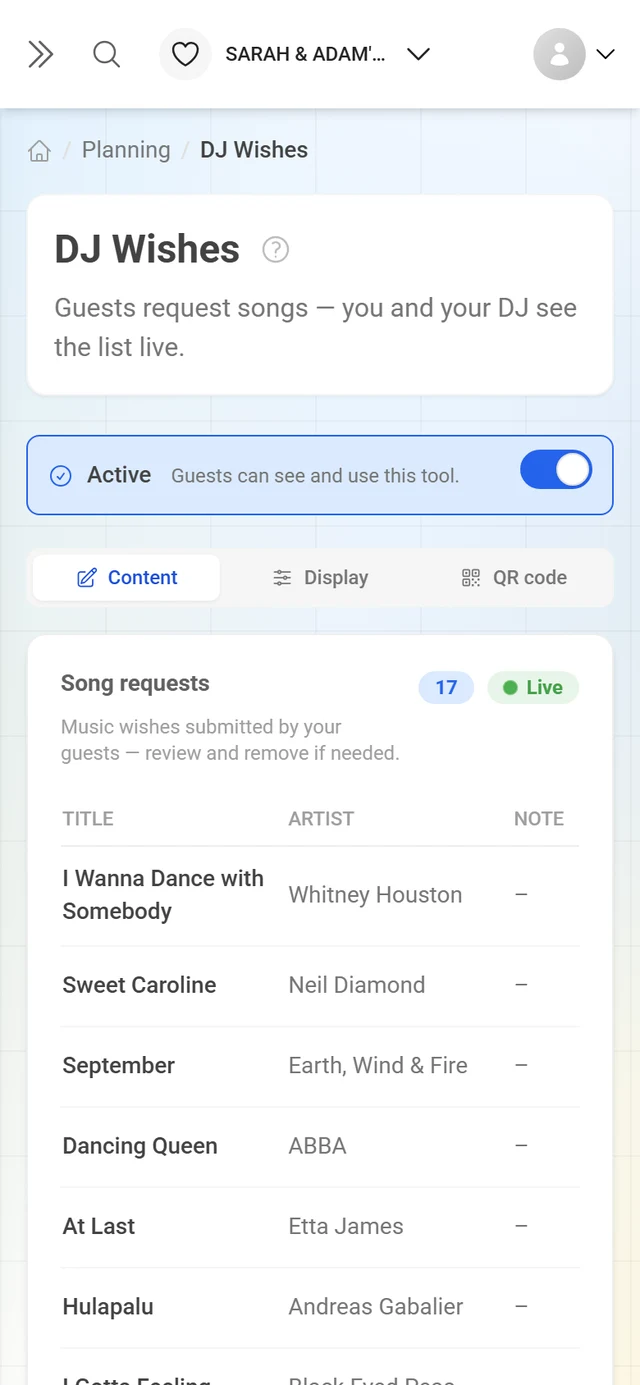
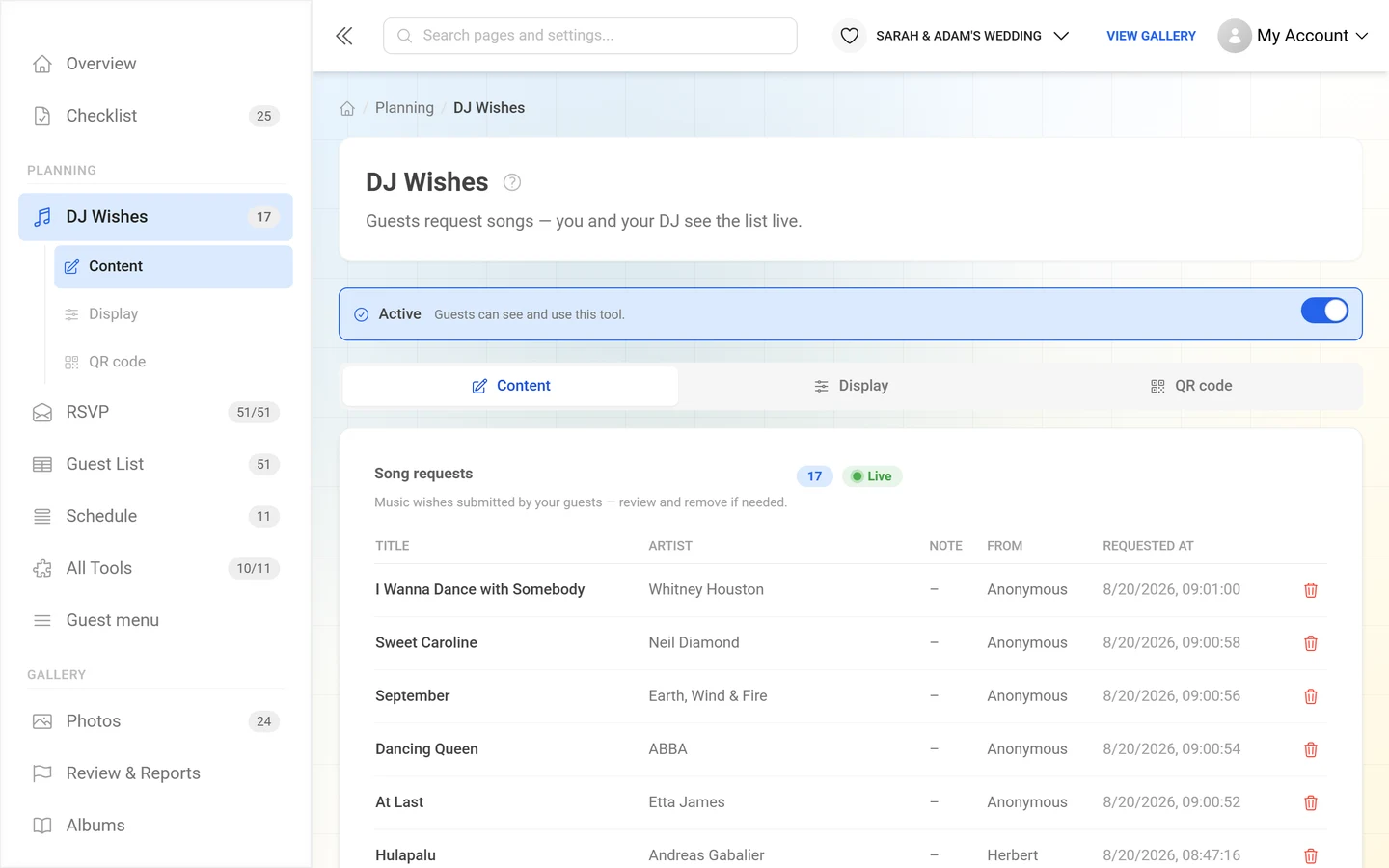
Section titled “Who sees your request”The requests arrive in a table on the host’s side — with Title, Artist, Note, the column From and the time (Requested at).
- Instantly. New requests appear for them the moment you submit, as long as they have the view open. They do not have to reload the page.
- With or without a name. The From column shows the gallery nickname for signed-in guests, and for everyone else whatever they typed into Your name (optional). If that stayed empty, it says Anonymous.
- The name is frozen. If you change your nickname later, an already submitted request keeps the old name.
Troubleshooting
Section titled “Troubleshooting”I cannot find the song requests. Then your host has not enabled the tool or has not allowed an entry in the tool rail. Ask them for the direct link or the QR code.
The Submit request button stays grayed out. Either the song title field is still empty, or your quota is used up. If there is a hint above the button, it is the quota; if there is nothing, the title is missing.
I get an error when submitting. Usually one of two reasons: you already requested exactly this song, or you have hit your limit. Withdraw an old request if you need room.
The Your requests section is missing. It only appears once you have submitted at least one request — and, as long as you are not signed in, only on the device you submitted it from.
My requests suddenly disappeared. You are probably on a different device or in a private window, or your browser cleared its storage. The requests are still on the DJ’s list.
Is my song guaranteed to play? No. The tool collects the requests and puts them in front of the DJ — it never plays anything by itself. What actually gets played is the DJ’s call.
Do I need an account? No, you can request songs without one. Signing in does have one advantage though: your requests then belong to the account instead of the device, so you see them everywhere and can withdraw them everywhere.
Related pages
Section titled “Related pages”- For hosts: Setting up DJ requests — enable the request list and follow it live.