Find your seat
If your host enabled the seating plan, you never have to ask where you sit. You type your name, and the plan shows your table and seat — and marks the spot in the room.
How to get to the seating plan
Section titled “How to get to the seating plan”There are several routes. Which one works for you depends on what your host set up.
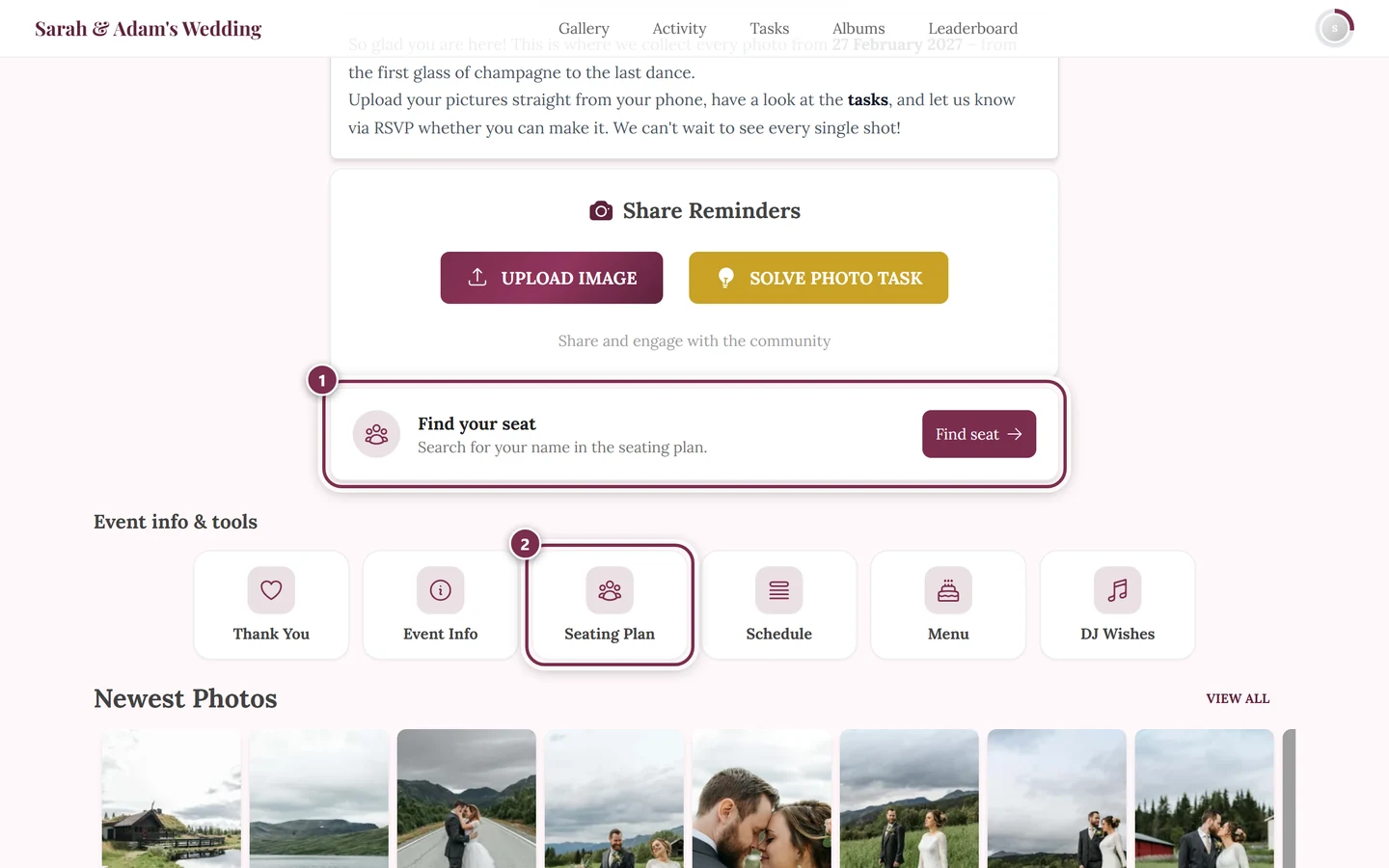
Route 1: the widget on the home page. Scroll down on the event home page. There you will find the card Find your seat with the line Search for your name in the seating plan. Tapping Find seat opens the full page.
Route 2: the tool rail. The home page has a section called Event info & tools — a row of tiles. One of them is Seating Plan.
Route 3: QR code or link. Many hosts hand out a QR code that leads straight to the seating plan — at the entrance, on the table or in a message.
Route 4: inside the digital invitation. If the seating plan is switched on there, you see it while scrolling the invitation, under the heading Seating plan. No need to leave the invitation.
Searching for your name
Section titled “Searching for your name”-
Open the seating plan. Above the plan there is a search field with the placeholder Search name or place (e.g. bar, WC)…
-
Type your name — first name, last name or part of it is enough. The search waits a short beat after your last keystroke before it looks.
-
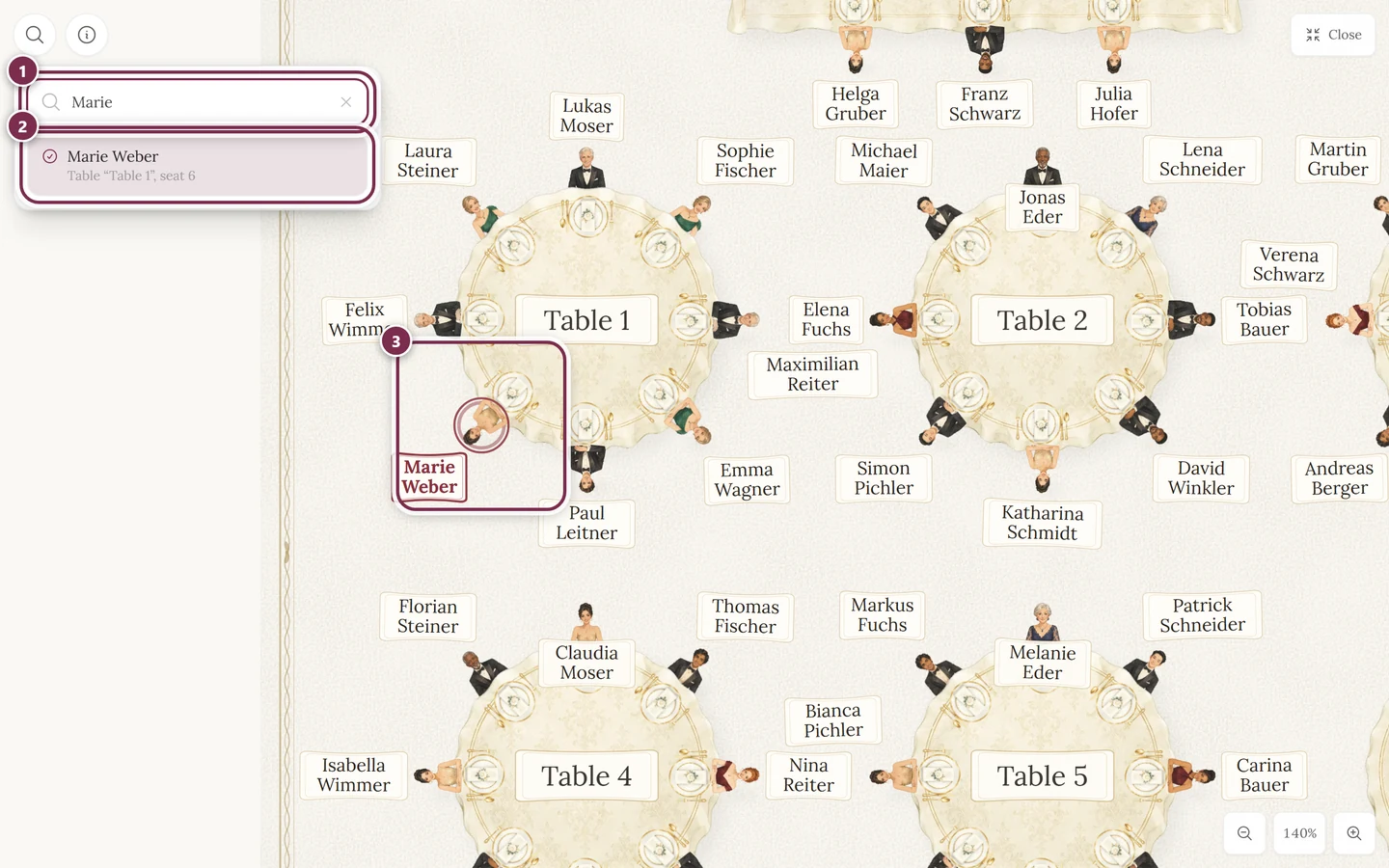
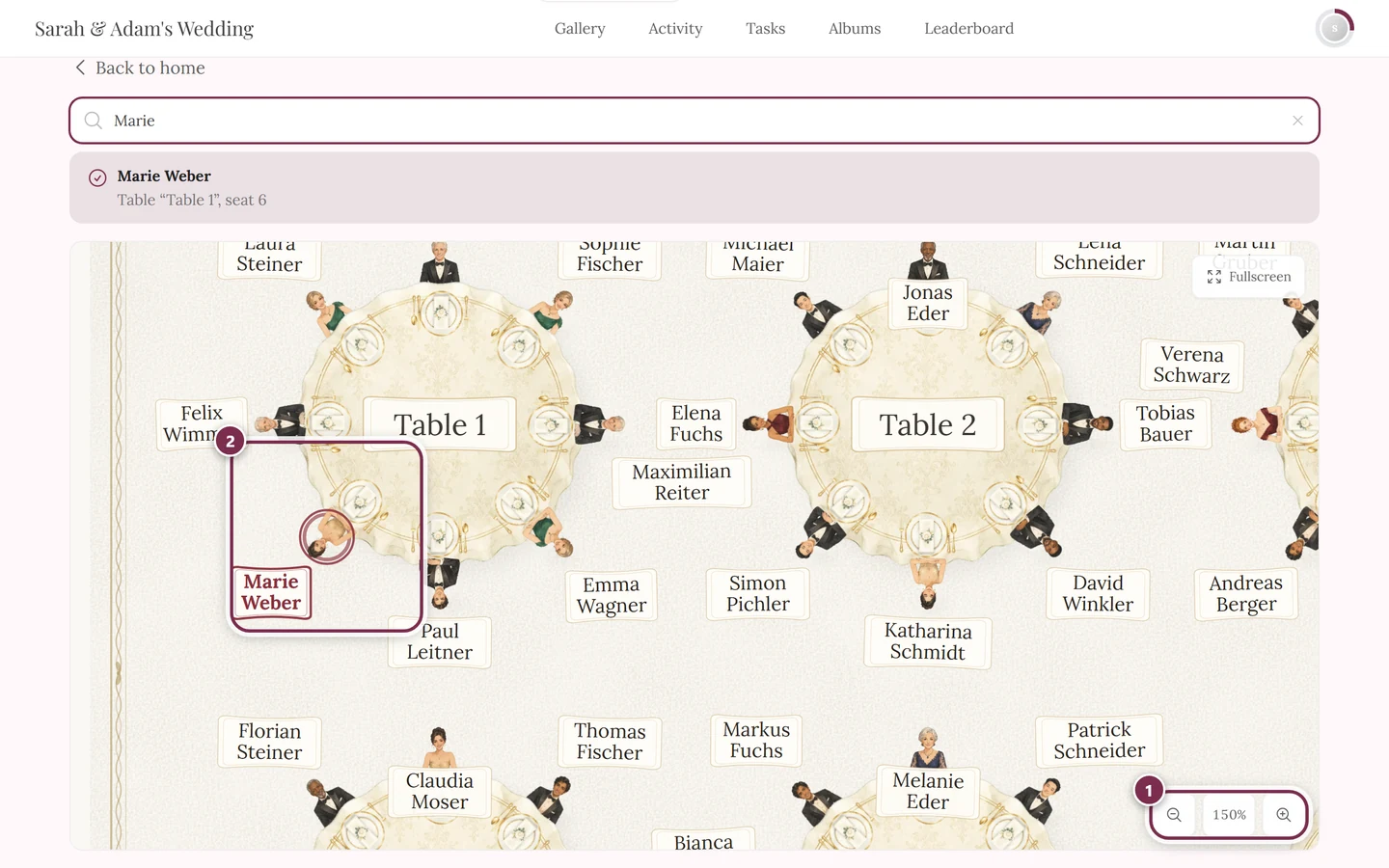
The match appears as a highlighted line: your name and, underneath, Table “Table 3”, seat 4 — the table name and the seat number.
-
At the same time the plan jumps to your seat, zooms in by itself and makes your marker pulse. The zoom level at the bottom right climbs as it does so.
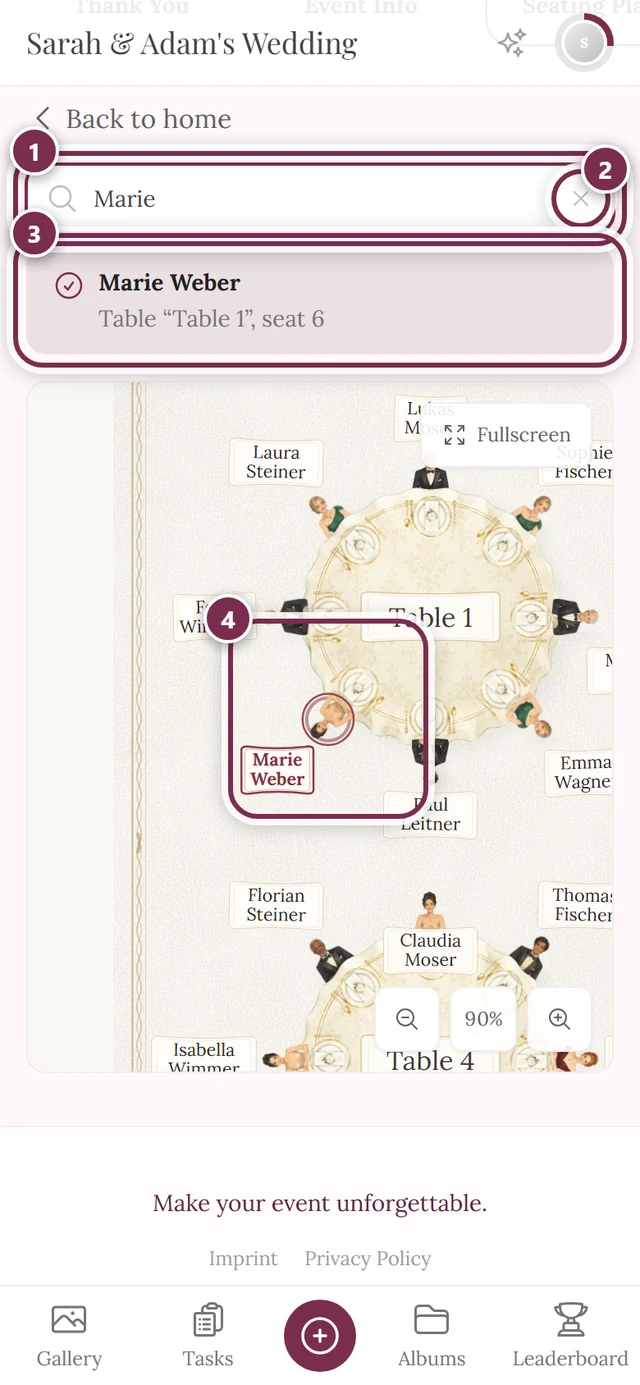
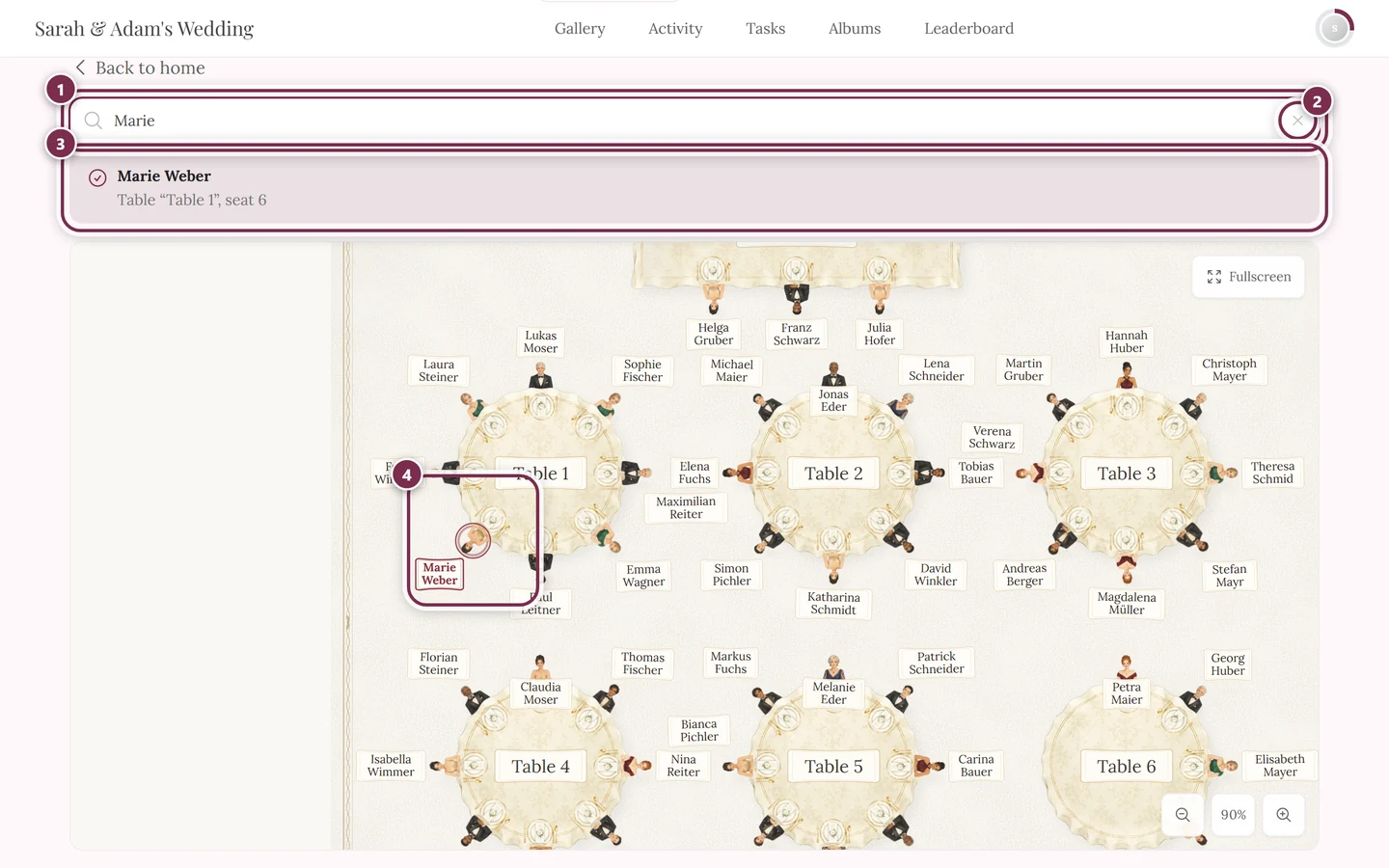
The small cross on the right of the search field clears your input again — the whole plan is back in view afterwards.
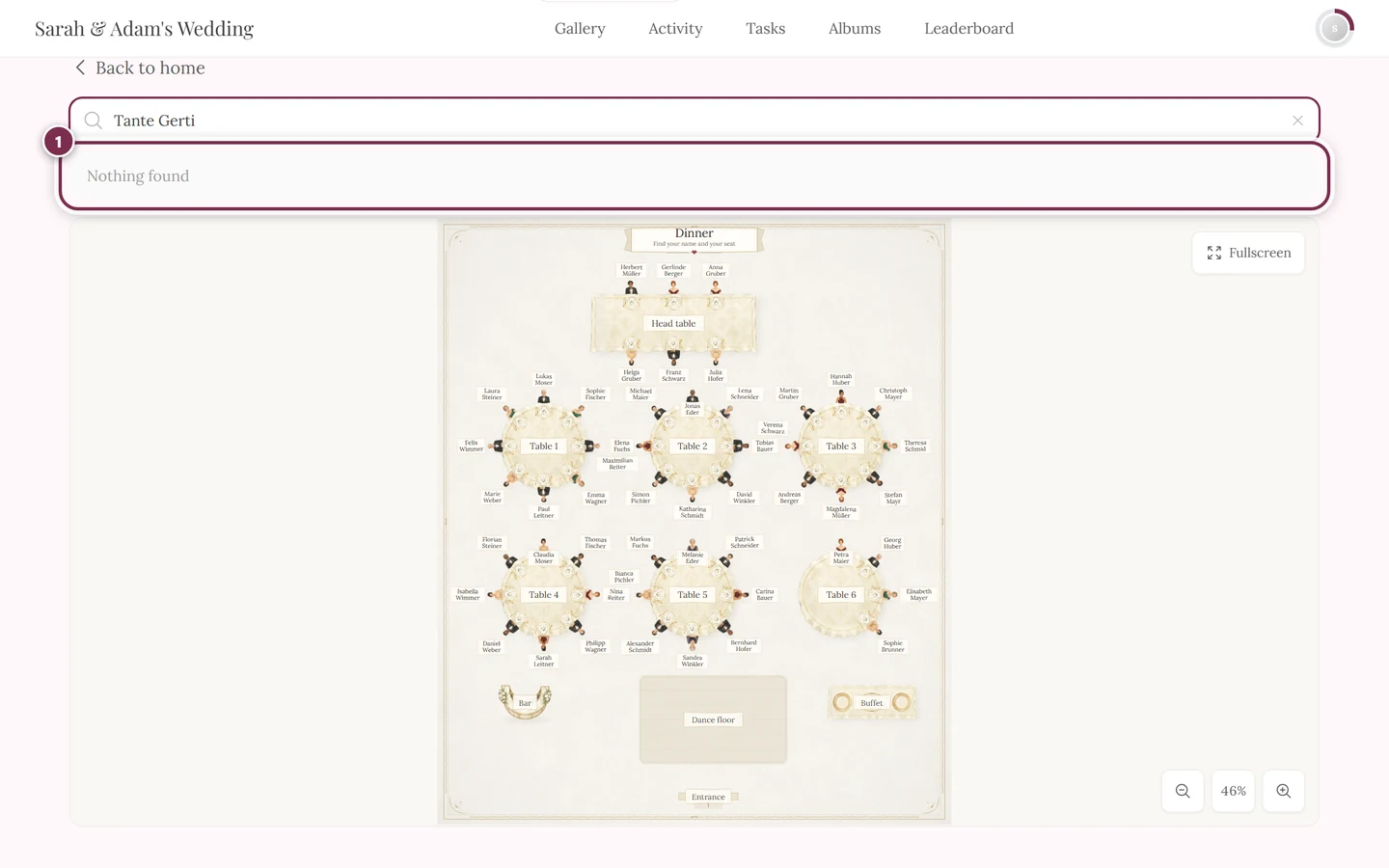
Several people with similar names
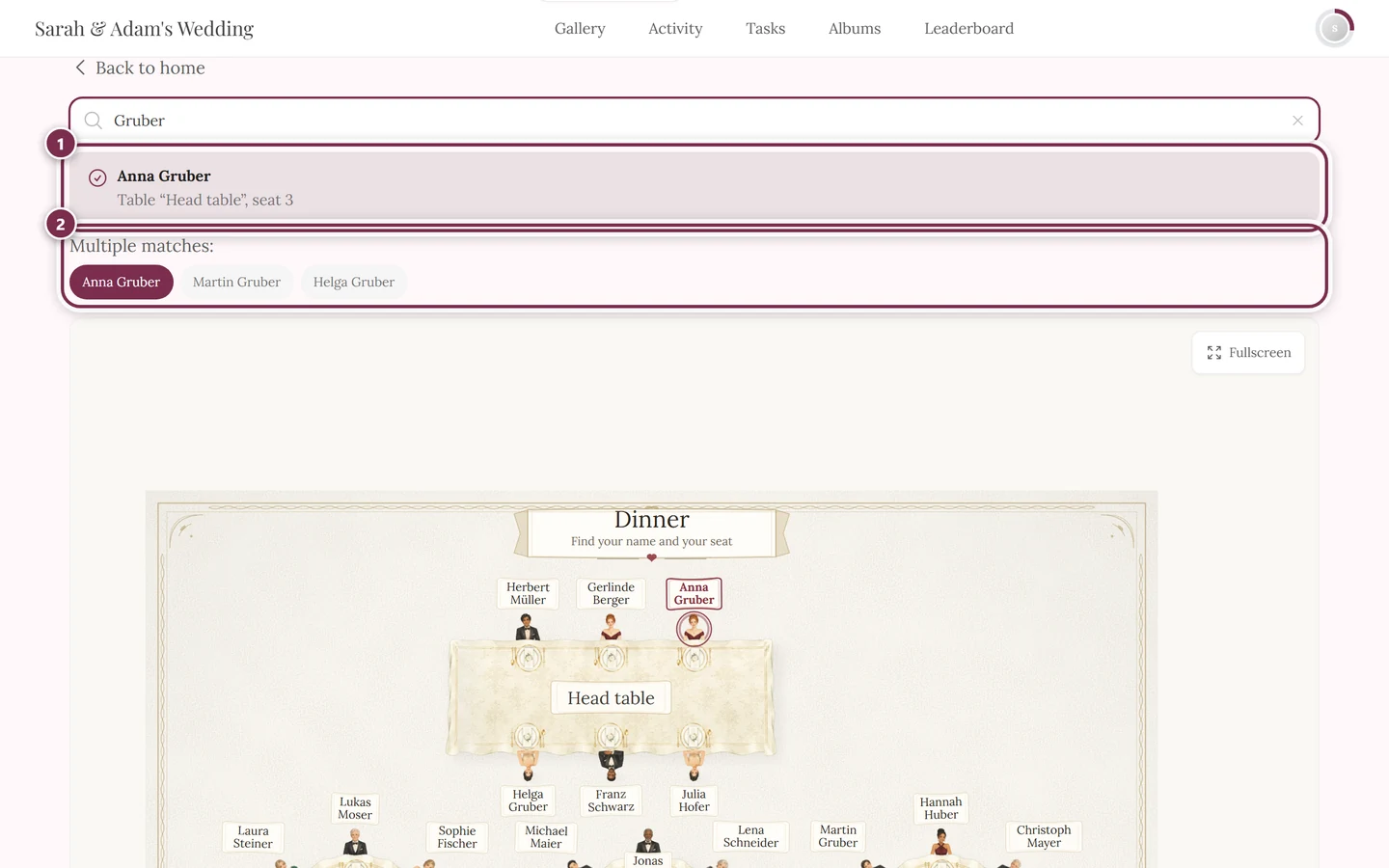
Section titled “Several people with similar names”If there is more than one match, the line Multiple matches: appears below the result, with one button per person. The match currently shown is highlighted in color; tap another button and the card above changes while the plan jumps to the new seat.
At most six buttons are listed. So if you are searching for a very common first name, add the last name.
Finding places in the room
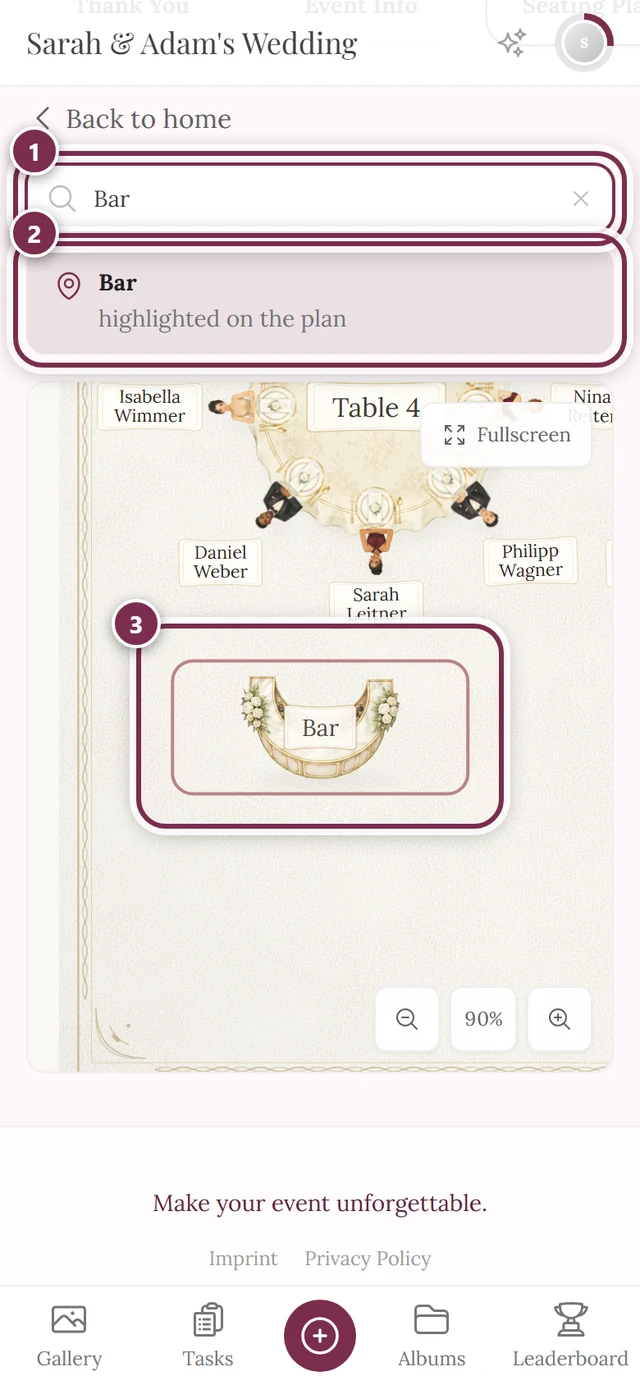
Section titled “Finding places in the room”The search field finds more than names: it also finds the things your host drew into the room — for example the Bar, WC, Dance floor, Buffet, Cloakroom, Photo booth, Stage, Cake table or Gift table.
Just type the place. Instead of a seat number you then get highlighted on the plan, and the plan centers on that spot. Handy when you want to get your bearings in an unfamiliar venue.
This also works when your host gave the element no name of its own: the search knows the standard names as well, so typing “bar” finds an unlabeled bar too.
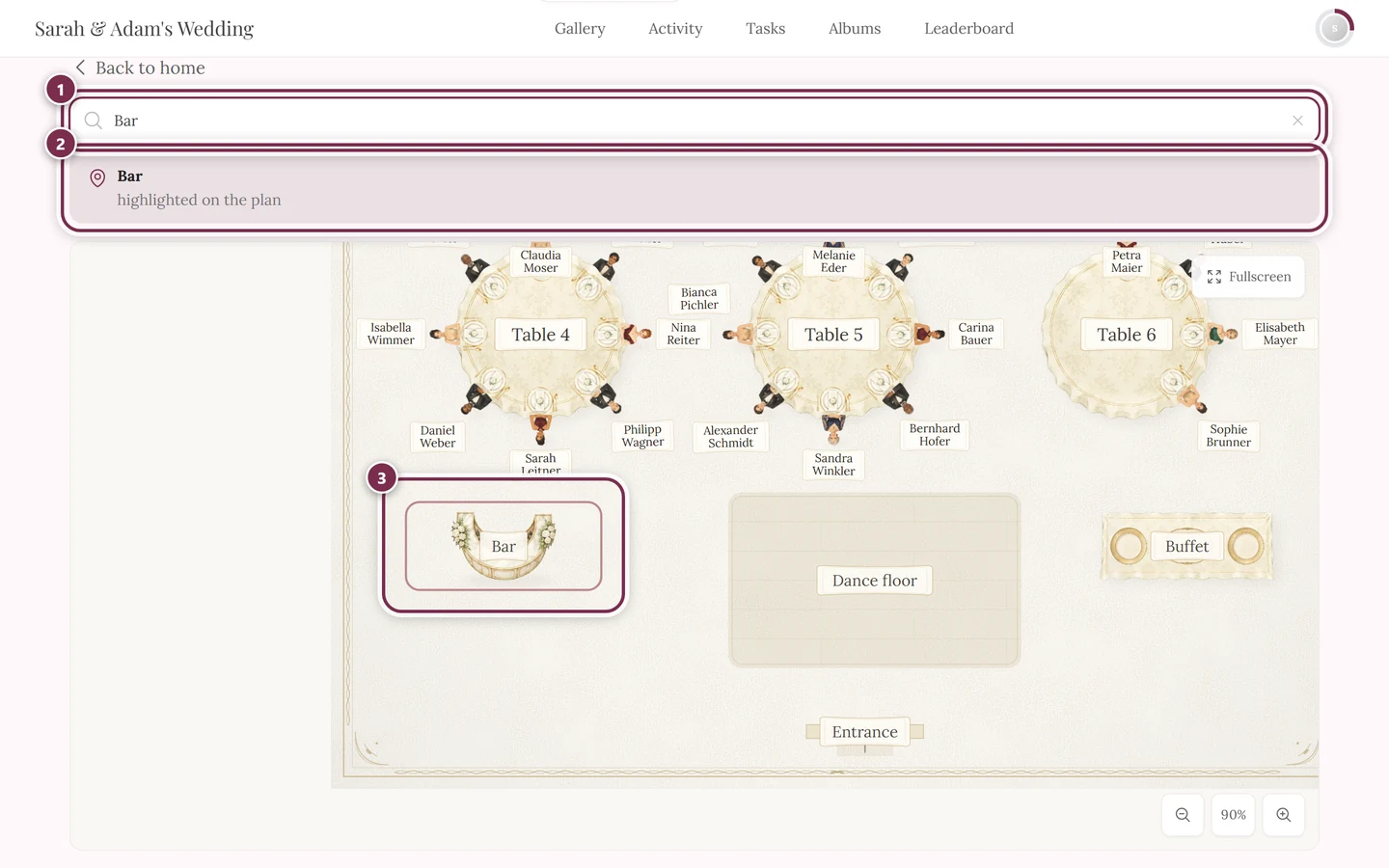
Arrived via a place card?
Section titled “Arrived via a place card?”Some hosts print a personal QR code on every place card. Scan it and the event knows who you are — the seating plan then highlights your own seat automatically, without you typing anything.
- The highlight only applies to the plan you are currently looking at. If your host did not seat you in that plan, nothing lights up.
- If you search for someone else in between, the search wins. Clear the search and the marker returns to your own seat.
- If you scan another card later, the most recently scanned code counts.
Several seating plans
Section titled “Several seating plans”An event can have more than one plan — one for the ceremony and one for dinner, for instance. In that case a row of tabs with the plan names sits above the plan.
- Pre-selected is the plan whose time slot is currently running. In the evening that is the dinner plan, all by itself.
- You can switch at any time. Switching resets the highlight — simply search for your name again in the new plan.
- Plans your host hid, or plans without any tables, do not appear at all. If only one plan is left, there are no tabs at all.
The big view: fullscreen and zoom
Section titled “The big view: fullscreen and zoom”A whole banquet hall is tiny on a phone. That is what the fullscreen view is for.
- Open fullscreen: the Fullscreen button at the top right of the plan. The plan then fills the entire screen.
- Leave fullscreen: the Exit fullscreen button at the top right — on a computer the
Esckey works too. - Zoom with the buttons: plus and minus sit at the bottom right. The button between them shows the current zoom in percent; tapping it resets the zoom so the whole plan fits again.
- Zoom with your fingers: put two fingers on the plan and pull them apart. One finger pans the view.
- Zoom with the mouse: hold
Ctrl(Cmdon a Mac) and scroll. Without that key the page simply scrolls on as usual.
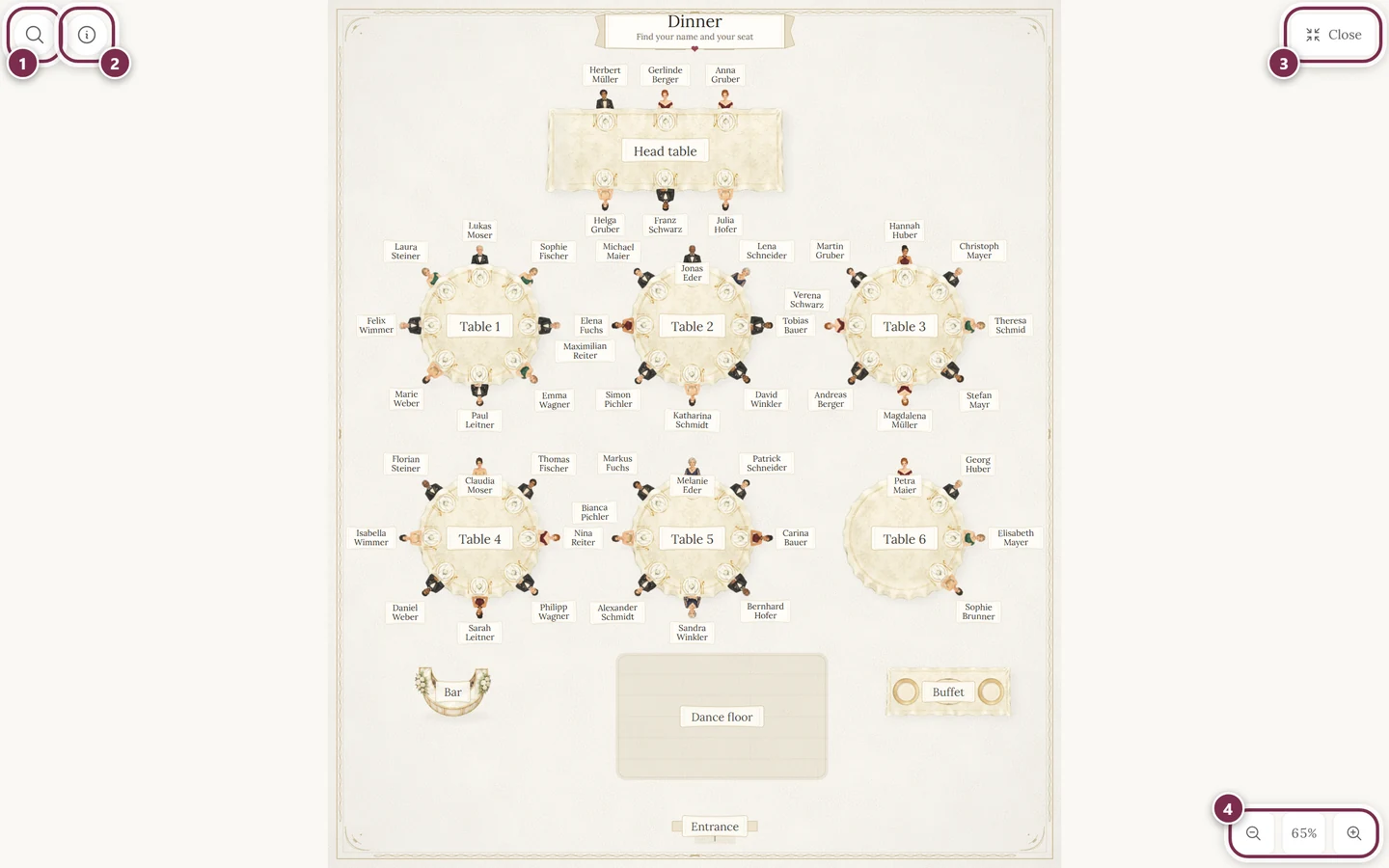
In fullscreen, search and info move into two round buttons at the top left. Only one of the two panels is open at a time.
The magnifier opens a compact search field with a list of matches to tap. Unlike the page underneath, this list shows all matches, not just six — with many namesakes you can scroll it. As soon as you pick one, the list closes and the plan shows the spot.
The i shows the plan name, the line Find your name and your seat, the number of tables and of seats taken, plus the hint Tap the magnifier to find your name or a place. Pinch with two fingers to zoom. If there are several plans, you can switch here as well.
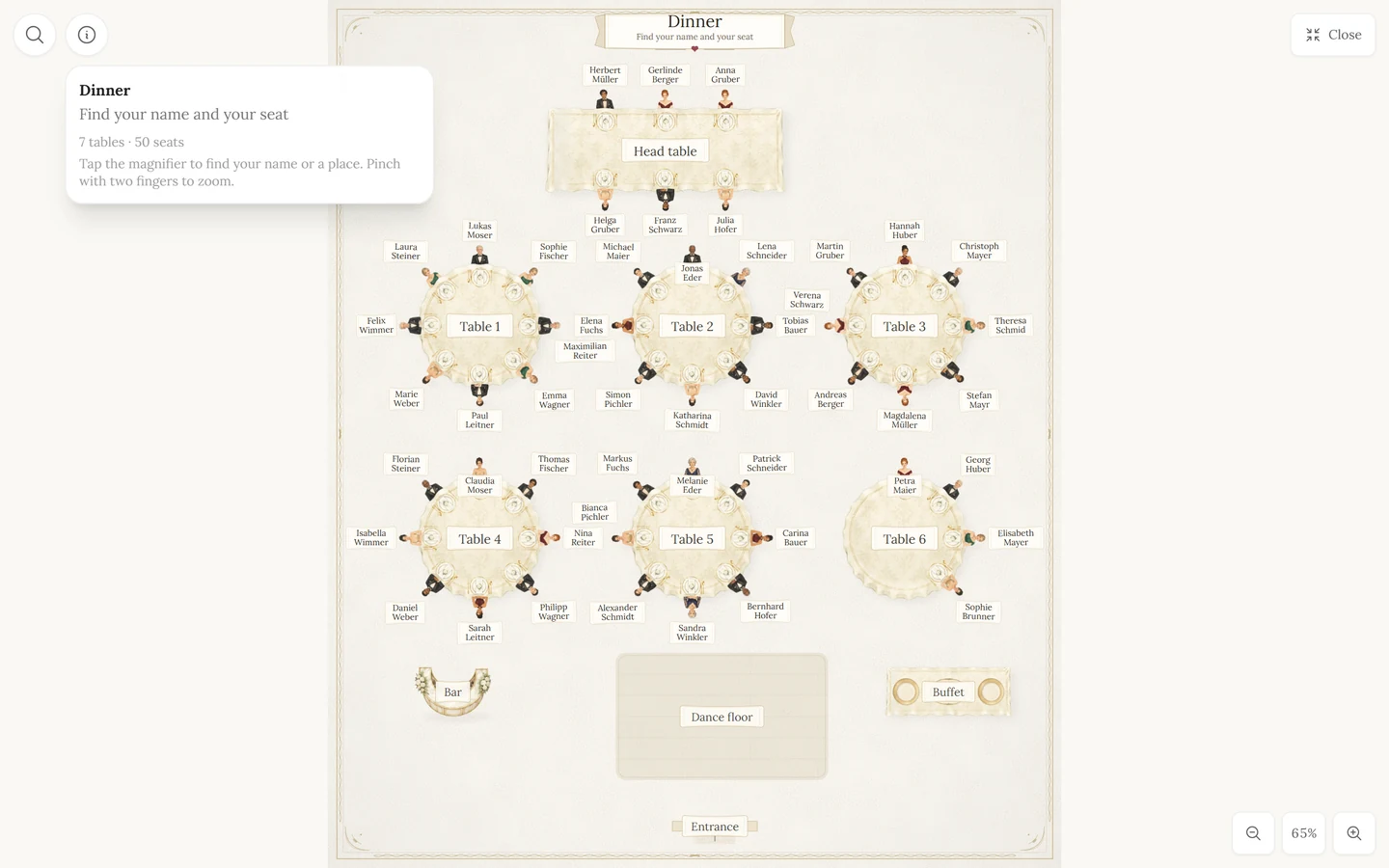
A seat you found before switching to fullscreen stays highlighted.
The illustrated view
Section titled “The illustrated view”The seating plan is not a dry table but a drawn scene: tables, chairs and floor objects are shown as a picture, and every taken seat has a little figure with a name tag above it.
- Your host picks the look. There are many styles — from Watercolor and Flowers through Traditional / Bavarian and Gala / black tie to Space or Wild West. As a guest you cannot change it.
- Your figure is marked. The seat the search found — or your own seat after scanning a place card — is highlighted and pulses.
- Free seats are hidden. The guest view only shows taken seats so the plan is not cluttered with empty chairs.
- Labels may be missing. Your host can hide the names of the floor objects. The search still finds them.
Troubleshooting
Section titled “Troubleshooting”My name is not found. Three common reasons: you are spelled differently in the guest list (nickname, double-barrelled name, typo) — try just your first name. Or you do not have a seat in this plan yet. Or your host is not finished with the seating. Names without a seat never appear in the guest search.
I cannot see the seating plan at all. Then your host has not enabled the tool, has not allowed an entry in the tool rail, or the plan is only visible during a certain time window. Some hosts unlock it shortly before the event.
The plan is empty or says “The seating plan is not available yet.” Then the currently selected plan has no tables yet. Check the tabs at the top — the finished plan may sit in a different tab.
I cannot find my companion. A companion is only found once your host gave them a name and assigned them a seat. If the guest list only says “Companion”, search for that word.
The plan is so small that I cannot read anything. Use Fullscreen at the top right, then zoom with two fingers or the buttons at the bottom right.
I found my seat, but the marker is gone. Switching the plan tab resets the highlight. Just type your name again.
Related pages
Section titled “Related pages”- For hosts: Setting up the seating plan — create tables and seat your guests.