DJ Wishes
DJ wishes collect song requests without anyone walking up to the booth. The list fills up live while the event runs.
Setting it up
Section titled “Setting it up”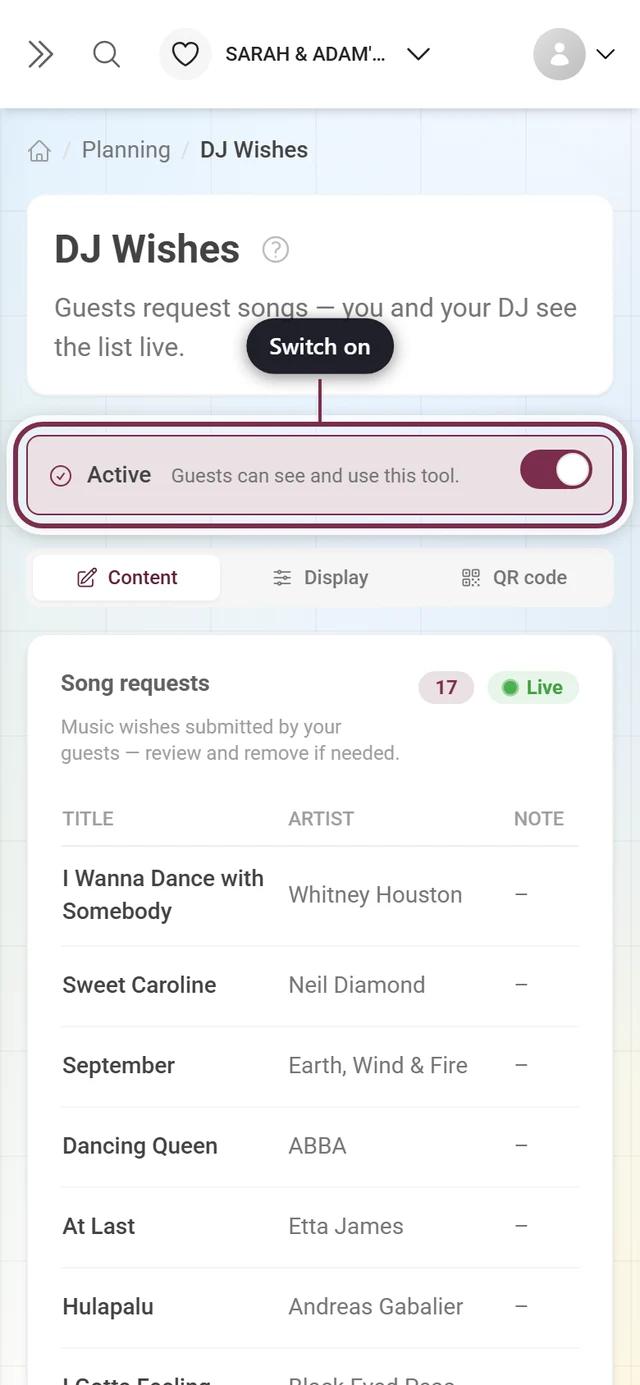
-
Open Tooling → DJ Wishes and switch on Enable tool at the top.
-
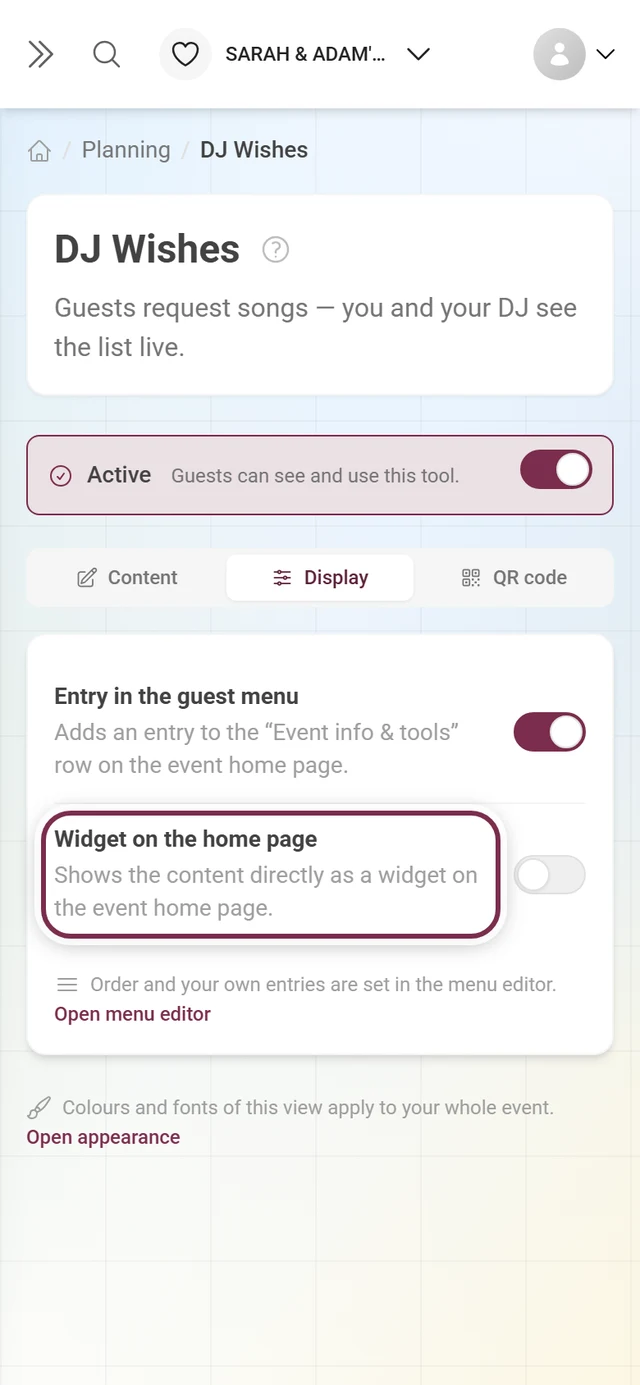
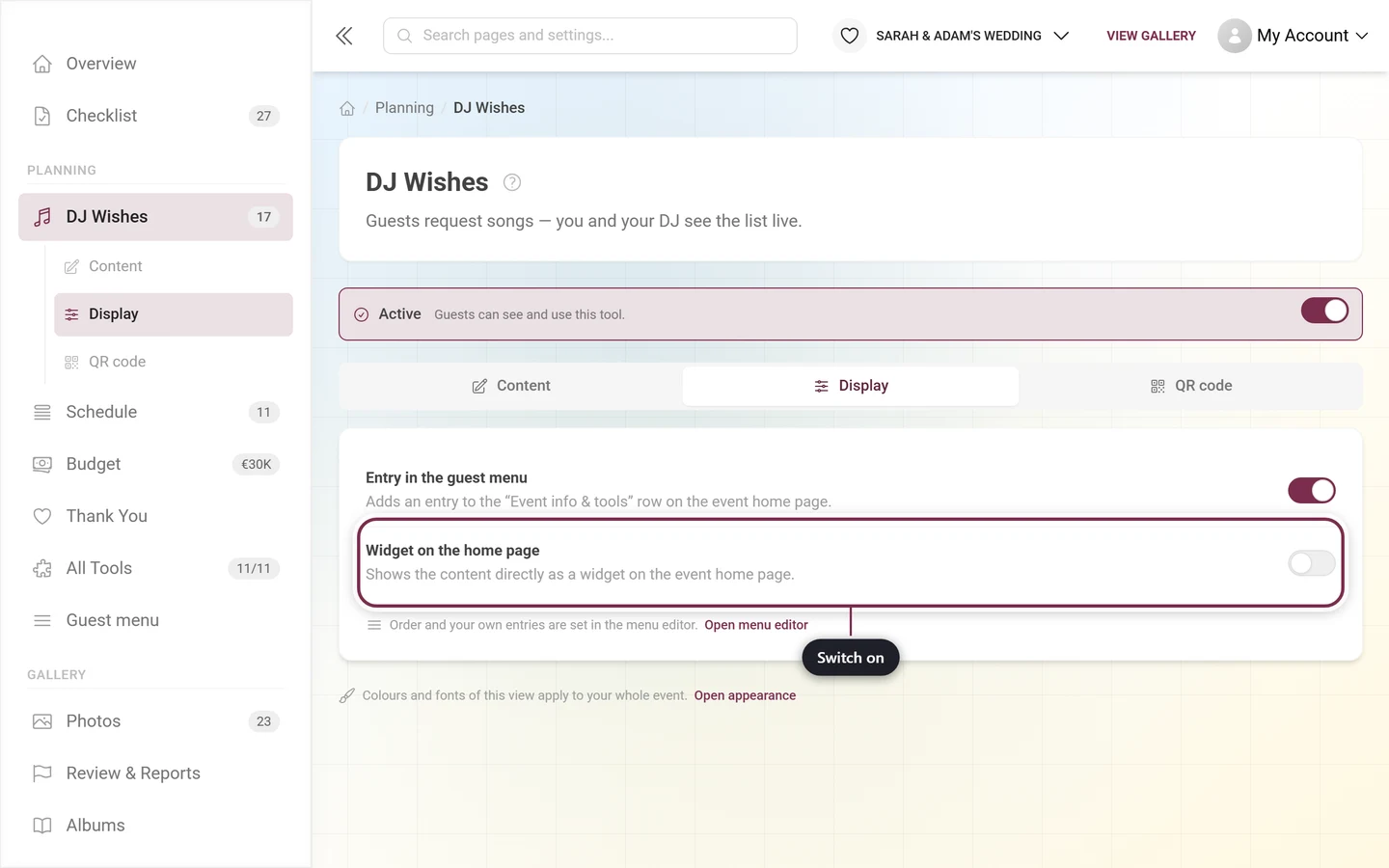
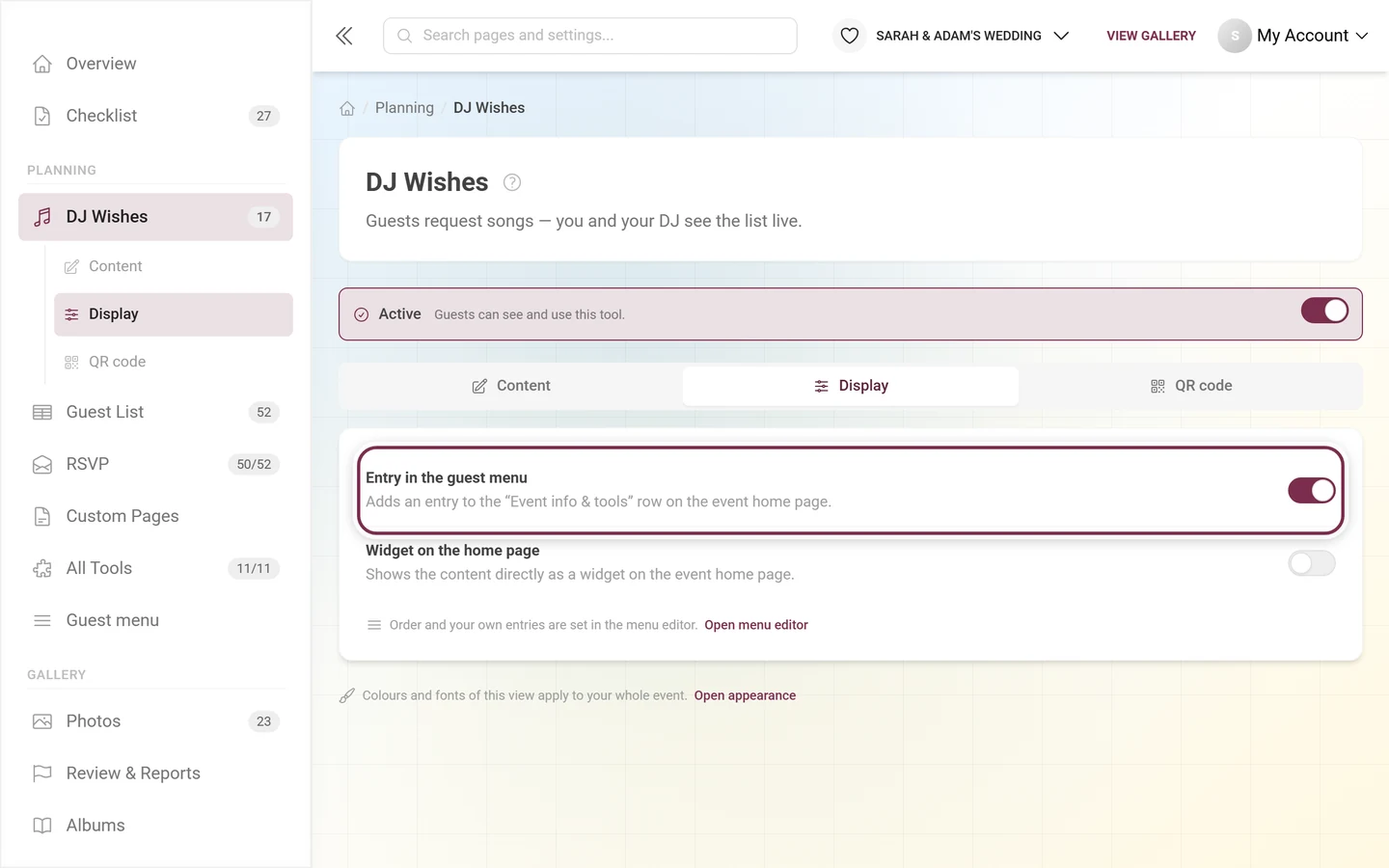
In the Display tab, keep Widget on the home page and/or Entry in the guest menu enabled so your guests find the tool. With the widget on, the Widget style appears below it.
-
That’s it. No further preparation is needed – your guests supply the content.
The widget on the home page
Section titled “The widget on the home page”With Widget on the home page enabled, a card sits there titled Request a song, with the subtitle Tell the DJ what you want to hear. and a Request song button. One click leads straight to the form.
Unlike the schedule, this widget shows no content of its own – it is a pure invitation to join in, and therefore visible right after you enable it, even when not a single request exists yet.
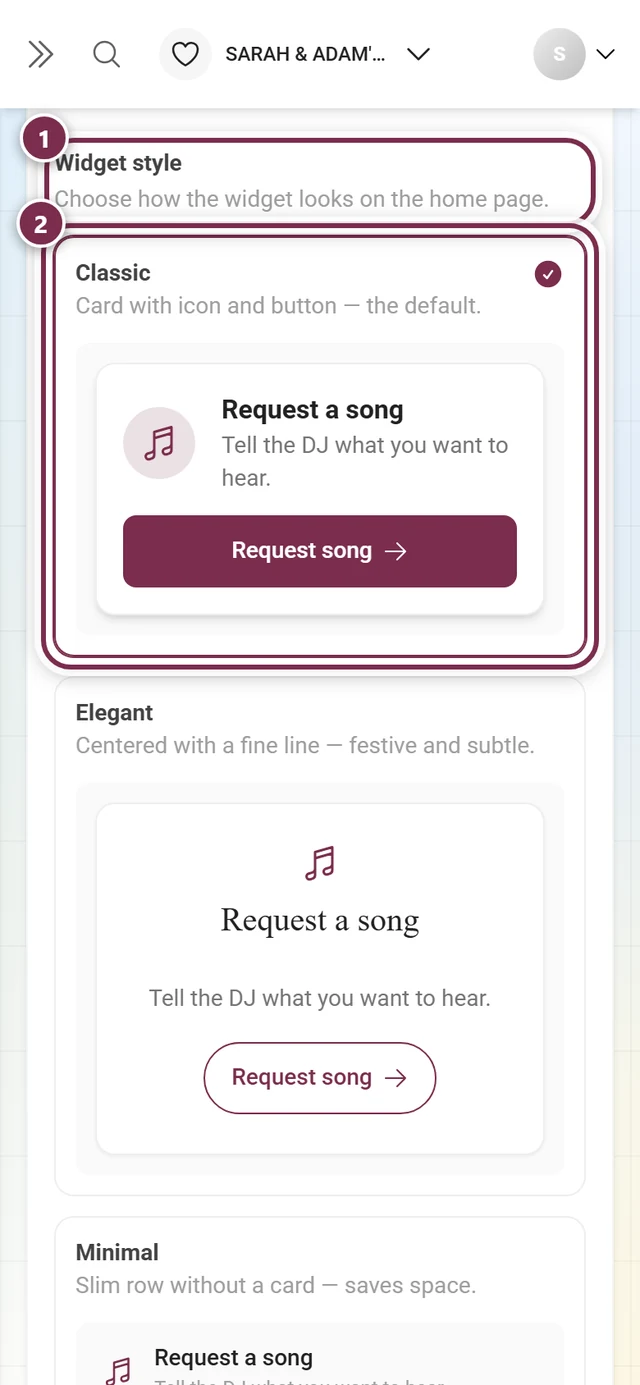
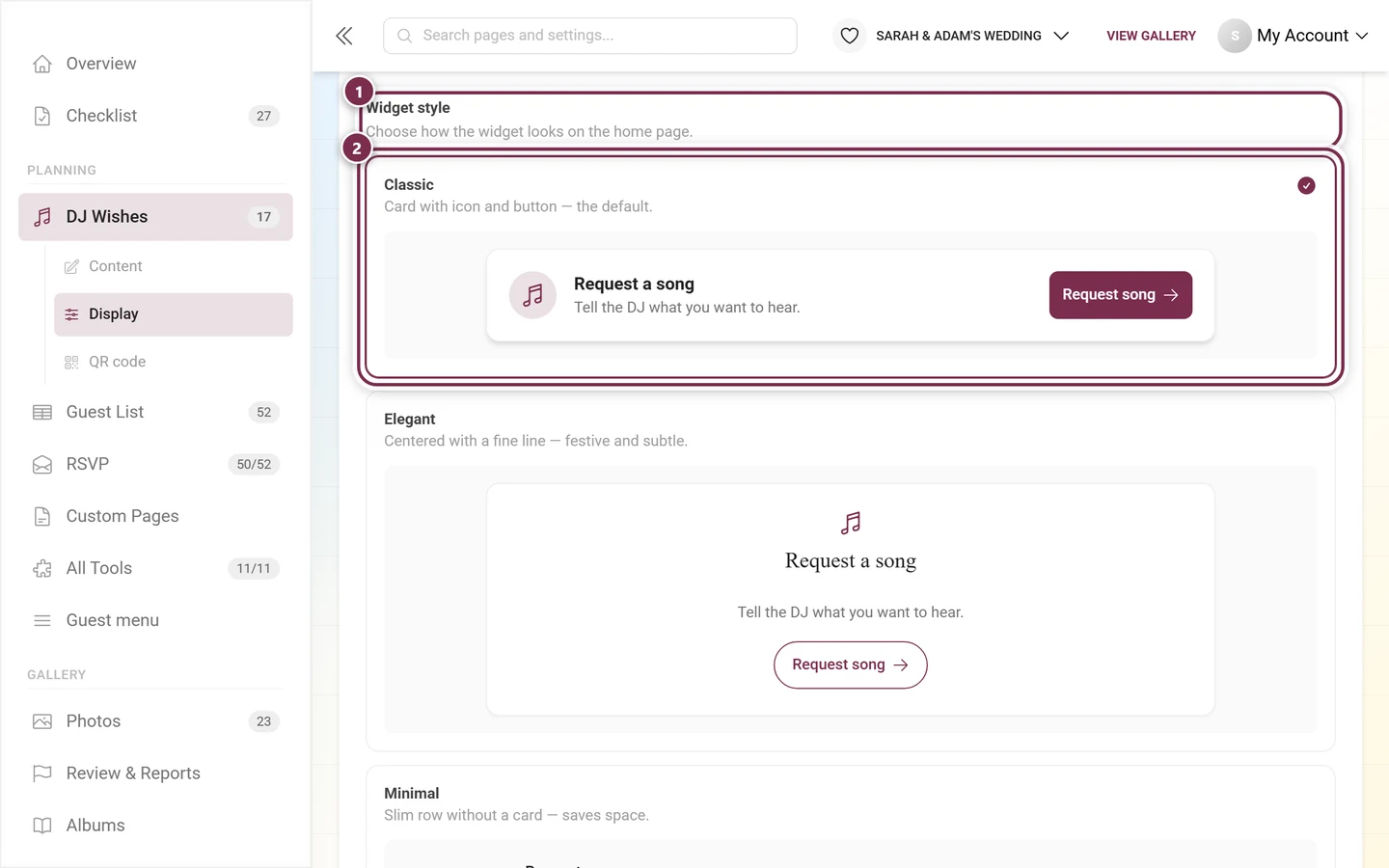
As long as the switch is on, the Widget style block sits below it with five cards: Classic (the default), Elegant, Minimal, Bold and Soft. Each card shows the widget in that very style, so you see the effect before you choose. Turn the widget off and the block disappears – with no widget there is nothing to style.
The entry in the guest menu
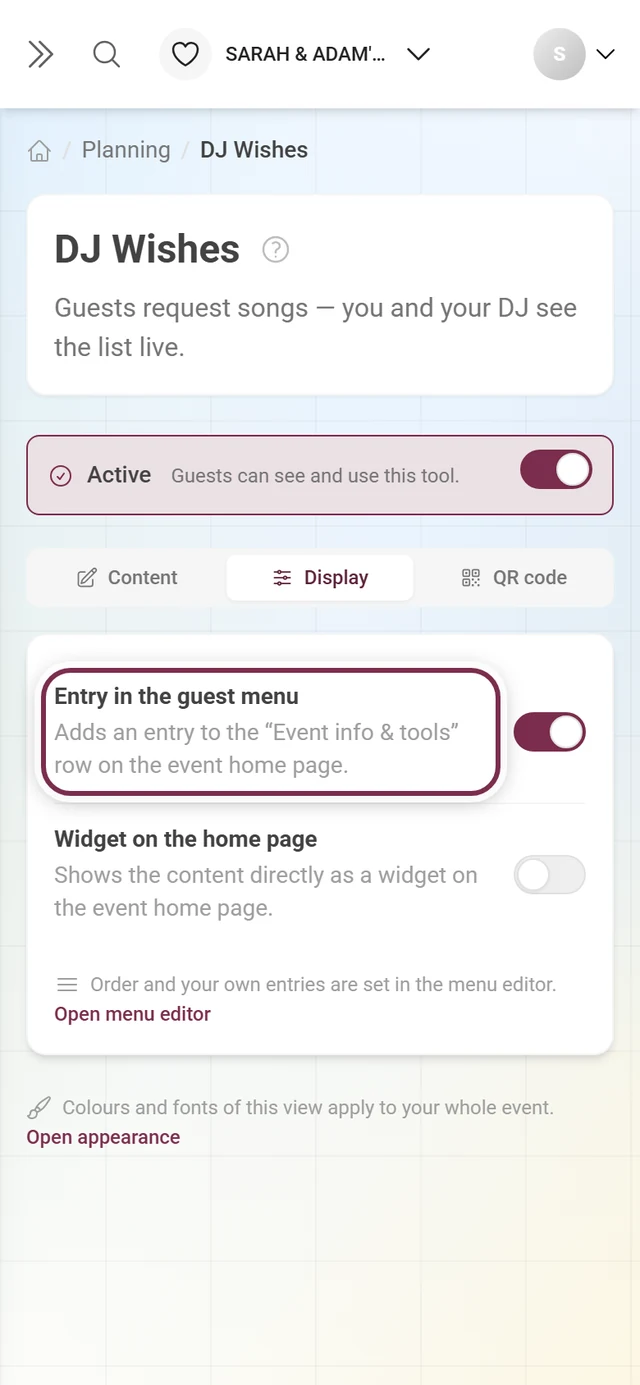
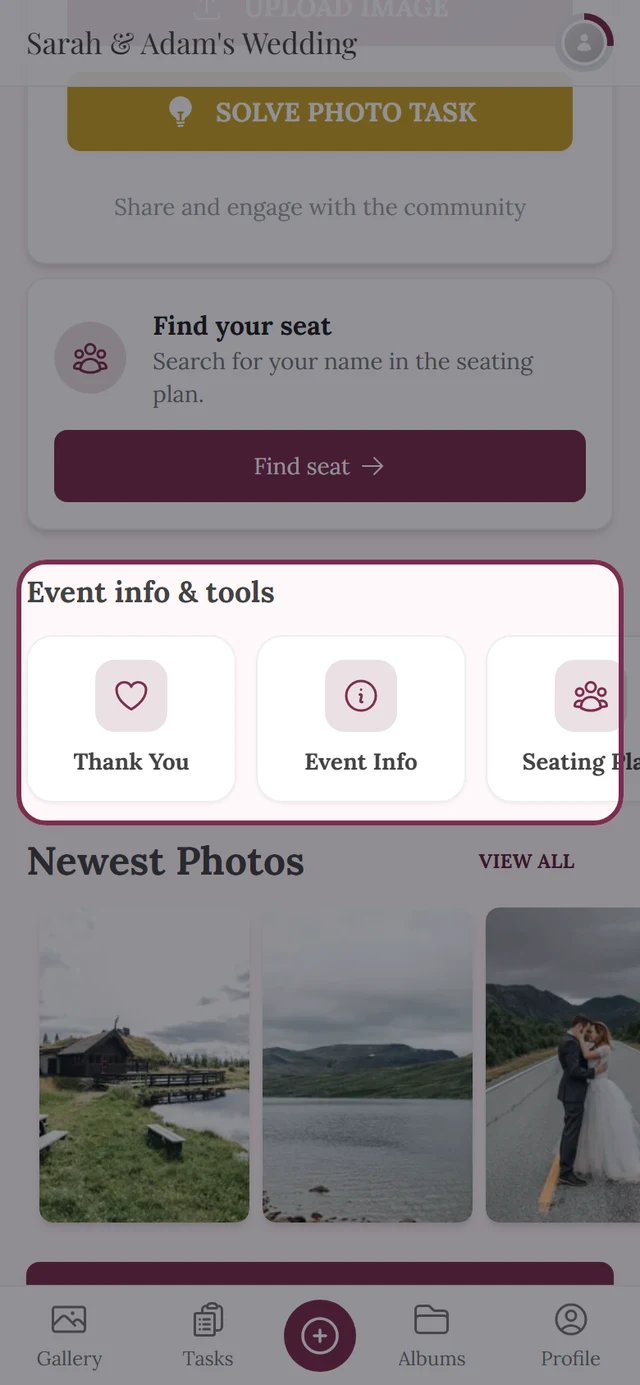
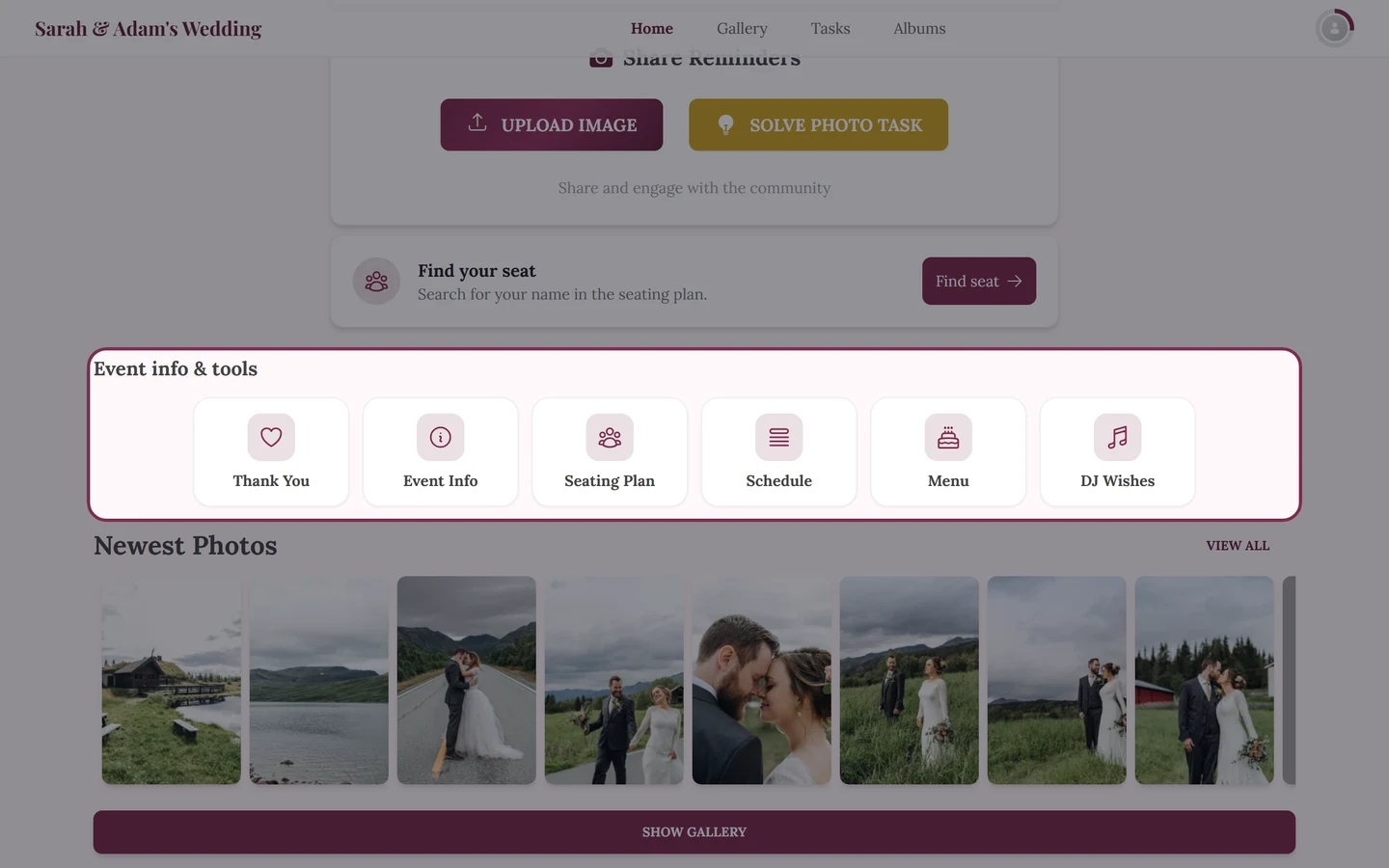
Section titled “The entry in the guest menu”The upper of the two switches in the Display tab is called Entry in the guest menu. It puts DJ Wishes into the Event info & tools rail on the event home page – no matter whether the widget is on. Both routes lead to the same form, so using just one of them is fine.
Reading the request list
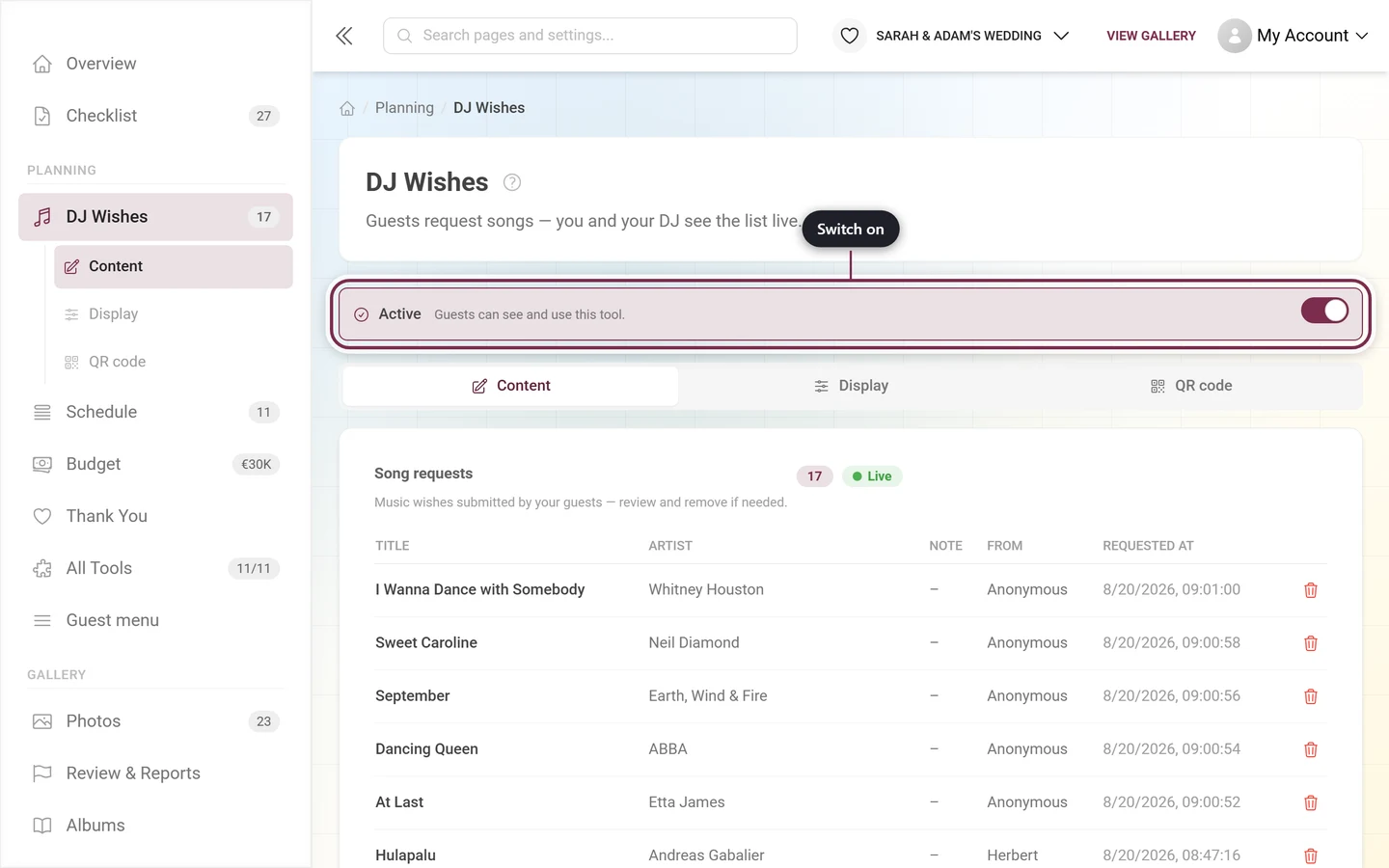
Section titled “Reading the request list”In the Content tab the editor is called Song requests and describes itself as music wishes submitted by your guests – review and remove if needed. There is nothing to create here.
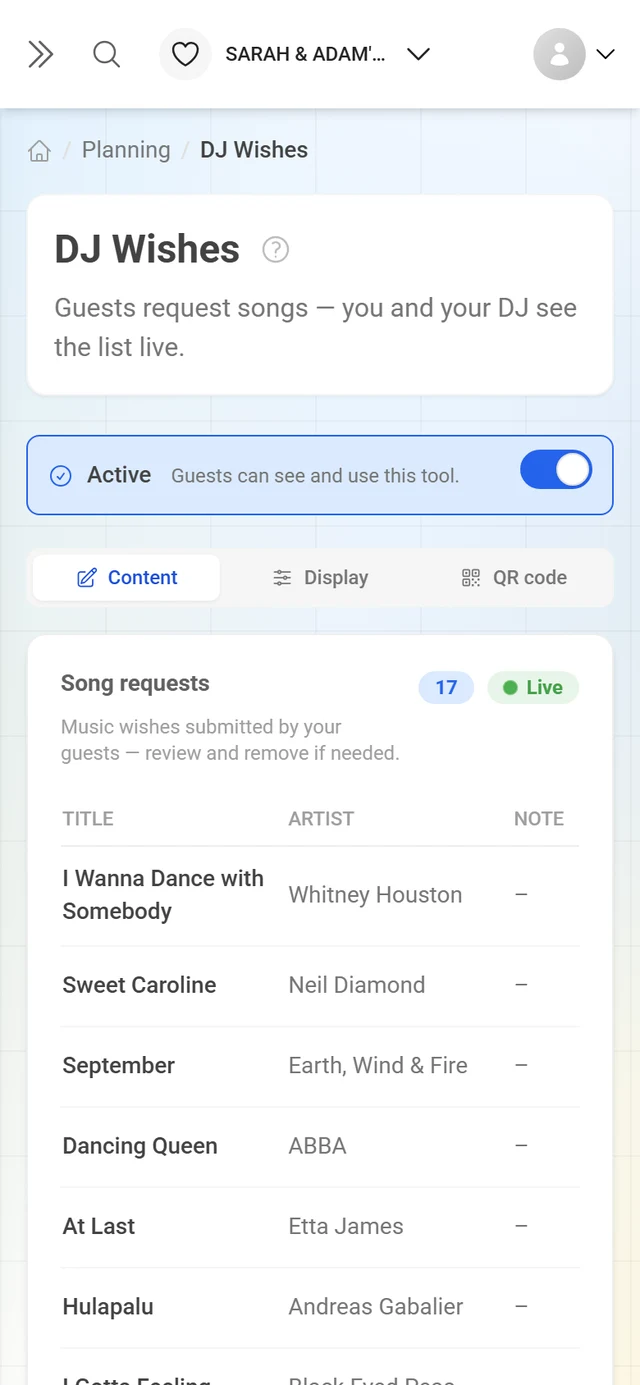
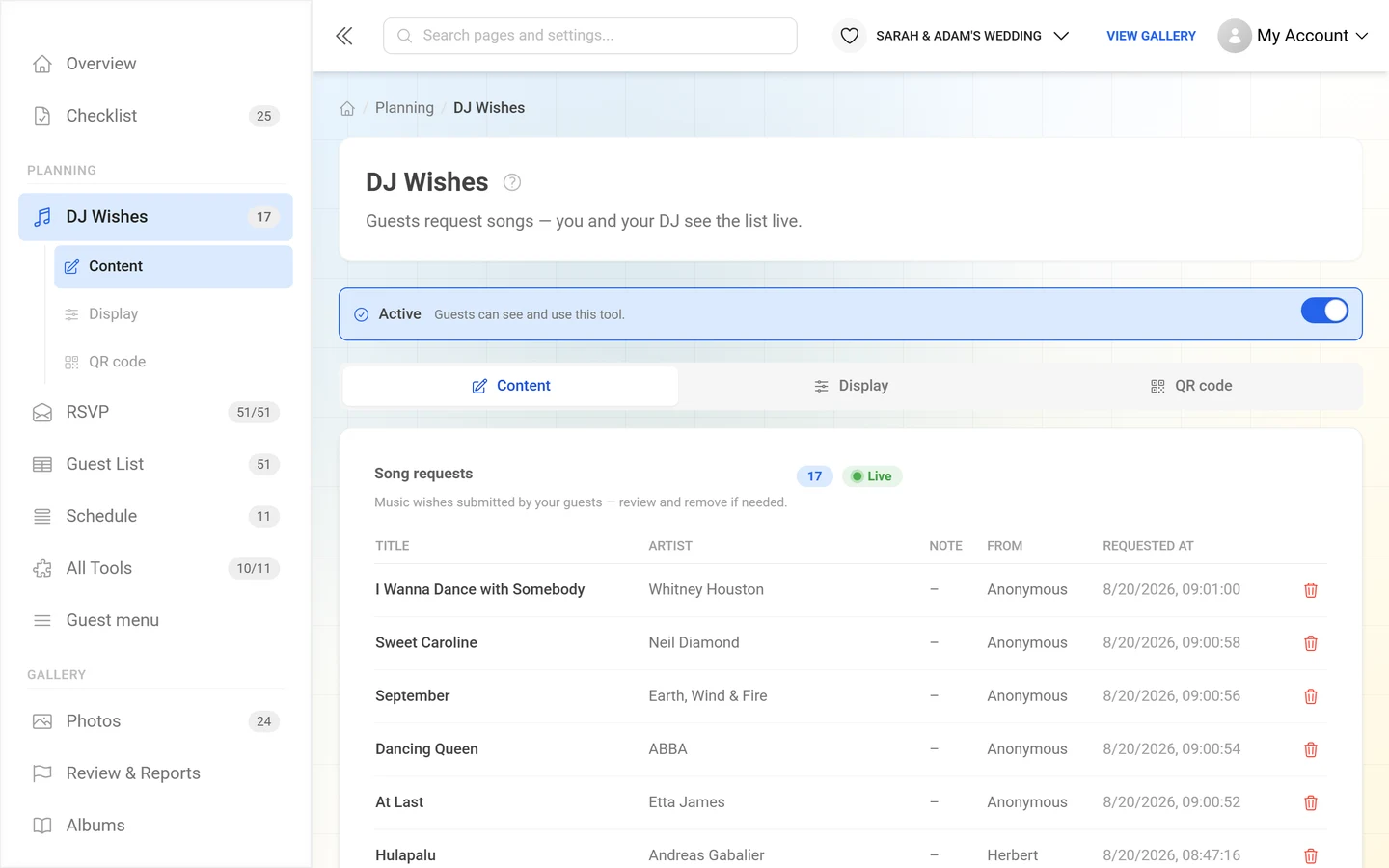
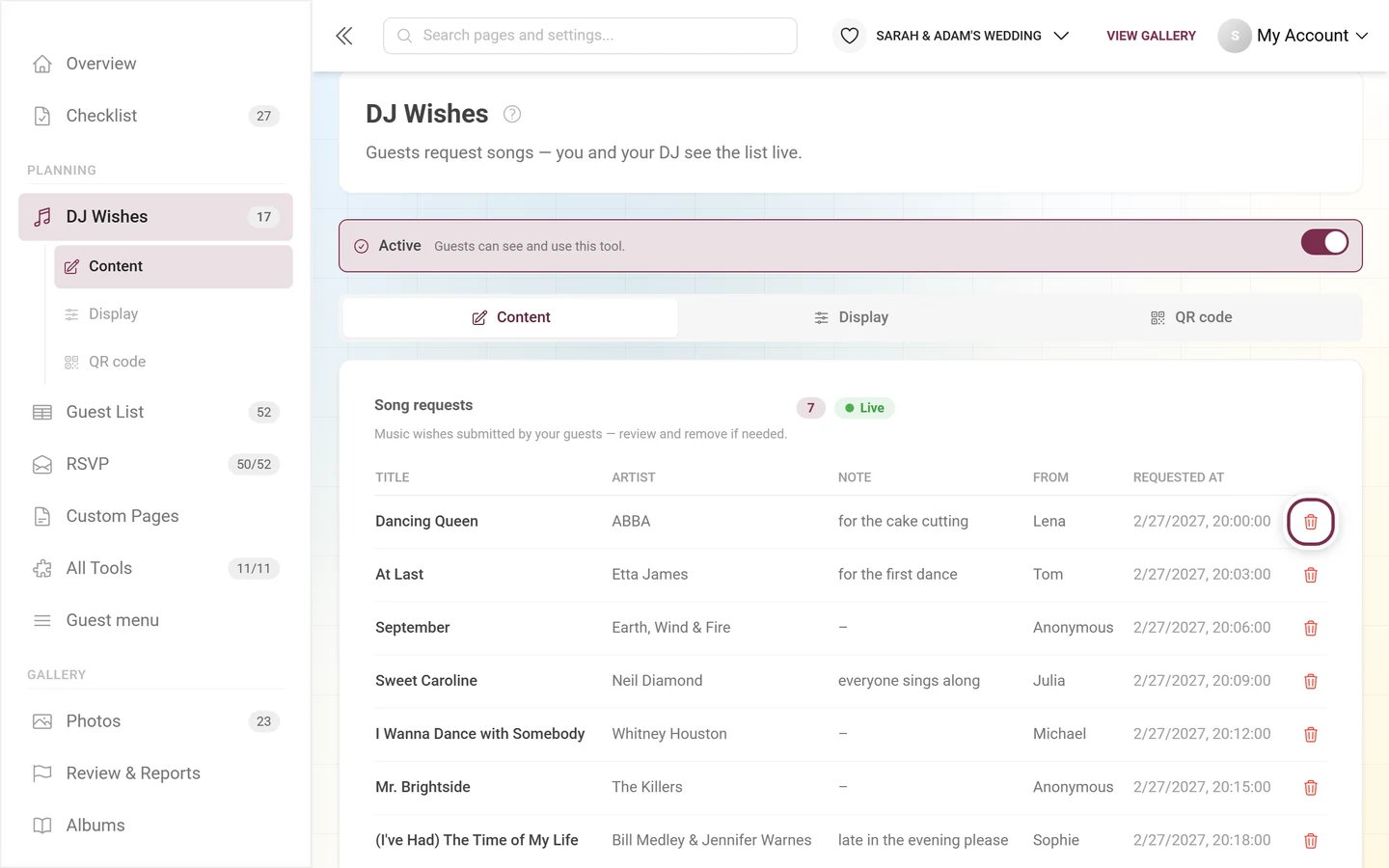
Next to the heading sit two chips: the total number of requests and a green Live chip. That chip is meant literally – new requests appear instantly, as long as this view stays open. Freshly arrived rows stay highlighted for about six seconds and carry a New badge.
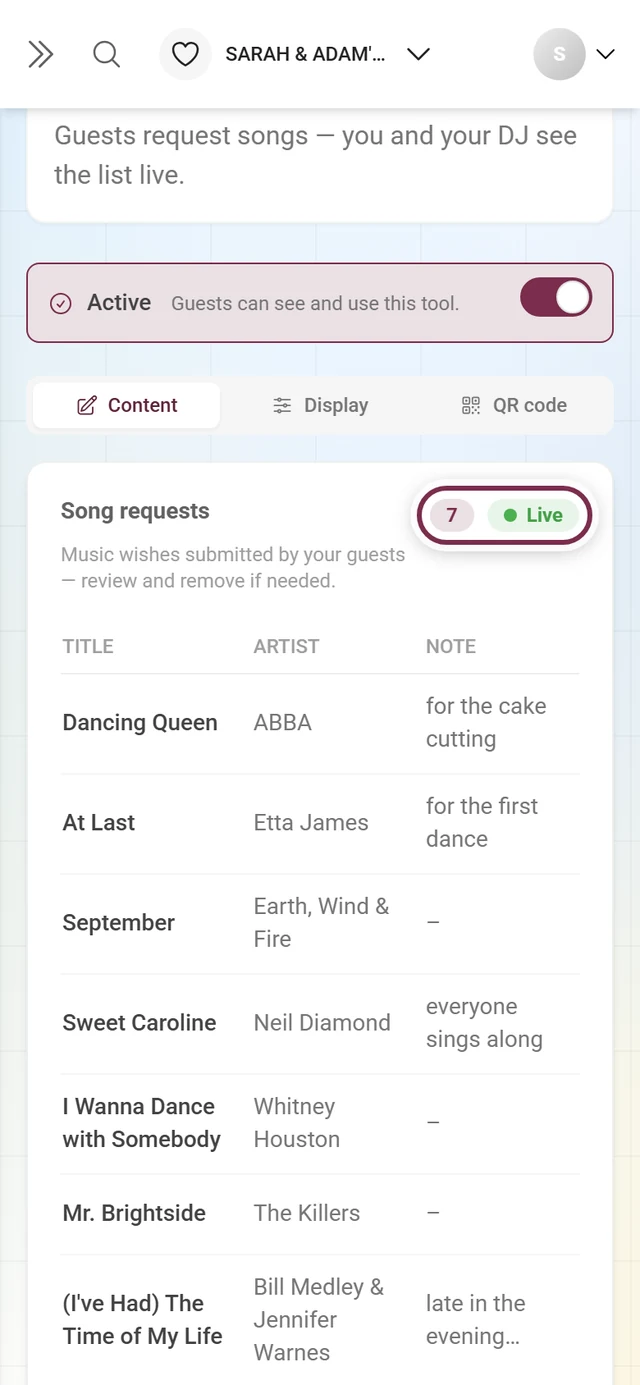
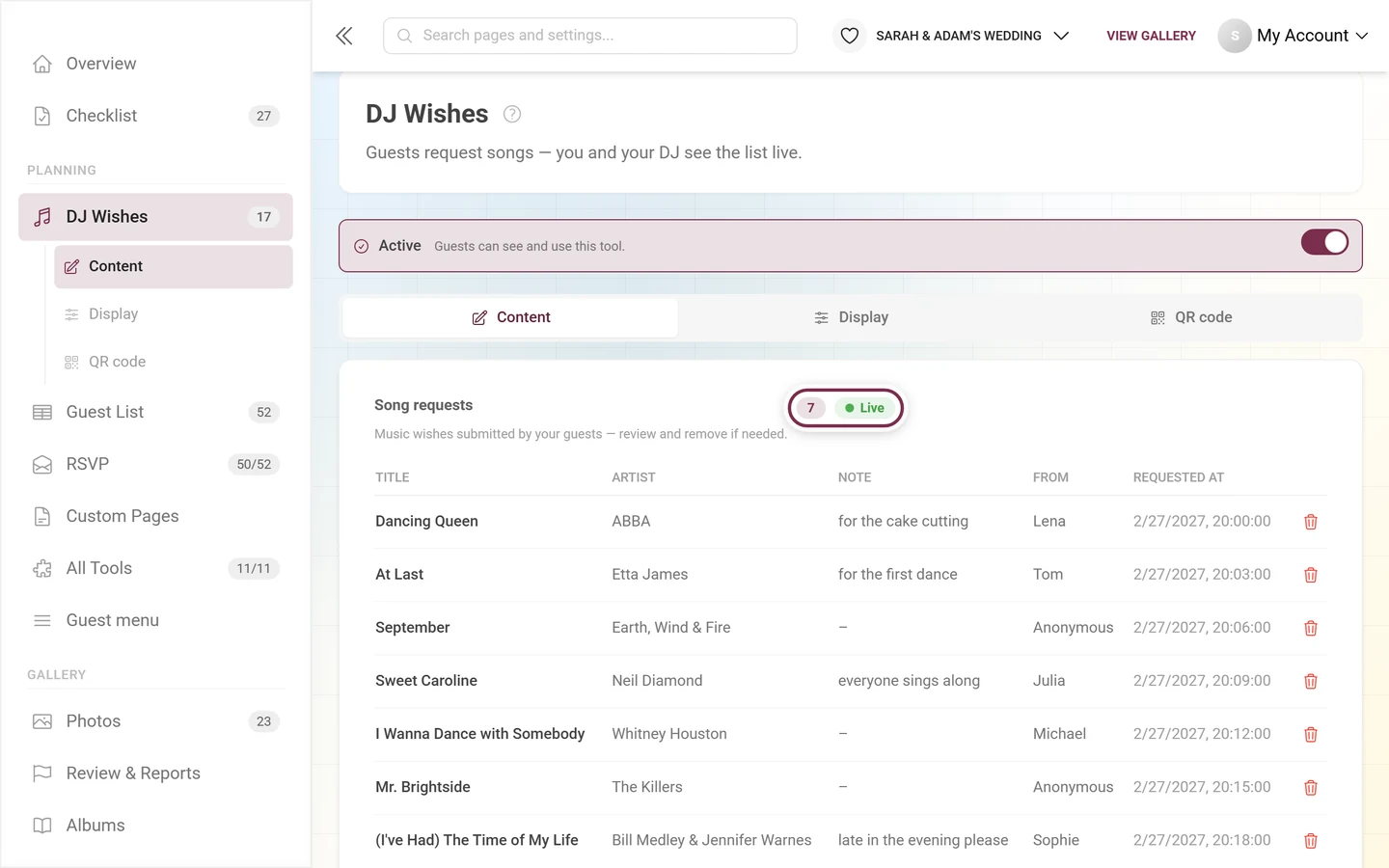
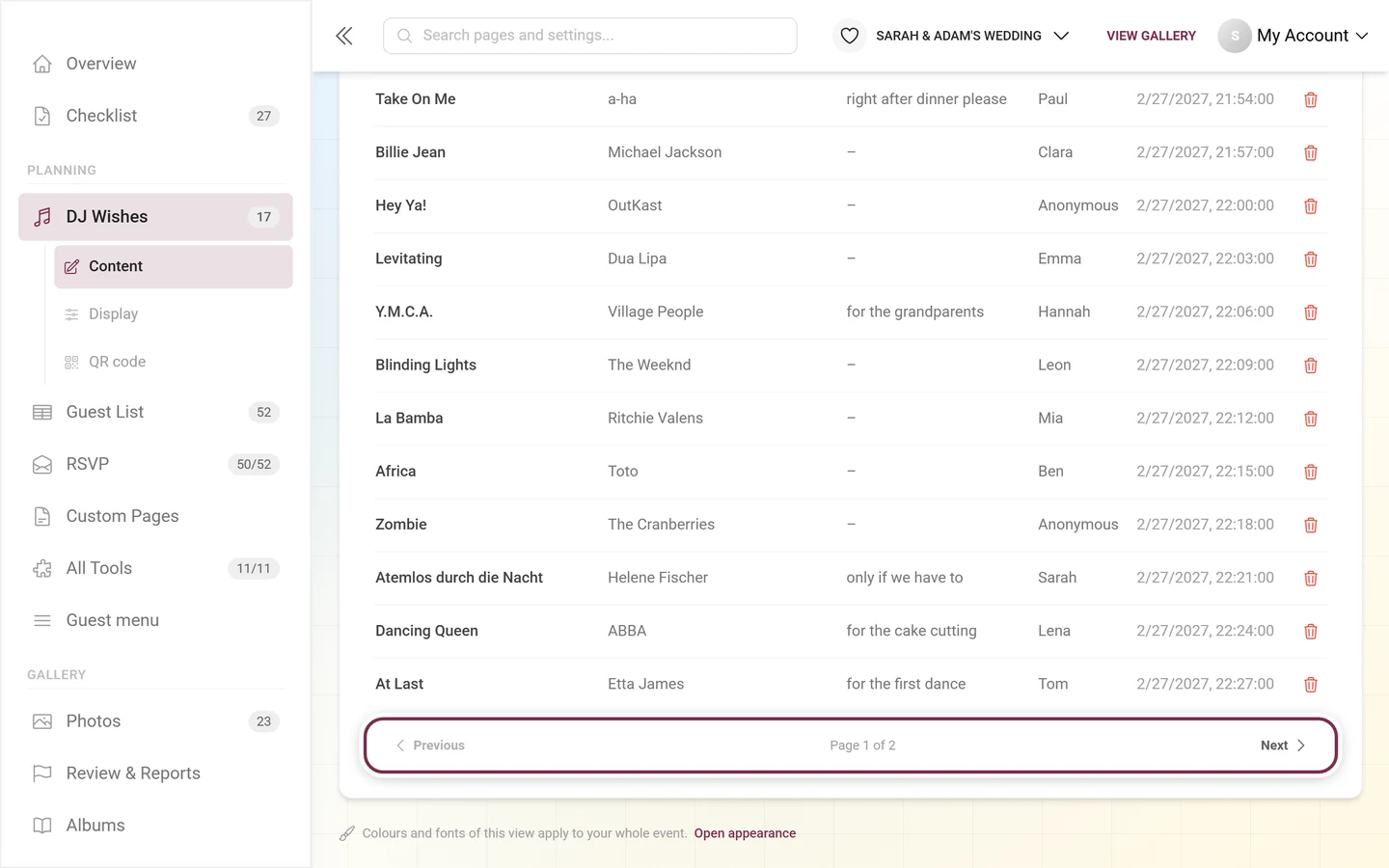
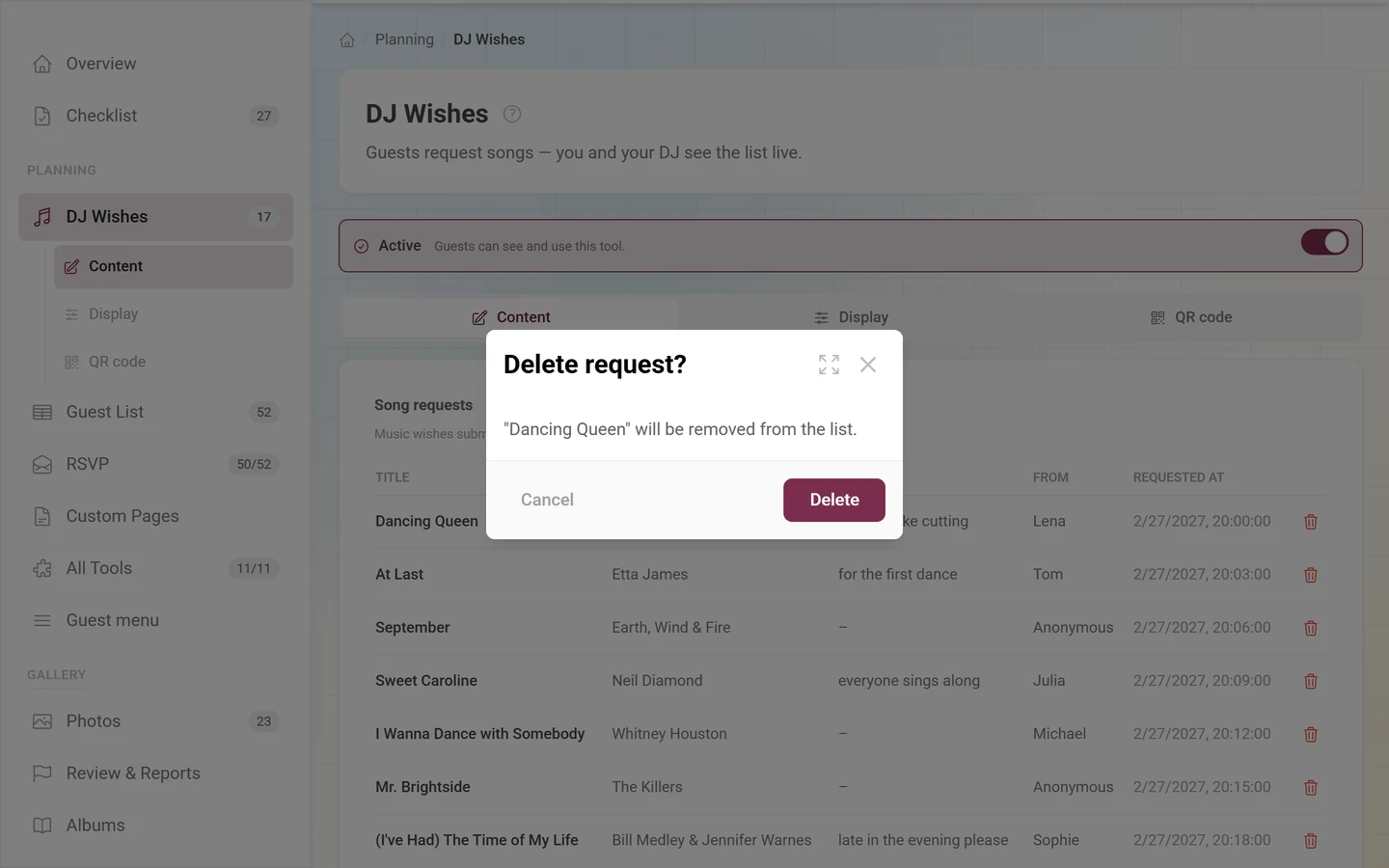
The table has these columns:
- Title – the requested song. The only required field for your guests.
- Artist – optional, helps with ambiguous titles.
- Note – optional, such as for the cake cutting.
- From – who requested the song.
- Requested at – date and time of the entry.
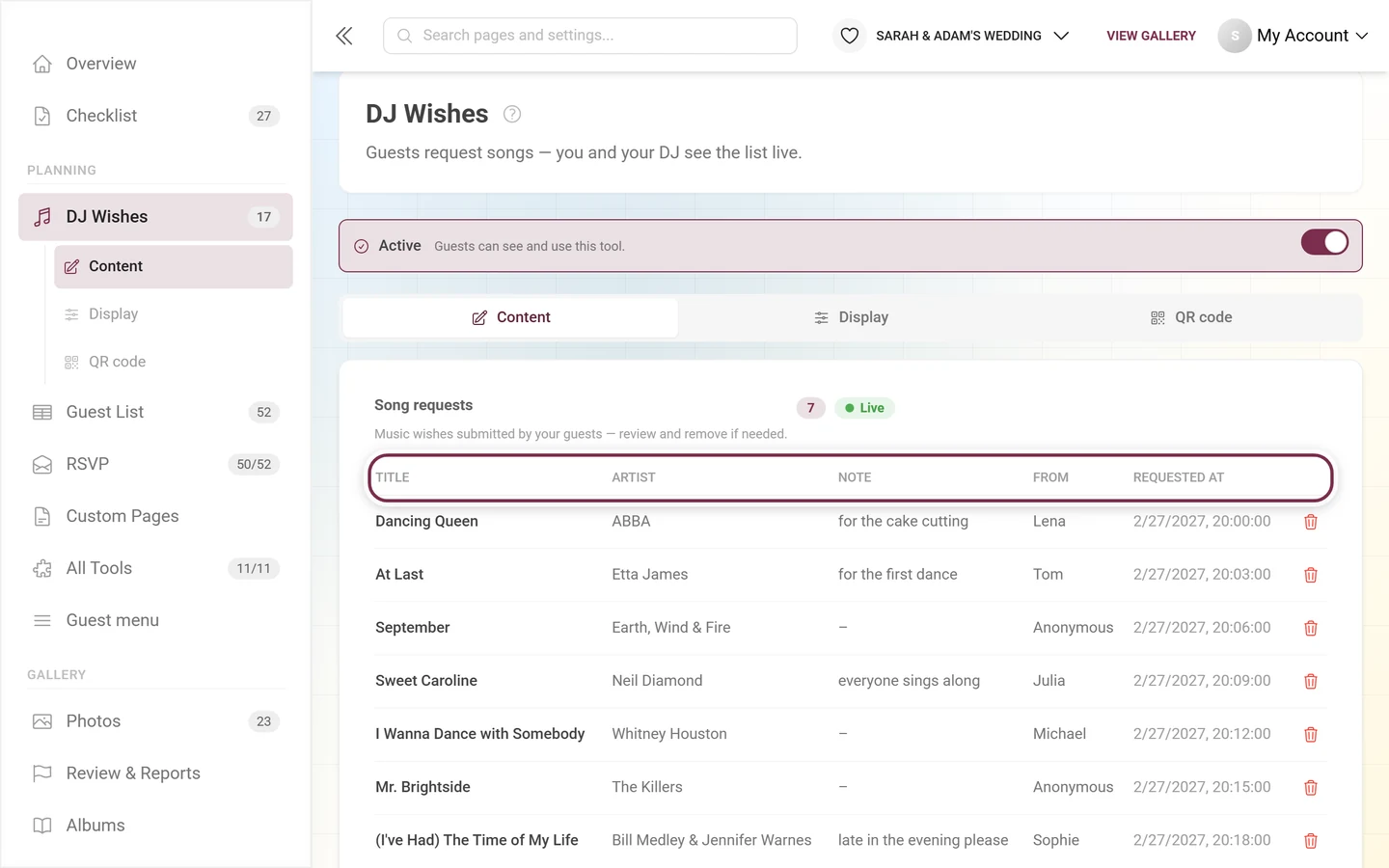
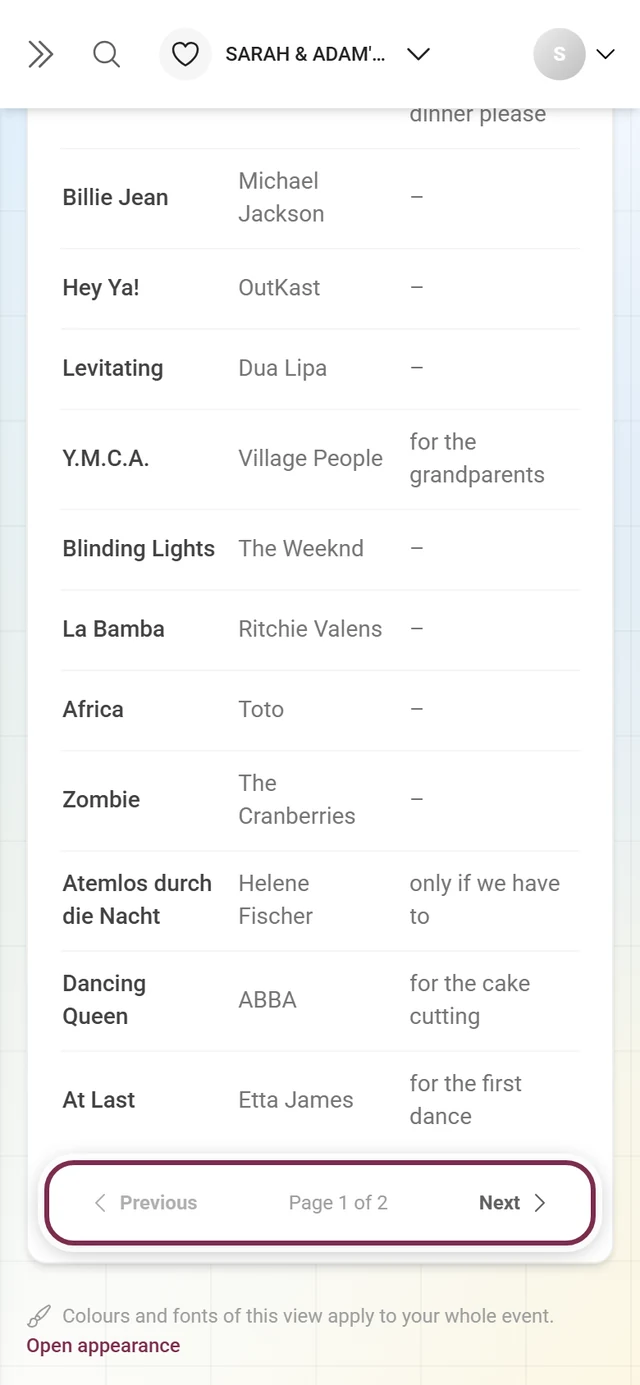
The list is sorted by arrival, newest first. From 50 entries on, page controls appear at the bottom: Previous, Page X of Y and Next.
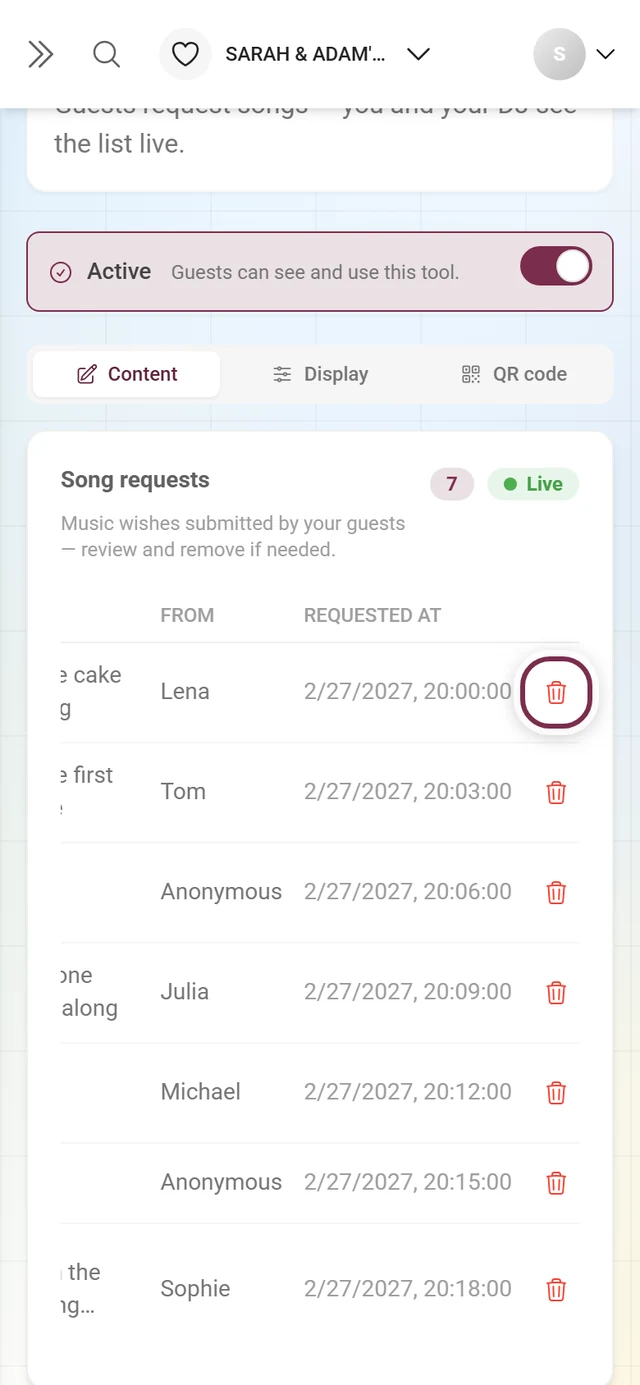
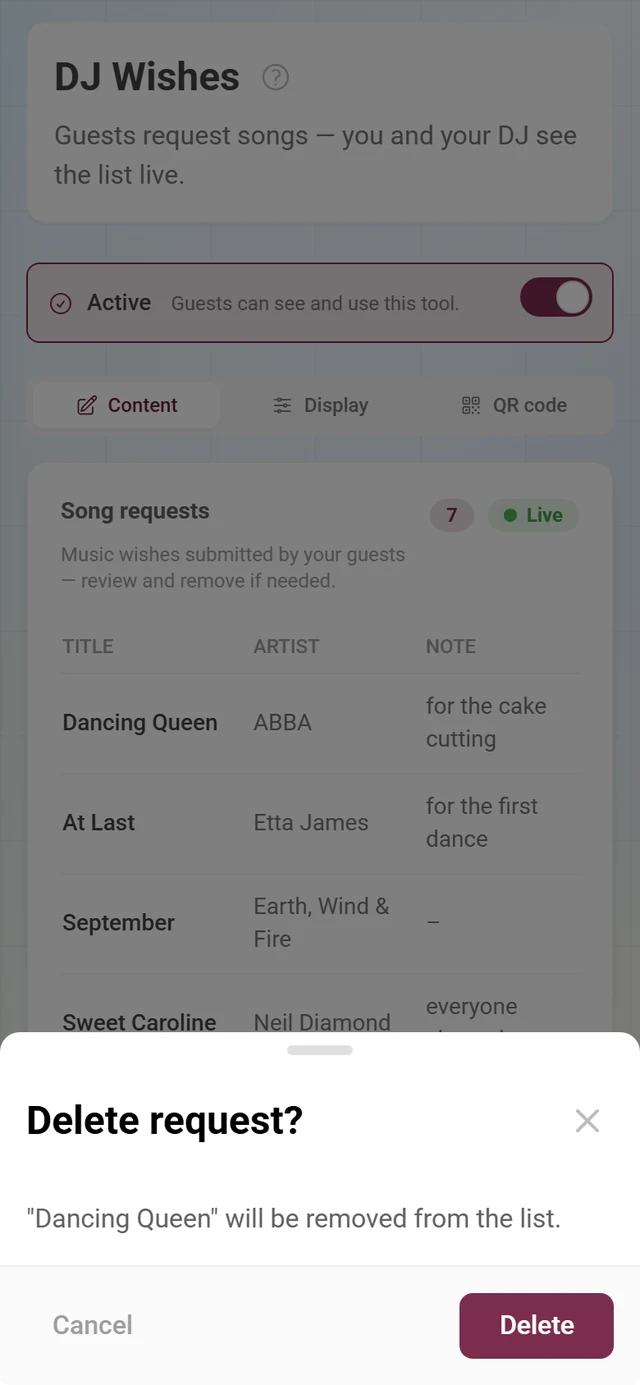
The bin icon on the right removes a request. Photogala asks first with Delete request? and names the title.
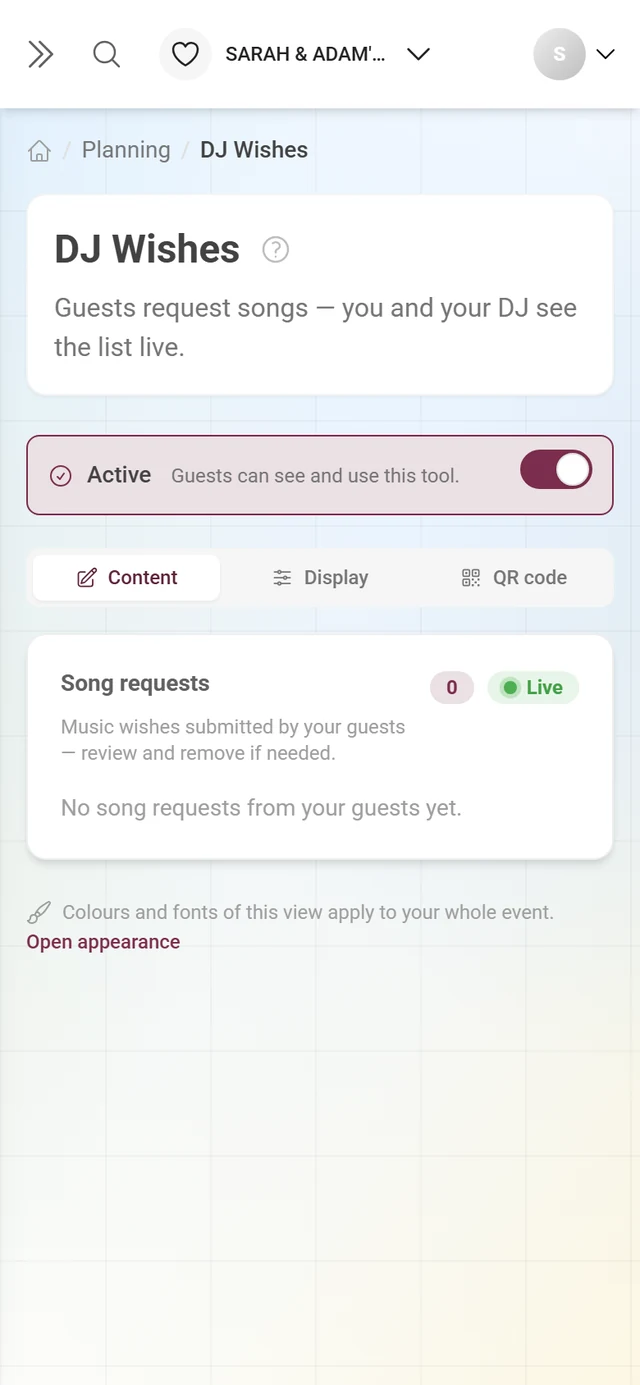
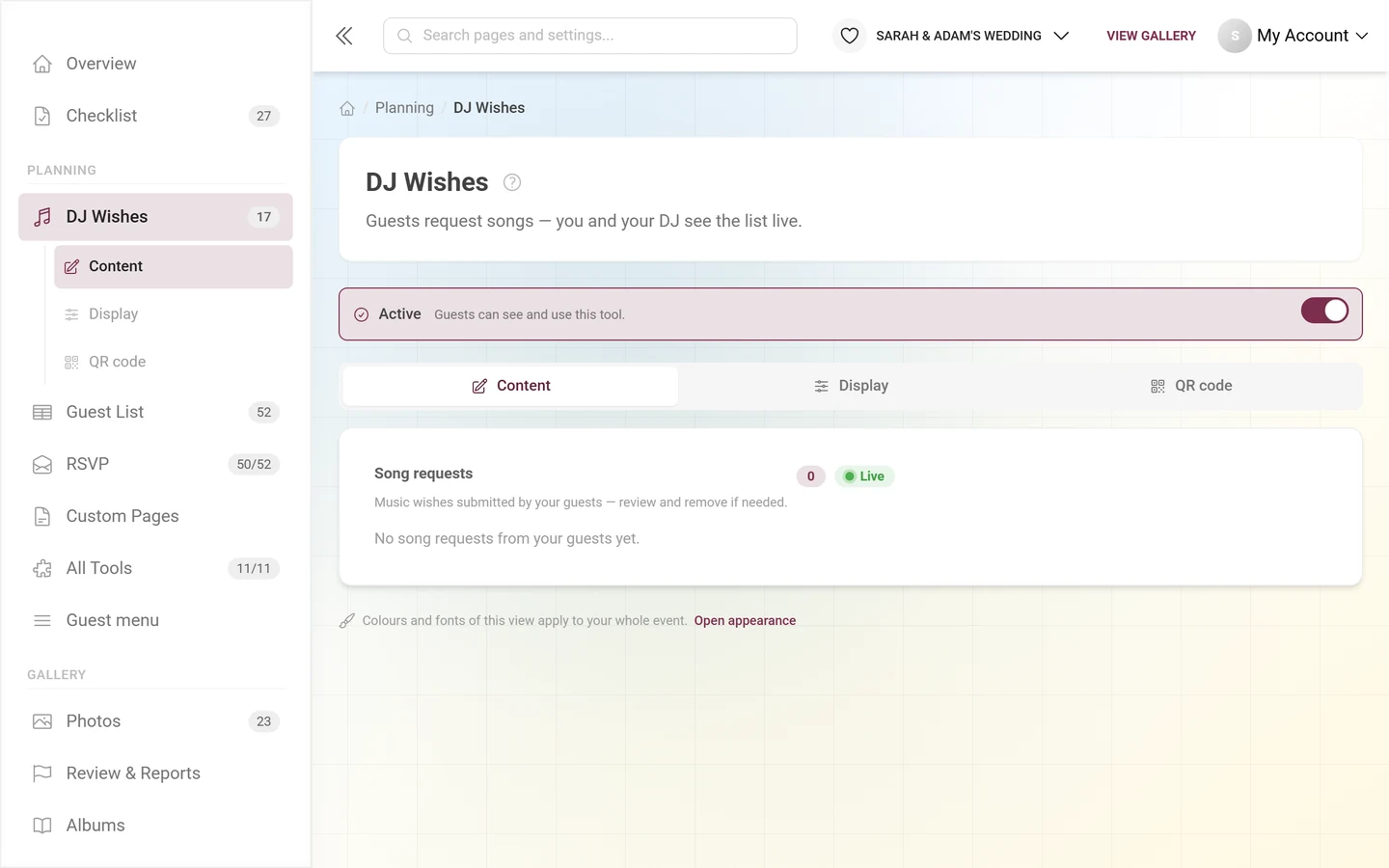
If there are no requests yet, it simply says No song requests from your guests yet.
Who shows up as the sender
Section titled “Who shows up as the sender”The From column shows the name the guest gave at the moment of the request:
- Signed-in guests appear with their nickname from this event.
- Guests who are not signed in get a Your name (optional) field in the form – whatever they type there ends up in this column.
- With neither, it says Anonymous.
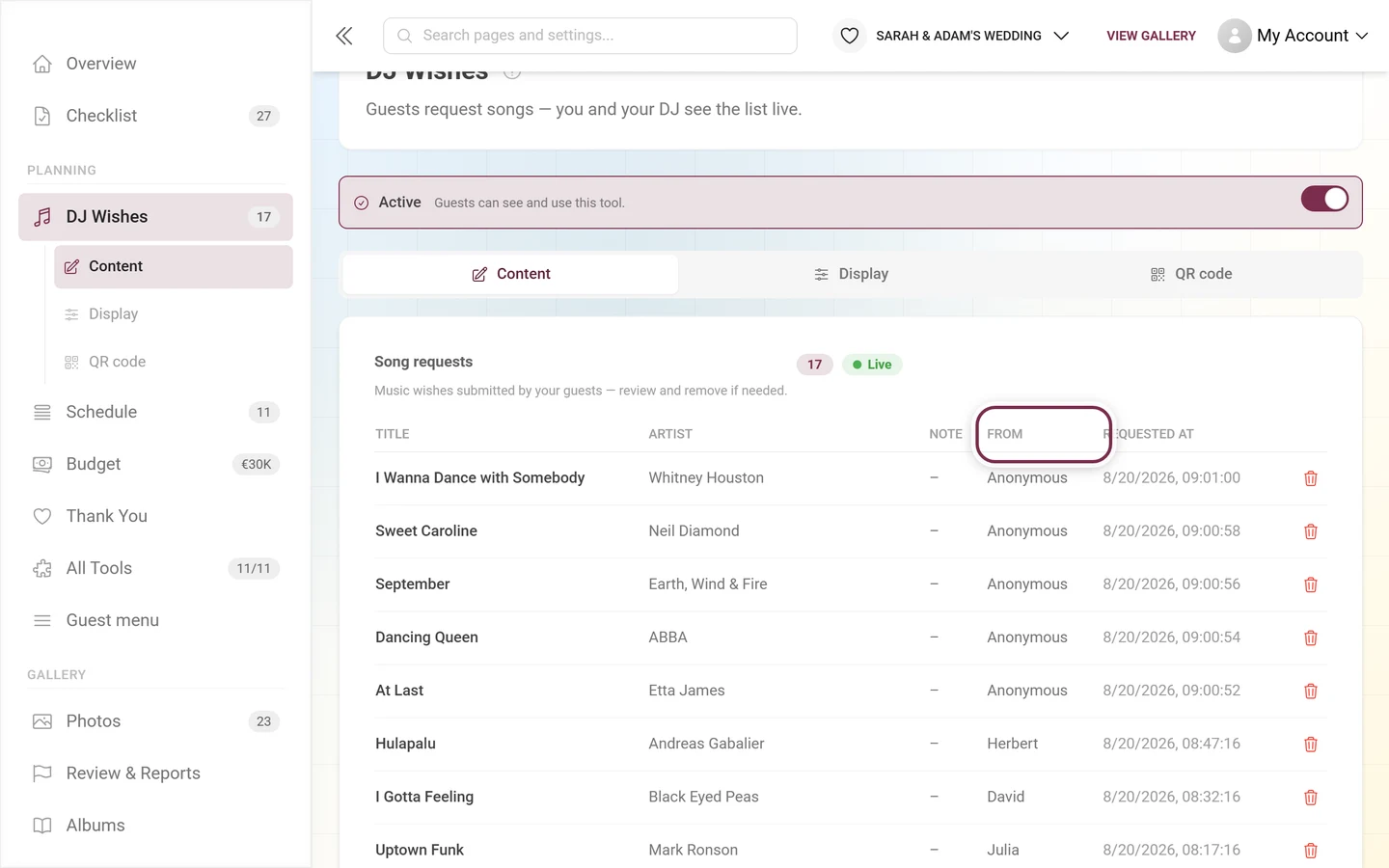
Where signed-in guests set their nickname is covered on the Profile page. If you want to know at the end of the night who asked for which song, tell your guests before they start requesting – signed-in ones about the nickname, everyone else about the name field in the form. The sender cannot be filled in afterwards.
Very rapid repeat submissions are briefly throttled – that is spam protection. It counts per account for signed-in guests, but per IP address for everyone else: a room requesting over the same Wi-Fi shares one bucket. The limits are set wide for exactly that reason – 5 requests in 10 seconds and 30 per minute – so a whole table can submit at once.
What your guests see
Section titled “What your guests see”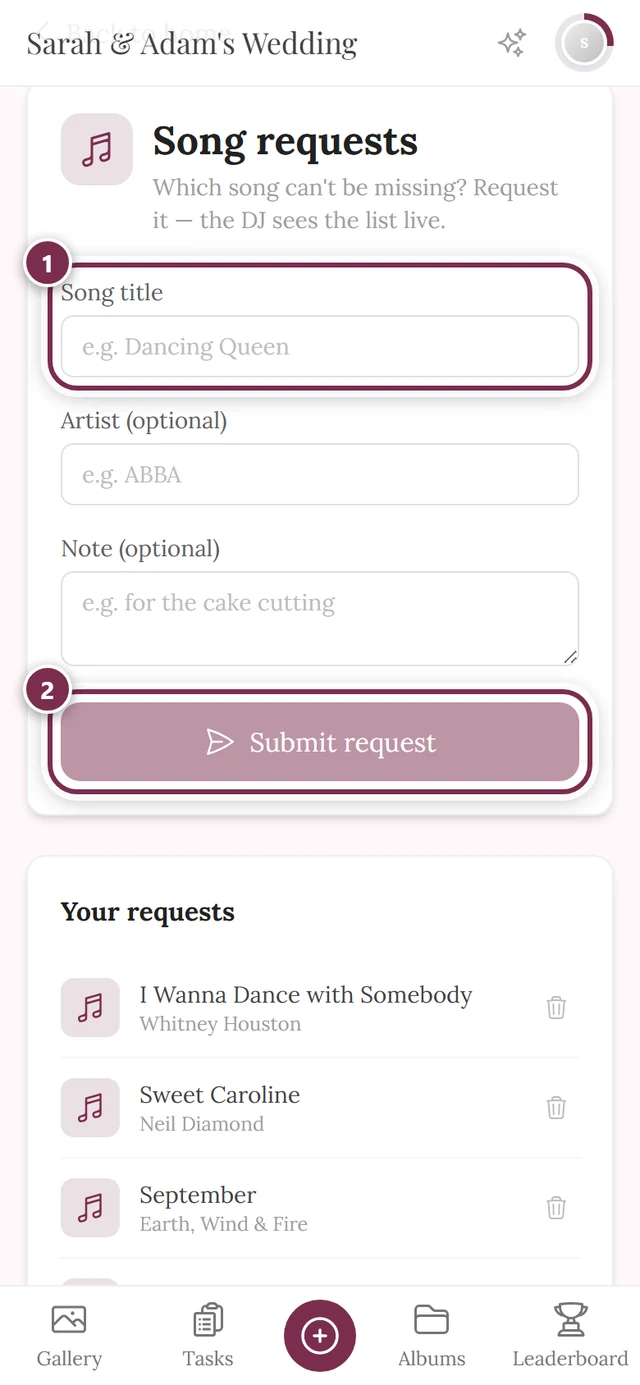
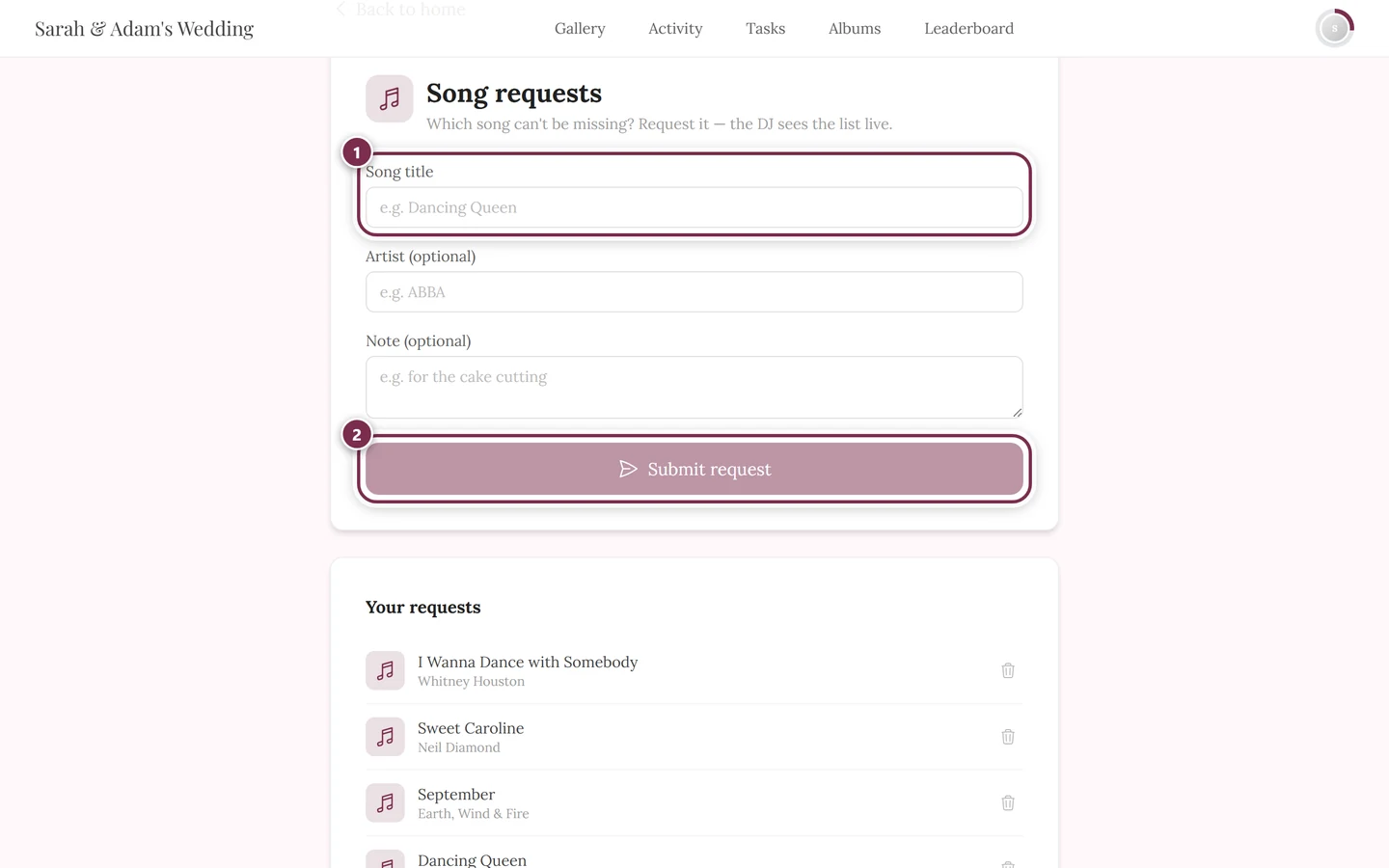
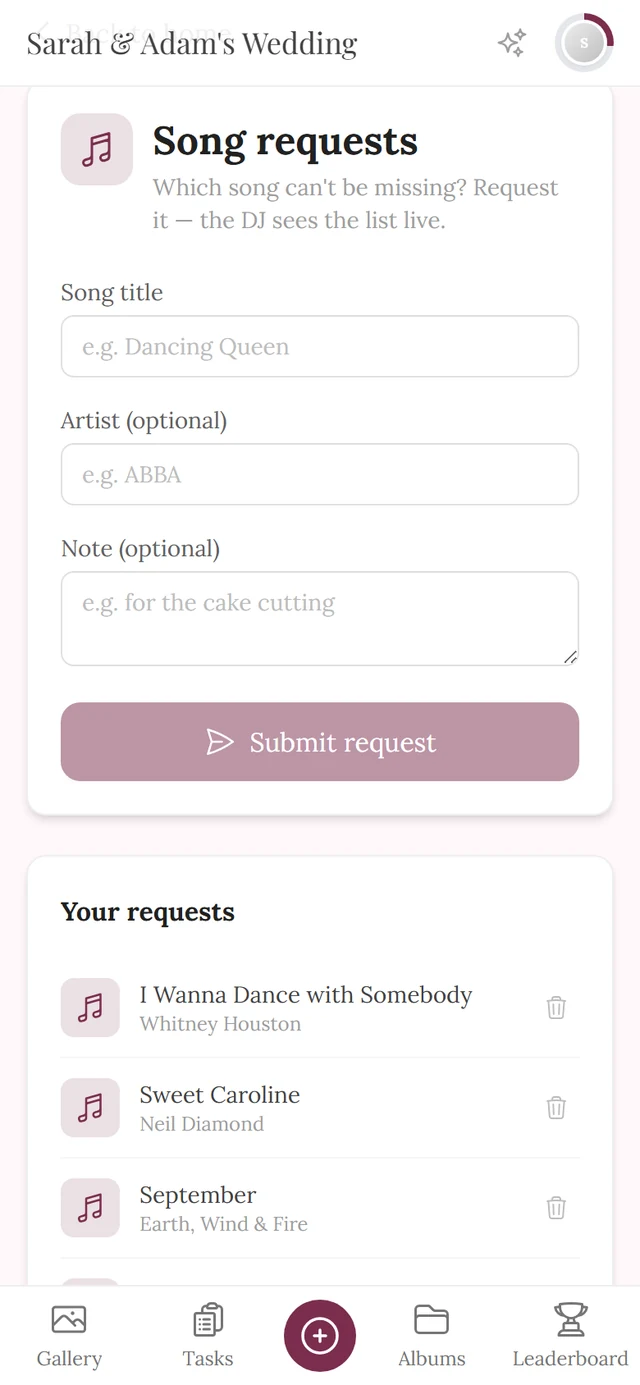
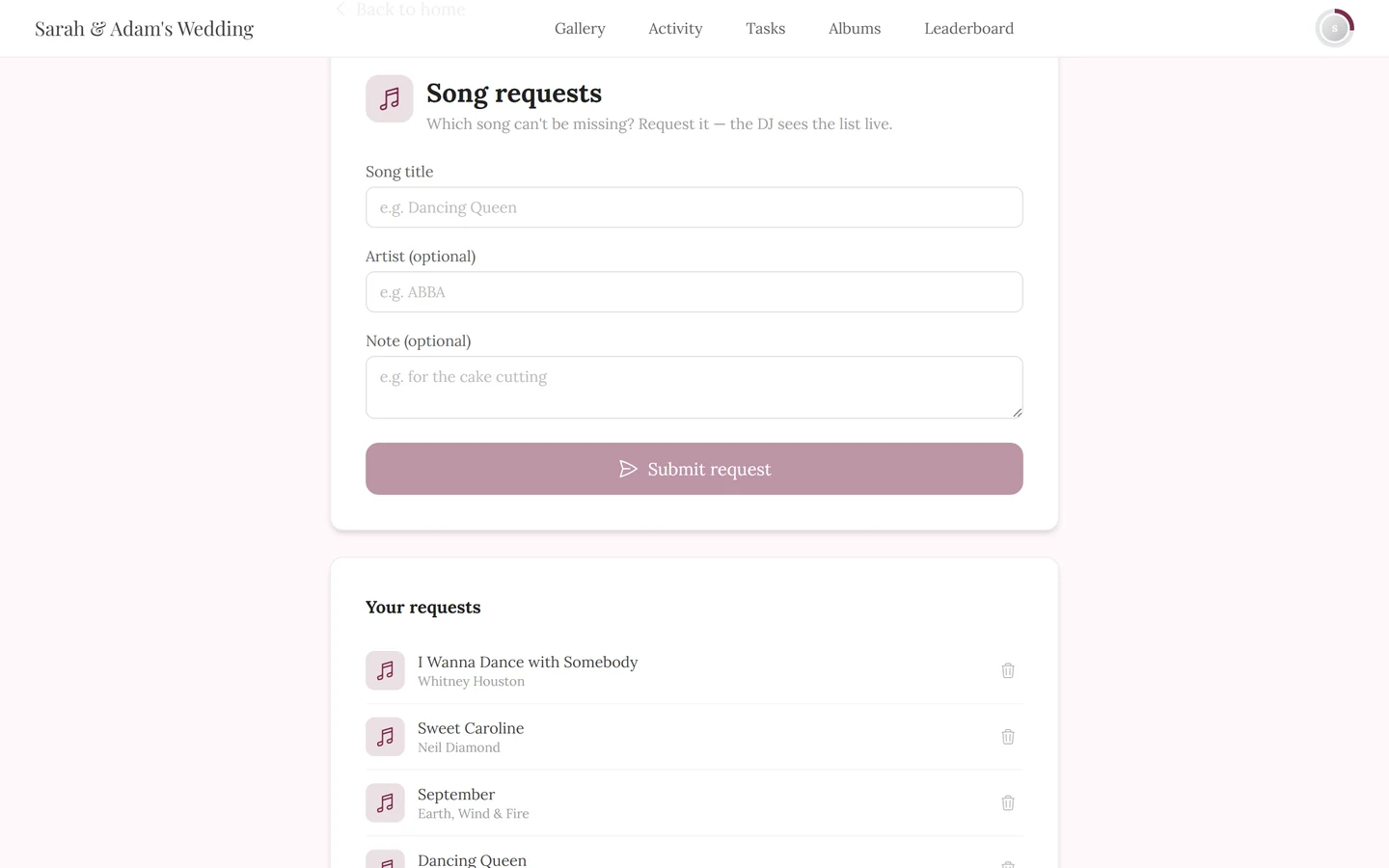
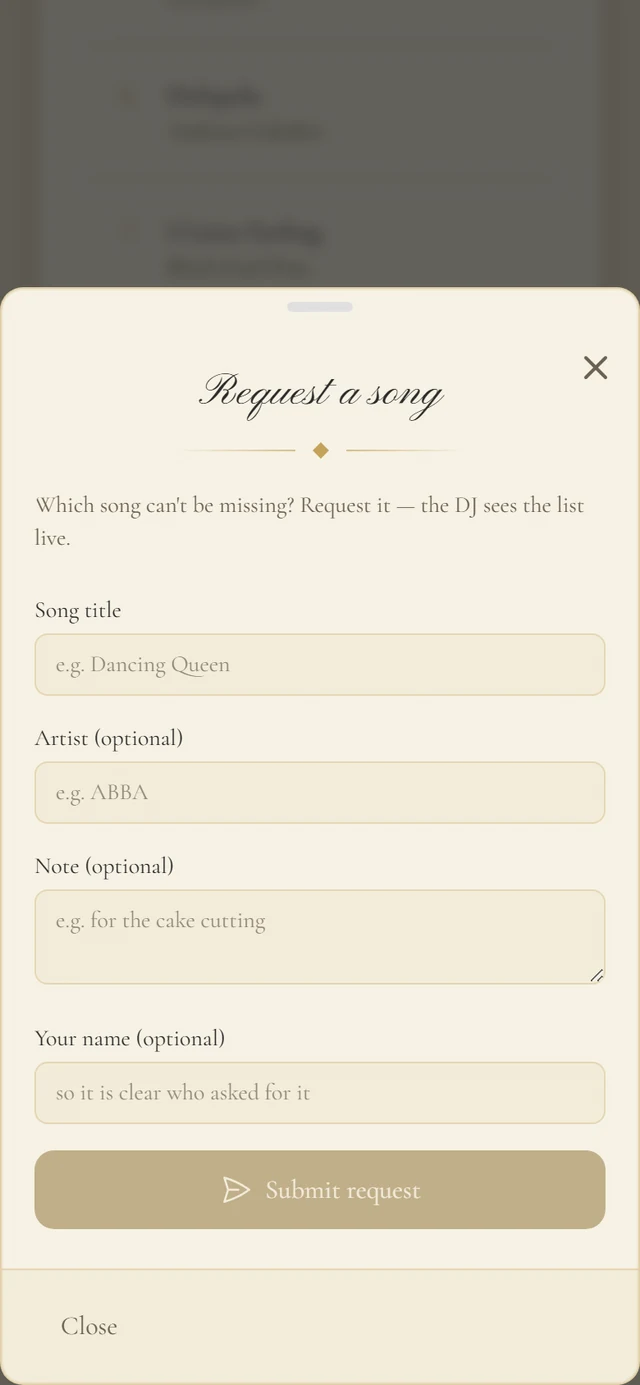
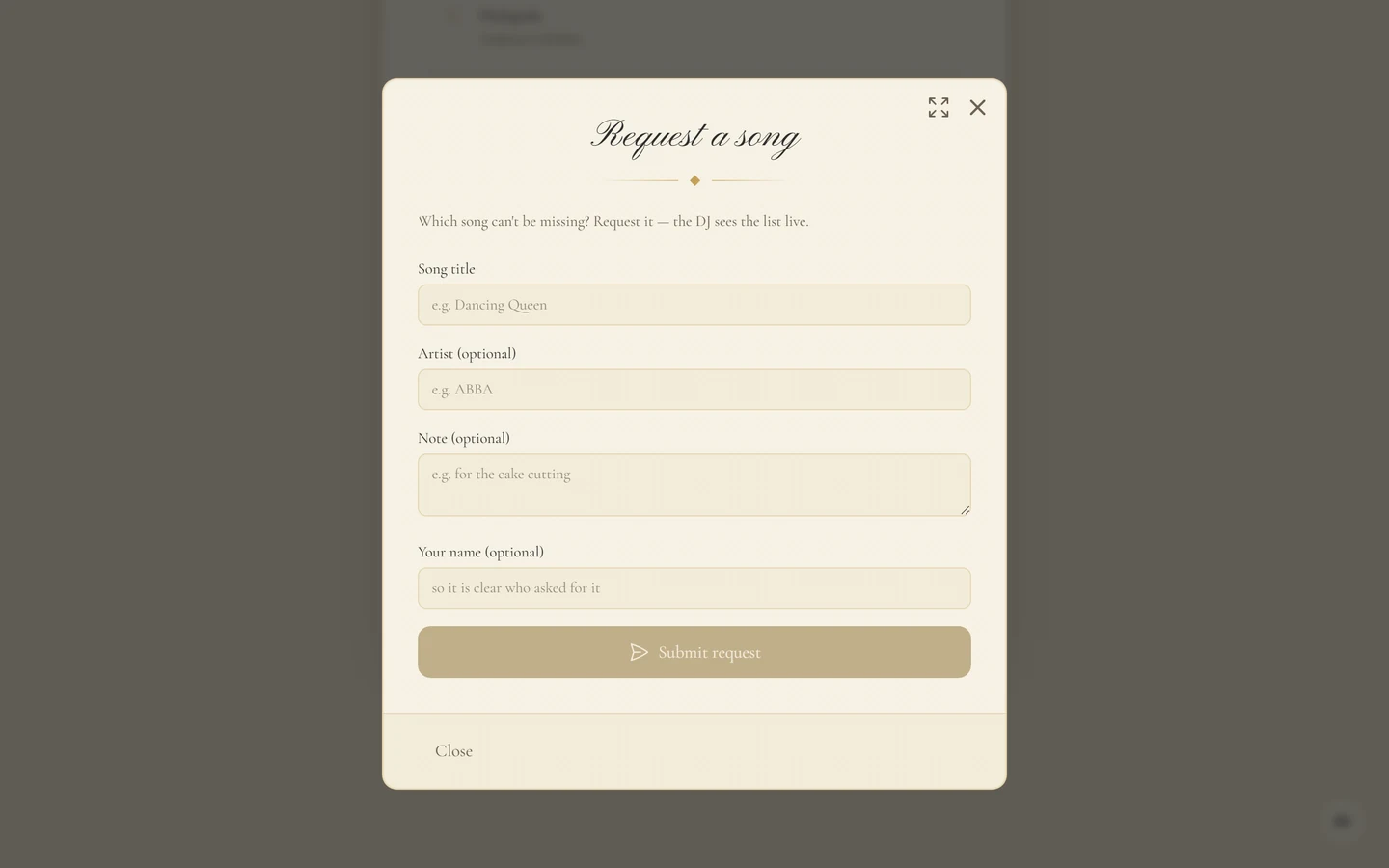
The form has Song title (required), Artist (optional) and Note (optional), with Submit request below. If the guest is not signed in, a fourth field Your name (optional) appears – it takes the place of the nickname an anonymous guest does not have. A short confirmation Request submitted! follows, with a Request another song button.
Under Your requests every guest sees their own entries – and only those. The bin icon next to an entry (Withdraw request) removes it immediately, without asking. Nobody can see or delete anyone else’s requests.
Quota and duplicate requests
Section titled “Quota and duplicate requests”So a single guest can’t run the night, the number of requests per guest is capped:
- Default: 5 requests per guest. That cap always applies, even without a setting of your own.
- As an event setting a value between 1 and 50 can be stored instead. There is currently no switch for it in the editor.
- Only an explicitly stored value is visible in the guest form as well: then a counter X of Y sits next to Your requests, and once it is full the form locks up front with You have reached your limit of X requests.
- On the default with no stored value there is neither a counter nor an up-front lock. A request beyond the cap only fails on submit, with the message All requests are taken for now — ask the host to raise the limit.
- If a guest withdraws a request, the slot frees up again.
Submitting the same song twice is blocked: title and artist together may only appear once per guest. Two different guests may request the same song – that’s how you see what gets asked for repeatedly.
The playlist in the digital invitation
Section titled “The playlist in the digital invitation”If you also use the digital invitation, the Playlist switch there shows the request list as its own section inside the invitation – next to it, Edit the song requests leads straight back into this editor.
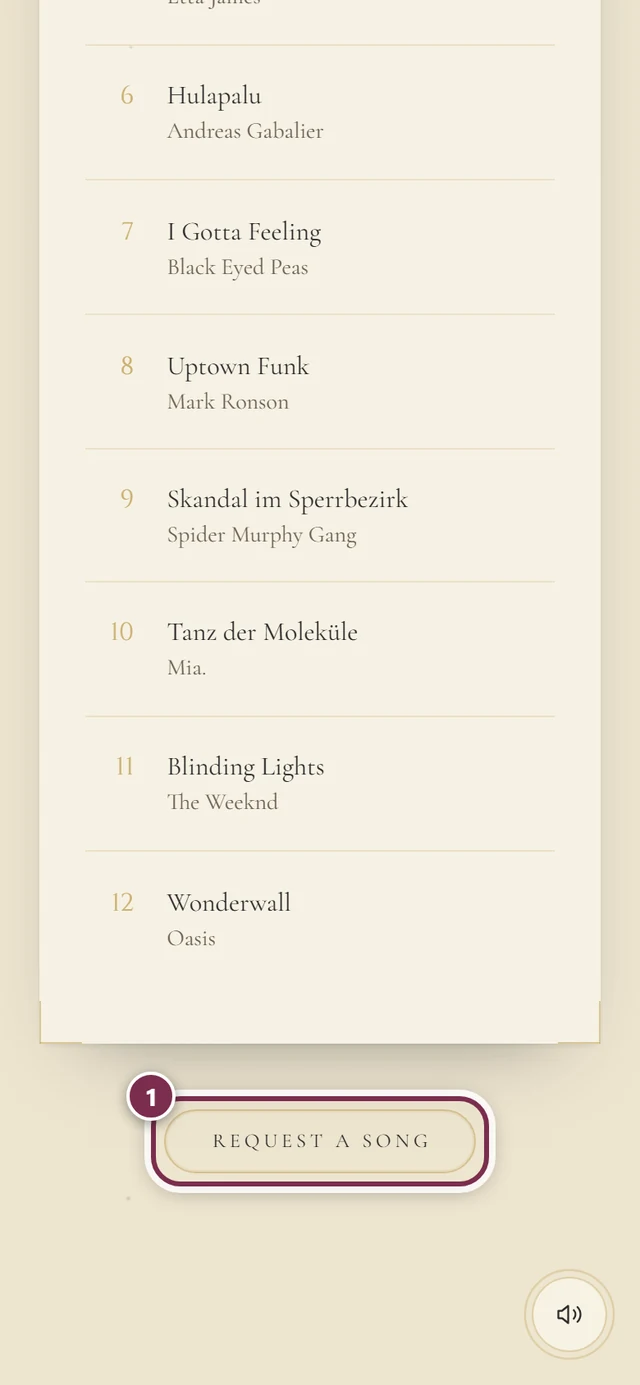
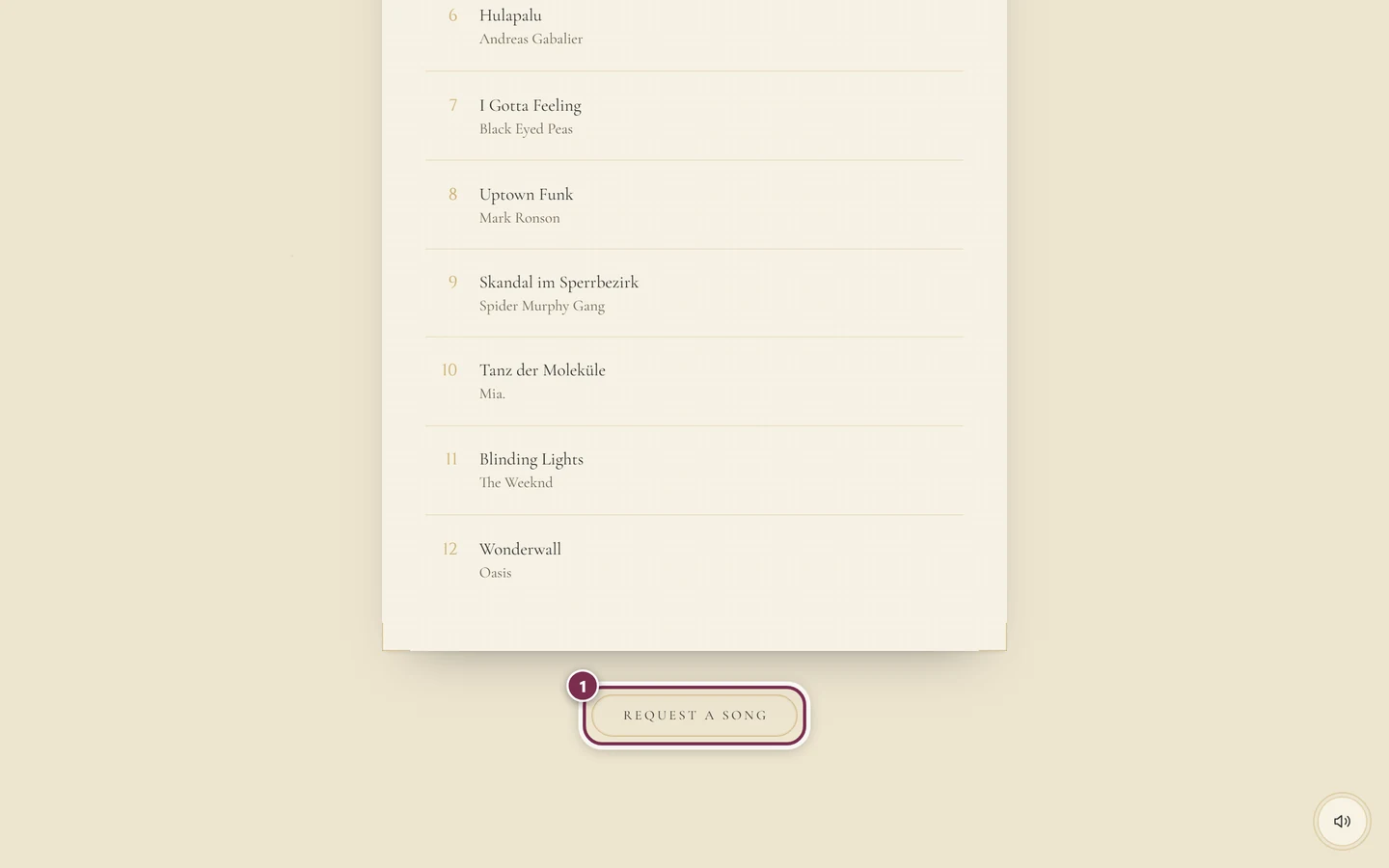
- The section is called Our Playlist and lists the most recently submitted requests with title and artist as a numbered list – at most 12 entries.
- The Request a song button opens the request form right inside the invitation; your guests never leave the page.
- The section only appears when both tools are active – the invitation and DJ wishes.
Practical tip for the night
Section titled “Practical tip for the night”- Leave the view open. The live feed only works while the Song requests page is open. A laptop or tablet next to the booth showing the list is the whole setup.
- There is no export. The request list cannot be downloaded as a file – it is read in the browser. So plan for the device it runs on.
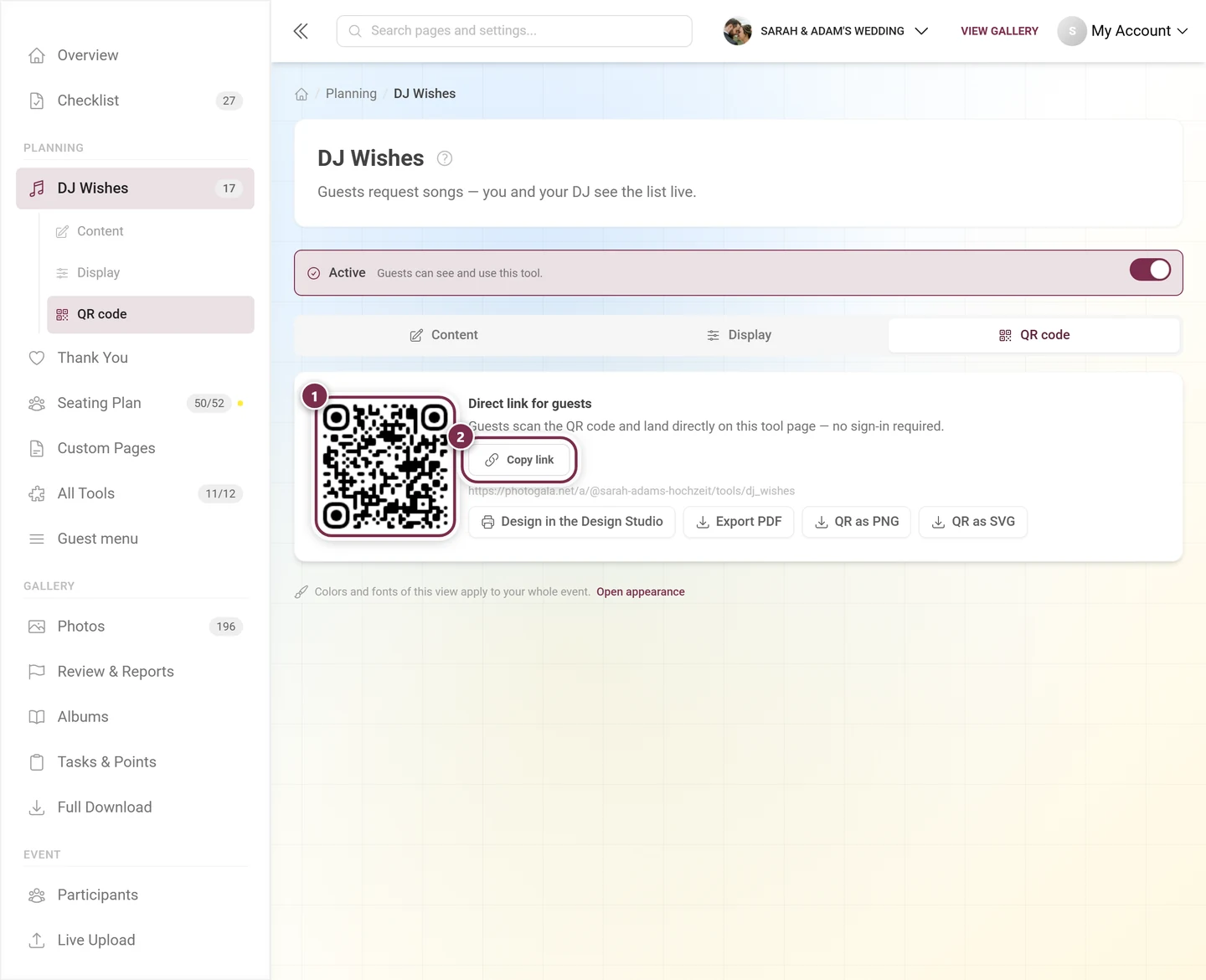
- The guest link is no substitute. The link from the QR code tab only shows the form and the guest’s own requests, not the full list. The only view where a request list becomes publicly visible is the playlist section in the digital invitation.
Troubleshooting
Section titled “Troubleshooting”- The list stays empty although guests submitted something. Check that you are in the right event and reload the page. The live feed only adds to what is already loaded.
- New requests only show up after a reload. The view was closed in between, or the device lost its connection. After a reload the list is complete again.
- A guest can’t submit anything anymore. Their quota is full – five requests by default. Under Your requests they can delete one of their own entries with the bin icon and then submit a new one.
- A guest can’t add their song a second time. Title and artist make it a duplicate for that guest – that is intentional.
- The From column says Anonymous everywhere. Signed-in guests never set a nickname, and everyone else left Your name (optional) empty. The name is taken at submit time, so adding it later only affects new requests.
- The tool doesn’t show up for guests. Check Enable tool at the very top and, in the Display tab, the Widget on the home page and Entry in the guest menu switches.
Related pages
Section titled “Related pages”- For guests: Song requests – what your guests see and how they withdraw a request.
- For hosts: Digital invitation · Schedule · Tooling – Overview