Joining an event
To view an event’s photos and add your own, you join the gallery once. It all happens right in your browser – no app and no account needed. In the vast majority of cases a single tap on the link is all it takes, and you’re already in.
How to reach the gallery
Section titled “How to reach the gallery”There are three ways to the gallery, all leading to the same place:
- Open the link – The host shares a link (for example via WhatsApp, email, or on an invitation). Tap it and it opens in your phone’s or computer’s browser.
- Scan the QR code – Point your phone’s camera (or a QR app) at the posted code. It opens the same link. More on this under Scanning a QR code.
- Type the address – If the host gave the event a short handle, the address is short enough to type by hand: it contains that handle with an at sign in front, for example
@anna-and-tom-wedding. The full address is printed on every invitation and poster.
The classic join, step by step
Section titled “The classic join, step by step”When the host requires a password, a short welcome screen guides you through two steps: first the access code, then your display name.
-
Open the welcome screen. After tapping the link or QR code, the “Welcome to our gallery” screen appears. For events with custom branding it shows the host’s colors and logo – but the flow stays the same.
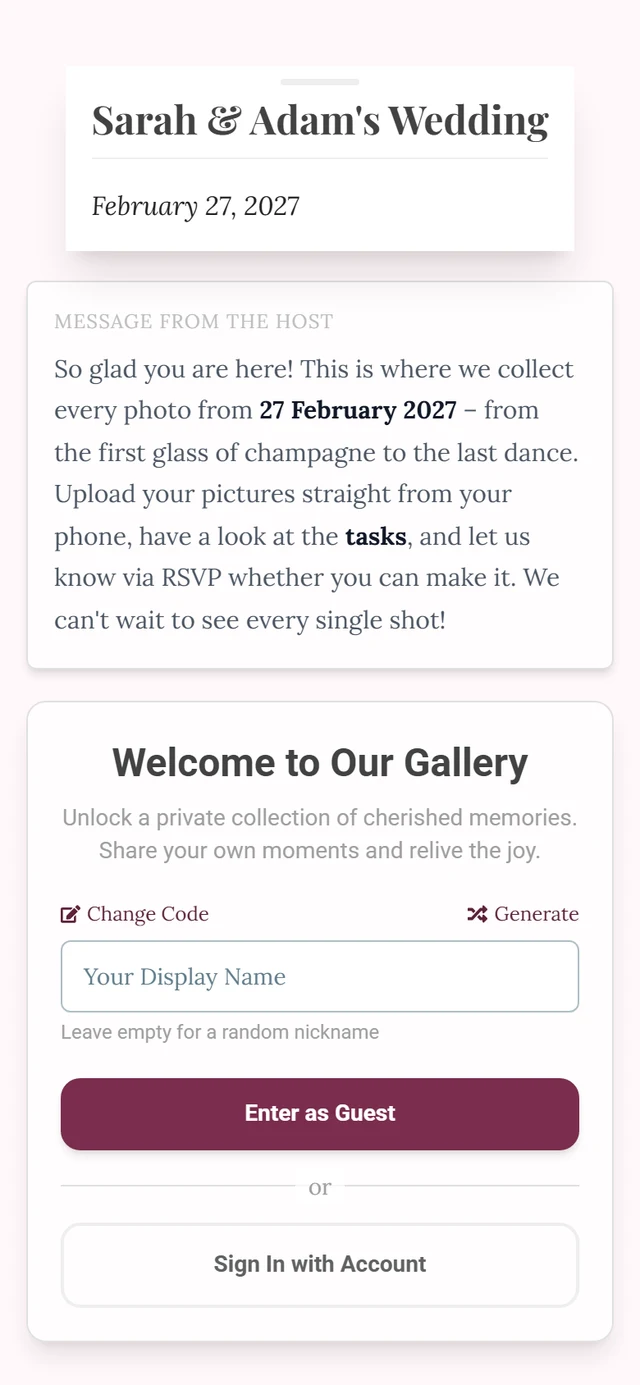
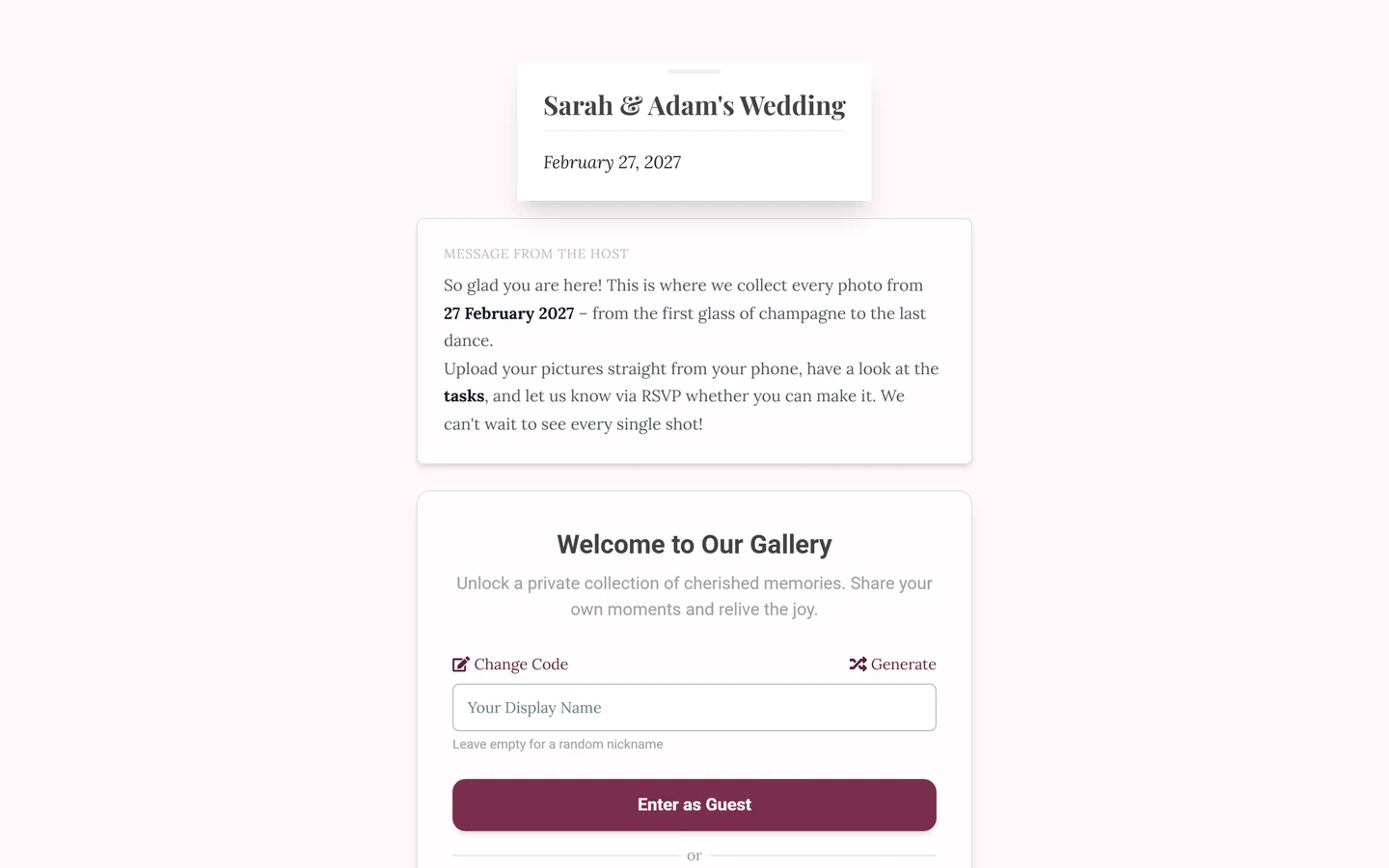
The welcome screen greets you right after opening the link. -
Enter the access code (only when a password is required). Type the code into the Gallery Password field (placeholder “Enter shared password”). Confirm with Continue or simply press the Enter key. You’ll usually find the code on the invitation, a place card, or a poster.
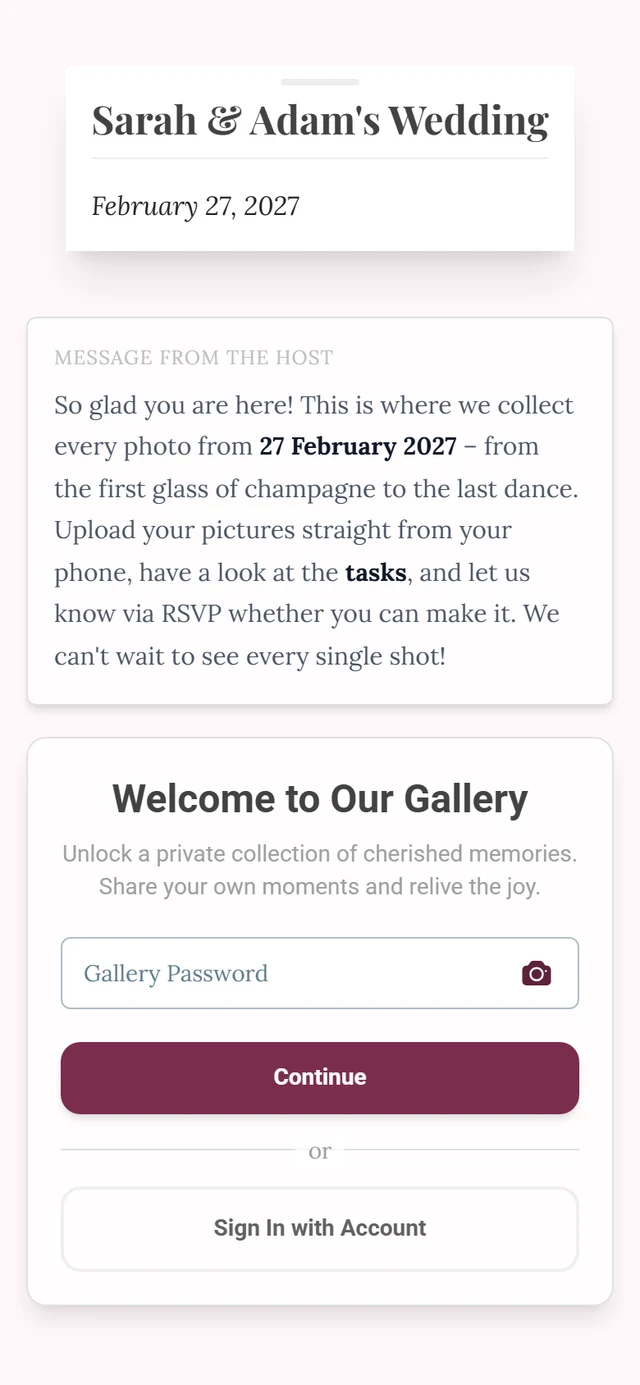
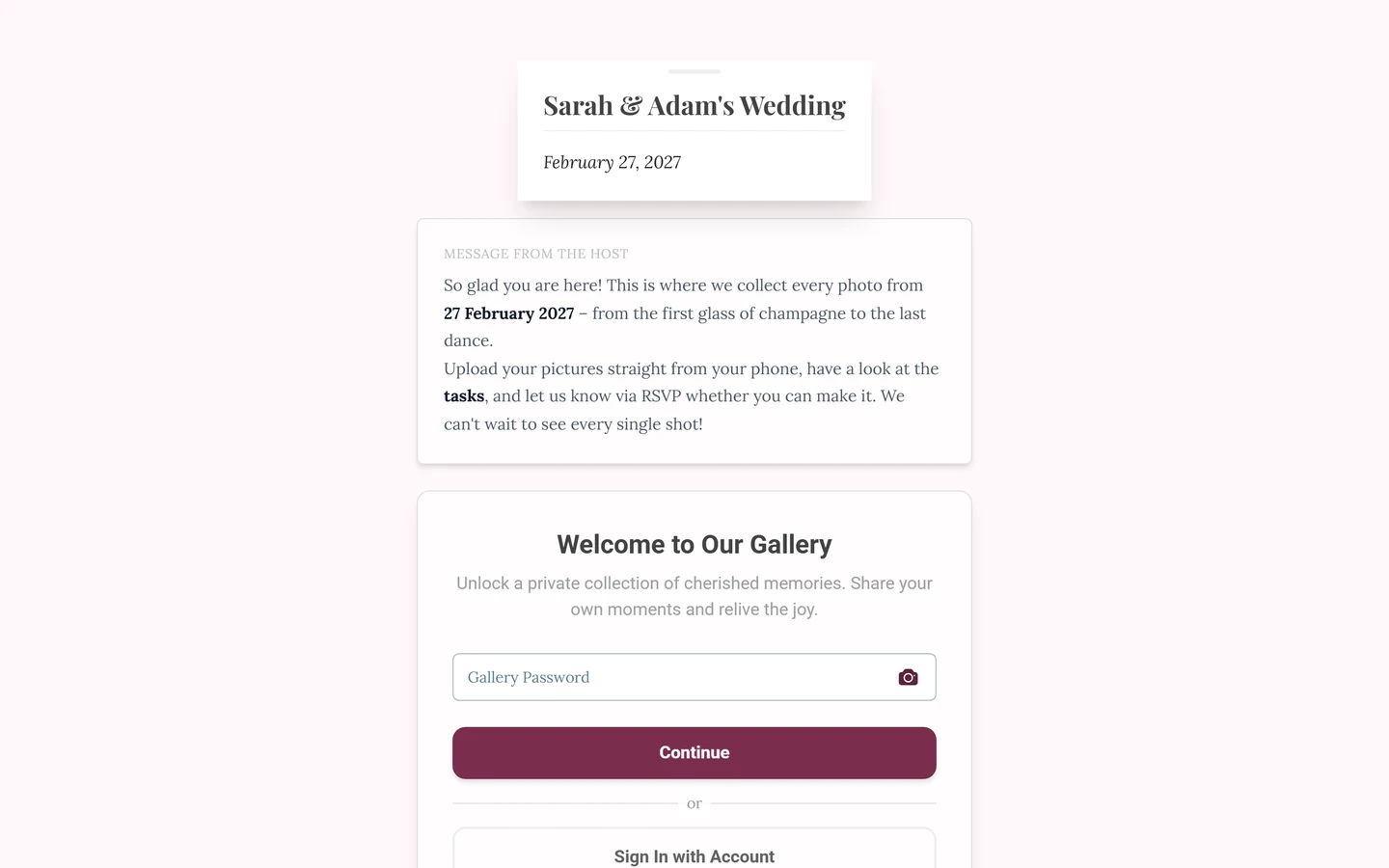
Step 2: the Gallery Password field. The camera icon inside it starts the QR scanner – then you do not have to type anything. -
Enter your name. In the next step, enter under Your name how you’d like to appear in the gallery (placeholder “e.g. Anna Miller”). Below it, it says: “Your name appears with your photos, so everyone knows who added them. No account needed.”
-
Join. Tap Continue to photos or press the Enter key. A moment later you’re in the gallery. If you leave the field empty, a hint reminds you: “Please enter your name.” – if you really want to join without a name, tap Continue without a name anyway below it. Your photos then appear as “Anonymous”.
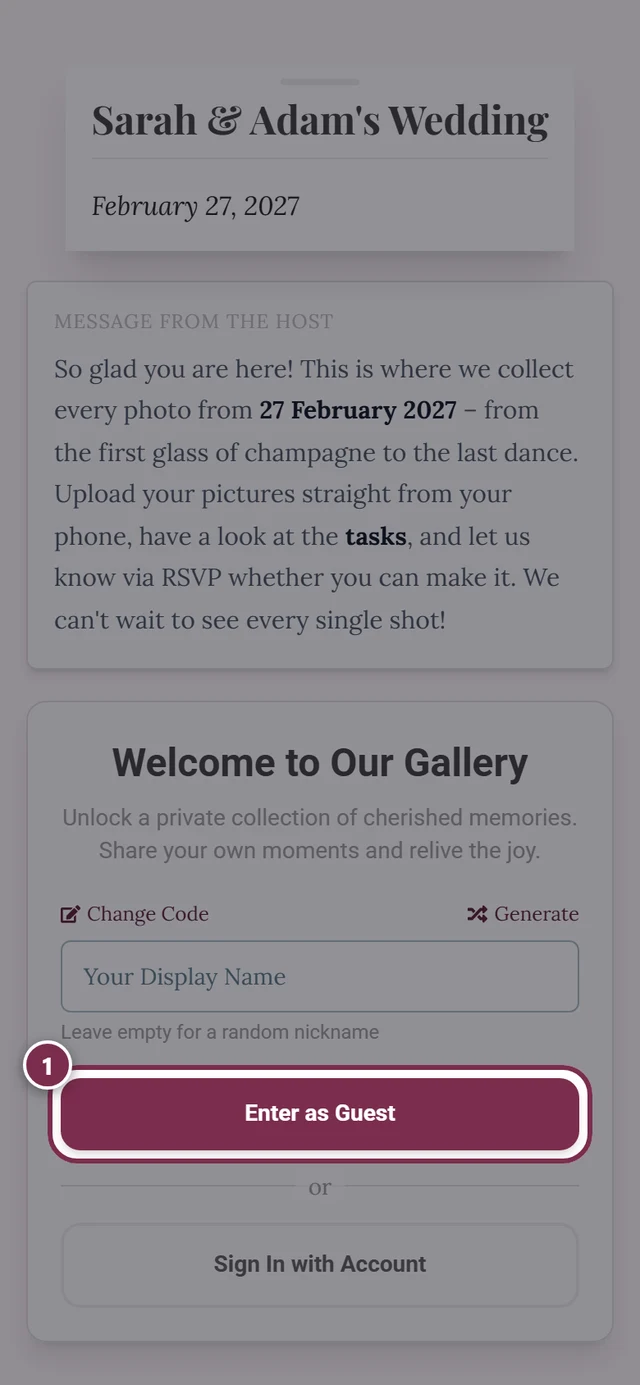
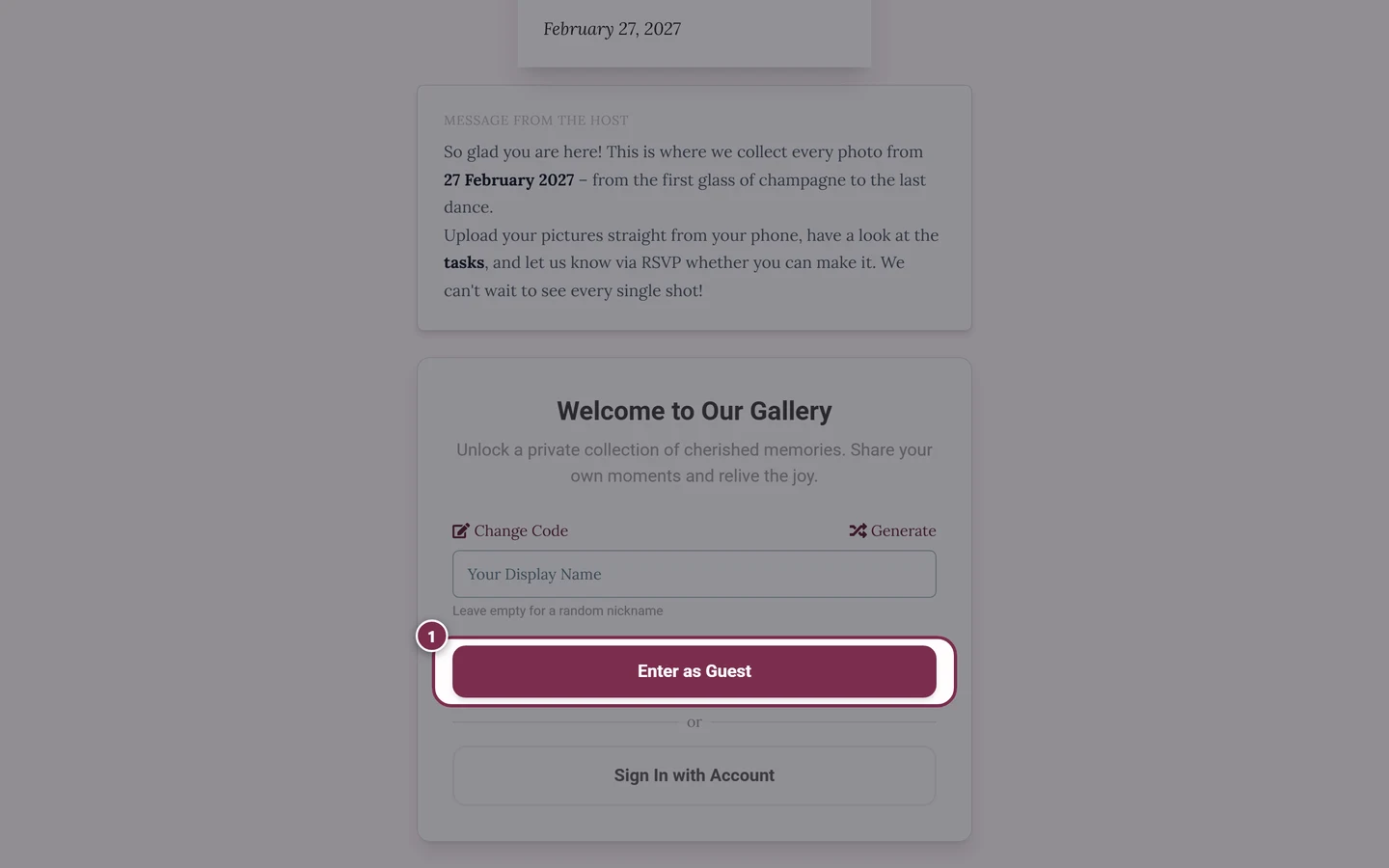
The button to enter is highlighted – tap here to join.
The welcome dialog
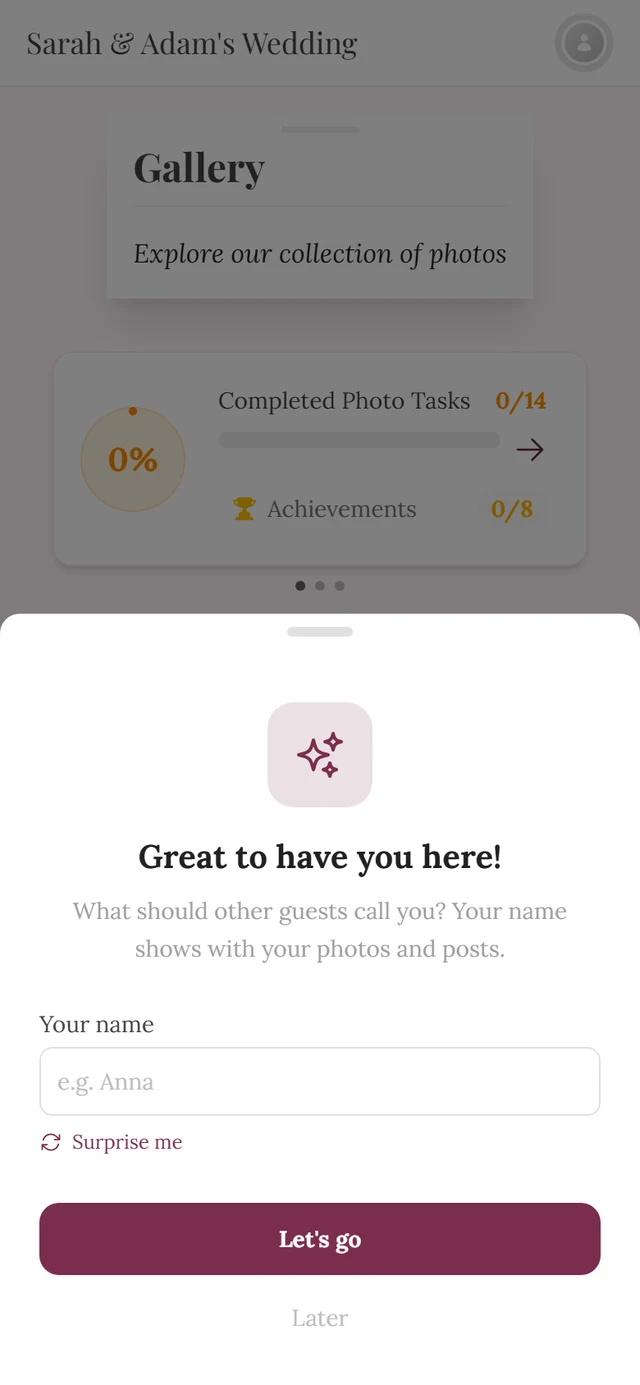
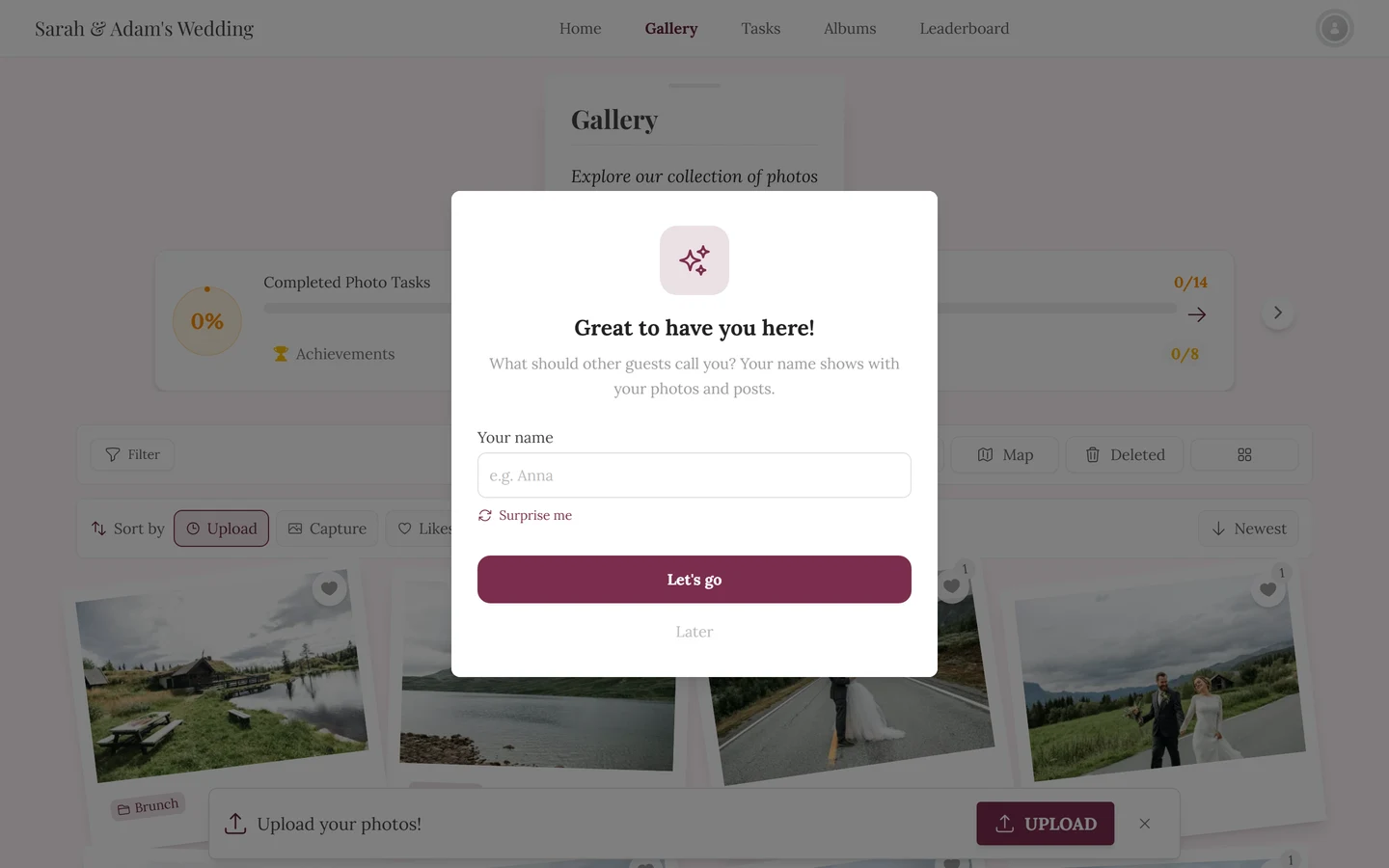
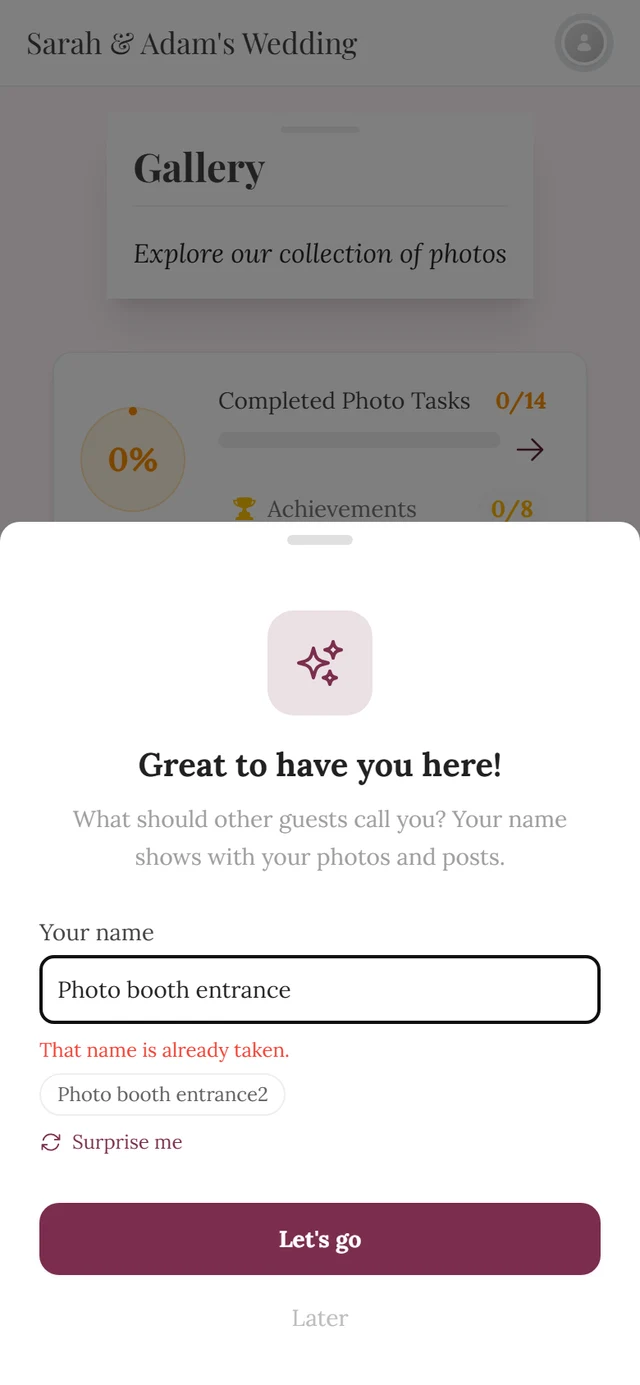
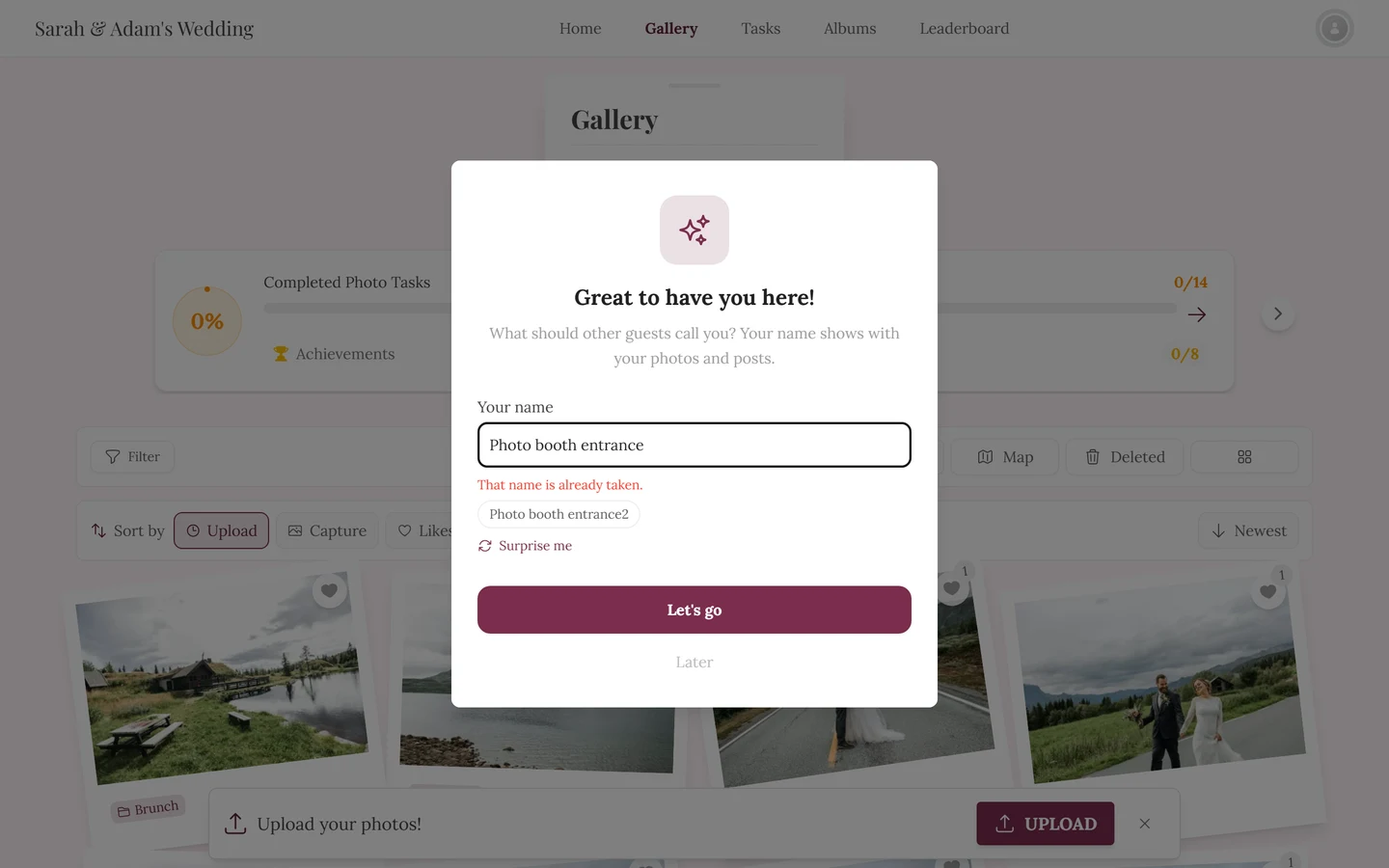
Section titled “The welcome dialog”Not every join goes through the welcome screen. If you come in one of the fast ways – open access, a tool QR code, a personal link – you have not picked a name at all yet. In that case a small dialog shows up in the gallery and catches up on it.
What it looks like. Above the heading Great to have you here! sits a sparkles icon, below it the sentence “Your name appears with your photos, so everyone knows who added them. No account needed.” Then come the field Your name (placeholder “e.g. Anna Miller”) and the button Continue to photos.
What you can do in it:
- Type a name. While you type, Photogala checks in the background whether that name is already taken in this event. If it is, a warning appears – and below it up to three suggestions as small buttons. Tapping one puts that suggestion into the field.
- Continue to photos – saves the name. While it saves, the button reads One moment….
- Continue without a name – if you tap Continue to photos without entering anything, the hint “Please enter your name.” appears, with the addition “So others can recognise your photos. You can also continue without a name.” Below it is the link Continue without a name anyway: it closes the dialog, and your photos appear as “Anonymous”. The app remembers that for this event on this device: the dialog will not come back. You can still add your name any time in your profile, see Profile & nickname.
When the host requires a name
Section titled “When the host requires a name”Some hosts – typically for company parties and club events – switch on the option Guests must choose a name. The same dialog then changes:
- It cannot be dismissed: no closing via the backdrop and no Continue without a name anyway.
- If you tap Continue to photos with an empty field, “Please enter your name.” appears, with the addition “A name is required for this event so others can recognise your photos.”
- The dialog also appears if you skipped it earlier, or if the event uses quick access.
The personal link from your place card
Section titled “The personal link from your place card”If your place card or personal invitation carries its own QR code, that is not a normal event link but your link. When you scan it, this happens:
-
You are recognized in the background. Photogala connects the session with your entry in the host’s guest list. You do not have to confirm anything.
-
The access key disappears from the address bar. It is treated like a password and removed from the URL right away – so it stays out of forwarded links and screenshots. (The only exception: on the RSVP form it stays, because that page needs it itself.)
-
Your real name is already in the welcome dialog. It is prefilled and stays editable – anyone who accidentally scanned their neighbour’s card simply types their own name over it. If the name is already taken, Photogala automatically inserts the next free variant so you can save straight away.
The personal link keeps working inside the tools too: in the menu you see your own dish, in the seating plan your seat is highlighted. If you later scan a different card, the most recently scanned code wins. More on this under Find your seat.
Joining through a tool QR code
Section titled “Joining through a tool QR code”Some QR codes do not lead into the gallery but straight into a tool – the RSVP form, the seating plan or the menu, for example. Then joining runs invisibly in the background:
- You see no name form. Photogala quietly creates a guest session and shows you the tool right away.
- You are only asked for a name later, once you switch to the gallery – through the welcome dialog above.
- Exception: if the event requires a password and it is not embedded in the QR code, the code step comes first. The name step still stays away.
More about the tools under Tools at the event.
When the invitation appears instead of the gallery
Section titled “When the invitation appears instead of the gallery”If the host enabled the digital invitation, one and the same event address shows two different things – depending on who opens it and when:
- You have never been in this event. While the invitation is active, you land on the invitation instead of the home screen. That is deliberate: someone who only looks at the invitation is not turned into a guest and appears in no participant list.
- You have joined before. Then the date decides: before the event day the address leads to the invitation, from the event day on to the home screen with the gallery.
- Hosts, admins and moderators are never redirected – they always land on the home screen.
If you want the home screen despite an active invitation, append ?view=home to the address. Everything else under The digital invitation.
Prefer to sign in with an account?
Section titled “Prefer to sign in with an account?”If you’re not signed in (or only as a guest), below the main button you’ll find the small link Sign in with an existing account. It opens the sign-in dialog. You don’t have to type an access code again that you already entered or brought along via a link: Photogala remembers it for half an hour and redeems it automatically after you sign in.
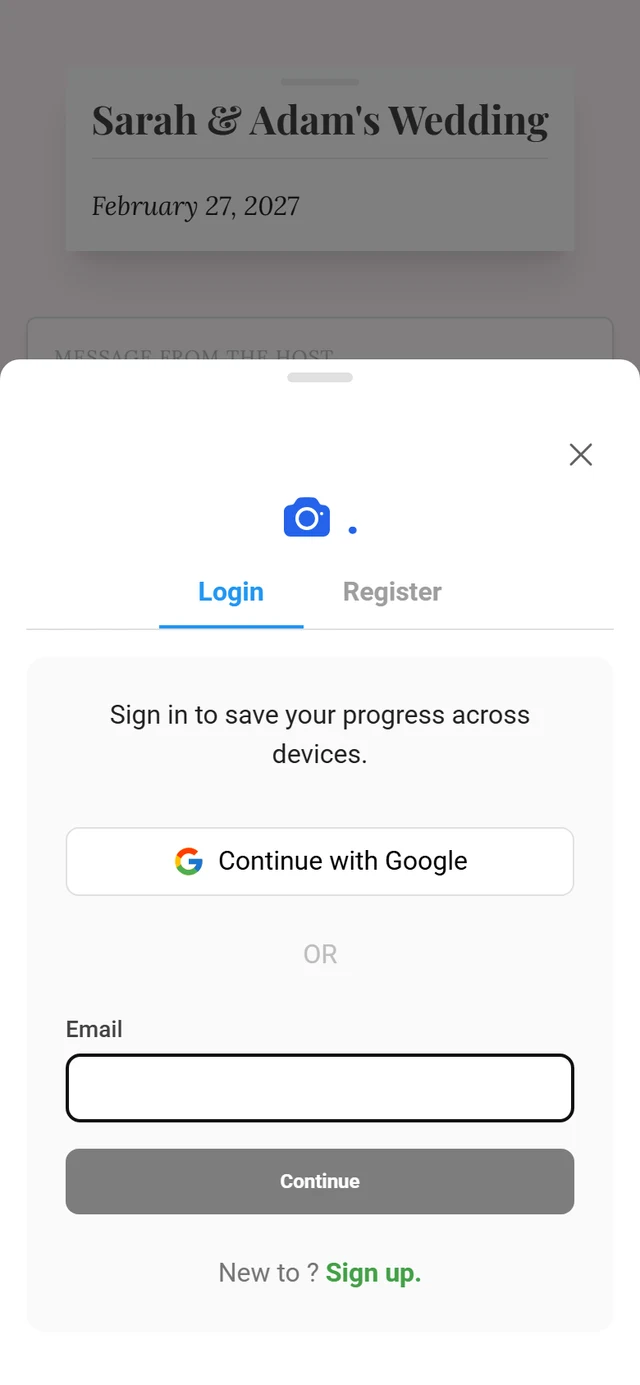
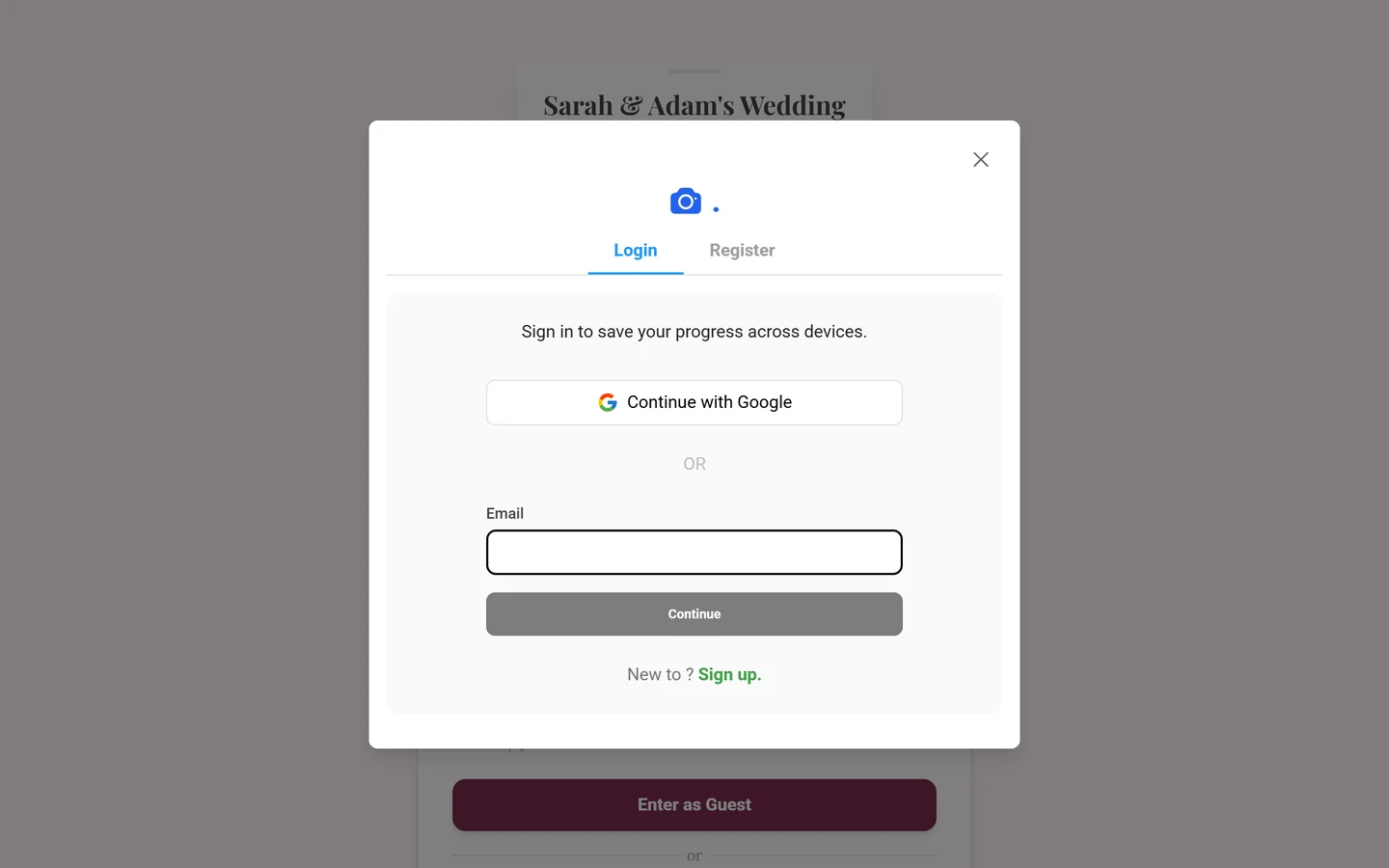
An account is worthwhile if you want to be recognized across devices – for example when you take photos on your phone and continue later on your laptop. If you’re already signed in and have a nickname set, you skip the name step automatically. More on this under Profile & nickname.
Why do I (not) see a password field?
Section titled “Why do I (not) see a password field?”Whether and which field you see when joining is decided solely by the host via the access mode (under Settings → Access). There are three modes:
- Open Access – “Anyone with link can view.” You get in without any input. The host decides whether you start as a Viewer (view photos and like them) or a Contributor (upload photos and complete tasks).
- Password Protected – “Guests need a code to enter.” You have to enter the access code (for example
wedding-2024). - Completely Private (Advanced) – Only custom invitations work; the default code is disabled. Here you need a personal invitation link from the host.
Changing the language on the gate
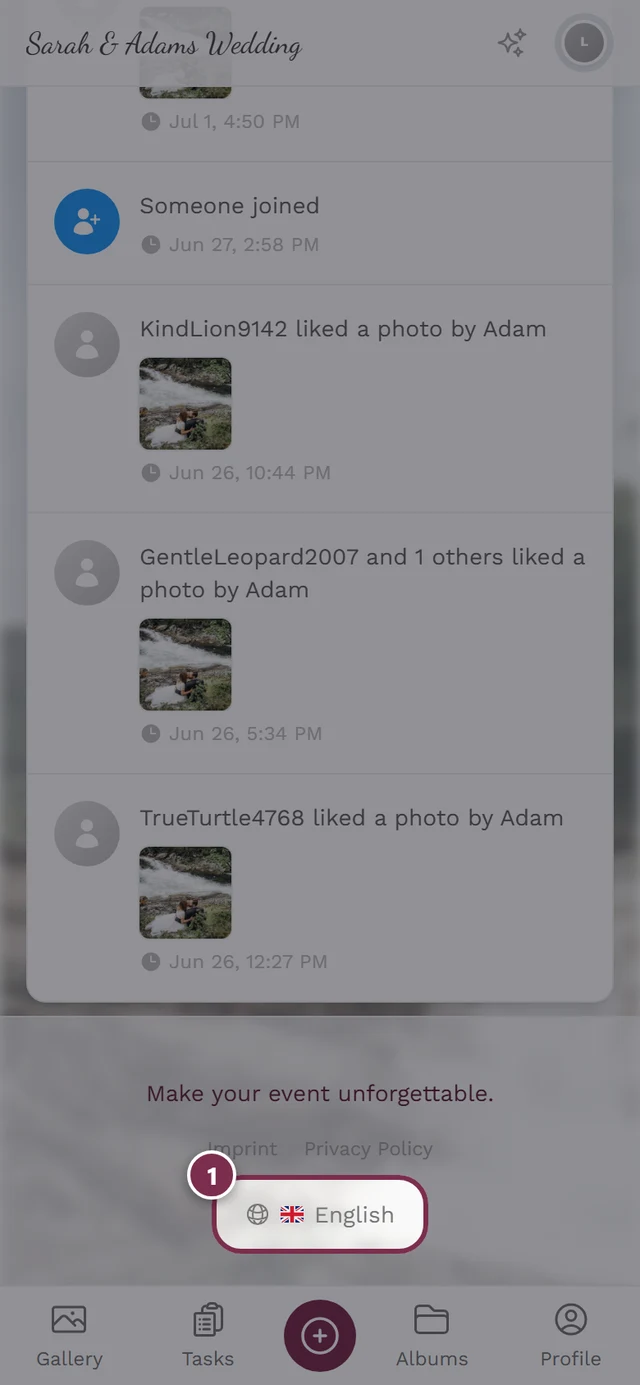
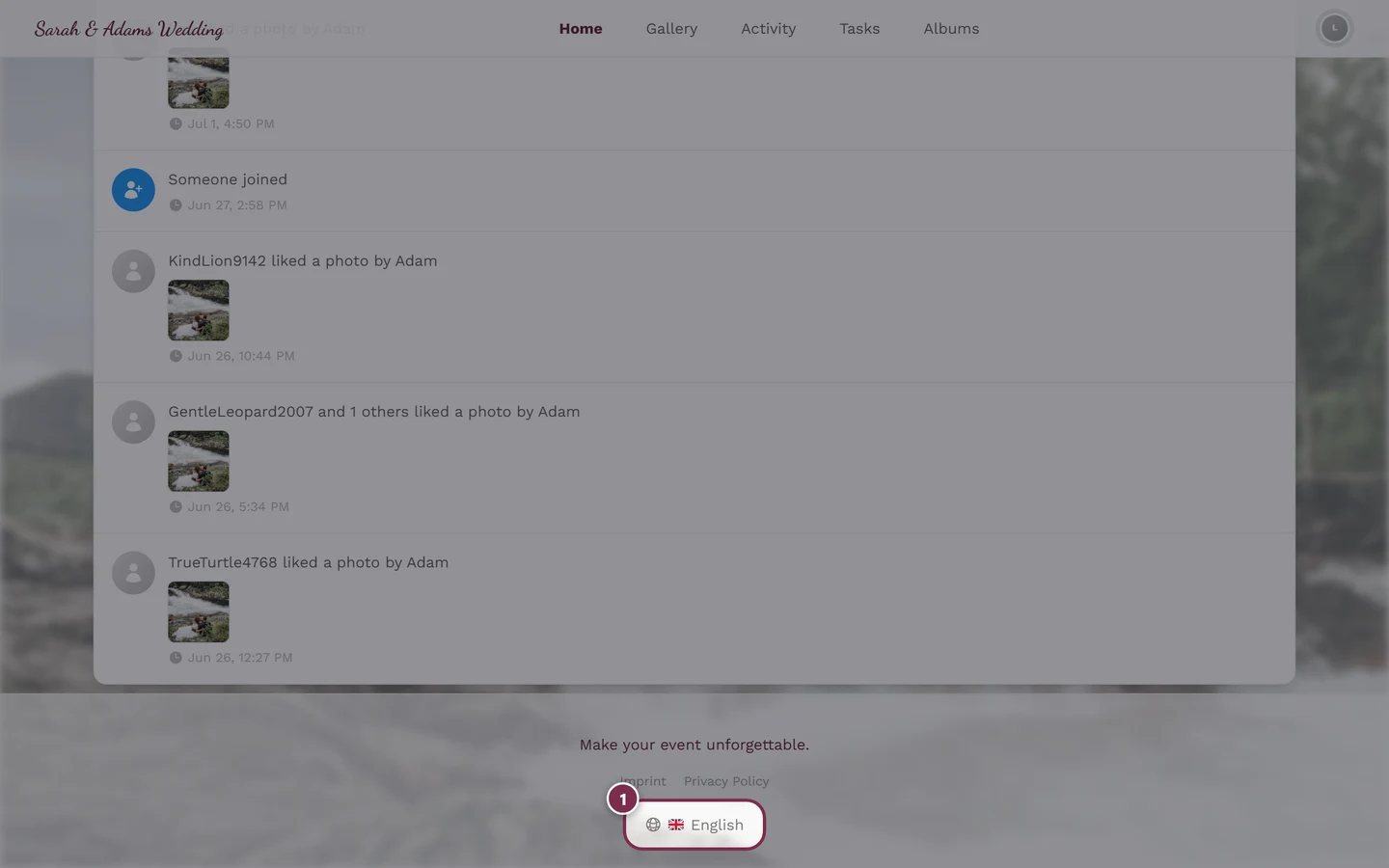
Section titled “Changing the language on the gate”You can switch the display language even before joining: at the bottom of the welcome screen you’ll find the globe icon with a language picker. The change takes effect immediately. Details under Changing the language.
Troubleshooting
Section titled “Troubleshooting”What happens after joining?
Section titled “What happens after joining?”Done – you’re in the gallery. From here you can dive right in:
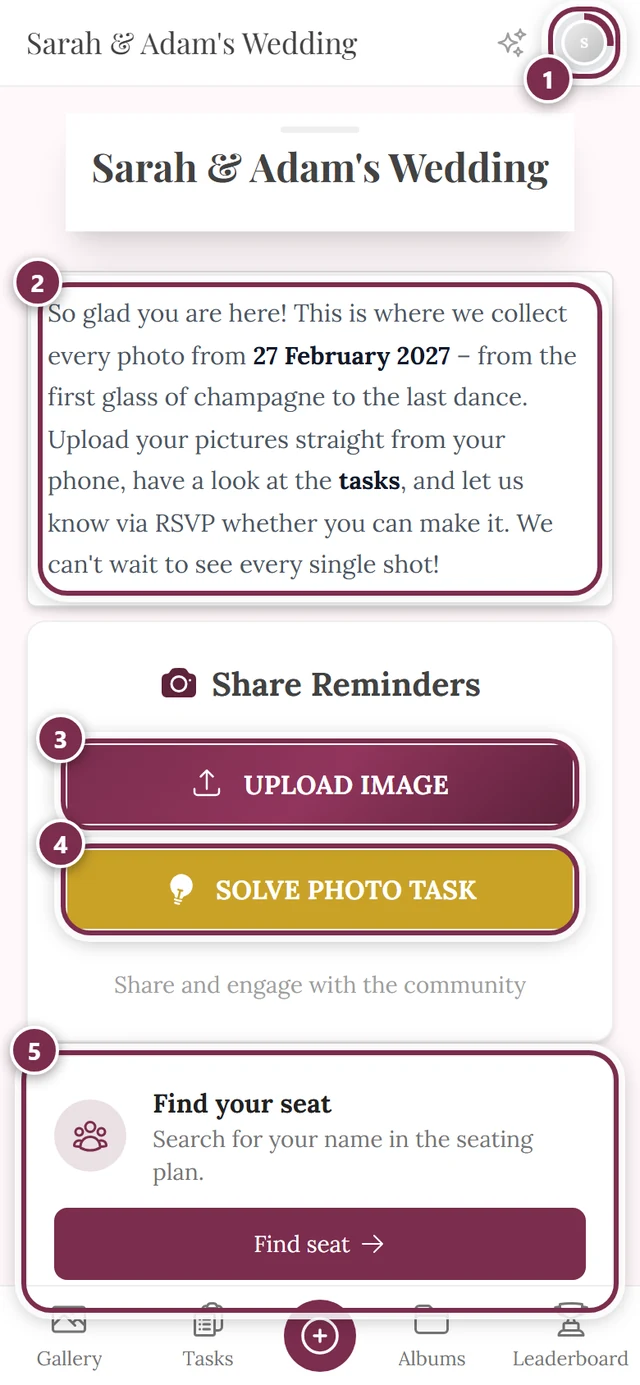
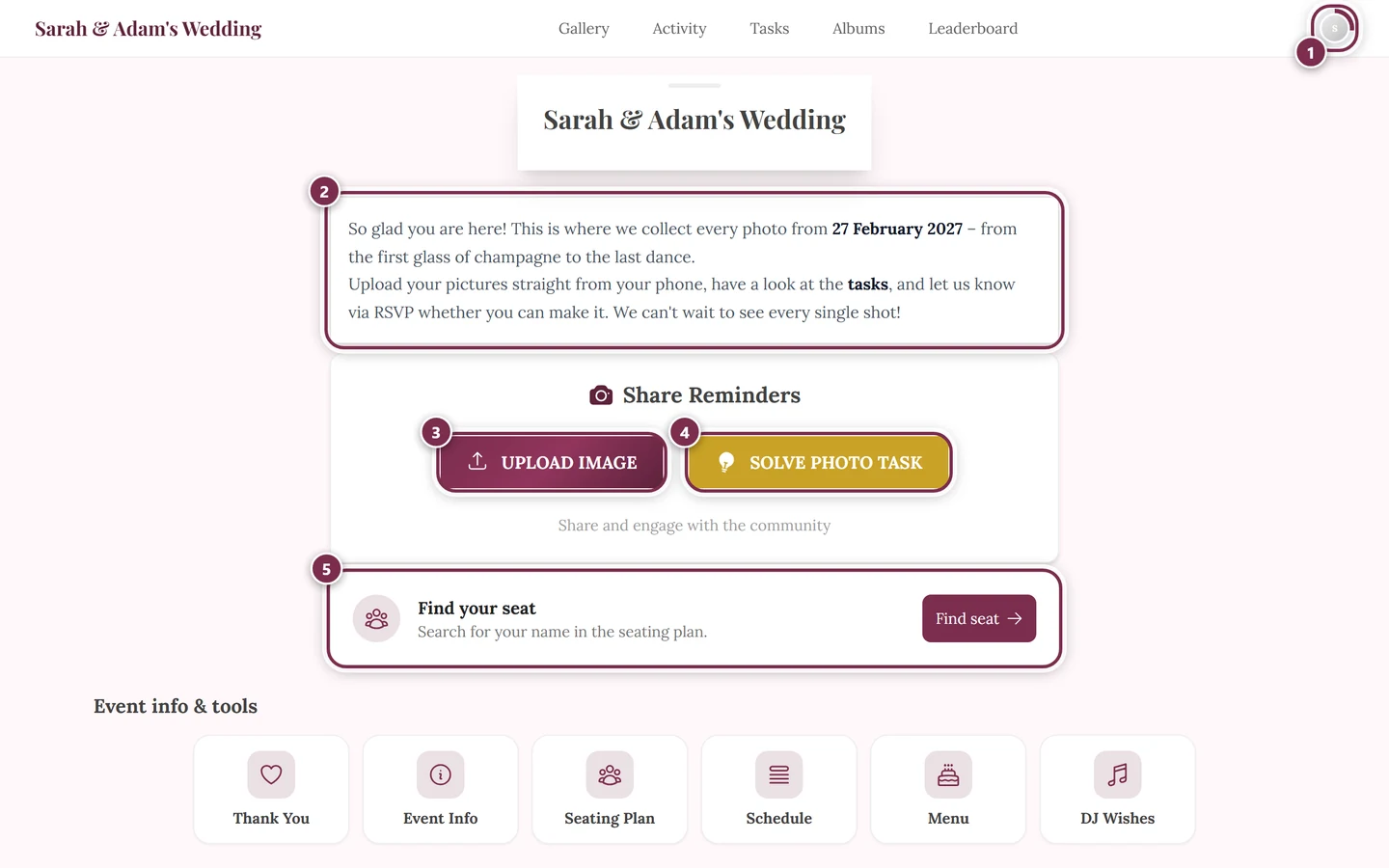
- Viewing and navigating the gallery – find your way around the grid, albums, and menus.
- Uploading photos – share your own shots with everyone.
- Solve photo tasks – earn points with little photo challenges.
- Profile & nickname – change your display name anytime.
- Tools at the event – schedule, menu, seating plan and more.