Points & rewards
Joining in pays off: your activity earns points, unlocks achievements and moves you up the leaderboard – and with a bit of luck there are even real rewards.
Points, achievements and the leaderboard are three separate features. An event may show just one, two or all three. If you don’t see one of them, the host hasn’t enabled it for this event (or the event plan doesn’t include it). At the bottom you’ll find an overview of what to do when something is missing.
Seeing your point total
Section titled “Seeing your point total”The fastest route is the profile menu in the top right. There are three ways to check your total.
Way A – Profile menu, top right
Section titled “Way A – Profile menu, top right”-
Tap your profile icon or avatar in the top right.
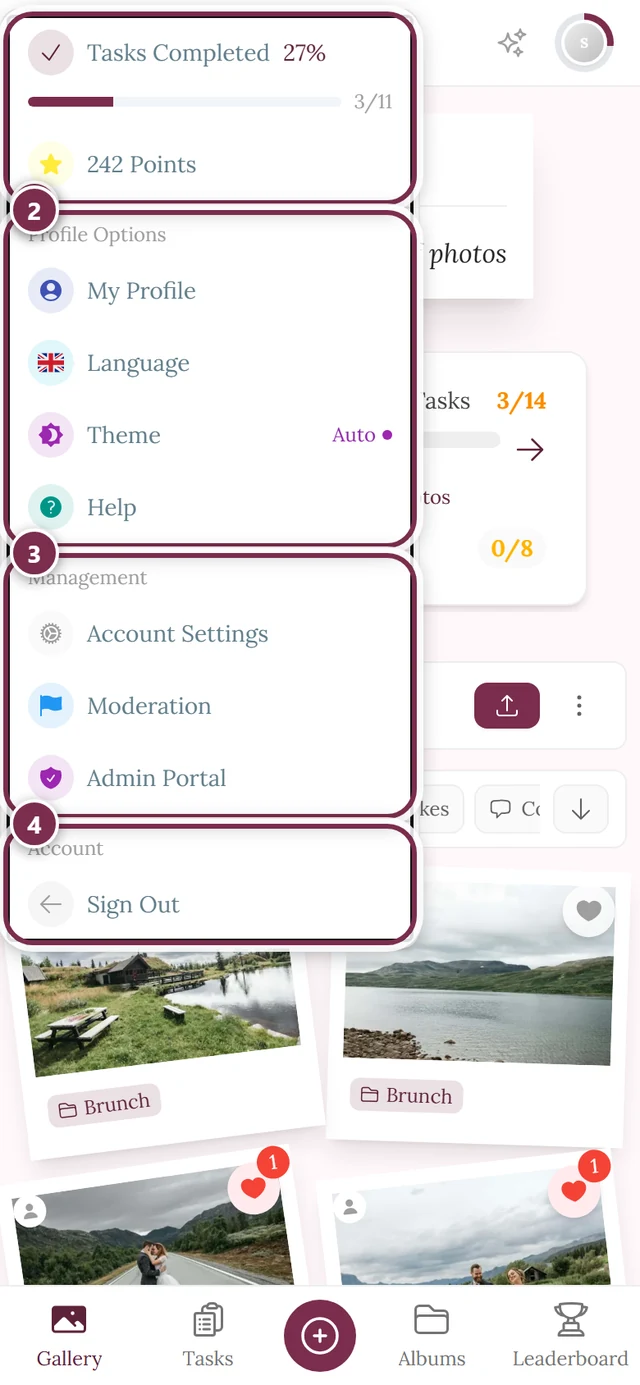
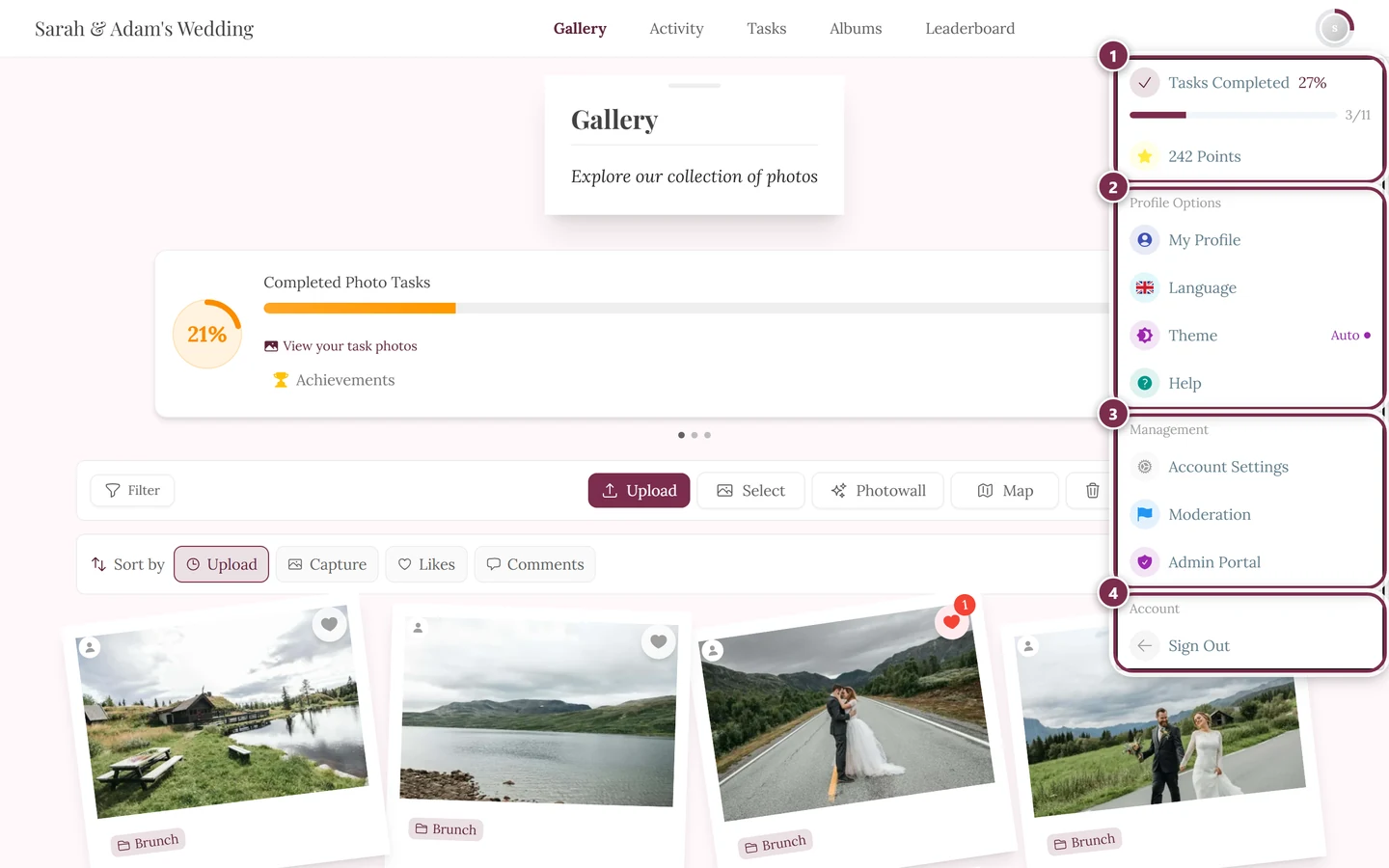
The profile menu in the top right gets you to points, profile and management. ① your points and solved tasks, ② Profile options with My Profile, Language, Theme and Help, ③ Management with Account Settings, Moderation and Admin Portal – this section is missing until you hold a role for it, ④ Account with Sign out. -
The menu shows an entry “N Points” (Points) with a yellow star icon – it displays your current total right there as a number. This entry only appears when points are enabled for the event.
-
Tap it. The Points Summary dialog opens.
Way B – The Points Summary dialog in detail
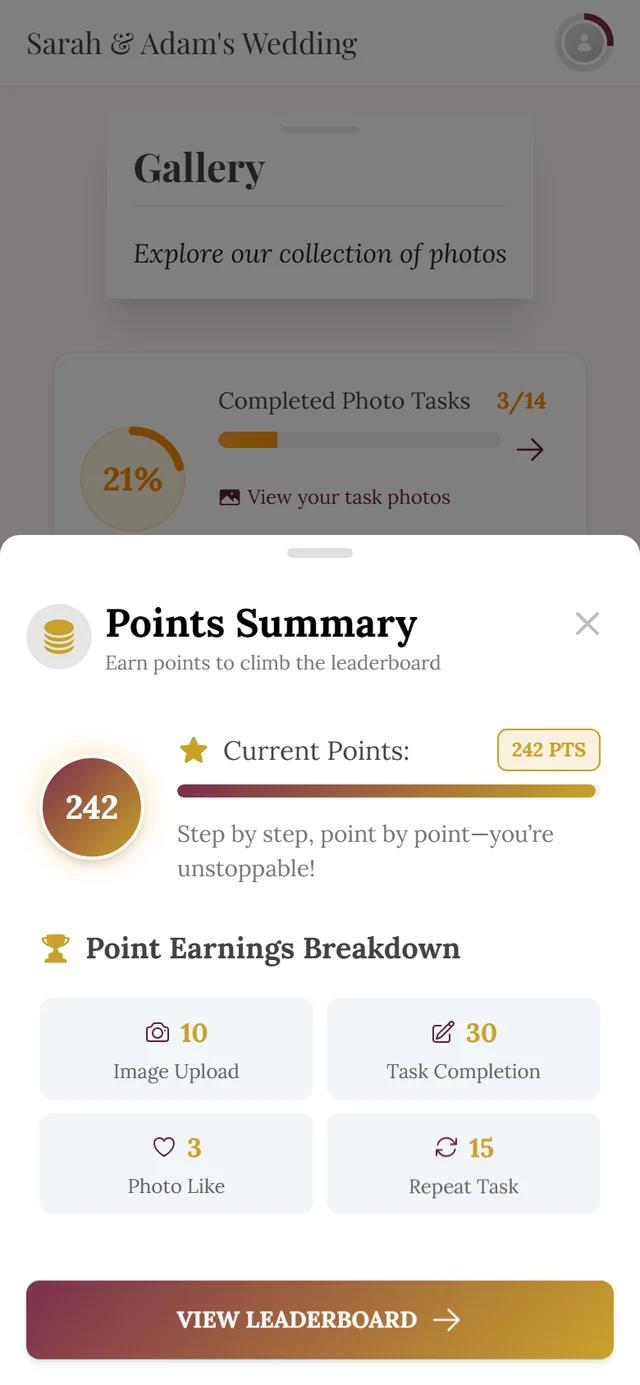
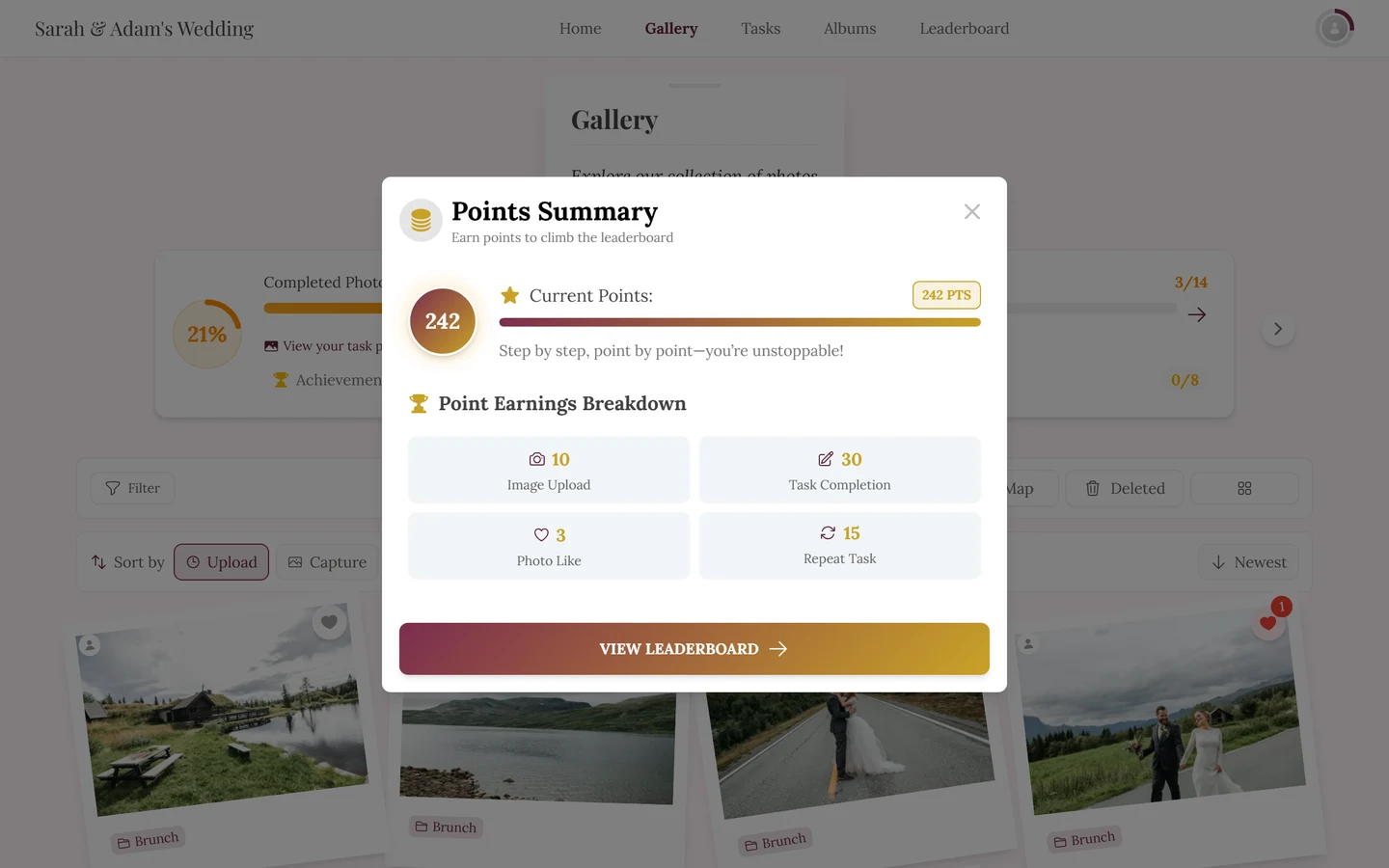
Section titled “Way B – The Points Summary dialog in detail”The Points Summary dialog shows everything at a glance:
- At the very top the title Points Summary with the subtitle Earn points to climb the leaderboard.
- A large circle with your current point total, next to it the line Current Points: and a chip “N pts” on the right. Below that a motivational line (“Step by step, point by point—you’re unstoppable!”).
- The Point Earnings Breakdown section lists how many points each action is worth. The host sets these values. Depending on which features are enabled, up to four tiles appear:
- Photo Upload – always shown.
- Task Completion – only when challenges are active.
- Photo Like – only when likes are active.
- Repeat Task – only when tasks are active; often worth fewer points than the first time.
- At the bottom, the View Leaderboard button – only when the leaderboard is enabled. It takes you straight to the leaderboard.
Way C – In your profile (permanent display)
Section titled “Way C – In your profile (permanent display)”Your profile shows your point total permanently:
-
Open My Profile from the profile menu.
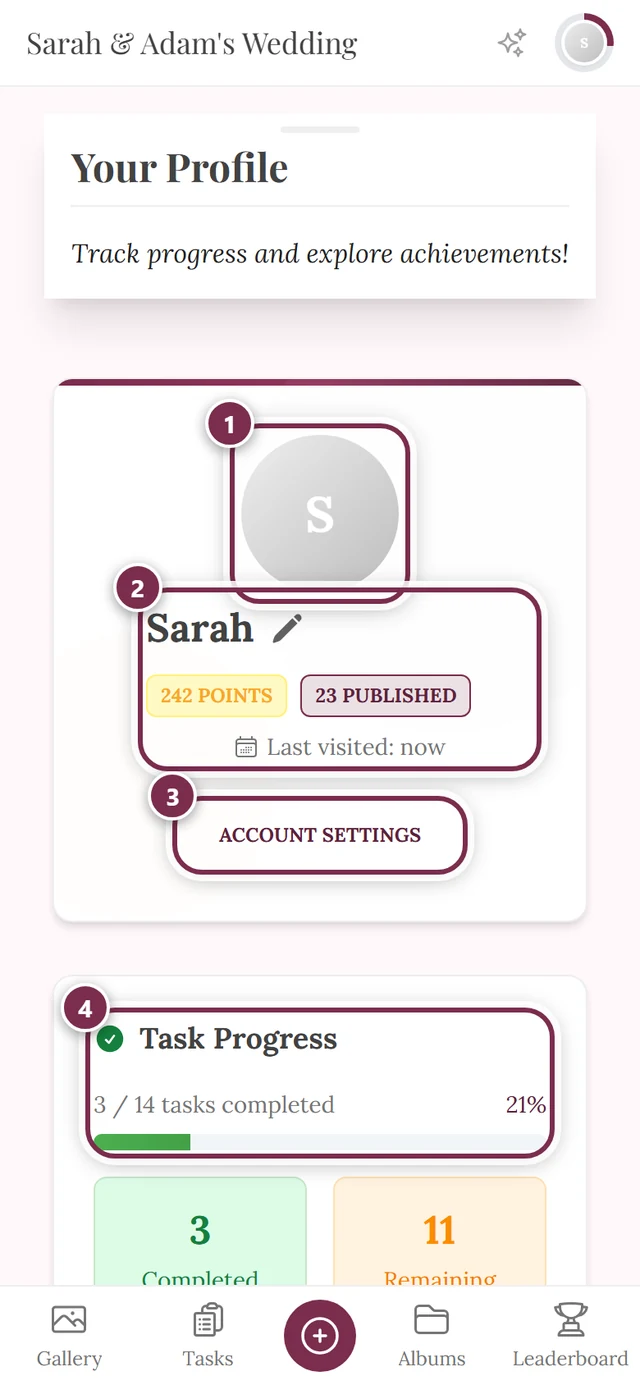
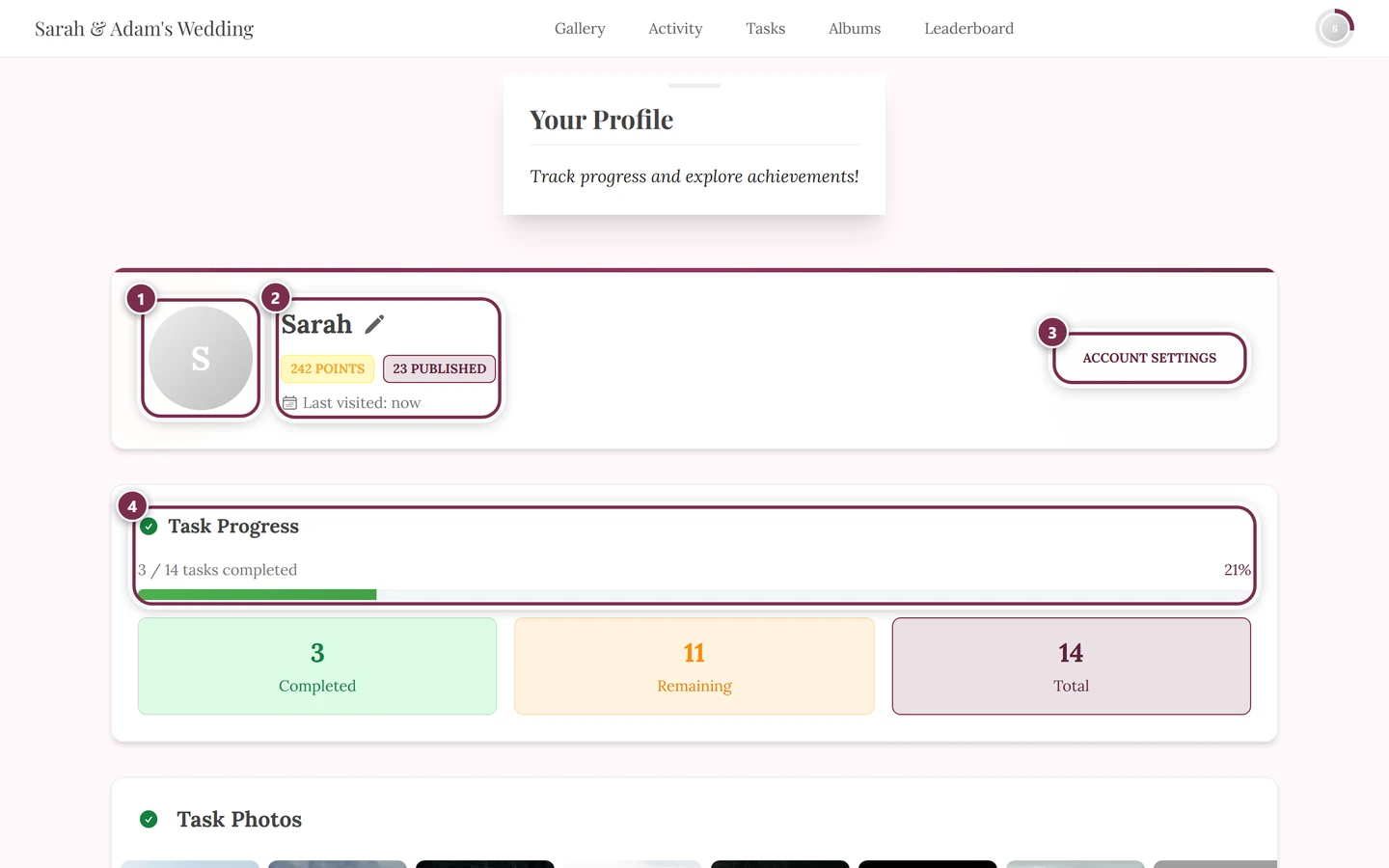
Your profile shows points, achievements and your rank permanently. ① your profile picture, ② your name with the pencil that changes the nickname, below it points, published photos and the last visit, ③ Account Settings, ④ your Task Progress. -
In the profile header you’ll see a yellow chip “N points” (points) as soon as you have more than 0 points.
-
In the Recognition panel, the row Points Earned shows your total.
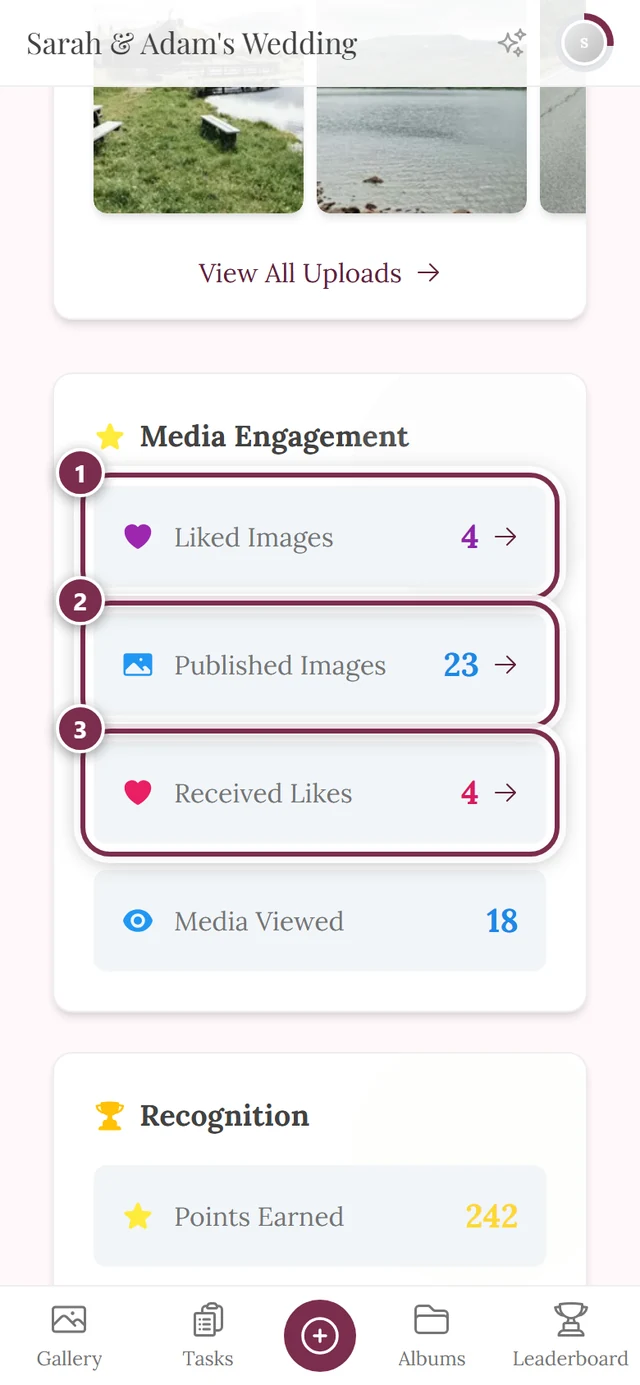
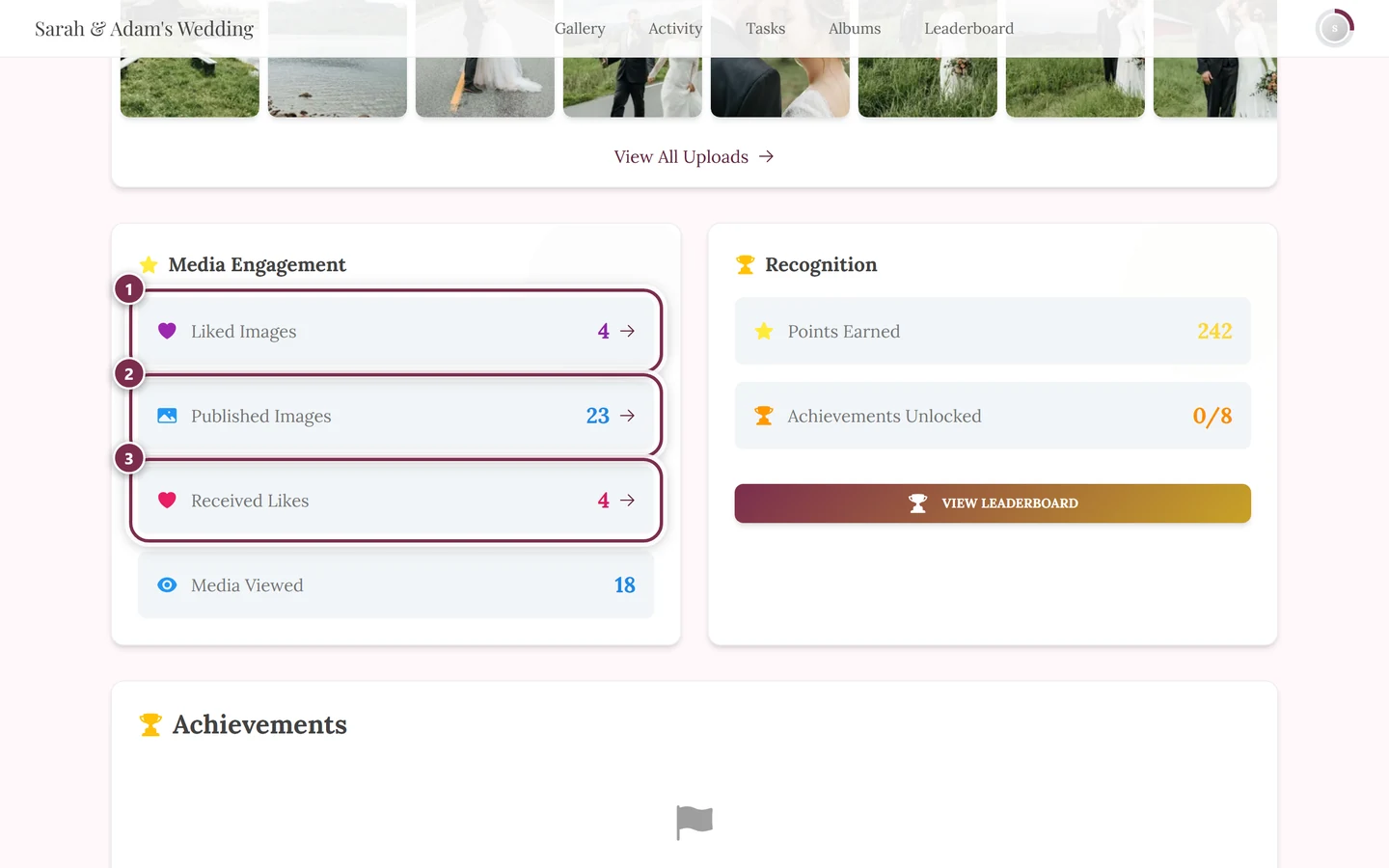
On the left, Media engagement: 1 liked images, 2 published images, 3 received likes. On the right, Recognition with Earned points and Unlocked achievements — your point total and achievement progress.
What earns points
Section titled “What earns points”You earn points for concrete contributions to the event. There are exactly these four point sources (which of them count depends on the enabled features):
- Upload a photo/video (Photo Upload) – the default source, active almost always. See Uploading photos.
- Solve a challenge/task (Task Completion) – only when tasks are active. See Challenges.
- Solve a task again (Repeat Task) – usually worth fewer points than the first time (or the same, depending on the host).
- Give a like (Photo Like) – only when likes are active. See Likes & comments.
Achievements
Section titled “Achievements”For certain milestones you unlock achievements – small badges with a name, a description and progress (e.g. first photo, 10 likes, all challenges solved).
Where to find your achievements
Section titled “Where to find your achievements”-
Open your profile from the profile menu in the top right.
-
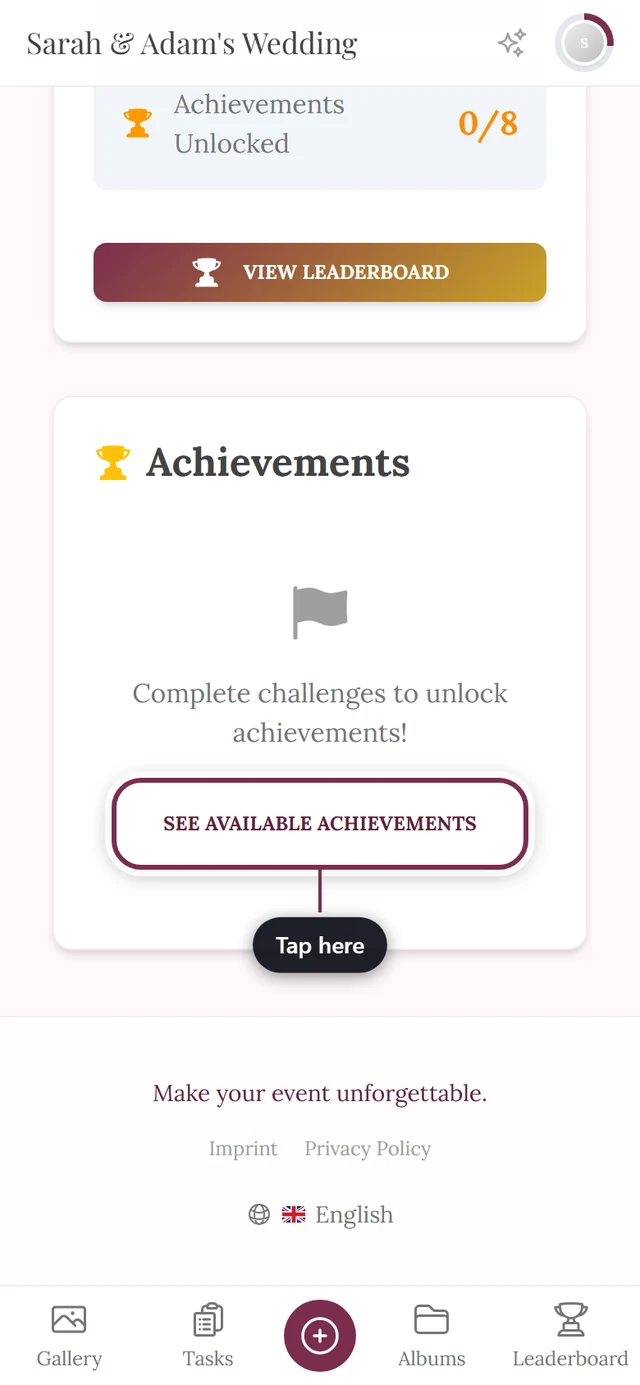
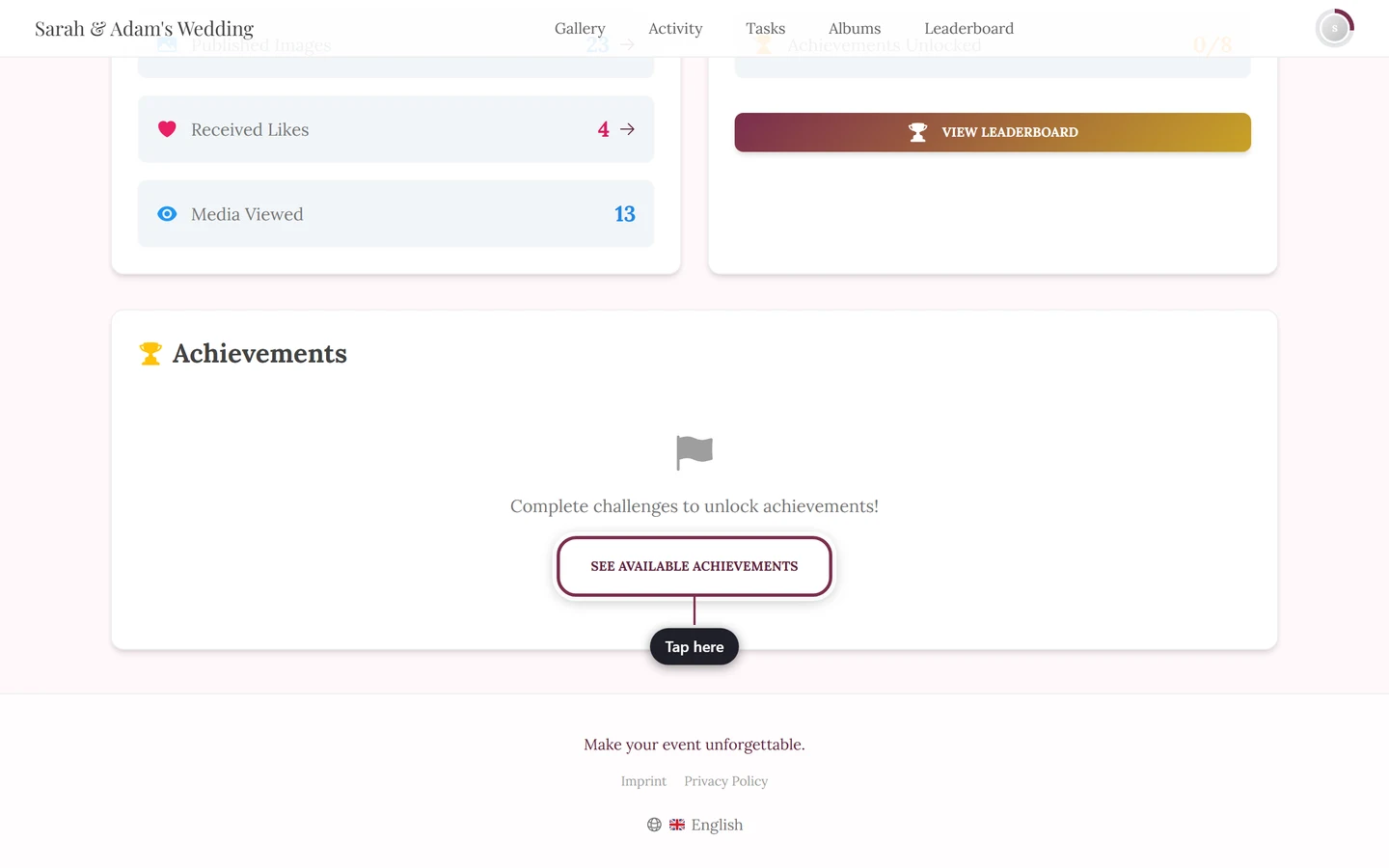
Scroll to the Achievements section with the trophy icon. It only appears when achievements are enabled and have been created for the event.
-
Alternatively, tap the chip “N achievements” (achievements) in the profile header – that opens the achievements overview directly on the Unlocked tab.
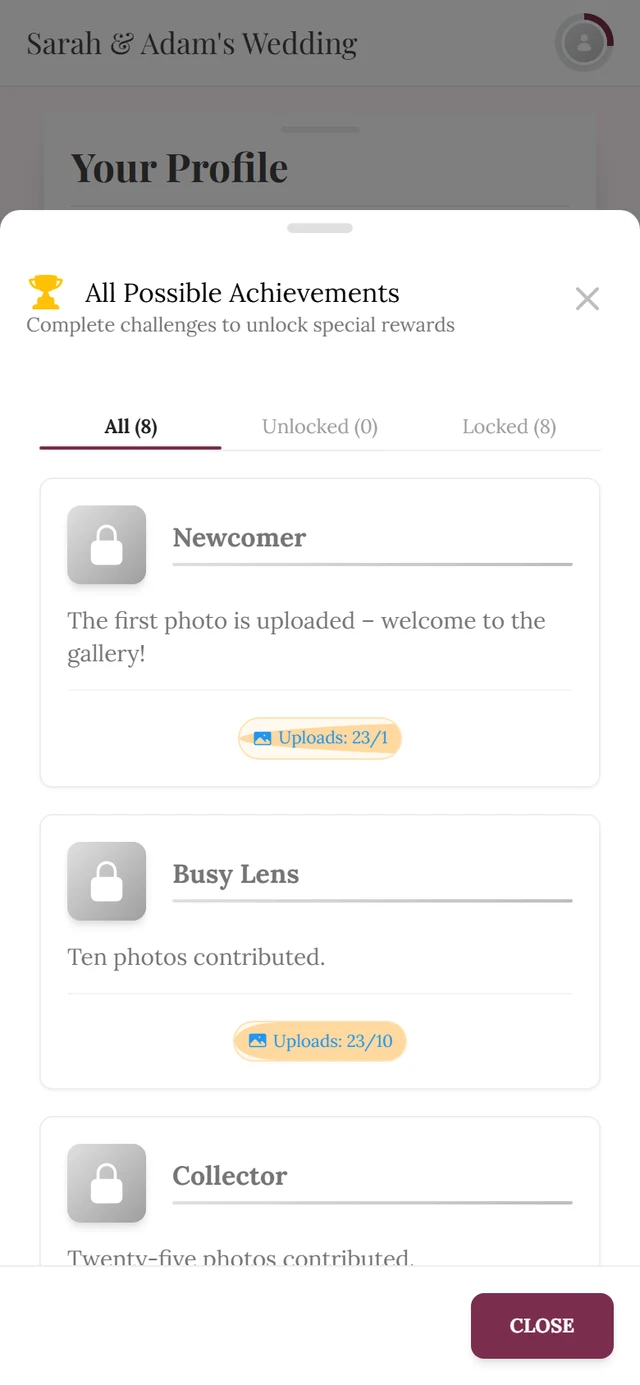
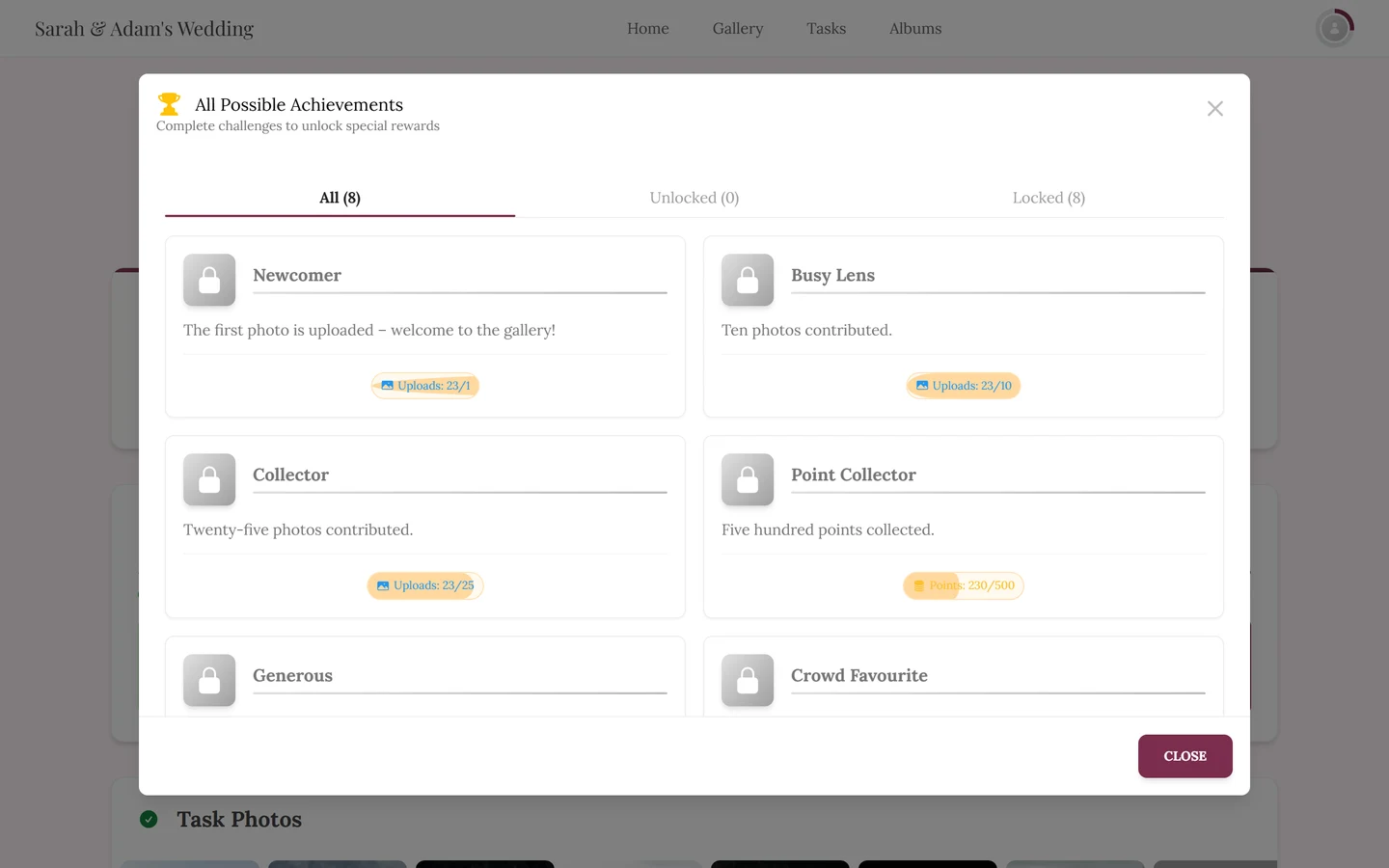
The achievements overview: the All tab also lists the locked ones with their conditions.
The Achievements Unlocked tile in the Recognition panel shows <earned>/<total>, i.e. how many of the available achievements you already have.
What a single achievement looks like
Section titled “What a single achievement looks like”Tapping an achievement tile opens the achievement dialog:
- Unlocked: a colorful badge with confetti and a glow effect, name and description, plus the Close button.
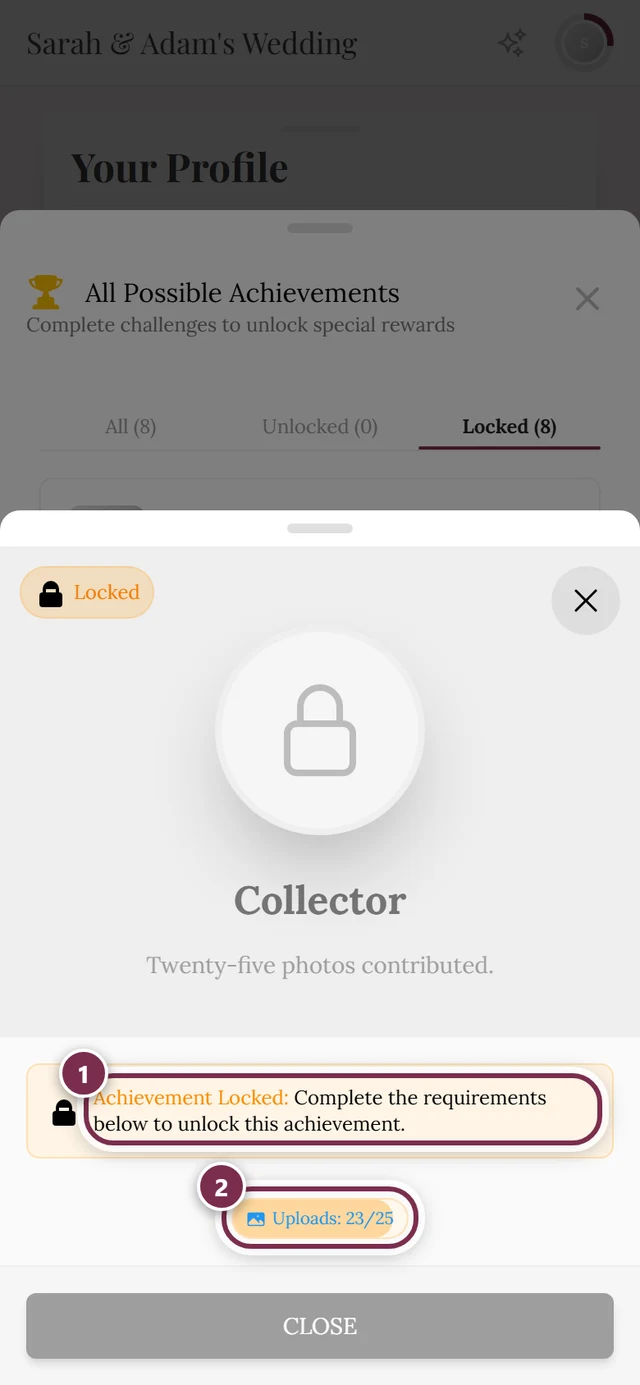
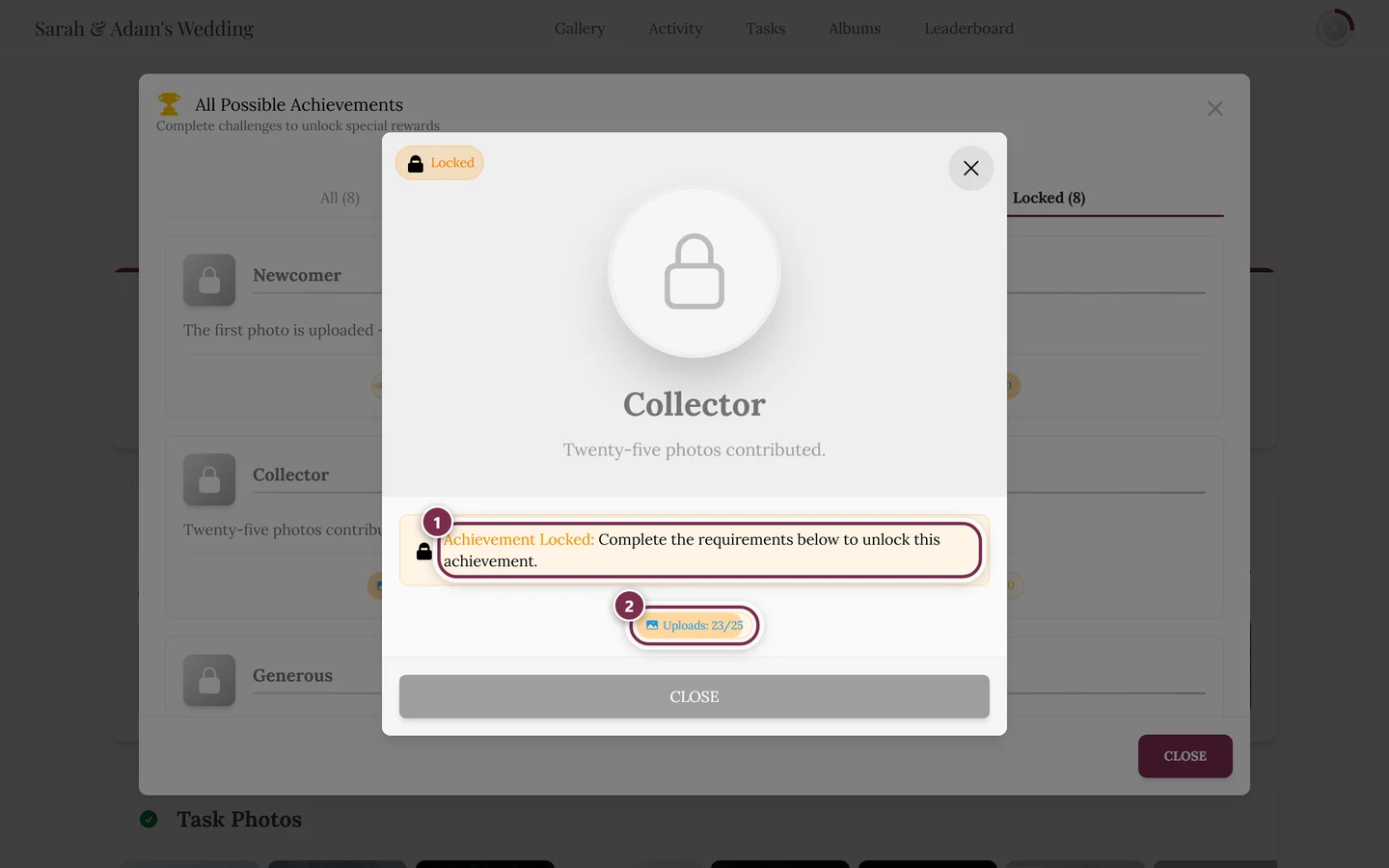
- Locked: the badge is grayed out, a Locked chip sits in the top left, and an orange info box with a padlock reads “Achievement Locked:” followed by “Complete the requirements below to unlock this achievement.”. Below it, a progress display shows how much you still need (e.g. points, likes received, images uploaded or tasks solved). So you can see exactly what’s left to do.
- Open another guest’s achievement and you’ll see a User’s Achievement chip – with no redemption buttons.
- If you have only just reached an achievement with an upload that is still being processed, the dialog shows Confirmation pending. You can also open this dialog straight from the upload: tap the achievement in the thank-you card or on the completion screen.
Viewing all achievements
Section titled “Viewing all achievements”At the bottom of the achievements section you’ll find the See Available Achievements button. It opens an overview of all achievements – including the ones still open, with their conditions. That’s how you plan which one to go for next.
The leaderboard
Section titled “The leaderboard”The leaderboard shows who’s ahead at the event.
How to open the leaderboard
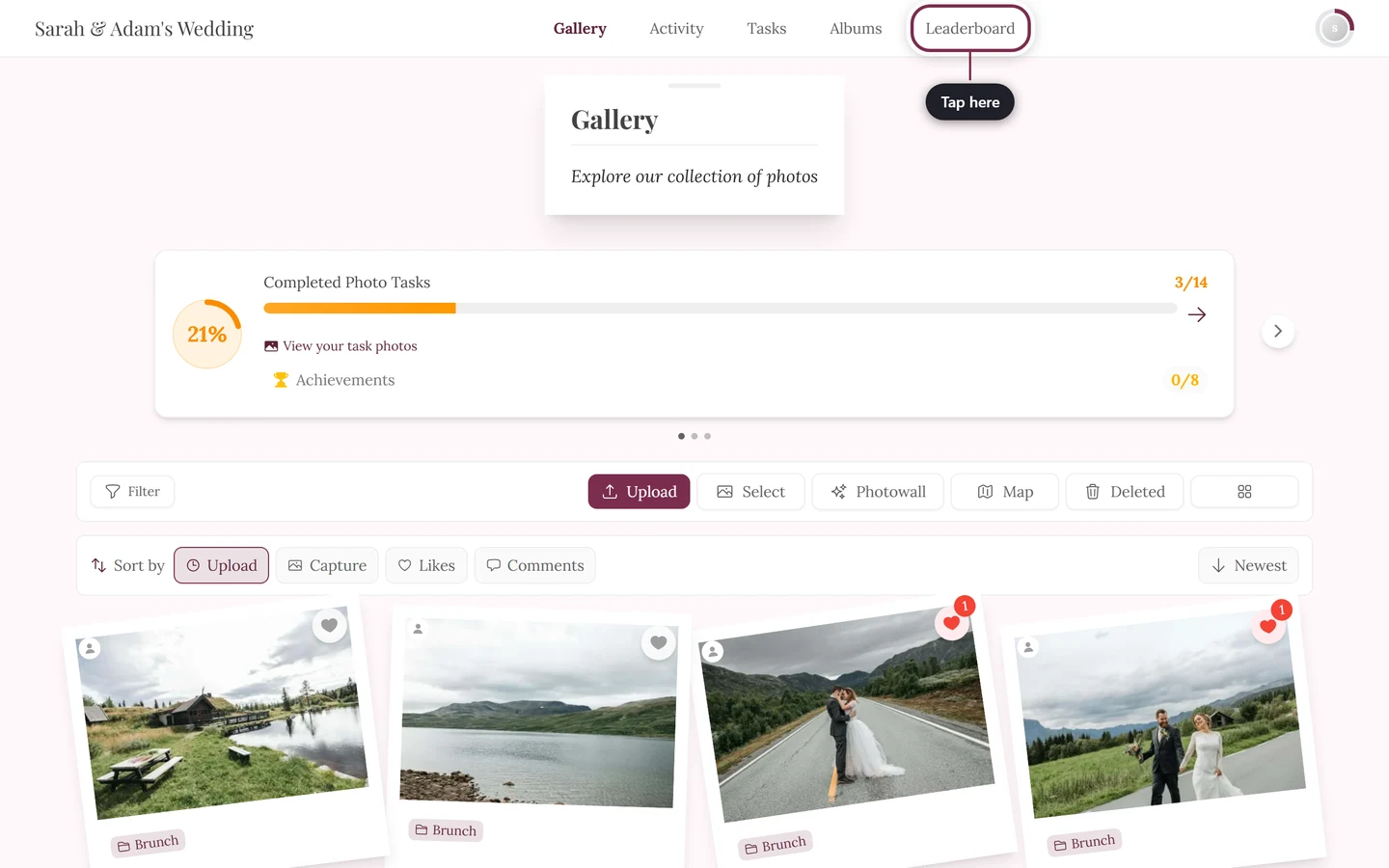
Section titled “How to open the leaderboard”- On a computer: the Leaderboard menu item in the top navigation bar.
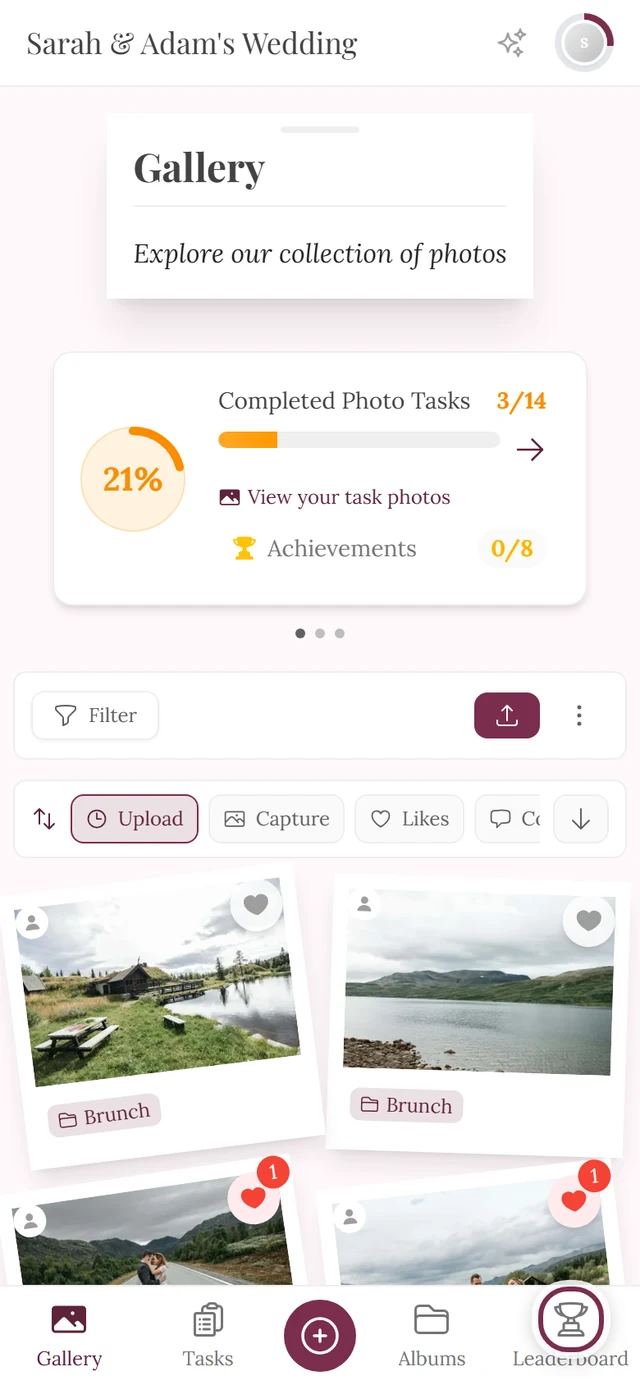
- On a phone: the trophy “Leaderboard” icon in the bottom navigation bar.
- Alternatively: the View Leaderboard button from the Points Summary dialog or from the Recognition panel of your profile.
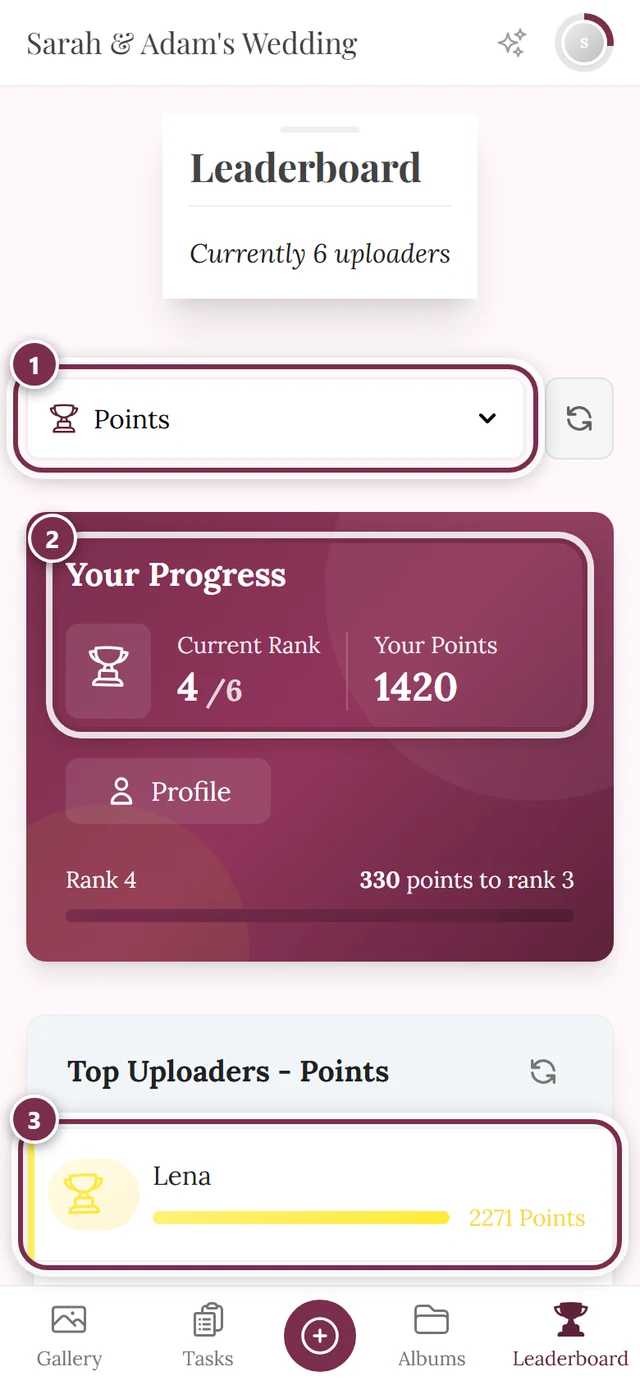
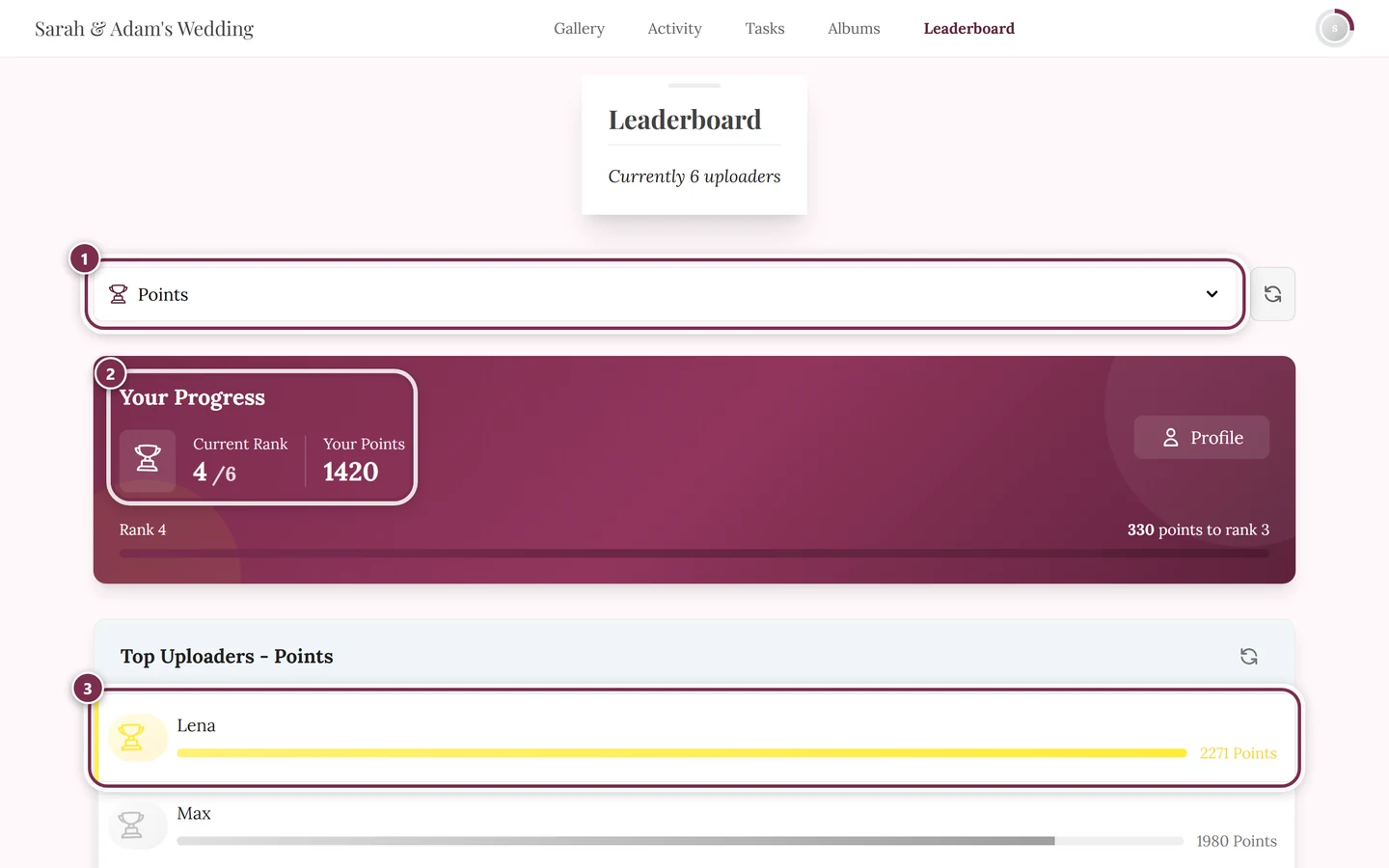
Which ranking it’s sorted by
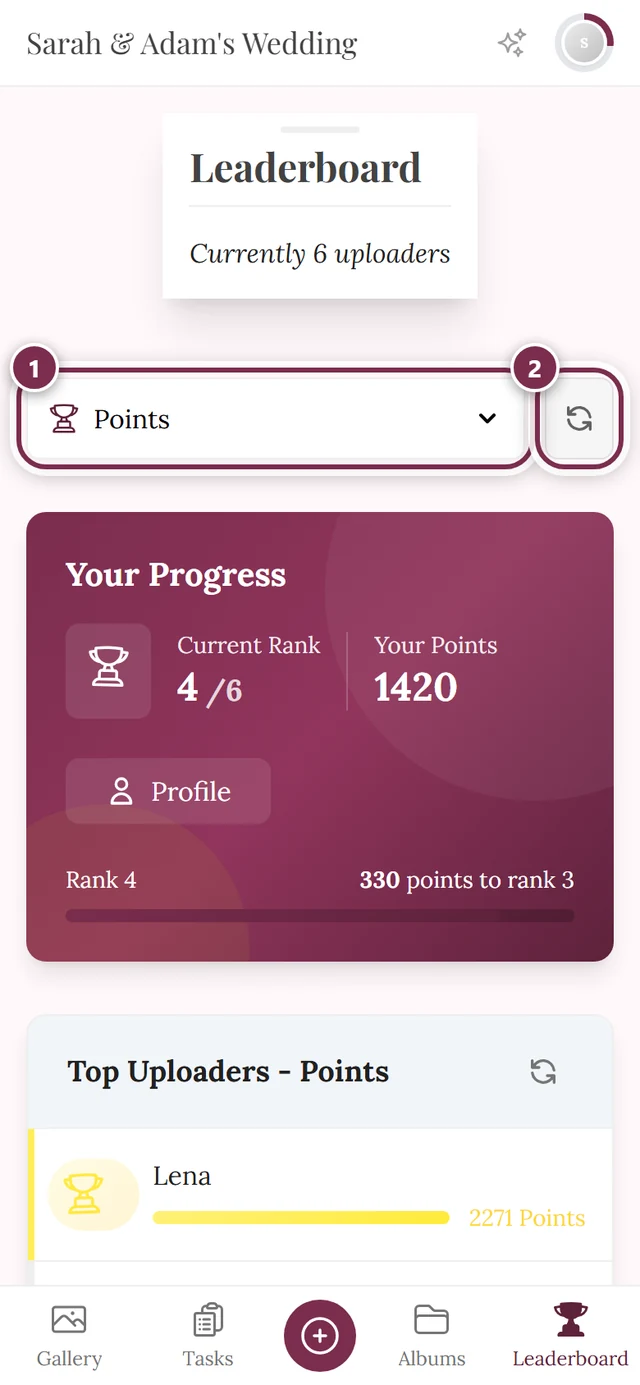
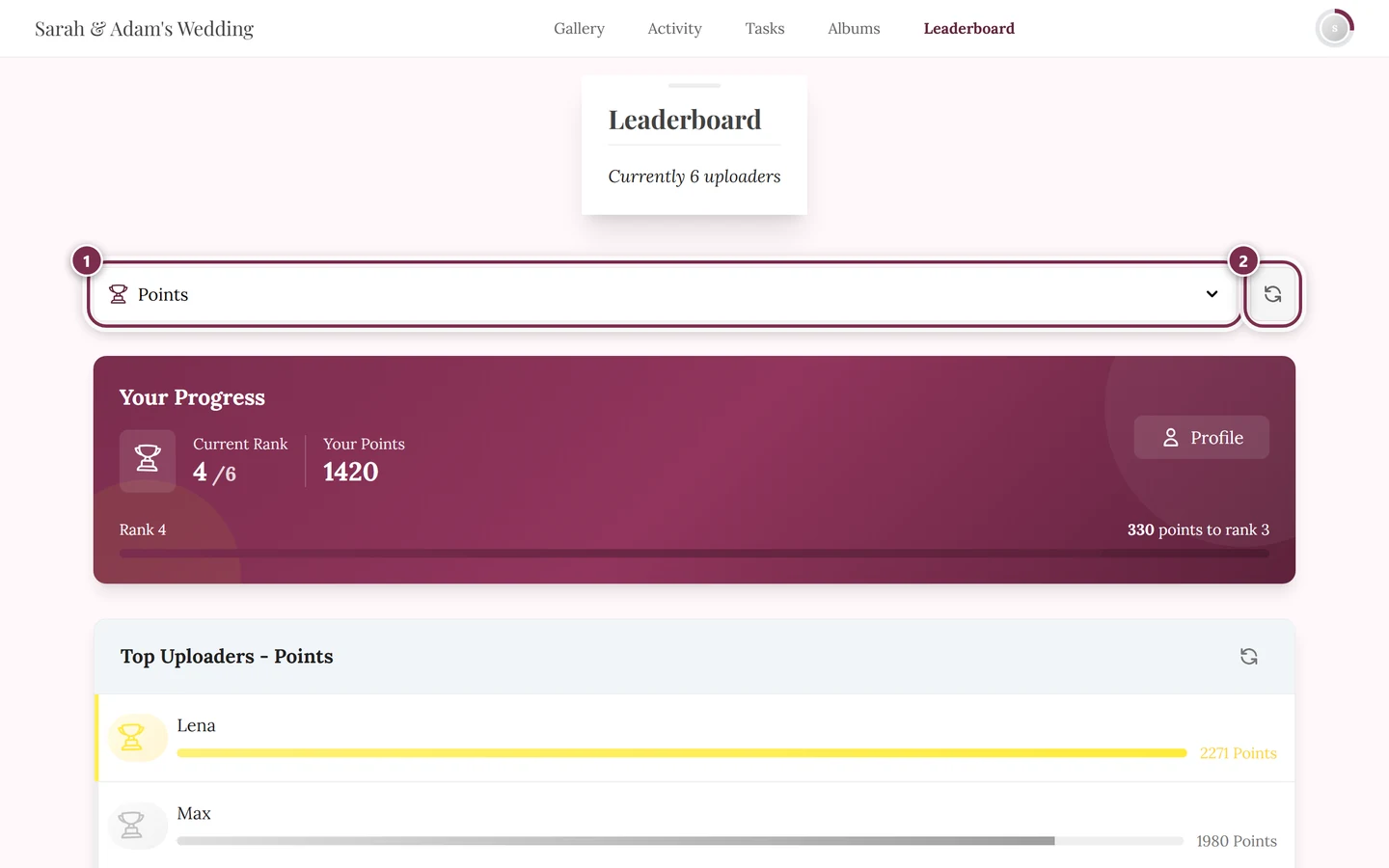
Section titled “Which ranking it’s sorted by”At the top of the leaderboard page there’s a metric selector (dropdown) when the host has released more than one ranking. The default is Points, when available.
- Open the metric dropdown at the top.
- Tap the ranking you want. Possible rankings (each only visible when the related feature is active and the host has selected it):
- Points
- Likes Received
- Achievements
- Likes Given
- Tasks Completed
- Unique Tasks Completed
- Images Uploaded
- as well as shares, downloads, media viewed, views received, comments and comments received.
- Your choice is remembered in the address (URL). A shared link opens the leaderboard directly with the same ranking.
If only one ranking is released, a fixed display appears instead of the dropdown – there’s nothing to choose then.
What the leaderboard shows
Section titled “What the leaderboard shows”- At the very top the “Your Progress” card: Current Rank as
4 / 6on the left, next to it your own value under “Your Points” (or the name of the ranking you picked). Below that a bar, and on the right the gap to the next place – e.g. “330 points to rank 3”. The Profile button in the card opens your profile. - The top 10 participants. Places 1–3 get a trophy in gold, silver or bronze and a colored ring around the profile picture.
- A progress bar relative to the leader, plus the number and ranking name per person.
- Names are clickable – a tap opens that person’s profile. That’s how you look at other guests’ uploads and achievements.
- The header subtitle names the number of participants, e.g. Currently N uploaders.
Your position and special states
Section titled “Your position and special states”Depending on the state of the event, the leaderboard shows different things:
- You’re Not Ranked Yet: with 0 in the selected ranking, a banner appears calling you to join in (e.g. “Upload Photos”, “Solve Tasks”, “Give Likes”). A single action is enough to appear.
- Uncontested!: if you’re alone at the top, a special view with confetti and rank 1 appears.
- Be the First!: if nobody has points yet, a large Upload Now button appears.
- Leaderboard disabled: if the host has switched it off, the page shows a note that the feature isn’t active for this event.
- No rankings: leaderboard on, but no category selected – then you’ll see the note “Leaderboard Unavailable” – “No leaderboard metrics are currently enabled for this event.”
- Error Loading Data: on an error, the refresh button helps.
When the standing is frozen – the winners
Section titled “When the standing is frozen – the winners”Some events crown winners at the end. To do that the host freezes the standing at a point in time – from then on, later uploads, likes or deletions no longer change the result.
How you notice it’s over
Section titled “How you notice it’s over”The moment the standing is frozen, every open device gets a notice “The result is in” with the text “The competition has ended — take a look at the winners!”. Open the leaderboard after that and you no longer see the live ranking but the final result.
The route stays the same: the Leaderboard menu item on a computer, the trophy icon on a phone.
What the final result page shows
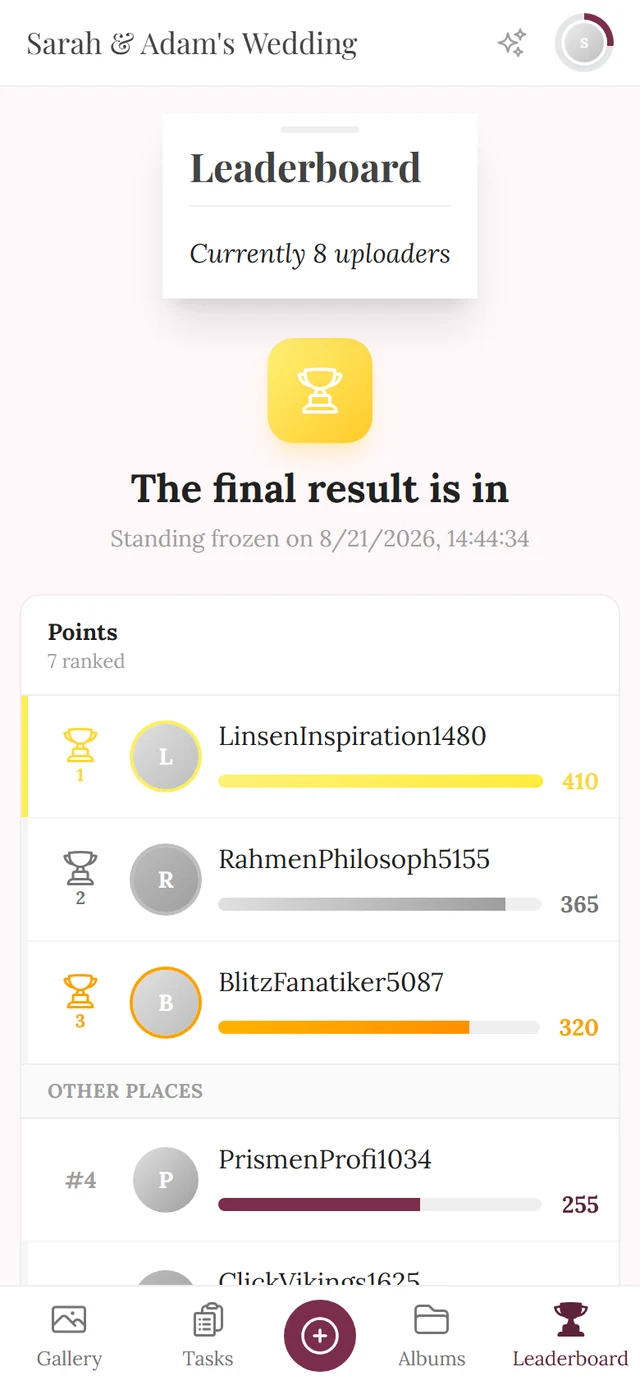
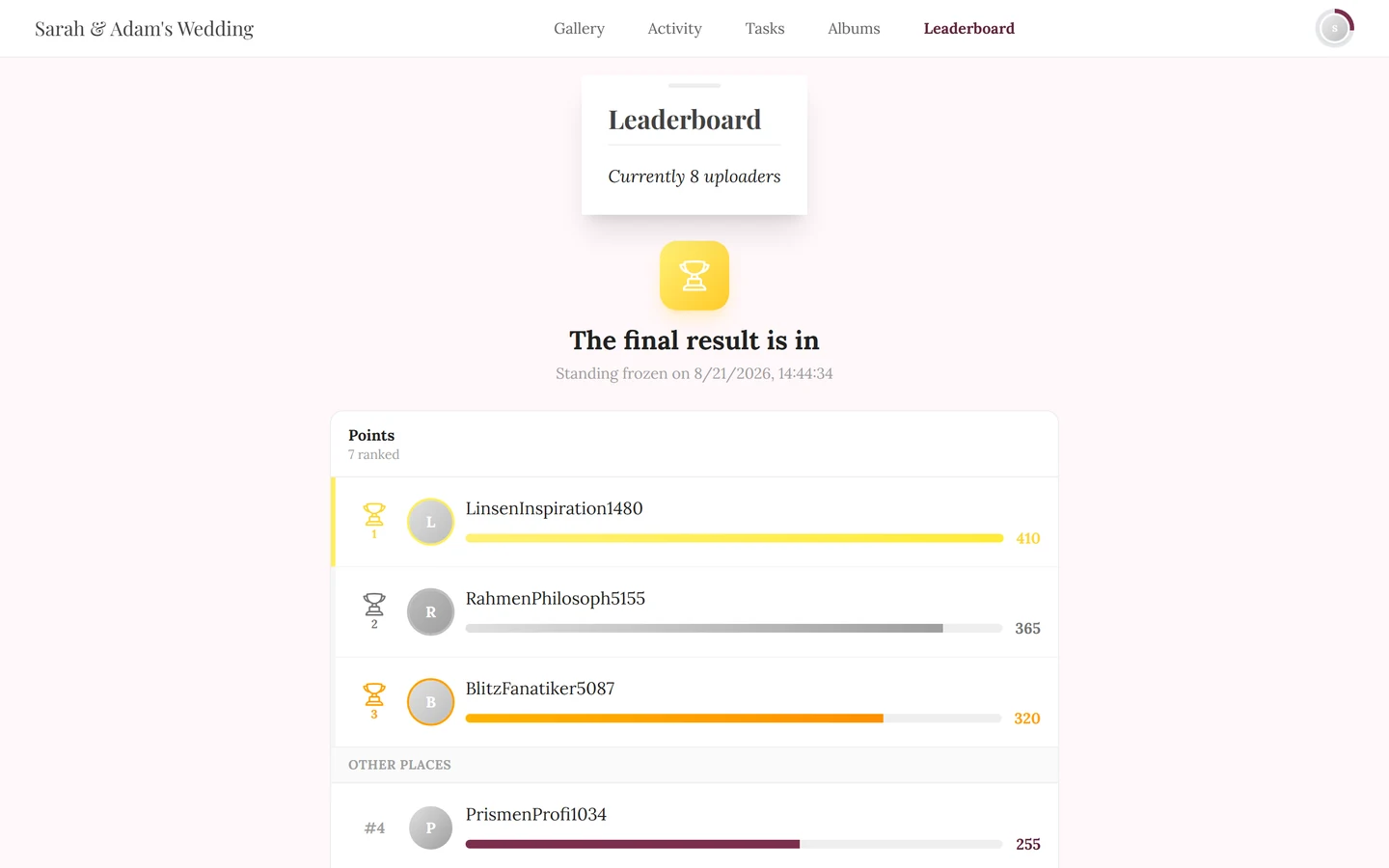
Section titled “What the final result page shows”- At the very top a trophy and the heading “The final result is in”, below it “Standing frozen on …” with the date and time.
- If the host crowned several scoring categories, you switch between them with chips at the top – each has its own winners.
- The winners come first, with a trophy, their place number, a colored border and a bar. Below them follows the section “Other places” with everyone else who is ranked – so you find yourself even when you didn’t win.
- Your own row has a colored background and carries the tag “(you)”. Other guests’ names can be tapped to open their profile.
- On a tie, several people share the same place – which is why more than one person can sit on “Rank 1”.
If you won
Section titled “If you won”Then a highlighted card appears above the list (with confetti):
-
The card reads “You won!” and below it your placement in the format “Place N — ranking”.
-
Tap “Collect prize”. A dialog opens with your placement as its heading.
-
The dialog explains: you’ll get a code to show the hosts. Below that sits a field “Your name (optional)”.
-
The name is voluntary. You can fill it in so the hosts find you more easily – or simply leave the field empty and continue anyway.
-
Tap “Show code”. Your six-digit code now appears in large type in the format
XXX-XXX, together with the note “Show this code to the hosts to collect your prize.” -
Finish with “Done”. The code isn’t gone: the same button – now labeled “Show code” – brings it back any time.
If your prize has already been handed over, the dialog additionally reads “This prize has already been handed out.”
The cards in the gallery
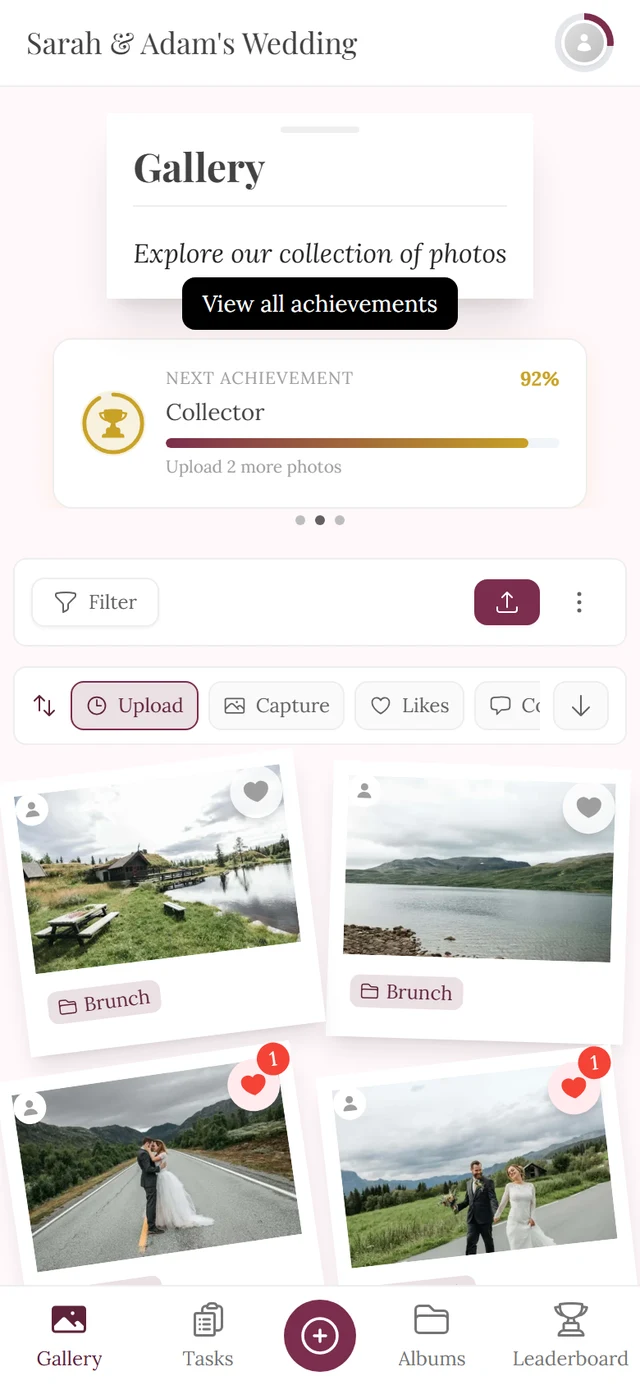
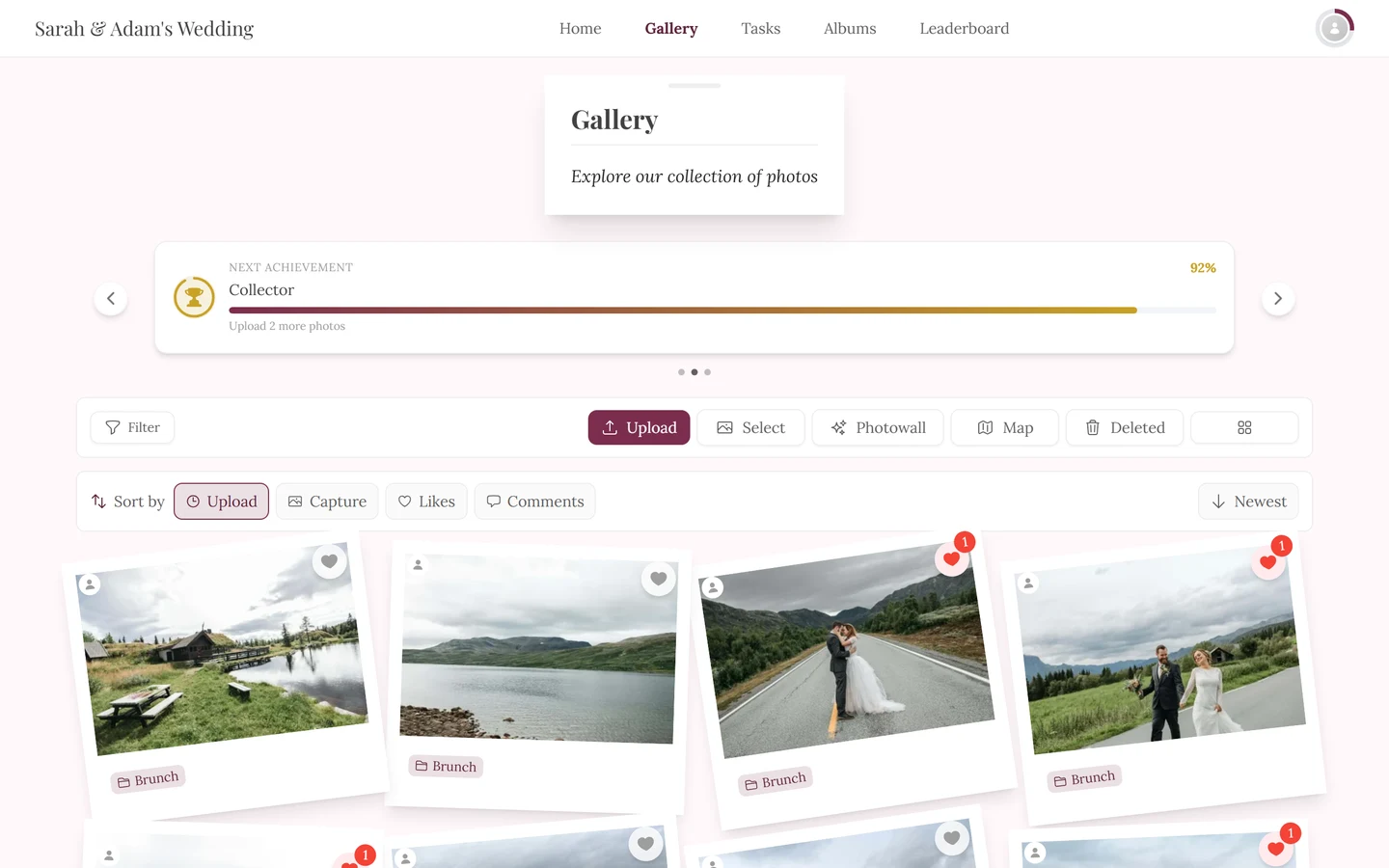
Section titled “The cards in the gallery”On the gallery page – not the home page – Photogala shows up to three small progress cards above the photos. Which ones you see is up to the host. When at least two of them are active they turn into a carousel: swipe sideways, tap the dots below, and on a computer use the arrows on the left and right as well.
The “Next Achievement” card
Section titled “The “Next Achievement” card”It shows which achievement you can reach next:
- Top left the label “Next Achievement”, on the right your progress as a percentage.
- Below it the name of the achievement, plus a ring around the achievement’s image or around a trophy.
- If a reward is attached, a line with a gift icon and the reward appears.
- At the bottom a progress bar and a concrete hint about what’s still missing – for example “Upload 3 more photos” or “Get 5 more likes on your photos”.
- Tapping the card opens the overview of all achievements.
- Once you have unlocked everything, the card switches to “All Achievements Unlocked!” with confetti and the line “N of N completed”.
The “Captured together” card (memories counter)
Section titled “The “Captured together” card (memories counter)”This card doesn’t count your own effort but the whole event’s:
- The label “Captured together”, below it a large number and the word “memories”. That means every published photo and video all guests have contributed together.
- On first display the number counts up from 0. After that it keeps ticking live: when new media arrives, a +1 floats upwards, the heart icon pulses and the number pops.
- On round milestones there’s a brief burst of confetti. While your own uploads are still being processed, they are already counted – a “≈” then appears in front of the number, and the confetti only comes once the total is confirmed.
- The tooltip reads “Shared by all guests”.
- The card only appears when the host has enabled the Memories Counter and at least one photo exists.
A short buzz as feedback
Section titled “A short buzz as feedback”On devices that support it, Photogala gives you brief haptic feedback:
- when you like a photo – a single, very short pulse;
- when you unlock an achievement – a small two-pulse pattern; unlock several at once and it gets a little longer;
- when the standing is frozen – every guest with an open page feels that one, together with the notice;
- when opening the final result reveals that you won, and when you unlock a real reward – the slightly more pronounced pattern in both cases.
Redeeming real rewards
Section titled “Redeeming real rewards”Some achievements are tied to a real, physical reward – a drink or a small prize, say.
- Your profile then shows a chip “N redeemable” (redeemable) with a gift icon. A click opens the overview directly on the redeemable tab.
- In the achievement dialog of a redeemable achievement you’ll find an info box with the host’s redemption instructions (e.g. “Collect at the prize table”) and a green Confirm Receipt button. It generates a confirmation code you show to the host.
- Already redeemed? Then it reads View Confirmation Code with an Already Redeemed note.
- Out of stock? Then the Out of Stock button is disabled.
The full flow is described in its own guide, Redeeming real rewards.
Visibility & troubleshooting
Section titled “Visibility & troubleshooting”Points, achievements, the leaderboard and real rewards are four individually toggleable features and depend on the event plan. Only the host can switch them on or off and set the point values and leaderboard rankings (under Settings → Features; see Turning features on & off).
Related help pages
Section titled “Related help pages”- Challenges – the main source of points and achievements.
- Uploading photos and Likes & comments – further point sources.
- Profile – where points, achievements and rank live permanently.
- Redeeming real rewards – the redemption flow in detail.
- For hosts: Turning features on & off, Redeeming rewards and Crowning winners & handing out prizes.