Custom Pages
Custom pages let you build extra info pages – for everything that fits no other tool: directions and parking, childcare, house rules, gift wishes, briefing notes for the witnesses. Every page has its own title, its own slug, its own icon and its own QR code.
Custom pages or event info?
Section titled “Custom pages or event info?”Both tools show text and image – the difference is volume:
- Event Info – one coherent text, prominently as a widget on the home page.
- Custom Pages – several separate pages, each with its own topic, its own slug and its own icon.
Rule of thumb: as soon as you would need subheadings inside event info, custom pages are the better choice. Custom pages have no widget on the home page – and therefore no Visibility tab either. You control visibility per page with Draft and Published.
Where to find the tool
Section titled “Where to find the tool”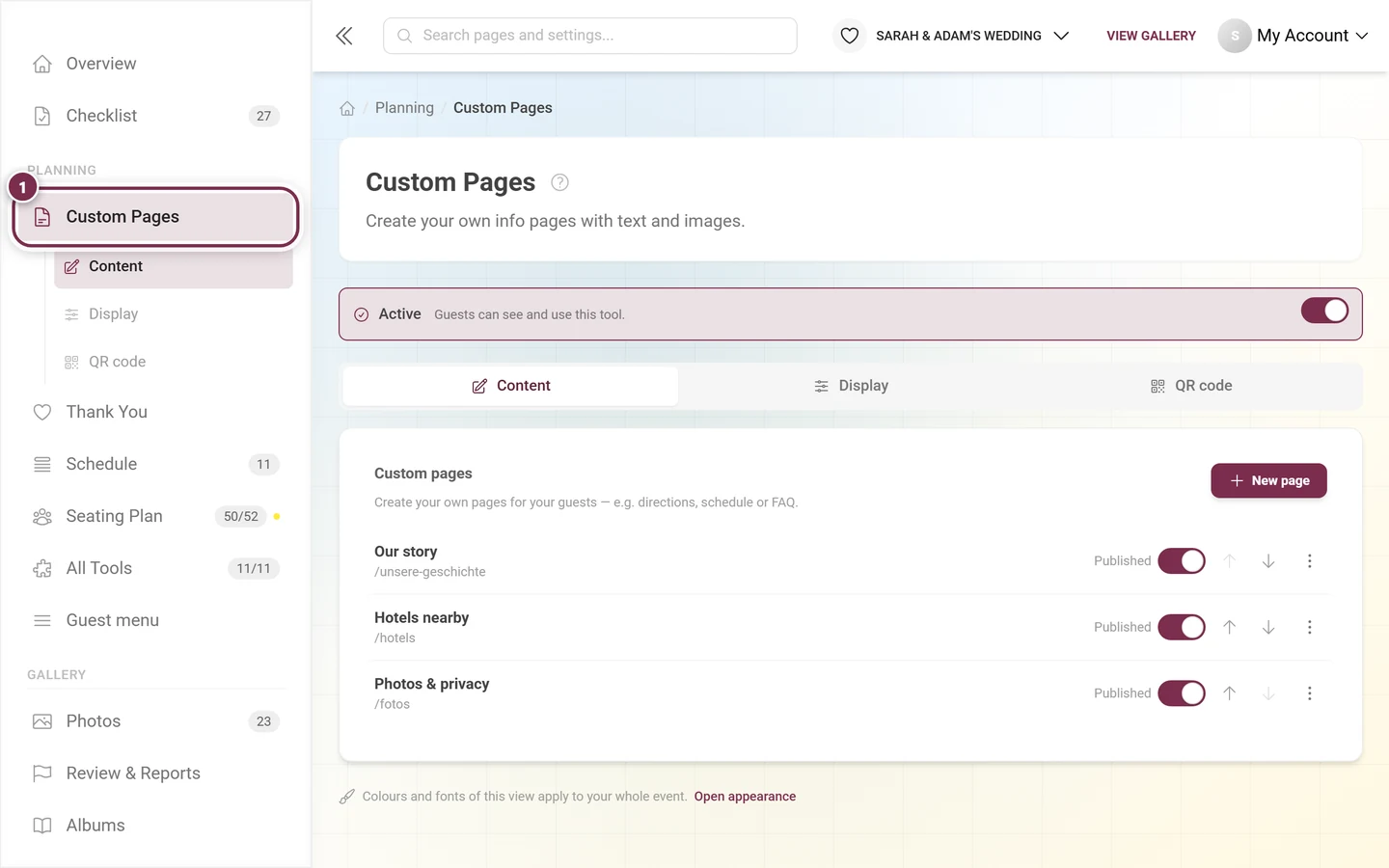
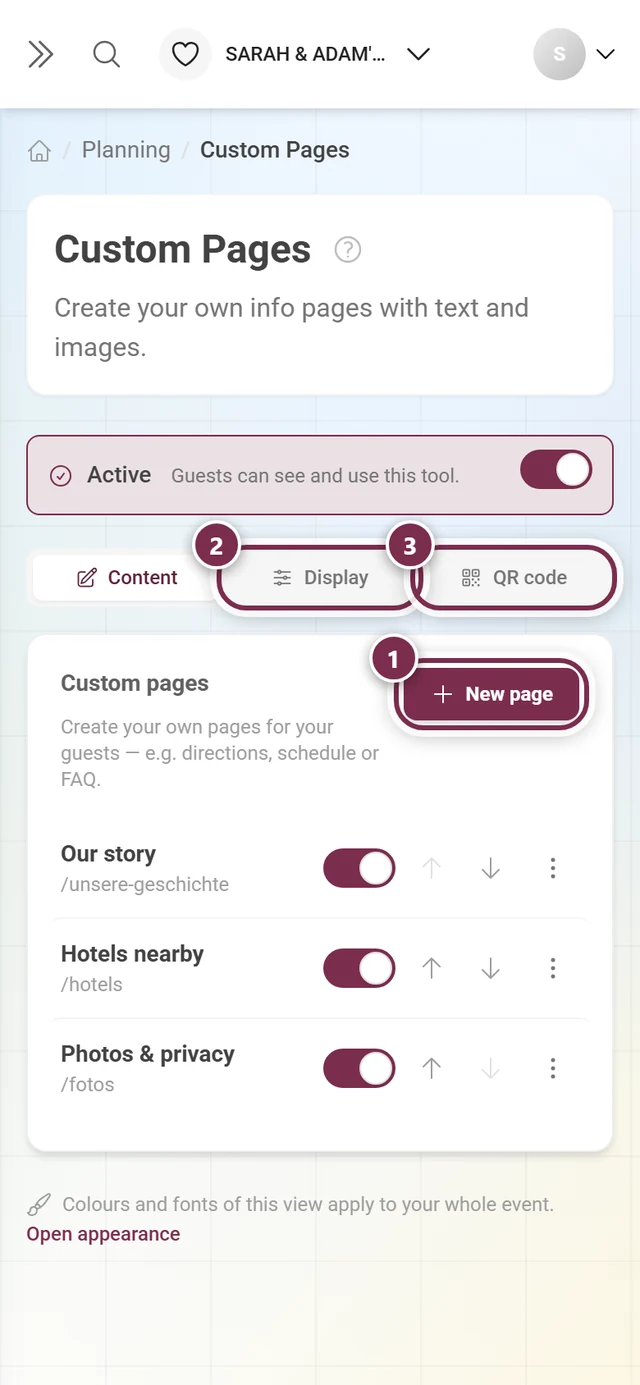
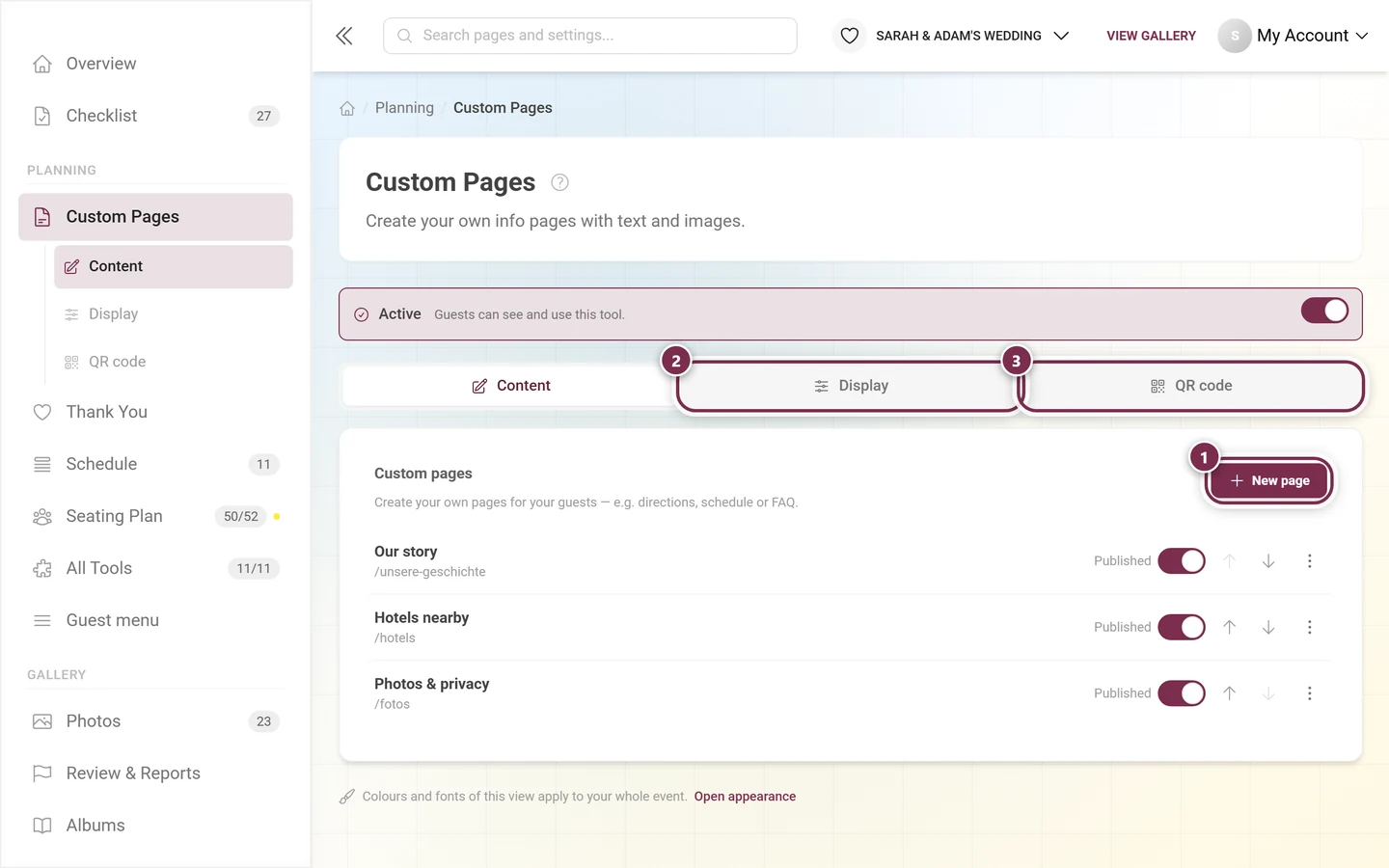
The master switch in the banner turns off the whole tool – every page disappears at once, no matter what status the individual pages have.
The page list
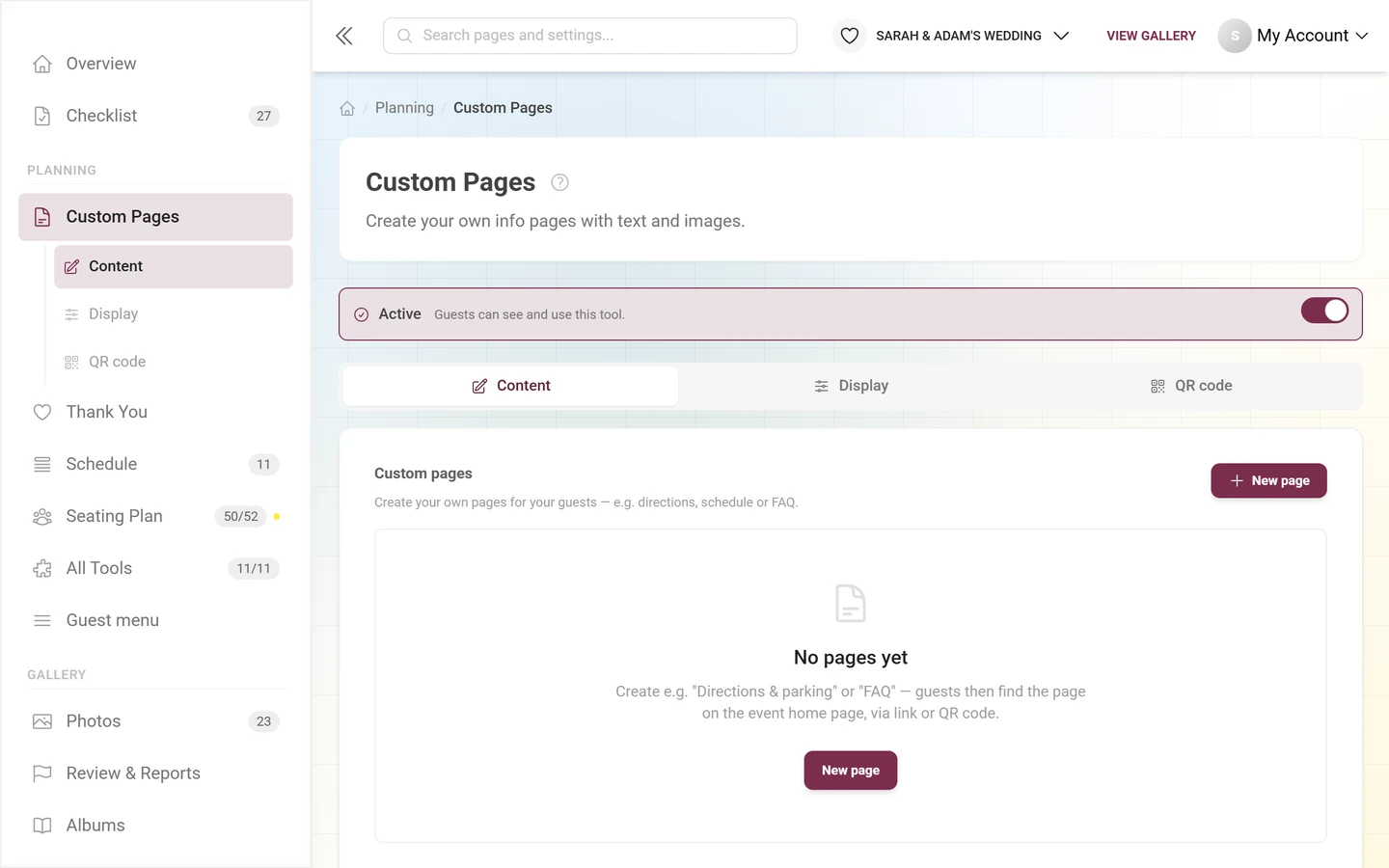
Section titled “The page list”The Content tab holds the list of all pages. As long as none exists, you only see the empty state:
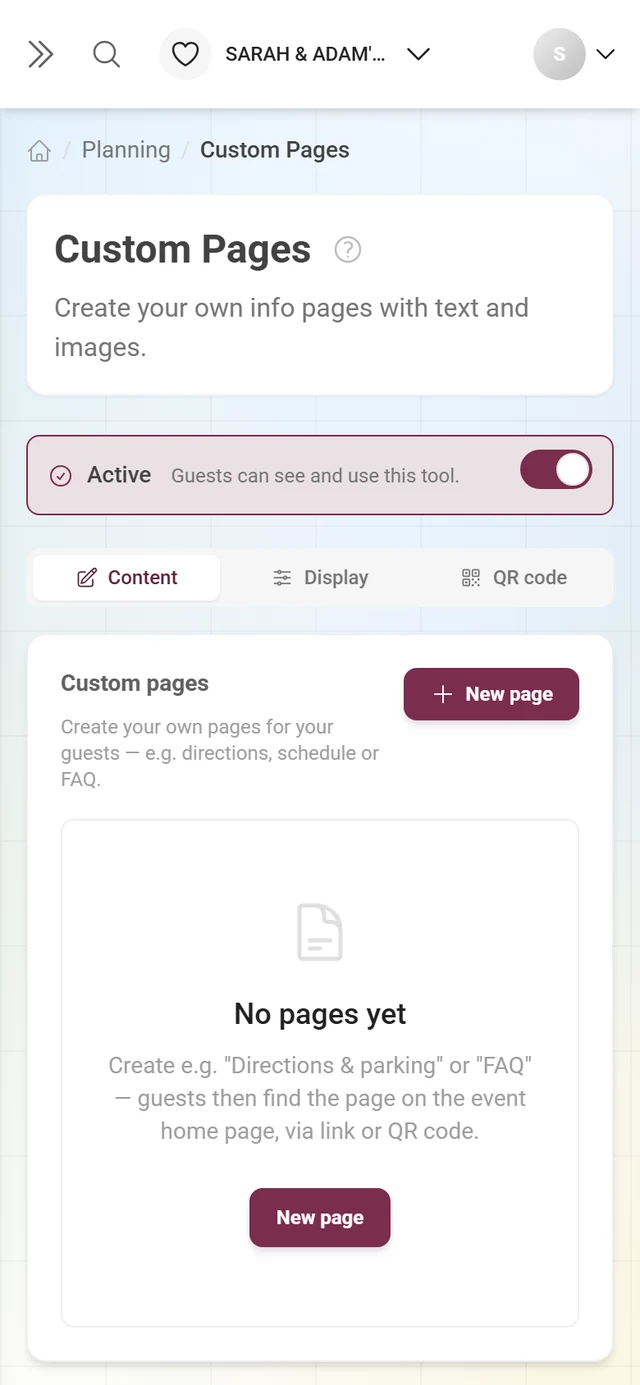
Once pages exist, every row follows the same layout:
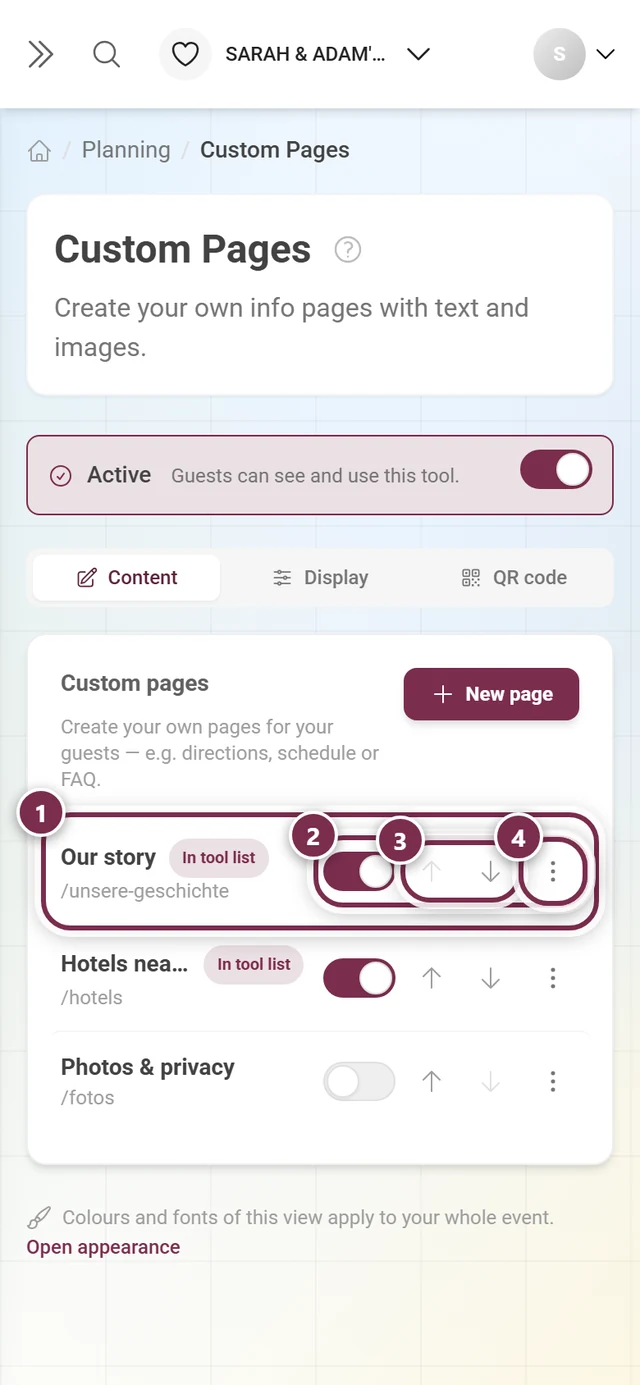
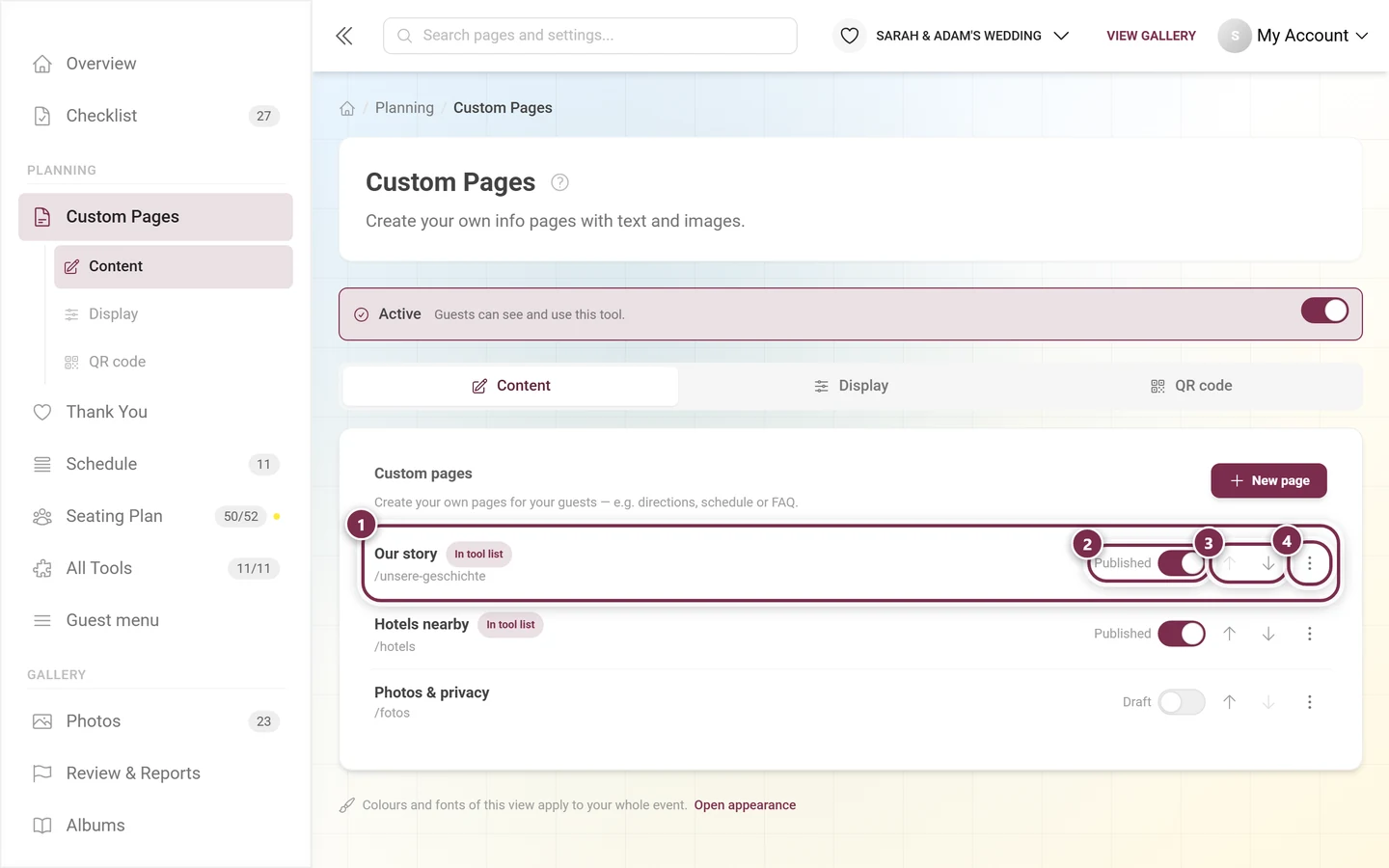
The order applies everywhere: in the guest overview, in the tool list on the home page, in the navigation and in the QR code tab.
Badges and status
Section titled “Badges and status”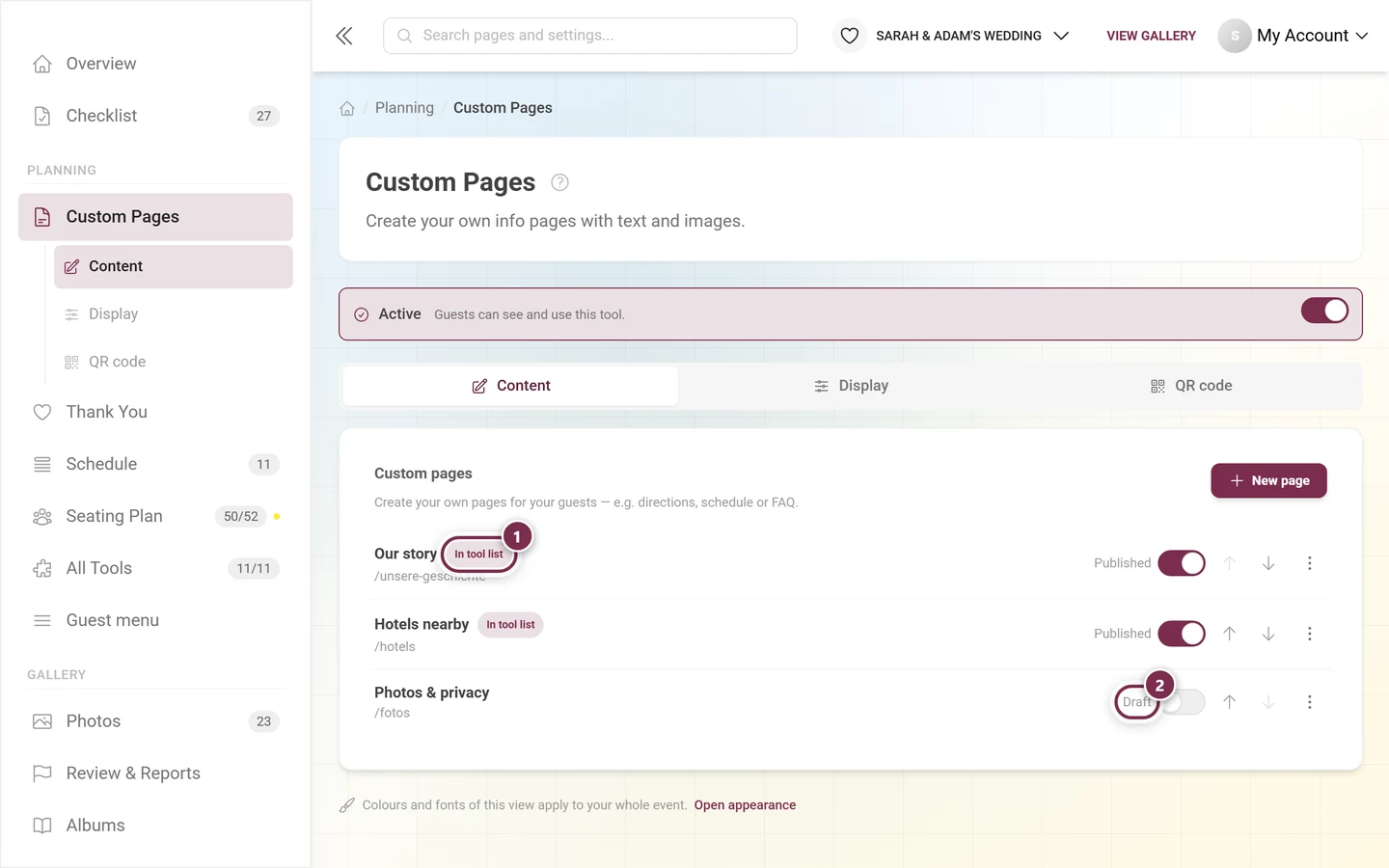
On mobile Photogala hides the status word to save space; only the switch remains. The In tool list badge is still shown there – with long titles it pushes the title into an ellipsis.
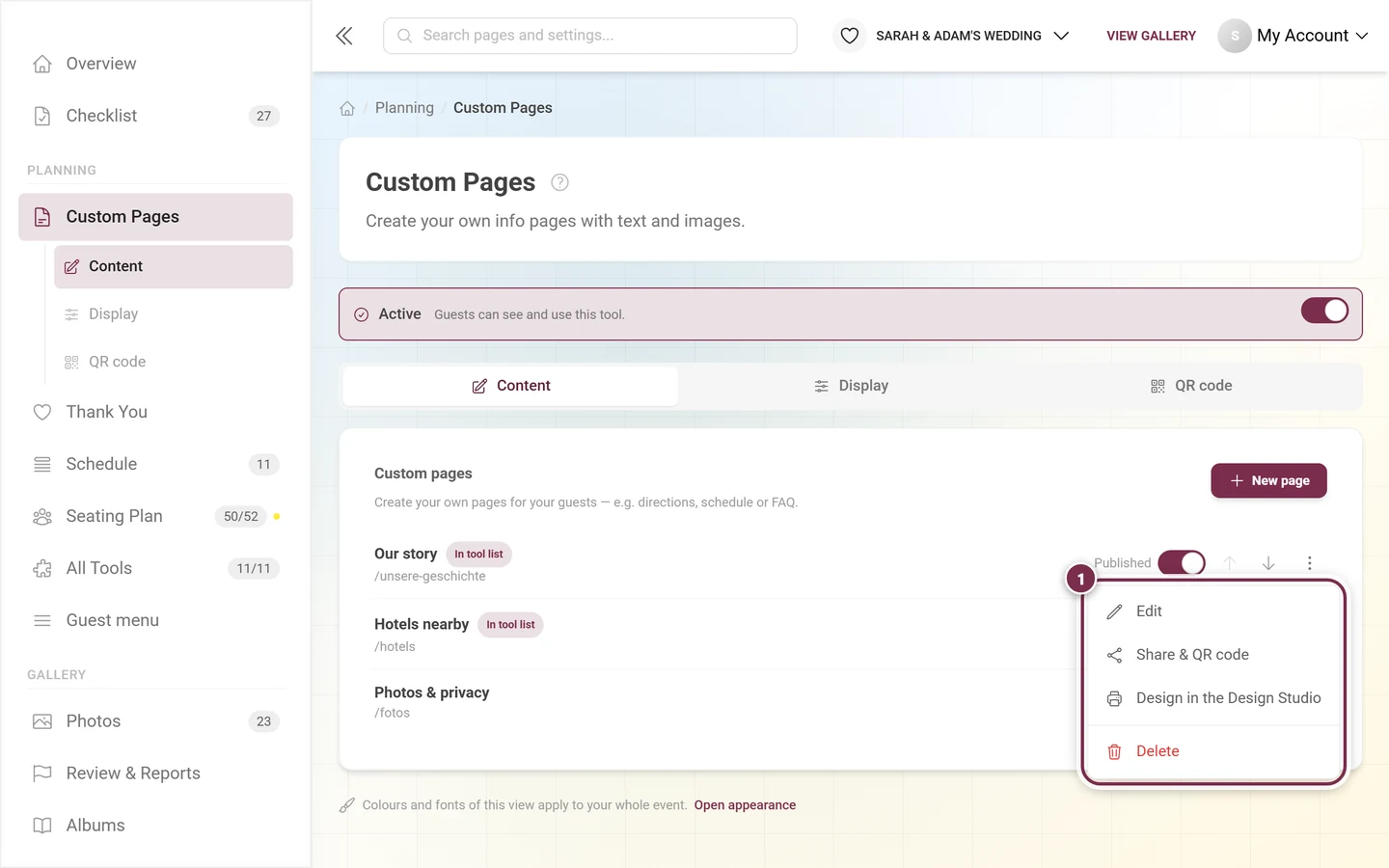
The ⋮ menu
Section titled “The ⋮ menu”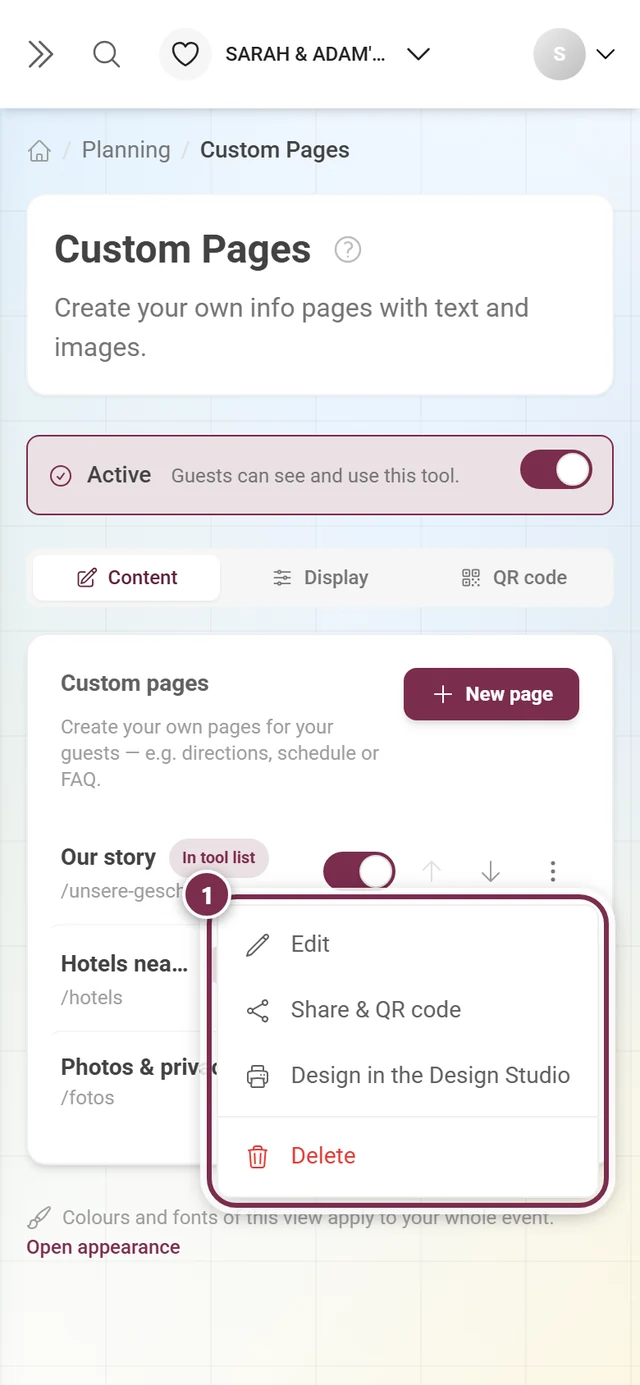
Creating a page
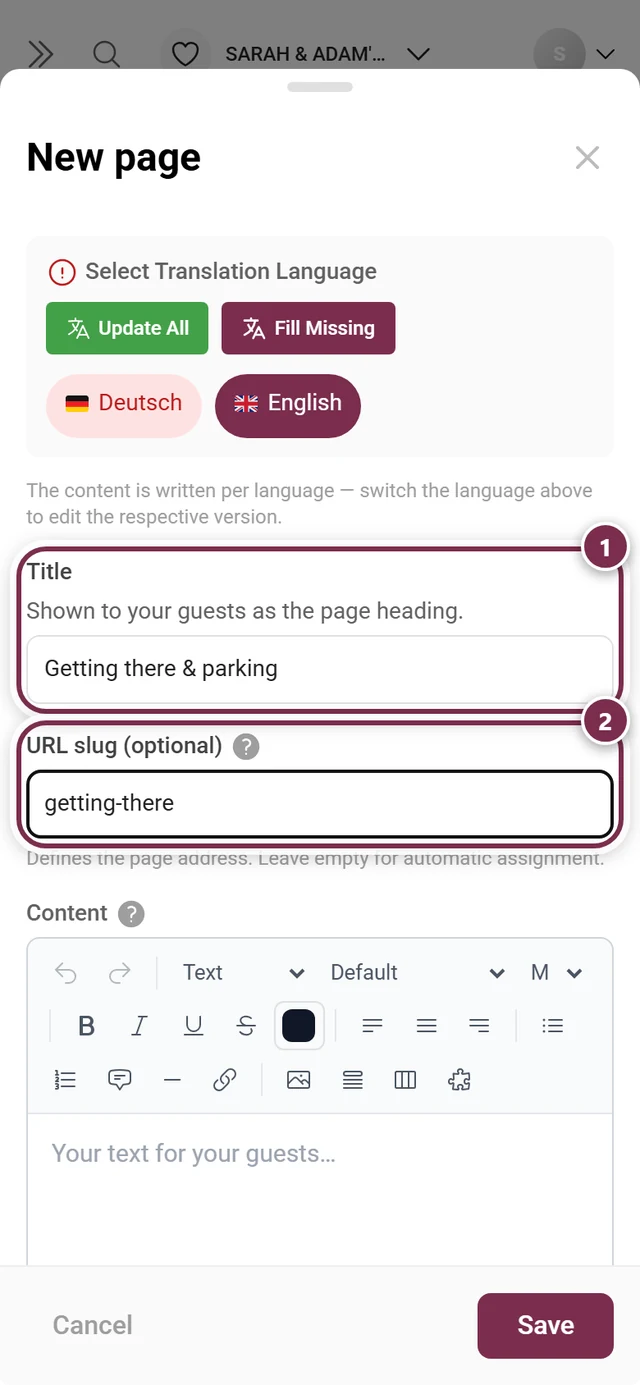
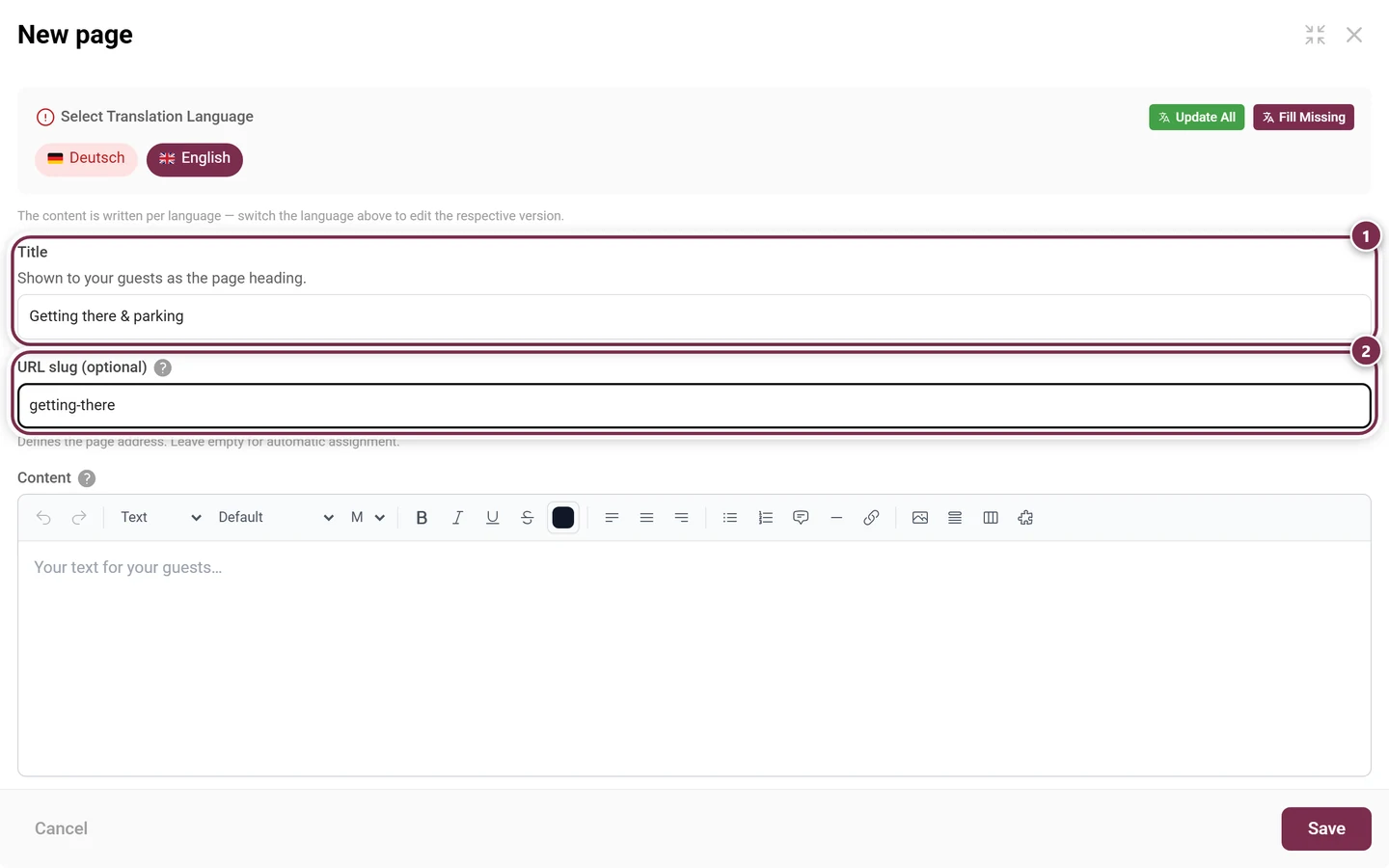
Section titled “Creating a page”+ New page – or a click on a row – opens the same dialog. From top to bottom:
Title and slug
Section titled “Title and slug”- Title – required. Without it, Save stays grayed out. On multilingual events the title in the primary language is what counts.
- URL slug (optional) – only lowercase letters, digits and hyphens are allowed, and the first character must be a letter or a digit (pattern
^[a-z0-9][a-z0-9-]*$). Leave the field empty and Photogala derives the slug from the title: accents are folded (Directions & parking →directions-parking, Grüße →grusse), special characters are dropped, and the result is trimmed to 80 characters.
Content
Section titled “Content”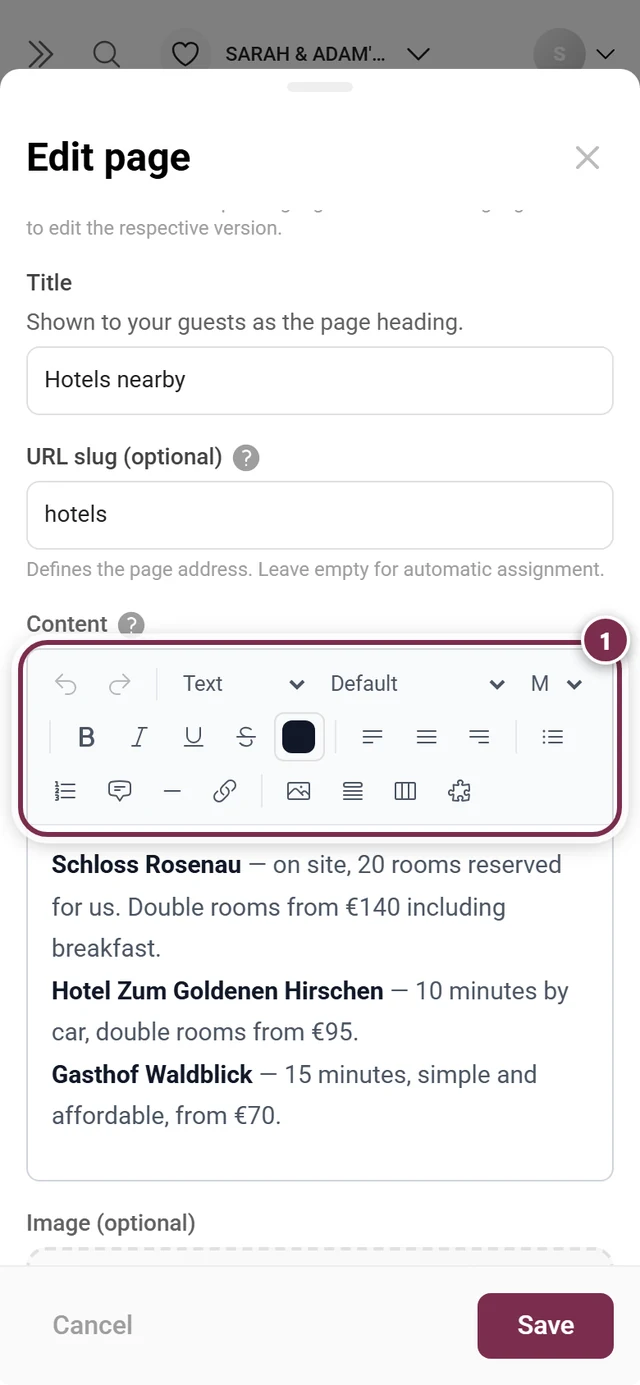
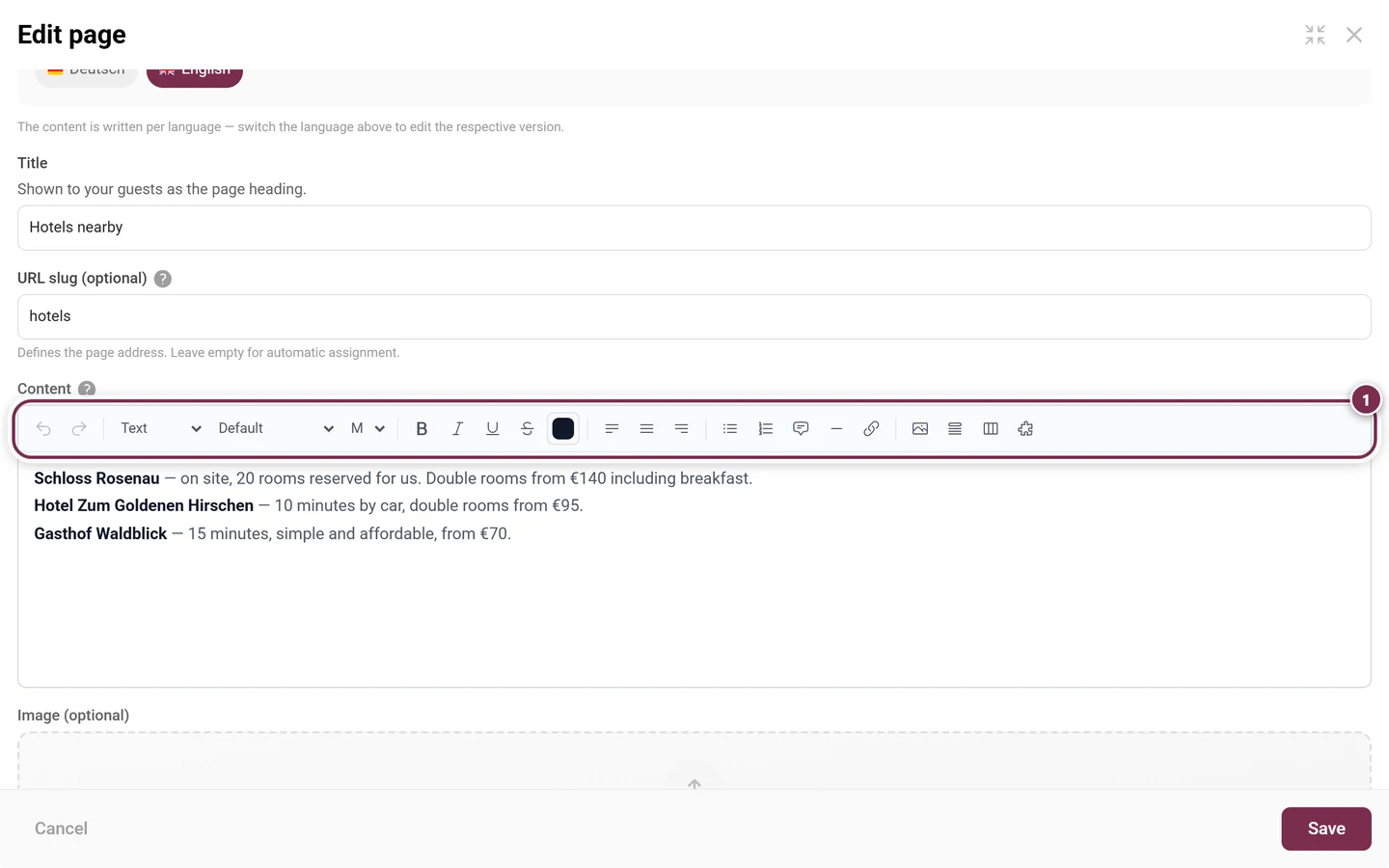
Every tool is described in detail on the Event Info page in the rich text editor section – including collapsibles, tabs and embedded tools.
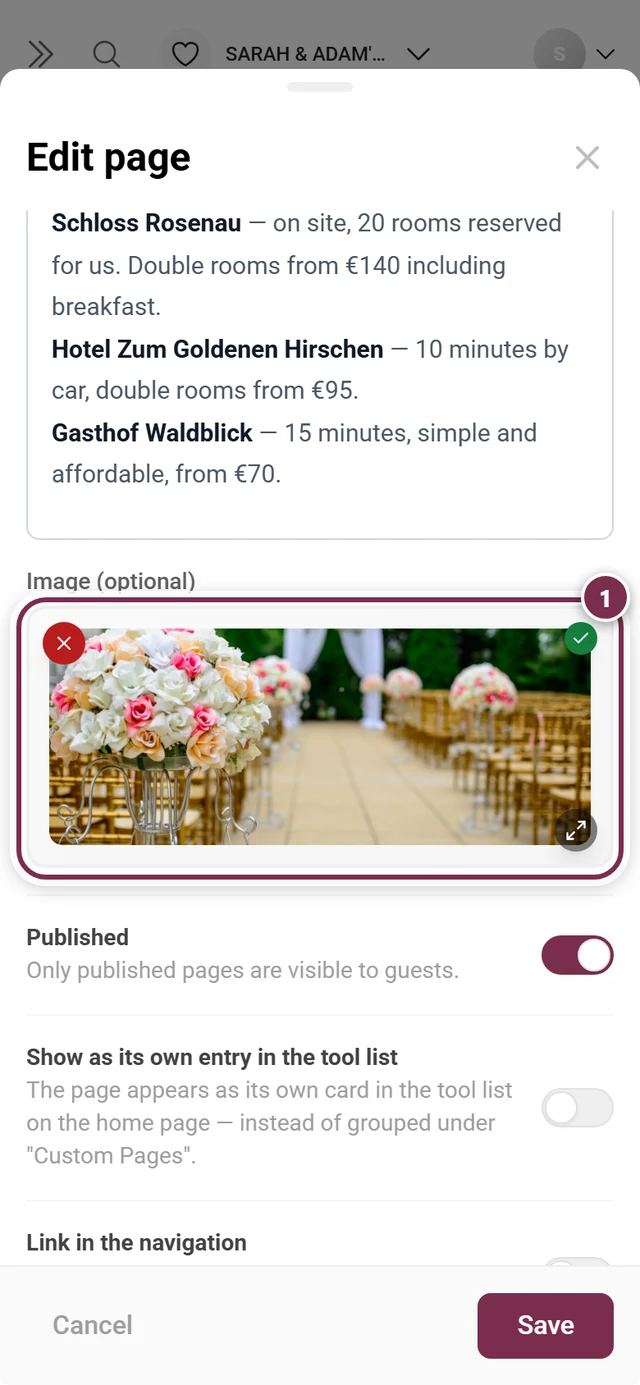
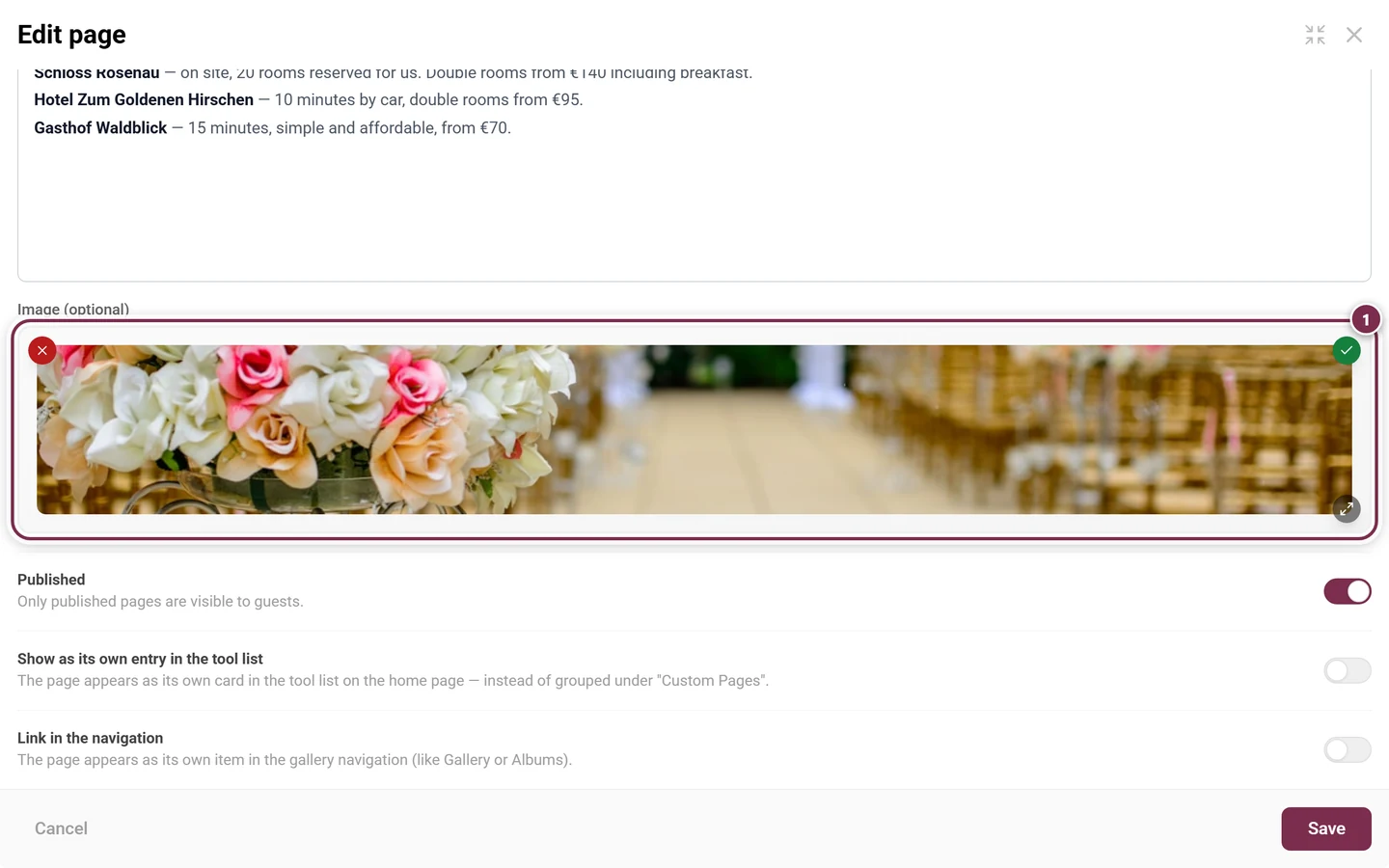
The three switches
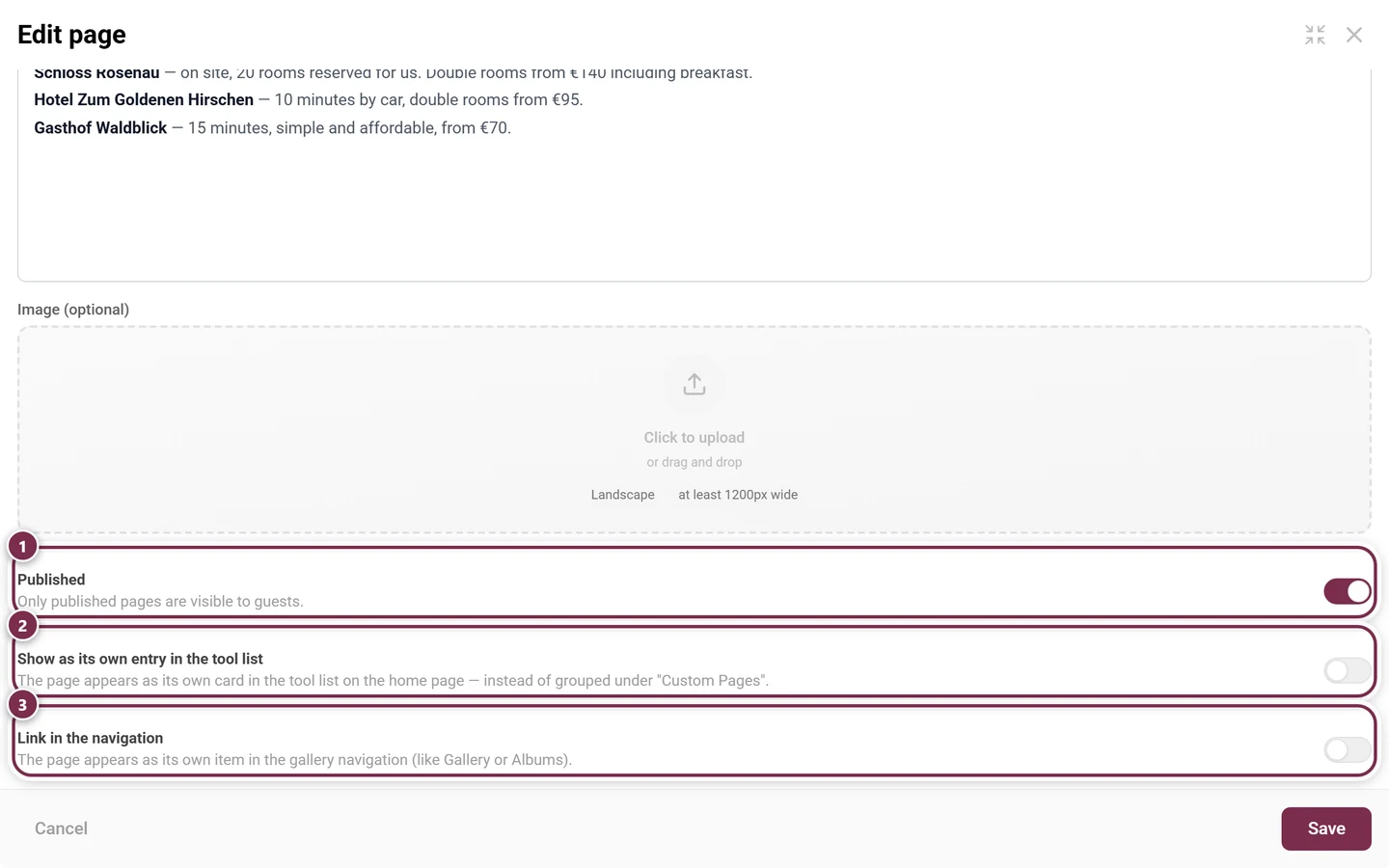
Section titled “The three switches”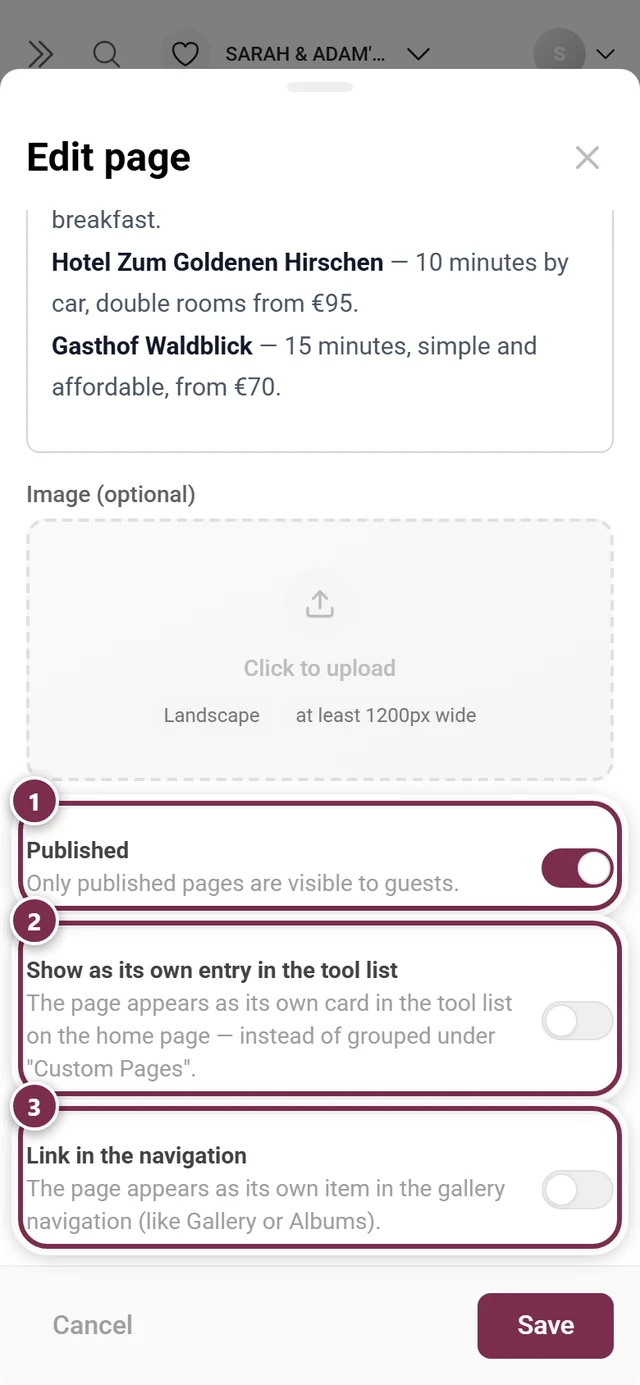
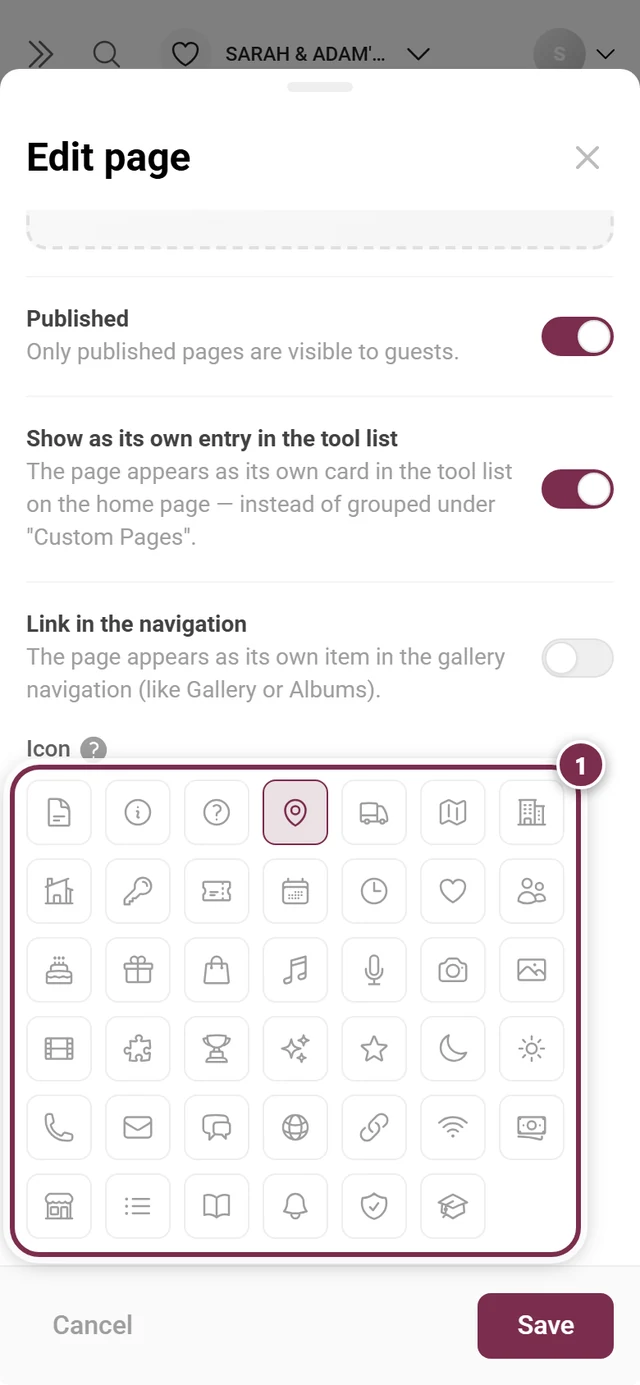
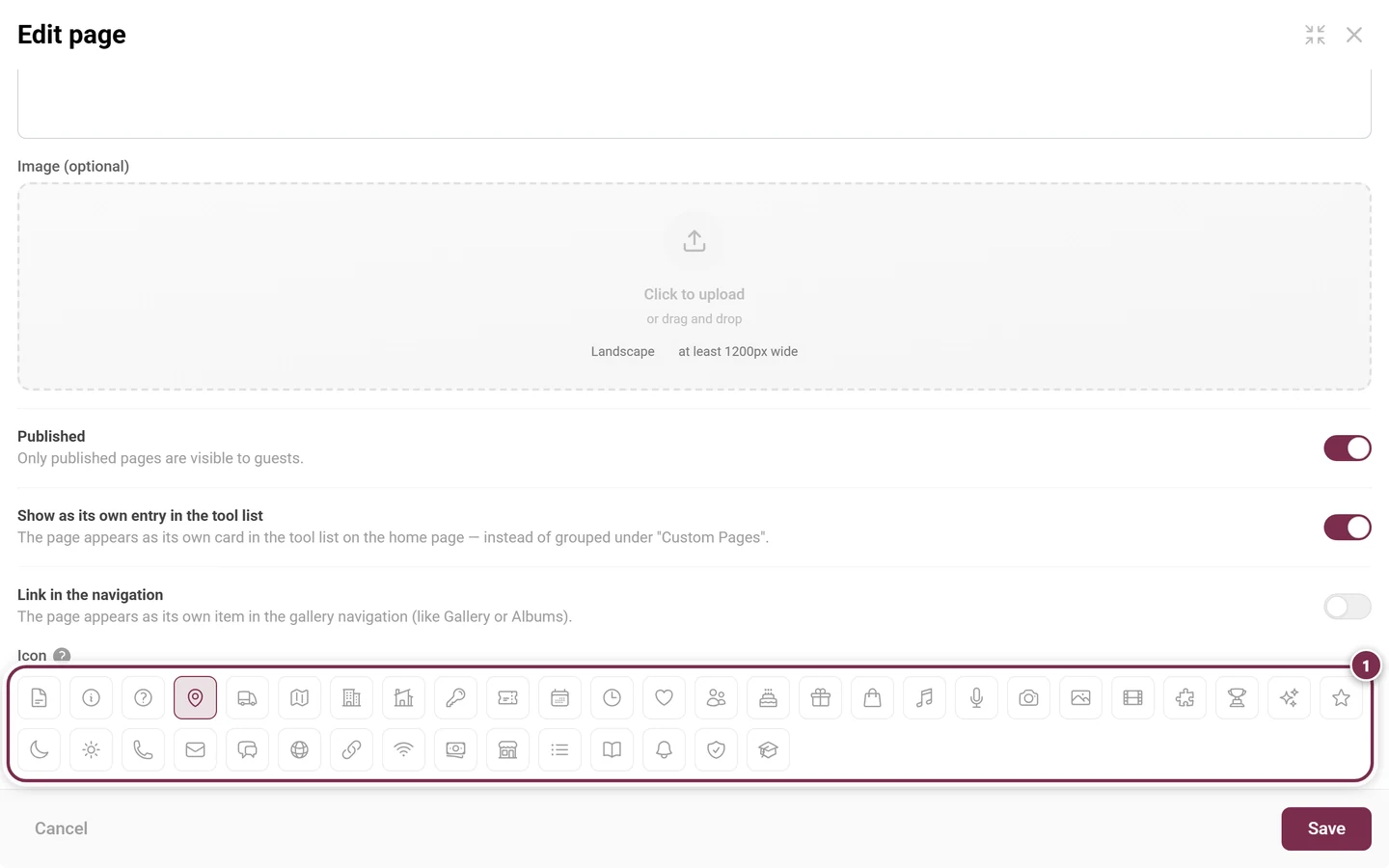
Finish with Save at the bottom, or discard with Cancel.
The Display tab
Section titled “The Display tab”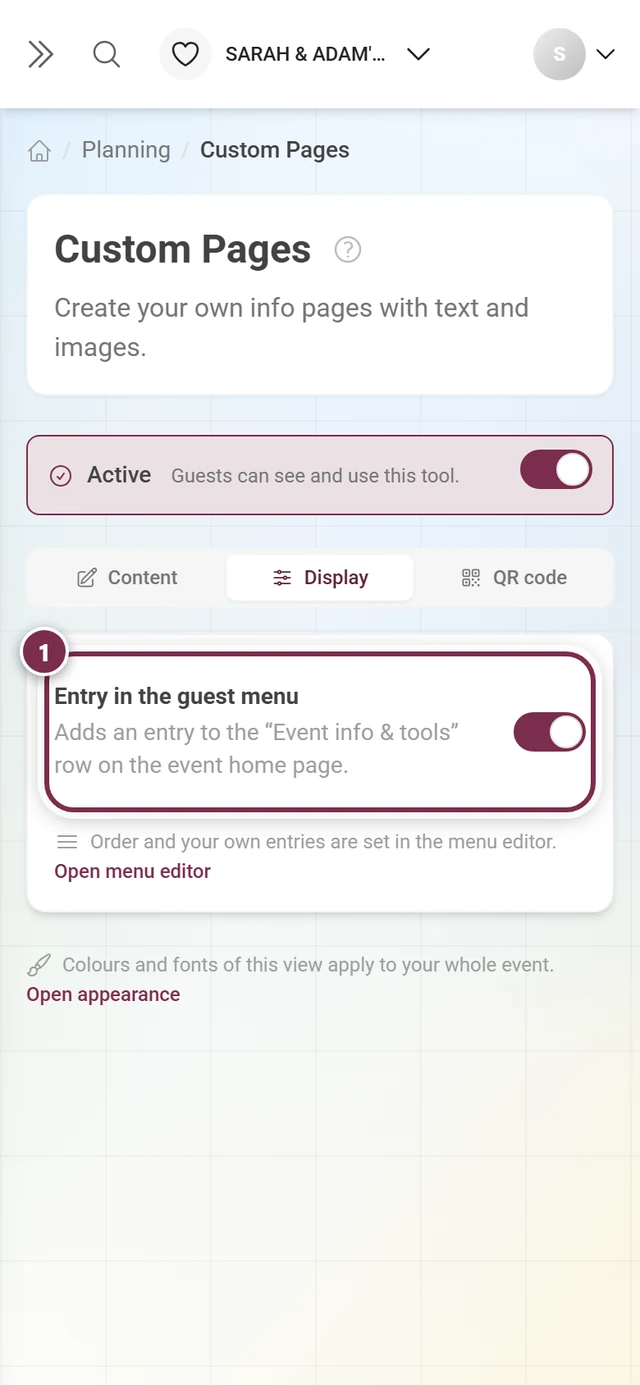
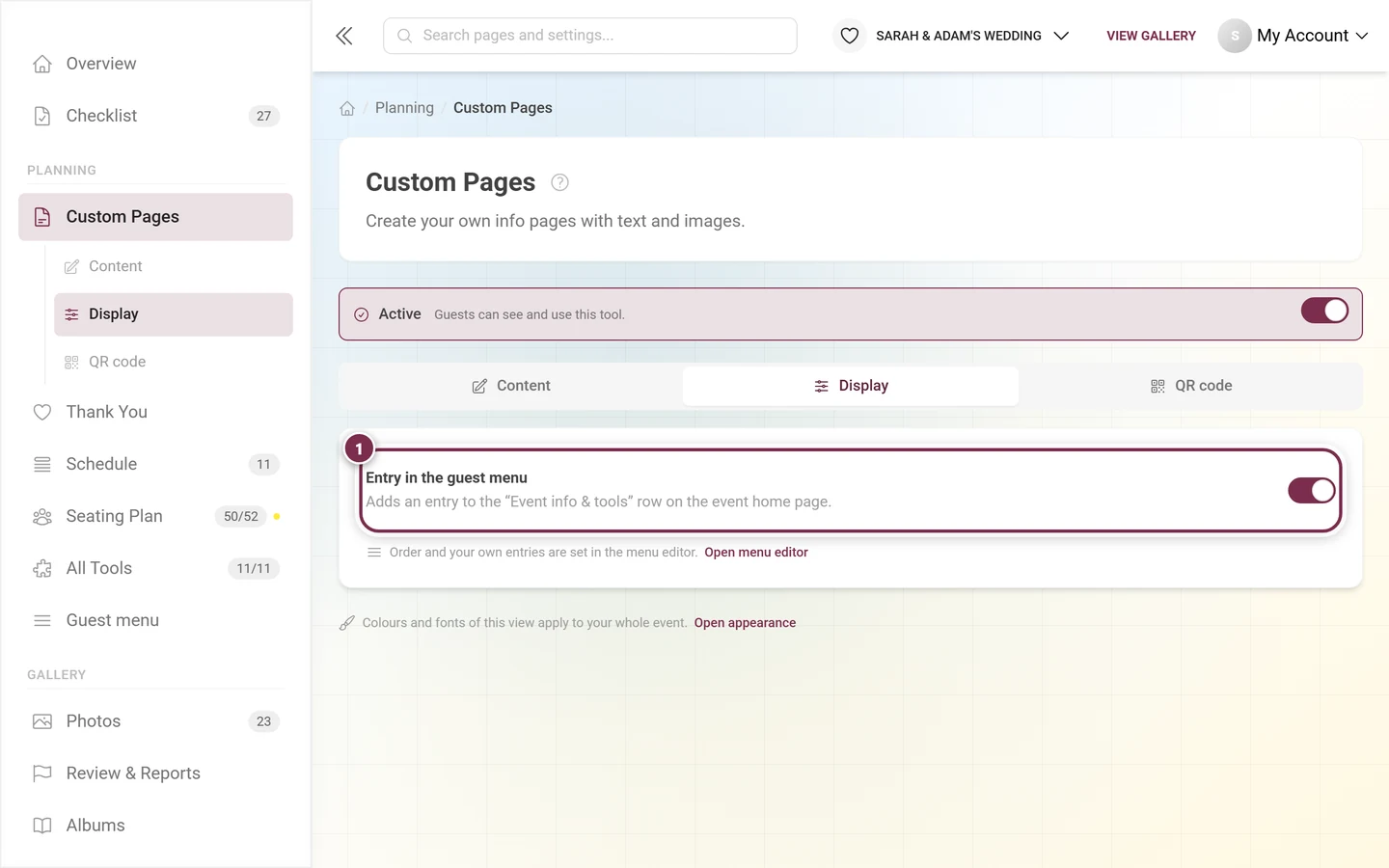
Order and your own entries for that row are set in the guest menu editor – the link Open menu editor takes you straight there. This tool has no widget, which is why the tab is limited to this single switch.
The QR code tab: one per page
Section titled “The QR code tab: one per page”The QR code tab behaves differently here than in the other tools: there is no shared QR code for the whole tool, but one QR code per published page. Each leads straight to that one page.
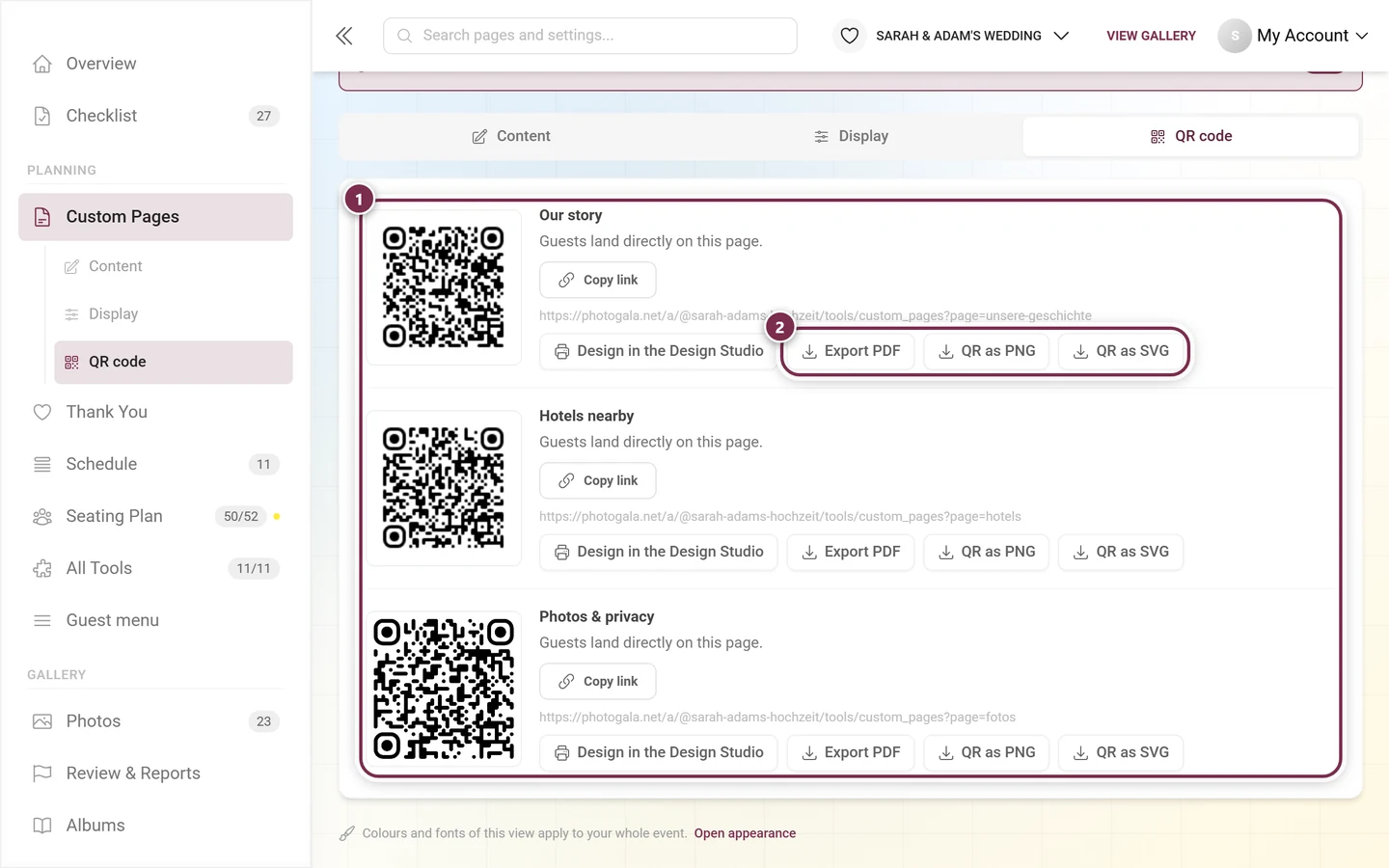
On password-protected events you can enable Embed password in link at the top – guests then land on the page without typing the password. Whoever passes the link on also passes on the access.
Sharing a single page
Section titled “Sharing a single page”The menu entry Share & QR code offers the same range compactly, for exactly one page:
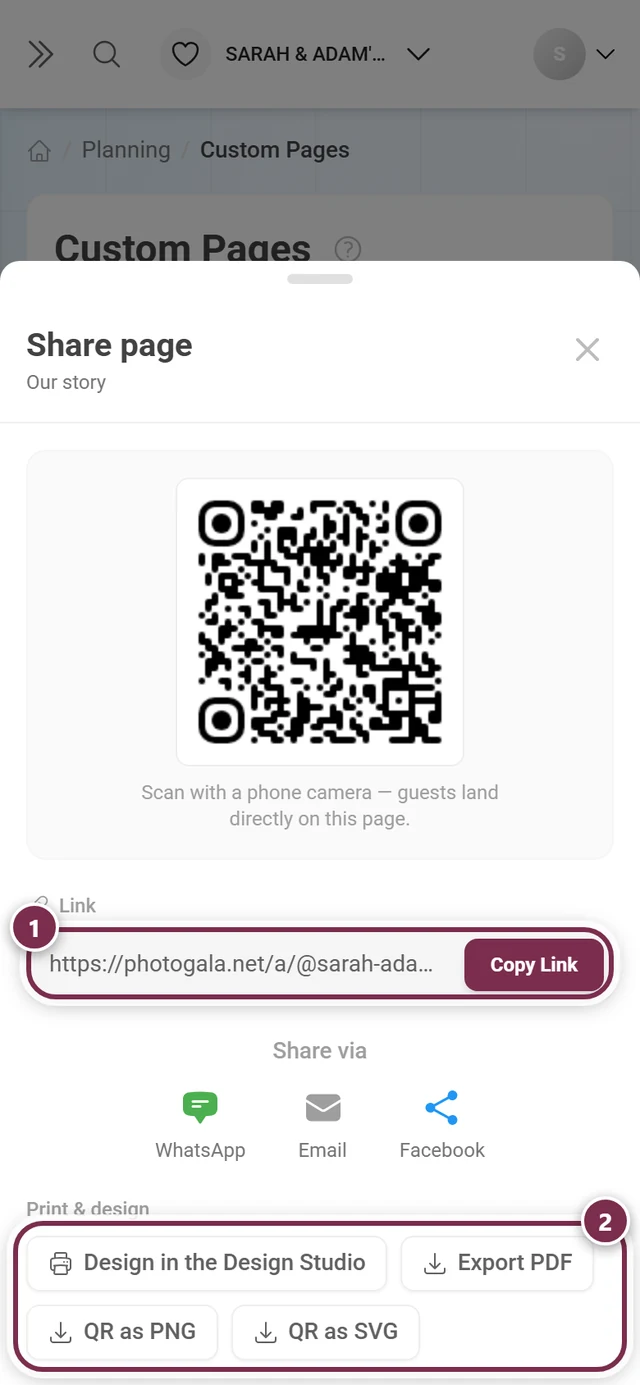
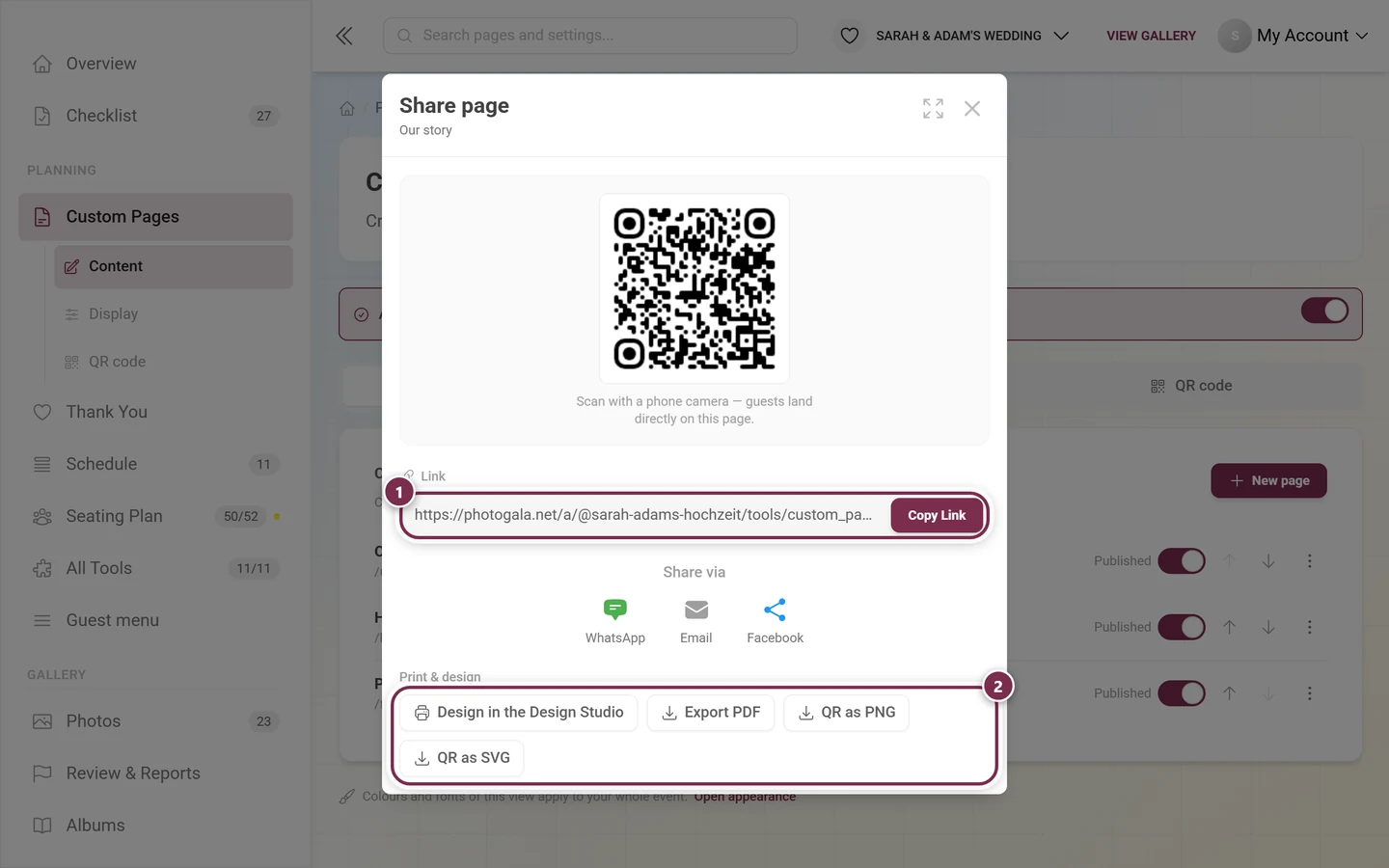
A page’s address always ends in …/tools/custom_pages?page=<slug> – so the slug lives in the link, not as a path of its own.
How it reaches your guests
Section titled “How it reaches your guests”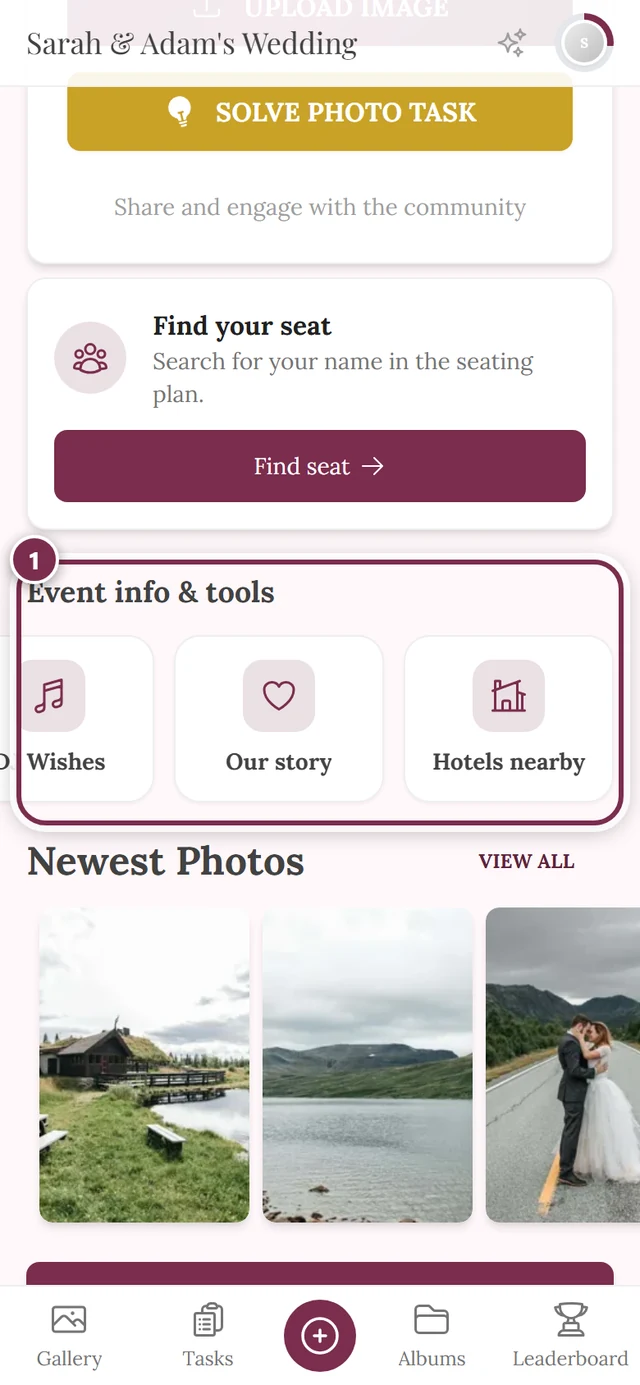
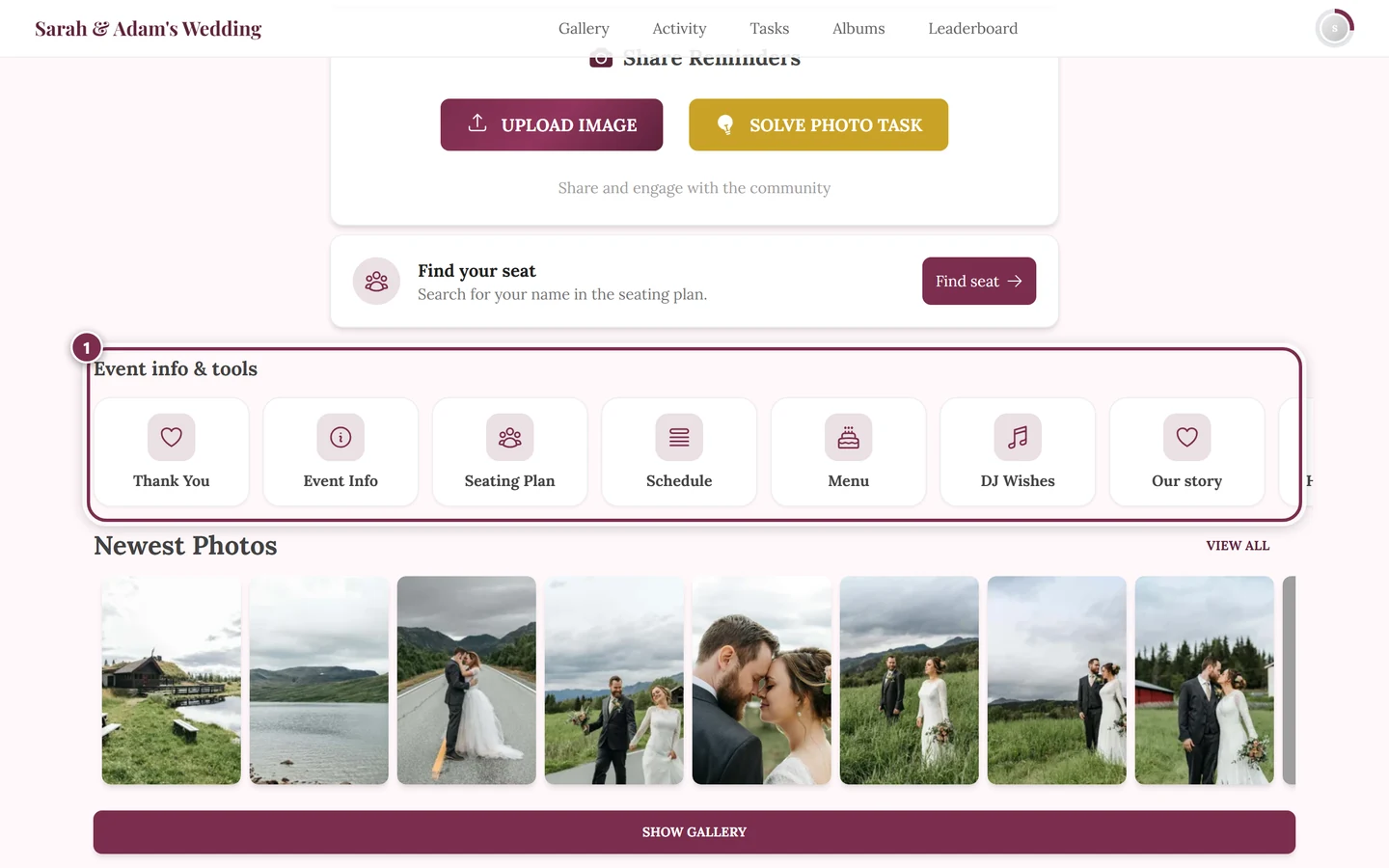
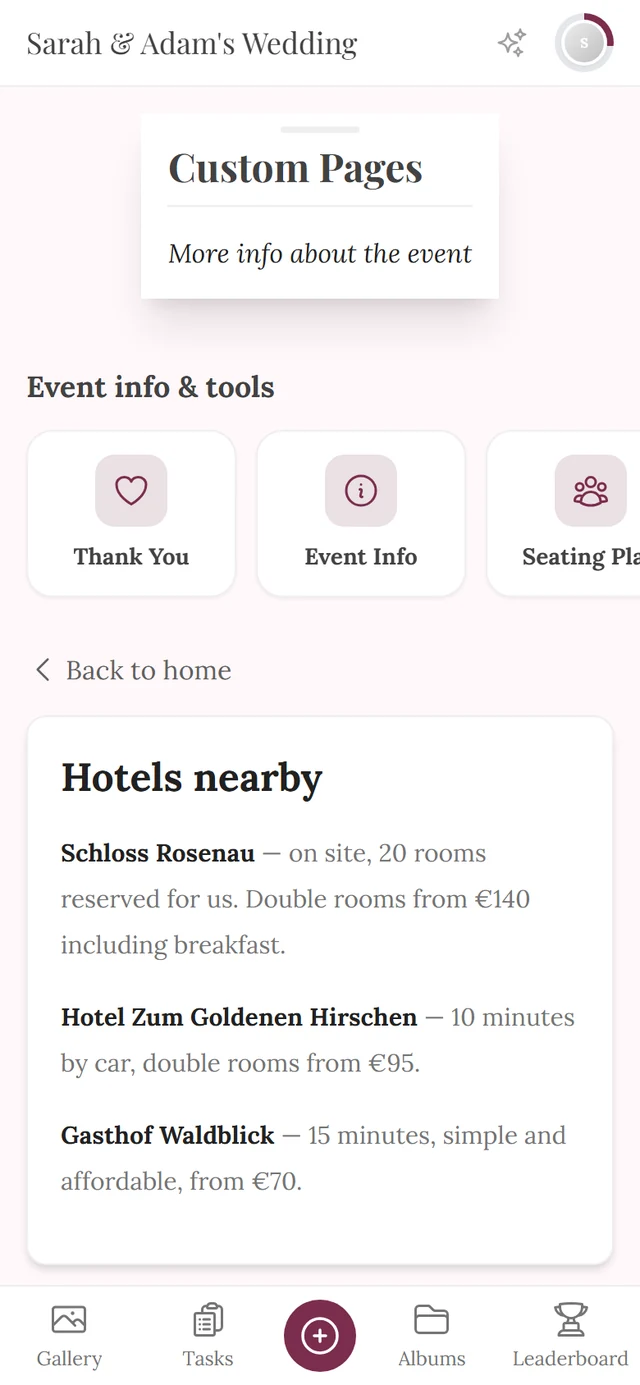
Whether anything shows up there depends on three conditions at once: the tool must be active, Entry in the guest menu must be on in the Display tab, and the individual page needs Published plus Show as its own entry in the tool list.
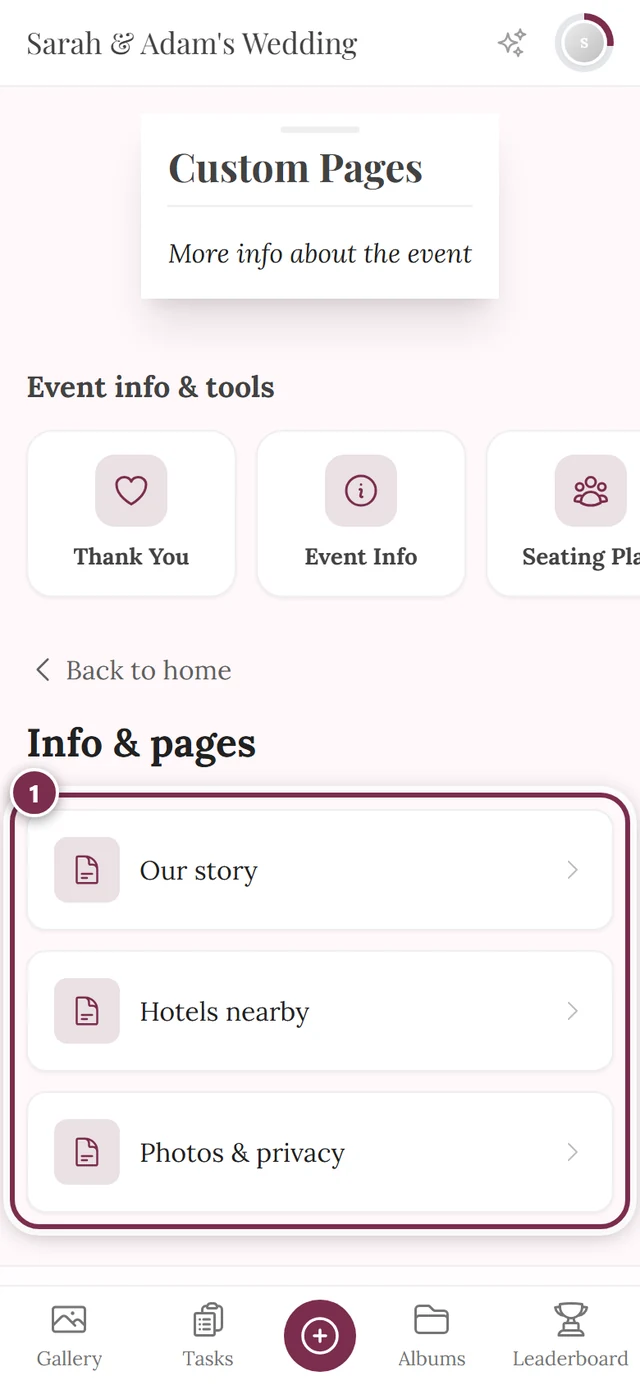
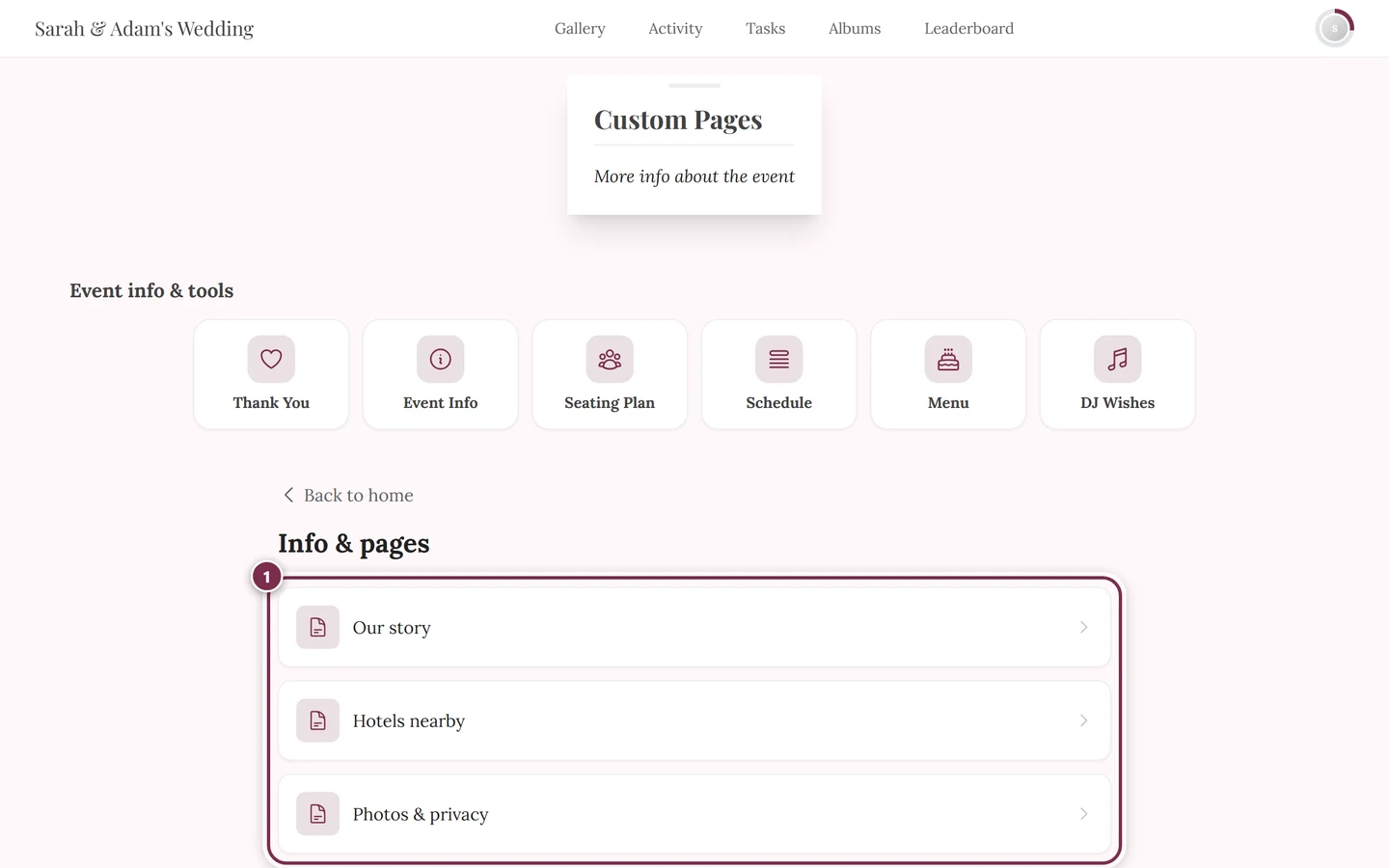
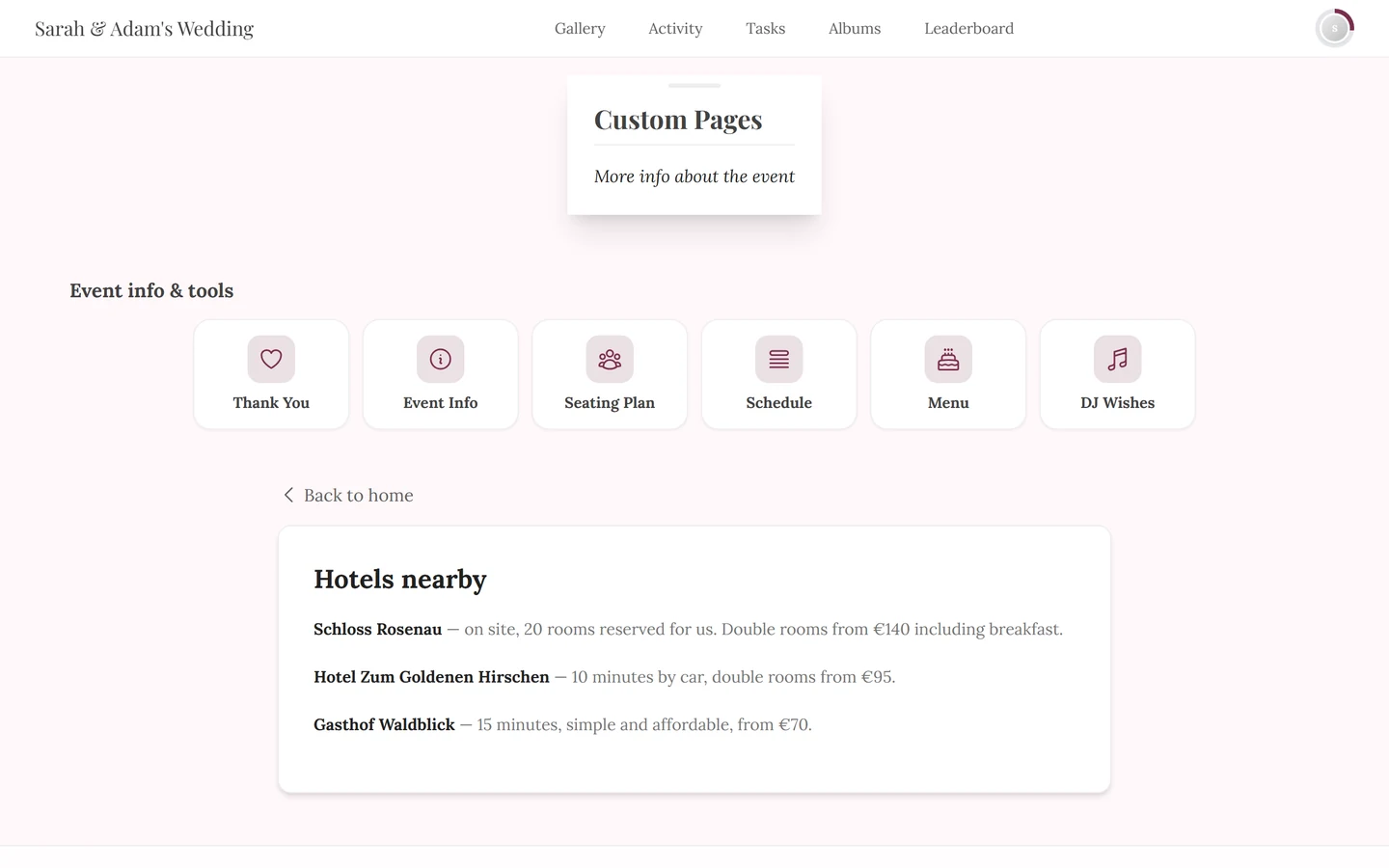
- Exactly one published page – it is shown directly, with no intermediate step.
- Several pages – the overview comes first; a click opens the page. Back to overview only appears if the guest actually came through the overview – anyone entering directly via QR code or card sees Back to home instead.
- No published page – guests only see a note that nothing has been published yet.
Practical examples
Section titled “Practical examples”-
Directions & parking – slug
directions, signpost icon. Three tabs for By car, By train and On foot, plus an image of the area map. As a notice next to the car park: Export PDF. -
Childcare – slug
childcare, guests icon. A short text plus collapsibles for questions like From what age? and Where exactly?. -
House rules – slug
house-rules, building icon. A bullet list is enough; Link in the navigation keeps it reachable at any time. -
Notes for the witnesses – slug
witnesses. Not in the navigation, no entry in the tool list – you send this page out deliberately via Share & QR code. It stays reachable for anyone who has the link.
Limits
Section titled “Limits”- 50 pages per event. Once the limit is reached, the server rejects further pages with a message.
- Title: up to 200 characters. Slug: up to 80 characters, lowercase letters, digits and hyphens only.
- Embedding: you can embed other pages inside a page’s content – but only published ones, never the page itself, and only one level deep. An embedded page no longer renders its own embeds.
Troubleshooting
Section titled “Troubleshooting”- My page doesn’t show up for guests. Check in order: is the page set to Published? Is the tool active in the banner at the top? And is Entry in the guest menu on in the Display tab? All three have to be right.
- No card appears on the home page at all. Custom pages only ever appear there as individual page cards. Turn on Show as its own entry in the tool list for at least one page – otherwise the row stays empty for this tool, even with pages published.
- The card is missing on mobile. The row only shows the frontmost entries there. Swipe sideways or open All Tools; alternatively turn off a tool you don’t need anyway.
- The navigation item is missing. The page must be published and have Link in the navigation enabled. The tool-list switch plays no role here.
- I can’t pick an icon. The icon picker only appears once Show as its own entry in the tool list or Link in the navigation is on.
- Saving fails. Either the title is missing, or the URL slug doesn’t match the pattern – in that case the message sits right at the field. If the slug is already taken, the message comes as a toast; either way the dialog stays open.
- My page’s QR code has vanished. The tab only lists published pages. Set the page to Draft and its block disappears – and an already printed code leads nowhere.
- An embedded page stays empty. Only published pages are embedded, and embeds go one level deep only.
Related pages
Section titled “Related pages”- For guests: Tools at the event – how the pages come across to guests.
- For hosts: Event Info – the rich text editor in detail · Thank You · Tooling – Overview
- Further reading: Design Studio – design QR posters · Plan & term