Overview
Welcome! Your event gallery is the central place where all the photos and videos of your event come together – from you, your guests and the photo booth. It runs right in the browser, with no app or account.
This page is your map: it shows what the gallery can do, where to find it (it looks different on a phone than on a computer) and when each feature appears at all. Because almost everything you see depends on what the host has switched on, your view may differ from the screenshots here. That is not a bug.
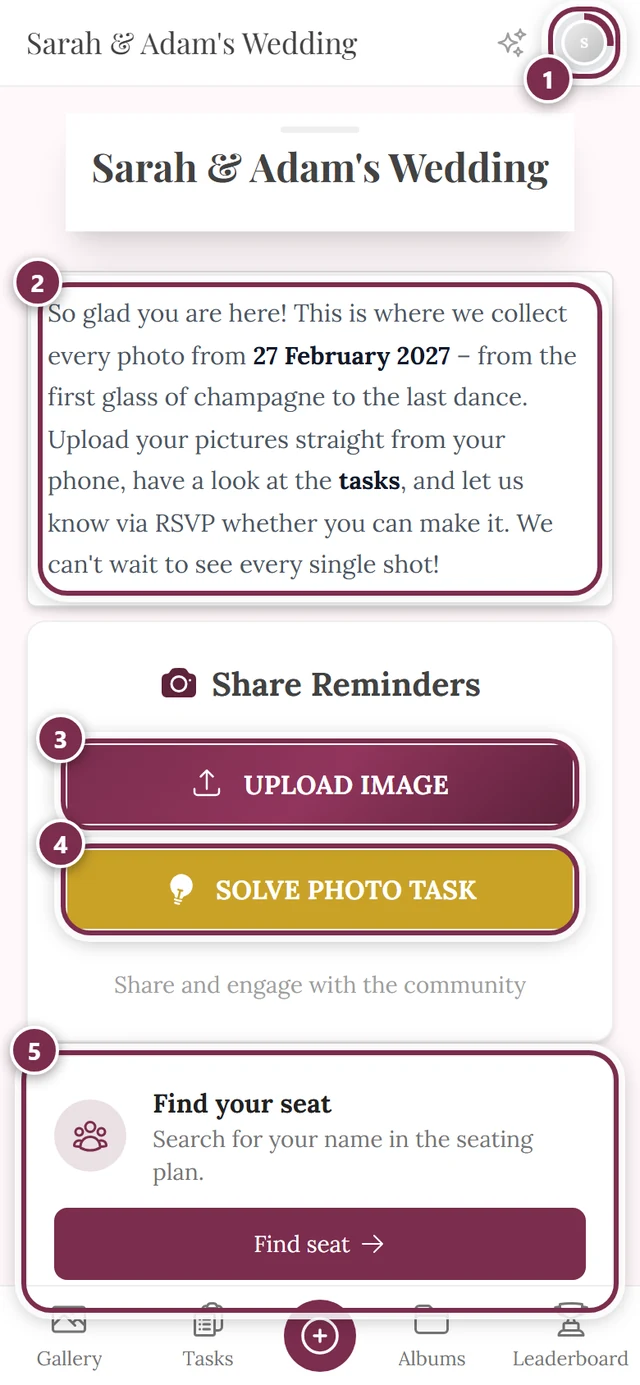
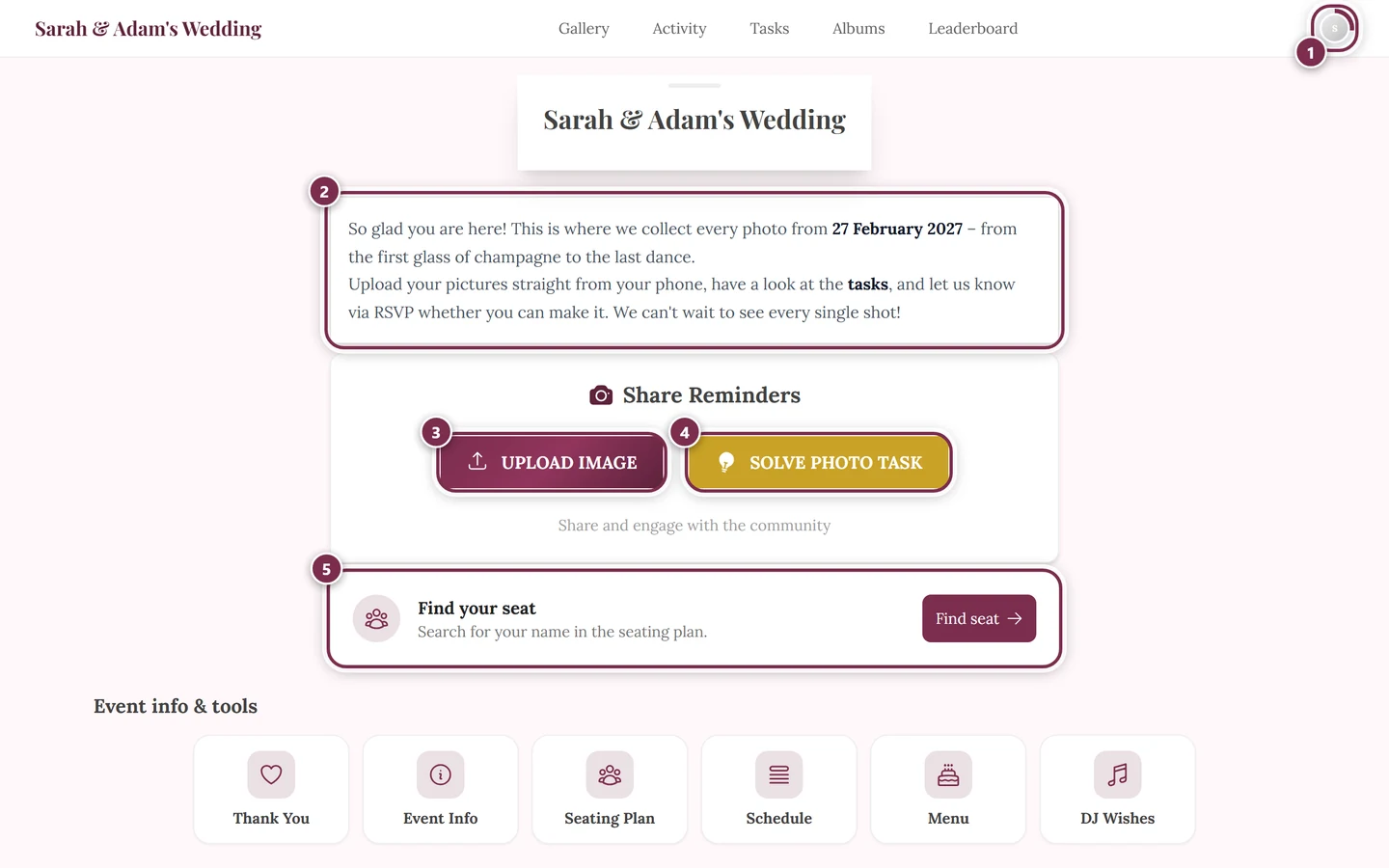
Finding your way around
Section titled “Finding your way around”The gallery has two completely different navigations on desktop and on mobile. Once you get that, you will always find your way back.
On a computer (desktop)
Section titled “On a computer (desktop)”A fixed navigation bar runs across the top of the screen.
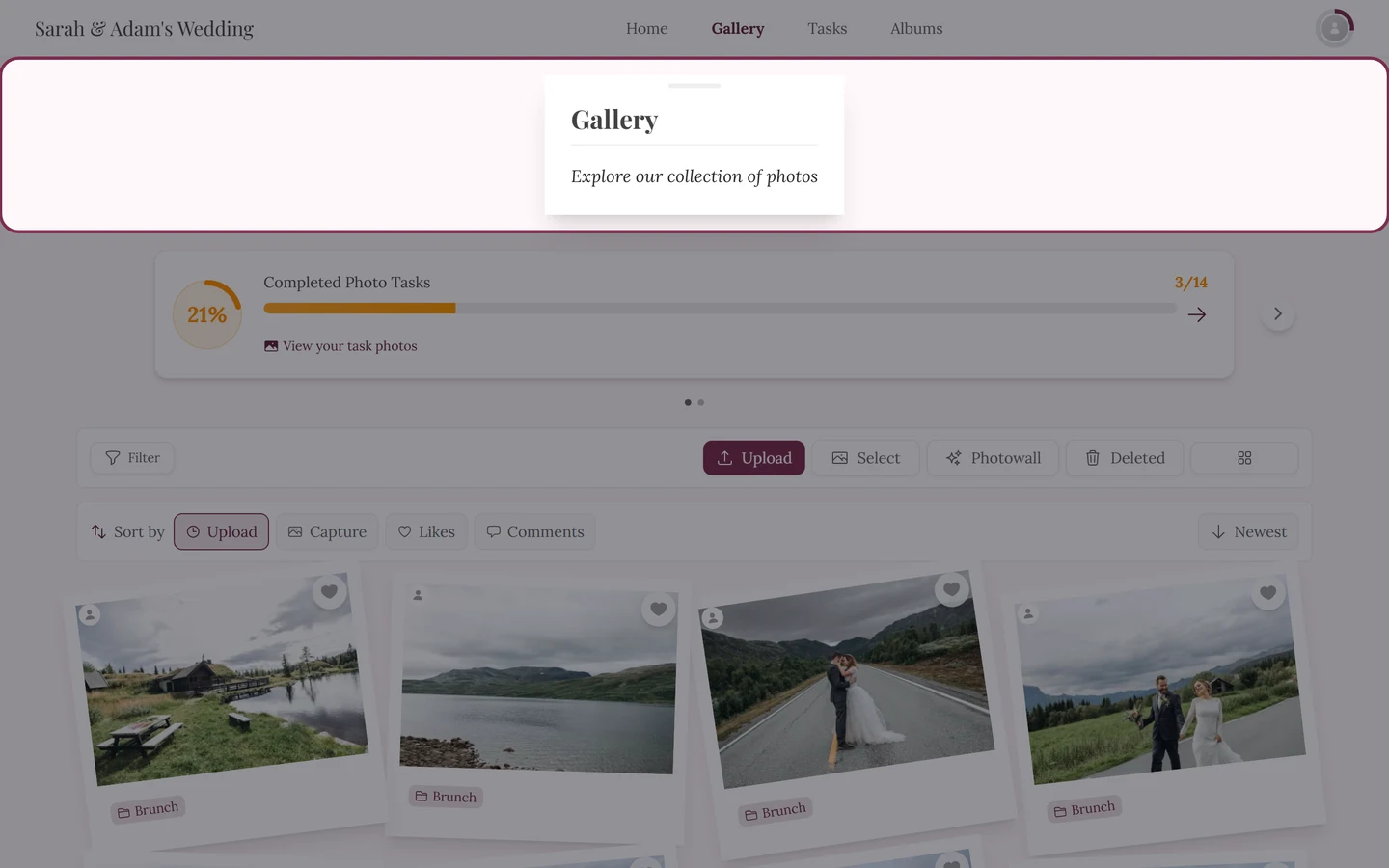
- Far left sits the event title. Clicking it always takes you back to the home screen.
- In the middle are the text links. Depending on what is enabled you will see: Home, Gallery, Activity, Tasks, Albums and Leaderboard – plus the custom pages the host put into the navigation. “Gallery” is always there; the others appear only when the host has enabled them and there is content.
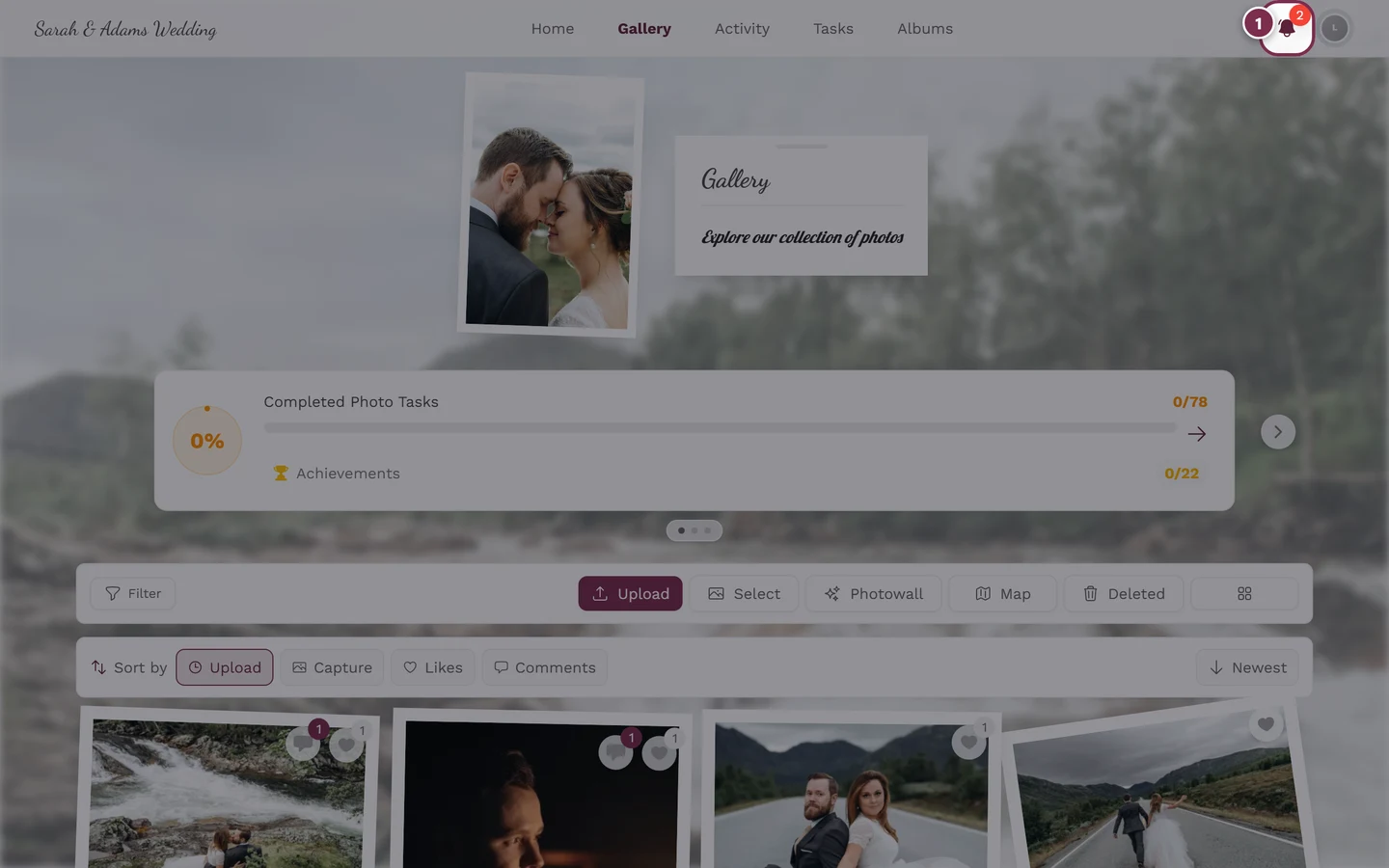
- Far right you find the bell (notifications) and your avatar (the profile menu, see below).
On a phone (mobile)
Section titled “On a phone (mobile)”On a phone there are two bars:
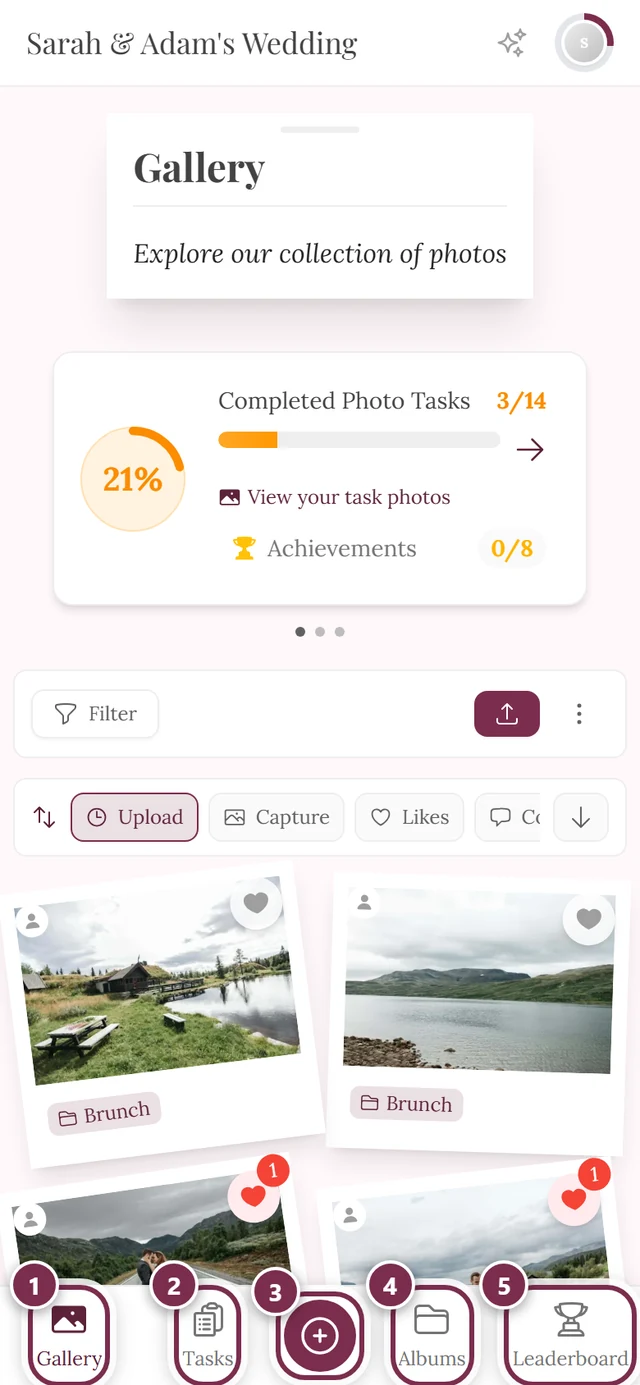
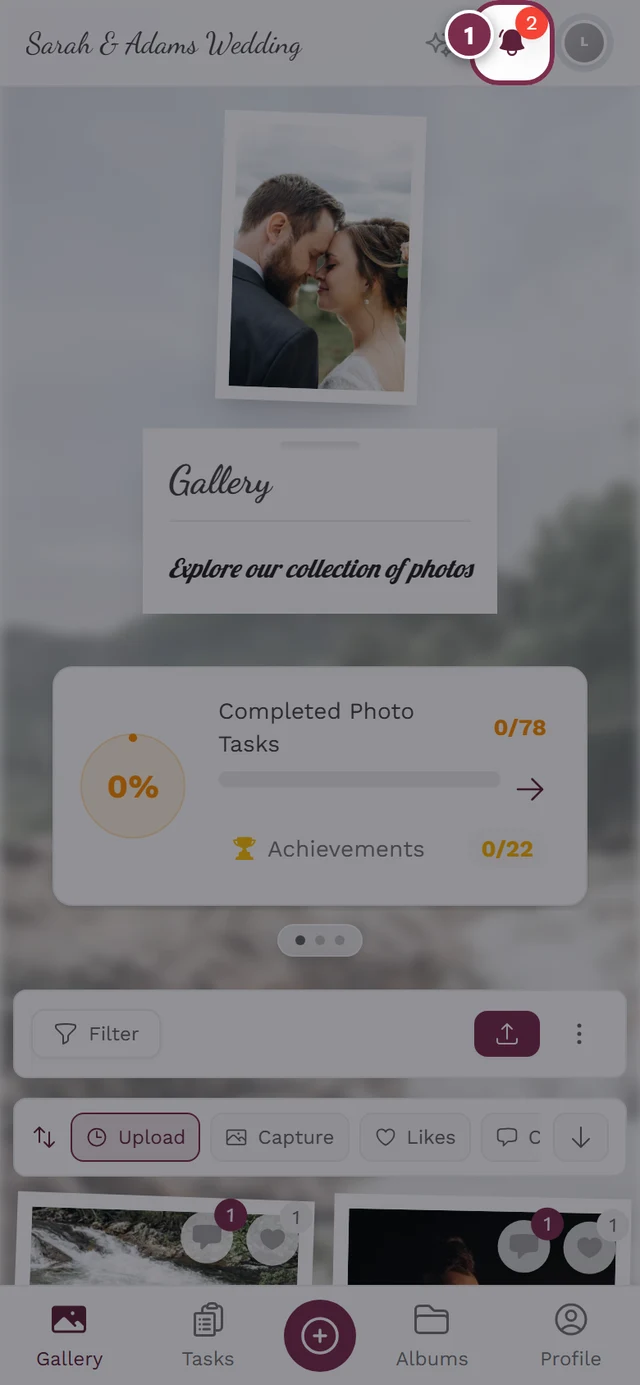
- At the top sits the event title (goes to the home screen), next to it (if enabled) a sparkles icon for Activity, plus the bell and avatar.
- At the bottom is the fixed tab bar. It shows – sorted by importance – up to five items, such as Gallery, Tasks, Albums, Leaderboard and Profile. The host’s custom pages can sit here too, and then push other entries out.
- In the middle of the bottom bar sits the large round plus button for uploading. It only appears if you are allowed to upload.
- The active tab is highlighted in the event’s brand color.
What can the gallery do?
Section titled “What can the gallery do?”Photos & videos
Section titled “Photos & videos”-
Upload photos – on a phone via the round plus button, on desktop via the gallery toolbar. Only visible if you have upload rights and the event allows uploads. Guide: Uploading photos.
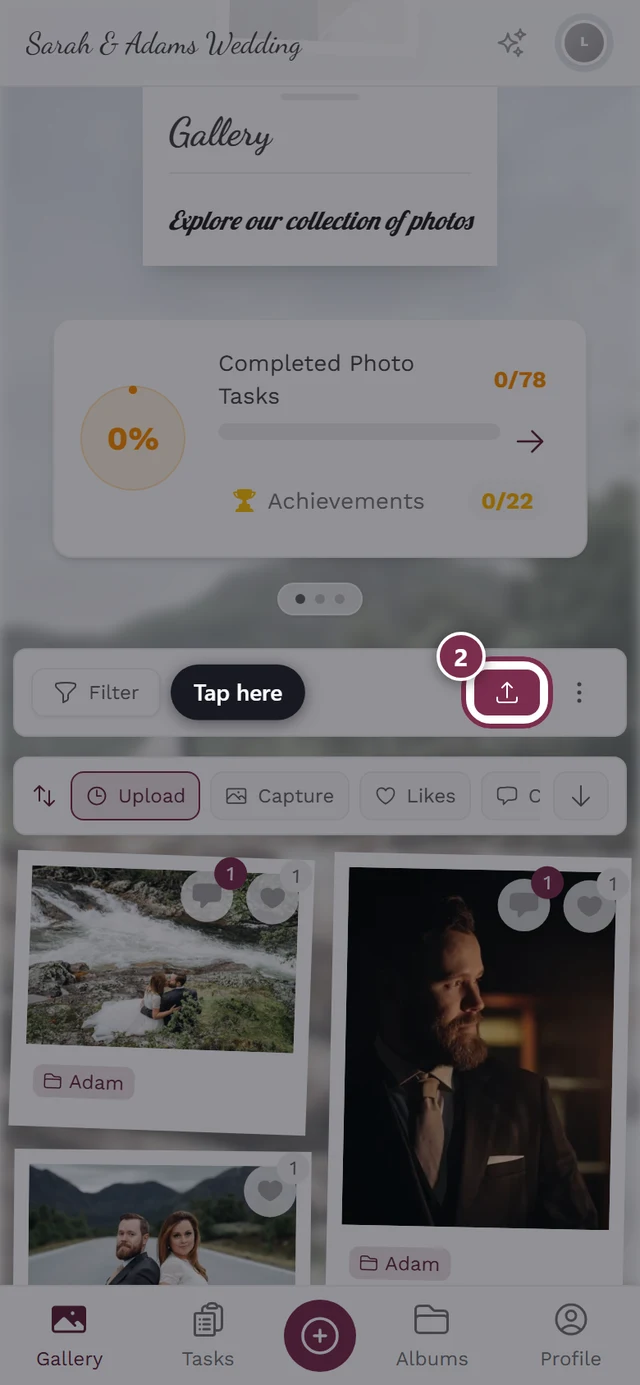
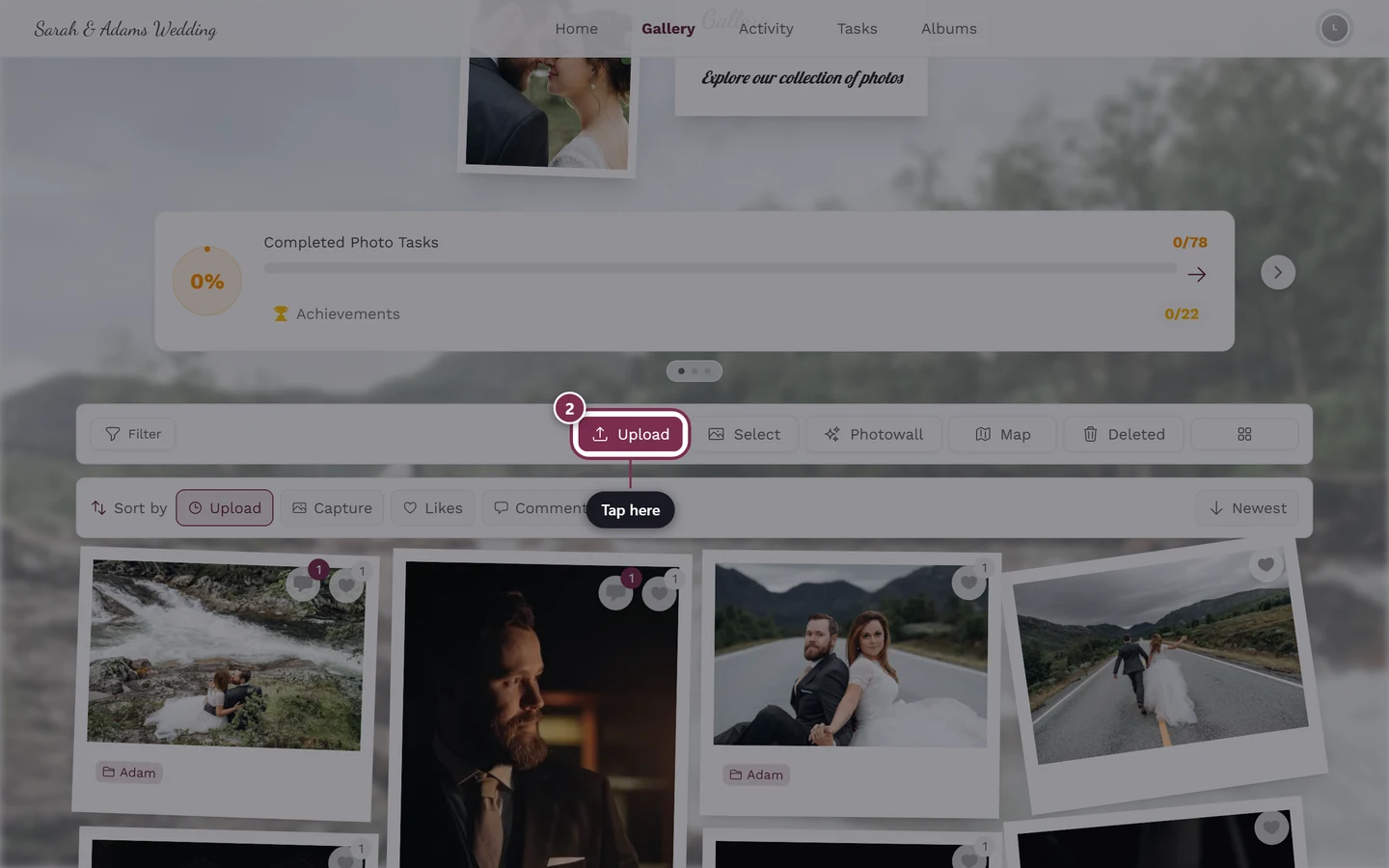
The upload button opens the upload dialog. -
Take a photo directly – from the upload dialog you open your device’s camera; the photo uploads straight away, with no detour through the review screen. Guide: Take a photo directly.
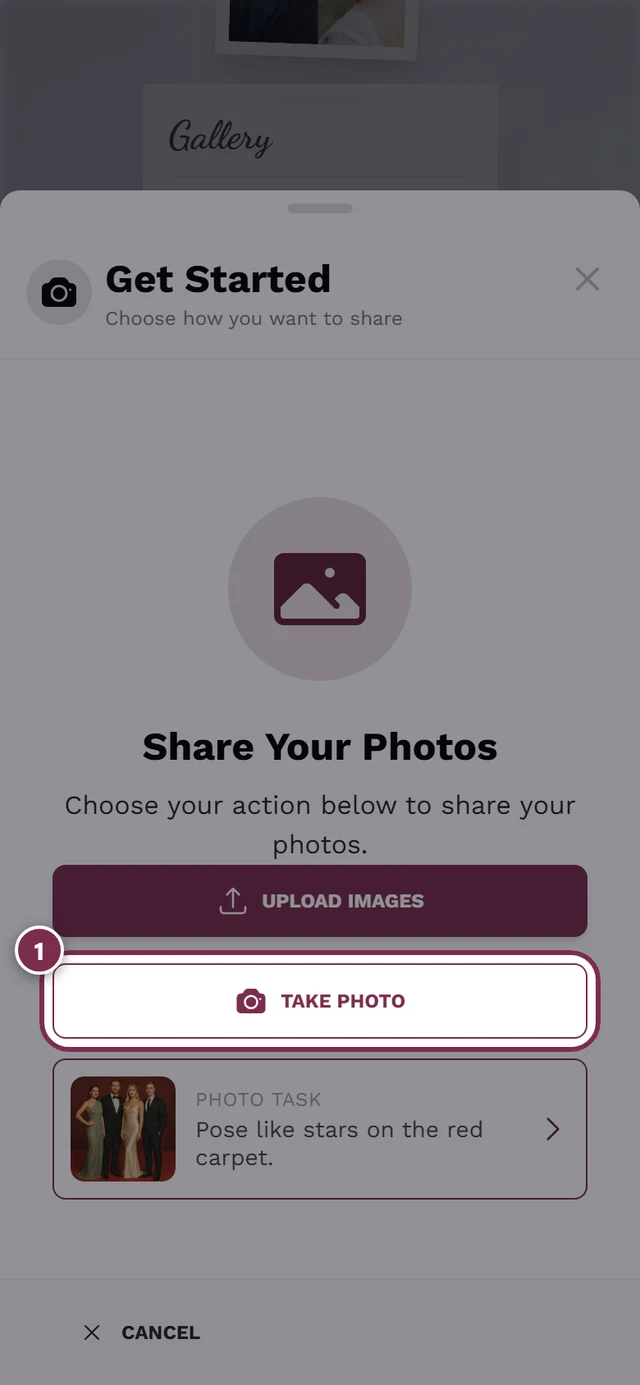
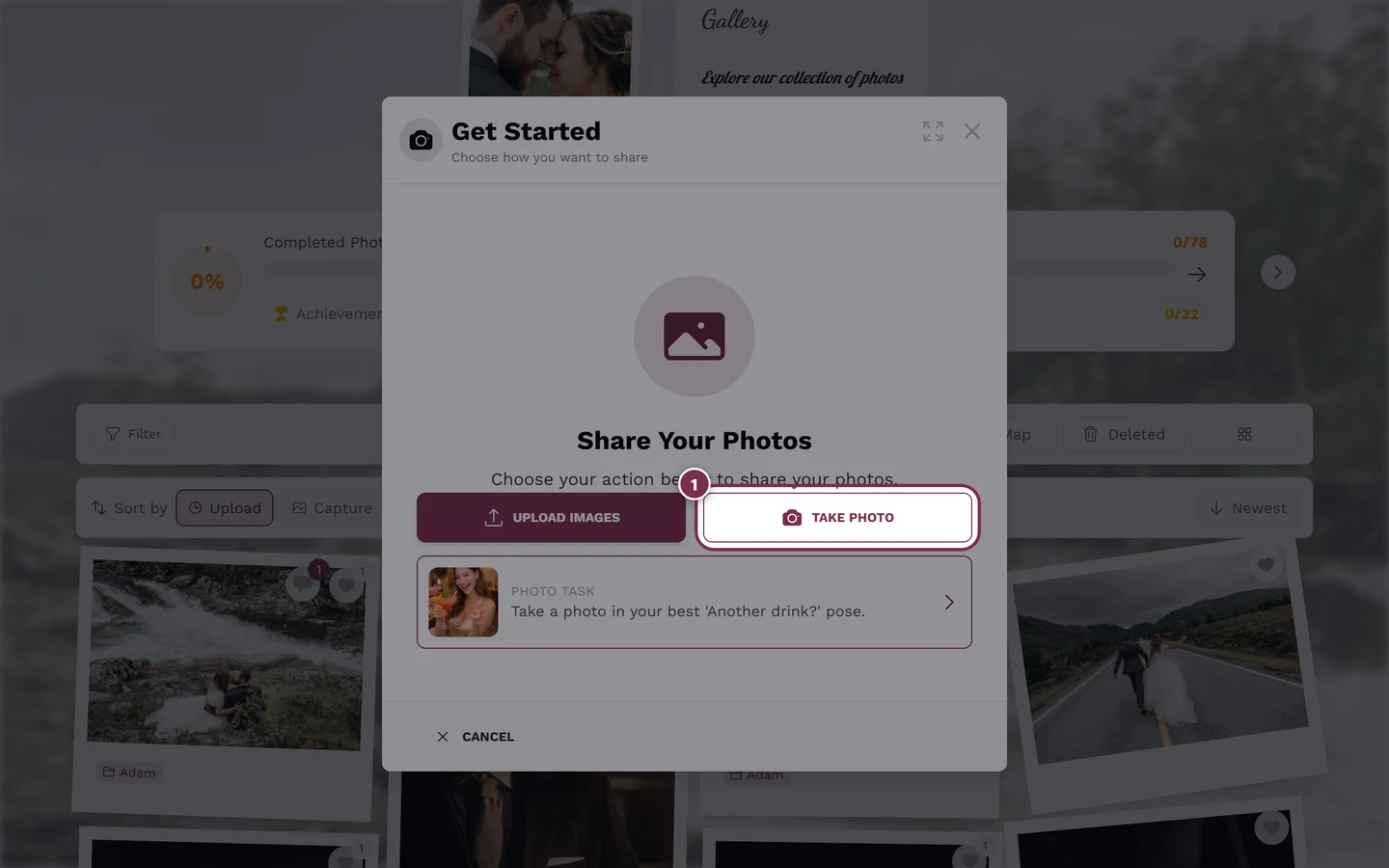
In the upload dialog you choose “Take photo” for the live camera. -
Download – save individual photos. Only visible when the host allows downloads. Guide: Download.
-
Select multiple – bulk download and bulk actions for many photos at once. Only when bulk download is allowed. Guide: Select multiple.
Discover & join in
Section titled “Discover & join in”-
Likes & comments – react with the heart (double-tap the photo or the heart icon) and write comments. Likes and comments each need to be enabled by the host. Guide: Likes & comments.
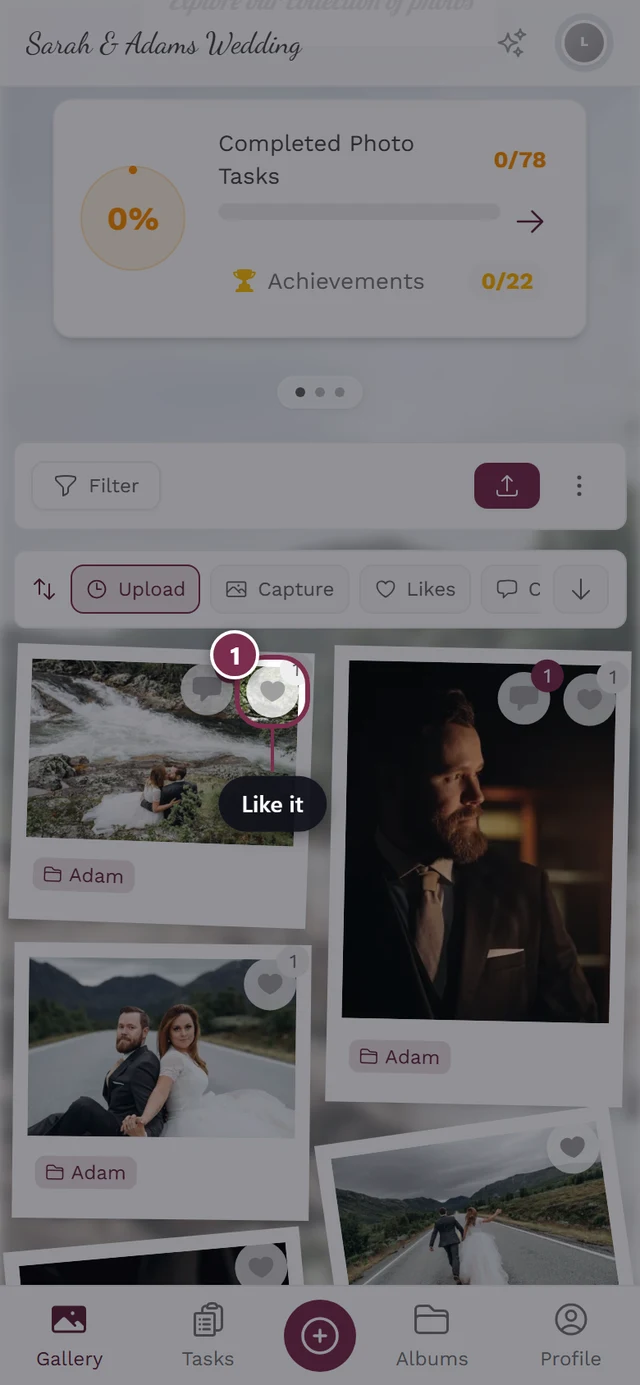
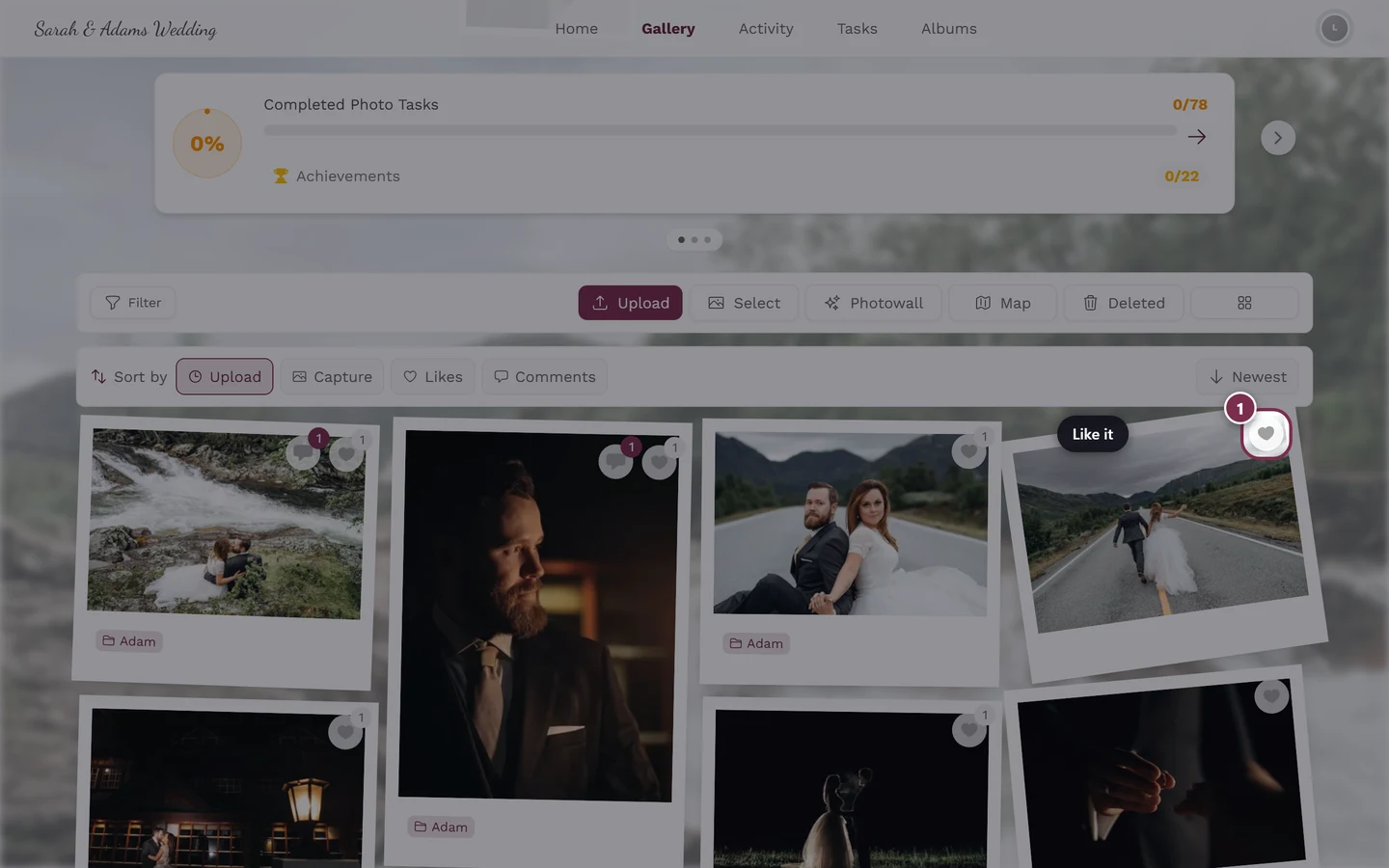
Give a like with a double-tap or via the heart icon. -
Challenges (Tasks) – in the Tasks tab you find photo tasks you can solve and earn points for. Only visible when tasks are enabled and there are some. Guide: Challenges.
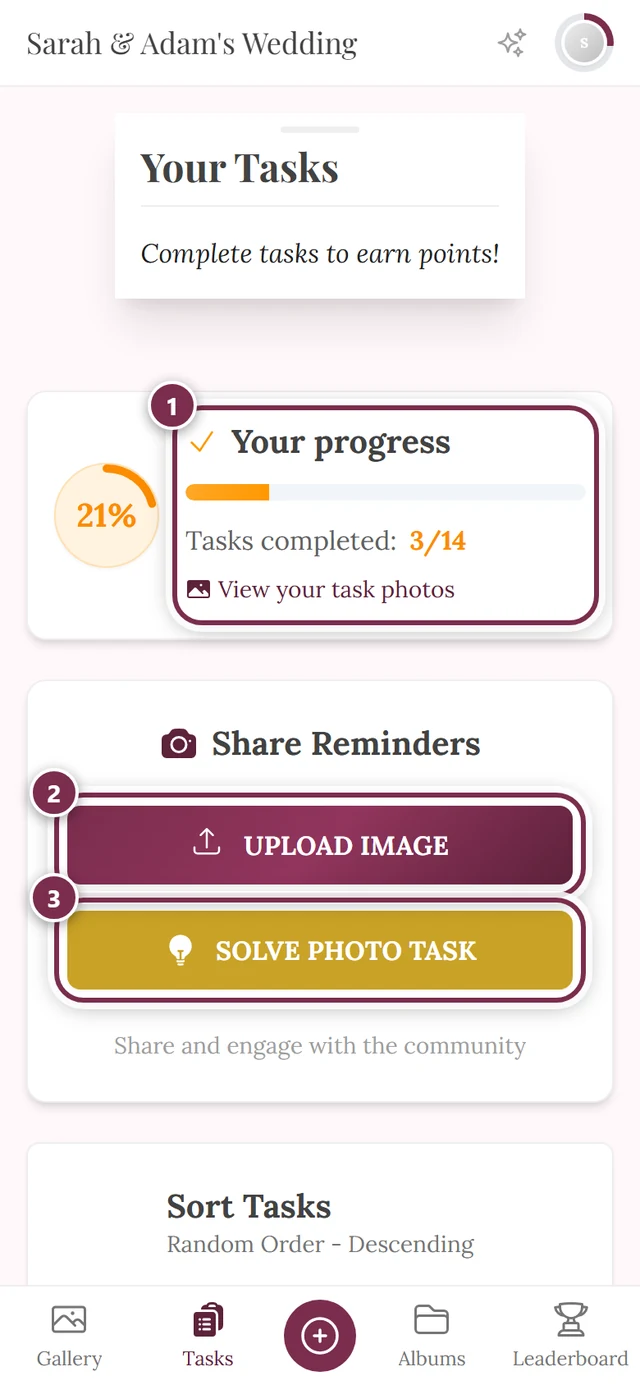
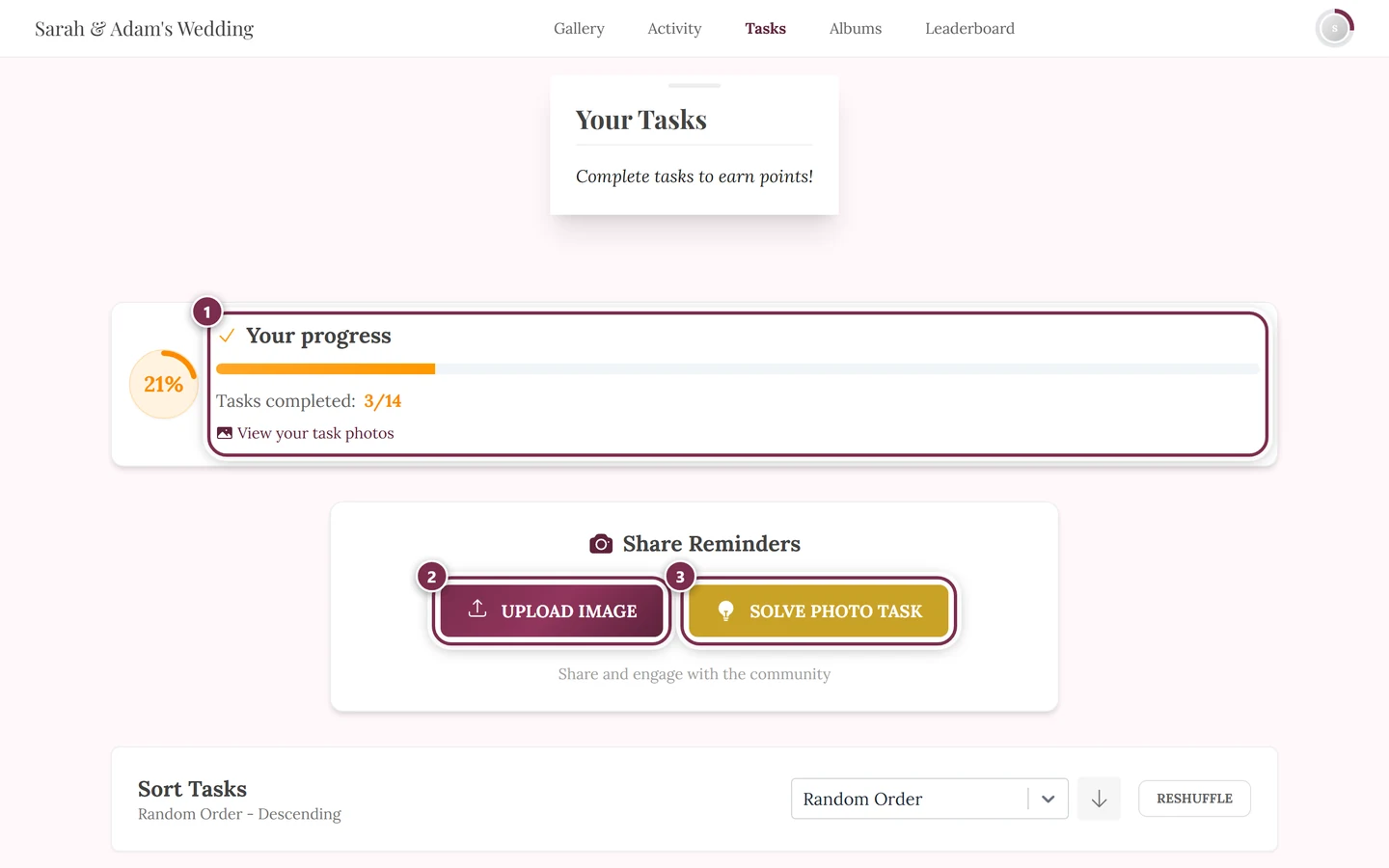
Tasks invite you to capture specific shots. ① your progress (3 of 14 tasks here), ② Upload image stores a photo without a task, ③ Solve photo task assigns the upload to a task straight away. -
Find photos of you (face search) – if the host has enabled AI face recognition, you can filter the gallery to the photos you appear in. Guide: Finding photos of you.
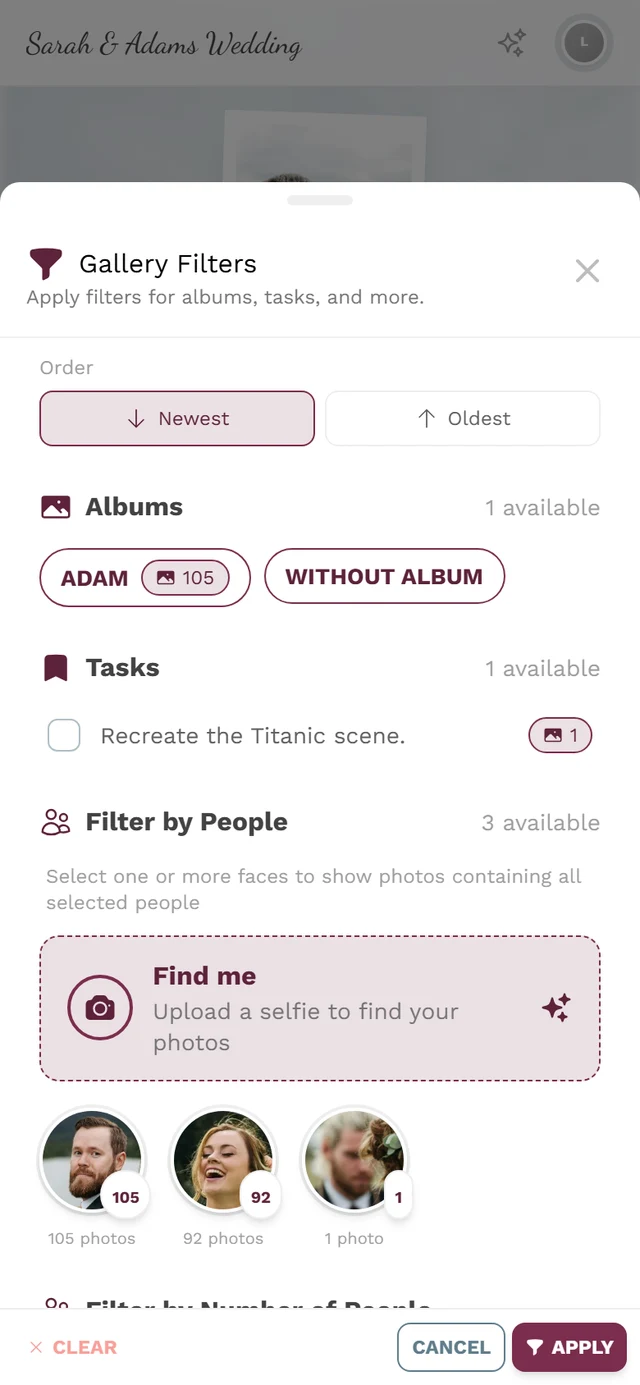
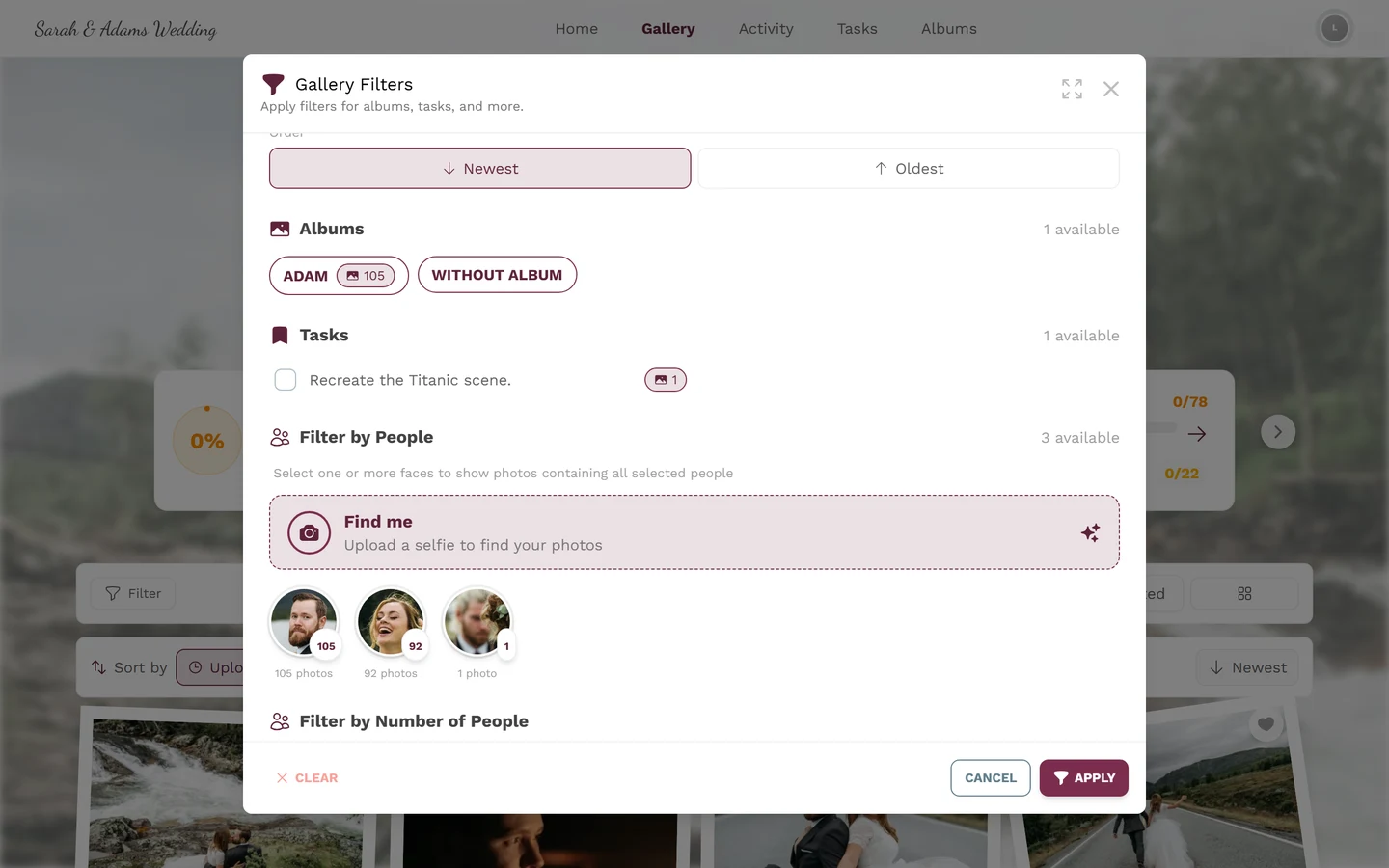
Use the filter to find photos of a specific person. -
Albums, slideshow, map and live photo wall – more ways to view your photos. Details further down. Guides: Albums, Slideshow, Map view, Live photo wall.
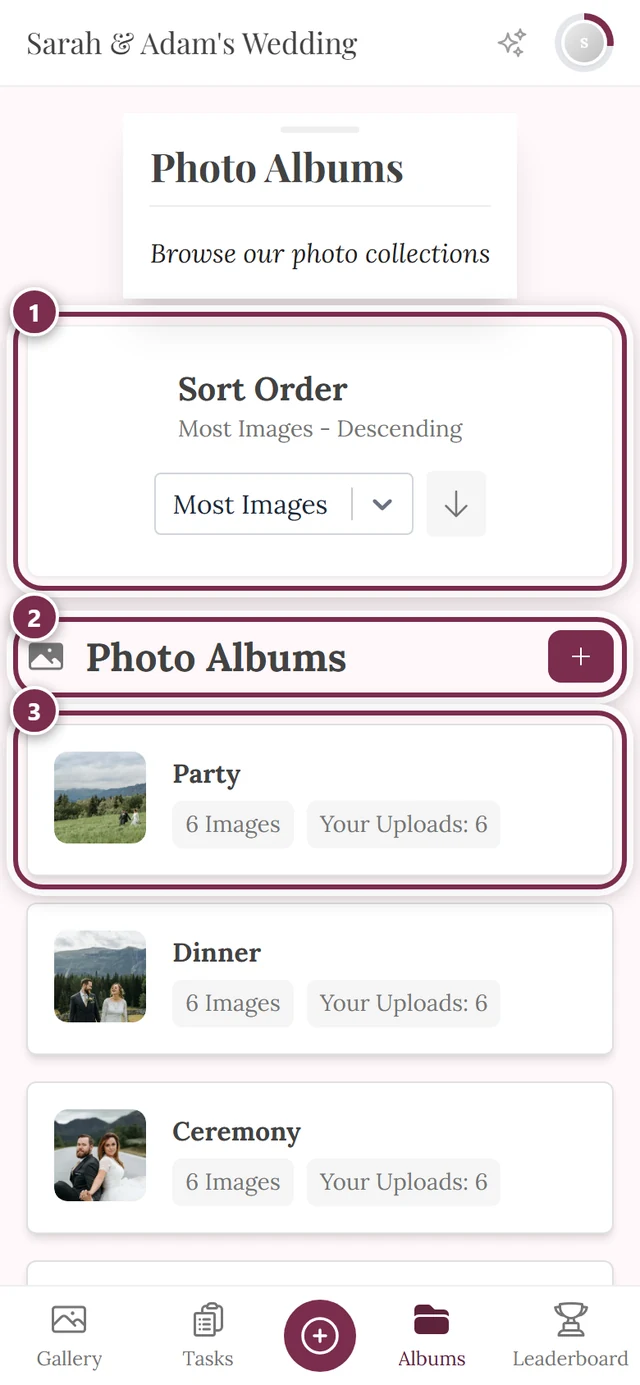
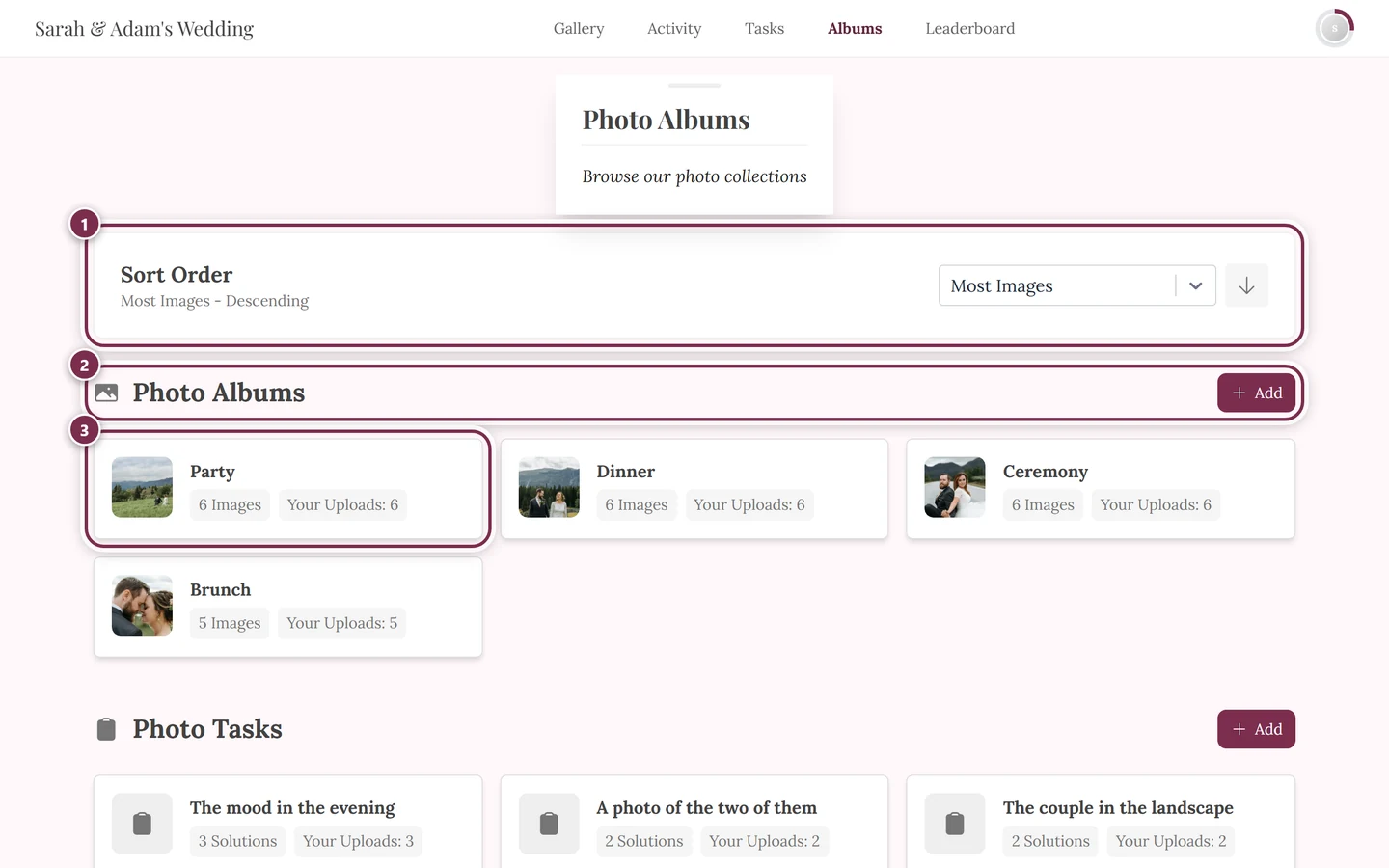
Albums group photos, e.g. by part of the program. ① At the top, the card with the search field “Search albums and photo tasks…” and the sort dropdown: Manual Order, Random Order, Alphabetical, Most Photos and Your Uploads. The arrow next to it flips the direction – with *Manual* and *Random* it has no effect, and *Random* adds a Reshuffle button instead. What the page starts with is set in the event settings; a guest’s own choice only lasts for their visit. ② The Photo Albums section. The + Add next to it only shows for people who manage the event. ③ Every album card shows its cover, name, the number of images and – once you contributed something yourself – Your Uploads: N; clicking it opens the gallery filtered to that album. The same layout follows once more below for Photo Tasks.
Rewards & account
Section titled “Rewards & account”- Points & rewards – your points total appears in the profile menu, provided the event has enabled points. Some events even hand out real rewards. Guides: Points & rewards, Real rewards.
- Profile, notifications & language – you control all of these via the profile menu at the top right. Guides: Your profile, Notifications, Changing the language.
The event tools – more than just photos
Section titled “The event tools – more than just photos”Besides the gallery, an event can offer tools: pages of their own for everything that belongs to the celebration. You find them on the home screen in the Event info & tools rail, and many show their most important content as a widget on the home screen as well. Which ones exist is entirely up to the host.
- Digital invitation – a designed invitation page with countdown, venue and schedule. It reaches you as a link or QR code and therefore normally does not sit in the tool rail – though the host can deliberately add it there. Guide: The digital invitation.
- RSVP – accept or decline, add your plus-one, choose your dish and note any dietary needs. Also reachable only by link or QR code. Guide: Accept or decline.
- Seating plan – type your name and the plan shows you your table and seat. Guide: Find your seat.
- Menu – food and drinks at a glance, with courses, images and notes such as vegan or gluten-free.
- Schedule – how the event runs. The current item is marked; the home screen also shows a widget with what’s coming next.
- Song requests – request your song with title, artist and a note. In the tool rail the entry is called DJ Wishes. Guide: Song requests.
- Event info – everything to know in advance: directions, parking, dress code, who to ask.
- Thank you – a thank-you note from the host with text and a picture, usually unlocked only after the event.
- Custom pages – freely created info pages such as “Shuttle” or “Where to stay”, each with its own icon. They can also sit in the navigation.
All tools in detail – including why one might be missing for you – in the guide Tools at the event.
The digital invitation – the surface before the event
Section titled “The digital invitation – the surface before the event”The digital invitation is not a page inside the gallery but a surface of its own: no navigation, no footer, entirely in the host’s design. Anyone who merely looks at it is not turned into a guest and appears in no participant list.
The clever part: it is the same link as the one to the gallery. Before the event day it shows the invitation, from the event day on the gallery – so you only ever need to remember one address. Replies, song requests and the seating plan can be handled straight from the invitation. More on this: The digital invitation.
Understanding the map view
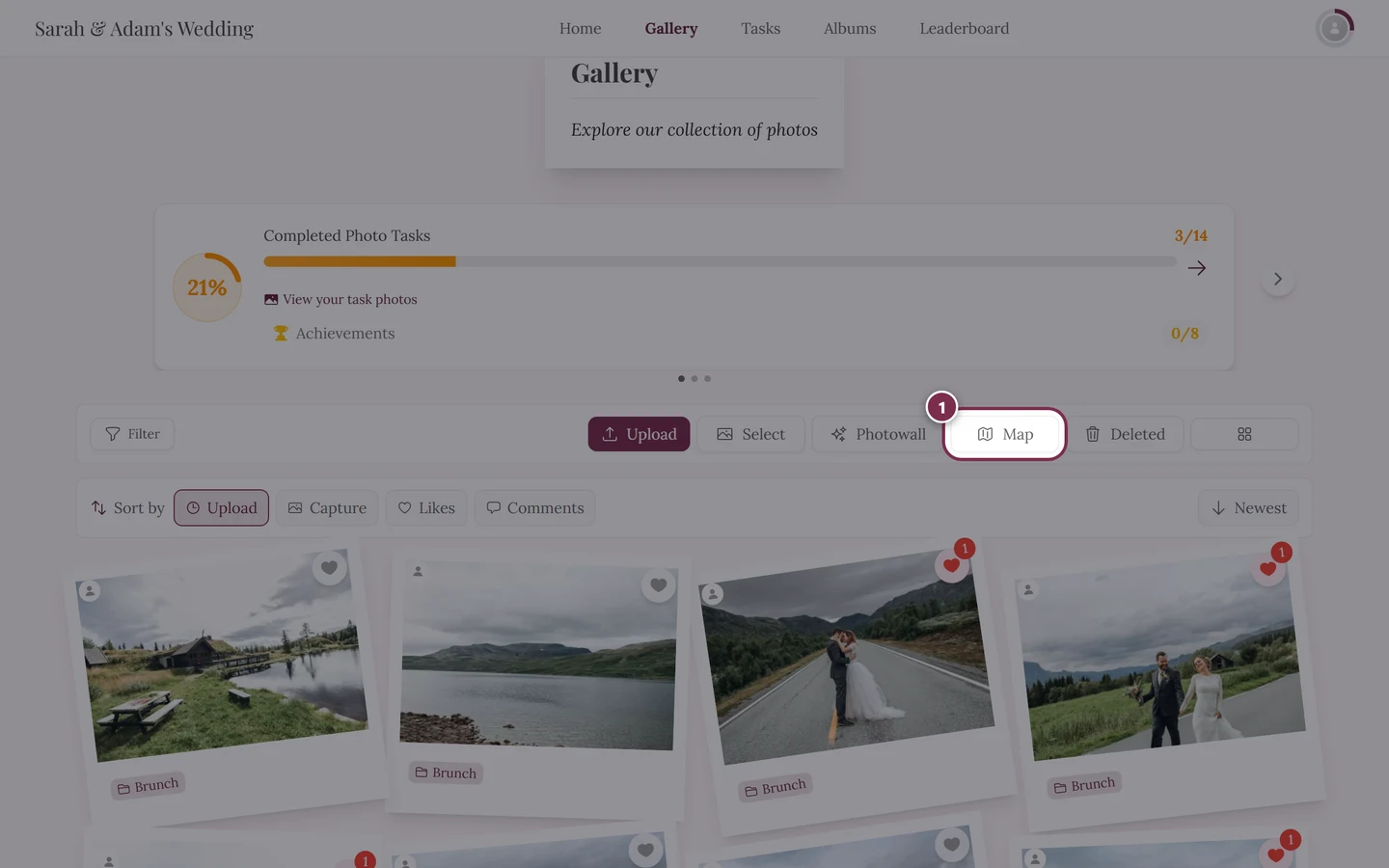
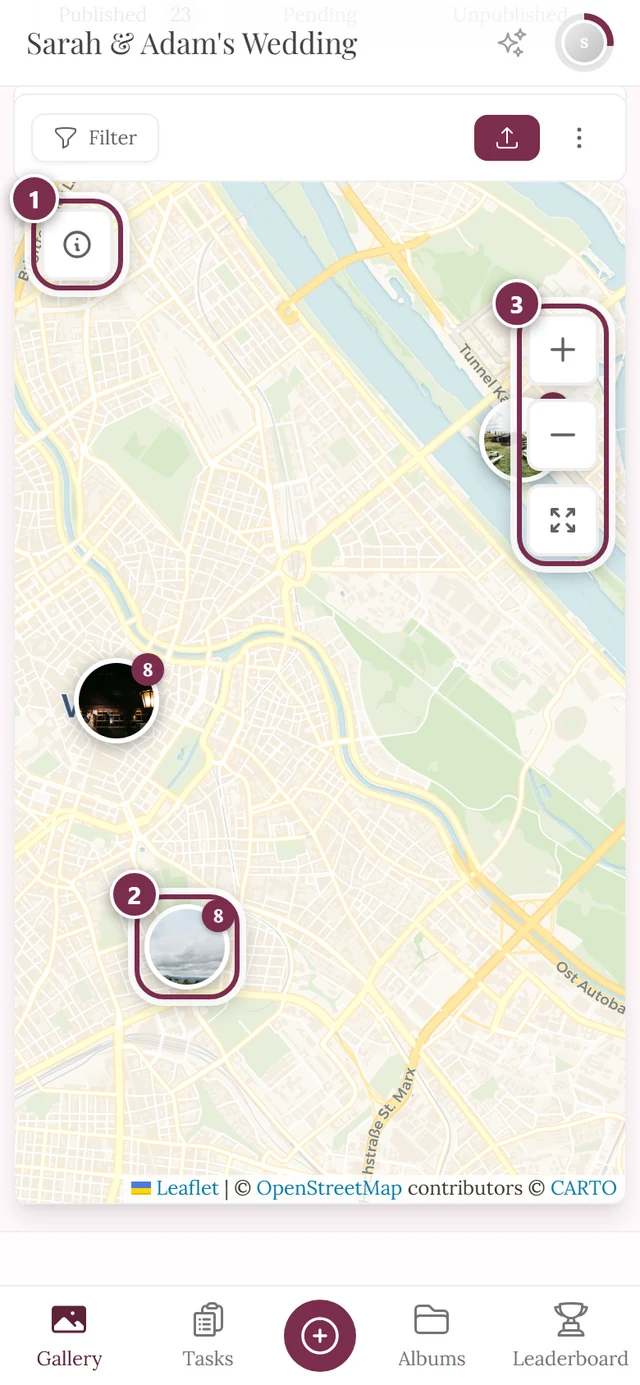
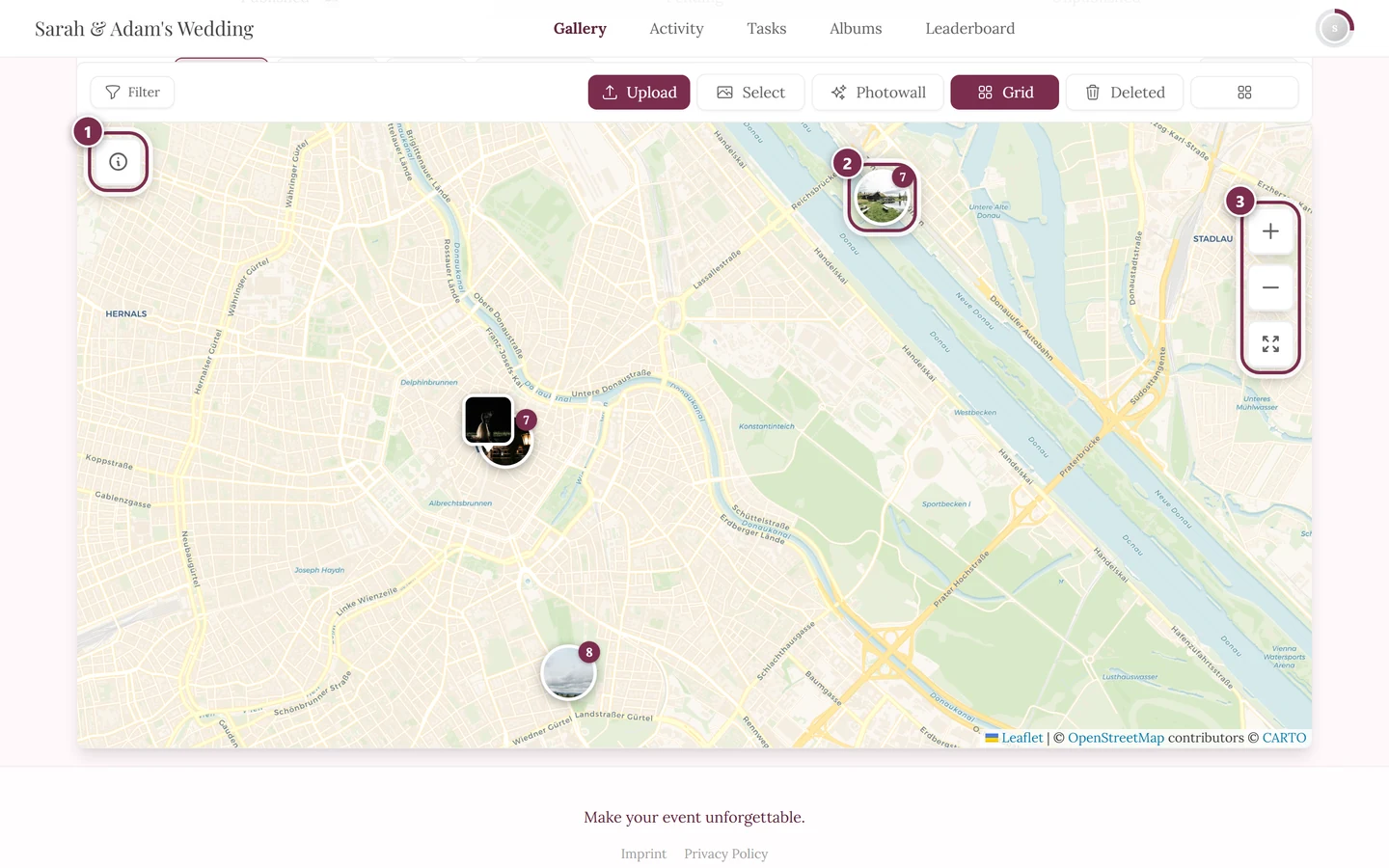
Section titled “Understanding the map view”The map is not a separate page in the navigation, but a toggle inside the gallery. In the gallery toolbar one button switches back and forth between Grid and Map – in map mode that same button reads Grid.
Understanding the slideshow
Section titled “Understanding the slideshow”The slideshow has no menu item of its own. It opens as soon as you tap a photo and it appears in full screen – from there you control previous/next and playback.
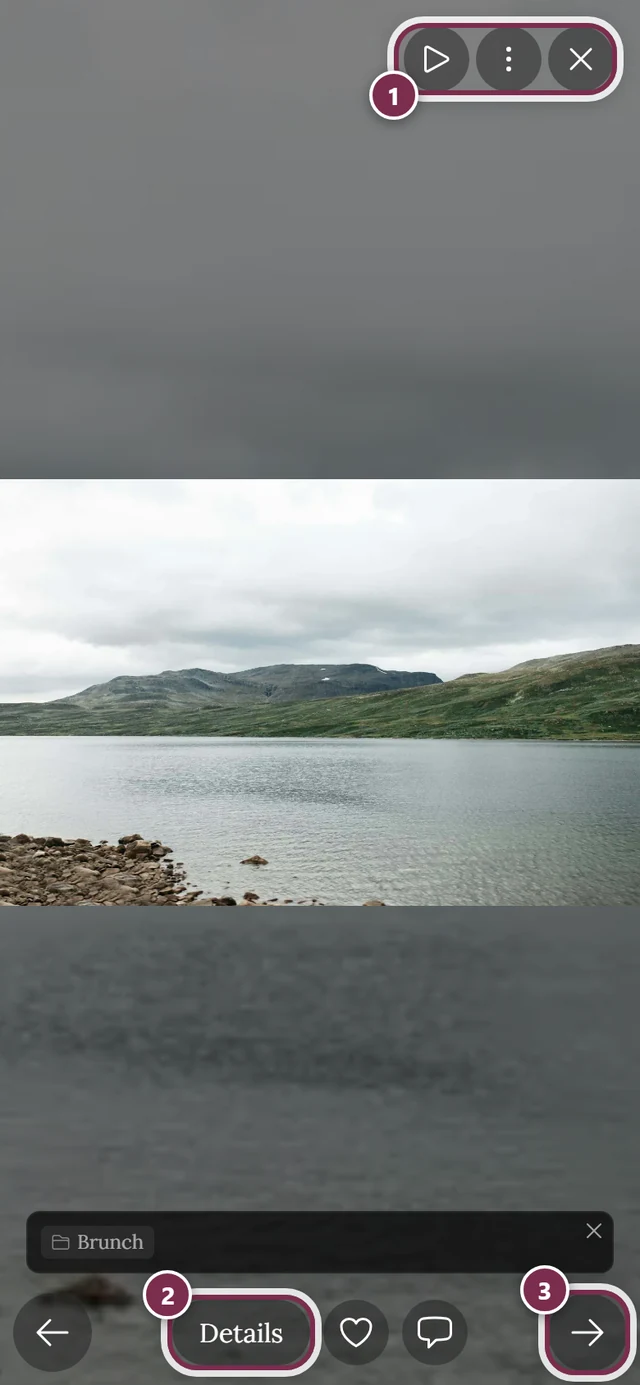
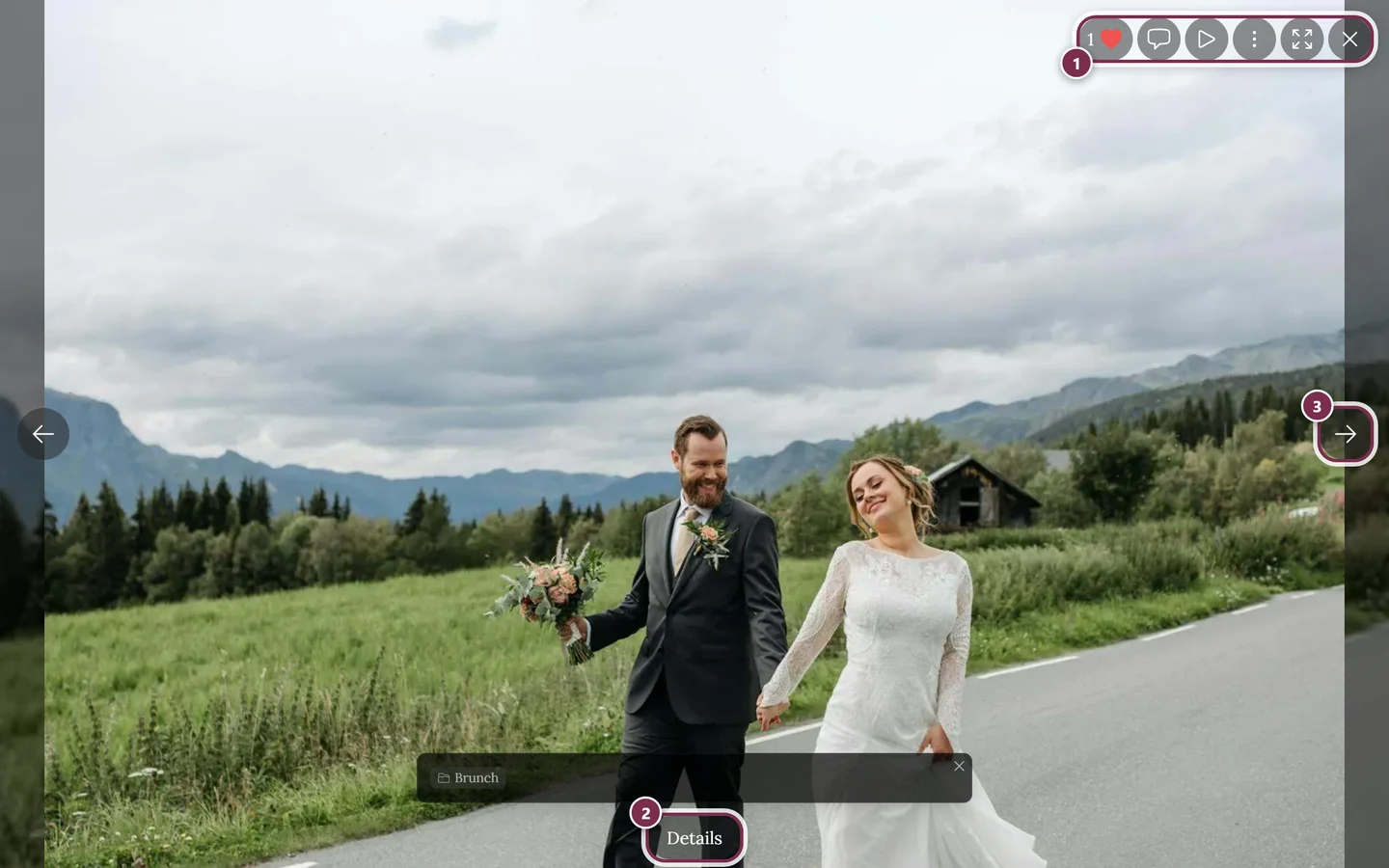
In full screen, the three-dot menu (⋮) leads to further actions such as download, share, report and the photo details. More on this: Slideshow.
Understanding the live photo wall
Section titled “Understanding the live photo wall”The live photo wall is meant as a large display for TVs or projectors – new photos appear there automatically. It is not an ordinary guest tab, but a separate view the host opens on the big screen.
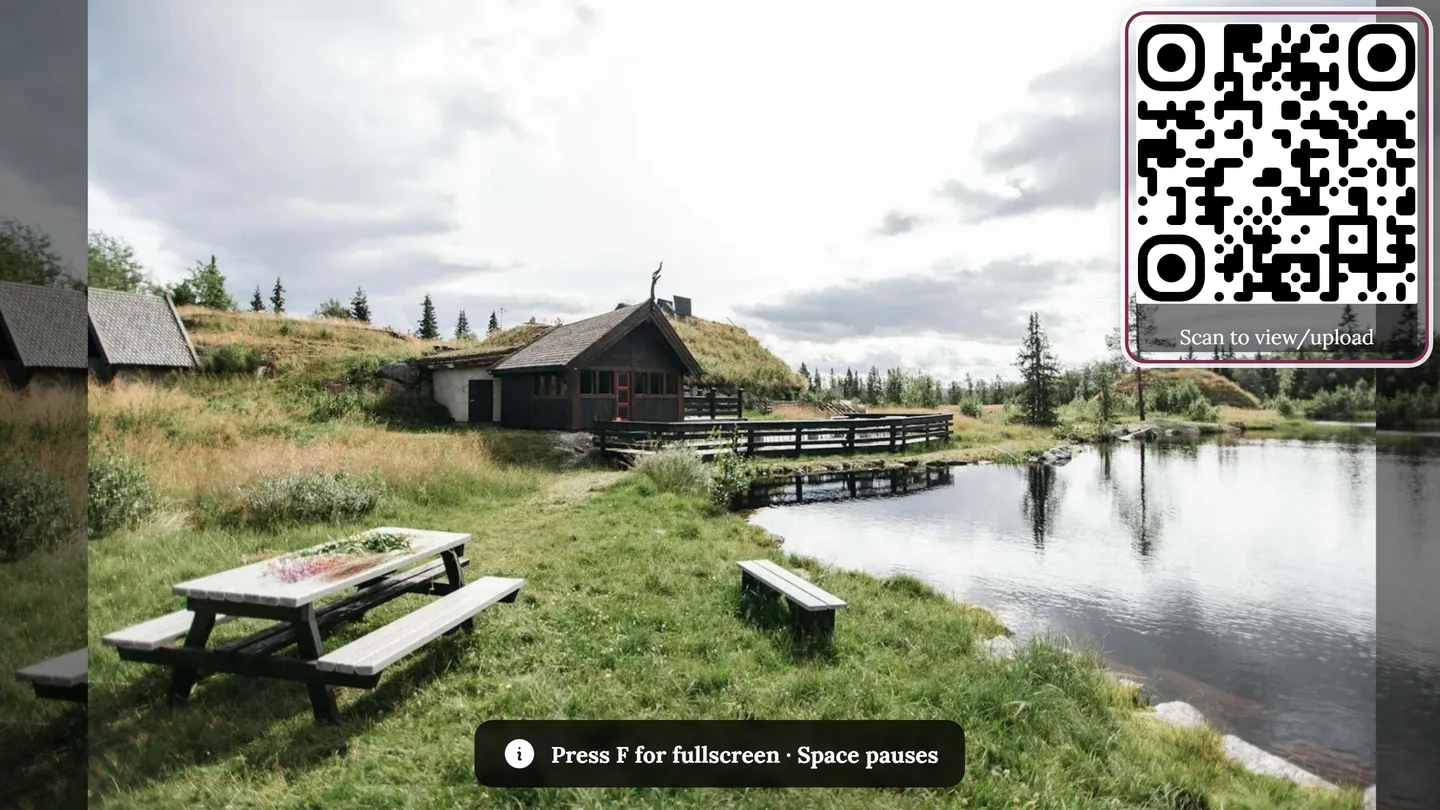
More on this: Live photo wall.
The profile menu – your second hub
Section titled “The profile menu – your second hub”The avatar at the top right opens the profile menu. Almost all account and role features live here.
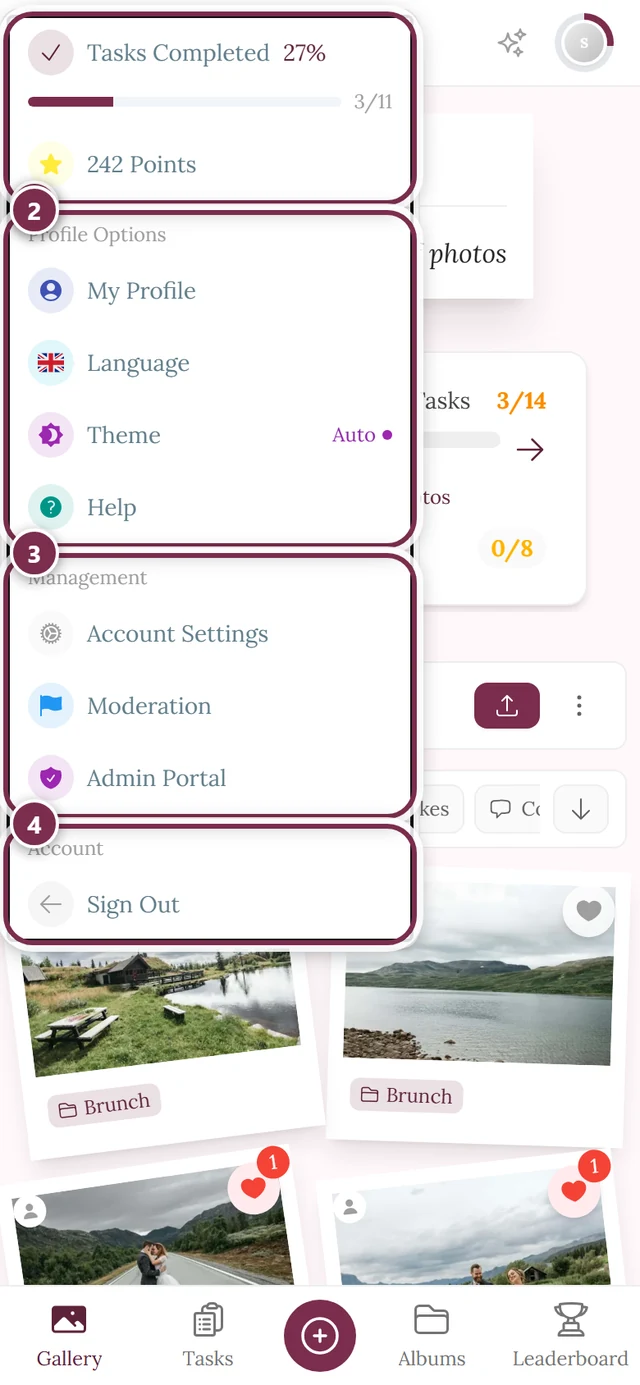
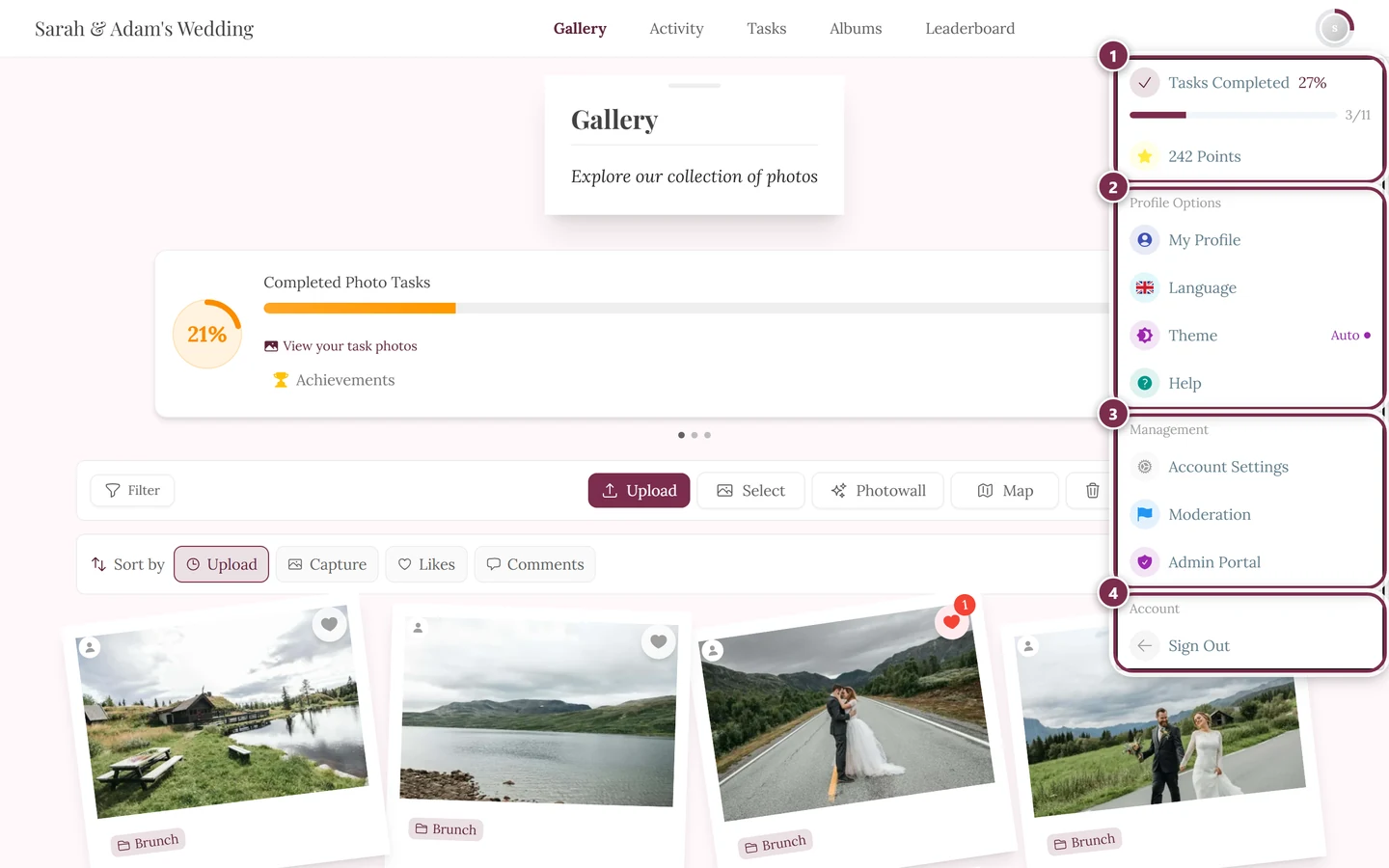
Depending on what is enabled and your role, you find here:
- Tasks Completed – a ring around your avatar and a progress bar when tasks are active.
- Points – your current points total when points are enabled.
- Profile Options: My Profile, Language, – if available – Theme (Auto, Dark, Light) and Help, which opens this help center in a new tab.
- Management (only with the matching role): Account Settings (signed-in users only), Partner Dashboard (partners only), Moderation (for moderators, with a red counter for open reports), Admin Portal for hosts and Administration Portal for platform administrators.
- Account: Sign Out, or Sign In if you are here as a guest.
Notifications (the bell)
Section titled “Notifications (the bell)”The bell sits next to your avatar. A red counter shows unread notifications; a click opens the list.
Roles in brief
Section titled “Roles in brief”Because the visibility of many features depends on your role, here is a short legend:
- Viewer – view only, no uploading or commenting.
- Contributor – upload, like and comment. Most guests are contributors.
- Moderator / Admin / Owner – additionally access to moderation or the admin area.
What exactly you are allowed to do is set by the host. More on this: Roles & permissions.
Are you organizing the event?
Section titled “Are you organizing the event?”Then the admin area is your starting point – from setup and approving photos to backing up all photos. You reach it via the avatar at the top right → Admin Portal.