Is there a dark mode?
Yes – but the switch is not visible to everyone. It only appears when three conditions are met at the same time. If one of them is missing, the gallery stays light.
The three conditions
Section titled “The three conditions”- You are inside the event. The switch lives in the profile menu, and you only reach that after joining. You do not need an account for it: a plain guest session shows the Theme entry too, as long as the other two conditions are met.
- The event’s plan includes the feature. Dark mode is a feature that has to be covered by the booked plan.
- The host allowed it. In the event settings, under Style → Appearance Settings, there is the Enable Dark Mode switch.
How to switch
Section titled “How to switch”-
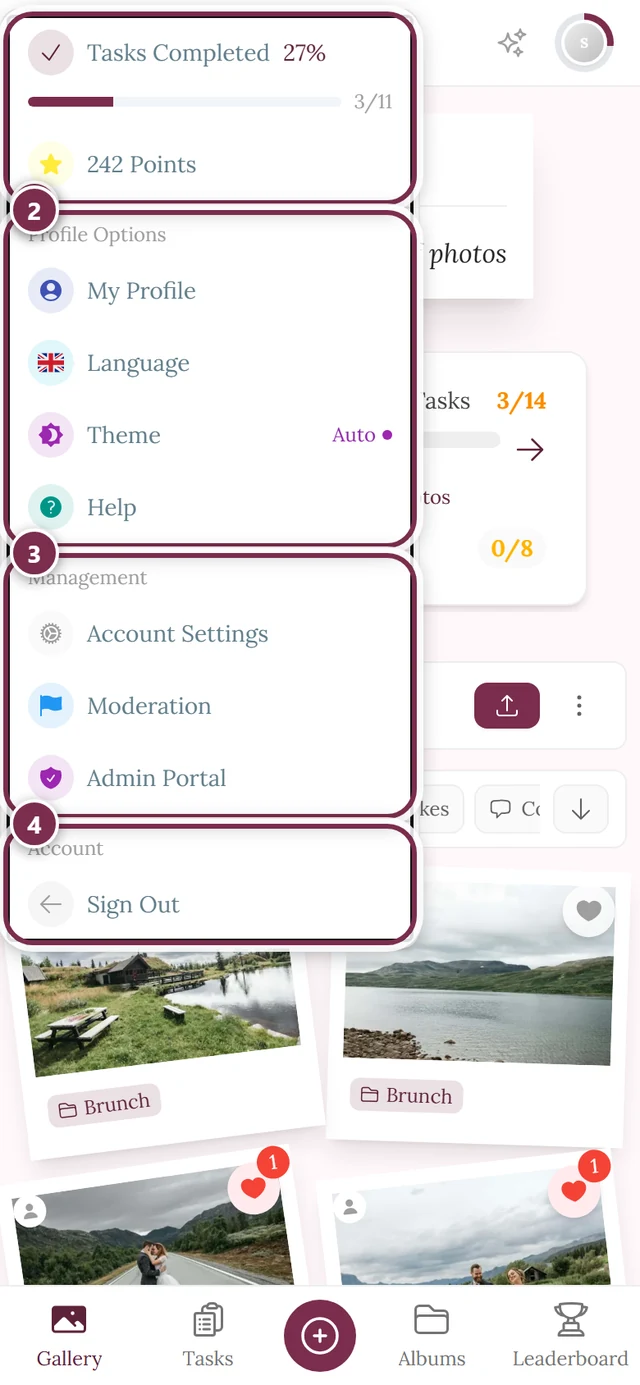
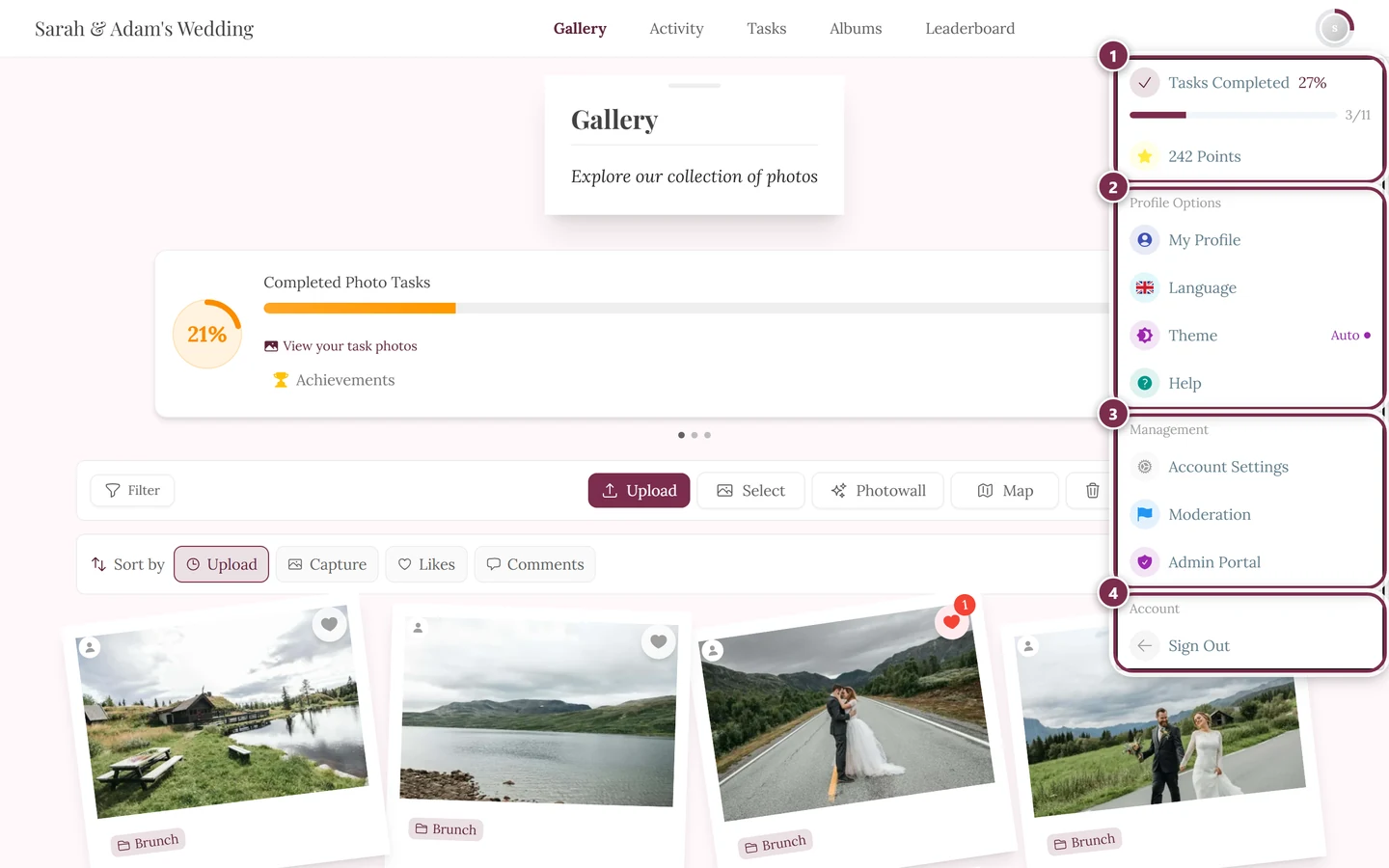
Tap the avatar at the top right to open the profile menu.
-
Pick the Theme entry. Your current value is shown right next to it.
-
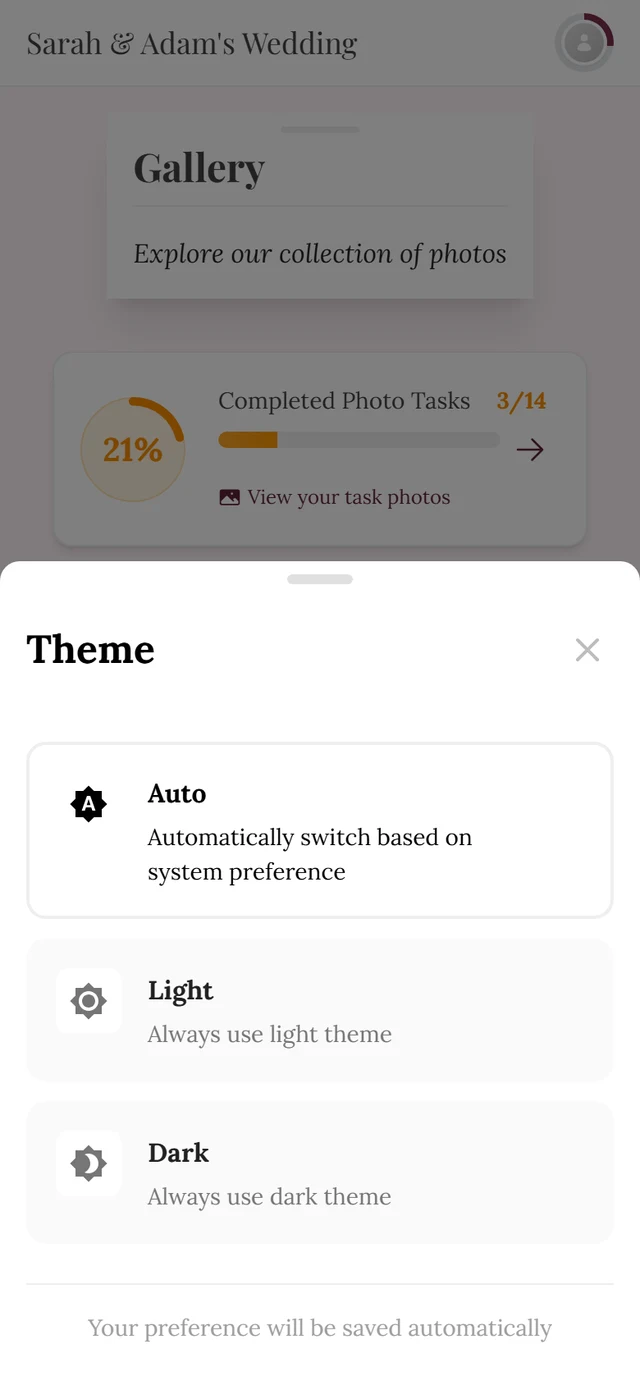
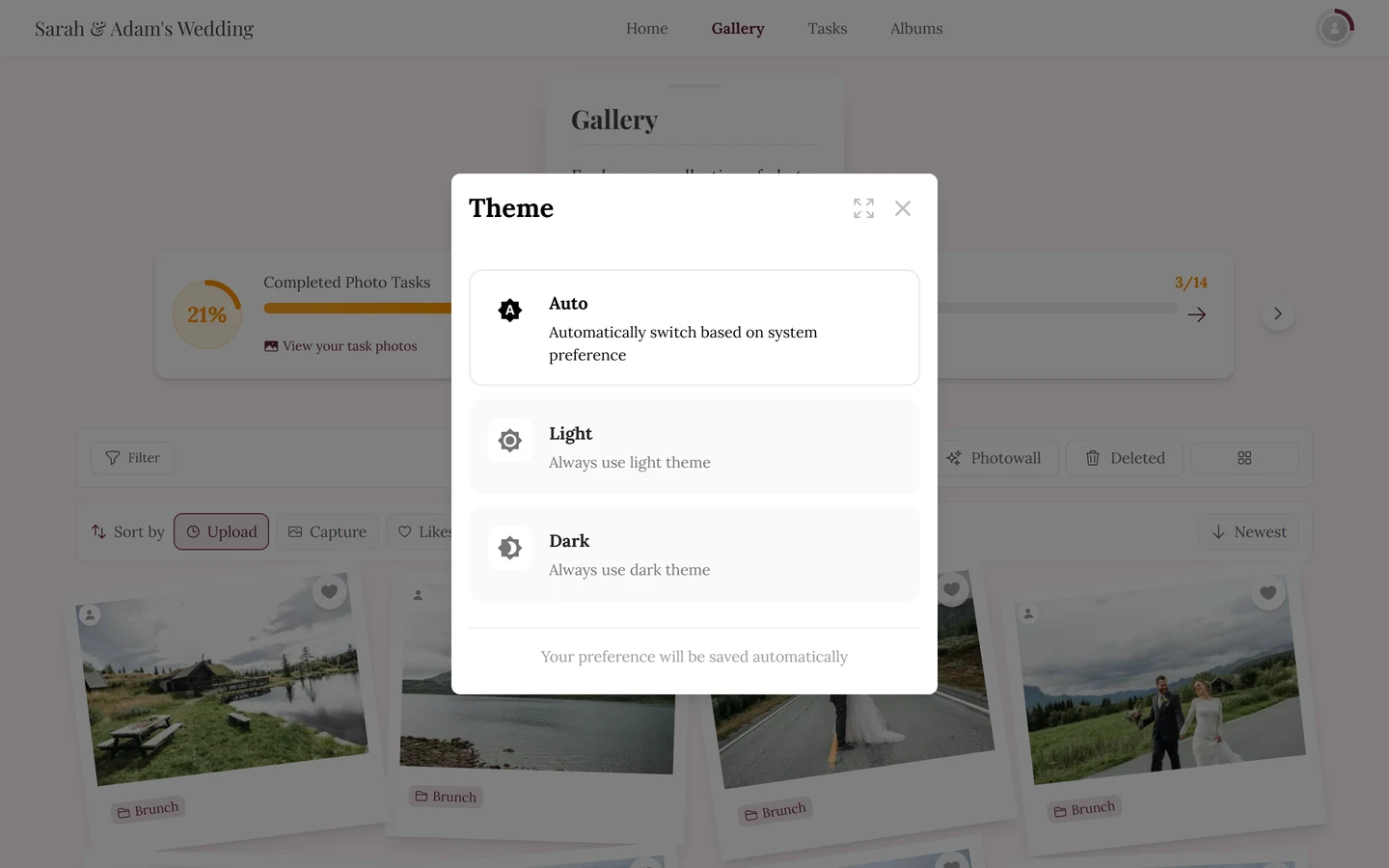
Choose one of the three values in the dialog:
- Auto – “Automatically switch based on system preference”
- Light – “Always use light theme”
- Dark – “Always use dark theme”
So only Auto follows your device – and even that only once dark mode is unlocked at all.
I cannot see the “Theme” entry
Section titled “I cannot see the “Theme” entry”Work through the three conditions one by one:
- You are still outside the event. As long as you have not entered the gallery there is no profile menu, and therefore no entry. Join first, see Joining an event.
- You are inside and still do not see it. Then the feature is not unlocked for this event – either the plan does not cover it, or the host switched it off. An account changes nothing about that. Ask the host.
- You are the host yourself? You will find the switch under Customizing the look.
Until then the gallery stays light. There is no other route into dark mode – your device settings will not do it.