Browsing albums
At larger events, hundreds or thousands of photos pile up quickly. Albums group related photos together so you don’t have to scroll endlessly through the whole gallery – for example all photos from the ceremony, all pictures of one particular person, or all contributions to a photo task.
The albums overview is a start page made of tiles. One thing to understand up front: an album has no separate detail page. When you open an album, you land in the gallery, filtered to that one album – so you only see the photos that belong to it.
Where do I find albums?
Section titled “Where do I find albums?”There are three ways to reach albums: the Albums menu item in the navigation (the full overview with every album), the Albums section inside the filter (jump straight to a single album), and – if the host switched it on – the album quick select right above the gallery grid.
Way 1 – The “Albums” menu item in the navigation
Section titled “Way 1 – The “Albums” menu item in the navigation”-
Open your event’s navigation. On desktop, Albums sits in the top header; on mobile it’s in the bottom tab bar or the menu.
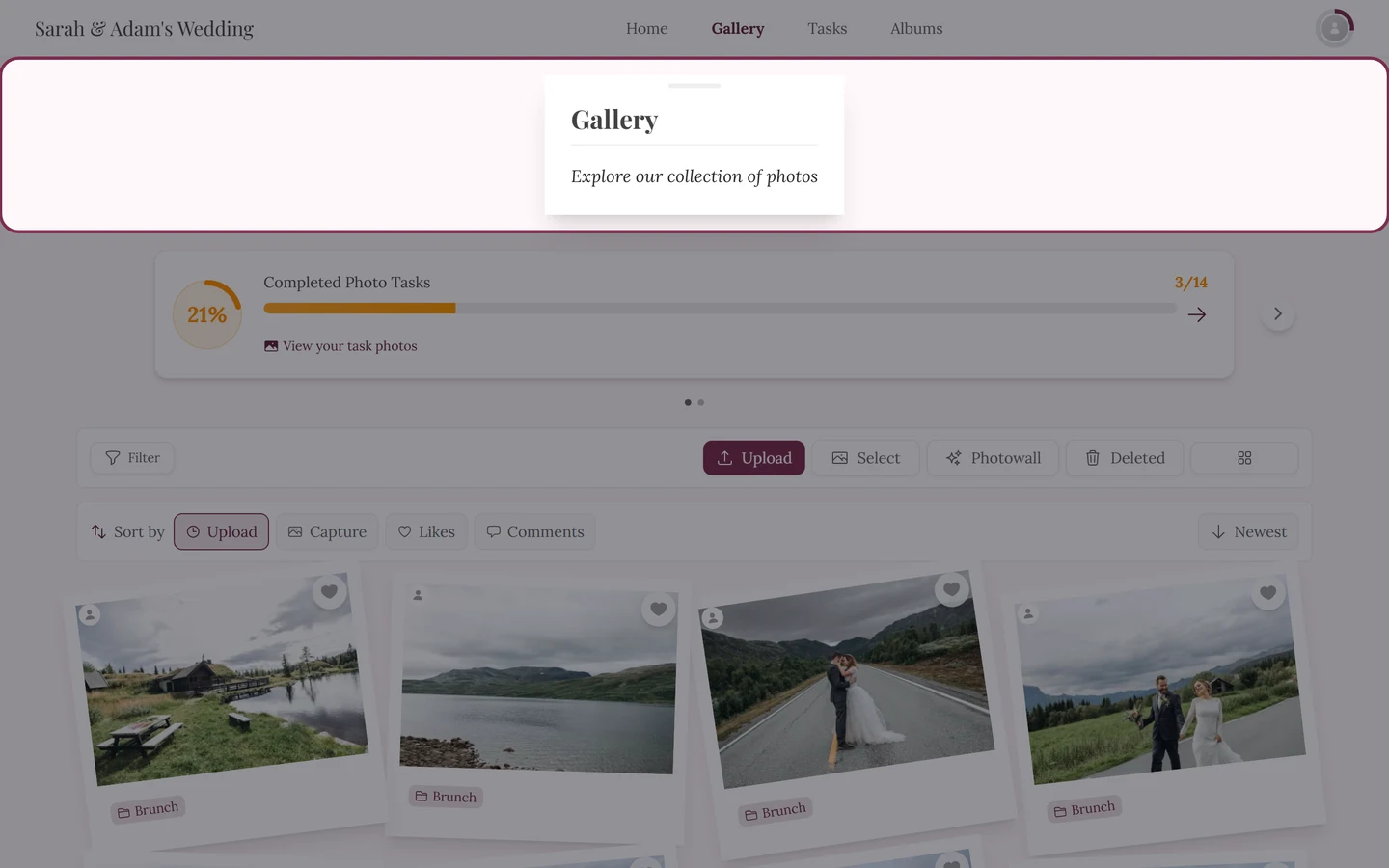
On desktop, “Albums” sits in the top header. 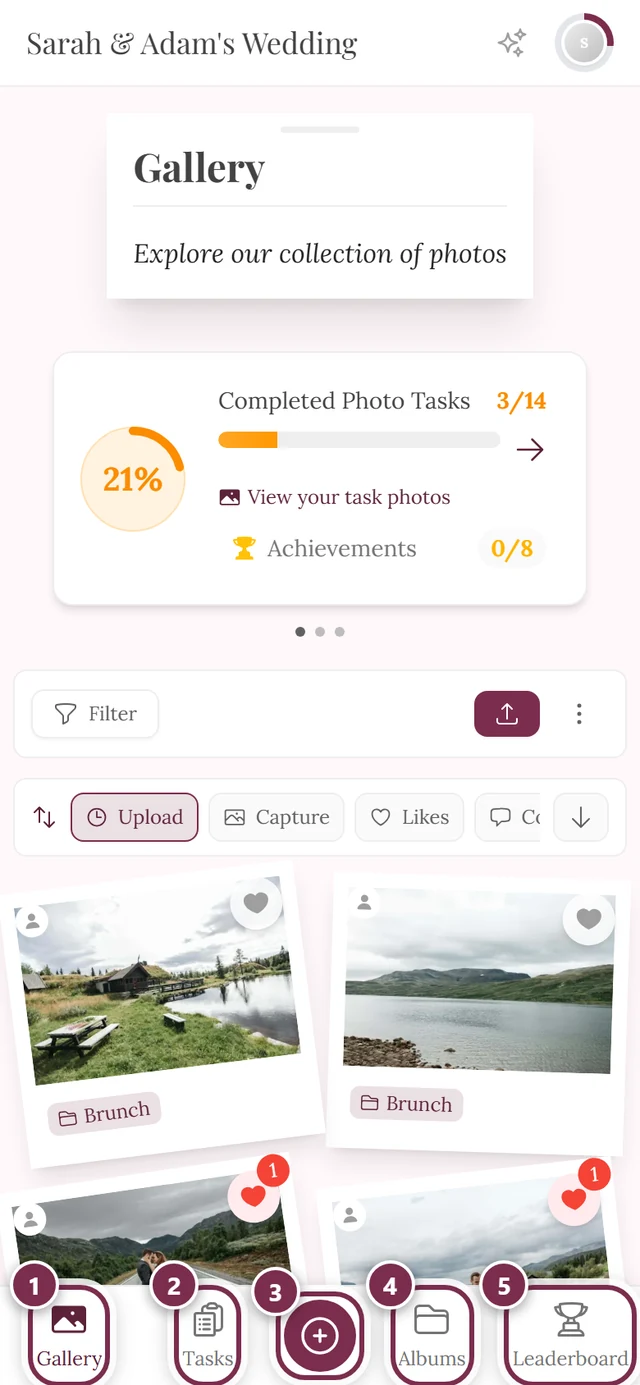
On mobile, the bottom tab bar leads to the albums. ① Gallery, ② Tasks, ③ the round button in the middle opens the upload, ④ Albums, ⑤ Leaderboard. Switched-off areas are missing from the bar – without photo tasks, for instance, the remaining entries close the gap. -
Tap Albums. The overview opens.
Way 2 – Through the filter
Section titled “Way 2 – Through the filter”If you just want to filter to one specific album, you don’t need the detour via the overview: the gallery filter has its own Albums section.
-
In the gallery toolbar, tap Filter.
-
Scroll down in the filter panel to the Albums section and pick the album you want – or No album for all photos without an album assignment.
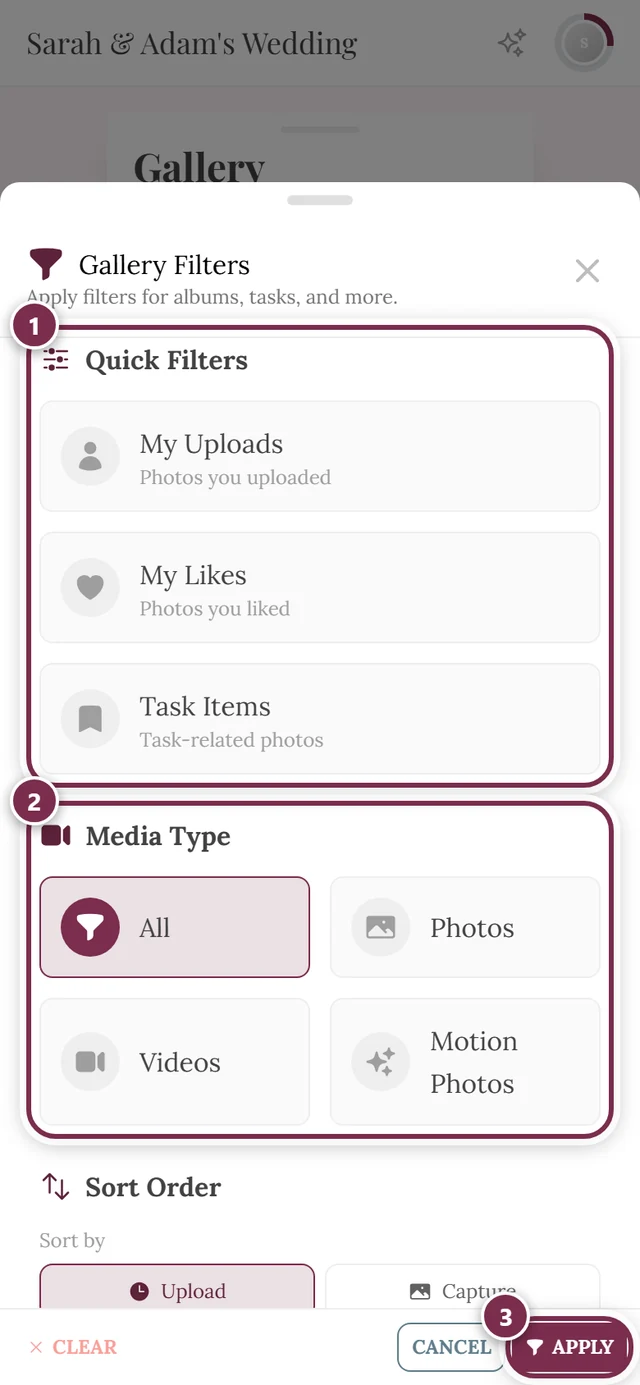
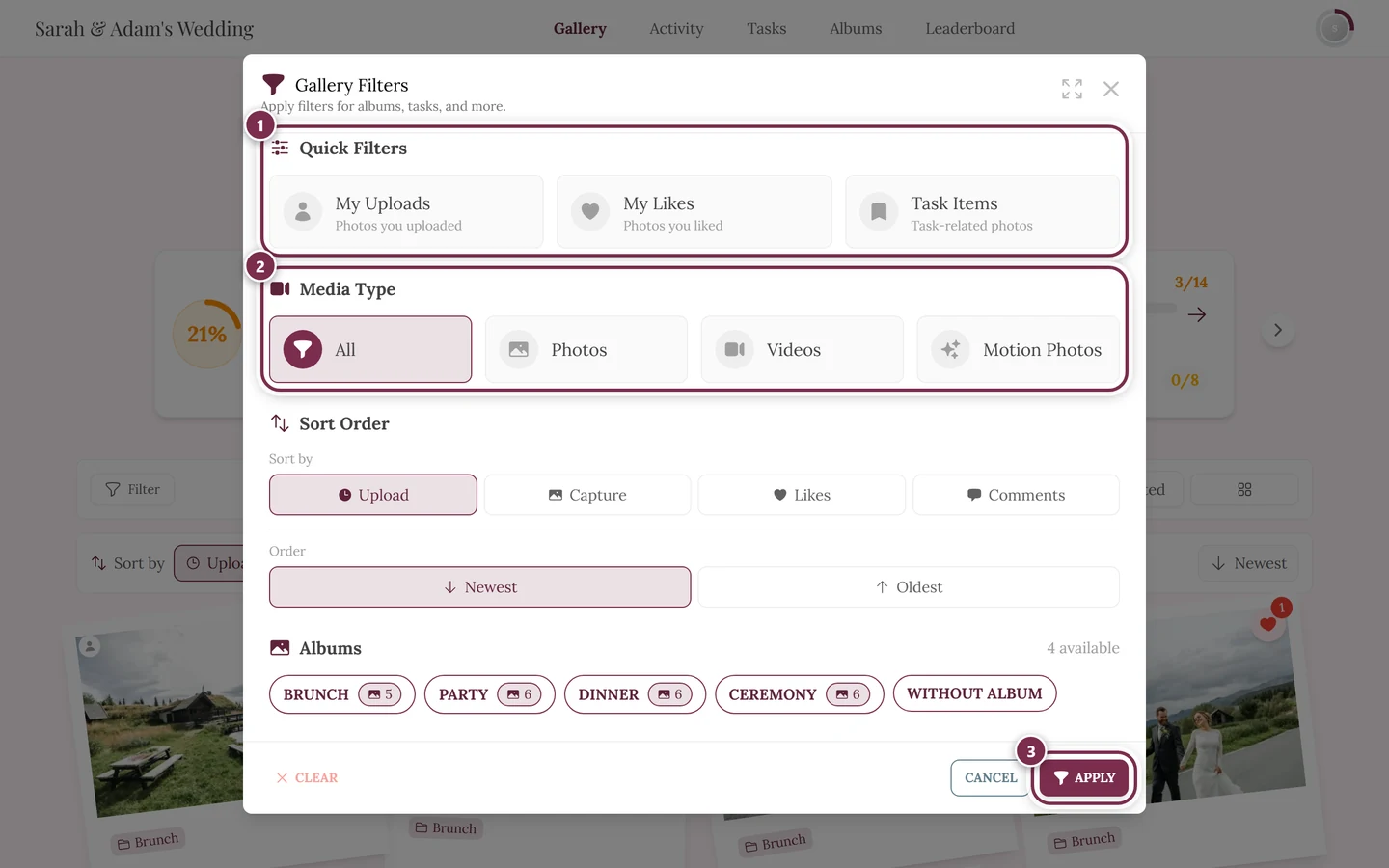
The “Albums” section is the fourth one in the filter panel – below Quick Filters, Media Type and Sort Order, above Tasks and Filter by People. The number next to the heading says how many albums exist. ① Quick Filters: My Uploads shows only what you uploaded yourself, My Likes only your hearts, Tasks only photos taken for a photo task – one tap switches a filter on, the next one off again. ② Media Type: All, Photos, Videos, Motion Photos. ③ Apply commits your choice; to its left Clear resets everything and Cancel closes without changes. Further down come Sort Order and Albums – and, depending on the event, Tasks, Filter by People, Filter by Number of People and Filter by Number of Likes; on a phone you scroll to reach them. There is no filter for a date or a time range. -
Tap Apply. The gallery now shows only that album’s photos.
Way 3 – The album quick select above the gallery
Section titled “Way 3 – The album quick select above the gallery”The fastest route from the gallery into an album is the album quick select: a horizontally scrollable row of chips right above the photo grid (below the sort bar). Each chip is an album and shows its photo count next to the name.
-
Tap an album chip. The gallery filters to that single album immediately – no filter panel, no Apply.
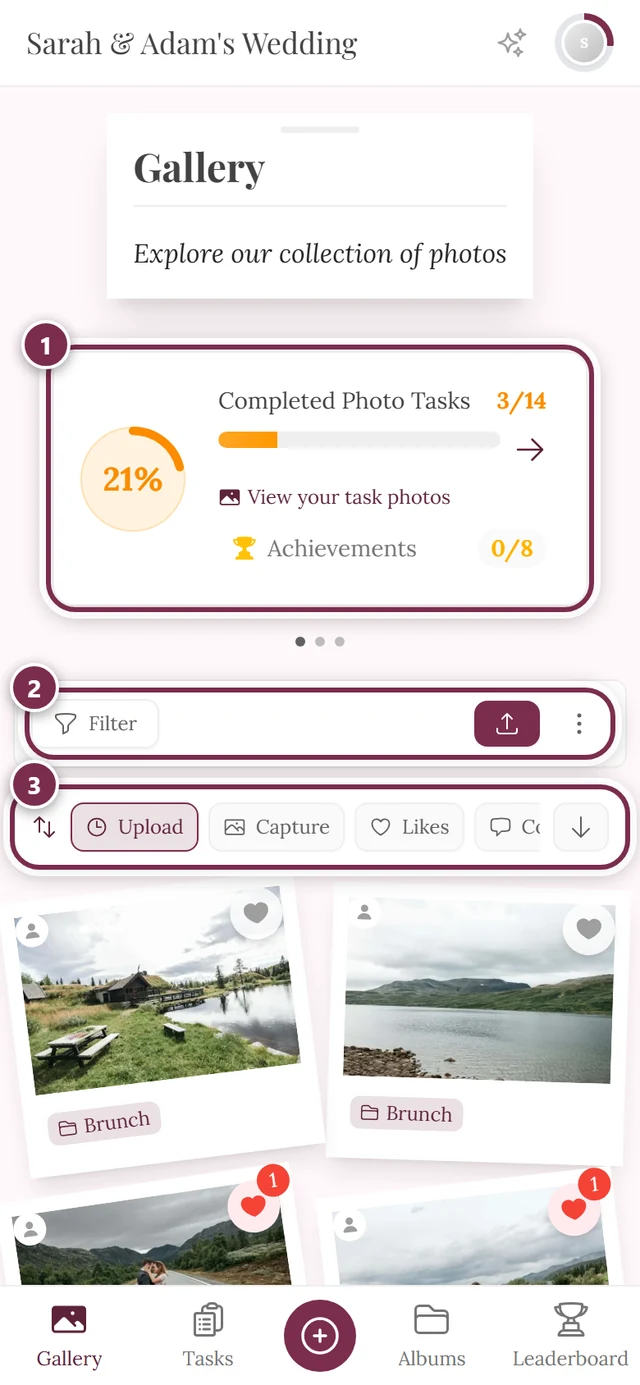
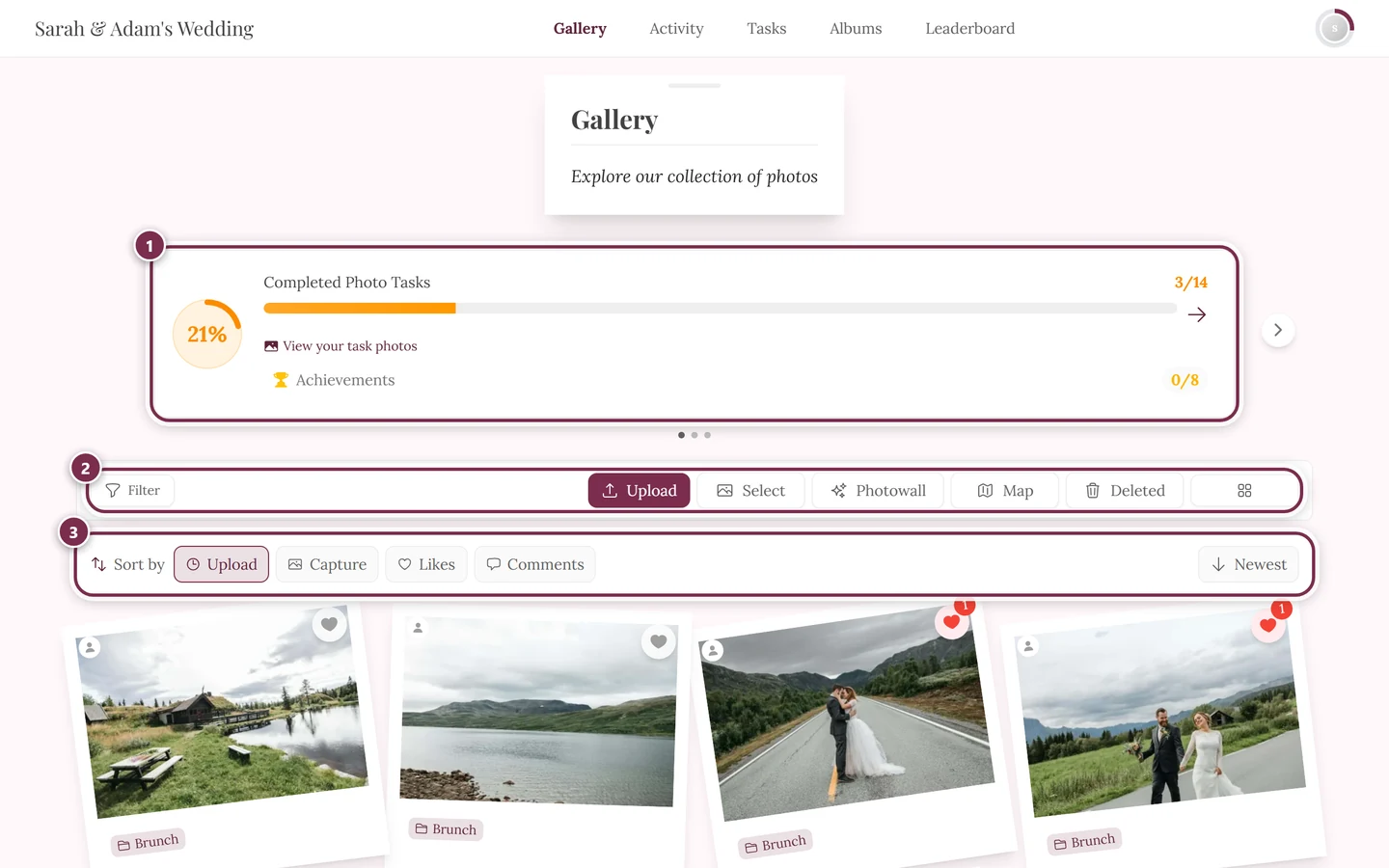
Above the grid sit the toolbar and the sort bar; when the album quick select is switched on, a band with the albums appears above them. ① the progress card – it only shows when photo tasks are switched on and tasks exist, ② the toolbar with Filter, Upload, Select, Photowall, Map, Deleted and the column picker – on a phone only Filter and the upload button stay, the rest moves into the three-dot menu next to them, ③ the Sort by bar with Upload, Capture, Likes and Comments; the control on the far right reverses the direction. -
Tapping the same (active) chip again clears the album filter. So does the All chip on the far left.
What does the overview show?
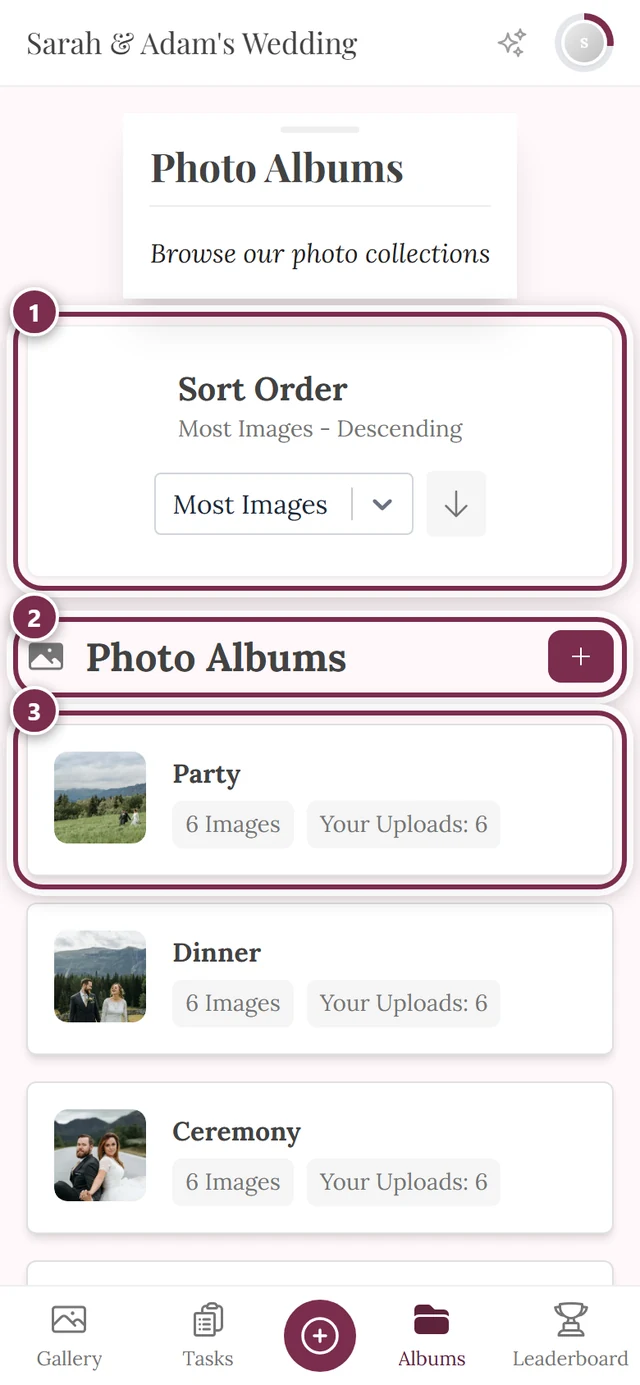
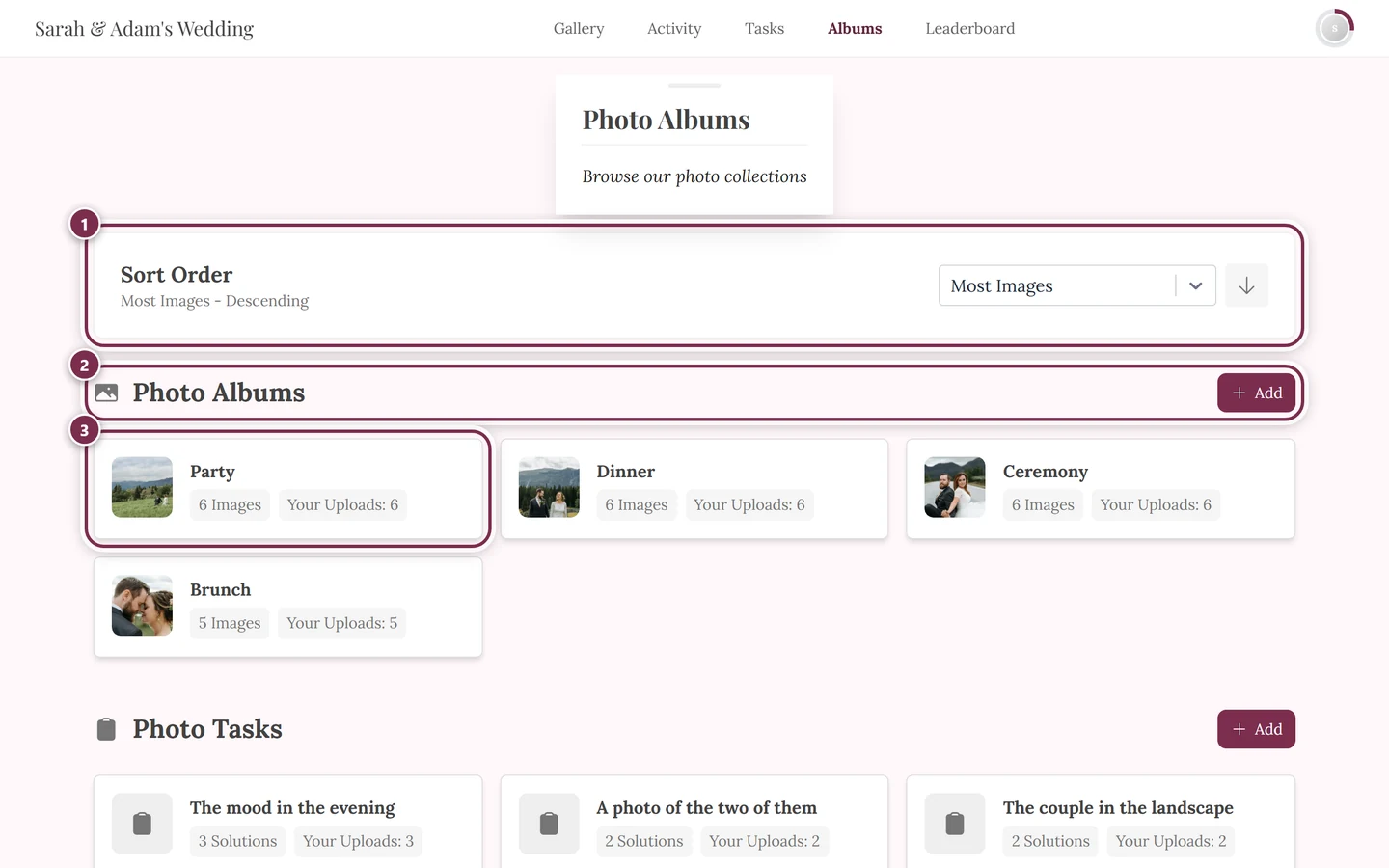
Section titled “What does the overview show?”The page has up to two sections (in this order):
- Photo Albums (with a photo icon) – the albums themselves.
- Photo Tasks (with a clipboard icon) – only shown when tasks are enabled and at least one exists. More on this below and in the photo tasks guide.
At the very top there is also a card with a search field and the sort dropdown, which let you find tiles and control their order (see Searching and Sorting).
What’s on an album tile?
Section titled “What’s on an album tile?”Each album tile shows:
- A cover image on the left (see below).
- The album title.
- A badge “N Images” – the number of photos in the album.
- An extra badge “Your Uploads: N” – shown only if you have already contributed photos to this album.
A task tile works the same way, except its badge reads “N Solutions” (the number of submitted photos). A task without a title shows as “Unnamed Task”.
Where the cover image comes from
Section titled “Where the cover image comes from”The picture on the left of the tile can come from four different sources – the host decides which:
- Chosen automatically – Photogala picks a photo from the album.
- Chosen by hand – the host designates one specific gallery photo as the cover.
- An uploaded image of their own – the host uploads a picture that need not be in the gallery at all (a graphic or a logo, for example). Those covers additionally get their own framing: the host sets a focus point so the right part shows on the narrow tile. Only uploaded covers carry this album-specific focus point; for gallery photos the photo’s own focus point applies.
- Collage – up to four photos from the album in a grid. The layout follows count and orientation: two photos side by side (stacked instead when both are landscape), three as one large plus two small, four as a classic 2 × 2.
While the album is still empty and no cover is set, you see a placeholder with a photo icon.
Only 9 tiles? Load more
Section titled “Only 9 tiles? Load more”Each section shows only 9 tiles at first. If there are more, a button appears at the bottom: “Load More Albums” or “Load More Tasks”, loading 9 more each time. So no albums are missing – they’re just not expanded yet.
Understanding album types
Section titled “Understanding album types”For you as a guest, the interaction is identical for all types: tap the tile, view the photos. The difference is only in how an album fills up:
- Manual / shared albums – collections the host assembles by hand (e.g. “Ceremony”, “Party”). The contents are fixed.
- Smart albums (premium) – fill automatically by rules, e.g. by uploader, capture time, media type, or likes. New matching photos land in them on their own once uploaded and processed.
- People albums – a special kind of smart album that collects every photo of one specific person. Technically it is virtual: when opened, the gallery filters by that person’s recognized faces rather than by a fixed album membership. To you it looks like a normal album.
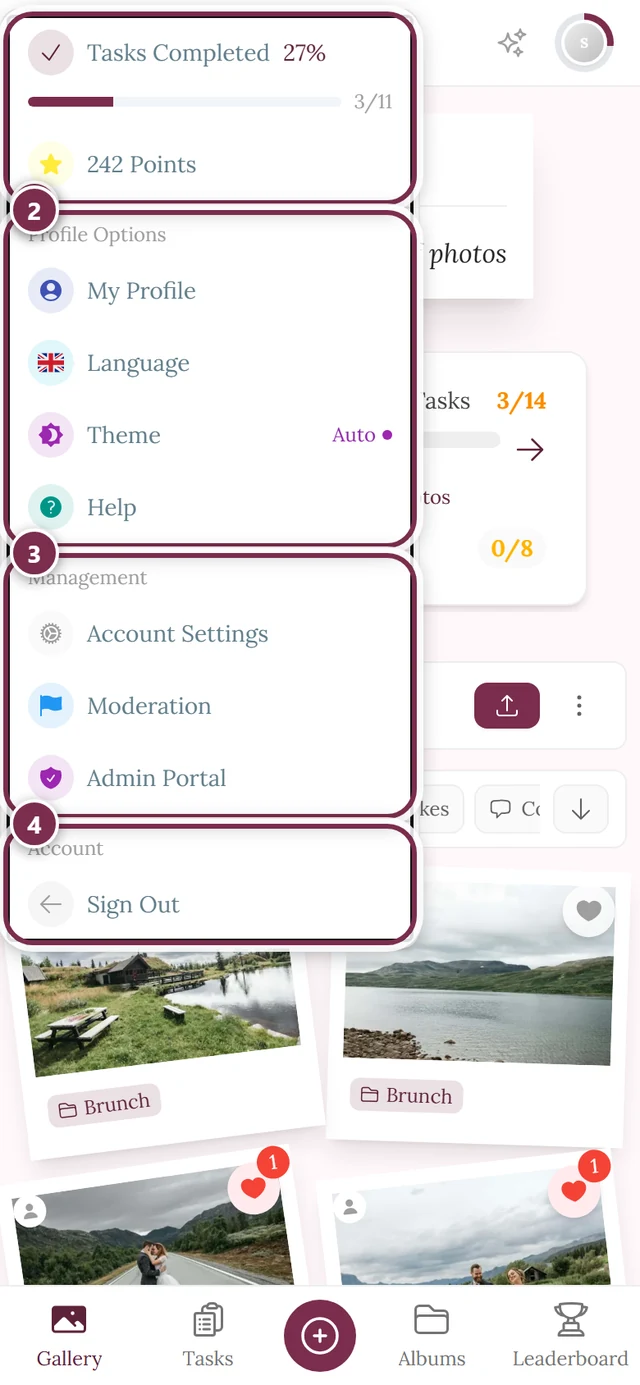
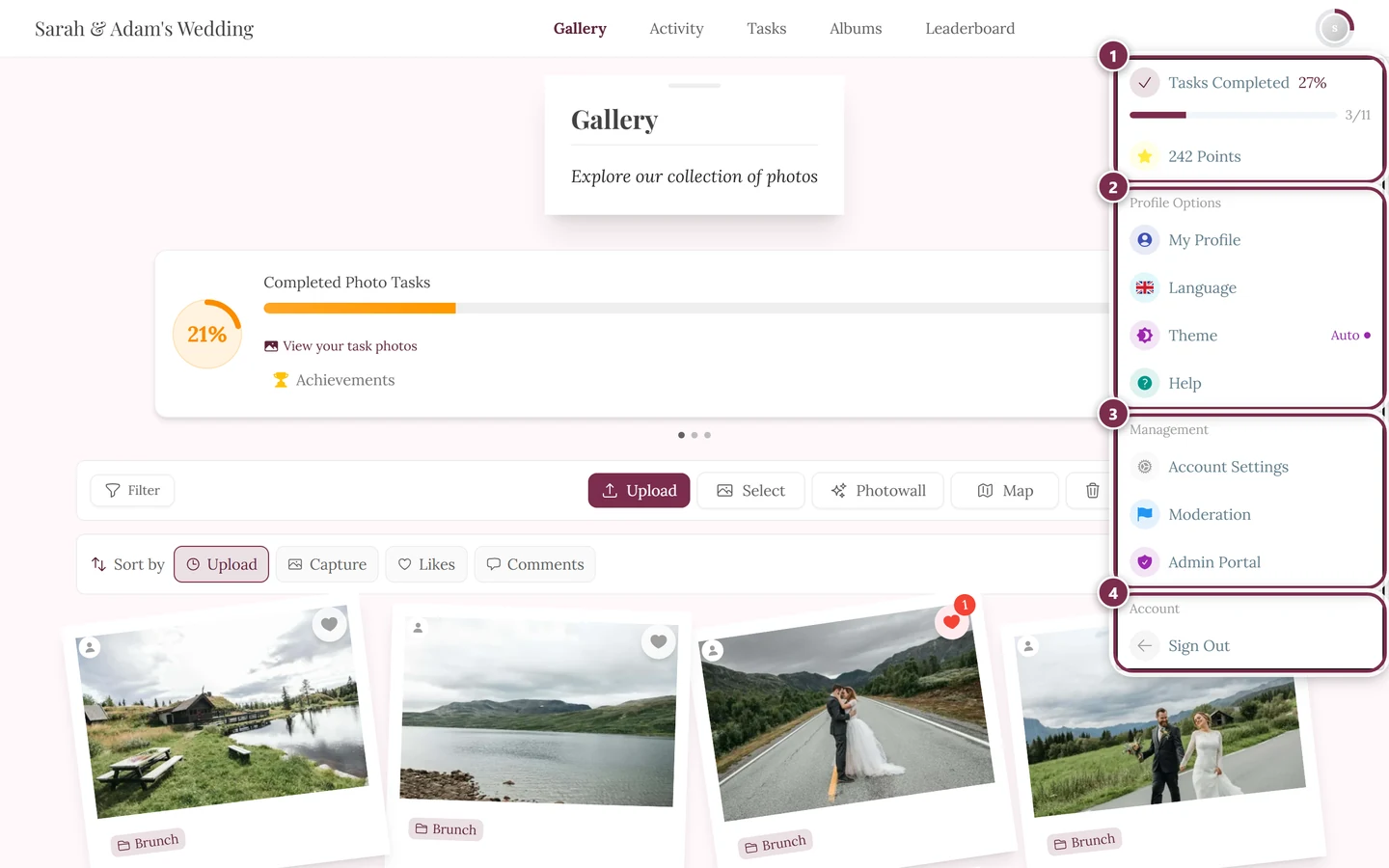
Which rules apply, or which person a people album represents, is set by the host. That belongs in the admin area – you reach it (with the right role) via the profile menu in the top right.
Opening an album
Section titled “Opening an album”Opening happens in two levels: first the album, then a photo within it.
-
In the overview, tap an album tile (the whole tile is clickable).
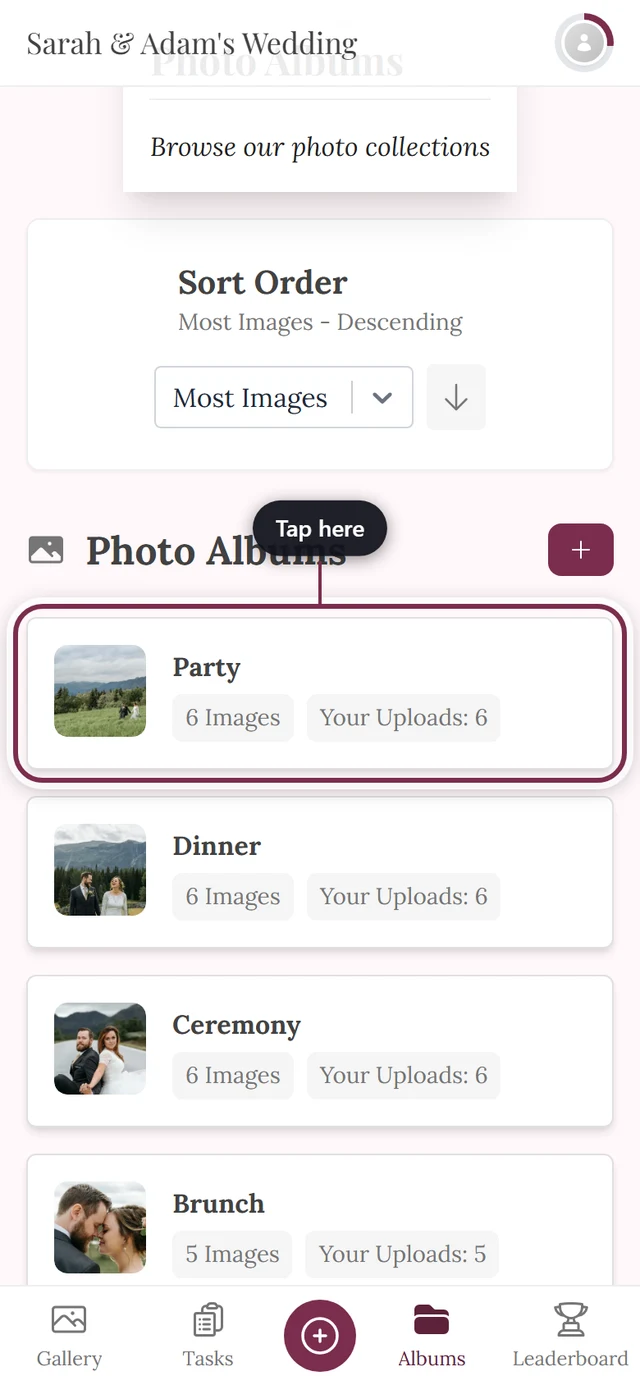
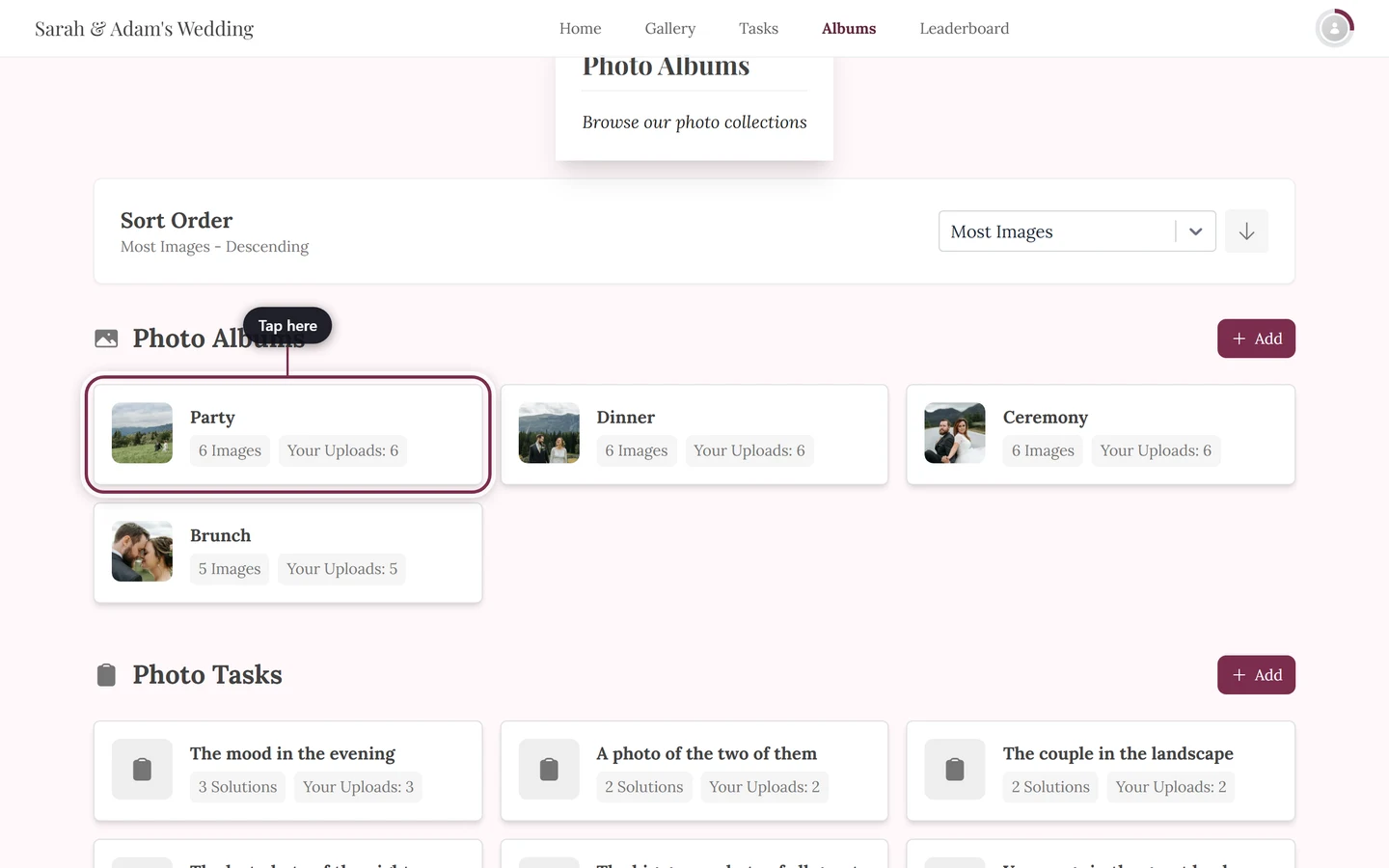
Tapping the highlighted tile does not open a single photo but the filtered gallery of that album. The number on the tile shows how many images it holds. -
You land in the gallery, filtered to exactly that album. Only that album’s photos are shown.
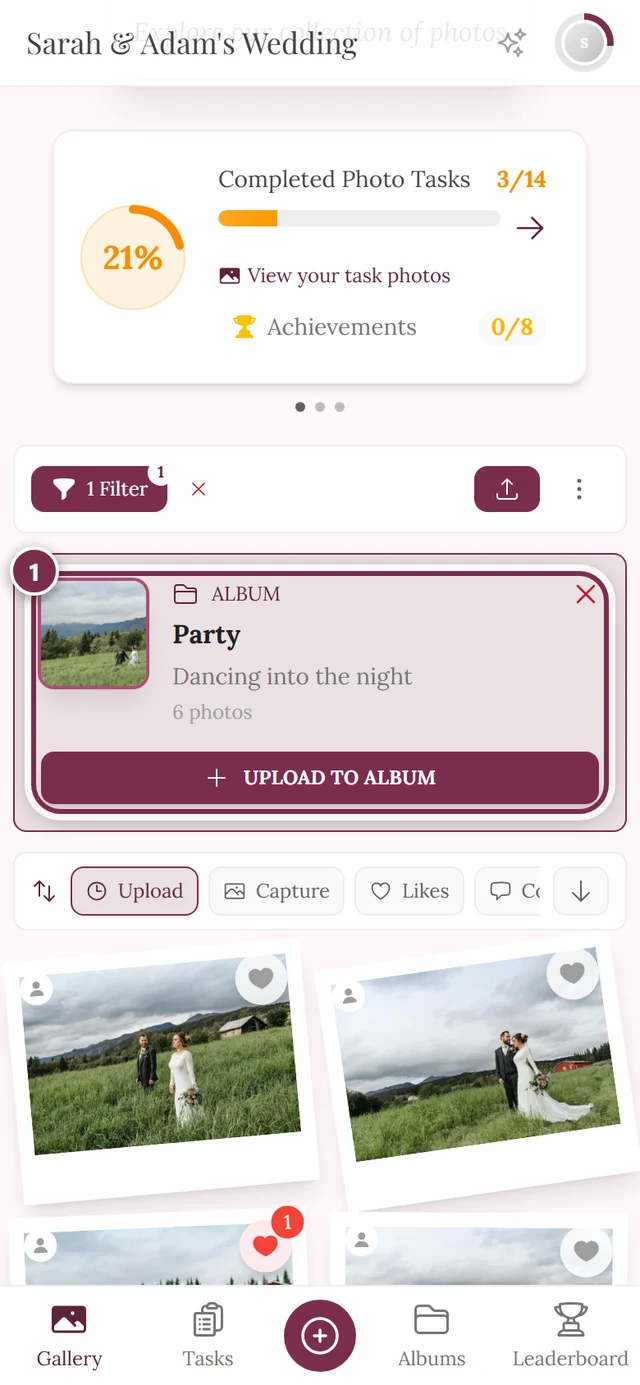
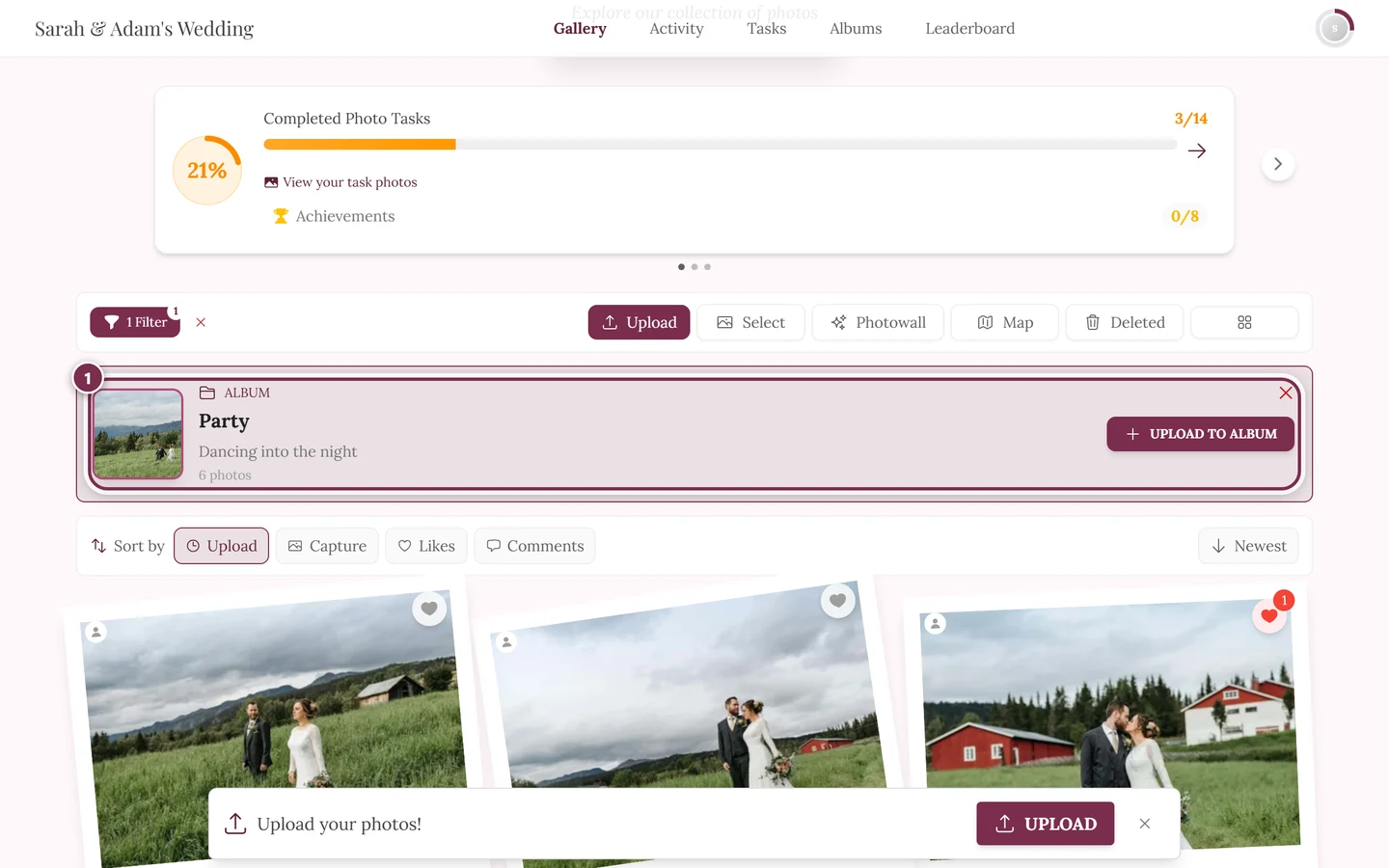
The opened album as a filtered gallery grid — the Active Filters box names the album and clears it in one click. -
A tap on a photo opens it in fullscreen or the slideshow.
Re-sorting inside an album
Section titled “Re-sorting inside an album”An album can carry its own default sort order (e.g. “newest first”). If it doesn’t, the gallery uses the host’s event default sort order. You can change it yourself at any time – fastest via the quick sort bar right above the photo grid:
- On the left it reads Sort by (just an icon on a phone), followed by the options Upload, Capture and – when the respective feature is on – Likes and Comments.
- On the right sits an arrow button toggling between Newest and Oldest (for likes and comments it reads Most and Least).
- The change takes effect immediately, with no Apply. The album filter stays in place.
You’ll find the same settings in the filter panel under Sort Order; the bar is just the shorter route. More on that in the filter guide.
Back to the whole gallery
Section titled “Back to the whole gallery”Because an opened album is just a filter on the gallery, you’ll only see the album’s photos afterwards. To see all uploads again, clear the filter:
-
In the filtered gallery, tap the “Clear Filters to See All Uploads” button. The gallery then shows every photo again.
-
Alternatively, use the navigation to switch back to Albums or Gallery.
Searching albums and tasks
Section titled “Searching albums and tasks”With lots of tiles, searching is quicker: type one or more words into the field “Search albums and photo tasks…” at the top. Only albums and photo tasks whose title or description contains all the words are shown – upper and lower case and accents don’t matter, and the search uses the language you are currently viewing the page in. A section without matches disappears for as long as the search is active.
The X in the field clears the search. If nothing matches, you’ll see “No matching results found.” with the button Clear search.
Sorting the overview
Section titled “Sorting the overview”The sort dropdown in the card at the top controls the order of the tiles. The sort applies to both sections (albums and tasks) at once.
-
Open the dropdown at the top with the placeholder “Sort by”.
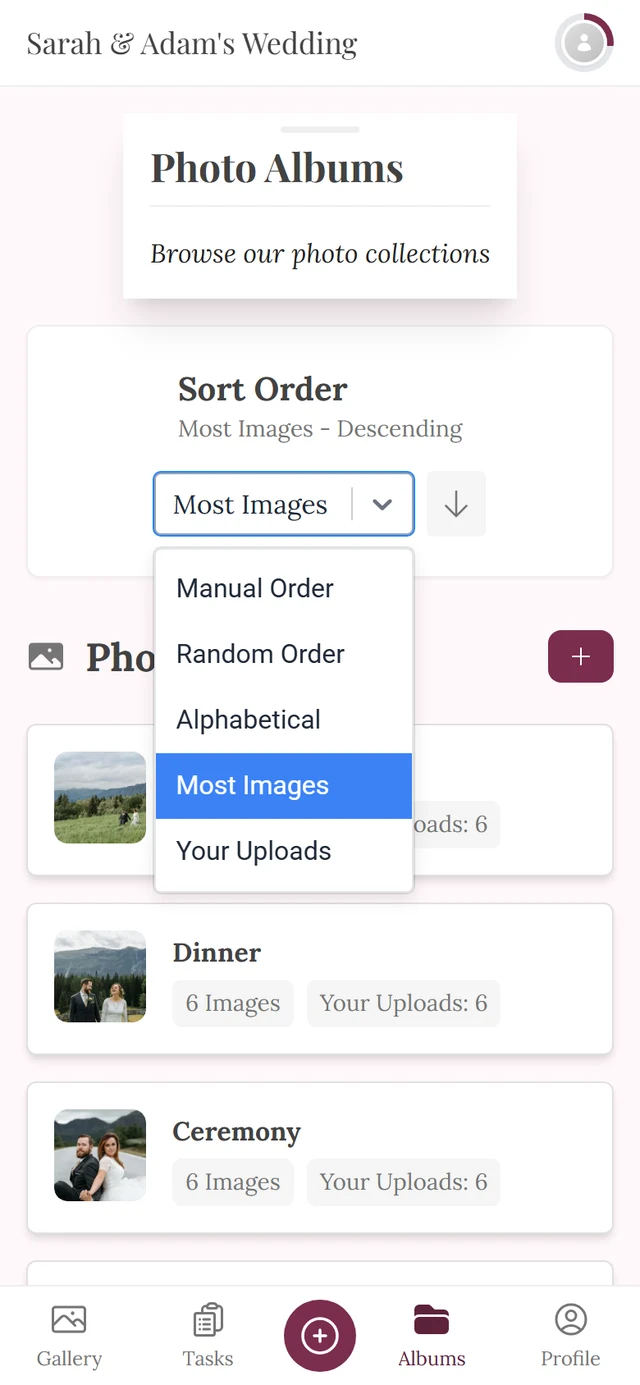
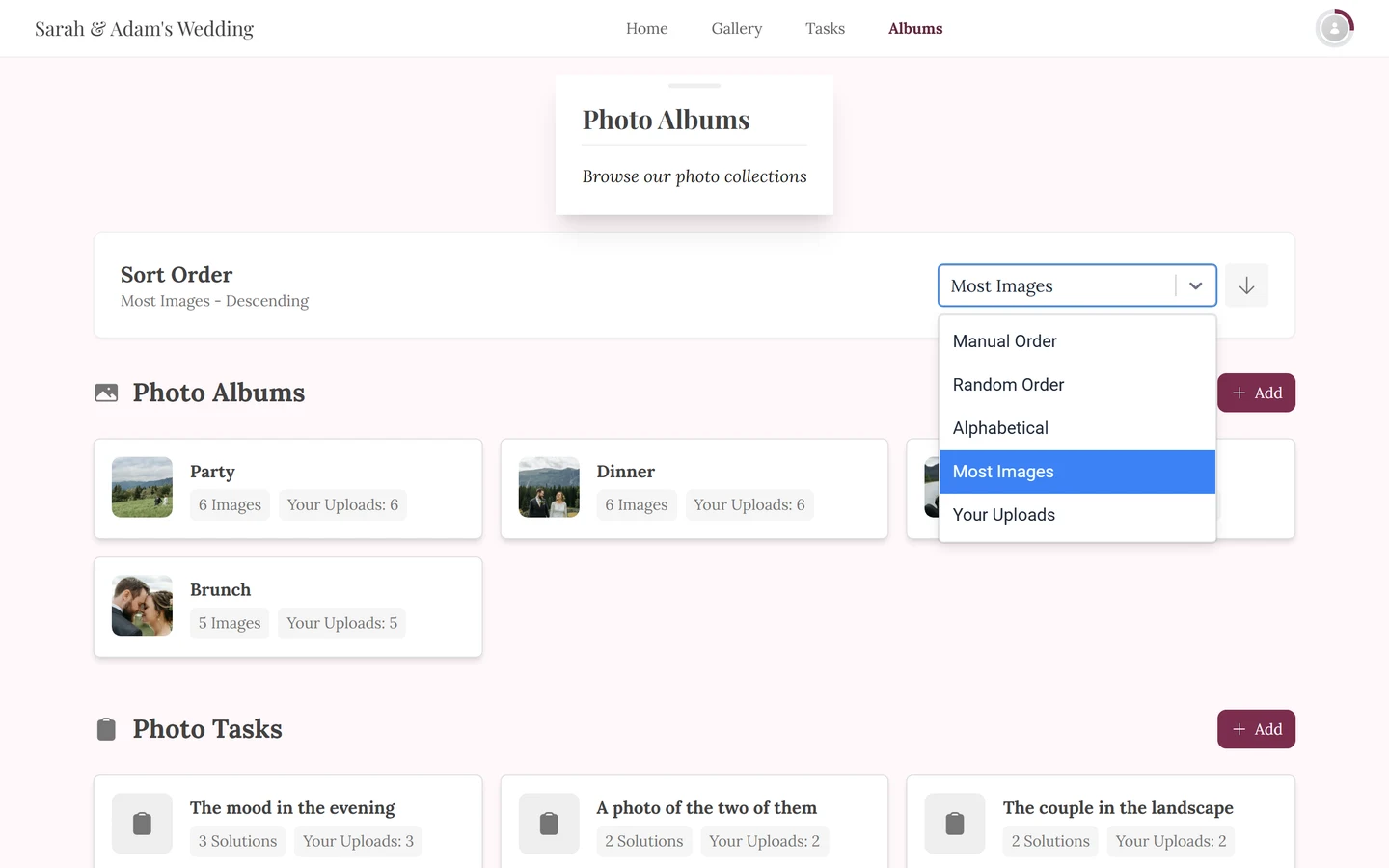
The sort dropdown with all five modes. -
Pick one of the five modes:
- Manual Order – the order defined by the host (no ascending/descending direction).
- Random Order – shuffles the tiles. A “Reshuffle” button also appears (a dice icon on mobile) to shuffle again. No direction.
- Alphabetical – by title.
- Most Photos – by number of photos.
- Your Uploads – the albums/tasks you contributed to most come first.
-
Use the arrow button next to the dropdown to toggle between ascending and descending. This direction does not apply to “Manual Order” and “Random Order”.
Photo tasks in the overview
Section titled “Photo tasks in the overview”The second section, Photo Tasks, works like albums: tapping a task tile opens the gallery filtered to that task, where you see every submitted solution. The only visible difference is the badge “N Solutions” instead of “Images”.
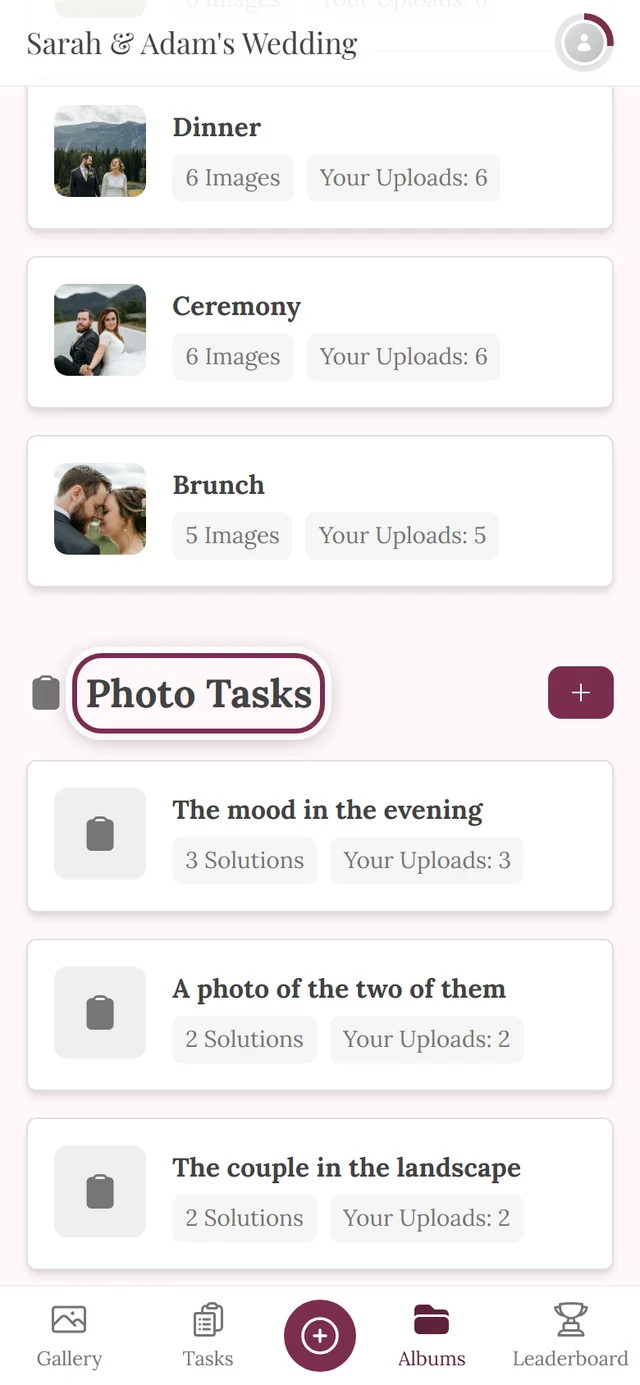
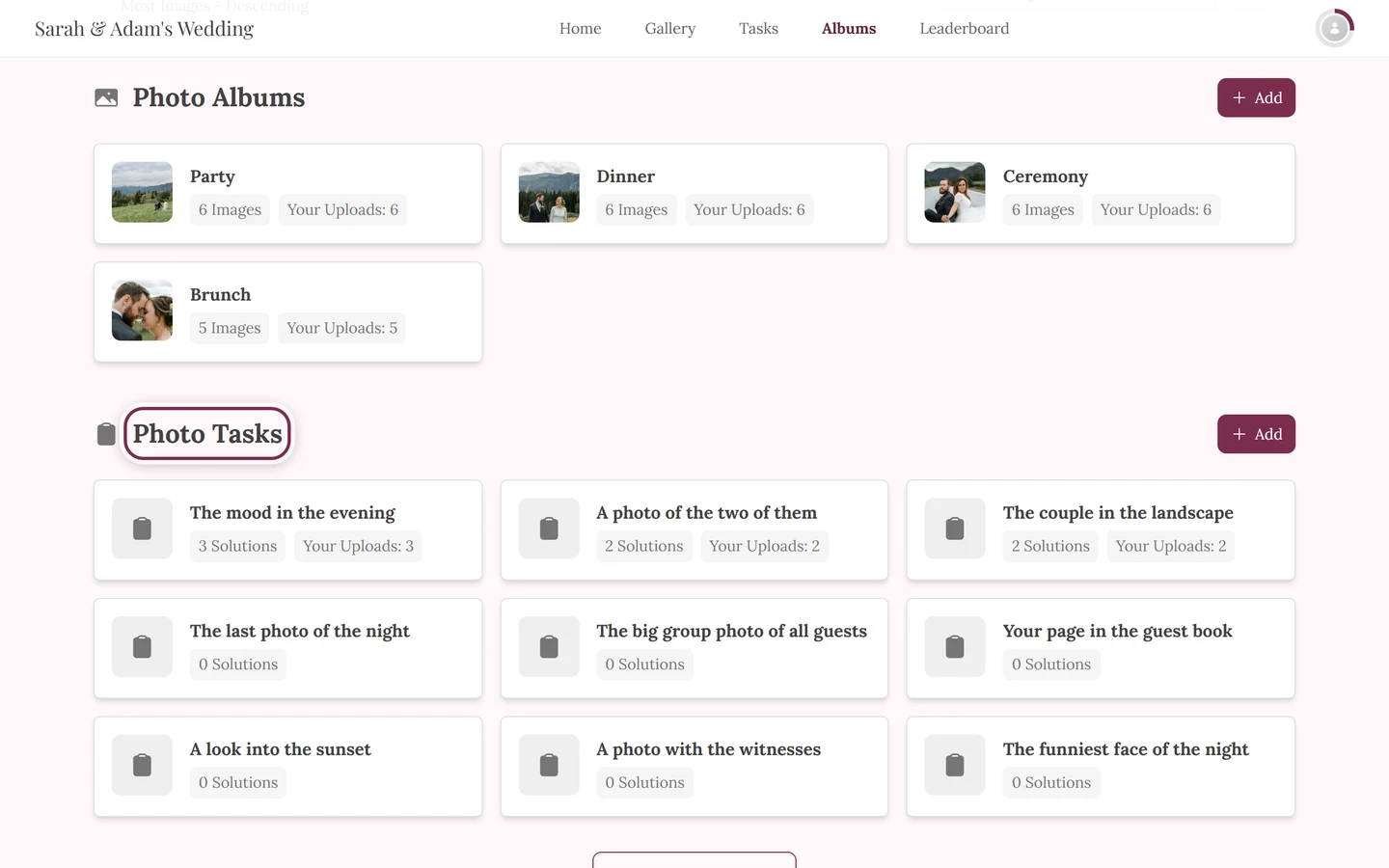
This section only appears when photo tasks are enabled. How to solve a task and contribute a photo yourself is in the photo tasks guide.
What guests cannot do
Section titled “What guests cannot do”For hosts and moderators
Section titled “For hosts and moderators”As an admin, the overview shows extra elements that are invisible to guests:
- An “Add” button per section (labeled “Add album” or “Add task”).
- A management menu per tile: right-click (on desktop) or long-press (on mobile) opens the actions Open / Edit / Delete. Delete asks for confirmation before running (“Delete album?”).
Removing a photo from an album
Section titled “Removing a photo from an album”Moderators can take a single photo out of an album straight from the gallery – without deleting it.
-
Filter the gallery to exactly one album (tile, quick-select chip or filter). That’s a precondition: the entry only appears when exactly one album is filtered – otherwise it wouldn’t be clear which album to remove from.
-
Right-click the photo (on desktop) or long-press it (on mobile).
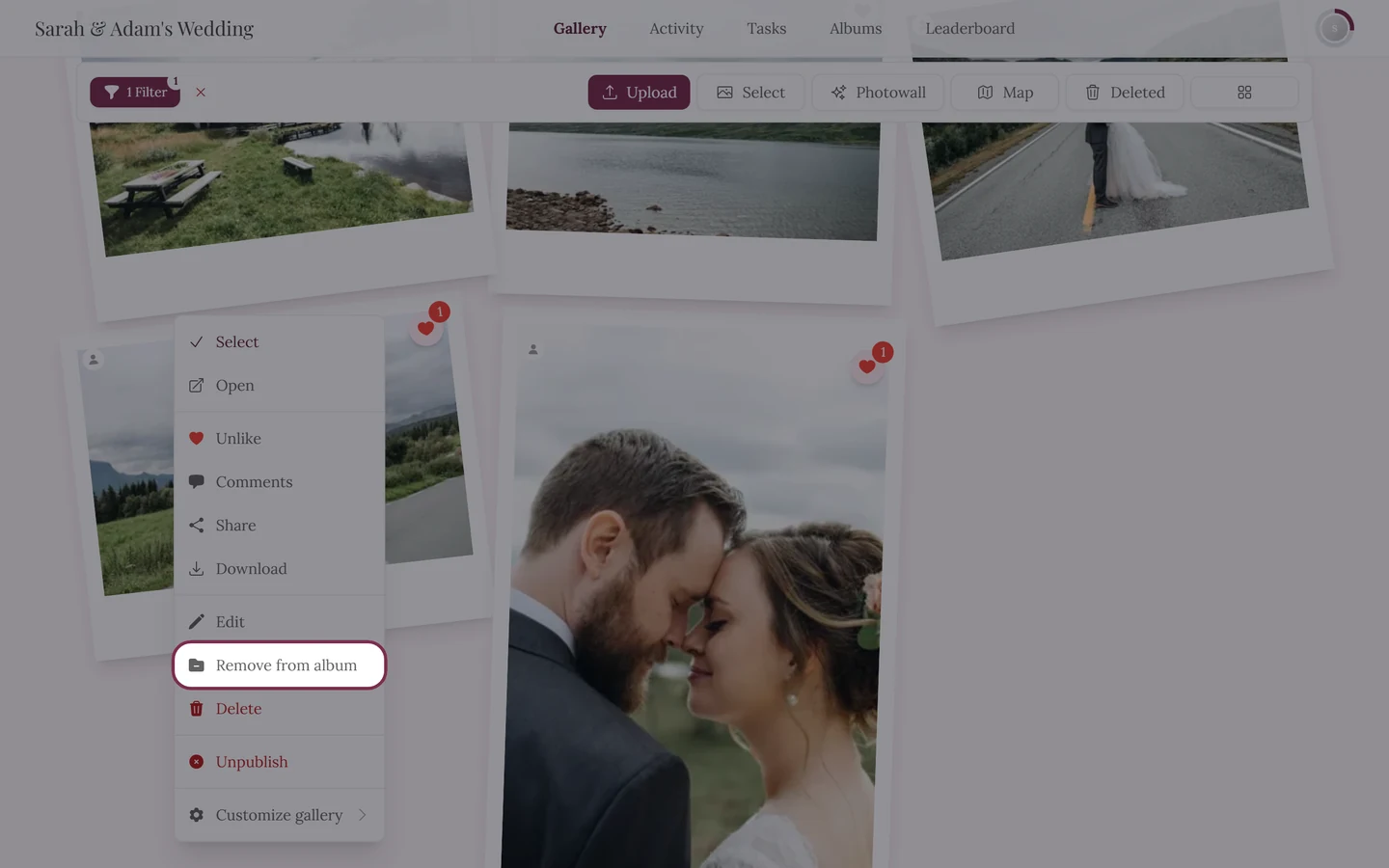
Gallery filtered to an album – you can tell by the 1 Filter chip on the left of the toolbar. Only then does Remove from album sit between Edit and Delete, and only if you may moderate. -
Choose Remove from album. The photo disappears from that album but stays in the gallery.
Creating and configuring albums (including smart-album rules, cover images and people reference photos) happens in the admin area. You reach it via the profile menu in the top right.