Finding photos of you
At a big event, hundreds or thousands of photos pile up fast. But you only want the pictures of you. With face search you find them in seconds – no scrolling through the whole gallery.
There are three ways to get there:
- Way A – tap a face: Pick a detected person from the face picker.
- Way B – combine several people: Show only photos where all of you appear together (for example as a couple or group).
- Way C – Find me: Upload a selfie or use your profile image; Photogala marks your photos automatically.
Step 1 – Open the filter
Section titled “Step 1 – Open the filter”All people and face features live inside the Filter dialog.
-
Tap Filter in the gallery toolbar. If filters are already active, the button shows a small count and a filled funnel icon.
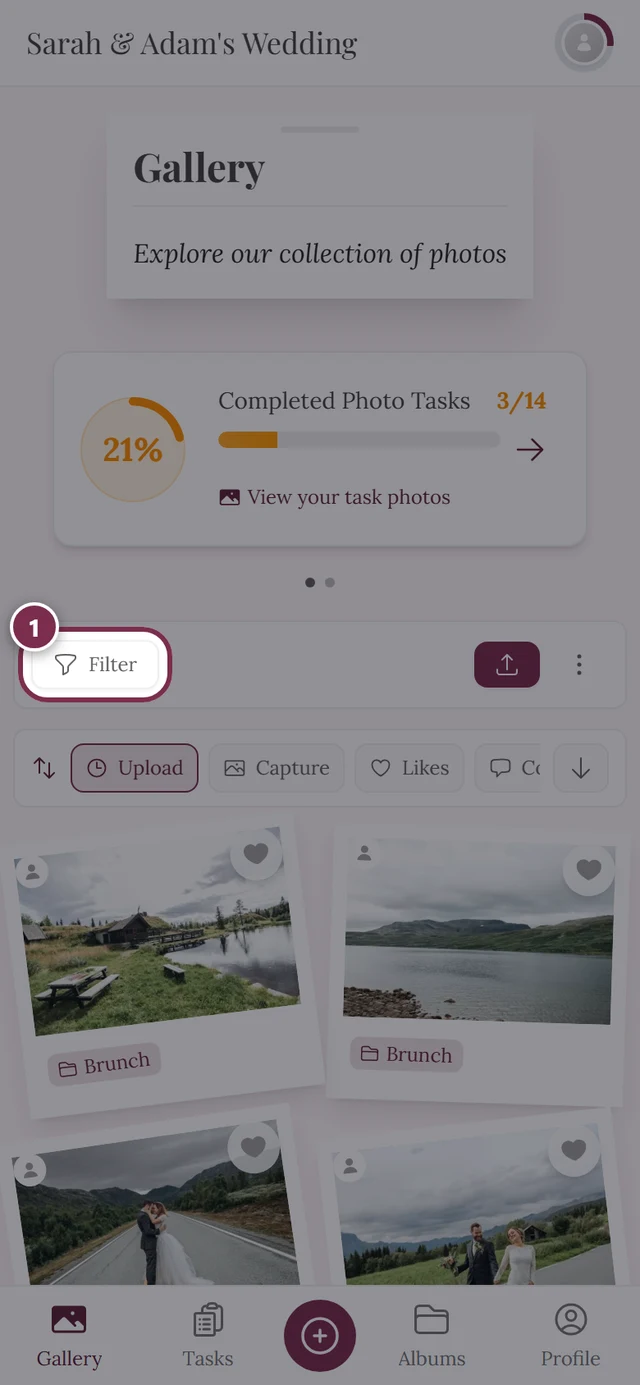
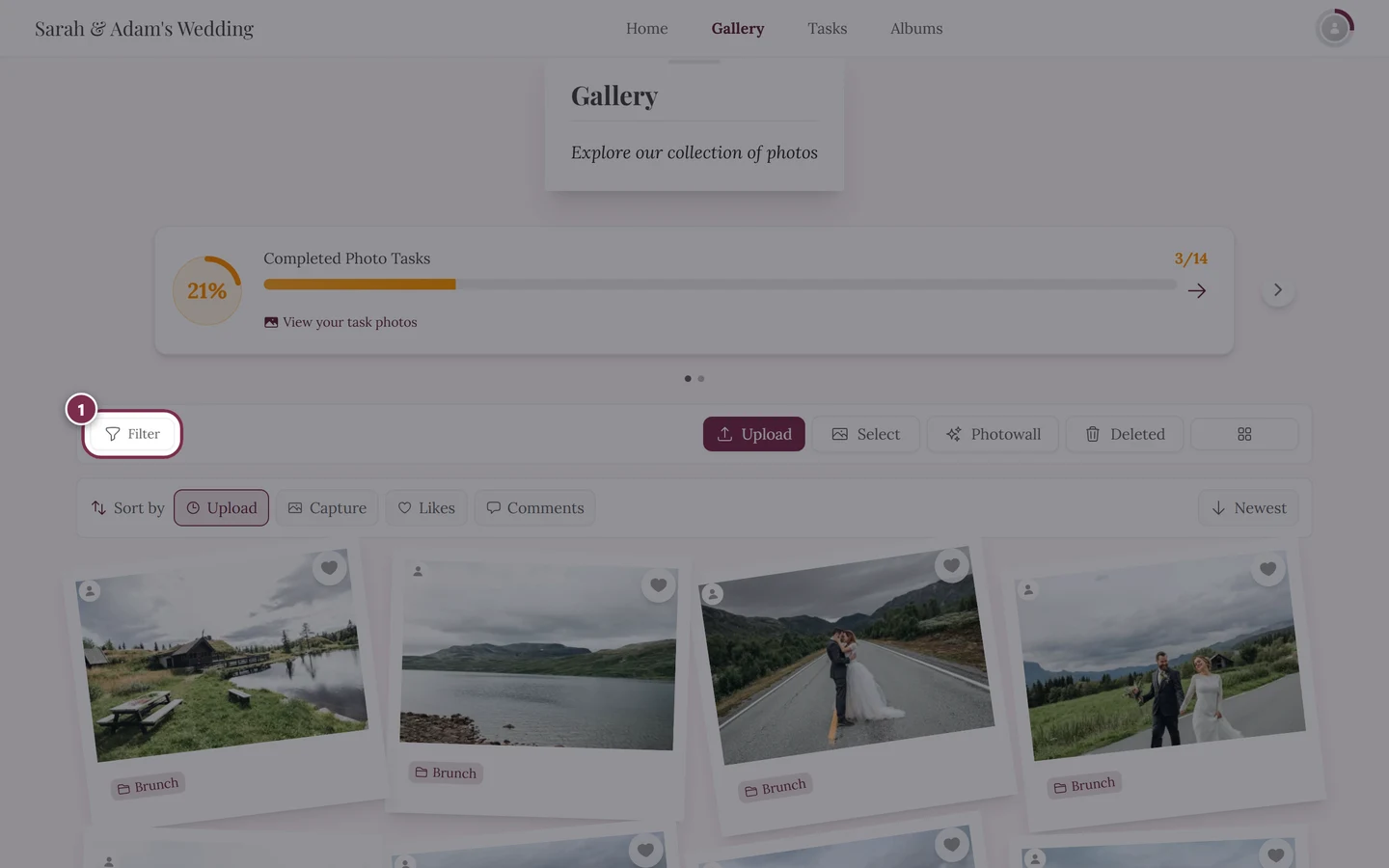
Open the dialog with Filter in the toolbar. -
The Gallery Filters dialog opens (subtitle “Apply filters for albums, tasks, and more”). Besides people, you can filter by album, task, media type, date, likes and more.
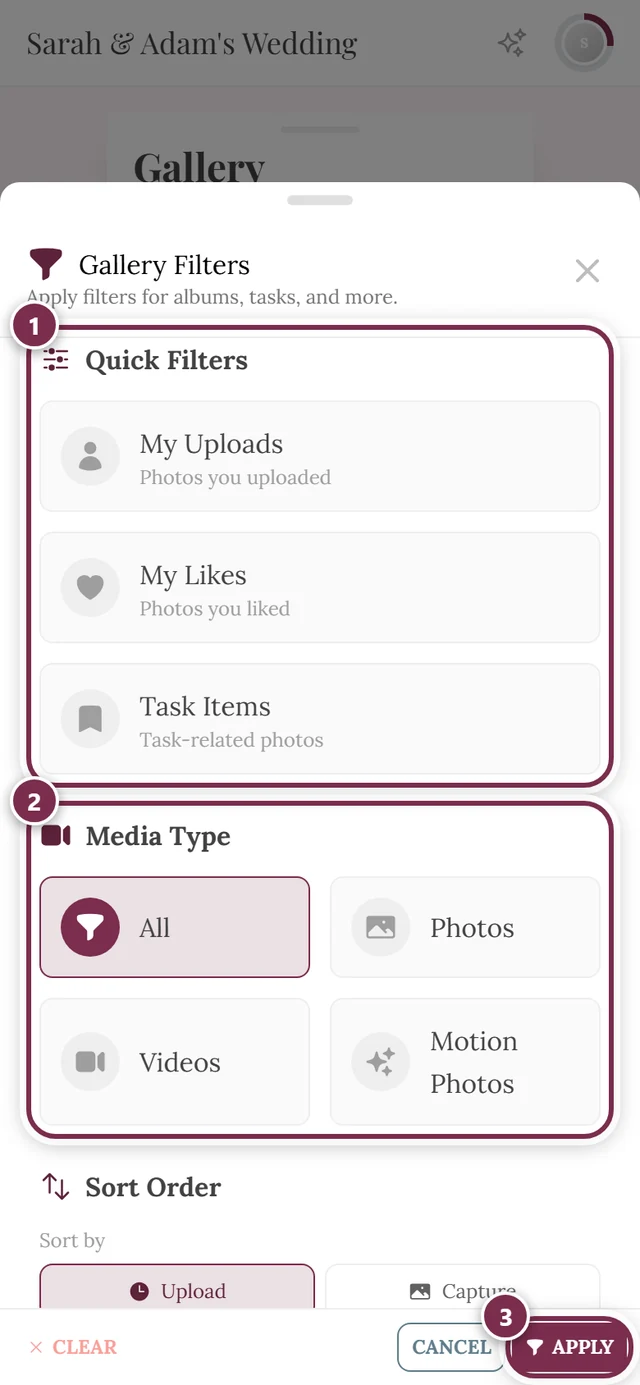
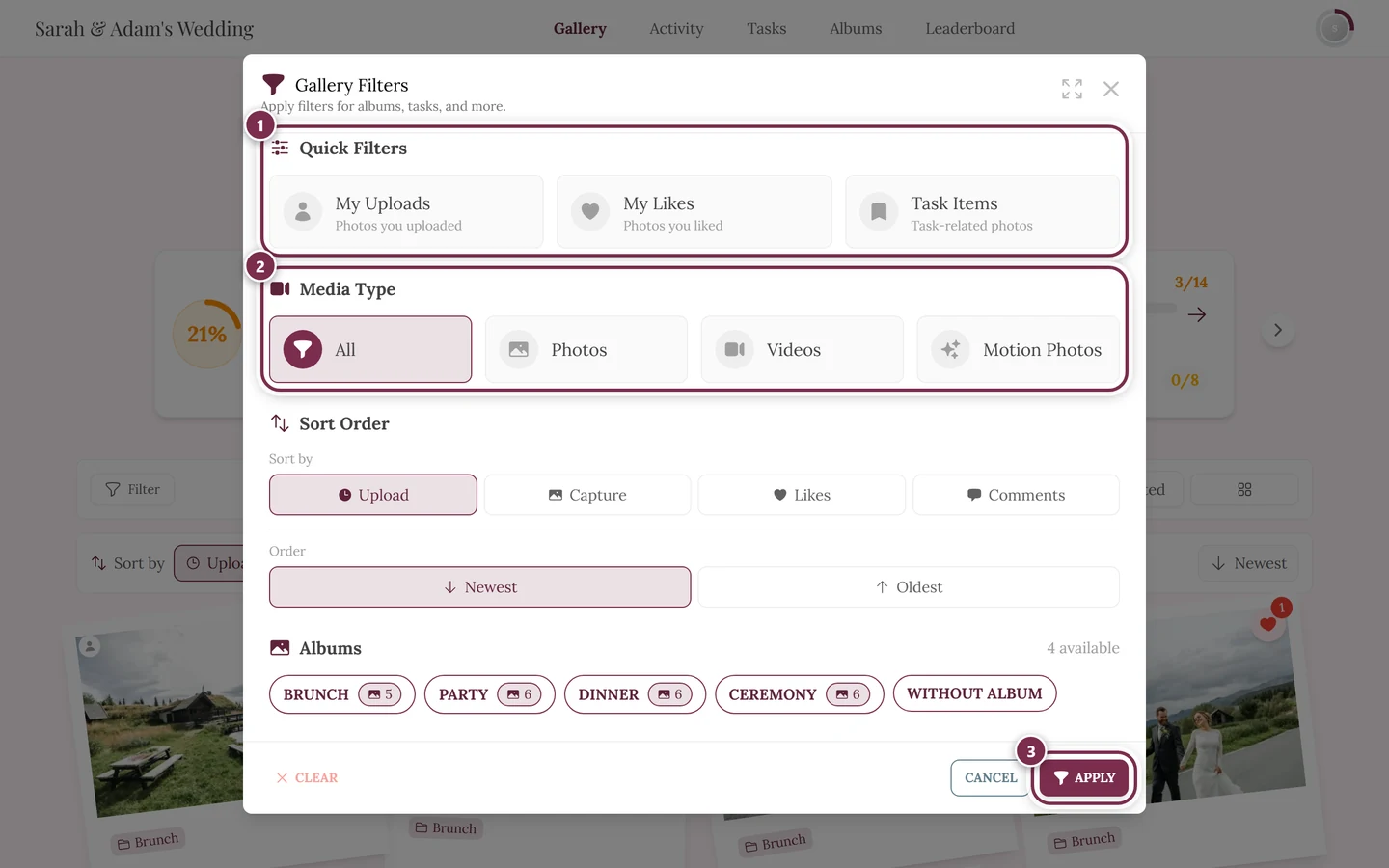
The filter dialog with all its sections. ① Quick Filters: My Uploads shows only what you uploaded yourself, My Likes only your hearts, Tasks only photos taken for a photo task – one tap switches a filter on, the next one off again. ② Media Type: All, Photos, Videos, Motion Photos. ③ Apply commits your choice; to its left Clear resets everything and Cancel closes without changes. Further down come Sort Order and Albums – and, depending on the event, Tasks, Filter by People, Filter by Number of People and Filter by Number of Likes; on a phone you scroll to reach them. There is no filter for a date or a time range.
Way A – Tap a person by face
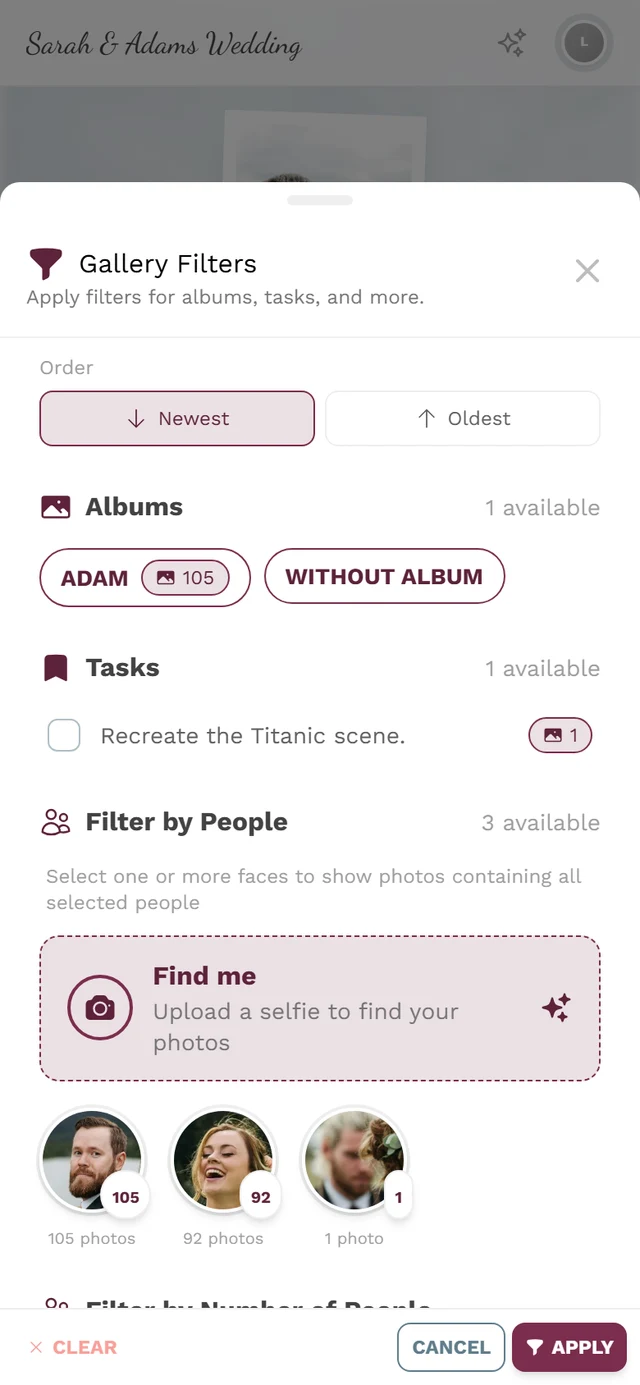
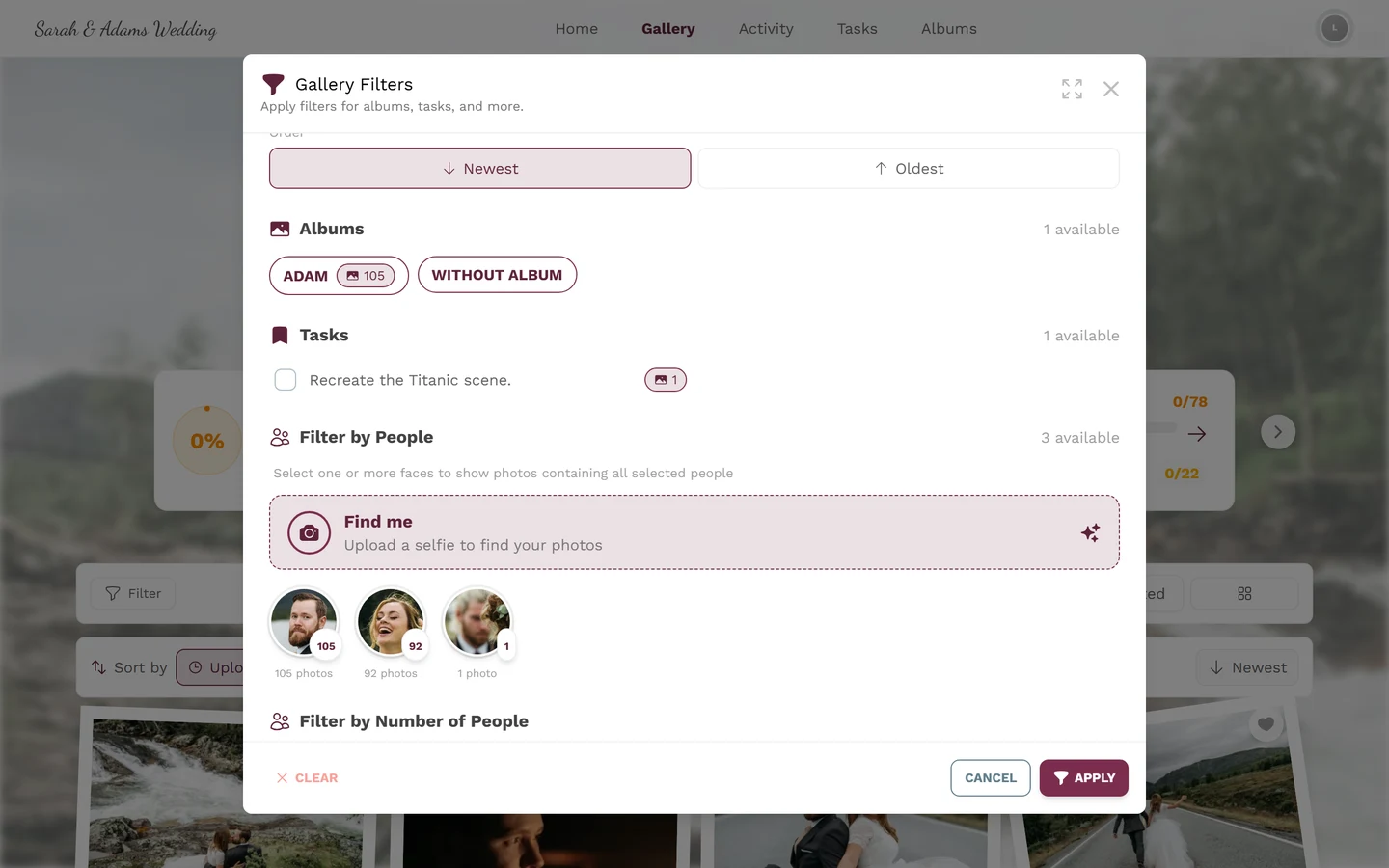
Section titled “Way A – Tap a person by face”Scroll to the Filter by People section. There you see small tiles with the faces detected at the event. The count next to the title is the number of faces. The hint reads: “Select one or more faces to show photos containing all selected people”.
-
Tap a tile. It gets a thick selection ring in the brand color and a checkmark in the top right. The photo count appears in the bottom right.
-
Below the tile you see – if available – the person’s name and the number of photos (“n photo/photos”). Most tiles are nameless; that’s normal (see the box below).
-
Confirm at the bottom with Apply. The gallery now shows only that person’s photos. Clear resets the people selection (only active when something is selected).
-
If there are more faces than shown, load the next 12 tiles with View More (n) – the number in brackets tells you how many are already loaded.
Way B – Combine several people (AND logic)
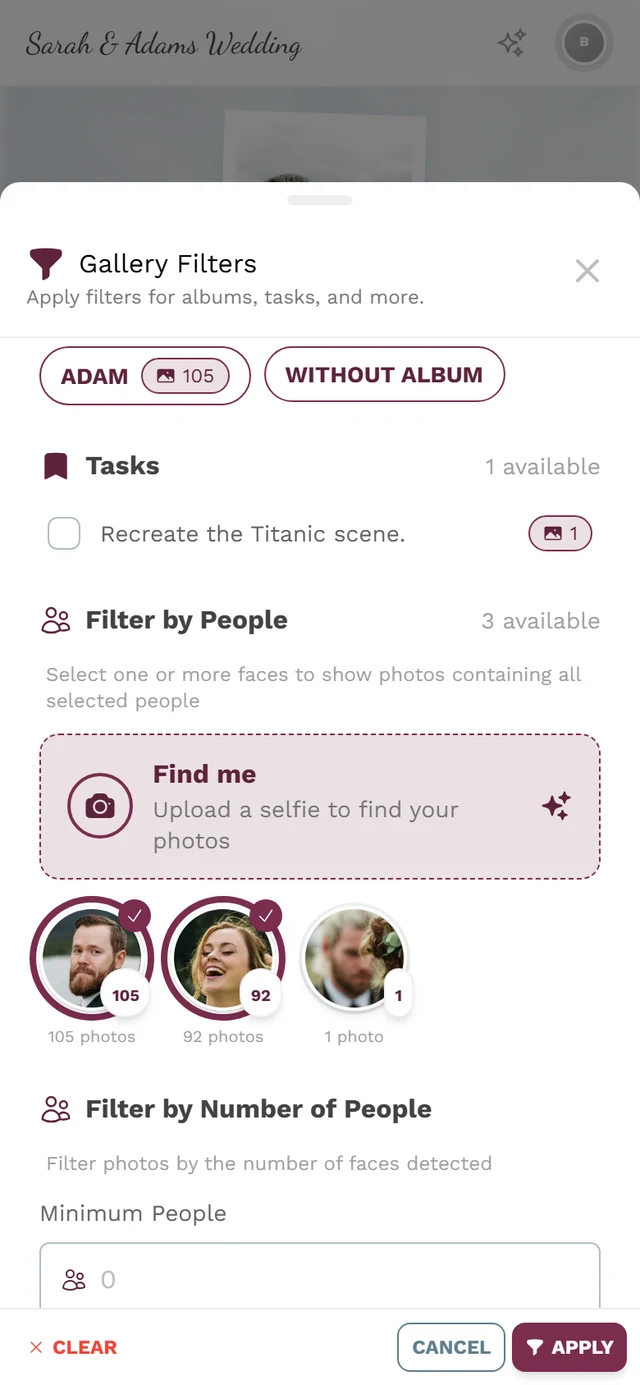
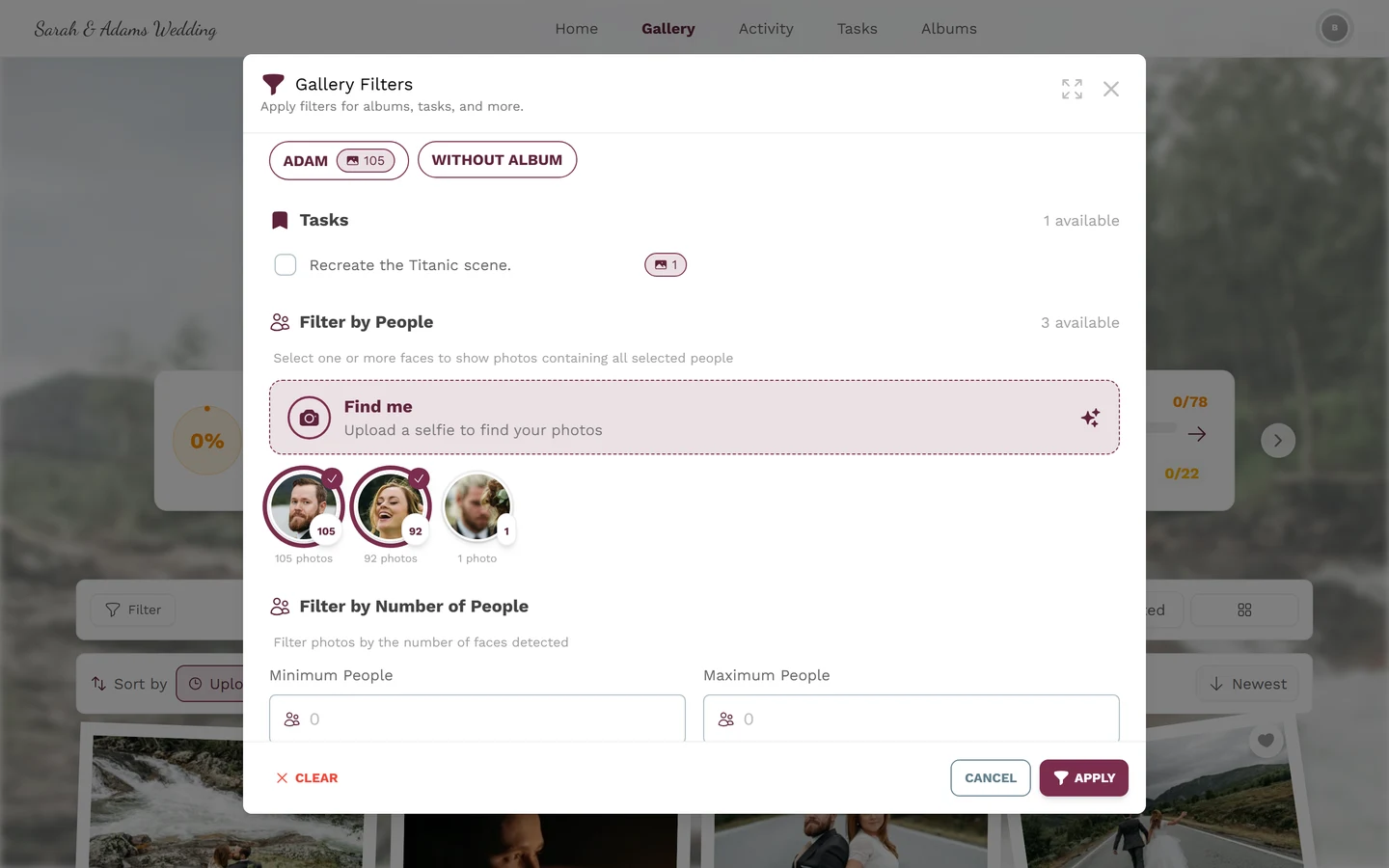
Section titled “Way B – Combine several people (AND logic)”You can select several tiles at once. Important: this is AND logic – only photos where all selected people appear are shown, not the sum of their photos.
-
Tap the tiles you want one after another – each gets a ring and checkmark.
-
Tap Apply. The gallery shows only the photos where all selected people appear together – ideal for finding the two of you or a group.
Way C – Find me via selfie or profile image
Section titled “Way C – Find me via selfie or profile image”Instead of hunting for the right tile, you upload a selfie. Photogala matches your face against every event photo and marks your hits automatically.
1. Start
Section titled “1. Start”In the Filter by People section, tap the Find me card – “Upload a selfie to find your photos”.
2. Choose a source (three options)
Section titled “2. Choose a source (three options)”You then have up to three options:
- Take Selfie – opens the (front) camera. Fastest on a phone.
- Choose Photo – pick a file from your device. Allowed formats: JPEG, PNG, WebP and HEIC/HEIF.
- Use Profile Image – appears only if you already set a profile image. Uses it directly, without a new upload.
Below the buttons there’s always a privacy notice: “Your selfie is private and only used to find your photos in this event”. Use Cancel to leave the picker.
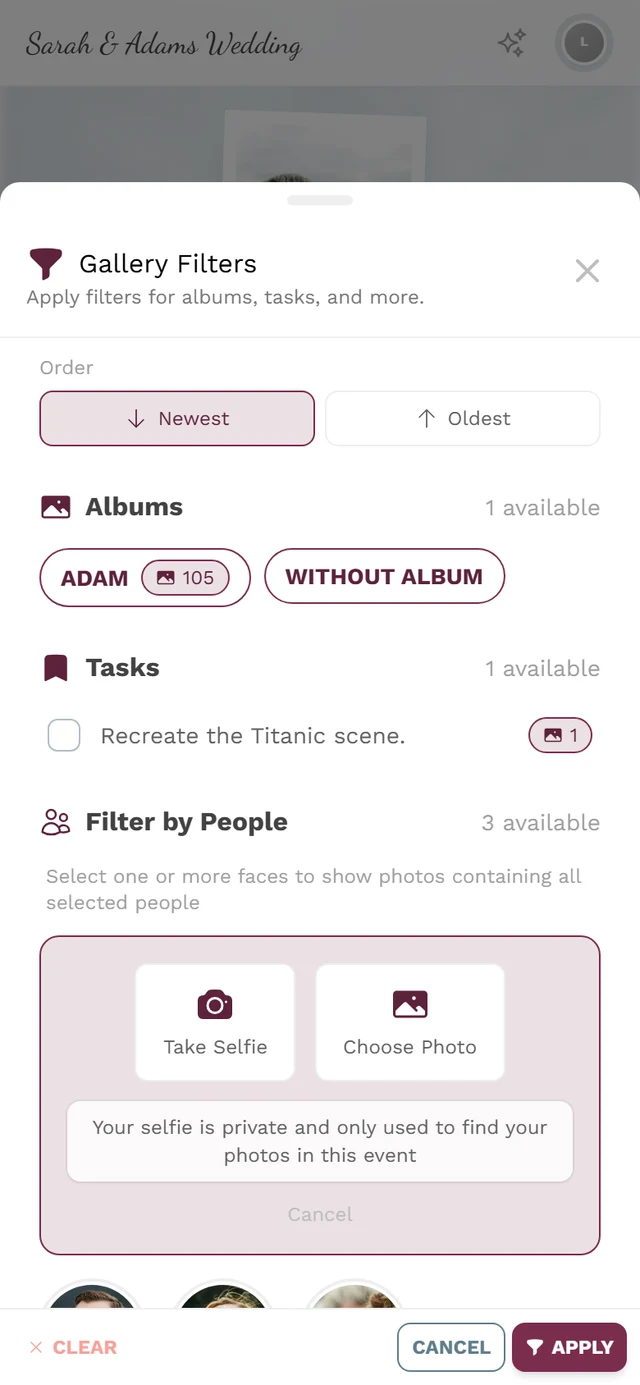
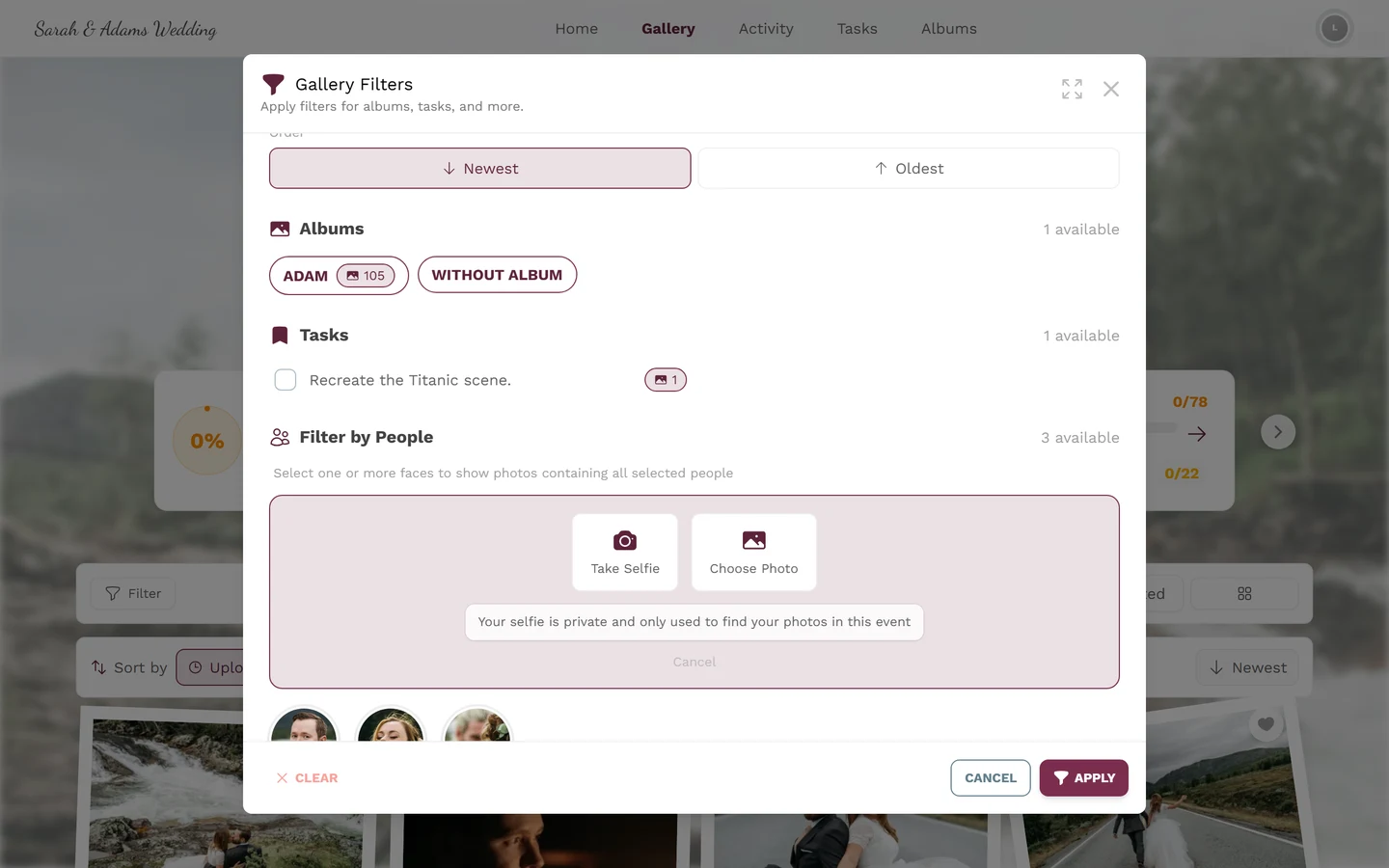
For camera or file, you first see a round preview. Start the search with Find me, or discard the image with Cancel.
3. Processing
Section titled “3. Processing”A short scan animation runs with the hint “Searching …”. On a weak connection it can take a moment longer (Photogala uses live updates and, if needed, background polling). Use Cancel to abort; that also deletes the selfie you just uploaded.
4. Success
Section titled “4. Success”On a match a green flash appears: “Found in N photos”. Then something handy happens automatically:
5. Re-apply later
Section titled “5. Re-apply later”Once your selfie is saved, the section shows a Find me button next time with “Found in N photos” and a magnifier. Tapping it re-applies your personal filter and closes the dialog – no need to upload a new selfie.
6. No match
Section titled “6. No match”If the search finds nothing, the gray hint “We couldn’t find you in this event’s photos” appears. Possible reasons: there are no or too few photos of you yet, the event photos are still being processed, or the selfie was poorly lit. Try again later or with a better photo.
7. When something goes wrong (error messages)
Section titled “7. When something goes wrong (error messages)”8. Remove selfie (opt-out / privacy)
Section titled “8. Remove selfie (opt-out / privacy)”Next to the Find me button there’s a trash icon. Tapping it opens the confirmation “Remove selfie” – “This will remove your selfie and face data for this event”.
Filter by number of people
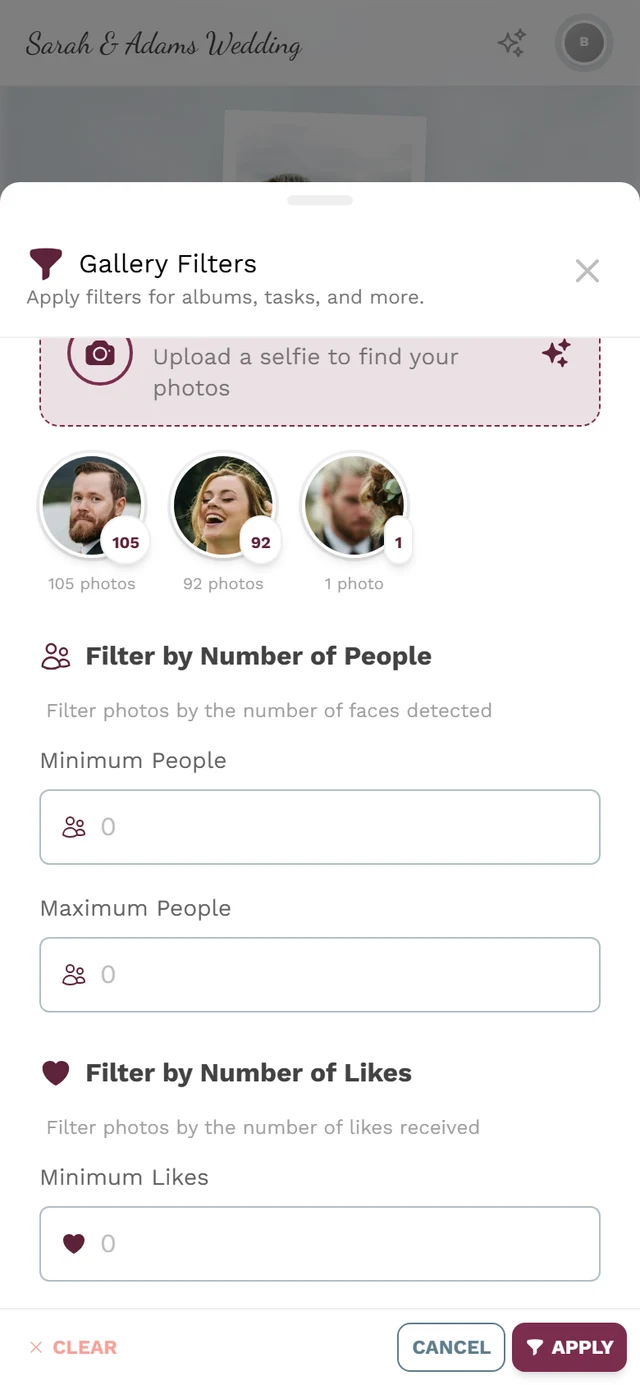
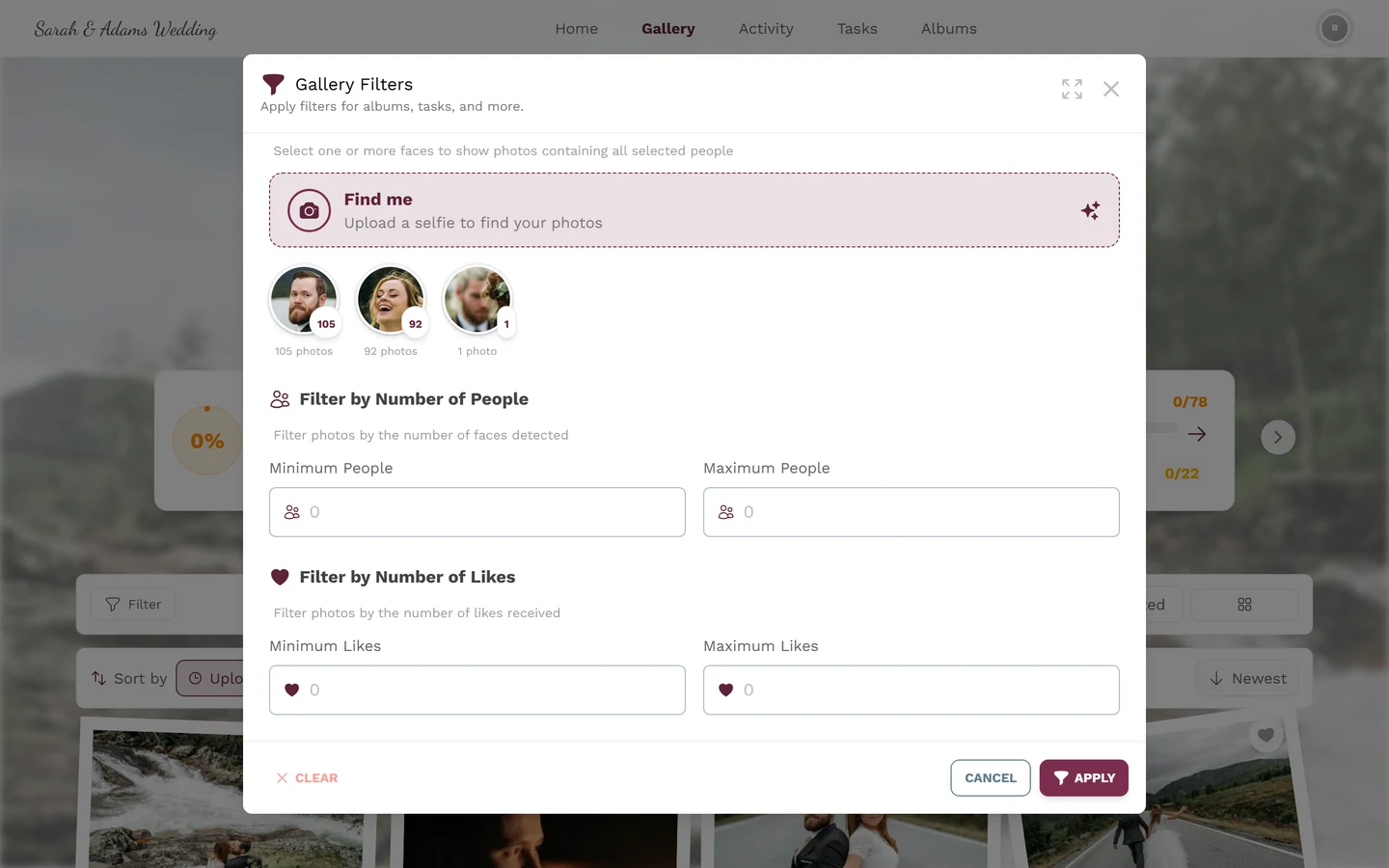
Section titled “Filter by number of people”As soon as there is at least one detected person with published photos, an extra Filter by Number of People section appears (“Filter photos by the number of faces detected”). It filters not by who, but by how many:
- Minimum People – e.g. 3 for group photos only.
- Maximum People – e.g. 1 for portraits and single shots.
Both are plain number fields:
- The smallest allowed value is 0.
- 0 means “no filter” – leave a field empty or enter 0 and that limit simply isn’t applied.
- There is no fixed upper limit; only values that actually occur in your photos make sense, of course.
You can combine both fields to narrow down a range (e.g. at least 2 and at most 4).
More filters
Section titled “More filters”The dialog can do much more than faces. These filters work independently of the AI feature and combine freely:
- Quick Filters: My Uploads is always offered; My Likes only appears when likes are on for the event, and Task Items only with photo tasks on.
- Media Type: All / Photos / Videos / Motion Photos.
- Sort Order: Upload and Capture are always offered; Likes only appears when likes are on for the event, Comments only with comments on. Below that the direction – Newest/Oldest, or Most/Least for likes and comments.
- Albums plus Without Album (only photos with no album). The section only appears when albums with photos exist; several albums can be selected at once.
- Tasks – only when photo tasks are on and at least one task has photos.
- Search by Text across tags, scenes, descriptions, AI descriptions and detected text.
- Filter by Number of Likes with Minimum Likes and Maximum Likes – number fields from 0 as well, where 0 means “no filter”. This section, too, only appears when likes are on.
At the very bottom sit Clear, Cancel and Apply. While the dialog is open you see an Active Filters summary at the top, where you can drop individual filters even before applying.
The quick sort bar above the gallery
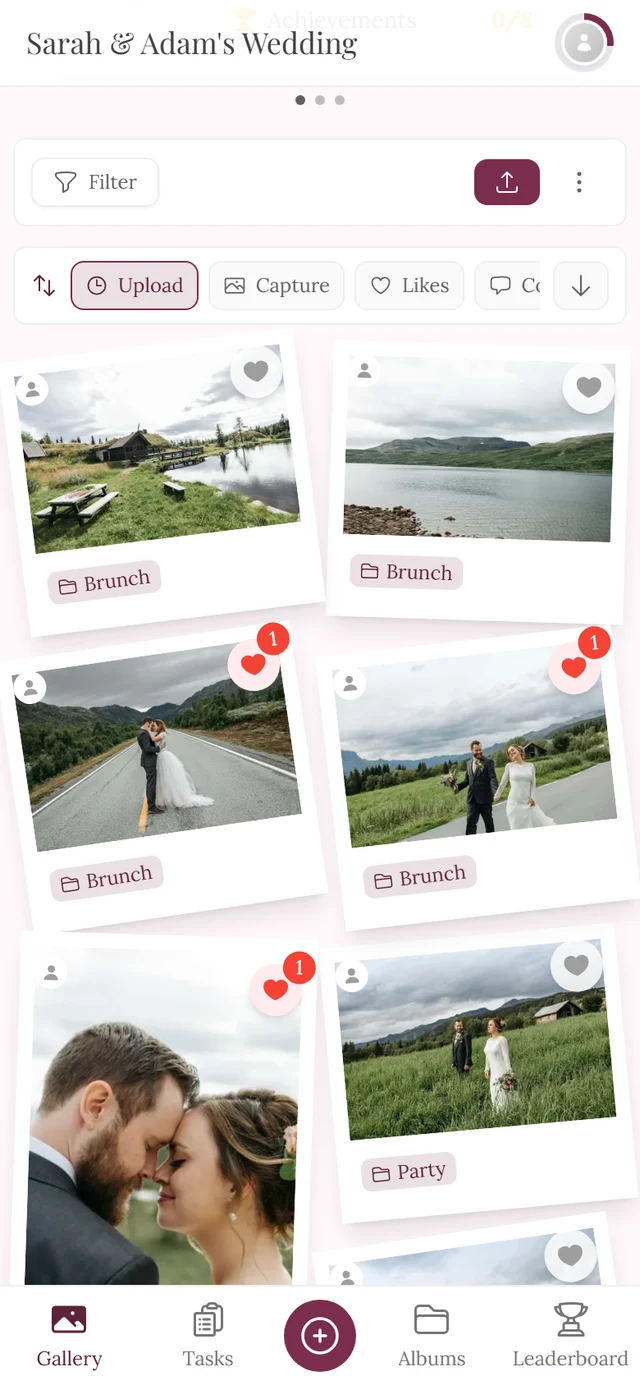
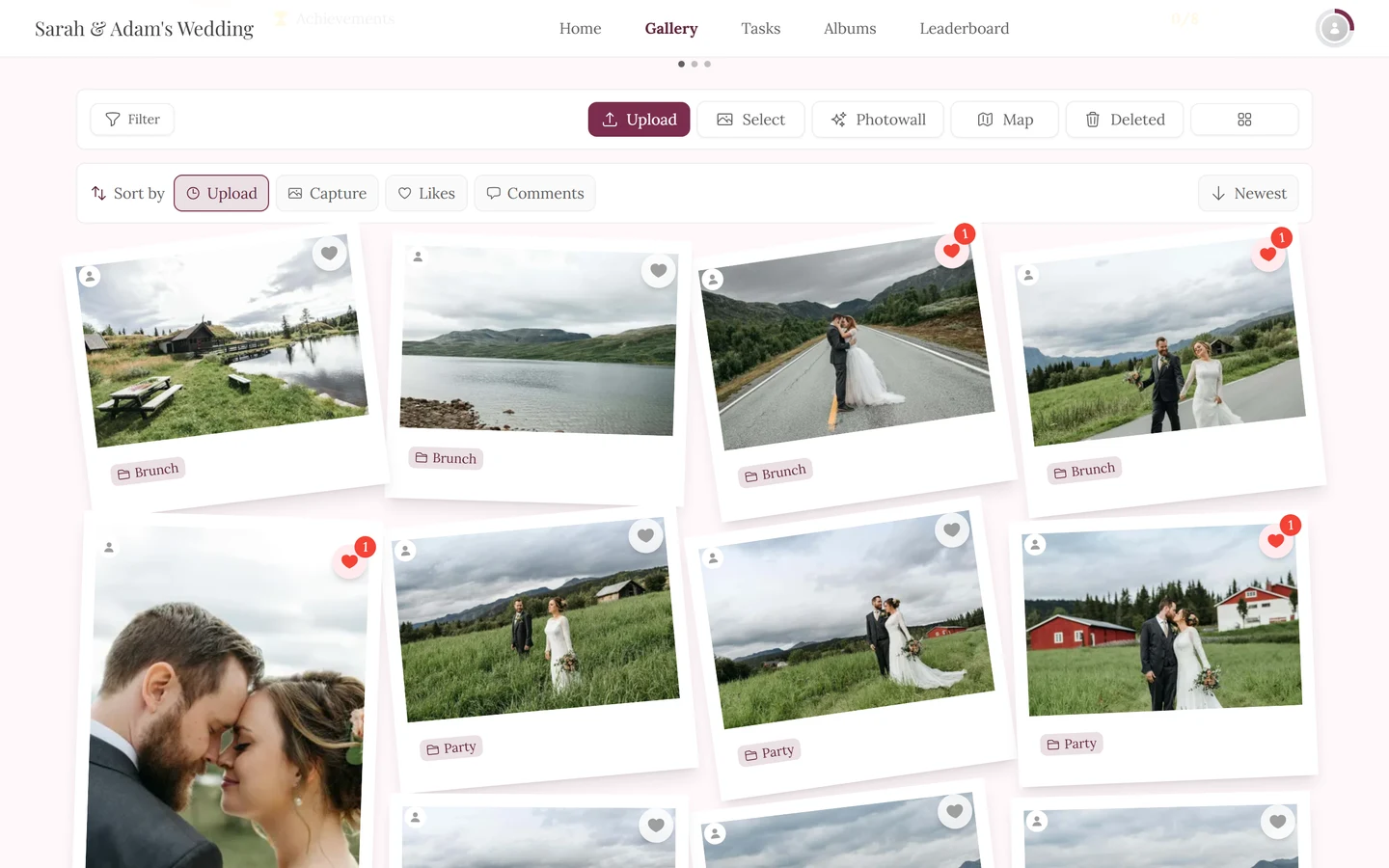
Section titled “The quick sort bar above the gallery”For sorting you don’t have to open the filter at all in daily use: the quick sort bar sits right above the photo grid.
- On the left Sort by (just an icon on a phone), followed by Upload, Capture and – depending on the event – Likes and Comments.
- On the right an arrow button for the direction: Newest or Oldest (Most or Least for likes/comments).
The bar writes the same settings as the Sort Order section in the filter – these are not two separate sort orders but two interfaces onto the same one. The difference: in the bar the change takes effect immediately, in the filter only with Apply. Day to day, the bar is the quicker route.
Active filters in the gallery
Section titled “Active filters in the gallery”What you applied doesn’t vanish into the dialog: above the grid an Active Filters box appears with the count and one chip per filter – people with a thumbnail, albums with their cover, plus chips like My Uploads, Photos Only, Without Album or the likes and people limits.
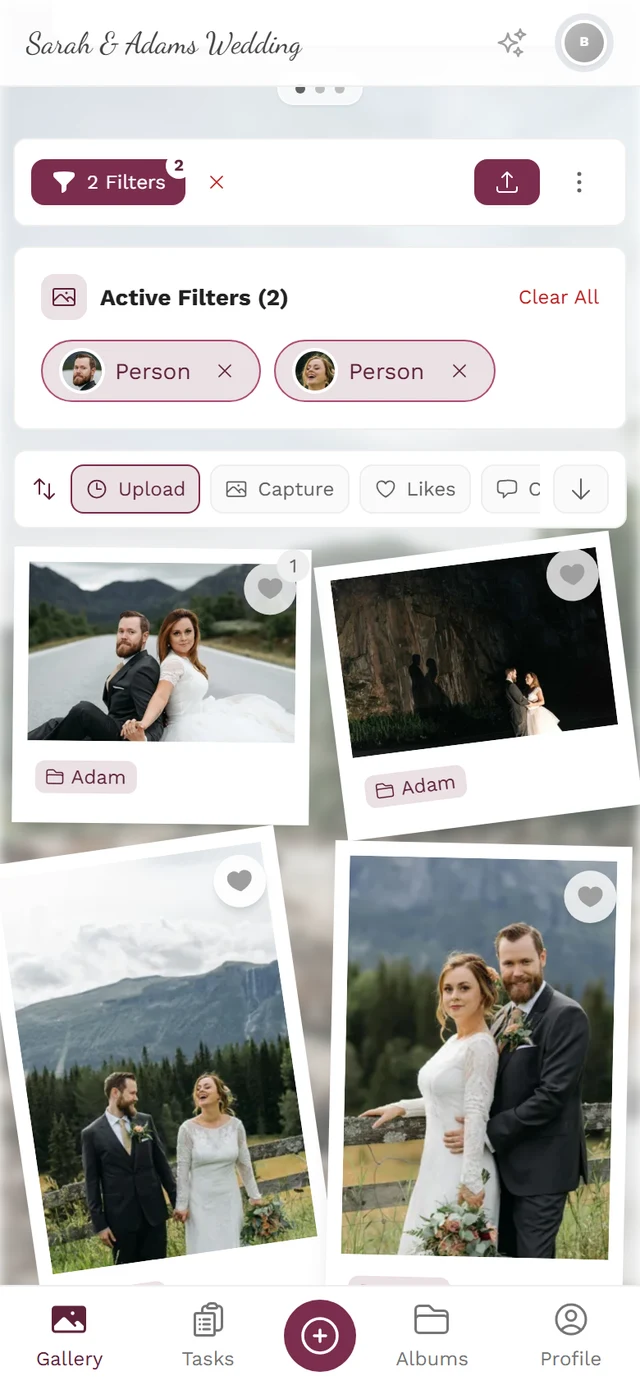
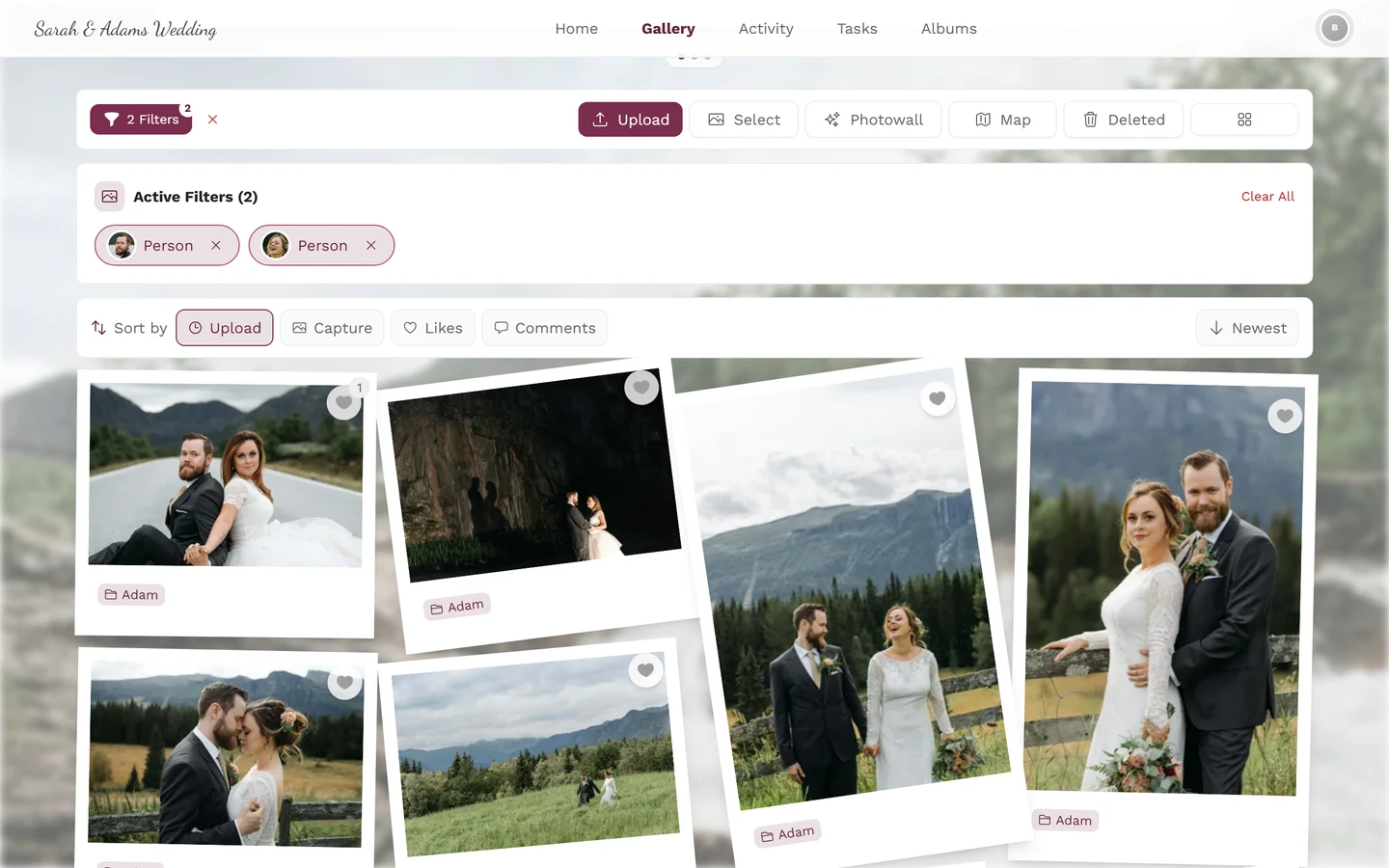
- The small X on a chip removes exactly that filter – everything else stays.
- Clear All at the top right of the box resets everything at once.
- Likes chips (My Likes, Liked by, the likes limits) only appear when likes are on, and the Task Photos chip only with photo tasks on. If such a filter came in via a shared link and the feature has since been switched off, the box still counts it but shows no chip for it – Clear All removes it.
- If only a single album (or only a single task) is filtered, the chip row turns into a large card with cover, description and photo count – including an Upload to Album or Solve Task button.
For moderators and hosts
Section titled “For moderators and hosts”-
Enable the feature (host): Open the Admin Portal from the profile menu in the top right and go to Settings → Features → AI Processing → Face Recognition. There you confirm a GDPR consent checkbox; an info dialog explains what guests see.
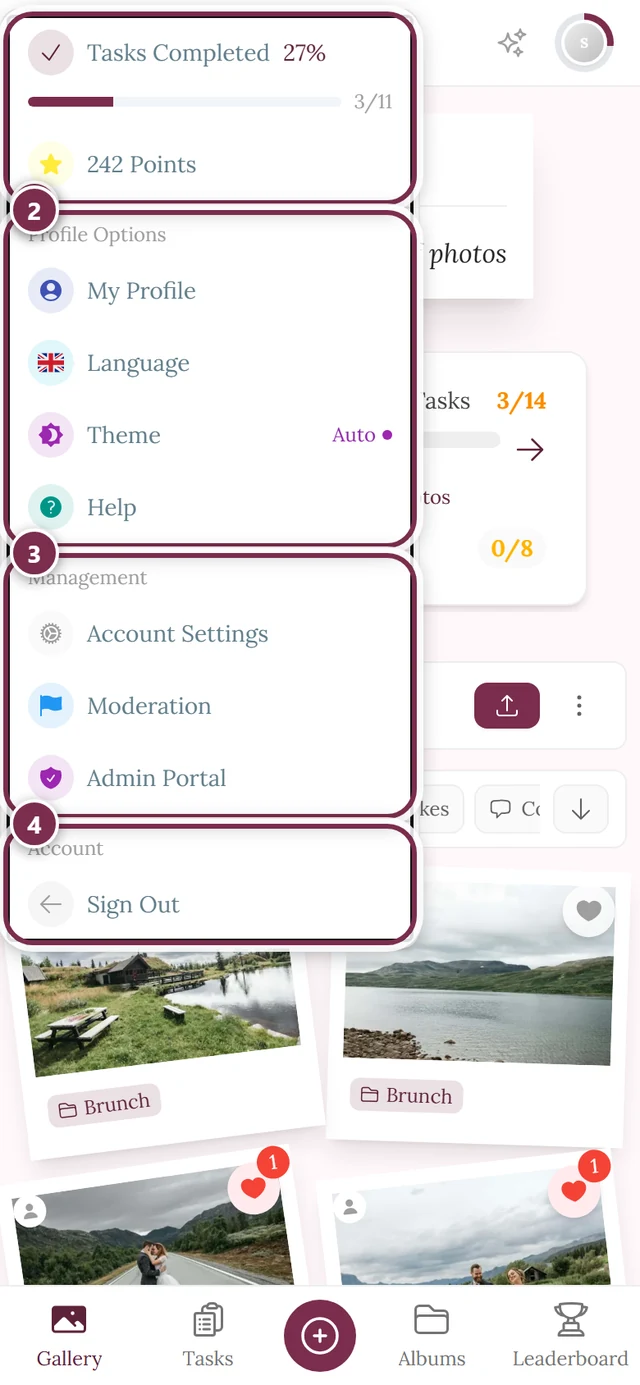
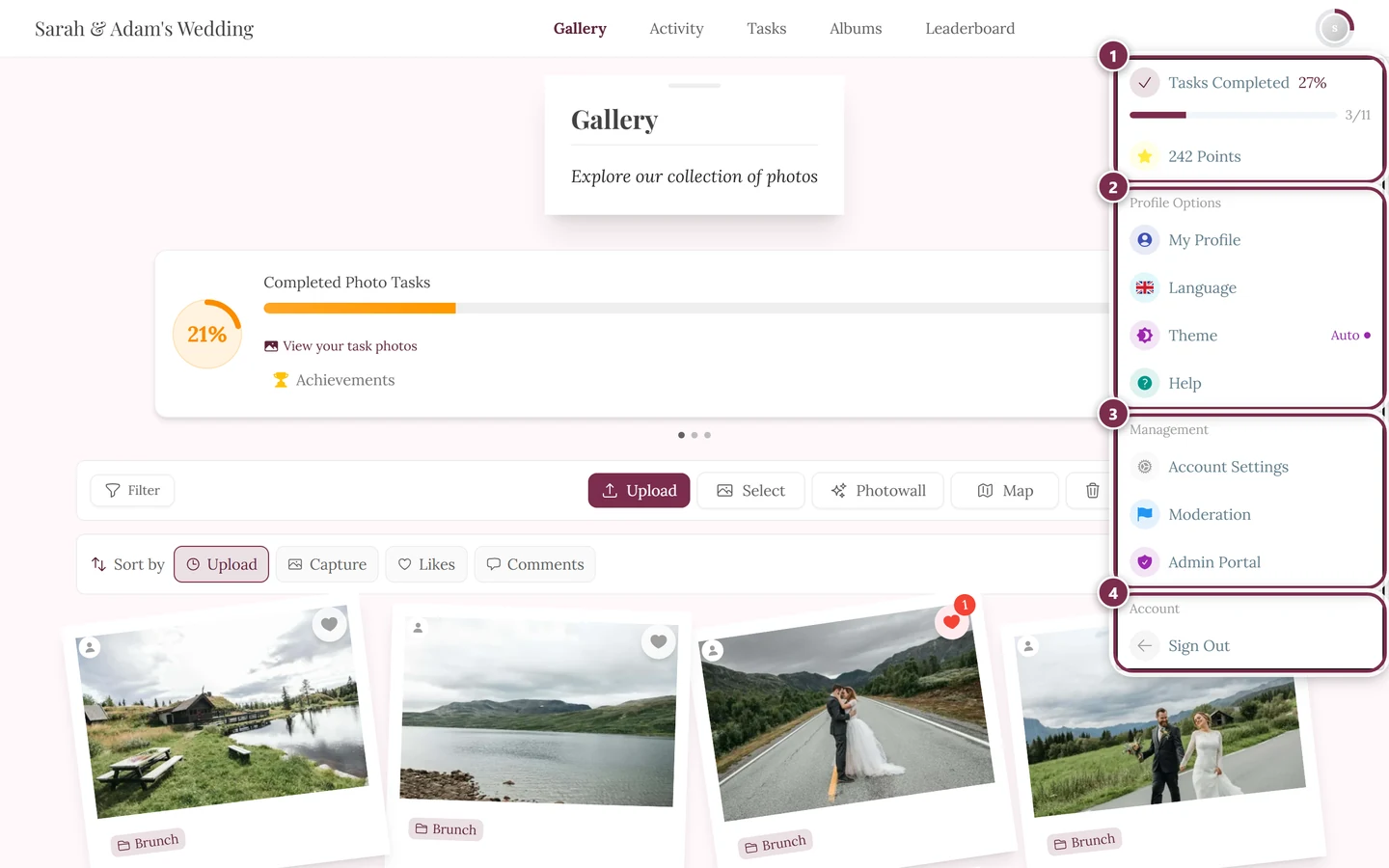
The profile menu leads to moderation and the admin portal – visible only with the matching role. ① your points and solved tasks, ② Profile options with My Profile, Language, Theme and Help, ③ Management with Account Settings, Moderation and Admin Portal – this section is missing until you hold a role for it, ④ Account with Sign out. -
Name people (moderators): Naming, merging or splitting clusters happens in the moderation / admin view. Once a name is set, guests see it on the tile and the filter chip too.
Troubleshooting
Section titled “Troubleshooting”Related help
Section titled “Related help”- Using the gallery – basics, likes, selection, fullscreen.
- Browsing albums – album filter, quick select and overview.
- Your profile – set a profile image (unlocks “Use Profile Image”).
- Likes & comments – prerequisite for sorting by likes.