Getting started as an affiliate
As an affiliate you recommend Photogala and earn a commission on every purchase that traces back to you. You do not sell anything yourself and you never invoice the customer — you share a link or a discount code.
Affiliate or reseller?
Section titled “Affiliate or reseller?”One partner account contains both programs — the application page states it explicitly: Both programs are included in a single partner account.
- Affiliate: you refer. The customer buys directly from Photogala and you earn a commission.
- Reseller: you buy credits up front, hand out events under your own brand and set your own prices. That is covered in Reseller basics.
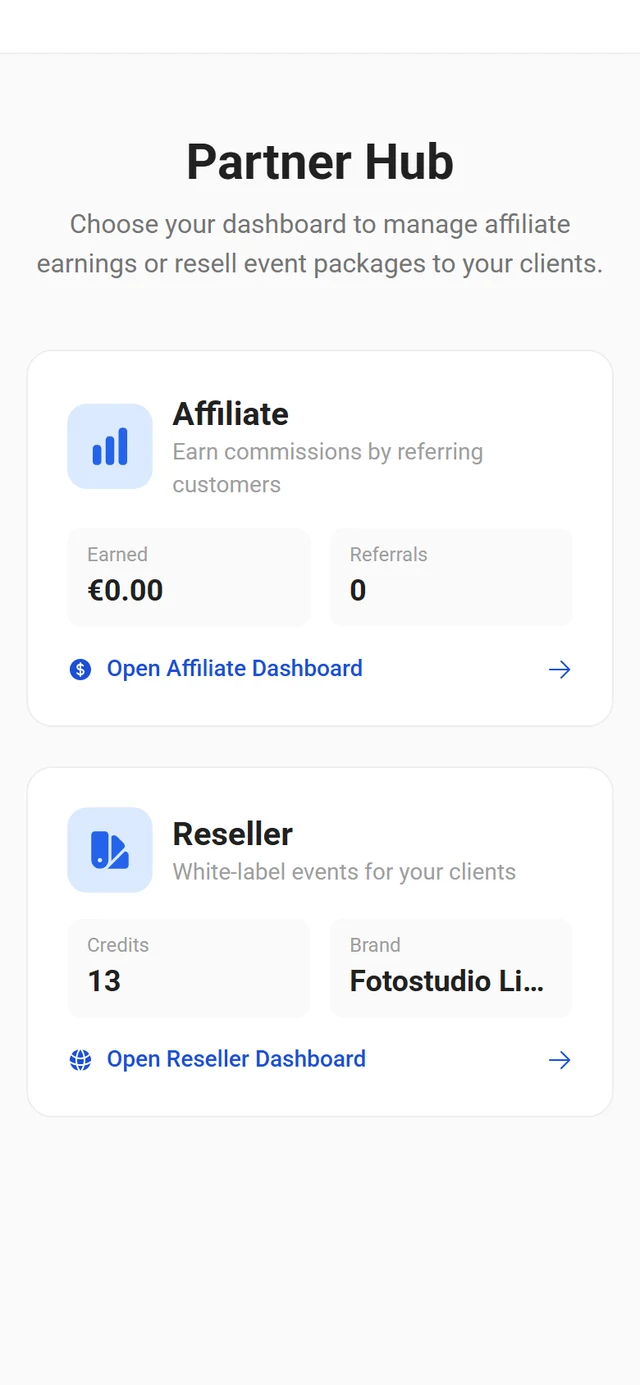
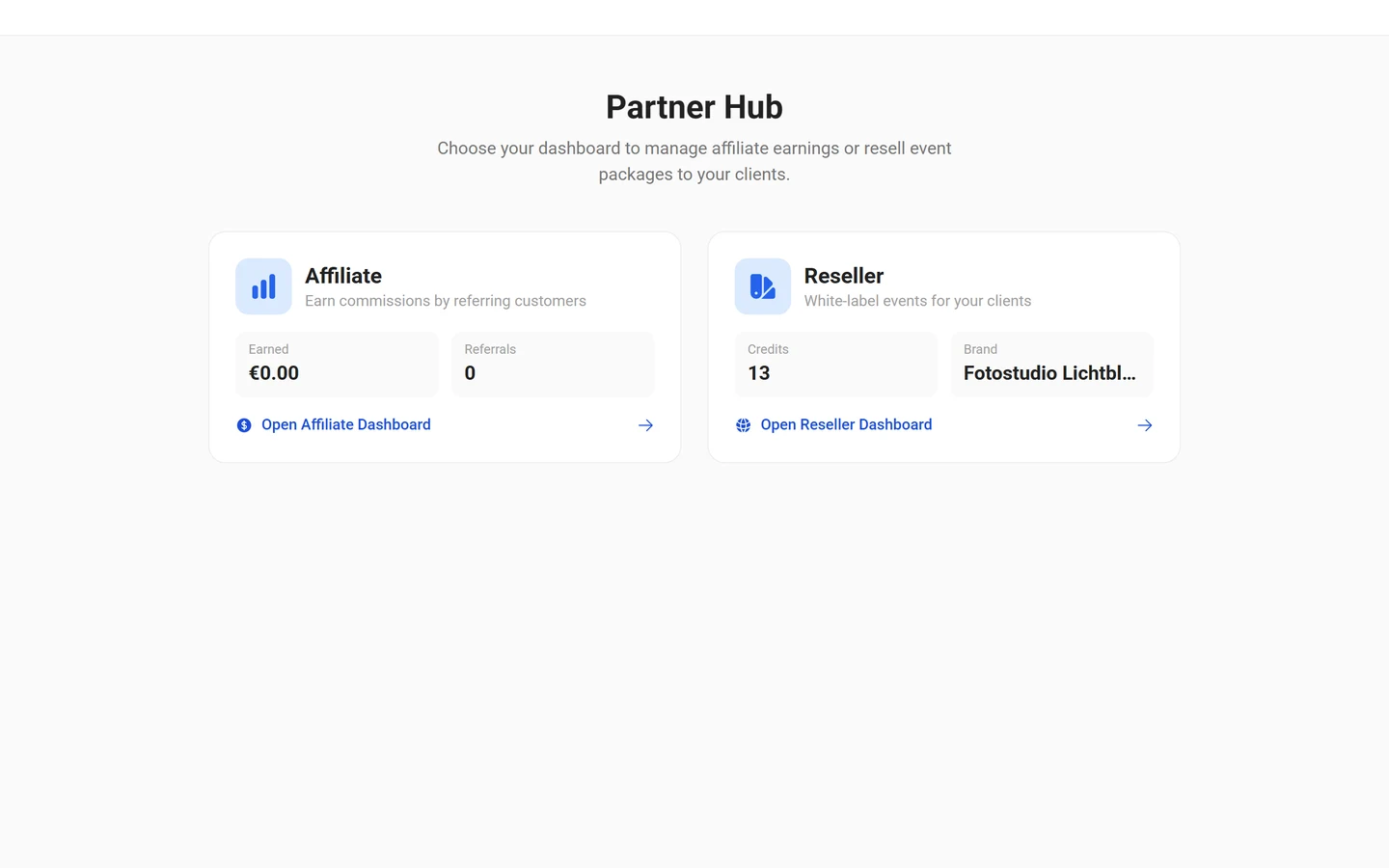
Once you are approved you land in the Partner Hub and choose between Open Affiliate Dashboard and Open Reseller Dashboard. You can switch between the two areas at any time.
Becoming a partner
Section titled “Becoming a partner”-
Open
/partner/apply. The page is titled Partner Program and shows the two cards Affiliate and Reseller with their respective benefits. -
If you are not signed in yet, the step Sign in or create an account comes first, with the buttons Sign In and Create Account. There is no way around having an account.
-
Pick your code in the Your Partner Code field. Availability is checked live: Checking…, then Available or Not available.
-
Tick both boxes: I am acting as a business or self-employed professional and the acceptance of the Partner Agreement.
-
Click Become a Partner. You are approved right away and land in the Partner Hub.
Affiliate code and referral link
Section titled “Affiliate code and referral link”The first time you open the affiliate dashboard, the step Set up affiliate code appears if no code is active yet. The rules sit right next to the field: 3-30 characters, letters, numbers and hyphens. Activate affiliate code finishes the job — this code cannot be changed afterwards either.
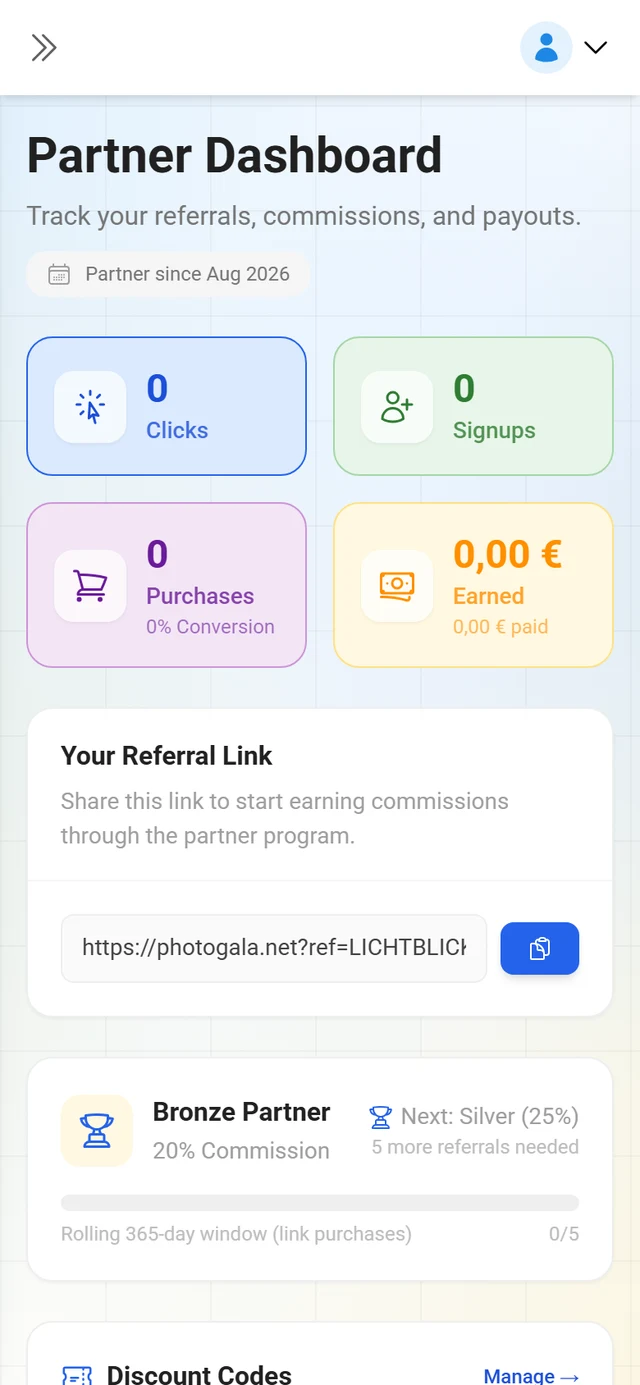
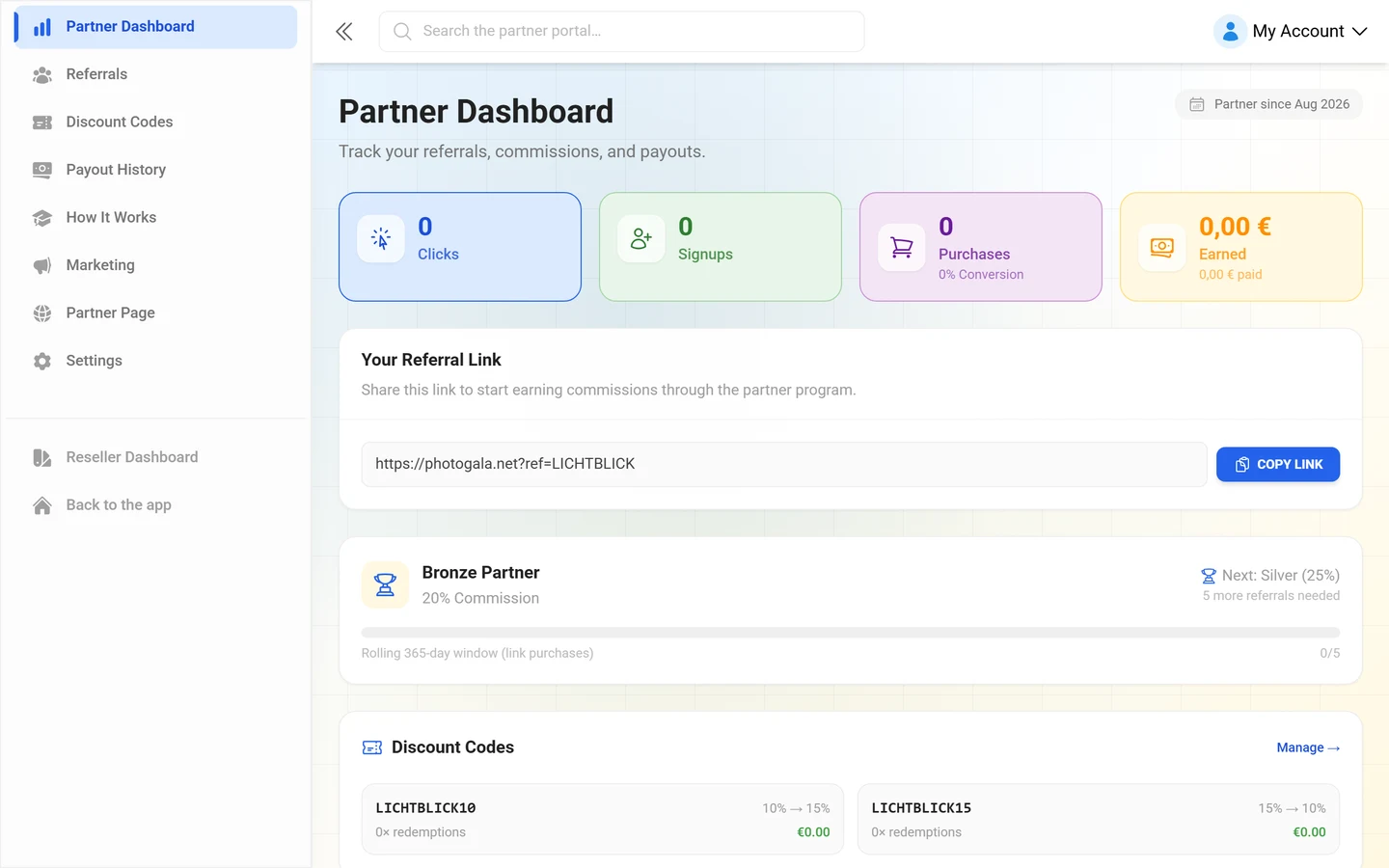
Your referral link has the form photogala.net/?ref=YOUR-CODE. You will find it in the Partner Dashboard under Your referral link, together with a Copy Link button.
The affiliate area at a glance
Section titled “The affiliate area at a glance”The affiliate dashboard sidebar has eight entries:
- Partner Dashboard — referral link, commission overview (Pending, Confirmed, Approved, Paid) and your key figures.
- Referrals — every single referral with its status, source and commission.
- Discount Codes — your two code slots, see Discount codes & payouts.
- Payout History — every payout so far.
- How It Works — the full program explainer inside the app.
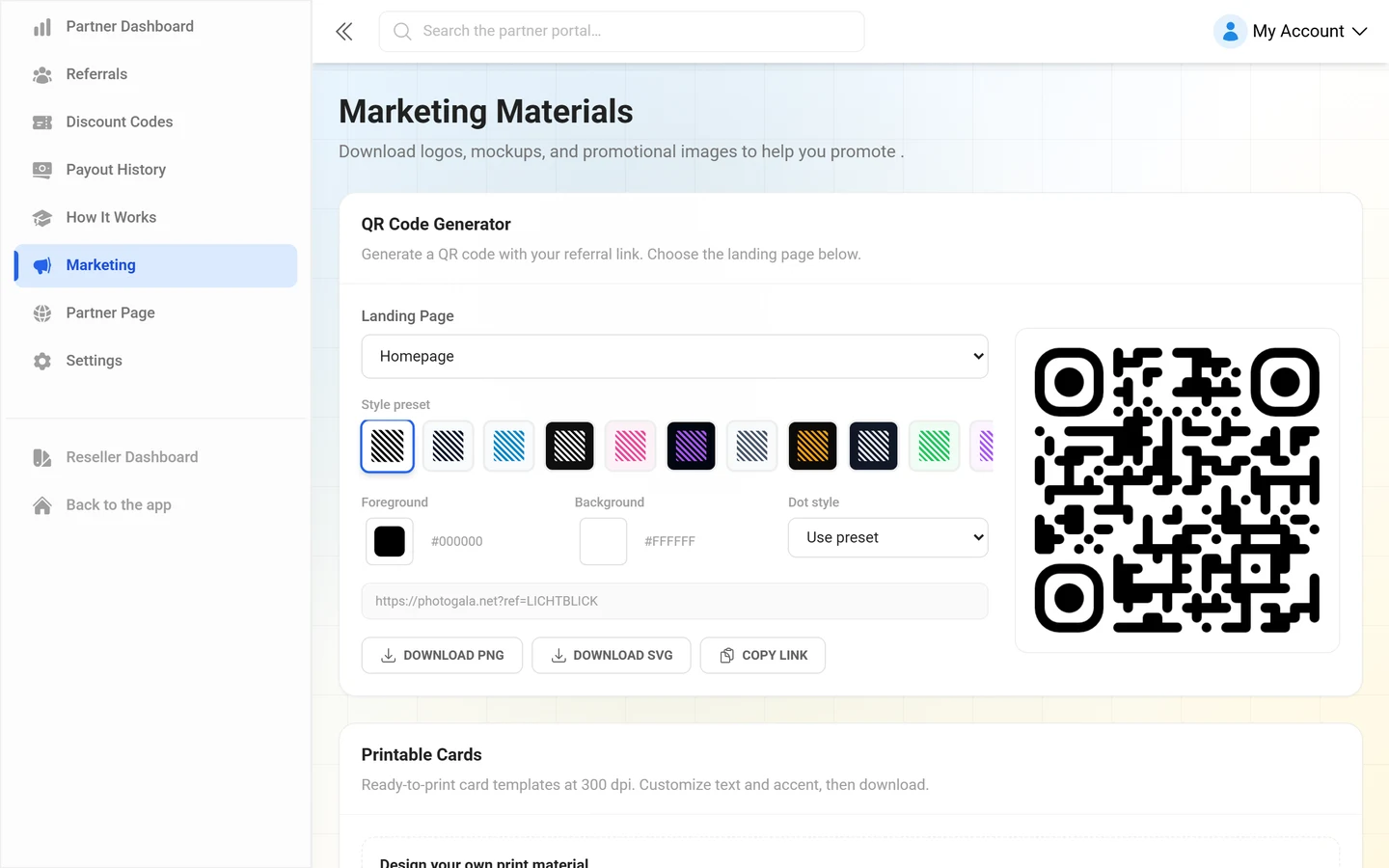
- Marketing — logos, mockups, QR generator, print templates and ready-made promo texts.
- Partner Page — your own landing page.
- Settings — payout method and tax details.
Commission tiers
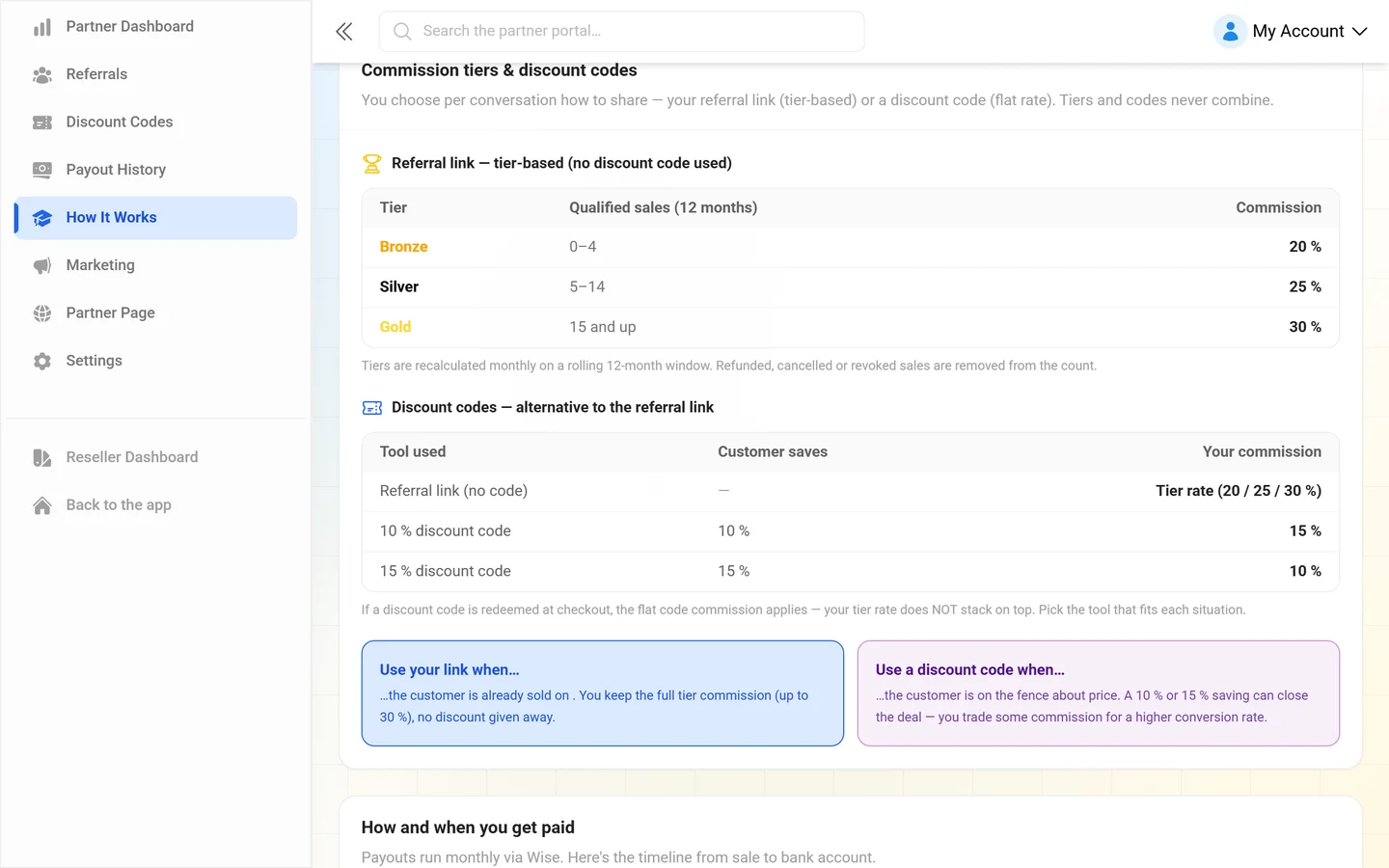
Section titled “Commission tiers”Without a discount code your tier rate applies. The table under How It Works is unambiguous:
| Tier | Qualified sales (12 months) | Commission |
|---|---|---|
| Bronze | 0–4 | 20 % |
| Silver | 5–14 | 25 % |
| Gold | 15 and up | 30 % |
Plus the note on the same page: Tiers are recalculated monthly on a rolling 12-month window. Refunded, canceled or revoked sales are removed from the count.
Your current tier and the distance to the next one appear as a progress bar in the Partner Dashboard (Next: …, … more referrals needed, otherwise Highest tier reached). If support agreed a different rate with you, Individual commission rate is shown instead.
Upgrades count too
Section titled “Upgrades count too”If a customer you referred later buys an upgrade, you earn the same commission on it. The section You also earn on upgrades puts it this way: “Your tier-based or code-based commission rate applies to the upgrade payment just like it does to the initial purchase.” Such entries appear in the referral list with the source Tier Upgrade.
Attribution: the last touch wins
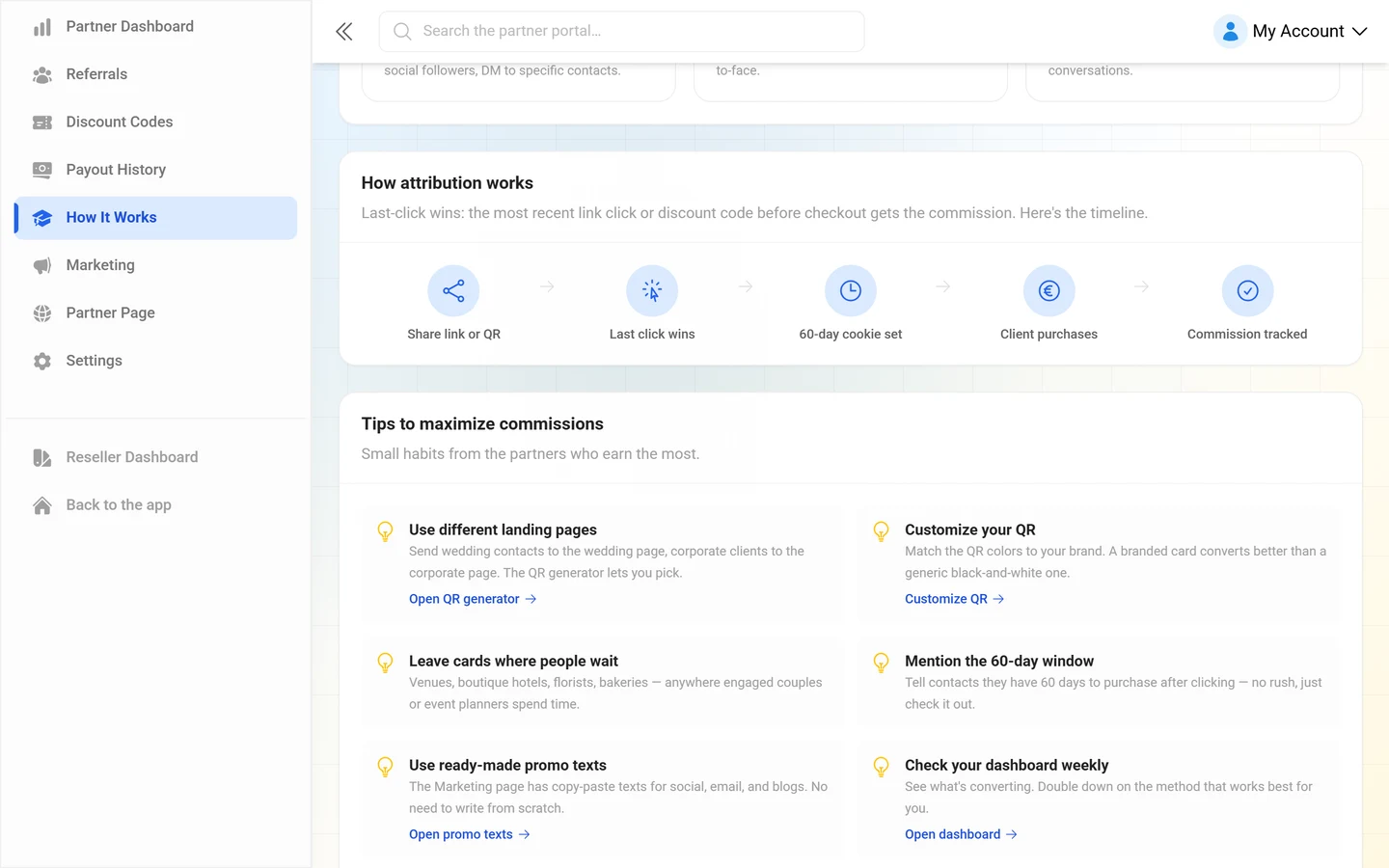
Section titled “Attribution: the last touch wins”This is the single most important rule of the program. The section How attribution works states it literally: “Last-click wins: the most recent link click or discount code before checkout gets the commission.”
In practice:
- When somebody clicks your link, a 60-day cookie is set. If they buy within those 60 days, the sale is attributed to you.
- If they click another partner’s link afterwards, that link wins. The most recent touch counts, not the first one.
- A discount code at checkout beats the cookie: Discount code overrides cookie attribution: if the customer uses your code, you earn the commission — even if another partner’s link was clicked earlier.
- Tier rate and code rate never combine. Per purchase it is one or the other.
The app shows the flow as a five-step chain: Share link or QR → Last click wins → 60-day cookie set → Client purchases → Commission tracked.
Reading your referrals
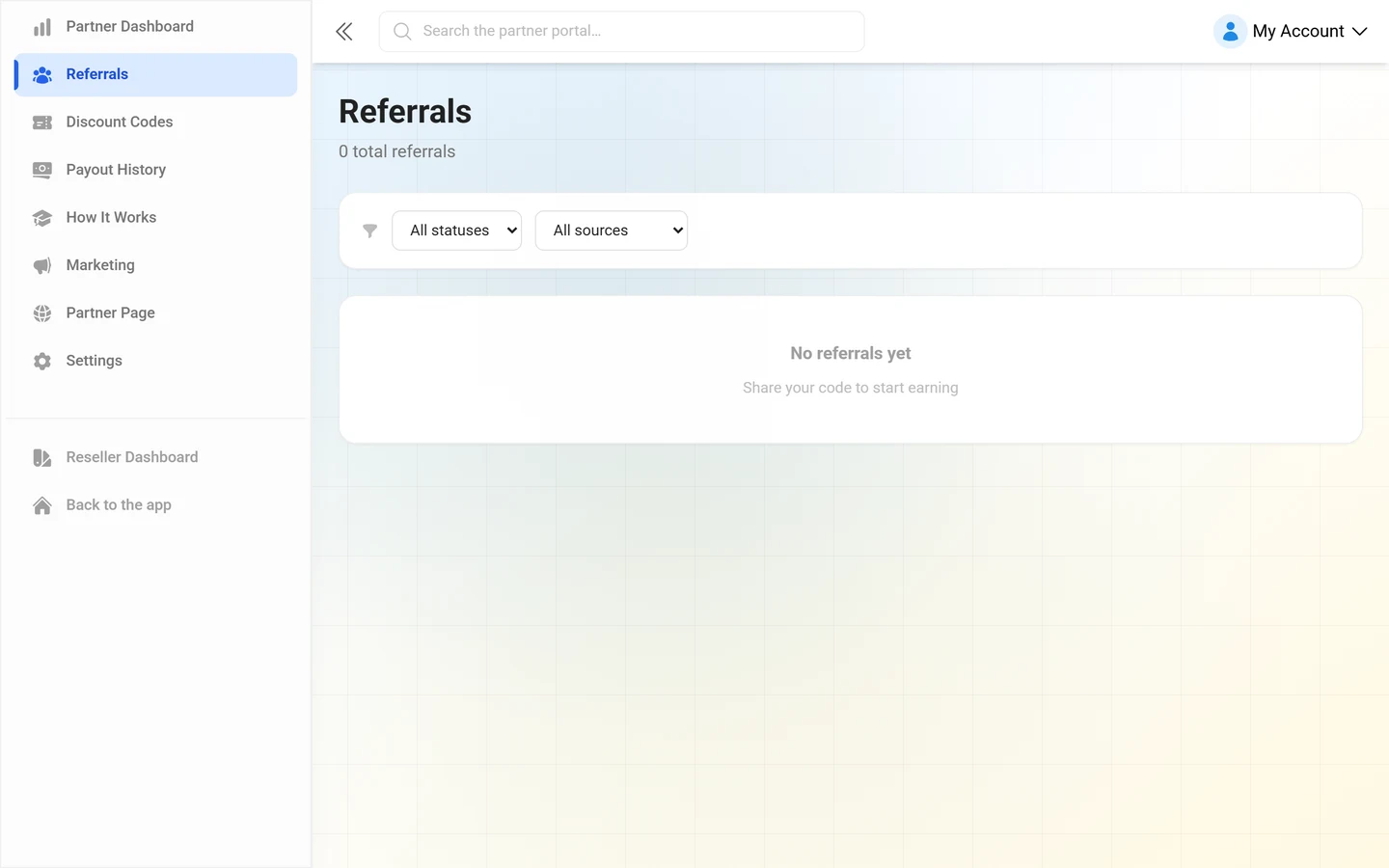
Section titled “Reading your referrals”Under Referrals every row has a Status, a Source and a payout status.
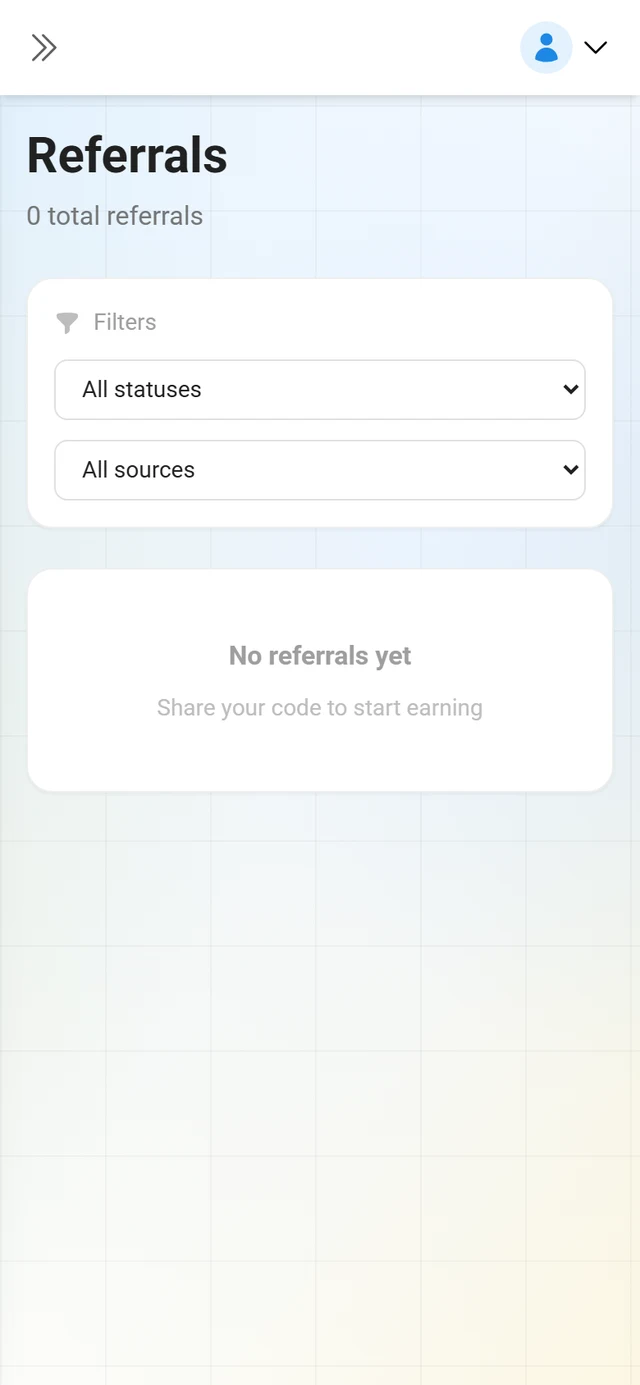
Referral statuses:
- Clicked — “Person clicked your link but hasn’t created an account yet.”
- Signed Up — “Person signed up — a purchase is still pending.”
- Purchased — “Person purchased a plan — your commission is being calculated!”
- Free Event — “Person created a free event — no revenue, no commission.”
- Refunded — “The purchase was refunded — commission will be reversed.”
- Expired — “Too long without a purchase — the referral has expired.”
The Source column shows Referral Link, Code at Checkout, Cookie, Partner Page or Tier Upgrade. The Sessions column counts repeat visits by the same visitor: if the same IP and browser return within 24 hours, the counter increments instead of creating a new referral.
Narrow the list down with All statuses, All sources and Clear filters.
Marketing assets
Section titled “Marketing assets”The Marketing Materials page has everything you need to promote — each with Download or Copy:
- QR Code Generator — under Landing page you pick where the code leads (Homepage, Pricing, Your Partner Page, Wedding Use Case, Corporate Use Case, Party Use Case), adjust Style preset, Foreground, Background and Dot style, then use Download PNG or Download SVG. Copy Link puts the plain referral link on your clipboard.
- Printable Cards — Business Card, Table Tent, Round Sticker and A6 Postcard. You fill in Headline (max 40 characters), Your name / brand (max 60), Tagline (max 120) and Accent color; Download PNG gives you the card at 300 dpi.
- Partner Badges — three ready-made badges for your own website: Official Partner, Recommended and the Partner Tier Badge showing your current tier.
- HTML Embed Snippets — two copy-paste snippets: Simple Text Link (a single button) and Mini Banner (a box with text and a button). Your referral link is already baked in.
- Logos & Brand Assets — square icon, full logo and SVG. The note reads: “Available in multiple sizes. Use the SVG for print materials.”
- Product Screenshots and How It Works — mockups plus the images explaining the three-step flow for guests.
- QR Code Placement Ideas — visual ideas from table cards to bottle labels and balloon tags.
- Ready-to-Use Promo Texts — copy-paste texts for social media, email, website/blog and WhatsApp. Your referral link is included automatically, and Share directly sends them to WhatsApp, Telegram, email, Facebook, X, LinkedIn or SMS in one click.
Mind the Usage Guidelines at the bottom: leave the logo unchanged, give it enough clear space, and do not imply official endorsement beyond the partner program.
Your partner page
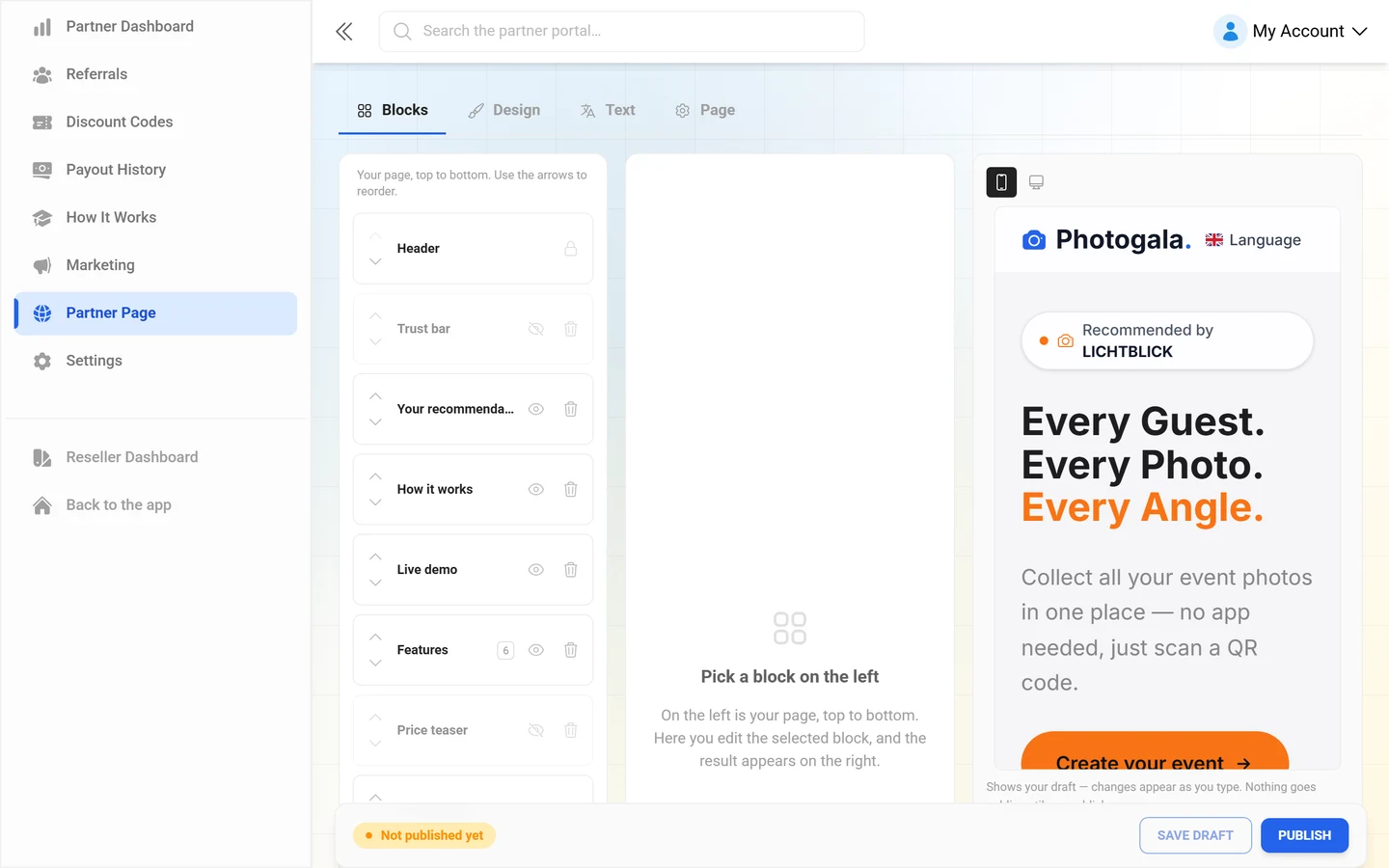
Section titled “Your partner page”Under Partner Page you build your own landing page. It then lives at photogala.net/en/partner/YOUR-CODE. A bar sticks to the bottom of the editor showing the status Public or Not published yet — once the page is public, the address sits next to it as a clickable link.
Four tabs run across the top: Blocks, Design, Text and Page. In the Blocks tab you work in three columns — the list of your blocks top to bottom on the left, the fields of the selected block in the middle, the live preview on the right. The other tabs leave two columns: that tab’s panel and the same preview. It reflects every change immediately — even before you save — and above it you switch between mobile preview and desktop preview. The note underneath reads: “Shows your draft — changes appear as you type. Nothing goes public until you publish.”
- Blocks — your page is a list of blocks: Header, Trust bar, Jump nav, Your recommendation, Your work, Live demo, How it works, Features, Free text, Price teaser, Pricing table, FAQ, Testimonials, Enquiry form, Closing CTA and Contact & social. Every row can be moved up or down, hidden or removed; Add block opens the library. Click a block and its fields appear in the middle column — with nothing selected it reads “Pick a block on the left”, followed by a line explaining the three columns.
- Design — Preset, Accent color, Surface (Light / Muted), Button text (Automatic / White / Black), Type scale (Compact / Normal / Large), Buttons (Square / Rounded / Pill), Corners and Shadow (None / Soft / Strong).
- Text — every string as a Default ↔ Your version table, switchable per language. An empty field means “unchanged”; single rows go back via Reset to default, all of them via Reset every string in this language. The Only overridden switch hides everything you never touched.
- Page — Languages on your page, Let search engines find this page, the Share preview (title and short description with a preview card above them) and the Link to your imprint.
The same bottom bar carries Save draft (message “Draft saved”) and Publish (“Page is live”) on its right; Save draft stays grayed out until you actually change something. Load previous version brings back the last published state when a draft went wrong — that button only shows up once an earlier version exists.
Visitors arriving through that page show up in your referral list with the source Partner Page.
Troubleshooting
Section titled “Troubleshooting”- I see no affiliate dashboard, only the code setup. As long as no affiliate code is active, the area shows nothing but Set up affiliate code. Pick a code, activate it, done.
- I keep landing on the application page. Your account is not a partner account yet — run through the application above.
- The partner area does not open on my own domain. That is intentional; it only runs on photogala.net.
- A referral says Free Event. Free events generate no revenue and therefore no commission. Only a paid plan or an upgrade counts.
- Another partner got the commission. The most recently used link or code before the purchase wins. A discount code beats an older cookie.
- The code I wanted is taken. Codes are unique and permanent; pick a variant that the check reports as Available.
Related pages
Section titled “Related pages”- Discount codes & payouts — code slots, hold period, Wise and tax details
- Reseller basics — selling yourself instead of just referring
- Setting up brand & domain — your own brand as a reseller
- Plan & term — the plans your customers buy