AI processing
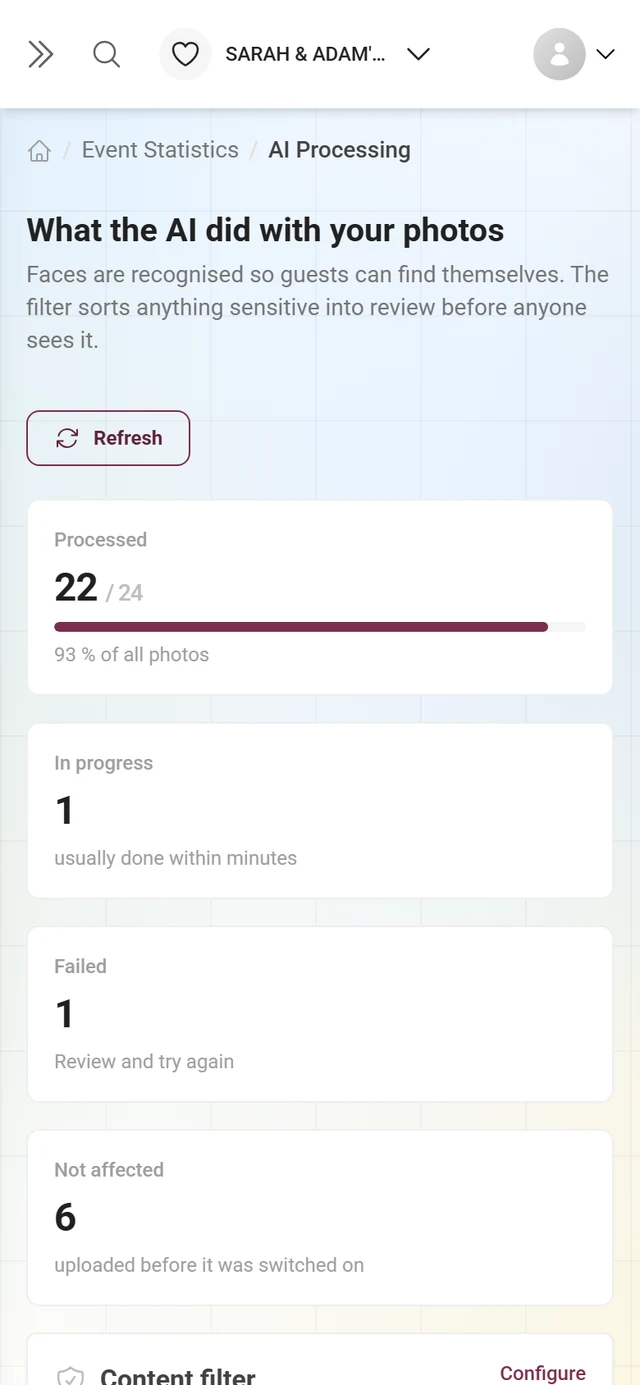
Every uploaded photo is processed by the AI in the background: the content filter (NSFW) spots sensitive material and sends it to review before anyone sees it; face recognition finds and groups people so your guests can find their own photos in one click. The AI Processing page shows how far along that is, what is running and where something is stuck.
How to get there
Section titled “How to get there”-
Via the sidebar (the intended route). In the Event group click Statistics. Once you are in that area the entry expands: below the five statistics areas sits the sub-item AI Processing. It leads to
/admin/ai-processing-stats.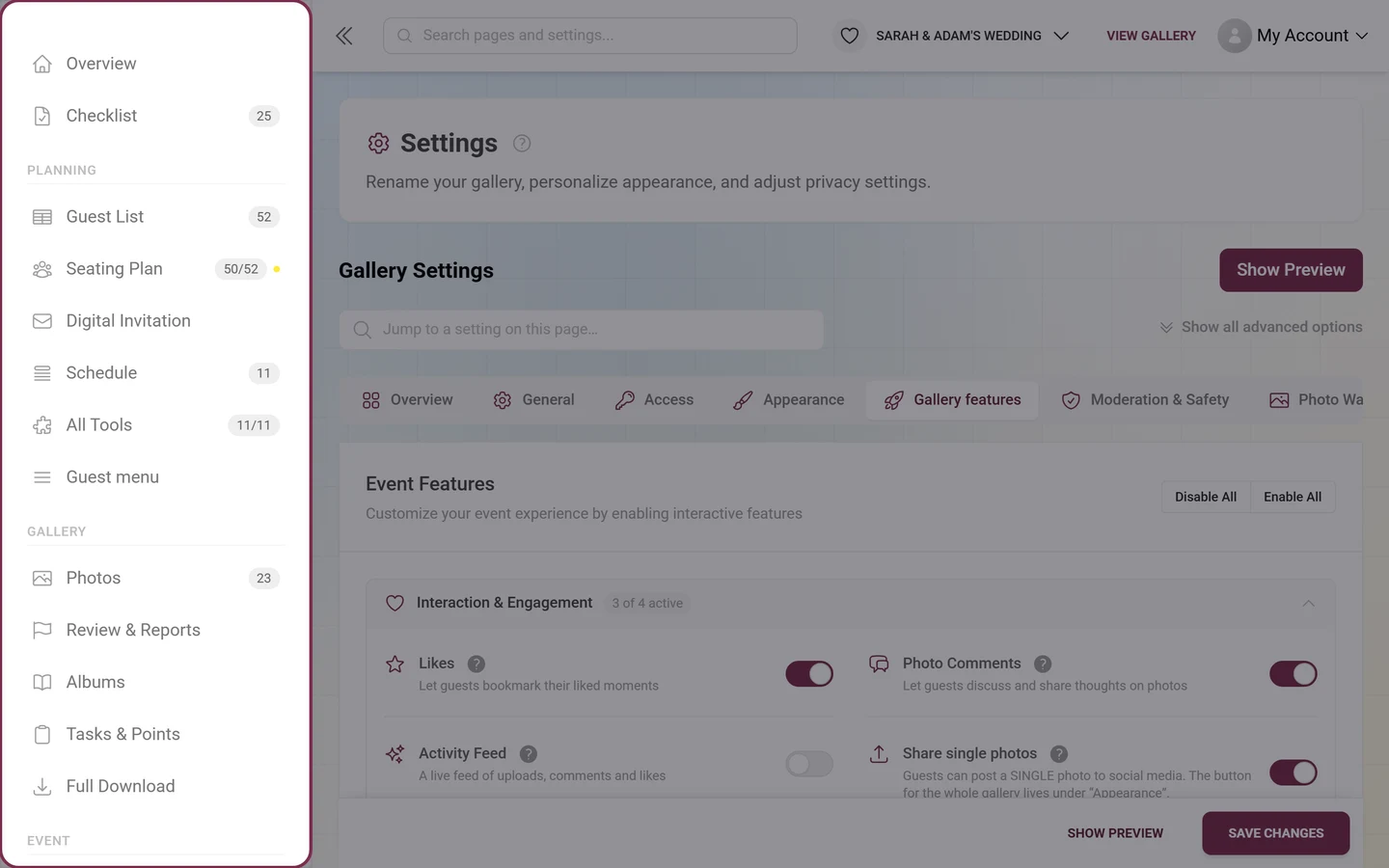
Sub-items only expand once you are inside that area – including “AI Processing” under “Statistics”. -
Via admin search. Type “AI”, “processing”, “faces”, “nsfw” or “detection” into the global admin search. The hit AI Processing Stats (“Track AI processing status and results”) takes you to the same page.
-
Via the feature settings. If face recognition is already switched on, a blue notice sits right below its toggle in Gallery features: “Processing faces from existing photos may take a while. You can check the current status on the AI Processing Stats page.”
At the top of the page you see the breadcrumbs Event Statistics › AI Processing. Event Statistics takes you back to the statistics overview at any time.
The page header
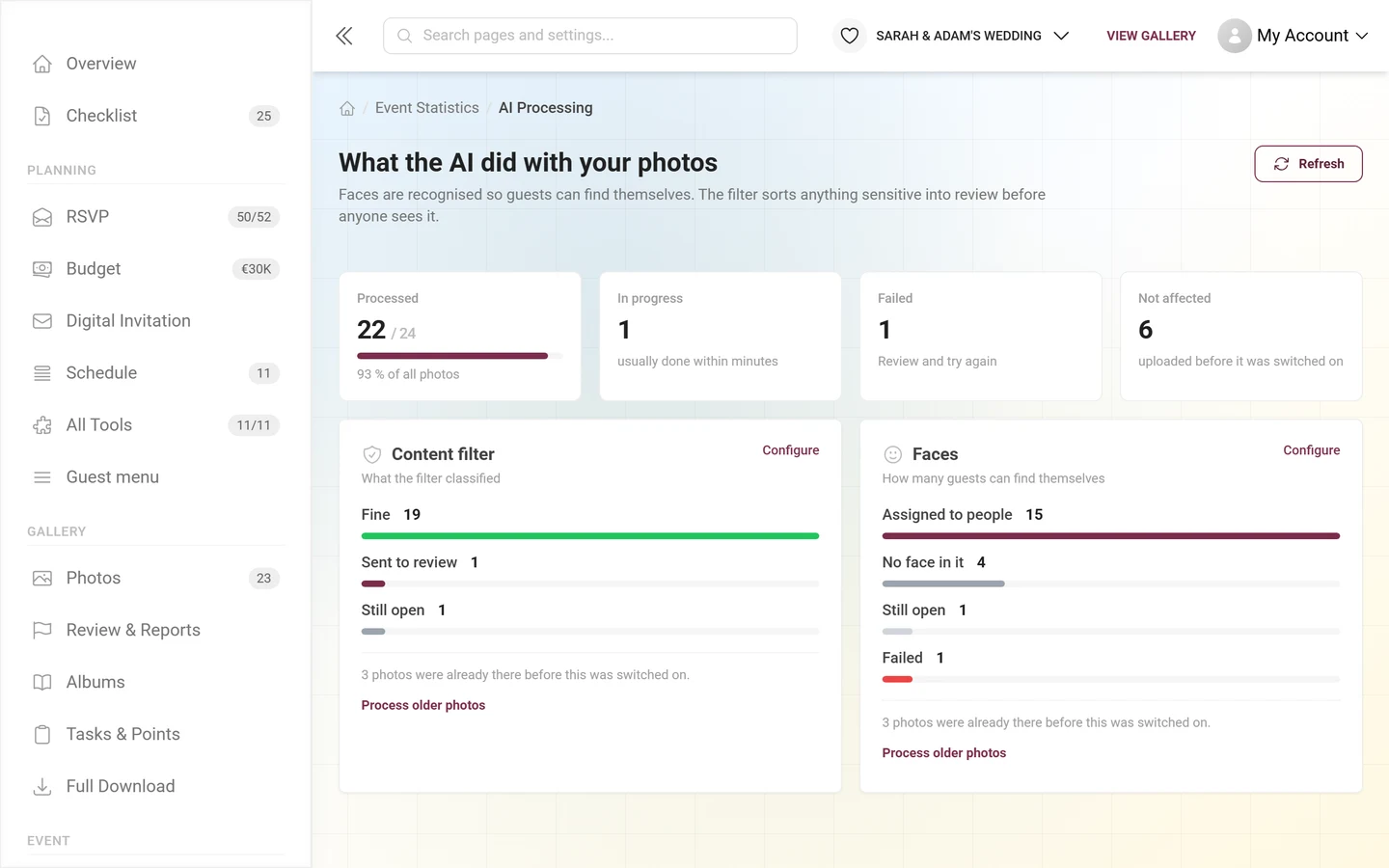
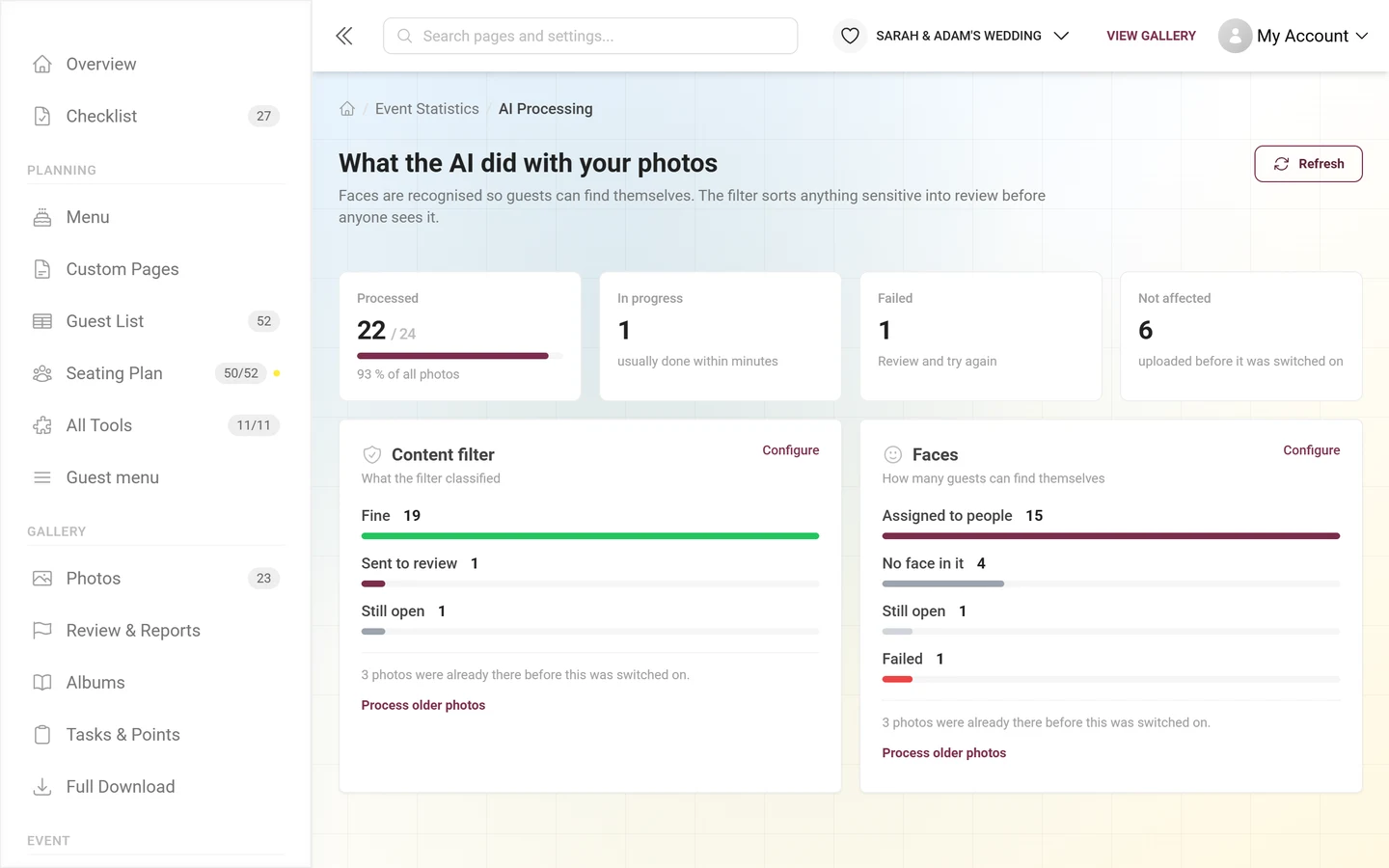
Section titled “The page header”At the top sits the title What the AI did with your photos with the lede “Faces are recognized so guests can find themselves. The filter sorts anything sensitive into review before anyone sees it.”
Next to it (below it on a phone) sits the Refresh button; while loading it reads Refreshing … and the arrow spins. The figures count as fresh for 30 seconds – so after a big upload wave, do reload once.
The four tiles
Section titled “The four tiles”The tiles summarize both switched-on capabilities – they count across the content filter and face recognition together.
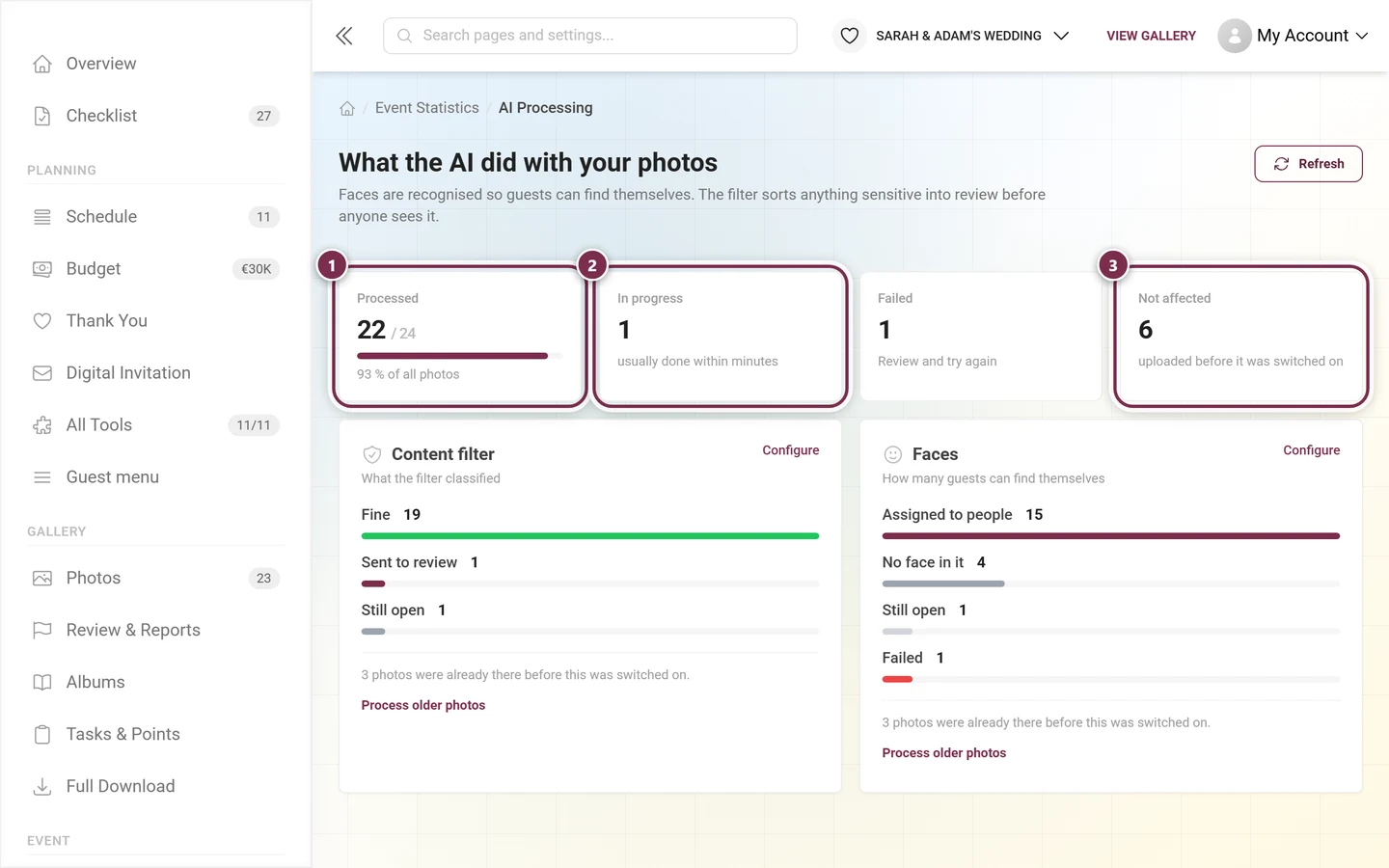
- Processed – “N / M” with a bar and the line “X % of all photos”. The percentage is the average across the switched-on capabilities, projected back onto your photo count. If only one capability runs, only that one counts.
- In progress – everything waiting or currently being worked on. Below it “usually done within minutes”; at 0 it reads “nothing in the queue”.
- Failed – the only tile that asks you to act. If the number is greater than 0 the tile is clickable (“Review and try again”) and opens the failed-media dialog. If both capabilities have failures, it opens the bigger pile.
- Not affected – “uploaded before it was switched on”. Those photos were never checked because the capability was off back then (see Process older photos below).
The two capability cards
Section titled “The two capability cards”Below the tiles sits one card per capability (side by side on desktop, stacked on a phone):
- Content filter – subtitle “What the filter classified”.
- Faces – subtitle “How many guests can find themselves”.
In the top right of each card, the Configure link leads straight to the matching toggle: the content filter to Moderation & safety, the faces to Gallery features. The toggle is briefly highlighted there.
Below that sit the bars – only categories with at least one photo are shown:
- Content filter: Fine (green) · Sent to review (event color) · Blocked (red) · Still open (gray).
- Faces: Assigned to people (event color) · No face in it (gray) · Still open (light gray) · Failed (red).
Process older photos
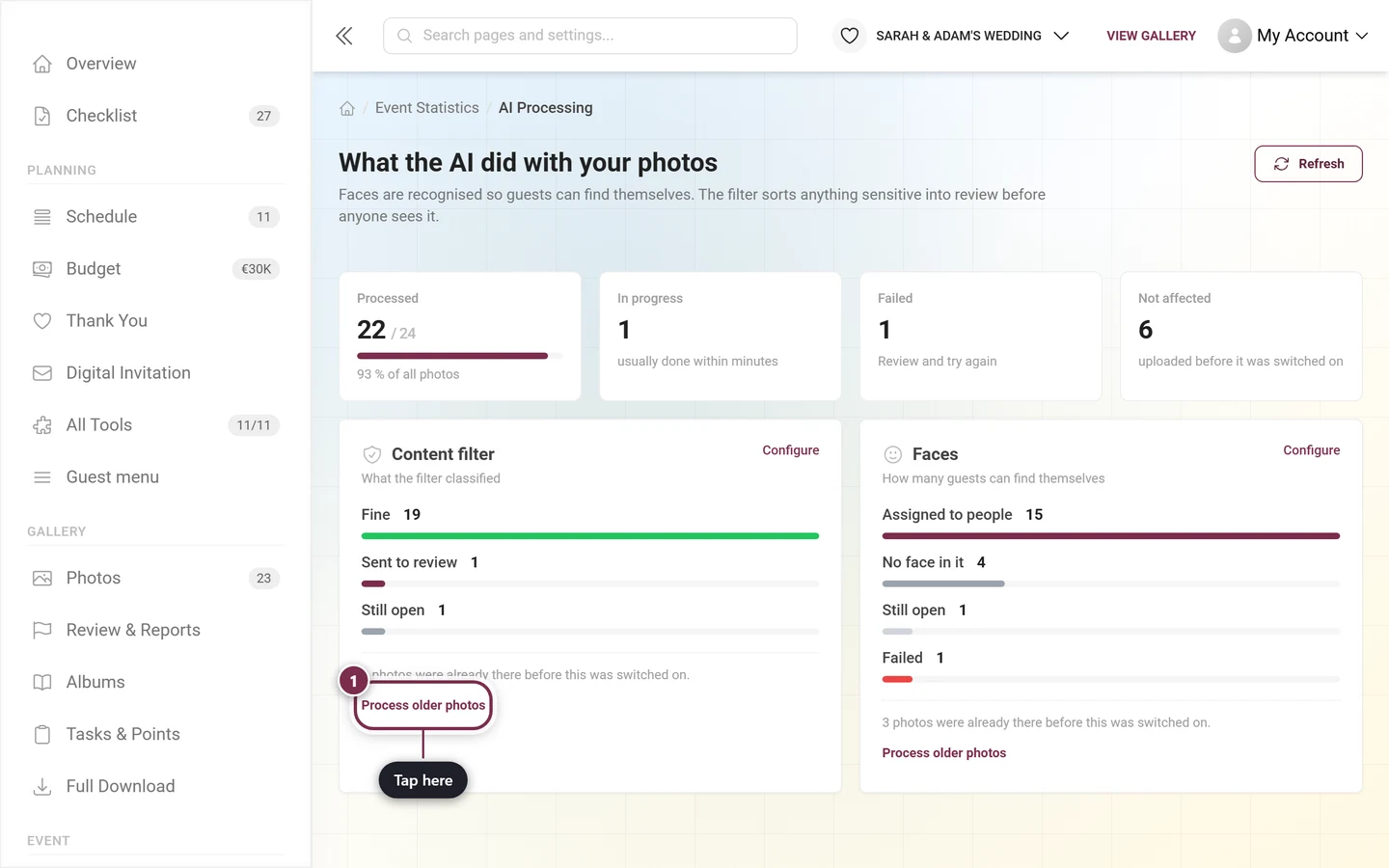
Section titled “Process older photos”If you switch a capability on later, the photos already uploaded stay out of it at first. The card says so in its footer: “N photos were already there before this was switched on.” Below it, the text link Process older photos queues exactly those images after the fact. While it runs the link reads Queueing …, afterwards a notice reports “N older photos were queued.” (or “The older photos could not be queued.”). Processing then runs in the background – pull in the new state with Refresh.
The three states of a card
Section titled “The three states of a card”-
Not in your plan. Instead of bars there is a quiet card with a lock icon and one sentence about what you are missing (“Not included in your plan. With it, anything sensitive goes to review first instead of straight into the gallery.” or “… With it, guests find their own photos in one click.”). The button Unlock content filter or Unlock face recognition leads to the pricing page – on branded events that button is absent.
-
In your plan, but switched off. The subtitle reads Switched off, Switch on sits on the right, and the field below says: “Nothing was checked. Switching it on applies from the next photo — older ones can be processed afterwards.” (for faces: “Nothing was recognized and nothing was stored. …”). Deliberately no zeroes here: nothing went wrong, nothing ever ran.
-
Switched on. The bars appear. If there is no result yet it reads “Nothing evaluated yet. Processing continues in the background.”
Handling failed media
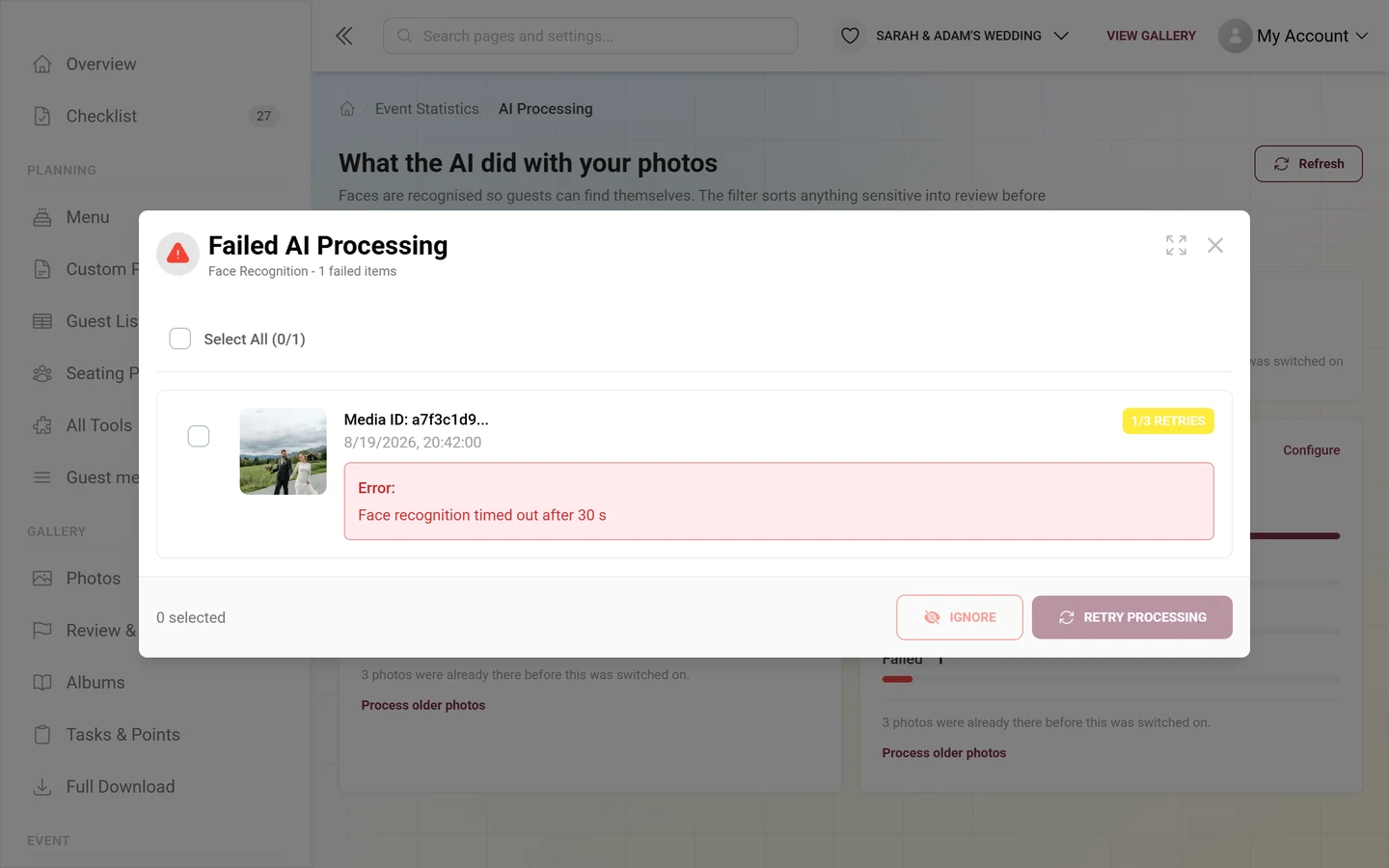
Section titled “Handling failed media”The Failed tile opens the Failed AI Processing dialog (subtitle: the capability concerned and the number of “failed items”).
-
Click the Failed tile. The dialog lists every failed medium with a thumbnail, Media ID (shortened), the time it failed, a chip with the retries (three at most), where applicable a Max retries chip and a red Error box with the error message.
-
Select the media: individually via their checkbox or all of them via Select All at the top (with a “selected/total” counter). The footer shows the number of selected items on the left.
-
Retry Processing puts the selection back into the queue. On success a notice reports “Retry initiated successfully”. Media that reached the limit of 3 retries are skipped — a second notice then says “Some items were skipped”.
-
Ignore marks the selection as ignored (“Items ignored successfully”); it disappears from the list. Use it for media that can never be processed.
What you will not find here
Section titled “What you will not find here”A full reprocessing of all faces – deleting every face group and analyzing each photo again – is reserved for platform administrators. That action lives in the admin tools, which hosts cannot see at all. So do not look for a button: your tools are Process older photos (the stock from before you switched on), Retry Processing (individual failed media) and Ignore. If you genuinely need a full rebuild, contact support.
Saving & applying
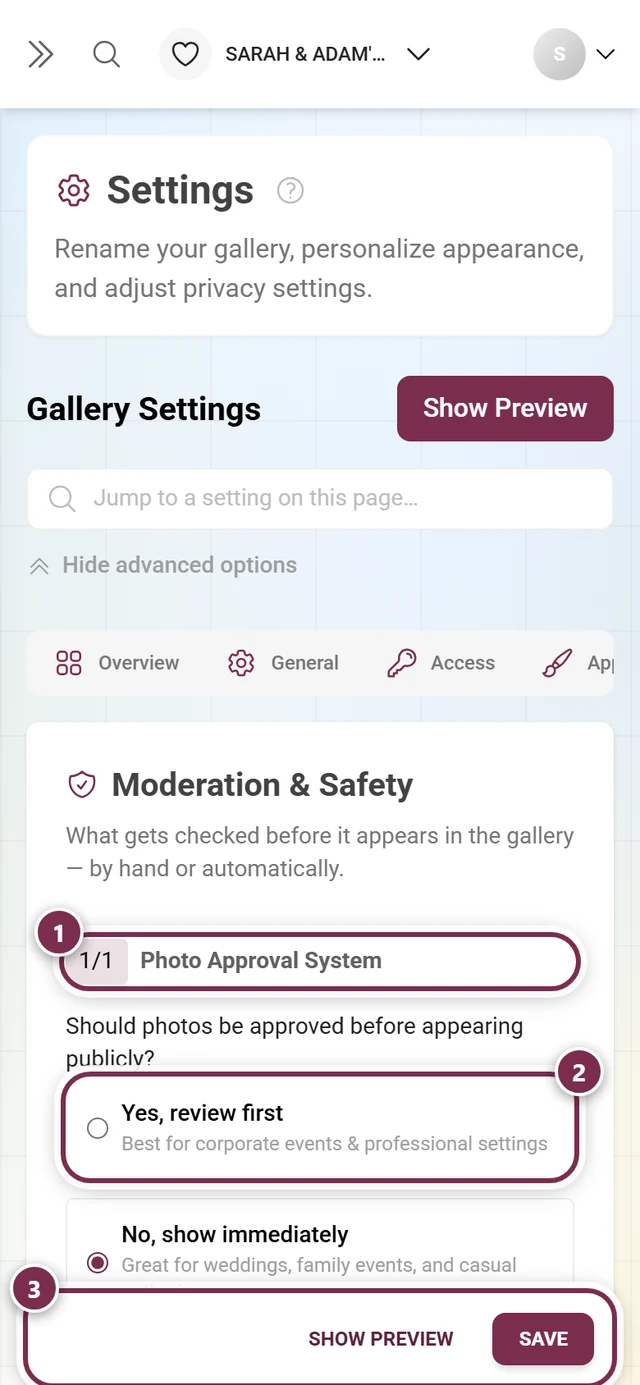
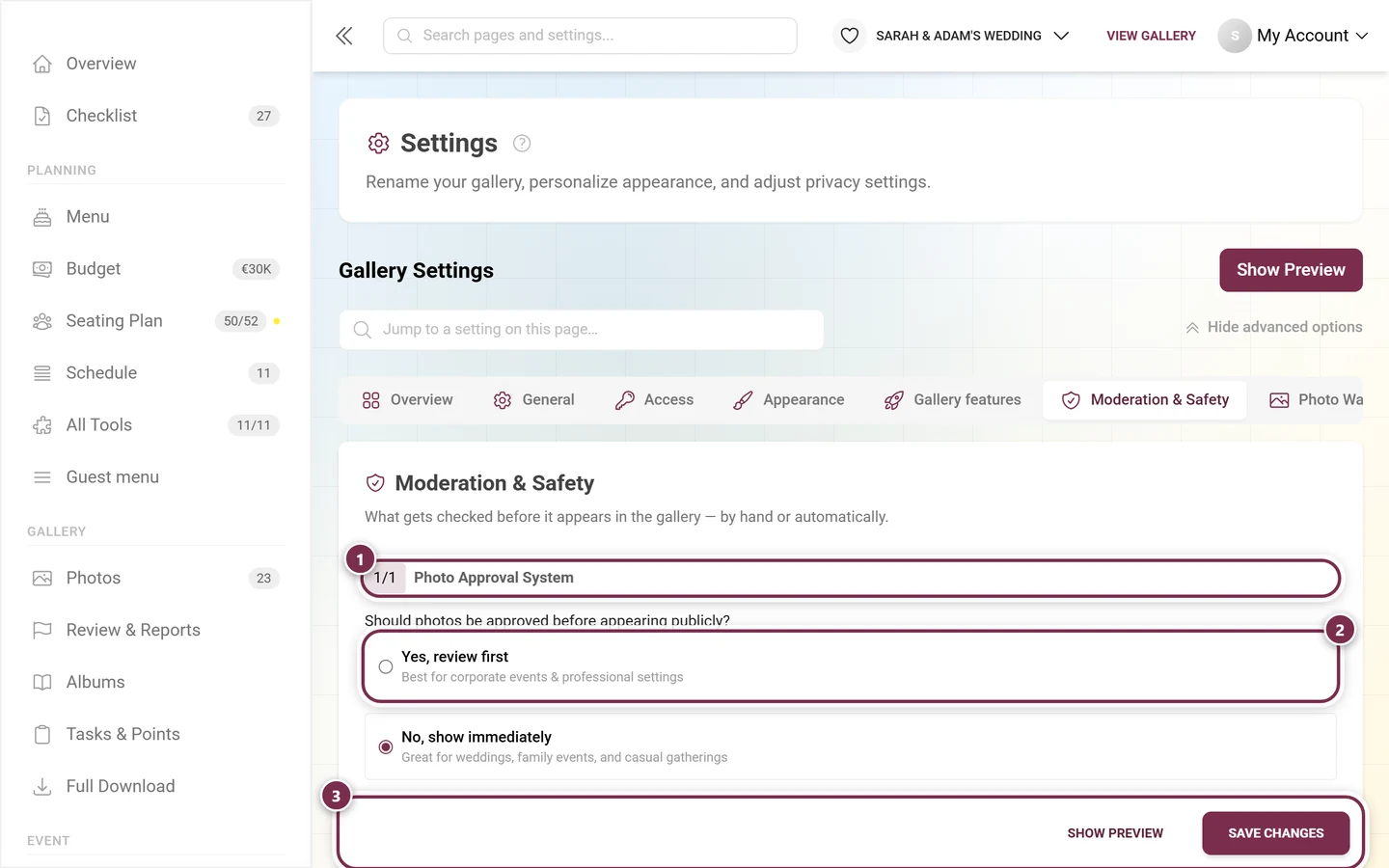
Section titled “Saving & applying”The page saves nothing — it is pure monitoring plus the actions Refresh, Process older photos, Retry Processing and Ignore. The actual switching on and off happens in settings (via the Configure/Switch on links). After toggling and saving there, processing starts from the next photo; you pull in the existing stock with Process older photos.
Plan & unlocking
Section titled “Plan & unlocking”- The content filter and face recognition are each tied to your event plan. If one is missing, its card shows the unlock button to the pricing page; if both are missing, the whole page is locked.
- Branded events show no purchase button – they cannot upgrade themselves.
- Even with the right plan, the capability still has to be switched on in settings before tiles and bars show figures.
- Switching on face recognition requires an explicit consent to face processing (GDPR/biometric data). Turning features on & off describes the exact flow.
Problems & solutions
Section titled “Problems & solutions”- I see no bars, only “Switched off”. The capability is in your plan but not switched on yet — jump into settings via Switch on.
- Old photos show up nowhere. They sit under Not affected and in the card’s footer. Click Process older photos once.
- The “Failed” number stays put. Try Retry Processing; once the limit (Max retries) is reached only Ignore helps.
- Progress seems stuck. Press Refresh (30-second cache); “In progress” is a normal intermediate state.
- “Not affected” is larger than my photo count. The tiles sum both capabilities; the individual figures sit in the cards’ footers.
- I cannot find the “AI Processing” sub-item. It is hidden as long as your plan includes neither capability – and it only expands while you are in the Statistics area.
- The page only shows a locked screen. Your plan includes neither the content filter nor face recognition.
- The statistics page shows no AI card. That is correct – the AI figures live exclusively on this page.
Best practices
Section titled “Best practices”- Switch the content filter on before you open up guest uploads, so sensitive material moves into moderation automatically.
- Switch face recognition on early so guests find their own photos via people search right away — and mind the consent (privacy).
- If you switch on later, remember Process older photos – otherwise half the evening stays unchecked.
- After big upload waves, press Refresh once and check the Failed tile.
Related help
Section titled “Related help”- Moderation & safety (settings) — the content filter toggle and its options.
- Turning features on & off — switching on face recognition including consent to face processing.
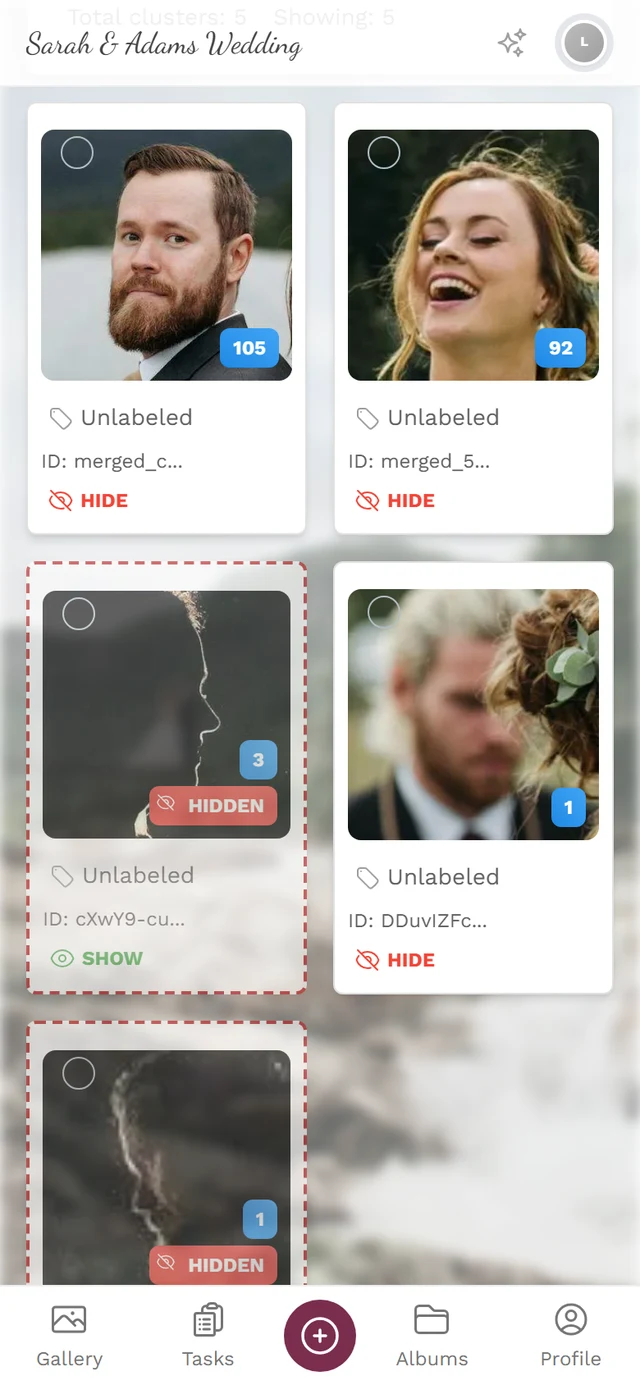
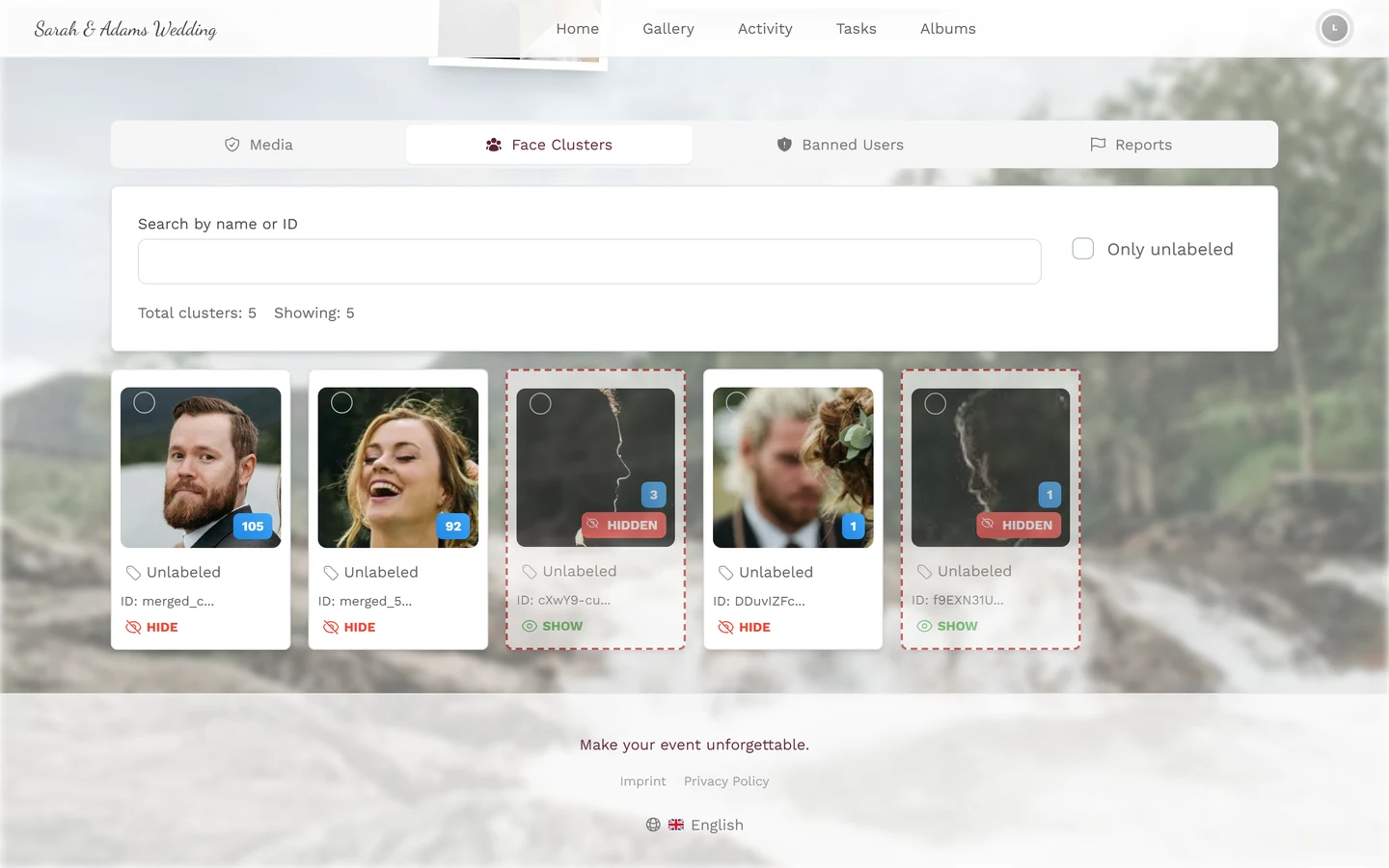
- Face groups — what becomes of the recognized faces.
- Moderation — where sensitive uploads go.
- Event statistics — the neighbouring area in the sidebar.
- People search (guest view) and privacy — what face recognition does for guests.